Getting Started with Playlists (How to Create & View Them)
Last updated: September 4, 2026
Playlists help you keep related soundbites together, so important meeting moments are easy to find and share. This guide explains how playlists work in Fireflies and shows you how to create and view them, making it easier to organize key clips for training, onboarding, or quick sharing with your team.
Want to learn more about Soundbites? Check out our guide: Learn About Soundbites (Meeting Clips & Highlights) to understand how soundbites work and how to create them.
Let’s get started. 🚀
🛠 How to Create a Playlist
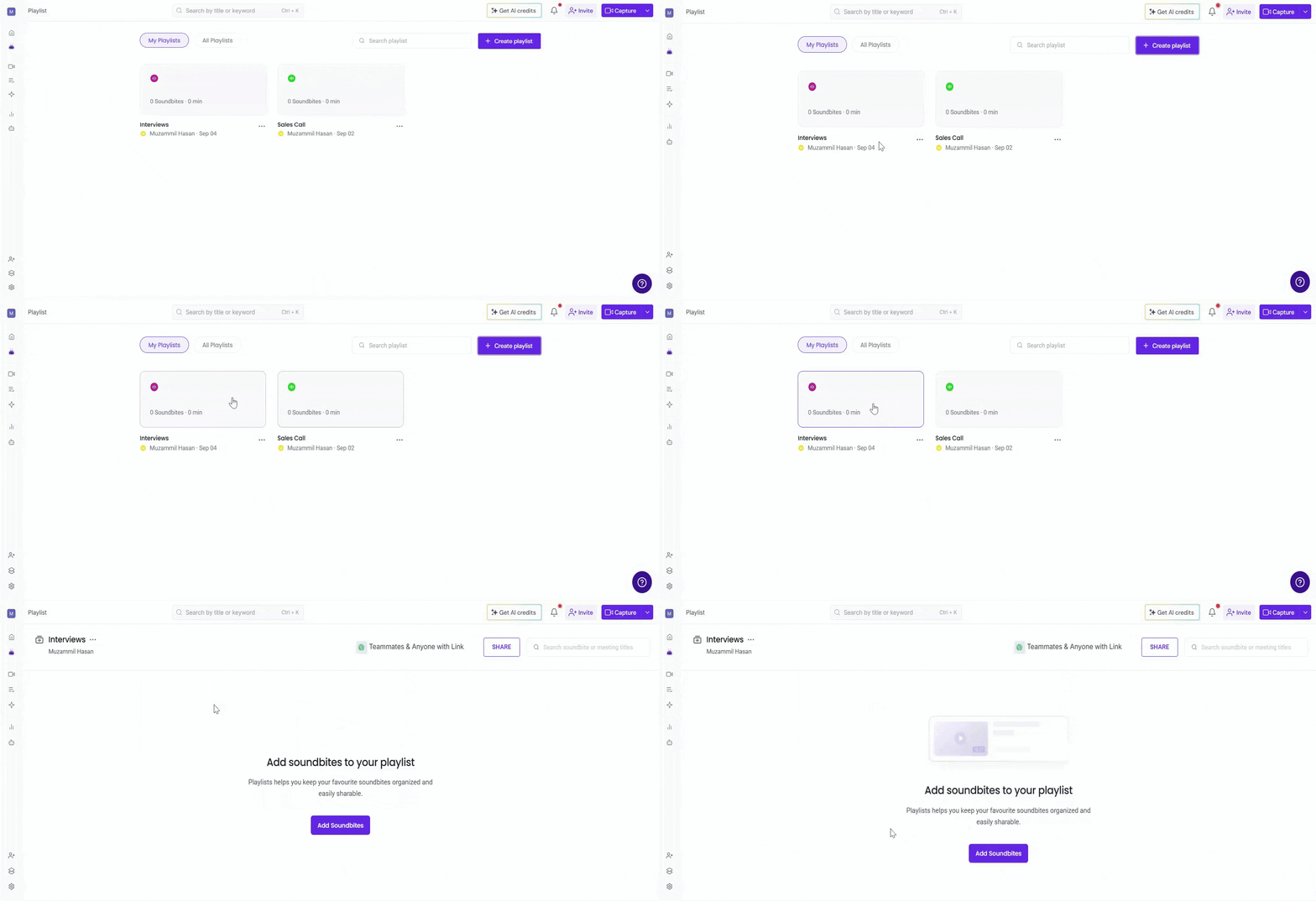
Step 1: Log in to your Fireflies account.Click your profile icon in the top-left corner, then select Playlist from the menu.
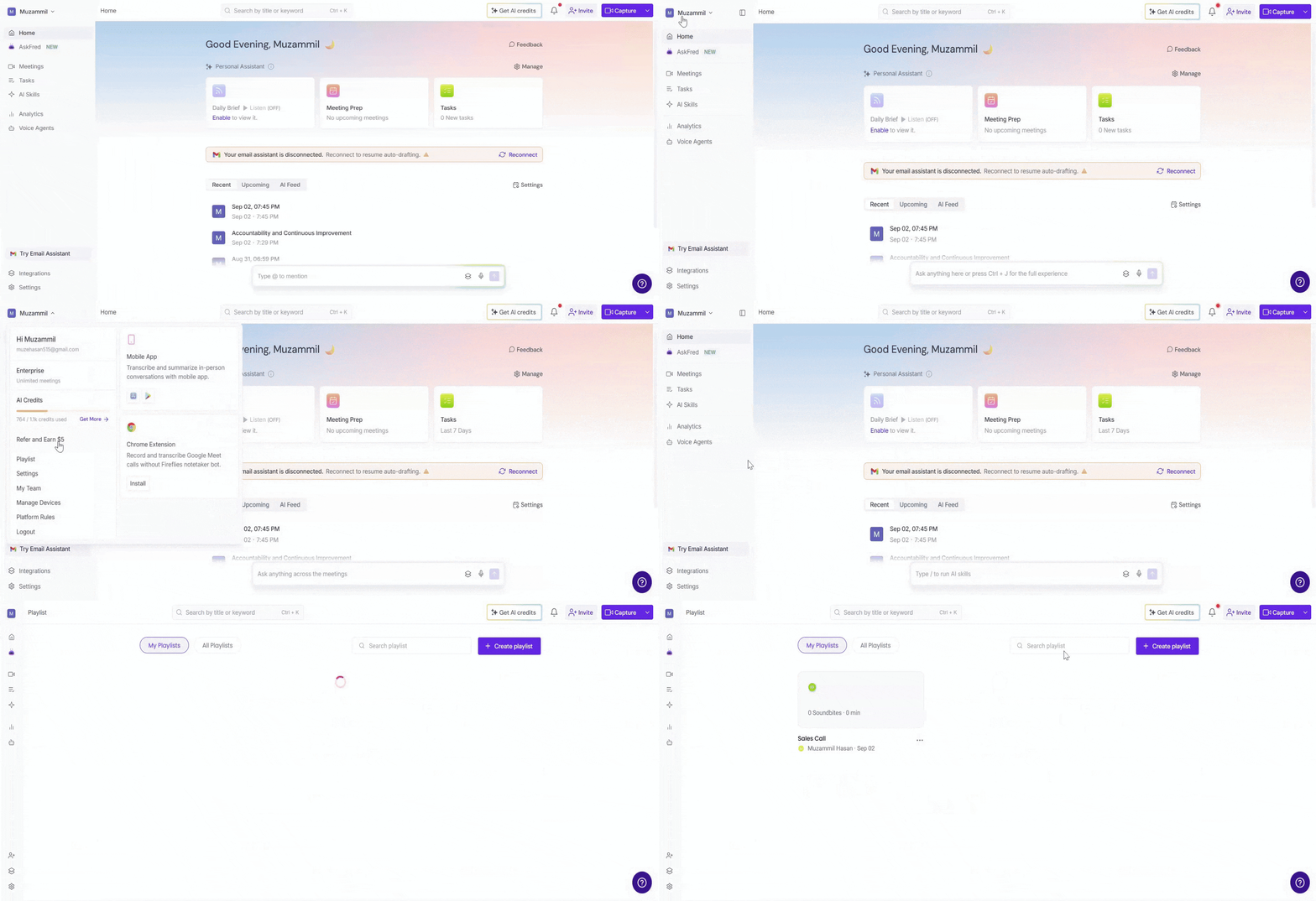
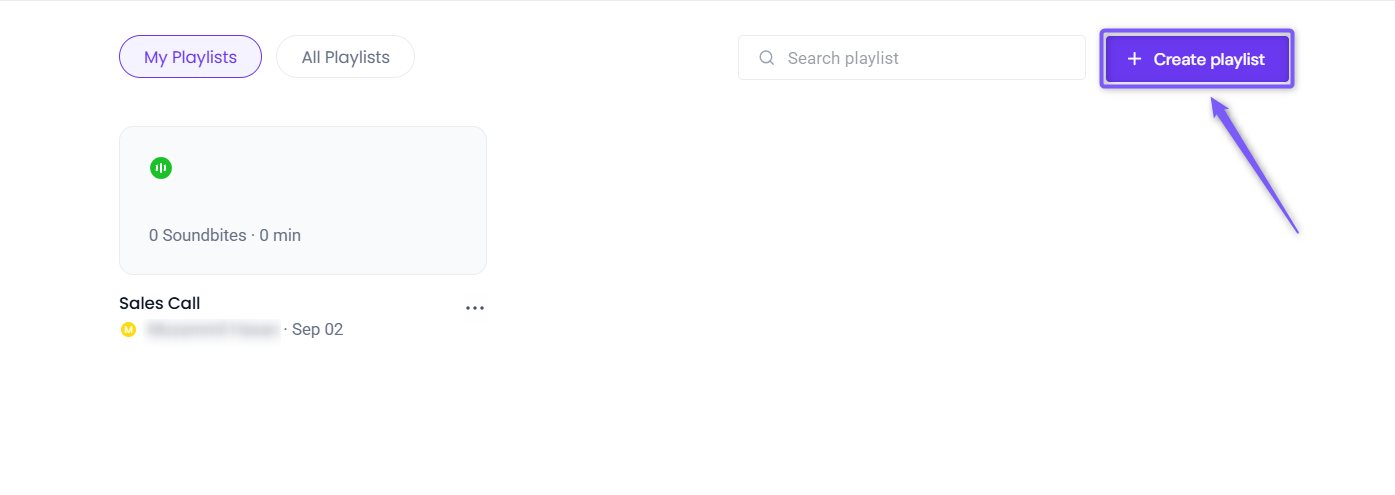
Step 2: Click on the Create Playlist button located at the top right of the screen.
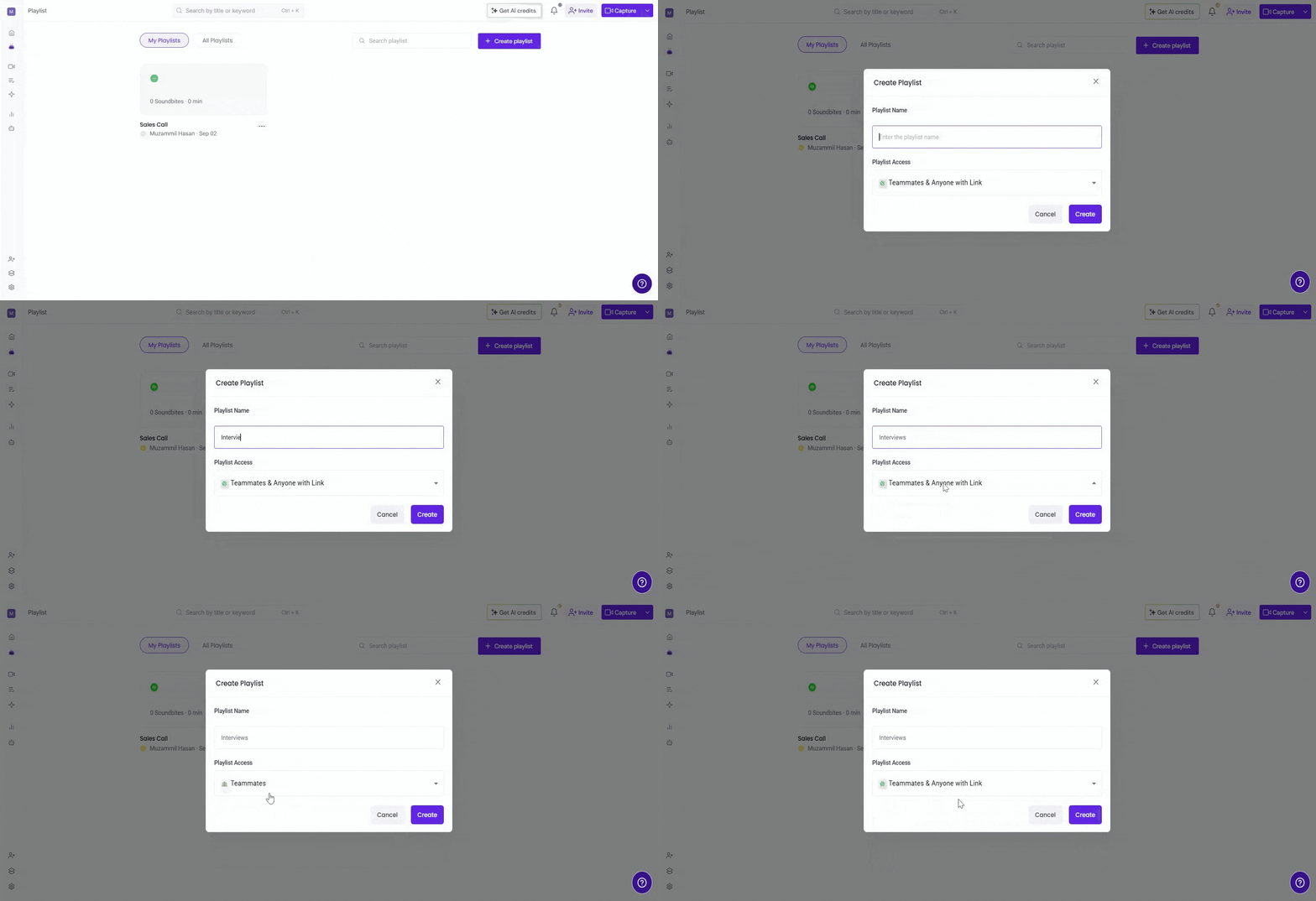
Step 3: A modal window will appear. Enter the playlist name and select the appropriate access level for who can view it (Teammates & Anyone with Link, Teammates, or Only me).
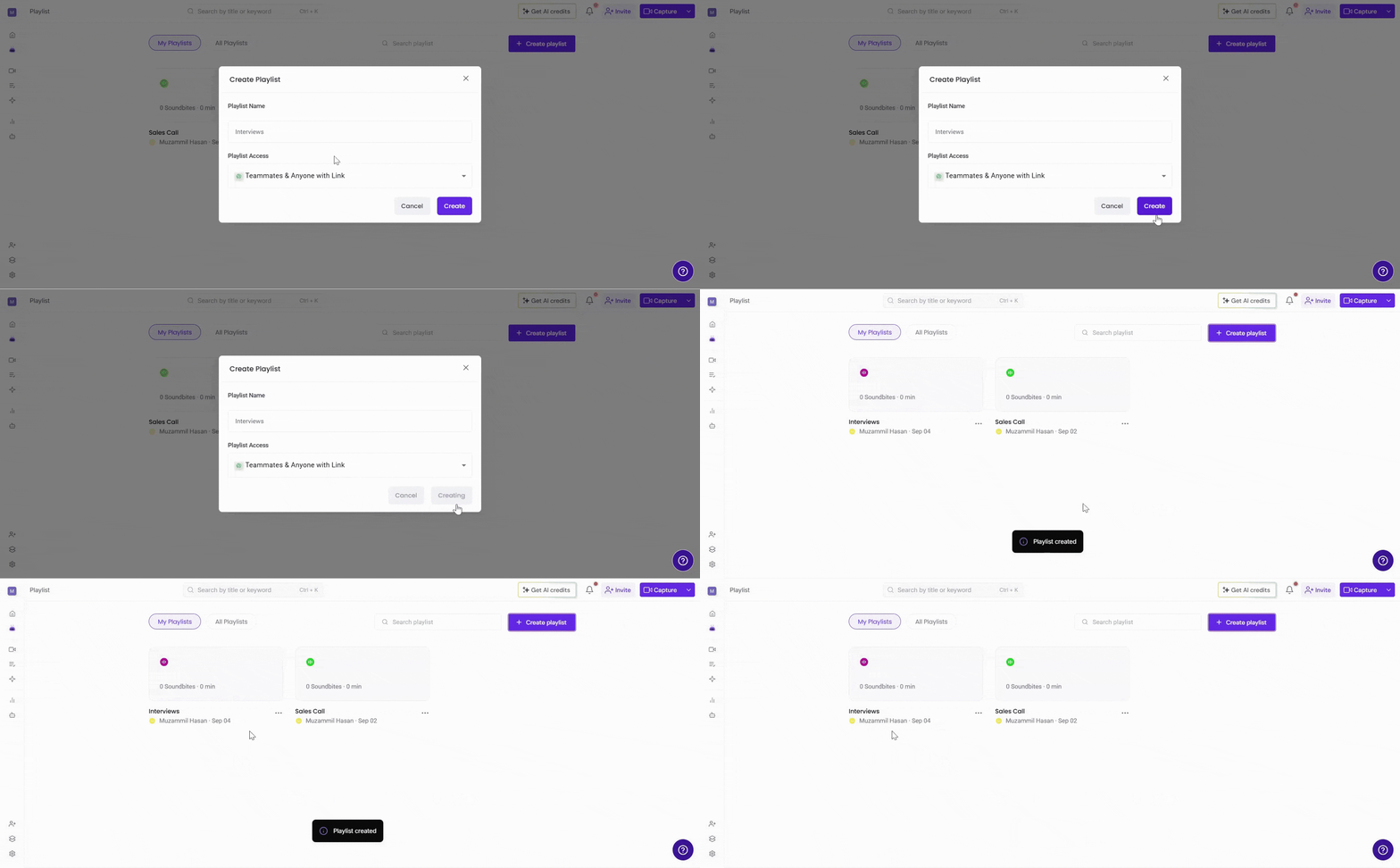
Step 4: Click on the Create button to save and finish creating your playlist.
➕ How to Add Soundbites to a Playlist
Once your playlist is created, you can start adding soundbites to it. Fireflies gives you two simple ways to do this—either directly from the Playlist view or while creating/editing a soundbite.
1⃣ Add Soundbites from the Playlist
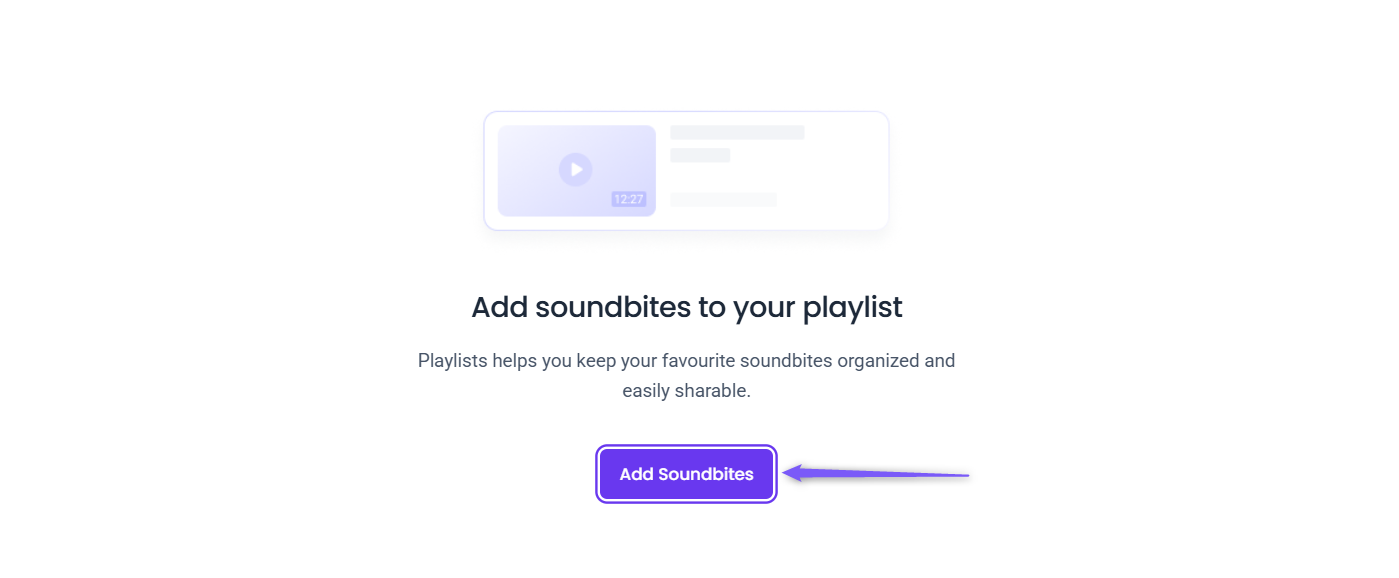
Open the Playlist where you want to add soundbites.
Click on the Add Soundbite button.
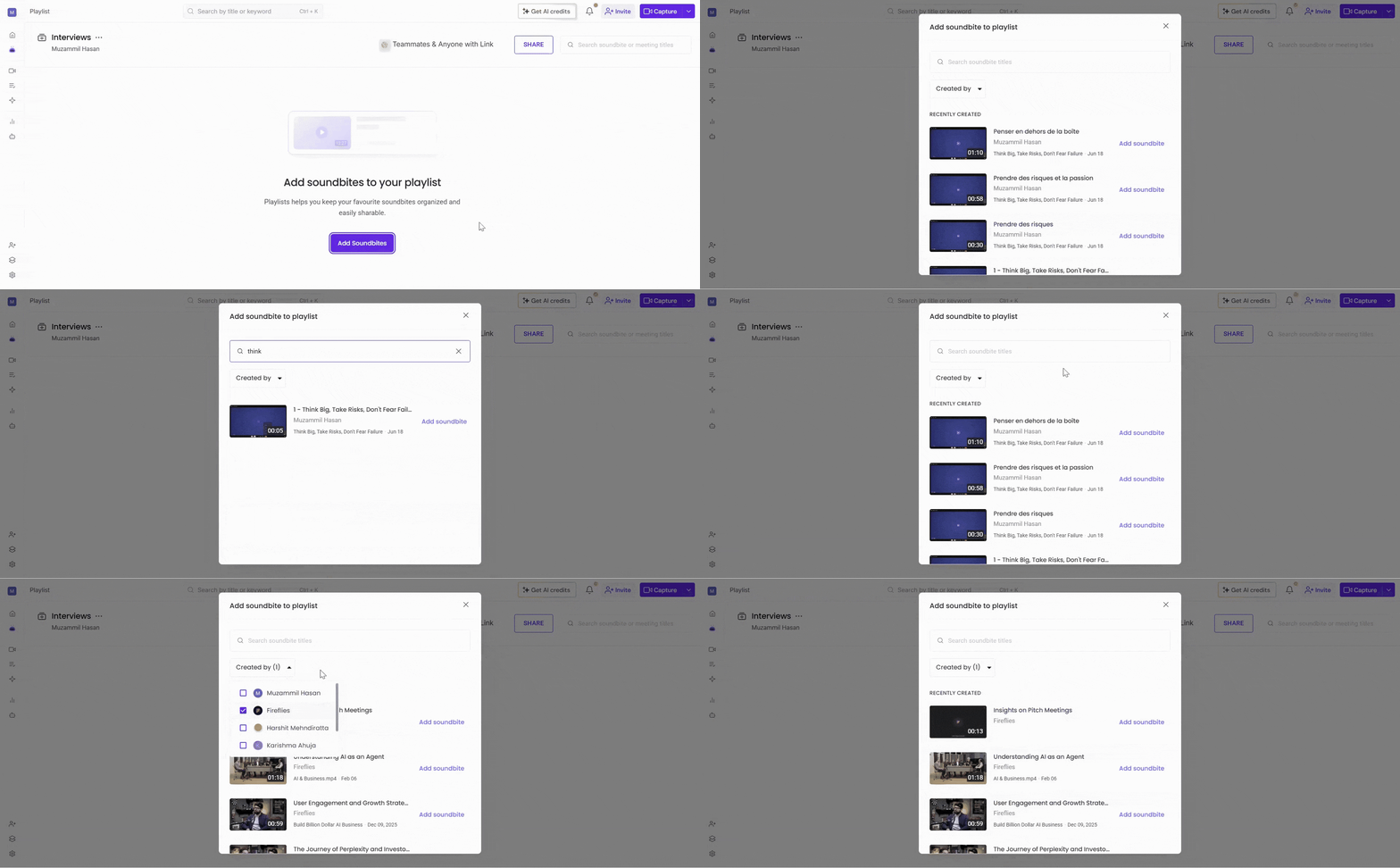
A modal window will appear showing a list of all your available soundbites. You can search for a soundbite using the search bar or use the Created by filter to quickly narrow down the results.
Click Add soundbite next to each soundbite you want to include in the playlist. Once added, it will show a checkmark (Added) to confirm it’s now part of the playlist.
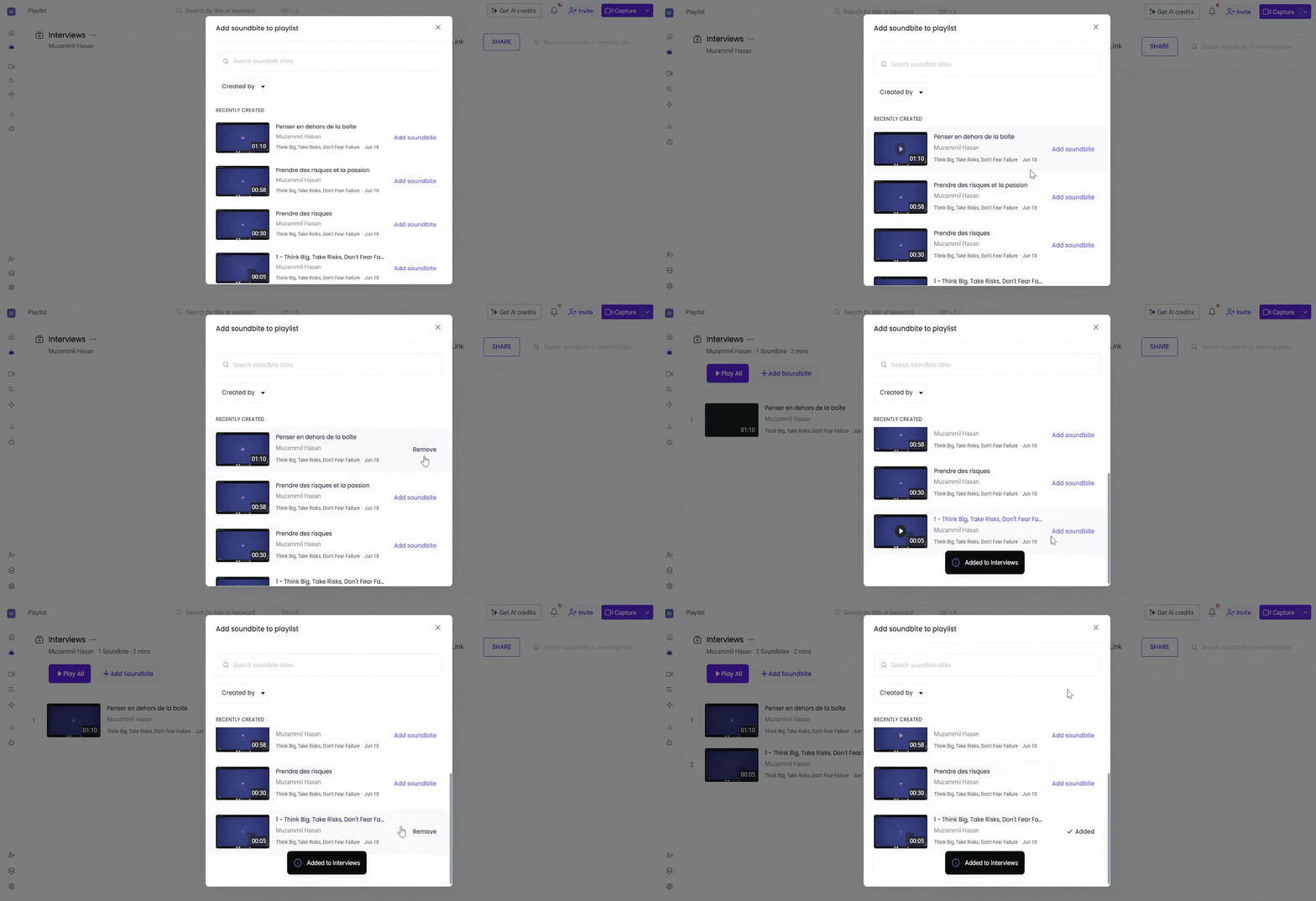
This method works best when you already know which playlist you're organizing and want to add multiple soundbites at once.
2⃣ Add Soundbites from the Soundbite Window
You can also add a soundbite to a playlist right when you're creating or editing it — which is often the fastest way to keep things organized.
Click on the Meetings tab from the left-hand menu.
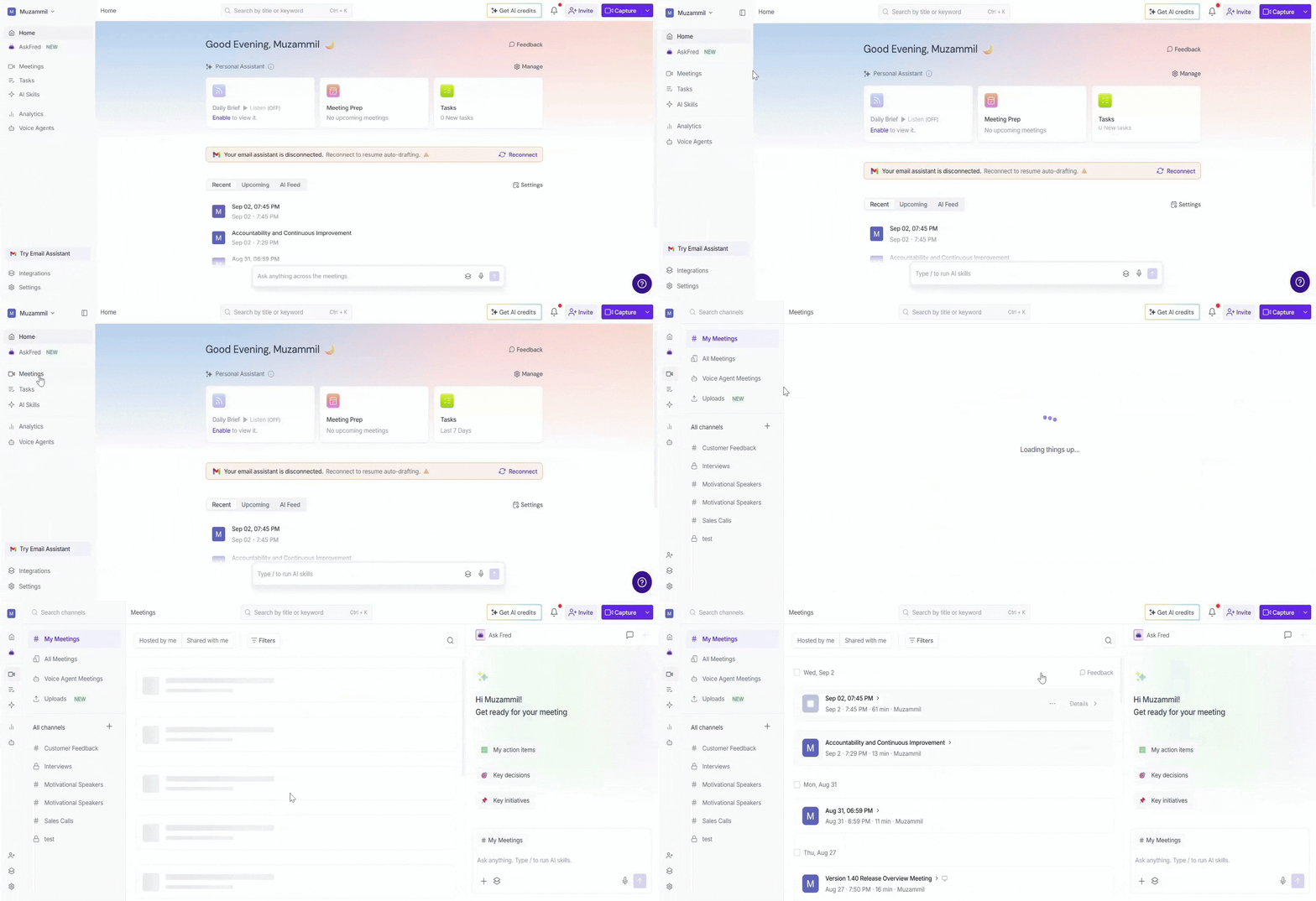
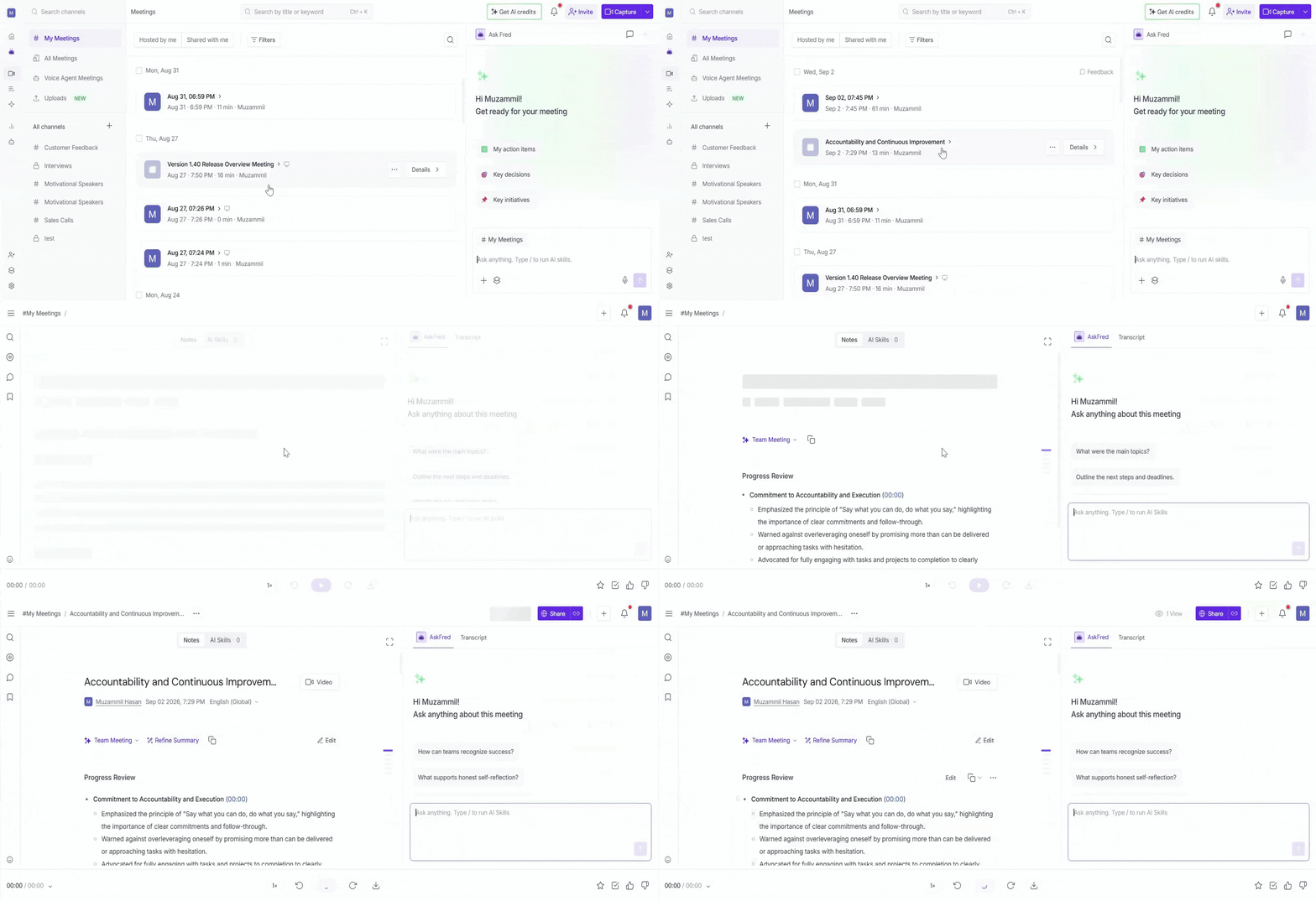
Open the meeting you want to add a soundbite from by clicking on it to access the meeting notes.
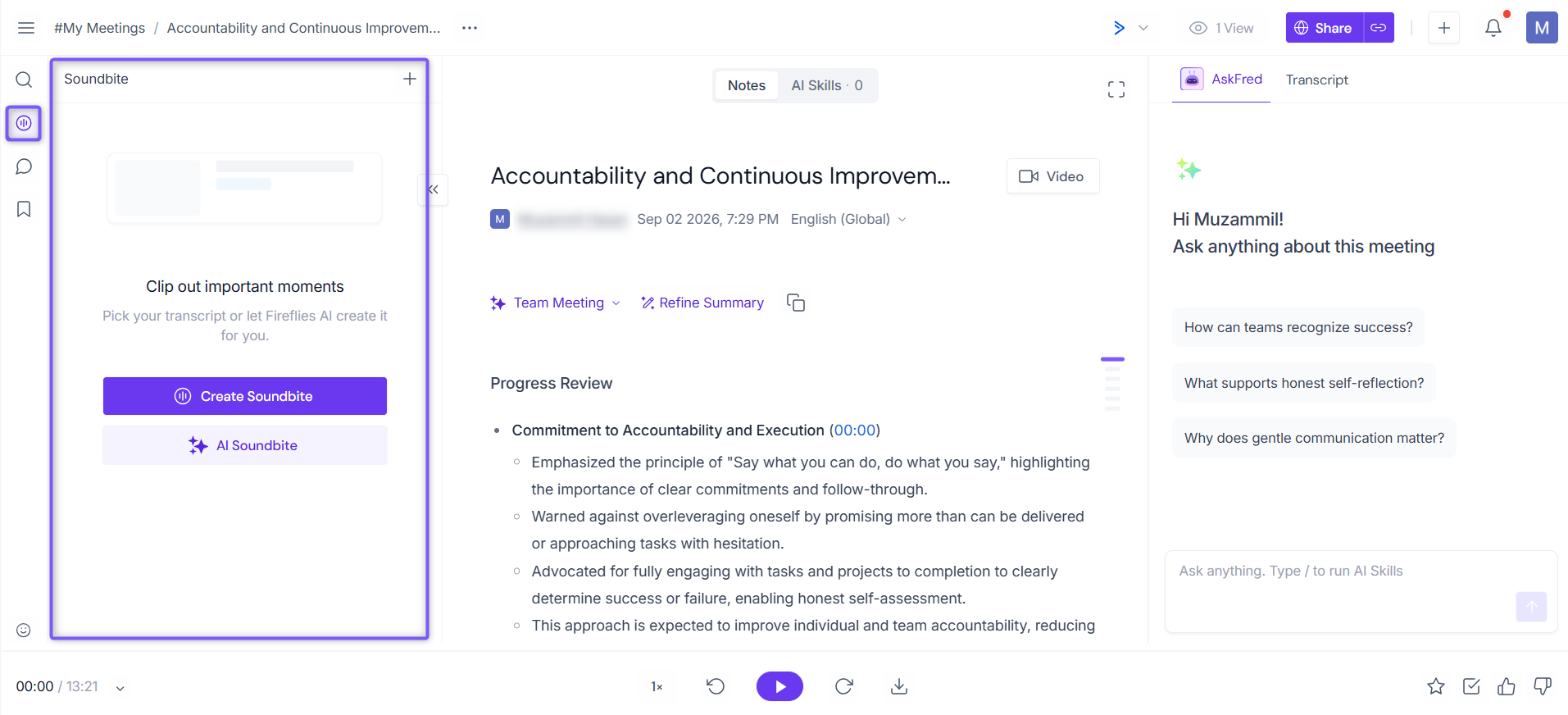
Click on the Soundbite tab from the left menu to open and view your created soundbites.
Open the Soundbite modal, which appears whenever you create a new soundbite or edit an existing one. This is where you can add a soundbite to a playlist.
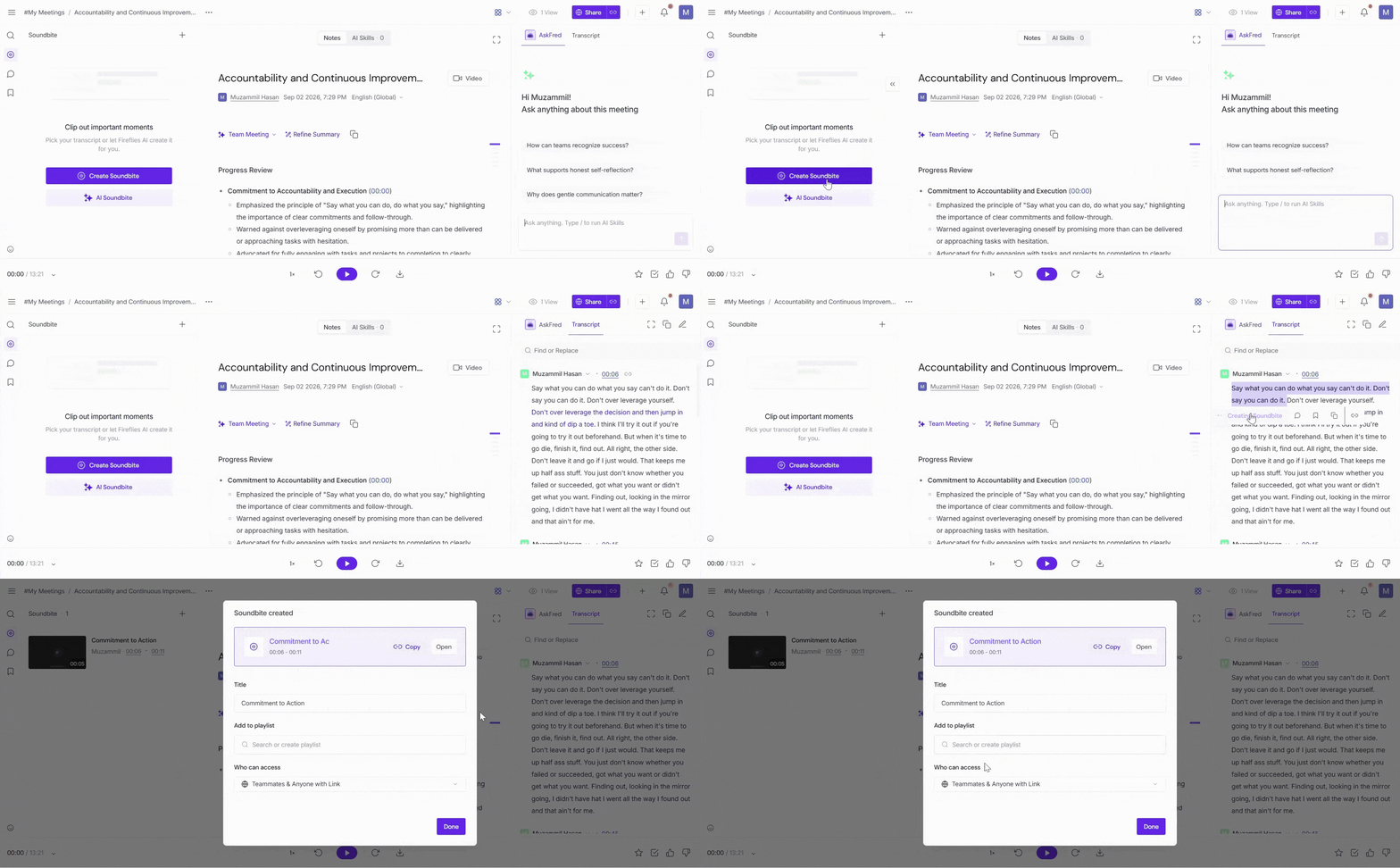
Choose whether to add the soundbite to an existing playlist for better organization. You can also create a new playlist directly from here.
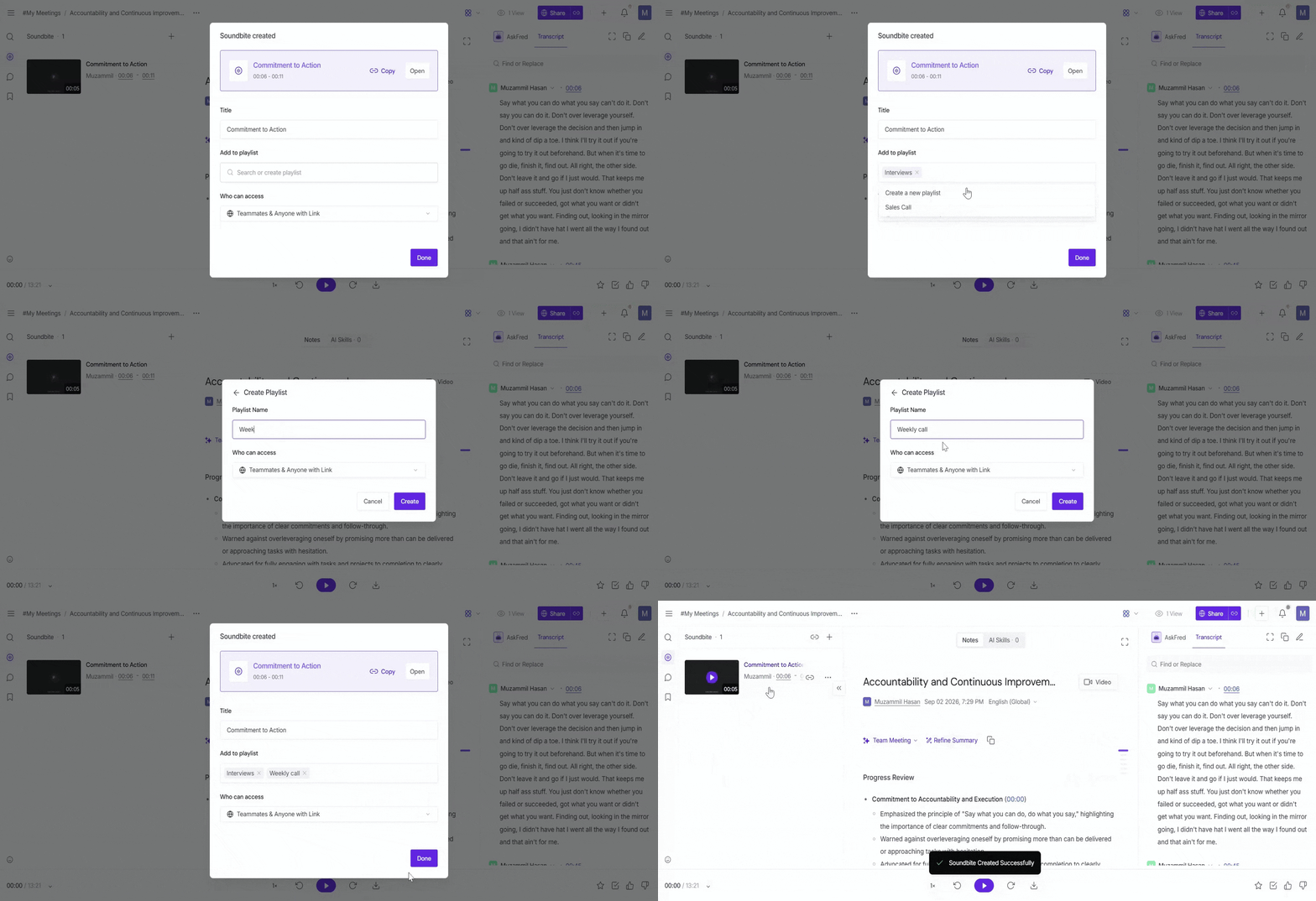
📂 How to View & Play a Playlist
Once your playlists are created, you can quickly access them from the Playlist section to browse, review, or play all your saved soundbites in one place.
Step 1: Click your profile icon in the top-left corner, then select Playlist from the menu.
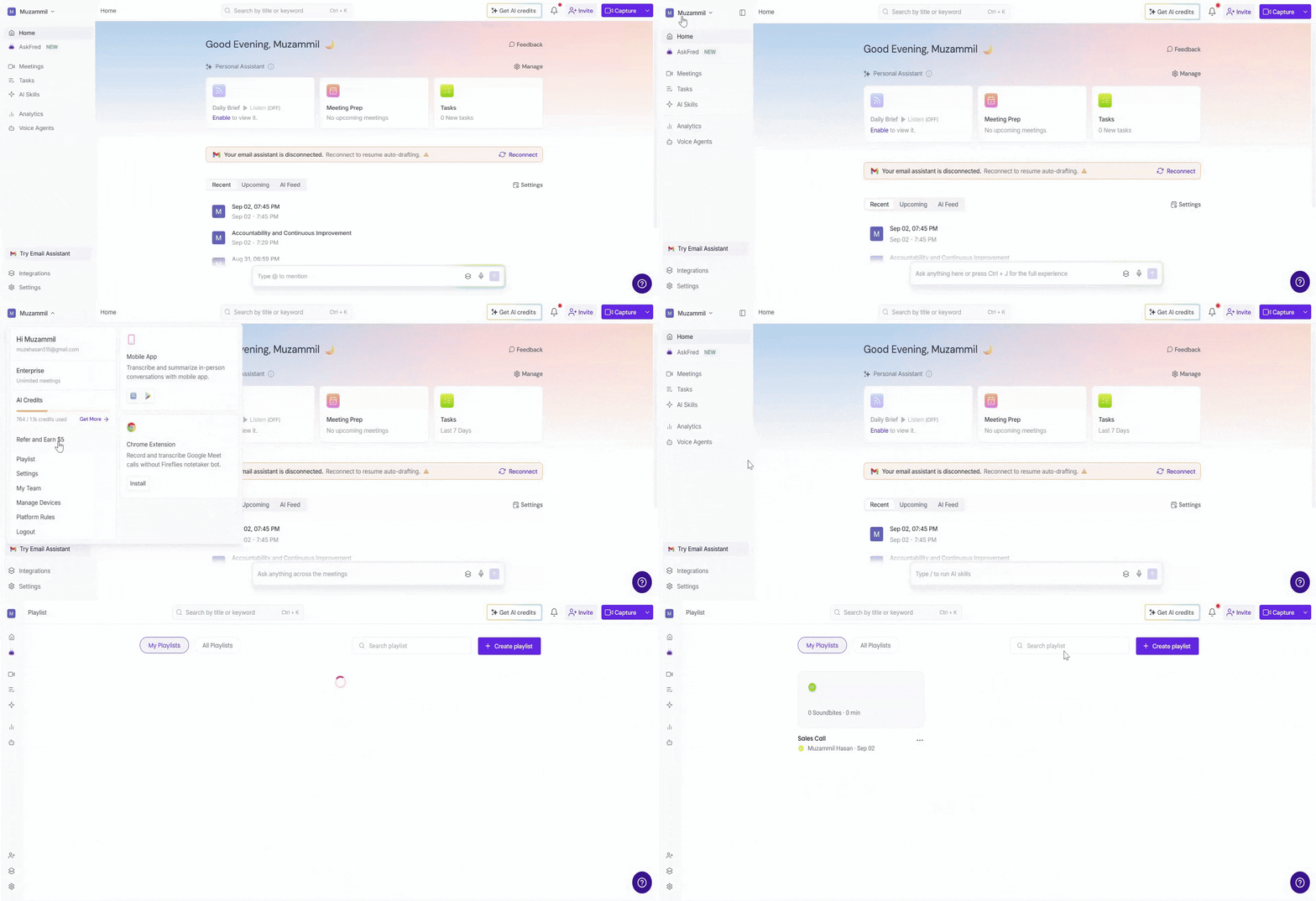
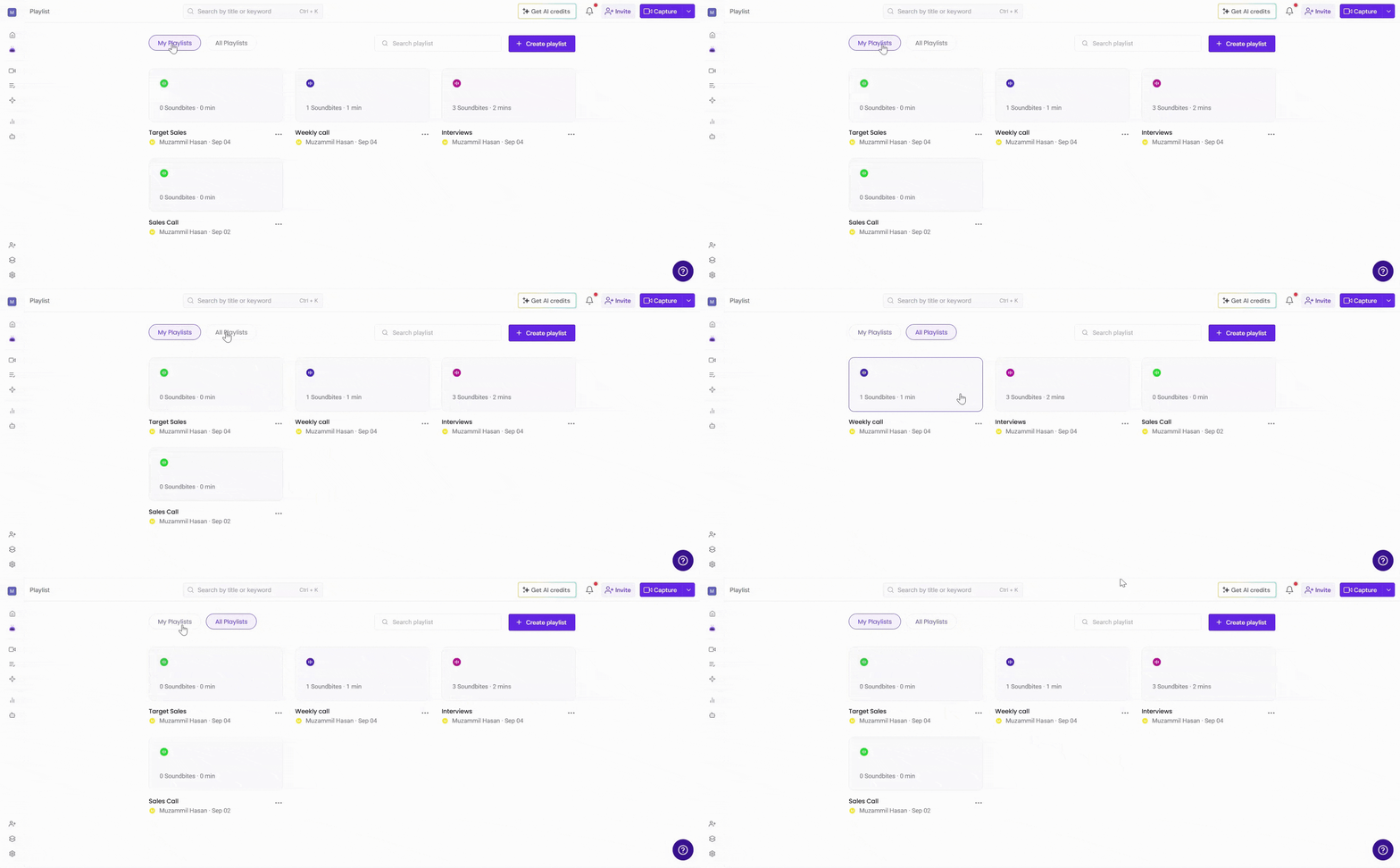
Step 2: Your playlists are organized into two tabs:
My Playlists — playlists you’ve created and own
All Playlists — playlists that have been shared with you or are visible based on access settings
You can also use the Search bar to quickly find a specific playlist by name.
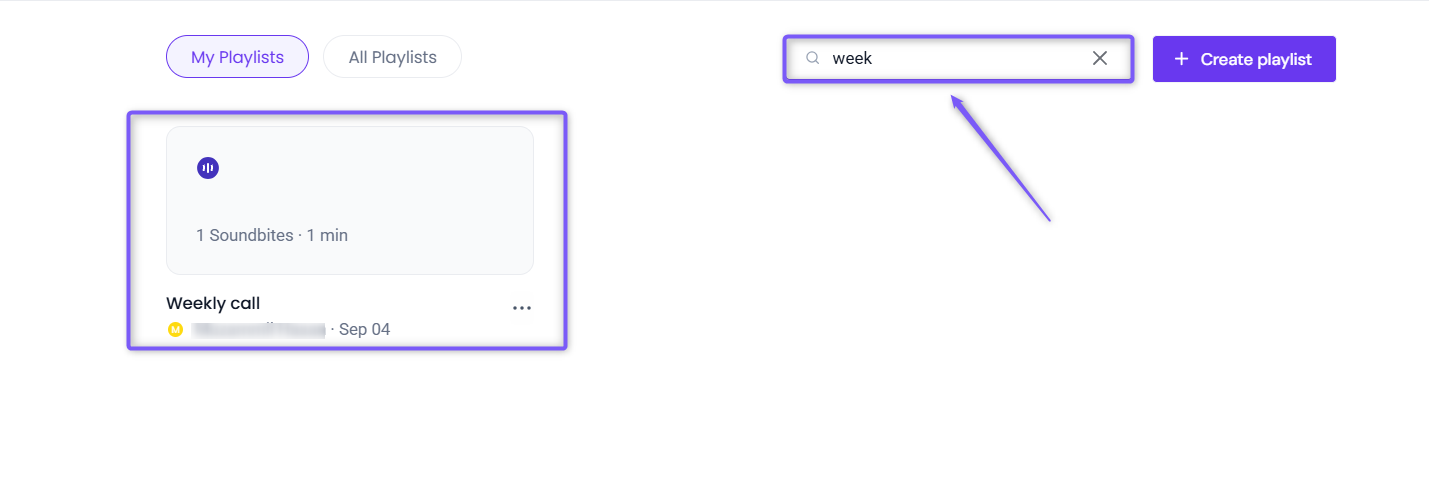
Play a Soundbite
Open the playlist that contains the soundbite you want to play by selecting it from the list of available playlists.
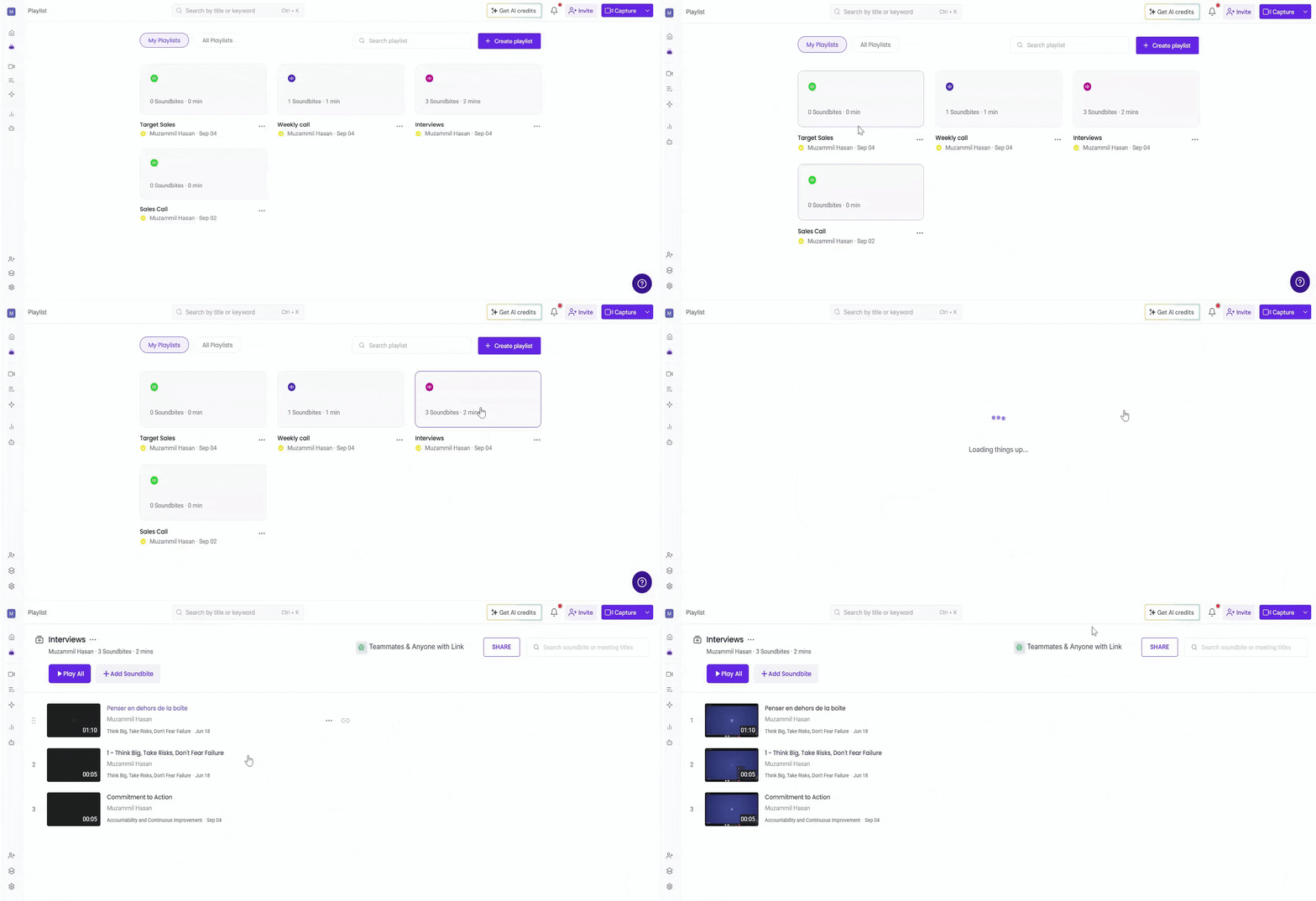
Click on the soundbite you want to listen to. It will open in the built-in player, where you can play the clip and view the transcript alongside it.
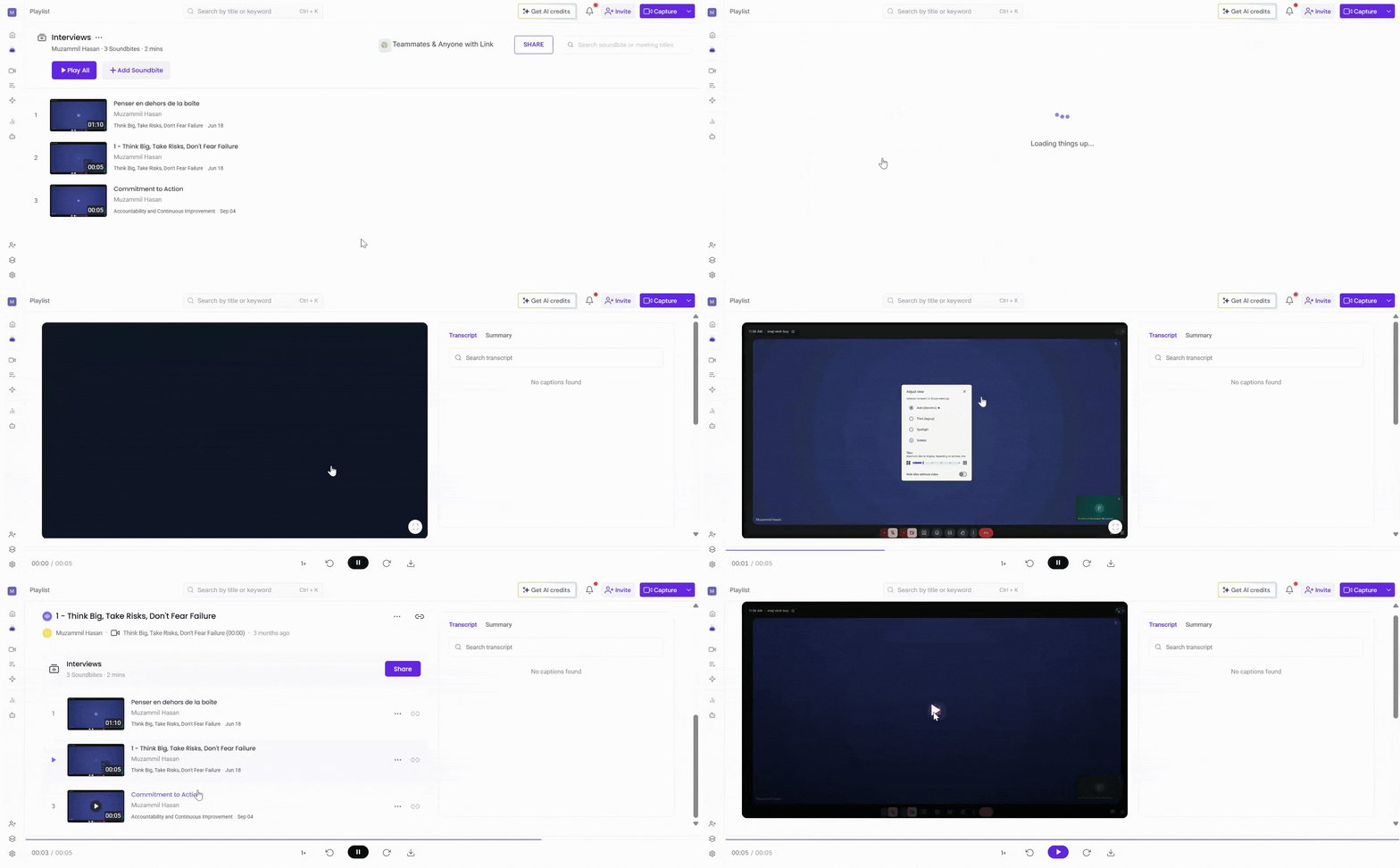
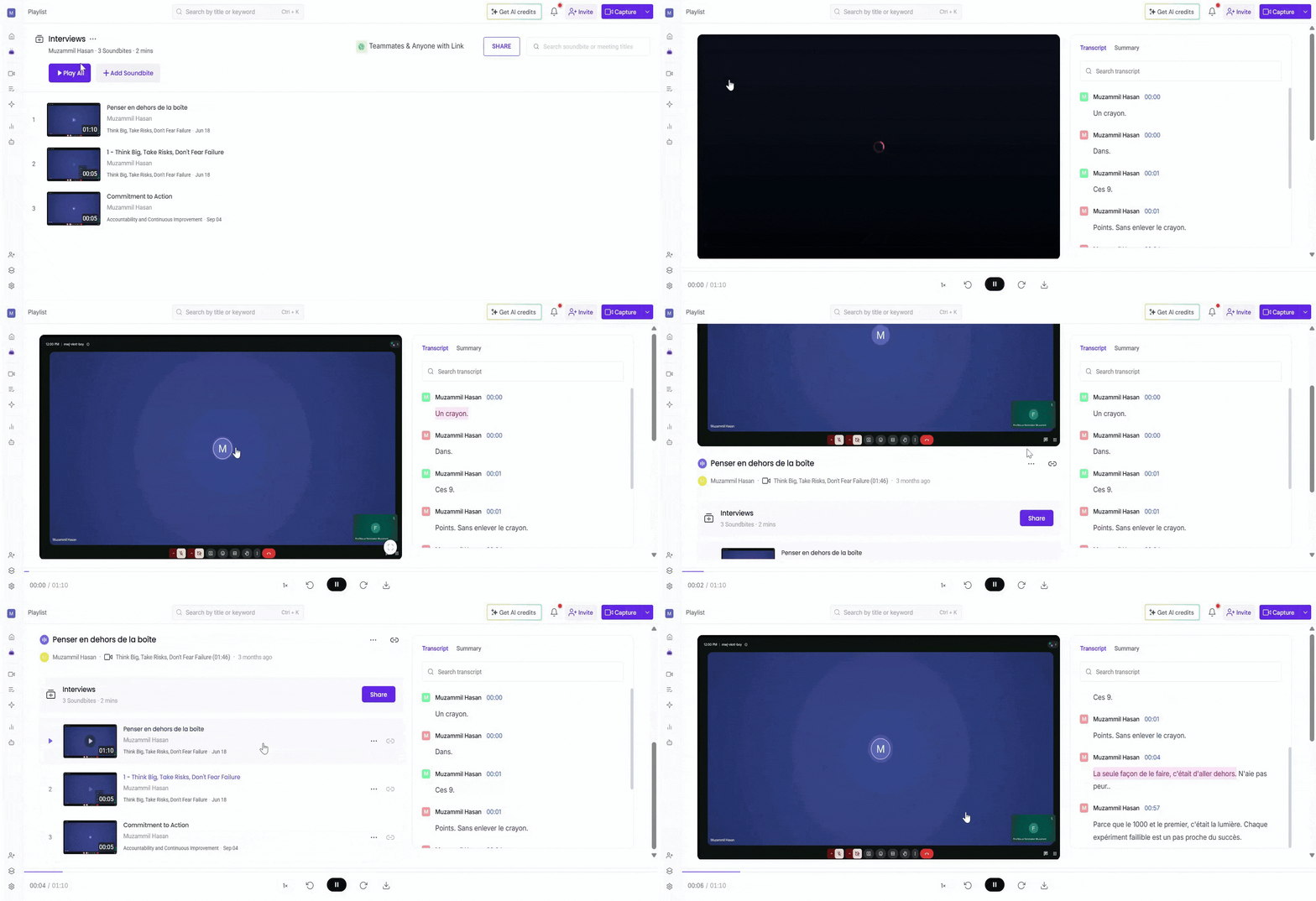
When you play a soundbite, the transcript for each soundbite will appear on the right side, so you can read and listen at the same time.
To play all soundbites in order, click on the Play All button at the top of the playlist. Fireflies will automatically play each clip one after another.
🛠 Troubleshooting & FAQs
Q1. I can’t see a playlist that someone shared with me.
A: Playlist visibility depends on the playlist’s privacy settings and the access level of each soundbite inside it. Make sure the soundbites are not set to a more restrictive access level.
Q2. Some soundbites are not showing inside the playlist. Why?
A: The soundbite’s privacy may be more restrictive than the playlist’s. Update the soundbite access to make it visible.
Q3. I don’t see the Playlist option in the left menu.
A: Click your profile icon in the top-left corner. You’ll find Playlist in the menu that appears.
Q4. If I delete a soundbite, what happens to the playlist?
A: The soundbite will be removed from all playlists and cannot be recovered.
Q5. Can I share my playlist with people outside my team?
A: Yes. Set the playlist’s privacy to Anyone with the link to allow external access.
Q6. Can I reorder soundbites inside a playlist?
A: Currently, Fireflies plays soundbites in the order they were added. Manual reordering isn’t available yet.
🔄️ Recap
Playlists give you a simple way to organize and group your soundbites so you can quickly review, share, or reuse important meeting moments. In this guide, you learned how to:
Create a playlist from the Playlist tab or while working inside the Soundbite modal
Add soundbites to playlists using two different methods
View, search, and open playlists
Play individual clips or use Play All to listen to the full collection
With playlists, your key insights stay organized and easy for you and your team to access anytime.
📌 Related Guides
Explore more resources to help you organize and work with your meeting insights:
Managing Soundbites (Edit, Delete, Download, Share) – Learn how to manage and organize your soundbites
Manage Your Playlist (Edit, Delete & Share) – Discover how to update playlist details, remove soundbites, or share playlists
Learn about the Fireflies Notepad – Understand how to organize your meeting notes and easily access key moments.
Fireflies AI Meeting Summaries: View, Customize, Expand, Regenerate – Learn how to view, customize, and regenerate AI meeting summaries to highlight key points.