Learn about the Bookmarks feature in Fireflies
Last updated: December 19, 2025
Meetings move quickly, and important decisions or action items can be easily missed. Bookmarks in Fireflies make it easy to mark key moments and revisit them later—without having to replay the entire meeting.
Each bookmark links directly to a specific timestamp, helping teams quickly review conversations, stay aligned, and follow up efficiently across meetings.
Let's get started 🚀
🚀Navigation
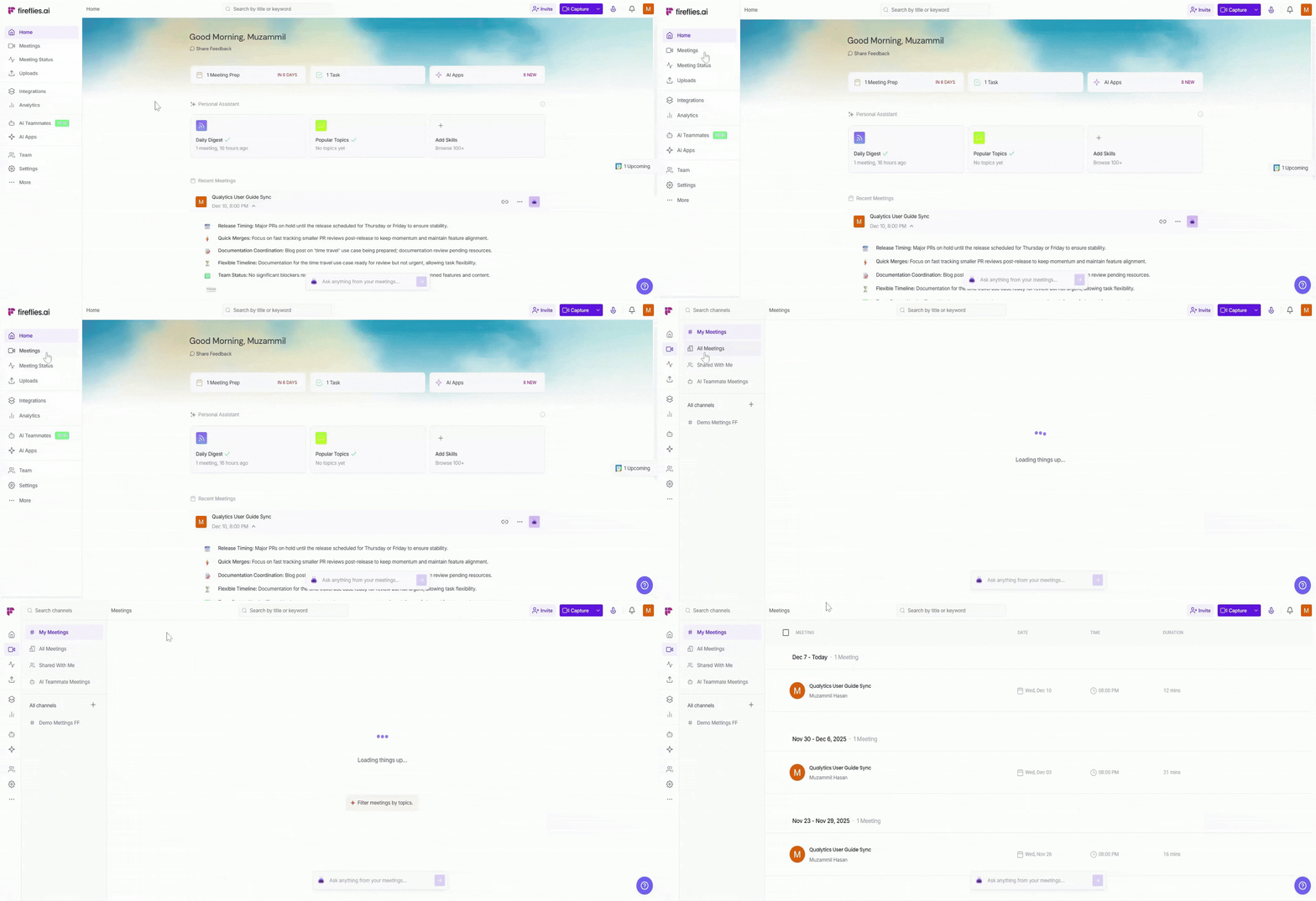
Step 1: Log in to your Fireflies account and click on the Meetings tab from the left-hand menu to open your meeting notebook.
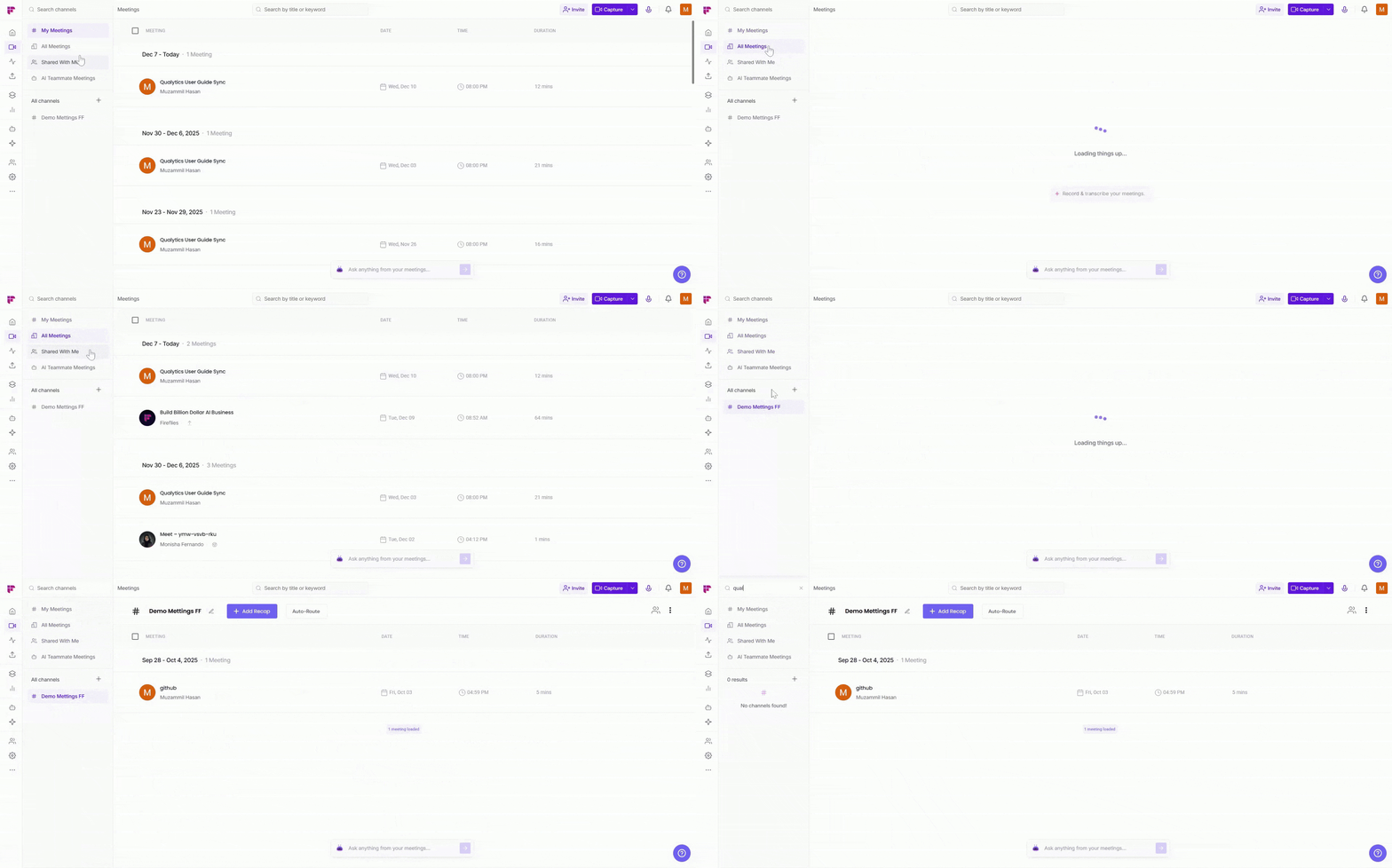
Step 2: Now, search for the meeting you want to use by typing keywords in the search bar or using the category filter (e.g., My Meetings, All Meetings, Channels) to find the relevant meeting.
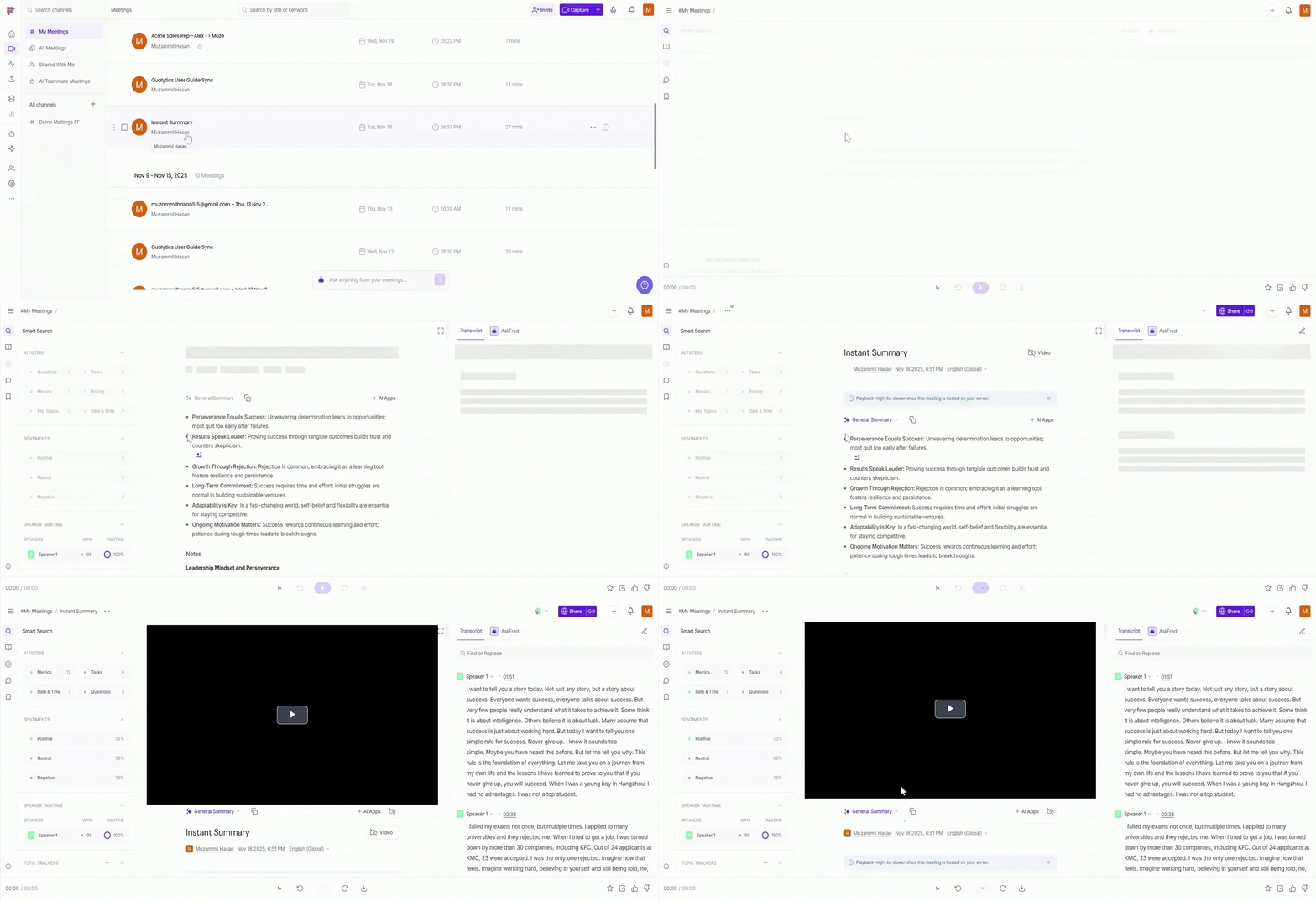
Step 3: Open the meeting where you want to view or create bookmarks. This takes you to the meeting transcript, where bookmarks are displayed and can be added.
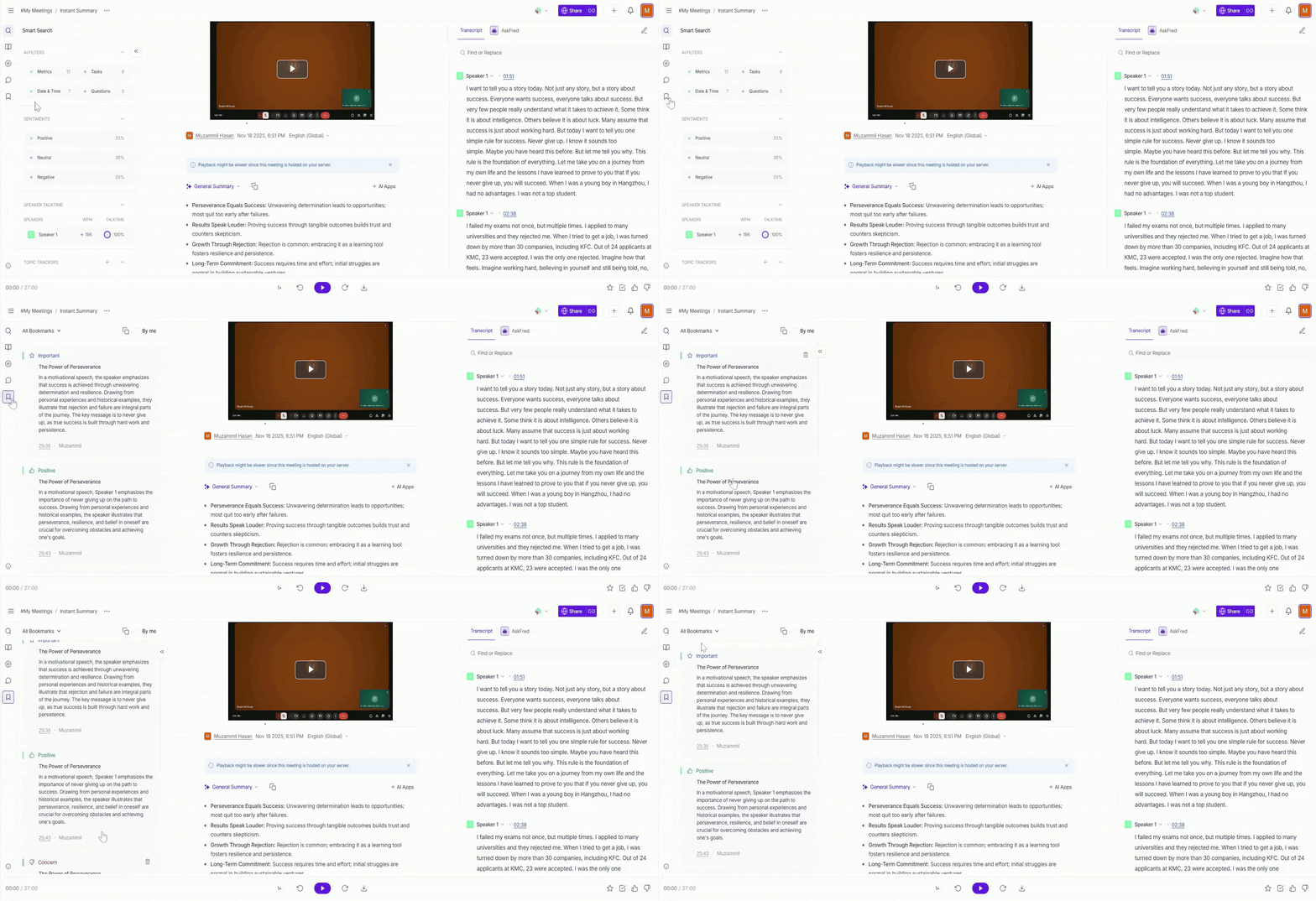
Step 4: Click on the Bookmarks tab from the left menu to view and access all bookmarks for the meeting.
🏷 Types of Bookmarks
Fireflies offers different bookmark types to help you organize key moments in your meetings. Each bookmark is tied to a timestamp, making it easy to jump straight to the relevant part of the conversation.
Ref. | Bookmark Type | Description |
1 | Important (Bookmark) | Save key discussion points or decisions you may want to revisit later. |
2 | Action Items | Flag tasks, next steps, or follow-up actions mentioned during the meeting. |
3 | Positive | Highlight positive feedback, wins, or moments that stood out. |
4 | Concern | Mark issues, risks, or points that may need review or clarification. |
5 | Soundbite (Optional) | Capture a short video or audio clip from the meeting |
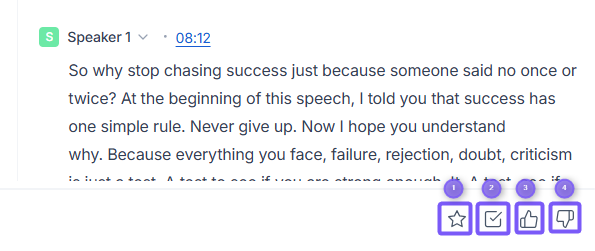
Soundbites are optional. Use bookmarks to organize meetings, and use Soundbites when you want to share a short audio or video clip of a specific moment with others.
🎯 Create Bookmarks
You can create bookmarks in two simple ways—either directly from the transcript or using meeting markers while reviewing a meeting. Both methods help you quickly flag important moments and revisit them later.
Method 1: Create a Bookmark from the Transcript
Use this method when you want to bookmark a specific sentence or part of the conversation while reviewing a meeting.
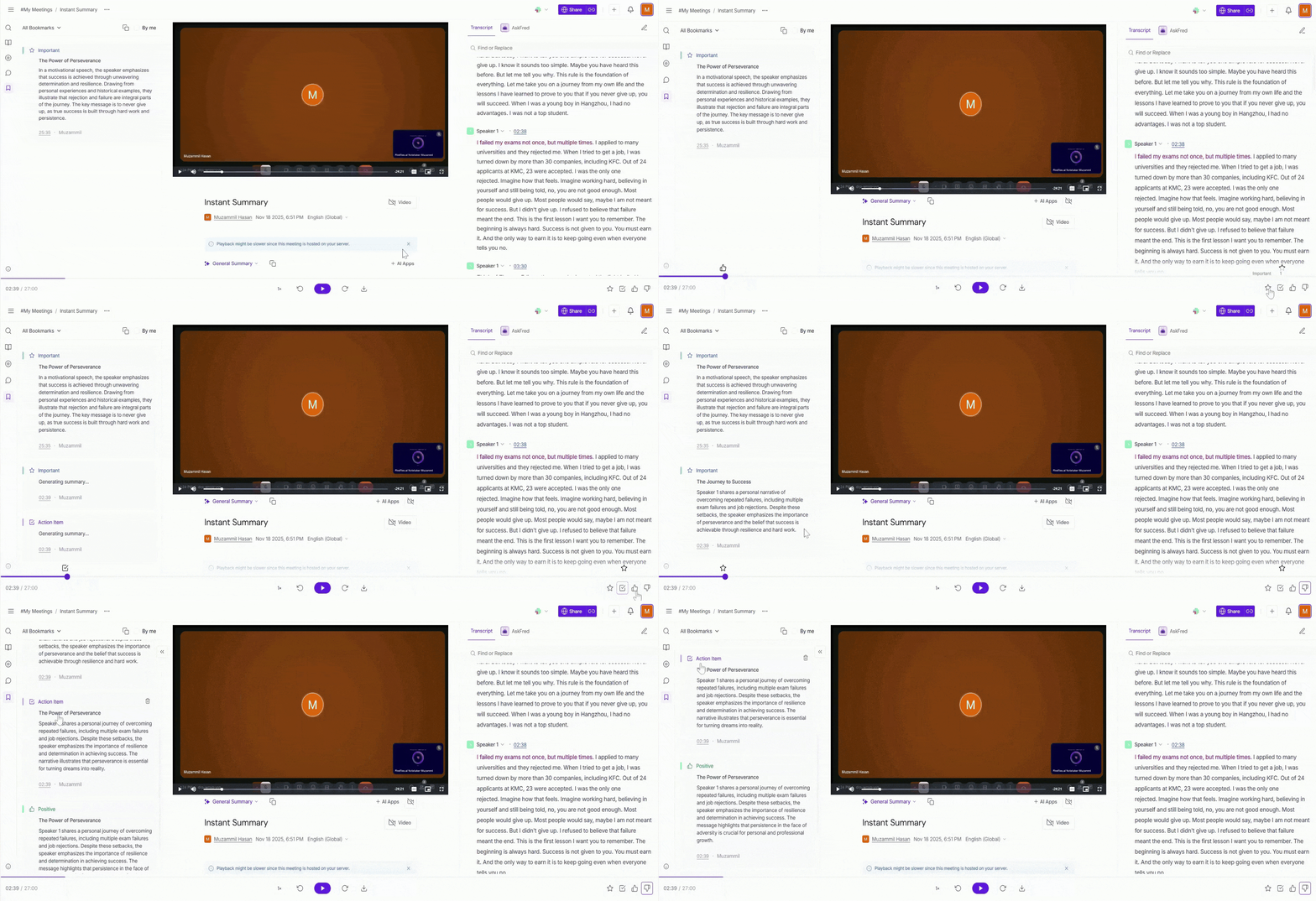
In the Transcript, select the part of the conversation you want to bookmark.
This could be a sentence, a short exchange, or any section you want to return to later.Once the text is selected, a menu appears. Click the Bookmark icon.
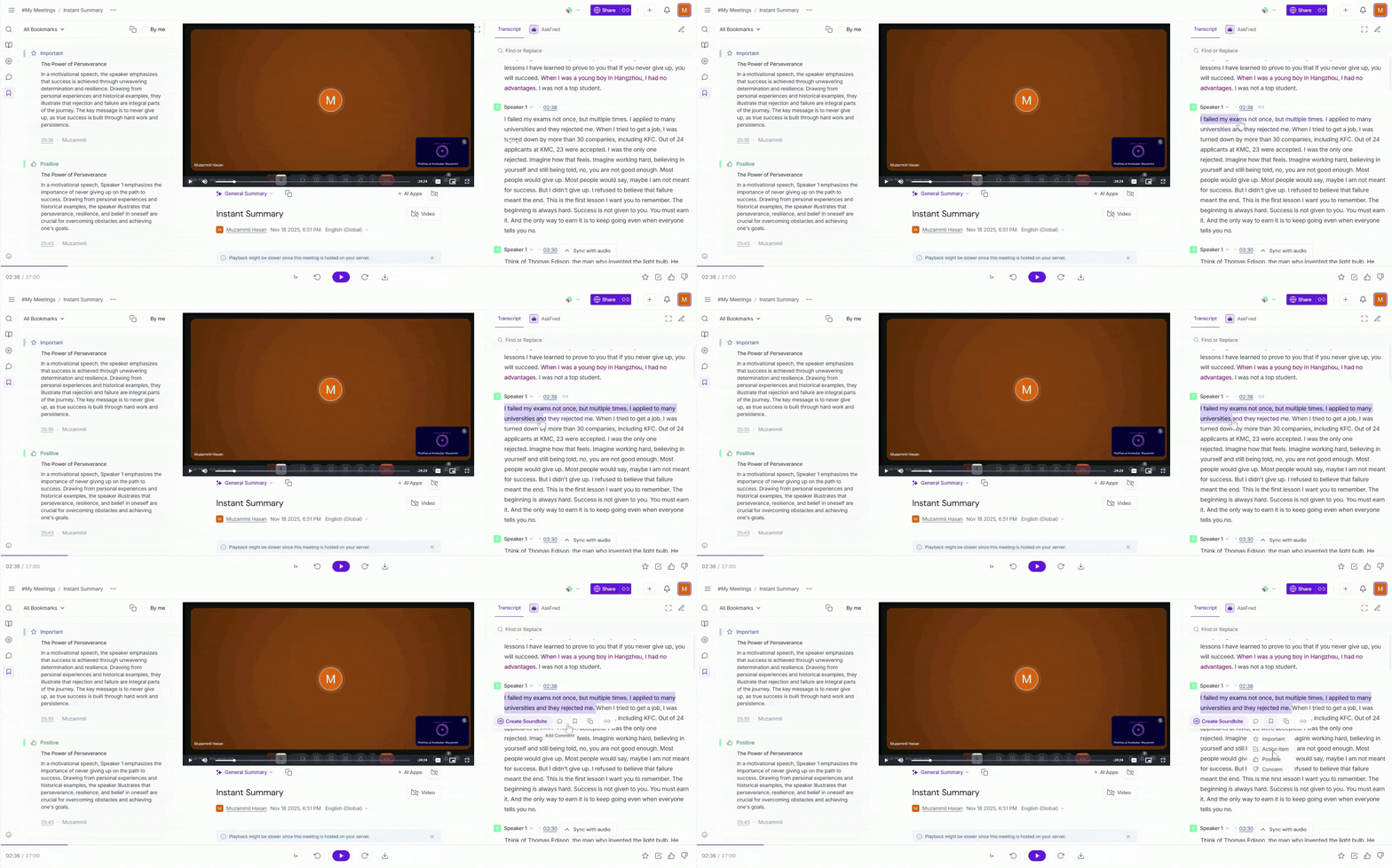
Choose the bookmark type that best fits the moment (Important, Action Item, Positive, or Concern).
It’s saved instantly and appears in the Bookmarks tab, where you can view it anytime and jump back to that moment.
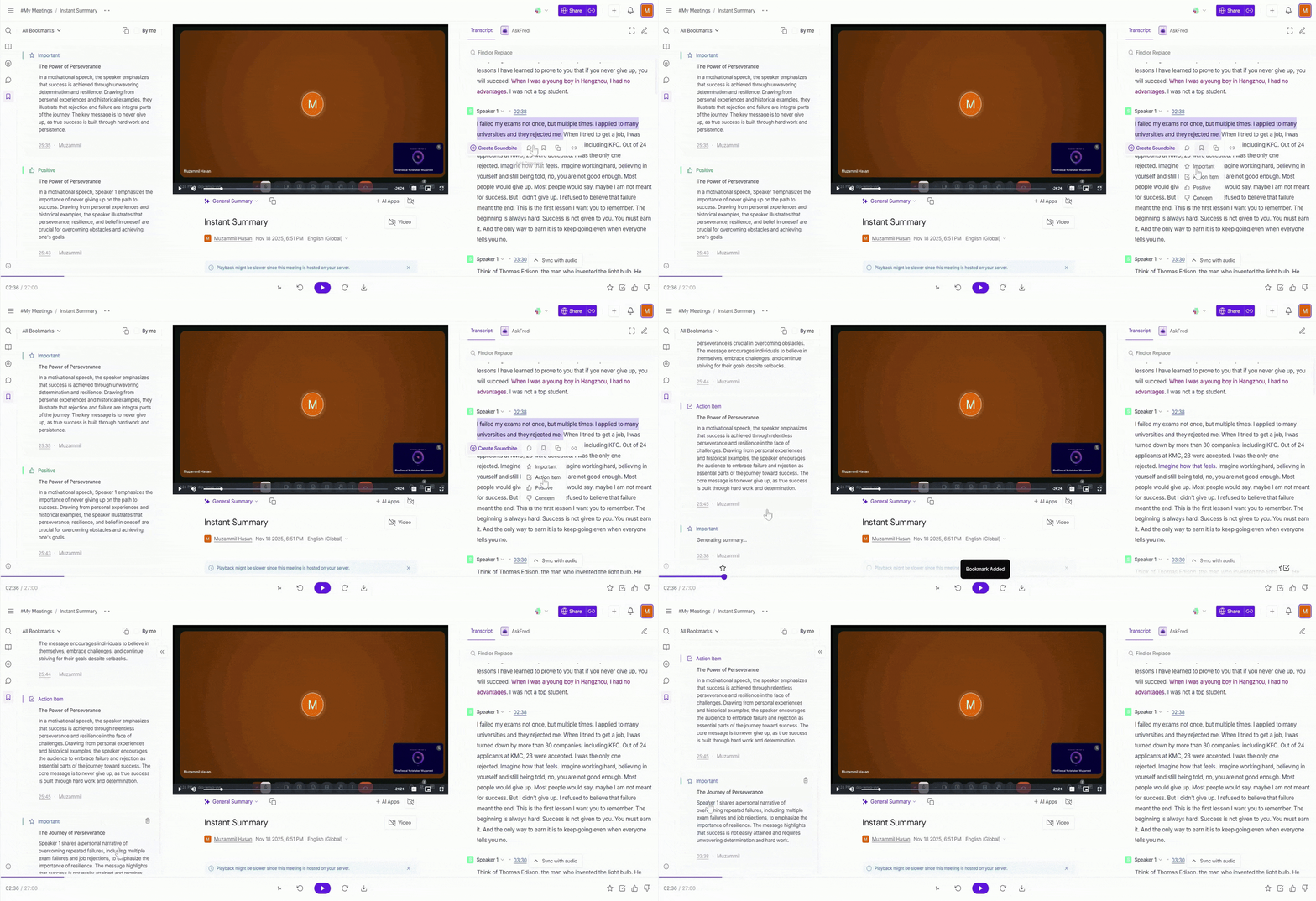
Method 2: Create a Bookmark Using Meeting Markers
Use this method when you’re listening through a meeting or scanning the recording and want to bookmark a moment without selecting text.
Use the progress bar at the bottom to move to the point in the meeting where you want to add a bookmark.
As the audio plays—or while scrubbing the timeline—look at the bottom-right corner of the screen to find the available meeting marker options.
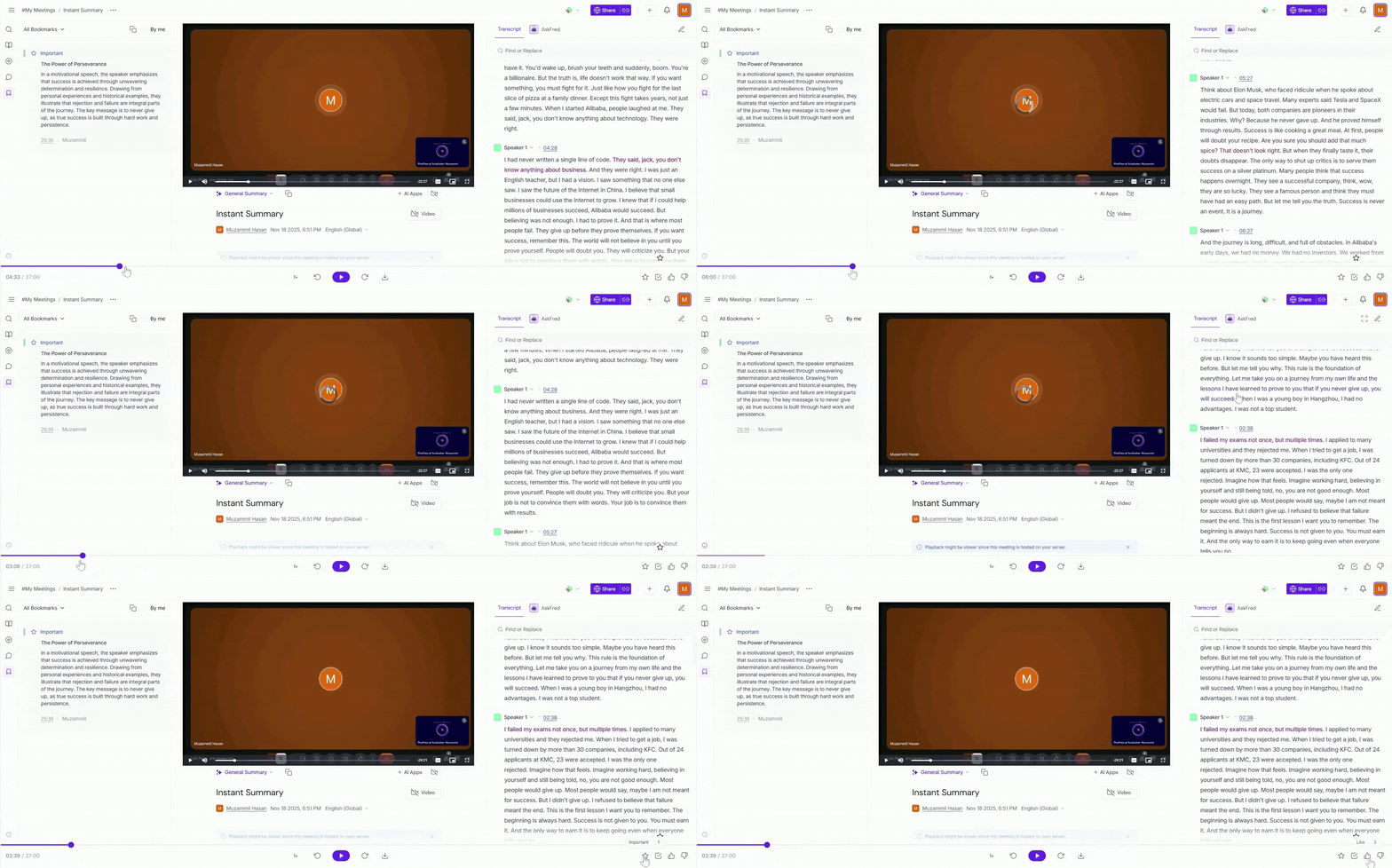
Click the marker that best fits the moment (Important, Action Items, Thumbs Up, or Thumbs Down).
The moment is saved instantly at the current timestamp and appears in the Bookmarks tab for easy access later.
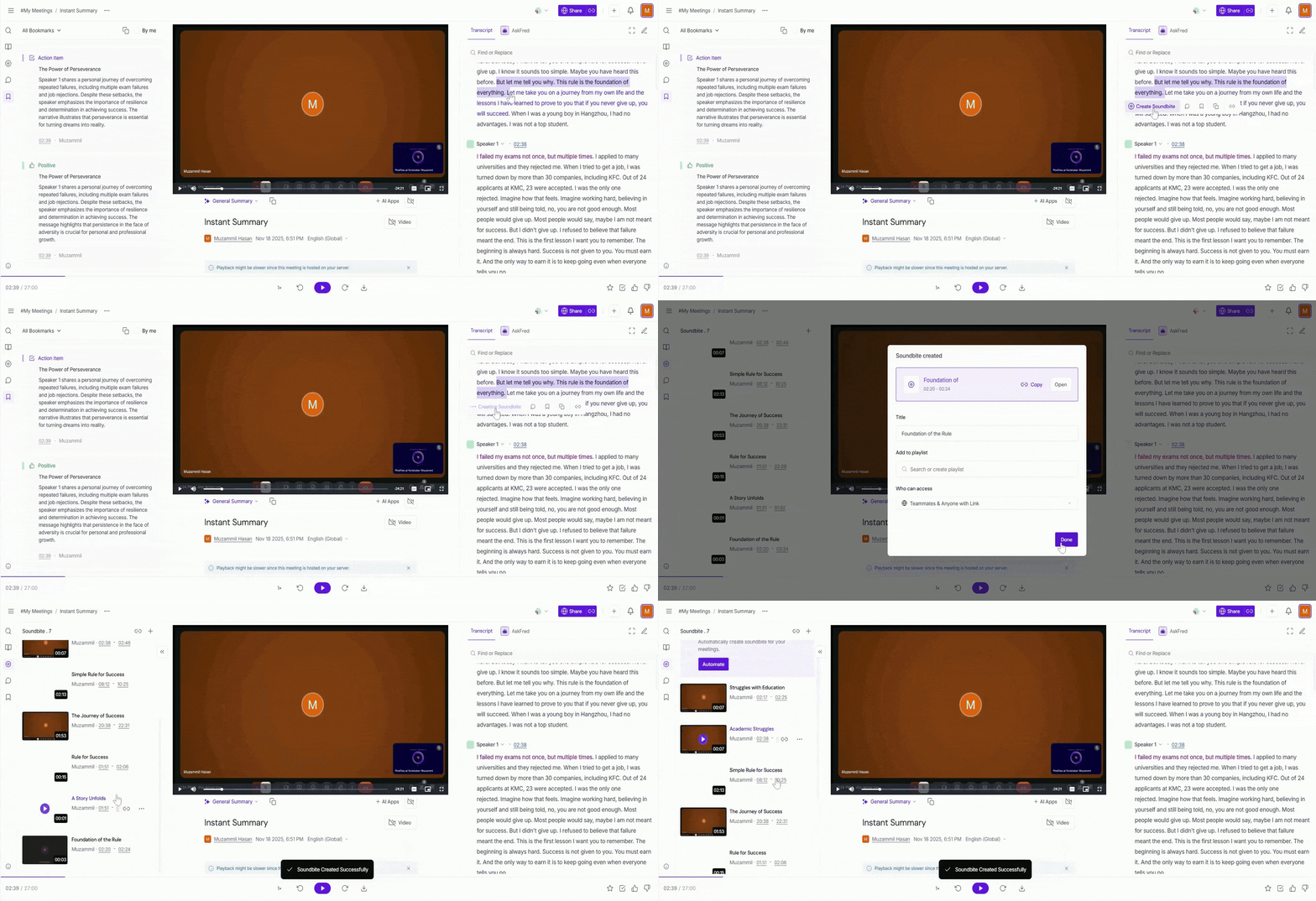
Optional: Create a Soundbite from the Transcript
If you want to share a specific part of a meeting as an audio or video clip, you can create a Soundbite directly from the transcript. This is optional and works alongside bookmarks.
Just select the part of the transcript you want to capture and click Create Soundbite.
This instantly creates an audio or video clip for that specific moment in the meeting, linked to the same timestamp.
💡Use bookmarks to organize and review meetings. Use soundbites when you want to share a short clip with others.
📌 Want to learn more about Soundbites? → Learn about Soundbites in Fireflies
🔍 View and Filter Bookmarks
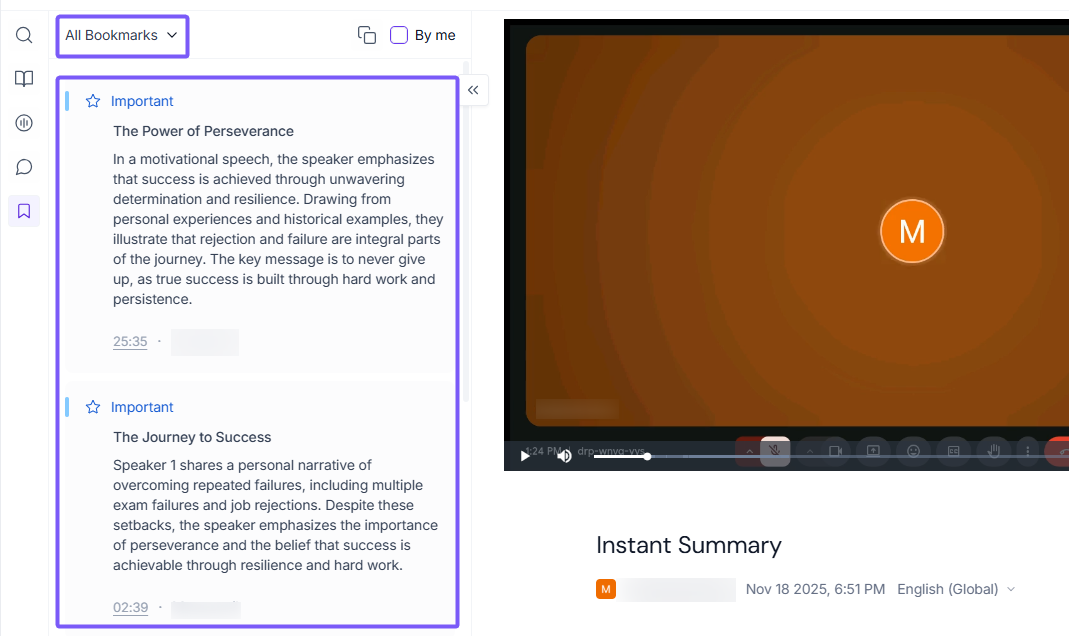
Once you’ve created bookmarks, you can easily view and filter them to find specific moments from a meeting.
By default, the Bookmarks tab shows All Bookmarks for the meeting. From here, you can narrow down the list using the available filters:
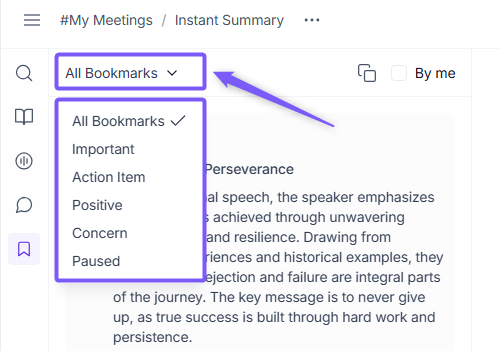
Filter by bookmark type – View only specific bookmarks such as Important, Action Items, Positive, Concern, or Paused.
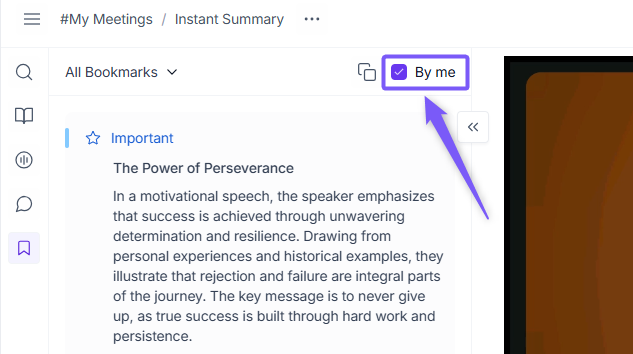
Filter by creator – Enable By me to see only the bookmarks you created.
🔗 Share Bookmarks
Once you’ve created and reviewed bookmarks, you can easily share them with others.
You can share all bookmarks from a meeting or only specific bookmark types (for example, Action Items only).
To share bookmarks:
Open the Bookmarks tab for the meeting.
Apply any filters you want (such as bookmark type or By me).
Click on the Copy icon to copy the bookmarks.
Paste the copied content into an email, document, or message.
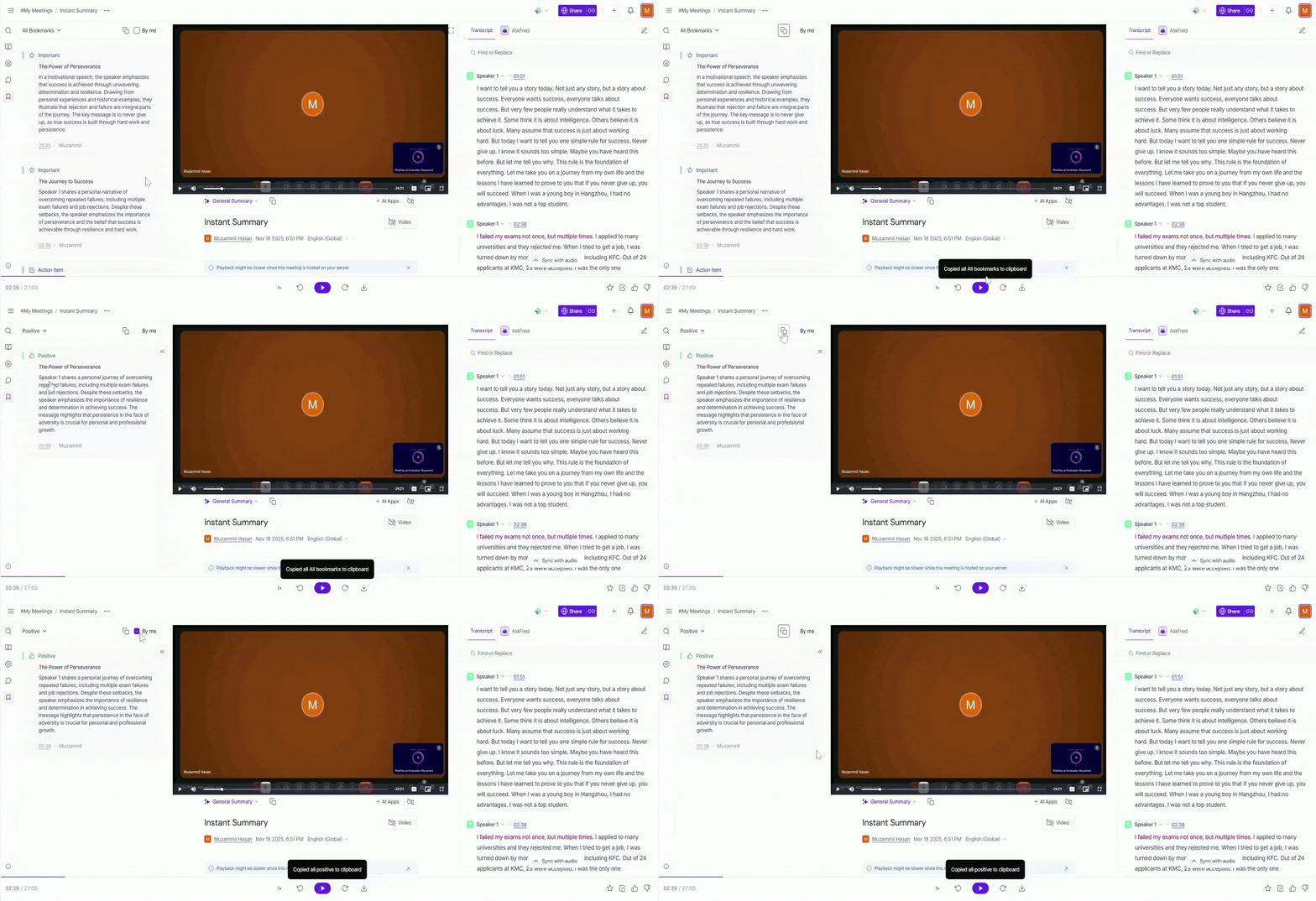
Shared bookmarks include timestamps, so anyone viewing them can quickly jump to the exact moment in the meeting.
❌ Delete Bookmarks
Over time, you may end up with bookmarks that are no longer useful or were added by mistake. Removing them helps keep your meeting highlights clean and easy to review.
Open the Bookmarks tab for the meeting.
Find the bookmark you want to remove.
Click on the Delete (🗑) icon next to the bookmark.
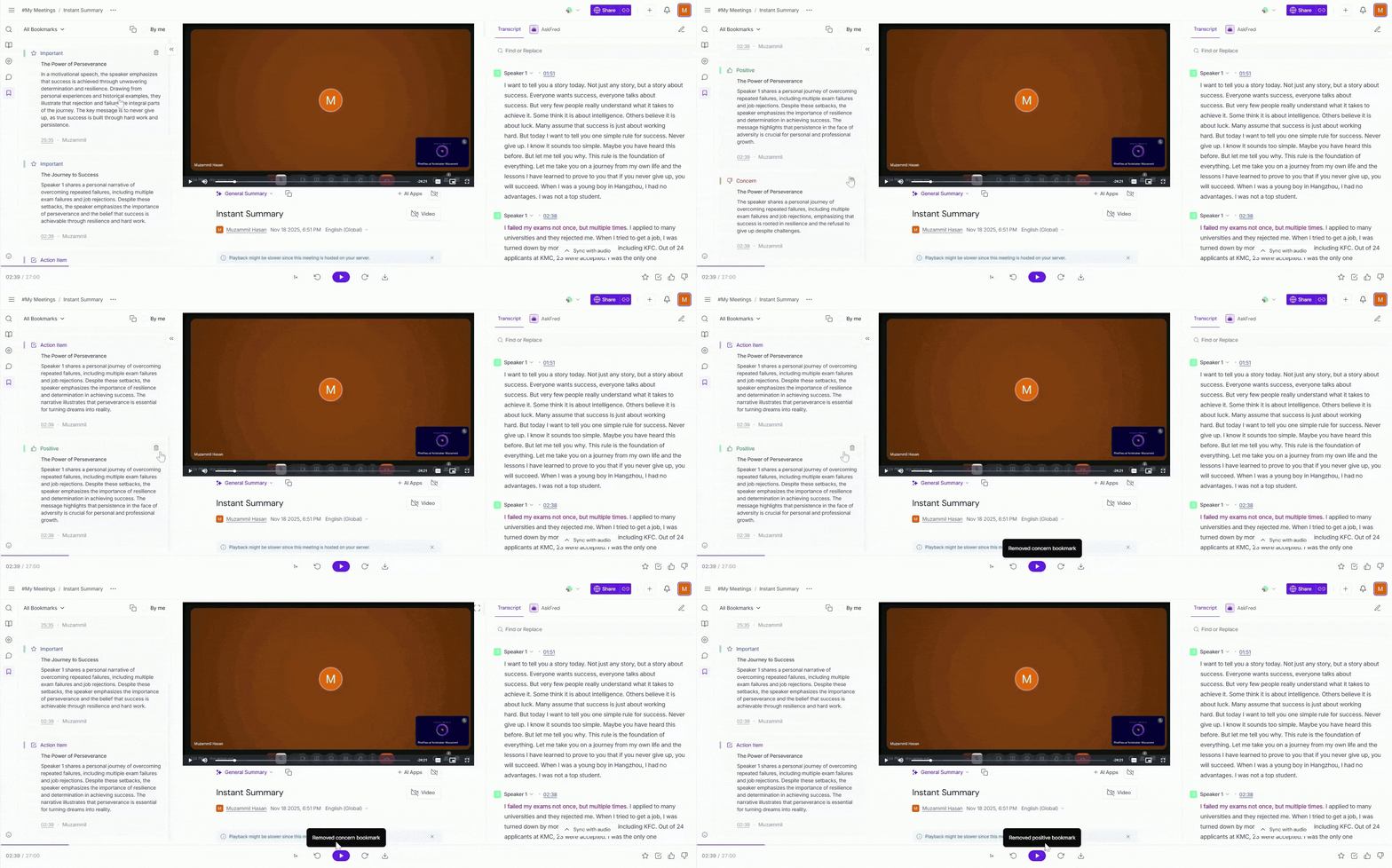
Deleting a bookmark removes only the bookmark itself—the meeting transcript and recording remain unchanged.
🔍 Troubleshooting & FAQs
1. I don’t see the Bookmarks tab in my meeting.
Make sure you’ve opened a meeting recording or transcript. The Bookmarks tab appears only inside an individual meeting view.
2. My bookmark didn’t save—what should I do?
Try refreshing the page and checking the Bookmarks tab again. If the issue persists, ensure you have edit access to the meeting.
3. Can other people see my bookmarks?
Anyone who has access to the meeting transcript can view bookmarks.
4. I accidentally deleted a bookmark. Can I restore it?
No. Deleted bookmarks can’t be restored, so make sure you no longer need it before deleting.
5. Do bookmarks affect the meeting recording or transcript?
No. Bookmarks only mark moments for reference—they don’t change or edit the transcript or recording.
6. Do I need to create soundbites to use bookmarks?
No. Soundbites are optional. You can use bookmarks on their own and create soundbites only when you want to share a short audio or video clip.
🔄 Quick Recap
Bookmarks help you save and revisit important moments from meetings.
Each bookmark is linked to a timestamp, making it easy to jump to the right part of the conversation.
You can create bookmarks from the transcript, using meeting markers, or optionally create soundbites to share short clips.
Use filters to view bookmarks by type or see only the ones you created.
Bookmarks can be copied and shared, and deleted anytime without affecting the meeting recording.
📌 Related Guides
Live Assist on Mobile: Real-Time Notes During Meetings → Learn how to create bookmarks in real time while meetings are in progress. (Link when published)
Learn About the Fireflies Notepad — Understand how meeting notes, markers, and soundbites come together.
AI Meeting Summaries: View, Customize, Expand, Regenerate — Get more out of your meeting summaries with advanced options.