Learn about the Fireflies Email Assistant: Organize Your Inbox and Draft Replies
Last updated: August 31, 2026
Whether you're replying to customers, teammates, or prospects, managing your inbox can quickly become time-consuming. Email Assistant helps you stay organized by organizing new emails with smart labels, preparing draft replies, and creating follow-up drafts—all inside your existing inbox. Every draft is saved for your review, so you decide what gets sent and when.
Want a quick walkthrough first? Watch this Email Assistant launch webinar to see how to connect Gmail or Outlook, how Fireflies drafts replies, labels your inbox, and writes follow-ups, and how to train it to sound like you. Then follow the steps below to set up your Email Assistant.
🤔 How it works:
Once you connect your inbox, Email Assistant works in the background to:
Triage incoming emails with smart labels that help you prioritize your inbox.
Prepare draft replies for emails that need a response.
Create follow-up drafts for emails you've sent when no reply is received.
Enrich your Daily Briefs with insights and action items from your emails.
Give AskFred context so you can use it to search your inbox, surface action items from emails, and even create relevant drafts on demand. It can read your email attachments now, too.
💡You review, edit, and send every draft yourself. Nothing is sent automatically, so you always stay in control.
❔ When should I use Email Assistant?
Email Assistant is designed for users who want to:
Quickly identify which emails need a response and which can wait.
Spend less time writing routine or repetitive replies.
Stay on top of follow-ups without manually tracking conversations.
Get a full view of their whole workday in Fireflies.

Email Assistant works alongside your existing inbox, so you can keep using email as you normally do while getting AI-powered organization and drafting assistance.
🔑 Prerequisites
Before using Email Assistant, ensure you have:
A Gmail or Outlook account: Connect your inbox to Fireflies to start using Email Assistant.
A Fireflies account: Required to access Email Assistant features.
🚀 What does Email Assistant do?
After you connect Email Assistant, it runs in the background and provides five key capabilities to help you manage your inbox.
1⃣ Triage emails with smart labels
Email Assistant automatically labels new emails to help you understand which messages need attention and which can wait.
How it works:
New incoming emails are automatically labeled.
Labels appear directly in your inbox.
Each label reflects the email's intent or priority, making it easier to organize and prioritize what needs your attention first.
You may see labels such as:
Label | Description |
|---|---|
Needs Action | Indicates emails that require your attention, such as replying, making a decision, or completing a task. |
Read Only | Identifies informational emails that you can read without taking any further action. |
Conversations | Groups emails that are part of an ongoing discussion or active email thread. |
Schedule | Marks emails related to meetings, calendar invitations, schedule changes, or event updates. |
System Alerts | Identifies automated notifications sent by applications, tools, or online services. |
Pending | Highlights emails waiting for additional information, approval, or the next step before action can be taken. |
Done | Marks conversations that have been completed and no longer require your attention. |
Promotions | Identifies marketing emails, newsletters, offers, and other promotional content. |

Email labels are applied only to new emails received after you connect Email Assistant. They help you prioritize your inbox at a glance while leaving your existing inbox rules and workflow unchanged.
2⃣ Prepare draft replies for incoming emails
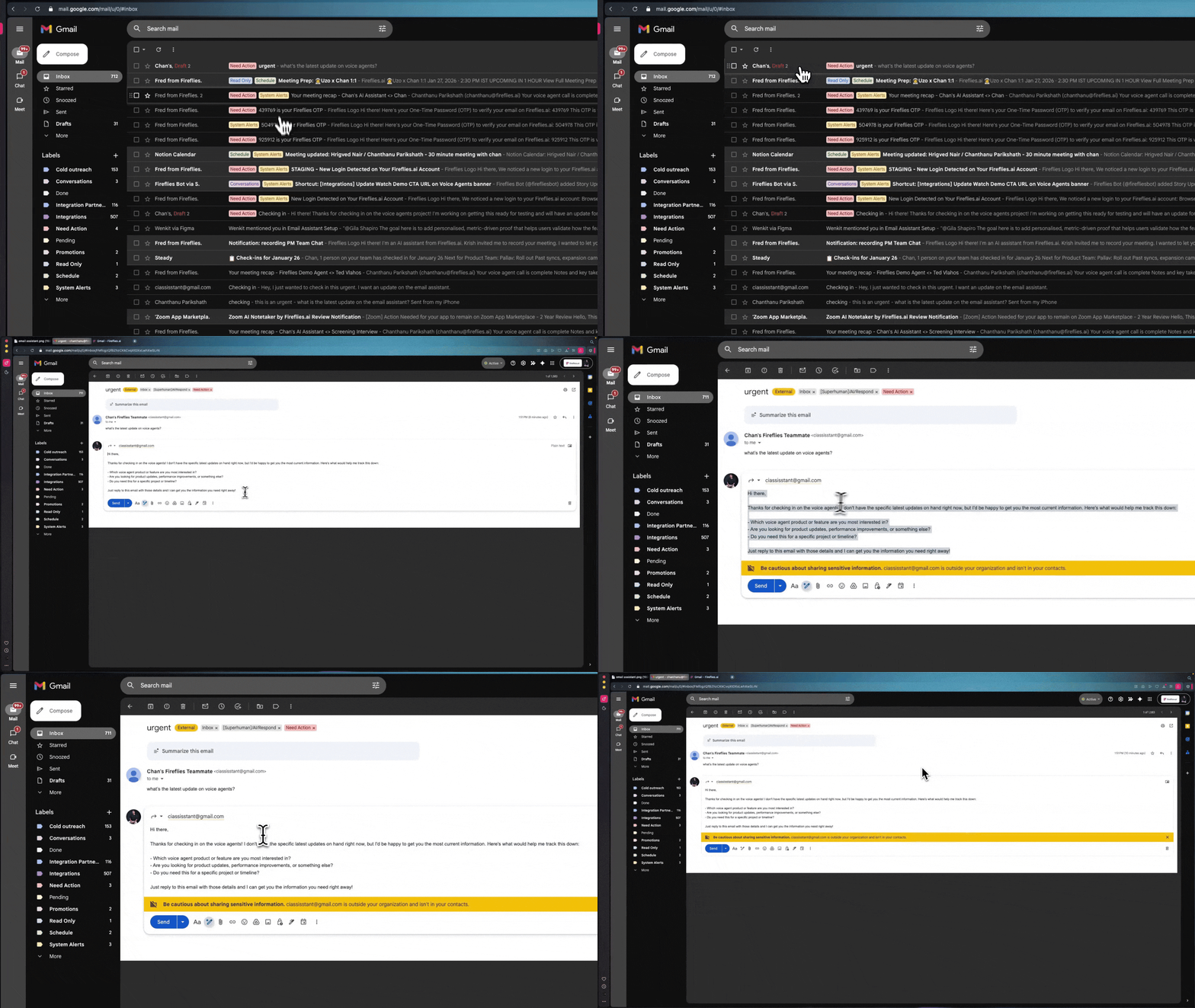
Email Assistant automatically prepares draft replies for emails that need a response. Drafts are saved directly in your inbox, where you can review, edit, or send them.
How it works:
Email Assistant analyzes both your email conversation and meetings with that person to prepare a draft reply.
Draft replies appear in the same email thread inside your inbox.
Drafts follow your configured Writing Instructions, such as tone, formality, greetings, and sign-offs.
You review, edit, rewrite, or delete any draft before sending.
Nothing is sent automatically, you always stay in control.
Email Drafts and Follow-Ups use AI credits. AI credits are charged dynamically based on the task performed.

Want to customize when draft replies are created or update your Writing Instructions? See Connect Fireflies Email Assistant to Your Inbox for configuration steps.
3⃣ Create follow-up drafts for sent emails
When you send an email and don't receive a reply, Email Assistant can detect it and suggest a follow-up draft to help you continue the conversation.
How it works:
Follow-up drafts are created for emails you've already sent when no reply is received after your selected waiting period.
The waiting period can be customized based on when you'd like Email Assistant to prepare a follow-up draft.
Drafts appear in the original email thread, making it easy to continue the conversation.
You review, edit, customize, or delete the draft before sending.
Nothing is sent automatically. You always stay in control.
Want to customize your Follow-ups settings? See Connect Fireflies Email Assistant to Your Inbox for configuration steps.
4⃣ Stay on top of important work with Daily Brief
After you connect Email Assistant, Daily Brief can also include insights from your inbox, giving you a single place to review important work from your emails, meetings, and Slack (if connected).
How it works:
Highlights important emails from the last 24 hours.
Surfaces tasks and action items from your emails that need your attention.
Combines email insights with meeting and Slack updates in one Daily Brief.
Helps you review your priorities without switching between multiple tools.
📘 Learn more: Daily Brief – Get a summary of all your meetings in one place.

5⃣ Search your inbox and draft emails with AskFred
While Email Assistant automatically organizes emails and prepares drafts in the background, AskFred lets you search and interact with your inbox using natural language whenever you need it.
You can ask AskFred to find important emails, summarize conversations, identify action items, or draft replies and new emails—all using the context available in your emails and Fireflies meetings. It can also read the attachments in your emails.
How it works
Ask questions about your inbox in natural language.
Summarize recent or important emails and identify action items.
Find emails or attachments from a specific person, topic, or time period (for example, important emails from the last 24 hours).
Draft replies or create new emails using the context available in your emails and Fireflies meetings.
Generated drafts are saved directly to your inbox for you to review, edit, and send manually.
📘 Learn more: Global AskFred – Get answers from past meetings, connected apps, and web search.

🔍 Draft Quality and Customization
Email Assistant creates draft replies using the content of the email, the conversation context available in your emails and Fireflies meetings, and your configured Writing Instructions.
A few things to keep in mind:
Drafts are generated using the email content and available conversation context.
Drafts follow your configured Writing Instructions, including tone, formality, greetings, sign-offs, and other writing preferences.
Draft quality depends on the context available in the email conversation.
You can review, edit, rewrite, customize, or delete any draft before sending.
Every draft is created for your review—nothing is sent automatically.
Want to customize Writing Instructions? See Connect Fireflies Email Assistant to Your Inbox for configuration steps.

🧭 What Email Assistant can and can't do
Email Assistant helps you manage your inbox more efficiently while keeping you in control. Here's what it can and can't do.
✅ Email Assistant can:
Organize new incoming emails with smart labels.
Draft replies for emails that need a response according to your configurations.
Create follow-up drafts for emails you've sent when no reply is received.
Surface important email tasks in Daily Brief.
Let you search your inbox and draft emails with AskFred.
Work directly inside your existing inbox.
Let you review, edit, customize, or delete drafts before sending.
❌ Email Assistant can't:
Send emails automatically on your behalf.
Replace or modify your existing inbox.
Edit or delete your existing emails.
Apply labels or create drafts for emails received before Email Assistant was connected.
Auto-generate drafts without the available email and meeting context.
Override your Email Assistant settings without your input.
❓ Frequently Asked Questions
Q1. Why don't I see any changes right after connecting?
Email Assistant only processes new emails received after you connect it. Existing emails won't be labeled or have draft replies created.
Q2. Does Email Assistant send emails automatically?
No. Drafts are never sent automatically. You always review, edit, and send every draft yourself.
Q3. Where do draft replies and follow-ups appear?
Draft replies and follow-up drafts appear directly in your inbox, within the same email thread as the original conversation.
Q4. Will Email Assistant override my existing inbox rules?
No. Email Assistant works alongside your existing inbox. Your existing inbox rules and workflow remain unchanged.
Q5. Can I edit or delete drafts?
Yes. You can review, edit, customize, rewrite, or delete any draft before sending.
Q6. What happens if I disconnect Email Assistant?
Disconnecting Email Assistant stops new email labels, draft replies, and follow-up drafts from being created. Your existing emails and drafts remain unchanged, and you can reconnect at any time.
Q7. How do I change my Writing Instructions?
Go to Settings → Email Assistant → Customize → Writing Instructions to update your preferred tone, formality, greetings, sign-offs, and other writing preferences. Changes apply to future drafts only.
Q8. Will Daily Brief include my emails?
Yes. After you connect Email Assistant, Daily Brief can surface important emails, email tasks, and action items alongside meeting and Slack insights (if connected).
Auto Drafts and Follow-Ups use AI credits. AI credits are charged dynamically based on the task performed.
🔄 Summary
Email Assistant helps you manage your inbox more efficiently by:
Triaging incoming emails with smart labels.
Preparing draft replies for incoming emails.
Creating follow-up drafts for emails you've sent.
Surfacing important email tasks in Daily Brief.
Helping you search your inbox and create drafts with AskFred.
You stay in control by reviewing, editing, and sending every draft yourself. Nothing is ever sent automatically.
🚀 Ready to get started? Connect Fireflies Email Assistant to Your Inbox to set up and customize Email Assistant.
📌 Related Resources
Fireflies Slack Assistant - AI-powered collaboration tools for Slack
How to Purchase AI Credits - Manage and purchase additional AI credits
What is Fireflies.ai? - Platform overview and capabilities
Privacy Policy - Data handling and security practices