Daily Digest: Get a Summary of All Your Meetings in One Place
Last updated: July 22, 2026
It's easy to lose track of important decisions and follow-ups after a busy day of meetings. At the end of your day, Daily Digest brings it all together in one summary, so you can:
Catch up on action items, key decisions, blockers, and open questions from across your meetings
Get your summary delivered by email or Slack
Skip scrolling through individual meeting transcripts
Daily Digest isn't enabled by default. You need to enable it from your AI Skills settings. Once enabled, it uses dynamic AI credit pricing to generate insights.
📋 What Does Daily Digest Include?
Once enabled, Daily Digest automatically summarizes your recent meetings and may include:
Action Items – Tasks assigned during your meetings.
Popular Topics – Themes and discussions that appeared across multiple meetings.
Blockers – Issues or challenges raised during conversations.
Open Questions – Questions that still need answers or follow-up.
Key Decisions – Important decisions and agreements made during meetings.
Listen mode: You can play an AI-generated audio summary of your digest to catch up hands-free without reading through the full summary.
💡 Daily Digest becomes available after Fireflies has processed enough meetings to generate meaningful insights. If you don't see any insights yet, continue using Fireflies—your digest typically appears after at least 3 meetings and the next 24-hour refresh cycle.
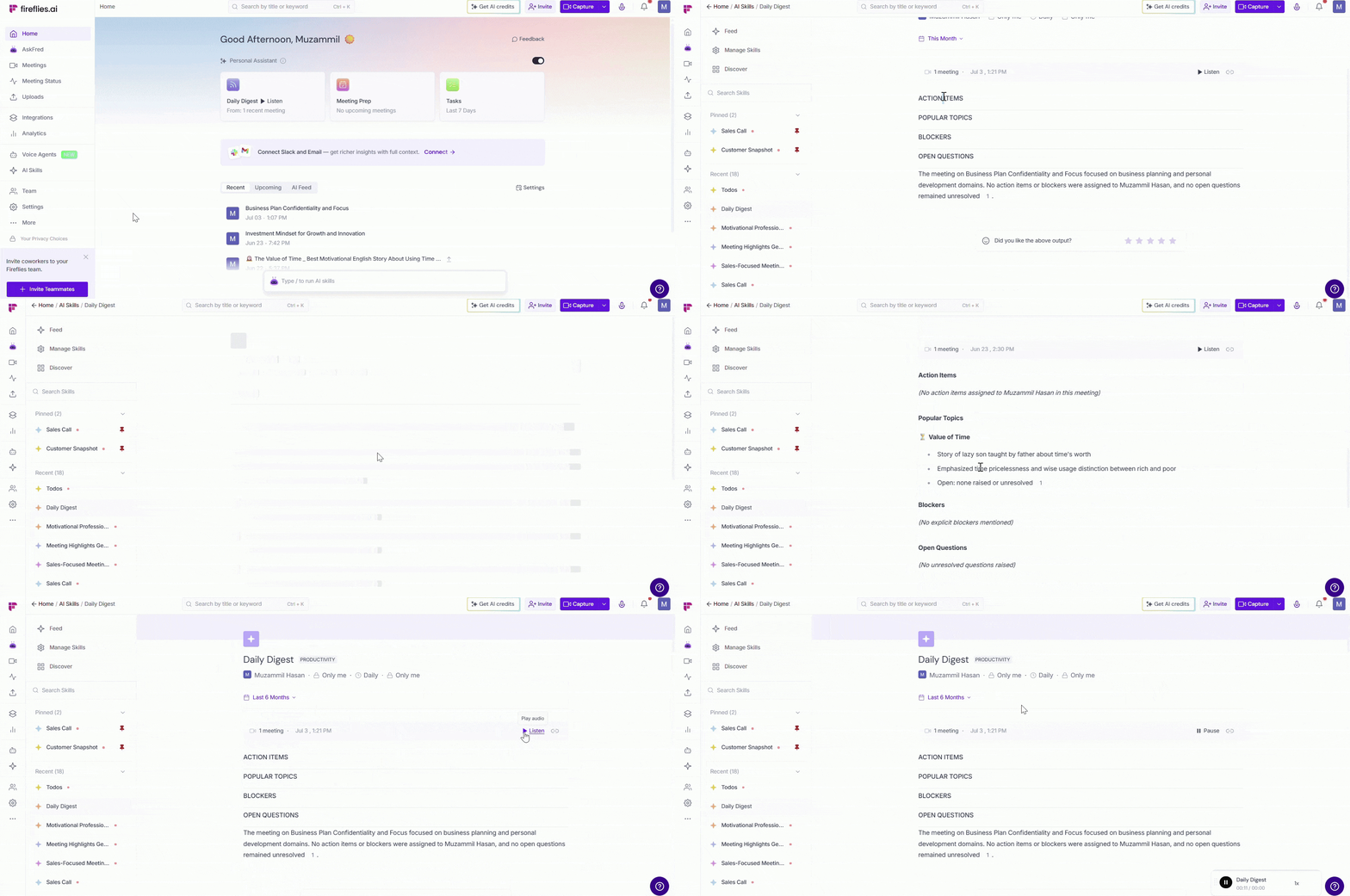
▶ How to Enable Daily Digest
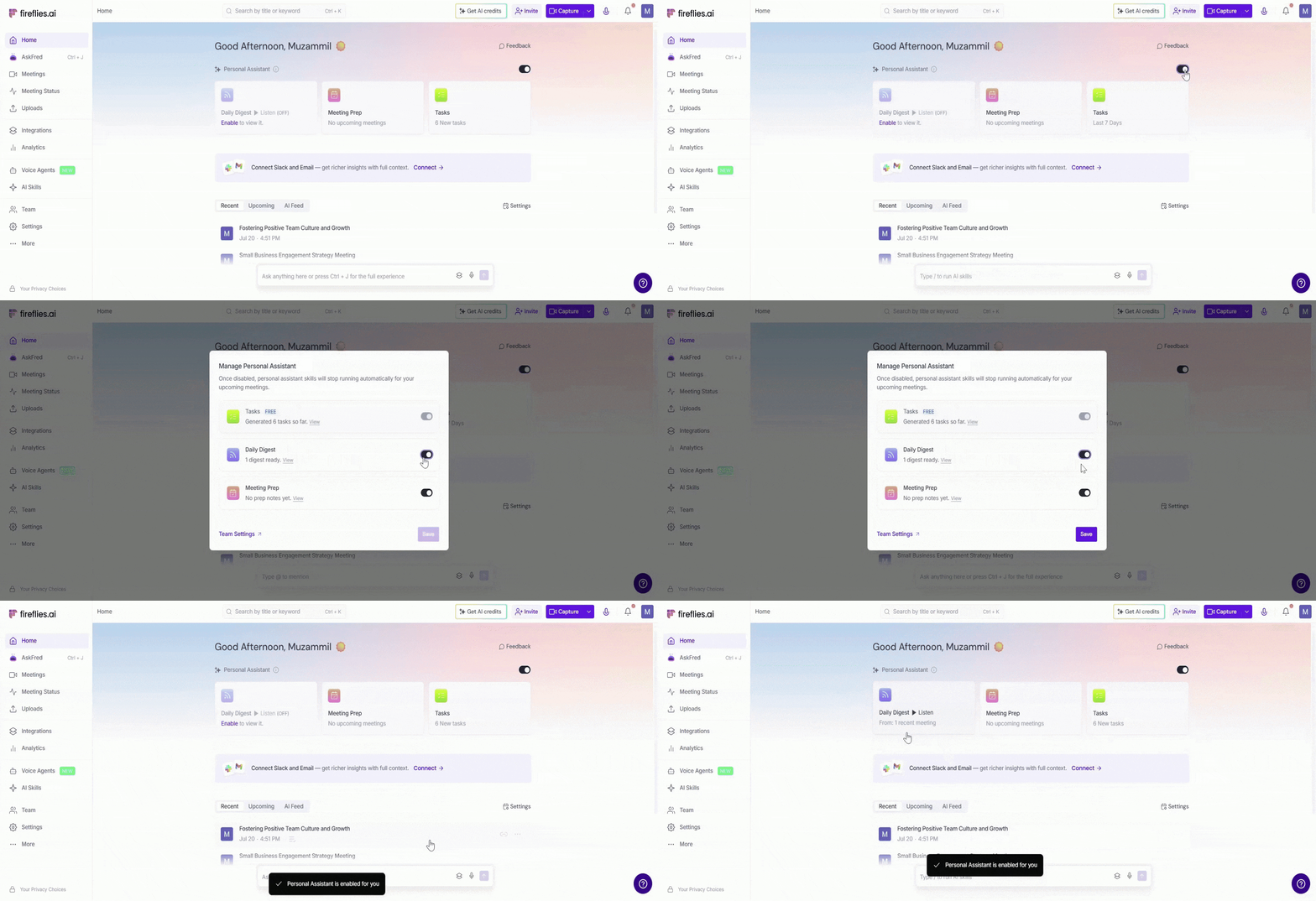
1. From your Home dashboard, locate the AI Personal Assistant section.
2. Click the toggle in the top-right corner of the card.
3. In the Manage Personal Assistant dialog, toggle on Daily Digest.
4. Click Save to apply.
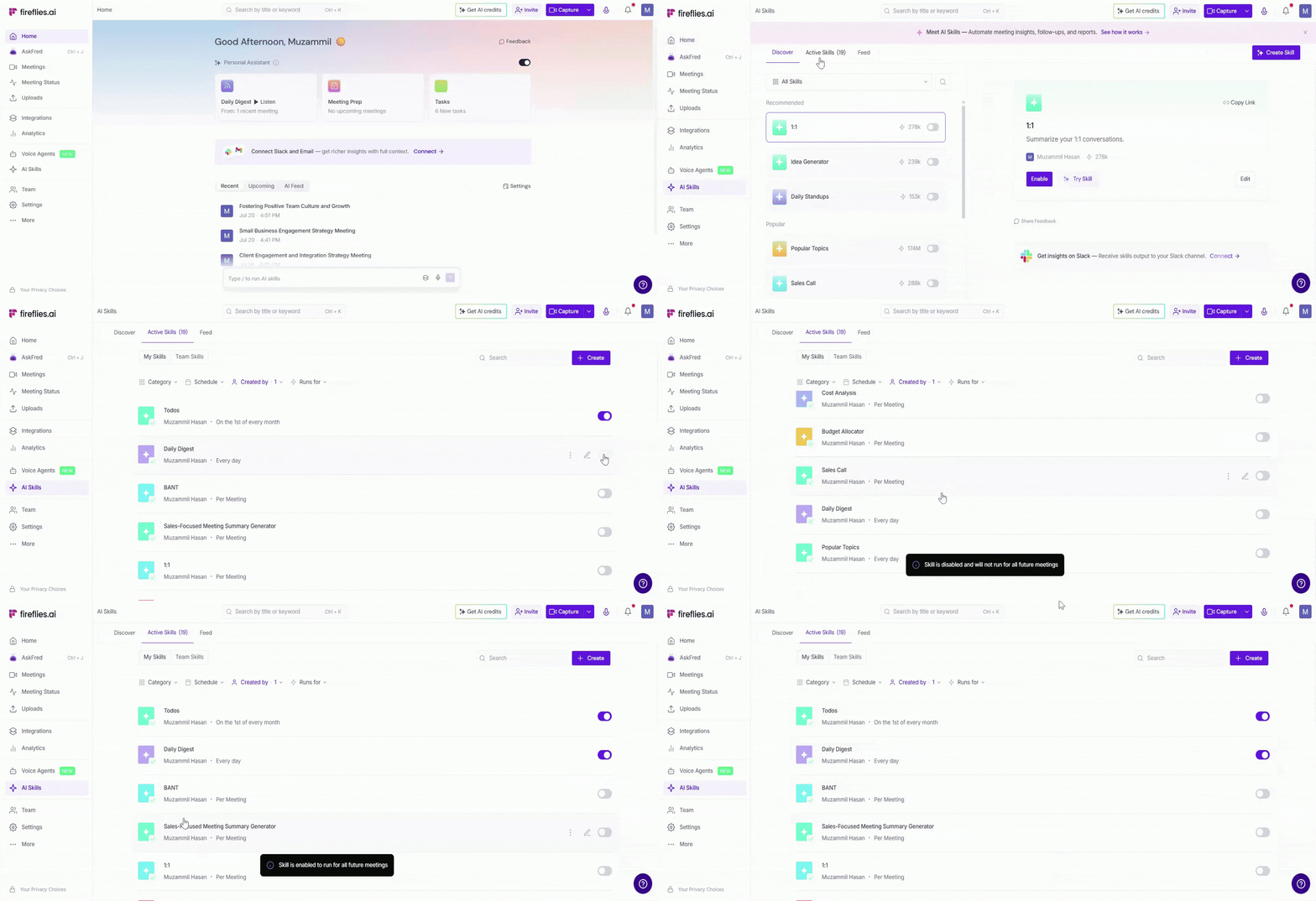
💡 Alternate Method:
You can also enable or disable Daily Digest from AI Skills → Active Skills. Turn the Daily Digest toggle on or off to manage the feature.
📬 Receive Your Daily Digest
You can receive your Daily Digest through:
Email: Sent to the email address associated with your Fireflies account by default.
Slack: If your Fireflies account is connected to Slack, your Daily Digest is also sent as a direct message (DM).
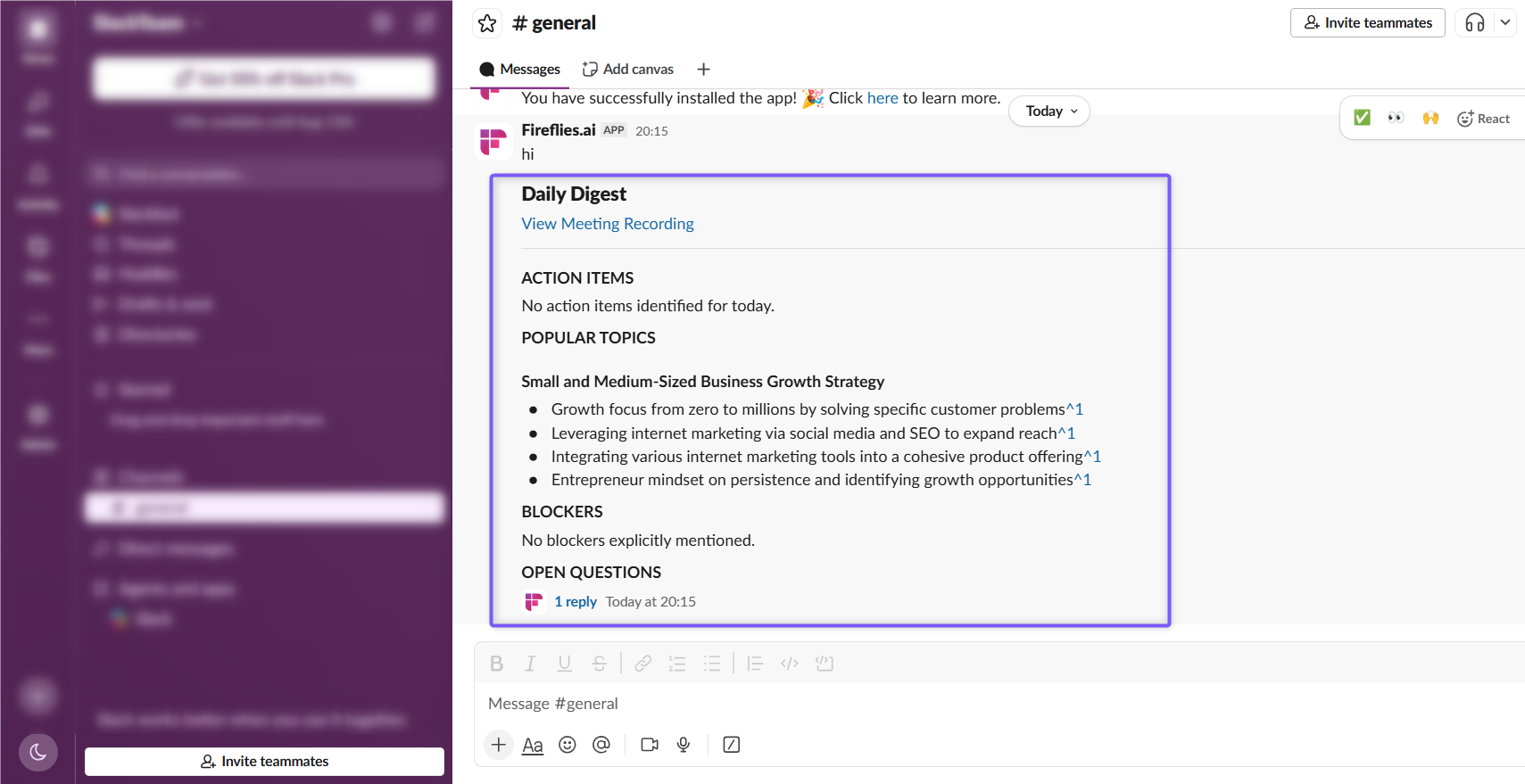
Note: Email delivery is enabled by default. Slack direct messages are automatically sent only if your Fireflies account is connected to Slack.
For more information about connecting Slack to Fireflies, see Integrate Slack with Fireflies.
🕒 When Is Daily Digest Sent?
Daily Digest refreshes automatically every 24 hours using your latest meeting activity. If you don't have any meetings during that period, Fireflies won't generate a digest.
💡 Meetings that finish close to the daily refresh time may appear in the following day's digest.
👥 Manage Daily Digest for Your Workspace
Workspace admins can enable or disable Daily Digest for everyone in the workspace.
1. Click Settings from the left navigation menu and switch to the Team tab.
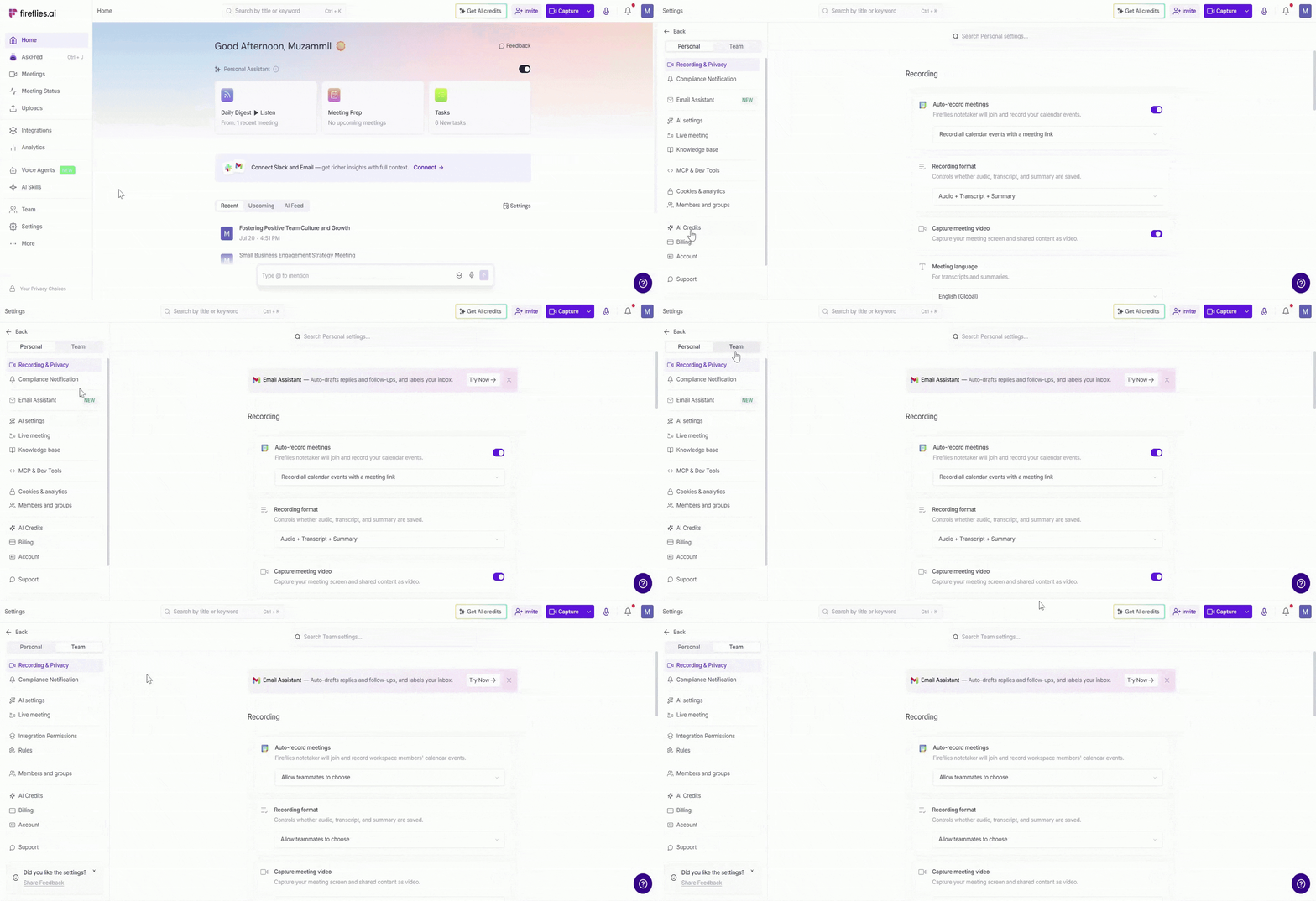
2. Select AI Settings.
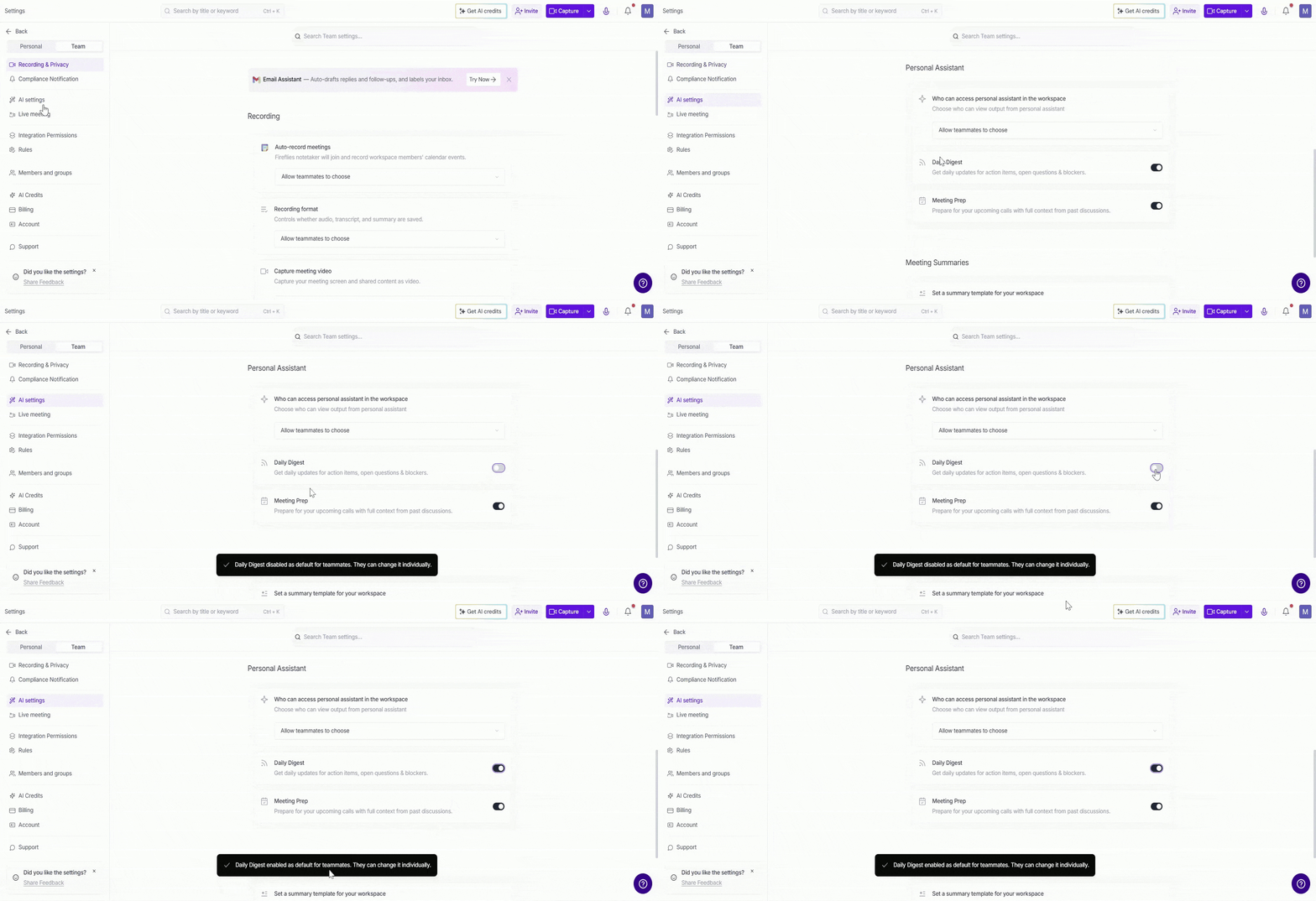
3. Under Personal Assistant, turn the Daily Digest toggle On or Off to enable or disable the feature for your workspace.
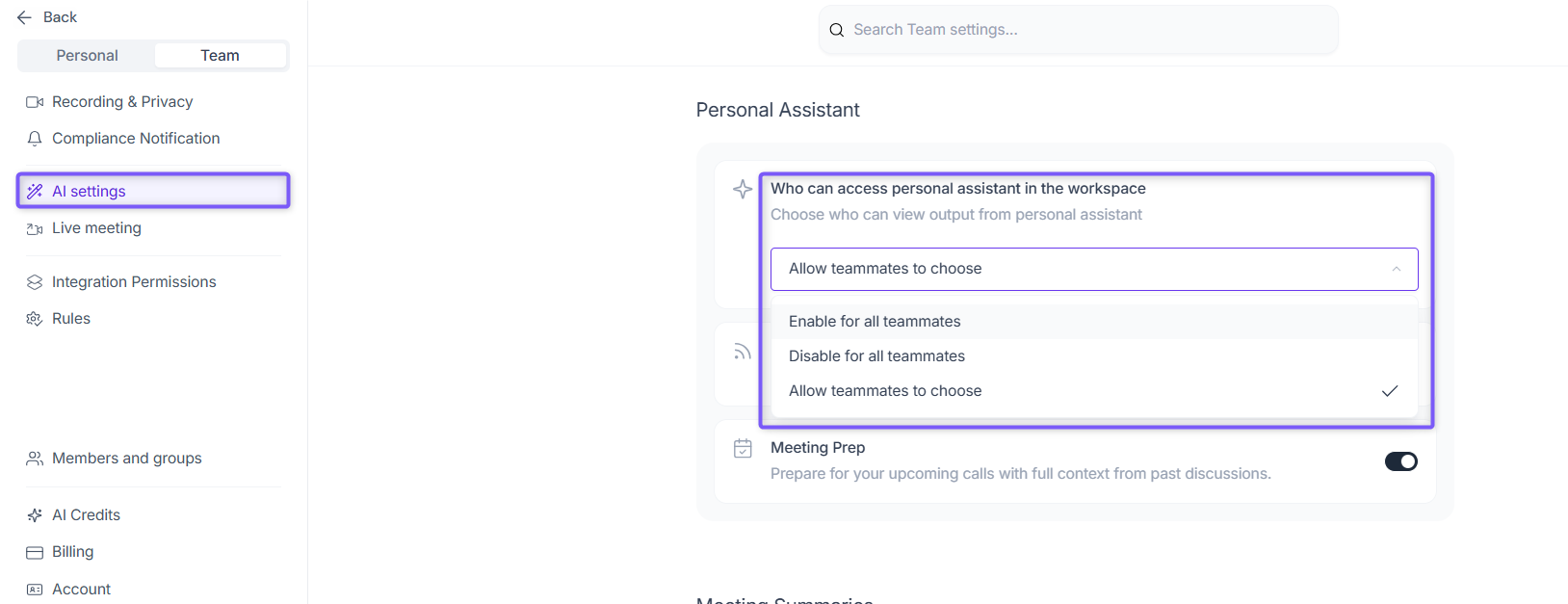
📌 Note: Changes apply to everyone in the workspace. Individual teammates can manage their own Daily Digest settings only if the workspace admin sets Who can access Personal Assistant in the workspace to Allow teammates to choose.
❌ How to Turn Off Daily Digest
If you no longer want to receive Daily Digest insights, you can disable the feature at any time.
1. From your Home dashboard, locate the AI Personal Assistant section.
2. Click the toggle in the top-right corner of the card.
3. In the Manage Personal Assistant dialog, turn off Daily Digest.
4. Click Save to apply your changes.
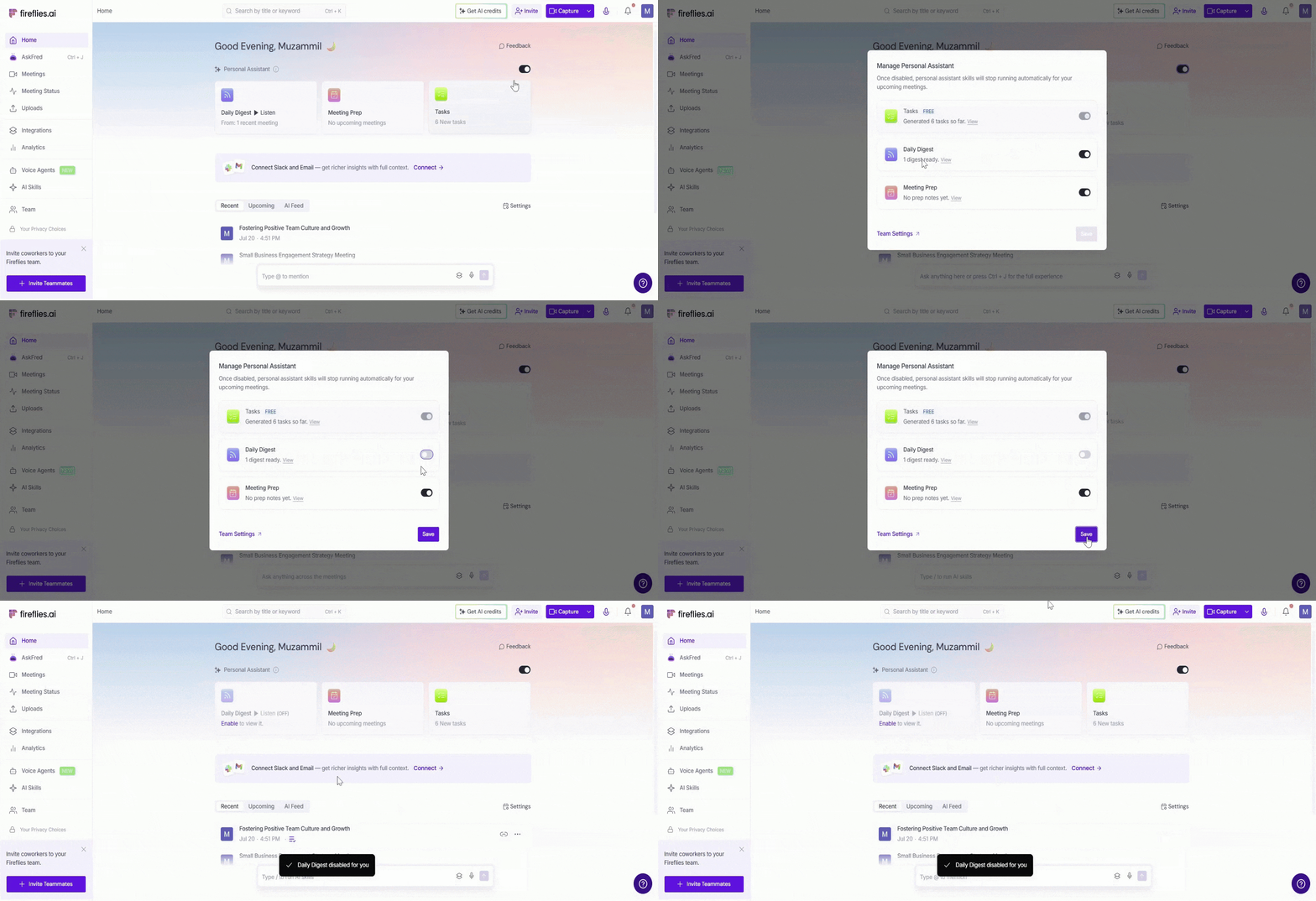
Note: Once disabled, Daily Digest stops generating new insights and no longer consumes AI credits. Turning off Daily Digest doesn't affect Meeting Prep or Tasks. Each AI Skill can be managed independently.
❓Frequently Asked Questions
Q1. Why don't I see any Daily Digest insights?
Daily Digest must first be enabled from your AI Skills settings. Once enabled, Fireflies needs enough meeting data to generate insights. Your digest typically appears after at least three meetings and the next 24-hour refresh cycle.
Q2. Does Daily Digest use AI credits?
Yes. Daily Digest uses dynamic AI credit pricing once enabled. Credits are only used when insights are generated. Tasks is always free and does not use AI credits.
Q3. Can I receive a digest for only a specific team or channel?
Yes. You can filter Daily Digest by Fireflies Channel so it only includes meetings from a specific team or project.
Q4. What happens if I miss a Daily Digest?
Previous Daily Digests are available from AI Skills → Personal Assistant → Digest History.
Q5. Can my whole team get a Daily Digest?
Yes. Workspace admins can manage Daily Digest from Settings → Team → AI Settings → Personal Assistant. Each teammate receives a personalized digest based on their own meetings.