Learn About the Tasks Feed
Last updated: September 4, 2026
Keeping track of tasks can be tricky, especially when they’re all over the place. That’s where the Tasks Feed in Fireflies helps. It brings everything together in one place, so you can easily stay organized and keep track of what needs to be done.
In this guide, we’ll show you how to navigate the Tasks Feed, create and manage tasks, reassign tasks to others, mark them as complete, and delete tasks when they’re no longer needed.
Let’s dive in and make task management easier! 🚀
🎯 Navigating to Tasks Feed
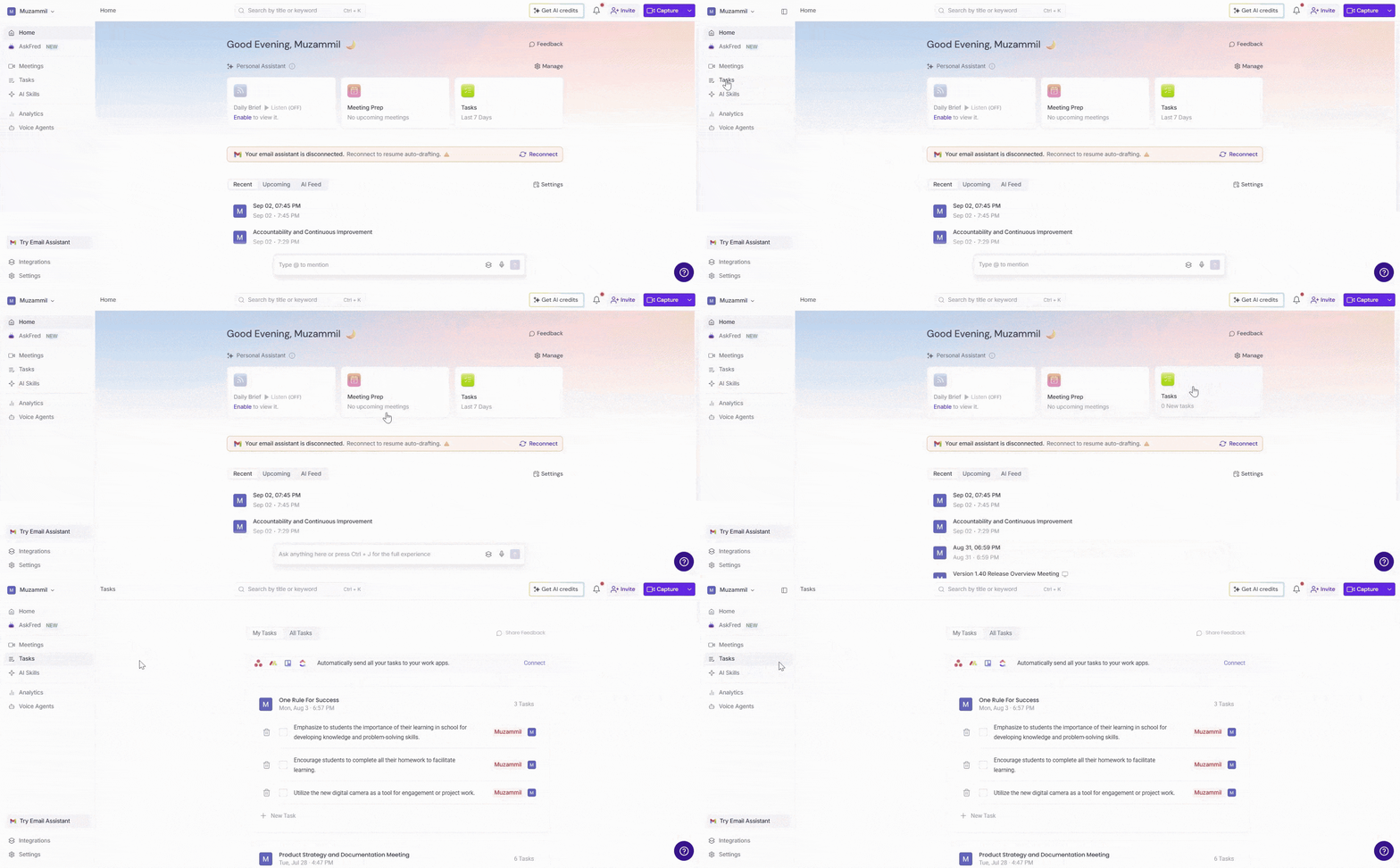
Step 1. Open your Tasks Feed
On your Fireflies Home dashboard, look for the Tasks Feed tab. This is where all your tasks are displayed.
Alternatively, you can click Tasks from the left navigation bar to access your tasks directly.
Step 2: Switch Between My Tasks and All Tasks
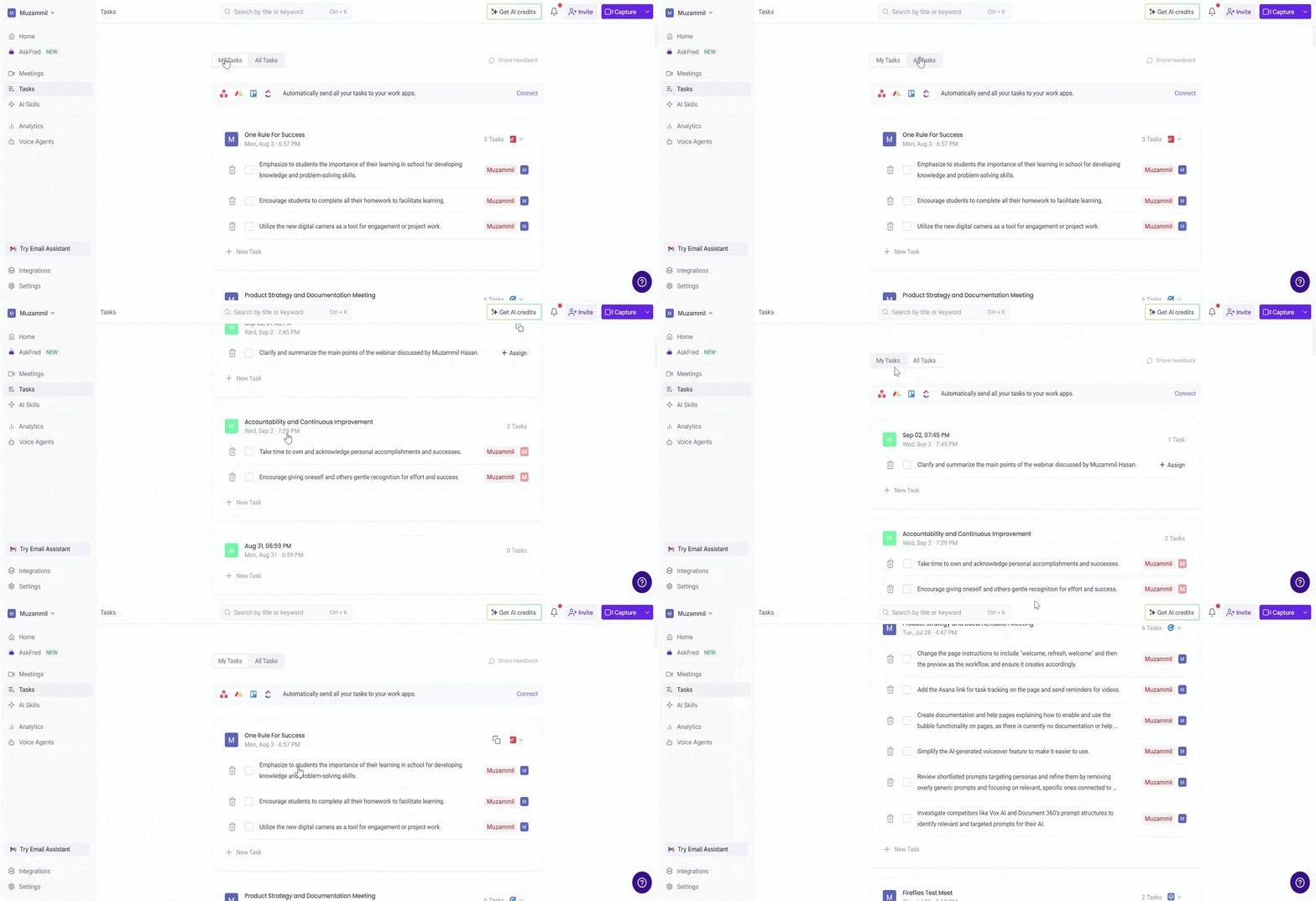
In the Tasks Feed, you'll see two tabs to help you filter tasks based on what you need:
My Tasks: Shows only the tasks assigned to you. This allows you to focus on what’s directly relevant to you.
All Tasks: Displays all tasks from the meetings you have access to. This gives you a broader view of the tasks across the team.
✅ Create a Task
Tasks in Fireflies are automatically created based on the meetings you attend. If you’re part of a meeting, Fireflies will automatically create tasks and assign them to you, making sure that action items are tracked without extra effort.
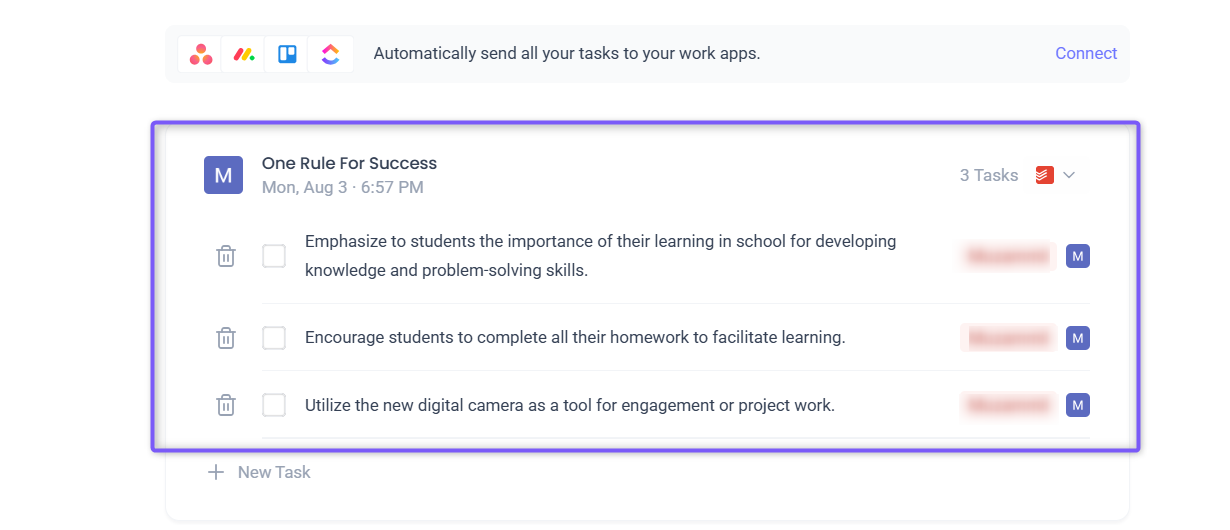
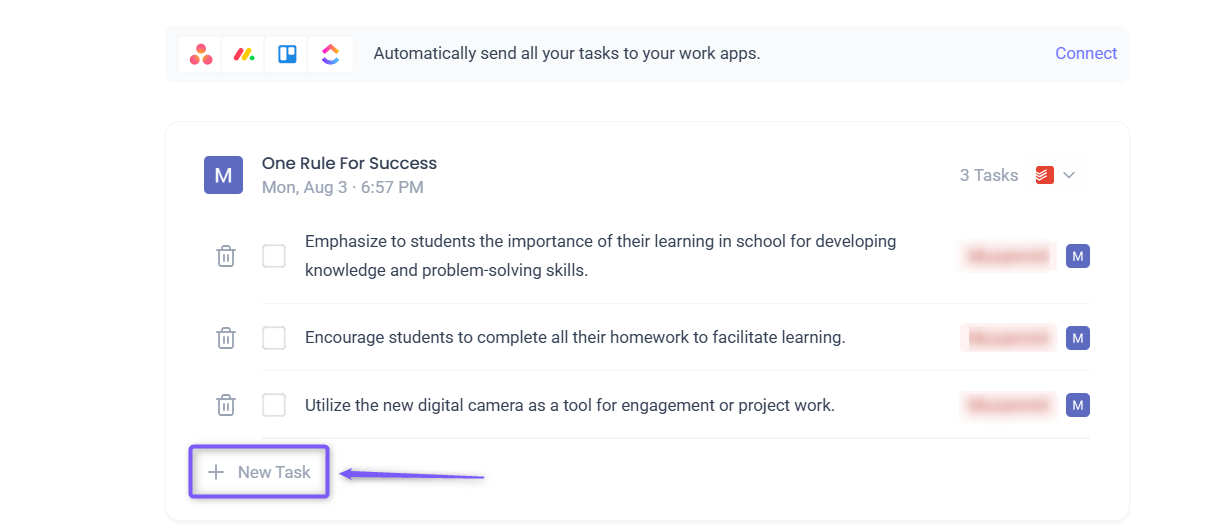
You can create or add tasks manually for any meeting in addition to the tasks that are automatically generated. If a task was automatically created for you, but you need to add something new.
follow these steps:
Select the meeting you want to add tasks to, then click + Create Task to add a new manual task.
Enter the task in the Enter task... field (e.g., "Update the quality score page content").
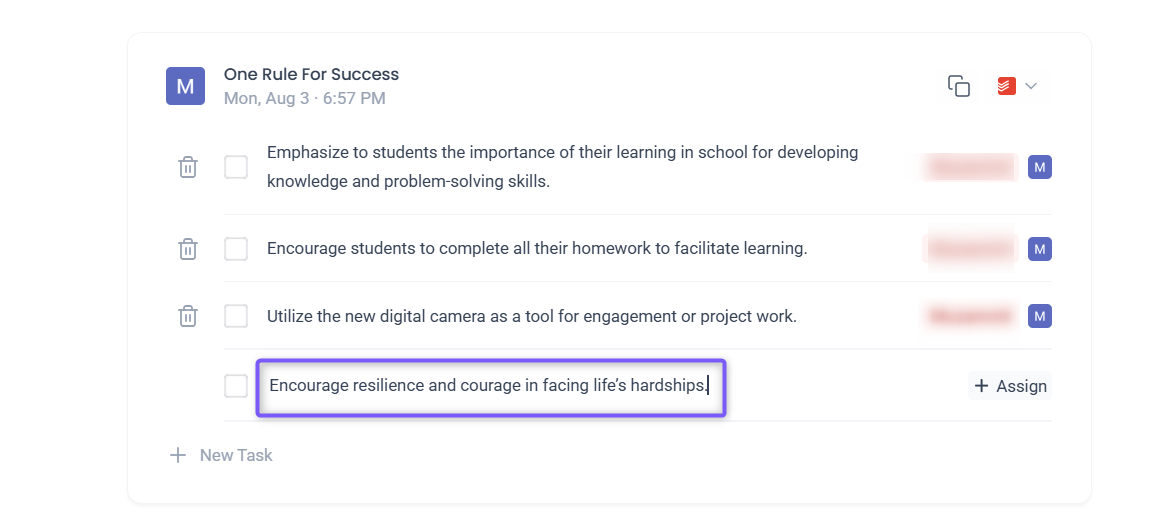
Click the Assign button next to the task and assign it to yourself, teammates, participants, user groups, or any email address, or leave it unassigned.
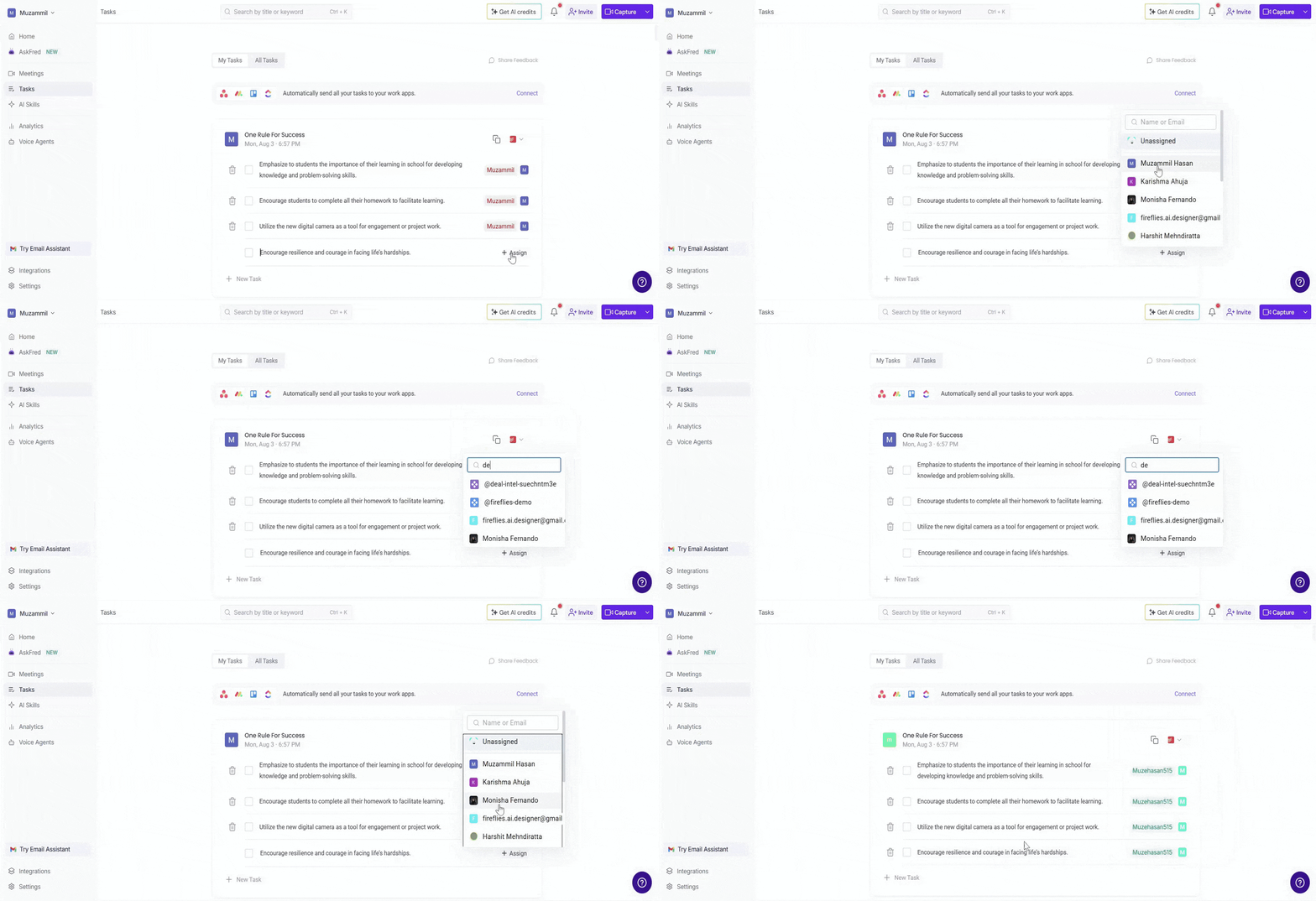
Tasks assigned to others will be visible under All Tasks, while tasks assigned to you will appear under My Tasks.
🪒 Manage Tasks
You can manage tasks in the Tasks Feed by marking them as complete, editing, or even unassigning them. Fireflies allows you to track your progress easily with just a few clicks.
1. Edit a Task
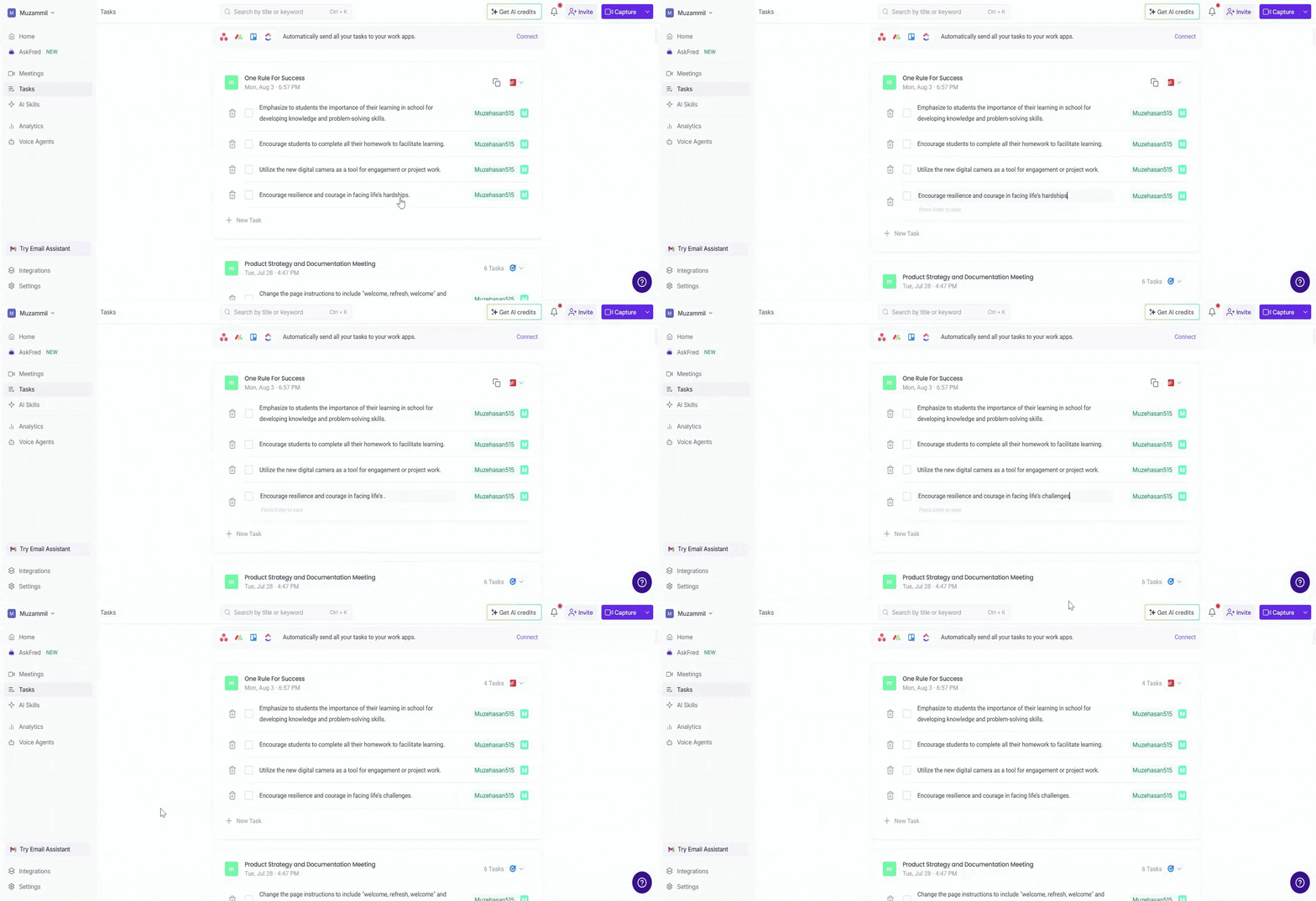
If a task needs to be updated — whether it’s a change in details, a deadline, or a reworded description—you can easily edit it without creating a new one.
To edit a task, click on the task’s text, update the details as needed, and press Enter to save your changes.
2. Tracking Task Progress
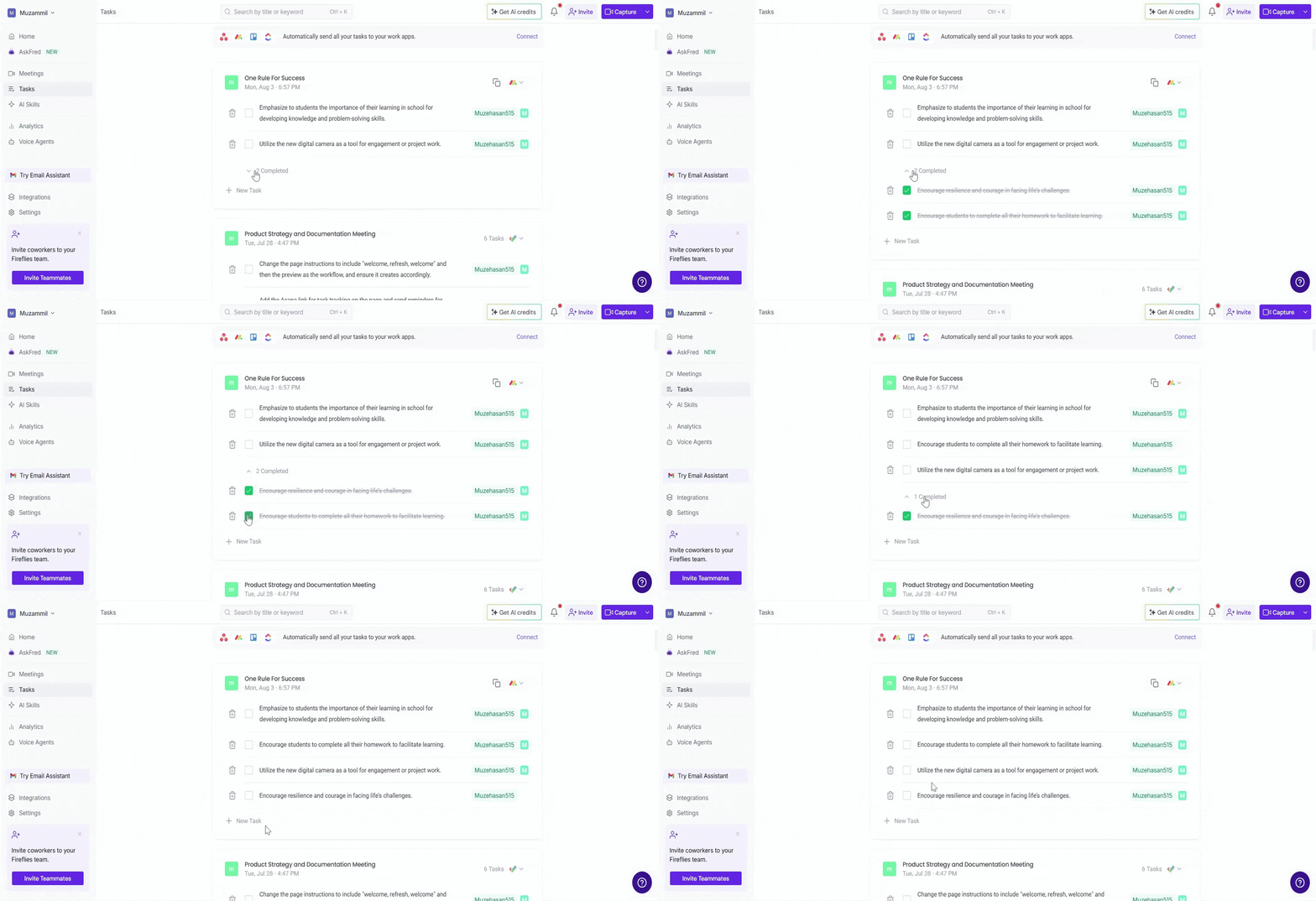
Mark a Task as Complete: To mark a task as complete, simply click the checkbox next to the task. Once checked, the task will appear with a strikethrough line, indicating it’s been completed.
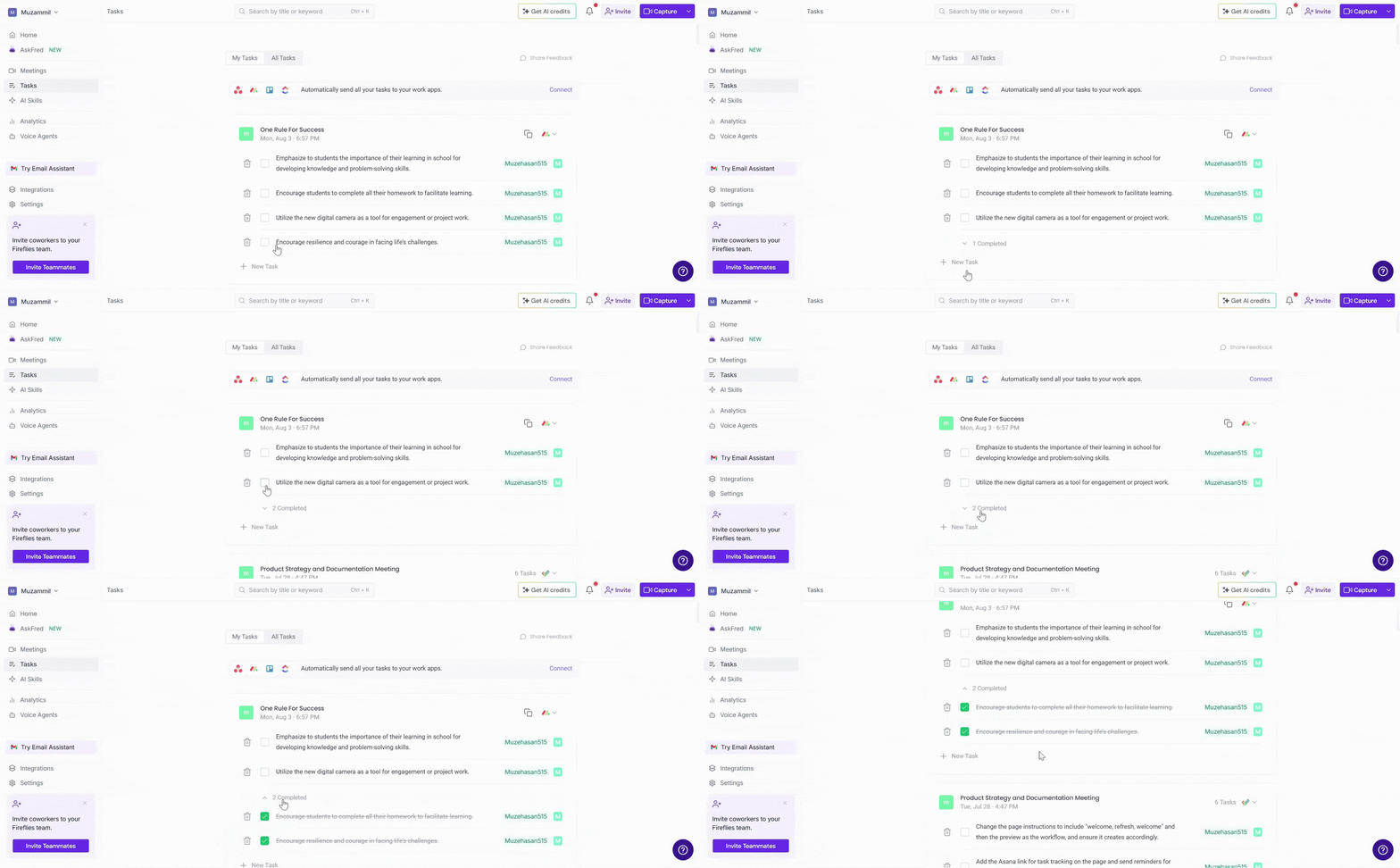
Uncheck a Task: If you need to revert a task to an incomplete state, just uncheck the box. The task will reappear in the active task list and will no longer be crossed out.
3. Reassign Tasks
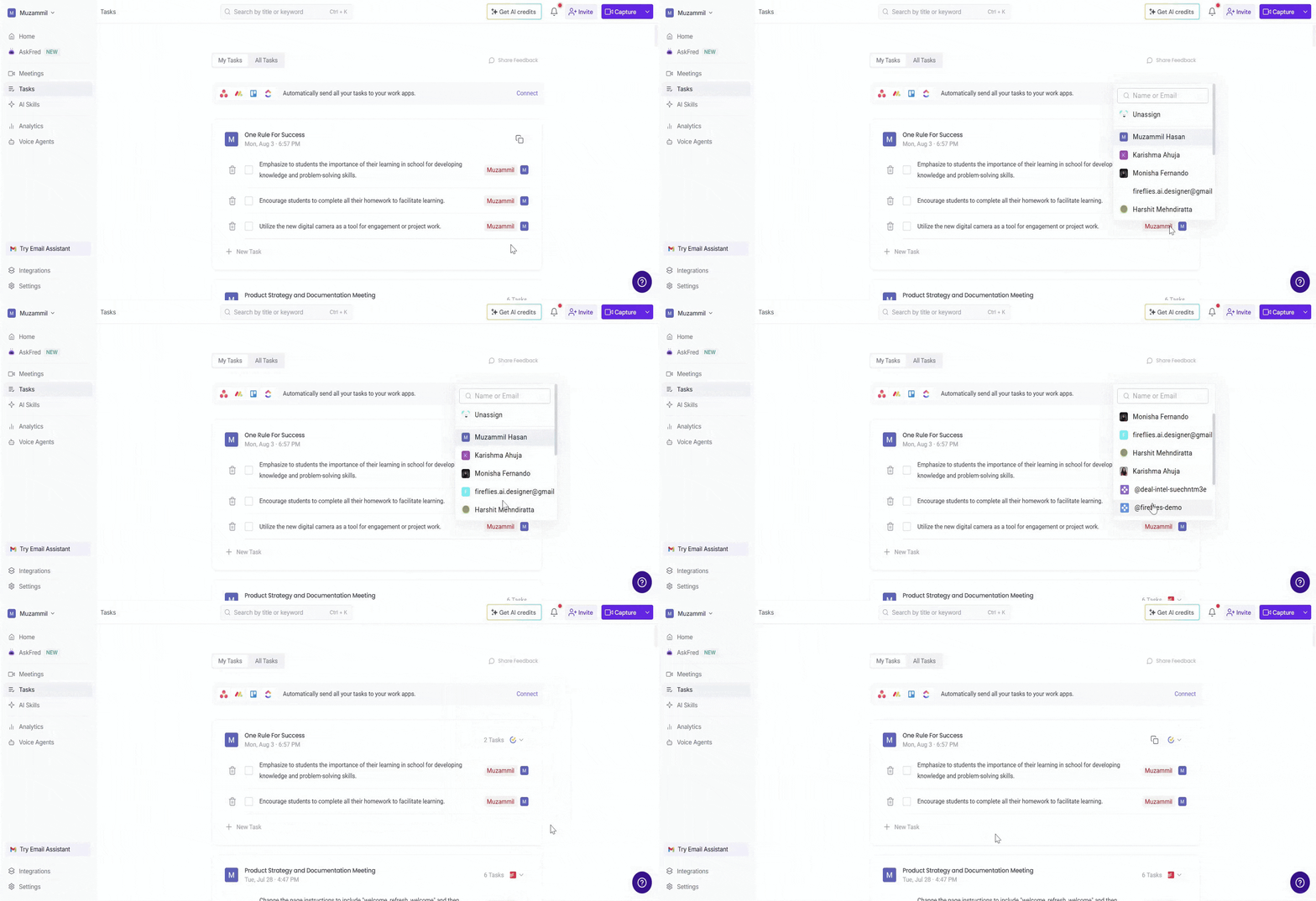
To reassign a task, click on the assignee’s name or image next to the task. This will open a list of available users.
Select the new assignee from the list, and the task will automatically be reassigned to them. Once reassigned, the task will no longer appear under My Tasks for the previous assignee and will be available under All Tasks.
4. Copy Tasks
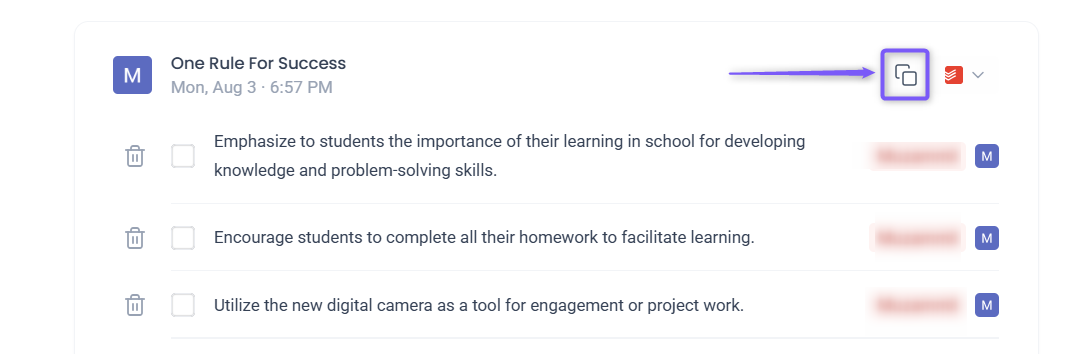
To copy all tasks from a meeting, click the copy icon next to the meeting you want. This will copy all the tasks within that meeting, allowing you to reuse them in other meetings or task lists.
5. Delete a Task
To delete a task, click the trash icon next to the task you want to remove. The task will be removed from the list.
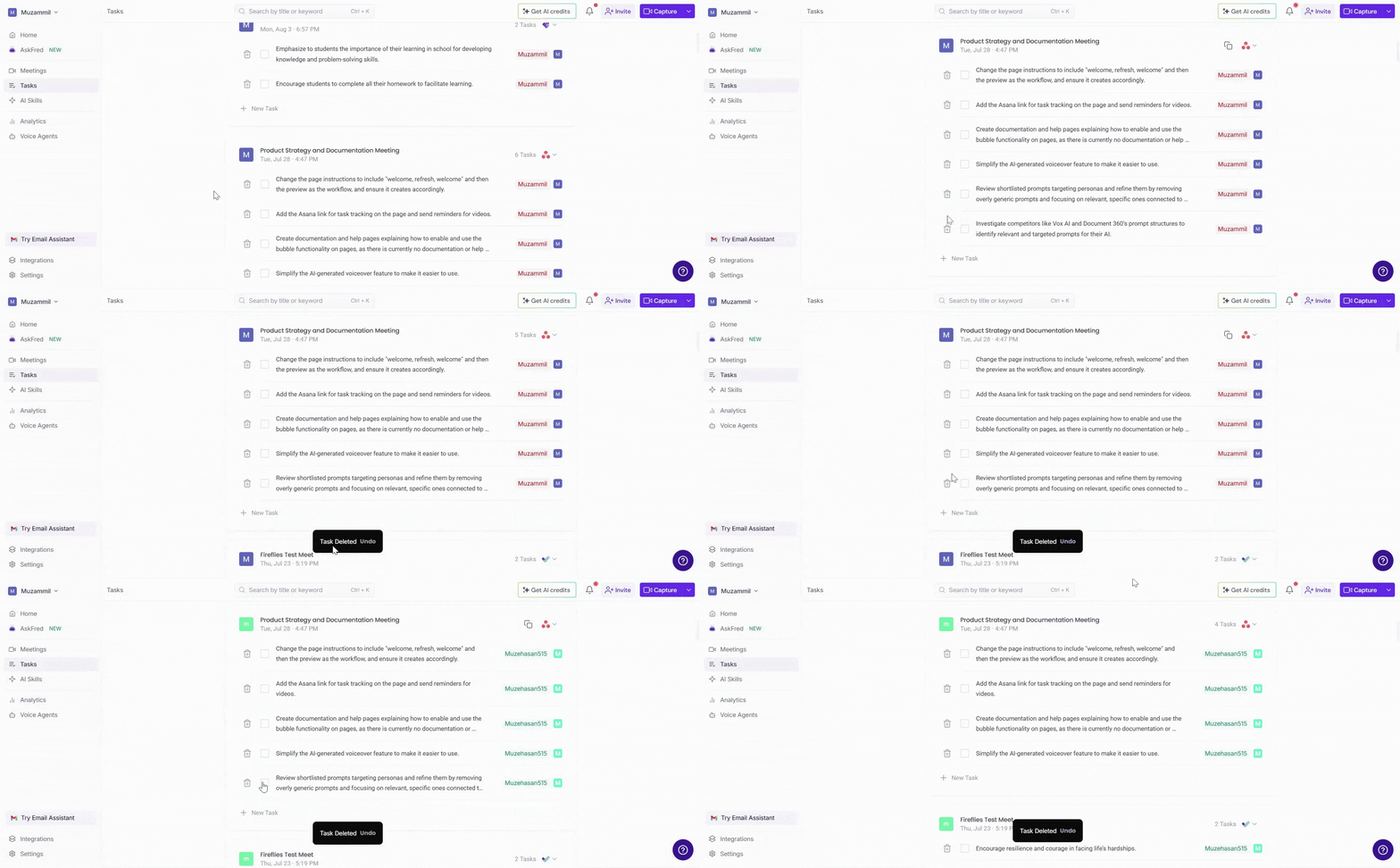
After deleting, an undo option will appear for a few seconds. If you click Undo, the task will be restored. If you don’t click Undo, the task will be permanently deleted.
🔎 Connect Tools and Send Tasks Manually
You can connect tools like Trello, Microsoft To Do, and more, and easily send tasks to them. Simply select the tasks you want to send and choose your tool. You can send all tasks, just your assigned tasks, or select tasks manually.
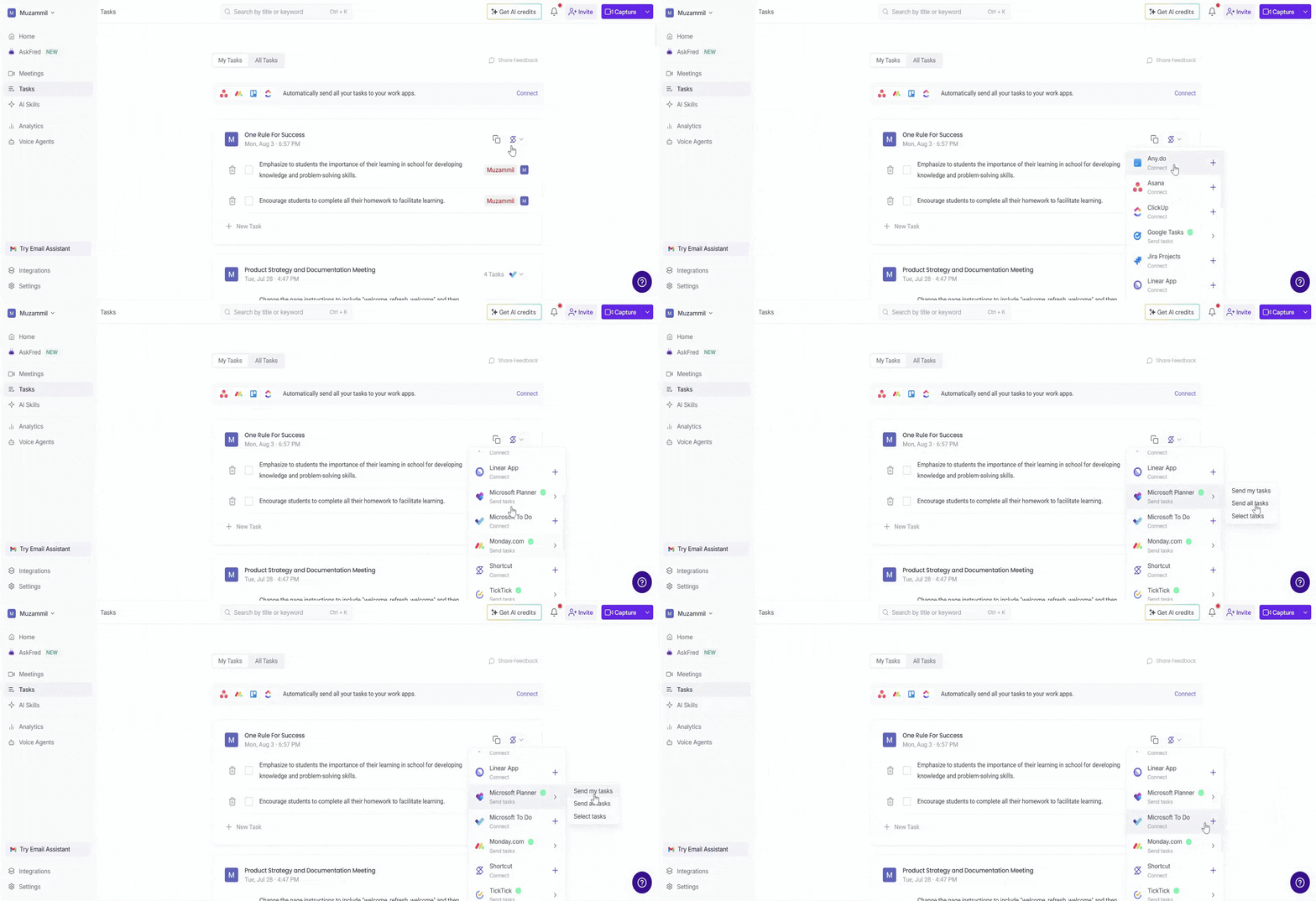
📌 For more details on how to send tasks manually to the connected tool →
⏪Recap
The Tasks Feed in Fireflies helps you stay organized by managing and tracking your meeting tasks. Here’s a quick overview of what you can do:
Mark tasks as complete: Easily track your progress by checking off completed tasks.
Reassign tasks: Assign tasks to the right team members to keep everyone on track.
Delete or copy tasks: Remove tasks you no longer need or copy them for use in other meetings.
Send tasks to project tools: Manually send tasks to your preferred project management tools like Trello, Microsoft To Do, and others.