Manually Send Fireflies Tasks to Project Management Tools
Last updated: September 29, 2025
Ever wanted to send just a few select tasks from Fireflies into your project management tool—without syncing everything? Now you can. With manual task push, you decide exactly which action items are added to Jira, Google Tasks, Trello, Linear, Microsoft To Do, and more.
This feature is perfect for when you only want to move client-facing deliverables, priority blockers, or follow-up items—without cluttering your task board.
Let’s get started 🚀
🔑 Prerequisites
Tasks that have already been generated from a Fireflies meeting.
Connected project management tools like Jira, Linear, Google Tasks, Microsoft To Do, or Trello. If you haven’t set up your integrations yet, check out our Fireflies integrations guide for step-by-step instructions.
🚀 Steps to Follow
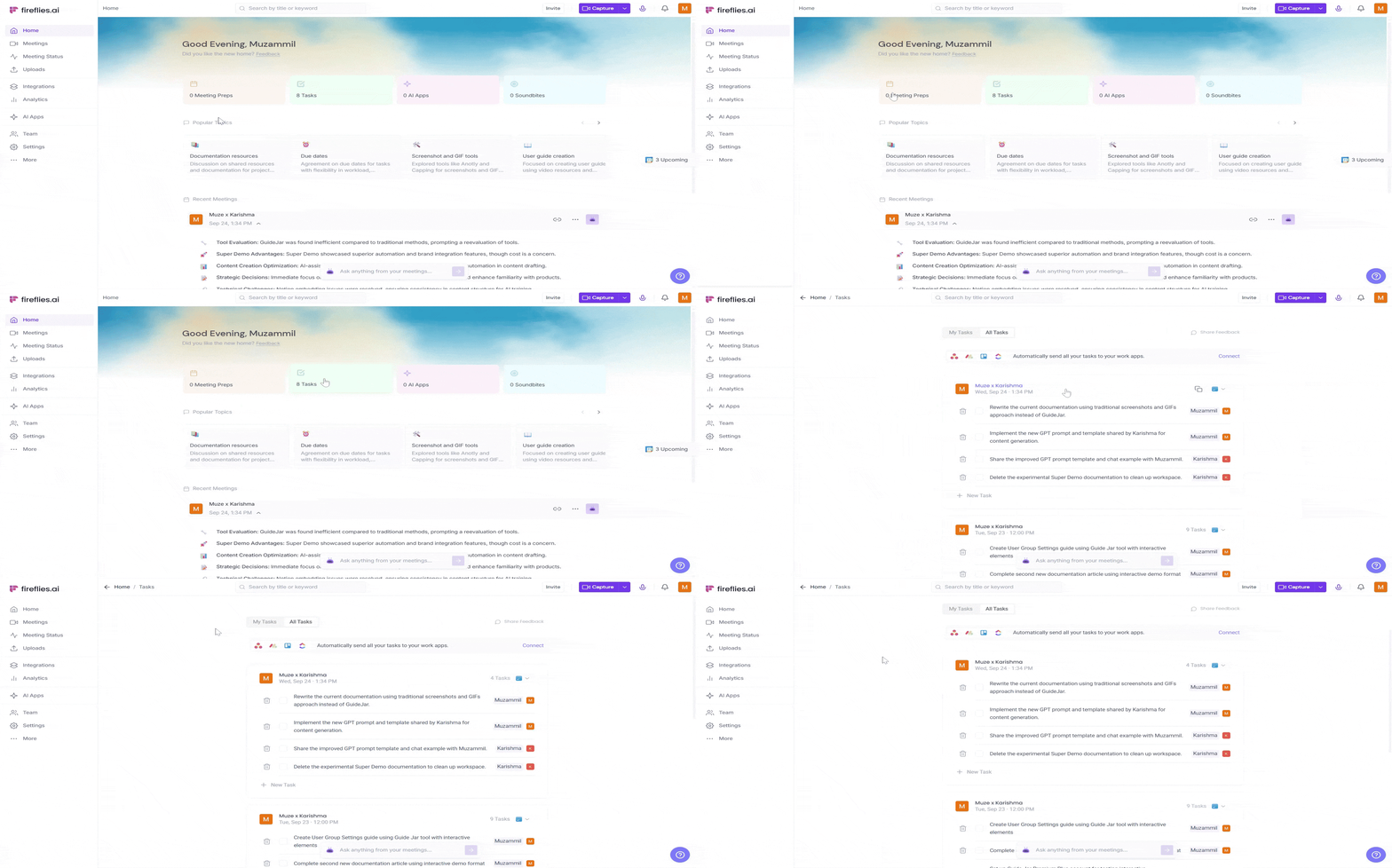
Step 1. Open your Tasks Feed
Go to your Tasks Feed from the Fireflies dashboard after a meeting is processed.
Step 2. Switch between My Tasks and All Tasks
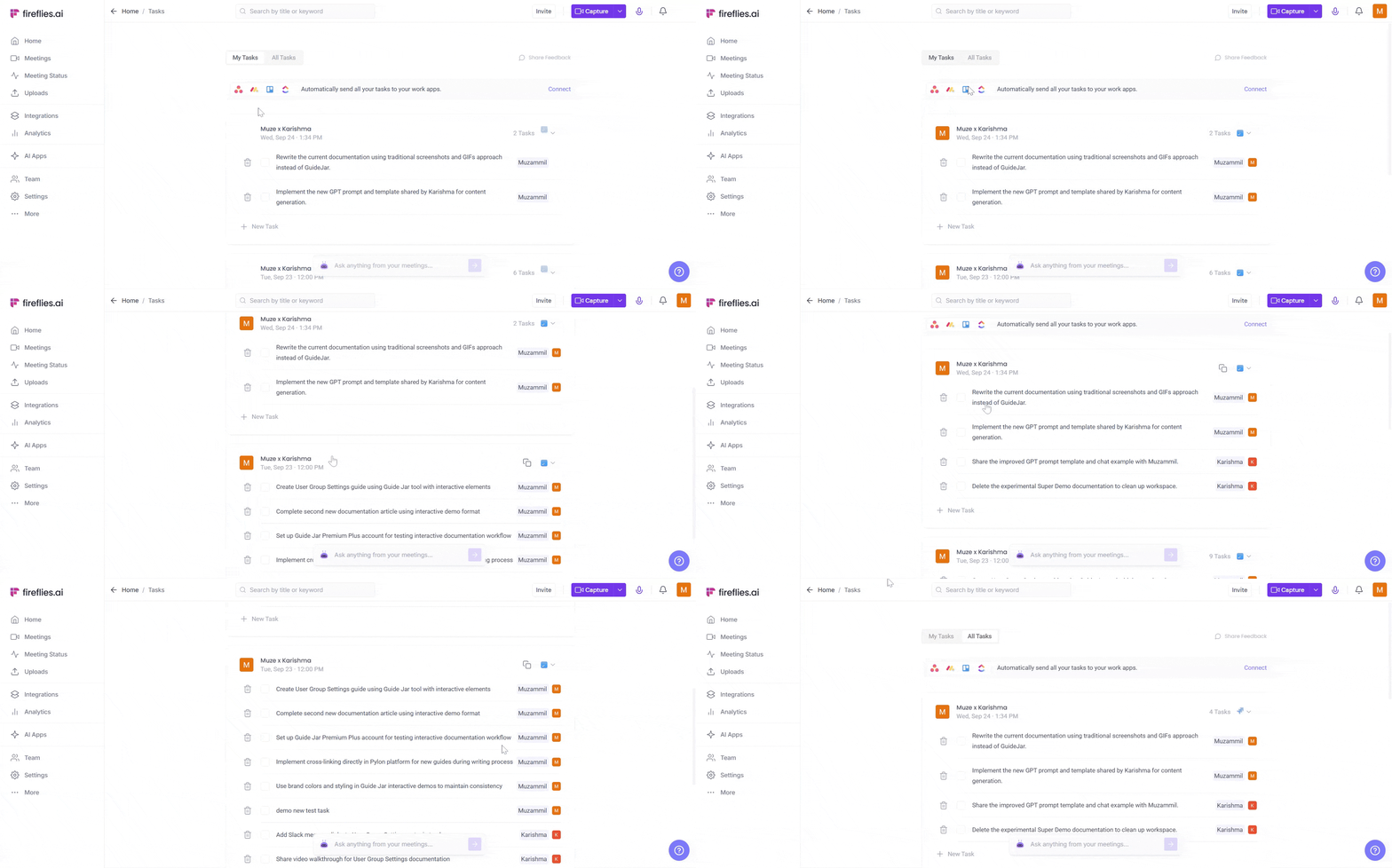
On the Tasks feed, you'll see two tabs to help you find what you're looking for.
My Tasks: Shows only the tasks that are assigned to you.
All Tasks: Displays every task from the meeting.
Learn more → Tasks Feed.
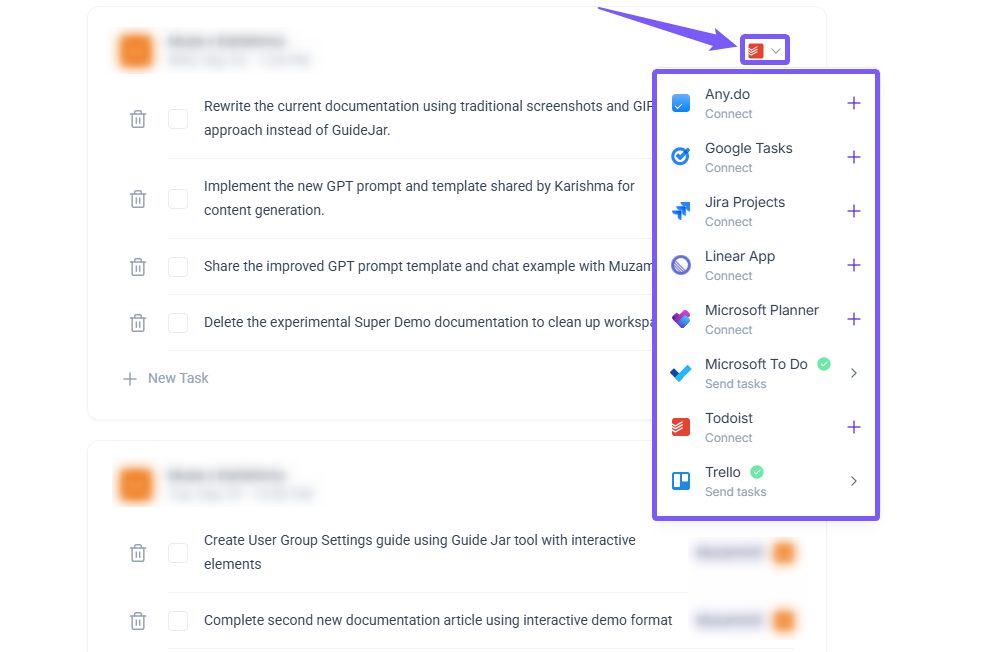
Step 3. Spot the Integration Icon
Click the dropdown menu icon to unwrap the list of supported integration platforms.
Want to see supported project management platforms? Check here.
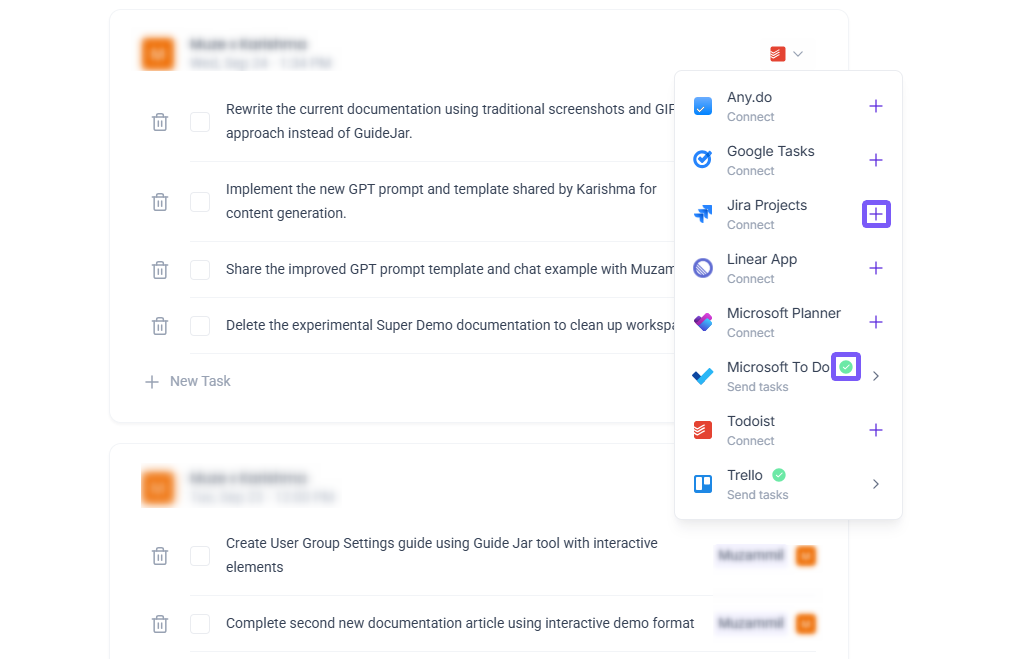
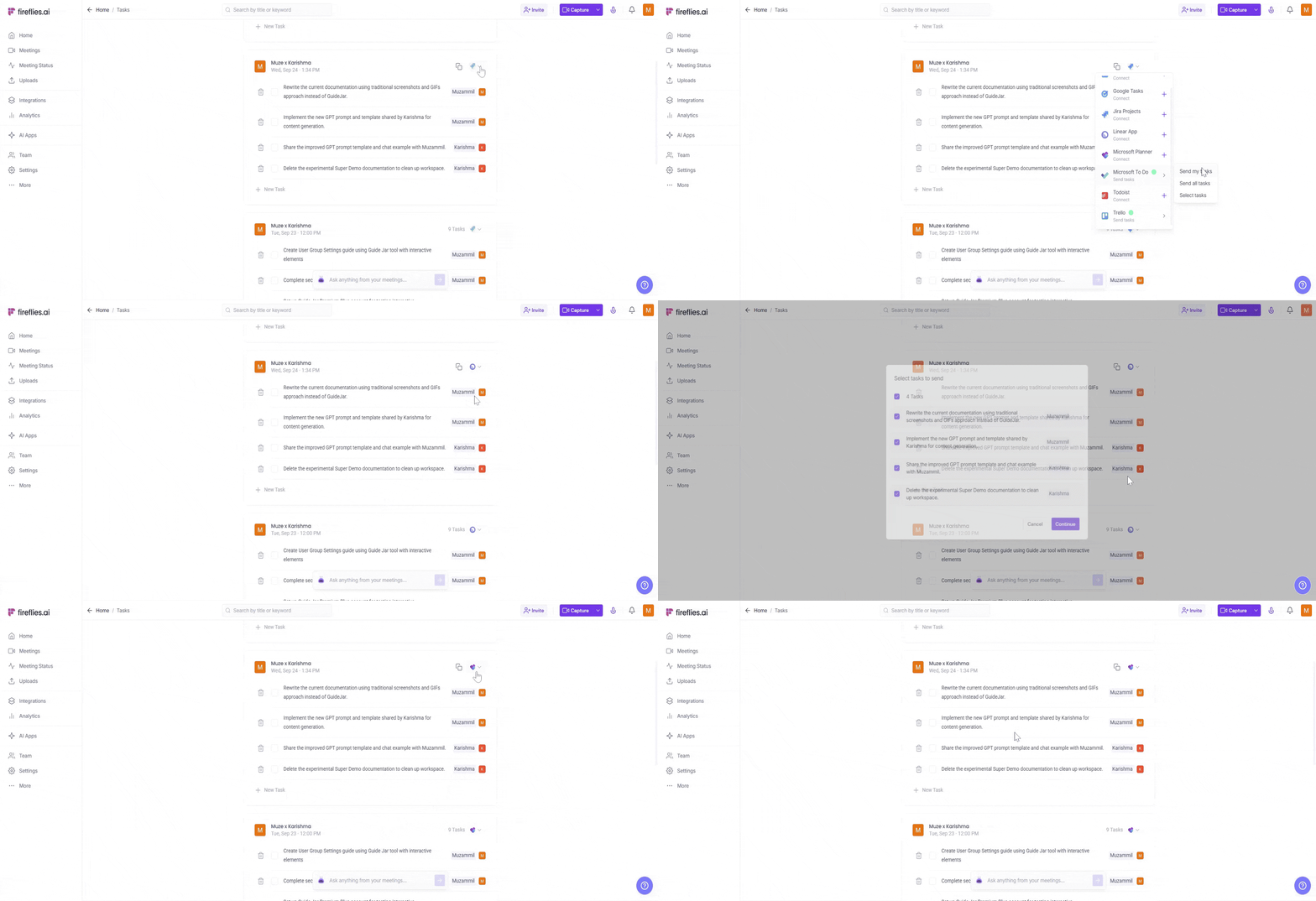
Step 4. Choose your integration from the list.
🟢 Green checkmark: Already connected and ready to go!
➕ Plus sign: Not linked yet, but don’t worry! Just click it, and you’ll be taken to the setup page where you can easily connect.
Simply click on your preferred tool (like Microsoft To Do) to get started!
Need help integrating Microsoft To Do? Check out this guide.
Step 5. Choose which tasks to send where
Hover over your chosen tool and decide how you want to send your tasks.
Send My Tasks → This option lets you send only the tasks assigned to you, keeping things focused.
Send All Tasks → If you want to send all tasks from the meeting, this will cover everything.
Select Tasks → Pick and choose specific tasks to send, giving you full control over what gets pushed.
This way, you can send exactly what’s needed—no more, no less!
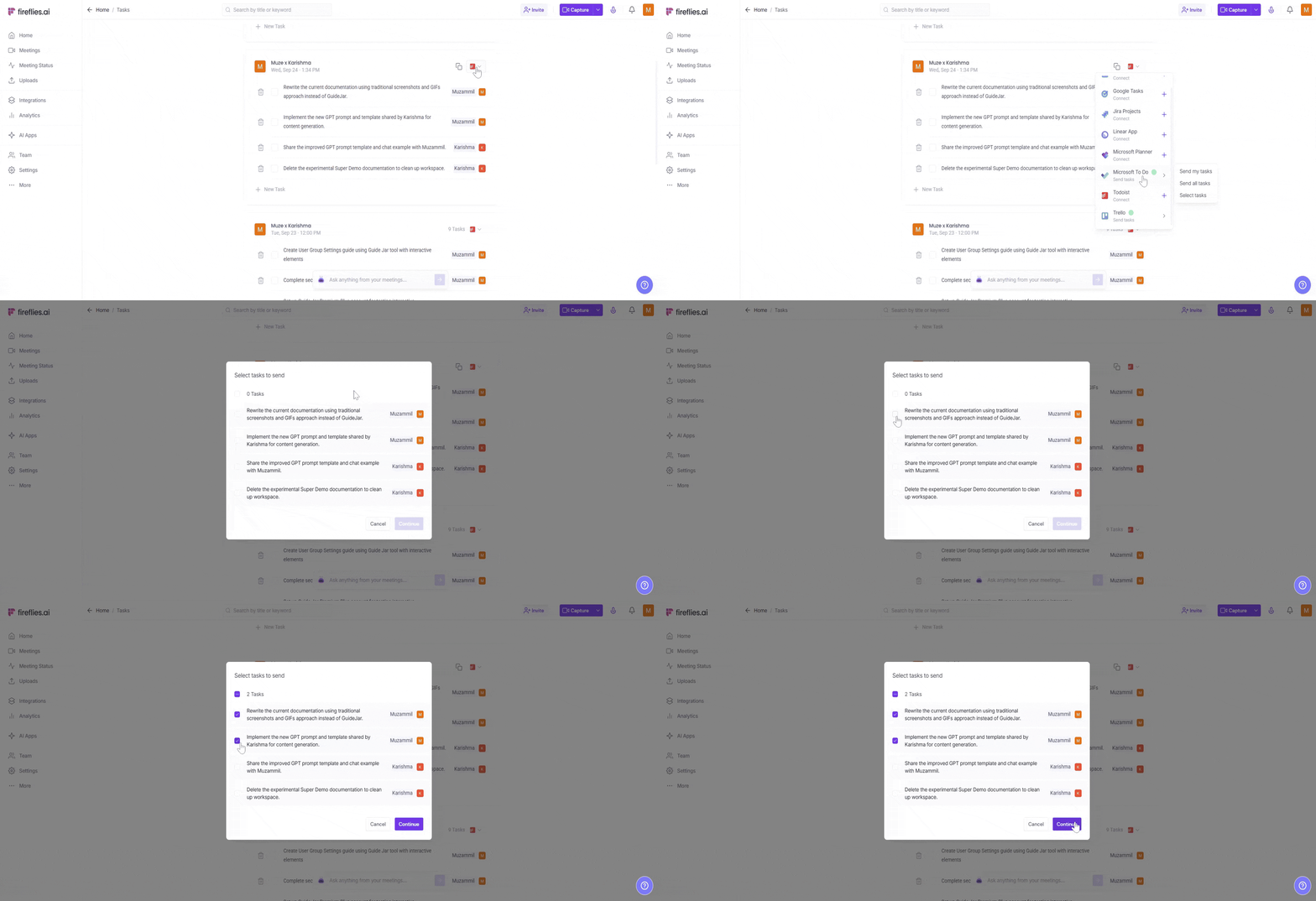
Step 6. Select the tasks you want to send
For this demo, we’ve selected Select Tasks. After selecting, check the boxes for the tasks you want to send, then click Continue. You can choose multiple tasks at once!
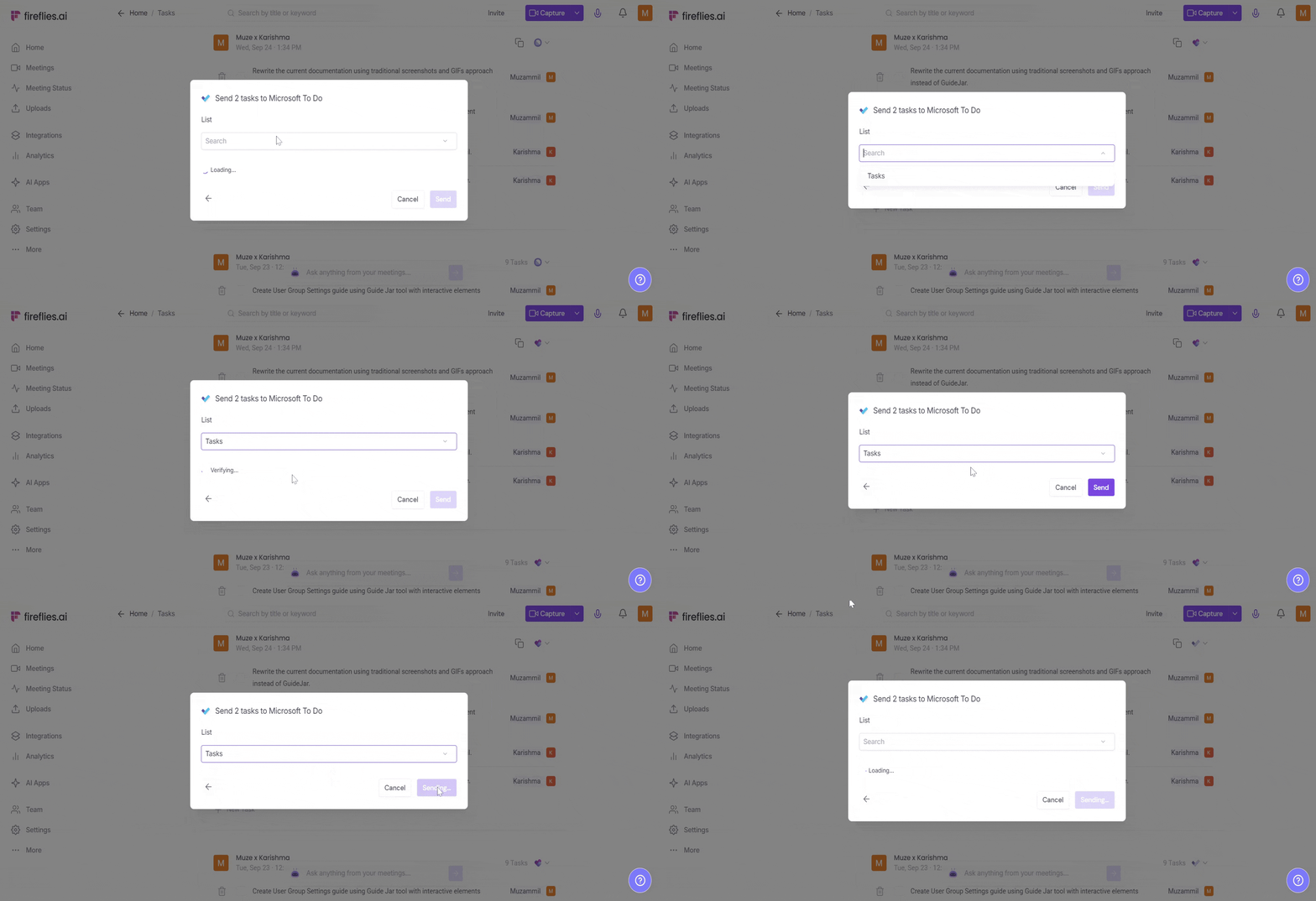
Step 7. Map details to your integration
Once you’ve chosen your project management tool, select the list, team, project, board, or status where you want the tasks to be placed. What you see here depends on the tool you’re sending the tasks to.
After that, click Send to push the tasks to the chosen location.
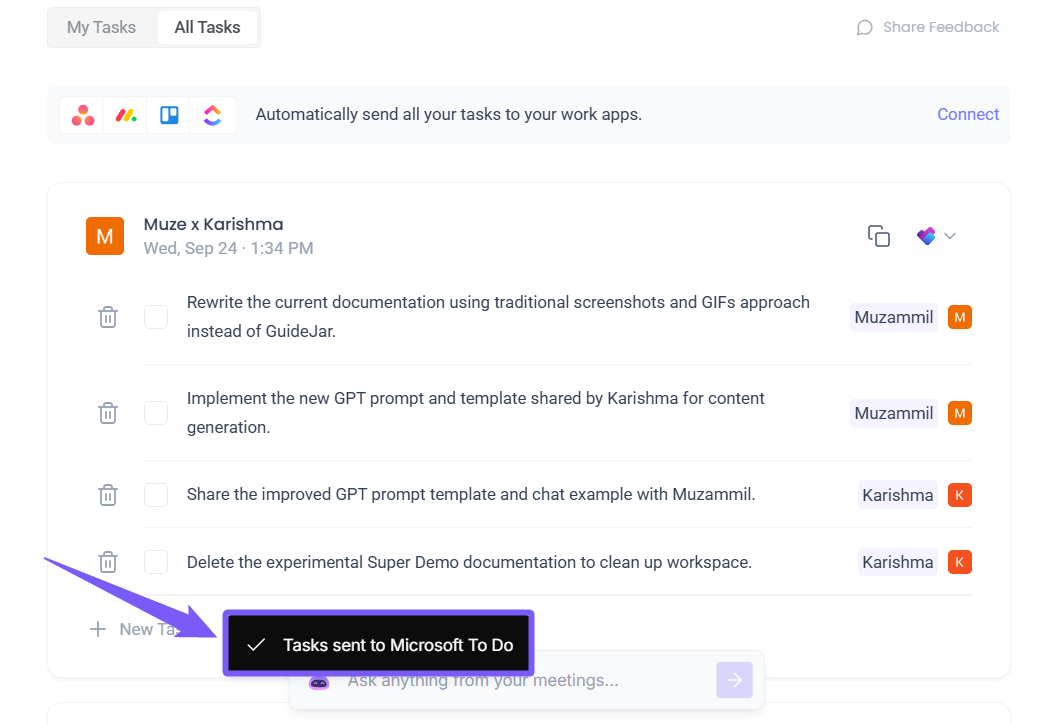
💡 Tasks successfully sent to Microsoft To Do!
A flash message will appear to let you know that your tasks have been sent.
📤 View Your Sent Tasks
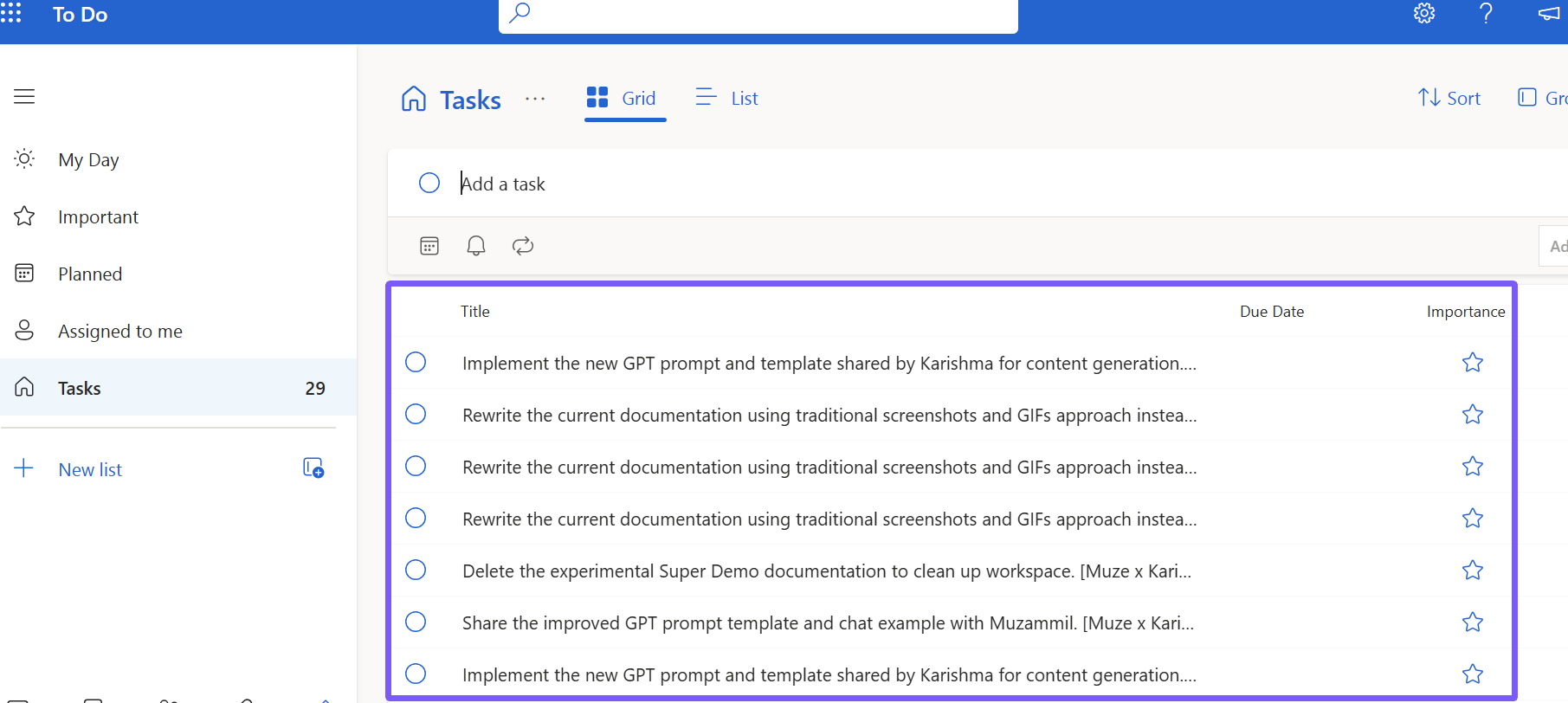
Once you’ve sent your tasks, check your project management tool to make sure they’re organized just as you set them up. It’ll be easy to find them in the right project, board, and status that you selected during configuration. Here’s how tasks look in Microsoft To Do after being sent from Fireflies.
❓Frequently Asked Questions
Q 1. Do I need to configure anything before sending tasks to integrations?
No. Once your integration is connected, you can directly push tasks without creating extra configurations.
Q 2. How do I know if my integration is connected?
When you open the integration list, you’ll see a green dot next to connected tools. If not connected, you’ll see a Connect button that redirects you to the setup page.
Q 3. What are the different options for sending tasks?
You have three choices when pushing tasks:
Send my tasks → Pre-selects tasks assigned to you.
Send all tasks → Sends every task from the meeting.
Select tasks → Lets you manually choose which tasks to send.
Q 4. Can I choose where tasks go inside the project management tool?
Yes. After selecting tasks, you can set details like Project, Team, and Status (options vary depending on the integration, e.g., Jira vs. Trello).
Q 5. Can I edit or sync tasks after sending them?
Currently, tasks are only pushed one-way from Fireflies to your project tool. Upcoming updates will allow two-way syncing and the ability to edit tasks before sending.
Q 6. What happens to the original integrations for these tools? Do users need to create a new configuration, or will the existing setup still work?
Users only need to connect the integration; no new configuration is required. Once connected, the integration will appear as active, and users can immediately push tasks through it.
⏪Recap
Manual task push in Fireflies gives you complete control over what gets sent to your project management tools.
Handpick only the tasks that matter instead of sending everything.
Assign them to the right project, board, or status before sending.
Keep your boards organized and avoid unnecessary clutter.
This way, meeting action items turns into trackable tasks - without overwhelming your workflow.