How to Manually Send Fireflies Notes to Slack
Last updated: July 1, 2025
Sometimes you don’t want every meeting recap to fly straight into Slack automatically — maybe you want to check the notes first, or only share the ones that matter most.
With Fireflies, you can pick exactly when (and where) your notes go. Here’s how to do it in a few seconds.
Yet to integrate Slack with Fireflies? Set up your Slack integration →
Step 1: Open your meeting
Once your meeting is done, go to your Fireflies Dashboard and click on the meeting you want to send notes for. This will lead you to the Fireflies Notebook
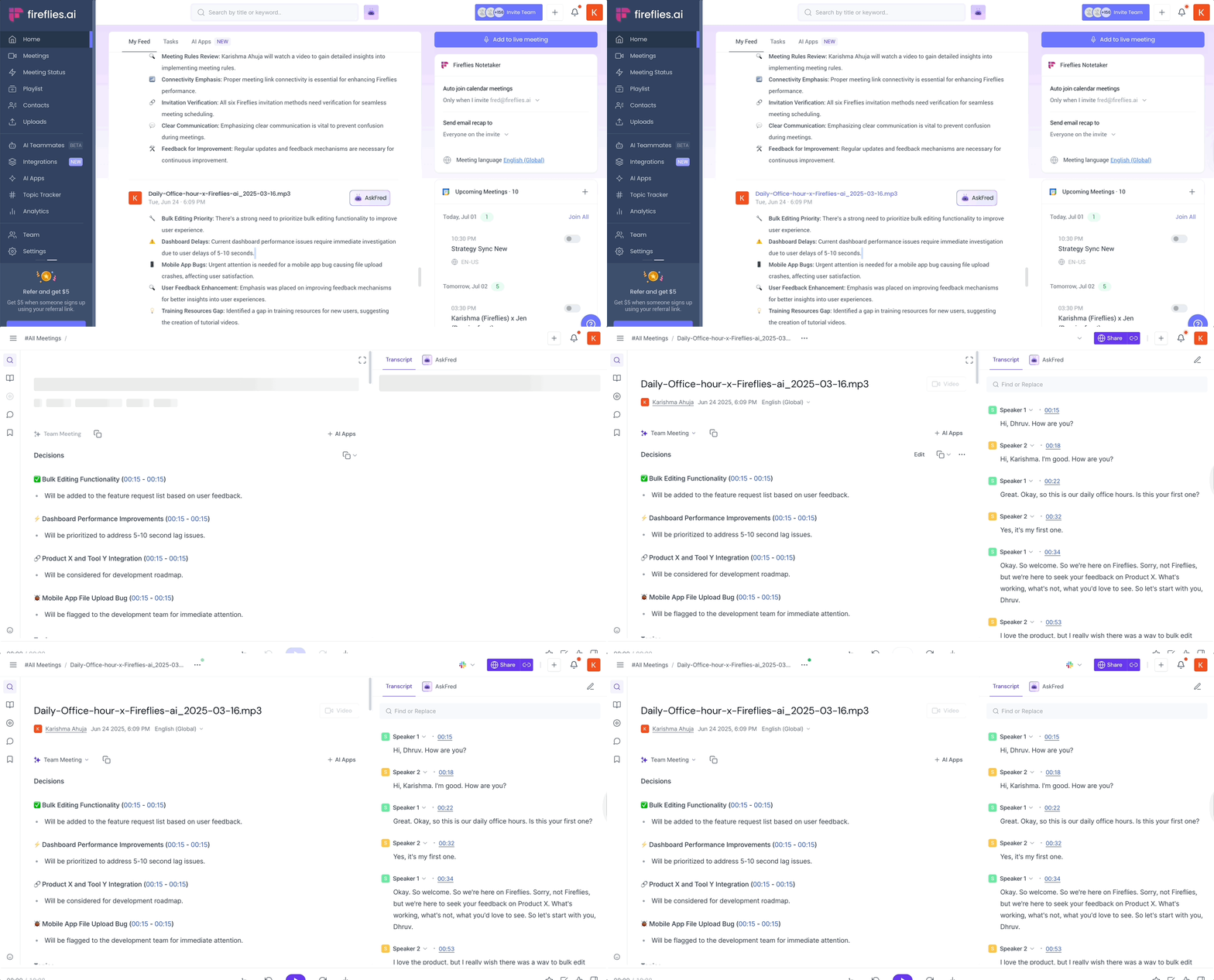
Step 2: Click the Slack icon
Look at the top of the meeting page — you’ll see a Slack icon.
Click it the slack icon
You will see 2 options here
Configure — click here if you want to integrate Slack or change the default settings if you want.
Click Send Notes to send the notes immediately
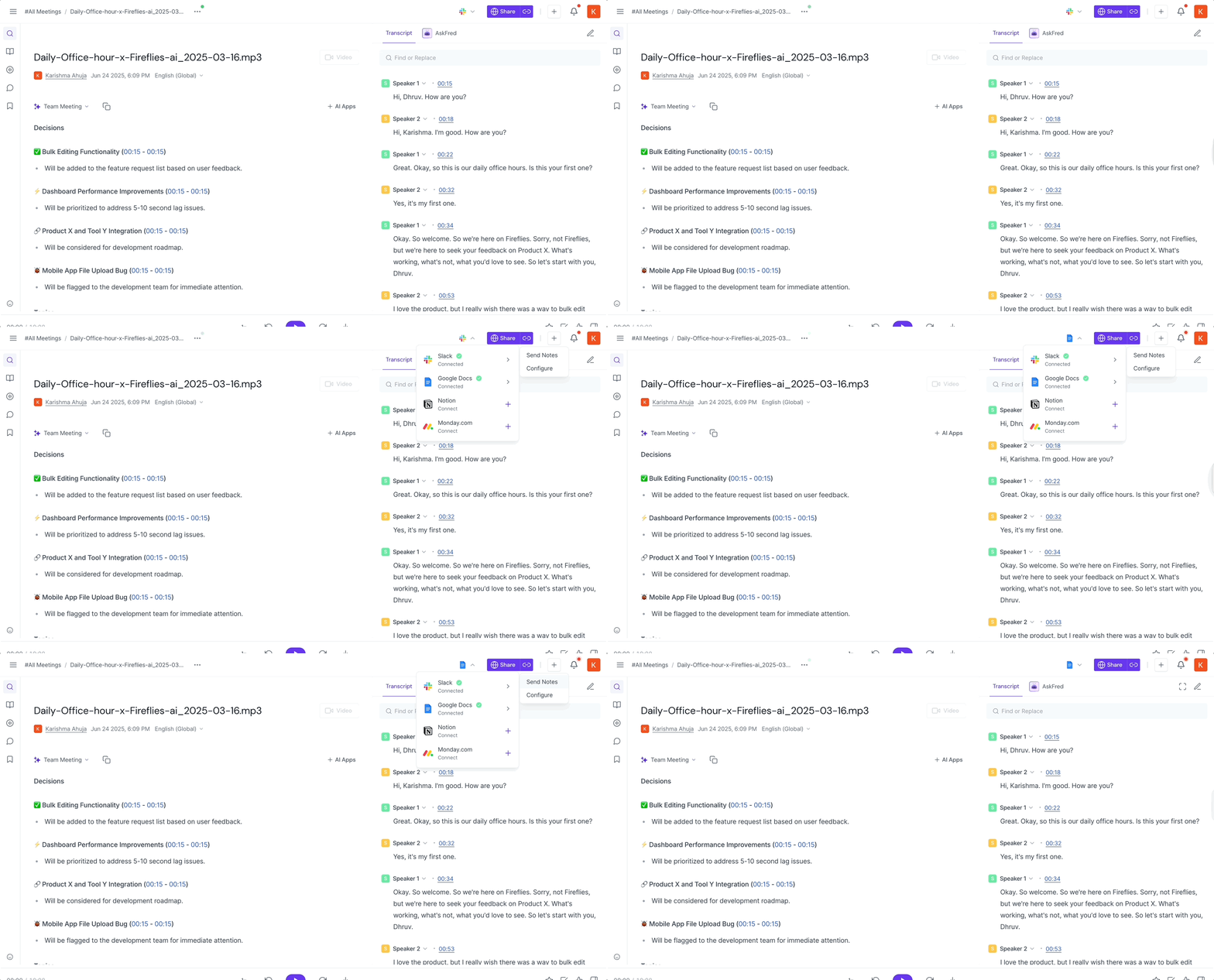
Tip: If you haven’t connected Slack yet, you’ll see a “Configure” option here — just follow the setup.
Step 3: Pick your Slack channel
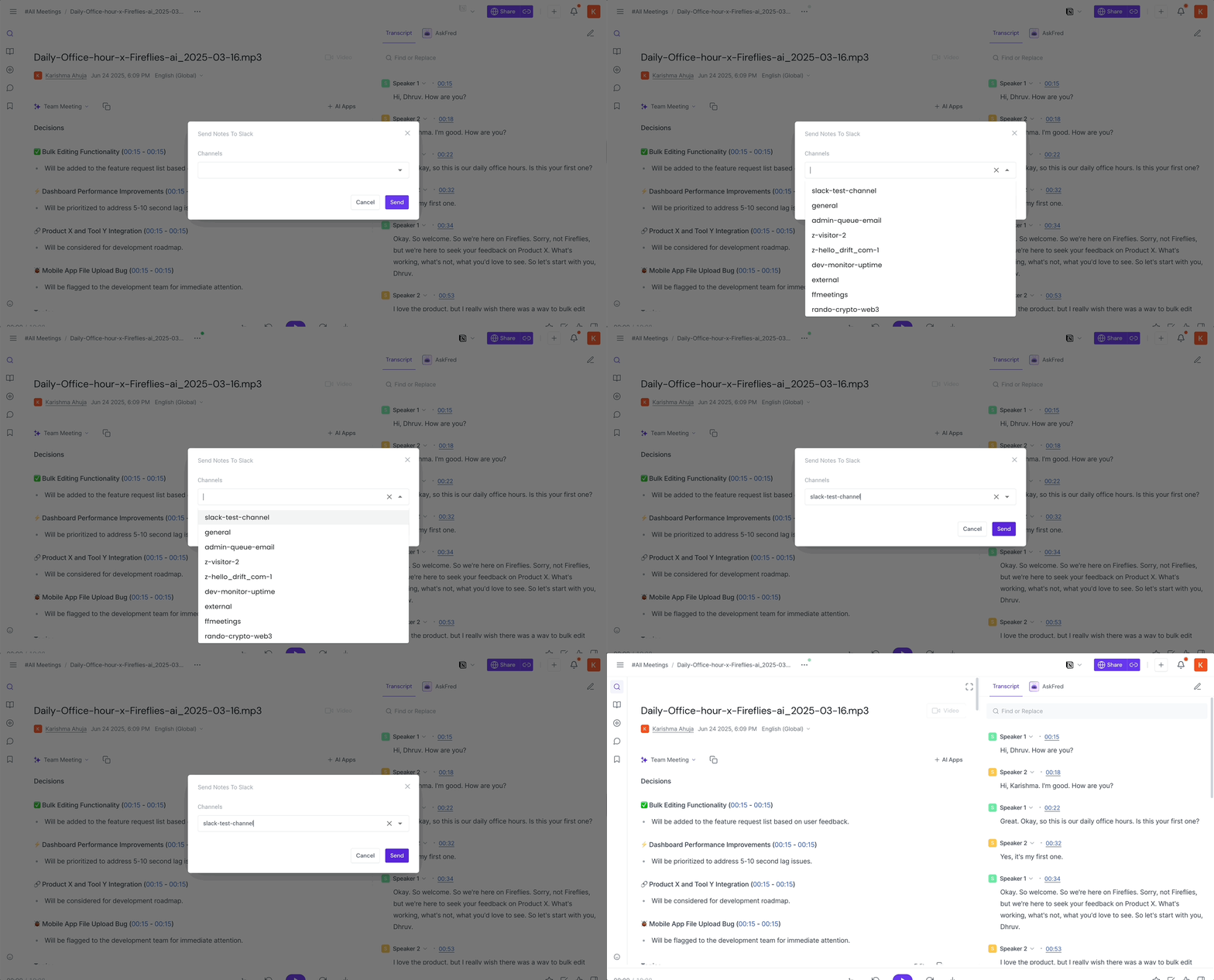
A small window will pop up -
Select which Slack channel you want to send the notes to.
Click Send — and you’re done!
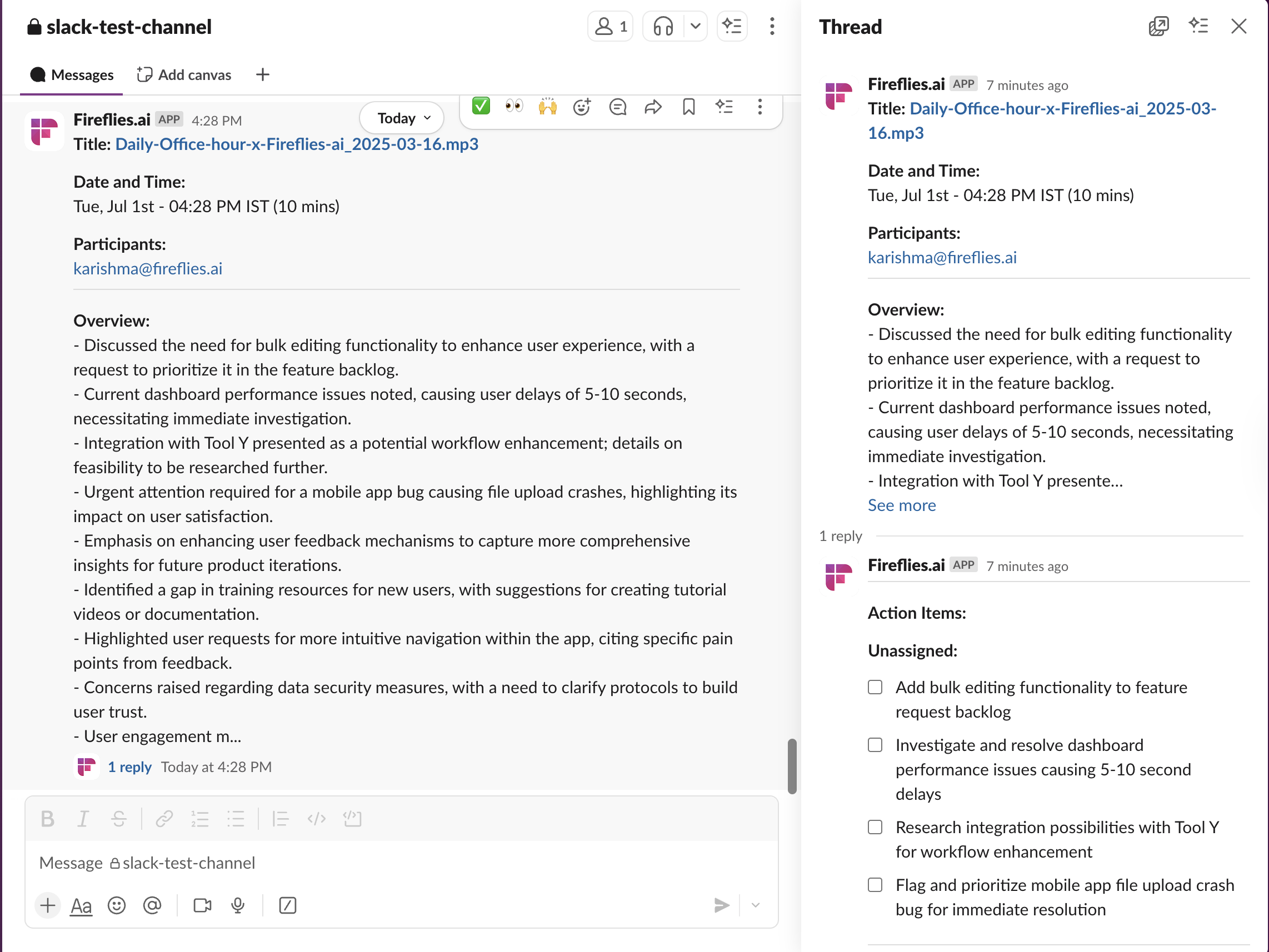
Your team will see a crisp summary in Slack — with highlights up top and full notes neatly tucked into a thread.
👀 Why use manual push?
Review your notes before sharing.
Share only the recaps that matter.
Perfect for teams who want a human-in-the-loop before things go out.
And don’t worry — if you love the auto-send flow, it’s still there too. This just gives you more control when you want it.