How to Integrate Webhooks with Fireflies
Last updated: October 12, 2026
Webhooks help you automate workflows by sending instant notifications from Fireflies to your applications when meeting events occur, making it easier to share meeting data and keep your tools updated.
Let’s get started 🚀
🔍 What Does the Webhook Integration Do?
With Fireflies Webhooks, you can:
Receive meeting updates — Send transcription and summary events to a configured webhook URL when they're ready.
Build custom workflows — Connect Fireflies meeting data to your own applications or third-party services.
Configure multiple webhooks — Set up to 5 webhook configurations for different workflows or services.
Choose which events trigger each webhook — Select the supported event types you want each webhook to receive.
Resend updated notes — Resend transcription or summary events when meeting notes change.
🔑 Prerequisites
Before configuring Fireflies Webhooks, make sure you have the following ready:
Fireflies account → Access to your Fireflies workspace.
Webhook URL → A receiving endpoint from your application or a third-party service to receive webhook events.
(Optional) A signing secret if your endpoint requires request verification
💡 If you’re connecting to your own application, ask your developer for the endpoint URL before starting.
Once these are ready, you can configure your webhook in Fireflies.
⚙ Configure a Webhook
Once you have your webhook URL, you can configure Fireflies to send meeting events to your chosen endpoint.
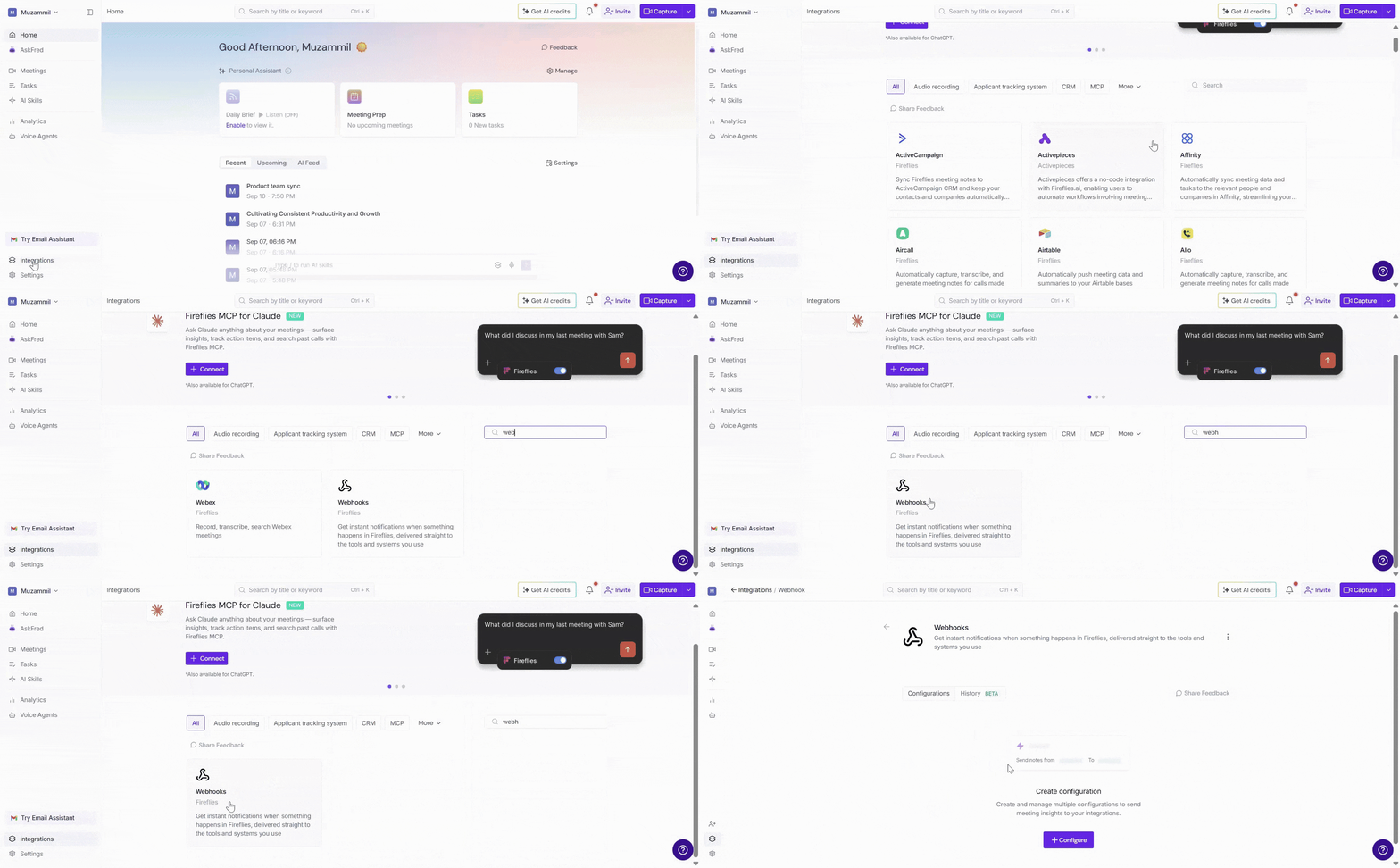
Step 1: Log in to your Fireflies account. Navigate to the Integrations page, and search for Webhook. Click on it to get started.
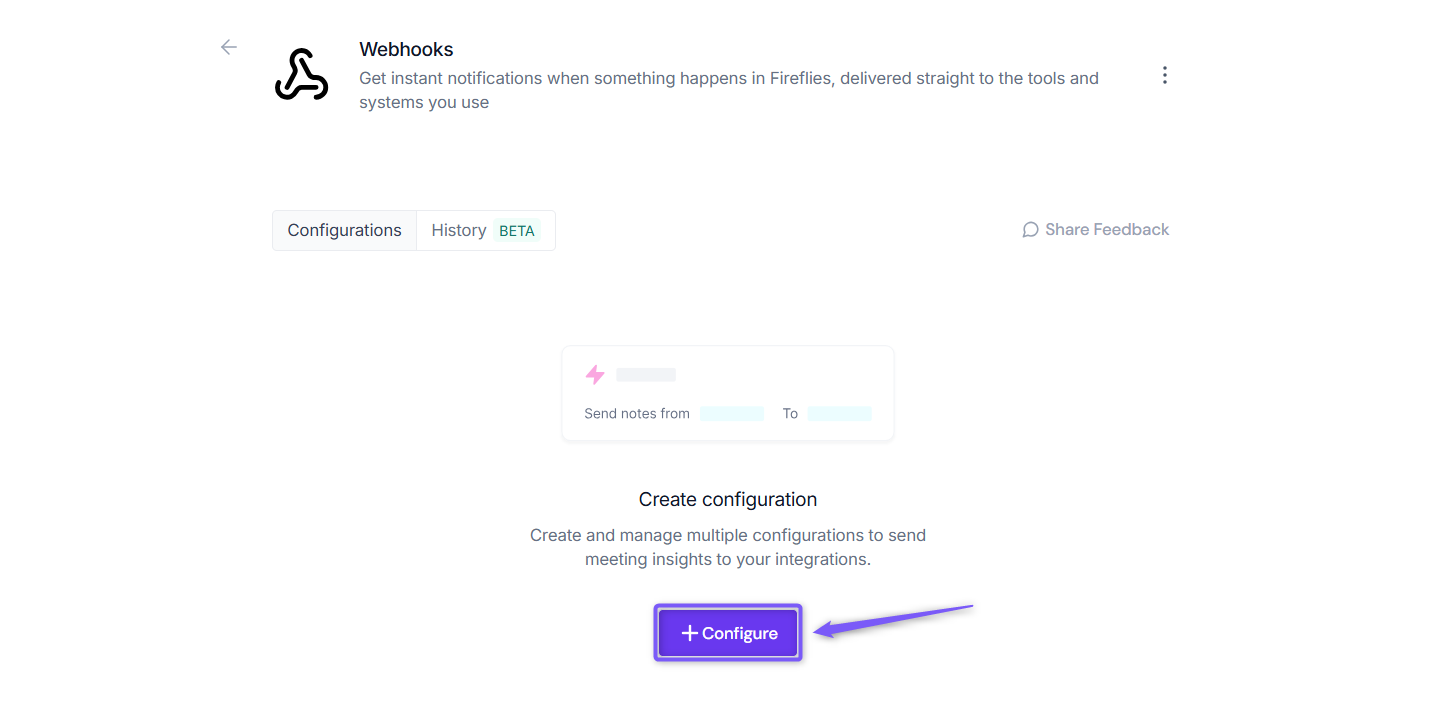
Step 2: Click Configure to set up your webhook.
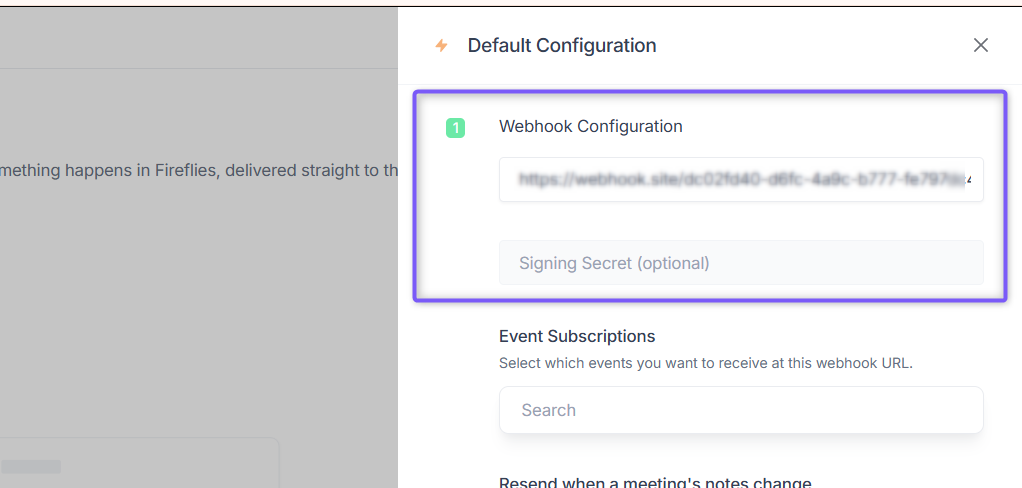
Step 3: Enter the following details:
Webhook URL → Paste the URL provided by the application or service that will receive Fireflies events. If you're using your own application, ask your developer for the endpoint URL.
Signing Secret (optional) → Enter a secret used to verify webhook requests, if required by your setup.
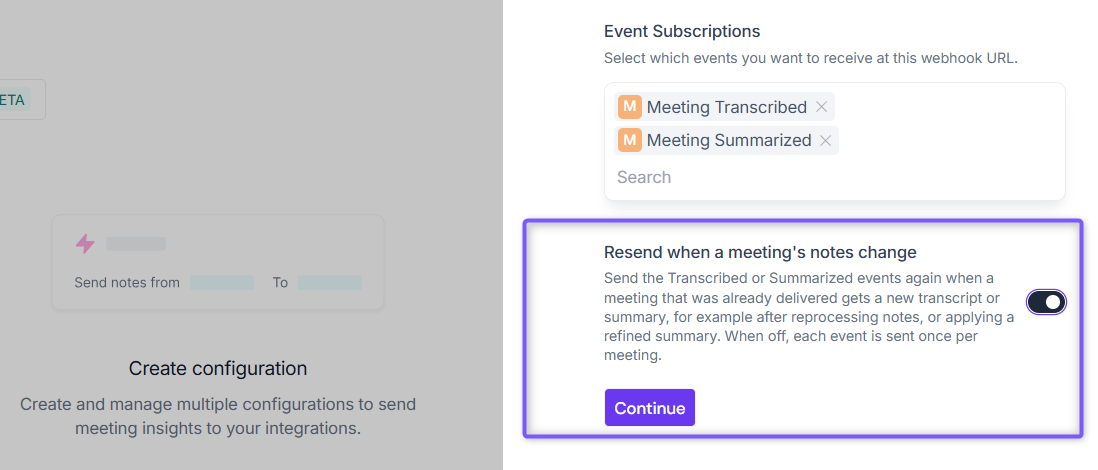
Step 4: Under Event Subscriptions, select which events you want this webhook to receive:
Meeting Transcribed→ Fires when Fireflies finishes transcribing a meeting.Meeting Summarized→ Fires when Fireflies finishes generating the AI summary.Meeting Bot Joined→ Fires when the Fireflies bot joins a meeting.
Click Continue to proceed.
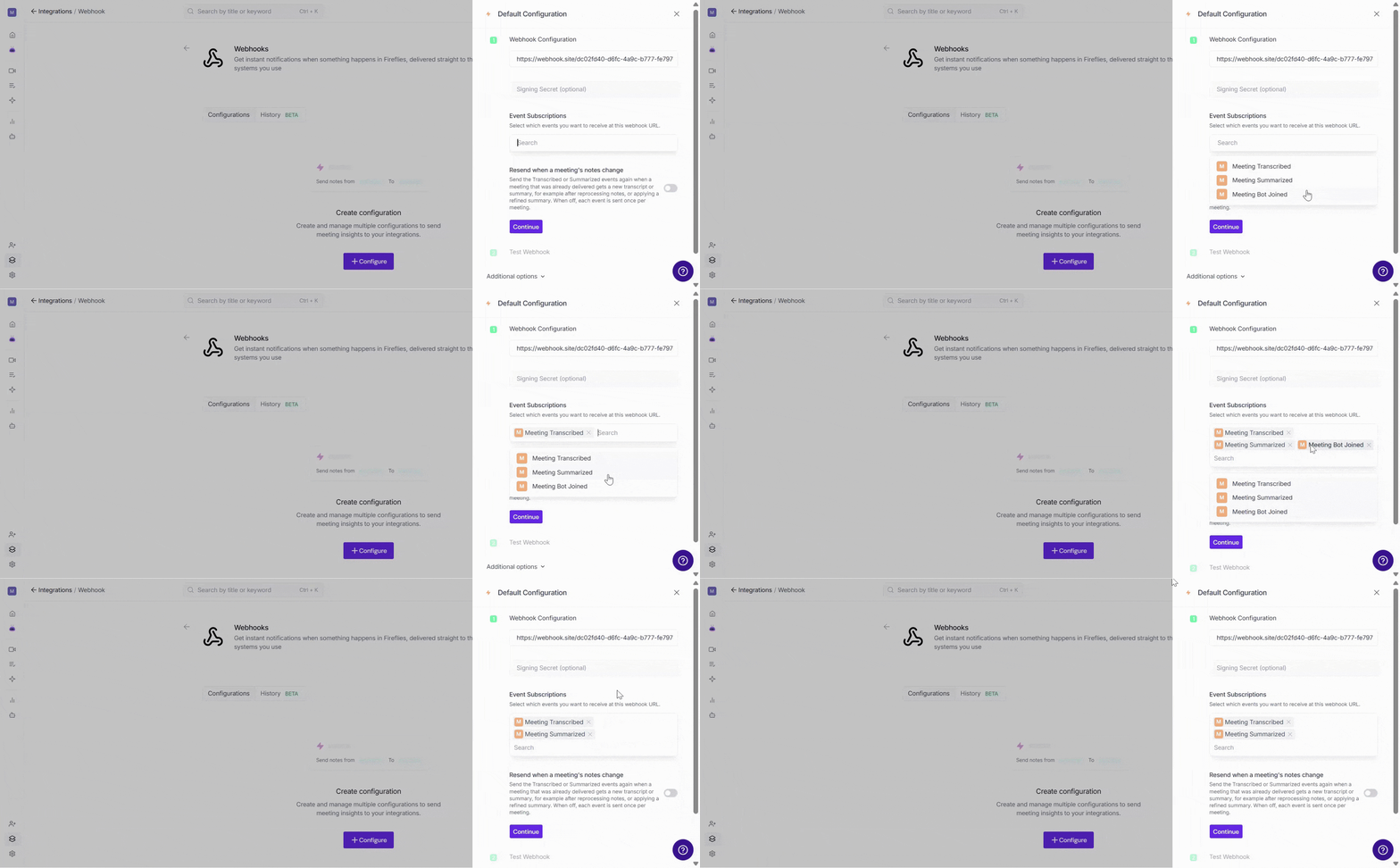
Step 5: Enable Resend when a meeting's notes change if you want Fireflies to resend transcription or summary events when an existing meeting's transcript or summary is updated. Leave it disabled if you want each event sent only once per meeting.
Click Continue to proceed.
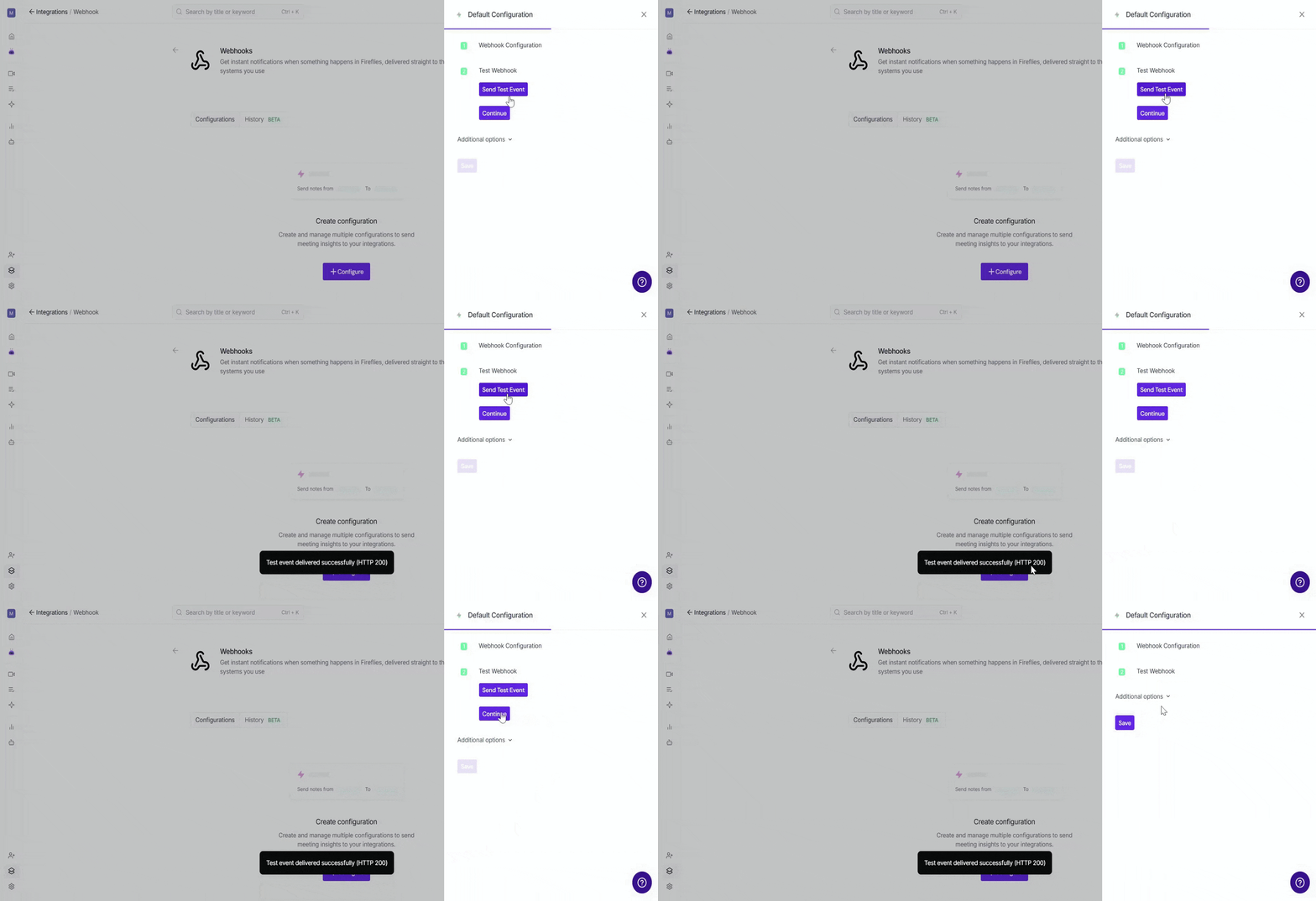
Step 6: Before completing the setup, test your webhook connection.
Click Send Test Event to send a test event to your configured webhook URL.
Once you've sent the test event, click Continue to proceed.
🧩 Additional Options – Integration Rules
By default, Fireflies sends events to your webhook for every meeting. If you want more control over which meetings trigger your webhook, you can use Integration Rules to filter which meetings send events.
Integration Rules are available on Business or higher plans.
💡 Learn more about our different pricing plans and how to get started.
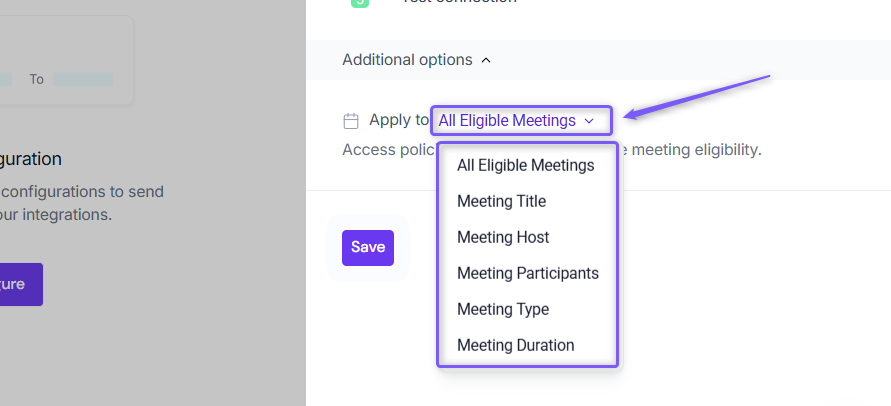
🗂 All Meetings
Send webhook events for every meeting — calls, check-ins, or demos — with no filters applied.
📝 Meeting Title
Only trigger webhook events when the meeting title matches specific rules.
Options: Contains, Starts with, Equals, Doesn’t Contain
Example: “Demo”, “Client Call”
👤 Meeting Host
Filter which meetings trigger the webhook based on who hosted them.
Equals → Only meetings hosted by a specific person
Not Equal → Exclude meetings hosted by a specific person
👥 Meeting Participants
Control which meetings trigger the webhook based on attendees.
Contains → Include meetings with specific participants
Doesn’t Contain → Exclude meetings with certain participants
🎦 Meeting Type
Filter by meeting type.
Example: External → Only trigger for external meetings
🔀 Apply Multiple Filters
Combine rules for more precise control.
Example: Title contains “Demo” AND host is sales@company.com
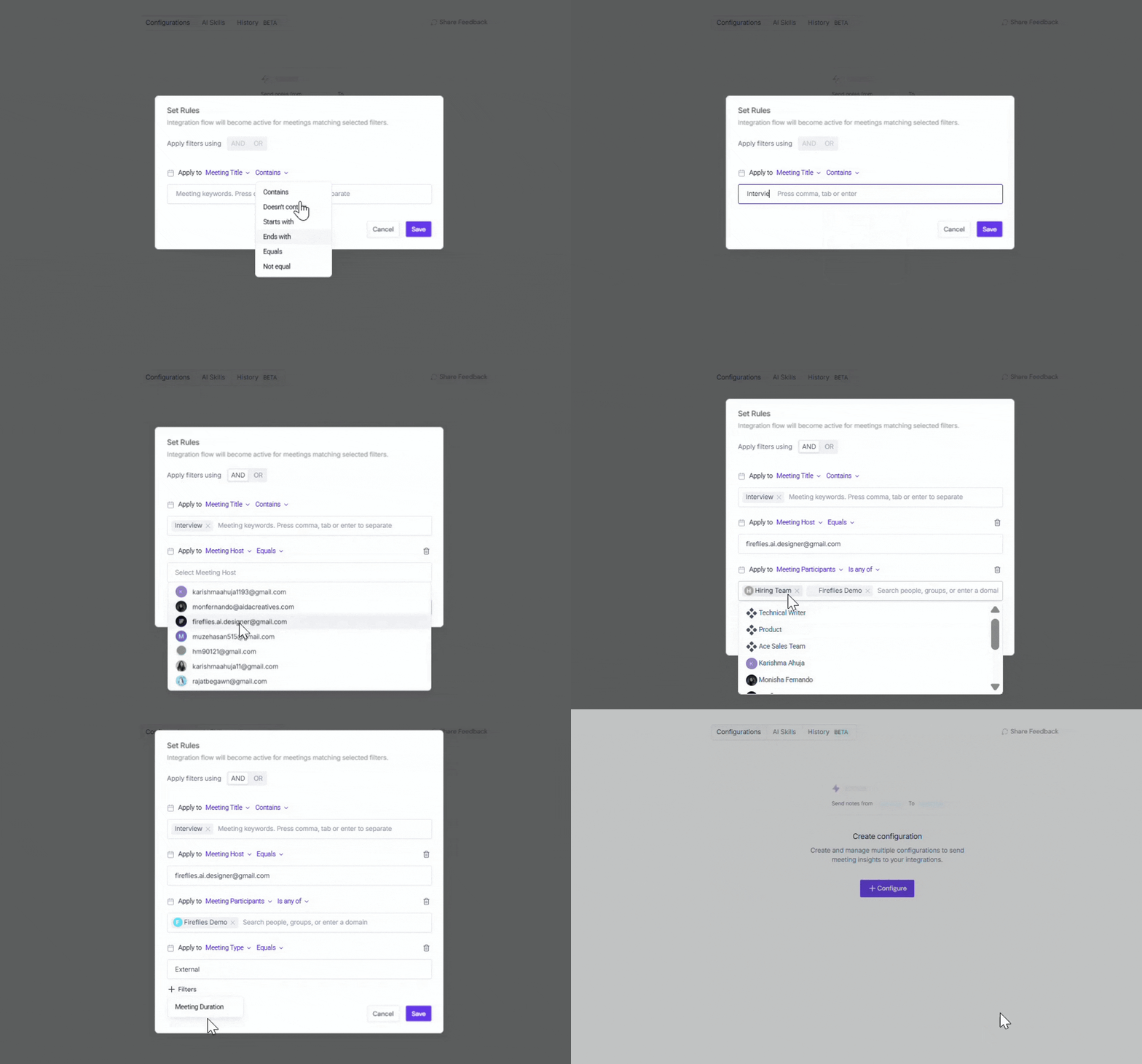
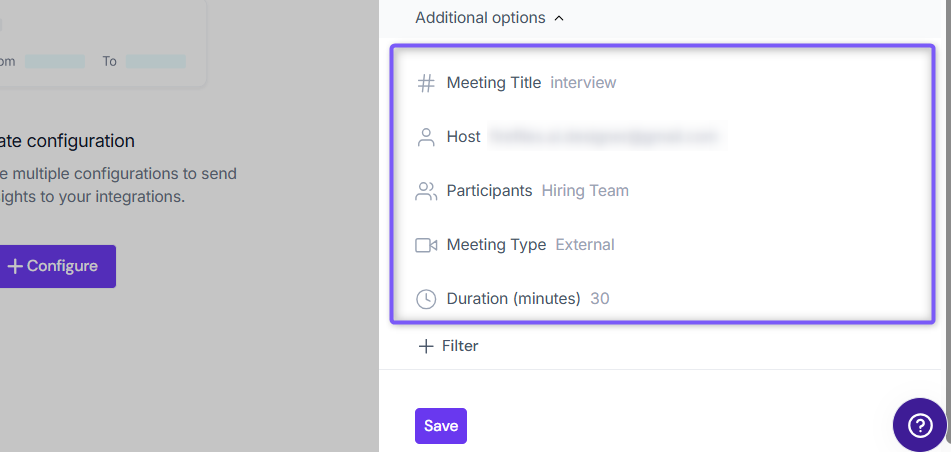
You can view all filters currently applied to your configuration. Fireflies will only send webhook events for meetings that match all the conditions you’ve set.
✅ Example applied: Title contains Interview, host = John, participant = Mary, type = External.
💾 Save Your Configuration
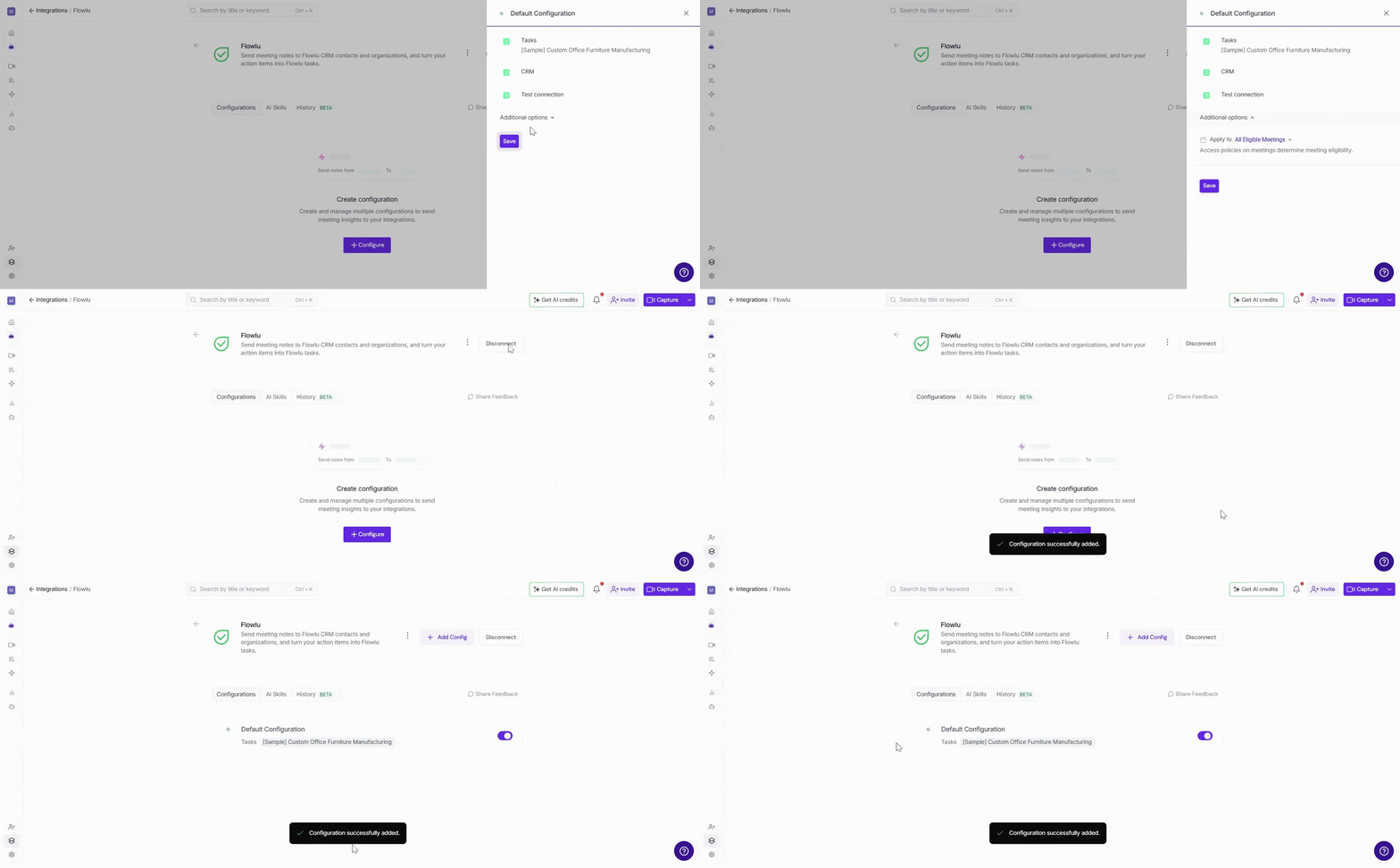
Click Save to activate the integration — a flash message will confirm that your configuration has been successfully added.
Tip: You can configure up to 5 webhooks to build custom workflows and integrate third-party services that use Fireflies webhooks to receive meeting updates.
🛠 Manage Configuration
Over time, you may need to update your Webhook configuration — for example, to rename a configuration, update its settings or remove configurations you no longer use. Fireflies provides options to manage multiple webhook configurations.
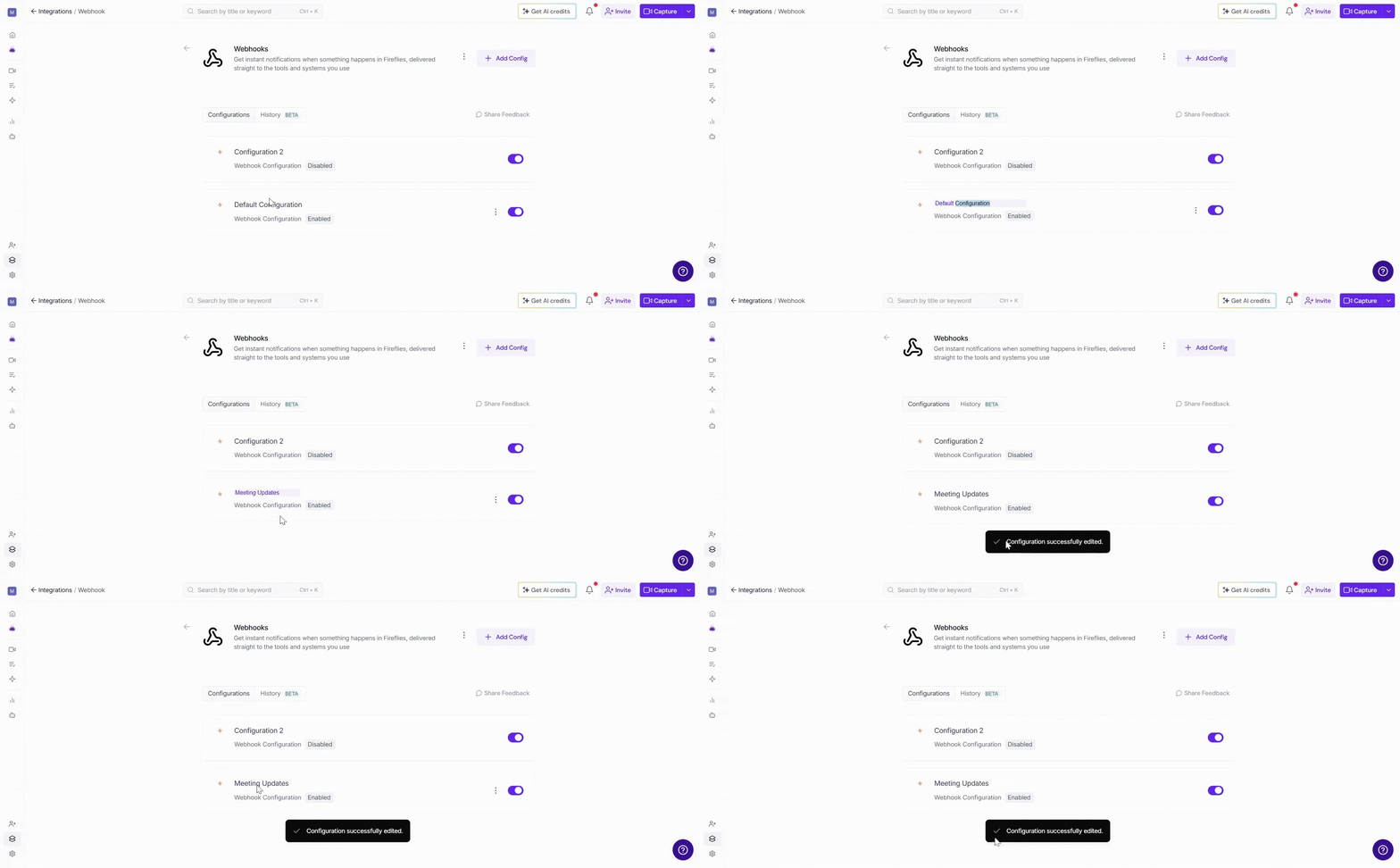
✏ Edit Configuration Name → Give each Webhook configuration a clear, descriptive name so it’s easy to recognize. Click the configuration name (for example, Default Configuration), type a new name (such as Meeting Updates) and click outside the field to save.
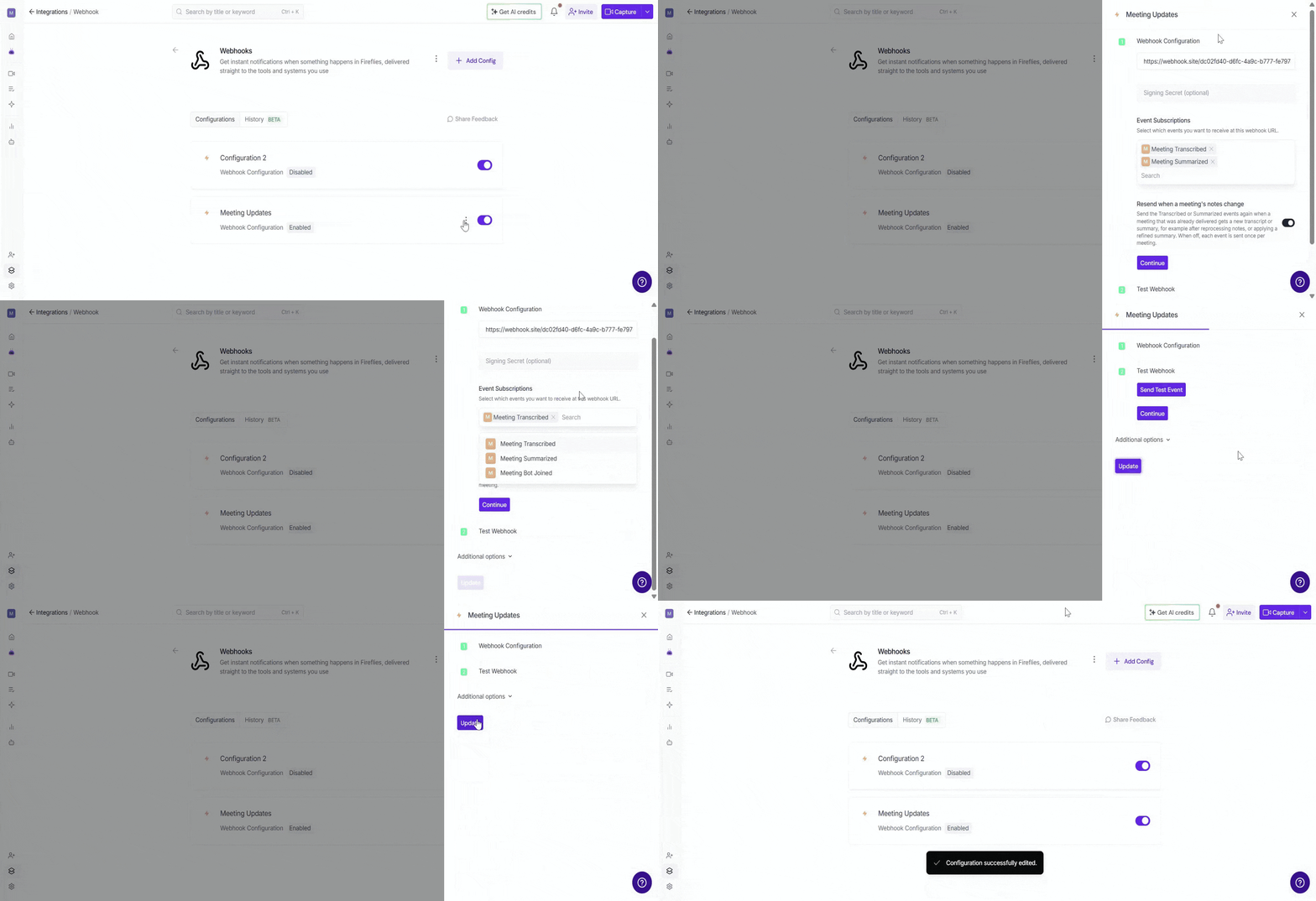
⚙ Edit Configuration Settings → Need to update your webhook URL, event subscriptions or other settings? Click the vertical ellipsis (⋮) next to a configuration, select Edit, update the settings and click Update to save your changes.
🔘 Enable or Disable a Configuration → Use the toggle next to a configuration to control it. Toggle ON to activate the webhook or OFF to pause it without deleting it.
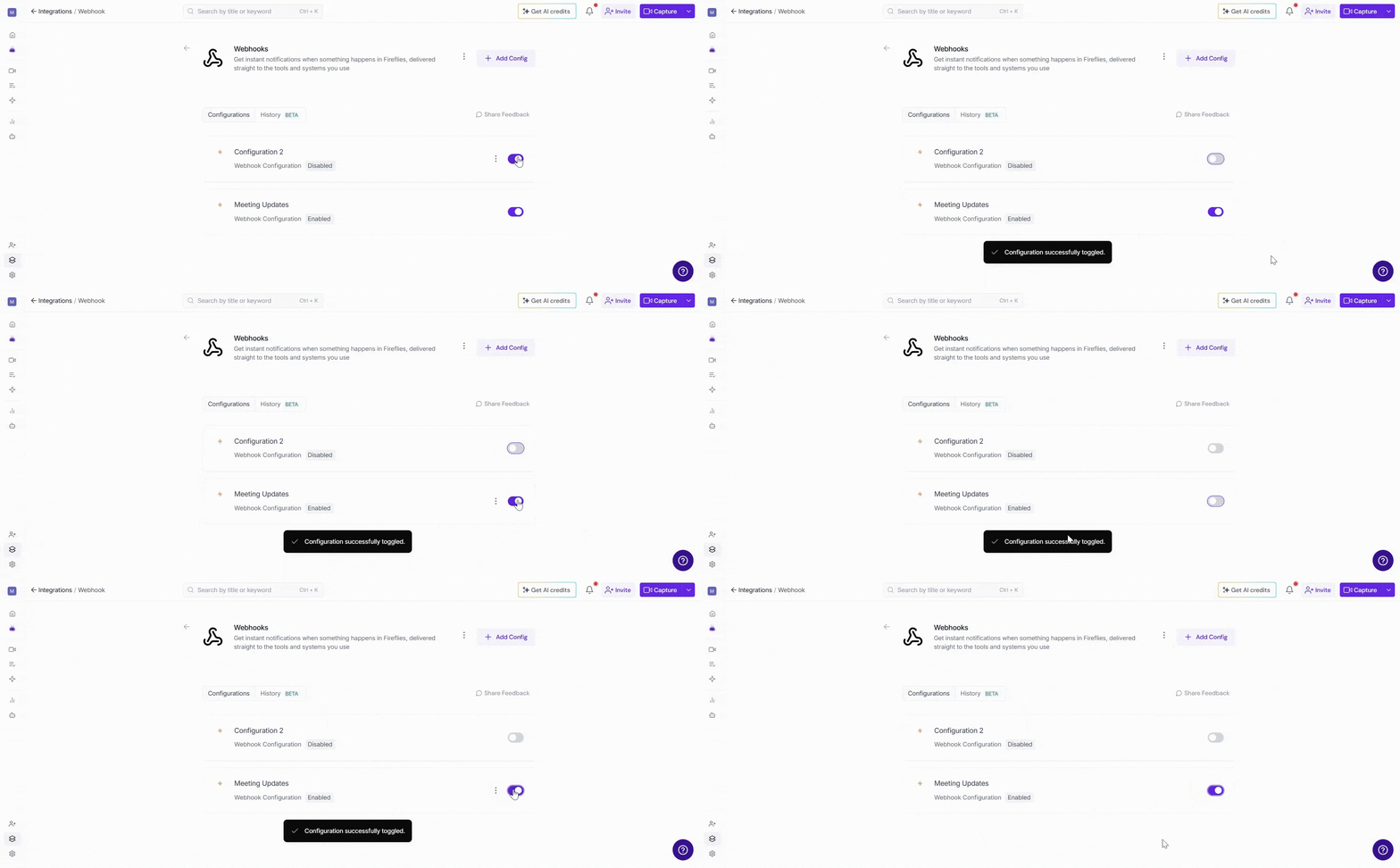
This is helpful if you have multiple configurations and only want one active at a time.
🗑 Delete Configuration → If a configuration is no longer needed, click the vertical ellipsis (⋮) next to it, select Delete and confirm.
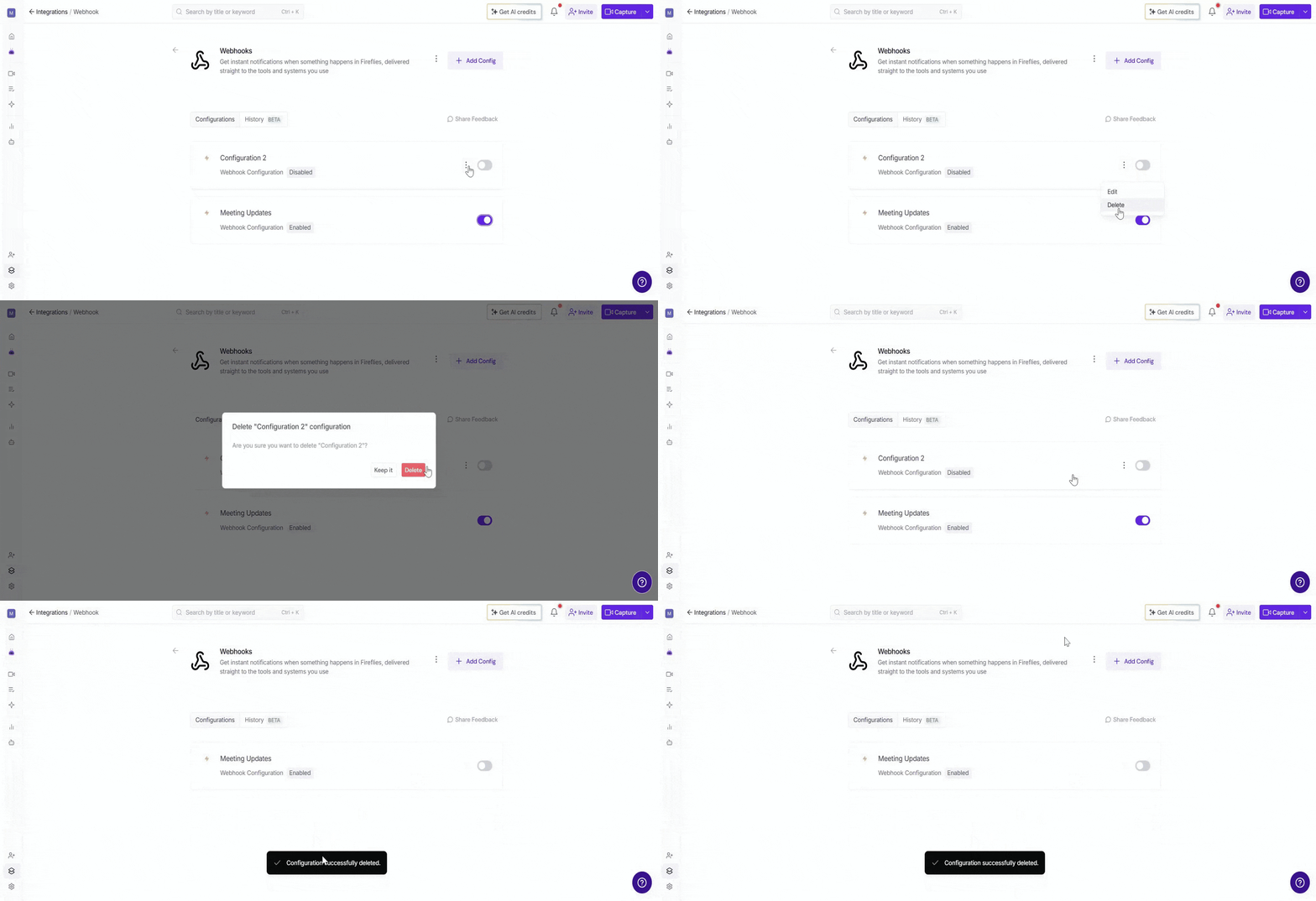
Deleting a webhook configuration stops Fireflies from sending events to the associated webhook URL, so make sure you no longer need it before removing it.
⏪ Push Past Meetings to Flowlu
Sometimes, you may want to send older meeting data to your webhook after setting up the integration. Push Past Meetings lets you select a date range and choose which meetings to send to Webhooks.
Note: Make sure you've configured at least one Webhook configuration before using Push Past Meetings. If you haven't, complete the Configure a Webhook section above first.
Follow the steps below:
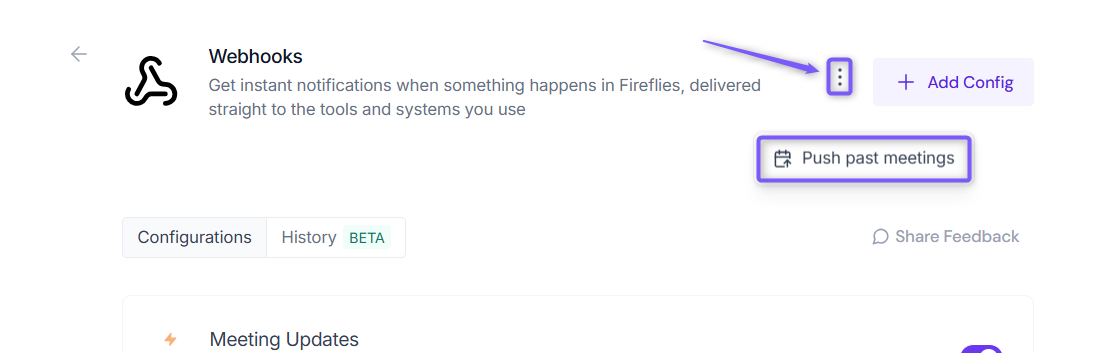
From the Webhook integration page, open the options menu and select Push past meetings.
A dialog box will appear. Choose the following:
Date range → Select the meetings you want to send by choosing Last 7, 14, 30, 60, or 90 days, or specify a custom date range.
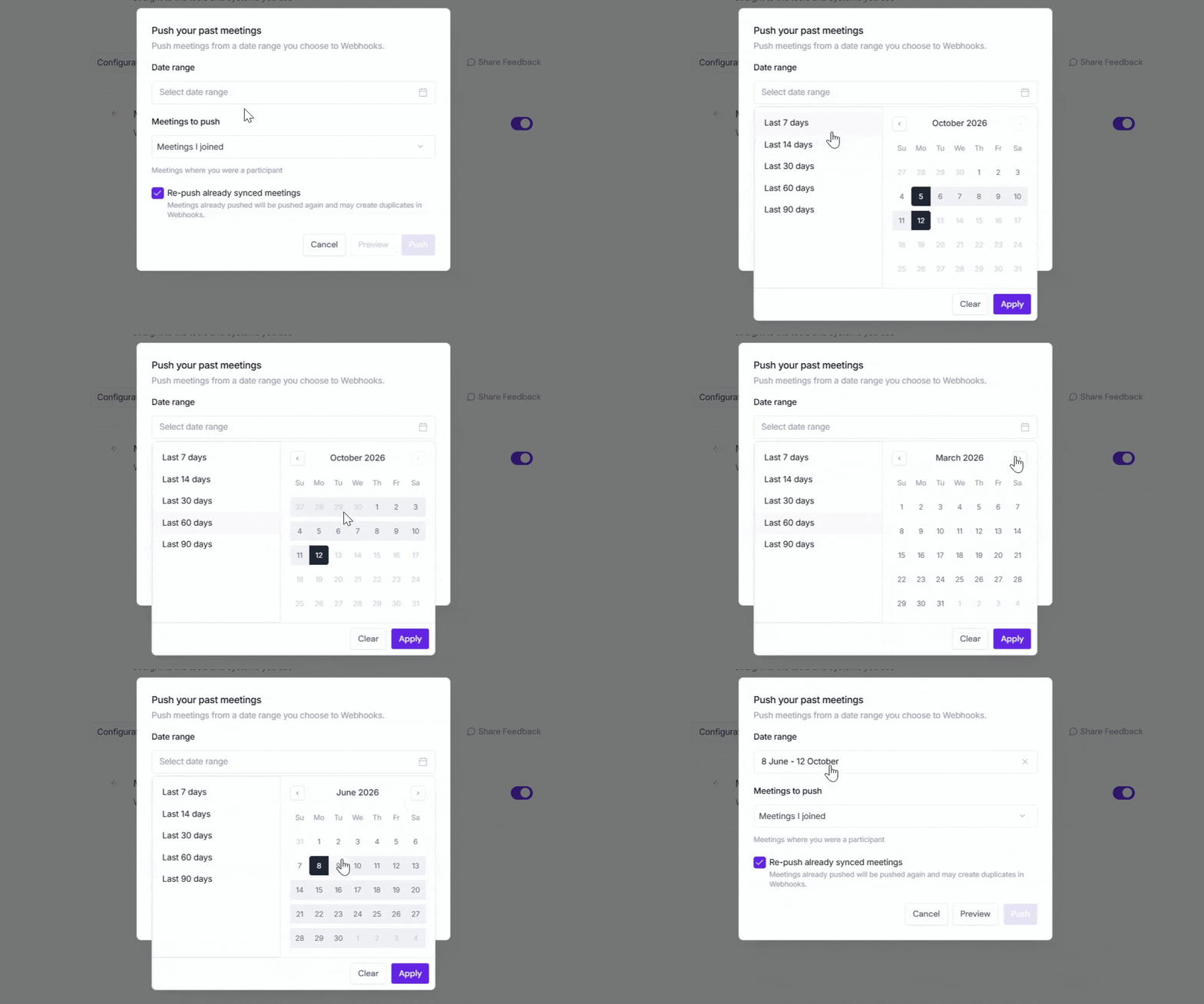
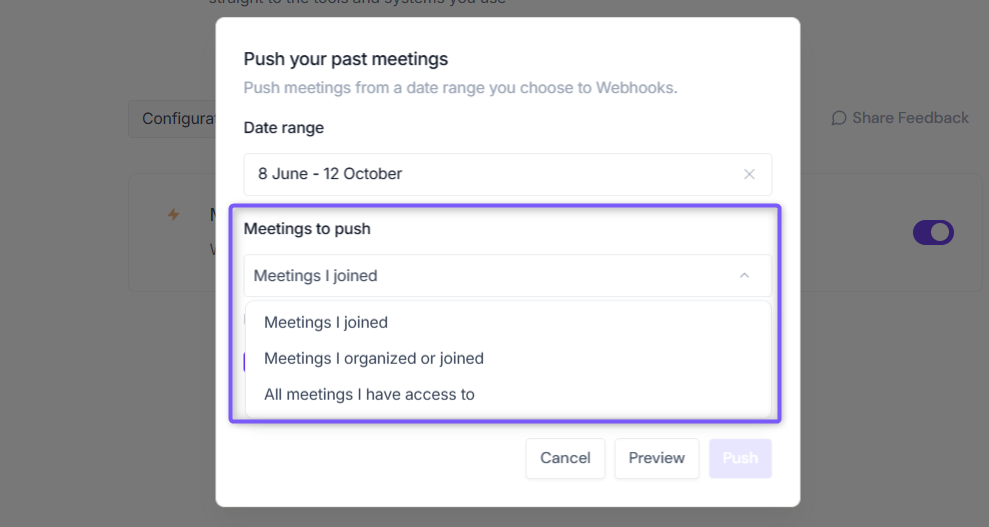
Meetings to push → Choose whether to push Meetings I Joined, Meetings I organized or joined, or All meetings I have access to.
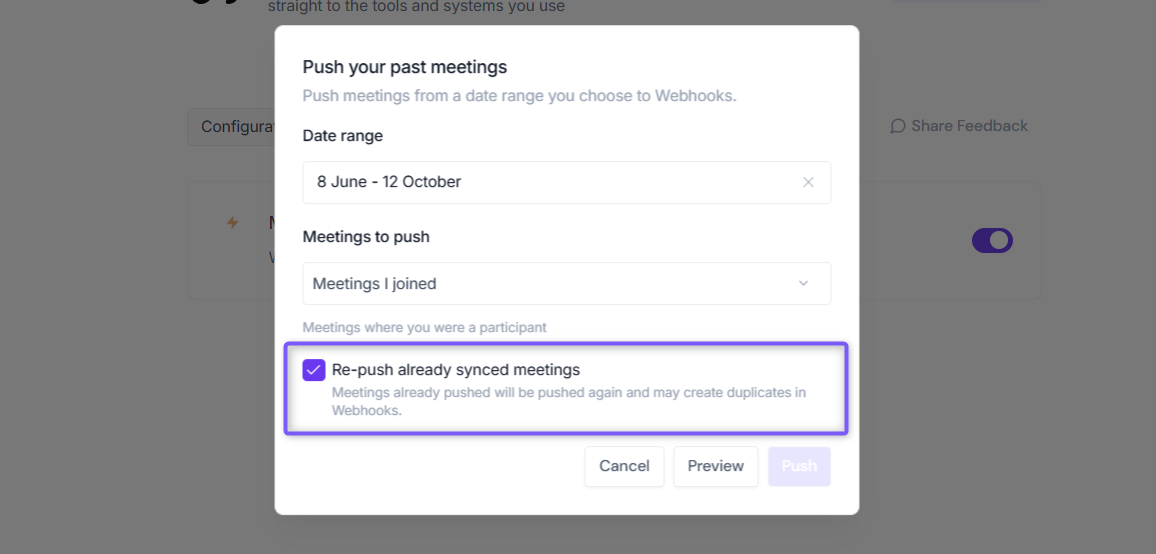
Re-push already synced meetings → Keep this checked if you want to resend meetings that were previously pushed to Webhooks. This may create duplicates. Uncheck it to send only meetings that haven't been pushed before.
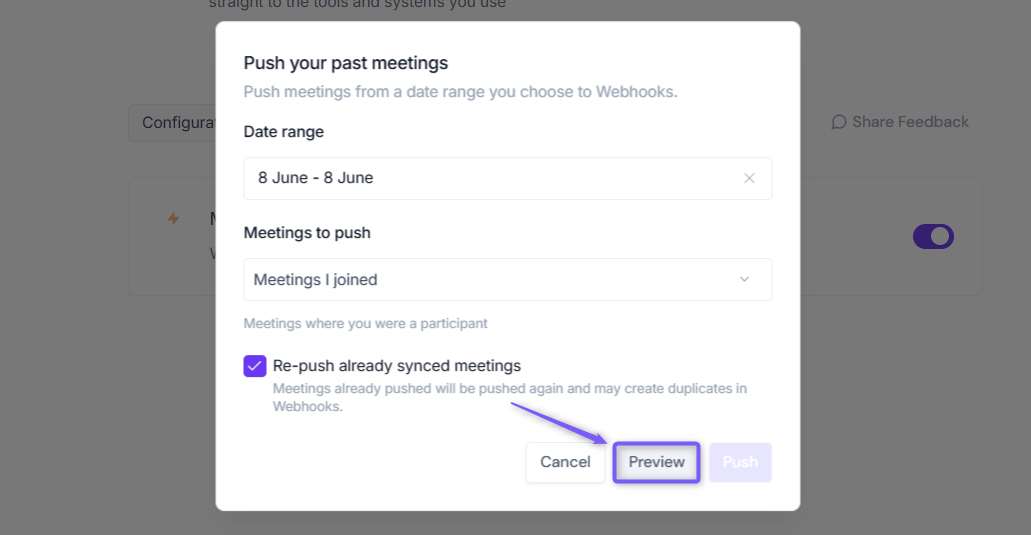
Click Preview to review the list of meetings selected for pushing, including the meetings that will be sent to Webhooks based on your selected date range and meeting criteria
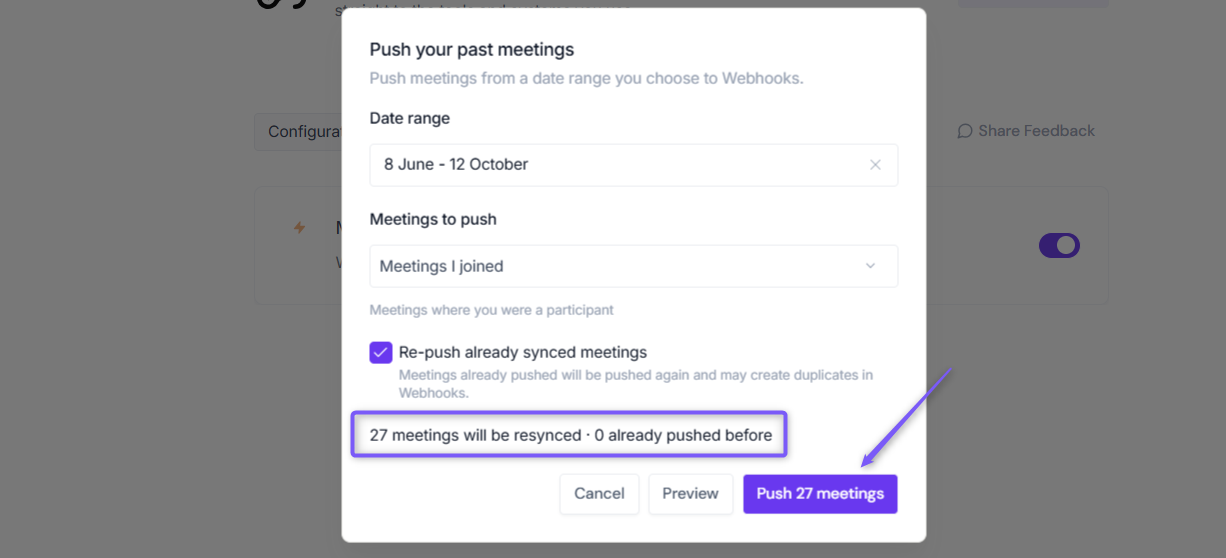
Click Push [number] meetings to send the selected meetings to your configured webhook URL.
🔧 Troubleshooting
Issue | What to Check / Do |
|---|---|
Webhook events not being received | • Verify that your Webhook URL is correct and the endpoint can receive requests. |
Meeting events not being sent | • Review your meeting eligibility settings under Additional options to ensure the meeting matches your criteria. |
Updated meeting notes not being resent | • Check whether Resend when a meeting's notes change is enabled. |
Duplicate events received | • Check whether Re-push already synced meetings was selected when using Push Past Meetings. |
Past meetings not being sent | • Make sure you've configured at least one webhook and selected the correct Date range and Meetings to push. |
Still stuck? Contact support via this link for more help.
❓ Frequently Asked Questions
1. Which events can Fireflies send through Webhooks?
Fireflies supports events for meeting transcription, summaries and when the meeting bot joins.
2. How many webhook configurations can I create?
You can configure up to 5 webhooks for different workflows and third-party integrations.
3. Can I resend events when meeting notes change?
Yes. Enable Resend when a meeting's notes change to resend transcription or summary events when the notes are updated.
4. How do I send older meeting data to Webhooks?
Use Push Past Meetings to select a date range, review eligible meetings and push them to your configured webhook URL.
5. What happens if I push meetings that were already synced?
If Re-push already synced meetings is selected, previously pushed meetings can be sent again, potentially creating duplicates in the receiving application.
🔎 Recap
The Fireflies Webhooks integration helps you send meeting updates to external applications. Here’s what you covered:
Configure a webhook URL and select event subscriptions.
Control which meetings qualify for webhook events.
Test your webhook configuration.
Push past meetings to your webhook URL.
Manage up to 5 webhook configurations for different workflows.
📚 Related Guides
Want to explore more integrations with Fireflies?
Integration Rules Engine → Understand how to control which meetings sync across integrations
AI Meeting Summaries Guide → Understand how Fireflies captures, summarizes, and organizes meeting takeaways.