Fireflies Rules Engine: Automatically route, share, and control meeting visibility
Last updated: September 9, 2026
Do you find it hard to make sure your meetings reach the right people — or stay private when they should? Keeping track of this manually after every call takes time and is easy to lose track of. With the Rules Engine, you set simple conditions once — based on meeting title, host, participants, or type — and Fireflies automatically sends meetings to the right place, shares them with the right teammates, and controls who can see them. Everything stays organized without any extra effort.
This guide is for you if you're:
Looking to automate meeting visibility and access across your workspace
Wanting to route meetings based on title, host, or participants
Ready to stop managing meeting privacy manually after every call
🚀 Want a quick walkthrough first? Watch this Rules Engine community guide to see how it works, then follow the steps below to create your own rule in Fireflies.
The Rules Engine is available exclusively to Enterprise admins.
📍 How to access the Rules Engine
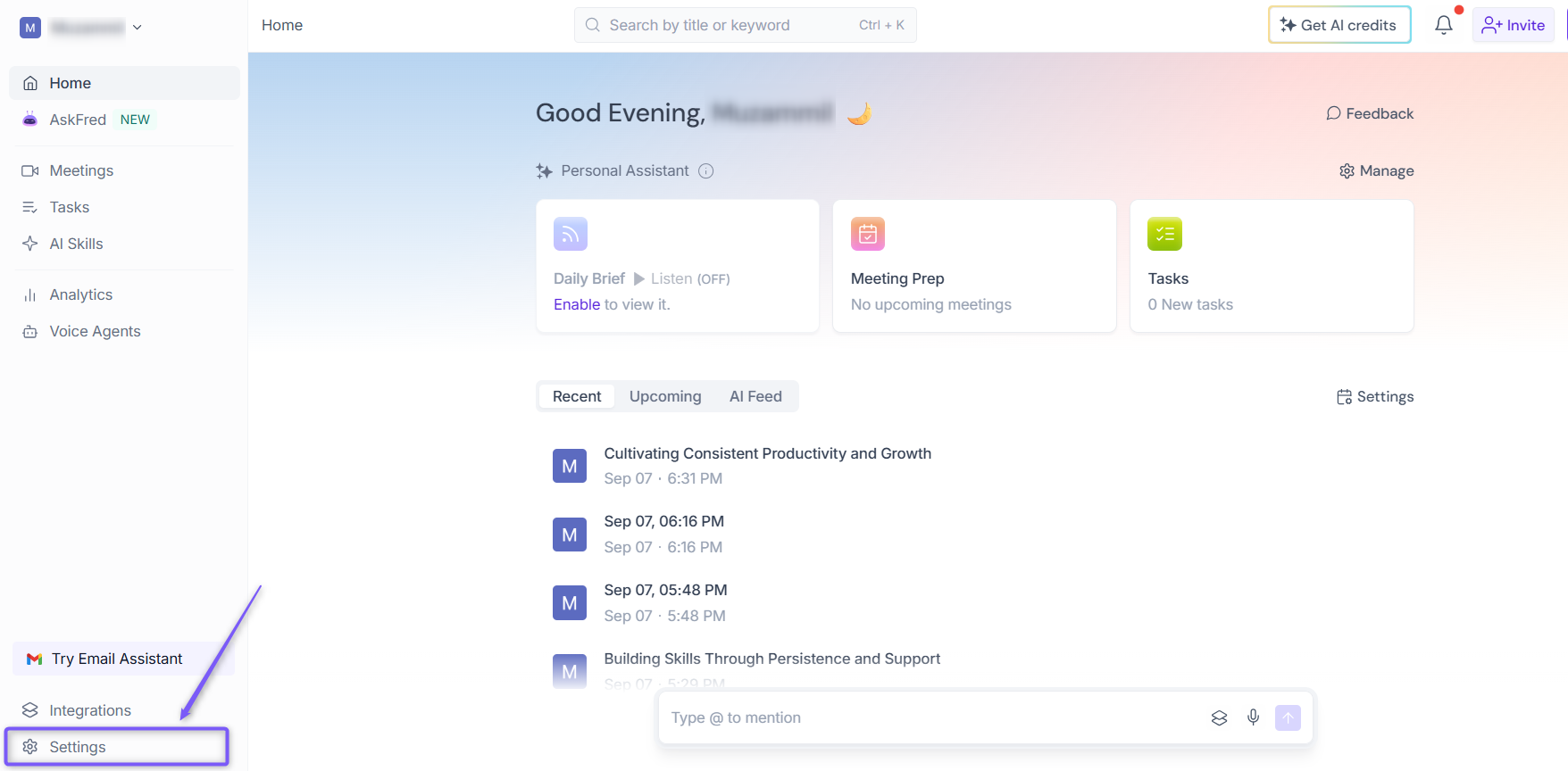
1. Go to the Fireflies web app and click Settings from the left side menu.
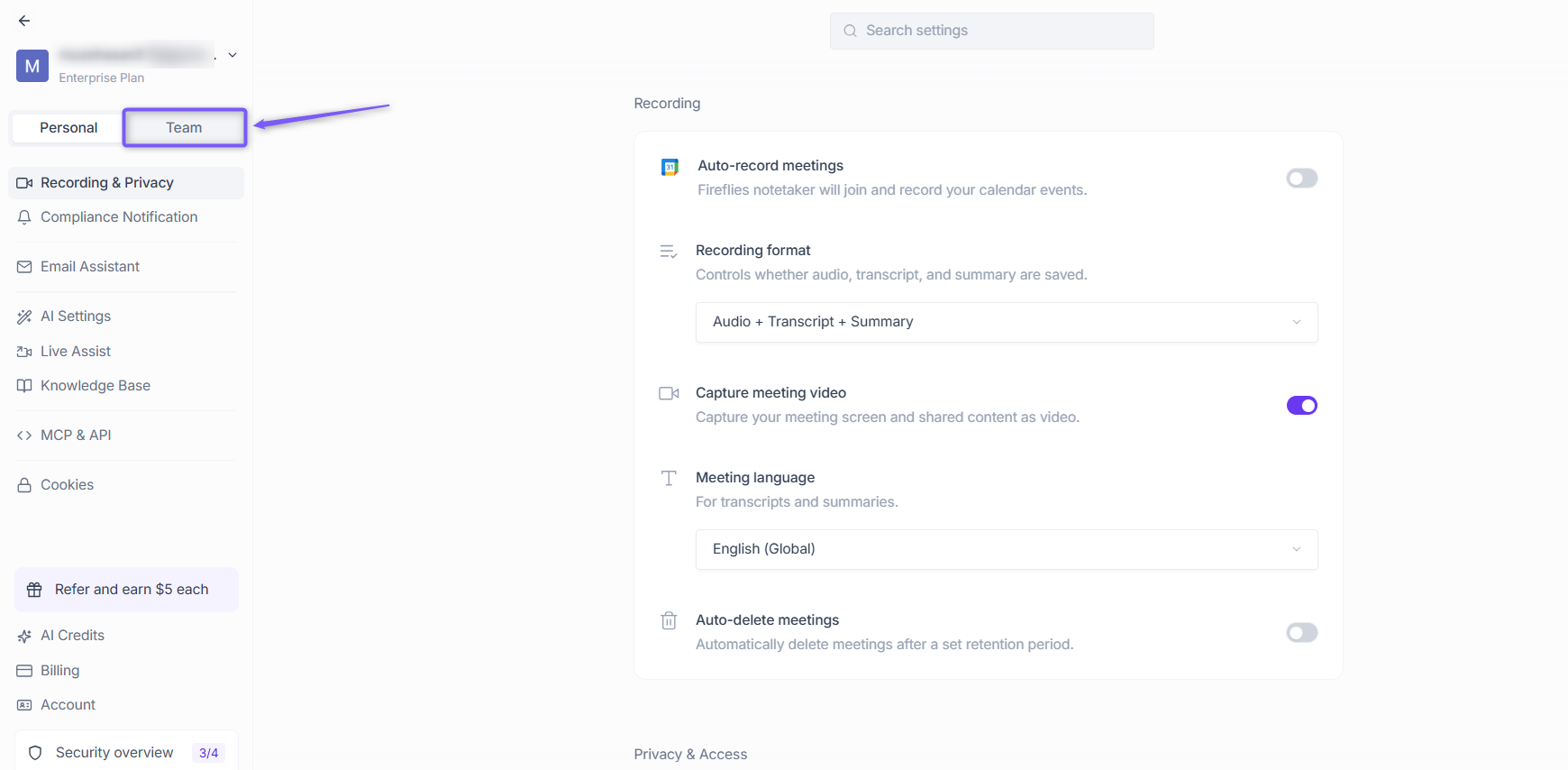
2. Switch to the Team tab at the top.
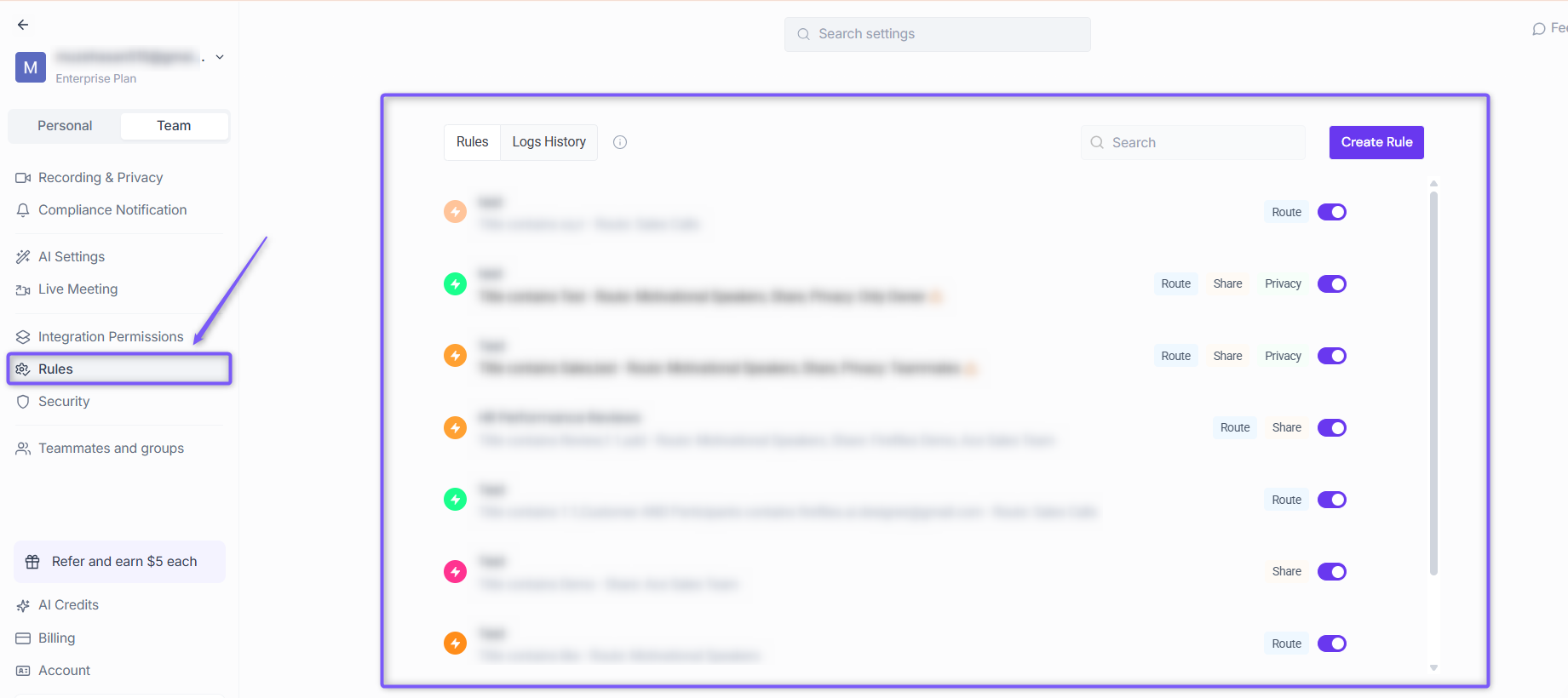
3. Click Rules from the left panel to open the Rules page, where you can view all rules, create new ones, and check activity in Logs History.
➕ Create a rule
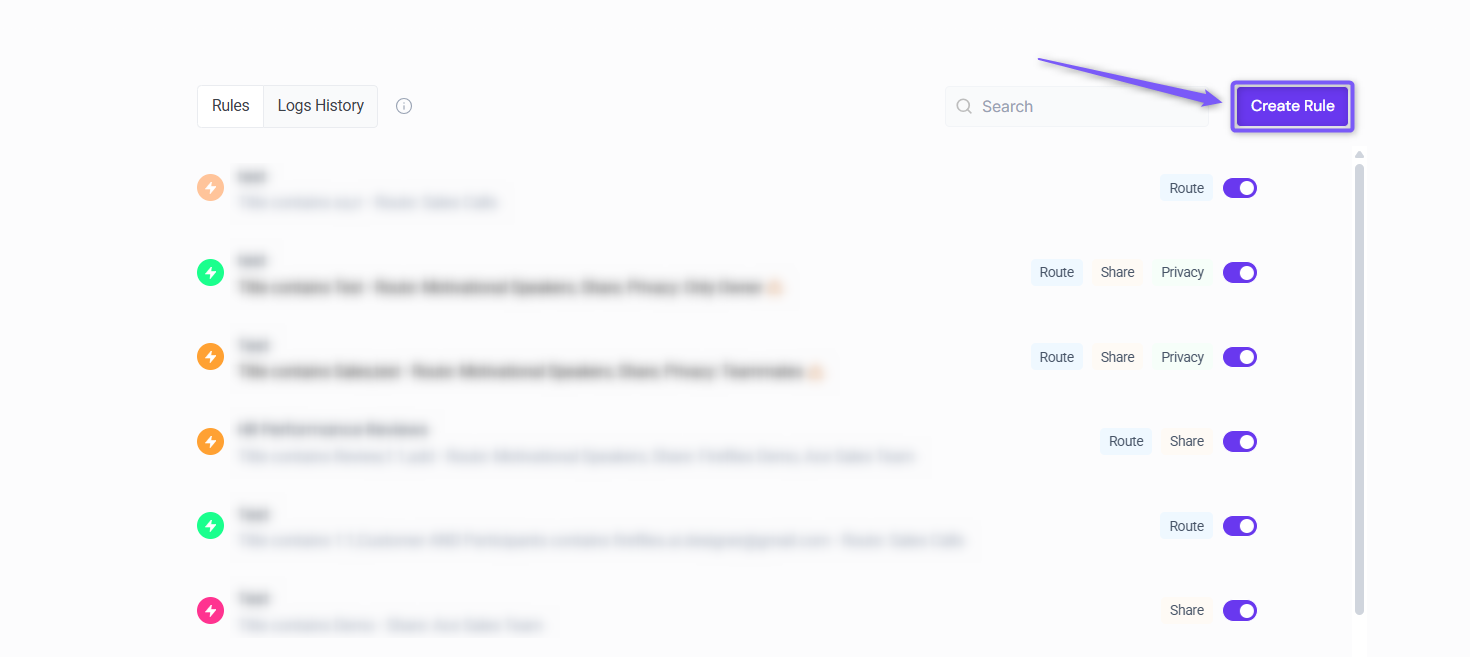
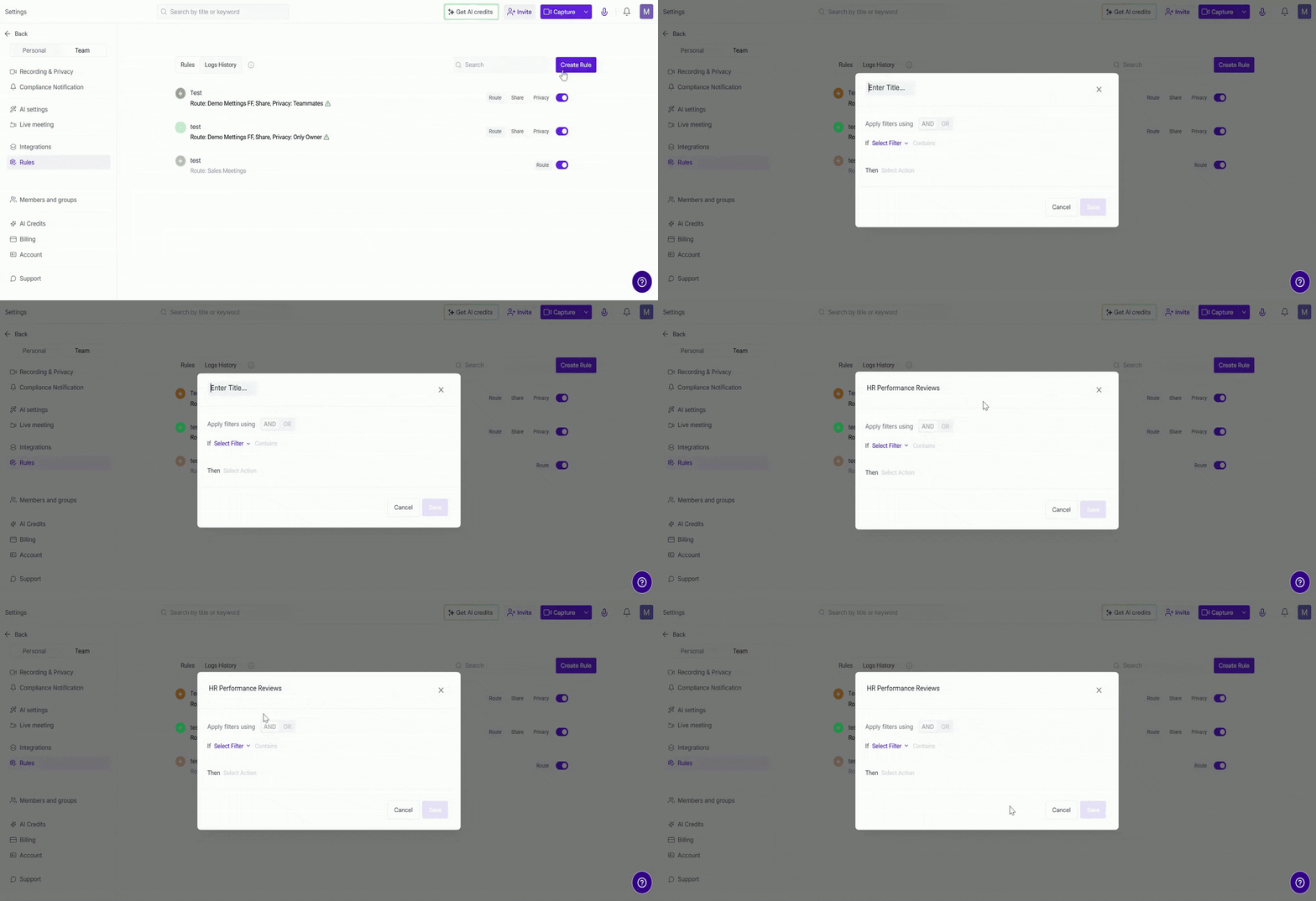
From the Rules page, click Create Rule in the top right corner to open the rule builder.
Follow the steps below to create and set up your rule.
Step 1: Name your rule
A clear name helps you instantly know what a rule does — especially when you have many rules running at once.
Click on the Enter Title... field at the top of the rule builder and type a name that reflects the rule's purpose.
✅ Examples: "HR Performance Reviews", "External Sales Calls", "1:1 Confidential"
Click anywhere outside the field and your rule name saves automatically.
Step 2: Choose your filters
Choose one or more conditions to decide when the rule should apply. Click Select Filter to choose a filter and set your condition.
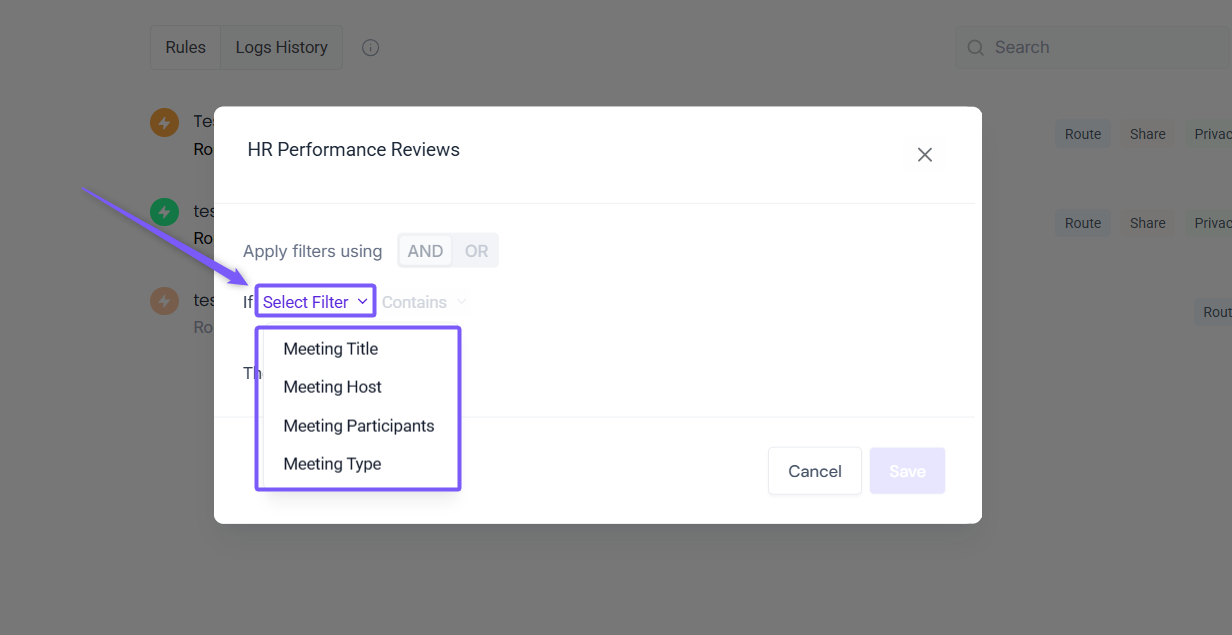
1. Meeting Title
Target meetings based on keywords in the meeting title. Once you select Meeting Title, choose how you want to match it:
Contains — any meeting title that includes the keyword
Doesn't contain — excludes meetings with that keyword
Starts with — matches meetings where the title begins with the keyword
Ends with — matches meetings where the title ends with the keyword
Equals — exact title match only
Not equal — applies to any meeting title that doesn't exactly match
Enter your keyword in the Meeting keyword field. Press Enter to add multiple keywords.
✅ Example: Title Contains → Review, 1:1, Sales Demo
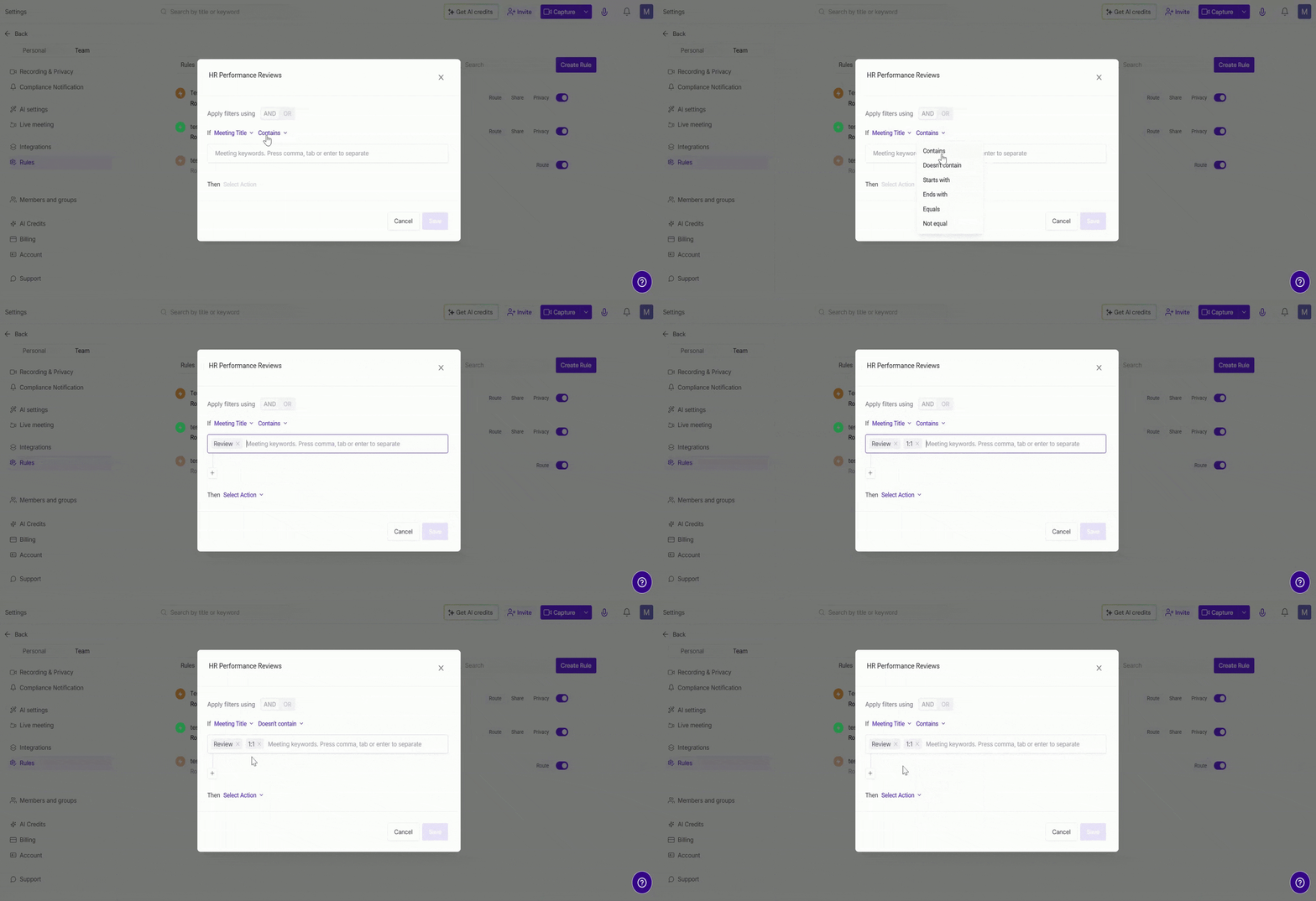
➕ Need more conditions? Click the + icon below the filter to add another filter.
2. Meeting Host
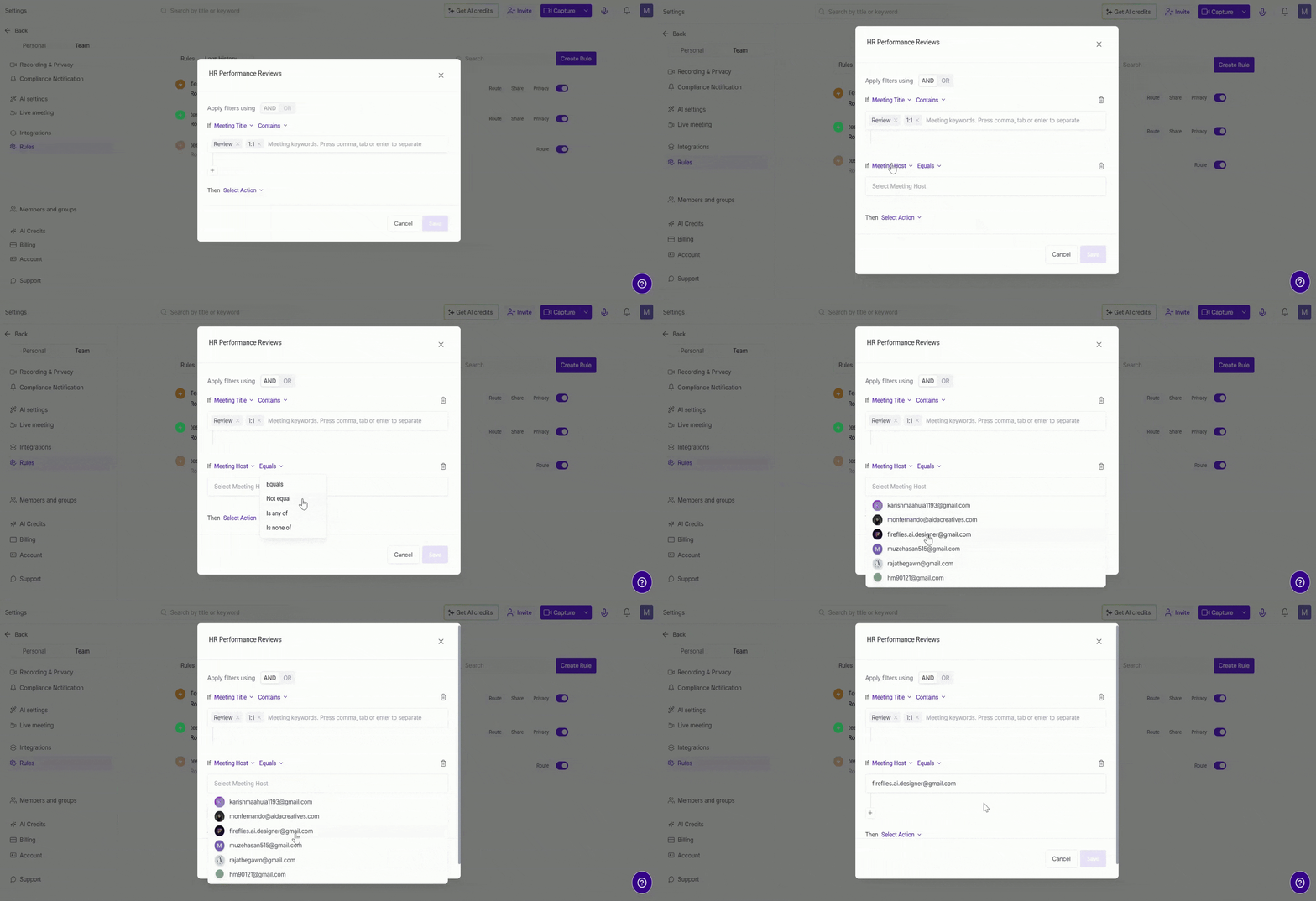
Target meetings based on who is hosting the call. Once you select Meeting Host, choose how you want to match it:
Equals — applies to meetings hosted by a specific person
Not equal — applies to all meetings except those hosted by that person
Is any of — applies when the host is one of multiple people you select
Is none of — excludes meetings hosted by any of the people you select
Click the Select Meeting Host field and choose the host from your workspace.
✅ Example: Host Equals alex@company.com → rule applies only to meetings hosted by Alex
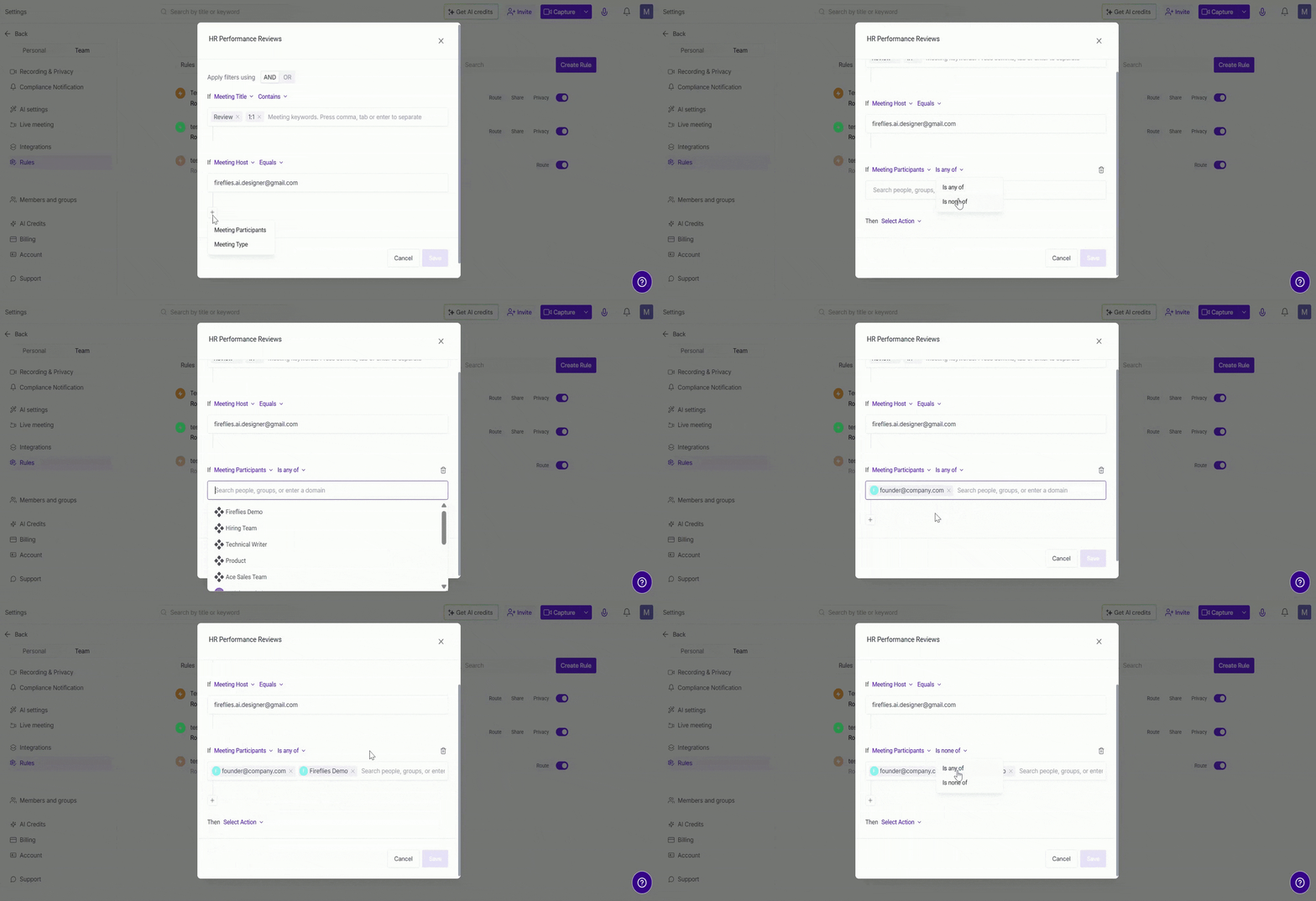
3. Meeting Participants
Trigger the rule based on who joins the meeting. Once you select Meeting Participants, choose how you want to match it:
Is any of — applies when any of the selected people or groups are in the meeting
Is none of — applies when none of the selected people or groups are in the meeting
In the search field, you can select teammates or groups from your workspace, or manually type an external email address or domain and press Enter.
✅ Examples:
Participants Is any of
@client.com→ all calls with external clientsParticipants Is any of HR Group → all meetings with your HR group
Participants Is none of
founder@company.com→ all meetings without the founder
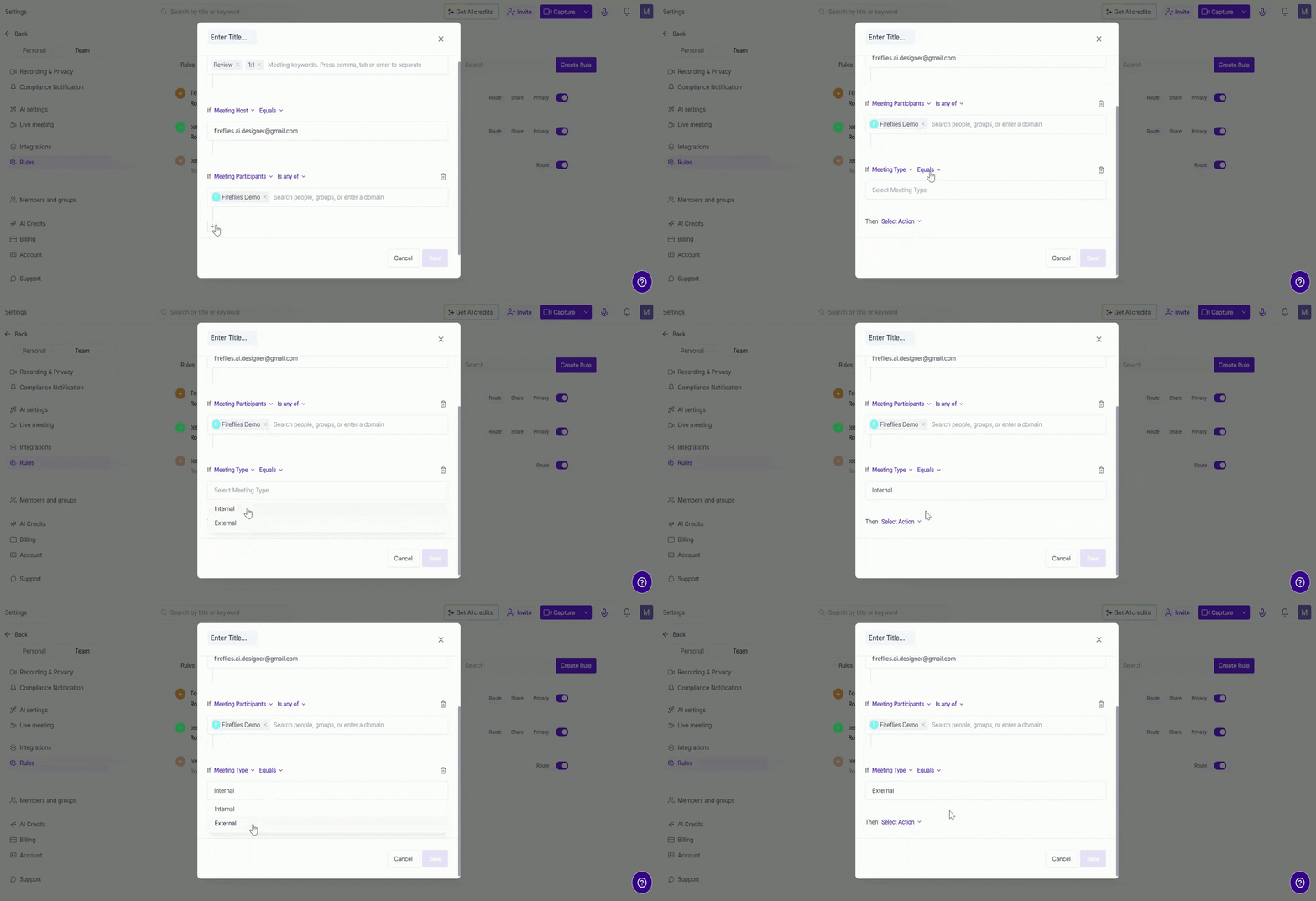
4. Meeting Type
Filter meetings based on who is attending. Select Meeting Type, the condition is set to Equals by default. Choose:
Internal — only teammates from your workspace are in the meeting
External — at least one participant from outside your organization is in the meeting
✅ Examples:
Meeting Type
Internal→ means that the meeting only has your company domain participants/ internal teammatesMeeting Type
External→ means that the meeting contains external participants
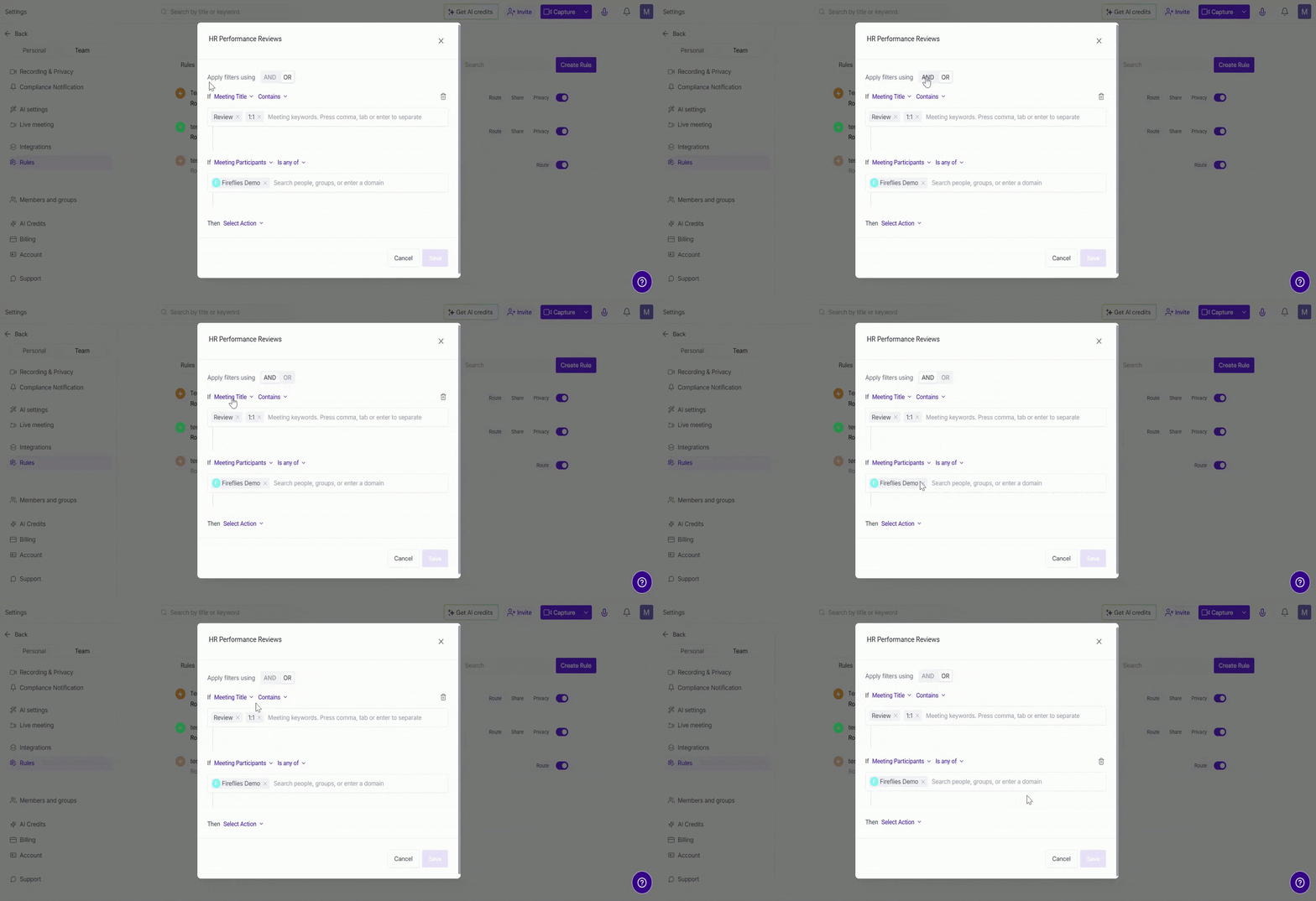
🔗 Combining filters with AND / OR (Boolean)
When you add more than one filter, you need to tell Fireflies how to apply them together. This is where Boolean logic comes in:
AND — use this when the rule should only trigger if all conditions are true. This makes your rule more specific.
OR — use this when the rule should trigger if any one condition is true. This makes your rule broader.
✅ Examples:
Title contains "Review" AND Host is from HR → only HR performance review meetings
Participant is @client.com OR Meeting Type is External → any external meeting
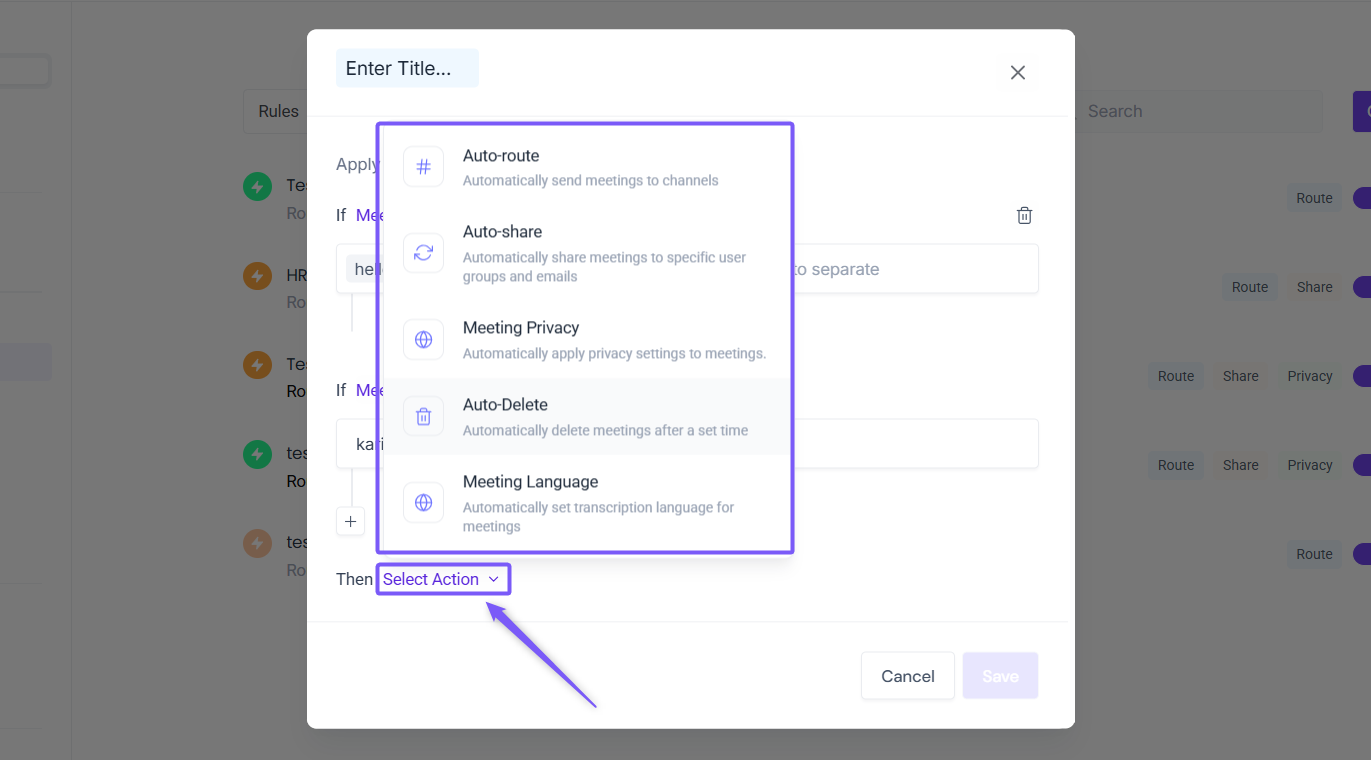
Step 3: Select an action
Once your conditions are set, click Select action to choose what Fireflies should do automatically when a meeting matches them.
Important Note: These Admin settings will override or work on top of all individual settings to keep you in control as an admin
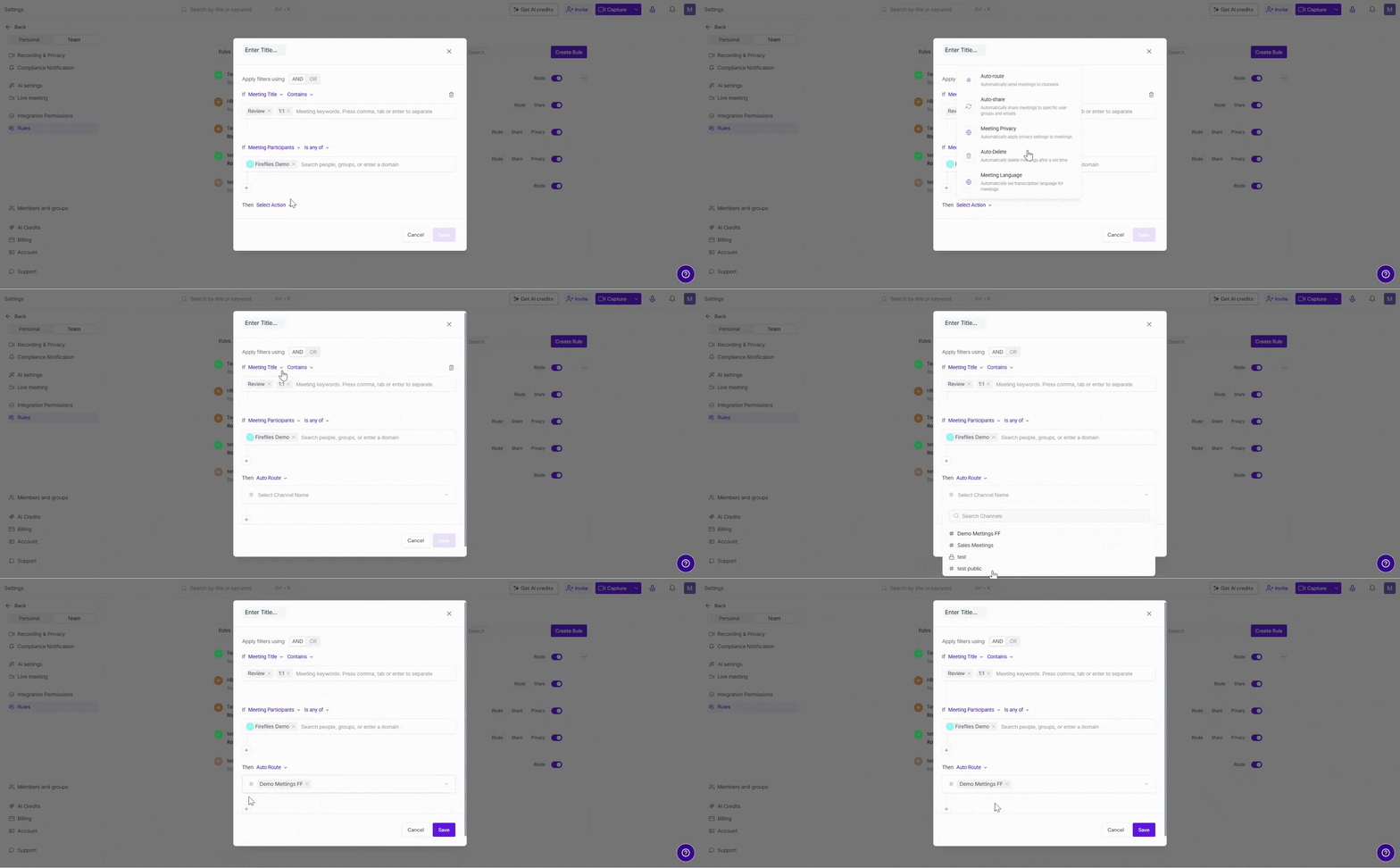
1. 🔀 Auto-route to Channels
Automatically send the meeting to a specific channel.
Private channel — only invited members can view it
Public channel — anyone in your workspace can view it
✅ Example: Send all HR reviews to a private “HR Only” channel, or Route product feedback calls to a public “Product Insights” channel
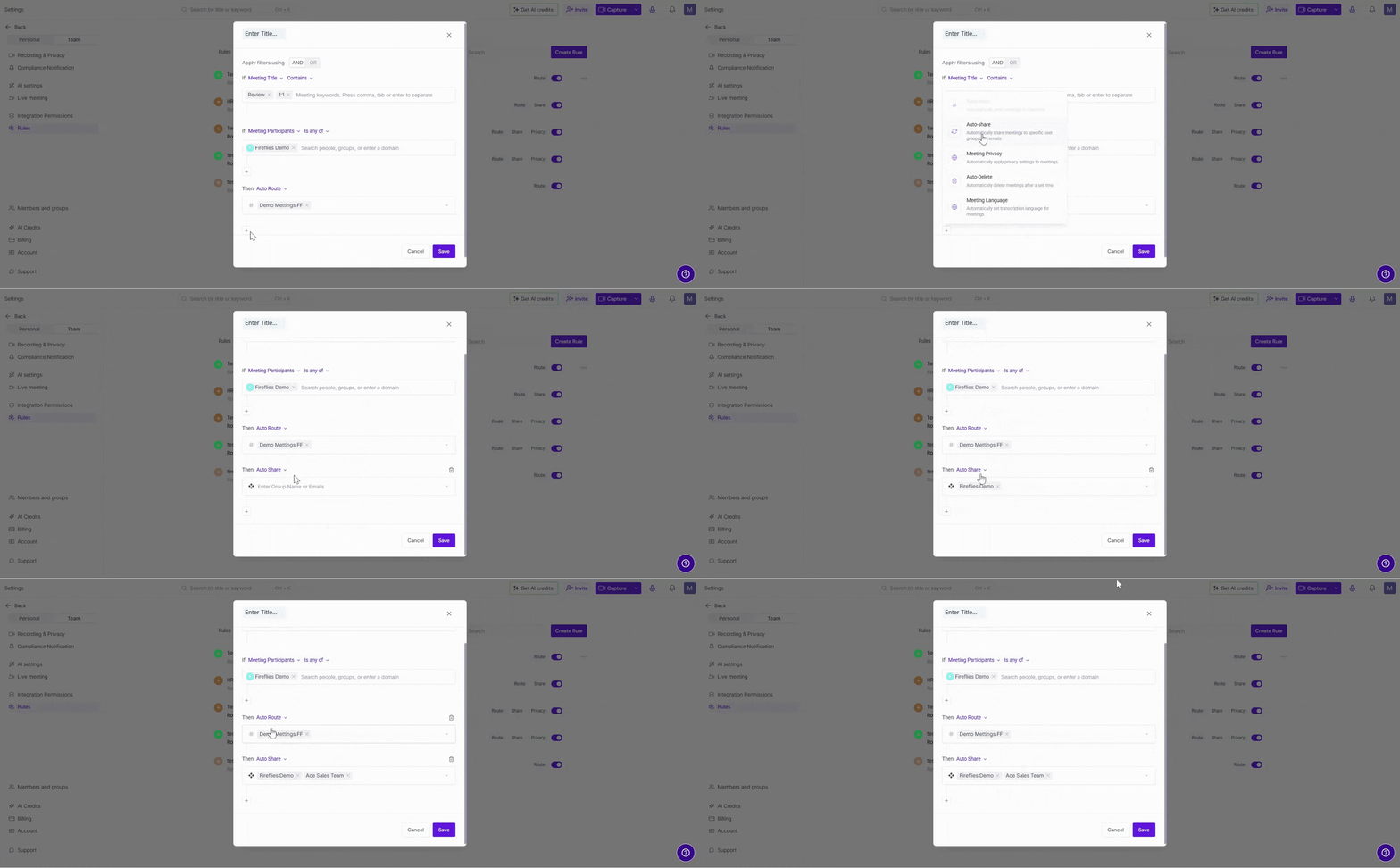
2. 📤 Auto-share with Specific Users or Teams
Automatically share the meeting with specific user groups or email addresses — without any manual effort.
✅ Examples:
Auto-share recruiting calls with the hiring manager
Share executive syncs with the Chief of Staff automatically
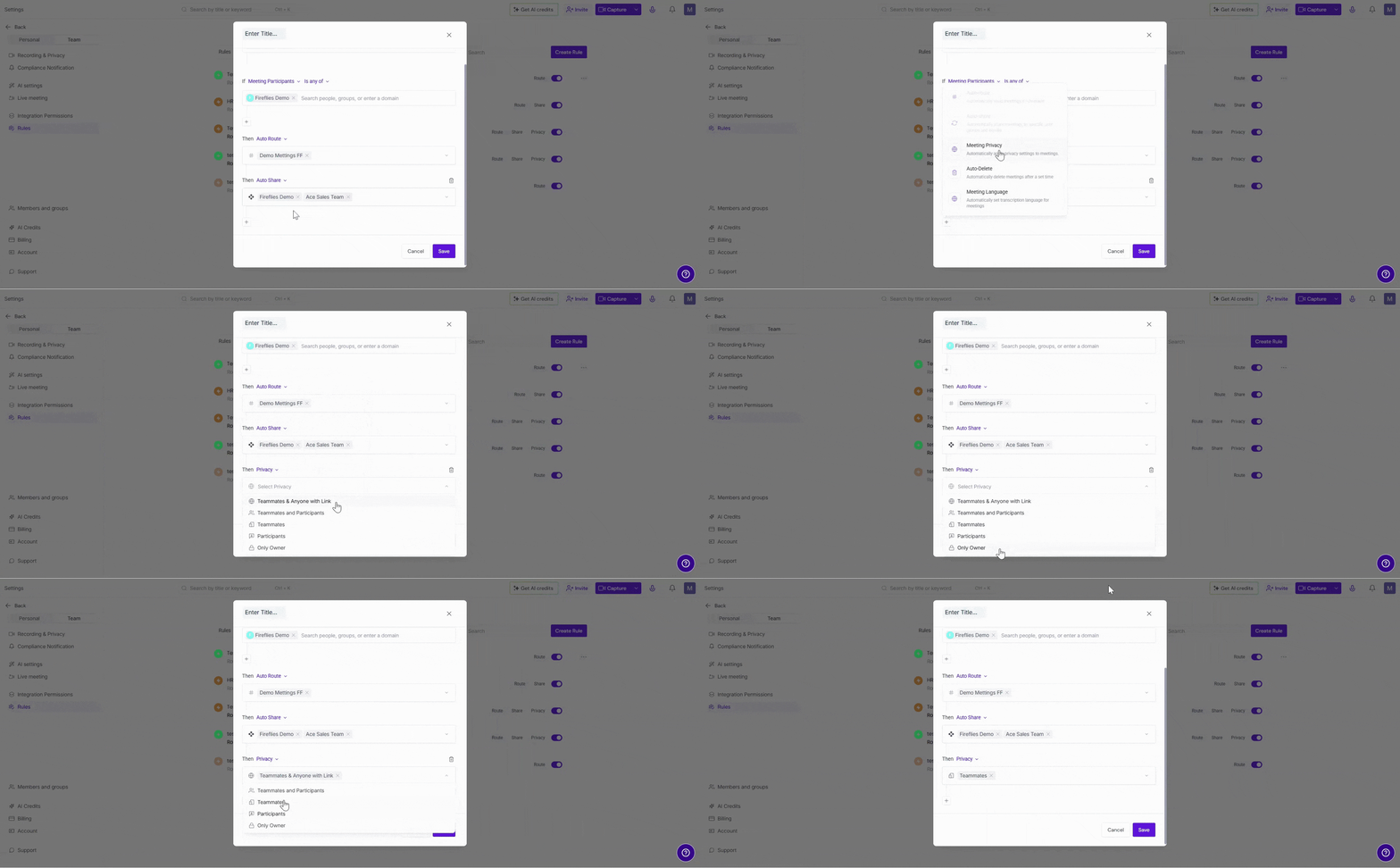
3. 🔒 Enforce Meeting Privacy (Override User Settings)
This lets you override individual privacy settings. Choose who gets access:
Teammates & Anyone with Link — everyone in your workspace plus anyone who has the meeting URL
Teammates and Participants — everyone in your workspace plus external participants on the call
Teammates — everyone in your Fireflies workspace only
Participants — only the people who were on the call
Only Owner — meeting creator only
✅ Examples: HR 1:1s → "Only Owner" or "Participants"; Sales demos → "Anyone with link" if shared externally; All hands → "Teammates and Participants"
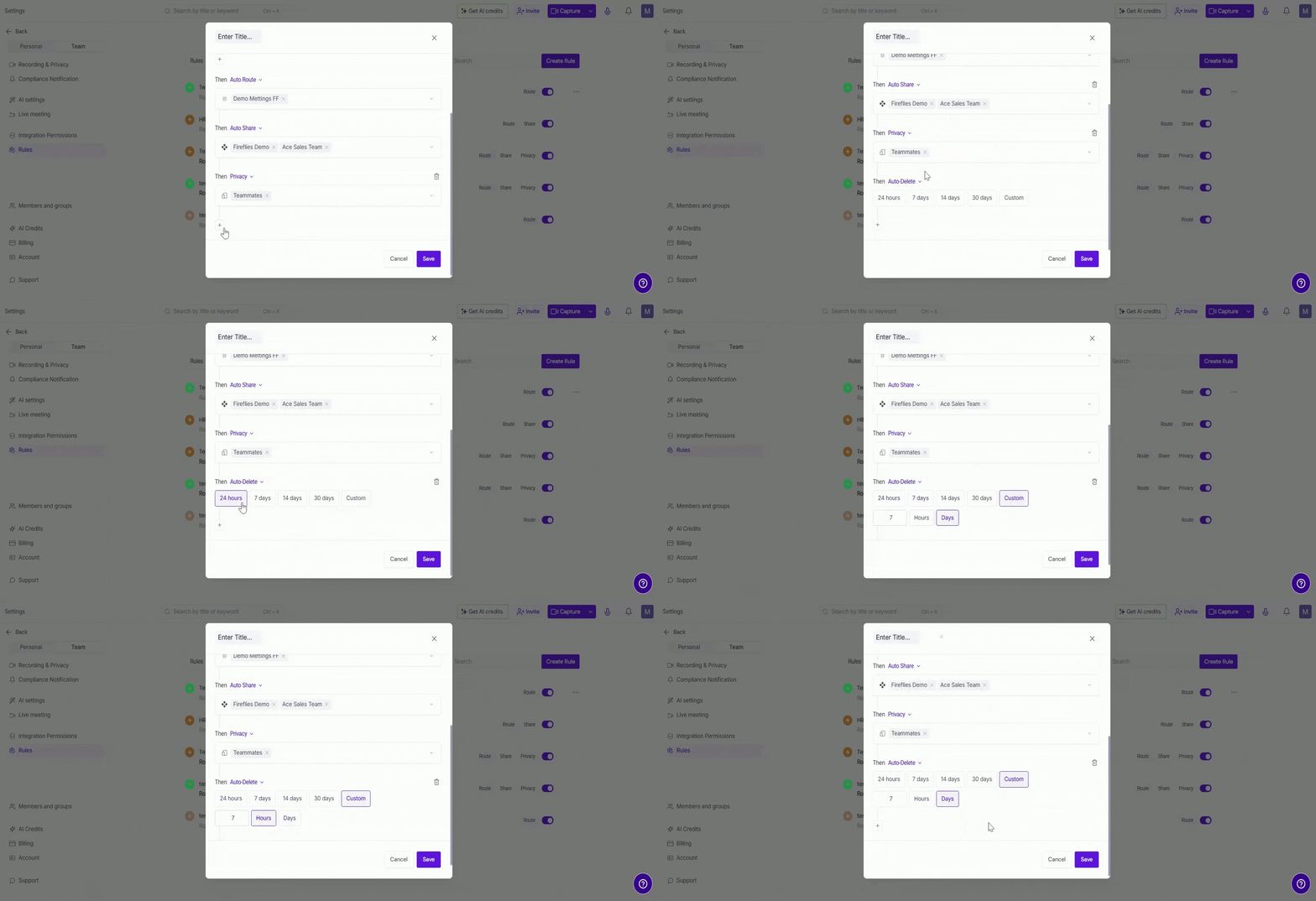
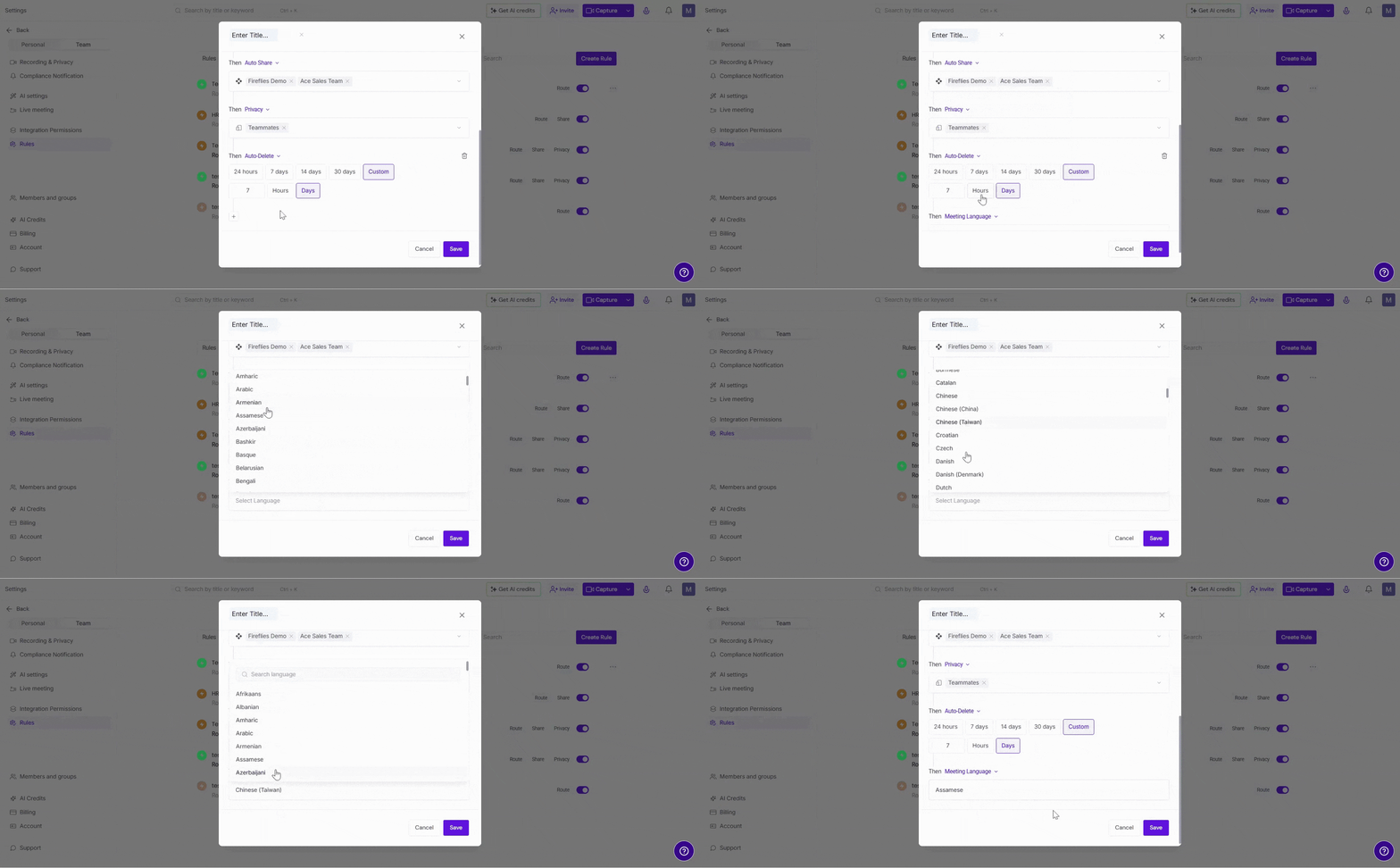
4. 🗑 Auto-Delete Meetings
Automatically delete meetings after a specified period. This helps admins apply retention policies only to meetings that match specific conditions.
You can choose from preset retention periods of 24 hours, 7 days, 14 days, or 30 days, or select Custom to define your own retention period in hours or days.
✅ Examples:
Delete interview recordings after 30 days
Remove temporary project meetings after 7 days
Automatically delete sensitive meetings after a custom retention period
5. 🌐 Meeting Language
Automatically set the transcription language for meetings that match specific conditions. This helps improve transcription accuracy and ensures meetings are transcribed in the correct language without manual updates.
✅ Examples:
Automatically transcribe customer calls in Spanish
Set French as the default language for regional meetings
Apply a specific language to meetings from a particular team or user group
Step 4: Save your rule
Once you've set your filters and actions, click Save to activate the rule.
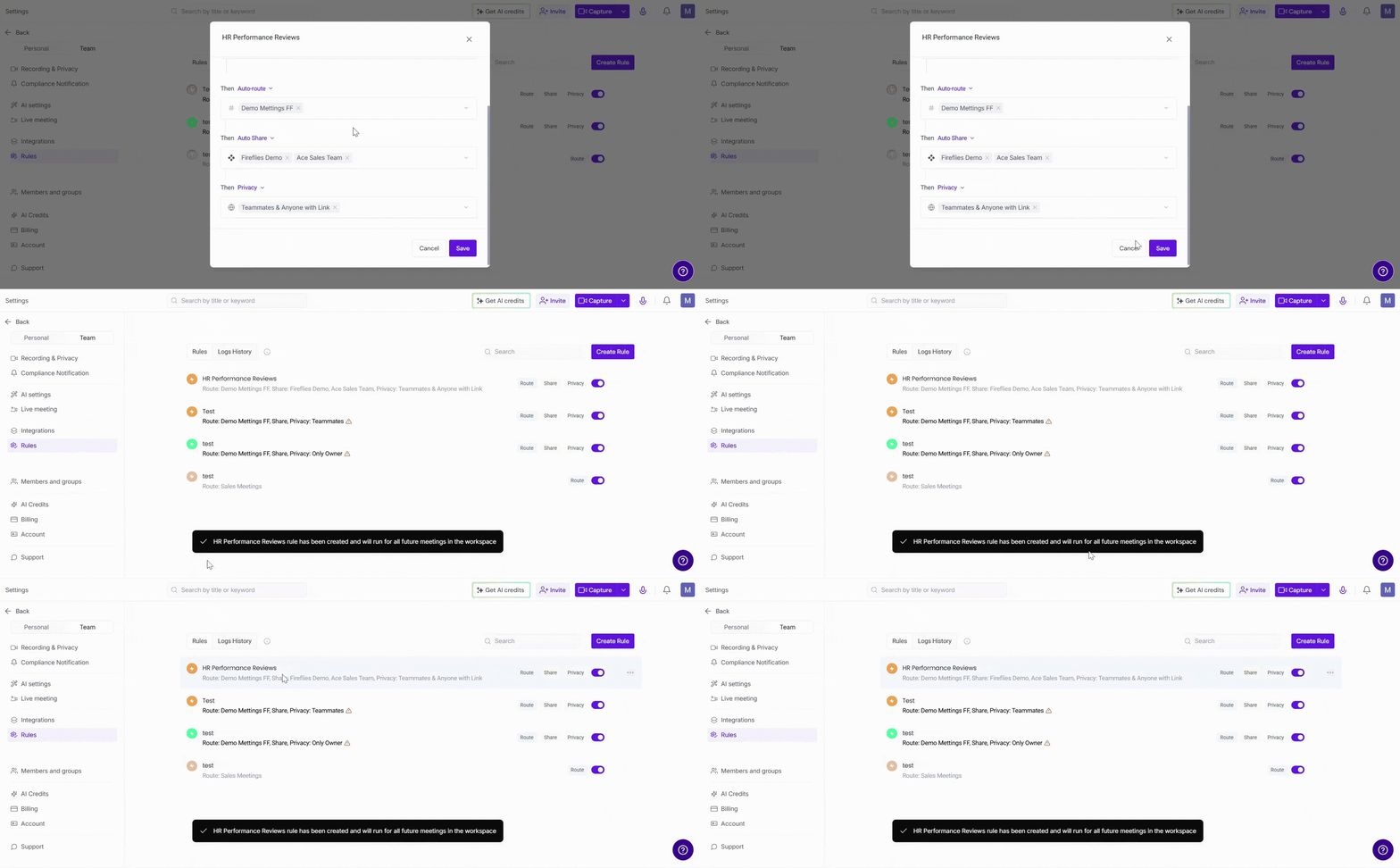
Your rule will automatically apply to all future meetings that match your conditions.
⚙Manage your rules
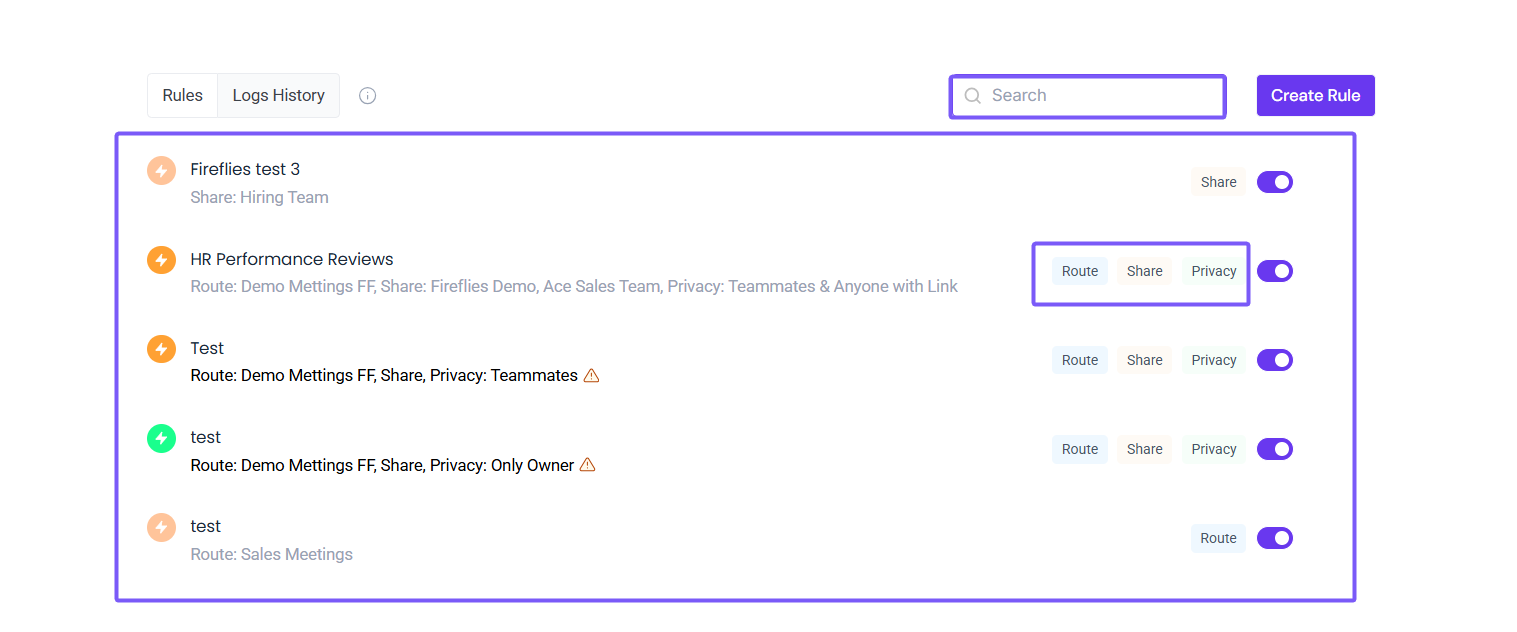
As your workspace grows, you may need to update, pause, or remove rules. All your saved rules are displayed on the Rules page — you can use the Search bar at the top to quickly find a specific rule.
Each rule shows the actions it applies — Route, Share, or Privacy — so you can see at a glance what each rule does.
🔄 Enable or disable a rule
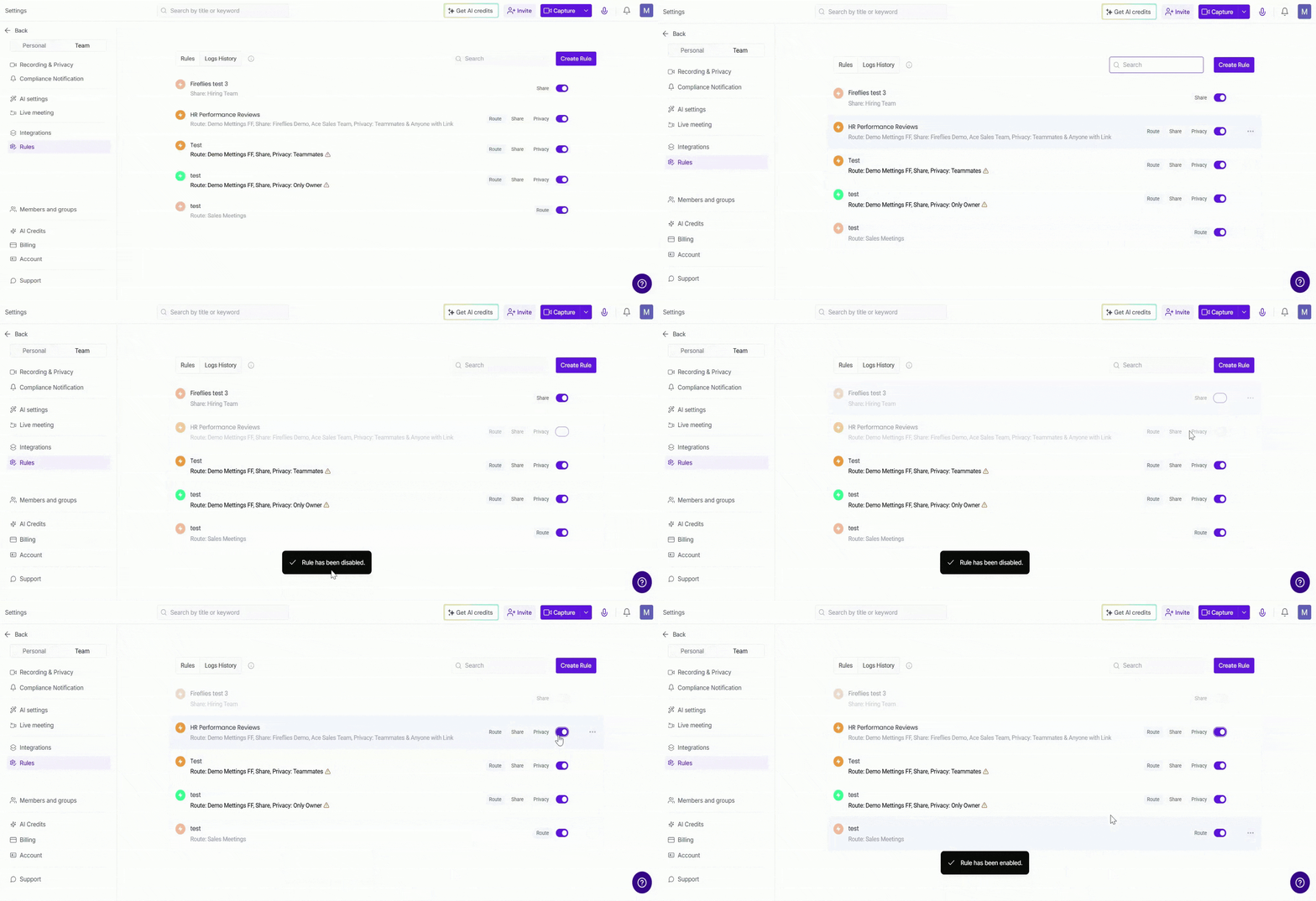
If you have a rule you don't need right now but don't want to delete, simply toggle it off using the toggle switch next to the rule. Toggle it back on anytime you need it again.
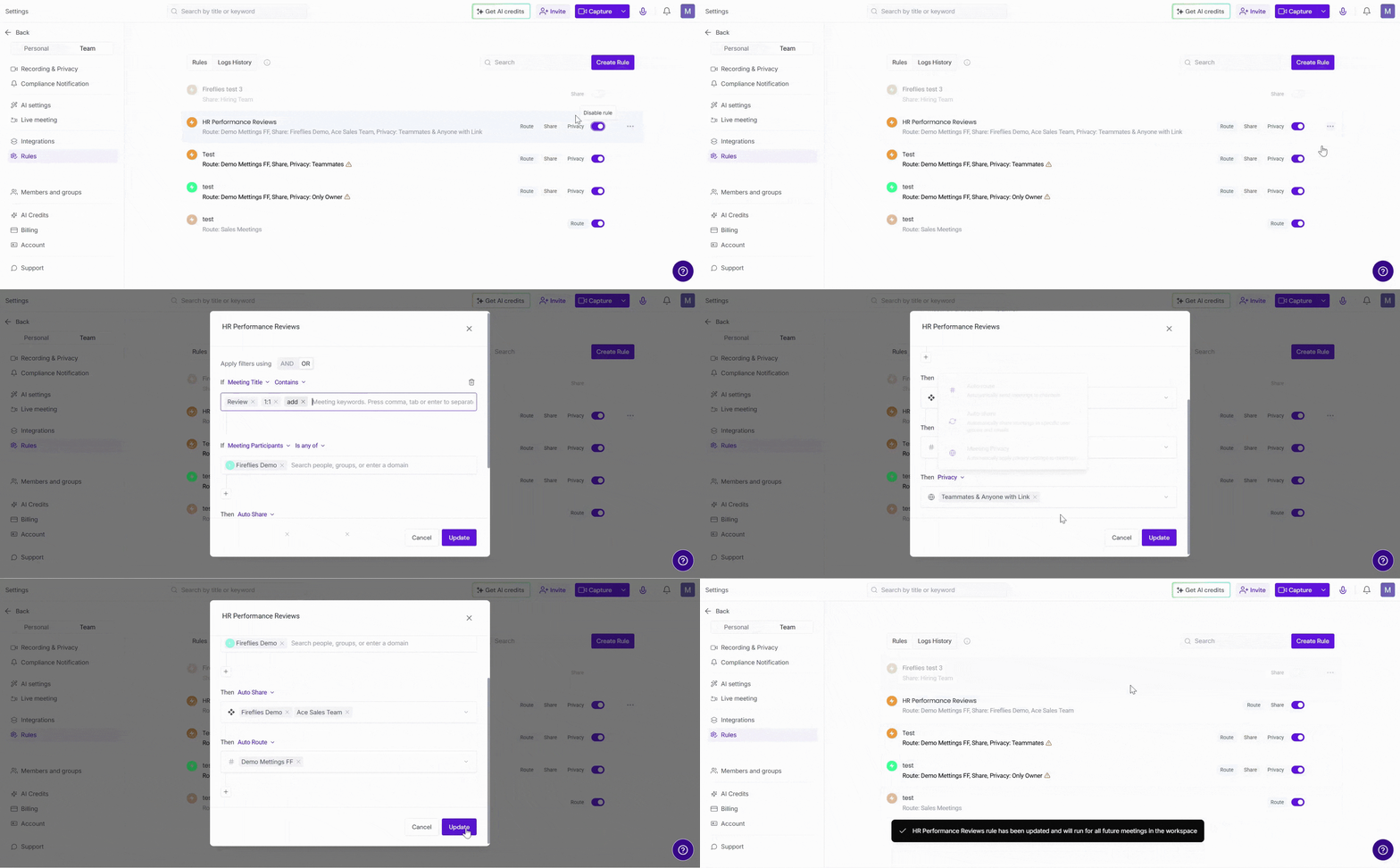
📝 Edit rule
Need to update a rule? Hover over the rule and click the ellipsis menu ( … ), then select Edit to update the rule's name, filters, or actions.
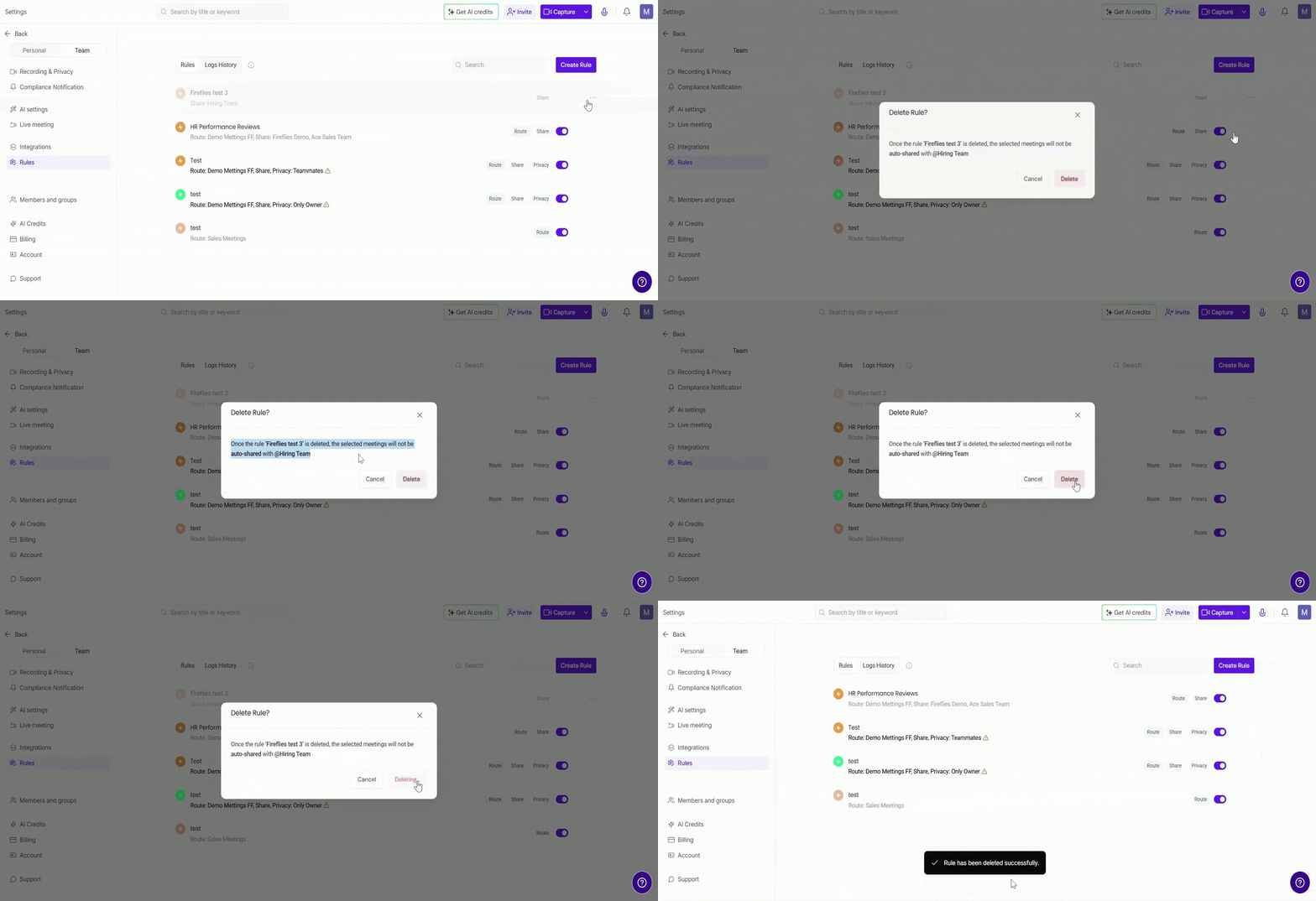
🗑Delete rule
If a rule is no longer needed, hover over the rule and click the ellipsis menu ( … ), then select Delete to permanently remove it.
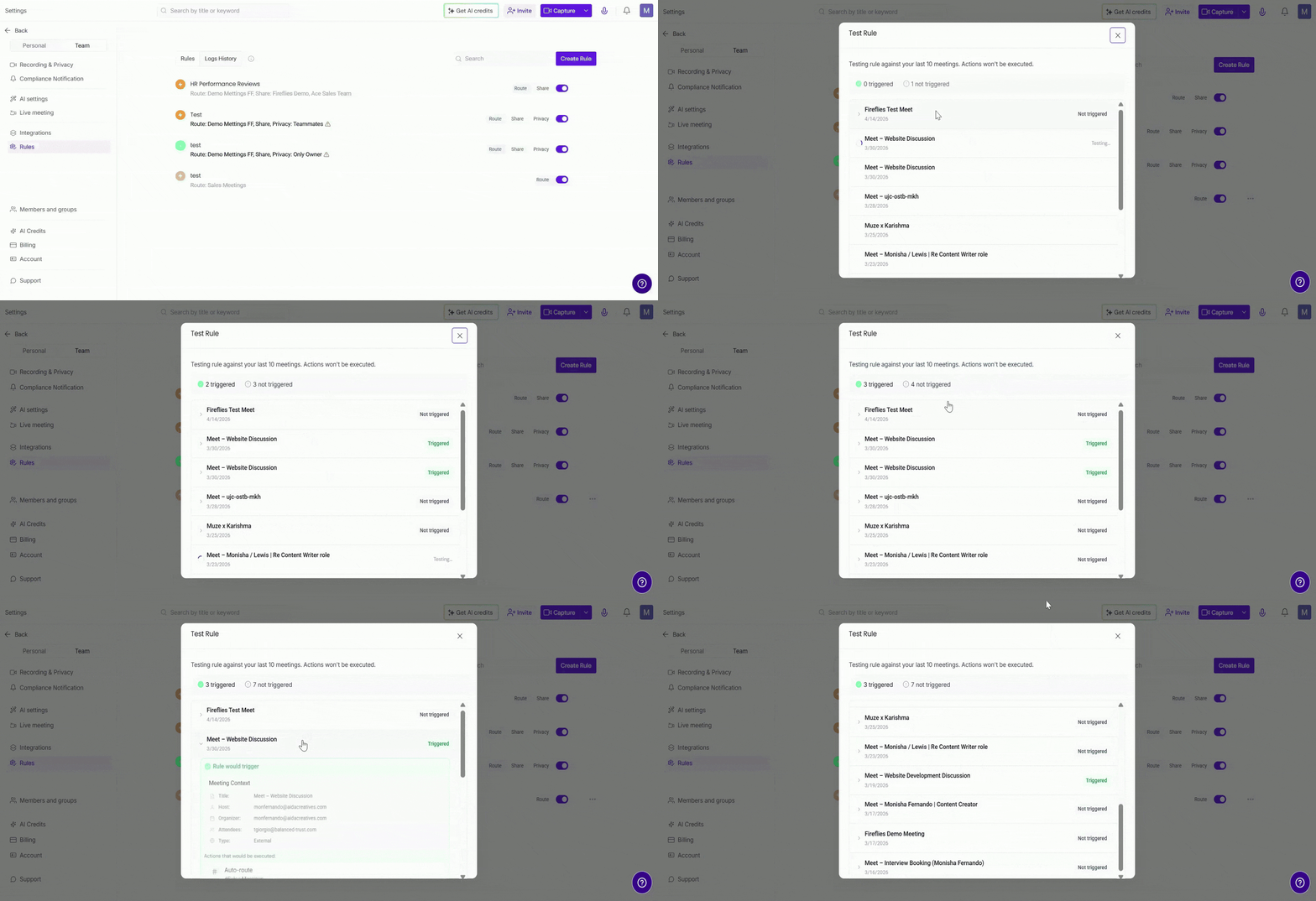
🧪 Test rule
Not sure if your rule is set up correctly? Hover over the rule and click the ellipsis menu ( … ), then select Test Rule. Fireflies will test the rule against your last 10 meetings — without executing any actions — and show you:
Triggered — meetings that matched your rule's conditions
Not triggered — meetings that did not match
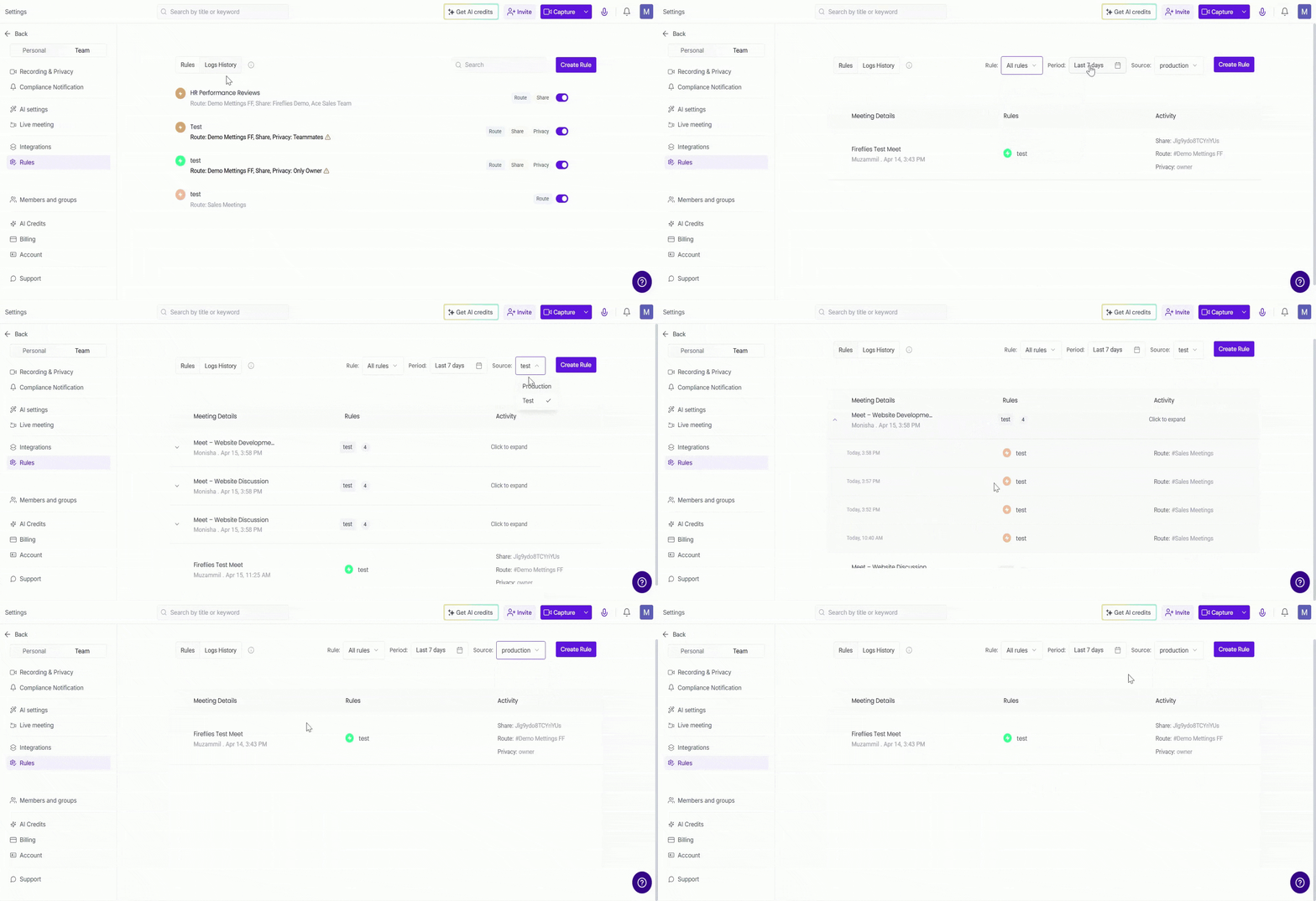
📋 Logs History
Want to see which rules ran and when? Go to the Logs History tab to track all rule activity across your workspace.
You can filter logs by rule, time period (last 7 days or a custom range), or source (Production for real meetings, Test for rule testing).
Each log entry shows the meeting details (name, host, date), the rule applied, and the actions triggered (route, share, privacy).
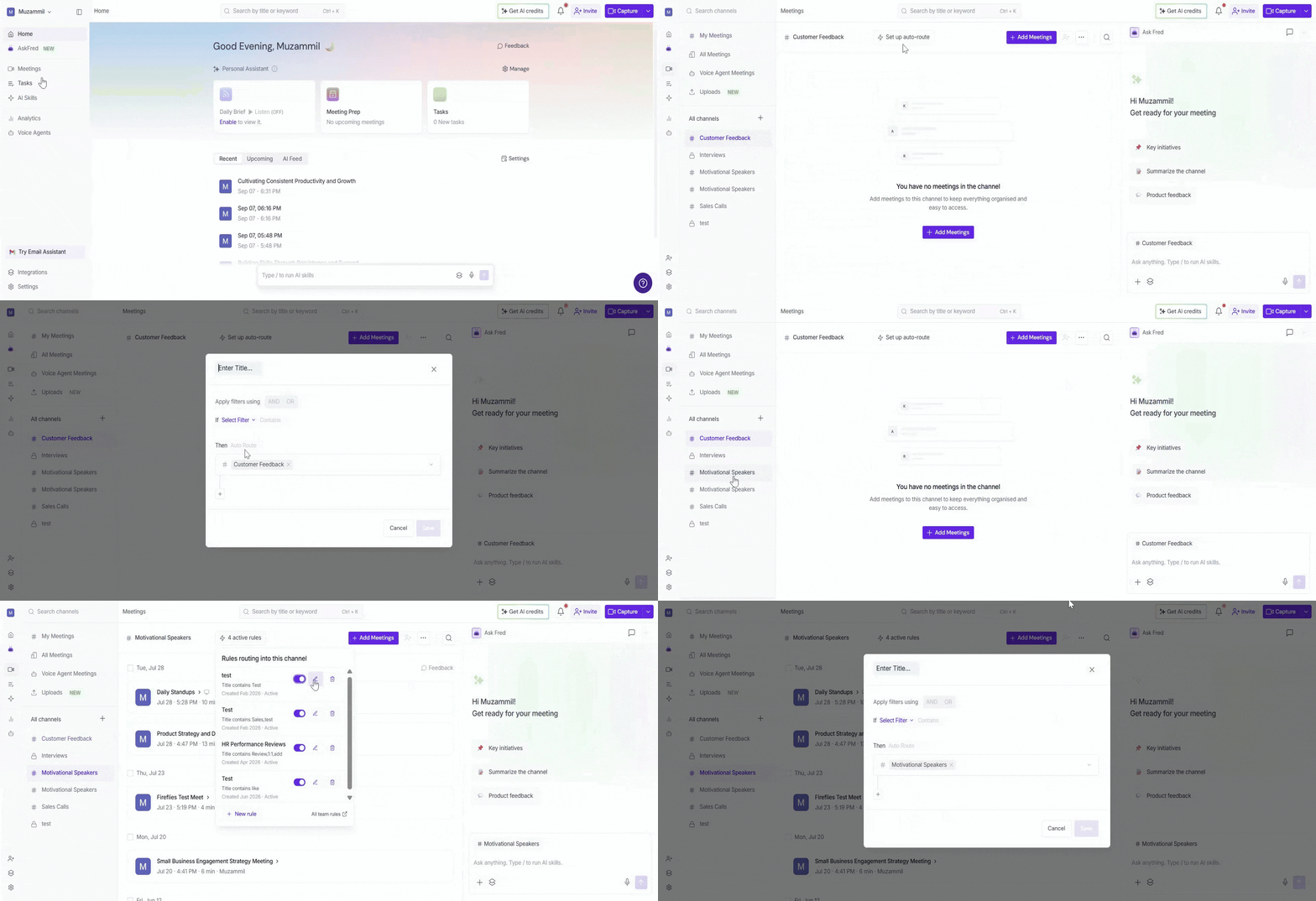
💡 Pro tip: Create a rule directly from a channel Already know which channel you want meetings routed to? Here's a faster way to start:
Go to Meetings from your Fireflies dashboard and select a channel.
Click Set up auto-route at the top of the page.
From here, you can create a new rule or view and manage existing rules for the channel.
✅ Quick recap
Rules Engine is for Enterprise admins only.
Access from Settings → Team → Rules.
Each rule has a name, filters, and an action.
Filter by title, host, participants, or meeting type.
Combine filters using AND / OR logic.
Available actions include Auto-route, Auto-share, Meeting Privacy, Auto-Delete, and Meeting Language.
Manage rules by enabling, disabling, editing, deleting, or testing them at any time.
Track activity from Logs History.
📄 Need help troubleshooting or understanding how Privacy works? How to control who gets meeting recaps (Email Settings) and who can view them on Fireflies (Privacy Settings)