Meeting Status Page: Check the Status of Your Meetings in Fireflies
Last updated: September 2, 2026
Just finished a meeting and wondering where your transcript or summary is? Whether Fireflies is still recording, processing your meeting, or has already finished, the Meeting Status feature helps you quickly see what's happening—all in one place.
In this guide, you'll learn how to:
Access the Meeting Status page
Check the status of your meetings during and after a call
Understand what each meeting status means
Troubleshoot common meeting and processing issues
📍 Access the Meeting Status Page
Step 1: Log in to your Fireflies account.
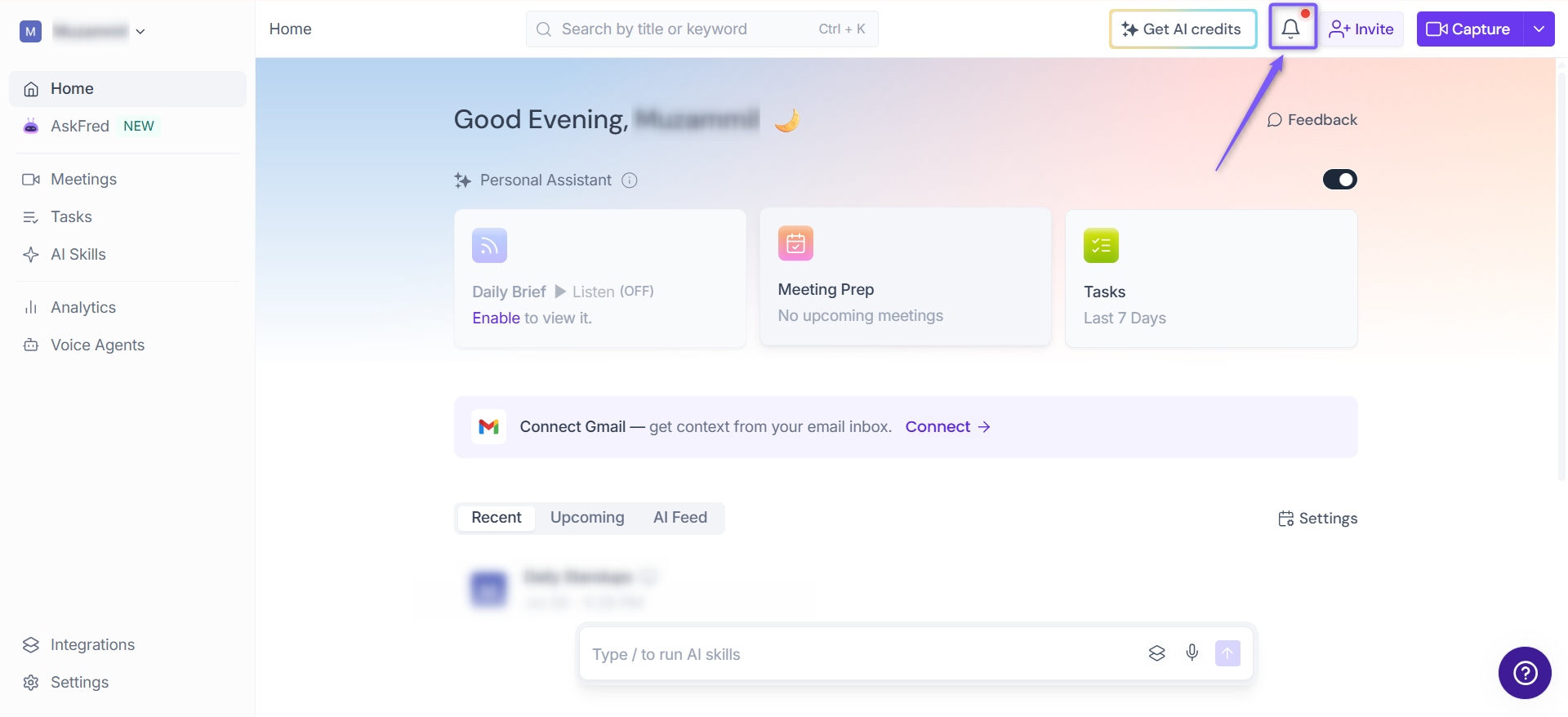
Step 2: From the Home page, click the Notifications (bell) icon in the top-right corner.
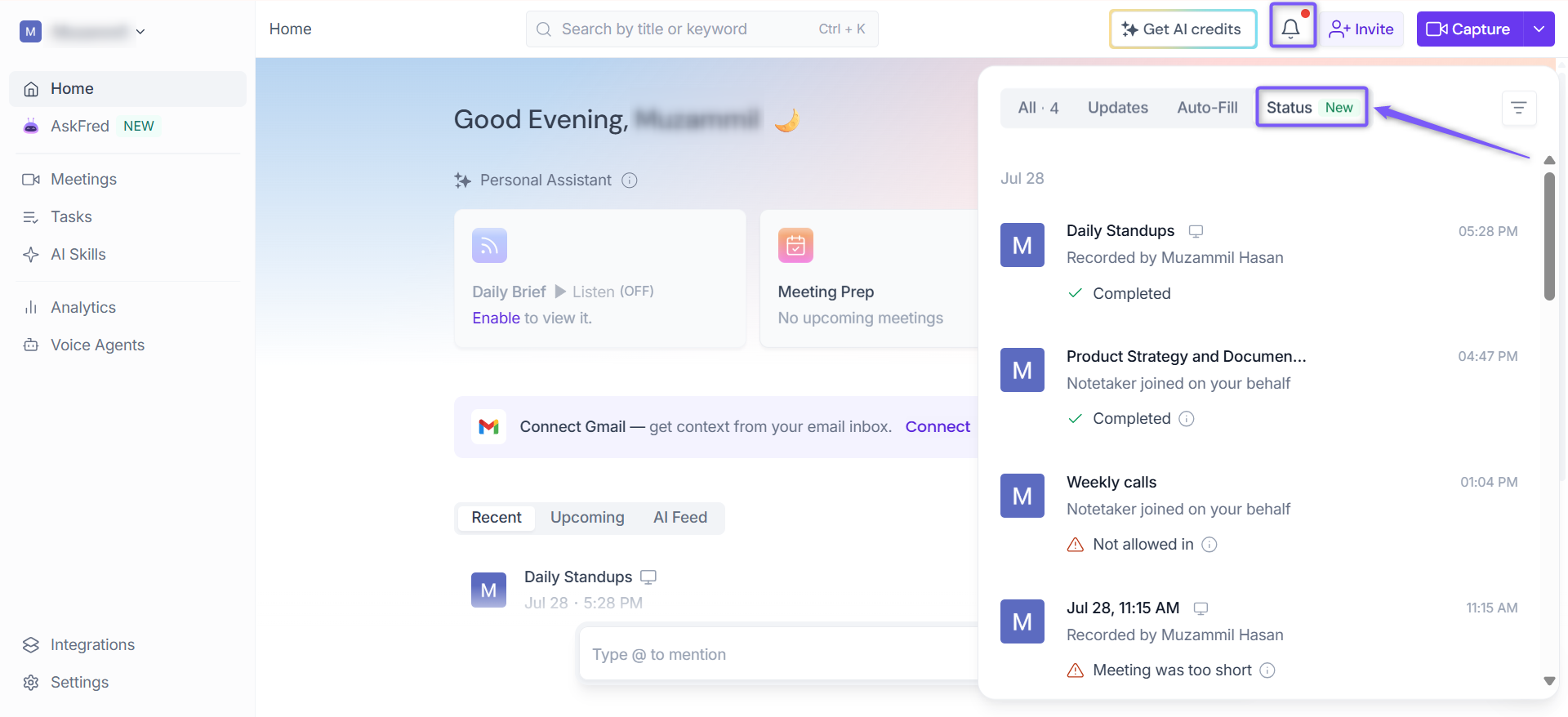
Step 3: In the Notification panel, select the Status tab.
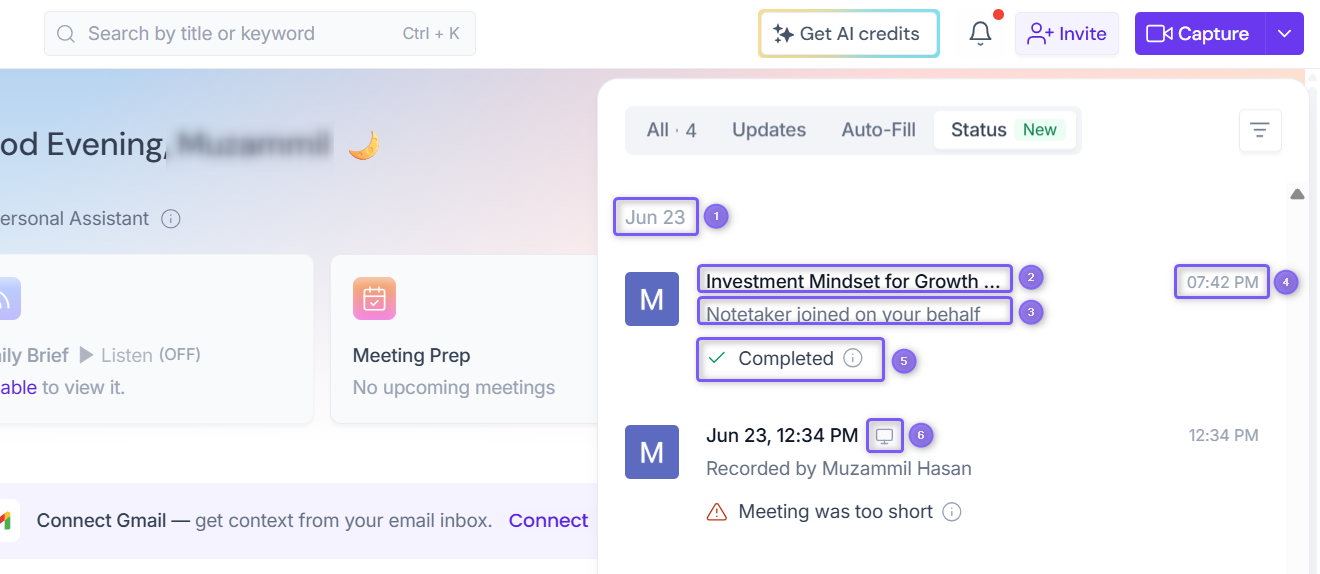
Step 4: In the Status tab, you'll see your recent meetings along with key details to help you quickly identify each meeting and its current status.
Ref. | Field | Description |
|---|---|---|
1 | Meeting date | Groups meetings based on the date they took place. |
2 | Meeting title | Displays the name of the meeting. |
3 | Meeting organizer | Shows how Fireflies joined the meeting, such as Recorded by [user] or Notetaker joined on your behalf. |
4 | Meeting time | Shows the time the meeting took place.. |
5 | Meeting status | Displays the meeting's current recording or processing status. |
6 | Meeting source icon | Indicates how the meeting was recorded. For example, the computer icon represents a meeting recorded using the Fireflies desktop app |
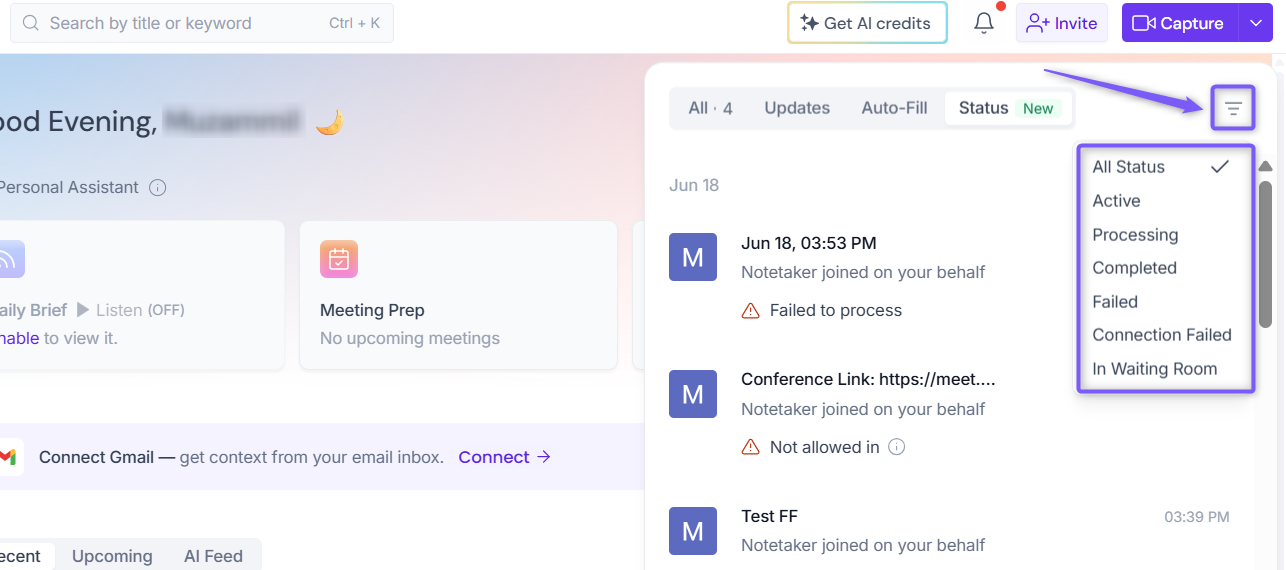
Step 5: Click the Filter icon in the top-right corner to filter meetings by their current status, making it easier to find the meetings you're looking for.
🧩 Understand Meeting Statuses
Each meeting in the Status tab is assigned a status that shows its current recording or processing state. Understanding these statuses helps you quickly identify whether a meeting is still in progress, being processed, completed, or encountered an issue.
Meeting Status | Description |
|---|---|
🟢 Active | The meeting is currently ongoing. If you're the meeting host, you can click Stop to end the recording or select Open Live Transcript to view the real-time transcript. |
🔄 Processing | Fireflies is processing the meeting to generate the transcript, summary, and other meeting content. This typically takes a few minutes but may take longer depending on the meeting length. |
✅ Completed | Fireflies has finished processing the meeting. You can now open the meeting to view the transcript, summary, action items, and recording (if available). |
🚫 Denied Entry | Fireflies was denied entry into the meeting because the host or a participant declined its request to join. |
🚪 In Waiting Room | Fireflies remained in the meeting waiting room and wasn't admitted. |
⛔ Not allowed in | Fireflies wasn't admitted into the meeting after waiting in the waiting room. |
⏱ Meeting was too short | The meeting ended before Fireflies could generate a transcript or summary. Meetings shorter than 3 minutes don't generate a recap. |
🔌 Connection Failed | Fireflies couldn't connect to the meeting or recording source, so the meeting couldn't be recorded or processed. |
⚠ Could not be processed | Fireflies couldn't process the meeting. Hover over the info icon next to the status to view additional details, if available. |
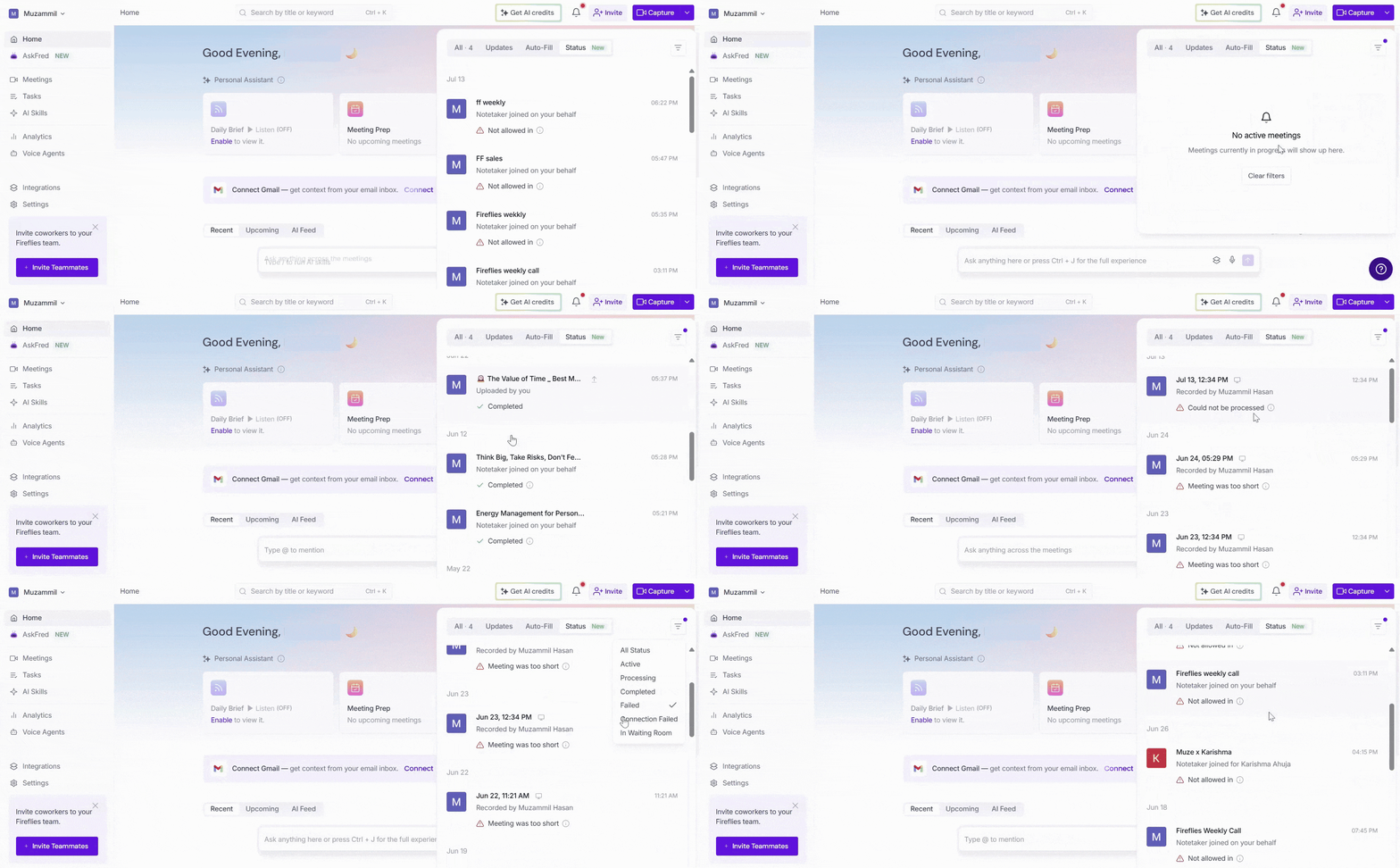
If your meeting doesn't show a Completed status, review the status message to understand why the meeting wasn't recorded or processed successfully.
🔄 Check the Status of an Ongoing Meeting
Want to confirm that Fireflies is actively recording your meeting? You can check its status at any time from the Status tab.
1. Click the Notifications (bell) icon in the top-right corner of the Home page, then select the Status tab.
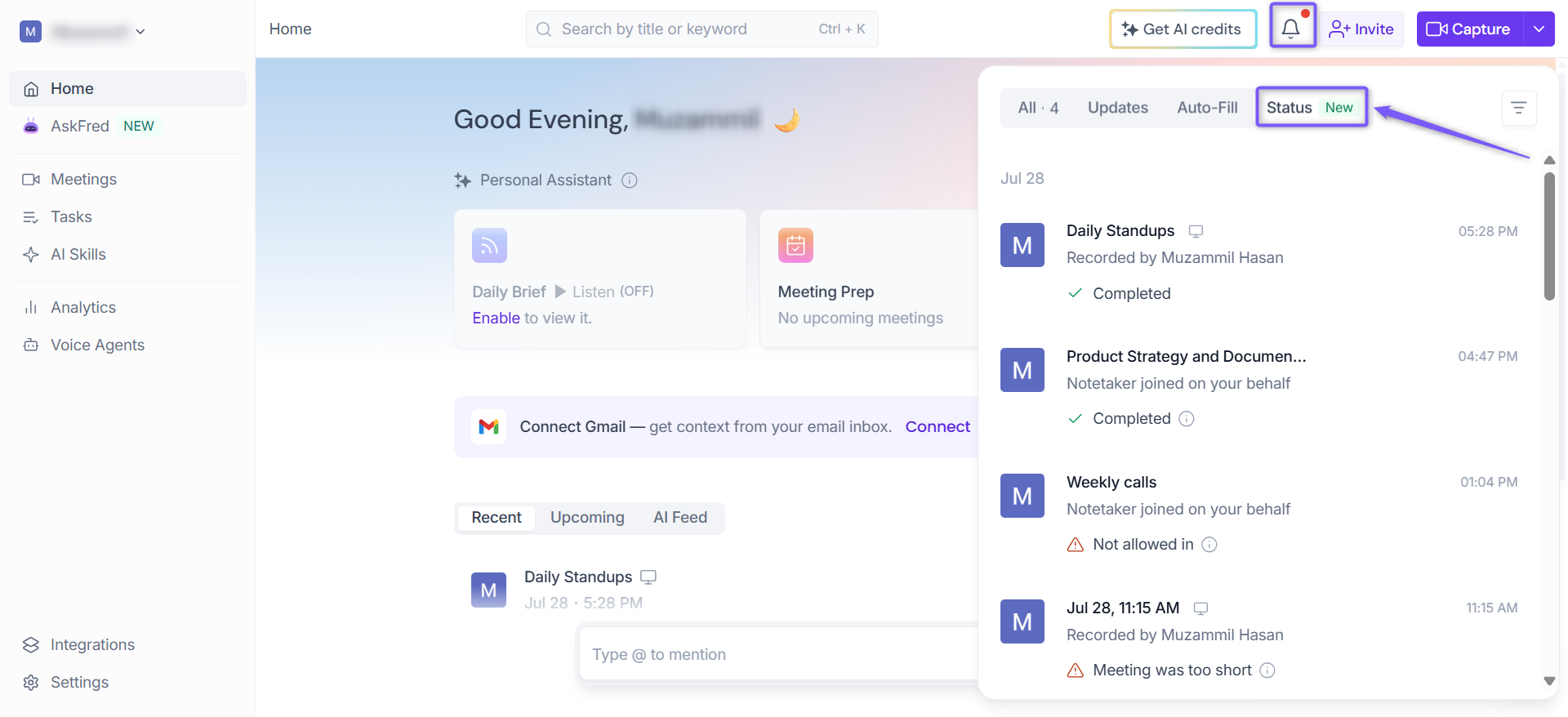
2. Find the meeting that's currently in progress. Ongoing meetings display the Active status and the Live Notes button.
💡Alternatively, On the Home page, the active meeting appears in the LIVE meeting banner, where you can access Live Notes or click Stop to end the recording.
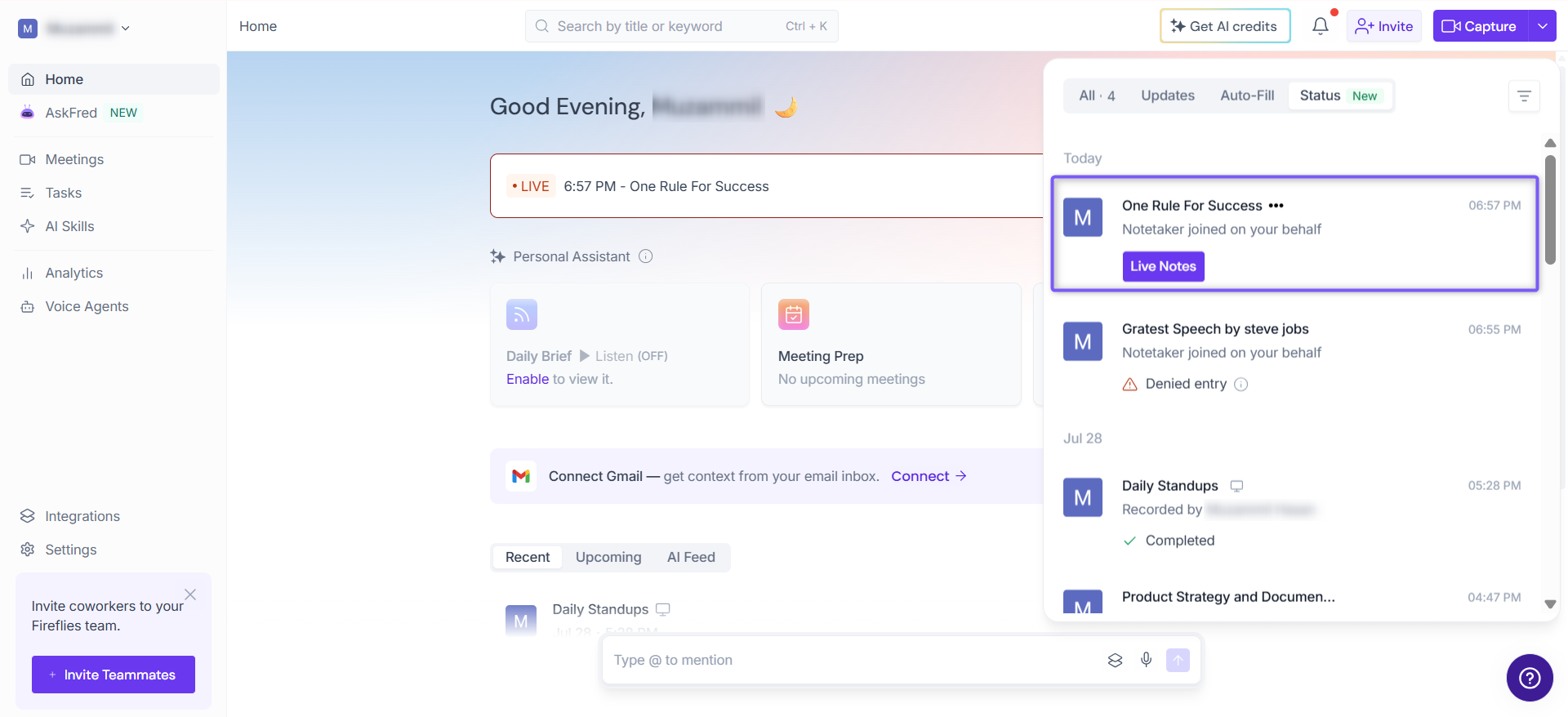
3. Click Live Notes to open the live meeting view, where you can follow the conversation in real time and access Live Assist features.
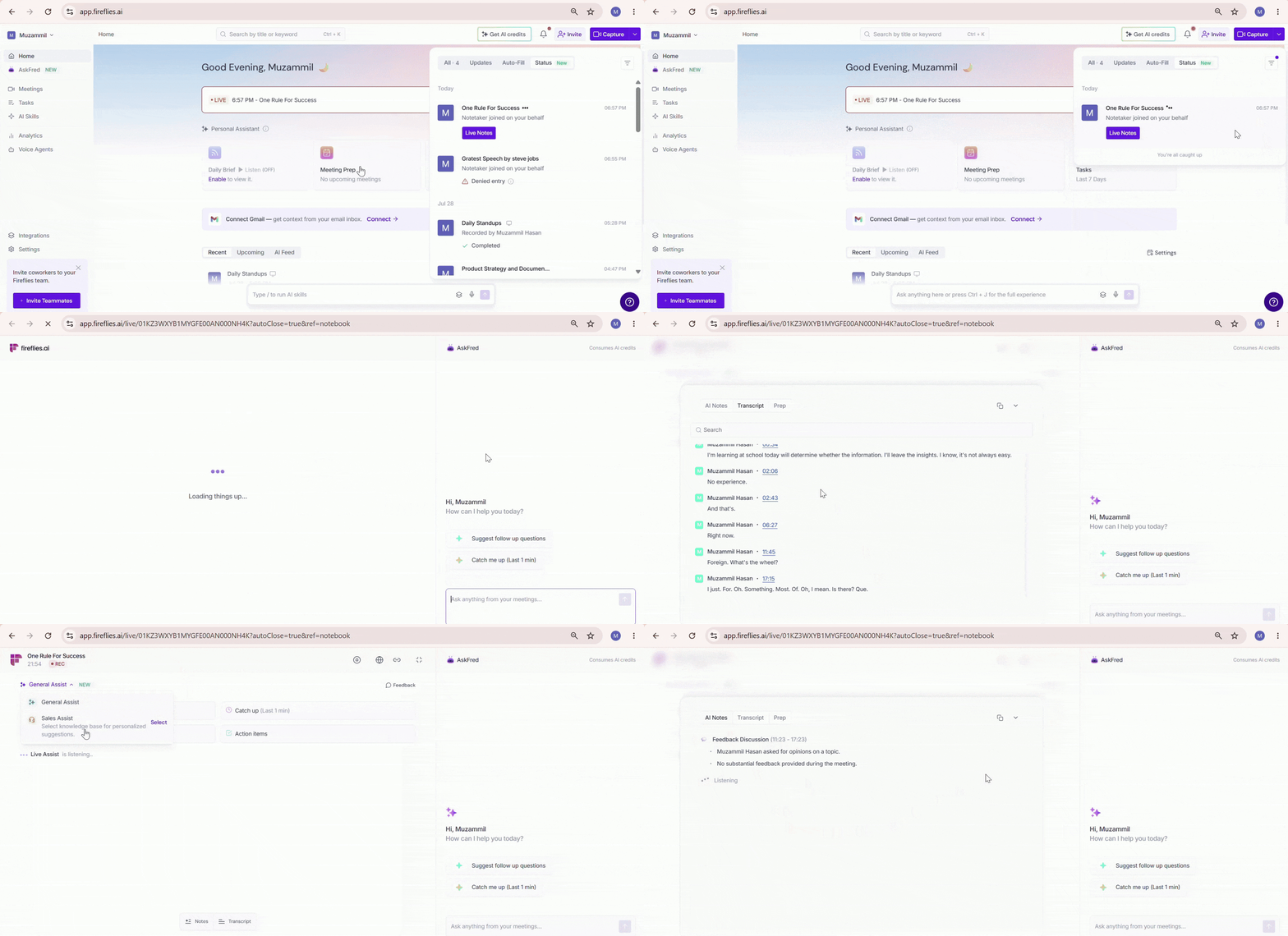
The Live Notes button is only available while the meeting is in progress. Once the meeting ends, the meeting status changes as Fireflies begins processing the transcript and summary.
📌 Want to learn more? Check out Live Assist: Real-Time Notes, Answers, and Suggestions to learn how to use Live Notes, Live Assist, and Sales Assist during your meetings.
✅ Check the Status After a Meeting Ends
Once your meeting ends, Fireflies automatically starts processing it to generate the transcript, summary, action items, and other meeting notes. Processing usually takes a few minutes, depending on the length of the meeting.
1. Click the Notifications (bell) icon in the top-right corner, then select the Status tab.
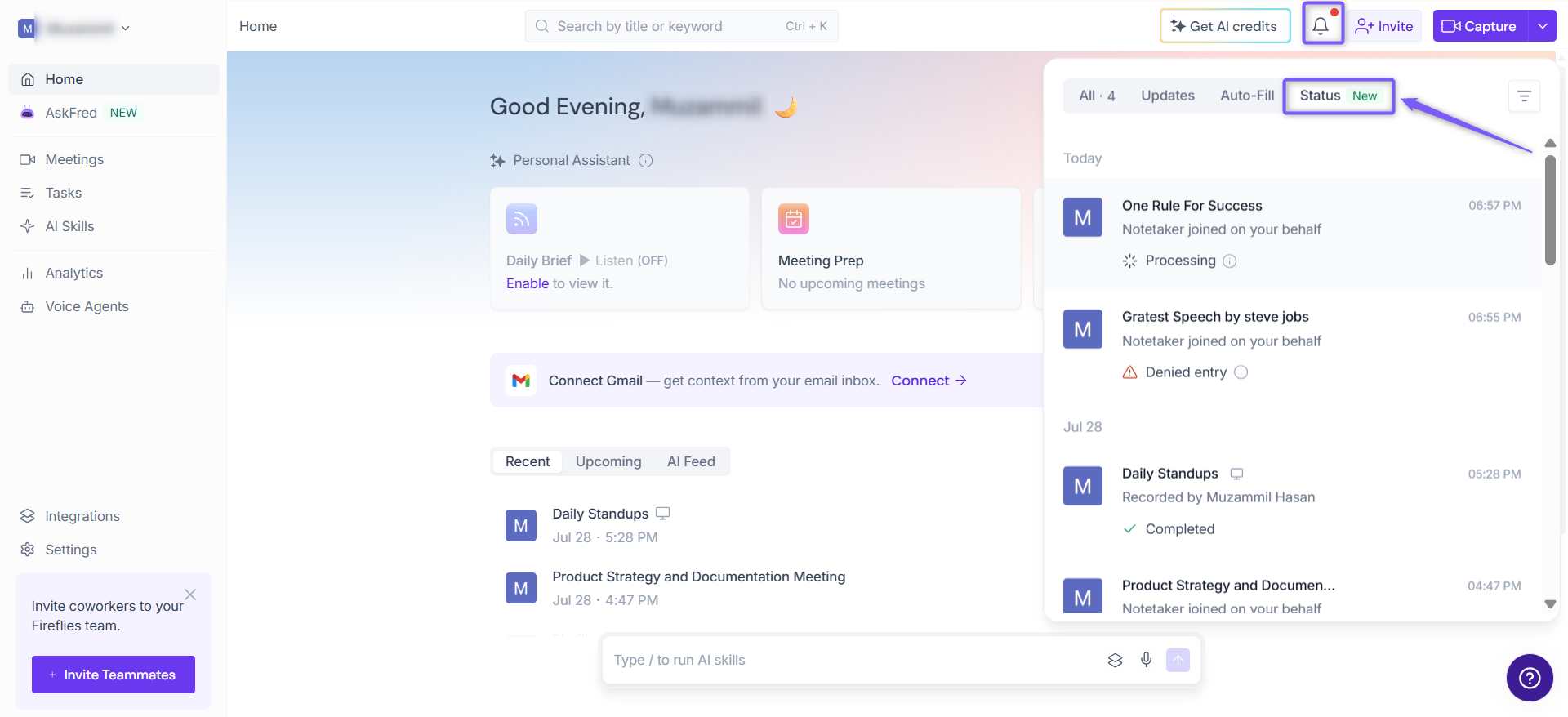
2. Locate the meeting you want to check. Recently ended meetings display the Processing status while Fireflies generates your meeting notes.
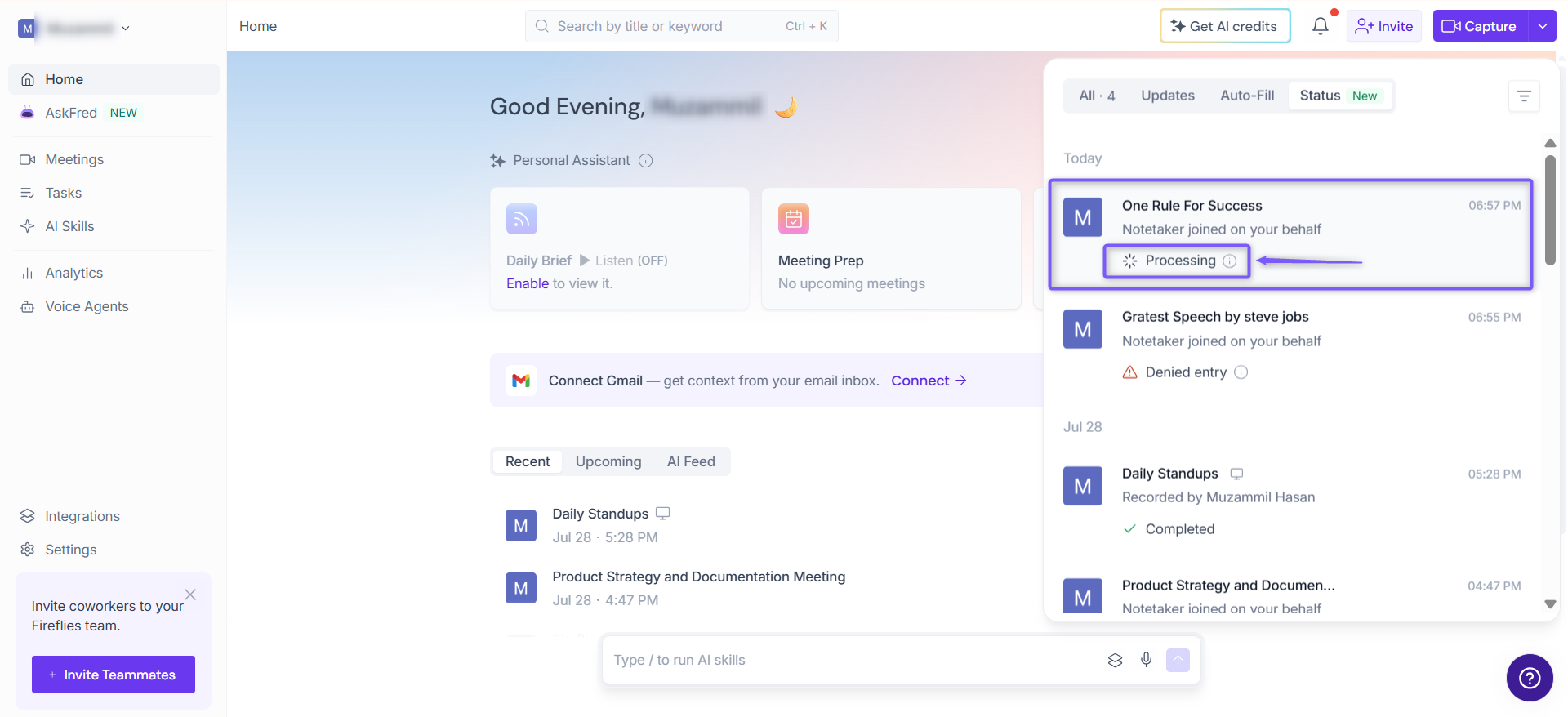
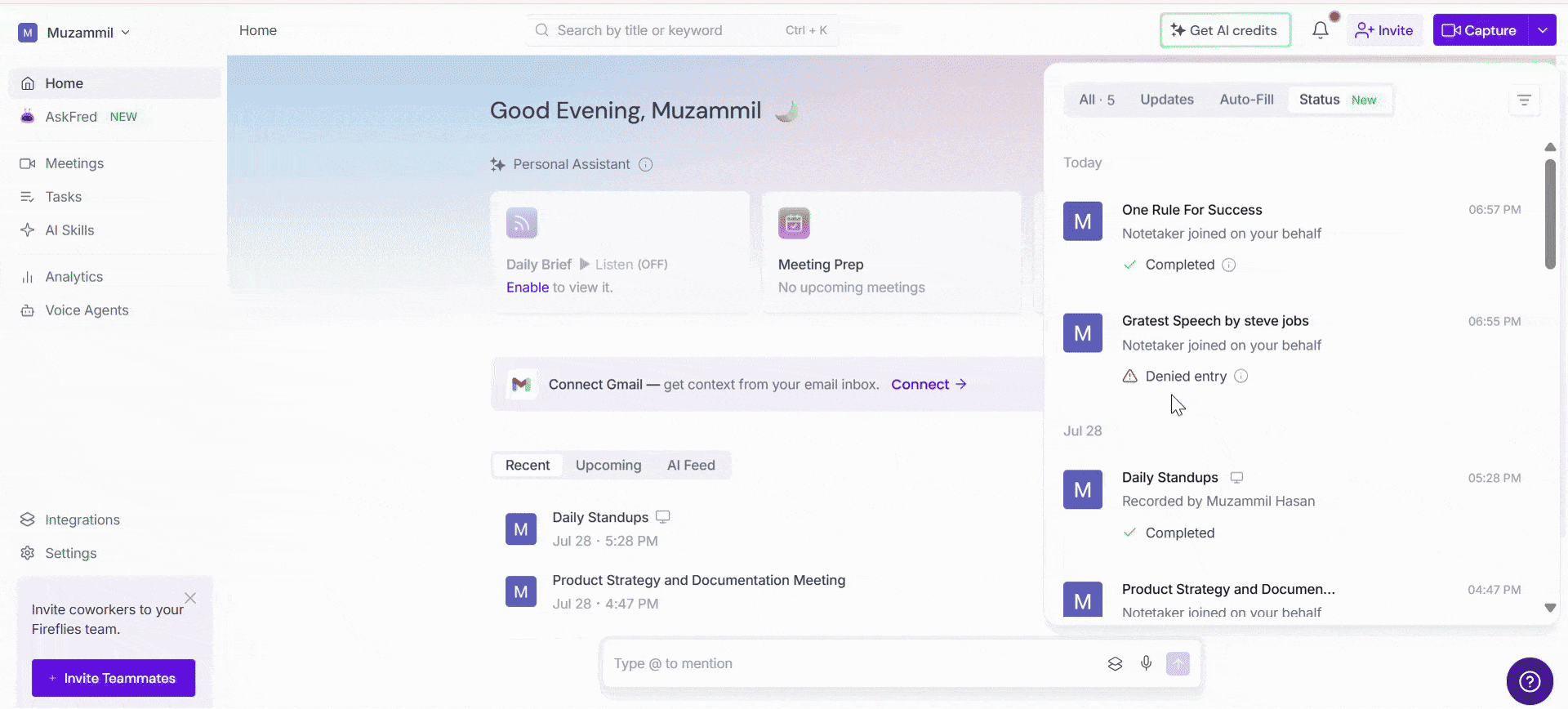
3. Wait a few minutes for processing to complete. When it's finished, the meeting status changes to Completed.
If your meeting displays a status other than Completed, refer to the Understand Meeting Statuses section above to learn what it means and how to identify potential issues.
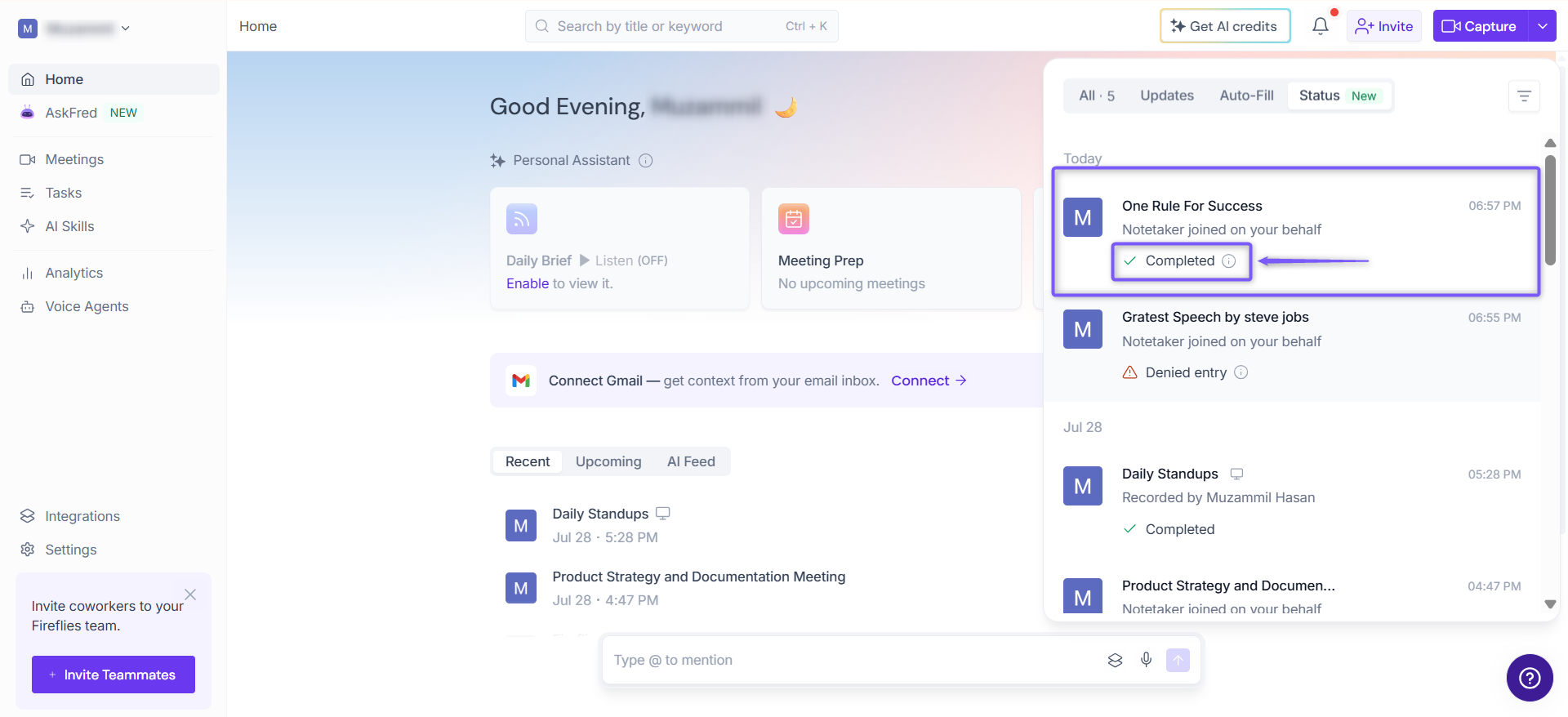
4. Click the meeting to open it and view the full meeting transcript, summary, and action items generated by Fireflies.
📌 Want to do more with your meeting? Learn how to find, organize, and manage your meetings in Fireflies, including searching, filtering, sharing, and managing meeting details.
❓ Troubleshooting & FAQs
Q1. Why is my meeting stuck on Processing?
Fireflies typically finishes processing a meeting within 5–10 minutes after it ends. If processing is taking longer than expected, the most common cause is a weak or unstable internet connection.
Try the following:
Check your current internet connection.
If your Wi-Fi is slow or unstable, wait a few minutes or switch to a more stable network.
If you're using a mobile data connection, try switching to a Wi-Fi or wired network for better stability.
👉🏻 Related article: Learn about meeting transcription processing in Fireflies
Q2. How long does it normally take to process a meeting?
Fireflies typically processes meetings within 5–10 minutes after they end, although longer meetings may take additional time. Once processing is complete, the meeting status changes to Completed.
Q3. Why didn't my short meeting receive a transcript or recap?
Fireflies only generates transcripts and meeting recaps for meetings that are longer than 3 minutes. If your meeting was shorter than that, no transcript or recap will be created.
Q4. What's the difference between Denied Entry and Not allowed in?
Denied Entry — The meeting host or another participant actively rejected Fireflies' request to join the meeting.
Not allowed in — Fireflies remained in the meeting waiting room and was never admitted into the meeting.