How to set up Zendesk Sell and Fireflies integration
Last updated: March 11, 2026
This guide covers steps to set up Zendesk Sell and Fireflies integration.
What is Zendesk Sell-Fireflies integration?
The Fireflies-Zendesk Sell integration lets you log meeting notes under the appropriate leads, contacts, or deals within Zendesk Sell.
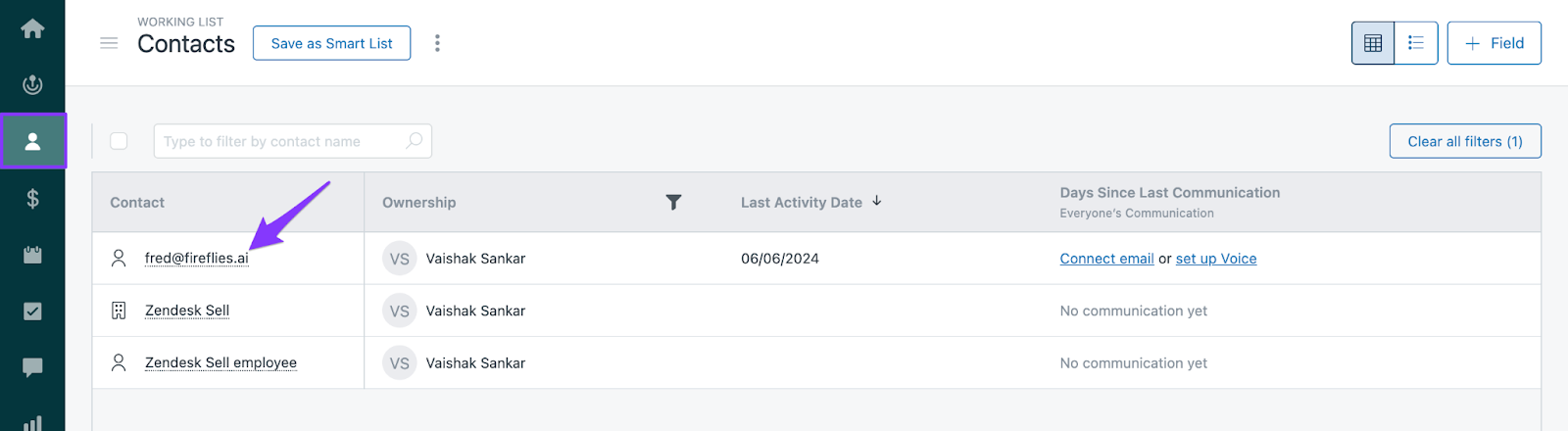
Note: Meetings with internal participants and those recorded via the Fireflies Chrome extension or Add to Live are logged under fred@fireflies.ai.
Set up Zendesk Sell and Fireflies integration
Log in to your Fireflies account and then click Integrations.
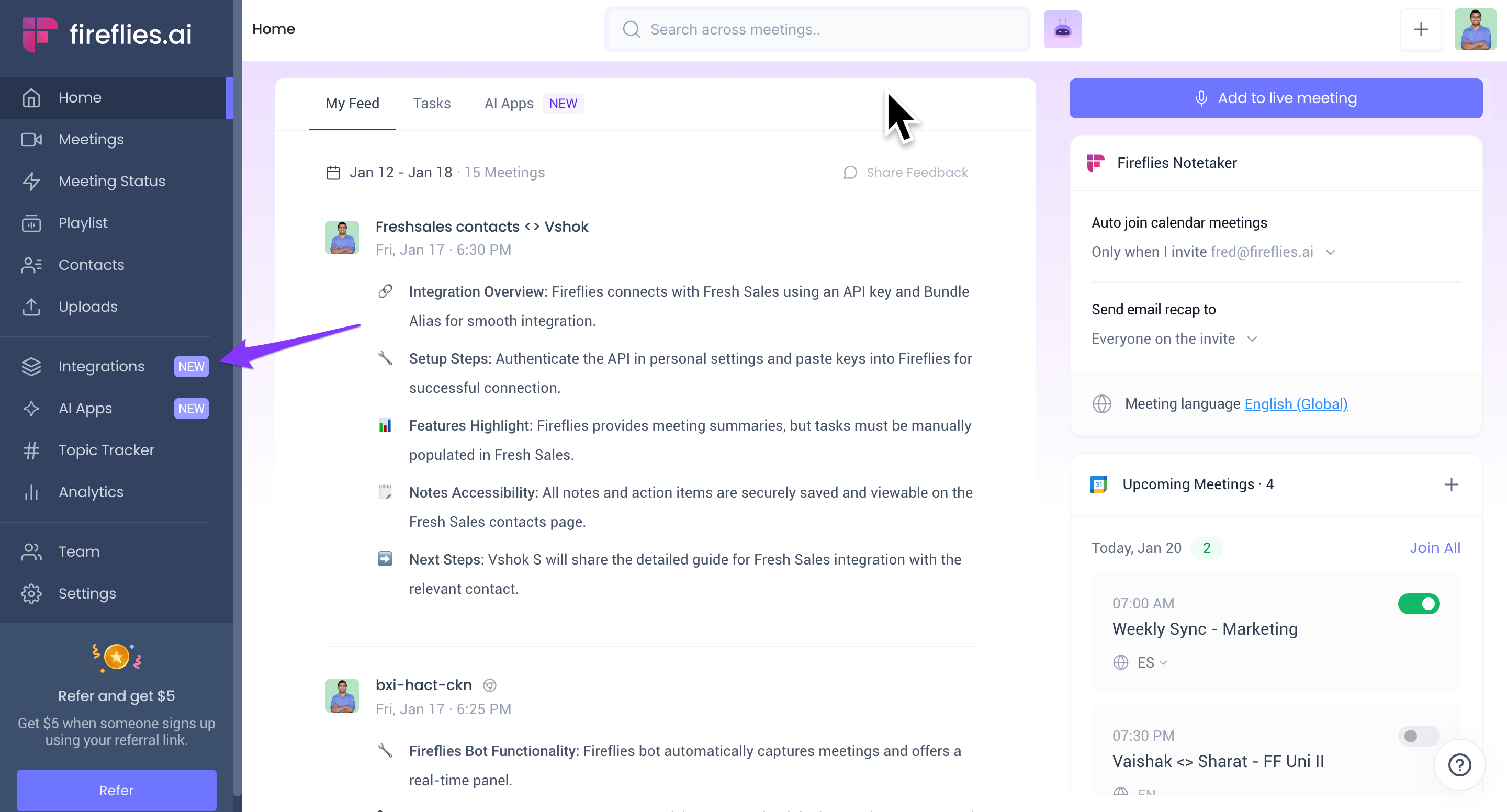
On the Integrations page, find Zendesk Sell and click on it.
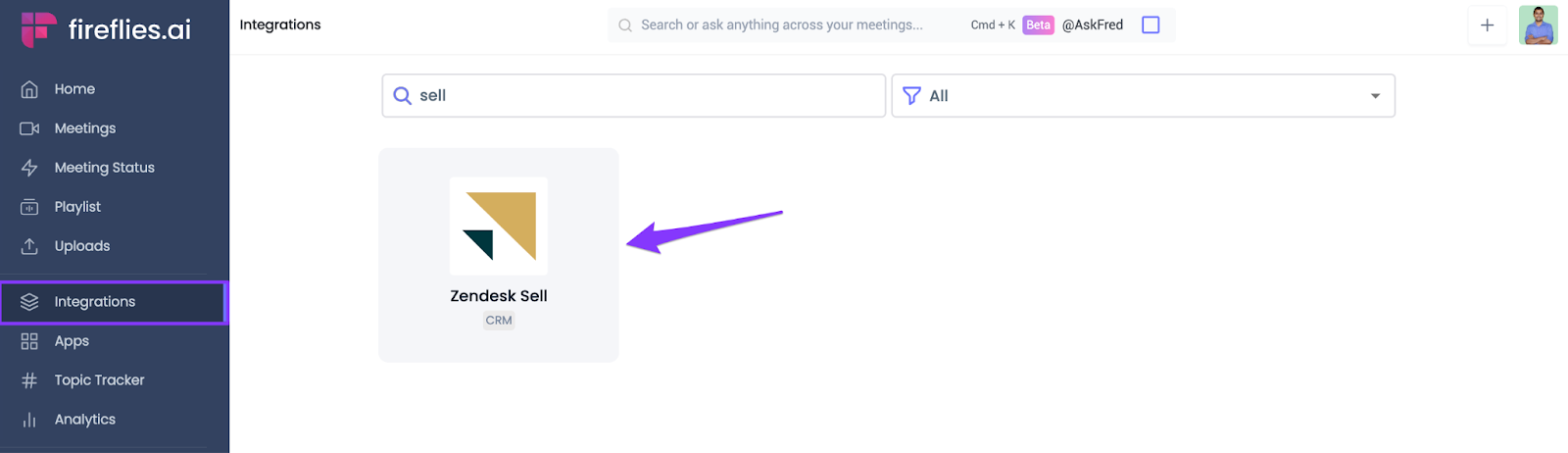
Click Connect.
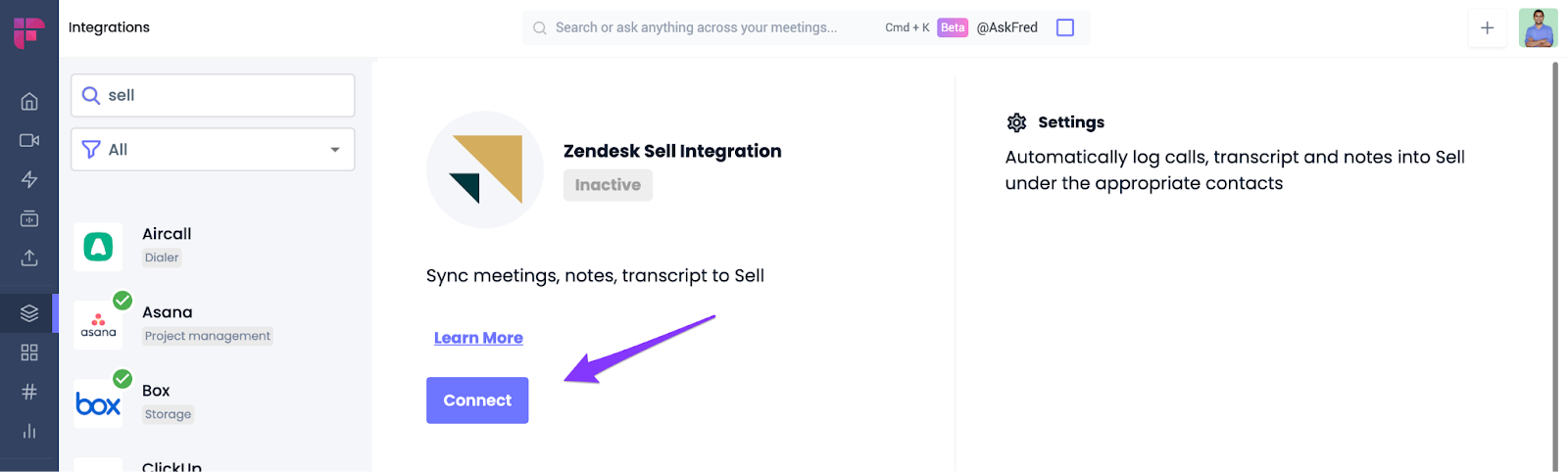
You'll be redirected to Zendesk Sell. Click Authorize to grant Fireflies permission to access your Zendesk Sell account.
This will redirect you back to the Fireflies app. Notice the green check mark on the Zendesk Sell icon and the Active status.
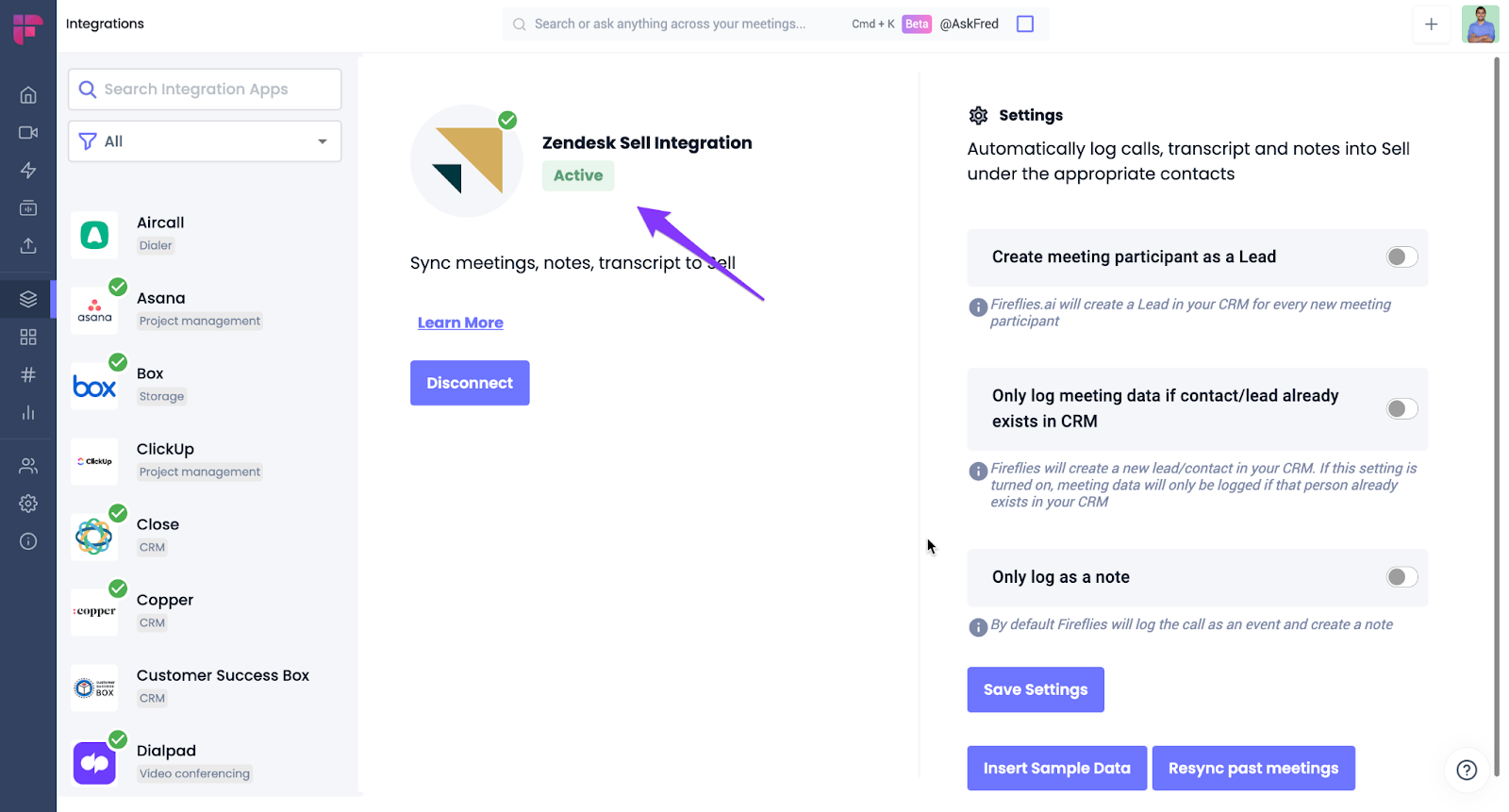
Fireflies will now automatically log notes under the appropriate contact in Zendesk Sell.
Configure Zendesk Sell-Fireflies settings
1. Learn about Zendesk Sell-Fireflies settings
The Zendesk Sell-Fireflies settings enable you to customize how meeting notes are logged within the CRM. Key elements include:
Setting | Default status | Comments |
Create meeting participant as lead | OFF | If enabled, Fireflies will create or fetch a lead linked to the contact and log notes under the lead. |
Only log meeting data if contact/lead already exists in CRM | OFF | If enabled, Fireflies logs meeting data only if the contact/lead already exists in the CRM. |
Only log as a note | OFF | If enabled, Fireflies logs the meeting as a note instead of both calls and notes. |
2. Test Zendesk Sell integration
With sample data
Click Insert Sample Data.
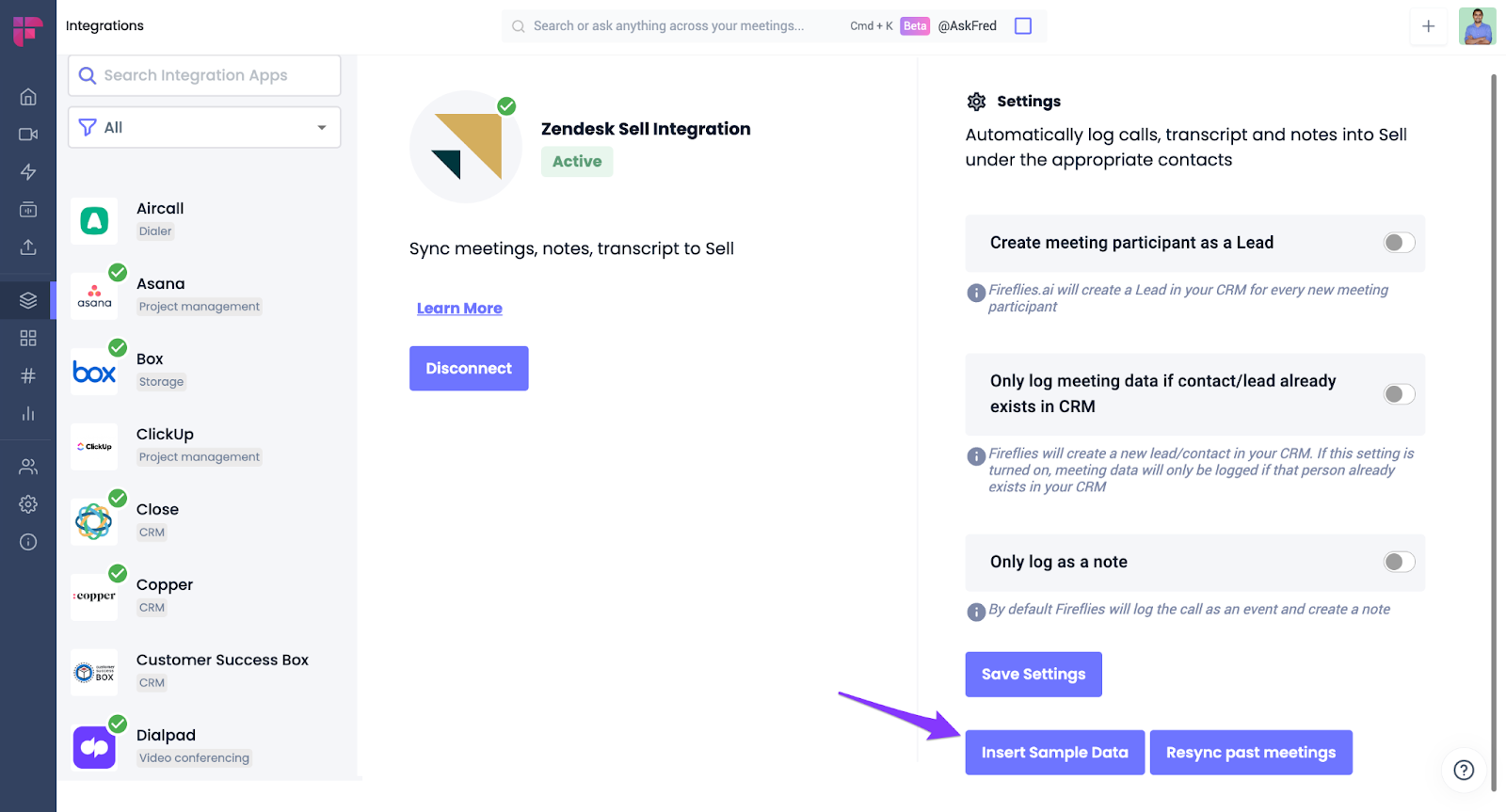
You will see the sample data named fred within Zendesk Sell Contacts.
3. Resync past meetings
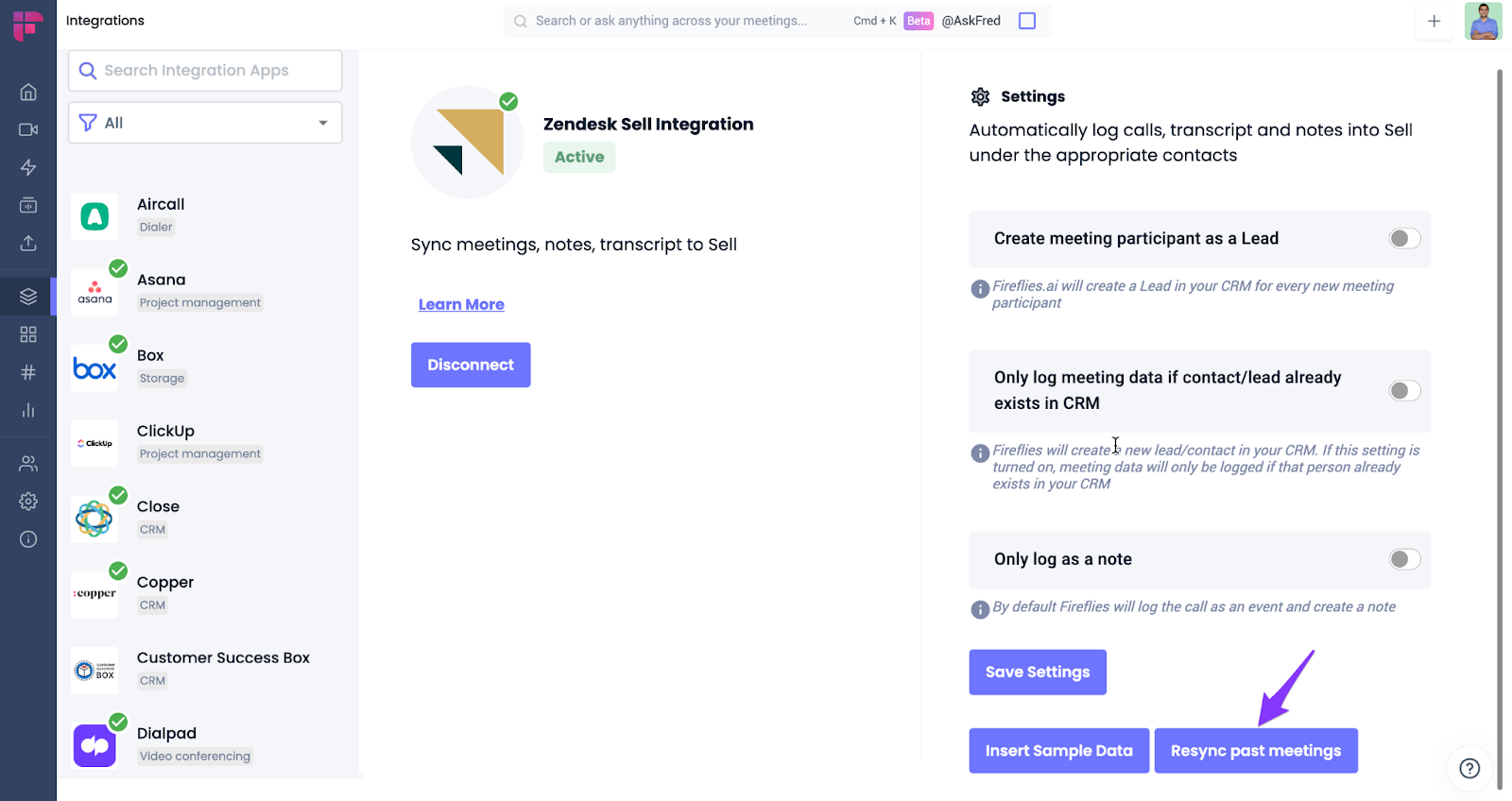
Click on Resync past meetings to resync old meetings.
✅ Manually send meeting notes to Zendesk Sell
Prefer sending only certain meetings to Zendesk Sell? Fireflies also allows you to manually send meeting notes directly from the Notepad.
This is helpful when you want to review or edit notes first and then send only the relevant conversations to Zendesk Sell contacts—without setting up automation rules or configuration.