Connect Fireflies with ActiveCampaign CRM
Last updated: August 26, 2026
Turn every prospect conversation into organized contact data and actionable insights – automatically.
Why This Matters to You
Your sales team just finished a discovery call with a high-value prospect, discussing pain points, budget, and timeline. Now someone needs to manually create a contact record, input all those details, and make sure the conversation context doesn't get lost when the deal moves through your pipeline.
ActiveCampaign's integration with Fireflies eliminates this manual work entirely. Every meeting participant automatically becomes a contact in your CRM, complete conversation insights attach to the right records, and your entire team stays aligned on deal progression without chasing down meeting notes.
What You'll Accomplish
By connecting Fireflies with ActiveCampaign, you'll streamline your entire sales and customer experience workflow:
Benefit | What This Means for You |
Automatic contact creation | Every meeting participant becomes a CRM contact without manual data entry |
Contextual note mapping | Meeting insights attach directly to existing contacts and associated accounts |
Complete conversation history | Access full meeting context from within your CRM workflow |
Team alignment | Everyone works with the same conversation insights and deal context |
Getting Started
Step 1: Connect ActiveCampaign to Fireflies
First, gather your ActiveCampaign API credentials, then connect to Fireflies.
Get your ActiveCampaign API credentials:
Log in to your ActiveCampaign account
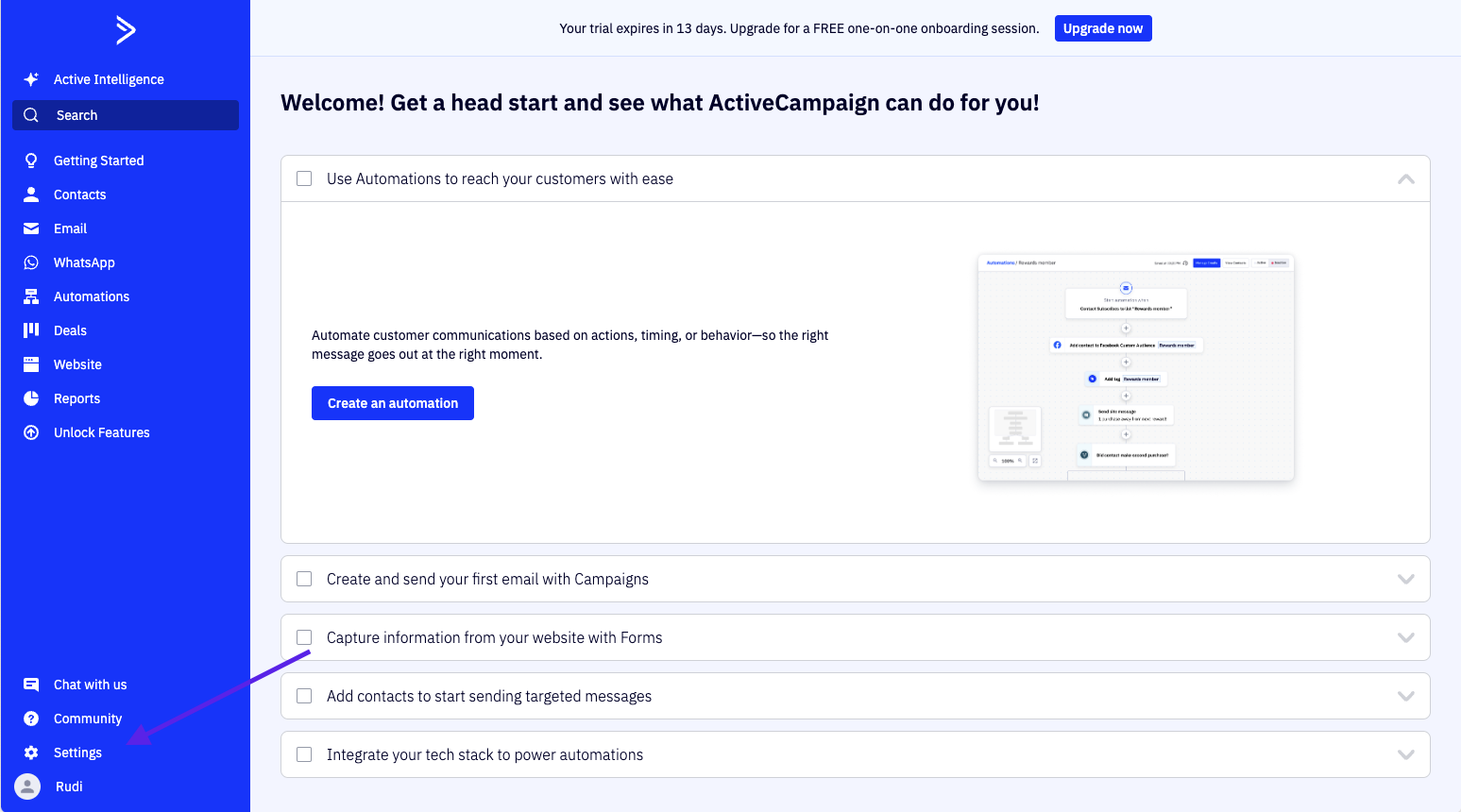
Go to Settings > Developer
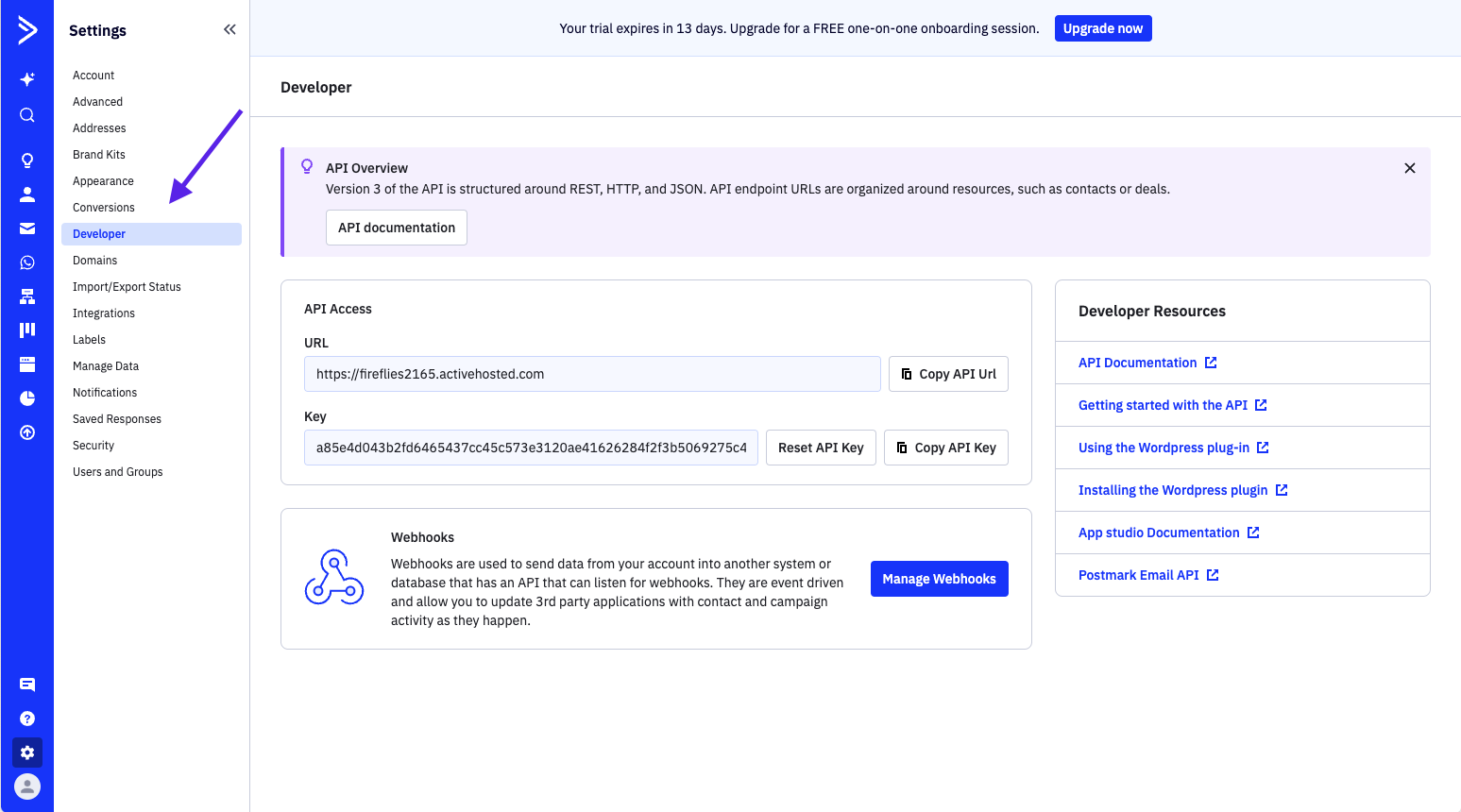
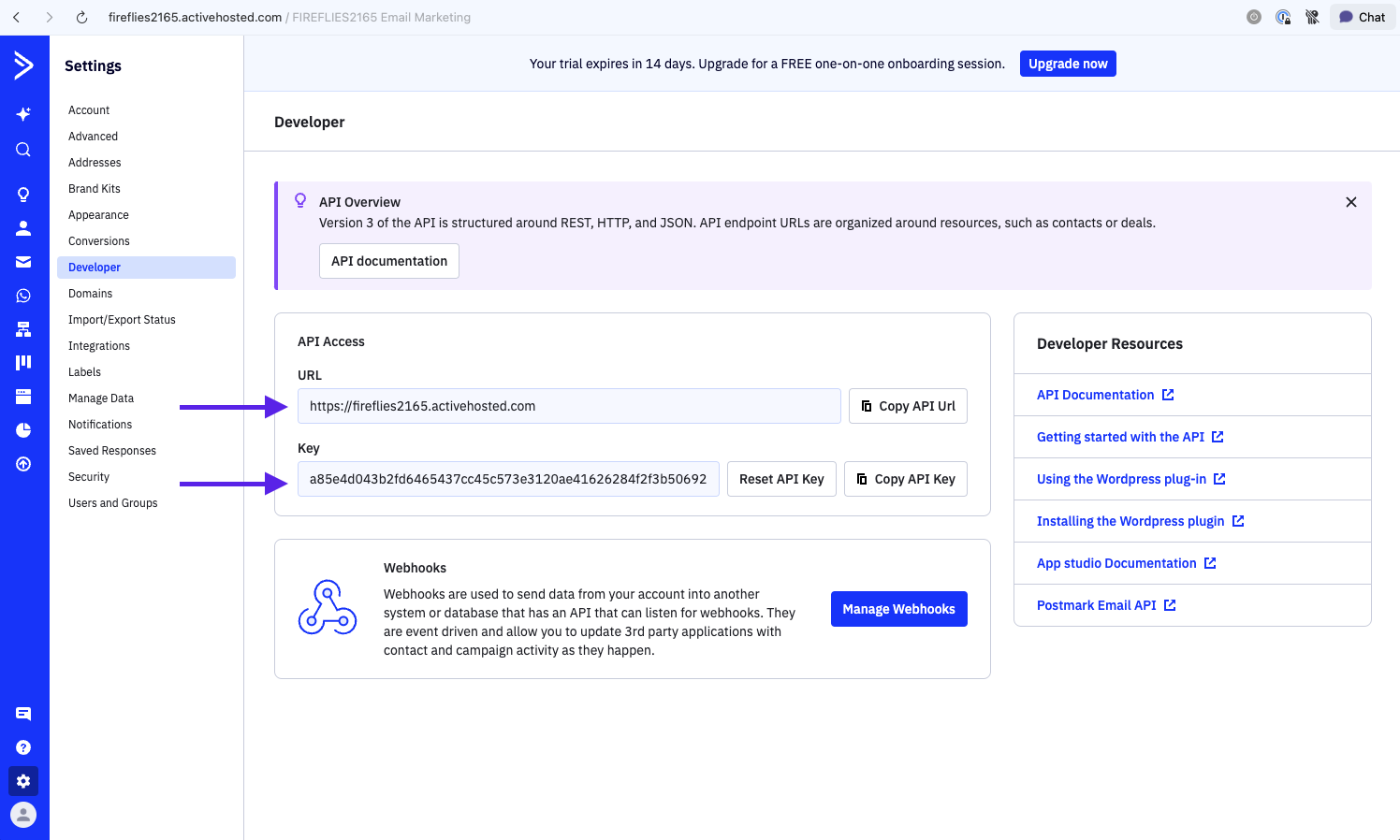
Copy your API URL (this is your base URL)
Copy your API Key
Keep these credentials handy for the next steps
Connect to Fireflies:
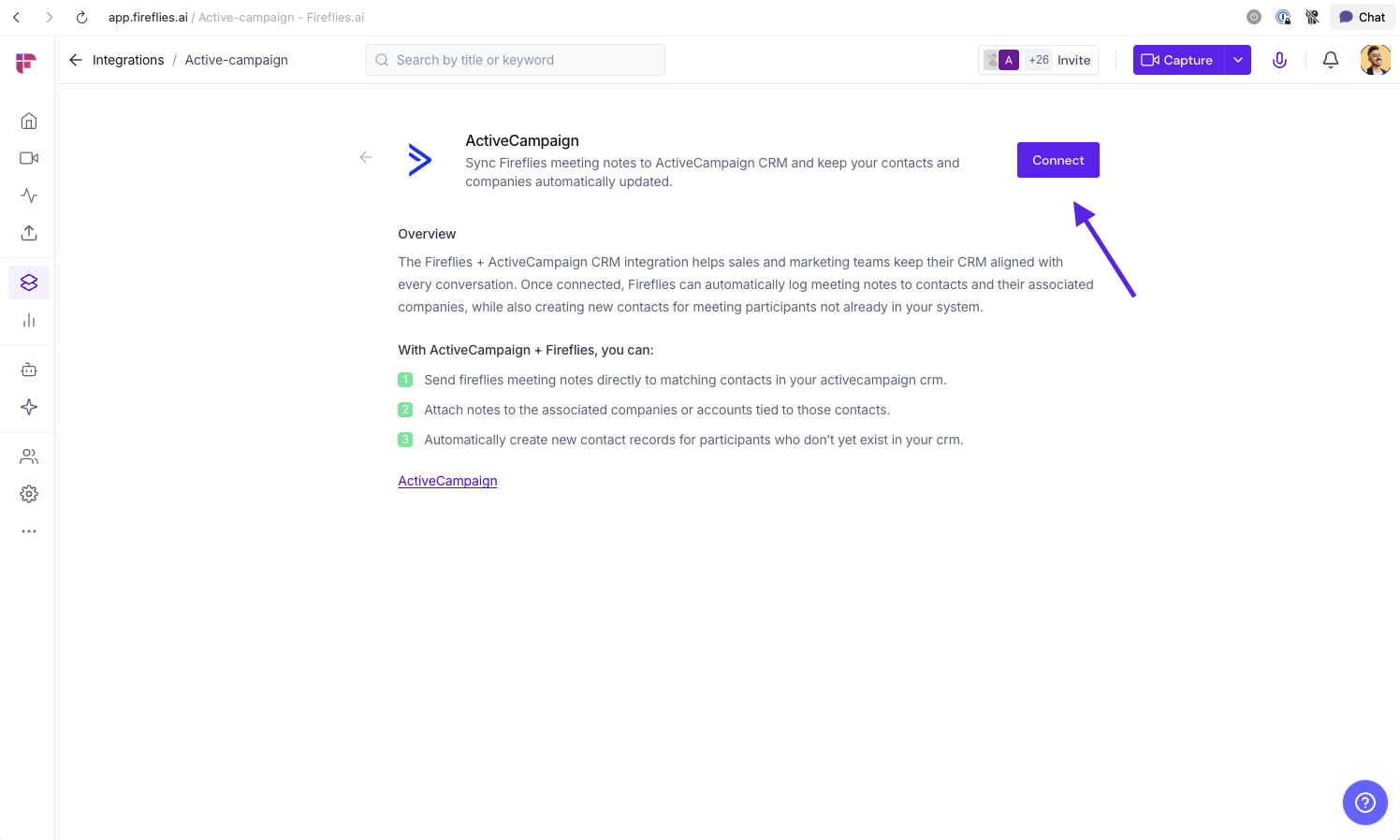
1. Log in to your Fireflies account, go to the Integrations page, and search for ActiveCampaign. Click on it to get started.

2. Cick Connect
3. Enter your ActiveCampaign API URL and API Key when prompted
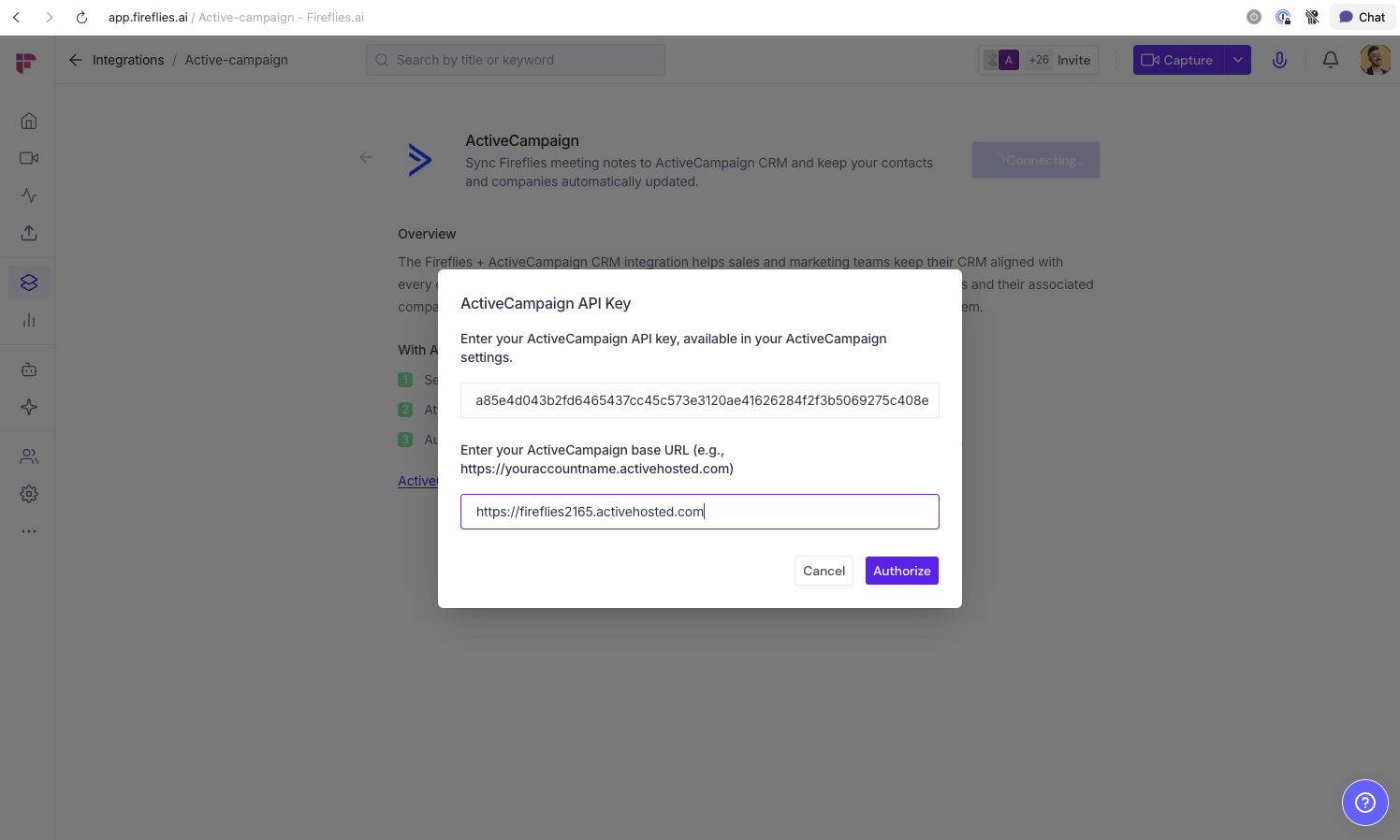
4. Click Authorize to connect Fireflies to your ActiveCampaign workspace
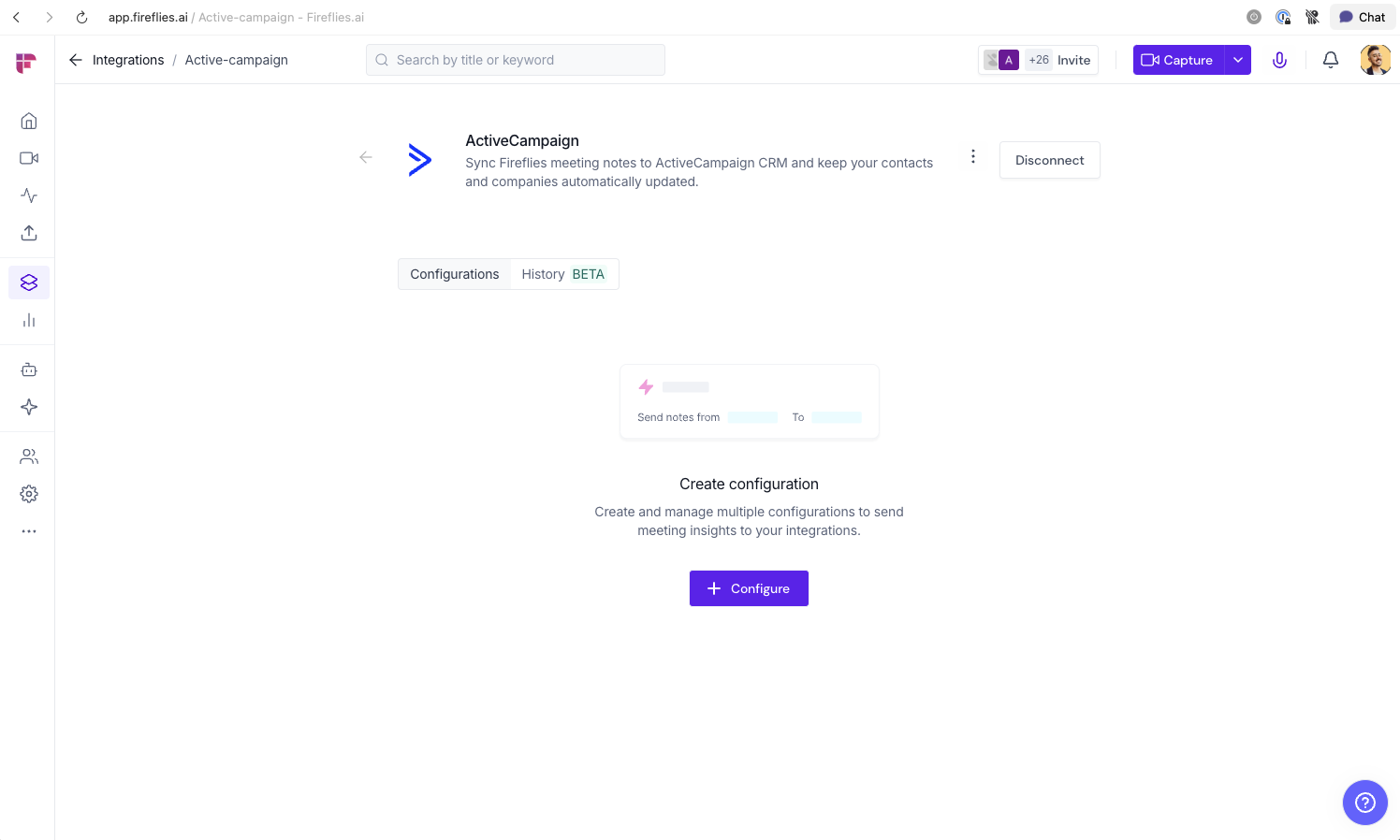
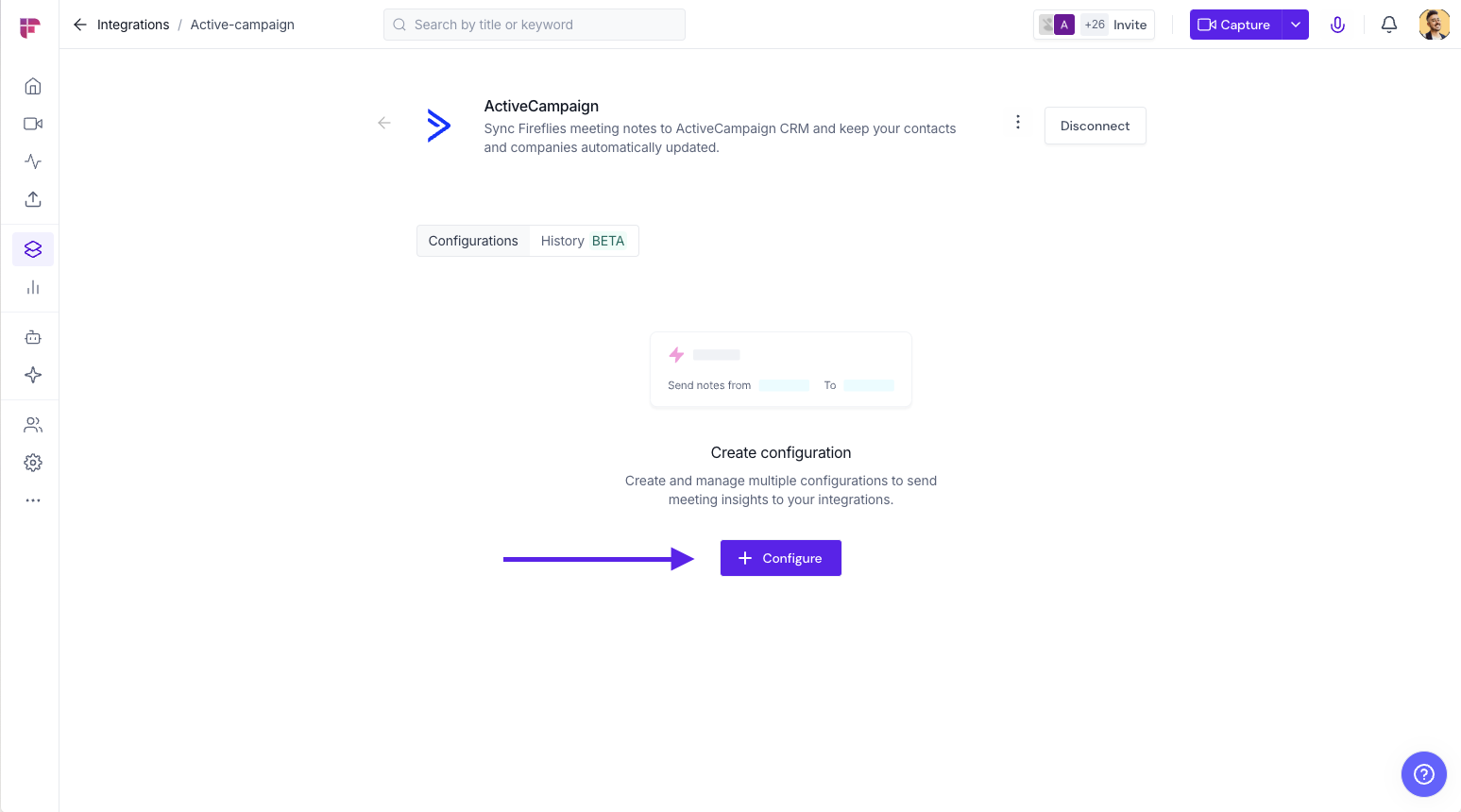
Step 2: Configure and Test your Integration
Click on +Configure
Toggle off 'Create New Contacts from Meeting Participants' unless required
Toggle on 'Map Notes Only to Existing Contacts'
Ensure 'Map Notes to Associated Accounts' is toggled on
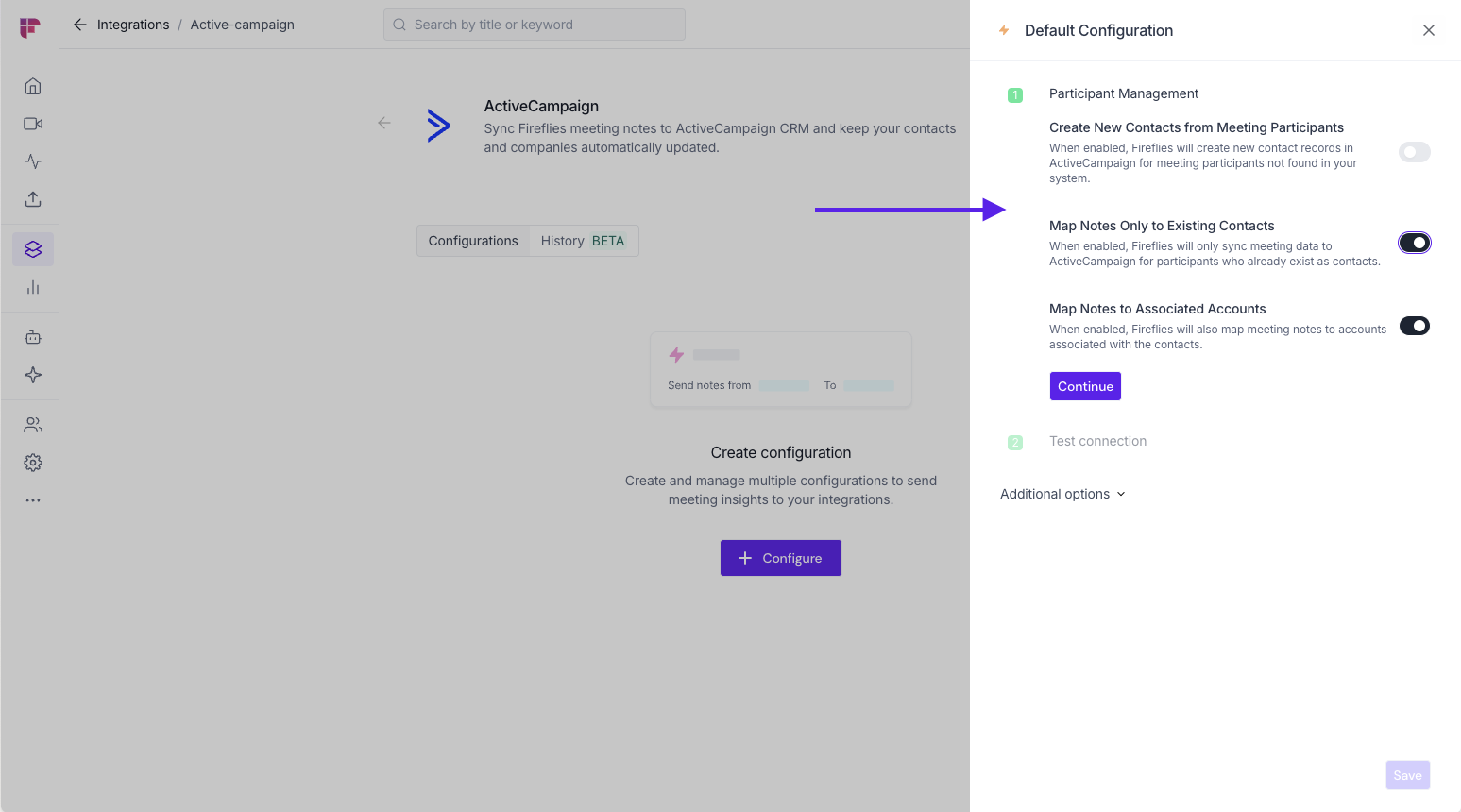
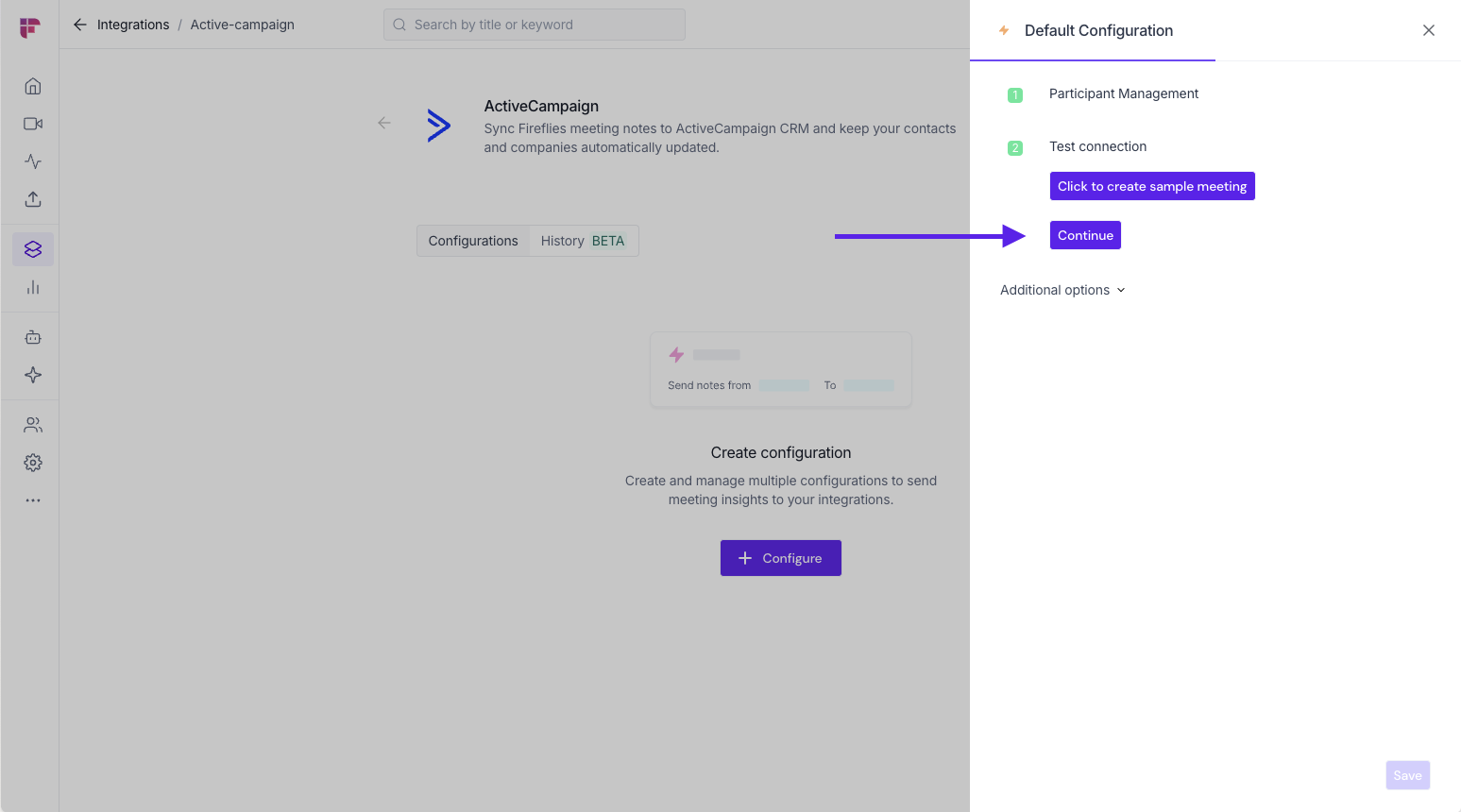
Click Continue
Create a sample meeting to test your connection [OPTIONAL]
Click Continue
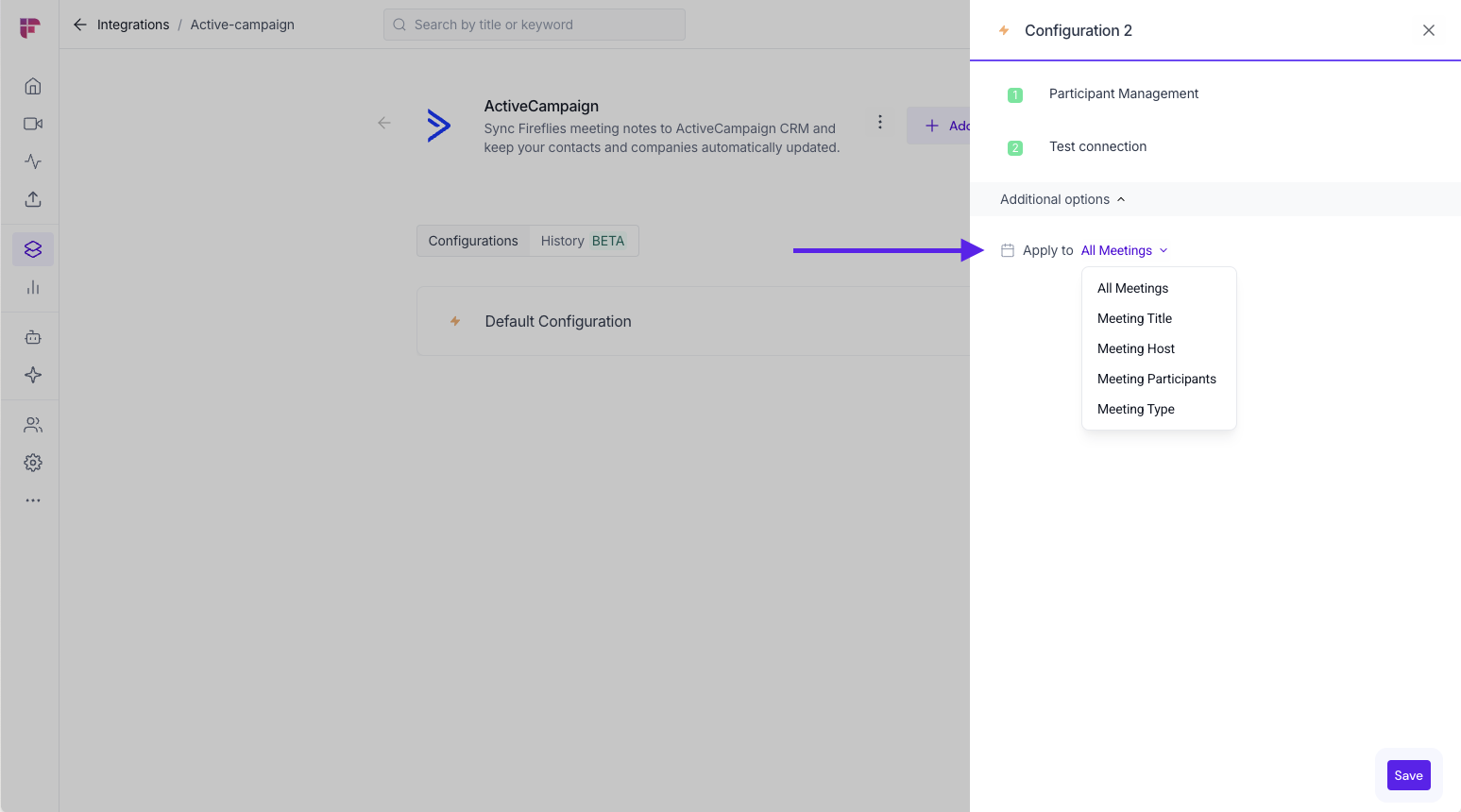
Choose to apply configuration to: All Meetings, Meeting Title, Meeting Host, etc, as filters
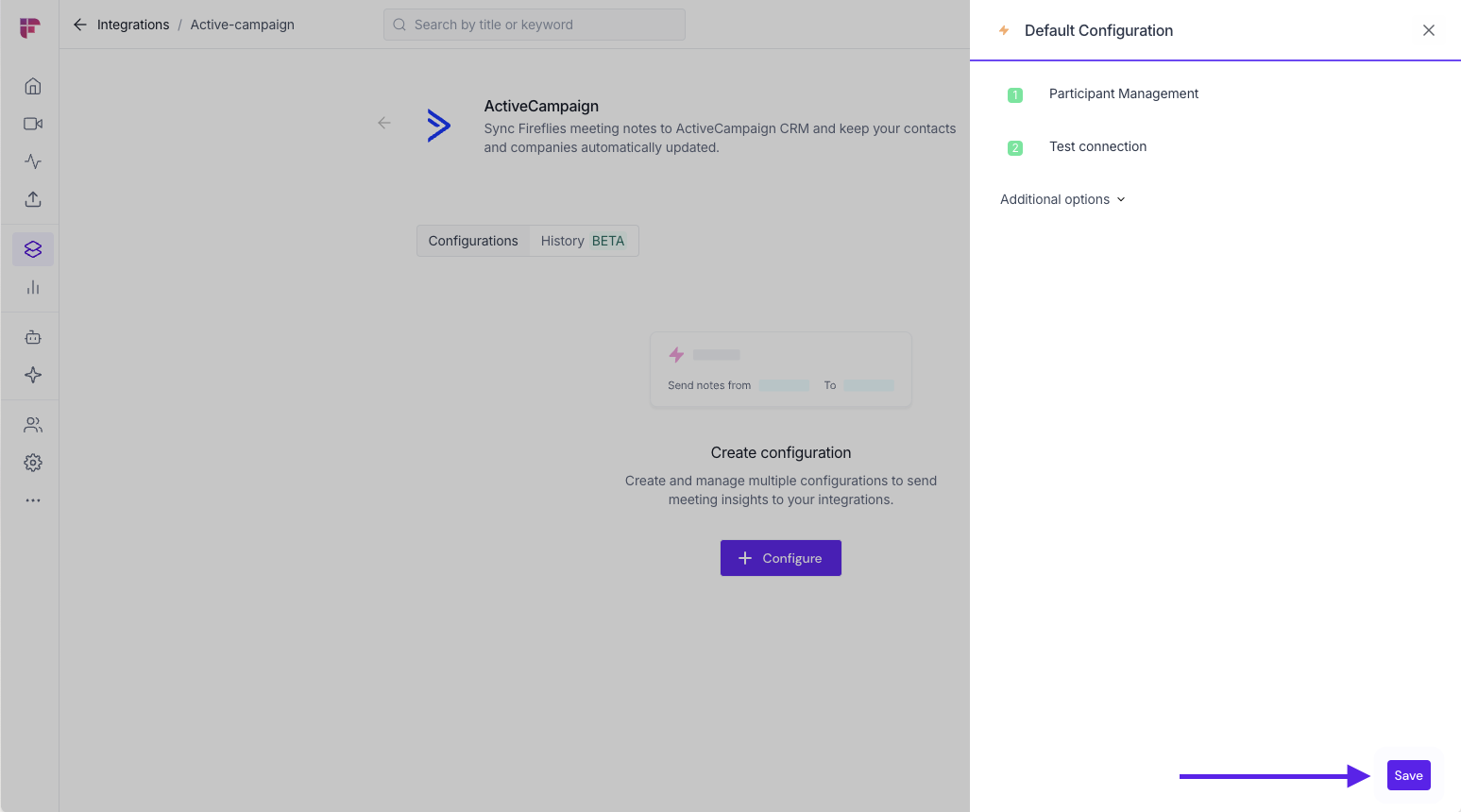
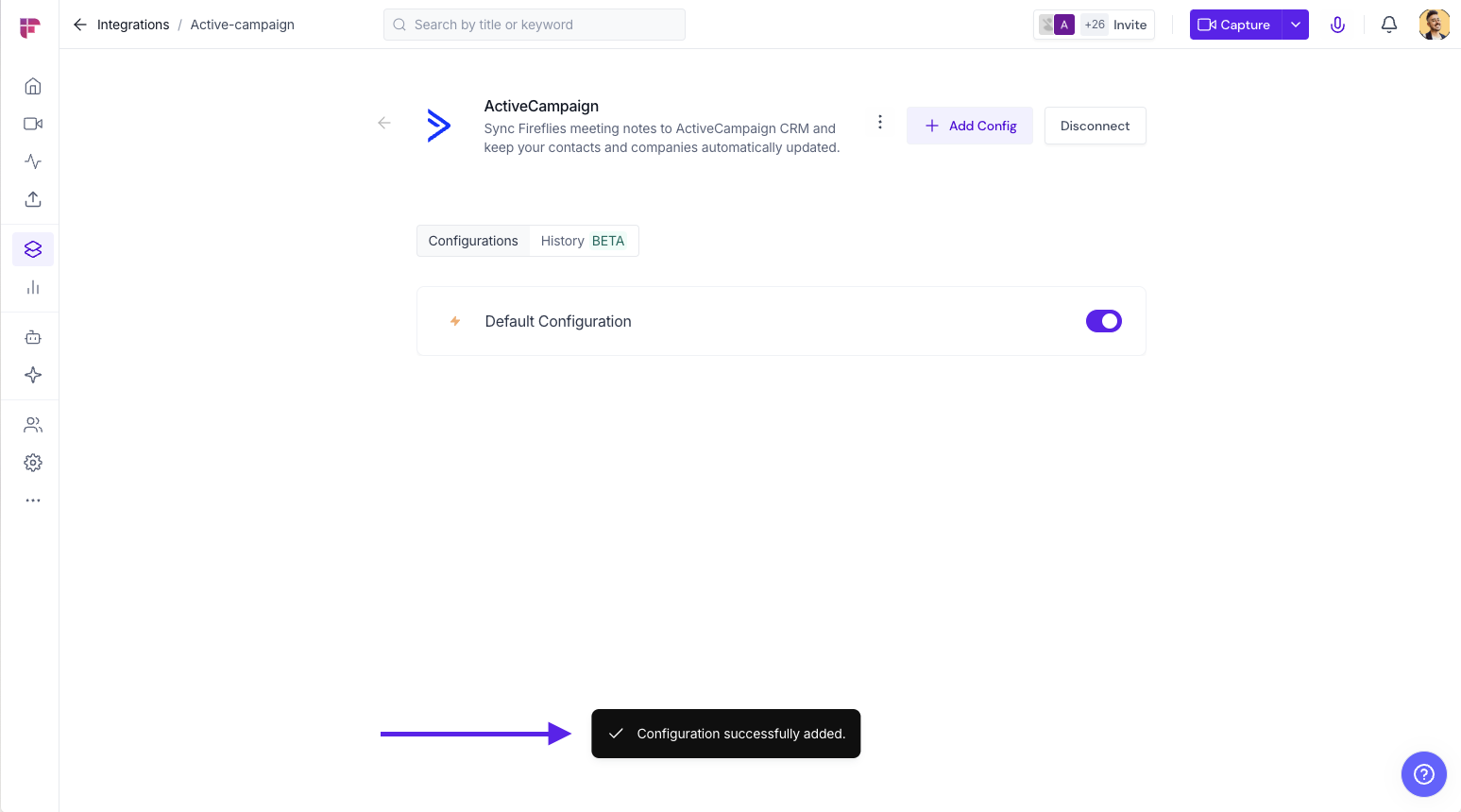
Click on Save
Fine-Tune Your Syncing with Integration Rules
Take complete control over which meetings sync to your connected apps. Instead of sending every meeting to your CRM, project management tools, or storage apps, Integration Rules let you filter precisely what matters for each workflow.
What you can filter by:
Filter Type | Examples |
Meeting title | Sync only meetings containing "client", "demo", or "interview" |
Host | Include meetings led by specific team members |
Participants | Target meetings with external attendees or specific departments |
Meeting type | Choose internal-only or external meetings |
Smart combinations: Use AND/OR logic to create sophisticated rules like "meetings with external participants AND containing 'demo' in the title" or "hosted by sales team OR containing 'prospect' in the title."
Multiple rules per integration: Create different rule sets for different purposes and rename them for easy organization (e.g., "Sales Prospects," "Customer Feedback," "Internal Reviews").
Setting up Integration Rules:
Navigate to your integration settings page
Click Add Integration Rules
Choose your filter criteria and logic combinations
Name your rule for easy identification
Save and activate
No more meeting clutter in your connected apps – just the conversations that drive your specific workflows forward
Managing Your Integration
Contact deduplication: Enable ActiveCampaign's duplicate detection by email address to prevent multiple contact records for the same person across different meetings.
Automation triggers: Use meeting-generated contacts and notes to trigger ActiveCampaign automation workflows like follow-up sequences, lead scoring updates, or team notifications.
Data enrichment: Meeting insights automatically enhance contact profiles with conversation topics, pain points, and engagement levels for more personalized outreach.
👥 Team Integration Settings
Workspace admins can control how the ActiveCampaign CRM integration is used across their team. The available options depend on your plan and workspace role.
Click the vertical ellipsis (⋮) next to your ActiveCampaign CRM and select Team Permissions from the dropdown list.

Business and Enterprise
If you are a Workspace Admin on a Business or Enterprise plan, you can manage granular Integration Permissions for the integration, including who can access and connect it.
📖 See Integration Permissions: Control Who Can Access and Connect Integrations for detailed instructions on managing integration permissions.

Free and Pro
Free and Pro users do not have access to the full Integration Permissions dashboard. Instead, Team Permissions opens a modal with the available workspace-level settings.
Apply to entire workspace → Toggle this ON to apply the ActiveCampaign CRM integration across your Fireflies workspace. All team meetings accessible by the team admin will have notes sent to ActiveCampaign CRM, keeping everything centralized.
📌Meetings that are set to private in a teammate’s Privacy Settings won’t be pushed to ActiveCampaign CRM unless you’re a Super Admin who can access meetings regardless of privacy settings.
Restrict non-admin usage → Toggle this ON to prevent non-admin members from creating their own ActiveCampaign CRM configurations. This helps maintain consistent data practices and avoids accidental CRM clutter.
After adjusting the toggles to fit your team’s workflow, click Save to apply the changes.

Note: Business and Enterprise Workspace Admins have access to granular integration permissions, while Free and Pro workspaces have more limited workspace-level controls.
⏪ Push Past Meetings to ActiveCampaign
Sometimes, the meetings you want in ActiveCampaign happened before you connected the integration. Whether you enabled the integration later or want to add older meeting notes to ActiveCampaign, Push Past Meetings lets you choose a date range and meeting type, then send those meetings in just a few clicks.
Note: Make sure you've connected ActiveCampaign and created at least one push configuration before using Push Past Meetings. If you haven't, complete the Setting Up Your Configuration section above first.
Follow the steps below to push past meetings to ActiveCampaign.
From the ActiveCampaign integration page, click Push past meetings.

A dialog box will appear. Choose the following:
Date range → Select the meetings you want to send by choosing Last 7, 14, 30, 60, or 90 days, or specify a custom date range.
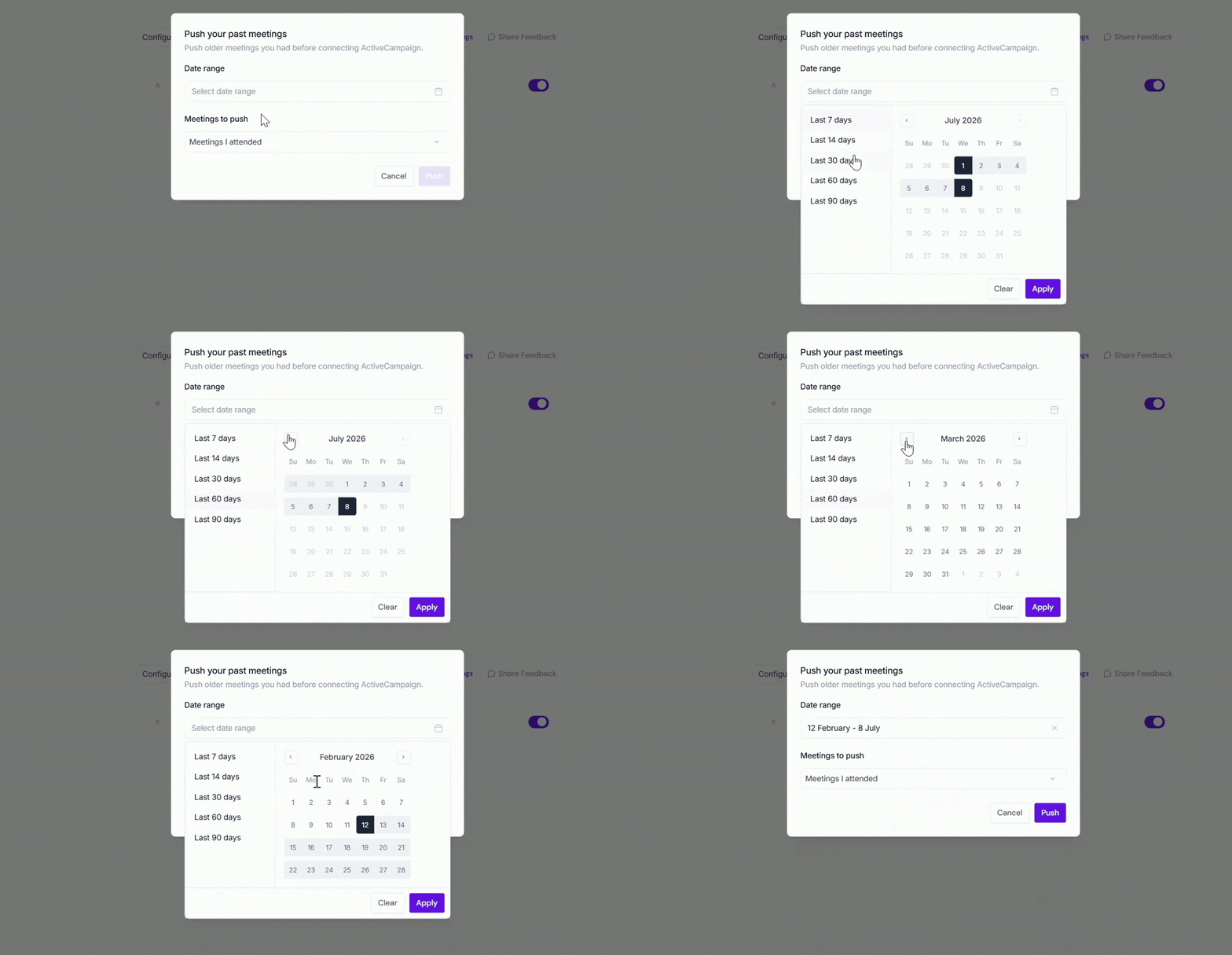
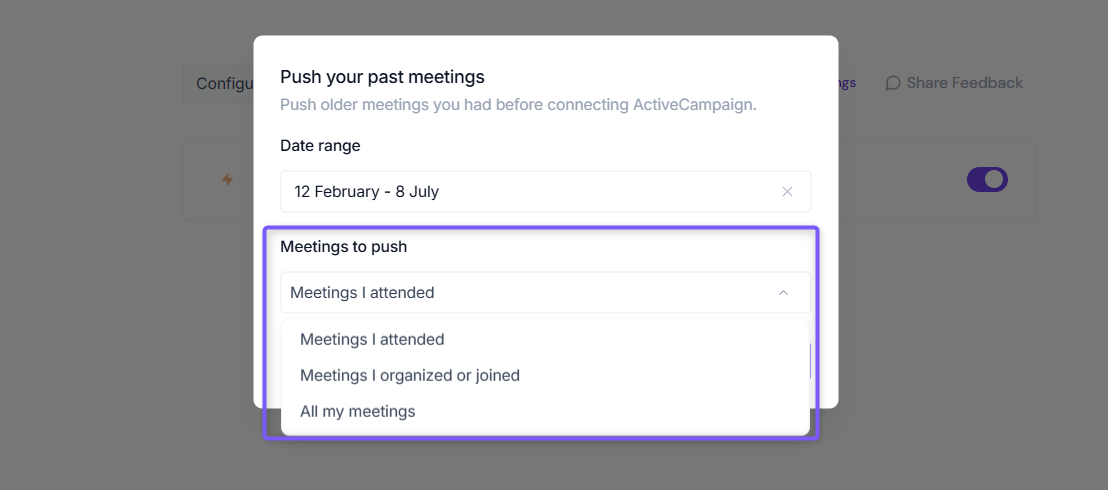
Meetings to push → Choose whether to push Meetings I attended, Meetings I organized or joined, or All my meetings.
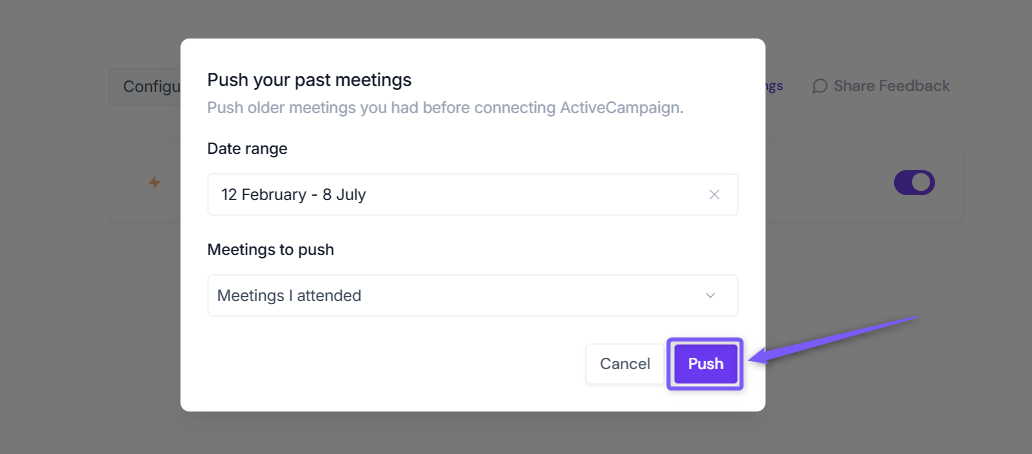
Click Push. Fireflies will send the matching meeting notes to ActiveCampaign using your existing configuration settings.
Meetings recorded after you connect ActiveCampaign are sent automatically. Push Past Meetings is only needed for meetings that happened before the integration was connected.
✅ Manually send meeting notes to ActiveCampaign
Prefer sending only certain meetings to ActiveCampaign? Fireflies also allows you to manually send meeting notes directly from the Notepad.
This is helpful when you want to review or edit notes first and then send only the relevant conversations to ActiveCampaign contacts—without setting up automation rules or configuration.
Making Sense of It All
ActiveCampaign integration automatically creates contacts from meeting participants, eliminating manual data entry while maintaining proper lead attribution
Meeting notes attach directly to existing contacts and associated accounts, keeping your entire customer experience timeline in one place
Account association rules ensure multi-contact meetings from the same organization stay properly connected within your CRM structure
Integration Rules let you filter precisely which meetings sync to ActiveCampaign based on title, host, participants, or meeting type
Automation compatibility lets meeting-generated data trigger your existing ActiveCampaign workflows for seamless lead nurturing
Estimated reading time: 4 minutes