Integration Permissions: Control Who Can Access and Connect Integrations
Last updated: August 25, 2026
Manage who can connect integrations and configure shared integration settings across your Fireflies workspace.
Fireflies integrates with hundreds of business applications to extend your team's workflows and productivity. This guide walks you through using Integration Permissions to manage integrations across your workspace.
🤔 Why Use Integration Permissions?
As more members connect Fireflies with the tools they use every day, managing integrations across your workspace becomes more important. Integration Permissions gives workspace admins a centralized way to control access and manage supported integrations.
With Integration Permissions, you can:
Manage permissions for individual and multiple integrations.
Control who can view and connect integrations.
View which team members are connected to a specific integration across your workspace.
Remotely disconnect or remove integration access for any team member when needed.
Manage and apply shared integration configurations across supported push integrations from a single place.
🔑 Prerequisites
Before you begin, make sure:
You have Workspace Admin permissions.
Your workspace is on the Business or Enterprise plan.
Note: Free and Pro workspaces can configure integrations individually or apply team configurations across the workspace. The full Integration Permissions experience - including granular access controls, connected user management, and bulk permission management is available on the Business and Enterprise plans.
🚀 Access Integration Permissions
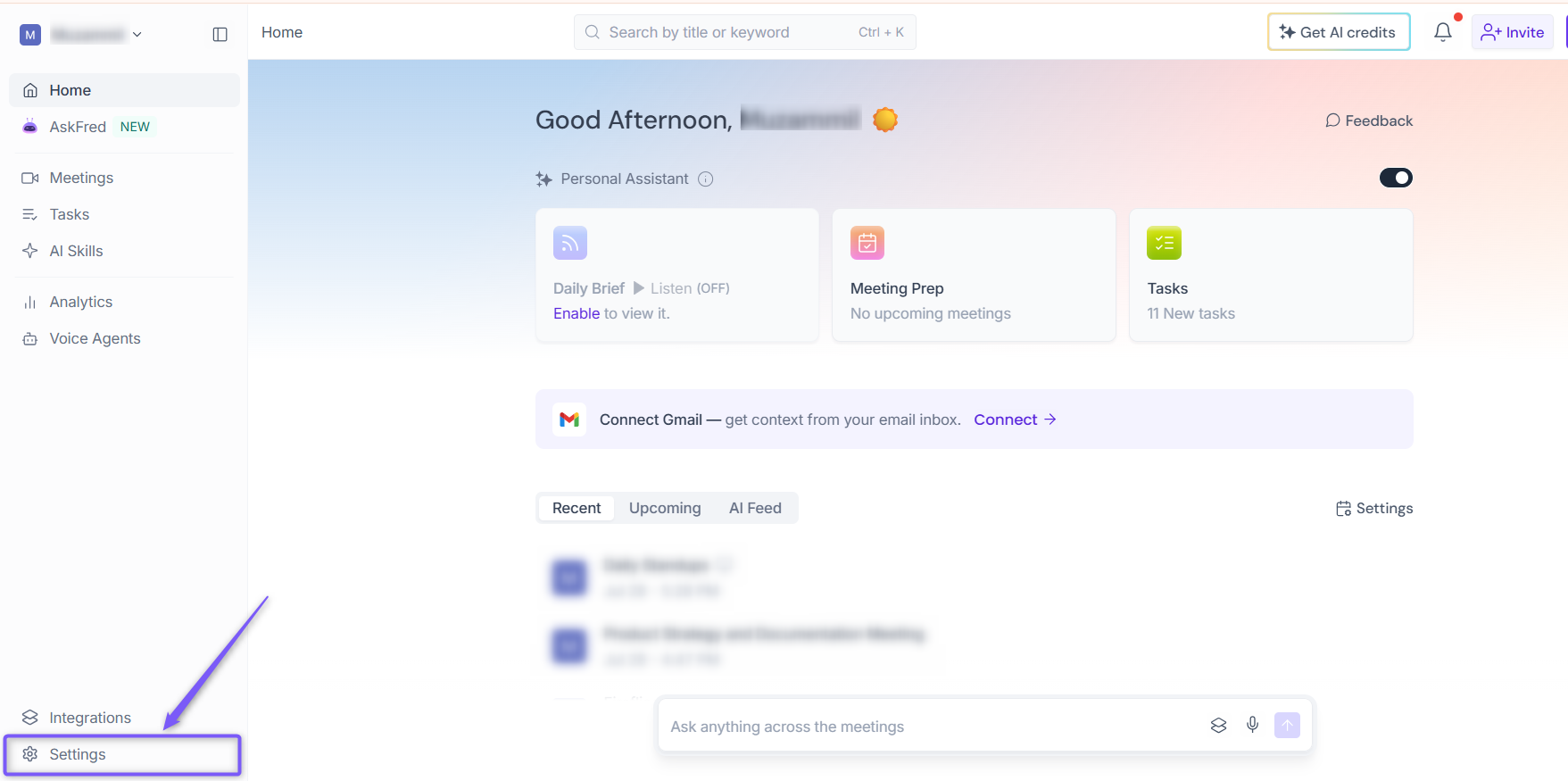
Step 1: Log in to your Fireflies account and click Settings in the left sidebar.
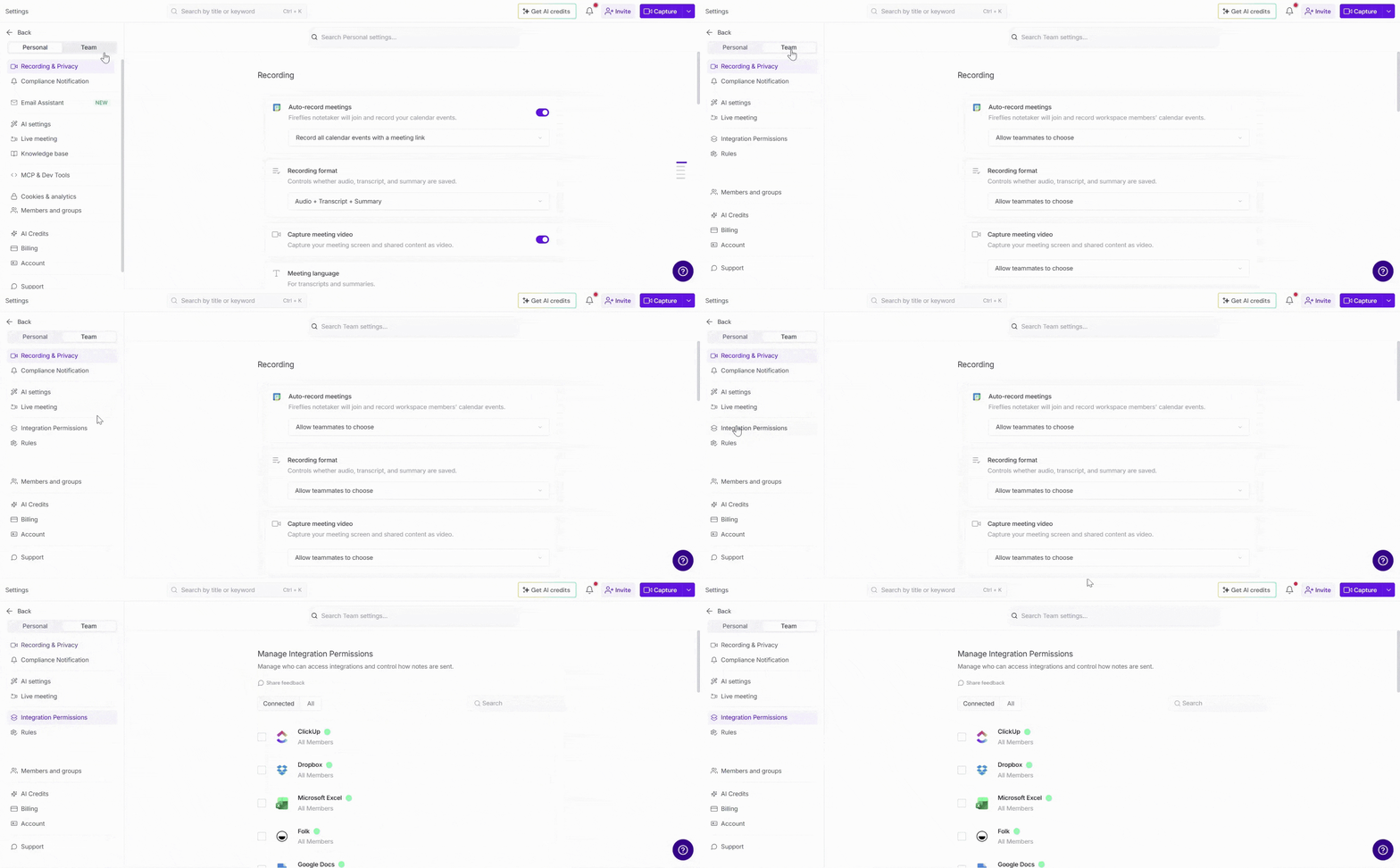
Step 2: Select the Team tab, then click Integration Permissions.
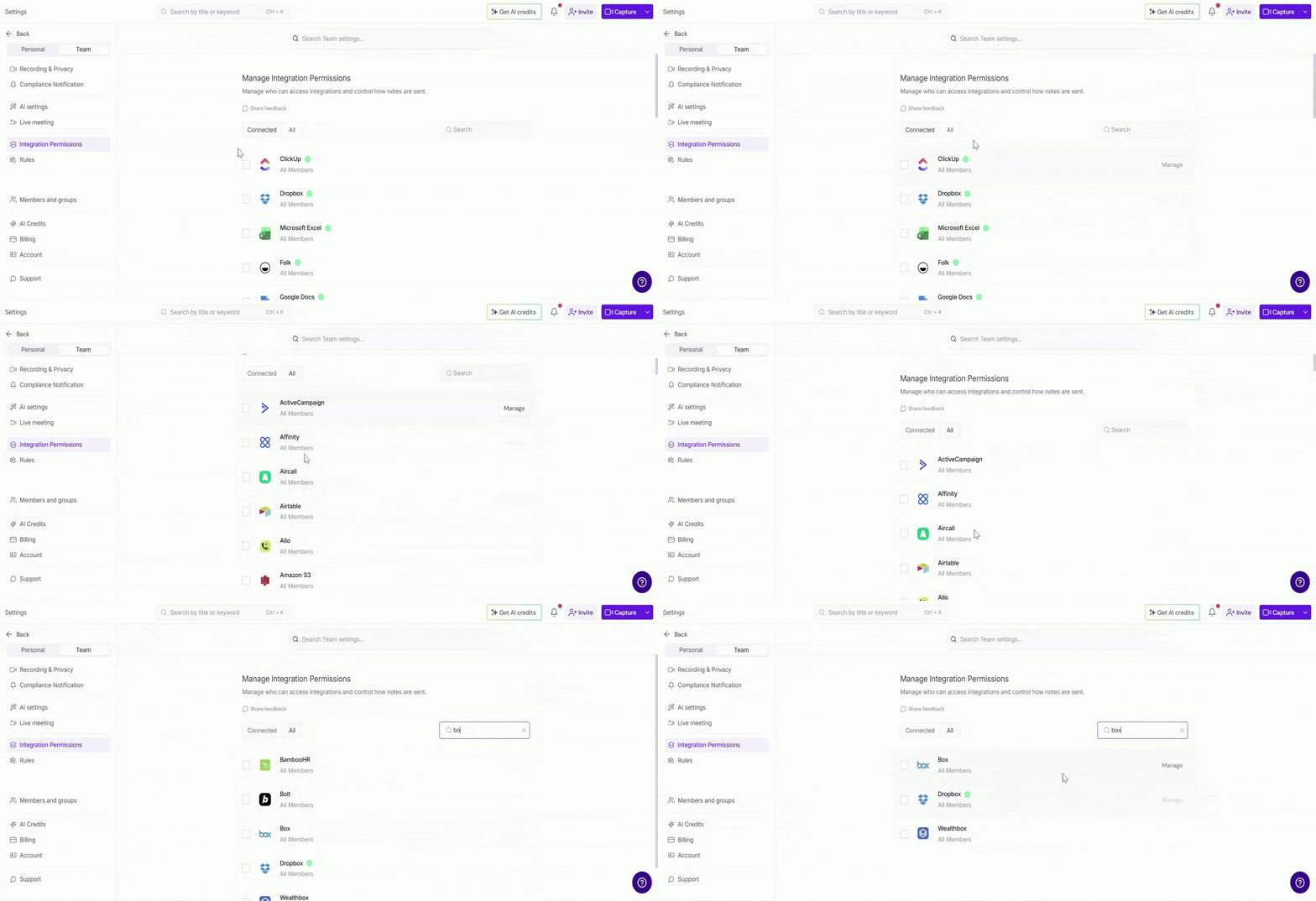
Step 3: The Integration Permissions page displays all supported integrations. Use the following options to find an integration:
Connected – View integrations that are currently connected in your workspace.
A ✅ checkmark next to an integration indicates that it's connected.
All – Browse all supported integrations.
Search – Find a specific integration by name.
💡The Integration Permissions page provides two ways to manage integrations. You can configure settings for an individual integration or apply permission changes to multiple integrations in bulk.
🔧 Manage an Individual Integration
Manage permissions and settings for a specific integration.
Why use this? Use this option when you want to manage only one integration. For example, if you want only certain users to connect HubSpot while allowing everyone to use other integrations, you can configure permissions for HubSpot without affecting the rest of your integrations.
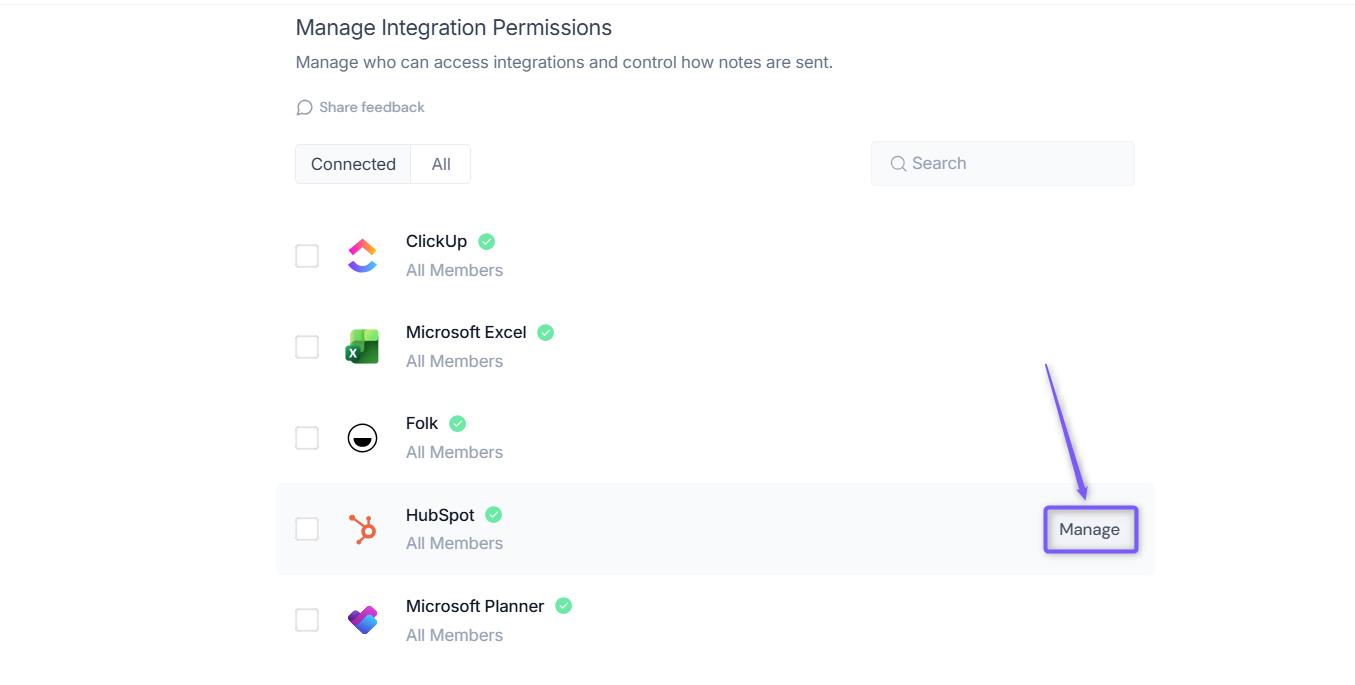
Step 1: Locate the integration you want to manage using the Connected tab, All tab, or the Search bar.
💡For example, if you want to manage permissions for HubSpot, search for or locate the HubSpot integration.
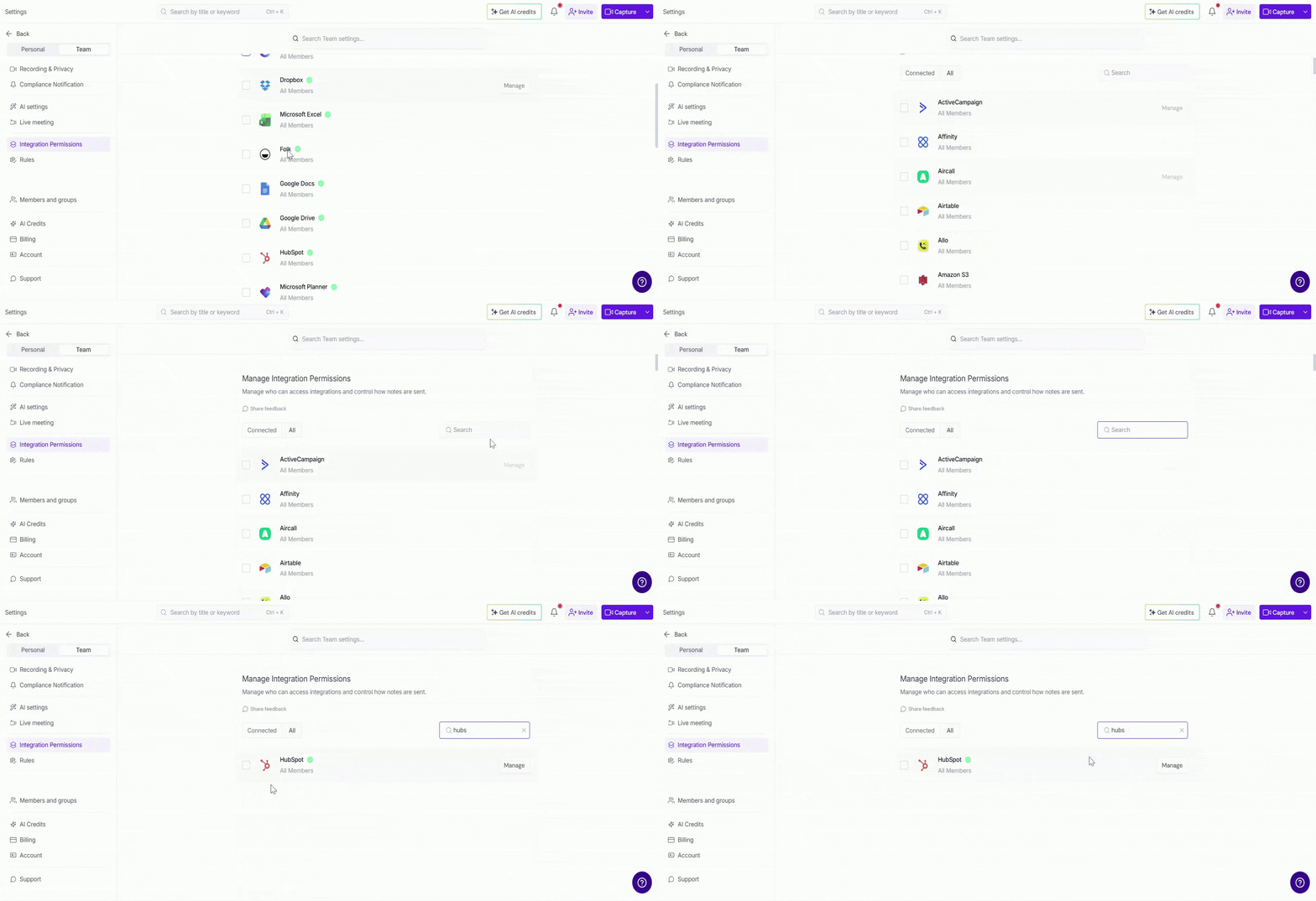
Step 2: Hover over the integration, then click Manage.
Step 3: The Manage Integration dialog appears (for example, Manage HubSpot when managing the HubSpot integration). It contains three tabs - Permission, Connected, and Sync Preference.
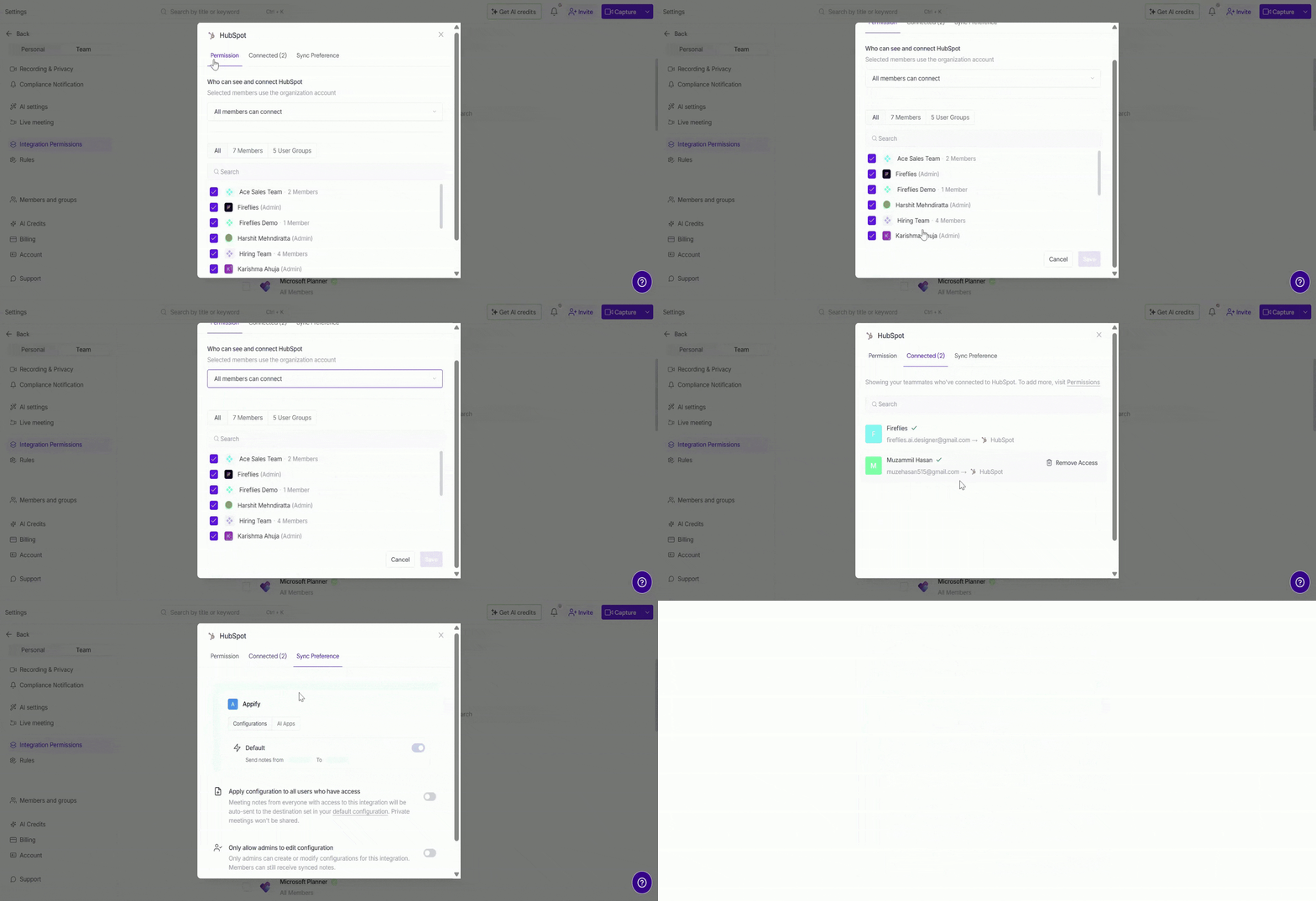
The following sections explain how to use each tab.
Permission tab
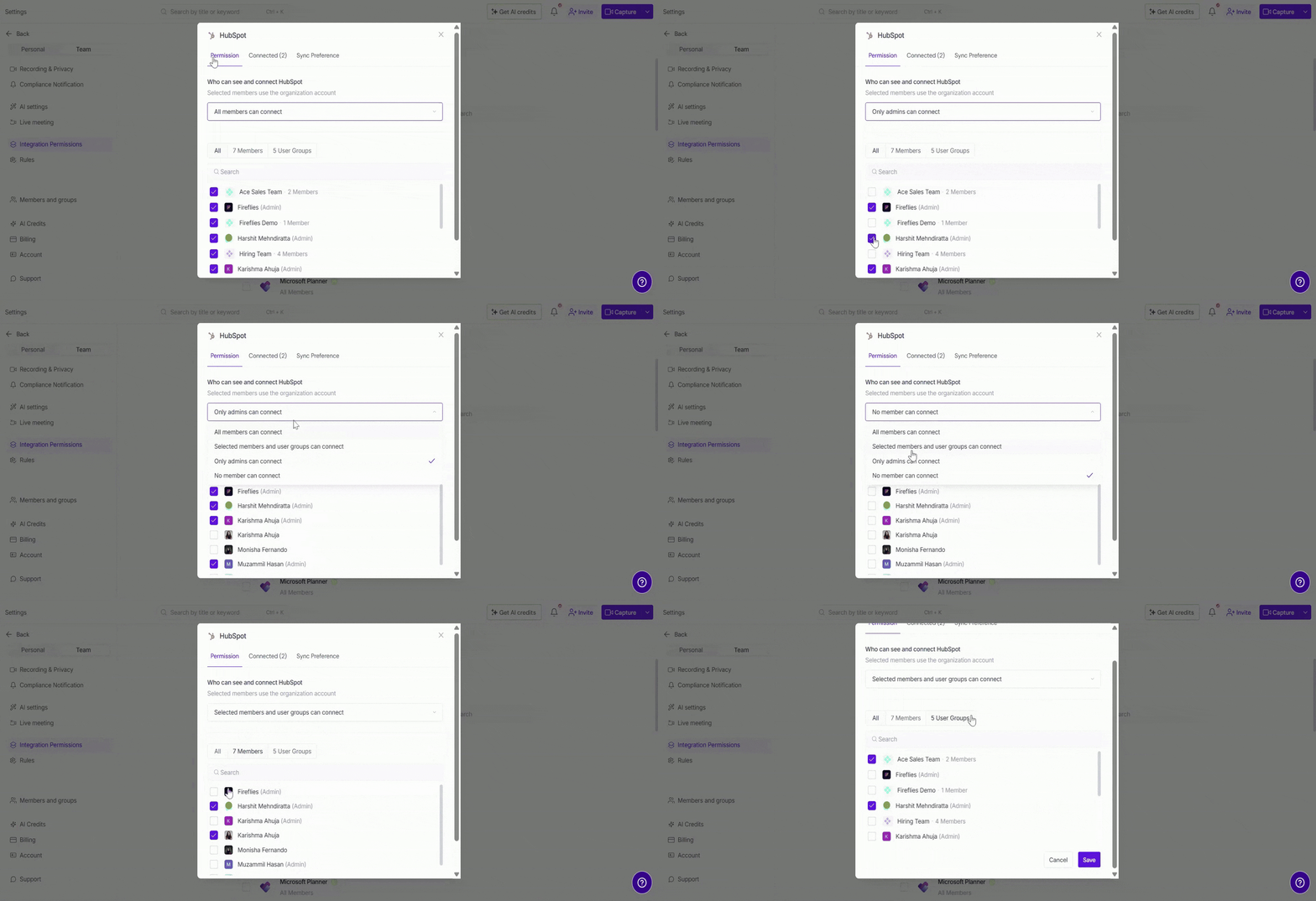
Use the Permission tab to control who can view and connect the selected integration. Depending on your organization's needs, you can allow everyone in your workspace to connect the integration or restrict access to only admins or selected members and user groups.
Under Who can see and connect (for example, Who can see and connect HubSpot), select one of the following permission options:
Permission option | Description |
|---|---|
All members can connect | Allows everyone in the workspace to view and connect the integration. |
Selected members and user groups can connect |
|
Only admins can connect | Restricts access to workspace admins only. |
No member can connect | Prevents all workspace members from viewing and connecting the integration. |
Connected tab
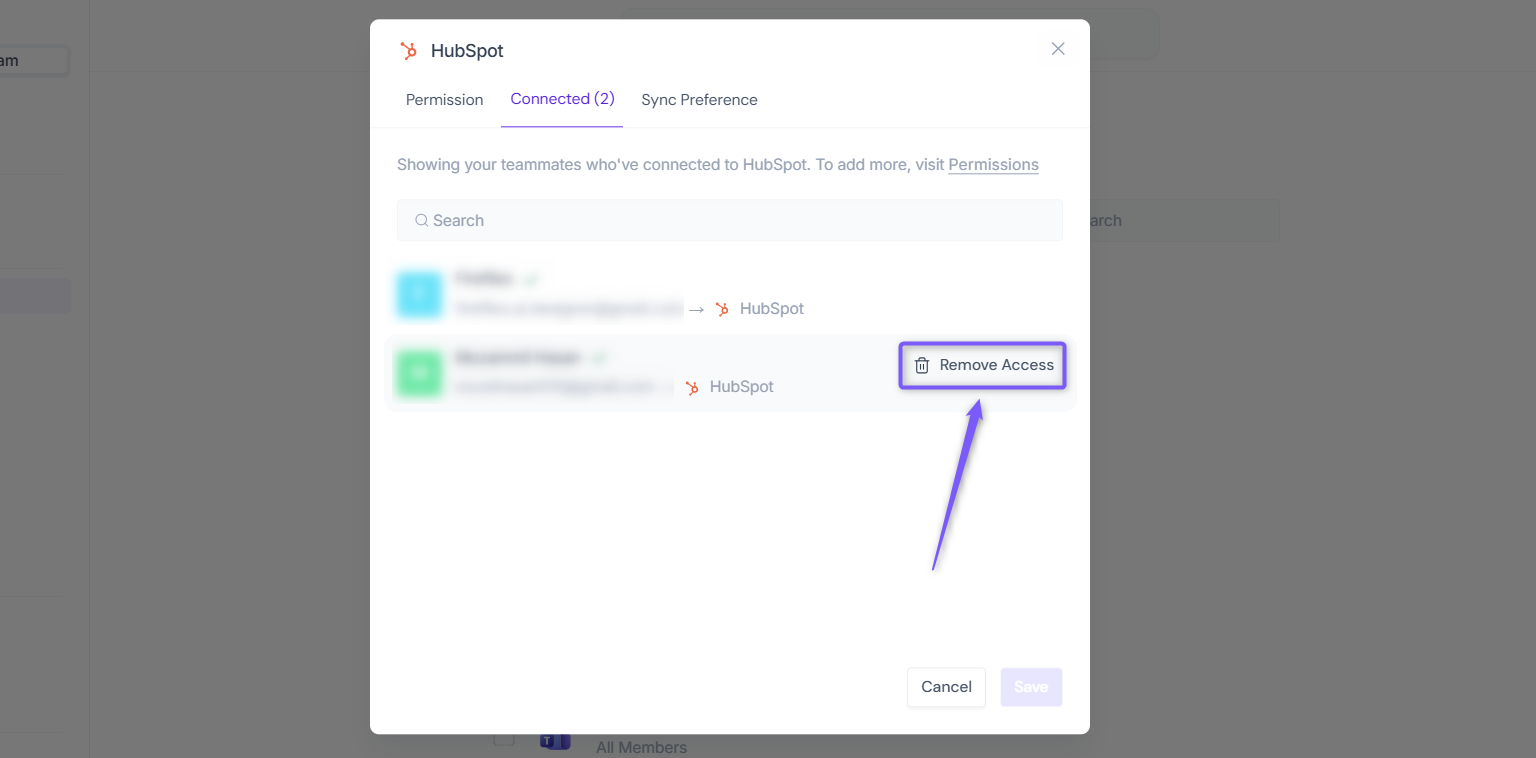
Use the Connected tab to view everyone who has connected their account to the selected integration. You can use the Search bar to quickly find a specific user.
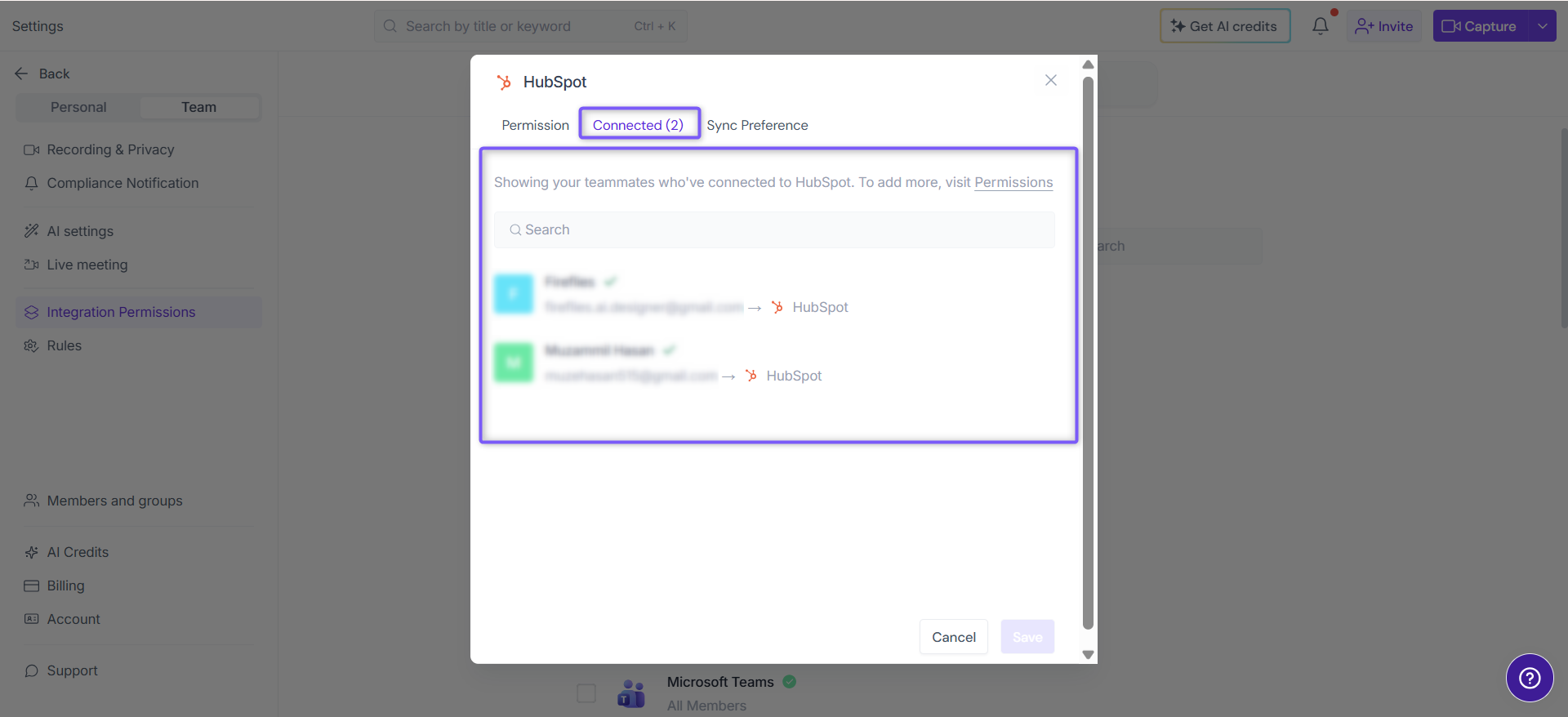
❌ Want to remove a user's access to the integration?
Hover over the user's entry and click Remove Access. This lets you remotely disconnect the user's account from the selected integration without requiring them to disconnect it themselves. It does not change their integration permissions.
If the user needs to reconnect later, make sure they still have access in the Permission tab before reconnecting their account.
Sync Preference tab
Use the Sync Preference tab to control how meeting notes are synced to the selected integration across your workspace. You can choose a default configuration and decide whether everyone uses it automatically or if only admins can manage configurations.
This is helpful if you want a consistent sync setup for your team while keeping configuration changes under control.
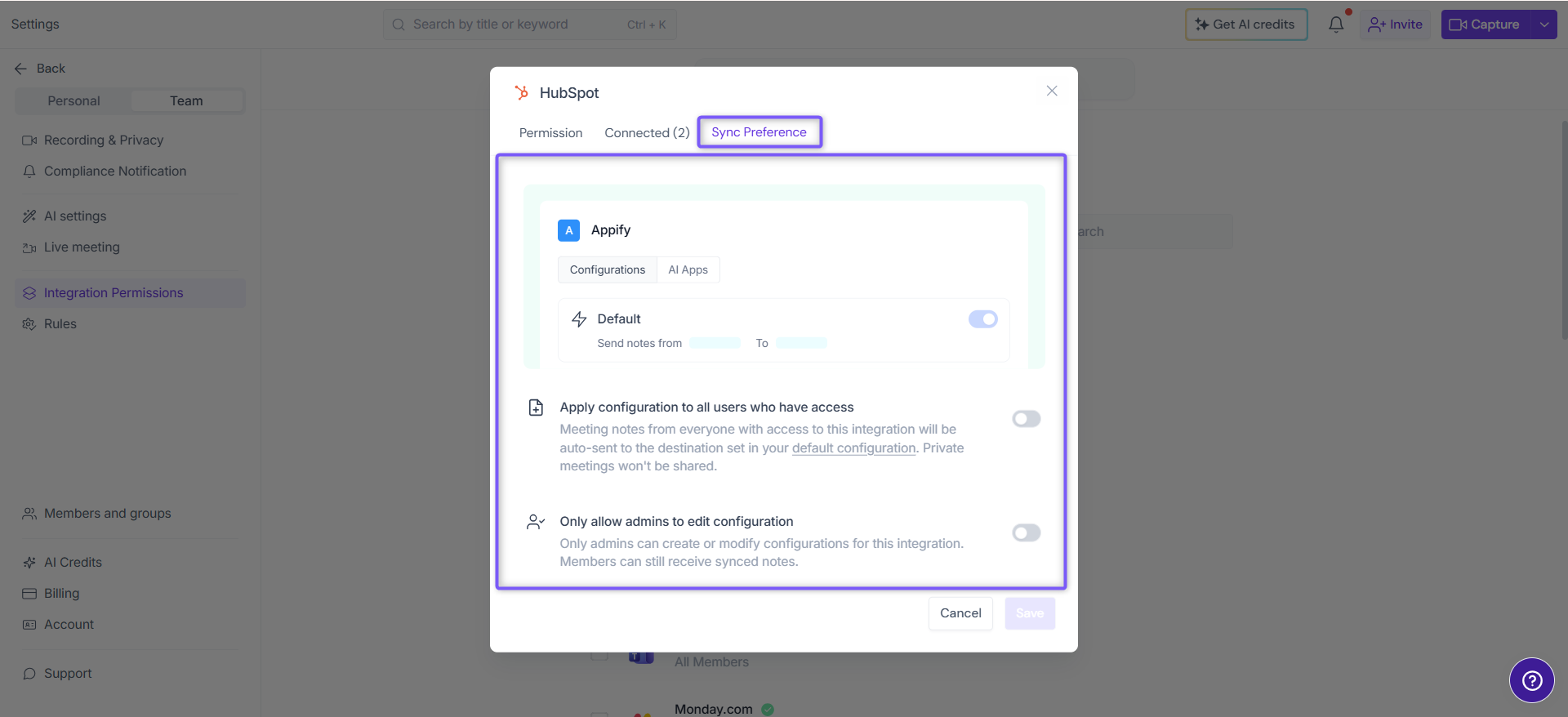
Control how integration configurations are applied across your team:
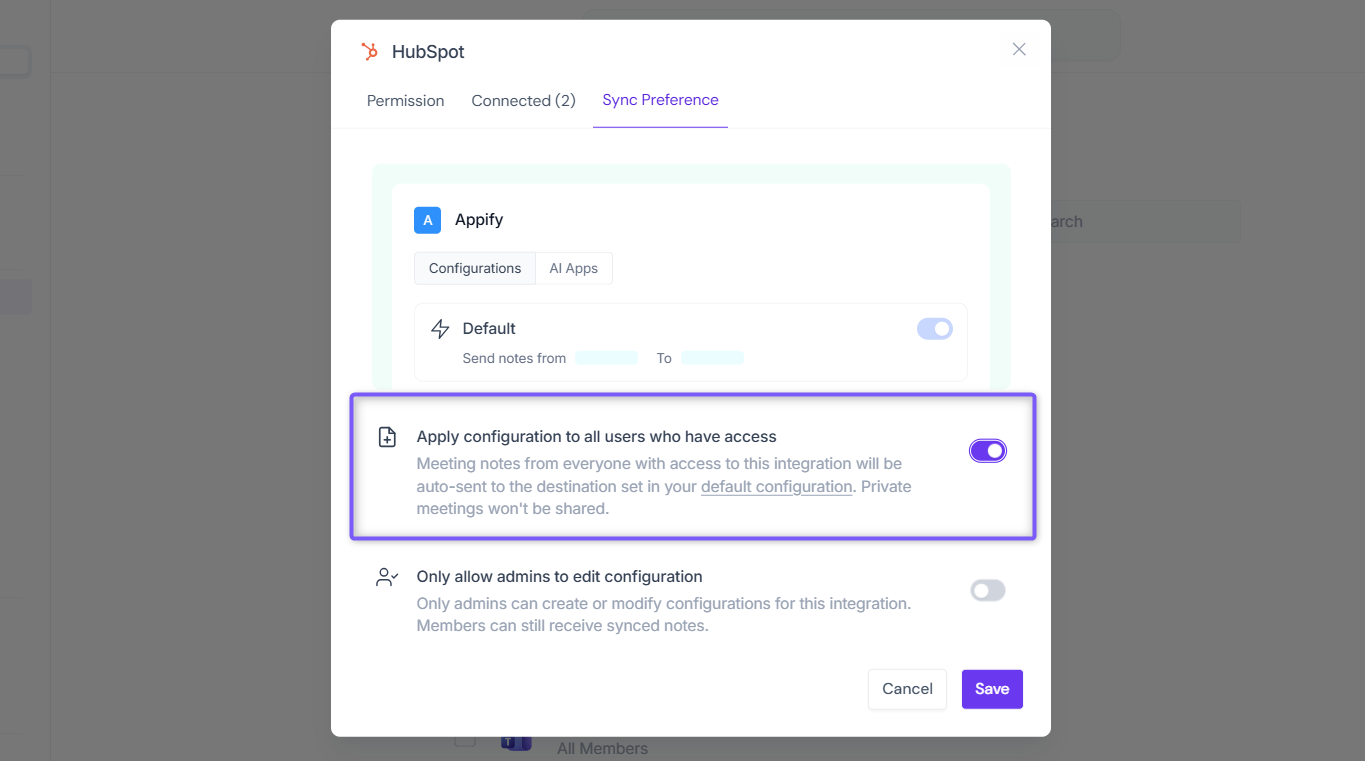
Apply configuration to all users who have access — Meeting notes from everyone with access are automatically sent to the destination set in your default configuration. Enable this when you want everyone to use the same sync setup.
📌 Note: Private meetings are never shared, even when Apply configuration to all users who have access is enabled.
Only allow admins to edit configuration — Only admins can create or modify configurations for this integration. Members can still receive synced meeting notes. Enable this when you want to prevent teammates from changing shared configurations.
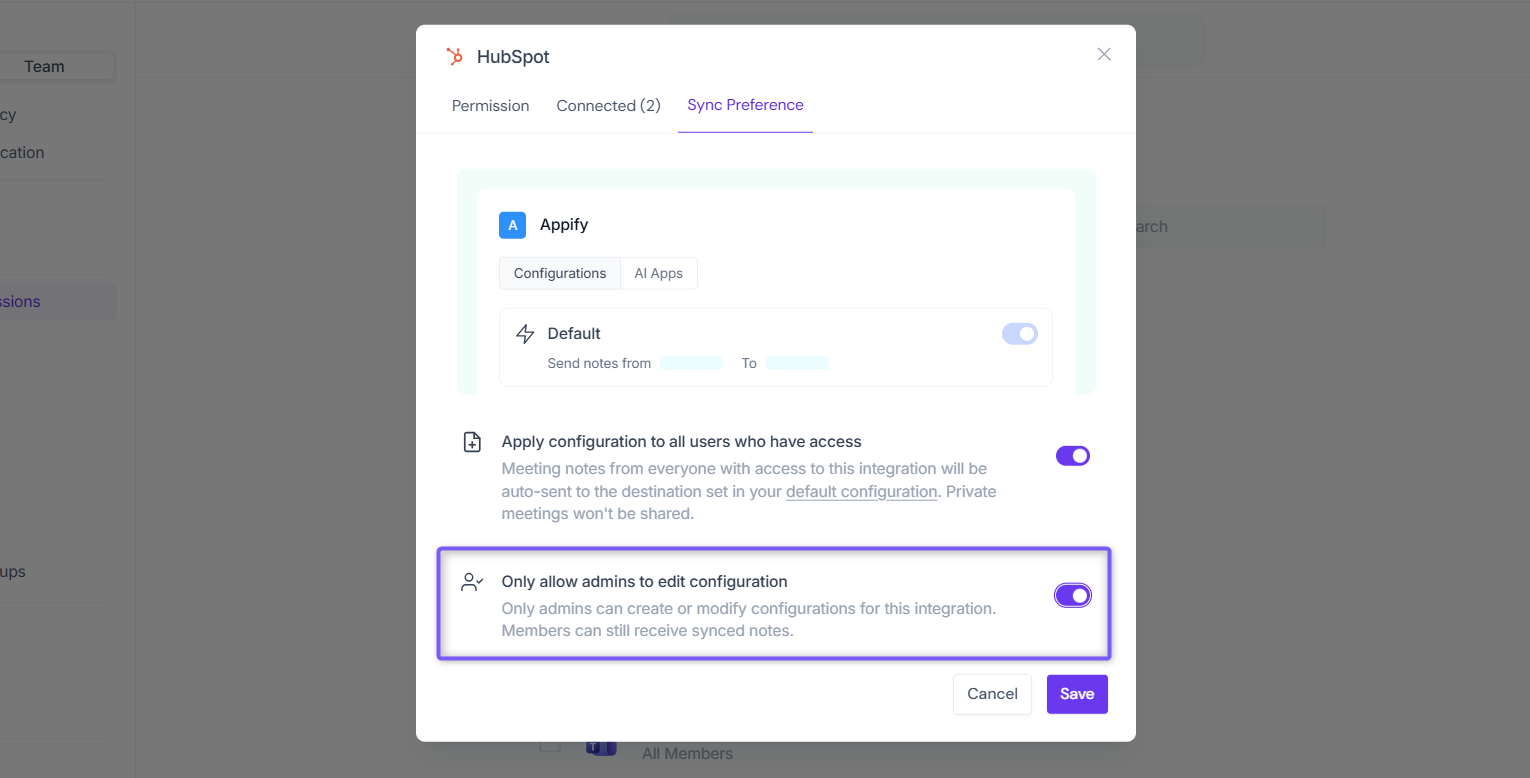
Step 4: Once you've finished configuring the Permission, Connected, and Sync Preference tabs, click Save to apply your changes.
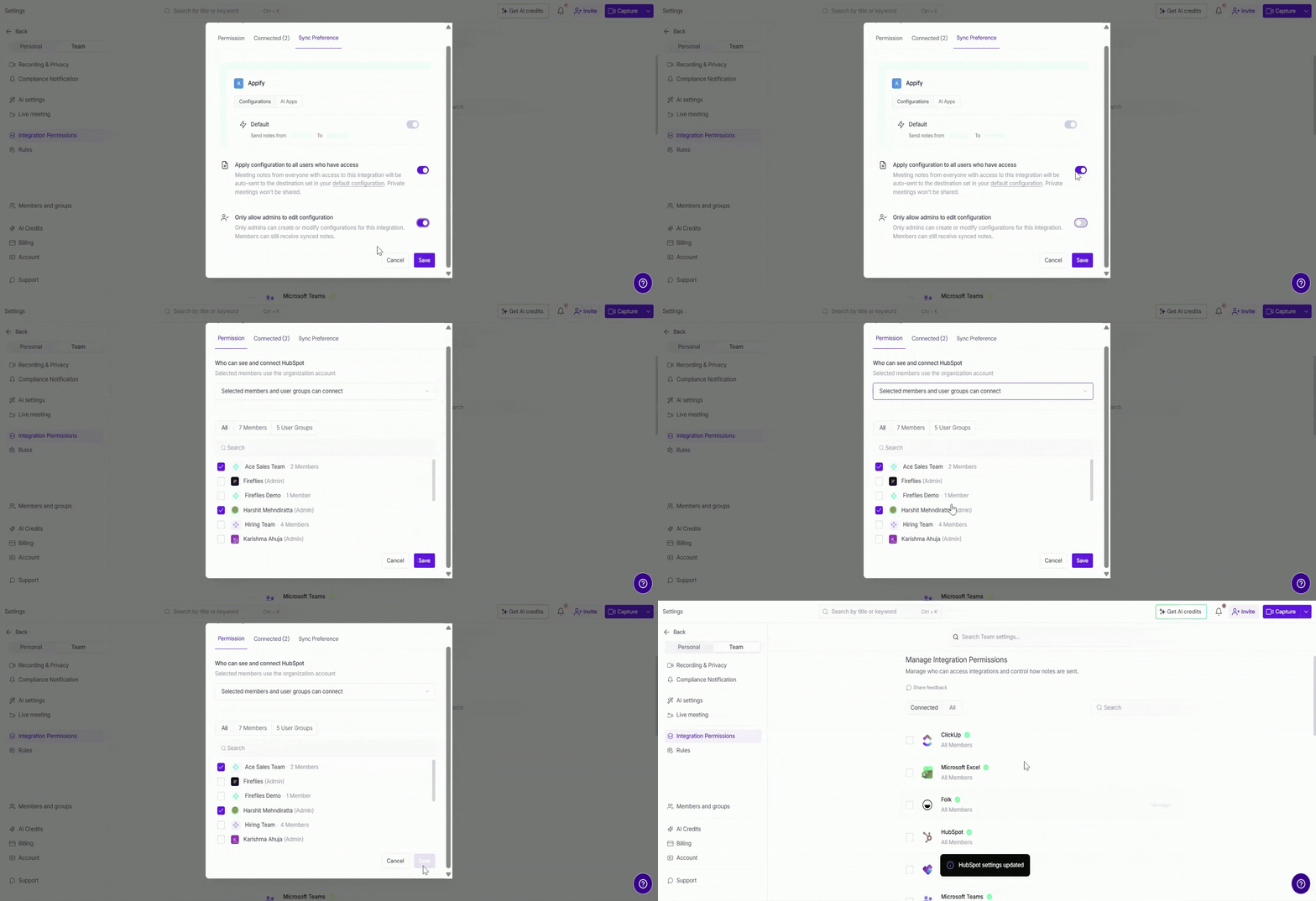
You can update these settings anytime.
You can reopen Manage Integration at any time to update permissions, change sync preferences, or remove a connected account. Save your changes when you're done.
📦 Manage Multiple Integrations
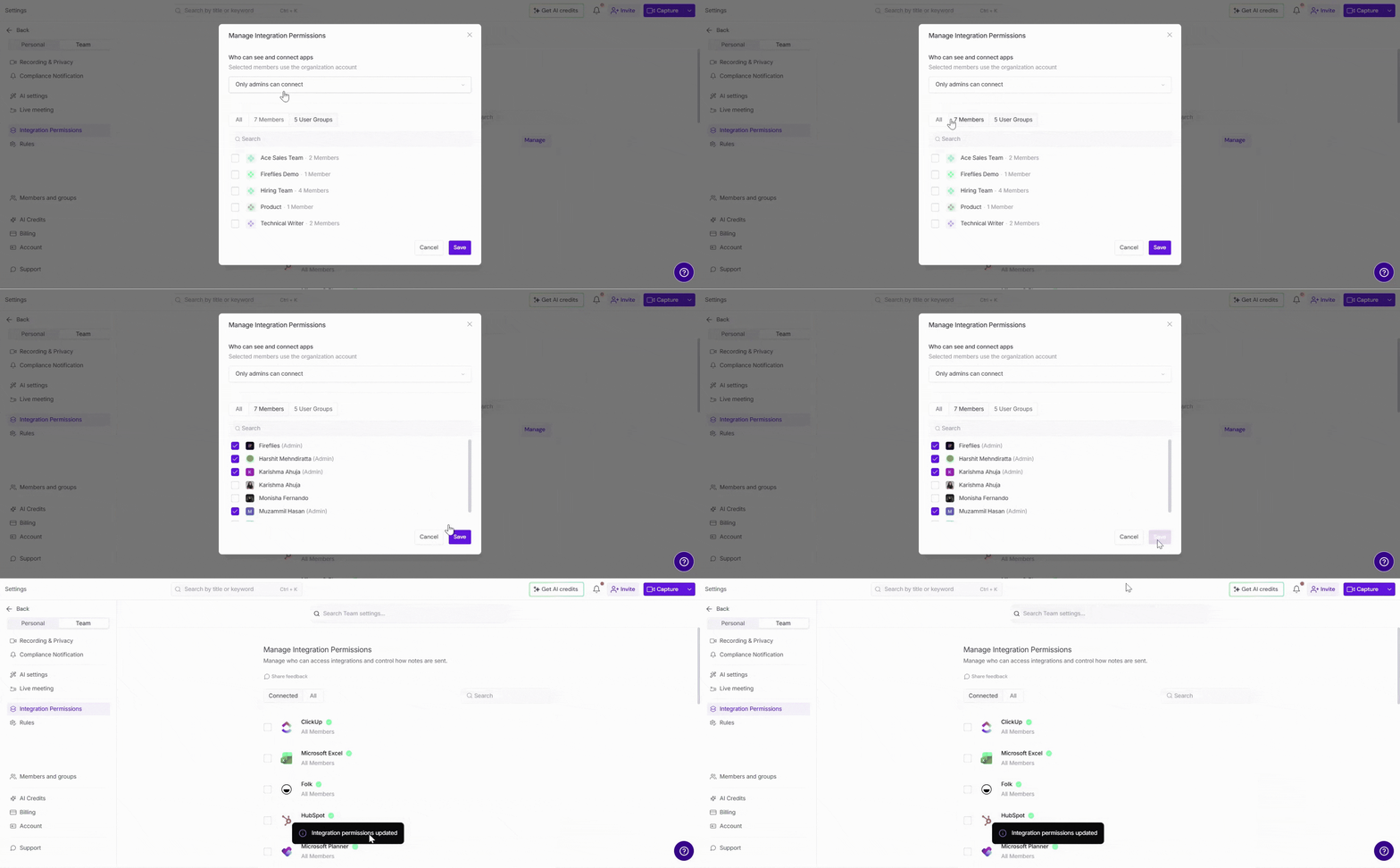
Need to update the same permissions across multiple integrations? Bulk Manage lets you apply the same access settings to several integrations at once, so you don't have to update each integration individually.
Step 1: Use the checkboxes to select one or more integrations you want to manage.
💡 To select all integrations, first select any integration to make the Select all option appear at the top of the list, then click Select all.
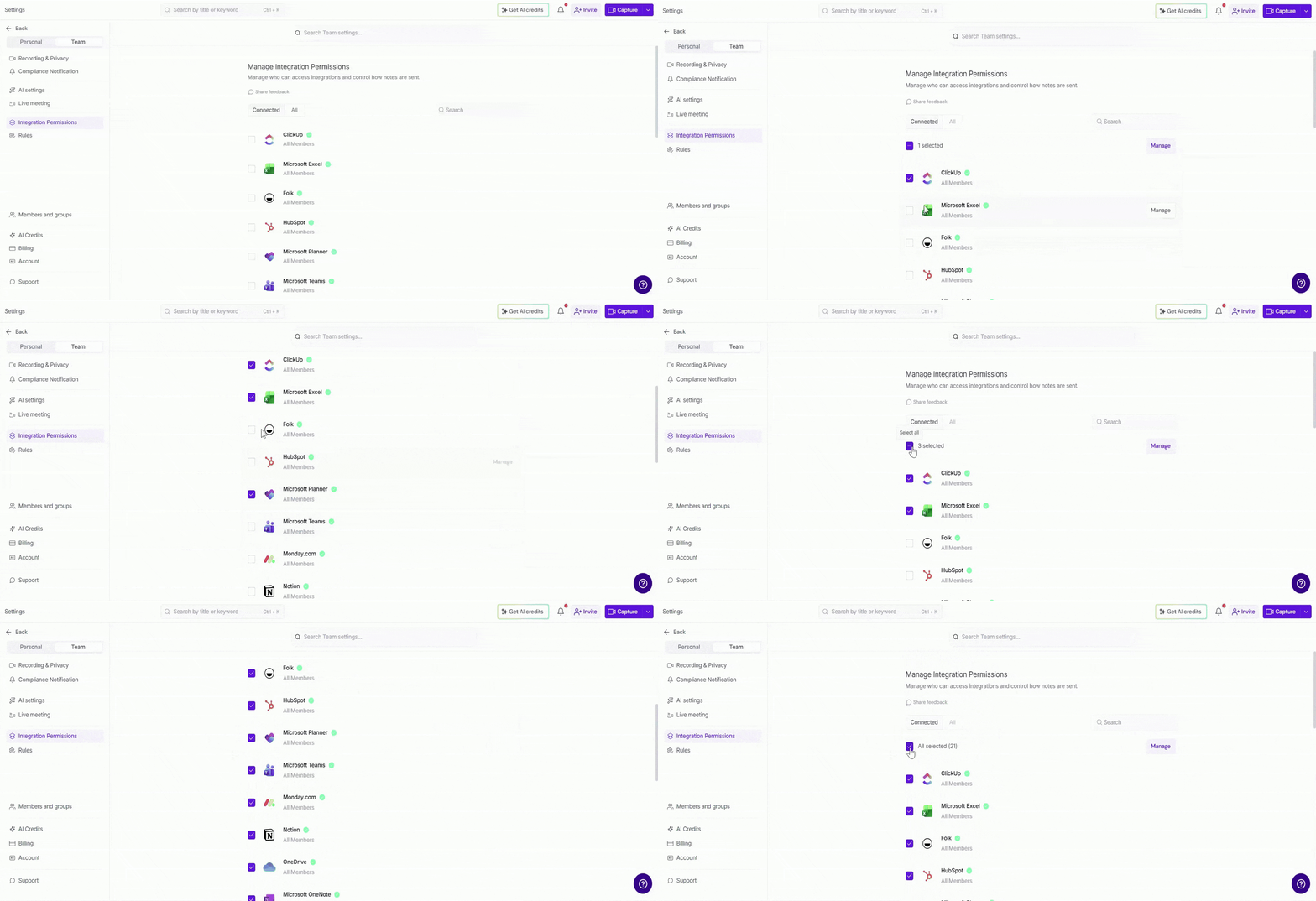
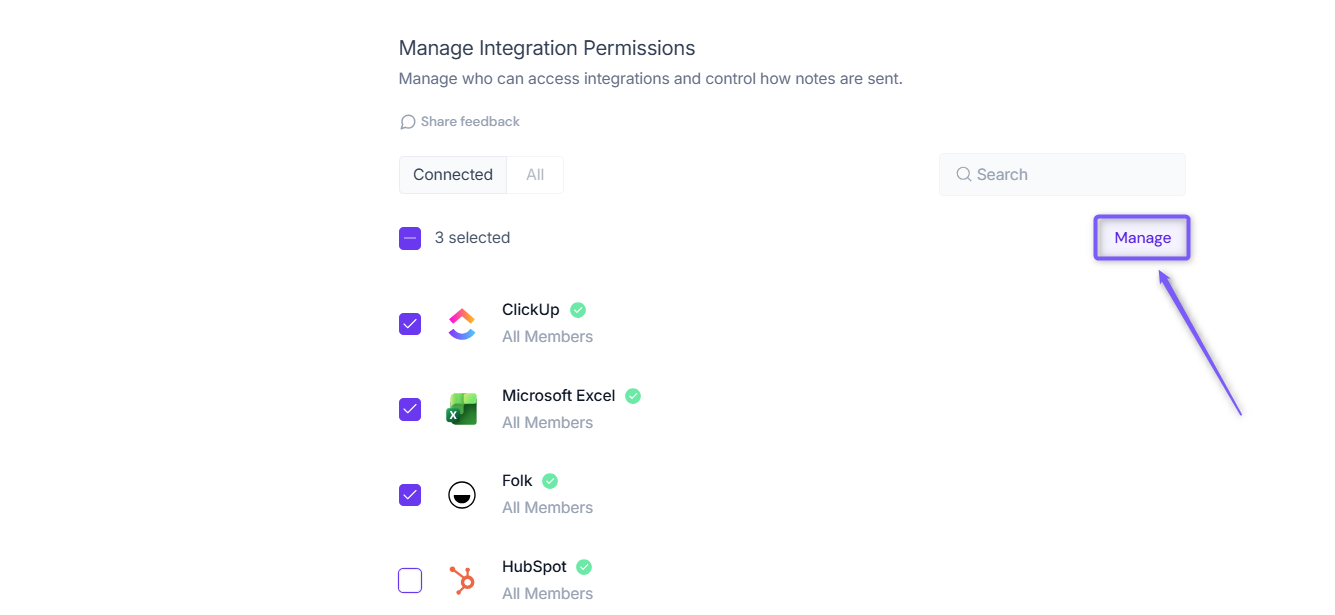
Step 2: Click Manage to update the selected integrations.
Step 3: Choose who can access the selected integrations
Under Who can see and connect apps, select one of the following permission options for the selected integrations:
Permission option | Description |
|---|---|
All members can connect | Allows everyone in the workspace to view and connect the selected integrations. |
Selected members and user groups can connect |
|
Only admins can connect | Restricts access to the selected integrations to workspace admins only. |
No member can connect | Prevents all workspace members from viewing and connecting the selected integrations. |
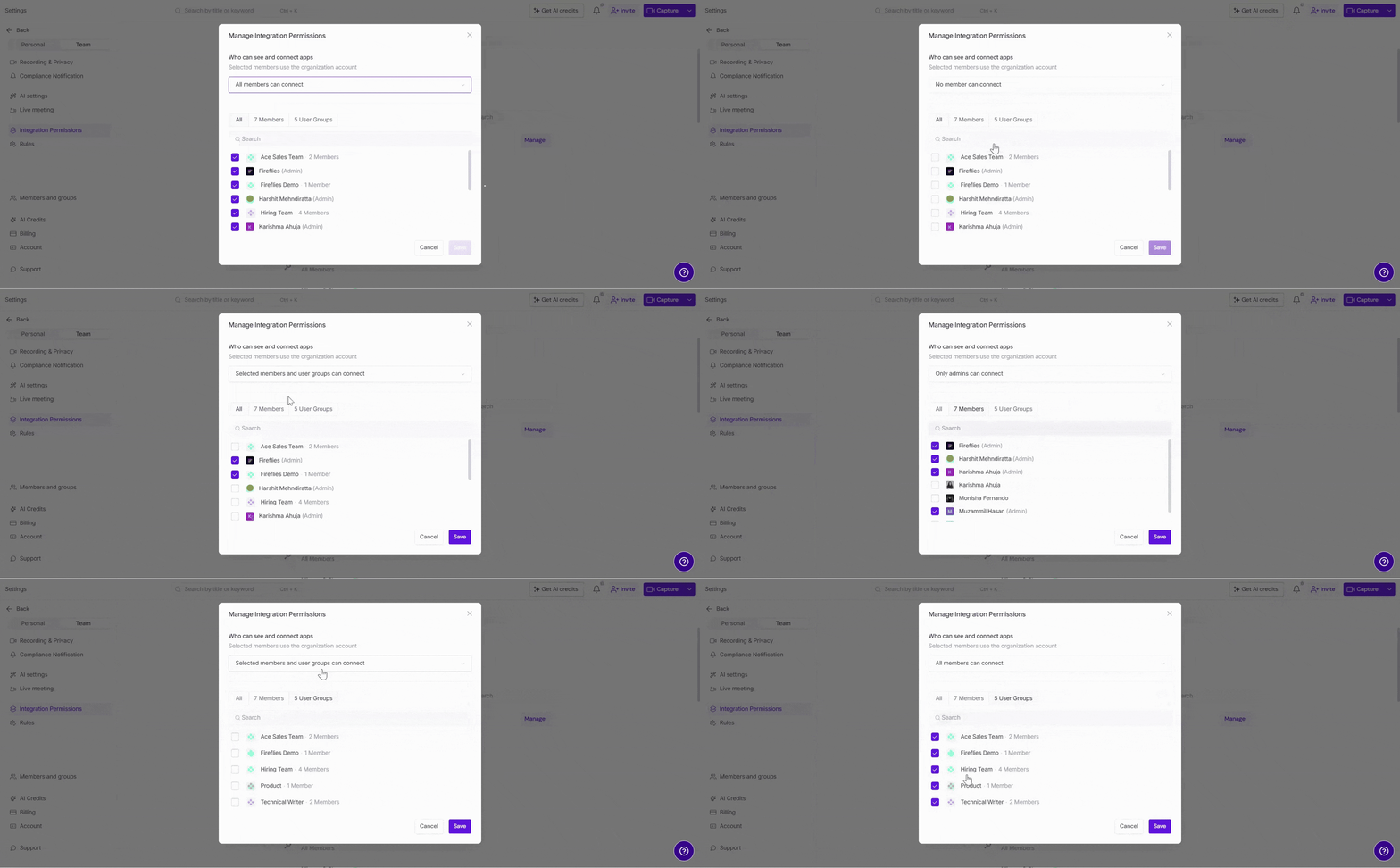
Step 4: Review your permission settings, then click Save to apply them to all selected integrations.
Important: When an admin applies a team-level integration configuration, it takes precedence over an individual's existing integration configuration.
For example, if a user has configured HubSpot individually and an admin later applies a team-level configuration for HubSpot, the team-level configuration overrides the individual's setting.
❓ FAQs & Troubleshooting
Q1. Who can manage integration permissions?
Only workspace admins can manage integration permissions for the workspace.
Q2. I don't see the Manage option for an integration. Why?
Only workspace admins can manage integration permissions. If you don't see the Manage option, verify that you have admin privileges in your workspace.
Q3. A member can't connect an integration. What should I check?
Open the Permission tab and make sure the member or their user group has permission to view and connect the integration.
Q4. Does removing a user's connected account change their integration permissions?
No. Removing a user's connected account only disconnects their integration. It doesn't change who is allowed to view or connect the integration. To update access, use the Permission tab.
Q5. What happens if I select No member can connect?
Selecting No member can connect prevents workspace members from viewing and connecting the integration. You can update this setting at any time.
Q6. Can I manage permissions for multiple integrations at once?
Yes. Use Bulk Manage to apply the same permission settings to multiple integrations in a single action.
Q7. Why doesn't Bulk Manage include the Connected and Sync Preference tabs?
Bulk Manage is designed to update permission settings across multiple integrations in a single action. Connected accounts and Sync Preference settings are managed separately for each integration because they can differ between integrations.
Q8. Which plans support Integration Permissions?
The full Integration Permissions dashboard with granular access controls is available on Business and Enterprise plans. Free and Pro workspaces can still configure Team Integration settings, but their options are limited to applying the configuration across the entire workspace or allowing admins to edit the configuration.
Q9. Do team-level integration settings override individual configurations?
Yes. When an admin applies a team-level integration configuration, it takes precedence over an individual's existing configuration within that workspace.
For example, if a user has configured an integration individually and the workspace admin later applies a team-level configuration, the admin's configuration overrides the individual's setting.
🔗 Related Guides
Invite teammates to your Fireflies workspace – Learn how to add new members to your workspace so they can access and use integrations.
Make a teammate an admin or revoke admin access – Grant or remove admin privileges for workspace members who need to manage integrations and other team settings.
Create and manage User Groups – Organize teammates into User Groups to simplify access management for integrations and other workspace features.
Explore all supported integrations – Browse the complete list of Fireflies integrations and learn how to connect your favorite apps.