How Fireflies joins and records your meetings - FAQs
Last updated: April 1, 2026
This guide answers the most frequently asked questions about how Fireflies joins, records, and manages your meetings. If Fireflies ever fails to join, check the linked platform-specific guides to verify that your meeting settings aren’t blocking it.
✅ Join Meetings
1. How can I invite Fireflies to a meeting?
There are 3 ways to invite Fireflies (fred@fireflies.ai) to your meeting:
Auto-Join Settings: Turn ON auto-join from your Fireflies dashboard to let it join meetings automatically based on your preferences.
Manual Calendar Invite: Add
fred@fireflies.aito your Google or Outlook calendar invite.Add to Live Meeting: Use the “Add to live meeting” button on the Fireflies dashboard.
🔗 Guide → 📄 How to invite Fireflies to meetings
2. How does Fireflies join my meetings?
If invited through your calendar or auto-join is ON:
Fireflies will attempt to join exactly at the same time your meeting starts.
It appears as Fireflies.ai Notetaker and may request permission if you're not the host.
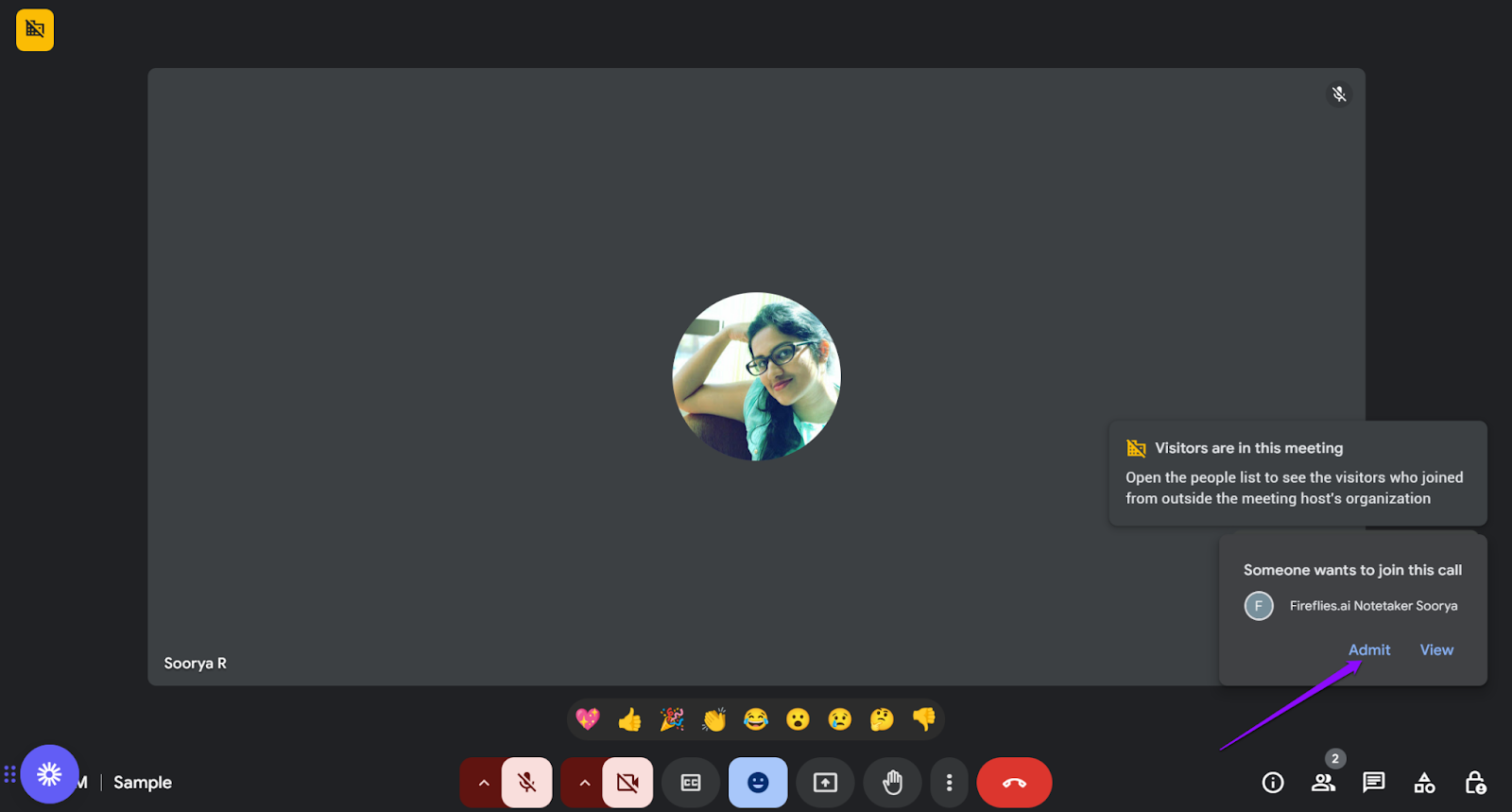
You or another host must admit it if there's a waiting room or lobby.
➕ Platform-specific requirements:
3. Fireflies is showing as a “potential risk” in Google Meet — should I be concerned?
This is part of a Google Meet security update that helps hosts review participants before admitting them.
This label is expected behavior and does not indicate any risk. Fireflies is a safe and trusted notetaker and can be admitted as usual.
📌Learn more about how we keep your data secure.
4. I can’t see the Admit button — how do I let Fireflies in?
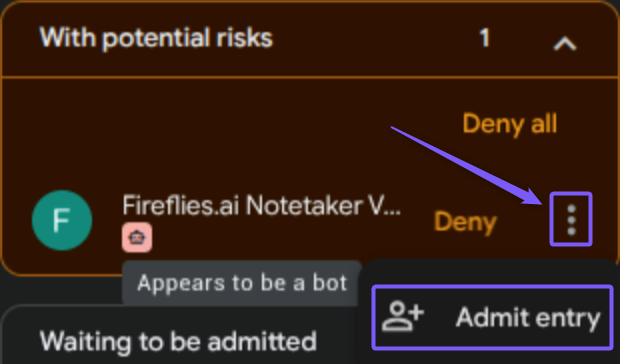
If the “Admit” button is not visible, check the “With potential risks” section in the participants panel. This is part of a Google Meet security update.
Click the three dots (⋮) next to Fireflies Notetaker and select “Admit entry.” Fireflies will then join and begin recording as usual.
5. Can Fireflies join an ongoing meeting?
Yes. Use Add to Live Meeting from your Fireflies dashboard:
Enter the meeting link
Set the language
Click Start Capturing
🔗 Add Fireflies to an ongoing meeting →
6. How long will Fireflies wait if the meeting is late?
Fireflies will wait up to 10 minutes for google meet and 15 minutes for other platforms in the lobby or waiting room before exiting.
If the meeting starts much later, re-add it manually via Add to Live Meeting.
7. What if a meeting exceeds its scheduled time?
Fireflies stays up to 2 - 4 hours depending on your plan.
If it leaves, you can re-add it via the dashboard.
🔗 How long can Fireflies stay in your meetings →
🎥 Record Meetings
1. Does Fireflies record video?
Yes, if you’re on a Business plan or higher.
Enable video recording from Settings > Meeting Settings.
Only supported during Zoom, Teams, or Meet calls where the bot joins.
🔗 How to capture meeting videos →
2. Can Fireflies record without me attending?
Yes, as long as:
You invited
fred@fireflies.ai, andThe platform allows guest bots to join (see platform settings links here)
Fireflies will record even if you're not present.
3. Can I record without the bot joining?
Yes, using:
Chrome Extension (Google Meet only): No bot needed.
Mobile App (iOS/Android): Ideal for in-person recordings.
🔗 Chrome Extension Guide →
🔗 Mobile App Guide →
4. Can I transcribe meetings for free?
Yes, if:
You're using Chrome extension or mobile app
Or you've enabled the “Unlimited Transcription” toggle and share recaps with all invitees
🔗 Unlimited Free Transcription →
🤖 Fireflies Bot
1. How can I remove the bot from a meeting?
In your conferencing tool:
Open participant list
Click
More > Removenext to Fireflies.ai Notetaker
Transcription will end, but you'll still receive notes for the recorded portion.
🔗 Remove Fireflies from a meeting →
2. How do I prevent Fireflies from joining specific meetings?
Disable Auto-Join in settings
Or set “Bar Rules” to exclude meetings by title/keywords
🔗 Auto-join & meeting rules guide →
3. Can I hide the bot’s presence?
No. Fireflies is always visible in the participant list to ensure compliance.
If you want hidden capture:
Use the Chrome Extension (Google Meet only)
4. Can I rename the Fireflies bot?
Yes, on a paid plan:
$5/month for shared name across 5 users
$5/month/user for individual names
🛡 Meeting Compliance
1. How to notify participants about recording?
Enable Meeting Compliance in Fireflies Settings.
This shows a pre-meeting disclaimer that Fireflies will record the call—helping you stay legally compliant.
2. What if someone opts out of recording?
If someone opts out, Fireflies will not join the meeting.
You may re-invite it during the meeting, but it’s best to avoid forcing recordings in such cases.
📅 Calendar
1. What calendars does Fireflies support?
Google Calendar
Outlook/Office 365 Calendar
Fireflies does not support Zoho or Apple Calendar directly.
2. Can I connect multiple calendars?
No. You can only link one calendar per Fireflies account.
If you use multiple calendars, manually invite fred@fireflies.ai to any meetings from other calendars.
🎙 Speakers
1. Can Fireflies identify speakers in uploaded audio?
No. Uploaded files use generic labels like Speaker 1, Speaker 2.
You can manually relabel and reprocess the transcript.
Speaker name detection only works when:
Fireflies joins a video meeting, or
You're using the Chrome extension