Recording Consent and Meeting Compliance in Fireflies: Opt-In, Opt-Out, and Controls
Last updated: August 31, 2026
Meeting compliance begins with understanding recording consent. Fireflies follows each platform’s rules, whether recording requires opt-in approval or uses opt-out controls once the bot joins.
After Fireflies enters the meeting, you’re always in control. You can pause, resume, or remove the bot anytime to keep things transparent and comfortable for everyone.
This guide explains how consent works across platforms and how to manage Fireflies during your calls.
Let’s get started 🚀
🛡 Why Recording Disclosure Matters
Letting participants know a meeting is being recorded is essential for both legal compliance and building trust.
1. Legal compliance
Many regions require participants to be informed before any meeting is recorded.
Recording without consent can violate privacy laws and lead to penalties.
Related: Call Recording Laws by State—Everything You Need to Know →
2. Transparency and trust
Disclosing recordings helps everyone feel safe and informed.
Participants know when their contributions are being recorded.
It encourages an open, collaborative environment.
Related: Responsible meeting recording and transcription with Fireflies →
3. Additional Compliance Options
Fireflies also supports specialized recording modes for strict compliance needs.
If your organization cannot store audio or transcripts, you can switch to transcript-only or summary-only modes to keep meetings private while still capturing key insights.
Related: Set up Transcript-Only Mode for Compliance →
✅ Opt-In vs Opt-Out Consent
Fireflies follows the recording rules of your meeting platform. Depending on the platform, consent works in two ways:
1. Opt-Out Consent
Users are considered OK with recording as long as they don’t object.
The bot joins automatically
Participants must remove the bot or reject recording if they don’t agree
Example: 5 people in call → Fred joins to record → participants must kick the bot if they don’t want the recording
2. Opt-In Consent
Users must explicitly say 'Yes’ before recording can start. Everyone needs to approve.
All participants (ex, 5 people → all 5 must say Yes)
If anyone clicks No, the recording won’t happen
Example: Zoom’s “Request to record this meeting” prompt
This ensures everyone stays informed and can control how much of the meeting is recorded.
🔐 Opt-Out Consent (After Fireflies joins)
In most meetings, Fireflies joins automatically, and participants can still control what gets recorded. These options help keep the meeting transparent and give users the ability to stop or limit recording at any time.
Log in to your Fireflies account and open the Settings page from the left sidebar.
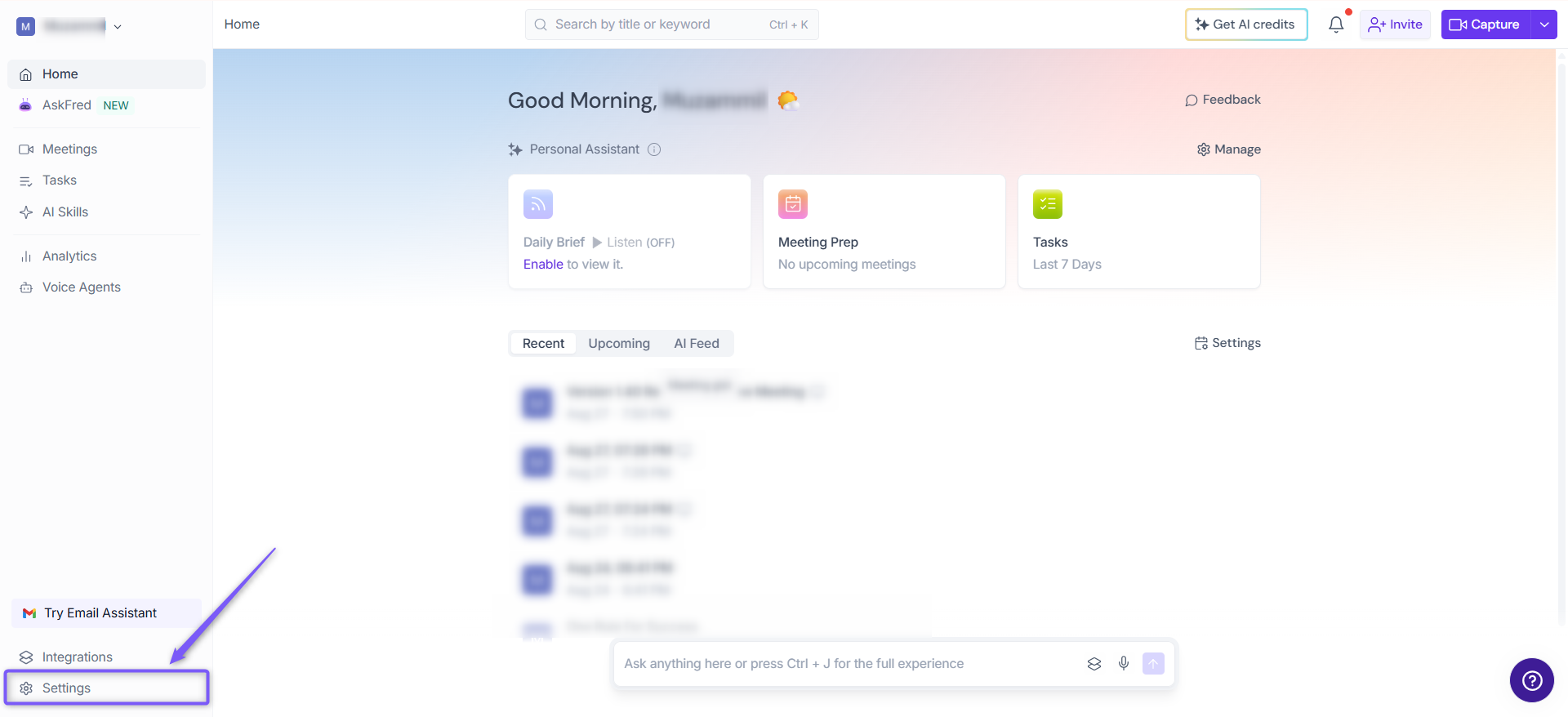
You will be navigated to the Settings page to manage compliance notifications.
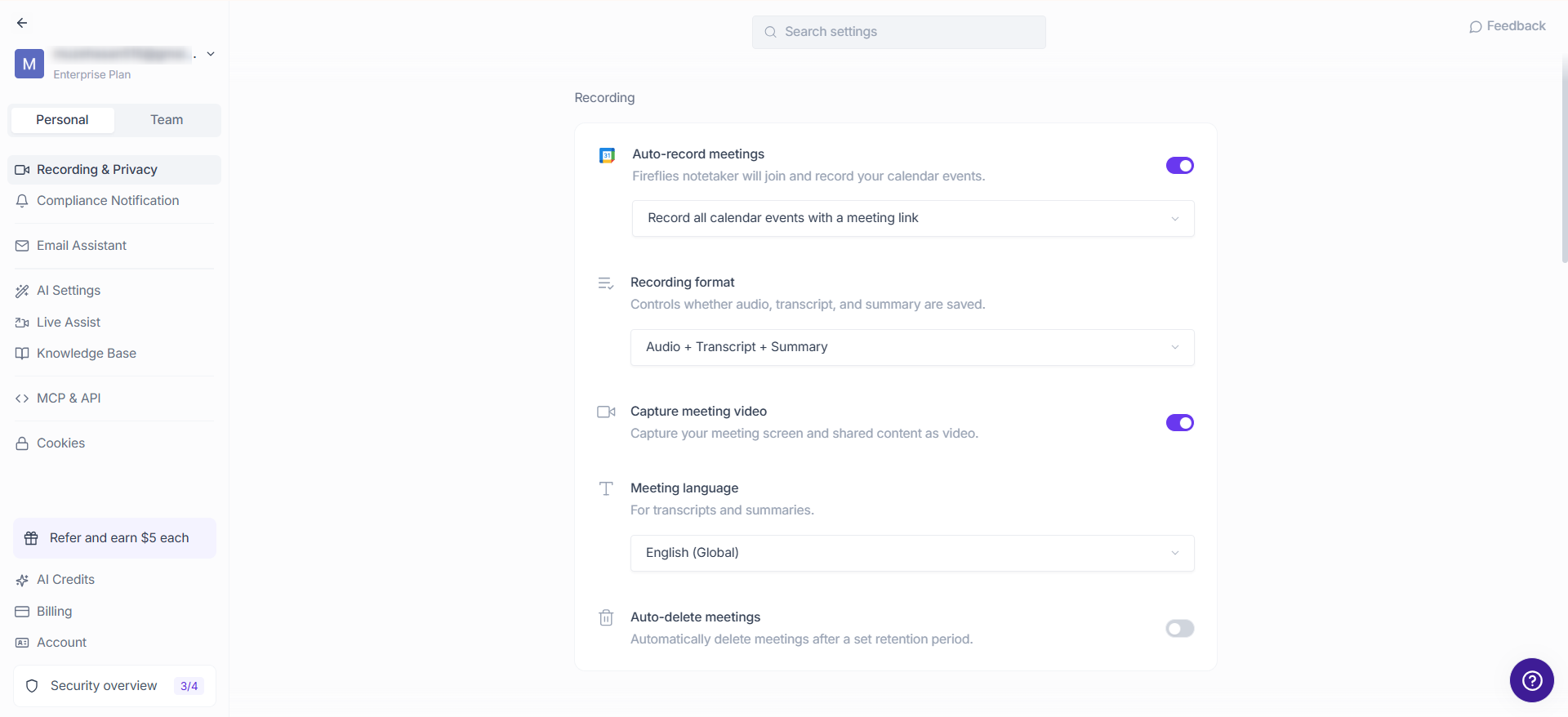
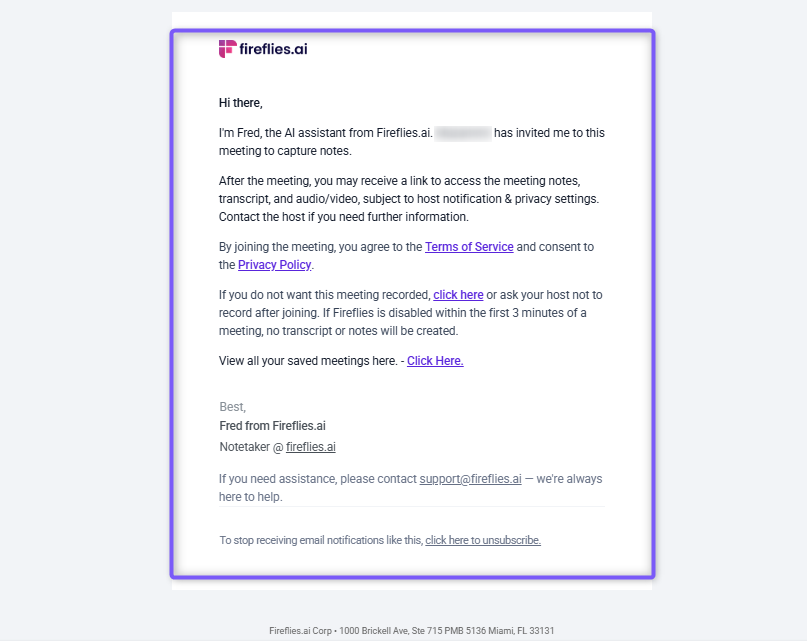
1. Enable Email Notifications (1-hour alert)
Email notifications inform participants one hour before the meeting that Fireflies will record the session. This gives everyone advance notice and the option to prevent Fireflies from joining if they prefer.
Click on Compliance Notification. toggle on “Participants are notified with your message” to inform attendees 1 hour before the meeting that Fireflies will record it.
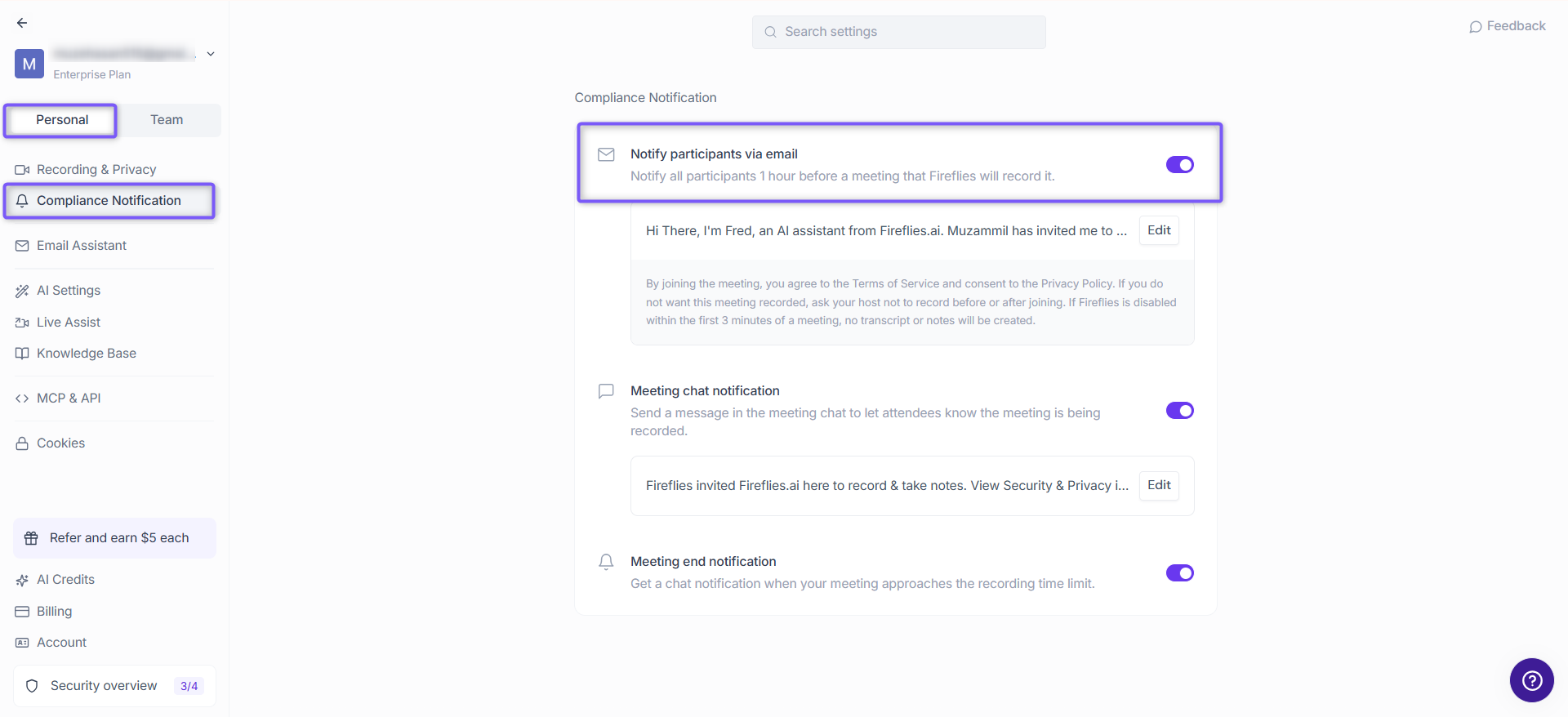
You can also edit the email body to match your organization’s messaging.
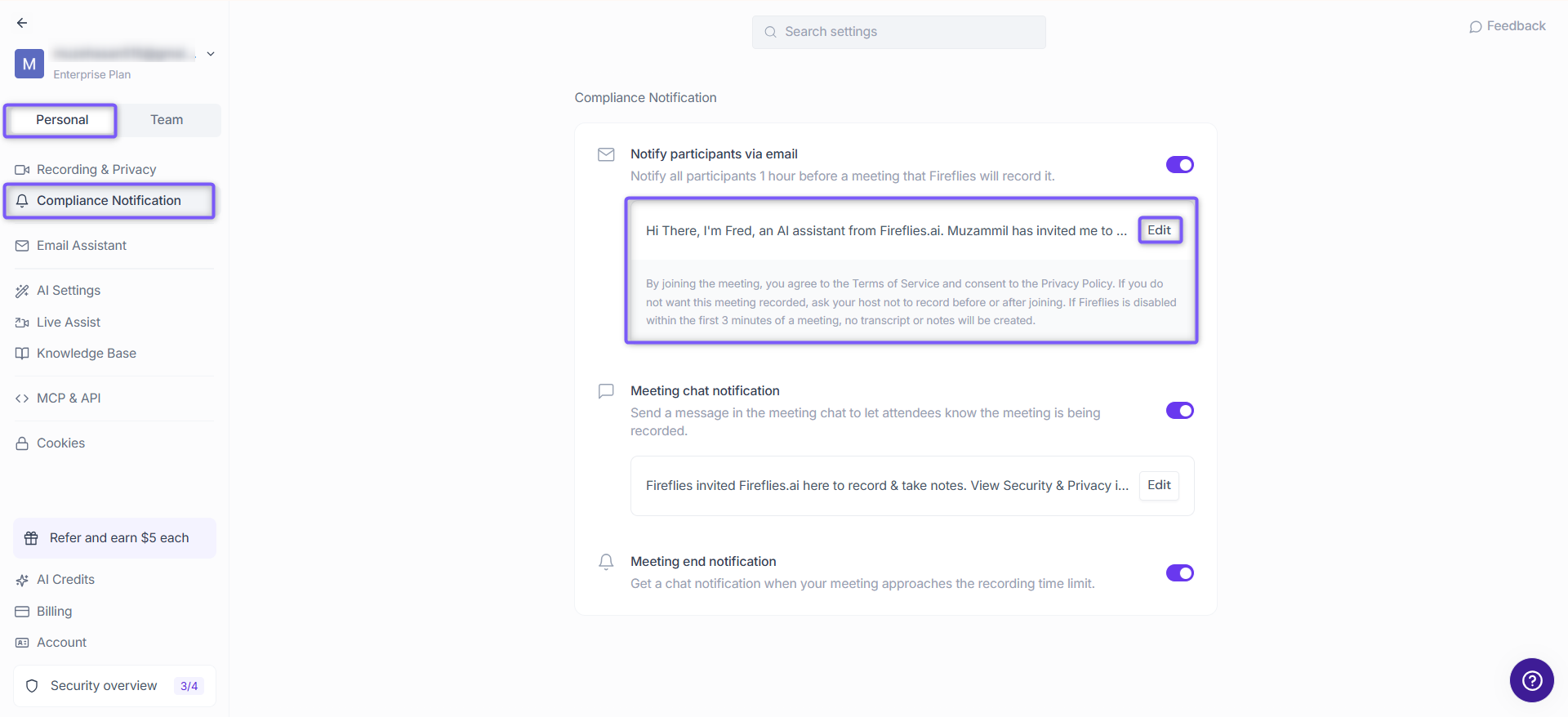
Participants will get an email letting them know the meeting will be recorded, along with a link to decline. If someone clicks it, Fireflies won’t join or capture the meeting.
You can configure this for your personal settings, or switch to the Team tab to apply it workspace level.
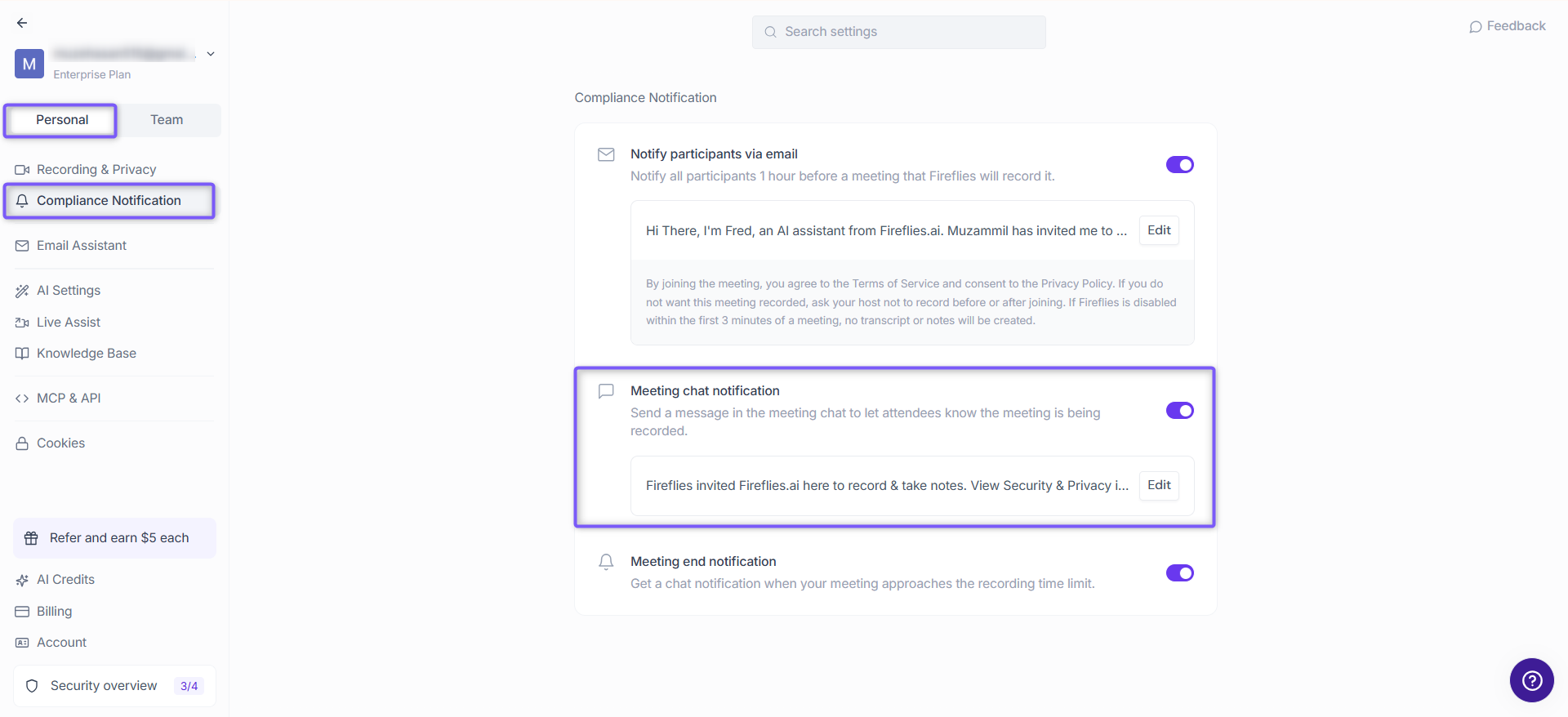
2. Enable In-Meeting Compliance Message
The in-meeting compliance message keeps everyone informed by announcing, in real time, that Fireflies has joined the call. This message is pinned in the meeting chat, making it easy for participants to see that the session is being recorded.
Under Compliance Notification, enable Meeting chat notification to send a message in the meeting chat to let attendees know the meeting is being recorded.
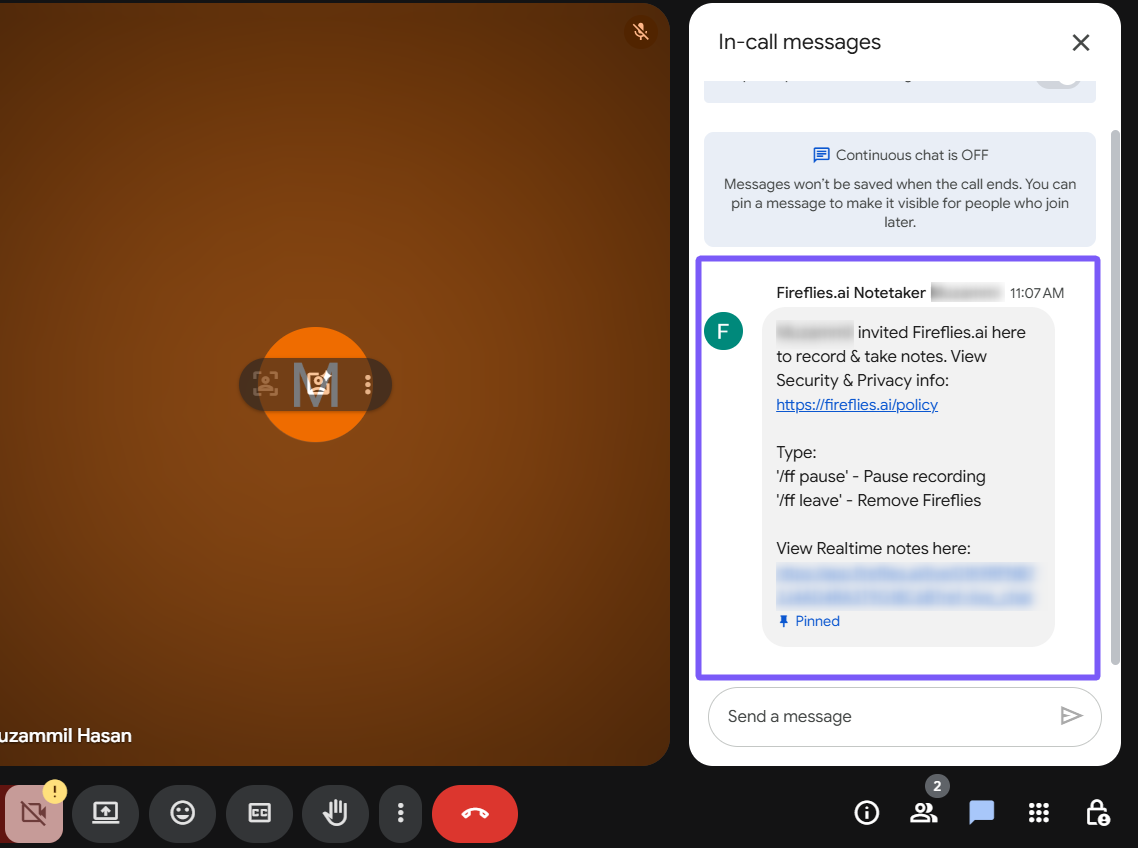
Once enabled, the pinned chat message will include:
A notice that Fireflies has joined to record and take notes
A link to Fireflies’ security and privacy information
A real-time notes link (if your team has enabled it)
Quick commands to manage Fireflies: /ff pause, /ff leave
These commands are currently only valid for Gmeet, MS Teams & Zoom.
3. Pause Recording
If a sensitive topic comes up or you want a moment off the record, you can pause Fireflies at any time during the meeting.
How to pause:
Chat command: Type /ff pause in the meeting chat. Fireflies will confirm and switch to a paused state.
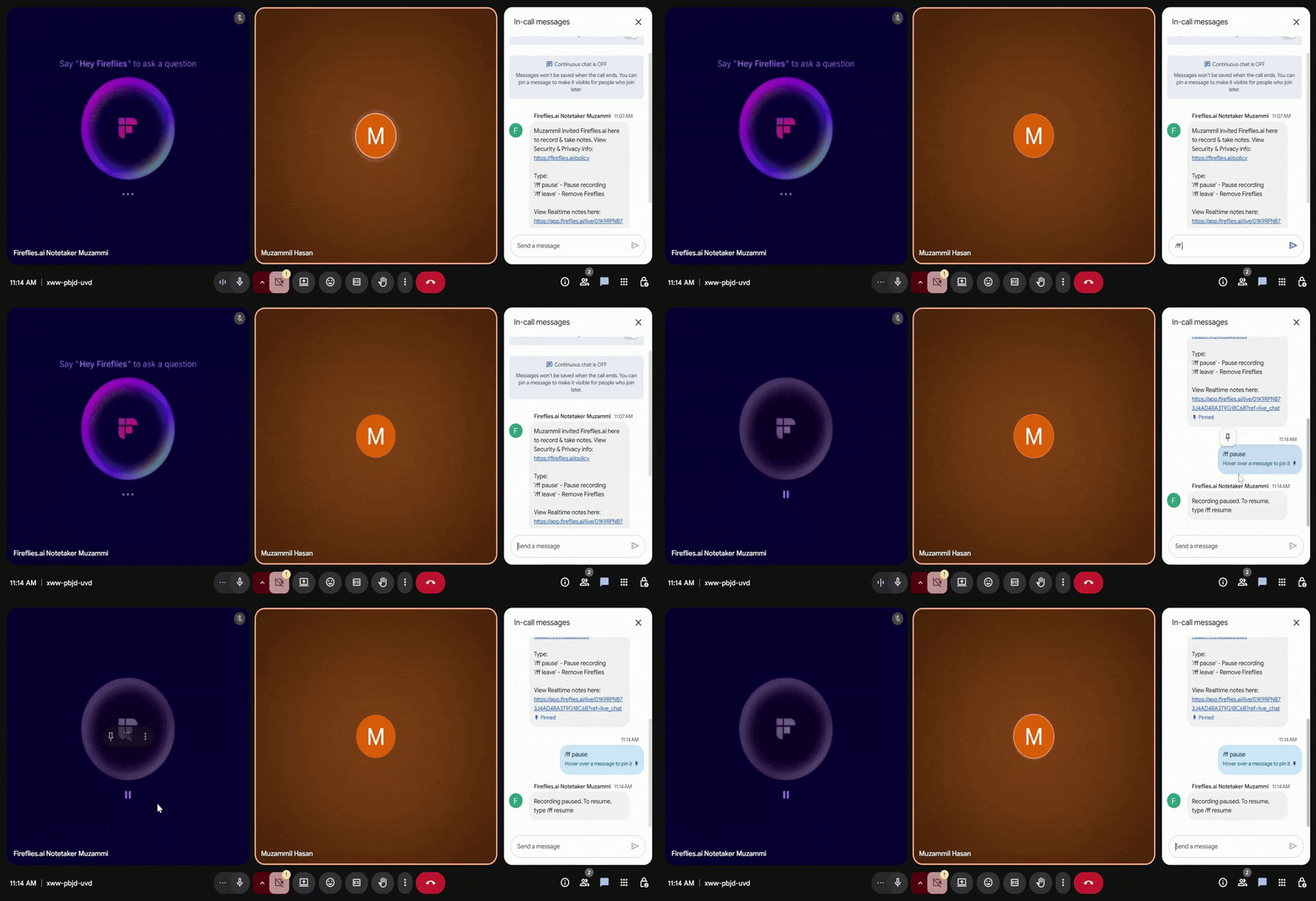
Voice command: Say “Hey Fireflies, please pause the conversation.” The recording stops instantly.
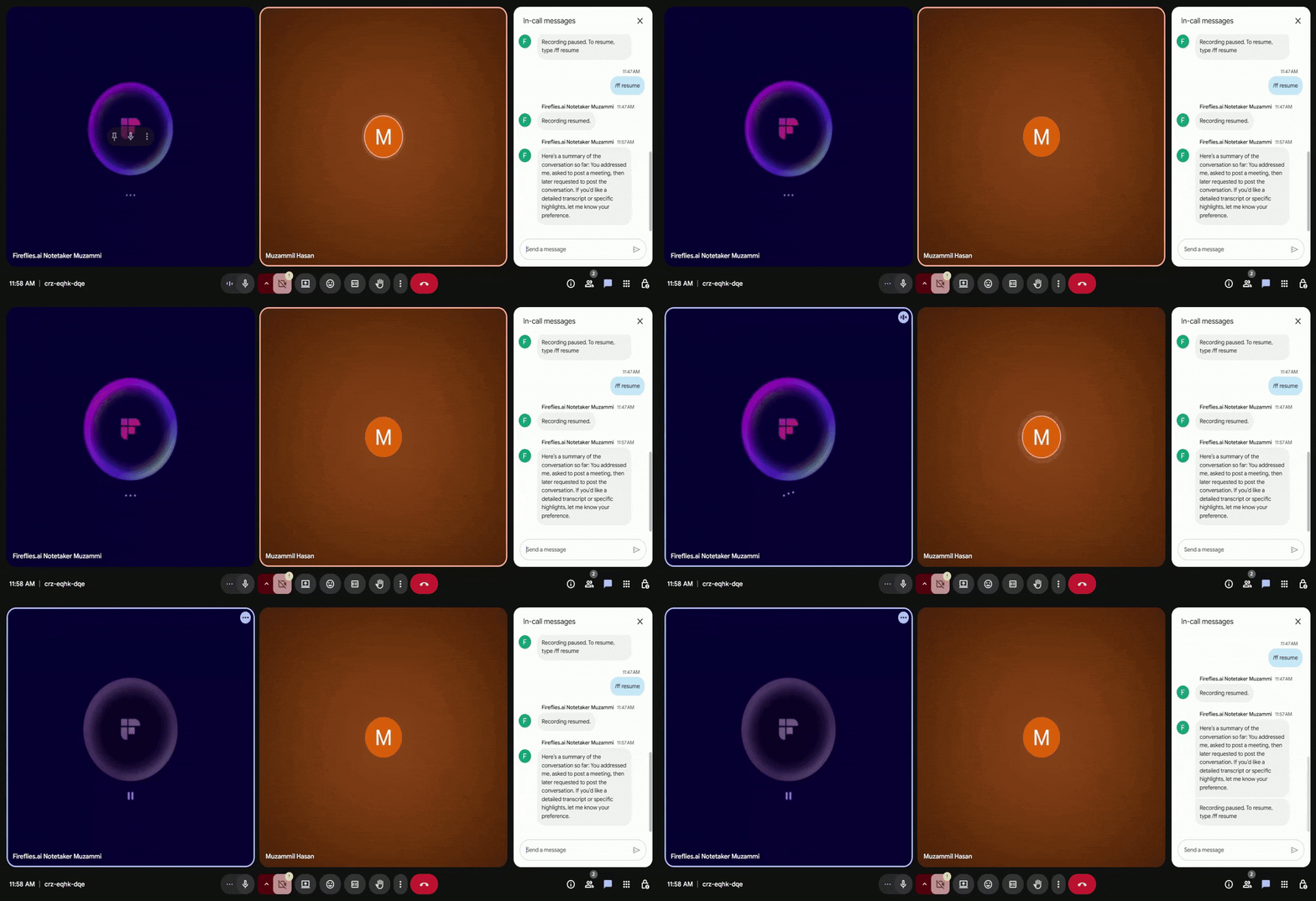
Pausing only affects recording from that point forward. Anything recorded before the pause remains available.
4. Resume Recording
When you’re ready for Fireflies to start capturing notes again, you can resume the recording with a simple chat command.
How to resume:
Type /ff resume in the meeting chat. Fireflies will confirm and continue recording.
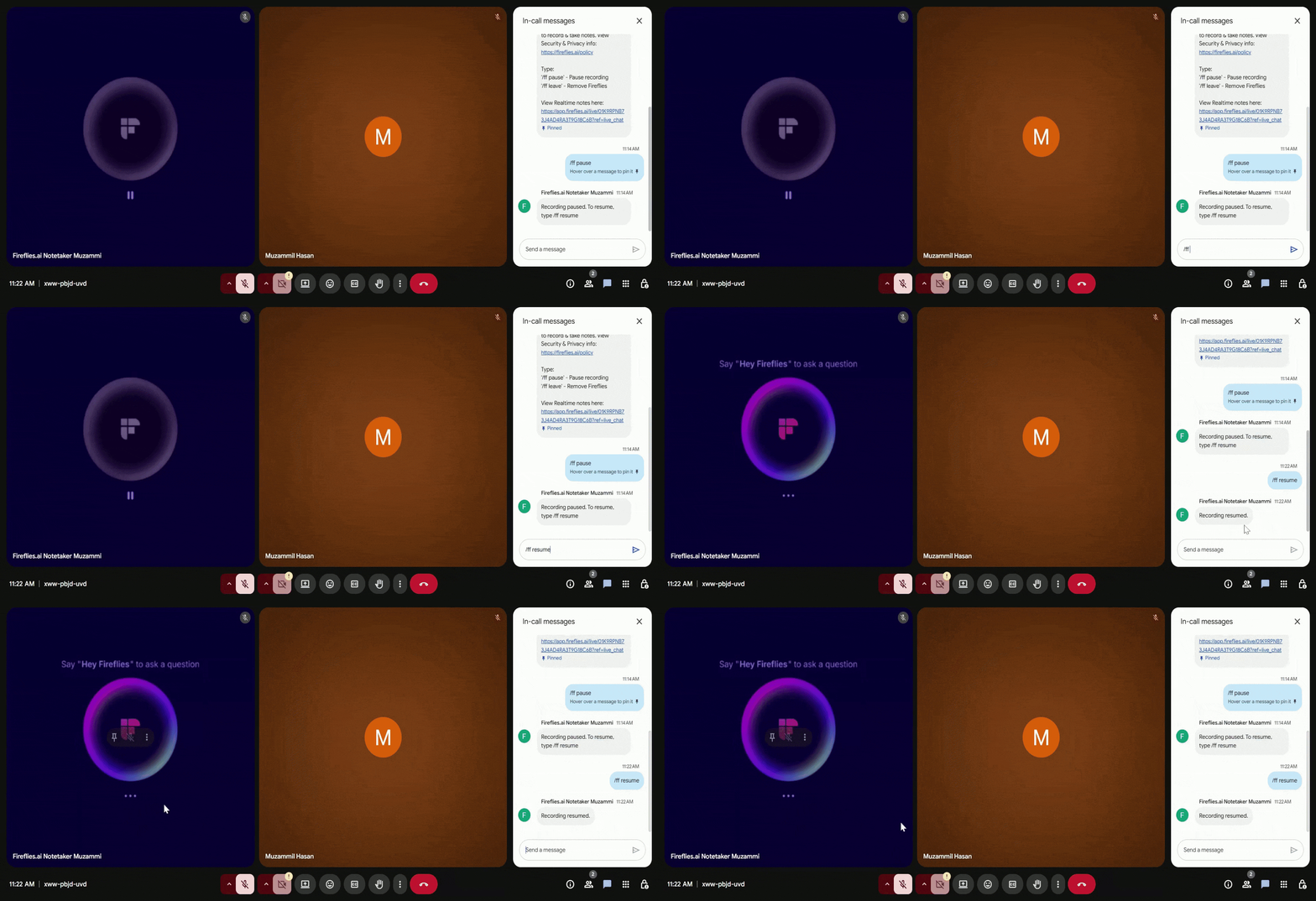
You can pause recordings via chat or voice, but resuming is only possible via chat (/ff resume).
5. Remove Fireflies from a Meeting
If someone prefers not to be recorded or you want to stop capturing notes early, you can remove Fireflies from the meeting at any time. Once removed, Fireflies will immediately exit and stop recording.
You have two options:
Use a Chat Command
Type /ff leave in the meeting chat, and Fireflies will exit the meeting right away.
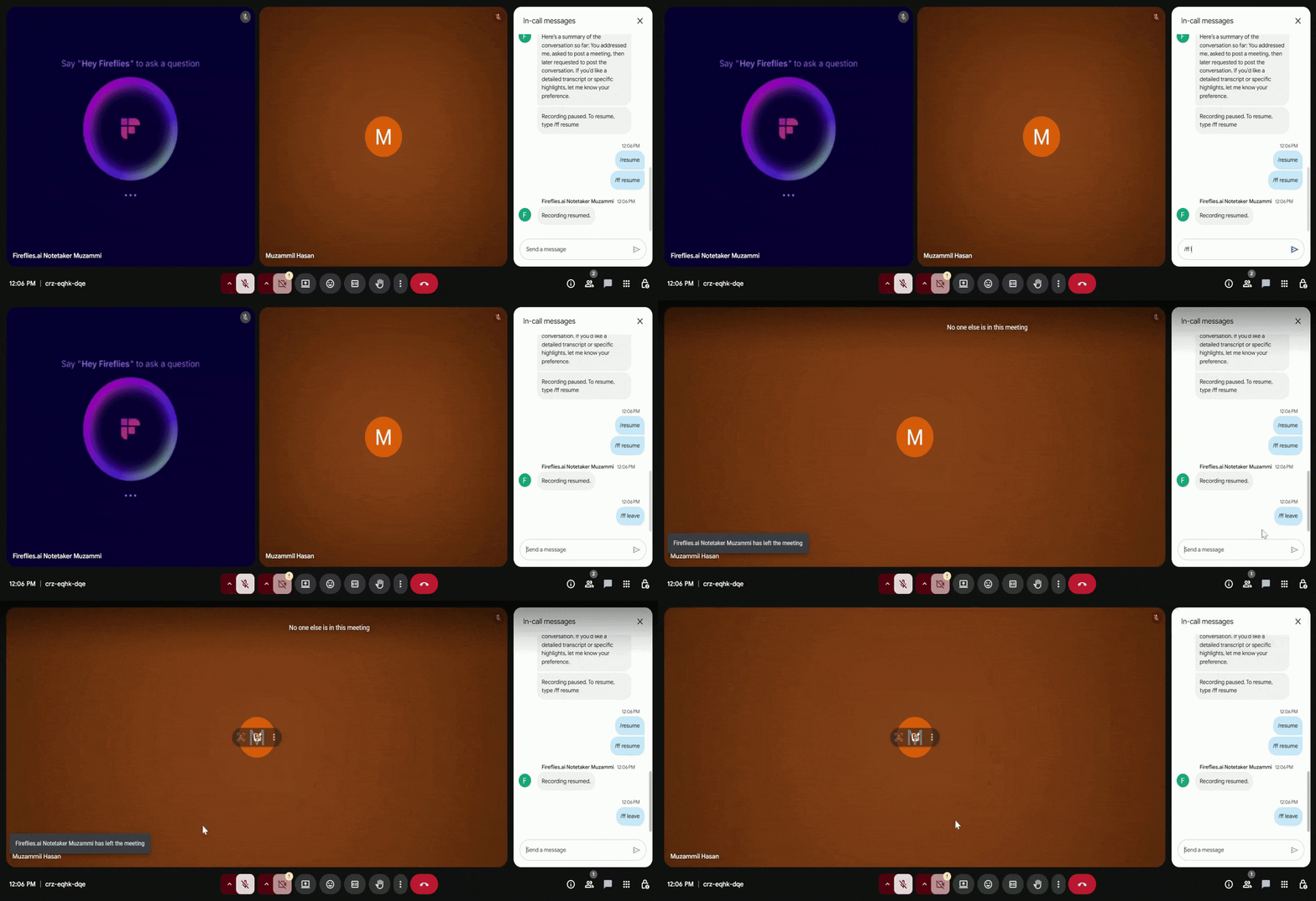
Remove Fireflies from the Participants Panel
Open your meeting platform’s Participants list (Zoom, Google Meet, Microsoft Teams, etc.).
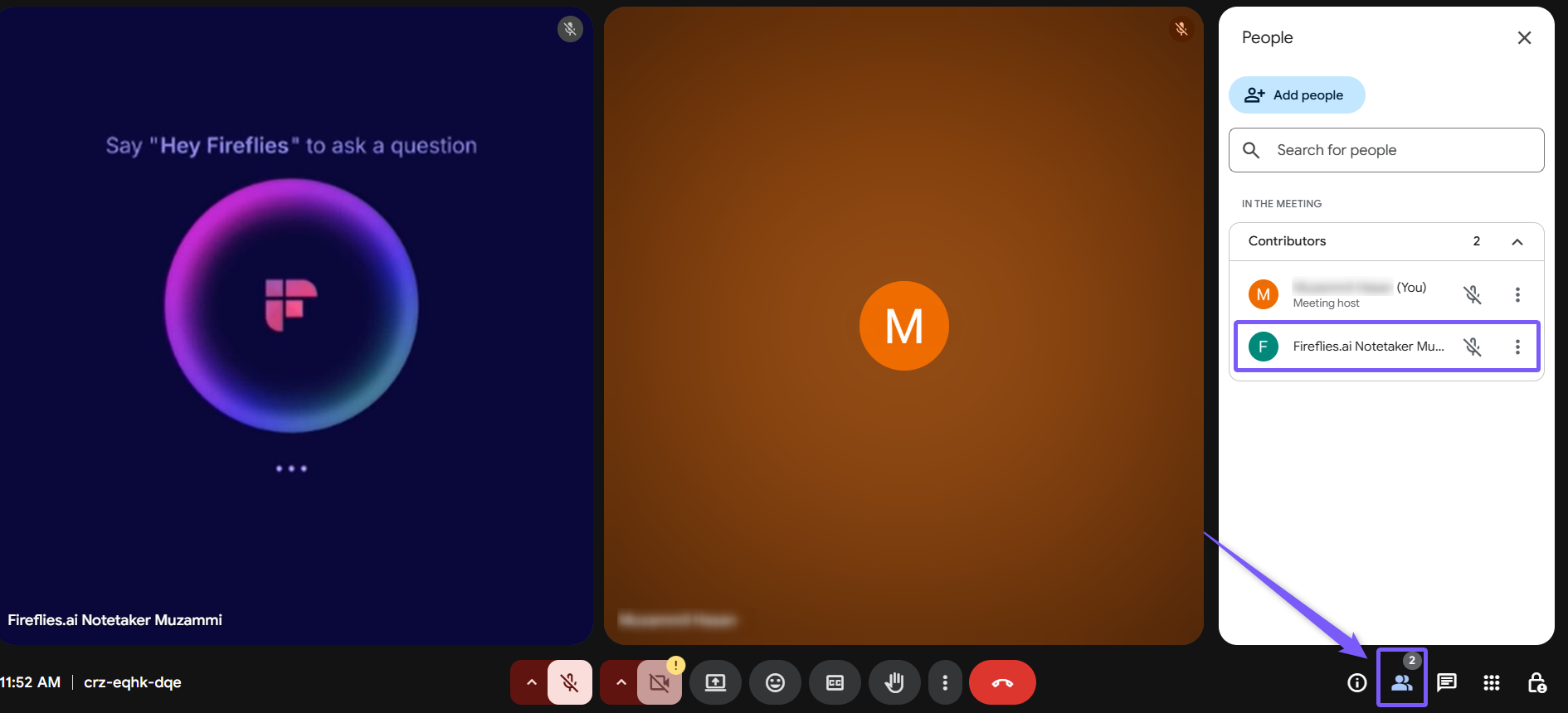
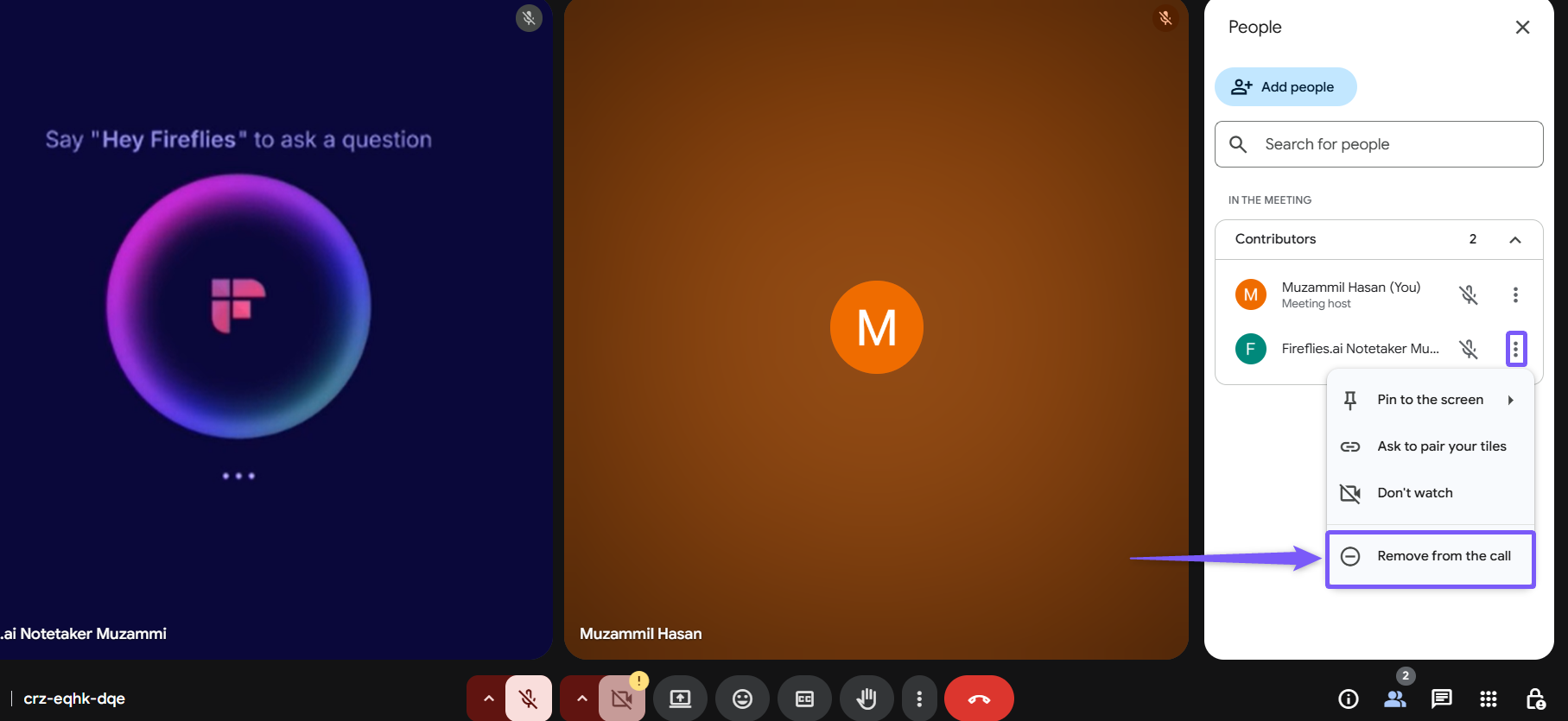
Click the three-dot menu next to Fireflies’ name and select Remove from the call.
💻 Desktop App Consent Notifications: Opt-In/Opt-Out Controls
If you're using Take Notes on the Fireflies Desktop App (no-bot capture), consent works through host-configurable consent notifications rather than a platform pop-up. These follow the same opt-in/opt-out model used throughout this guide:
Consent Notification | Behavior | Platform |
|---|---|---|
Consent Modal Defaults | Sets your notification preferences the first time you use Take Notes | Mac & Windows |
Fireflies Watermark badge on camera | Opt-out — on by default; adds an “AI Taking Notes” badge to your camera | Mac & Windows |
Audio Consent Message | Opt-out — on by default; plays a spoken notice approximately 10 seconds after Take Notes starts | Mac & Windows |
Meeting Chat Message | Opt-out — on by default; posts a consent message in the meeting chat | Mac only |
What Is the Consent Modal?
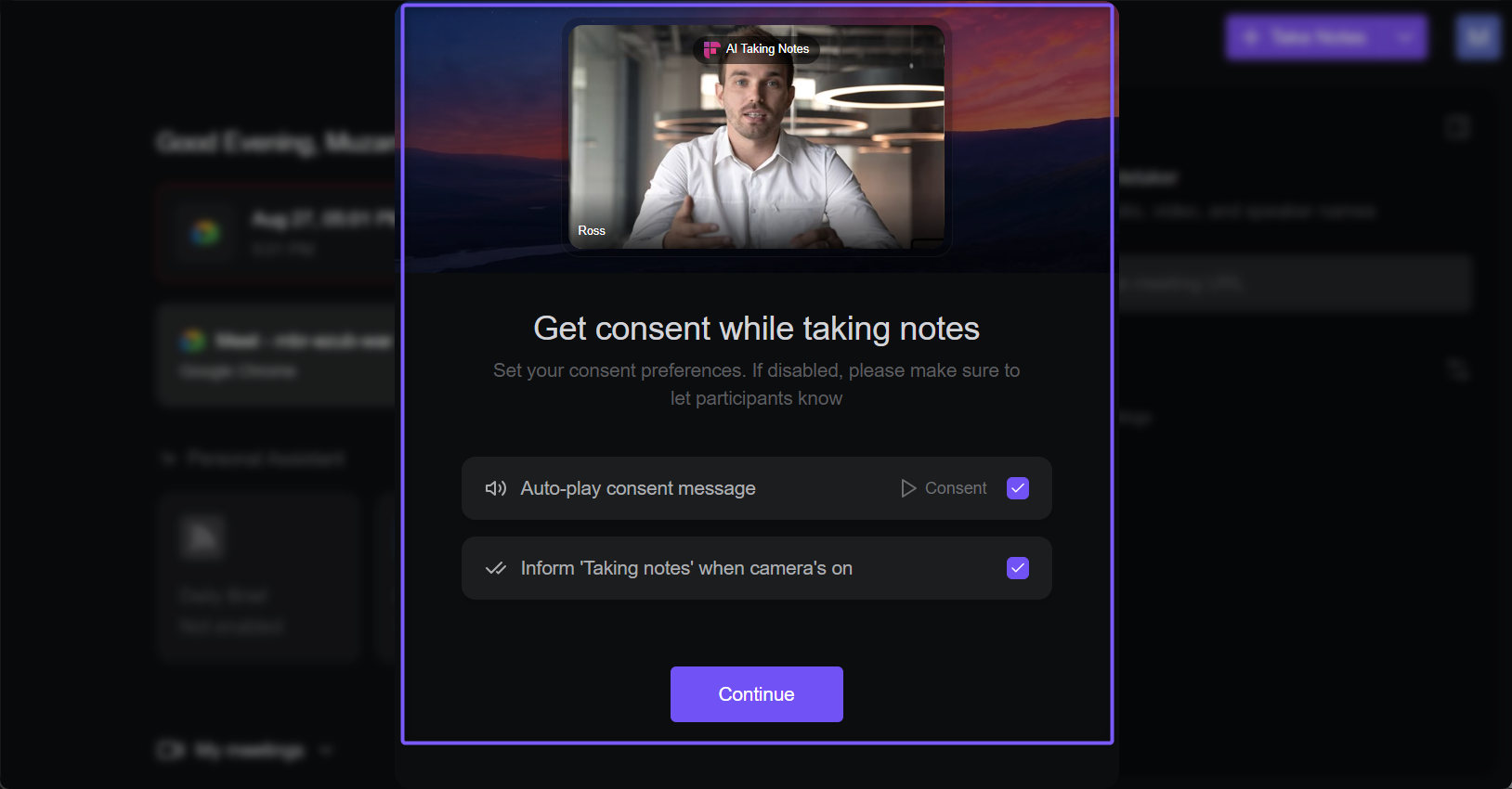
The Consent Modal appears the first time you click Take Notes, or after a Desktop App update. All available consent notifications are enabled by default. You can enable one, both, or neither option, and your choices are saved as your default preferences.
Managing Consent Notifications
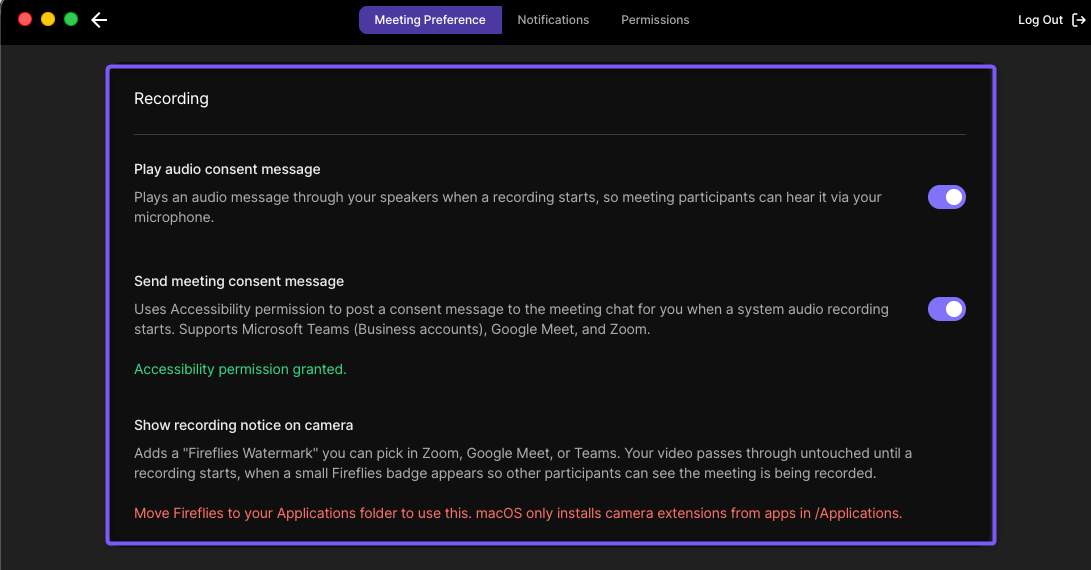
You can change your preferences anytime. In the Fireflies Desktop App, go to Settings → Meeting Preference → Recording and enable Play audio consent message.
Fireflies Watermark: Toggle it in Settings → Meeting Preference → Recording, then select Fireflies Watermark as your camera in Zoom, Google Meet, or Teams.
Audio Consent Message: Toggle it in the same Recording section.
Meeting Chat Message: Toggle it in the same section. This option is available on macOS.
Your responsibility: If you disable a consent or notification option, you are responsible for informing participants that the meeting is being captured and for complying with applicable recording laws.
👉🏻 Full walkthrough: How Consent & Notifications Work on the Fireflies Desktop App
🔑 Opt-In Consent (Before Fireflies Joins)
Some meeting platforms (e.g., Google Meet, Zoom, Google Meet SDK, and MS Teams) ask participants to approve the recording before Fireflies can join the call. This allows participants to decide if they want Fireflies to join the meeting.
ℹ In simple terms:
Opt-In = Fireflies will only join the meeting if someone clicks “Allow” or “Approve,” etc.
If participants don’t give permission, Fireflies stays out.
1. Zoom Meeting
Zoom may display a recording consent pop-up when the Fireflies.ai Notetaker requests permission to record the meeting.
If participants click Approve, Fireflies will join the meeting.
If anyone declines or chooses Decline, Fireflies will not join.
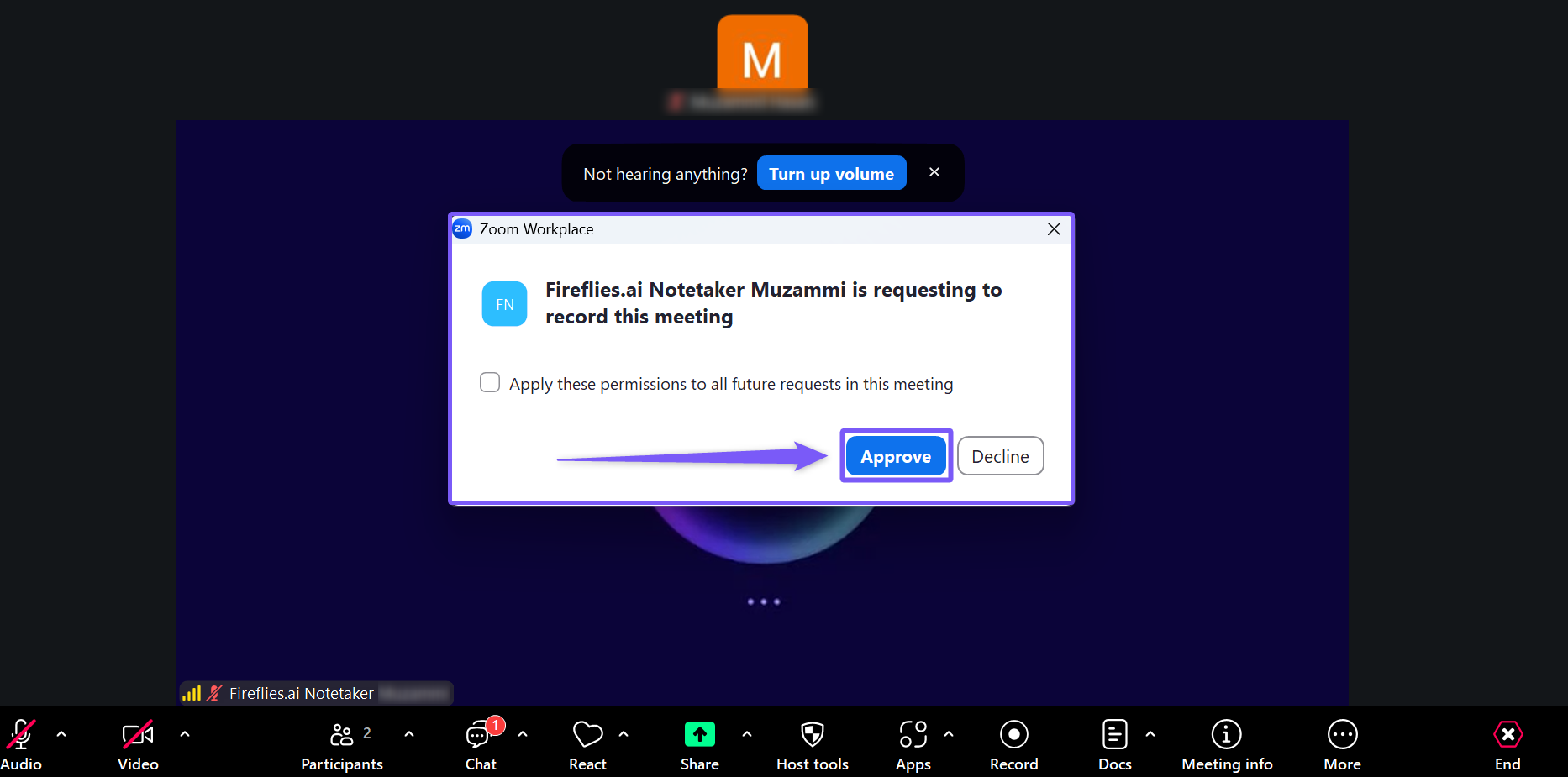
Zoom puts participants in control and makes sure everyone knows the meeting is being recorded before Fireflies enters.
2. Google Meet SDK
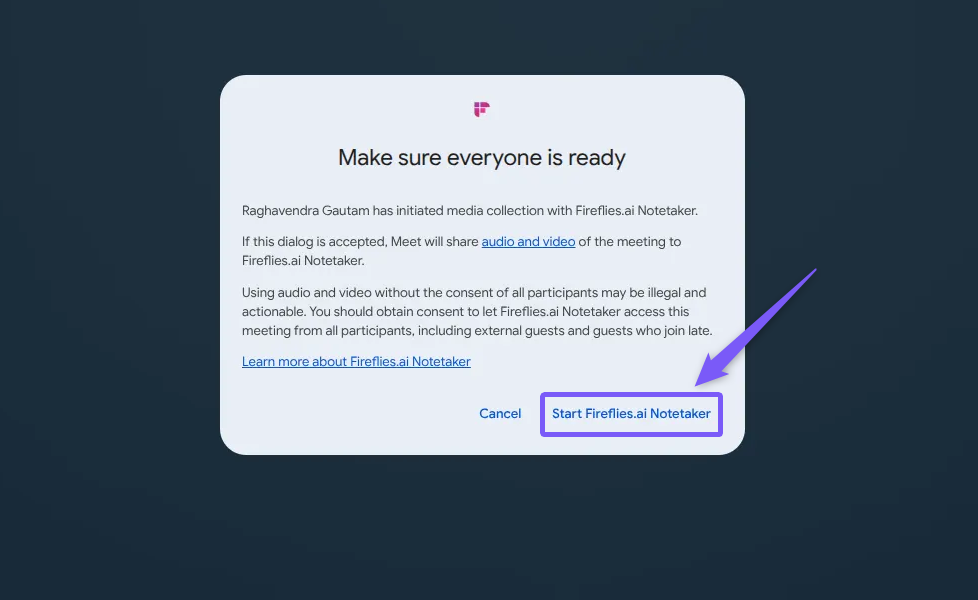
If your team uses the Google Meet SDK, a recording permission pop-up may appear asking participants to confirm that Fireflies.ai Notetaker can access the meeting.
Users must click Start Fireflies.ai Notetaker to allow recording. If they choose Cancel, Fireflies will not join.
If a platform doesn’t show a consent pop-up, Fireflies follows the opt-out flow, and participants can choose to resume, pause, or remove Fireflies at any time.
⏪ Review Notes After the Meeting
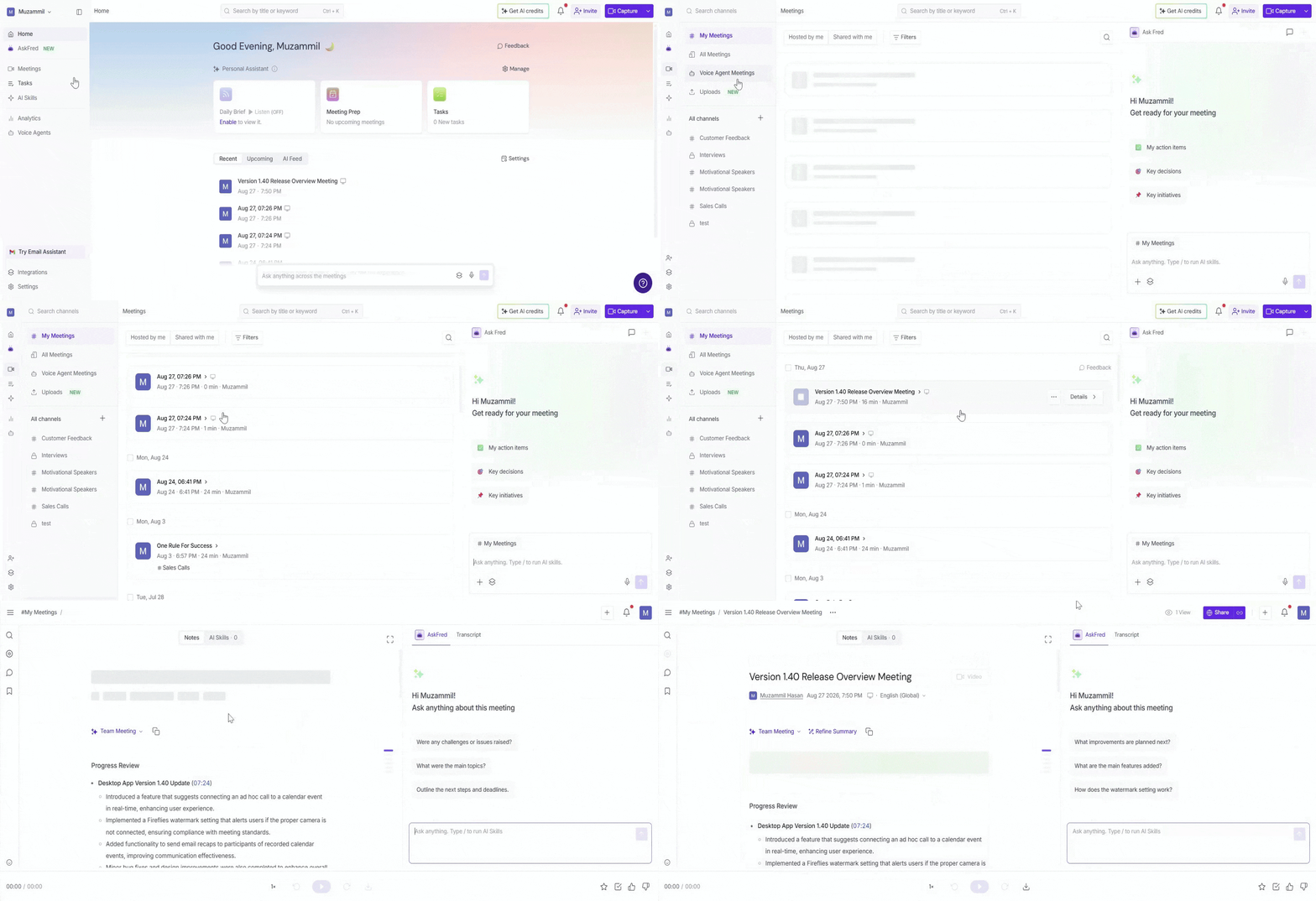
After your meeting is processed, you can view all notes and the full transcript directly from your Fireflies workspace.
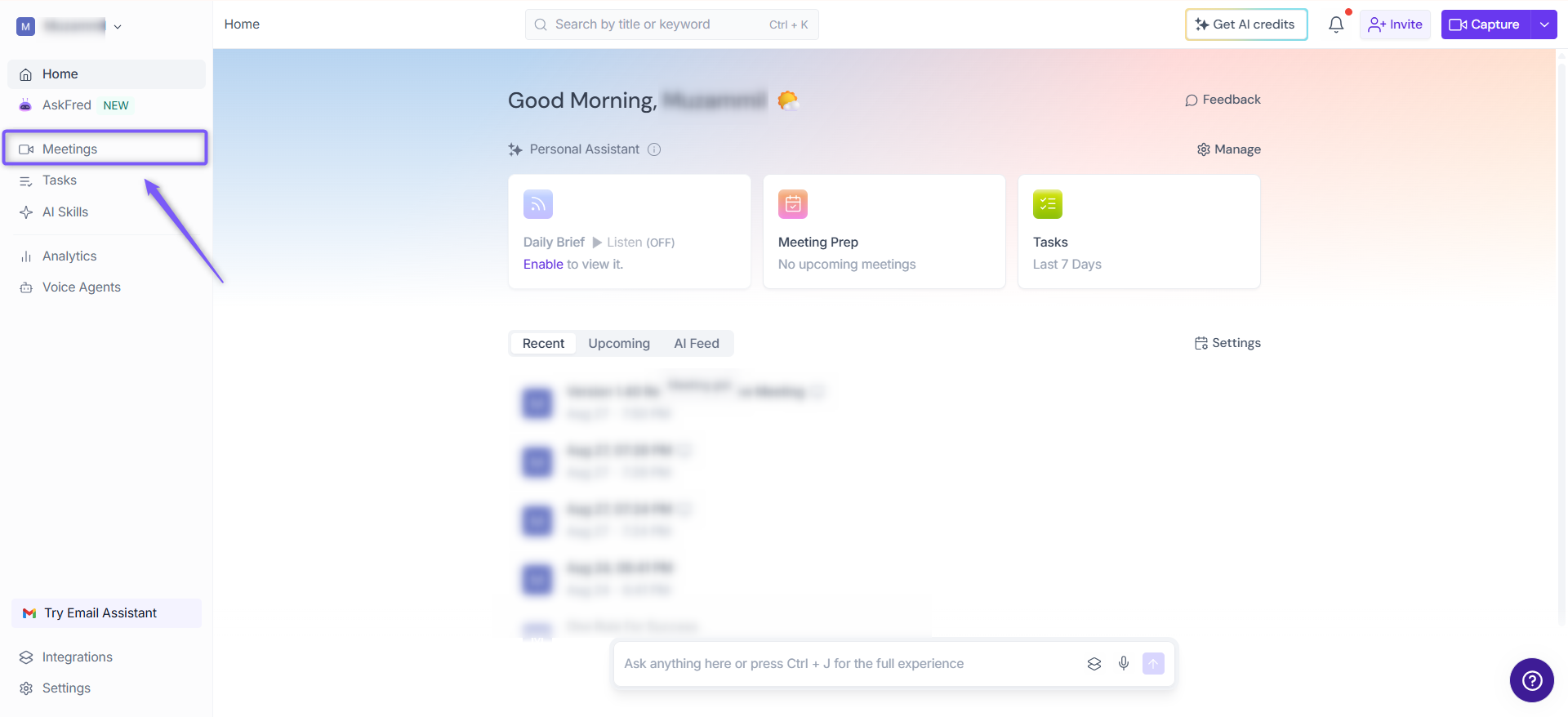
Open your Fireflies Dashboard, then click Meetings from the left sidebar.
Select the meeting you want to review. The complete meeting notes and transcript will appear on the meeting page.
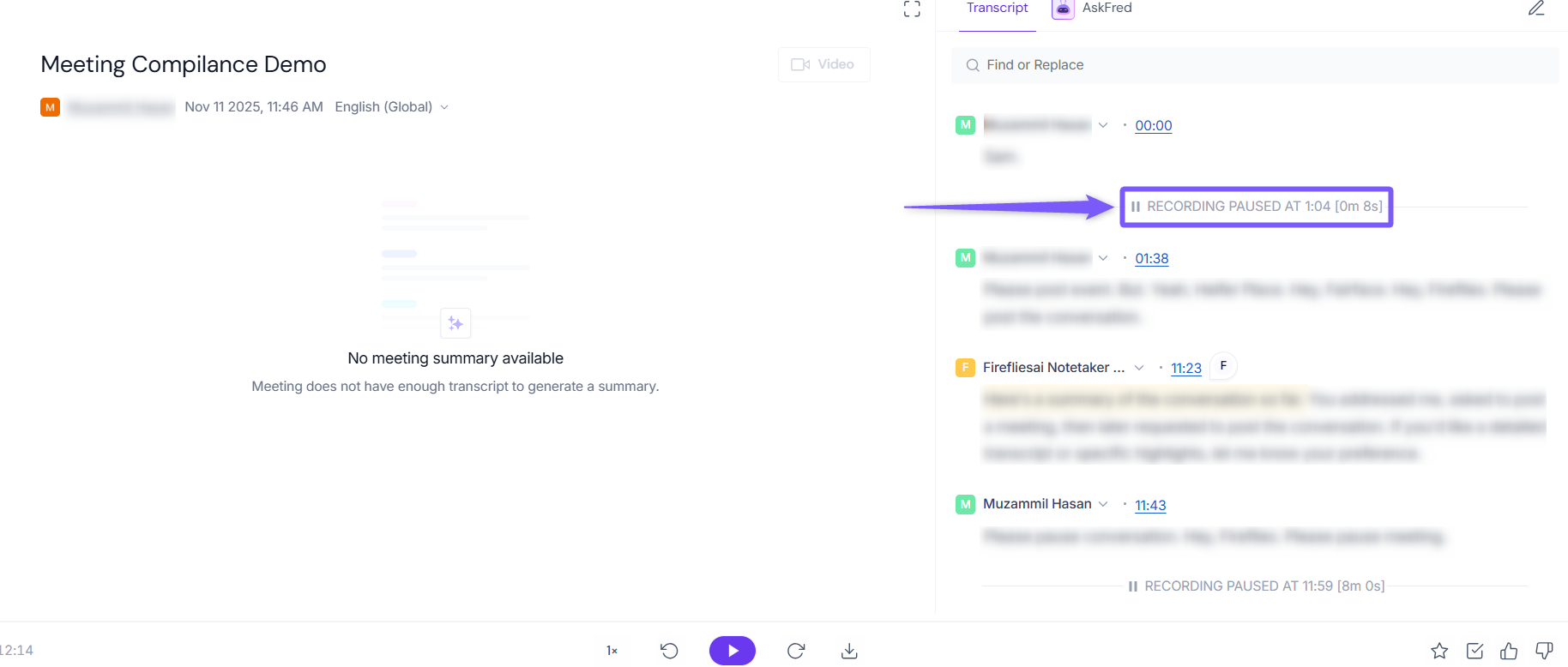
Paused Timestamp (if recording was paused)
When Fireflies is paused during the call, you’ll see a pause marker with the exact timestamp and duration.
Example: “Recording paused at 1:04 PM for 8 seconds.”
❓ Troubleshooting & FAQs
1. Fireflies didn’t join my meeting. Why?
Someone may have declined the recording permission pop-up (Opt-In platforms).
A participant clicked the opt-out link in the 1-hour email.
Fireflies wasn’t invited to the calendar event, or the meeting link changed.
Detailed step‑by‑step troubleshooting guide.
2. I didn’t see a recording consent pop-up. Is something wrong?
Only some platforms (Zoom, Google Meet SDK) show a pop-up.
Others use in-meeting notices instead and follow the Opt-Out flow.
3. Why isn’t /ff pause or /ff resume working?
Make sure you’re typing the command in the active meeting chat.
Some platforms require meeting host/organizer permissions.
These commands are currently only available on Google Meet. Support for other platforms will be rolled out soon.
4. Fireflies didn’t leave the call after using /ff leave.
Double-check you sent the command in the correct meeting chat.
Some platforms may take a few seconds to remove bots from the call.
5. Why don’t I see the paused section in my notes?
Paused sections don’t create transcripts.
Only the timestamp marker and duration will appear in the timeline.
6. Can participants request that recorded data be deleted?
Yes. They can contact the meeting host or Fireflies support to request deletion.
7. Will Fireflies rejoin a meeting after I remove it?
No. Once removed, Fireflies will not rejoin unless the meeting is restarted.
8. I disabled a Desktop App signal — am I still compliant?
The signals help you notify participants, but disabling one means you're responsible for notifying them another way and complying with applicable recording laws.
🔁 Recap
Fireflies always notifies participants to keep meetings transparent and compliant.
Some platforms ask for approval before Fireflies joins (opt-in).
If no pop-up appears, Fireflies uses opt-out, allowing participants to control recording at any time.
You can pause, resume, or remove Fireflies with quick chat commands.
The 1-hour email and in-meeting message help participants understand that the recording is happening.
Paused moments appear clearly in the meeting notes with timestamps.
Desktop App signals (watermark, audio message, chat message) are opt-out — on by default, with the first-use consent modal setting your starting preferences.
Disabling any signal shifts notification responsibility to you.
📚 Related Guides
Policy on Keeping Information Safe—How Fireflies protects your data and handles third-party access.
Responsible and Secure Meeting Notetaking with Fireflies—Best practices for recording, transcribing, and summarizing meetings safely.
How We Encrypt Your Data—Technical details on encryption, data-at-rest, data-in-transit, and storage infrastructure.
Set up HIPAA compliance for your workspace — How to activate HIPAA‑level protections, including private storage and a BAA.
How Consent & Notifications Work on the Fireflies Desktop App → Learn how participants are notified when you use Take Notes and how to manage consent settings.