Integrate Google Meet SDK with Fireflies for Bot-free meeting recording
Last updated: July 22, 2026
The Google Meet SDK integration lets Fireflies record and transcribe meetings without adding the visible Fireflies.ai Notetaker bot.
It uses Google’s official SDK to securely access real-time audio and video streams, giving you a seamless, compliant, and bot-free experience — ideal for teams that value privacy and transparency.
Use this integration only if you want a bot-free experience. Normally, the Fireflies.ai Notetaker bot joins your meeting to record and generate notes. With the Google Meet SDK, recording happens securely — no visible bot needed.
🔍 What Does the Google Meet SDK Integration Do?
With the Google Meet SDK, Fireflies can:
Record meetings natively — no visible Notetaker bot joins.
Ensure participant consent — every attendee must approve before recording begins.
Automatically generate transcripts, recaps, and AI summaries once the meeting ends.
This setup ensures every recording is transparent, secure, and fully compliant with Google’s privacy standards.
🔑 Prerequisites
Before setting up the Google Meet SDK integration with Fireflies, make sure you have the following ready:
An active Fireflies account with the latest update supporting the Google Meet SDK.
A connected Google Workspace account that you use for hosting or joining Google Meet sessions.
The necessary admin permissions in Google Workspace to authorize Meet SDK scopes for recording and media access.
Learn more → How to Set Up Google Workspace Settings.
🔗 Connect Google Meet SDK to Fireflies
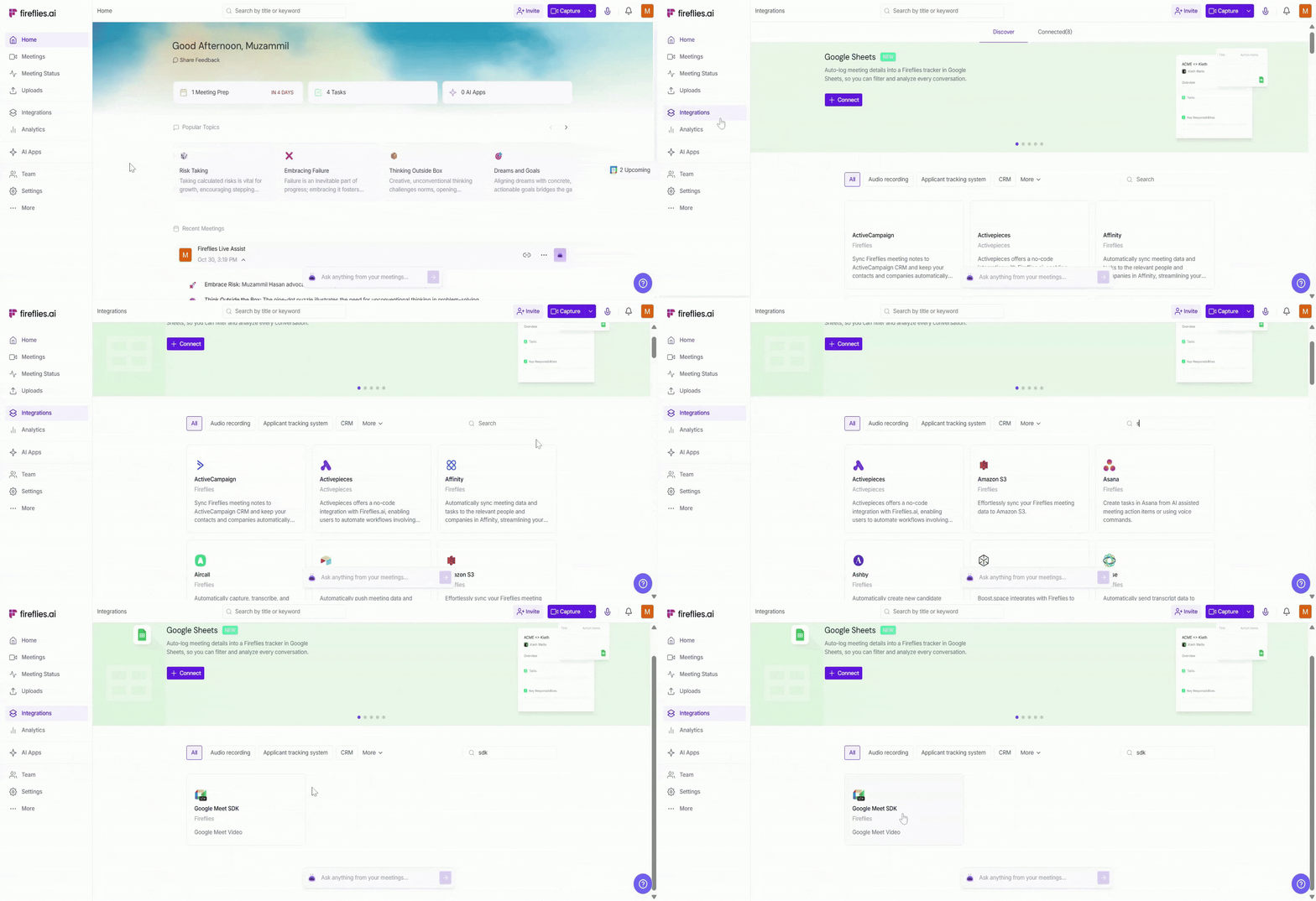
Step 1: Log in to your Fireflies account, go to the Integrations page, and search for Google Meet SDK. Click on it to get started.
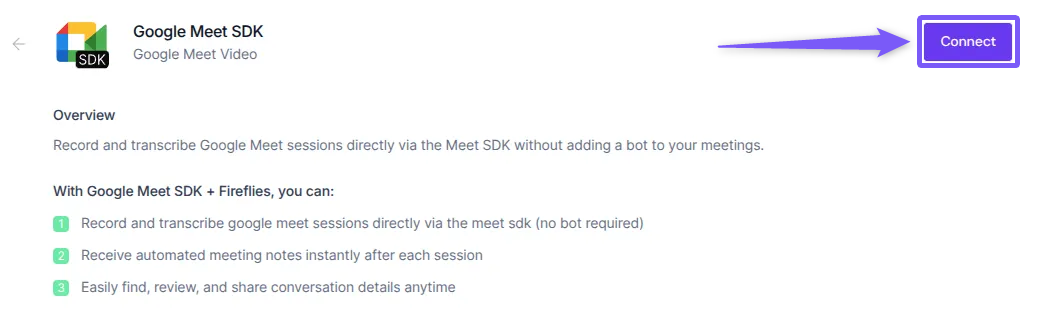
Step 2: Click Connect, sign in with your Google Workspace account, and authorize Fireflies on the Google Meet SDK screen.
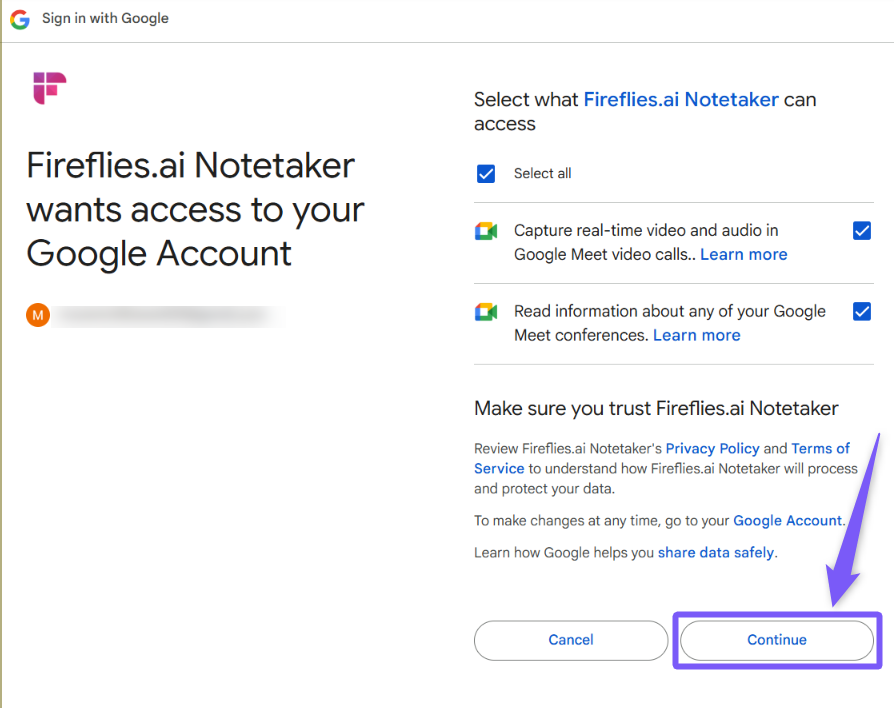
Step 3: Click the Continue button to authorize Fireflies.ai Notetaker to capture real-time video, audio, and read meeting details through the Google Meet SDK.
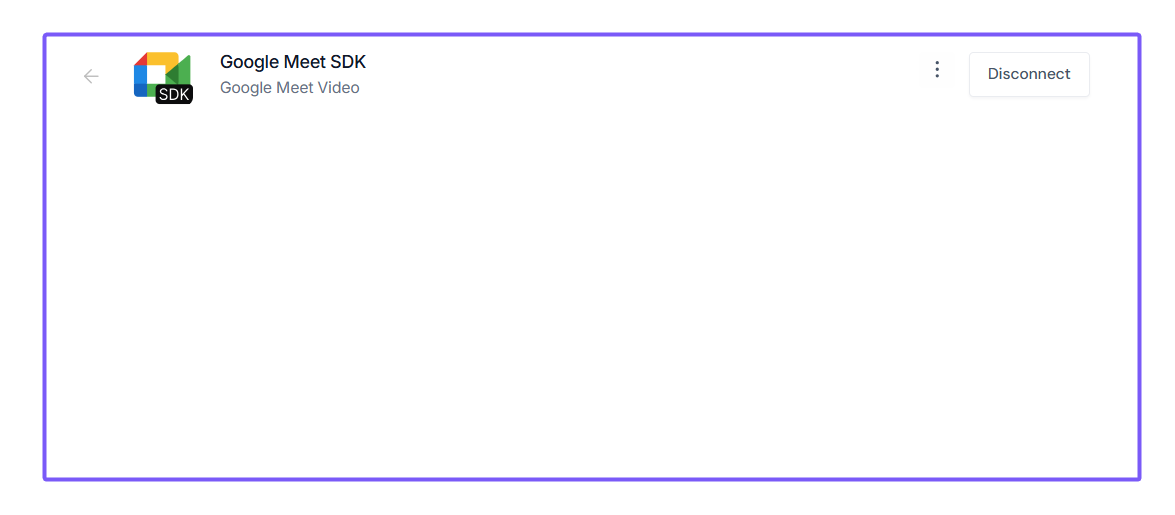
Step 4: Once approved, you’ll be redirected back to Fireflies to configure your integration setup.
🚀 What Happens After the Integration is Connected
Once your Google Meet SDK integration is active, you can start recording meetings directly through the SDK — no visible Notetaker bot required.
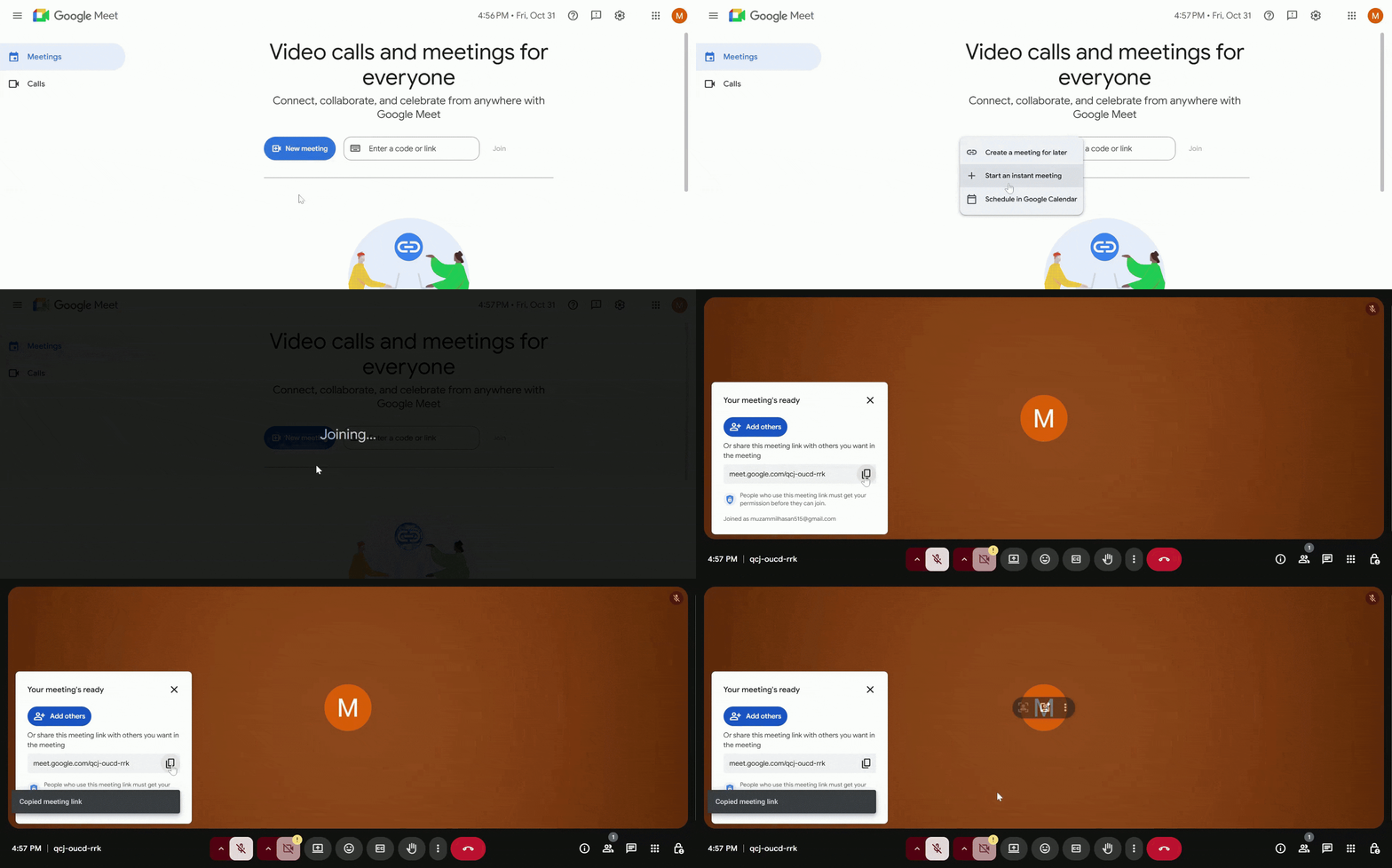
Step 1: Create a New Google Meet
Start a new Google Meet session (for demo purposes) and copy the meeting link or code. You’ll use this link in Fireflies to begin recording through the SDK.
Learn more: We allow "Add to Live" and "Auto Record" features for inviting Fireflies to the meeting.
You can automatically invite Fireflies to your Google Meet meetings using your connected Google Calendar. Check out this guide → How to Invite Fireflies to Meetings.
Step 2: Add the Meeting Link in Fireflies
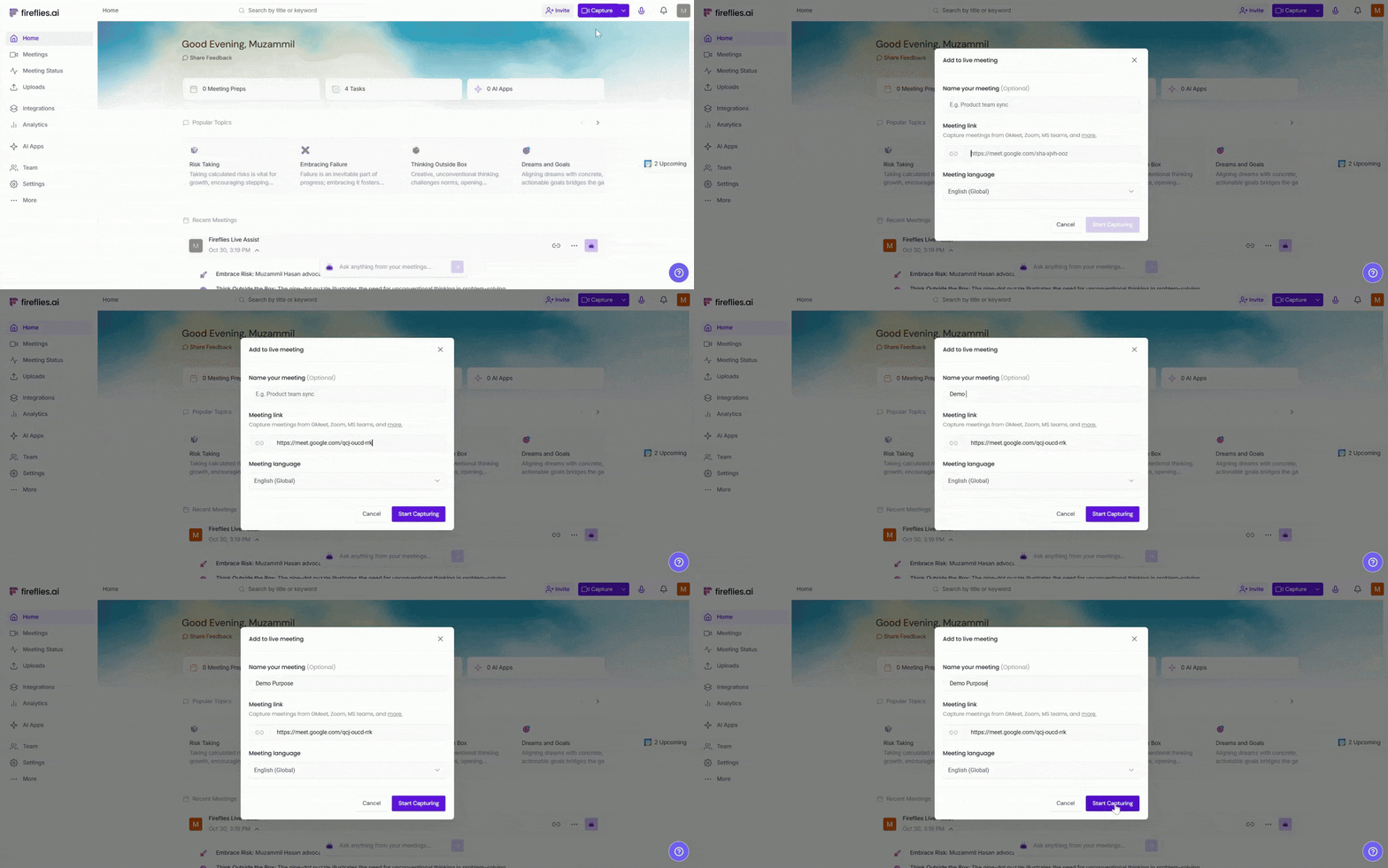
Open your Fireflies web app, click Capture Meeting, and paste the copied Google Meet link or code. Enter a meeting name (optional) and click Start Capturing to begin recording through the SDK.
Step 3: Approve the Recording Request
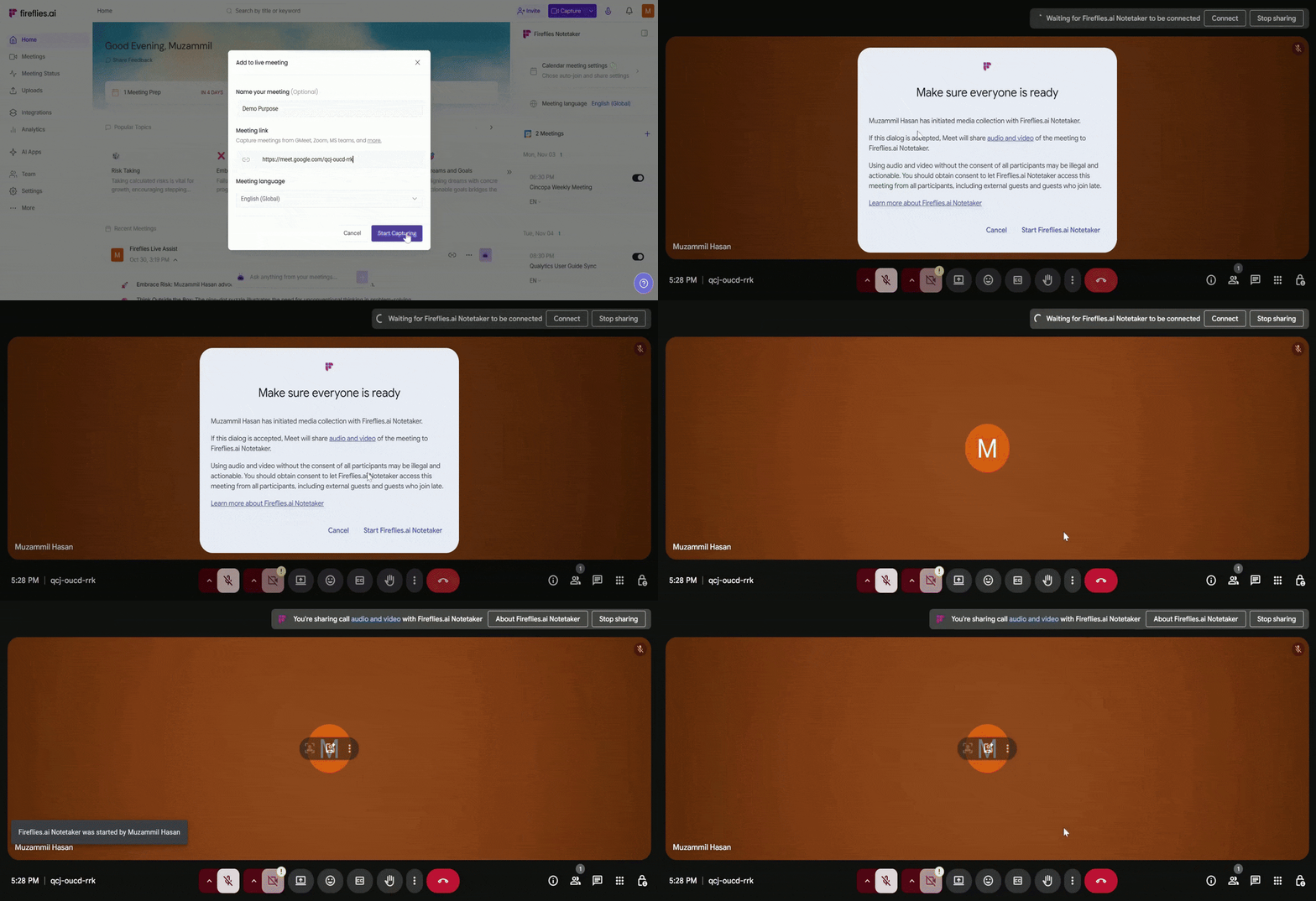
Once your Google Meet session starts, a “Make sure everyone is ready” prompt will appear.
Click Start Fireflies.ai Notetaker to allow Google Meet to securely share your audio and video with Fireflies for recording.
All participants in the meeting will see the same consent prompt and can choose to approve or cancel the request.
When approved, the recording begins automatically through the Google Meet SDK, providing a Bot-free and fully transparent experience — no visible Fireflies.ai Notetaker joins the meeting.
Step 4: Recording in Progress
When your Google Meet session starts, all participants see a consent prompt. Recording begins once at least one participant approves. If a participant does not respond, it does not block recording.
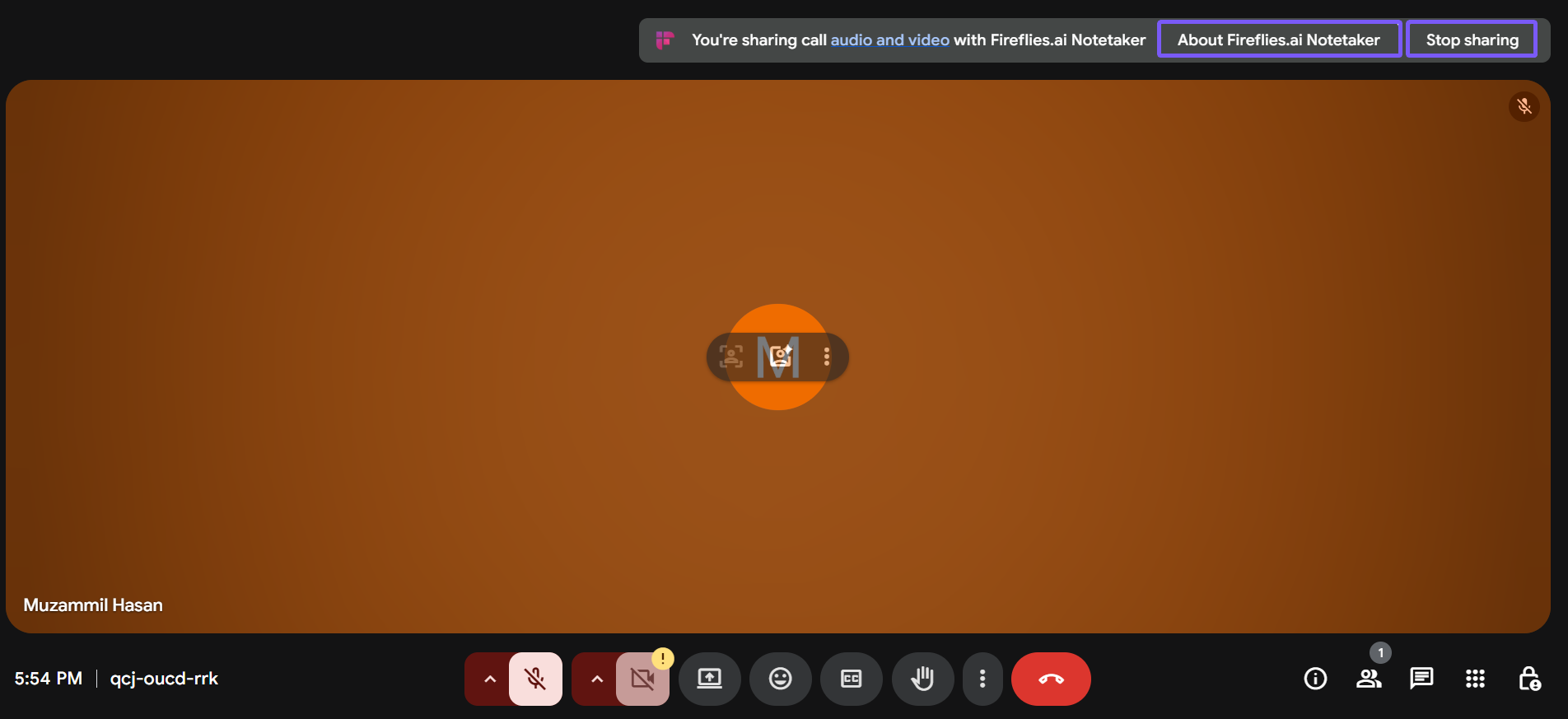
You’ll see a banner at the top of the screen confirming that audio and video are being shared with Fireflies.ai Notetaker. This confirms that recording is active, even though no visible Notetaker bot appears in the meeting — the Google Meet SDK securely manages everything in the background for a smooth, bot-free experience.
Only one participant needs to approve the recording for it to start. Other participants can still choose to stop sharing anytime if they don’t wish to continue recording.
Step 5: View or Stop the Recording
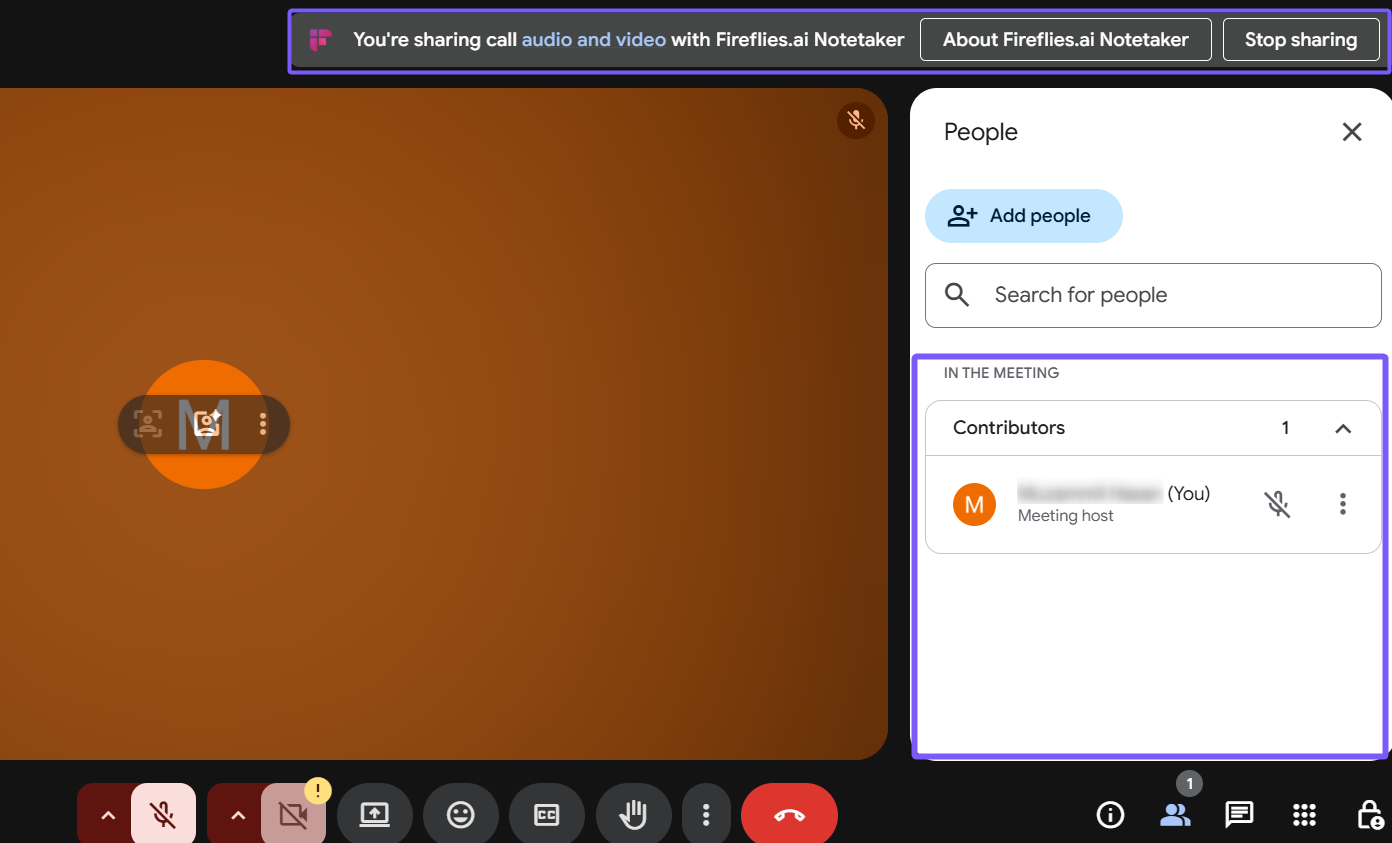
While the recording is in progress, you’ll see a banner at the top showing “You’re sharing call audio and video with Fireflies.ai Notetaker.”
Click About Fireflies.ai Notetaker to view recording details or Stop sharing anytime to end the recording. If any participant declines at any point the recording stops immediately.
🗂 View Meeting Notes in Fireflies
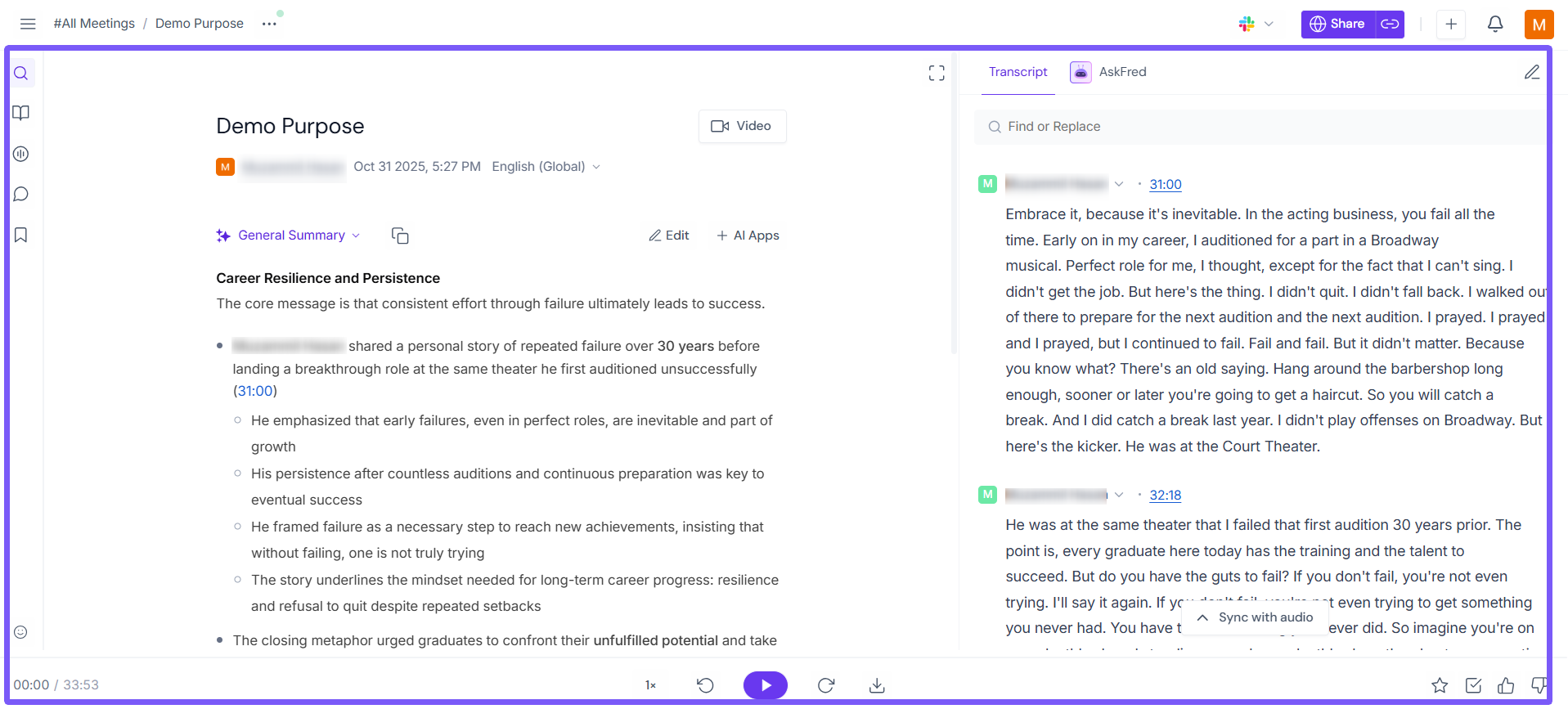
Once the meeting ends, Fireflies automatically processes your recap, transcript, and AI summary. You can find all your meeting data inside the Fireflies Notebook, organized by meeting title and date.
From there, you can search, edit, share, or export your notes to tools like Google Docs, Notion, or OneNote for easy collaboration.
❌ Disconnect Integration
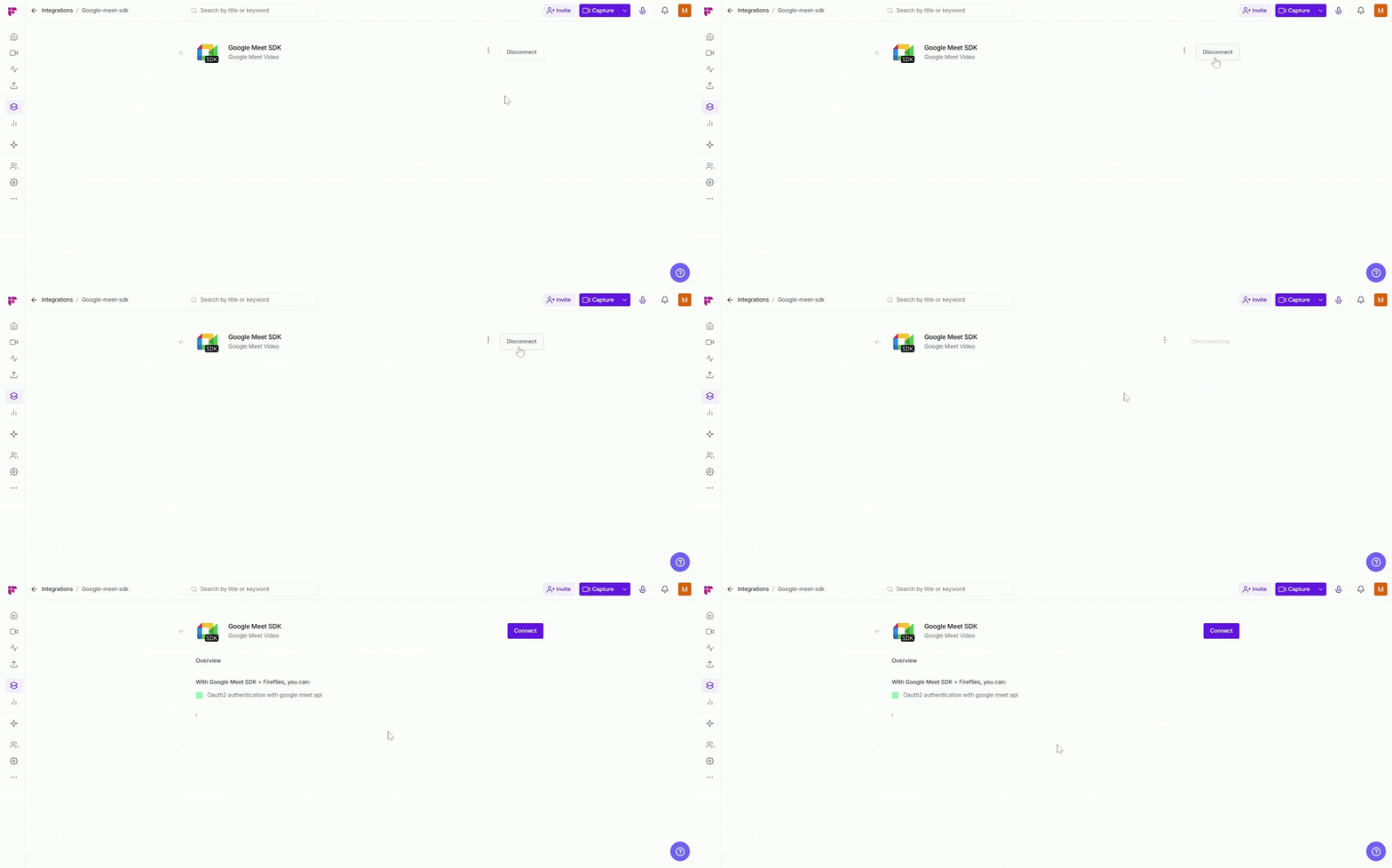
If you no longer need Fireflies connected to Google Meet SDK — for example, if your team switches back to the standard Notetaker bot — you can disconnect it anytime in just one click.
Click the Disconnect button to remove the Google Meet SDK integration. This immediately ends the connection, and Fireflies will no longer record meetings through the SDK.
Once disconnected, Fireflies will stop capturing meetings via the Google Meet SDK. You can always reconnect later if you decide to use the SDK-based, bot-free recording again.
🛠 Troubleshooting
Issue | What to Check / Do |
Recording didn’t start | Ensure the Google Meet SDK integration is connected correctly in your Fireflies account. If permissions were denied during setup, reconnect and click Allow when prompted. |
Participants didn’t see a consent prompt | The SDK begins recording once a participant from the same domain as the meeting host approves the request. Others can still stop sharing anytime if they don’t want to be recorded. |
Only a few participants’ audio/video recorded | The Google Meet SDK captures audio and video from up to three active participants at a time — this is a Google API limitation. |
No chat or captions captured | The SDK currently doesn’t support chat messages or captions — only live audio and video streams are recorded. |
Recording stopped midway | If someone clicks Stop sharing, the recording ends immediately. Start a new capture from Fireflies if needed. |
Integration is missing or disconnected | Go to the Integrations tab in Fireflies, locate Google Meet SDK, and reconnect it. Confirm that Google Workspace admin access is enabled. |
Still stuck? Contact support via this link for more help.
❓ Frequently Asked Questions
Q1. Does Fireflies record the entire meeting through the SDK?
Yes — once a participant from the same domain as the meeting host approves, Fireflies records the meeting using the Google Meet SDK until someone stops sharing or the meeting ends.
Q2. Will chat messages or captions be saved?
No — the SDK does not capture chat or caption data at this time. Only audio and video streams are included.
Q3. Can multiple bots or integrations join a meeting simultaneously?
No — Google Meet SDK supports only one active integration per meeting session. You cannot run multiple recording tools together.
Q4. How do I stop the recording?
Click Stop sharing in Google Meet. The SDK will immediately stop capturing, and Fireflies will process your recap, transcript, and summary automatically.
Q5. What happens after the recording ends?
Once the meeting ends, Fireflies automatically processes your recording and publishes your recap, transcript, and AI summary in your Fireflies Notebook.
🔁 Recap
The Google Meet SDK integration lets Fireflies record meetings natively, without the visible Notetaker bot.
Bot-free experience → Fireflies records meetings directly through the Google Meet SDK.
Consent required: Recording starts once a participant from the host’s domain approves. Others can still stop sharing anytime.
Transparent experience: Everyone is notified once the recording is active.
Compliance ready: Built to meet Google’s privacy and consent guidelines.
Seamless automation → Recordings automatically generate recaps, transcripts, and AI summaries in your Fireflies workspace.
This integration is ideal for teams that prioritize privacy, compliance, and a cleaner, bot-free meeting experience.
📚 Related Guides
How to Change the Name of the Fireflies Notetaker Bot › → Customize the name of the Fireflies Notetaker that joins your meetings.
How to Add Fireflies to an Ongoing Meeting › → Learn how to manually invite Fireflies to a meeting that’s already in progress.
How to Download Transcripts, Summaries & Meeting Recordings from Fireflies › → Understand how to export your meeting data after Fireflies has processed it.
Supported Web Conferencing Platforms › → Check the full list of conferencing tools Fireflies supports, including Zoom, Teams, and Google Meet.