How to Troubleshoot Transcription Language Issues
Last updated: April 23, 2026
Here are some common troubleshooting steps you can follow when facing issues related to transcription language in Fireflies.
👉 Want to know which languages Fireflies supports? See: Learn about Fireflies supported languages.
1. Retranscribe a Meeting to a Different Language
If your meeting was transcribed in the wrong language, you can retranscribe it directly in Fireflies.
Option 1: Retranscribe in Fireflies
Follow these steps to retranscribe your meeting:
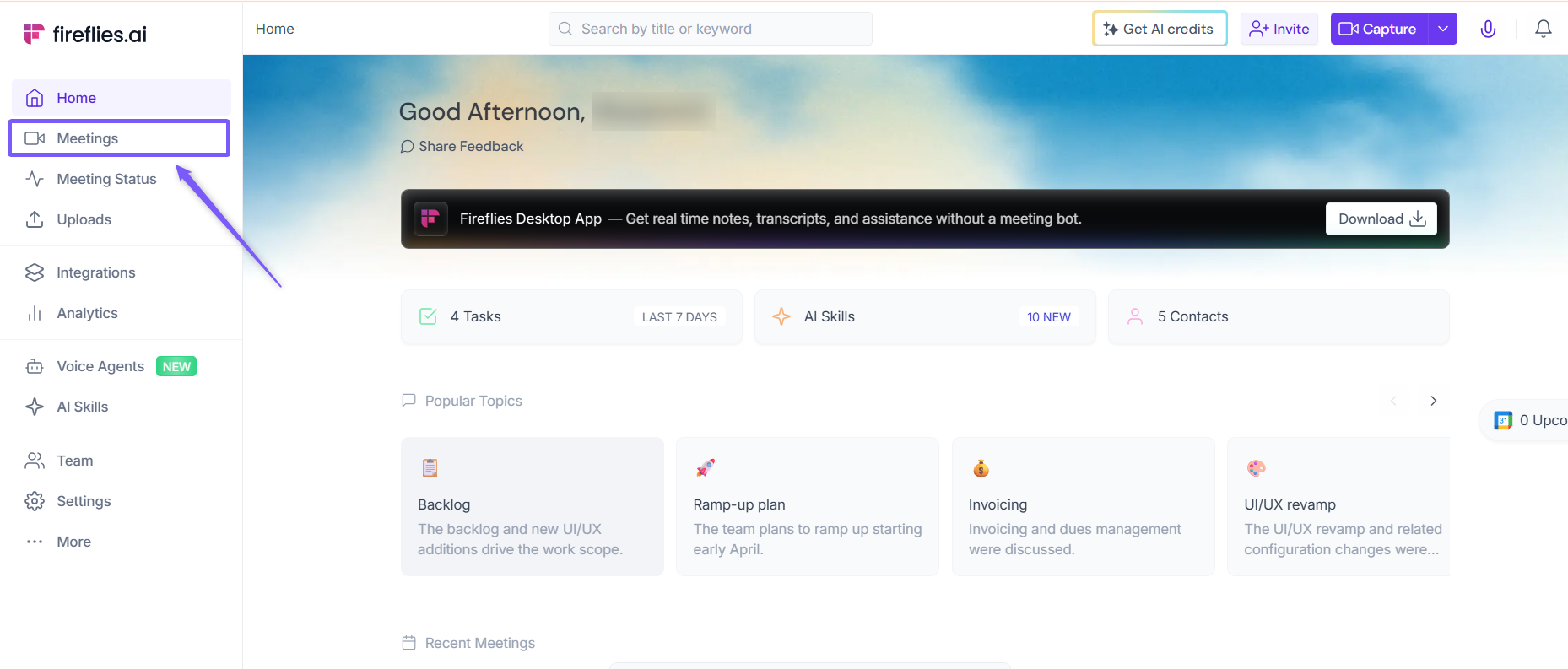
1. Log in to your Fireflies account and click on the Meetings tab from the left-hand menu to open your meeting notebook.
2. Open the meeting you want to share from your Meetings notebook.
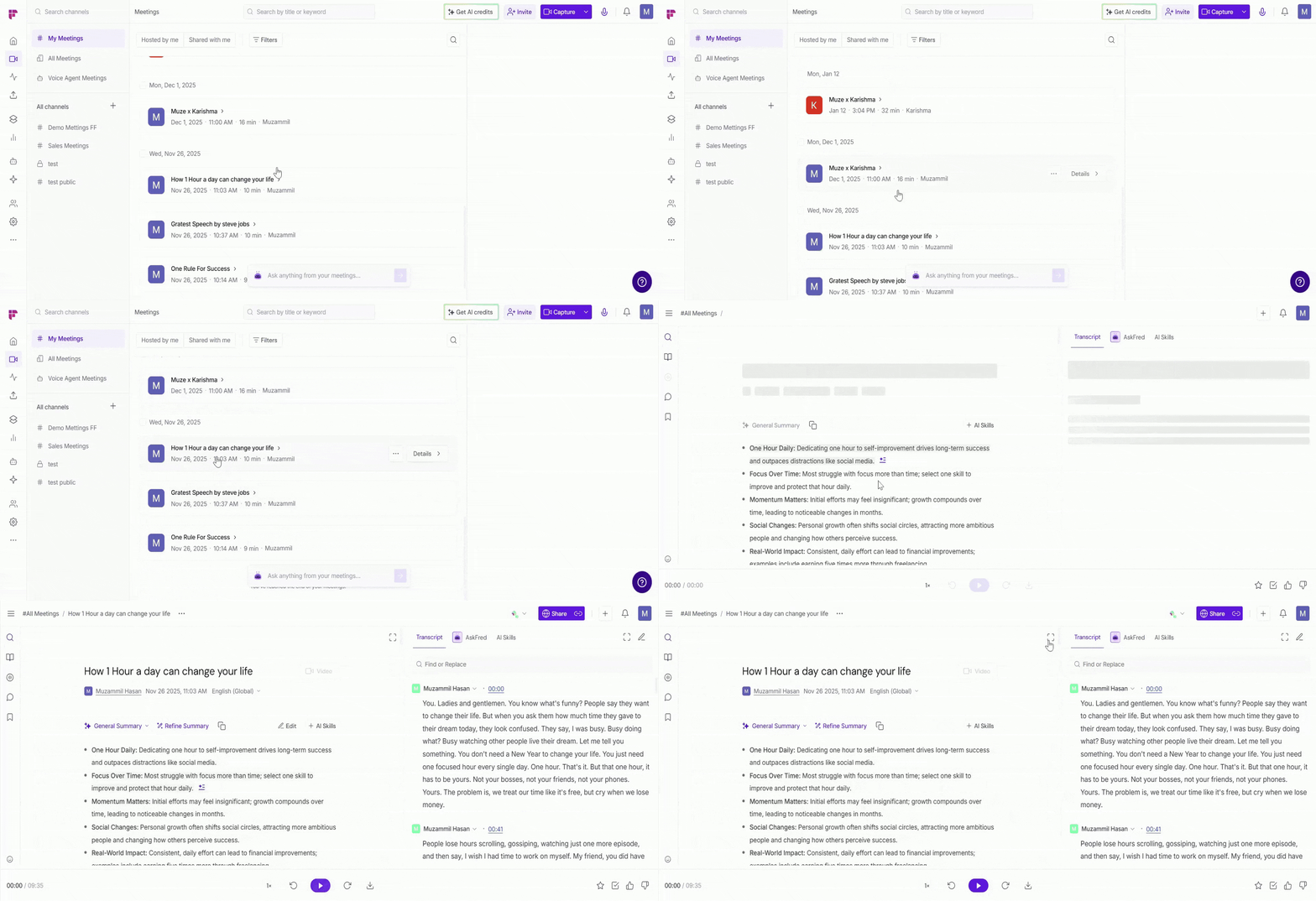
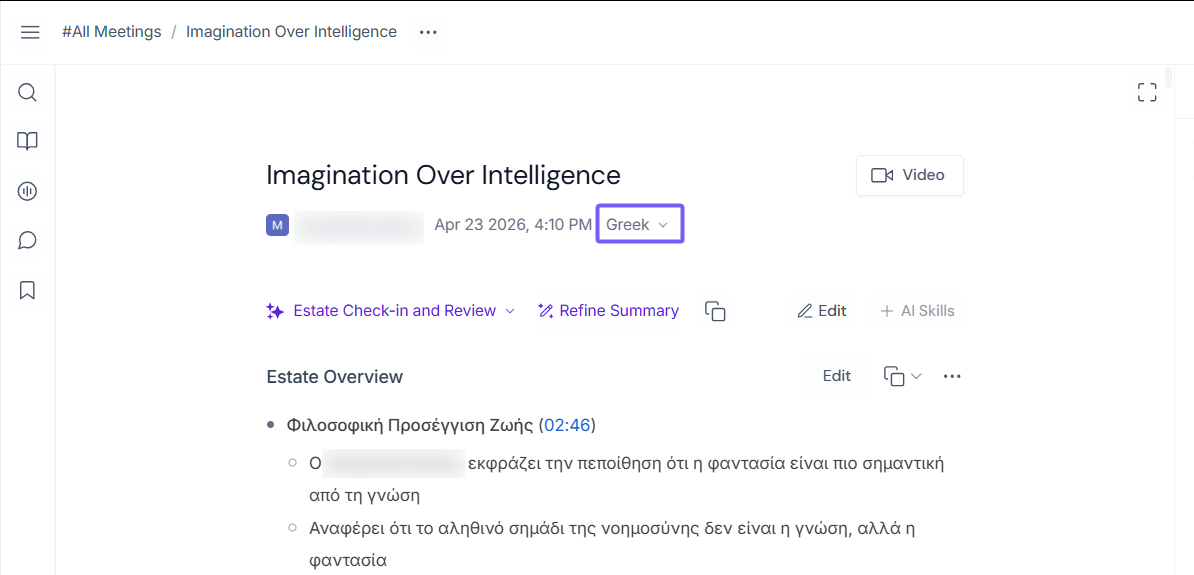
3. Click the current meeting language shown below the meeting title, then choose or search for the language you want to retranscribe the meeting in.
💡Alternatively, you can click the three-dot (⋯) menu and select Update Language.
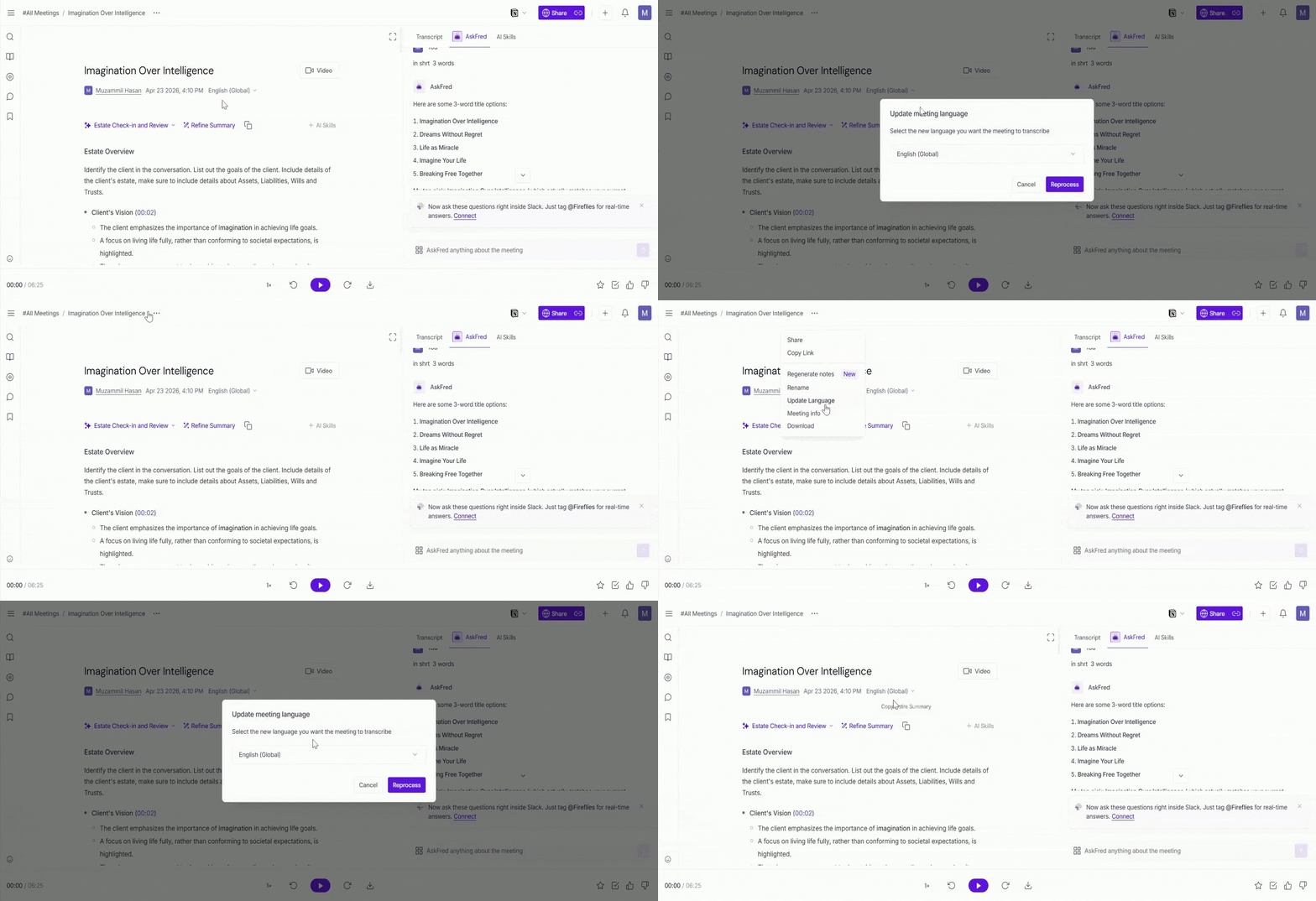
4. Select or search for the language you want to retranscribe the meeting in (for example, Greek), then click Reprocess.
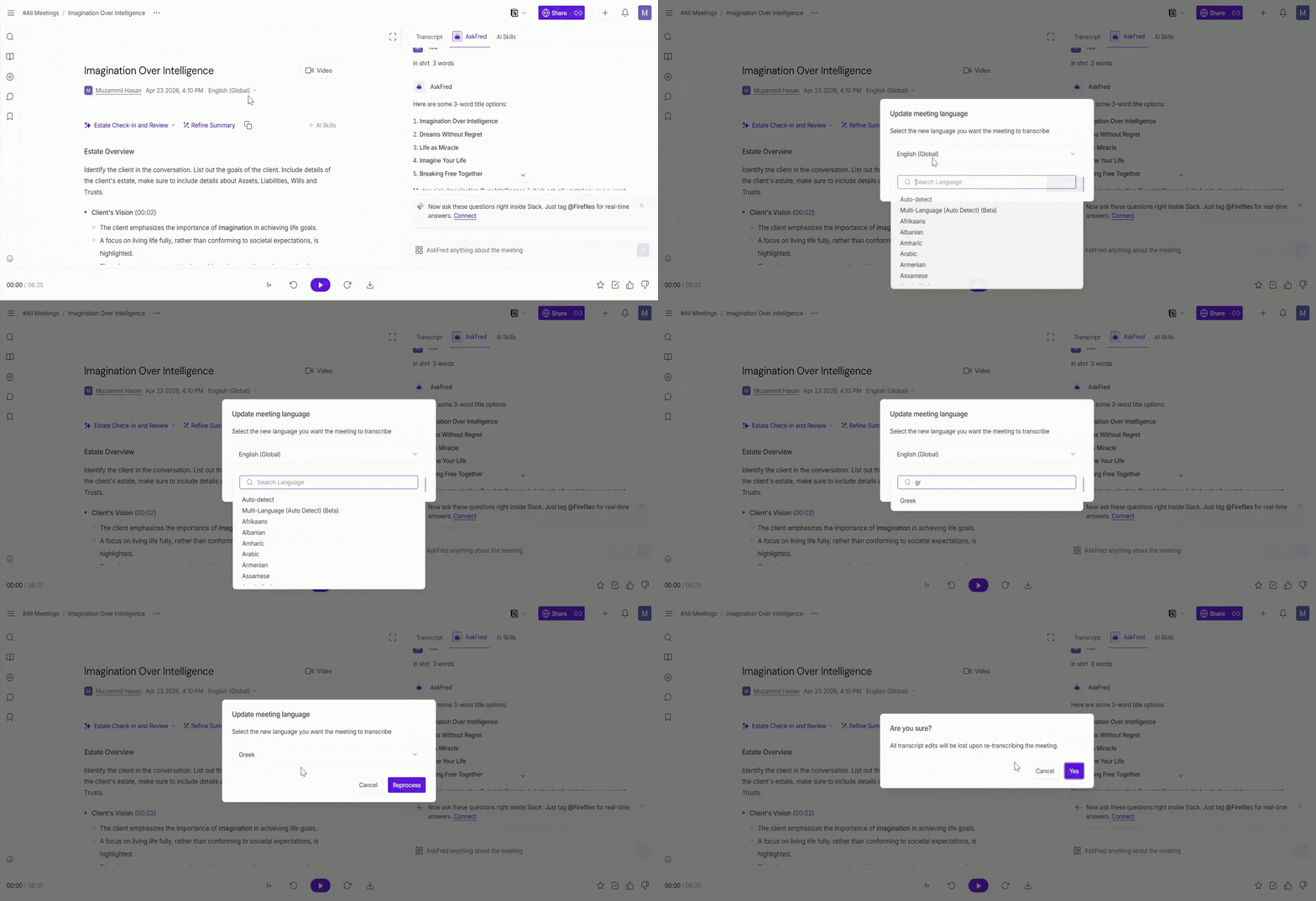
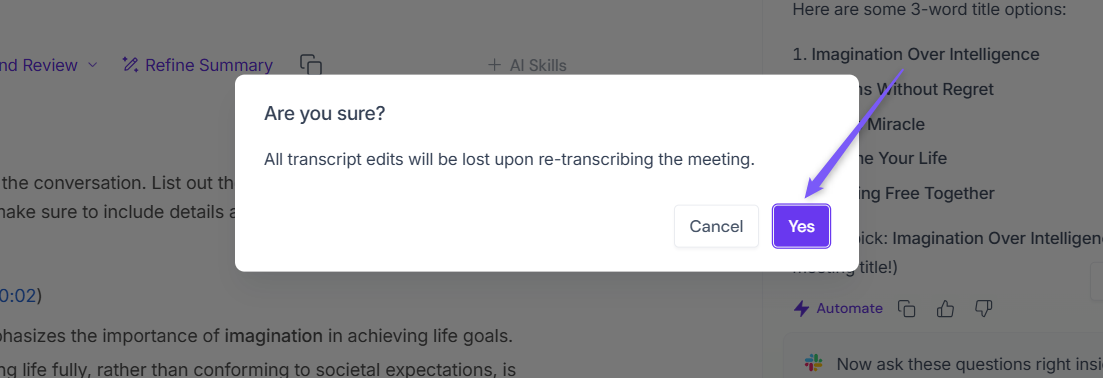
5. A confirmation dialog will appear. Click Yes to continue.
⚠ Warning: All transcript edits will be lost when re-transcribing the meeting.
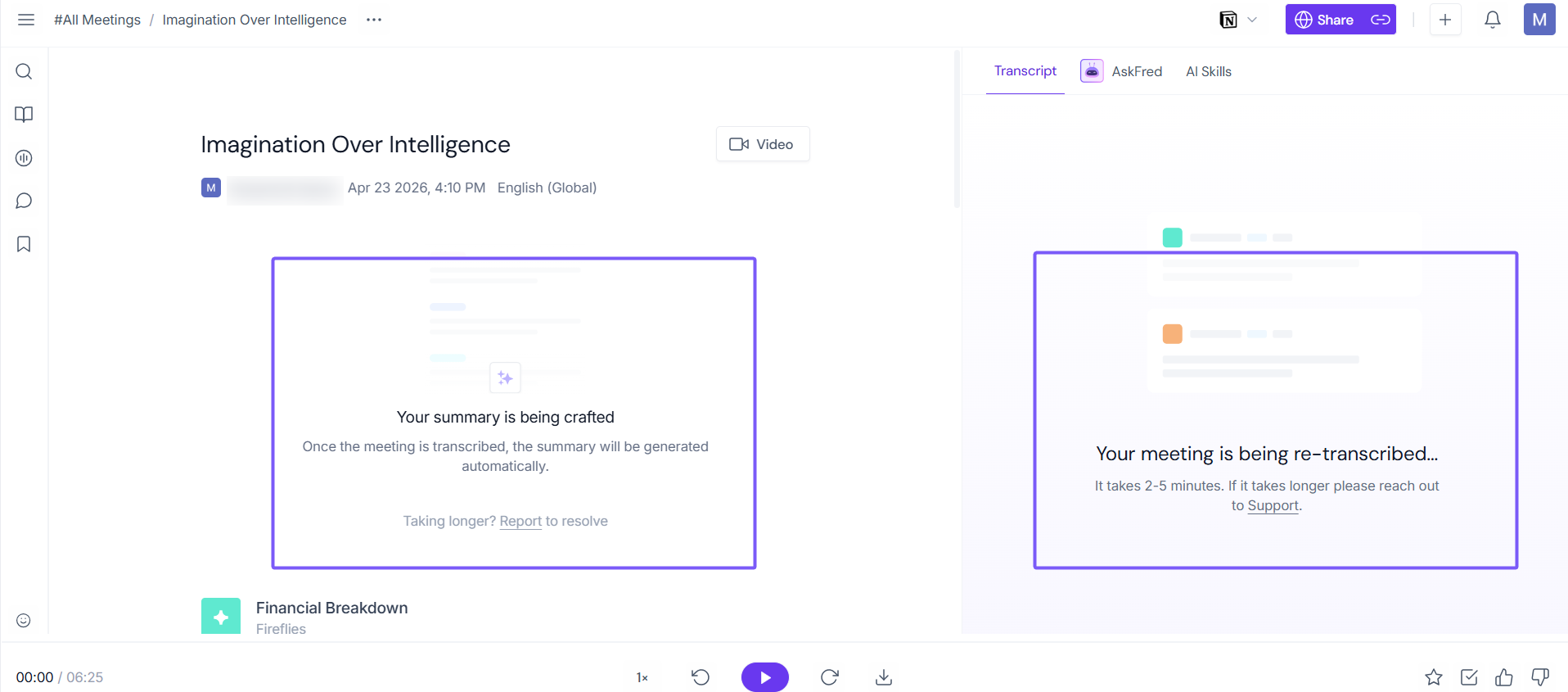
6. Fireflies will start reprocessing the meeting and generate a new transcript in the selected language. This may take around 2–5 minutes, depending on the meeting length.
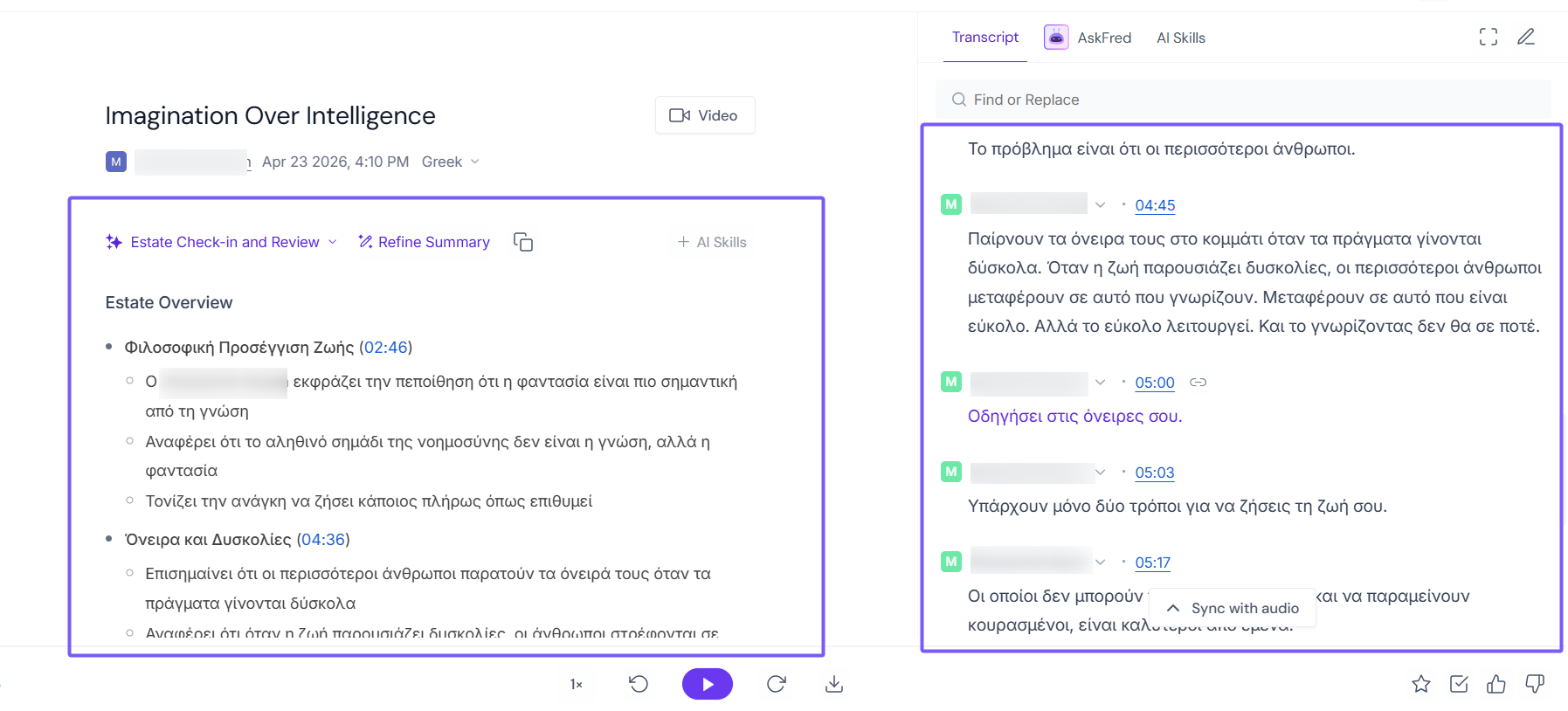
7. Once reprocessing is complete, refresh the page to view the updated transcript and summary in the selected language.
A meeting can only be retranscribed up to 3 times, so make sure to select the correct language before reprocessing.
📌Related: How to change the language for a specific meeting
Option 2: Re-upload the Recording
Alternatively, you can download the meeting recording and upload it again to Fireflies.
While uploading:
Select the correct language
Start transcription again
👉 Related: How to upload and transcribe a meeting recording file to the Fireflies.ai web app
Option 3: Contact Fireflies Support
If you’ve reached the retranscription limit or are unable to retranscribe the meeting, contact the Fireflies Support Team for help.
Please share the following details:
Meeting ID — You can find it in the meeting recap URL.
Example:https://app.fireflies.ai/view/Mock-call::WymMQoHhbV47FVeL
Here, the Meeting ID is: WymMQoHhbV47FVeLTarget Language — The language you want the meeting to be retranscribed in.
Once shared, the support team will help reprocess the meeting.
2. Summaries Were Transcribed in a Different Language
If your transcript is in the correct language but the summary appears in a different language, this may be due to a technical issue. You can fix it by regenerating the summary.
Follow these steps:
1. Verify that the correct meeting language is selected from the current language option shown below the meeting title.
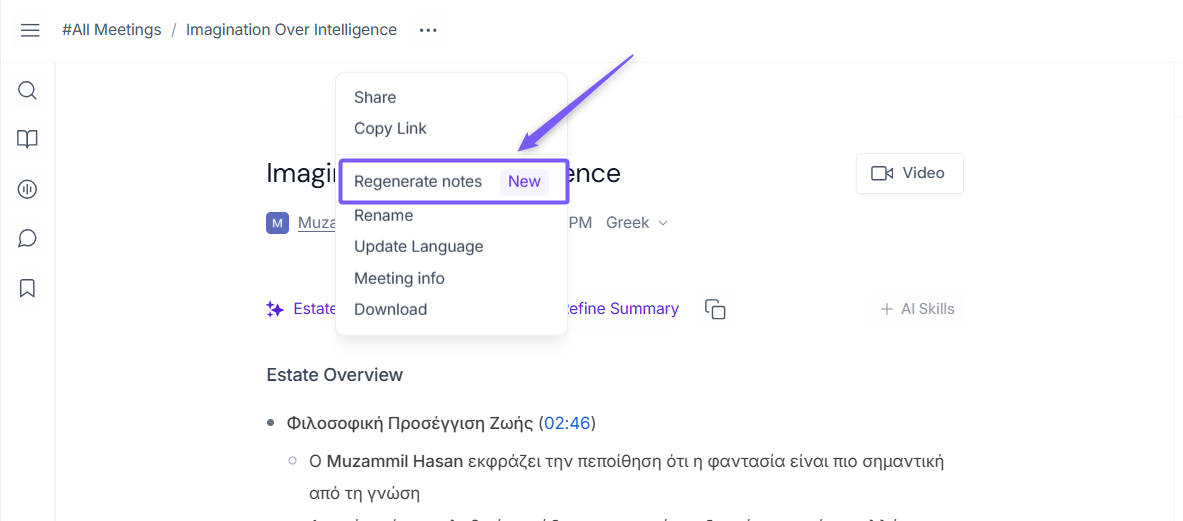
2. Click the three-dot (⋯) menu in the top-right corner of the meeting recap and select Regenerate notes.
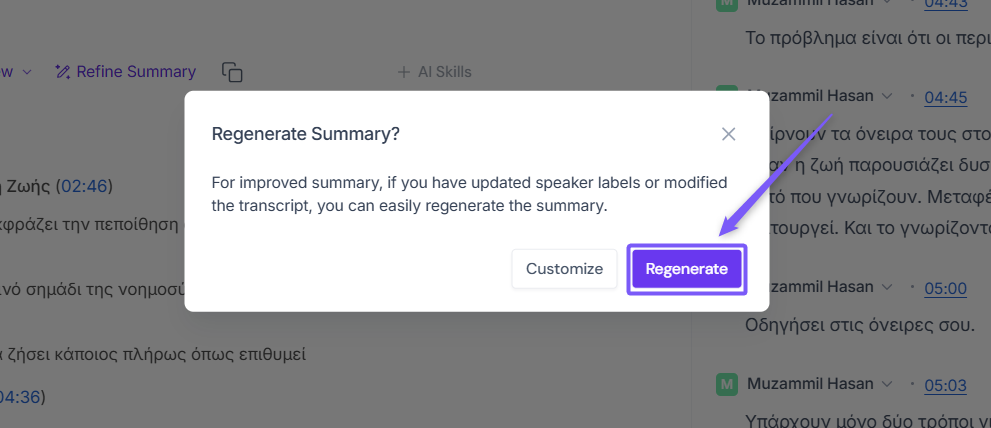
3. A confirmation popup will appear. Click Regenerate.
4. Fireflies will regenerate the summary in the selected meeting language.
💡 Tip: If you have updated speaker labels or modified the transcript, regenerating the summary can improve accuracy.
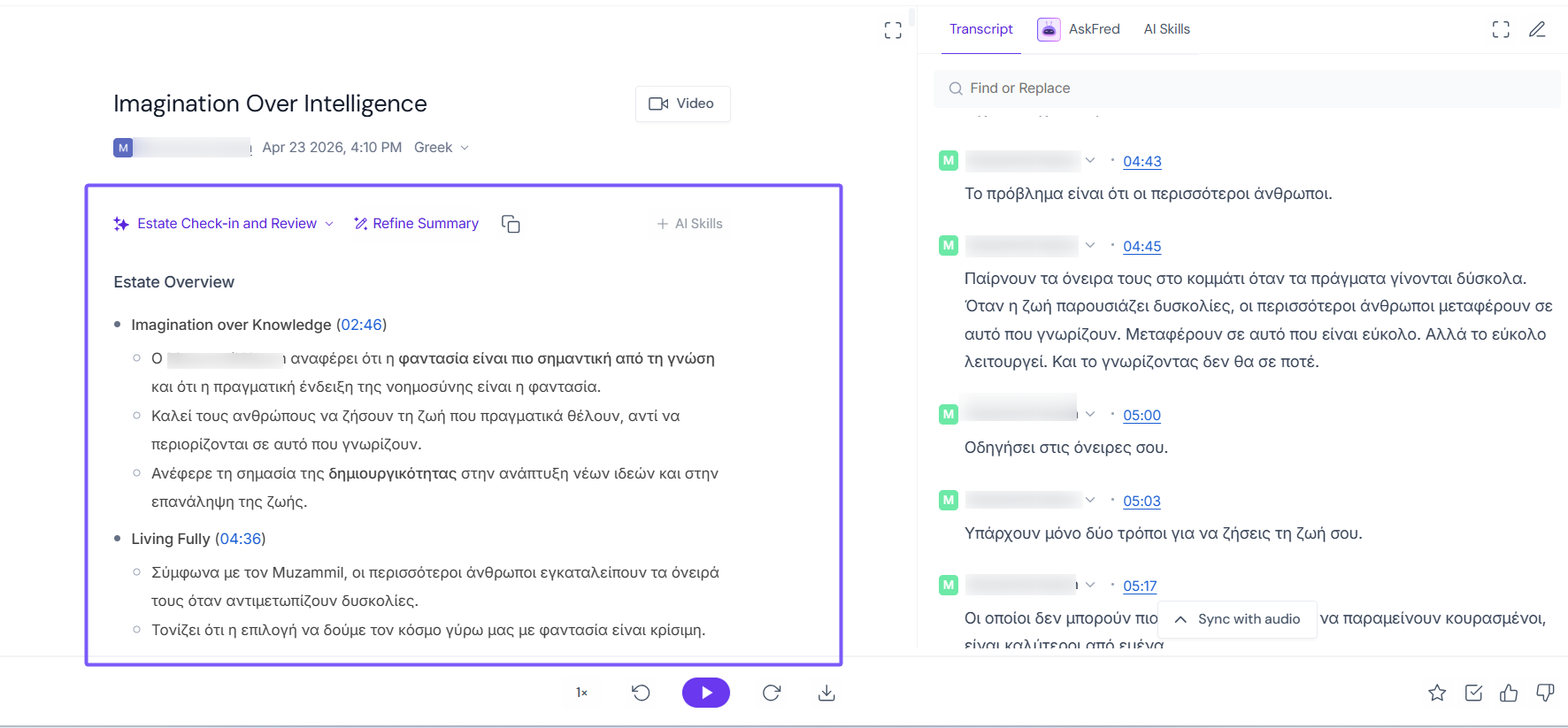
By following these steps, you should be able to correct the language mismatch between your meeting summary and transcript.
3. Transcribe Multiple Languages in the Same Meeting
If your meeting includes speakers using multiple languages, you can use Multi-Language Mode (Beta) to automatically detect and transcribe all supported languages in the same meeting. This is available on Business and Enterprise plans.