Pre-Meeting Setup: All you need to do for the best meeting experience
Last updated: October 19, 2026
This guide walks you through everything you need to configure before a meeting so Fireflies can capture and process your calls exactly how you want.
Whether you're using Zoom, Microsoft Teams, Google Meet, or uploading calls, Fireflies needs the right environment and settings to work smoothly.
🔗 Are you a Team Admin looking to set-up a Fireflies Workspace for your team? Head to this Guide: Learn about Team Settings
Want a quick walkthrough first? Watch this first week office hours replay to see how to choose which meetings Fireflies joins, keep sensitive calls out with recording rules, get notes and action items automatically, route them to Slack, your CRM, or your task manager, and set up your first AI Skill. Then follow the steps below to get your account ready before your next meeting.
✅ 1. Account Setup
A. 🔁 Auto-Join Preferences
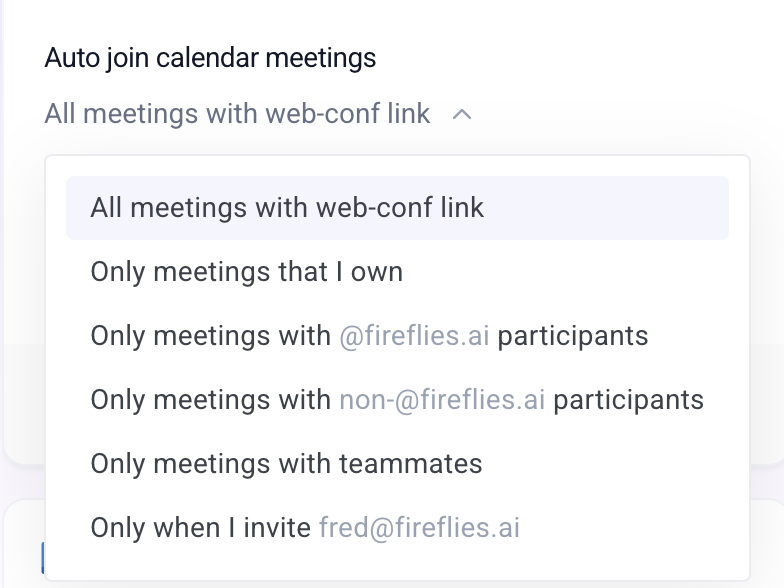
Why this matters: This controls when Fred (the Fireflies AI bot) joins your meetings. You can automate it or keep it invite-only, depending on how much control you want.
By default, Fred joins all your meetings with a web-conf link
Where to find it:
Option 1 From the Home Dashboard (right panel)
Option 2 Settings → Meeting Settings → Auto-Join Preferences
📘 Set it up with the with the Step-by-step guide → Auto-Join Settings
B. 📩 Email Recap Settings
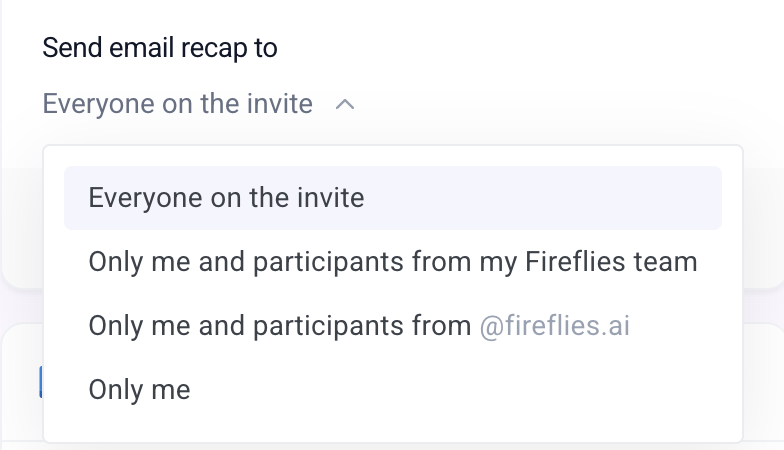
Why this matters: Decides who receives the meeting summary via email. You don’t want sensitive info going to the wrong inbox! Doesn’t affect who can access the notes in Fireflies—just who gets emailed.
Where to find it:
Option 1: From the Home Dashboard (right panel)
Option 2: Settings → Meeting Settings → Email Delivery
📘 Set it up with the Step-by-step guide → Email Recap Delivery
C. 🔒 Privacy Settings
Why this matters: Controls who can view the meeting inside Fireflies—not just who gets the email.
Where to find it on your Fireflies Dashboard:Settings → Meeting Settings → Privacy Settings
📘 Set it up with this step-by-step Guide → Privacy Settings for Meeting Recaps
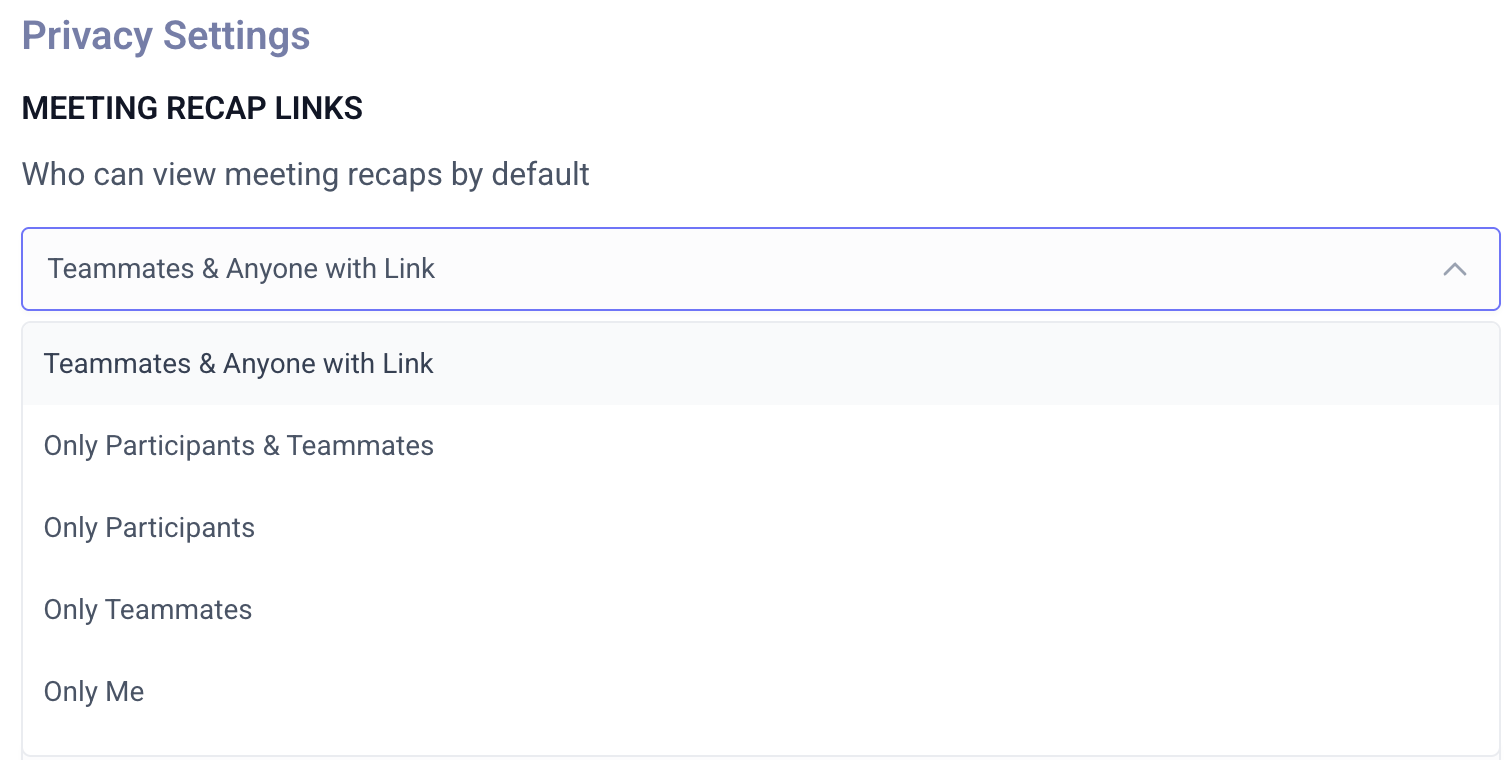
📖 Note you can also change the privacy settings of any meeting individually after its processed by following these steps
D. 🌍 Meeting Language
Why this matters: Choose the language Fireflies should transcribe in—supports 100+ languages. It's set to English (Global) by default
Where to find it:
Option 1: Fireflies Dashboard on the Right Panel below Meeting Recap Settings
Option 2: Settings → Meeting Settings → Meeting Language
📘 Set it up with this Setp-by-step Guide → Meeting Language

📖 Note: You can also change the language of individual meetings following these steps
E. 📹 Meeting Video Recordings
Why this matters: Want to capture full video along with the transcript? Turn this on if you’re on Business or Enterprise tiers.
Where to find it:Settings → Meeting Settings → Meeting Recordings Turn the toggle to the right to Record Meeting Video

F. 📢 Meeting Compliance
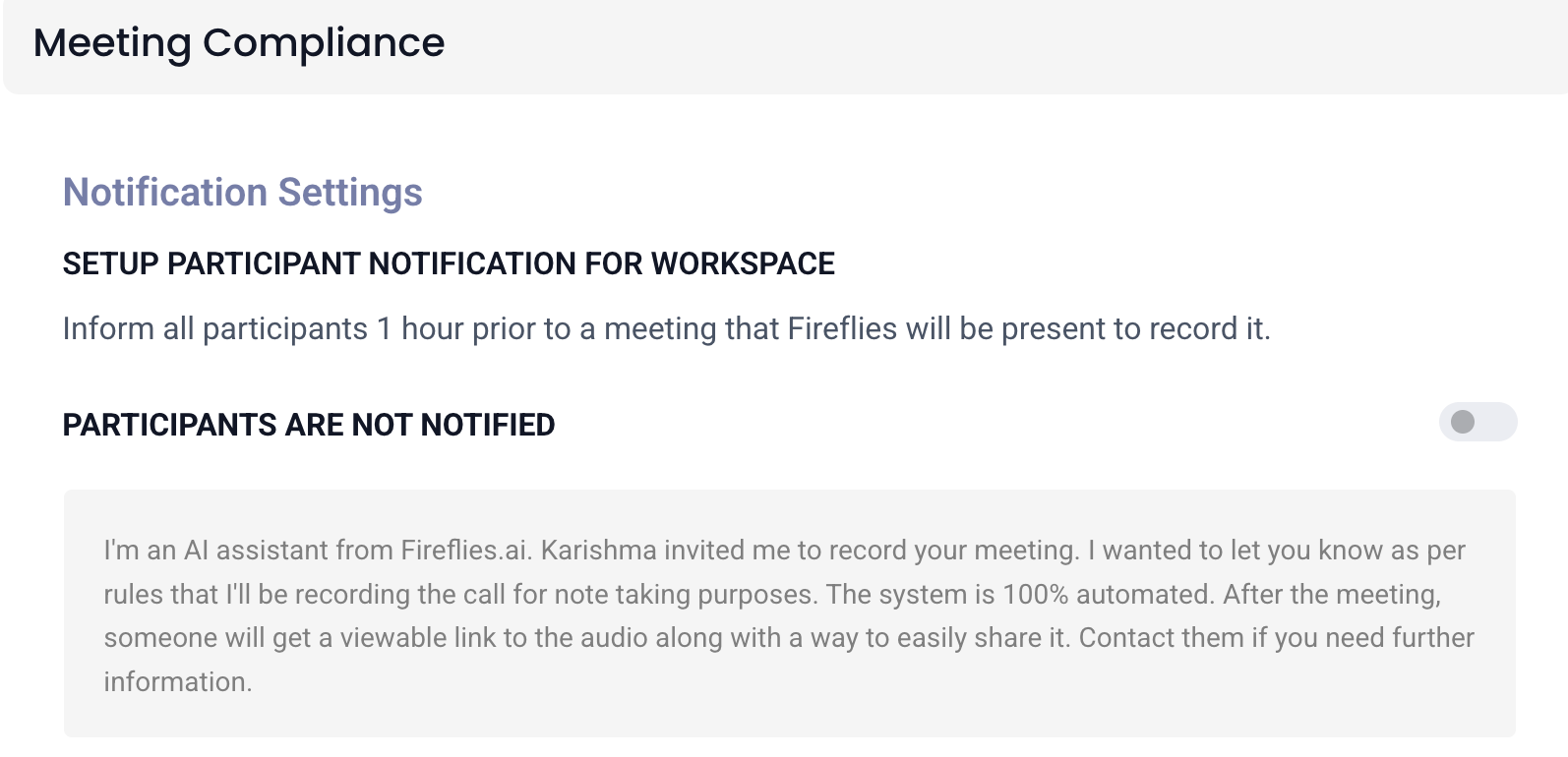
Why this matters: Fireflies can notify attendees ahead of time that a meeting will be recorded and transcribed. Useful for legal & consent reasons.
Where to find it:Settings → Meeting Compliance
Toggle it to the right if you want to notify participants
📘 Guide → Disclose about your meeting recording
🎛 2. Customization Features
A. 📌 Meeting Rules
Why this matters: Override your default join behavior for certain meetings—great for skipping sensitive ones or ensuring Fred joins certain meetings irrespective of your Auto-join Settings
Where to find it:
1. Go to the Fireflies web app and click Settings from the left-side menu.
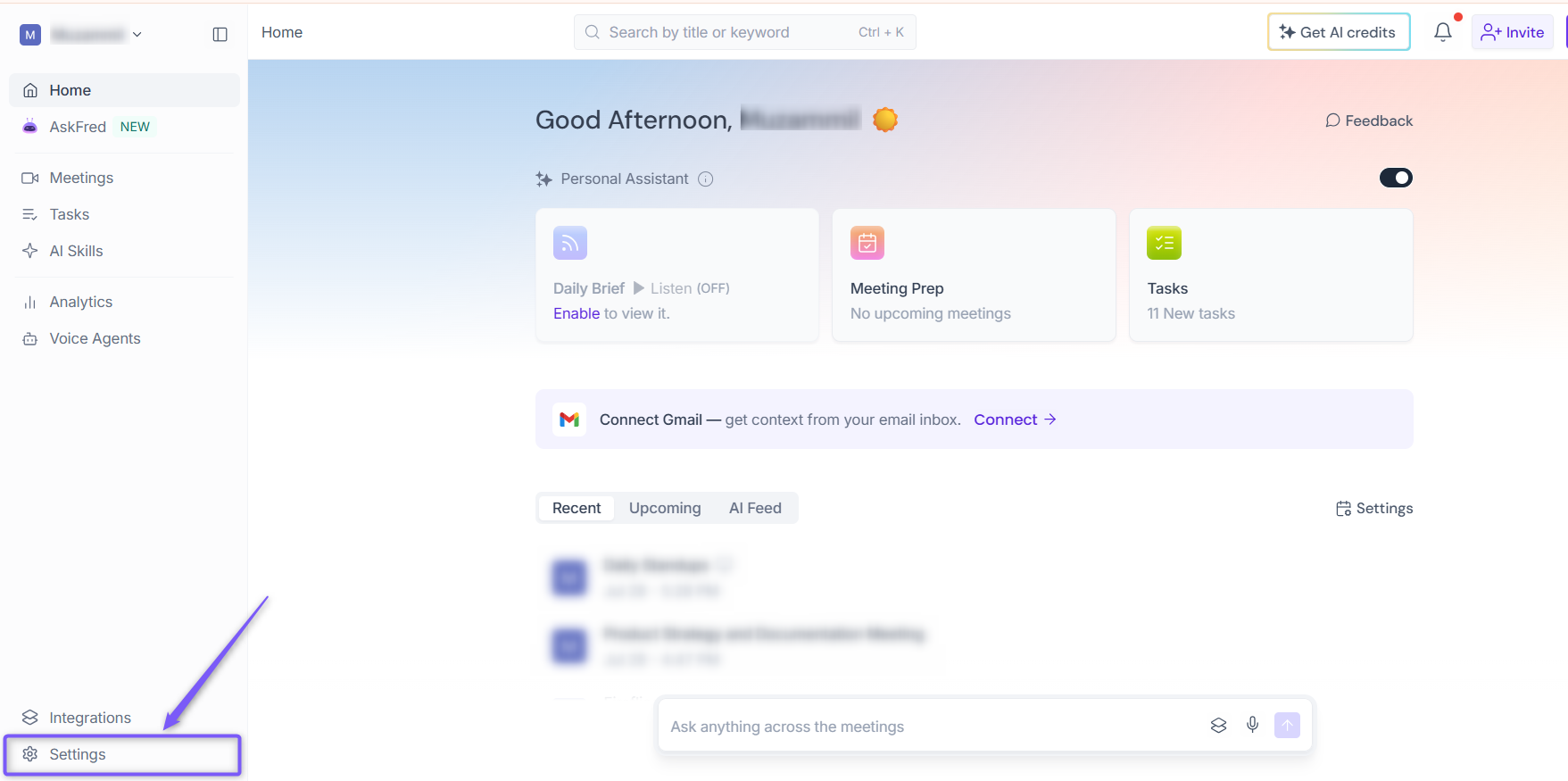
2. Navigate to Recording & Privacy and scroll down to the Recording Rules section.
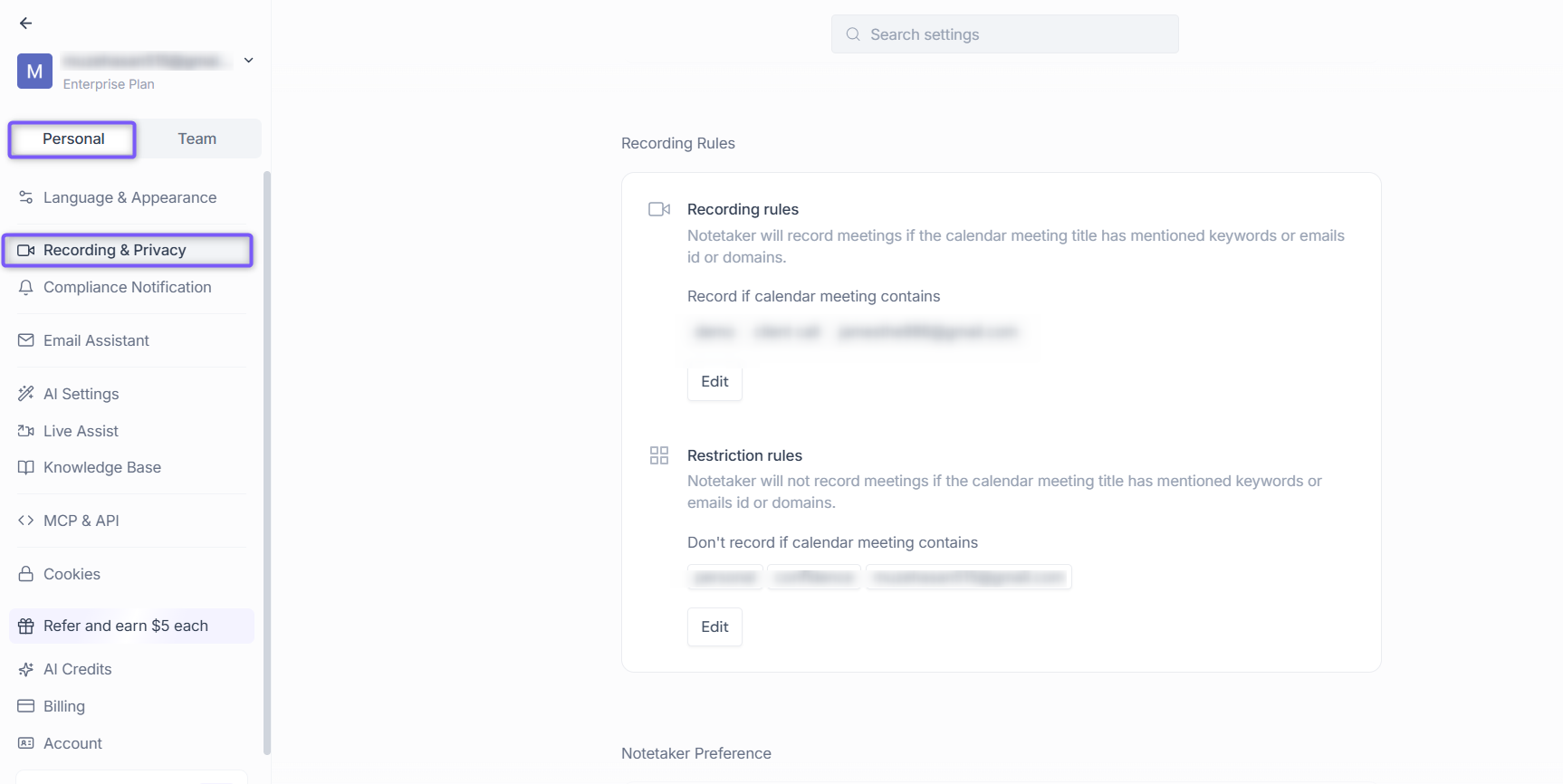
You'll see two sections:
Recording rules: Fireflies will join meetings that include certain keywords or email domains
Restriction rules: Fireflies will skip meetings that match your filters
B. 🧠 Topic Trackers
Why this matters: Monitor mentions of key topics—like “Pricing”, “Customer Objection”, or “Hiring Plan”—across all your calls.
Where to find it:
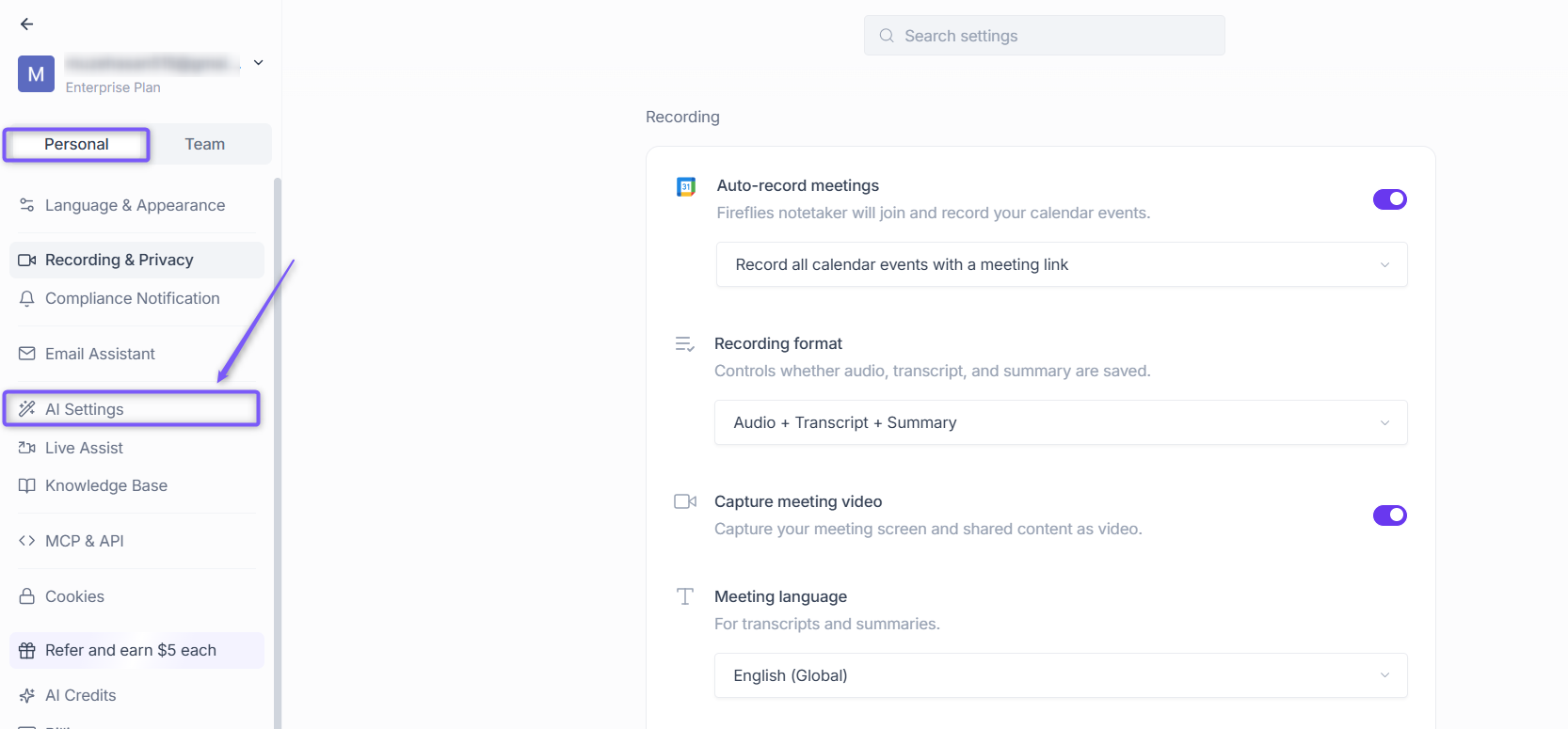
1. Log in to your Fireflies account, Click Settings.

2. Under the Personal tab, select AI Settings.
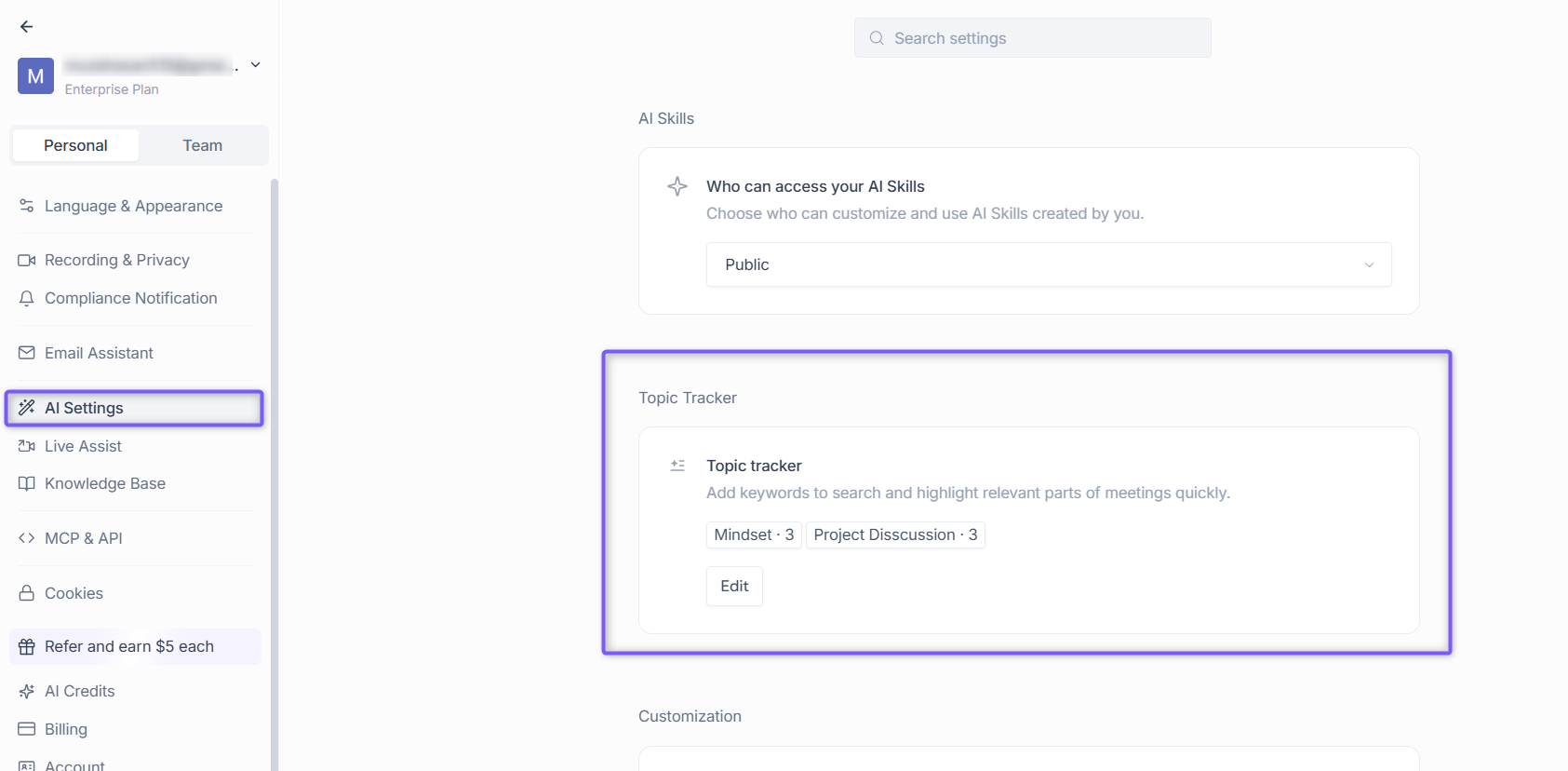
Step 3: Locate the Topic Tracker section. If you haven’t created any topics yet, click Create a Topic.
C. 🤖 AI Skills
Why this matters: Why it matters:
AI Skills turn your meeting content into powerful, actionable outputs — automatically. Whether you need follow-ups, scorecards, content drafts, or summaries tailored to your role, AI Skills help you skip the manual busywork and get to done, faster.
Where to find it:
Go to the AI Skills tab on the left navigation bar of your Fireflies dashboard.
What you can do with AI Skills:
Score candidates using hiring frameworks like STAR or MEDDIC
Build sales coaching breakdowns with talk-time analysis and objection tracking
Set up department-specific workflows — from recruiting notes to finance briefings
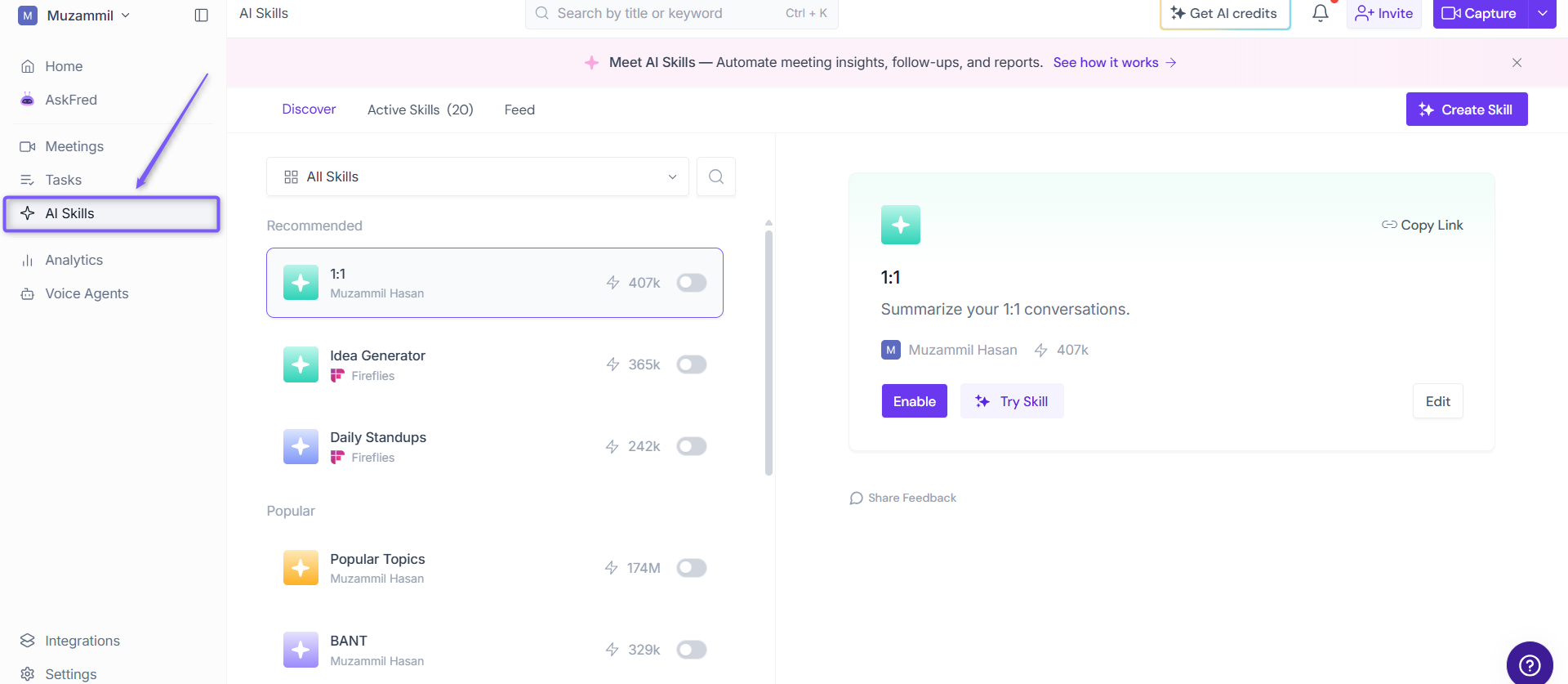
📘 Step-by-step Guide → Getting started with AI Skills
Want to build your own? You can also create custom AI Skills with prompts tailored to your workflow.
👥 3. Collaboration & Team Access
🧑🤝🧑 Invite Teammates
Why this matters: Add colleagues so you can collaborate on notes, assign action items, or automate summaries to shared channels.
Where to find it:
1. Log in to your Fireflies account. You can access your Team settings in either of the following ways:
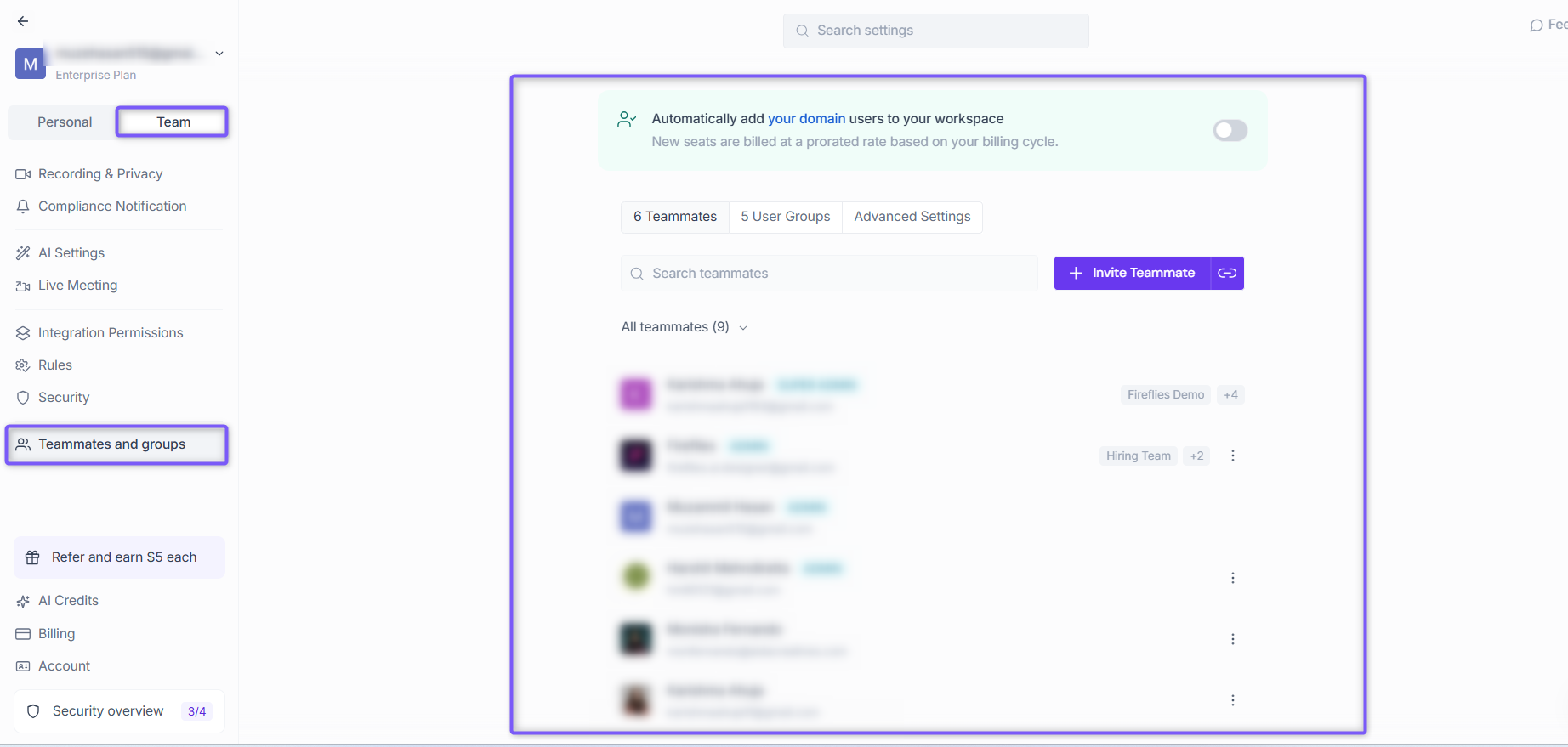
From Settings: Click Settings from the left navigation, select the Team tab, and click Teammates and groups.
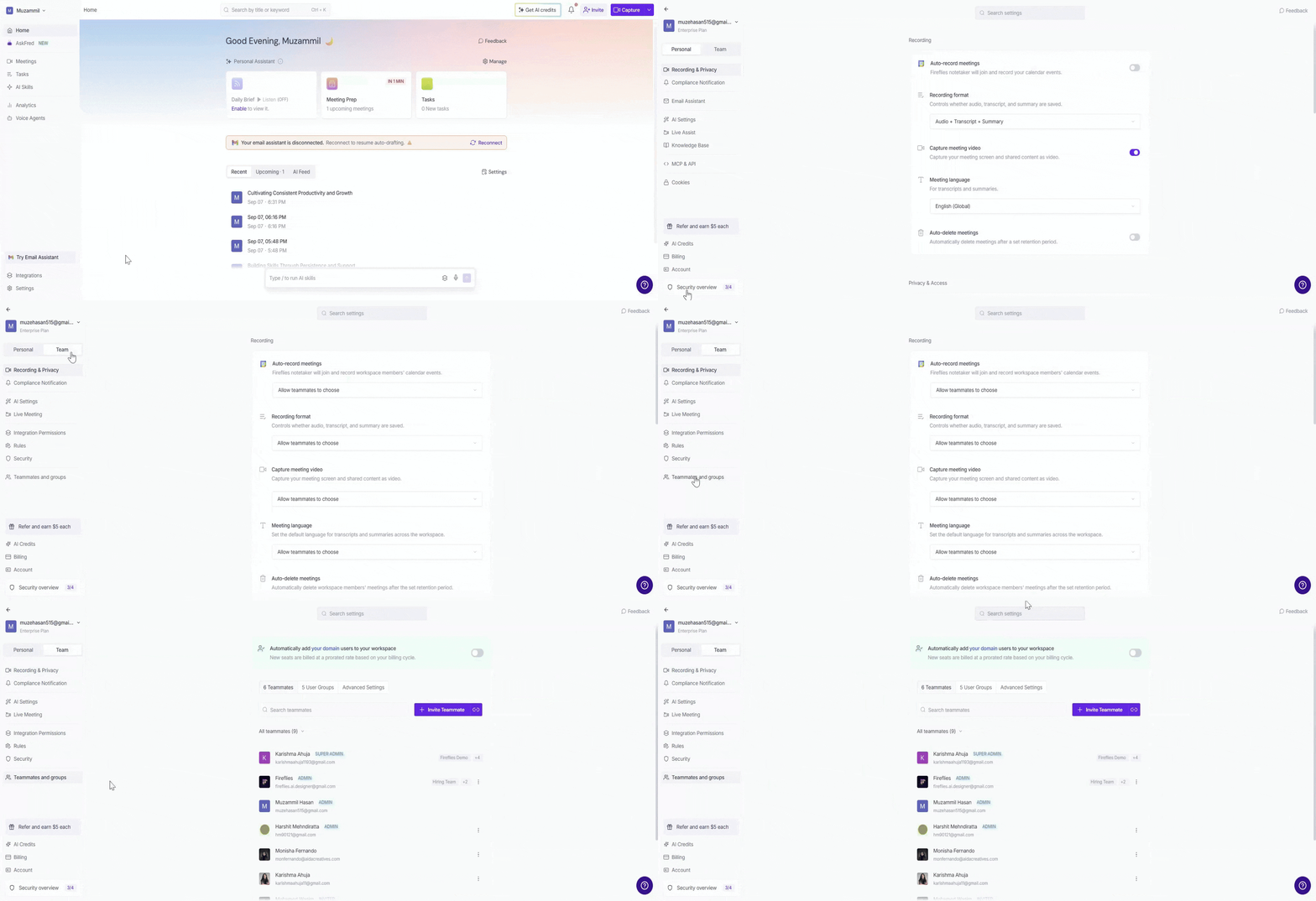
From your profile menu: Click your profile menu in the top-left corner and select My Team.
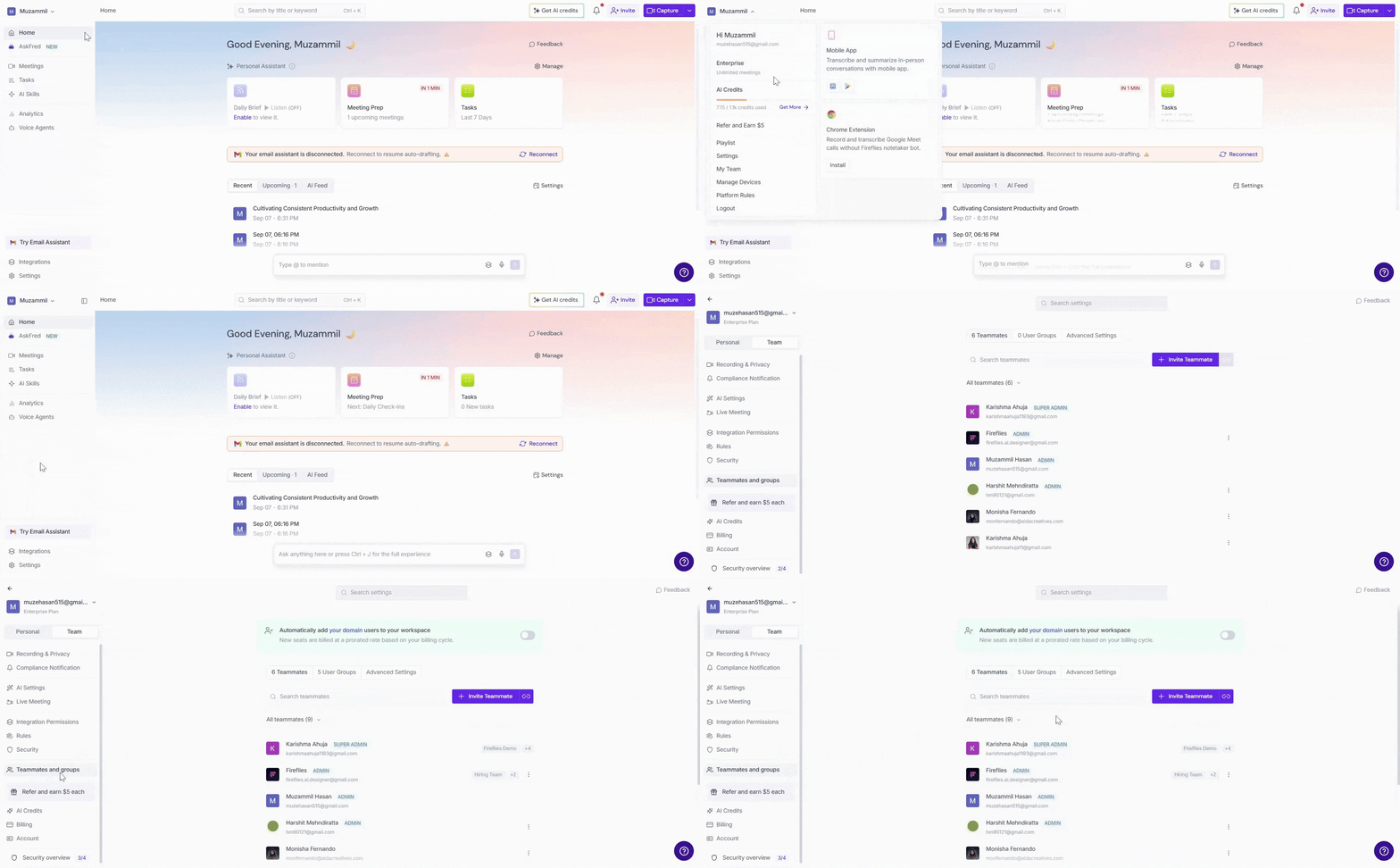
2. Both options take you to the Members and Groups settings, with the Teammates tab selected by default.
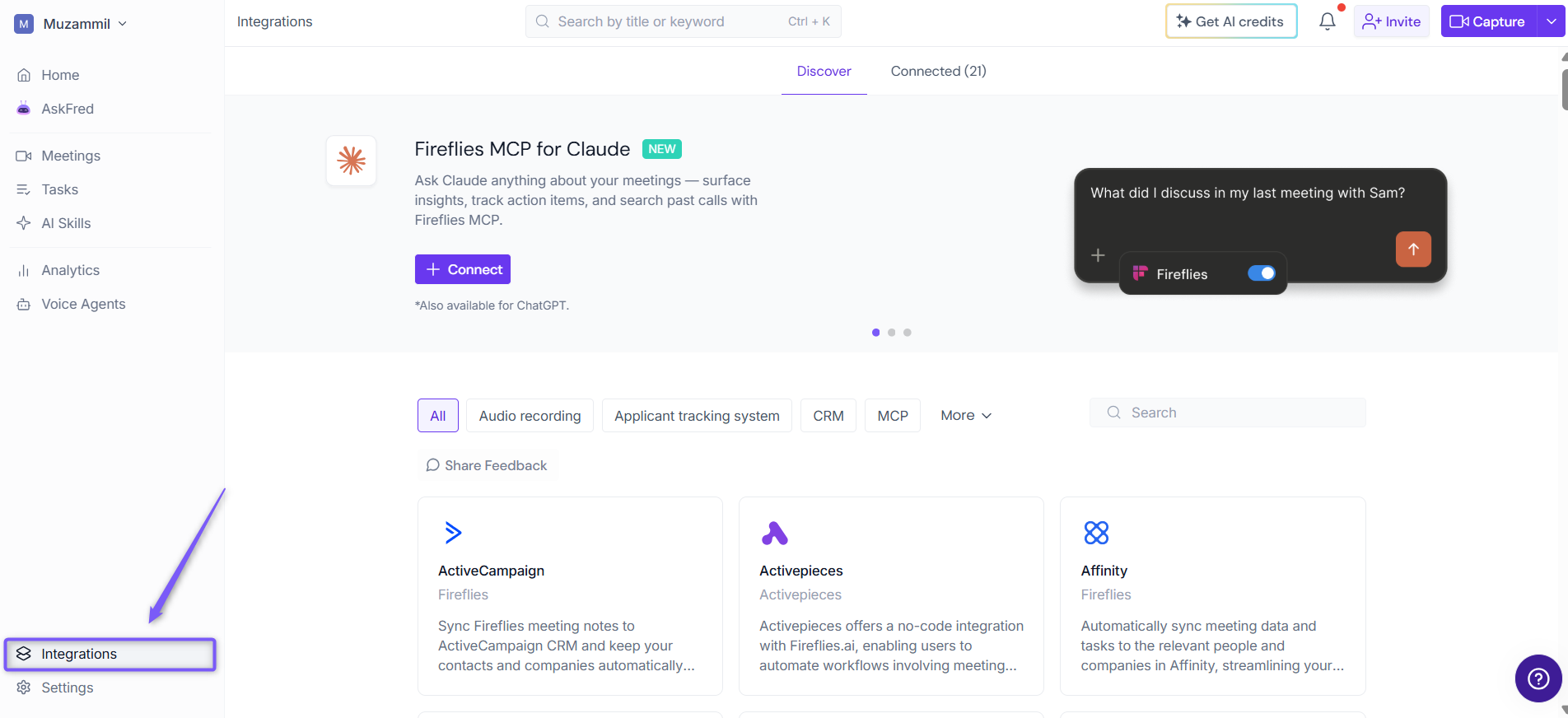
🔌 4. Integrations
Why this matters: Automatically sync your notes and action items with the tools you already use—like CRMs, dialers, Slack, and more.
Where to find it:
To access your integrations, click Integrations at the bottom of the left navigation bar.
Fireflies offers 100+ integrations, including the following popular options:
CRM: Salesforce, HubSpot
Project management: Asana, Trello, ClickUp
ATS: Greenhouse, Lever
Dialers: Aircall, RingCentral
Communication: Slack, Microsoft Teams
Automation: Make, Zapier, API
🎥 5. Video Platform Setup
Before Fireflies can join your calls, your video platform must allow guest bots to join and record.
Use these dedicated setup guides for step-by-step instructions:
✅ What’s Next?
Once you’re all set:
➡ Test your setup by inviting Fred to a live meeting
➡ Check the Meeting Status page afterward to confirm if transcription worked
➡ Adjust settings anytime via the Dashboard or Notepad
set up