Manage Your Fireflies Account, Subscription, Billing, and Refunds
Last updated: September 15, 2026
Fireflies makes account management simple and straightforward. Update your subscription, adjust AI Credits, or edit billing details — everything lives in one place so you stay in control.
👤Manage Your Account
Your account settings allows you manage your team membership, subscriptions, security, and data.
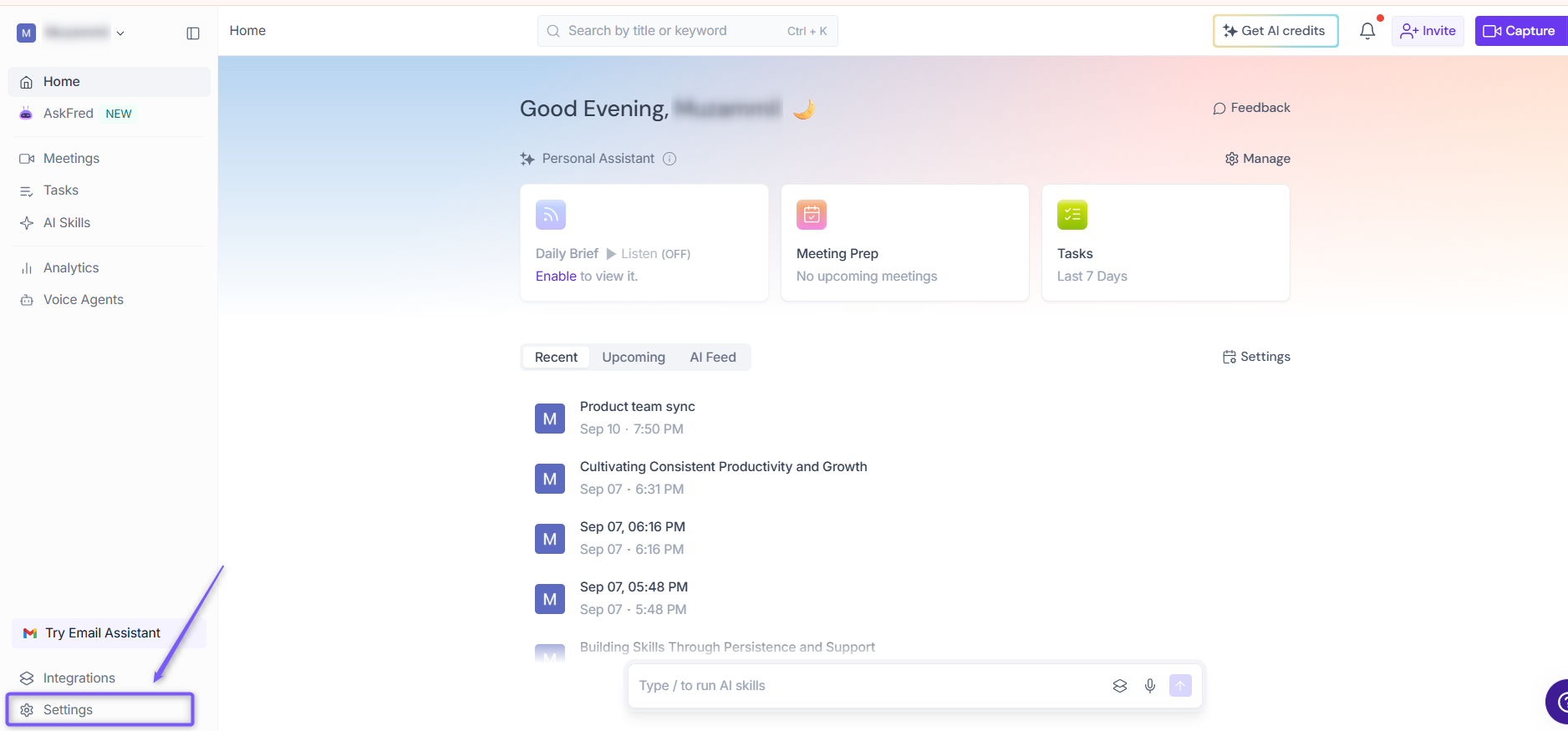
1. Open your Fireflies web app and click on Settings in the main navigation menu.
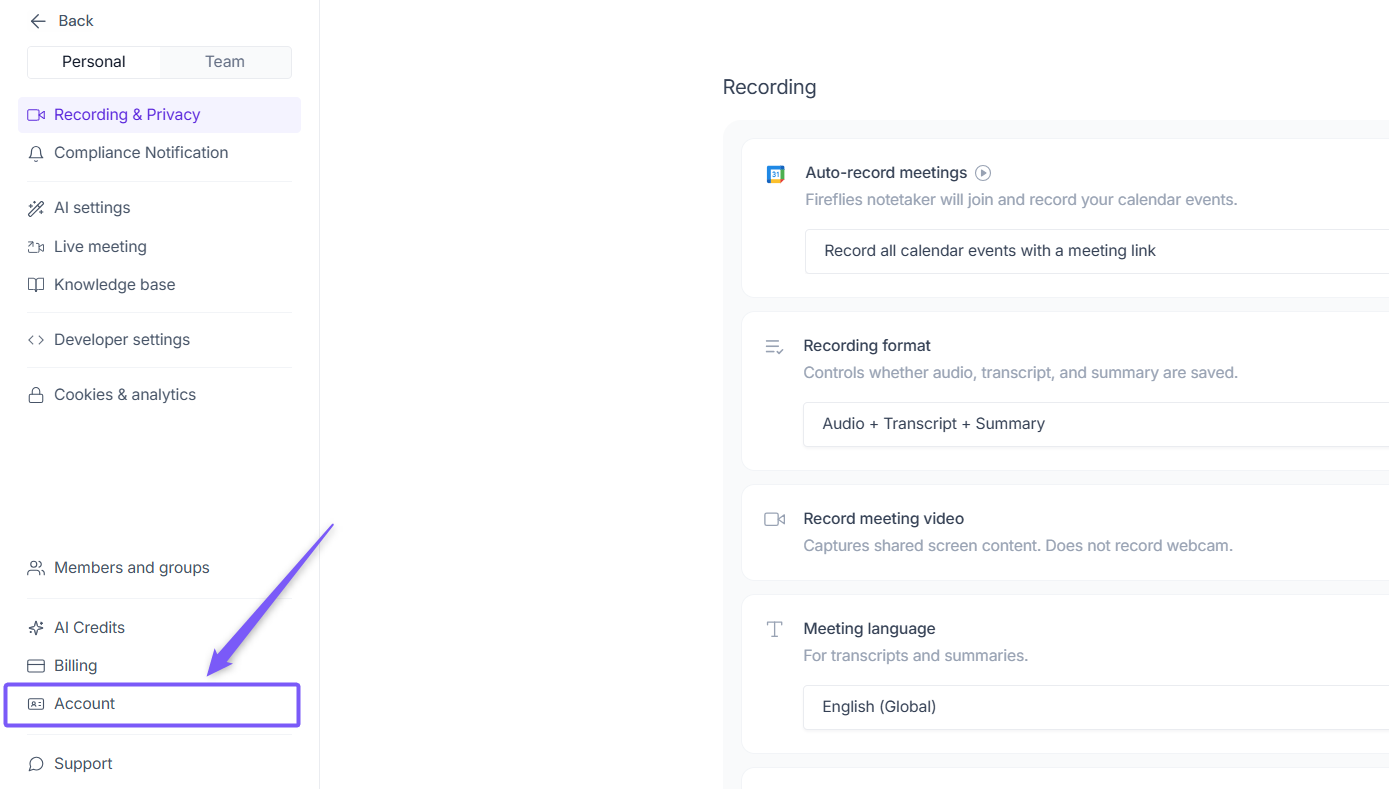
2. From the bottom-left menu, select Account.
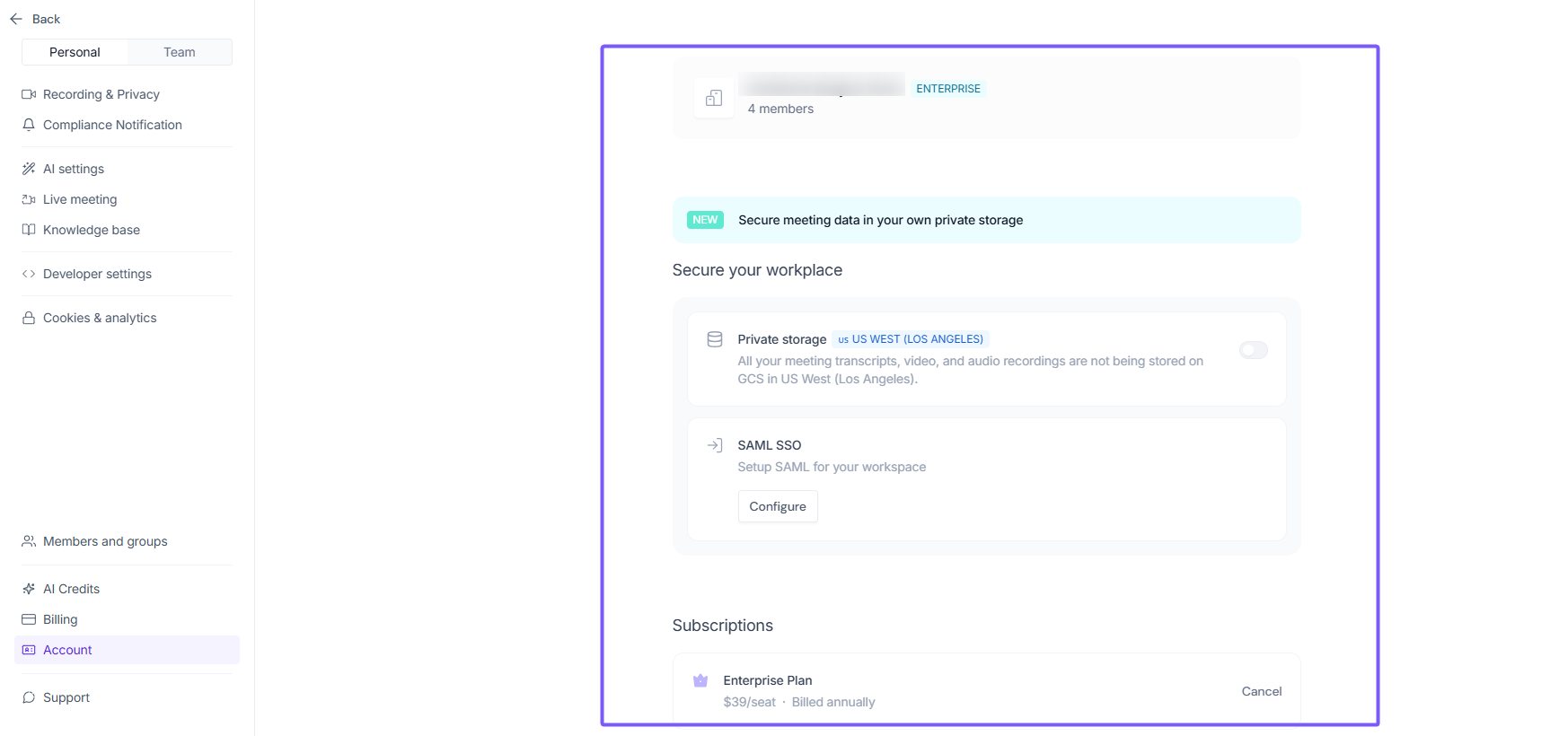
3. You'll find all account-related options organized by category on the right side for easy navigation.
1. Cancel Your Fireflies Subscription
Thinking about moving back to our Free plan? We understand that team needs change. When you cancel your paid subscription, you'll automatically downgrade to the Free tier at the end of your current billing cycle — you keep access to all your paid features until then, and your existing meetings and data stay safe.
Quick steps:
Go to Settings > Account
Under Subscriptions, locate the plan you want to cancel and click Cancel.
Follow the prompts to confirm your cancellation
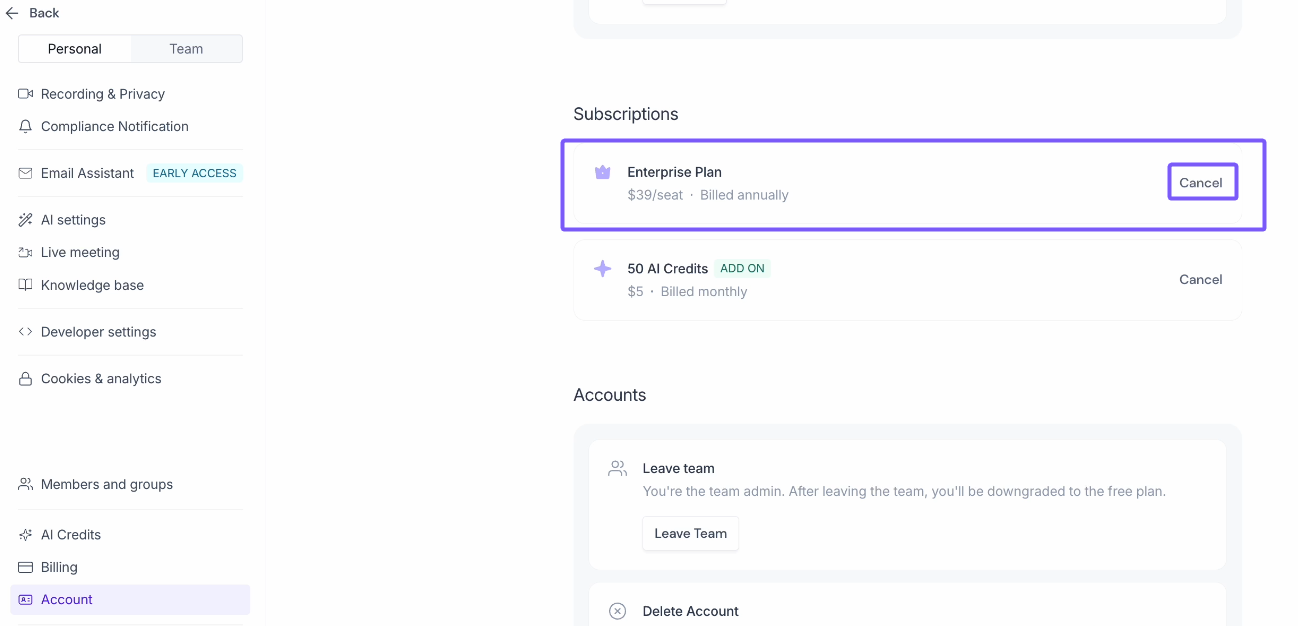
For Business and Enterprise users, you'll see options to downgrade to a lower paid plan instead of canceling entirely. We'll also ask for feedback to help us improve Fireflies.
Need detailed step-by-step instructions? Check out our comprehensive guide: How to cancel your Fireflies subscription
2. Cancel Your AI Credits Subscription
If you no longer need AI Credits, you can cancel your add-on subscription separately without affecting your main Fireflies plan.
Navigate to Settings → Account.
Under Subscriptions, locate AI Credits and click Cancel.
Follow the prompts to confirm your cancellation.
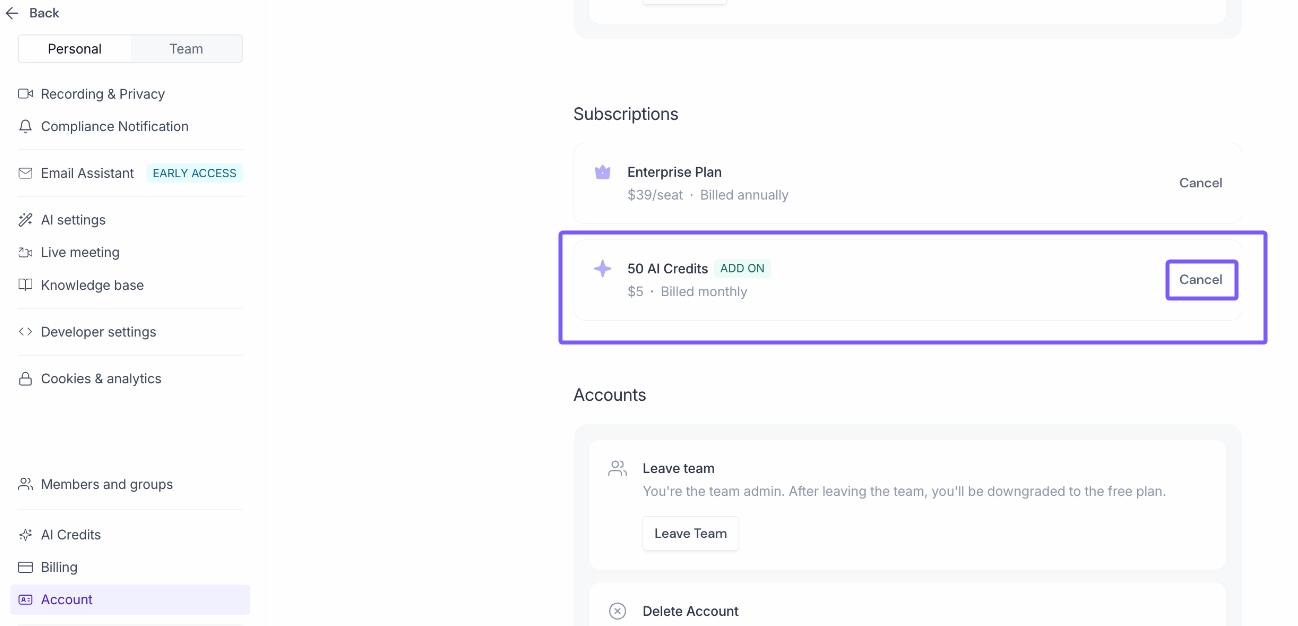
For detailed steps, see: How to cancel your AI Credits subscription
3. Leave Team
Leaving a team removes you from the shared workspace without deleting your Fireflies account. This is useful if you want to stop being part of a team but still keep your personal account and data intact — unlike deleting your account, which removes everything permanently.
Navigate to Settings → Account.
Under Accounts, click Leave Team.
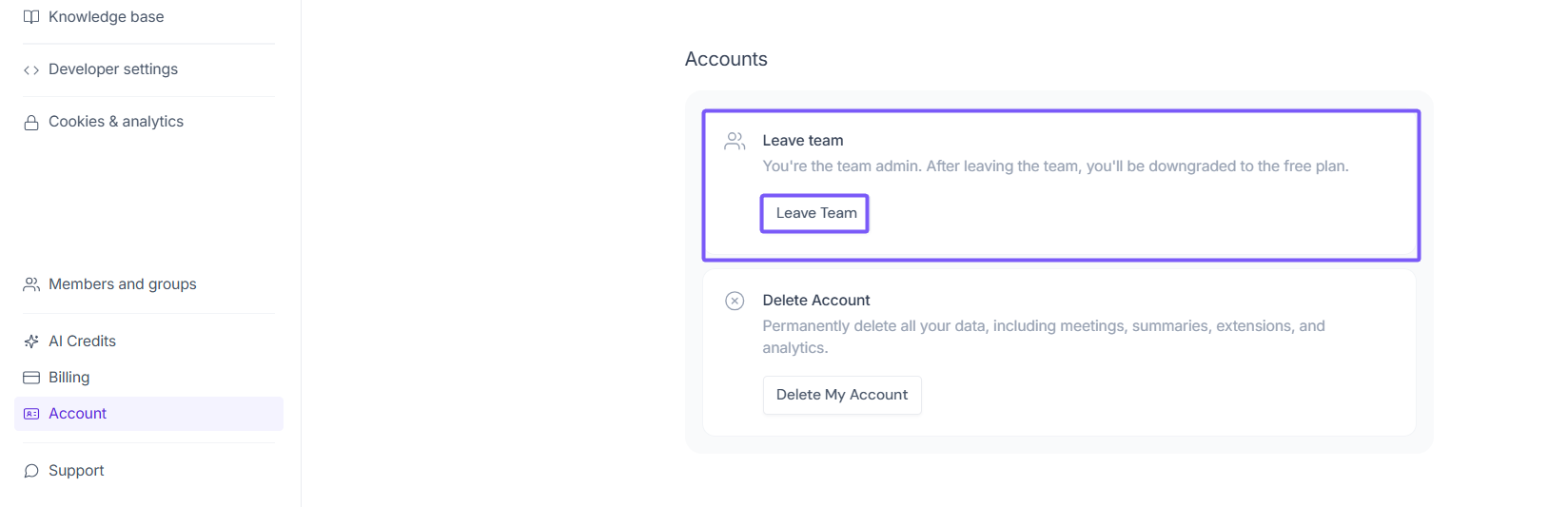
Note: If you are the team admin, leaving the team will downgrade you to the Free plan.
4. Delete Your Account Permanently
Deleting your account permanently removes all your data, including meetings, summaries, extensions, and analytics. This action cannot be undone.
Navigate to Settings → Account.
Under Delete Accounts. Click Delete my account and follow the prompts to confirm your deletion.
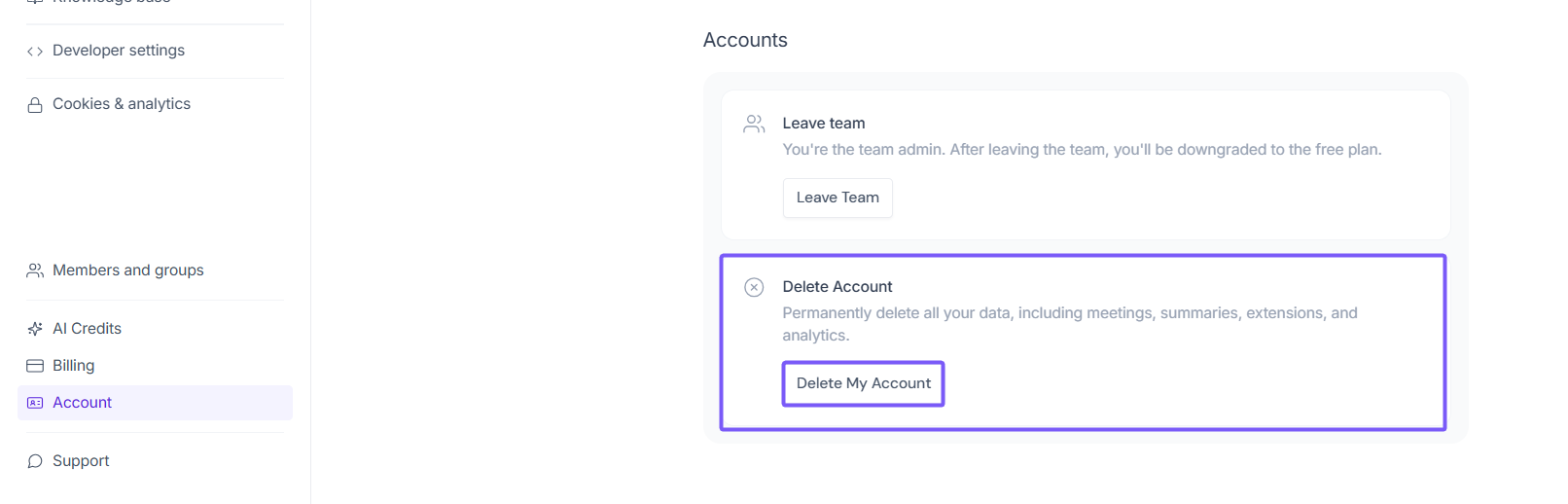
Want to know details steps and what happens after you delete your account? Learn more.
5. Private Storage
Keep your meeting data secure by storing transcripts, video, and audio recordings in your own private storage instead of Fireflies' default storage.
Navigate to Settings → Account.
Under Secure your workplace, toggle on Private storage.
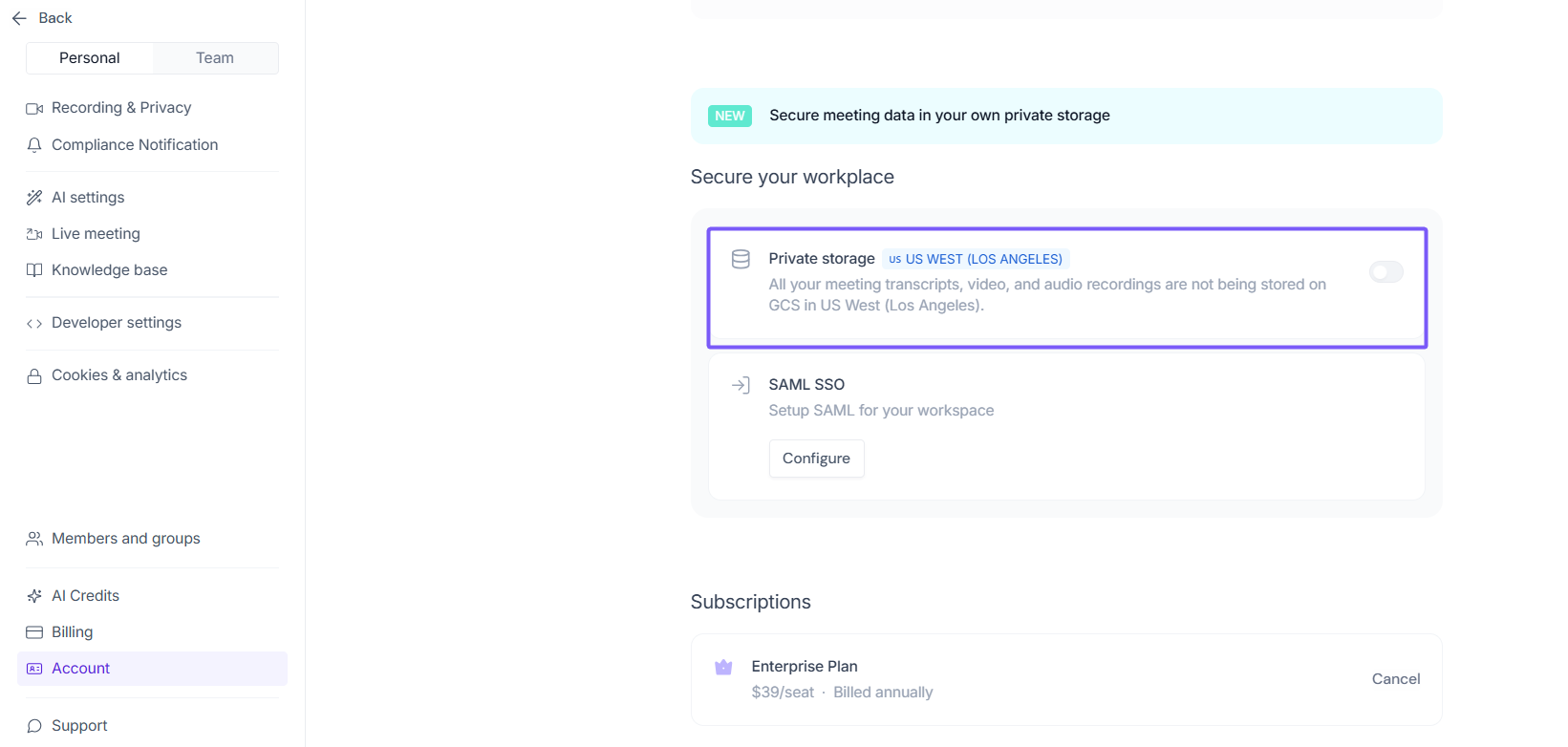
📌 Want to learn more about Private Storage and how to enable it? Learn about Private Storage
6. SAML SSO
Set up SAML Single Sign-On to let your team log in to Fireflies securely using your organization's identity provider.
Navigate to Settings → Account.
Under Secure your workplace, click Configure next to SAML SSO.
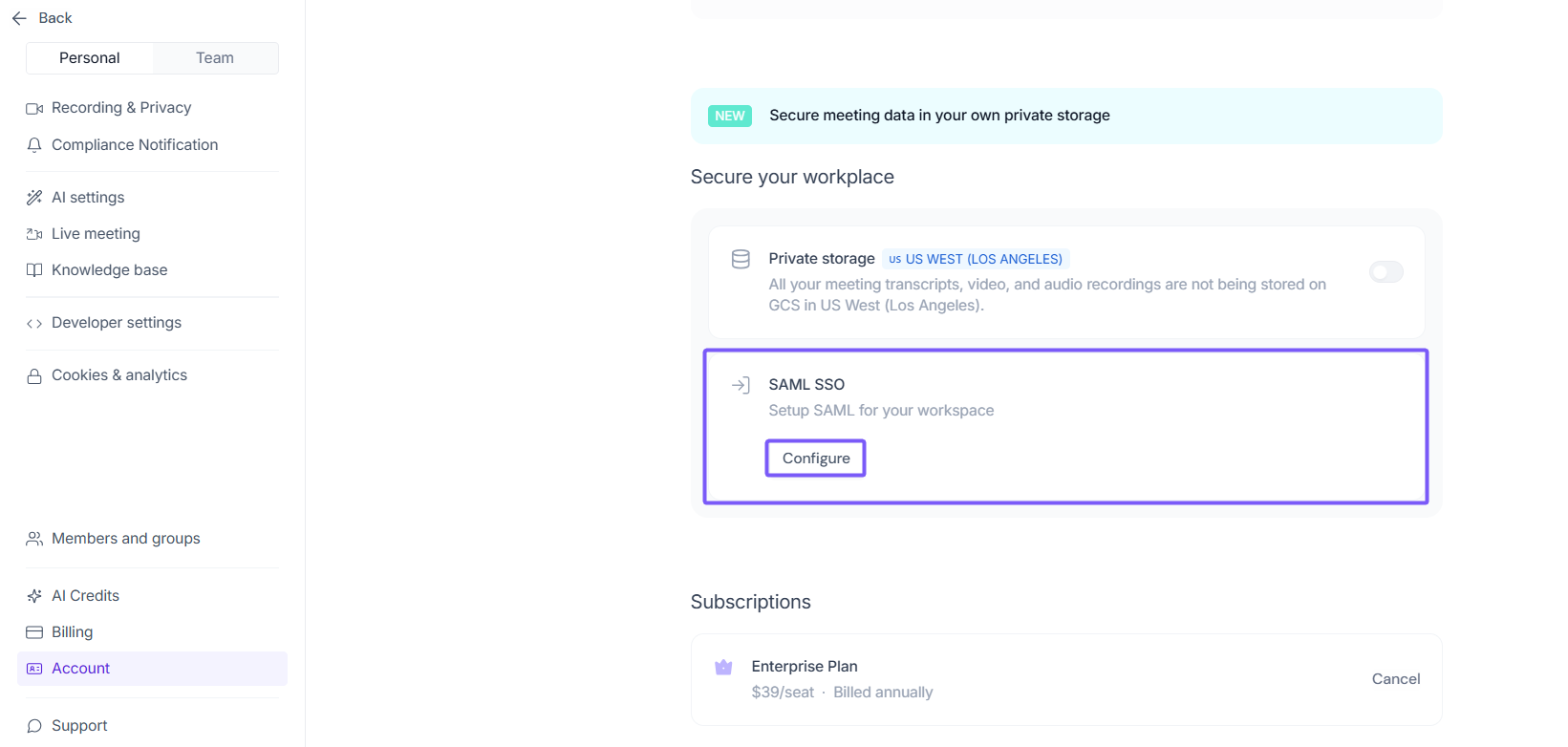
📌 Want to learn more about SAML SSO and how to set it up? How to set up SAML-based SSO
💳Manage and Edit Billing Details
The Billing section is your central hub for updating billing details, adjusting your AI Credits subscription, and downloading past invoices — everything you need to stay on top of your account finances.
1. Open your Fireflies web app and click on Settings in the main navigation menu.
2. From the bottom-left menu, select Billing.
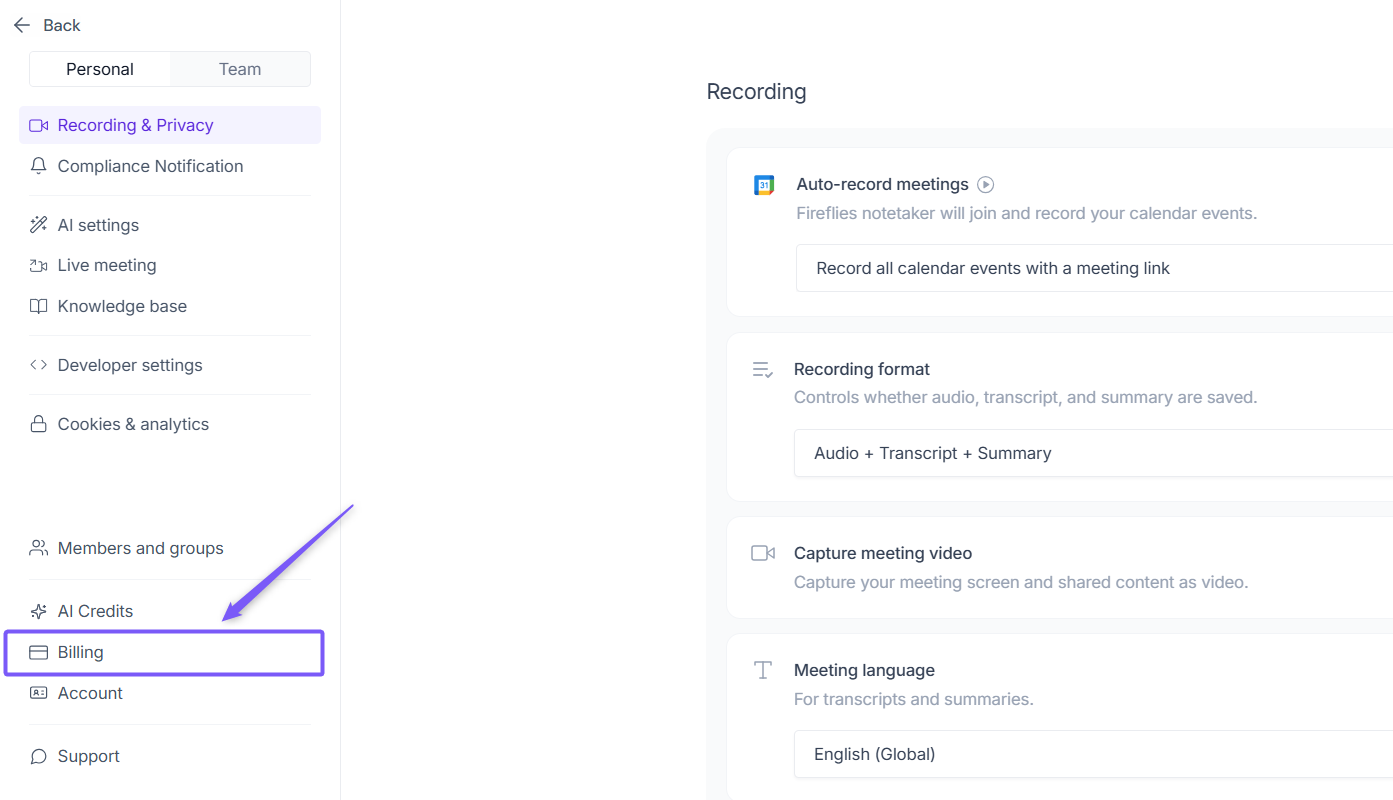
3. You'll find all billing-related options organized by category on the right side for easy navigation.
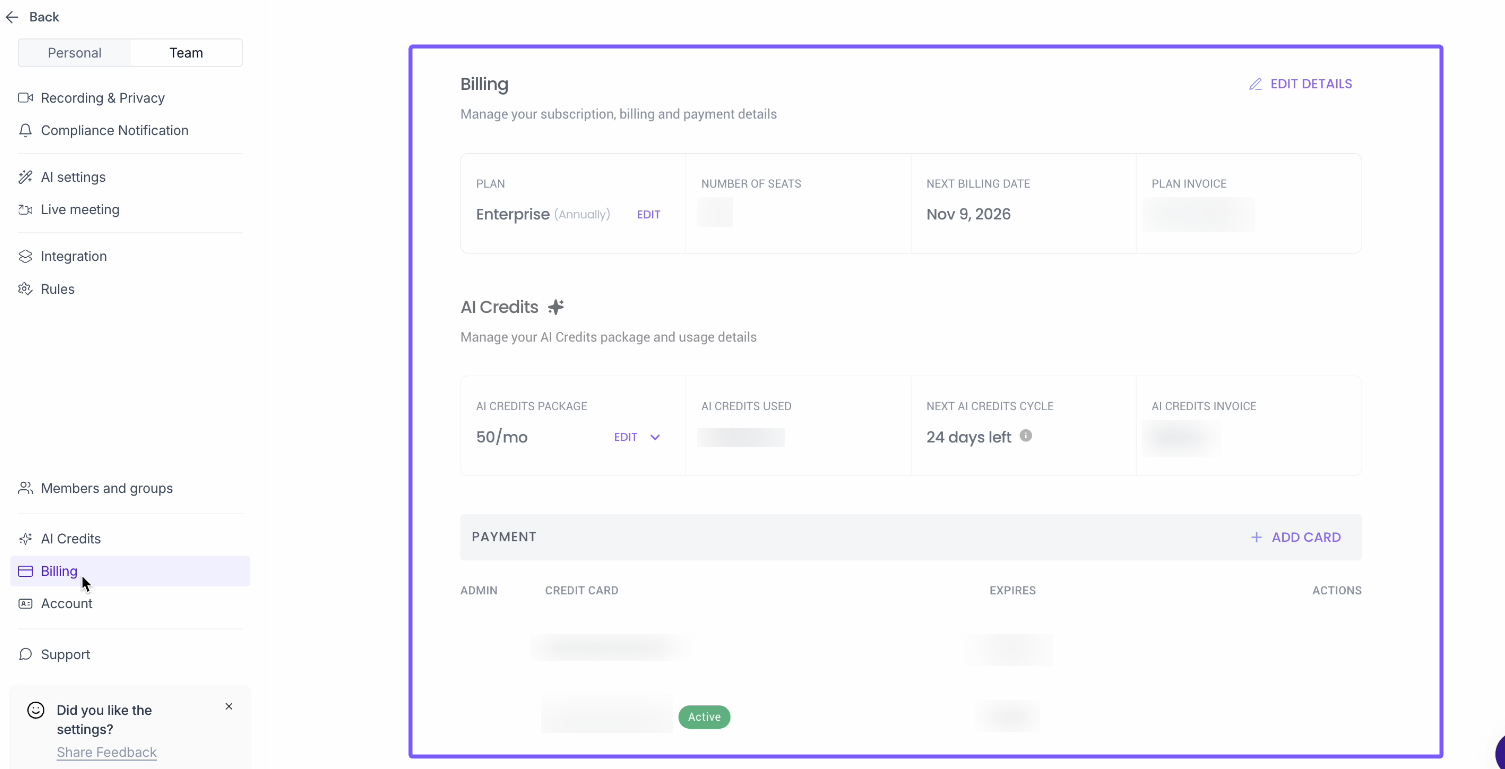
1. Edit Billing Details
Keep your billing information up to date to ensure your invoices reflect the correct details.
Qucik steps to follow:
1. Go to Settings → Billing .
2. Click Edit details in top right corner.
3. Update your billing information.
4. Save your changes.
Want to learn more about updating your billing details? How to edit billing information
2. Upgrade or Downgrade Your Fireflies Plan
Need more features or looking to scale back? You can upgrade or downgrade your Fireflies plan at any time to match your team's needs.
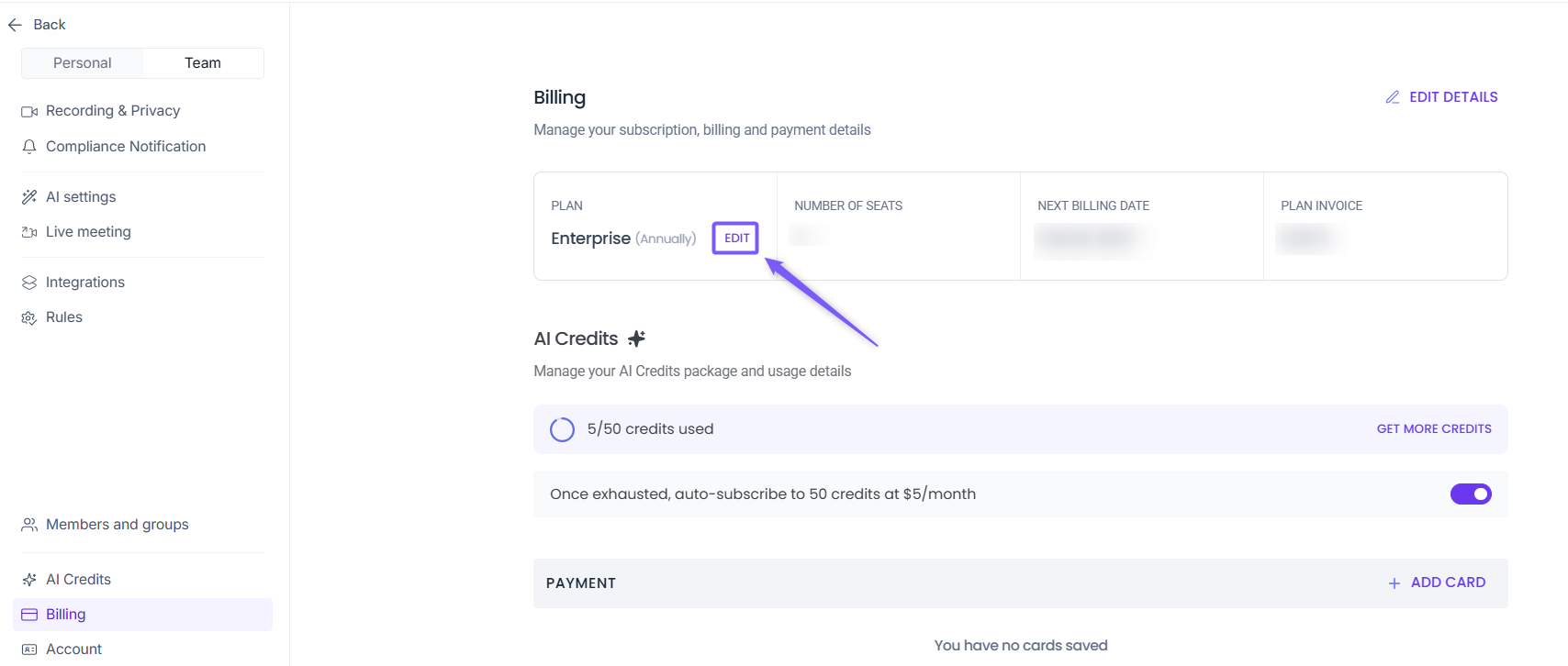
Downgrade Your Plan
Under Billing, click Edit next to your current plan and select a lower-tier plan.
📌 For detailed steps, see: How to downgrade your Fireflies subscription
Upgrade Your Plan
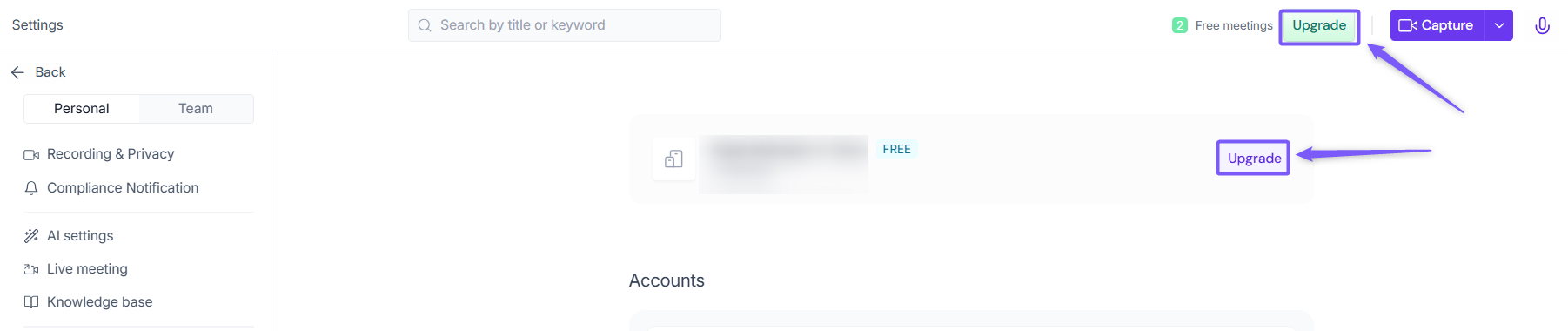
Visit app.fireflies.ai/upgrade to explore higher-tier plans and unlock more features.
📌 For detailed steps, see: How to upgrade your Fireflies subscription
3. Manage AI Credits subscription
Adjust your AI Credits package up or down to match your team's usage — available on monthly or annual billing — or cancel your AI Credits subscription anytime.
AI Credits Usage dashboard is an Enterprise-only feature
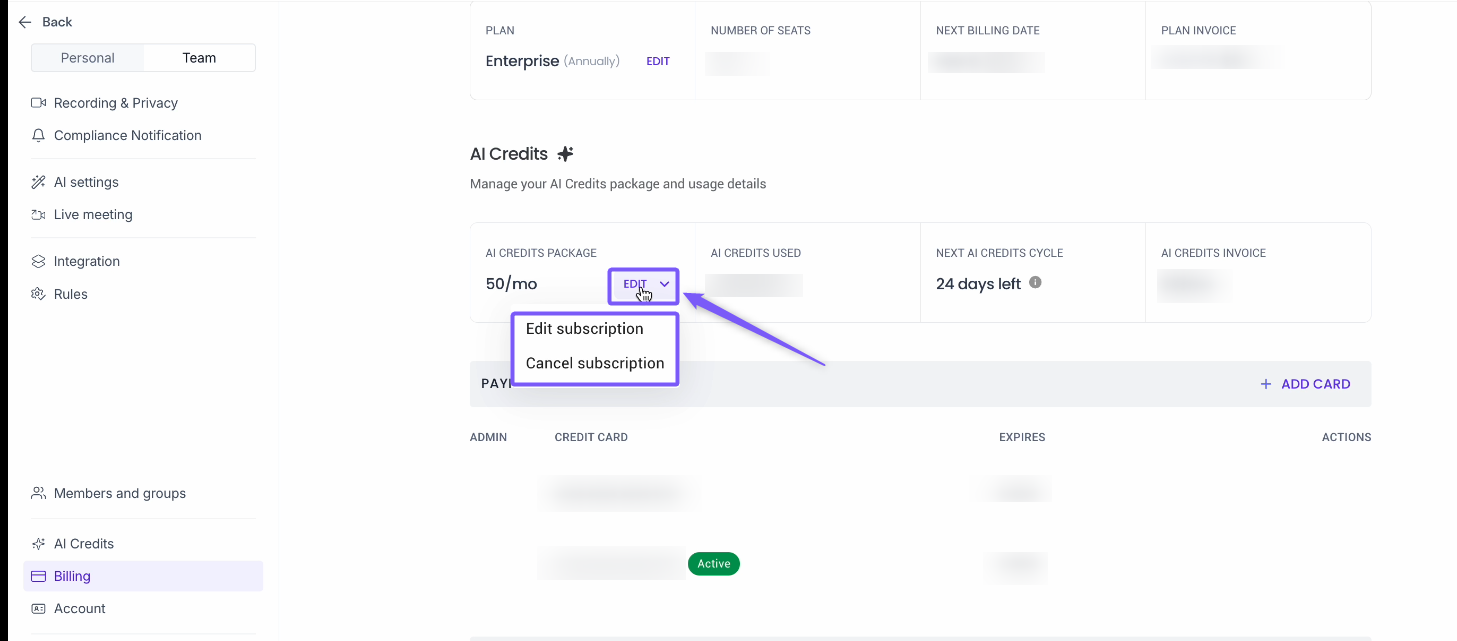
Steps to manage AI Credits
Go to Settings → Billing
Under AI Credits, click Edit
Select Edit subscription to update or Cancel subscription
If updating, choose your billing interval — Monthly or Annual (20% lower price) - then adjust your credits using the slider
💡 Your monthly credits limit stays the same on an annual plan — annual billing affects the price and renewal frequency, not the credits you receive each month.
Want to adjust your credits? See: How to edit your AI Credits subscription
Want to cancel your AI Credits? How to cancel your AI Credits subscription
4. View and Download Invoices
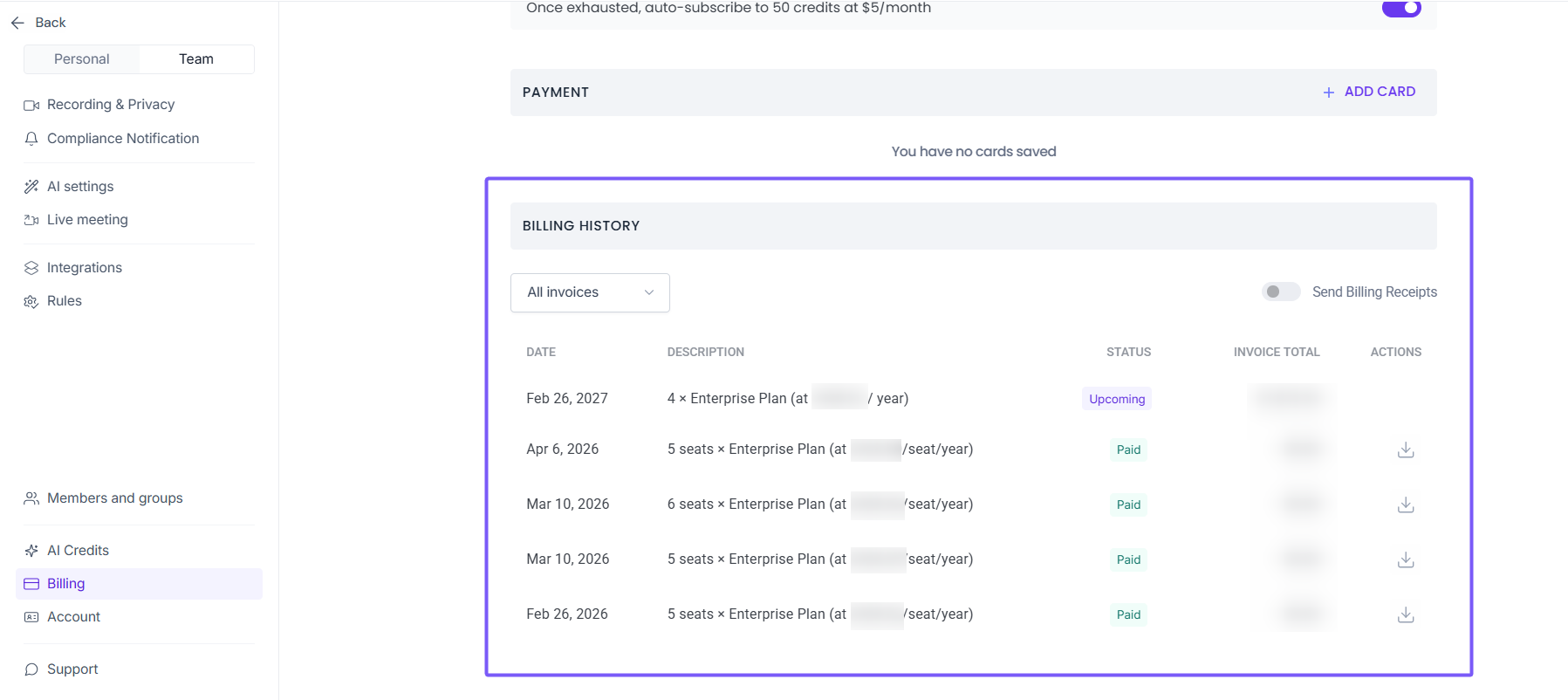
Access and download your past invoices anytime from the Billing History section. Scroll down to Billing History and click the download icon next to any invoice.
Learn more about viewing and downloading invoices? How to view your invoices and bills on Fireflies
5. Manage Payment Methods
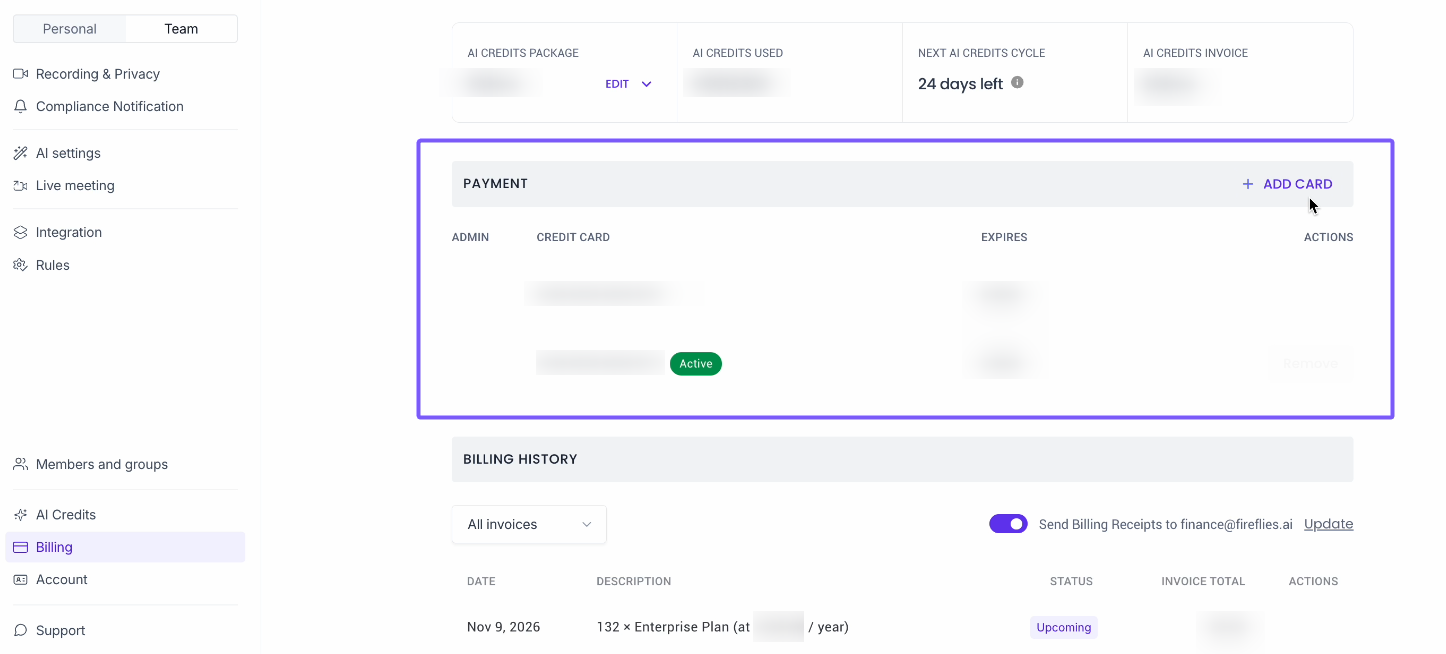
Add, update, or remove your payment methods from the Payment section. Click + Add Card to add a new payment method.
📌 Learn how to update your primary payment method: How to change your primary payment method
📌 Learn how to remove a saved card: How to remove card details from Fireflies
Understanding Refunds
We don't offer refunds on subscriptions or AI credit purchases, but if something looks off with your billing, we're here to help. Hit the purple chat button in the bottom right corner, and our support team will review your account.
Learn more about our approach: Fireflies refund policy
Your Fireflies account is designed to grow with your team's needs. Whether you're scaling up or adjusting your setup, these tools give you the flexibility to make changes when it works for you.
We're sorry to see you go, but we truly value your feedback. If you have any questions or need assistance during this process, please don't hesitate to reach out. We're here to help!
Hit the purple chat button on the bottom right corner of this page to start the conversation.