How to view your invoices and bills on Fireflies
Last updated: May 12, 2026
Need a copy of your latest receipt for the finance team, or just want to review your past charges? Fireflies keeps your entire billing history safely organized in one place.
This guide shows you how to easily access, view, and download your past invoices and receipts directly from your dashboard.
🔑 Prerequisites
Role: You must be a Workspace Owner, Admin, or the designated Billing Admin to access this section. Standard team members do not have access to the Billing tab.
Account Status: Applies to all paid Fireflies tiers (Pro, Business, and Enterprise).
🚀 How to View and Download Invoices
Follow these steps to access your billing history and download your PDFs:
Step 1: Access your Settings
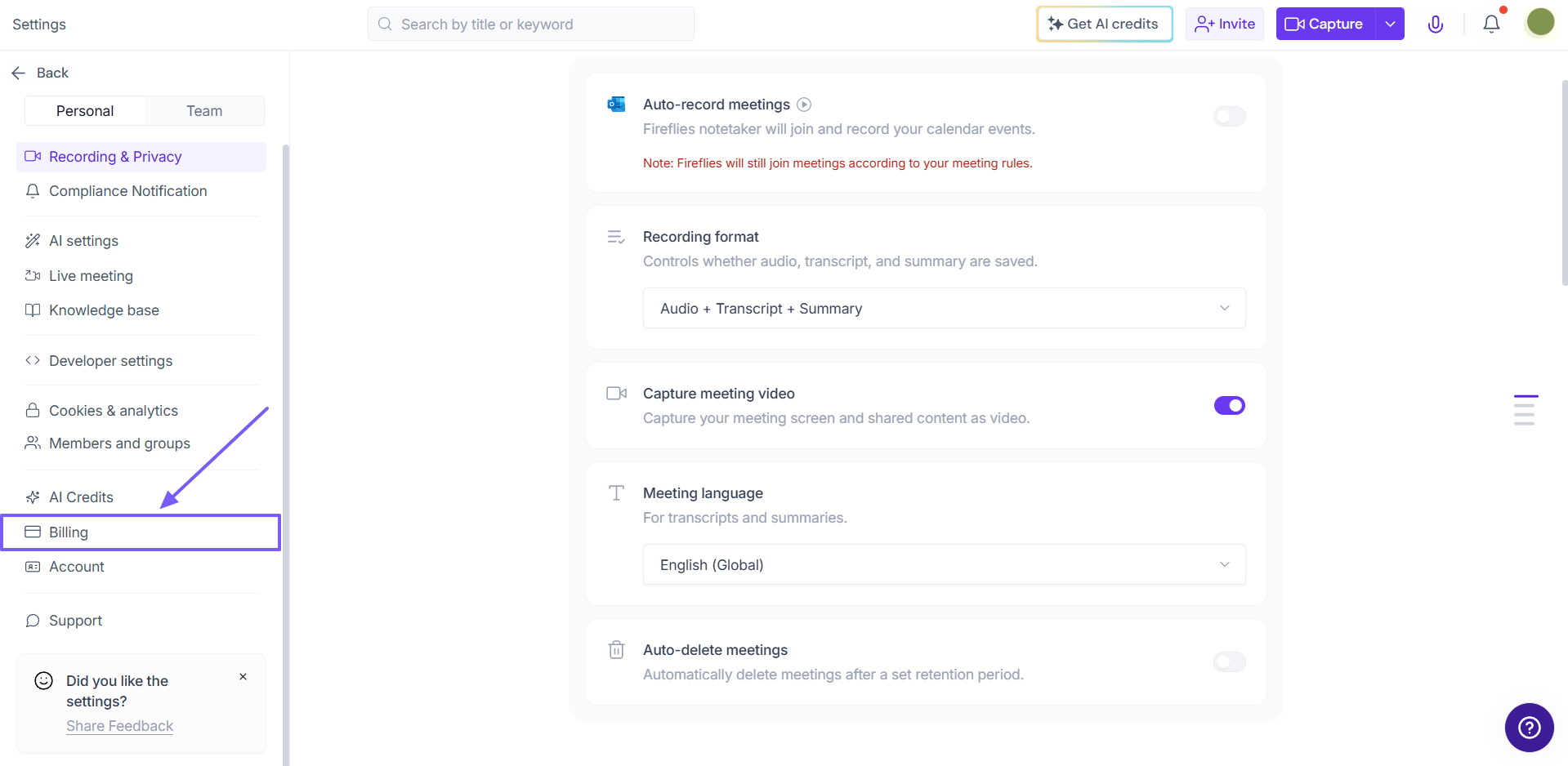
From your Fireflies dashboard, navigate to the left-hand sidebar and click on Settings.
Step 2: Navigate to Billing
Inside the Settings menu, select the Billing tab. This is where you’ll see your current plan, usage, and payment history.
Step 3: Scroll to Billing History
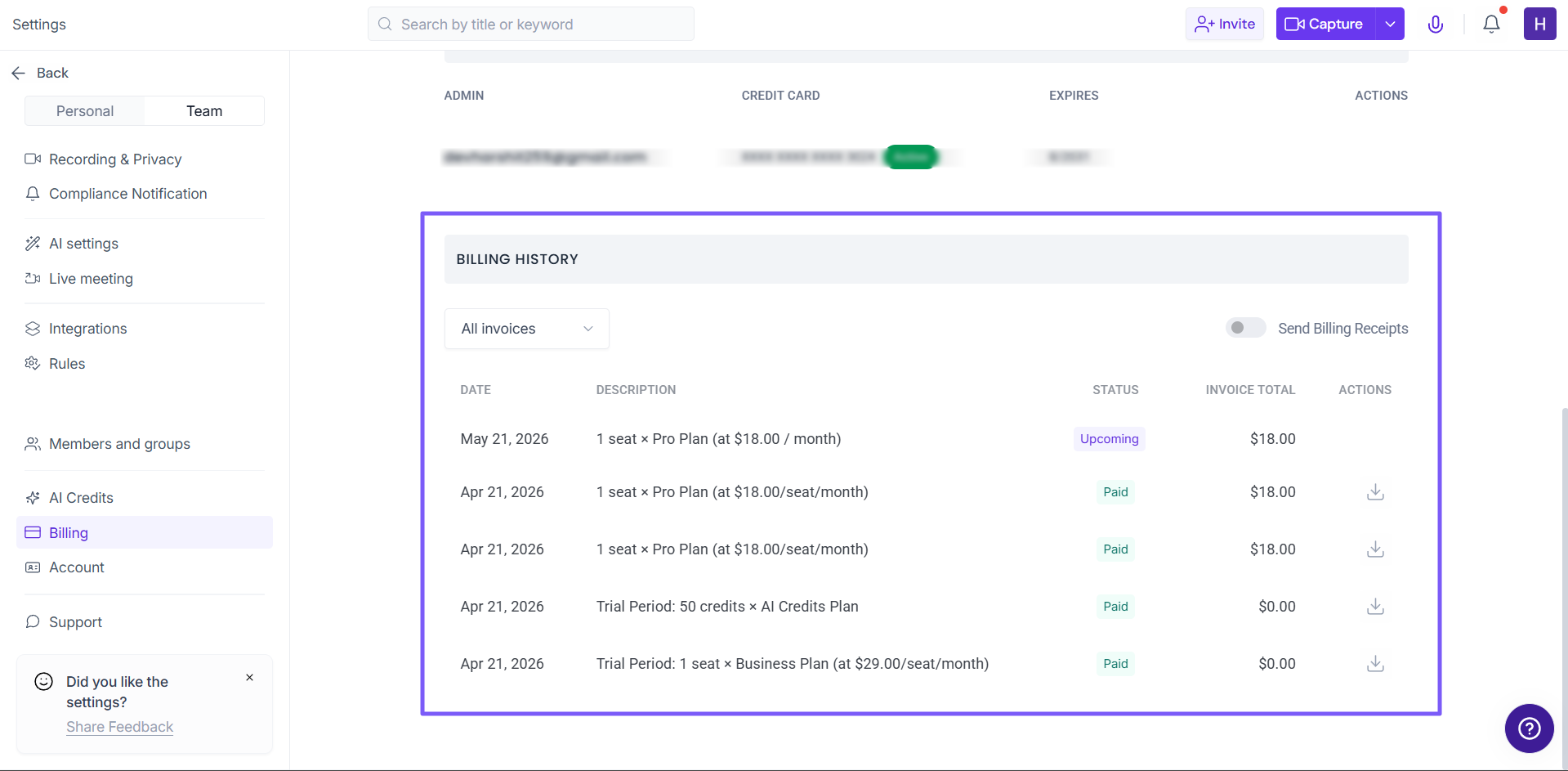
Scroll down to the very bottom of the page until you see the BILLING HISTORY section. Here, you will find a chronological list of all your transactions, including the date, plan description, status (e.g., Paid, Upcoming), and invoice total.
Step 4: Click the Download Icon
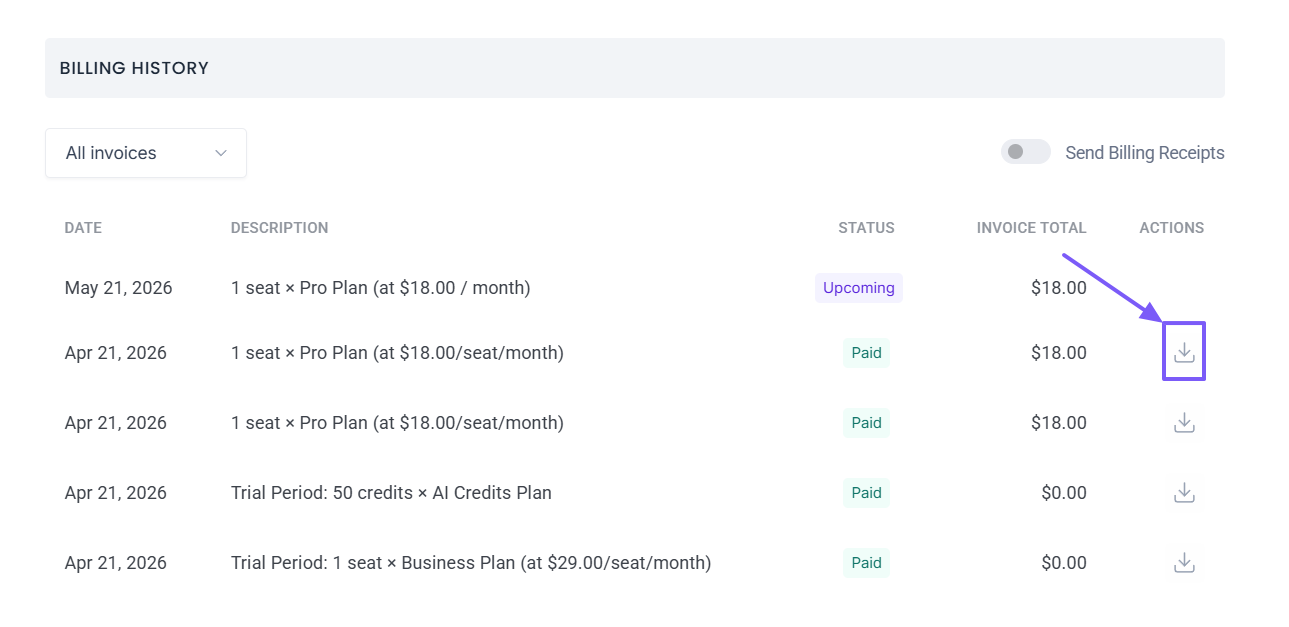
Find the specific invoice you want to view. Under the far-right ACTIONS column, click the Download icon (the downward-pointing arrow) next to that invoice.
Step 5: View Details or Download (Secure Tab)
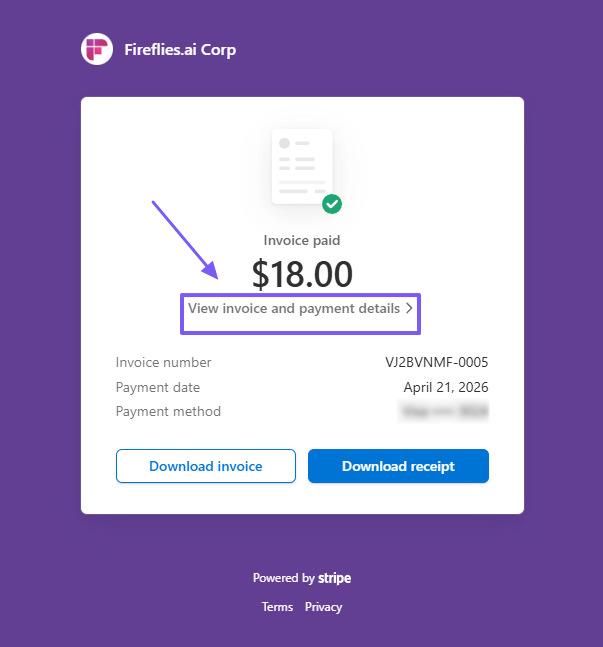
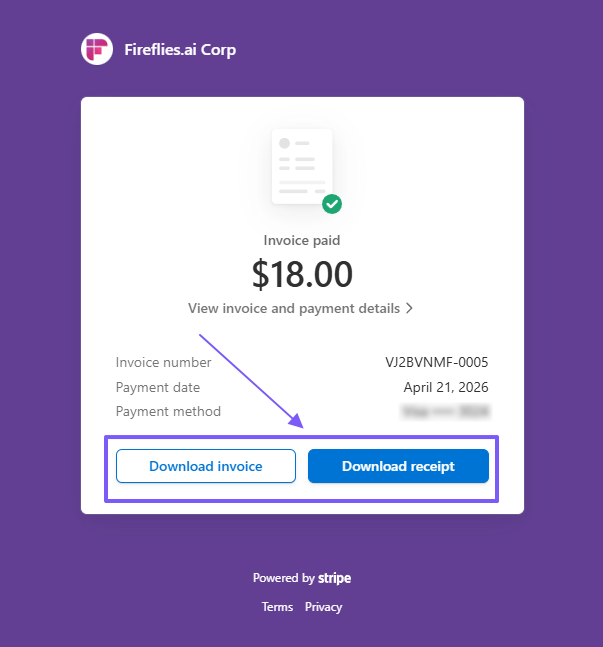
A new, secure tab will open displaying your payment summary. From this page, you have a few options to review your billing data:
To view online: Click the View invoice and payment details text link in the center card.
A side panel will slide out on the right, showing an itemized summary of your charges and prorated billing breakdowns.
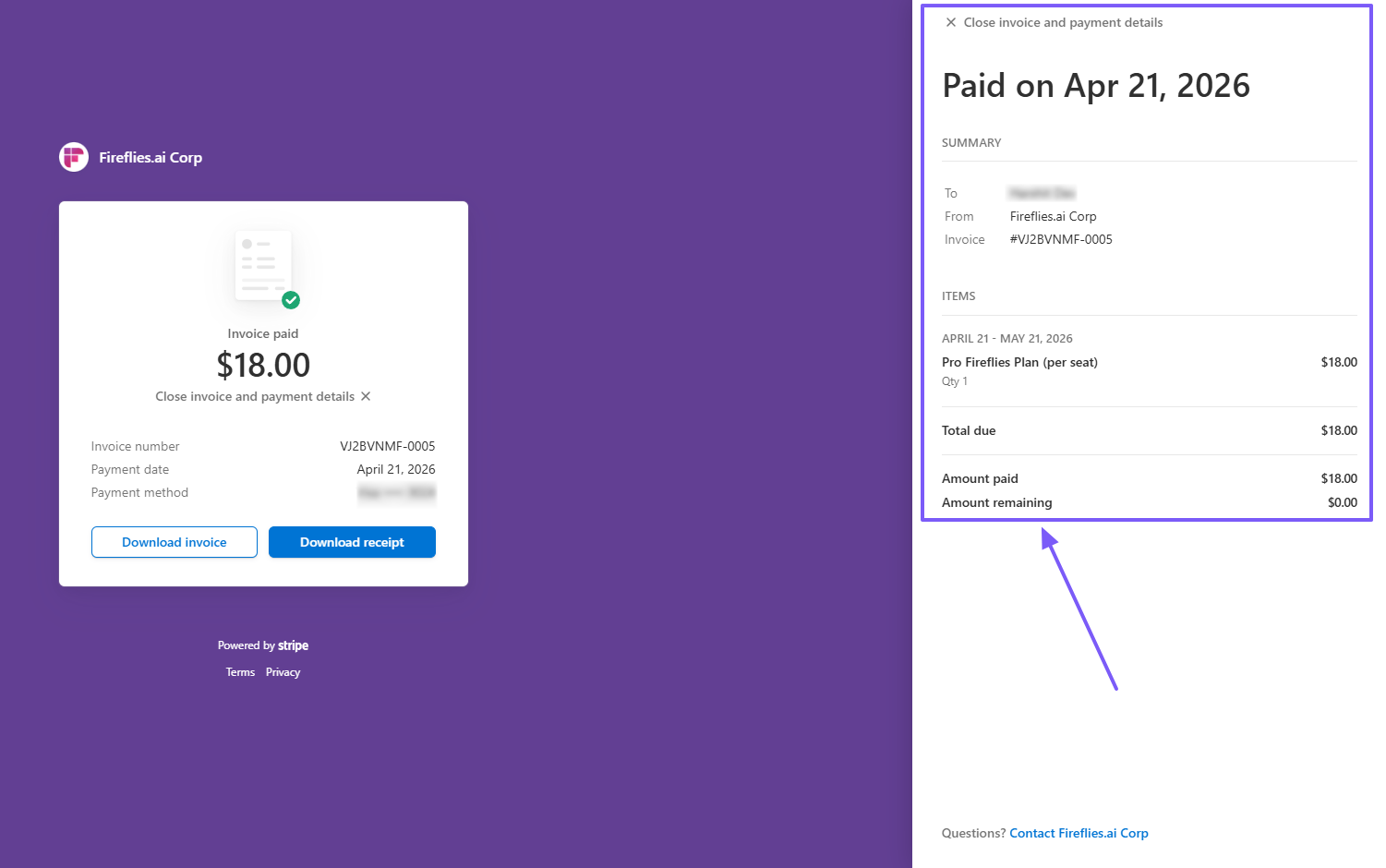
To save offline: Click the blue Download invoice or Download receipt buttons at the bottom of the card to save a standard PDF file directly to your computer.
🔍 Troubleshooting / FAQs
Why don't I see the Billing section? Only workspace owners, Admins, and Billing Admins have access to the Billing section. If you are a standard member of your team's workspace, this section will be hidden from your dashboard.
What does "unused time" mean on my invoice? "Unused time" refers to the prorated portion of a subscription period when a team member is added or removed mid-cycle. For instance, if you add a new team member halfway through a month, you've prepaid for a full month, but they are only using it for half. The unused time ensures you are only billed for exact usage.
Why does my invoice say $0.00? If you are on a free trial, or if your latest invoice was completely covered by prorated account credits from a previous downgrade, your total charge for that cycle will show as $0.00.
Recap: You can access, review, and download PDF copies of your invoices and receipts at any time from the Billing History section of your Settings.
➕ Additional Resources
📌 Want receipts sent to email-id? → Send invoices to your preferred email ID
📌 General billing questions? → Manage Fireflies account subscriptions, billing and