How to send Fireflies invoices to specific emails
Last updated: May 12, 2026
Fireflies allows you to send billing receipts and invoices to specific email addresses, so your team or stakeholders can stay updated on billing activity. Users on a paid plan can opt in to receive billing details via email and add multiple recipients for notifications.
This guide explains how to enable billing emails and add recipients to receive invoices automatically.
🚀 Follow these steps to send invoices
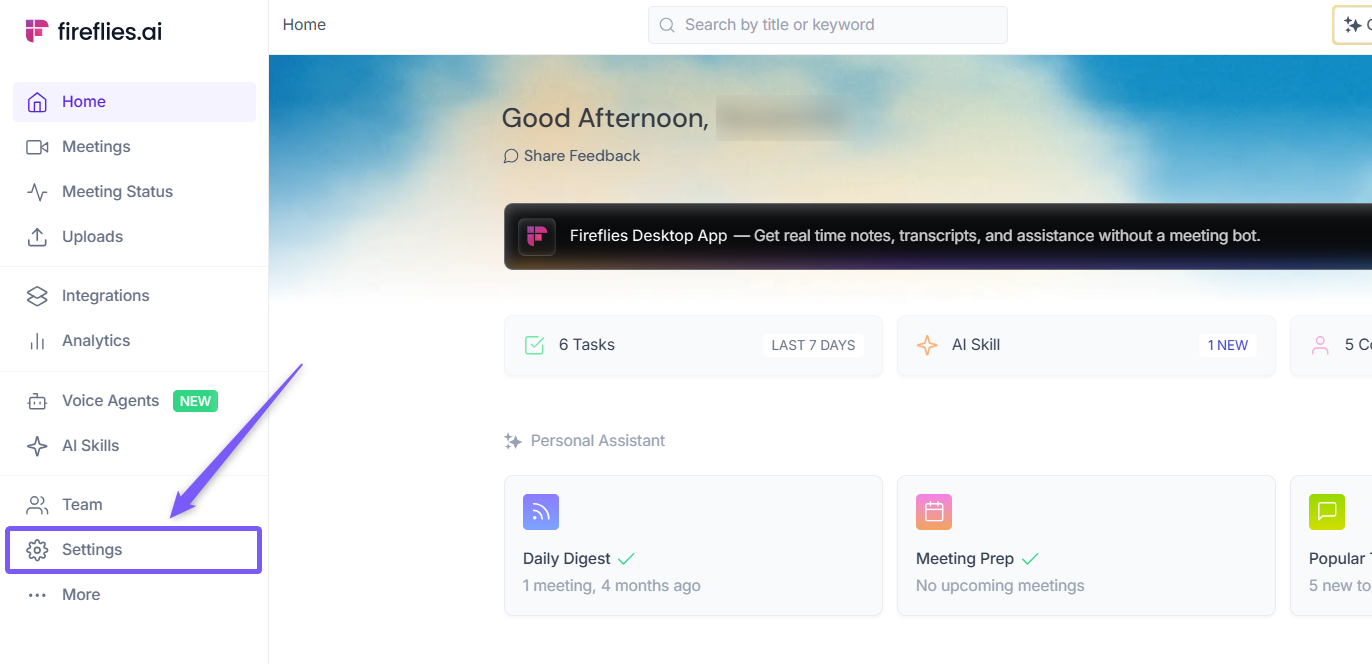
1. Go to the Fireflies web app and click the Settings from left side menu.
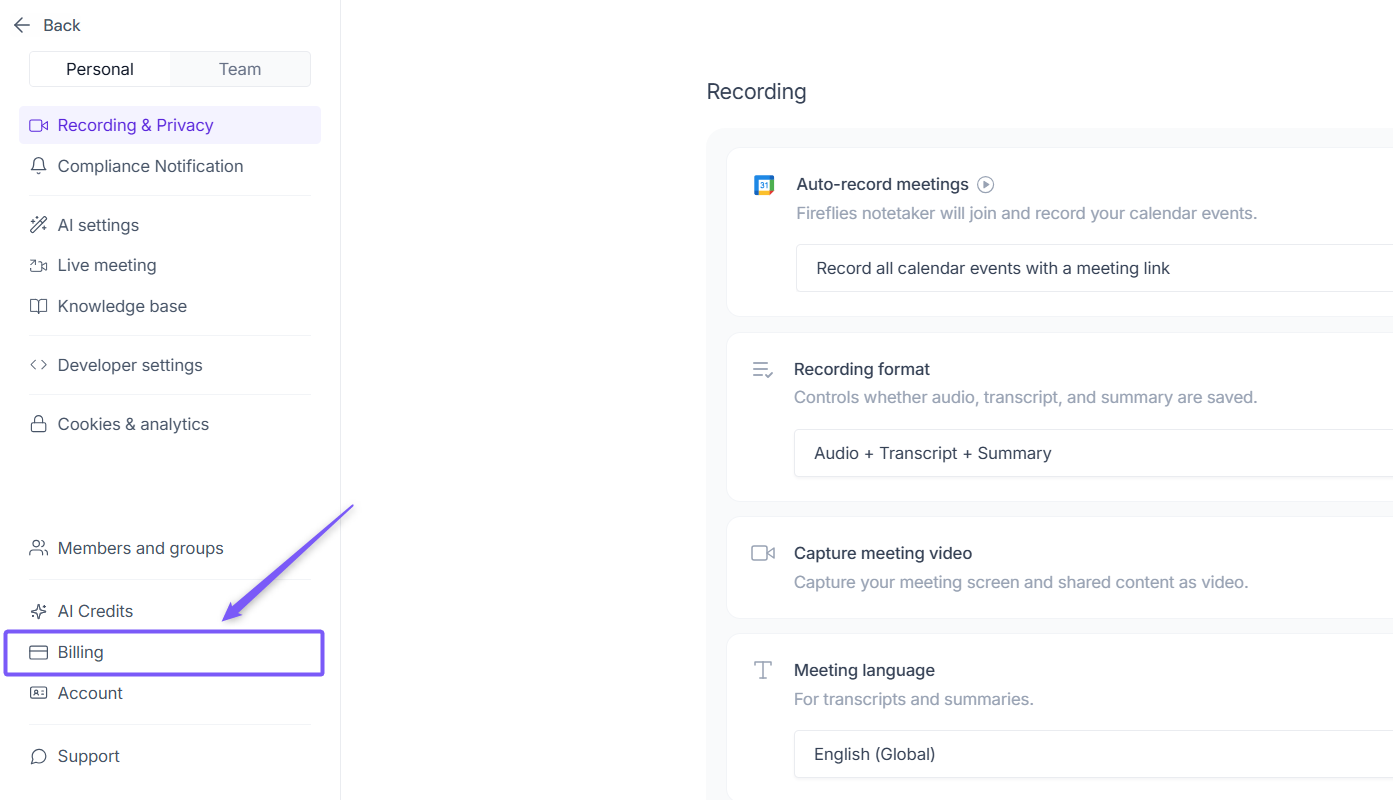
2. Navigate to Billing from the left panel.
3. Scroll to the Billing History section to view your invoices (Upcoming or past), including details like date, plan/seat description, status, and invoice total.
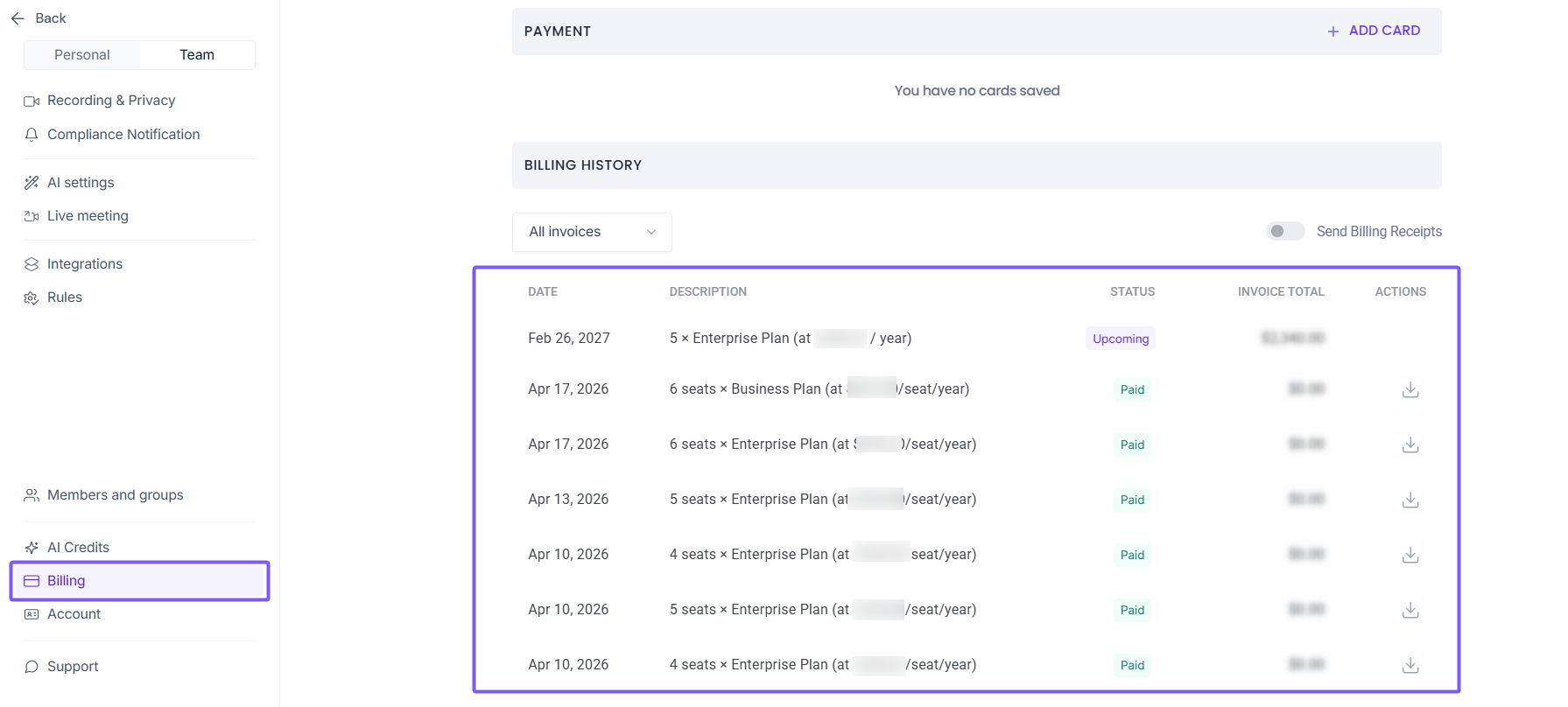
Any teammates you add will automatically be assigned to the same plan as your workspace.
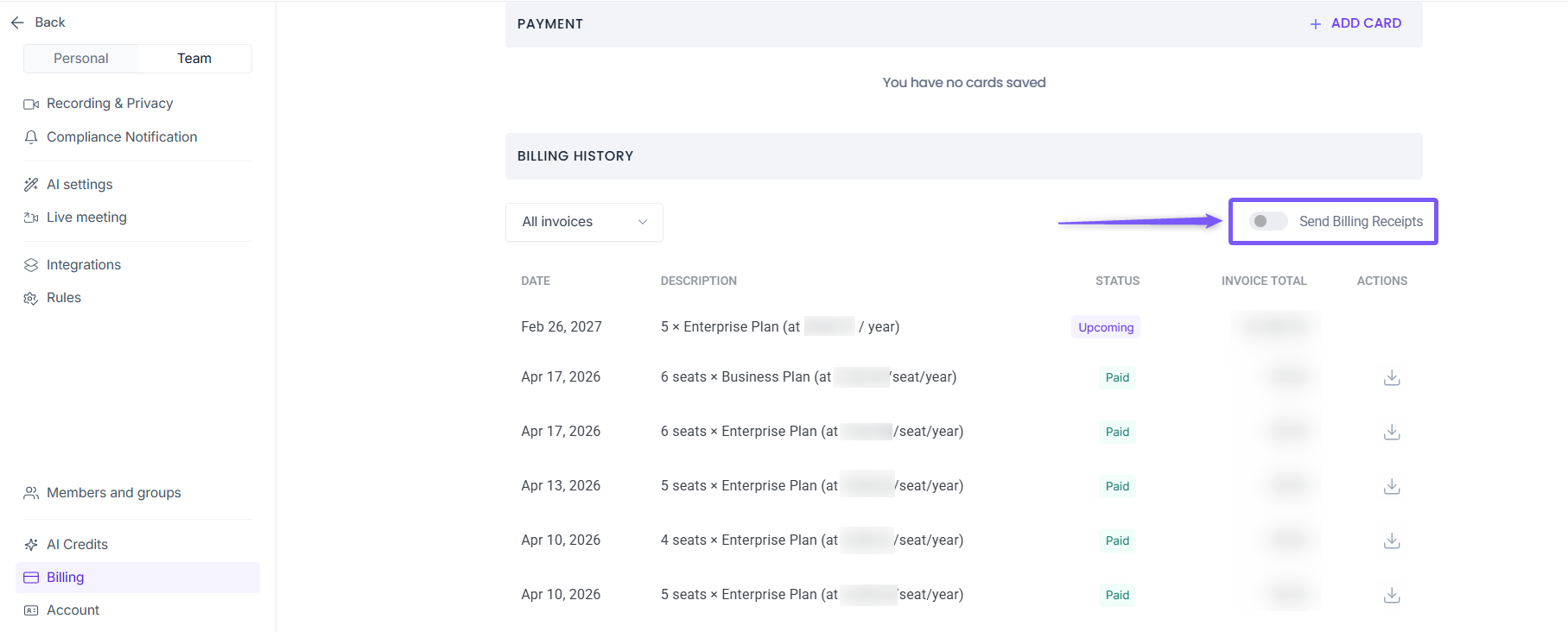
4. At the top right of the Billing History section, turn on the Send Billing Receipts toggle.
5. A dialog box will appear. Select teammates from your workspace or enter the specific email address(es) where you want to receive billing invoices.
💡 Tip: To add multiple email addresses, separate them with a comma or press Enter after each one (e.g.,
email1@example.com,email2@example.com).
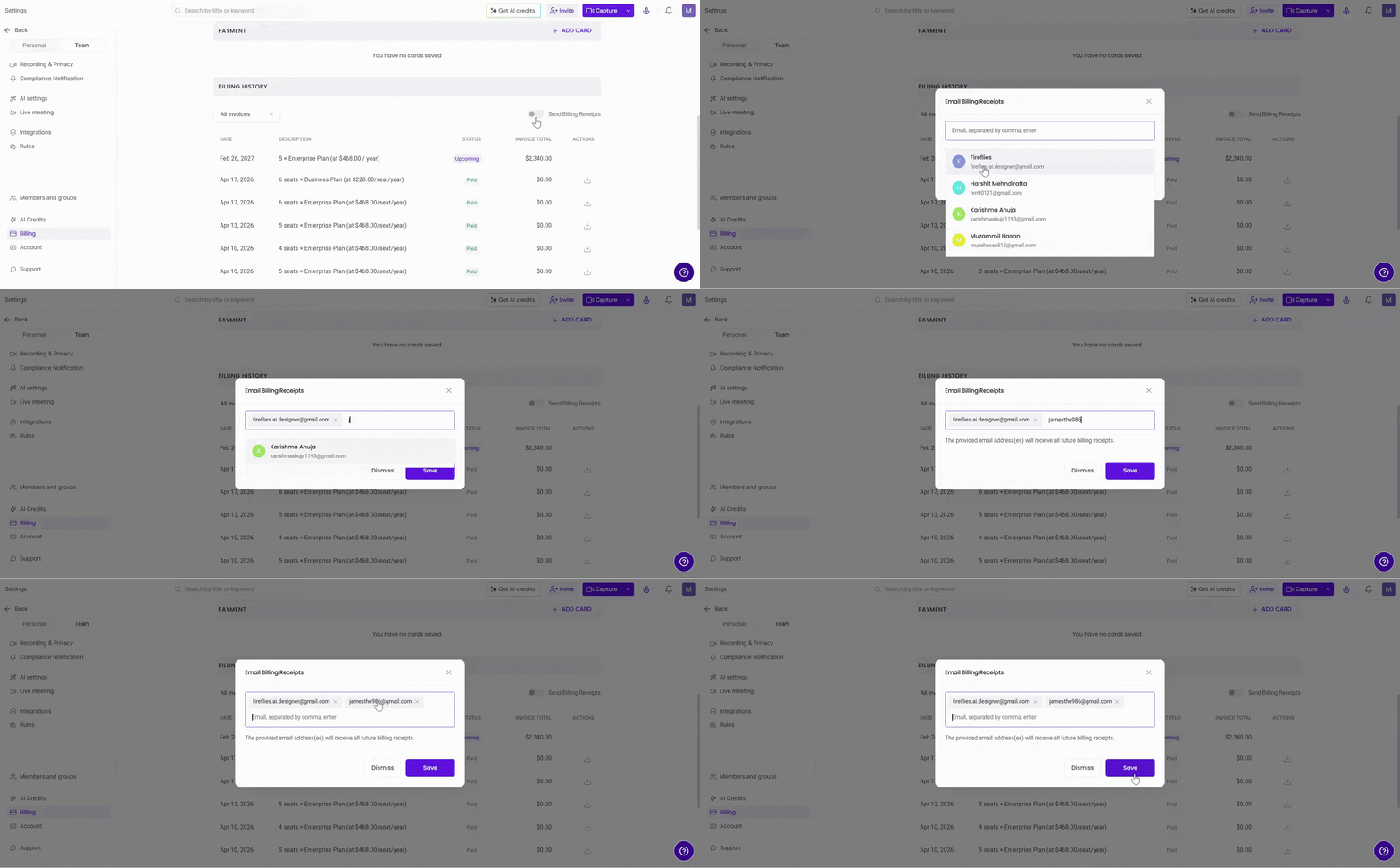
7. After entering the email address(es), click Save to confirm.
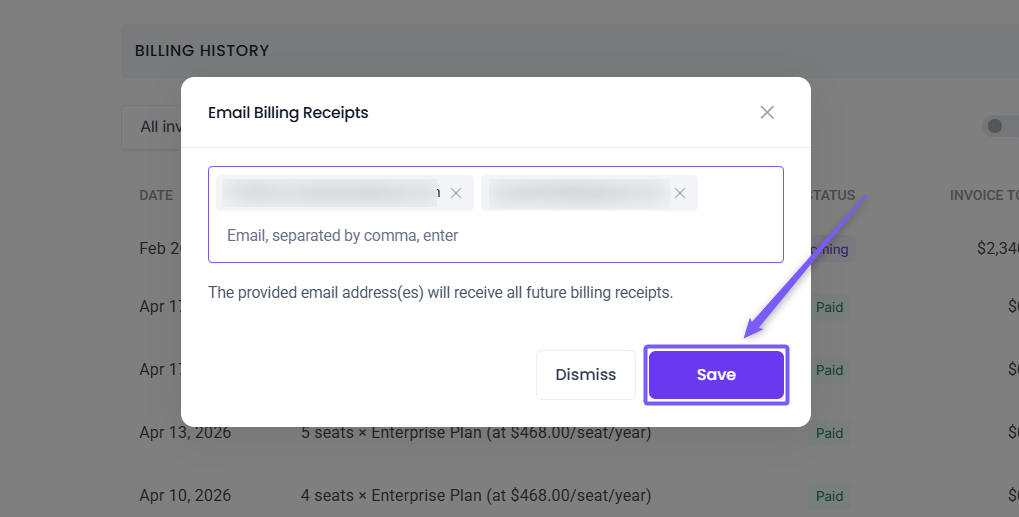
8. When the toggle is ON, the selected email address(es) will appear next to it and receive billing receipts. If the toggle is OFF, no invoice emails will be sent.
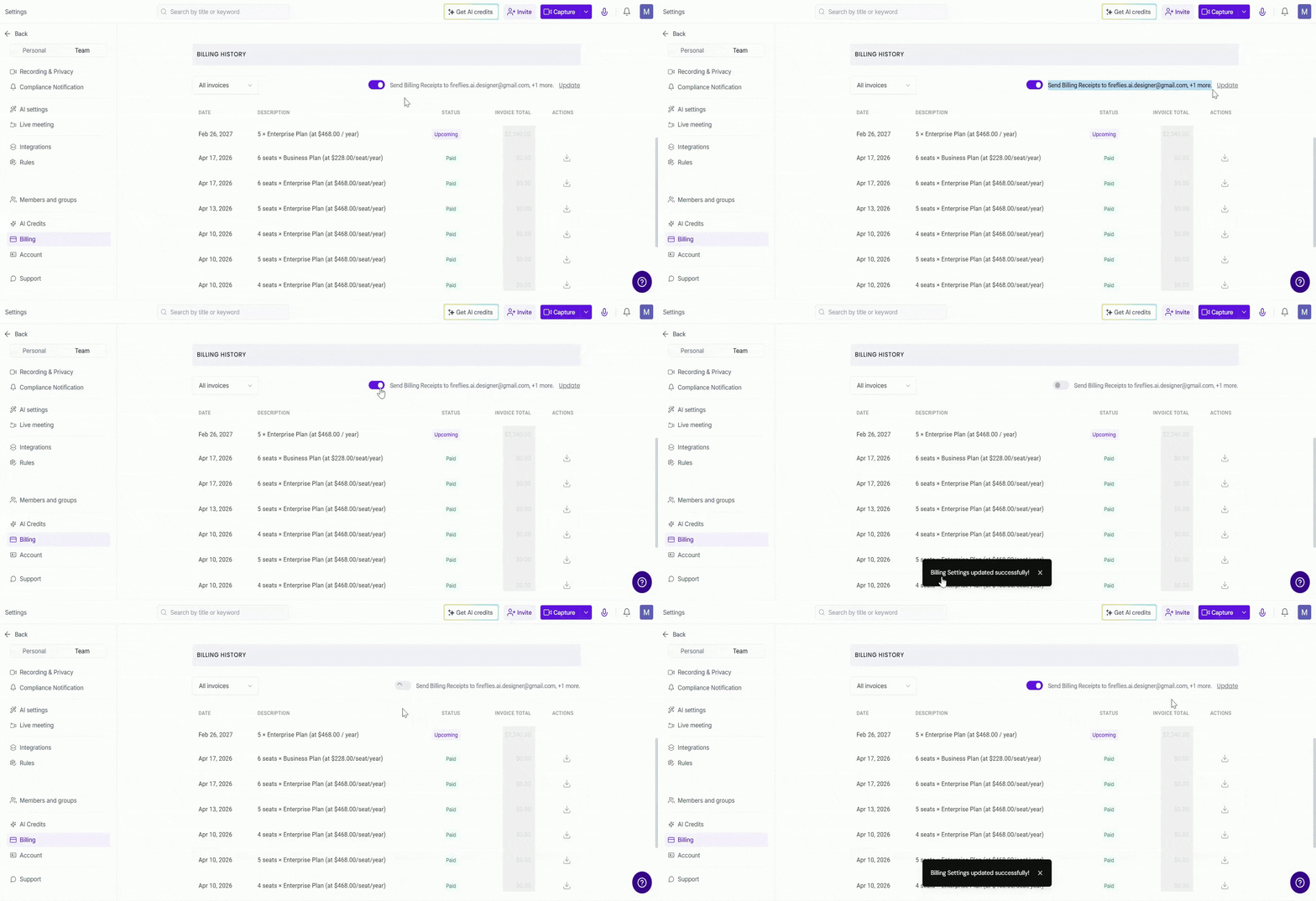
✏ To update email addresses
1. Click the Update link next to the toggle.
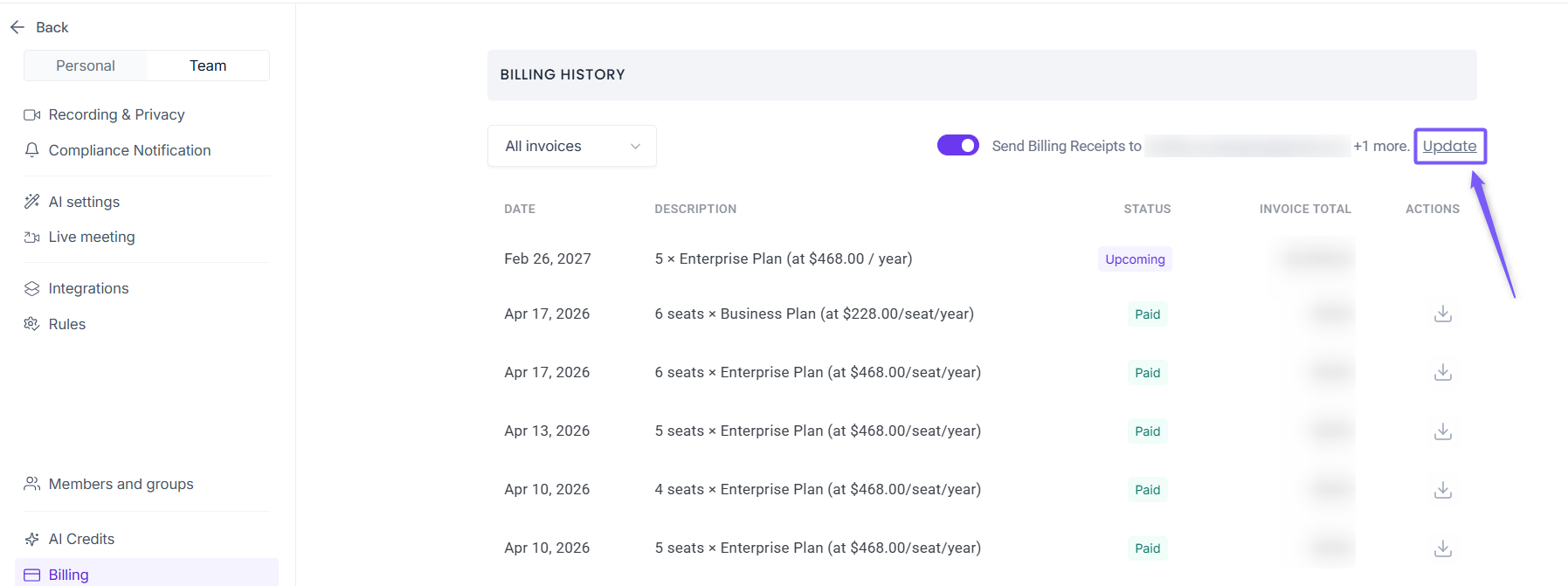
2. In the dialog box, add new email addresses or remove existing ones using the ✕ icon.
3. Click Save to apply the changes.
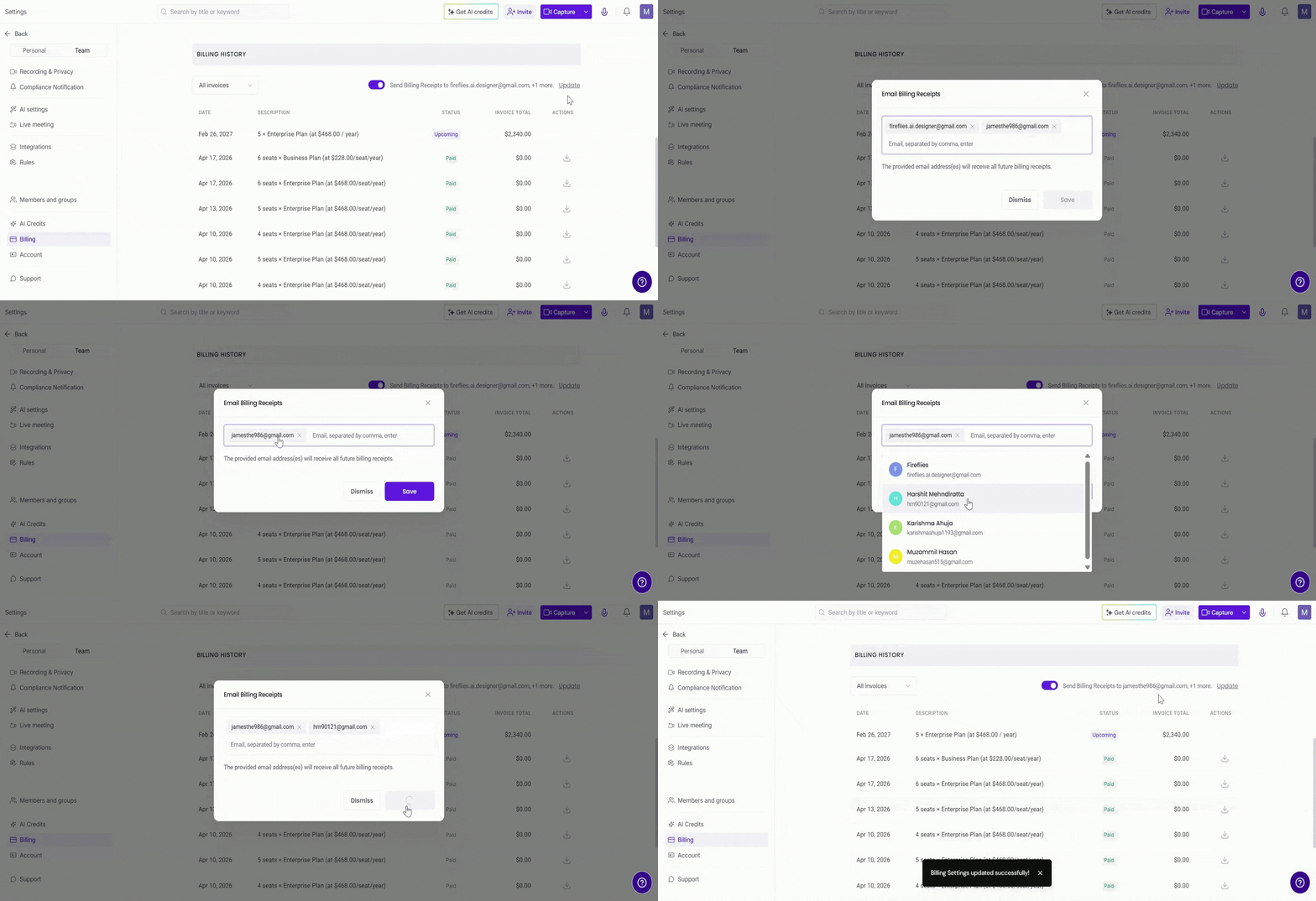
Once saved, all future billing receipts will be sent to the selected email address(es). You can update or remove recipients anytime from the same setting.
❓ Frequently Asked Questions
1. Can I add multiple email addresses?
Yes, you can add multiple recipients by separating email addresses with a comma.
2. Will past invoices be sent to these emails?
No, only future billing receipts will be sent after you enable this setting.
3. Can I update or remove email addresses later?
Yes, click Update to add or remove email addresses anytime.
4. What happens if I turn off the toggle?
Billing receipts will no longer be sent to any email addresses.
5. How can I edit my billing details?.
Yes, you can update your billing details anytime. To learn how, see → (How to edit your billing details)
6. How can I download my invoices?
You can download your invoices from Settings → Billing → Billing History. Learn more → (How to download Fireflies invoices)
If you’re having trouble or questions sending invoices to email addresses, feel free to contact support for assistance.