How to record & transcribe Slack Huddles with Fireflies (Beta)
Last updated: April 13, 2026
Quick syncs, impromptu brainstorms, team check-ins — Slack Huddles are where a lot of fast conversations happen. Now, you can automatically capture and transcribe those Huddles with Fireflies — no need to switch tools or take notes manually.
Fireflies joins your Huddles, captures the conversation, and logs it back into your dashboard with full summaries, transcripts, and action items. You decide if it joins automatically or only when you invite it.
This feature is still in Beta, and we'd love to hear your feedback on how we can make the experience seamless. Head here to share.
⚙ Set up Fireflies for Slack Huddles in 3 Easy Steps
This is a one-time setup. You’ll be done in a few minutes.
1. Connect your Slack Workspace
Go to Settings in your Fireflies dashboard.
Switch to the Team Tab under Settings
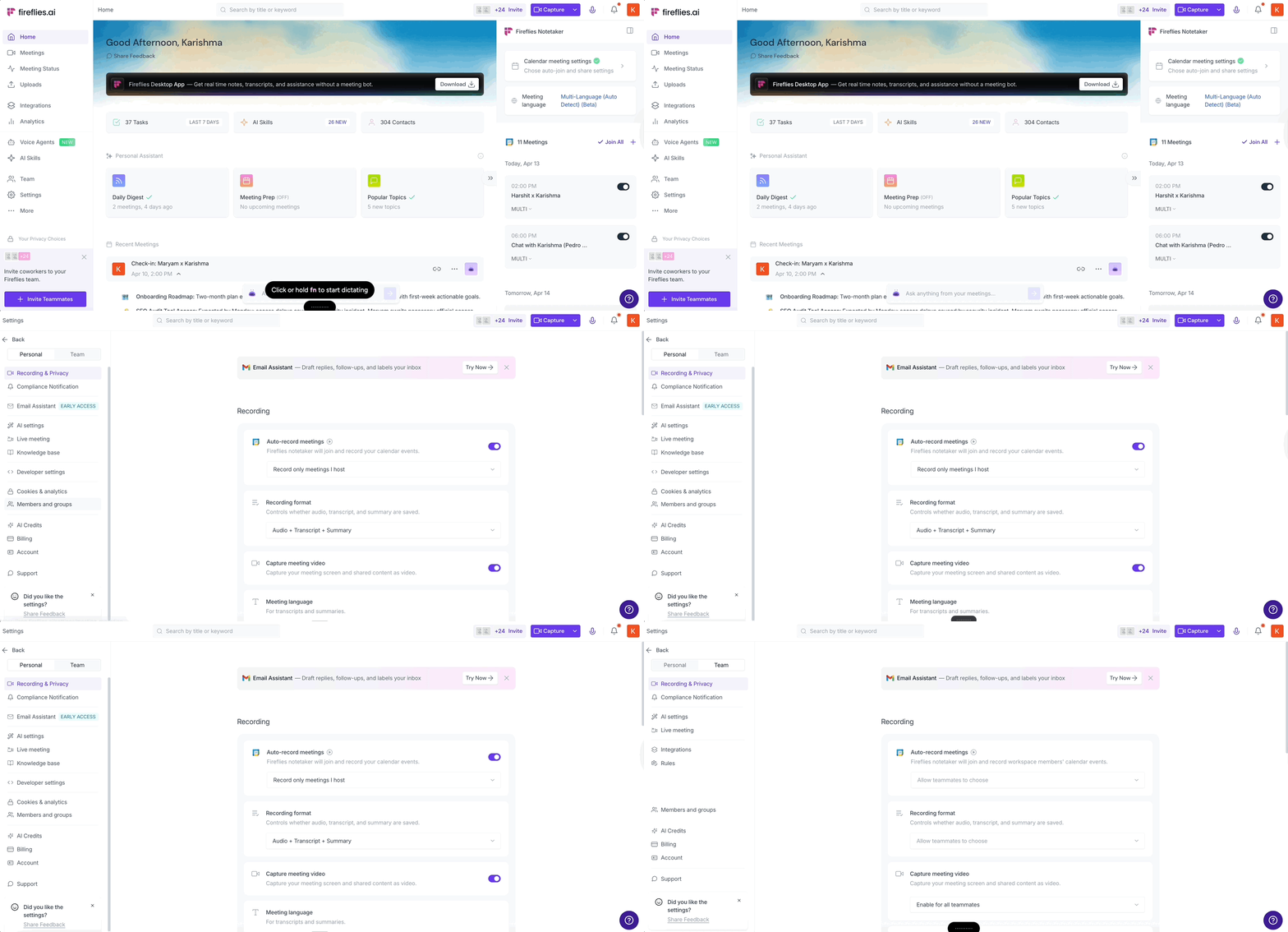
Go to Integrations in the team tab, scroll down and you will see an option to set up Slack Huddles.
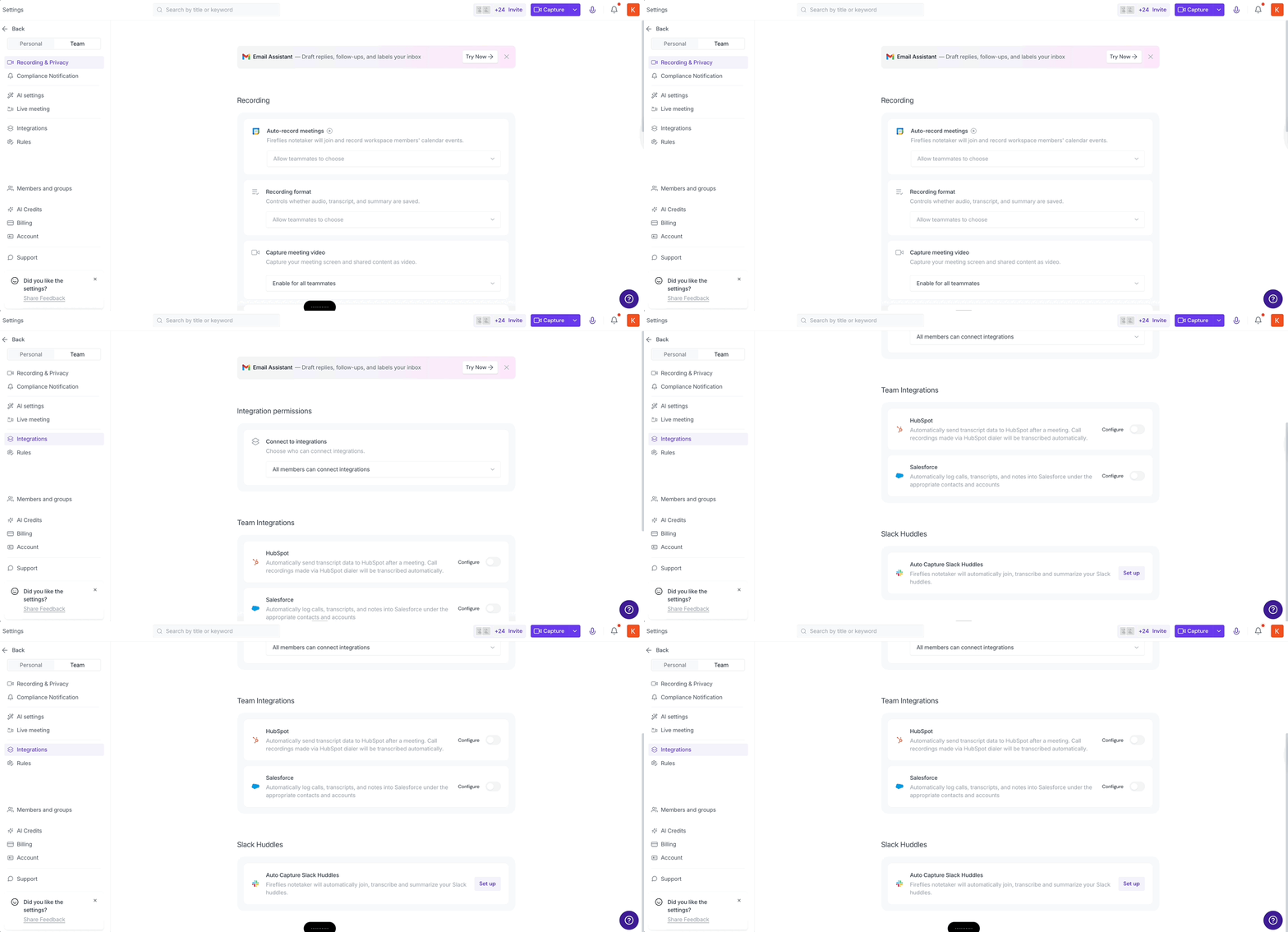
Click Set up and enter your Slack Workspace URL.
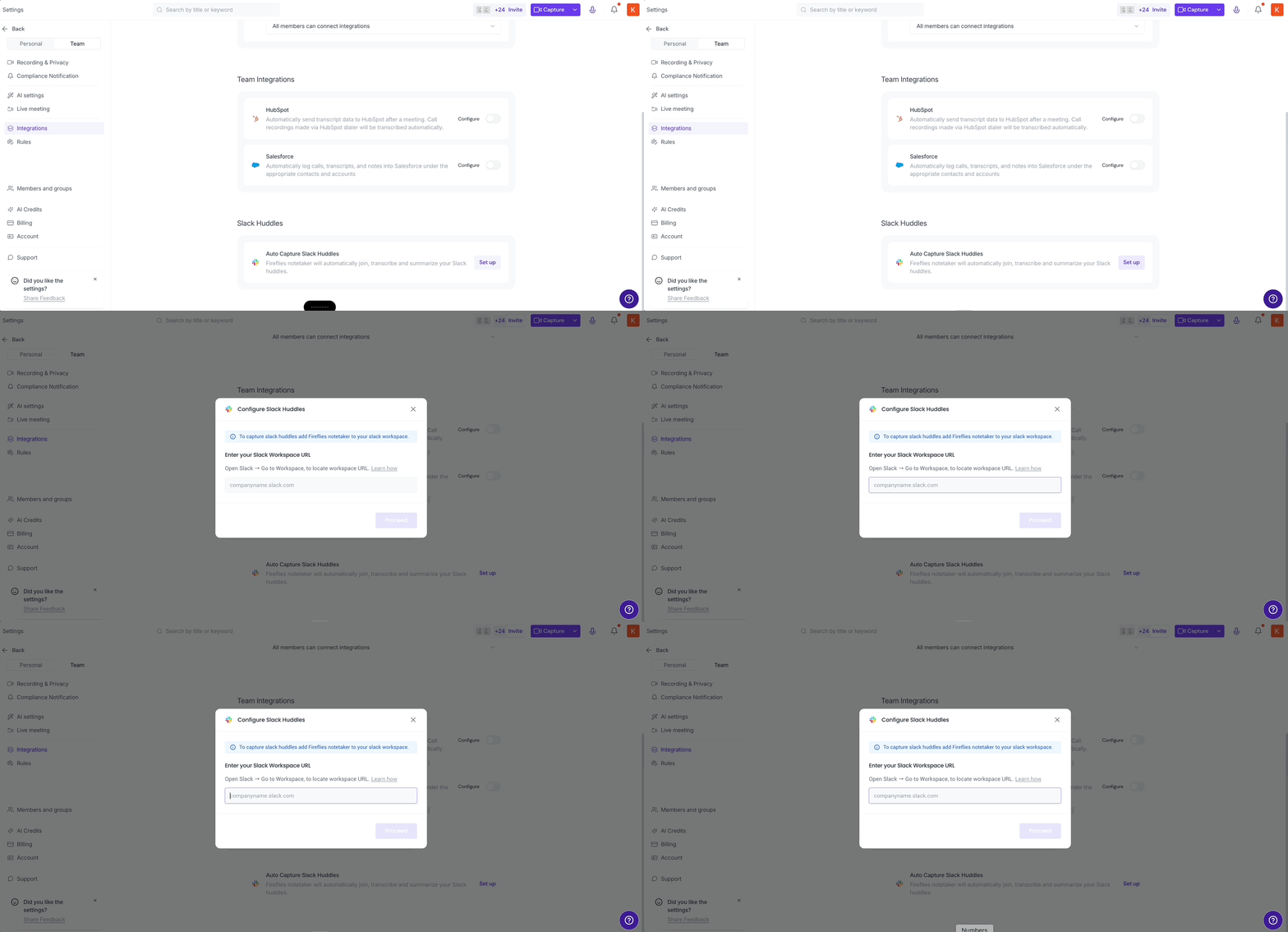
📝 Tip: You can get this URL from Slack by clicking on your workspace name > Settings > Workspace URL.
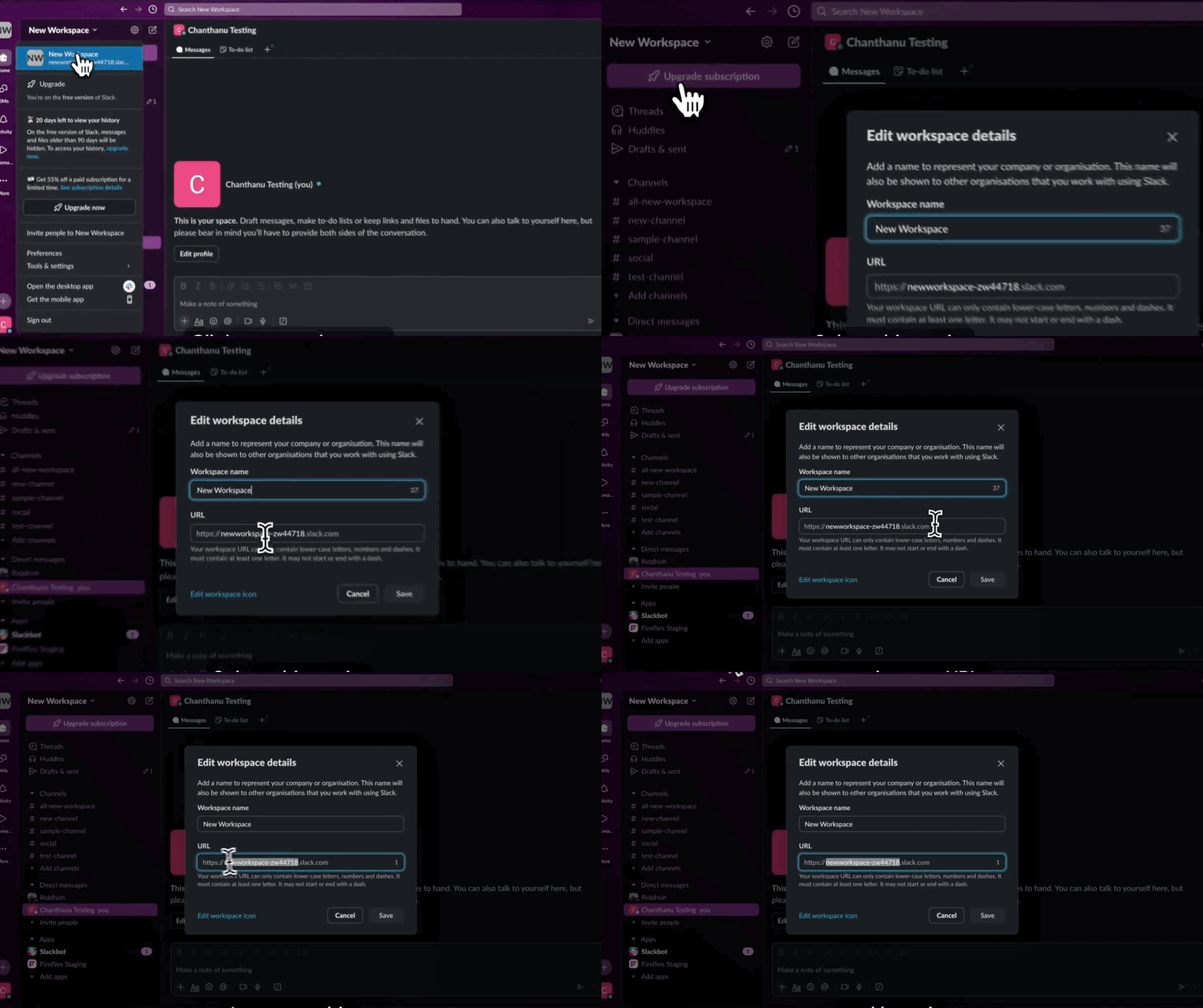
Note: If your Slack workspace has SSO enabled, you'll need to add this email as a multi-channel guest user and select all channels where you want the bot to automatically record huddles.
2. Add Fireflies to your Slack Workspace
Once you enter your Slack URL, Fireflies will provide an email ID.
Copy this email.
Go to Slack > Click Invite People > Paste the Fireflies email and send the invite.
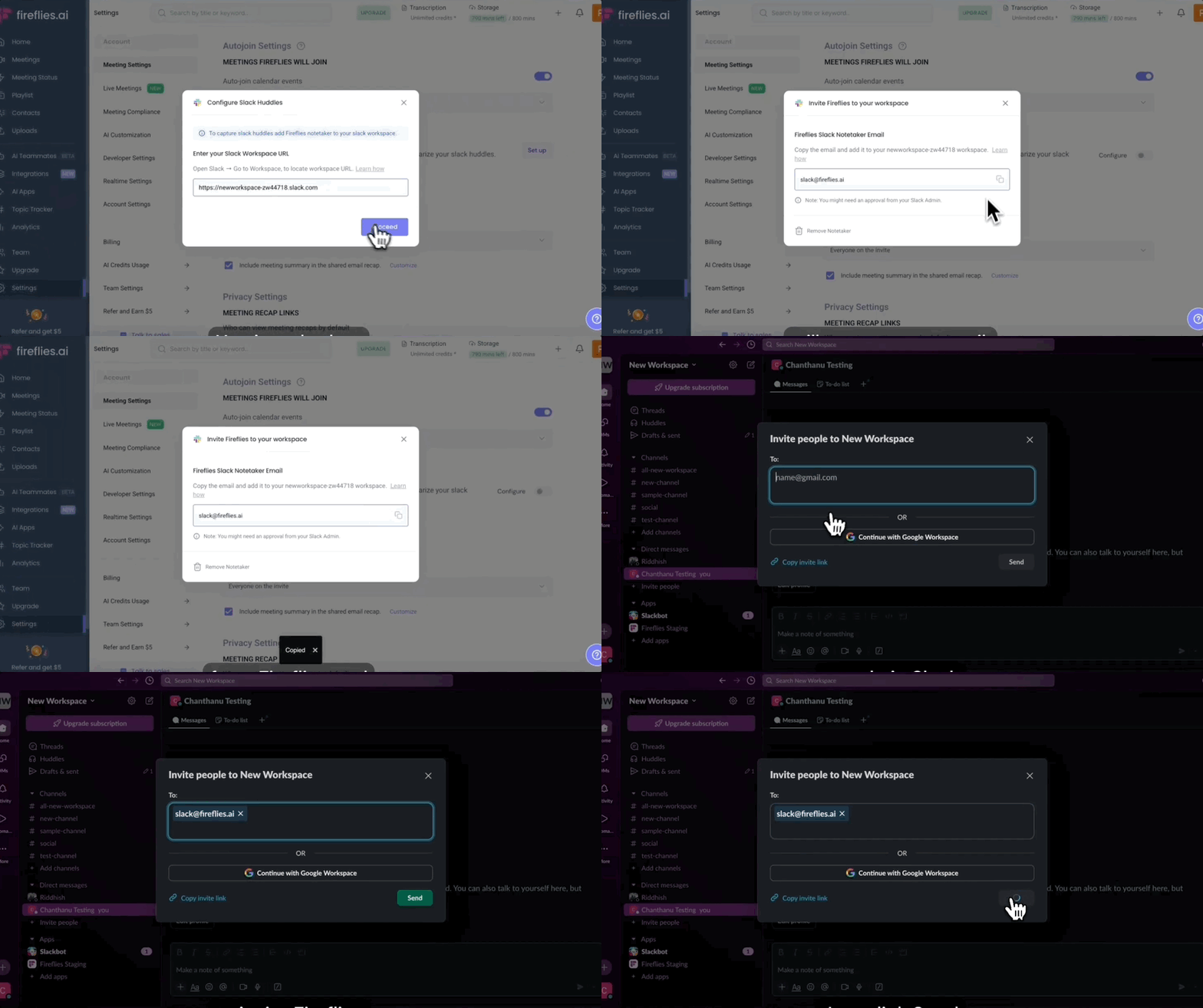
Think of this as adding a new teammate. You only need to do this once for your entire workspace.
3. Invite the bot to private channel huddles or DM huddles (where Fireflies bot is not part of that channel)
Use Slack’s invite feature to add the Fireflies bot to the huddle.
The bot will then prompt to join—accept the request
Once accepted and it will record the huddle, even in private or DM-based ones.

Done! Fireflies is ready to join your Huddles
Head back to Fireflies. You’ll now see a Configure button instead of Setup.
Toggle Auto-join on or off based on your preference (see next section).
That’s it — you’re all set to start recording Slack Huddles!
Currently, we don't support workspaces with 2FA enabled, as the bot cannot join a workspace that requires two-factor authentication.
Note: If your workspace allows users without 2FA and doesn't log out existing non-2FA users, you can temporarily disable 2FA, add the bot to your workspace, and then re-enable 2FA once the bot has been successfully added.
🎯 Two Ways to Use Fireflies with Huddles
🔁 Option 1: Auto-Join Enabled (Hands-Free)
Fireflies automatically joins any Huddle in channels where it’s a member.
You don’t need to do anything — it starts recording and transcribing on its own.
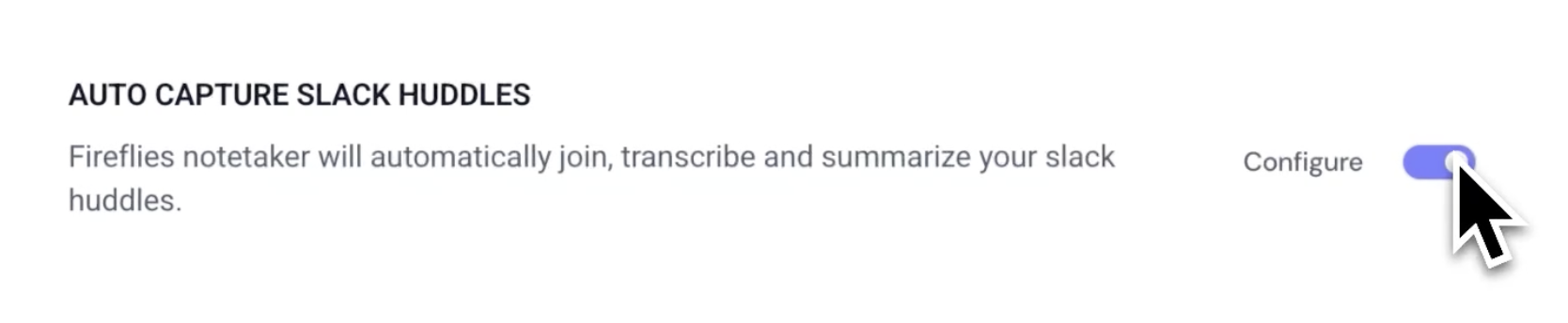
🙋 Option 2: Manual Join (You Control When It Joins)
Turn off Auto-join in Fireflies Settings.
Start a Huddle in Slack.
Click Invite People > Search for "Fireflies" and click Invite.
Fireflies will join in a few seconds and start recording.
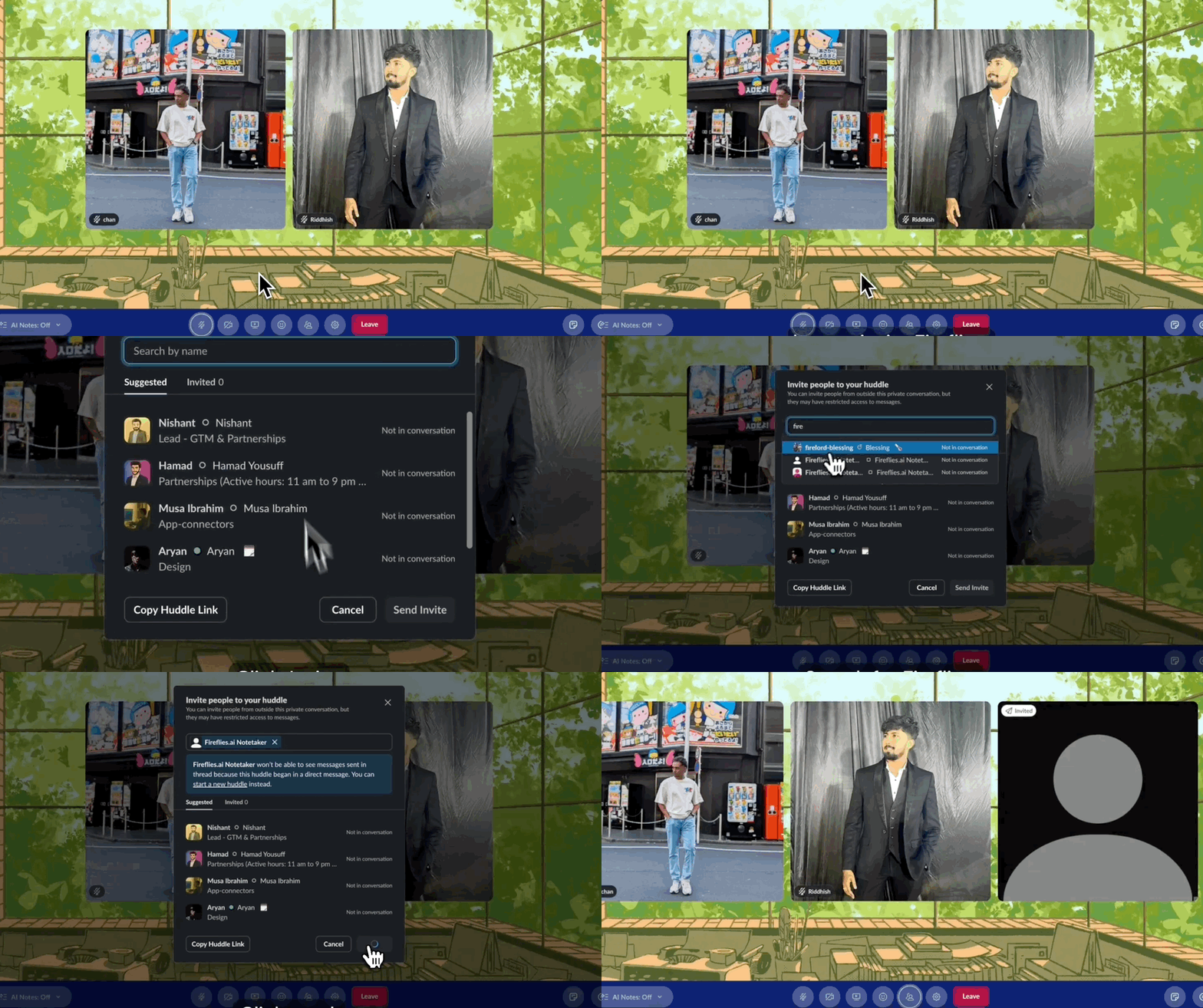
✨ Works just like adding a teammate — but instead of saying “hi,” it takes notes for you.
🧠 Who owns the Huddle recording?
Ownership determines who sees the meeting in Fireflies.
If a Fireflies user starts the Huddle → that person owns the meeting.
If a non-Fireflies user starts it → Fireflies will assign it to the most relevant teammate using this priority:
# | Ownership Rule |
1 | Admins from the same domain with privacy preference enabled |
2 | Any admin from the same domain |
3 | Regular users from the same domain with privacy settings |
4 | Any regular user from the same domain |
5 | Admins from other domains with privacy settings |
6 | Any user with privacy settings |
7 | Fallback: First participant in the meeting |
🔒 If no Fireflies user is present in the Huddle, the recording will not be saved.
🔐 Is it secure?
Absolutely.
Fireflies only accesses Slack Huddles. It does not access your channels, messages, or files.
Notes are shared based on your privacy and team settings.
🚀 Why this is different (and awesome)
No more relying on external conferencing tools to capture Slack meetings.
Works across multiple Huddles at once — perfect for big teams.
One Fireflies email = shared bot for your entire Slack workspace.
Seamless notes, AI summaries, and searchable transcripts — all in one place.
📌 FAQs
Q: Does Fireflies access Slack messages or DMs?
A: No. Fireflies only joins Huddles — it doesn't access chats, channels, or files.
Q: Do I need to invite Fireflies every time?
A: Only if you're using Manual mode. If Auto-join is enabled, Fireflies will join on its own in channels it’s part of.
Q: Can multiple people use the same Fireflies Slack bot?
A: Yes! The same Fireflies email works across your entire Slack workspace.
Q: Can it record two Huddles at the same time?
A: Yep — Fireflies supports multiple concurrent Huddles.
Q: What happens if someone from the team has already set up the Slack workspace for huddles? Can we set it up again?
A: Currently, we don’t allow setting up the same workspace again. However, if you want to remove the previous setup and reconfigure it, you can ask the user who set it up to delete the workspace.
🧪 Want to test it?
Start a Slack Huddle → Invite the Fireflies bot → Talk for a minute → End the Huddle → Open your Fireflies dashboard. Your Huddle should be fully transcribed, summarized, and searchable.