Control Who Can View Your Fireflies Meeting Recaps via Privacy Settings
Last updated: October 8, 2026
Not all meetings are meant to be shared with everyone. This guide shows you how to manage who can view your meeting transcripts, summaries, and recaps—either for a specific meeting or for all meetings by default.
1. Change the Privacy Settings for a Specific Meeting Recap
Want to share one meeting but keep others private? Here's how to update privacy just for that meeting:
Select the meeting recap you want to share from your Fireflies Meetings tab.
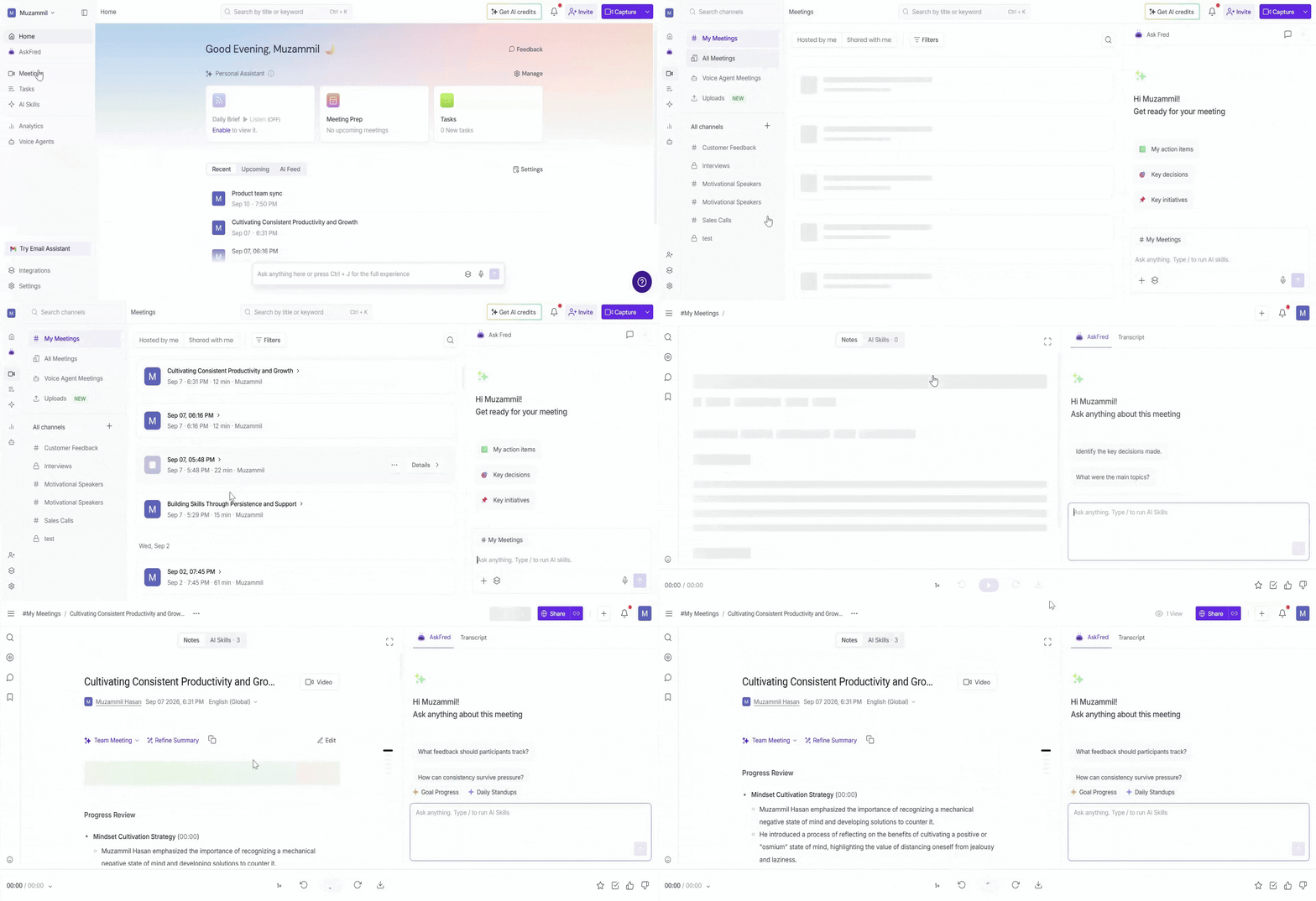
Click the Share button in the top right corner.
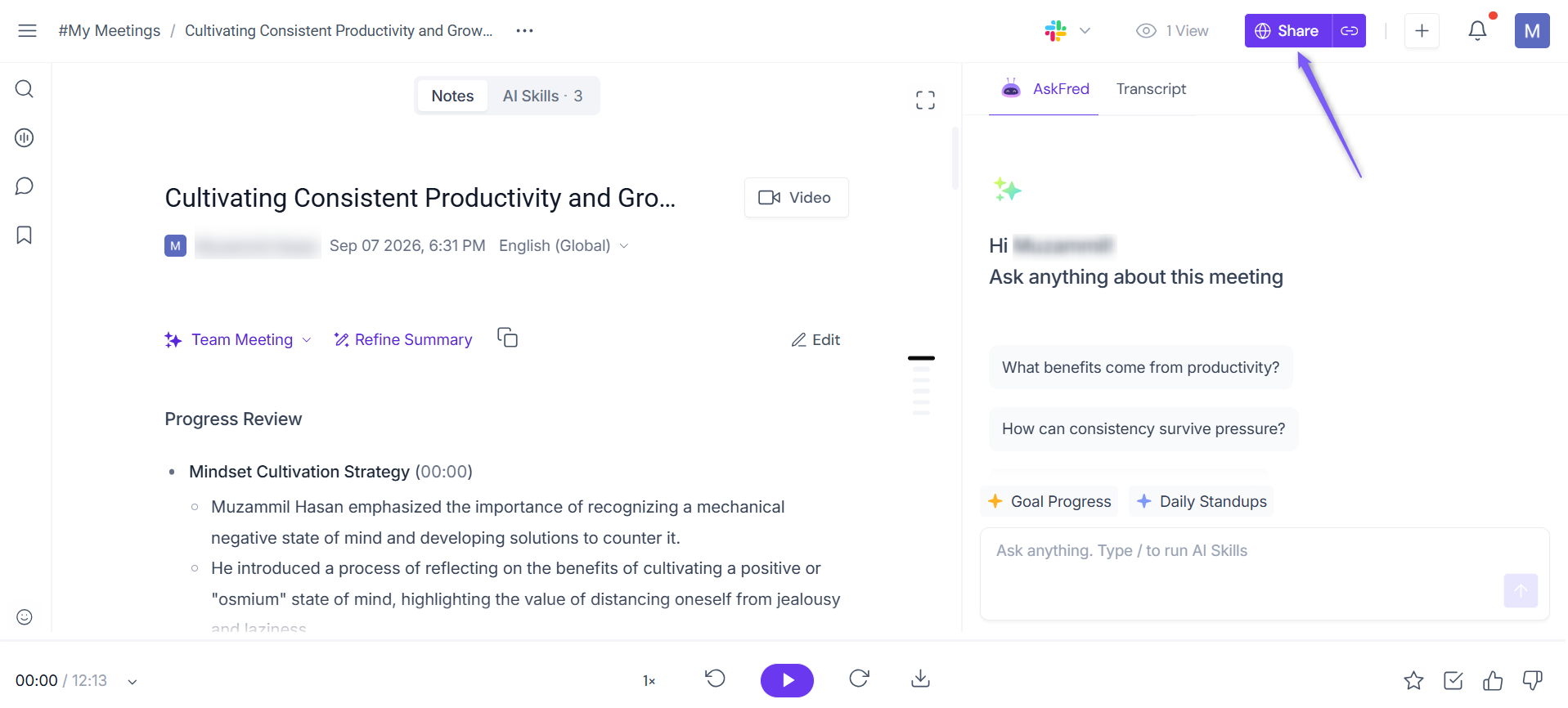
Choose who to share with from the pop-up window
🔗 Share with anyone using a public link
Teammates & Anyone with the link: Generates a public URL accessible by anyone and is best for external sharing with clients, partners, or others
Note:
This is the default privacy setting option for all meetings in Fireflies
Your teammates in the fireflies workspace will be able to see all these meetings under #AllMeetings tab
👥 Share within your workspace or with meeting participants
Teammates & Participants: Shares with everyone in your Fireflies workspace and all the meeting attendees (even external). Best for meetings that have both internal and external participants
Teammates: Makes the recap available to only members/ colleagues in your Fireflies workspace
Participants: Shares only with those listed as meeting attendees
Only Owner: Best for ultimate control & privacy - accessible only by the meeting owner. This will ensure that no one except you can see these notes.
“Teammates” = users in your Fireflies workspace. “Participants” can include external attendees who may or may not use Fireflies.

Private sharing options
Want more control over who gets to see your meeting notes? This is your go-to method when you're dealing with sensitive conversations or you want to limit access to just a few trusted people.
Let’s say you’ve already chosen a stricter visibility setting—like Only Owner—from your meeting settings. You can now layer on private invites to share it with select individuals or groups. Some use cases could be: Executive board meetings, Performance reviews or appraisals, Legal or confidential vendor calls.
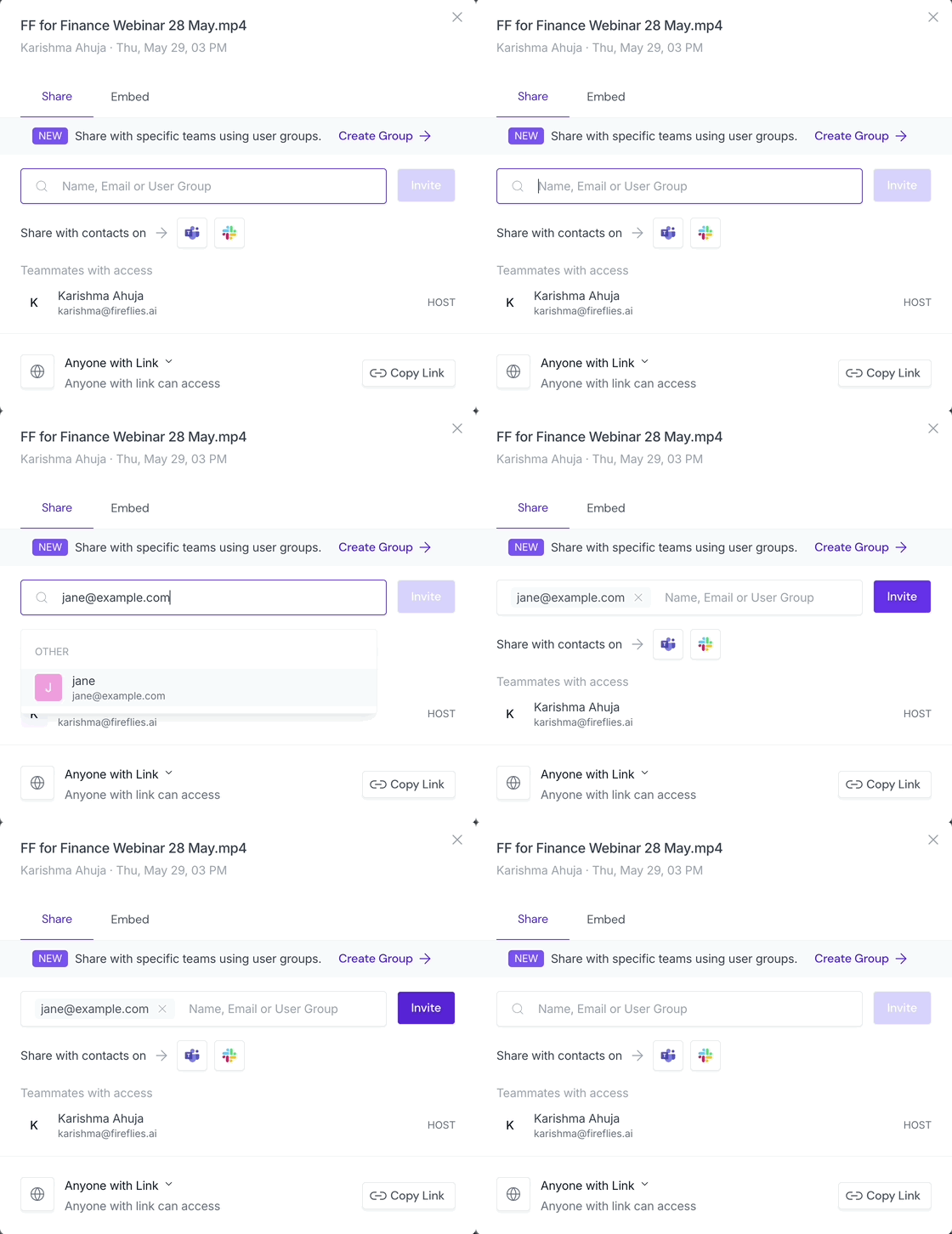
📧 Share with Specific People (via email)
Enter their email under Specific People and click Invite
Fireflies will send them a secure link to the recap via email
Great for one-off access to external collaborators or specific leaders
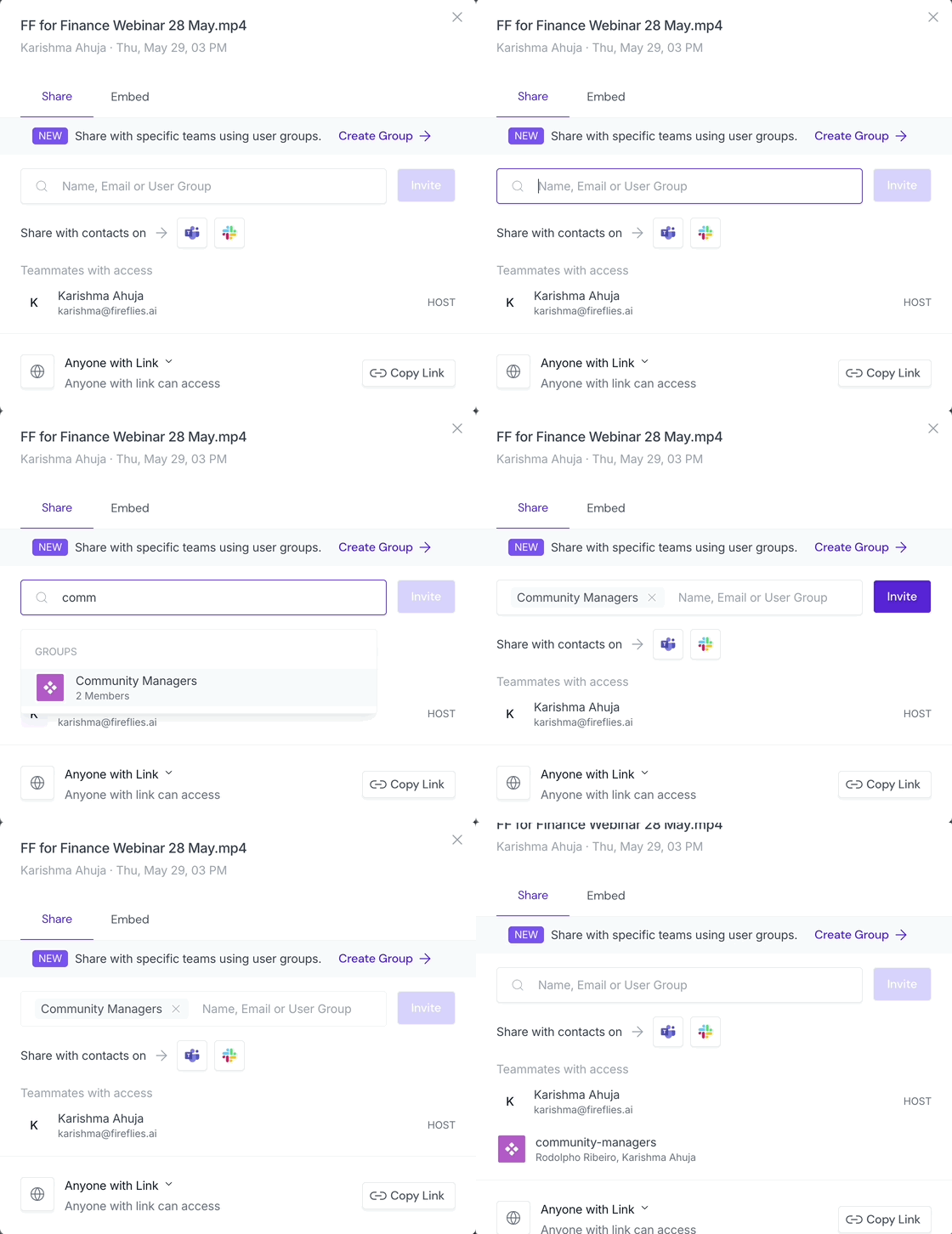
👤 Share with User Groups
Select from available Fireflies user groups (e.g. “HR Team”, "Product Team", “Legal Reviewers”)
Everyone in that group gets access without needing to add them individually
👉 Want to learn how to create User Groups. Follow this Guide
2. Set Privacy Defaults for All Future Meeting Recaps
Want to apply a default privacy level to all your meetings—so you don’t have to adjust each one? This setting controls who can open the full transcript, summary, and recording in Fireflies—not just who received the recap email. It applies across your Fireflies workspace.
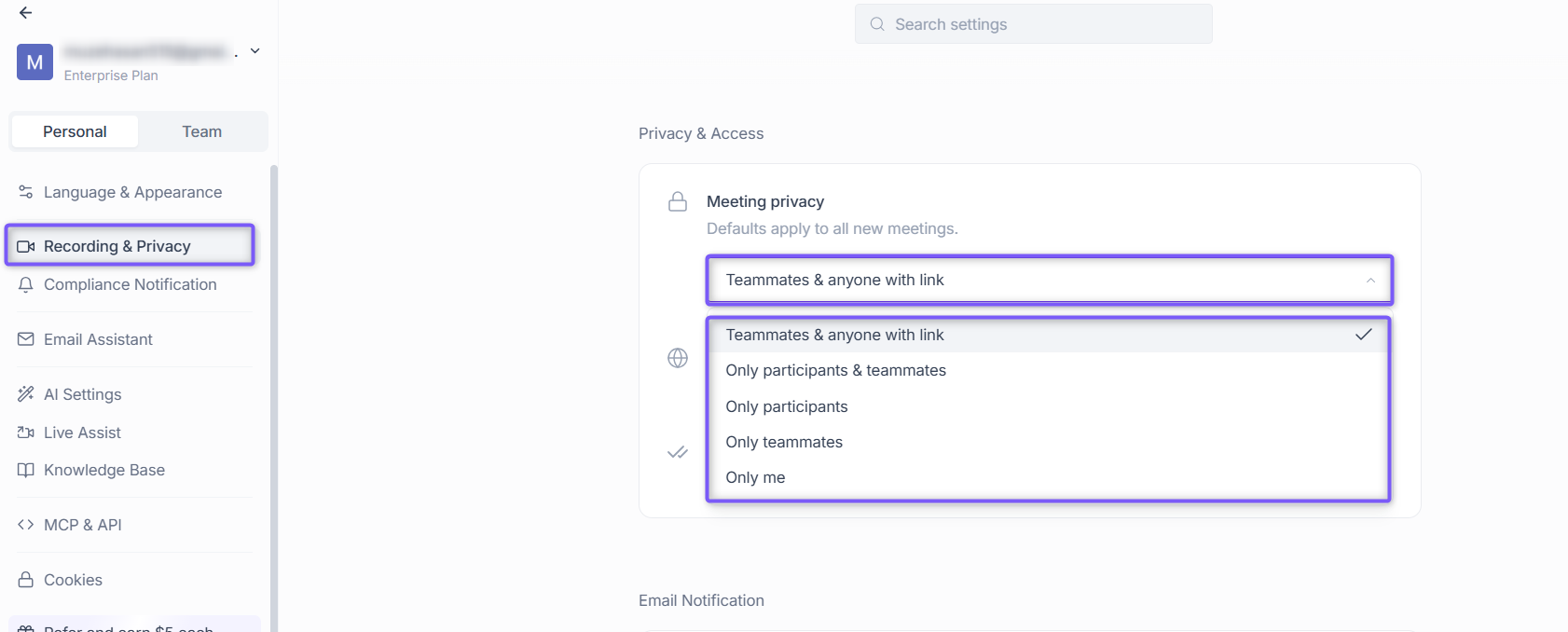
To update your default: In the Setting > Personal tab >Recording & Privacy, and scroll to the Privacy & Access section.
Choose your preferred access level:
Teammates & anyone with link (Default) — Anyone with the recap link can view it, and all teammates can access it in the #All Meetings tab even if they weren't in the meeting.
Only participants & teammates — Both meeting invitees and your Fireflies teammates can access the meeting.
Only participants — Only people who were invited to the meeting can access it. Best for mixed internal + external calls.
Only teammates — Everyone in your Fireflies workspace can view the meeting. Great for team-wide knowledge sharing.
Only me — Only you can view the meeting. Great for 1:1s, interviews, or personal notes.
Note: If your setting is Teammates & anyone with link and someone forwards the recap link, anyone who clicks it will be able to view the meeting.
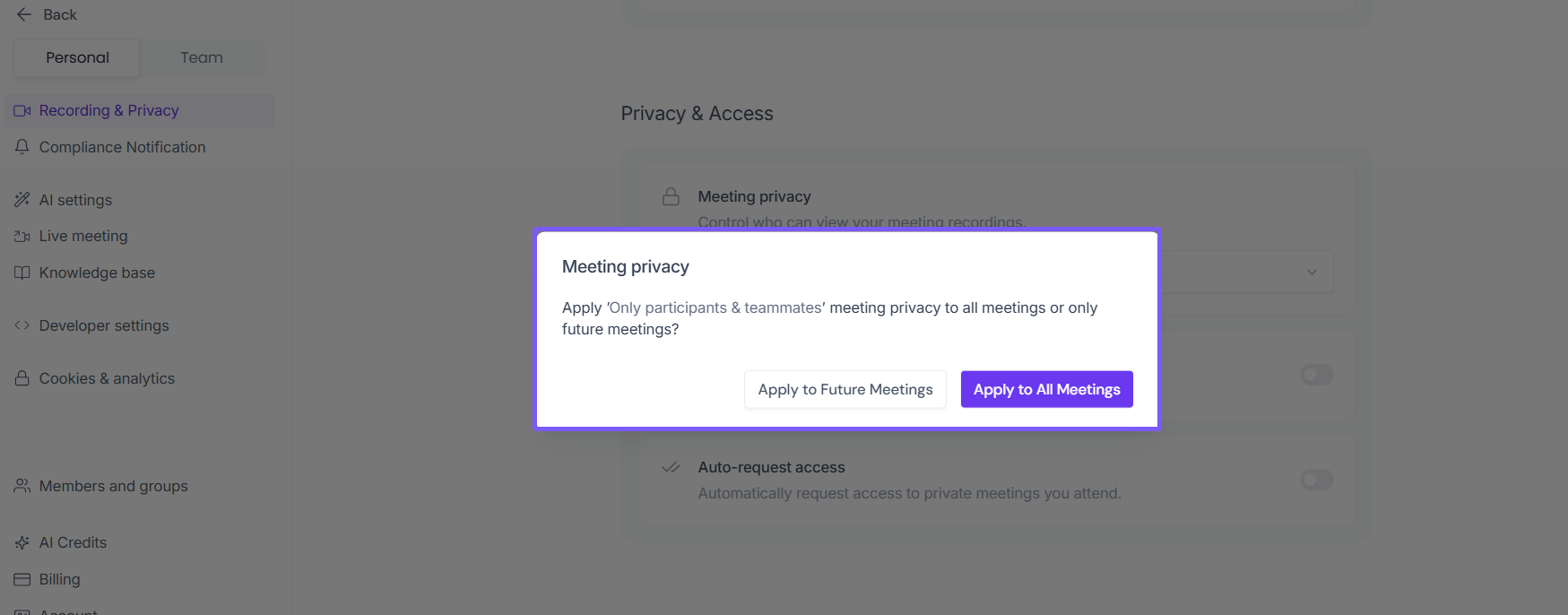
After you save your preference, you'll be prompted to choose whether you want this new privacy setting to Apply to only to future meetings or also to Apply to All Meetings. This lets you quickly enforce consistent access across your meeting history.
These recap emails include a summary + a link to the full notes. But they do not override the privacy of the actual meeting. That’s handled by privacy settings discussed above