How to access meeting summaries, transcripts, and soundbites on the Fireflies Mobile App
Last updated: June 27, 2025
Need to revisit a call on the go? Fireflies Mobile makes it easy to open your recordings, summaries, transcripts, and soundbites — anytime, anywhere.
👉 Full Mobile App Guide →
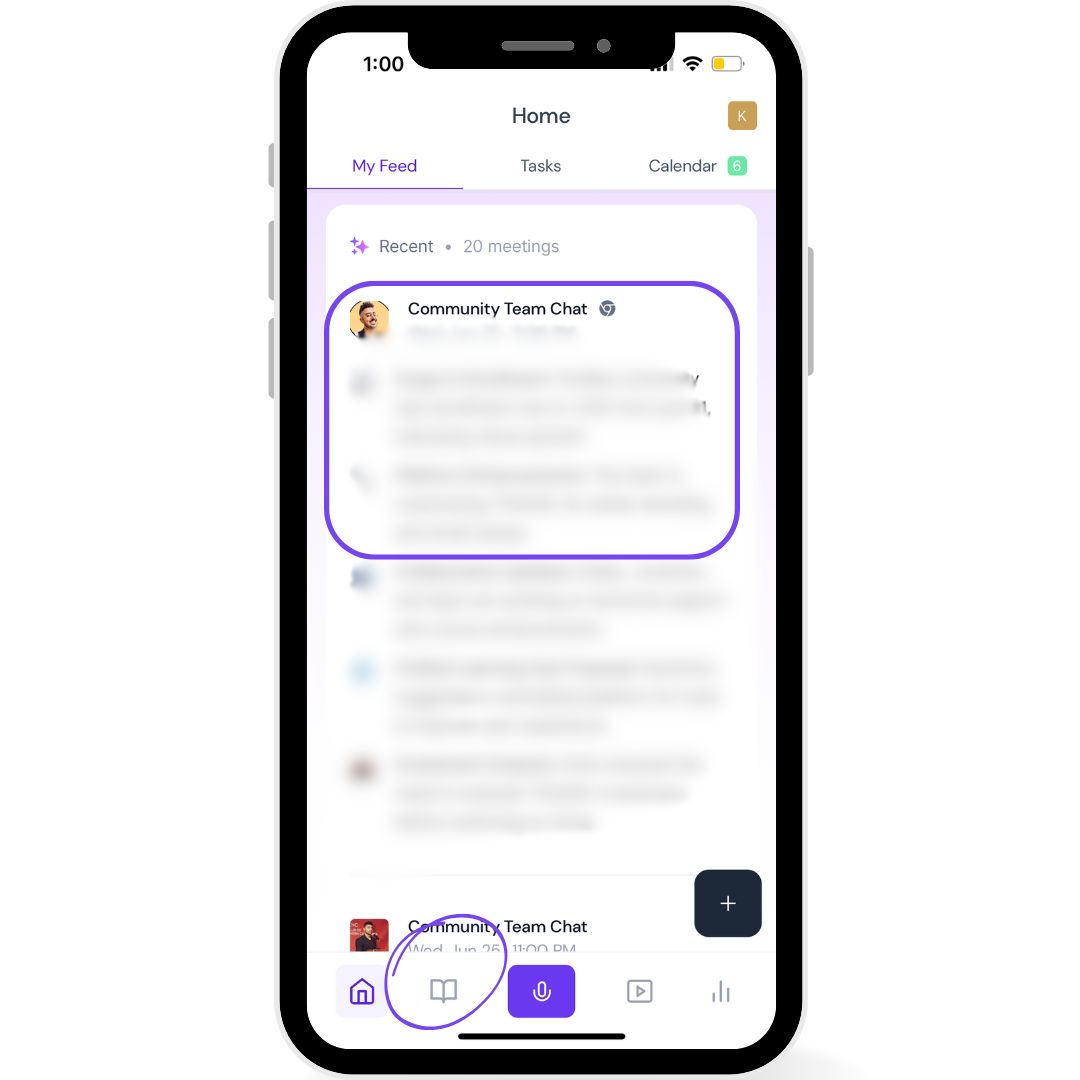
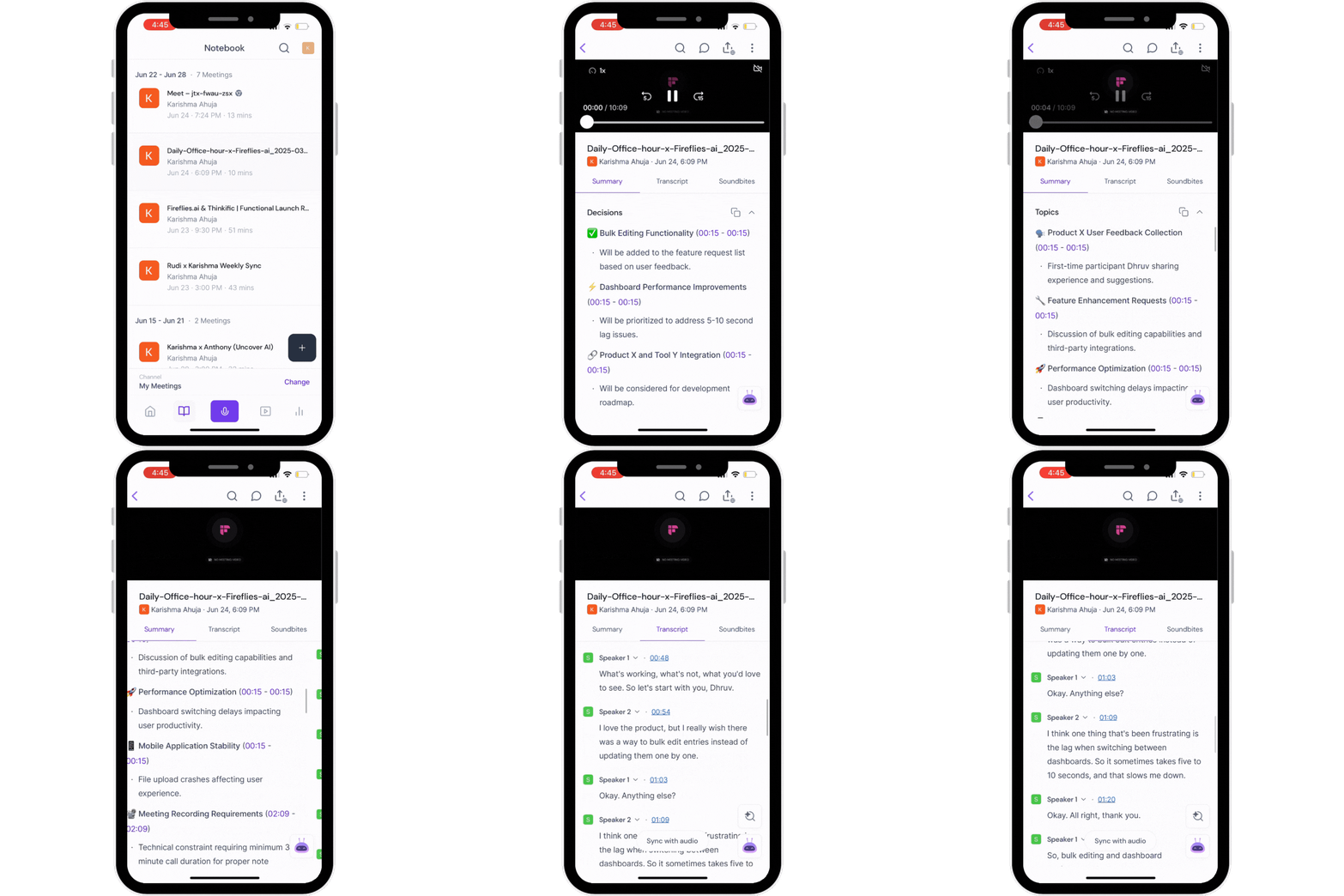
1. Access your Meeting
You can access your meeting either from the main feed or by tapping on the Notebook icon 📖 at the bottom
2. Open any Meeting
Tap on a meeting to open its details.
You’ll see three main tabs: Summary, Transcript, and Soundbites.
If there’s a video recording, it appears above the tabs — tap it to watch.
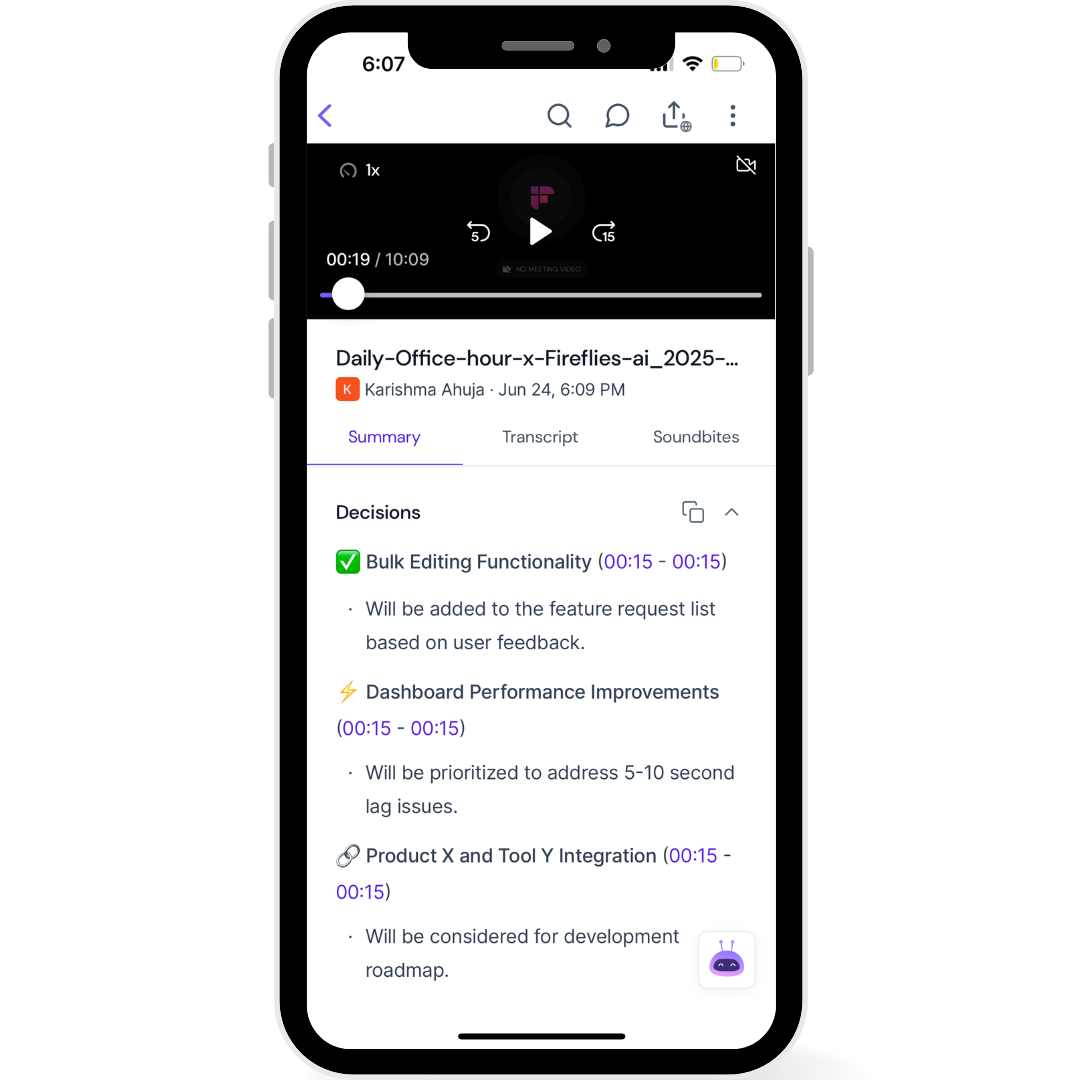
3. Explore the Summary Tab
The Summary shows you meeting notes for quick context.
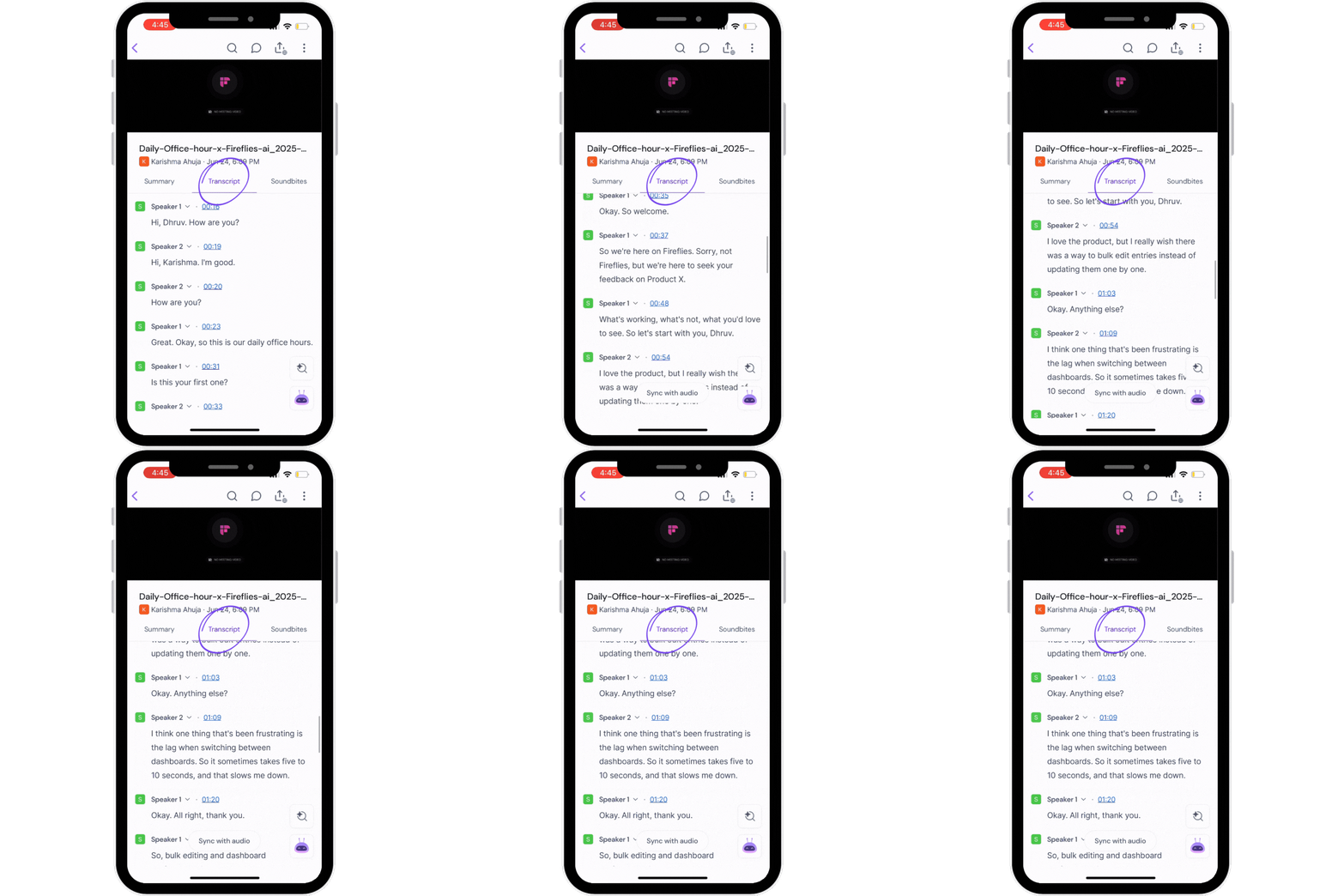
4. Switch to the Transcript Tab
The Transcript tab shows your time-stamped meeting text — easy to scroll and read.
Use the Search icon to find keywords fast.
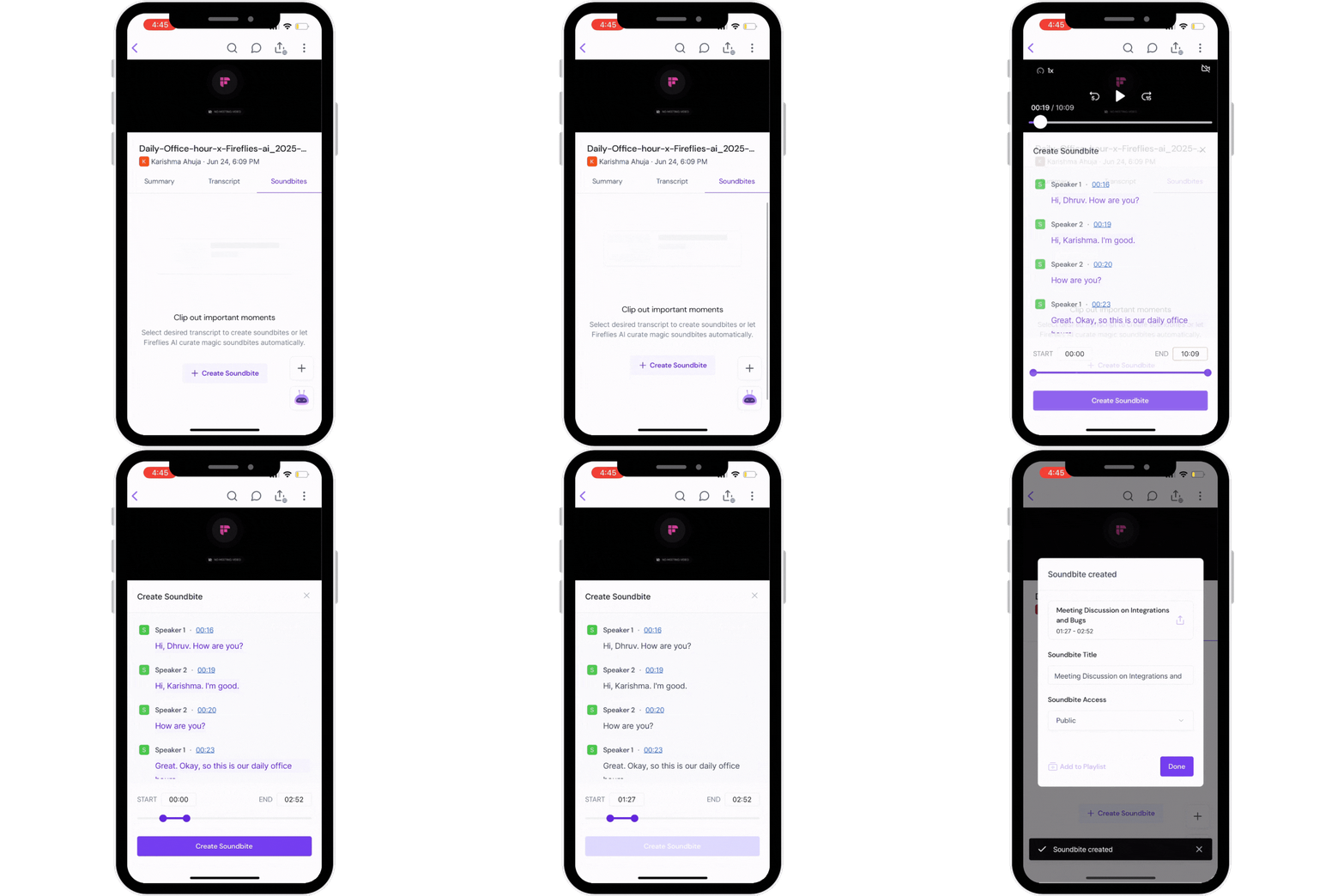
5. Visit the Soundbites Tab
Find all highlights and soundbites clipped from your call.
Tap + Create Soundbite to instantly generate new shareable moments.
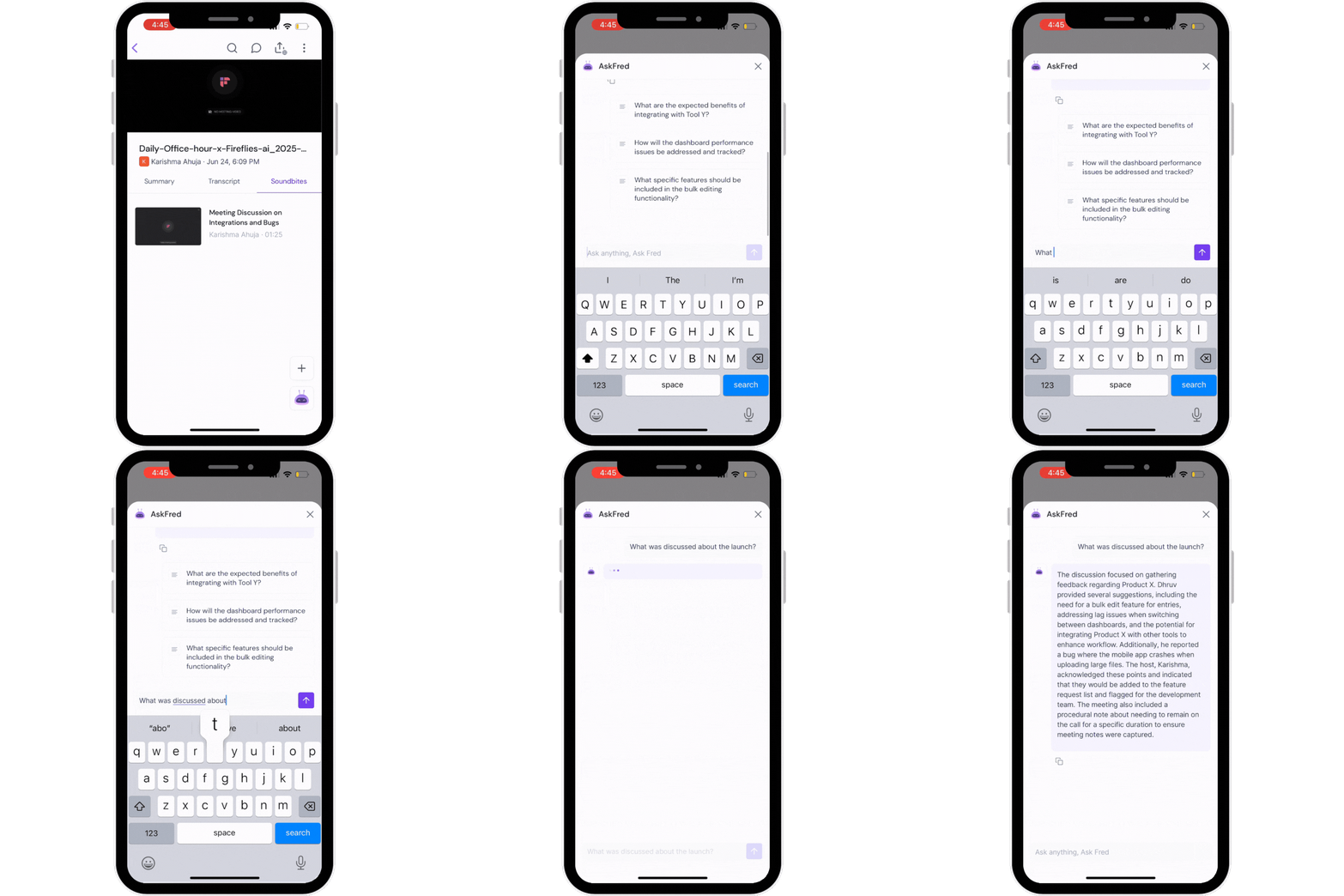
6. Access AskFred on mobile app (Your meeting chatbot)
Tap AskFred icon to instantly ask questions about your meeting, get AI-powered answers, or draft content — right inside your mobile app.
👉 Learn more about AskFred →
⚡ Extra Actions
Inside any meeting:
Tap the 3 dots (⋮) menu to share, rename, download, or delete the meeting — right from your phone.
Note: Meeting recordings are public by default. Read this guide to change your meeting privacy settings.
✅ Related:
🎉 That’s it!
Now you’re ready to open, search, clip, and share your meetings in seconds — all from your pocket.