How to Add an AI Chat and Voice Agent to Your Booking Page
Last updated: November 24, 2026
Fireflies Scheduler gives your guests the option to chat with or call an AI agent directly from your booking page. They can ask questions about you, learn more about your work, and book a meeting through a conversation.
The agent uses the details and knowledge you provide to answer guests' questions and help them book a meeting.
👉🏻 You can find these features in your booking link settings. To learn how to create a booking link, see How to Create and Share a Booking Link in Fireflies Scheduler.
Let's get started! 🚀
🤖 What Can Guests Do with Your AI Agent?
Guests can interact with your AI agent directly from your booking page. They can ask questions, learn more about you, check your availability, and book a meeting through a conversation.
💬 Chat with the AI Agent
Guests can use the chat to:
Ask questions about you, your role, and your work.
Get information based on the details you've added to your About you section and connected Knowledge Base.
Check your availability and view available meeting times.
Select a suitable time and provide their name, email address, and reason for the meeting.
Review the meeting details and confirm their booking.

🎙 Talk to the Voice Agent
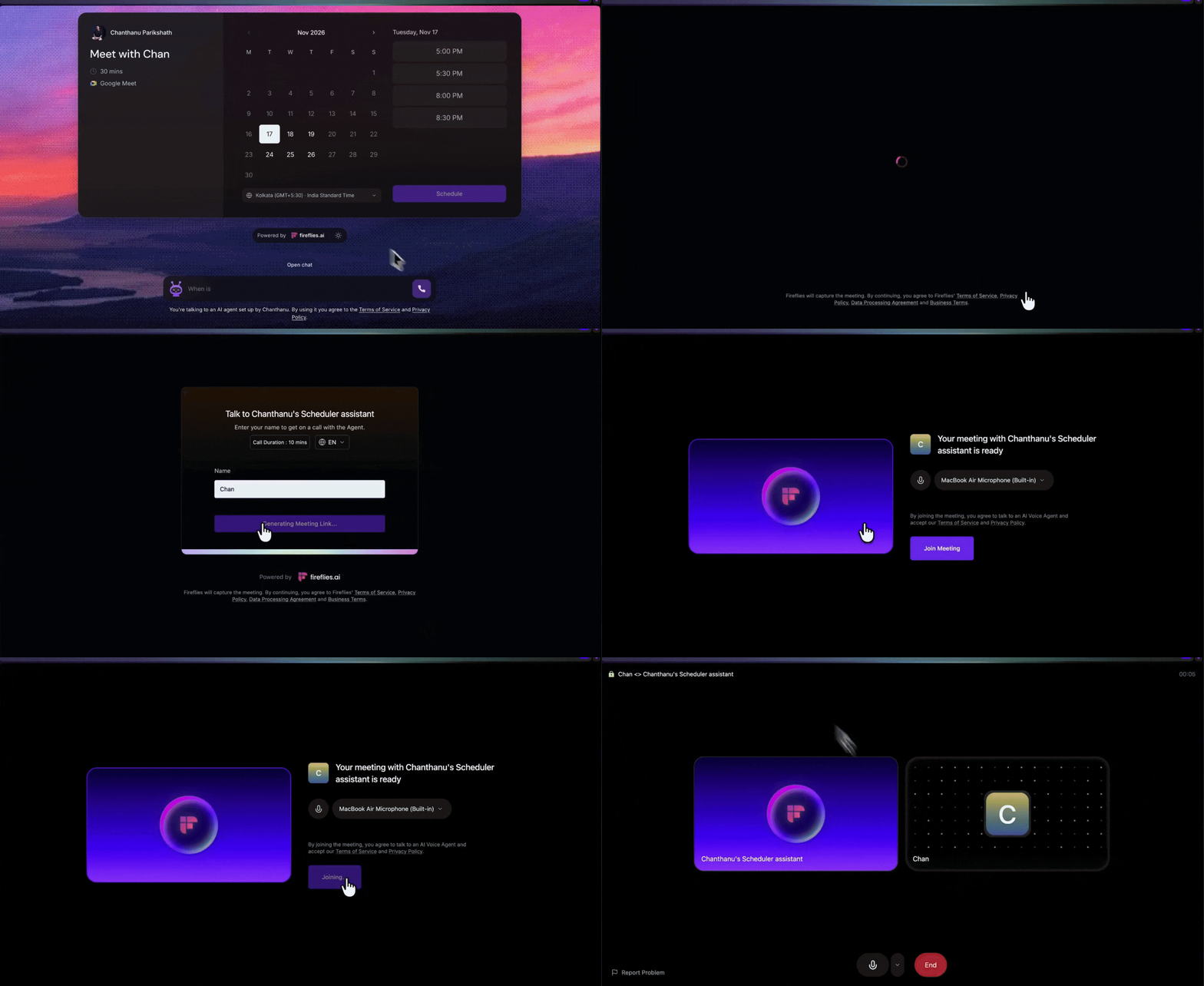
Guests who prefer speaking can call your AI voice agent directly from your booking page.
To start a call, guests can:
Open the voice agent option on your booking page.
Enter their name to start the process.
Join the call and speak with your AI agent.
⚙ Access Your Agent Settings
You can enable the AI chat and voice agent for an existing booking link or configure it while creating a new one.
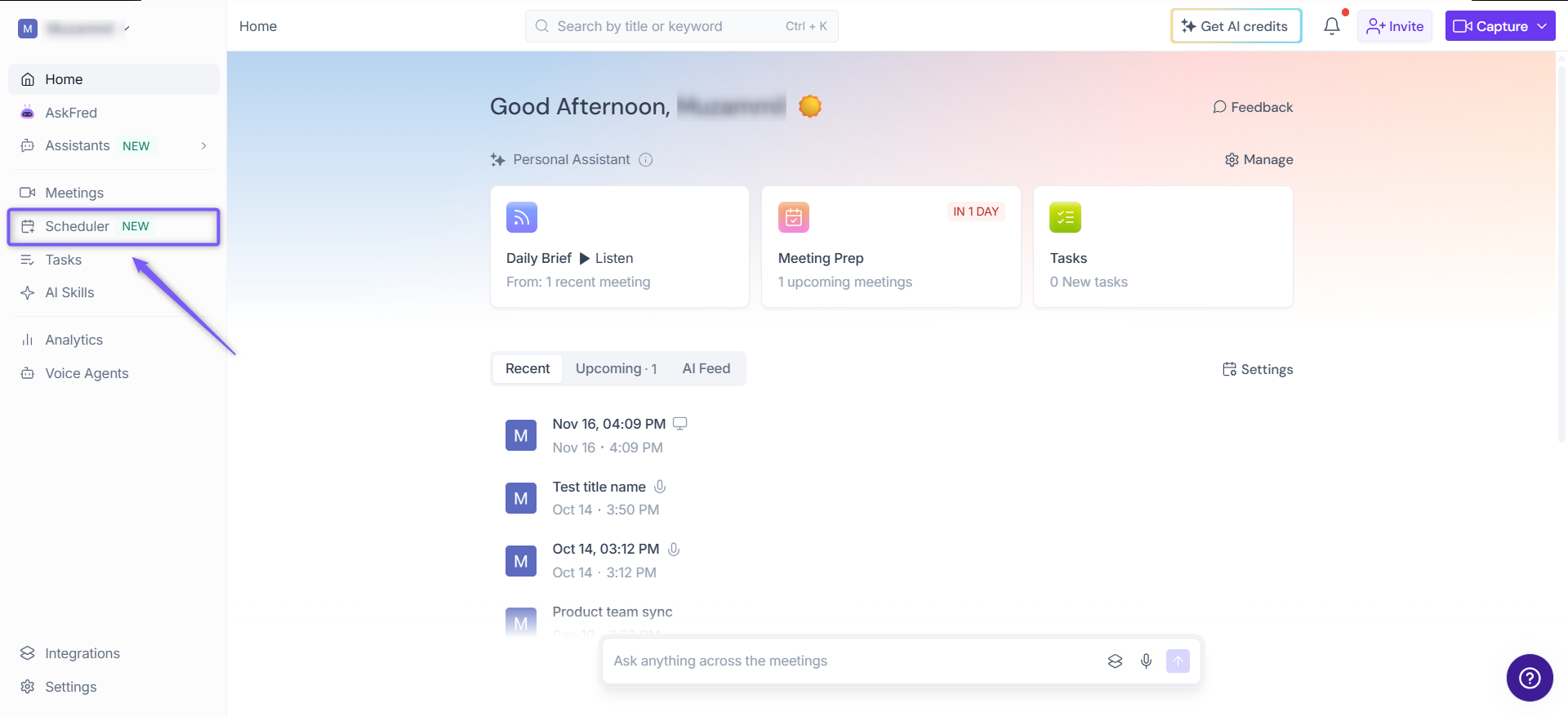
Step 1: Log in to your Fireflies account and click Scheduler from the left navigation pane.
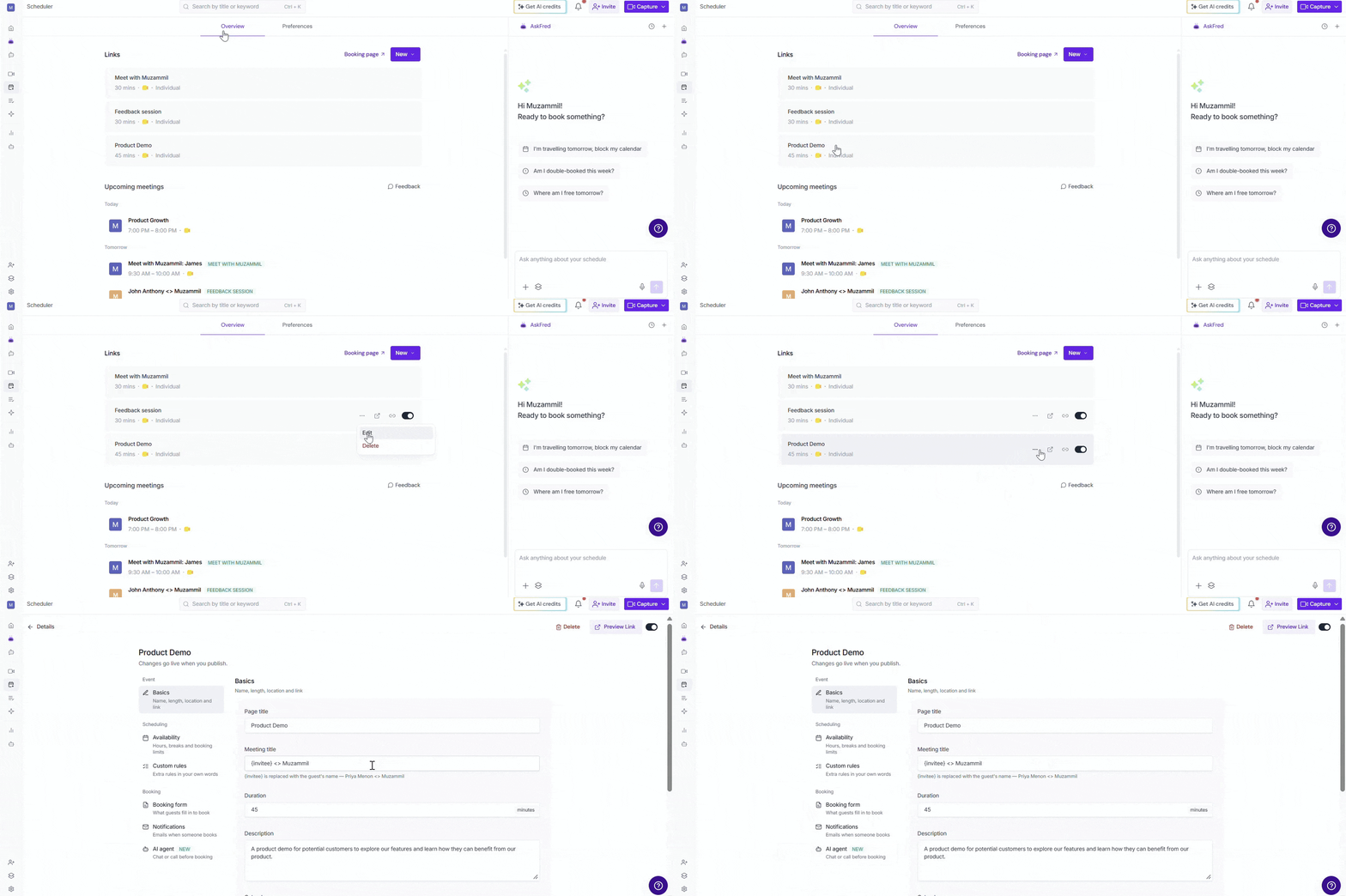
Step 2: Choose how you'd like to proceed:
Edit an existing booking link: Open the booking link you want to update from the Overview tab.
Create a new booking link: Click New and follow the setup flow to create your booking link.
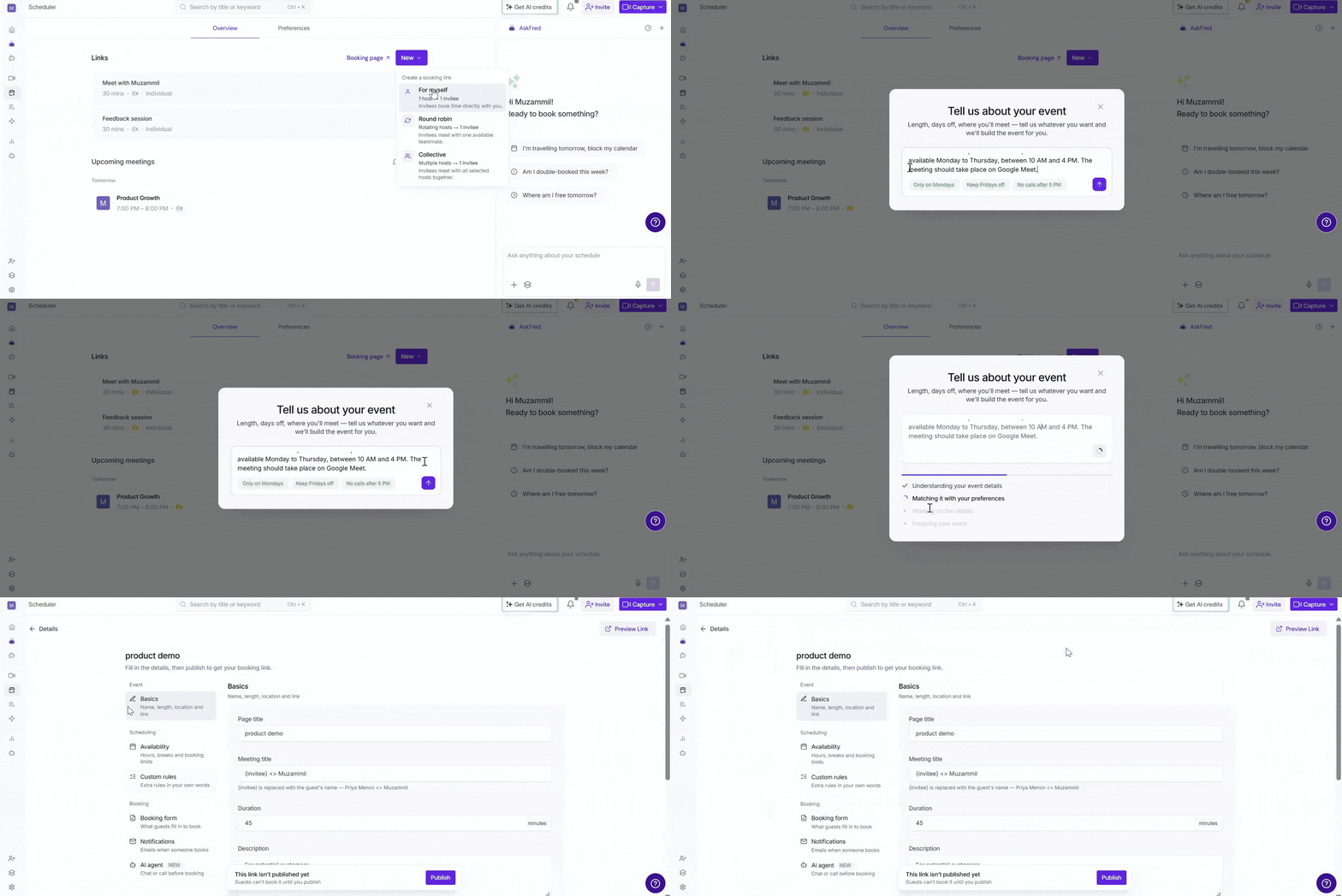
Step 3: Open the booking link settings and scroll to Agent settings.
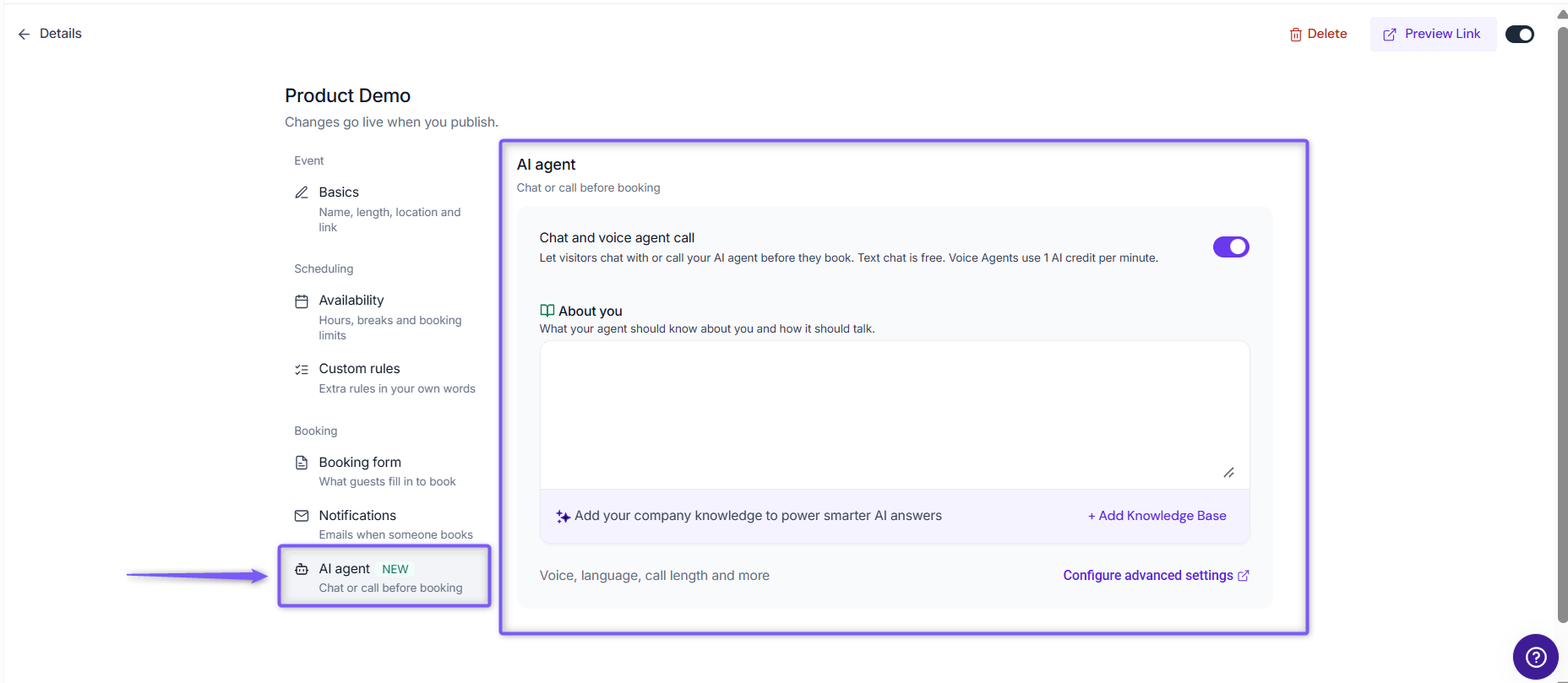
The Agent settings section includes the option to enable Chat and voice agent call, add your About you details, and provide additional information through a knowledge base. You'll configure these options in the following sections.
🤖 Enable the Chat and Voice Agent
Turn on Chat and voice agent call to add an AI agent to your booking page. This gives guests the option to chat with or call your agent before booking a meeting.
Guests can ask questions about you, your work, or your availability. The agent uses the information you provide to answer their questions and guide them through booking a meeting.
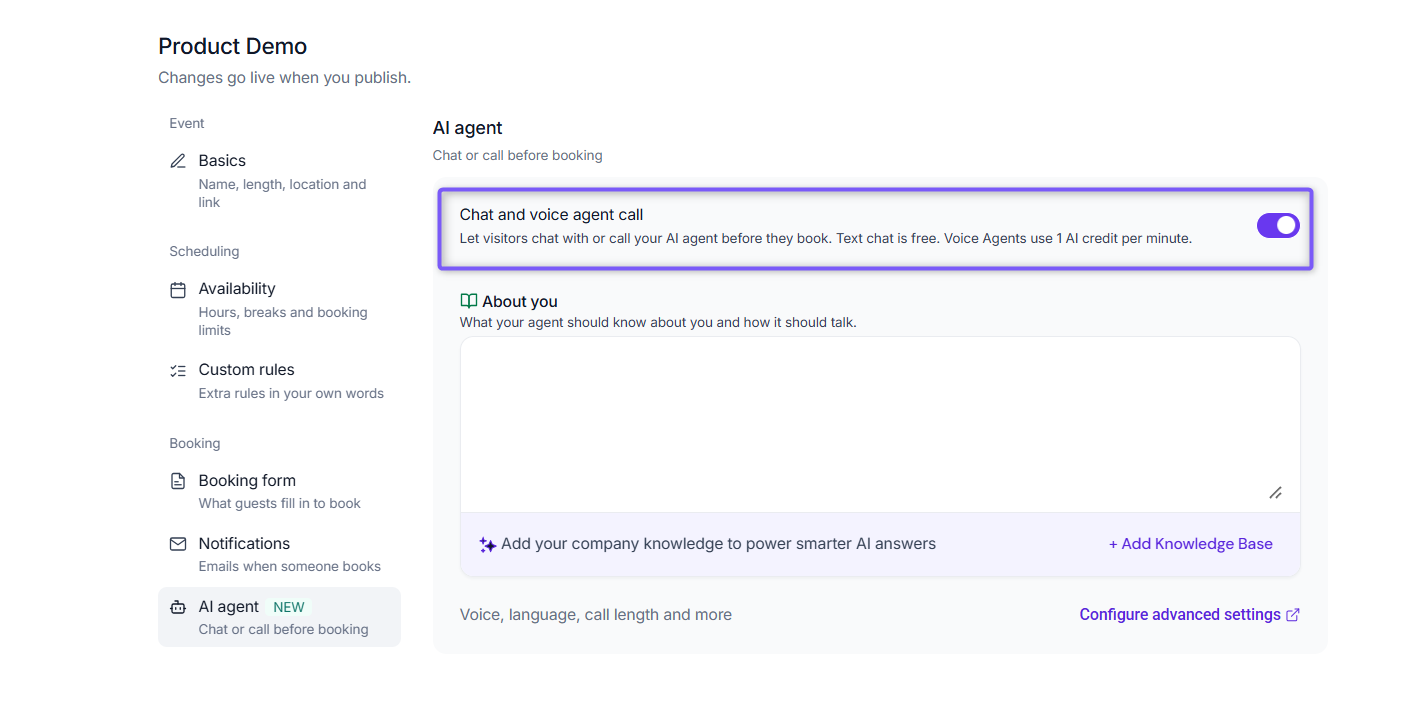
Note: Text chat is free. Voice agent calls use 1 AI credit per minute, charged to the host. Both chat and voice agents are available on Pro, Business, and Enterprise plans.
Once enabled, the About you field and Add Knowledge Base option appear below the toggle. You can use these to give the agent the information it needs to respond to guests.
📝 Add Your About You Details
The About you field helps your AI agent understand who you are and what information to share with guests. Add details about your role, work, services, or anything guests might want to know before booking.
Enter the relevant information in the About you text box. The agent uses these details to answer questions during chat and voice conversations.
💡 Keep the information clear and relevant so guests receive helpful answers when they ask about you or your work.
Example: I'm a product manager at a SaaS company. I work with businesses to improve their workflows and make better use of technology. I can answer questions about our product, features, and implementation process. Guests can book a 30-minute meeting with me to discuss their requirements.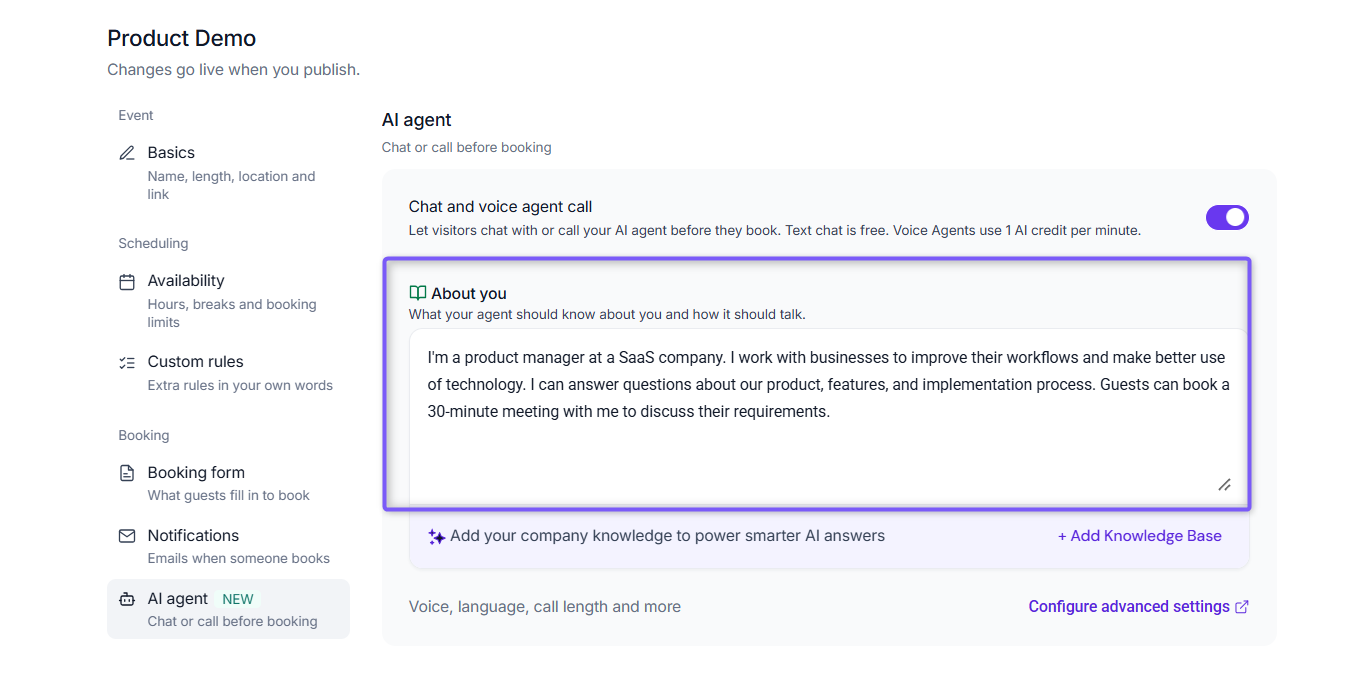
🧠 Add a Knowledge Base
You can add a knowledge base to give your AI agent more information to use when answering guests' questions. This can include product details, pricing, features, integrations, company information, FAQs, and other relevant resources.
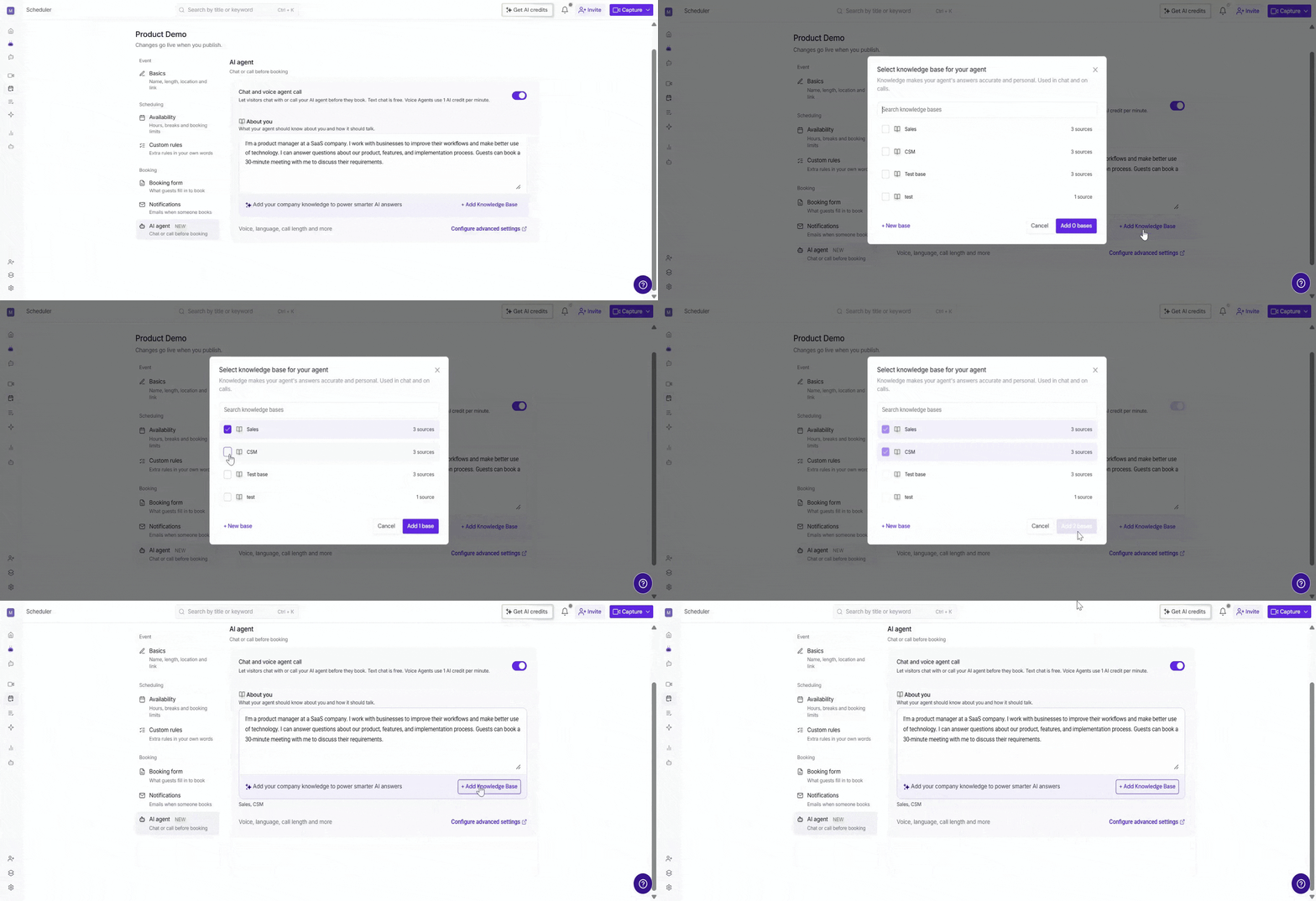
Click + Add Knowledge Base and select the knowledge base you want to connect to your booking page.
Both the chat and voice agents can use the connected knowledge base to answer guests' questions and provide relevant information before they book.
👉 Learn more: Setting Up a Knowledge Base for Voice Agents.
🎙 Configure Advanced Voice Agent Settings
A Voice Agent is an AI-powered assistant that can speak with people on your behalf, answer their questions, and handle conversations through voice calls.
To explore more voice agent options, go to the Voice, language, call length and more section and click Configure advanced settings.
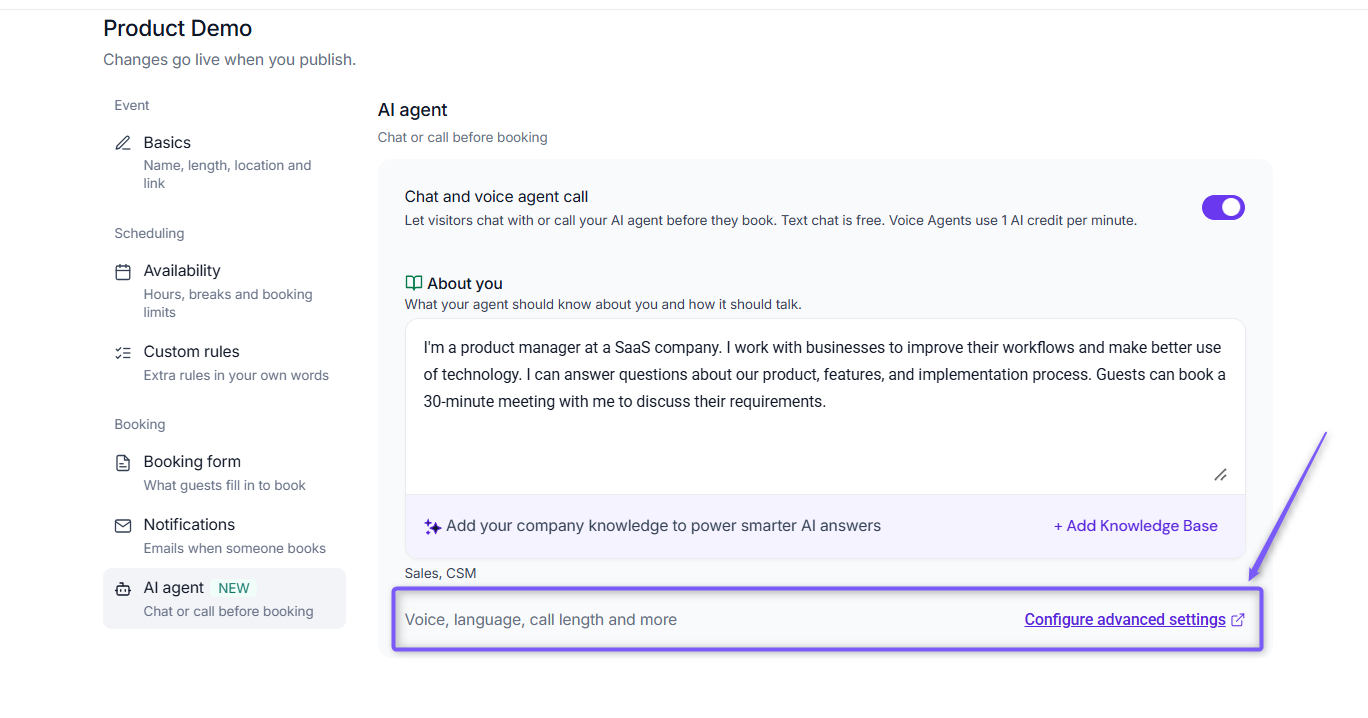
You'll be redirected to the Voice Agents page. From here, you can explore available agents under Discover, try a voice agent live, or watch a demo. You can also view your existing agents under My Voice Agents.
⚙ Configure Your AI Agent for Different Pages
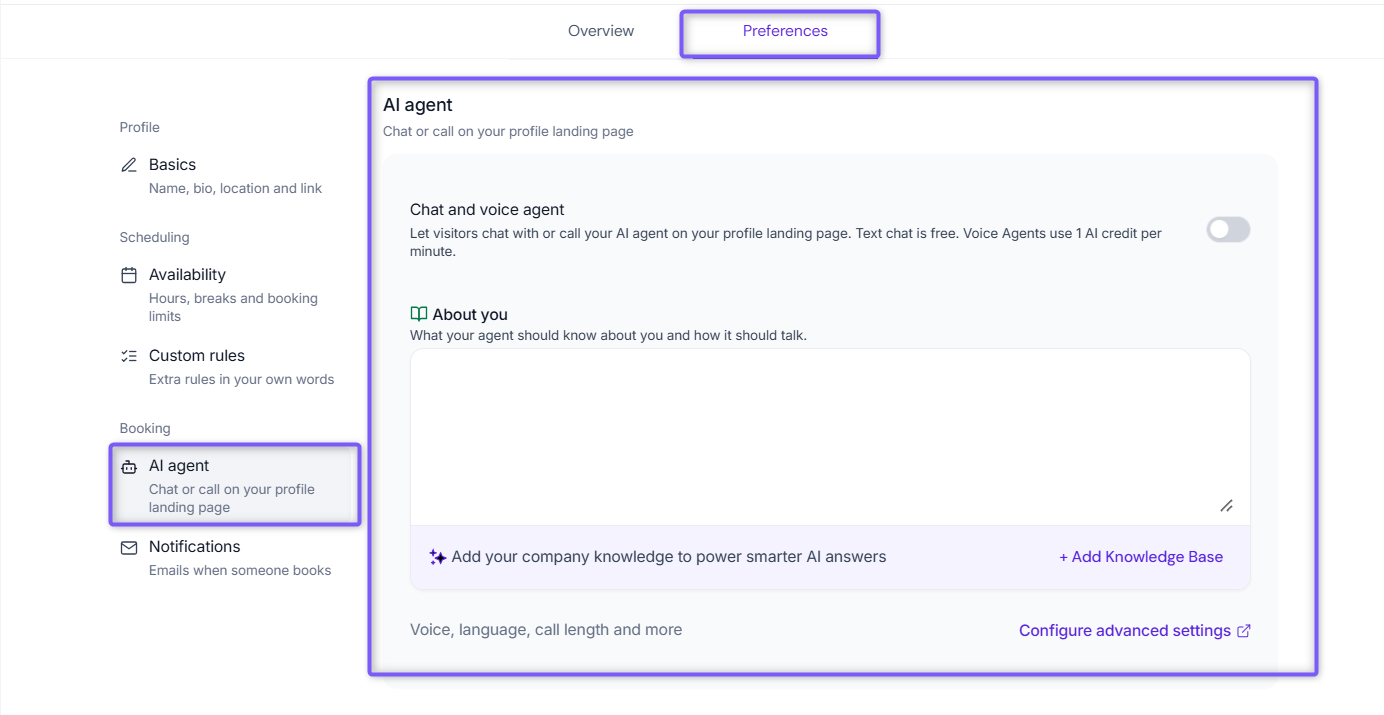
You can configure your AI agent under Preferences or within an individual booking link:
Preferences: This is the default setting for your profile landing page. Guests visiting your profile landing page can interact with the AI agent configured here.
AI agent settings within a booking link: These settings apply specifically to that booking link. Guests visiting that booking page can interact with the AI agent configured for it.
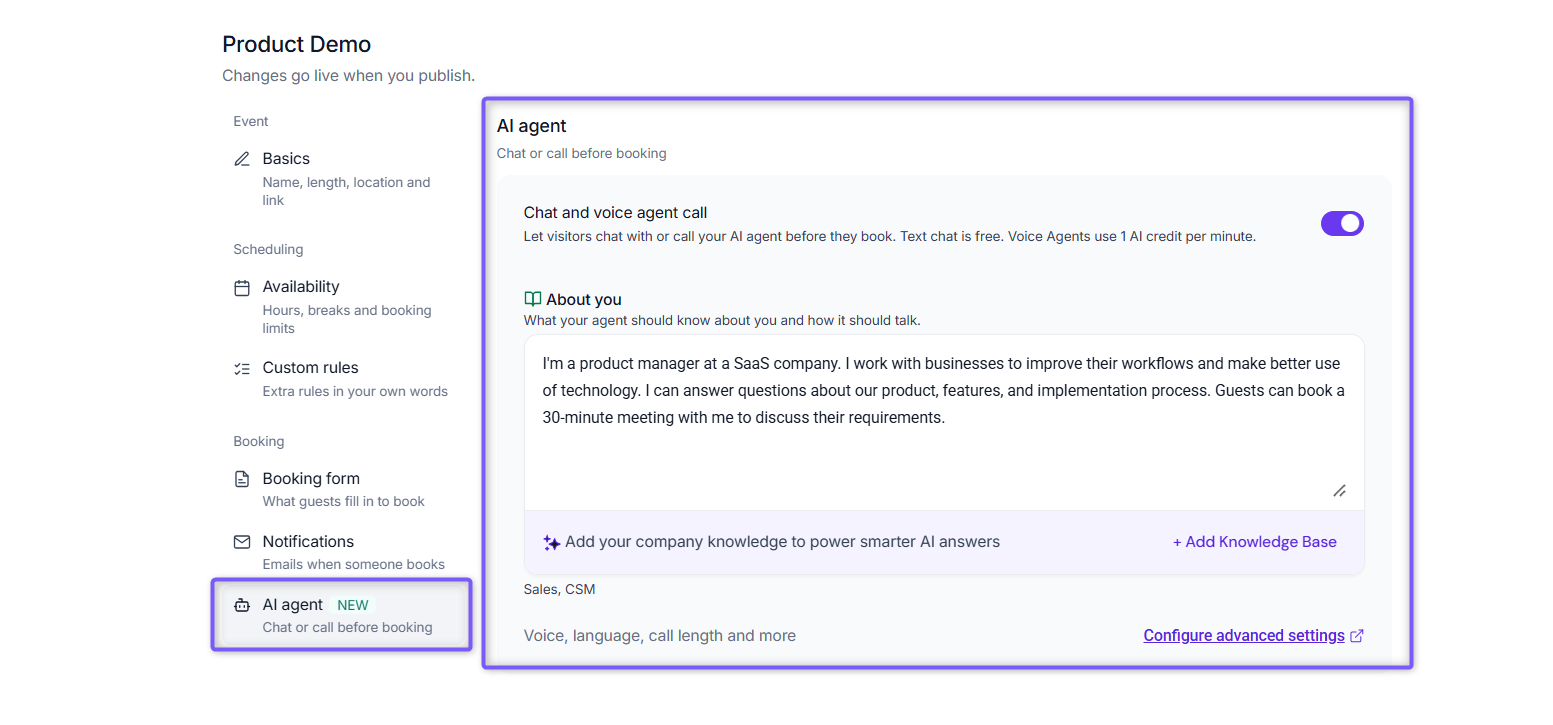
Choose the appropriate setting based on where you want guests to interact with your AI agent. Changes to a booking link's AI agent settings don't change the default settings under Preferences.
💳 Plans and AI Credit Usage
The AI chat and voice agent are available on Pro, Business, and Enterprise plans.
Voice call credits are charged to the host who owns the booking link. Chat conversations don't consume AI credits.
Free plan users can continue using the basic Fireflies Scheduler features, but the AI chat and voice agent aren't included in the Free plan.
Here's how AI credit usage works:
Feature | Usage |
|---|---|
AI chat | Free |
Voice agent calls | 1 AI credit per minute |
❓ Frequently Asked Questions
1. Can guests use the AI chat without making a voice call?
Yes. Guests can chat with the AI agent directly from your booking page without making a voice call.
2. Does using the AI chat consume AI credits?
No. AI chat is free. Voice agent calls consume 1 AI credit per minute.
3. Who pays for the voice agent calls?
The host who owns the booking link is charged for voice agent usage.
4. Which plans include the AI chat and voice agent?
Both features are available on Pro, Business, and Enterprise plans. Free plan users can continue using the basic Scheduler features.
5. Can I customize how the AI agent responds to guests?
Yes. You can add information in the About you field and connect a Knowledge Base to give the agent context for answering guests' questions. You can also access additional voice settings through Configure advanced settings.
Still stuck? Contact support via this link for more help.