Fireflies Scheduler: Free Booking Links with Fred, Your AI Teammate
Last updated: November 24, 2026
Fireflies Scheduler gives you a free booking link you can share, so guests can pick a time from your actual availability without the back-and-forth.
Use it to schedule client calls, team meetings, and other appointments. With Fred, your AI teammate, you can also manage your calendar using natural-language instructions and let guests get help from an AI chat or voice agent while booking.
✨ What can you do with Fireflies Scheduler?
Fireflies Scheduler brings booking links, calendar management, and AI assistance together in one place. Here's what you can do:
Use Scheduler to:
Create booking links: Set up separate links for different meeting types and share them with guests.
Manage your availability: Set your working days, hours, breaks, and booking rules so guests only see times you're available.
Manage your calendar with Fred: Ask Fred to create events, block time, change your timezone, and send invitations.
Coordinate team bookings: Use round robin scheduling to distribute incoming meetings across your team.
Help guests book with AI: Let guests chat with or call your AI agent to get answers and book directly from your booking page.
✅ Before you begin
Make sure you have:
A Google or Outlook calendar to connect. Scheduler checks your calendar availability to help prevent double-booking.
🗓 How does Fireflies Scheduler work?
Connect your calendar and set your scheduling preferences once. Then, create a booking link and share it with guests so they can choose a time that works for them.
Here's how the process works:
Connect your calendar. Link your Google or Outlook calendar so Scheduler can check when you're available.
Set your scheduling preferences. Choose your working days, hours, timezone, and other preferences to control when guests can book.
Create a booking link. Describe the meeting to Fred, or create the link manually.
Share your link. Send it to guests so they can view your available time slots.
Guests book a meeting. Guests select a date and time, enter their details, and receive a calendar invitation.
You can also ask Fred to manage your calendar through the Fireflies app or Slack. Guests can use your AI chat or voice agent for help on your booking page.
🚀 Getting started with Fireflies Scheduler
Before sharing your booking links, connect your calendar and configure your scheduling preferences. This helps Fireflies understand when you're available and create your first booking link.
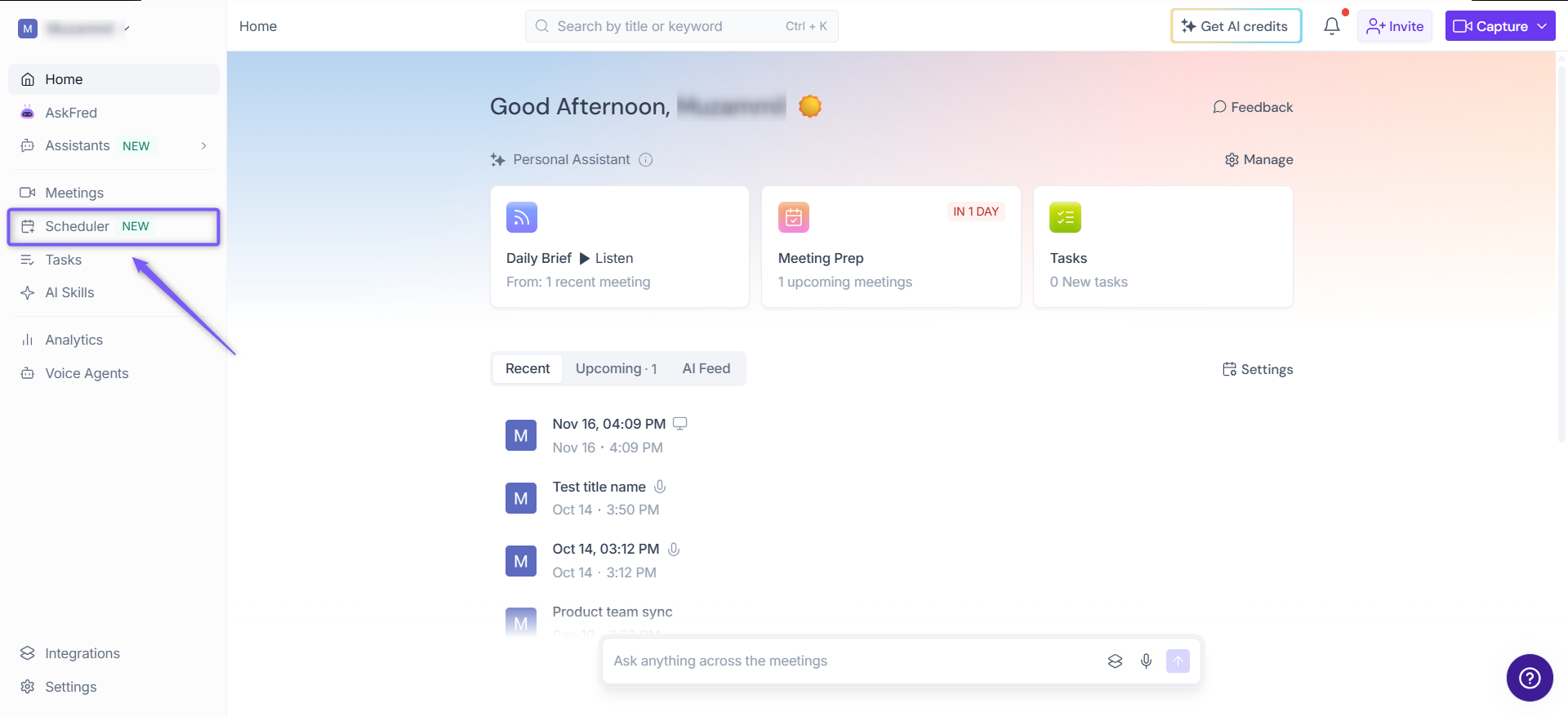
Step 1: Log in to your Fireflies account. From the left navigation pane, click Scheduler (new label) to open Fireflies Scheduler.
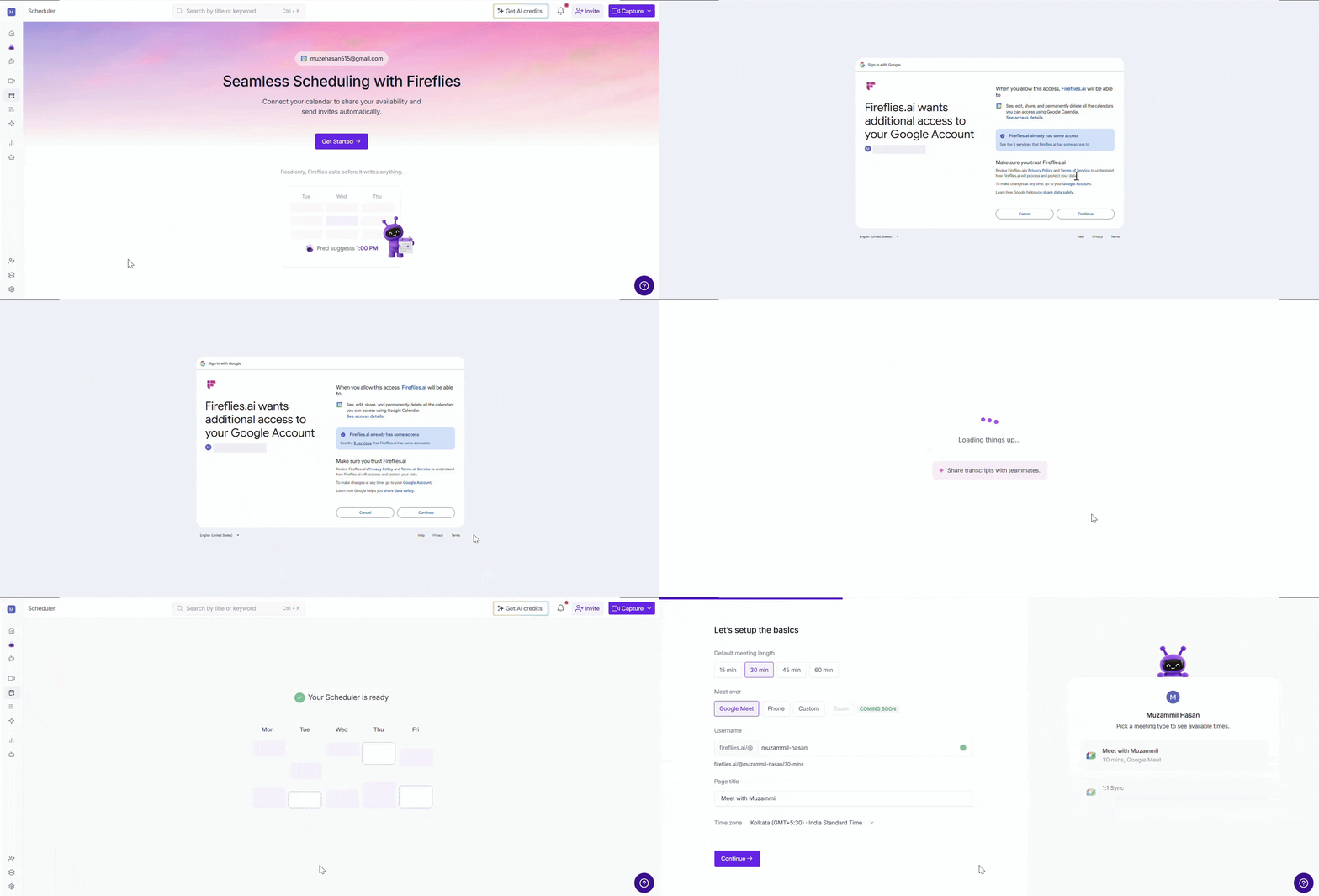
Step 2: On the Scheduler page, click Get Started. Connect your Google or Outlook calendar and grant the requested permissions. Fireflies reads your working preferences and syncs your calendar in seconds.
Note: This guide uses Google Calendar for demonstration purposes. The steps may look slightly different when connecting Outlook, but the overall setup process remains the same. You only need to grant the additional calendar permissions once.
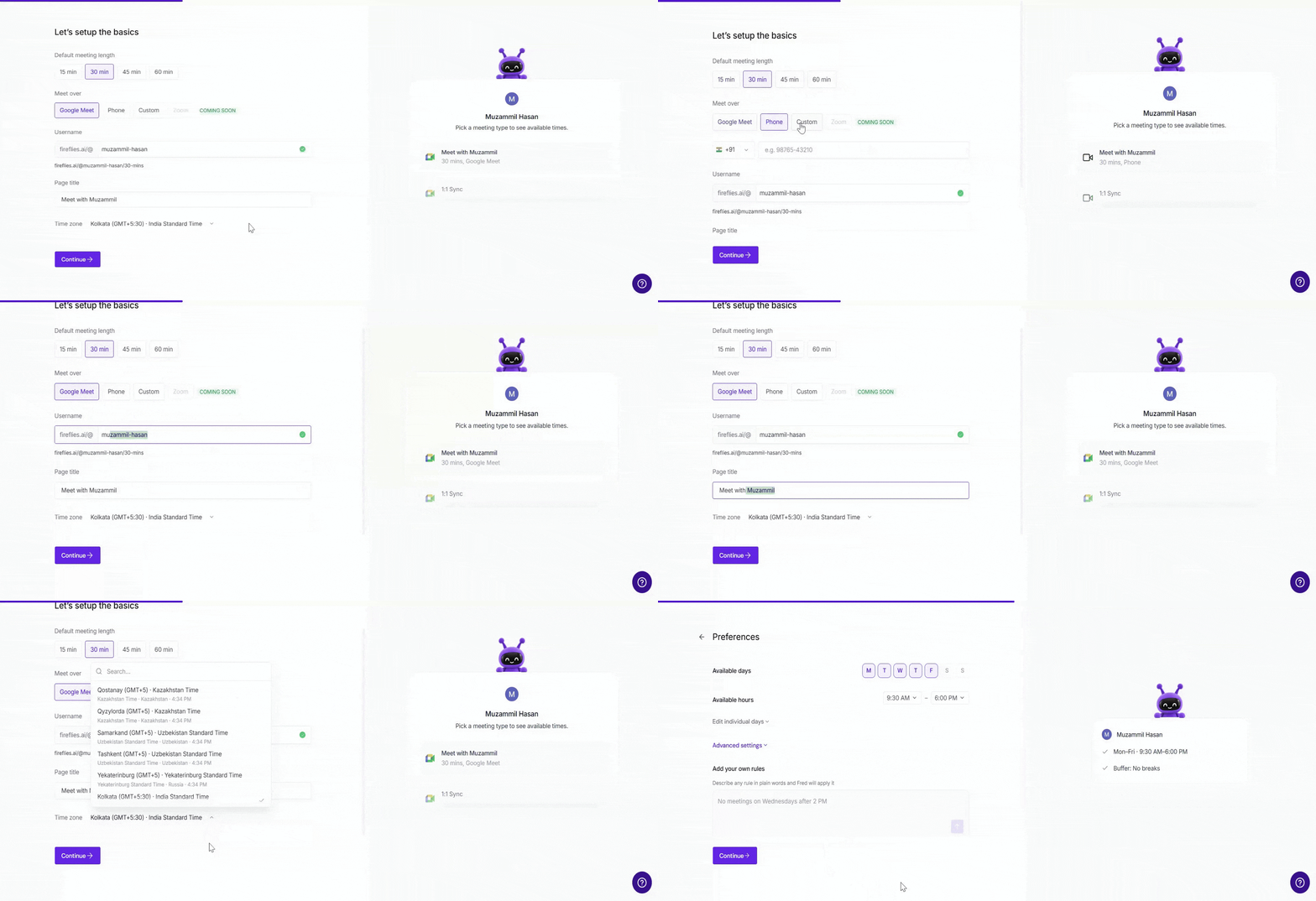
Step 3: Set up your scheduling preferences
Configure your default meeting settings and customize your booking page.
Setting | Description | Example |
|---|---|---|
Default meeting length | Set the standard duration for meetings booked through your link. This helps guests choose time slots that match your preferred meeting length. | 30 minutes |
Meet over | Choose how you want to meet with guests. This determines the meeting format for your bookings. Select Google Meet for video calls, Phone for phone meetings, Custom to add another meeting option , or Zoom (Coming soon). | Google Meet |
Username | Choose a unique username for your booking page. This becomes part of the link you share with guests. |
|
Page title | Add a heading to your booking page so guests know whose page they're visiting or what the meeting is for. | Book a meeting with Alex |
Time zone | Set the time zone used to display your available booking slots. This helps guests see times in the correct scheduling time zone. | Asia/Kolkata (IST) |
Once you've configured your scheduling preferences, click Continue to proceed.
Step 4: Set your availability
Set the days and hours when guests can book meetings with you. You can also customize your schedule with breaks and other scheduling rules.
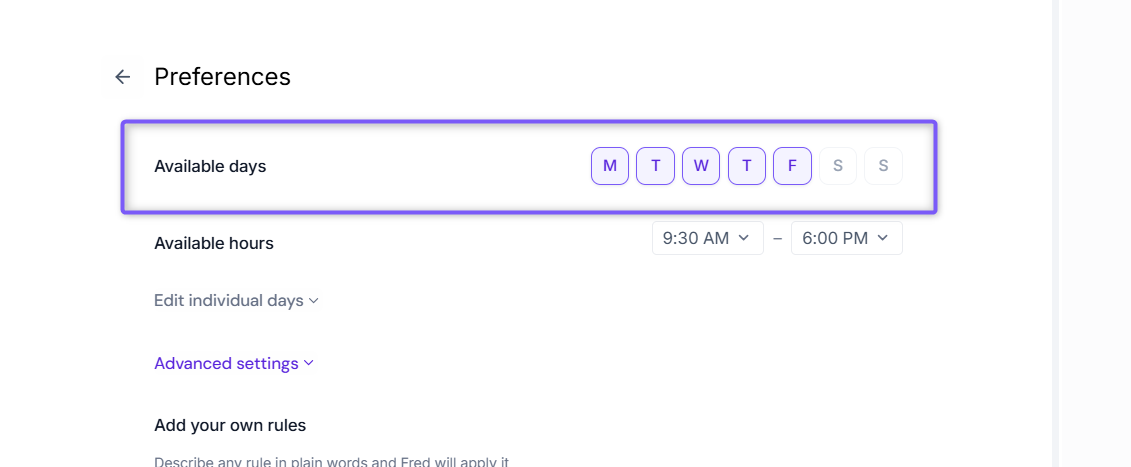
Available days: Select the days of the week when you're available for meetings. For example, choose Monday through Friday if you only take meetings on weekdays.
Available hours: Set the start and end times when guests can book meetings. For example, set your availability from 9:30 AM to 6:00 PM.
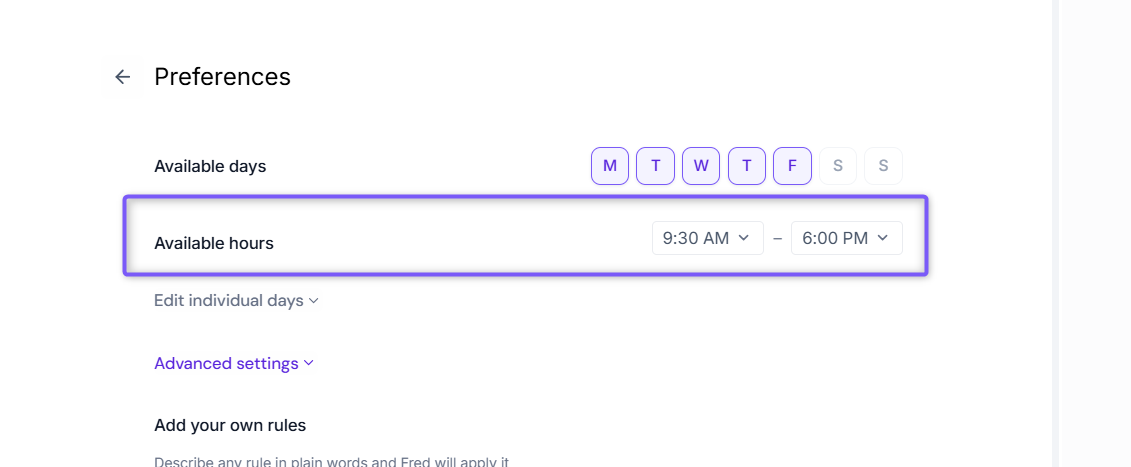
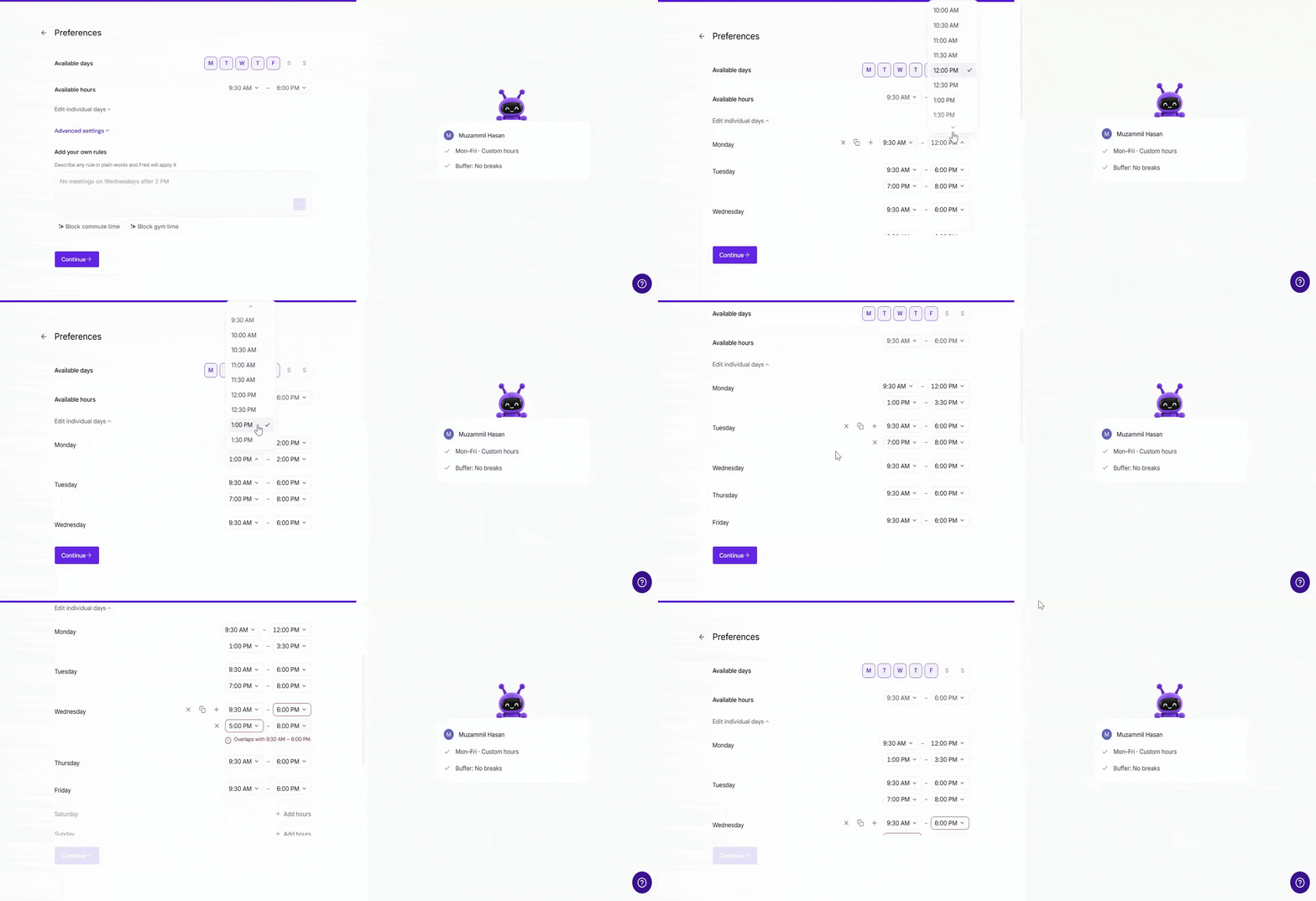
Edit individual days: Customize availability for specific days instead of using the same hours every day.
Set different start and end times for each day.
Click the + icon next to a day to add multiple availability periods for that day.
For example, set Monday to 9:30 AM–12:00 PM and 1:00 PM–6:00 PM.
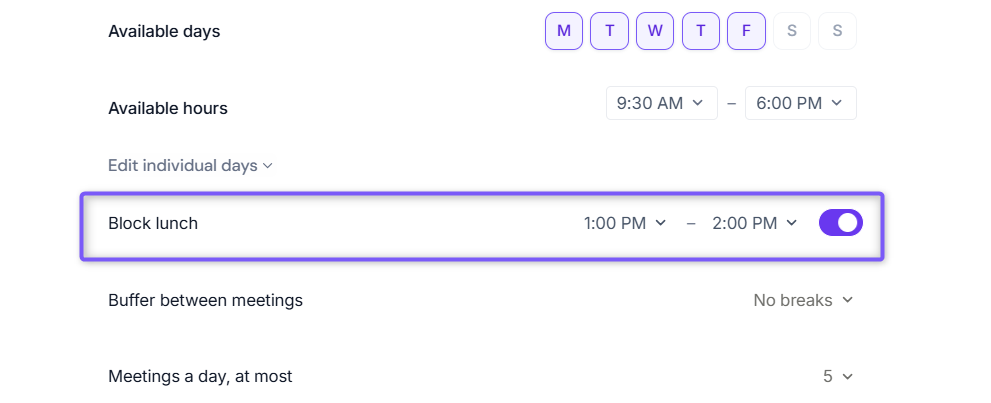
Block lunch: Turn on this toggle to protect your lunch break from meeting bookings. You can set the lunch hours; the default is 1:00 PM to 2:00 PM.
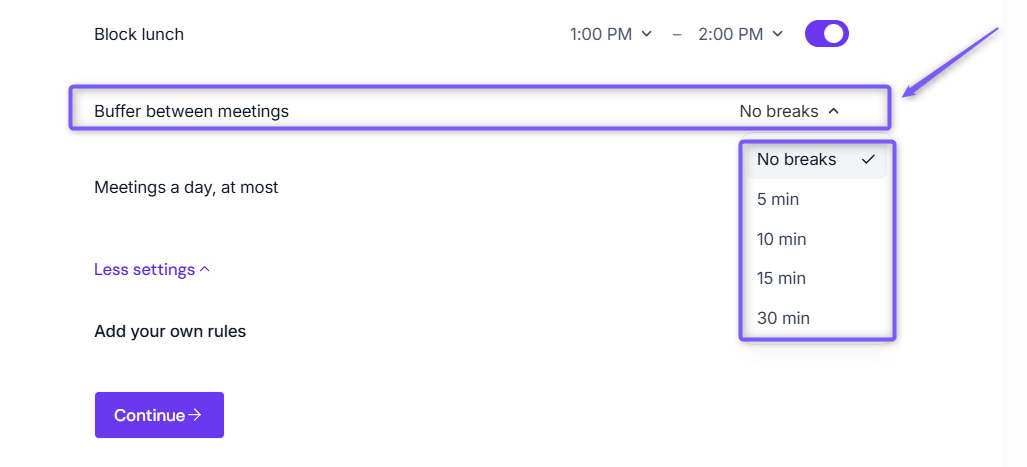
Buffer between meetings: Choose how much time you want between consecutive meetings. The default is No breaks.
Meetings a day, at most: Set the maximum number of meetings guests can book in a day. The default is 5 meetings.
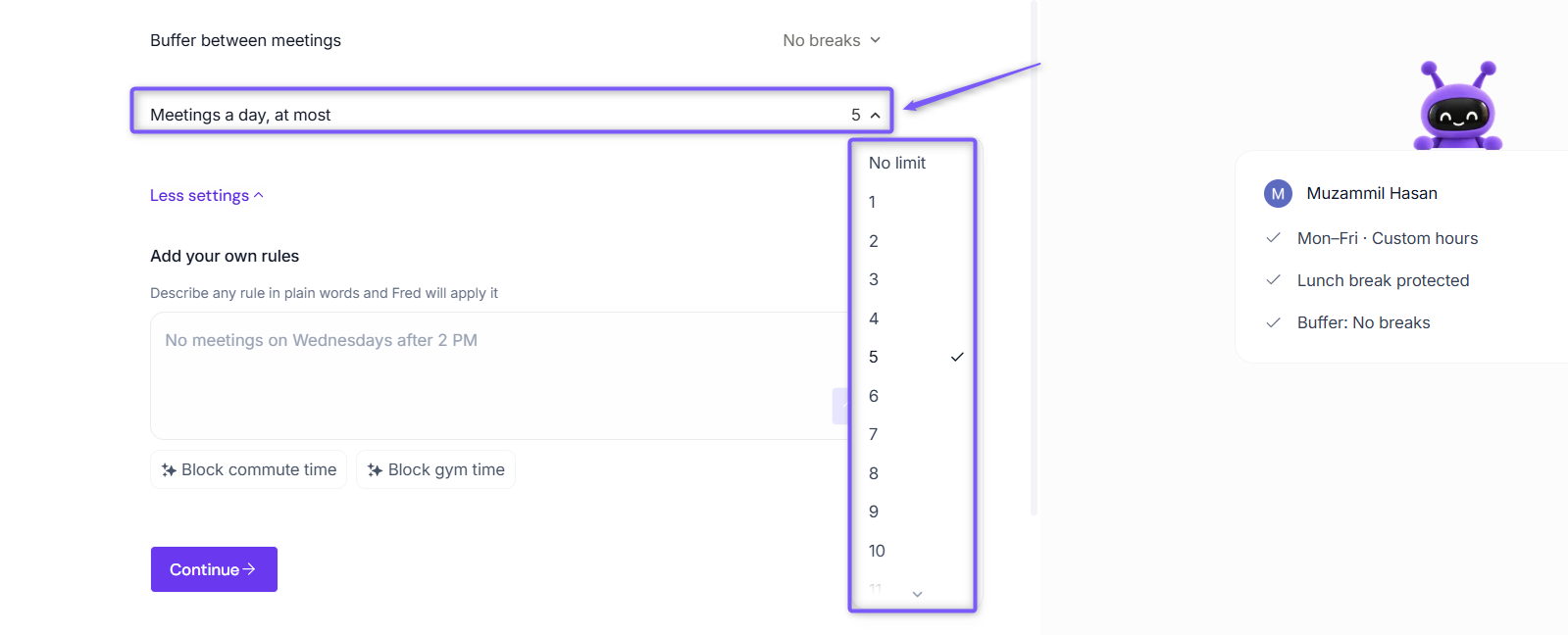
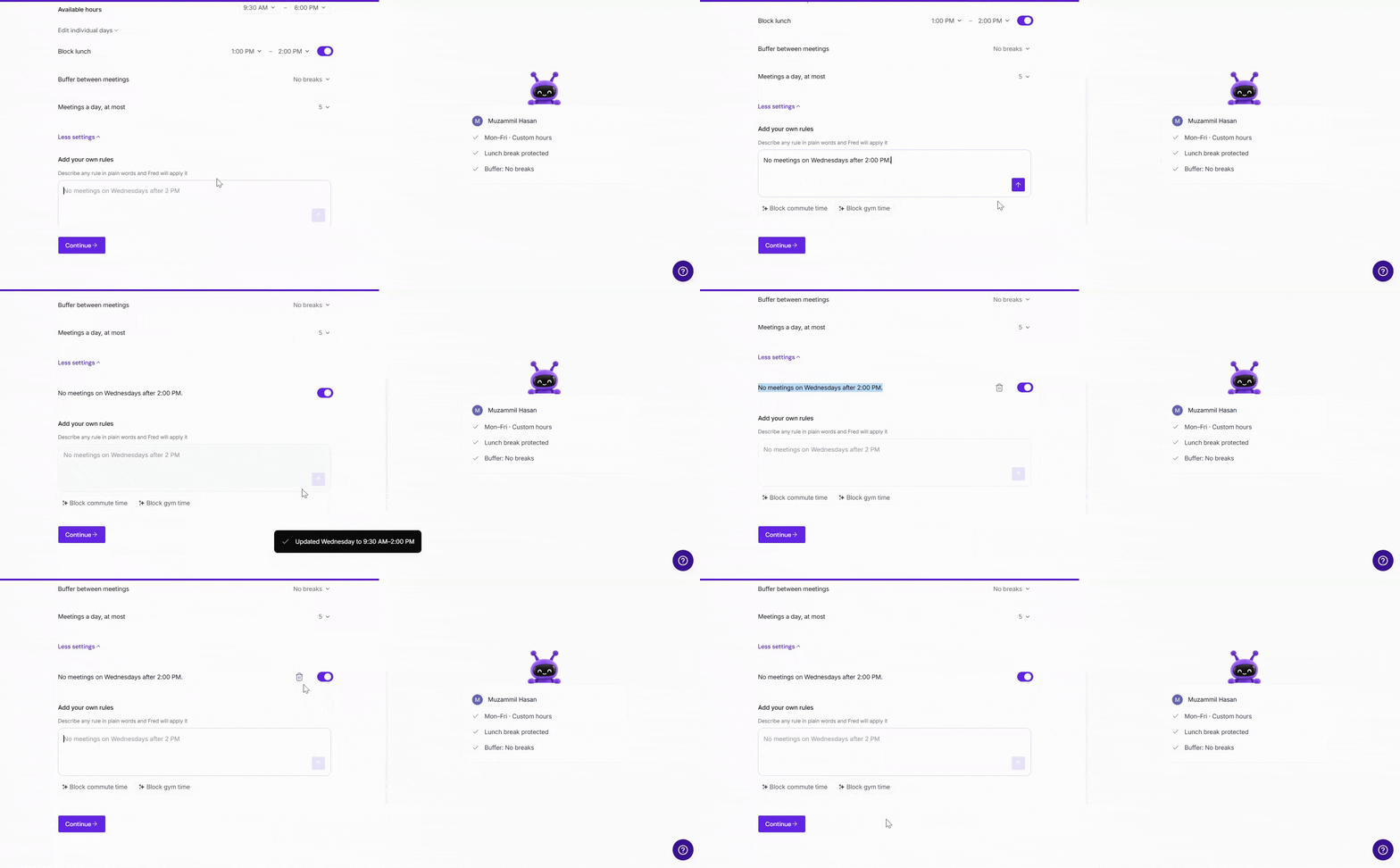
Add your own rules: Describe additional scheduling preferences in plain language, and Fred will apply them. For example, you can specify that you don't want meetings on Wednesdays after 2:00 PM.
Avoid overlapping availability periods
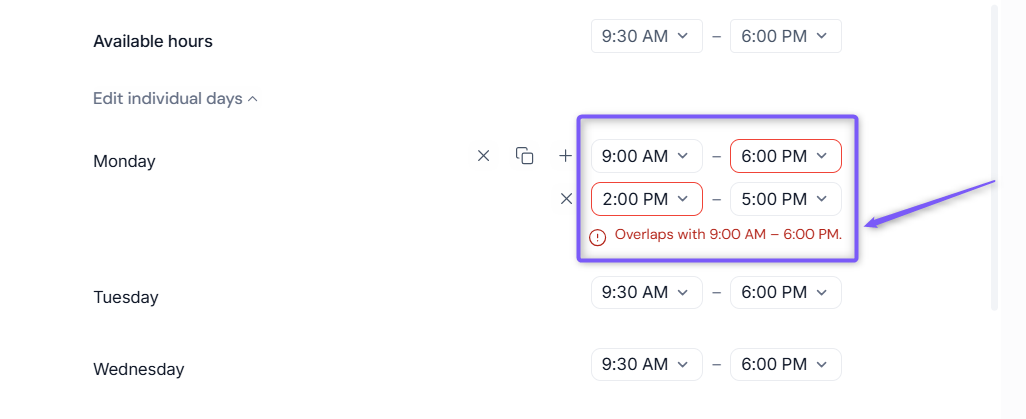
Make sure the time slots you add for a day don't overlap. If a time slot overlaps with another, Scheduler displays an error identifying the conflicting period.
For example, if one slot is 9:00 AM–6:00 PM, adding another slot from 2:00 PM–5:00 PM creates an overlap. Adjust the time slots so each period has its own start and end time.
Step 5: Review and activate your booking link
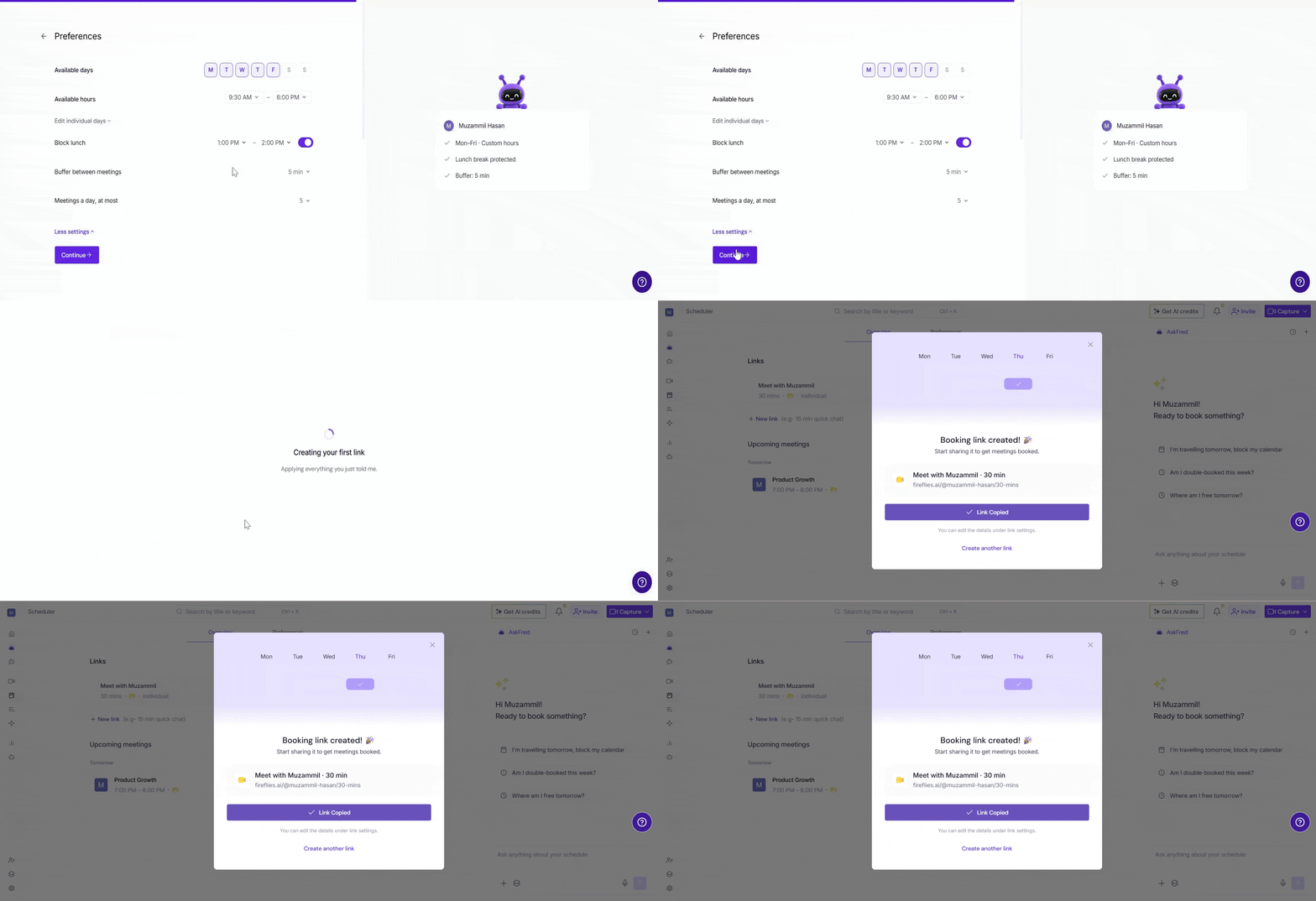
Review the scheduling preferences generated by Fireflies and make any necessary changes. Once everything looks right, click Continue to complete the setup.
Your first booking link is now ready to share!
Tip: You can update your scheduling preferences later from the Scheduler main screen, including your meeting duration, timezone, available days, lunch breaks, and maximum meetings per day.
🗓 Understand your Scheduler dashboard
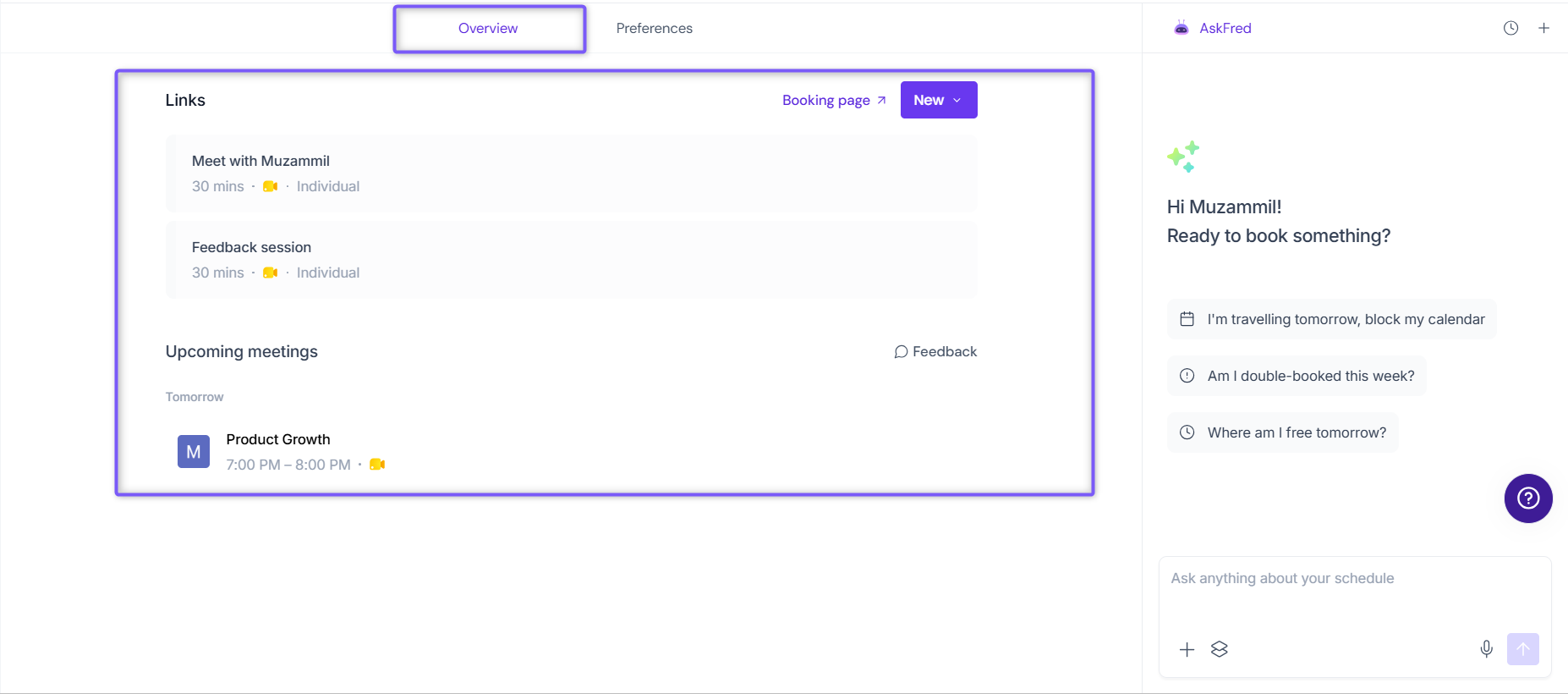
The Scheduler dashboard is where you manage your booking links, keep track of meetings, and configure how guests can book time with you. It is organized into two tabs: Overview and Preferences.
Overview
The Overview tab gives you a quick look at your scheduling activity. From here, you can:
Manage booking links: View your existing booking links, create new ones, and open or share your booking page.
Track upcoming meetings: See the meetings guests have scheduled with you.
Review recent meetings: Keep track of your recent meeting activity.
Preferences
The Preferences tab lets you configure your Scheduler profile and booking settings. Its options are grouped into five sections:
Basics: Update your name, add an About me description, choose how guests meet you, manage your booking link, and set your meeting duration.
Availability: Configure your available hours, breaks, and booking limits.
Custom rules: Add extra scheduling instructions in your own words.
AI agent: Set up the chat or voice agent on your public booking page.
Notifications: Manage email notifications sent when someone books a meeting.
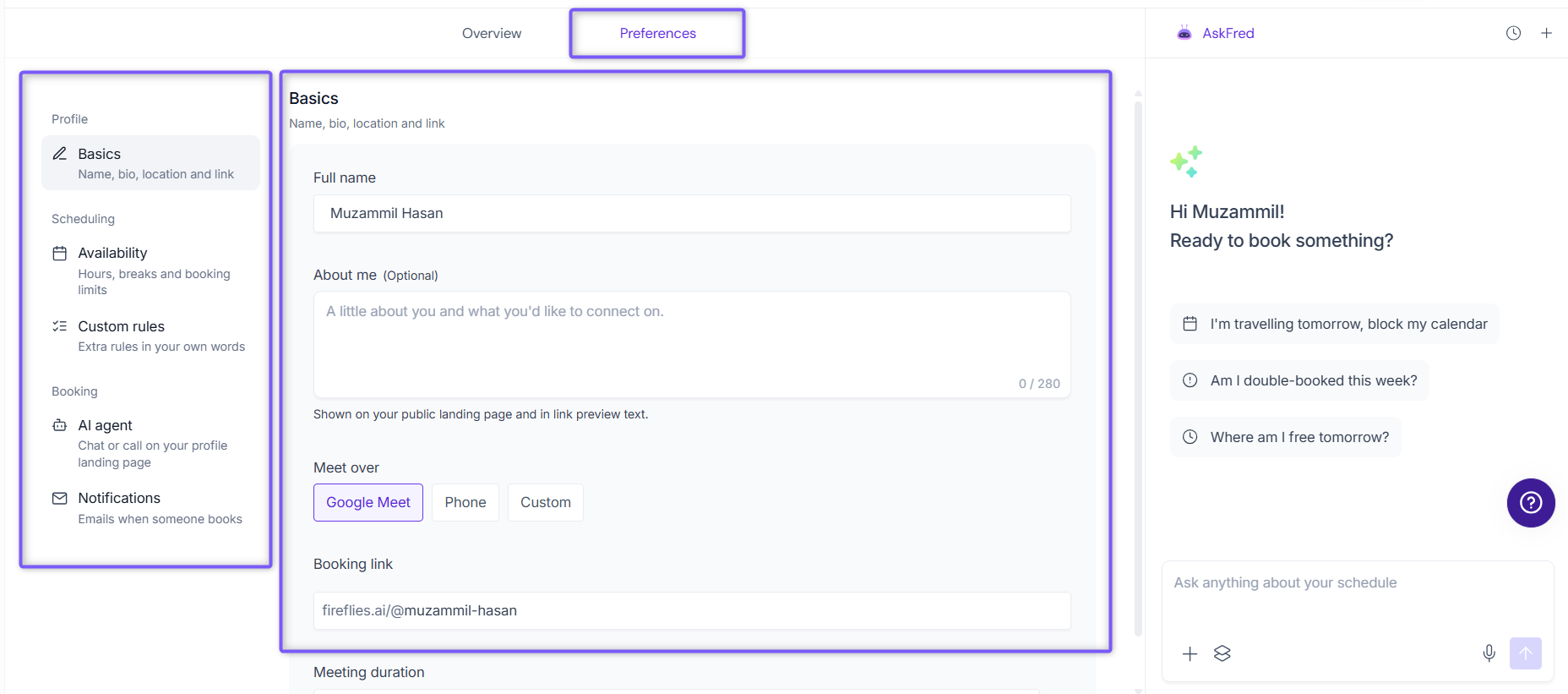
Use Overview to manage your booking activity and Preferences to customize how your Scheduler works.
AskFred
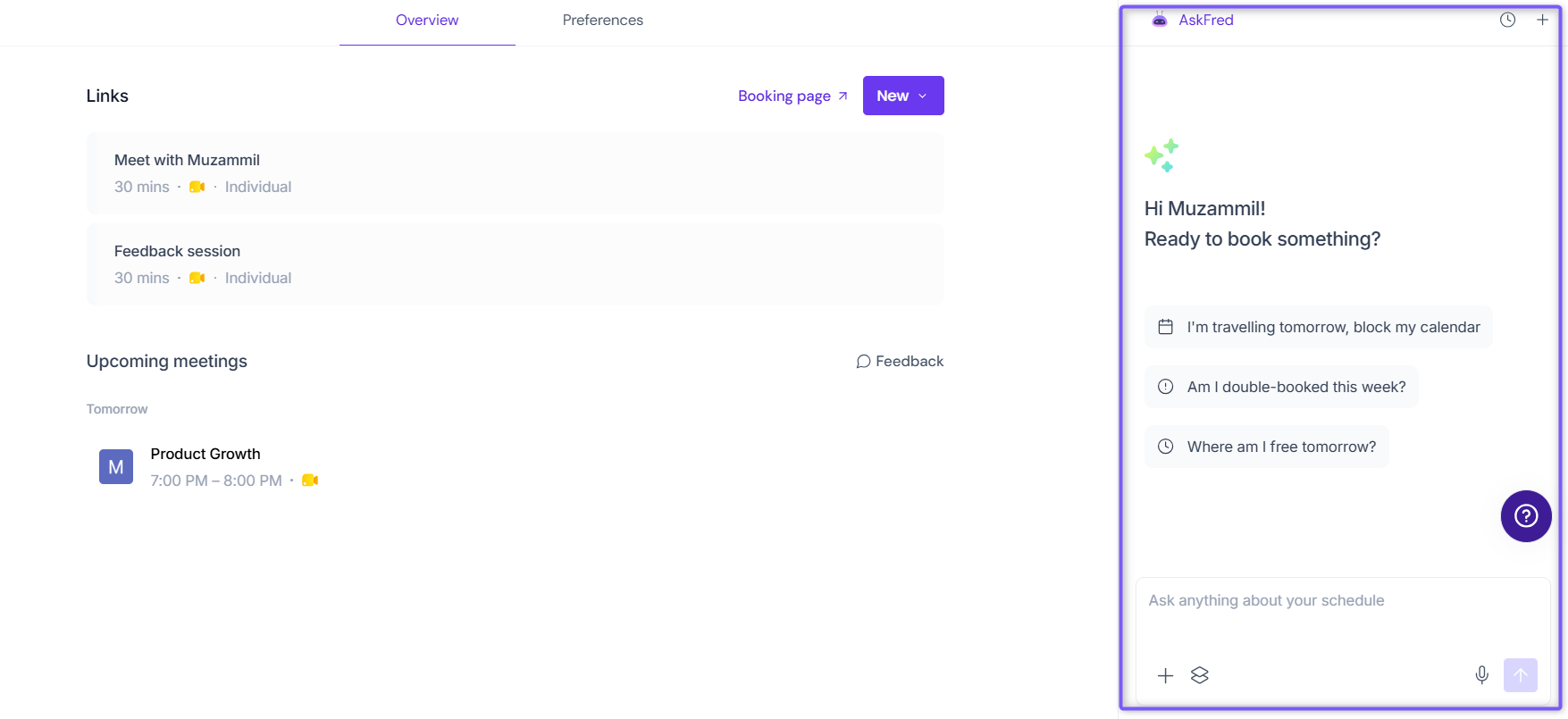
AskFred is your AI assistant within Scheduler. It helps you manage your calendar through simple chat or voice requests, so you don't have to make every scheduling change manually.
For example, you can ask it to block time when you're travelling, check whether you're double-booked, or find when you're free. You can type a request or select one of the suggested prompts to get started.
🌐 Understand your Scheduler landing page and booking links
Fireflies Scheduler gives you two ways to let people book time with you: a personal landing page that displays your booking options and individual booking links for specific meeting types.
Your Scheduler landing page
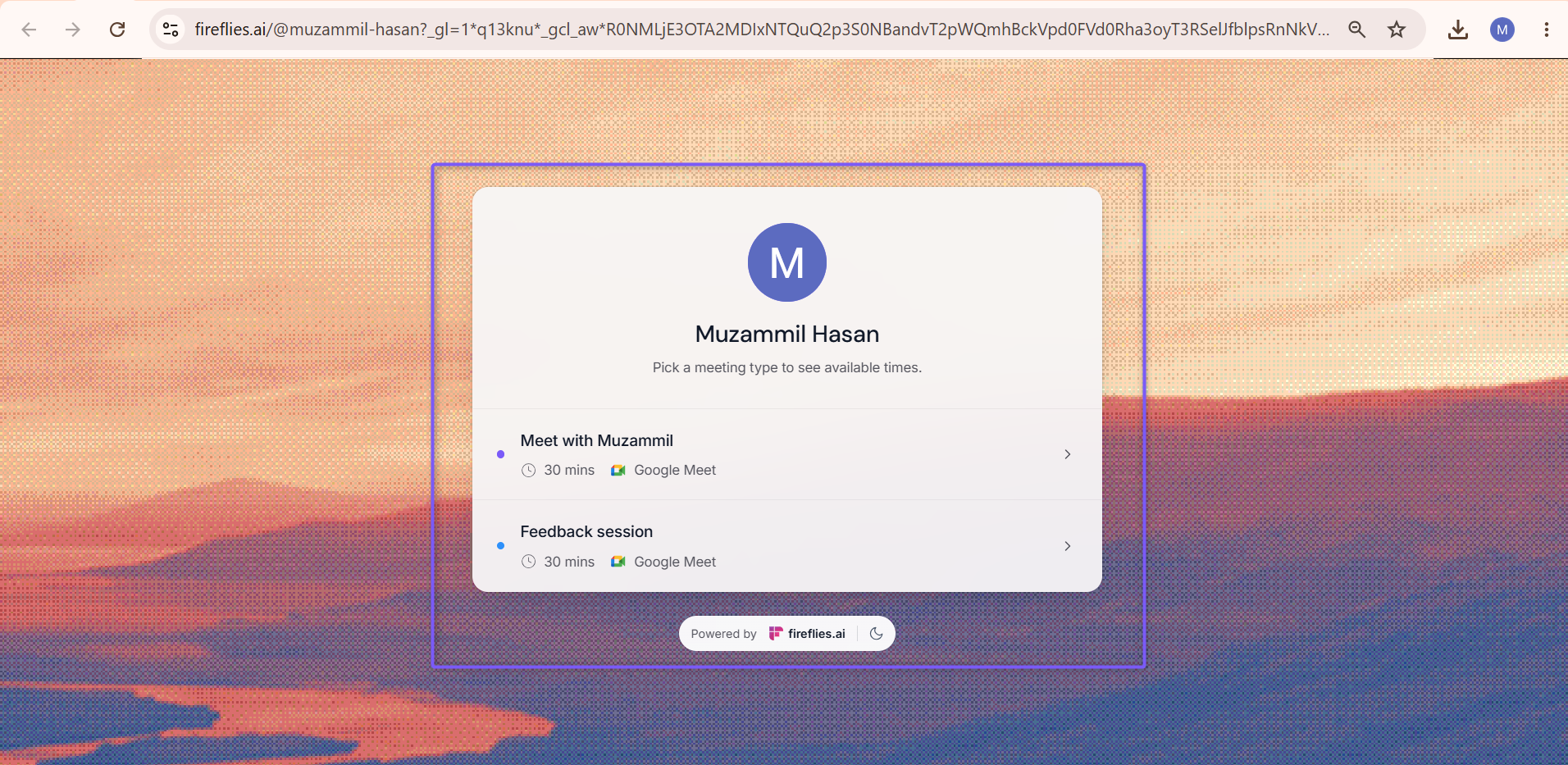
Your Scheduler landing page is your personal, public booking page. It brings your available meeting types together, so guests can browse your options and choose the meeting they want to schedule.
Your landing page uses this format: fireflies.ai/@yourname
For example, fireflies.ai/@alex takes guests to Alex's booking page. It displays your available meeting options and can also show your profile information, including your About me description.
Your individual booking links
Each booking link is for a particular meeting type. When guests open one, they go directly to that meeting's booking page, where they can view the available dates and times and select a slot.
Individual booking links use this format:
fireflies.ai/@yourname/meeting-type
For example, fireflies.ai/@alex/30-min takes guests directly to the 30-minute meeting option.
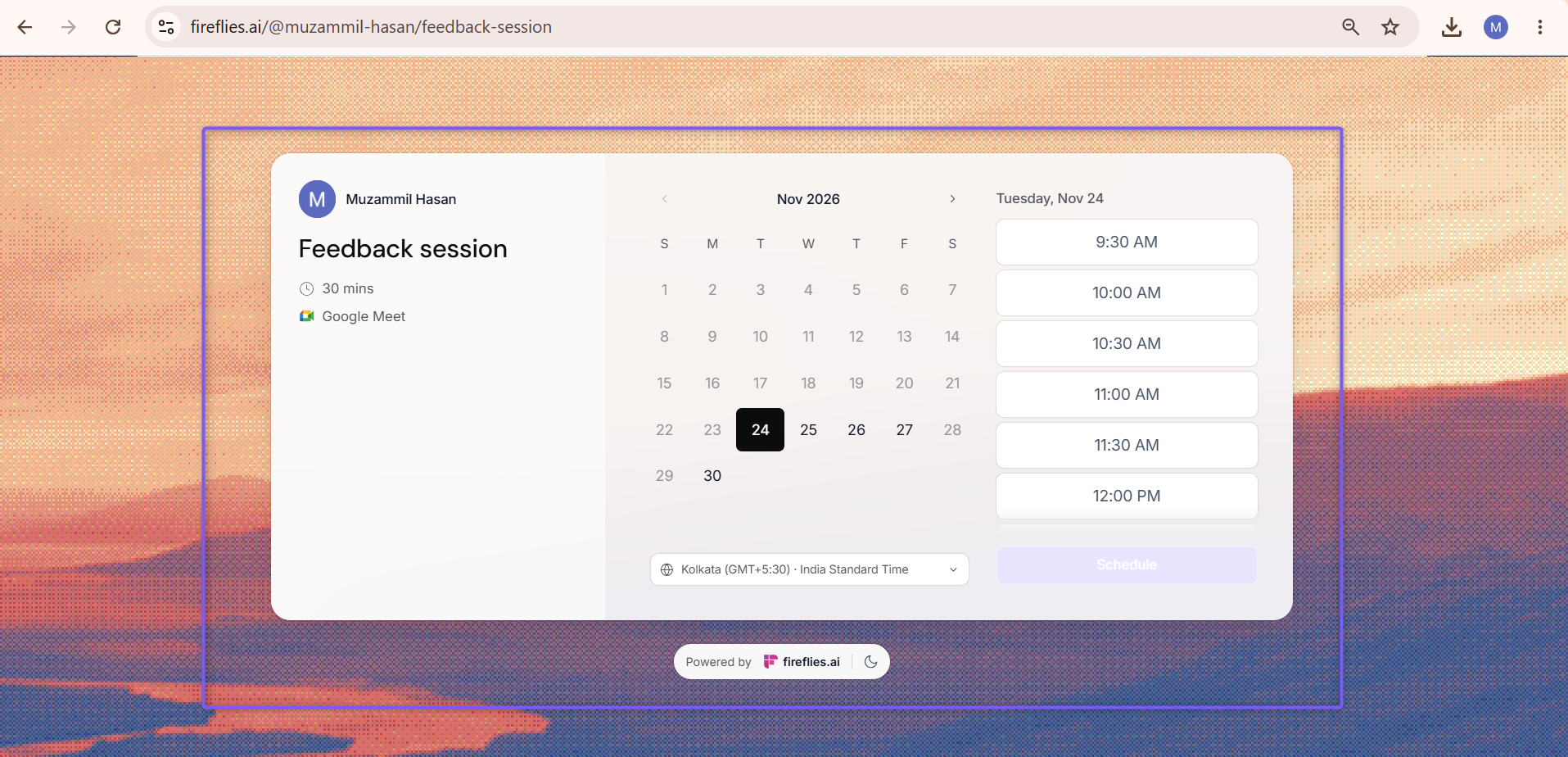
Which link should you share?
Share your Scheduler landing page when you want guests to choose from all your available meeting types.
Share an individual booking link when you want guests to book a specific meeting.
Note: If you previously shared a booking link using the older /meet/ URL format, it will continue to work and redirect to the new URL format.
✨ Explore Fireflies Scheduler features
Fireflies Scheduler includes tools to help you manage bookings, control your availability, and coordinate meetings. Here's an overview of what you can do with each feature.
🔗 Booking links
Create booking links for different meeting types and share them with guests. You can customize meeting details, choose where meetings take place, and let guests book a time that works for them.
👉🏻 Learn more: How to create and share a booking link in Fireflies Scheduler.
🕒 Availability and booking rules
Set the days and hours when guests can book meetings with you. You can also configure breaks, daily meeting limits, minimum notice, and how far in advance guests can schedule a meeting.
👉🏻 Learn more: How to set your availability and scheduling rules in Fireflies Scheduler.
🤖 Manage your calendar with Fred
Use Fred, your AI teammate, to manage your calendar through natural-language requests. Ask Fred to block time, move meetings, create events, change time zones, or send invites.
👉🏻 Learn more: How to manage your calendar with AI in Fireflies Scheduler.
👥 Team links
Set up team booking links to coordinate meetings across multiple hosts. Admins can add hosts or user groups, choose how bookings are distributed, and configure co-hosts so guests see times when everyone is available.
👉🏻 Learn more: How to set up round robin scheduling for teams in Fireflies Scheduler.
💬 Chat and voice agent
Add an AI chat or voice agent to your booking page to help guests with scheduling. You can configure the agent for a booking link and provide information through your About you details and knowledge bases.
👉🏻 Learn more: How to add an AI chat and voice agent to your booking page.
💳 Plans and pricing
The core Fireflies Scheduler is free on every plan, including Free. The guest-facing AI agent is the paid layer, with chat available at no additional cost and voice calls using AI credits.
Capability | Free | Pro, Business, Enterprise | Cost |
|---|---|---|---|
Booking links, forms, availability, and notifications | Yes | Yes | Free |
Chat agent on booking page | No | Yes | Free |
Voice agent calls on booking page | No | Yes | 1 AI credit per minute, paid by the host |
Round robin team links | Admins only | Admins only | Free |
Asking Fred to manage your calendar uses AI credits, depending on the task.
❓ Frequently asked questions
Is Fireflies Scheduler free?
Yes. The core Fireflies Scheduler is free on every plan, including the Free plan. You can create booking links, customize booking forms, set your availability, manage notifications, and use round robin team links without paying extra.
Which Scheduler features are included in each plan?
The core scheduling features are free on all plans. The guest-facing AI agent is available on Pro, Business, and Enterprise plans.
Free plan: Booking links, forms, availability, notifications, and round robin team links (admins only).
Pro, Business, and Enterprise plans: All core Scheduler features, plus the AI chat and voice agents on booking pages.
The chat agent is free to use. Voice agent calls consume 1 AI credit per minute, charged to the host.
What calendar information does Fireflies Scheduler access?
Fireflies Scheduler only reads your calendar's free and busy times to determine when you're available. It uses this information to show guests the time slots they can book.
Which calendars does Fireflies Scheduler support?
Fireflies Scheduler supports Google Calendar and Outlook calendars. If you use Outlook, you can also generate meeting links through Microsoft Teams.
Can I create multiple booking links?
Yes. You can create multiple booking links for different meeting types. For example, you can have separate links for introductory calls and client meetings, each with its own scheduling preferences.
Can guests reschedule or cancel a booking?
Yes. Guests can reschedule or cancel their bookings if their plans change.
Can I control how far in advance guests book a meeting?
Yes. You can configure a minimum notice period and a maximum booking window for your booking links. The minimum notice can range from no minimum to one week, while the maximum booking window can be set from 7 to 90 days.
Can I set different availability hours for different days?
Yes. You can configure multiple availability intervals for each working day, allowing you to offer different booking windows throughout the week.
Do hosts and guests receive booking notifications?
Yes. Hosts receive an email when someone books a meeting, and guests receive a confirmation email. You can configure these notifications for each booking link.
Can I use Fireflies Scheduler to book meetings with multiple team members?
Yes. Admins can create team booking links, add up to 30 hosts or user groups, and choose how bookings are distributed. You can also add co-hosts so guests only see time slots when everyone is available.
Can I manage my calendar by chatting with Fred?
Yes. You can ask Fred to manage your calendar and scheduling preferences using natural-language requests.
For example, you can ask Fred to block time, change your time zone, create events, or send invites. Fred is available through the Fireflies app and Slack.
Asking Fred to manage your calendar uses AI credits, depending on the task.
Can I use Zoom for Scheduler meetings?
Zoom support is coming soon. It isn't currently available as a meeting location.
🛠 Troubleshooting
Issue | What to Check / Do |
|---|---|
Calendar disconnected | Reconnect your Google or Outlook calendar to restore the connection with Fireflies Scheduler. |
No available times showing | Check that your working days and hours include time slots for guests to book. |
Calendar events blocking availability | Check whether existing calendar events overlap with your available hours and prevent guests from booking those slots. |
Overlapping meetings | Check your connected calendar for conflicting events or overlapping bookings that may affect your availability. |
Booking slots unavailable too far ahead or at short notice | Review your minimum notice and maximum booking window settings to make sure guests can book within your preferred timeframe. |
Still stuck? Contact support via this link for more help.
🔗 Related Guides
How to Create and Share a Booking Link in Fireflies Scheduler — Learn how to create, customize, preview, and publish your booking link.
How to Manage Your Calendar with AI in Fireflies Scheduler — Learn how to ask Fred to manage your calendar using natural-language instructions.
How to Set Your Availability and Scheduling Rules in Fireflies Scheduler — Customize your working hours, availability, and booking rules.
How to Set Up Round Robin Scheduling for Teams in Fireflies Scheduler — Coordinate bookings across multiple hosts.
How to Add an AI Chat and Voice Agent to Your Booking Page — Configure an AI agent to interact with guests before they book.