How to Set Your Availability and Scheduling Rules in Fireflies Scheduler
Last updated: November 24, 2026
Fireflies Scheduler makes it easier to schedule meetings without losing control of your day. By setting your availability, you can avoid bookings during busy hours, leave time for breaks, and give guests clear options that work for you.
In this guide, you'll learn how to set your working hours, manage booking limits, and add custom scheduling rules.
👉🏻These settings are part of creating your booking link, which you'll find in How to Create and Share a Booking Link in Fireflies Scheduler.
Lets's get started 🚀
🗓 Access Your Availability Settings
You can update the availability settings of an existing booking link or configure them while creating a new one.
Step 1: Log in to your Fireflies account and click Scheduler from the left navigation pane.
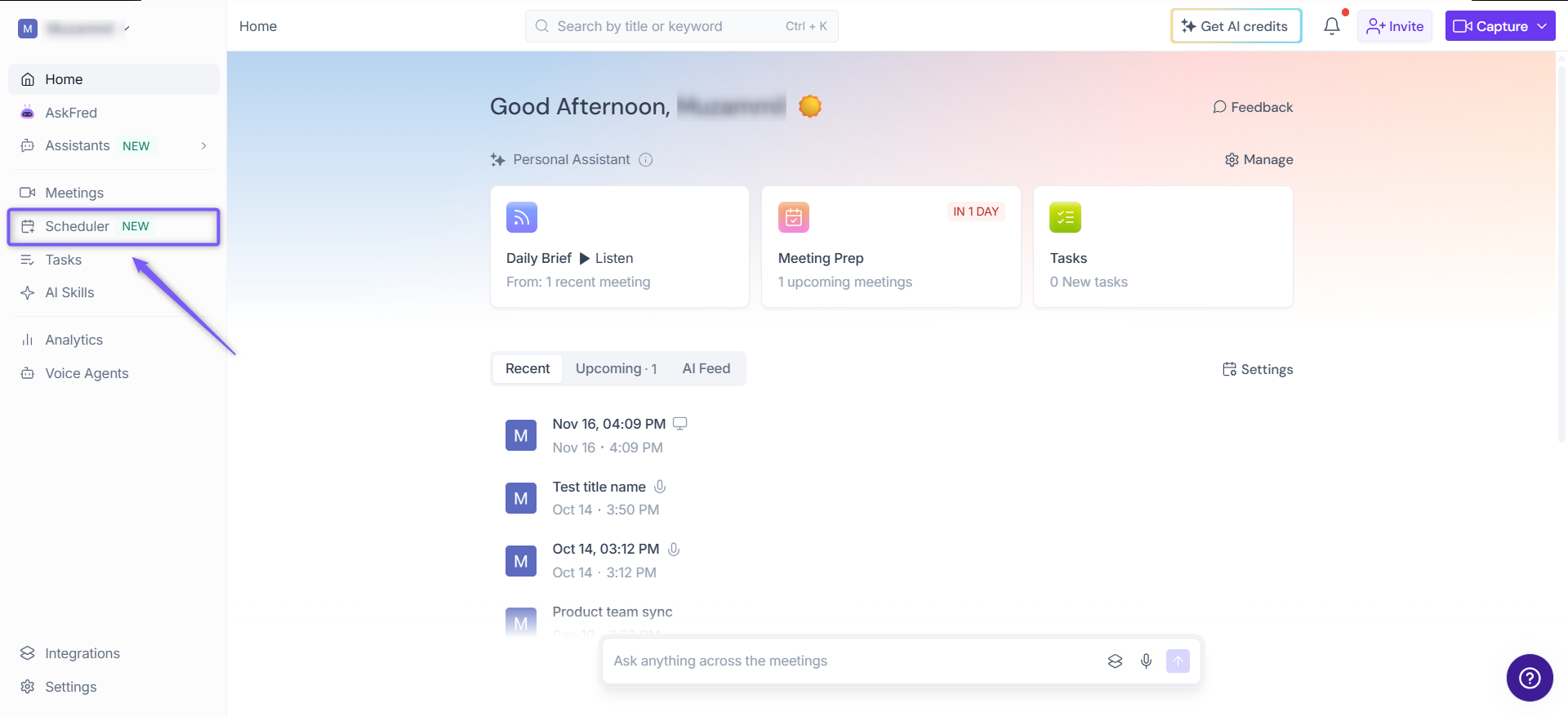
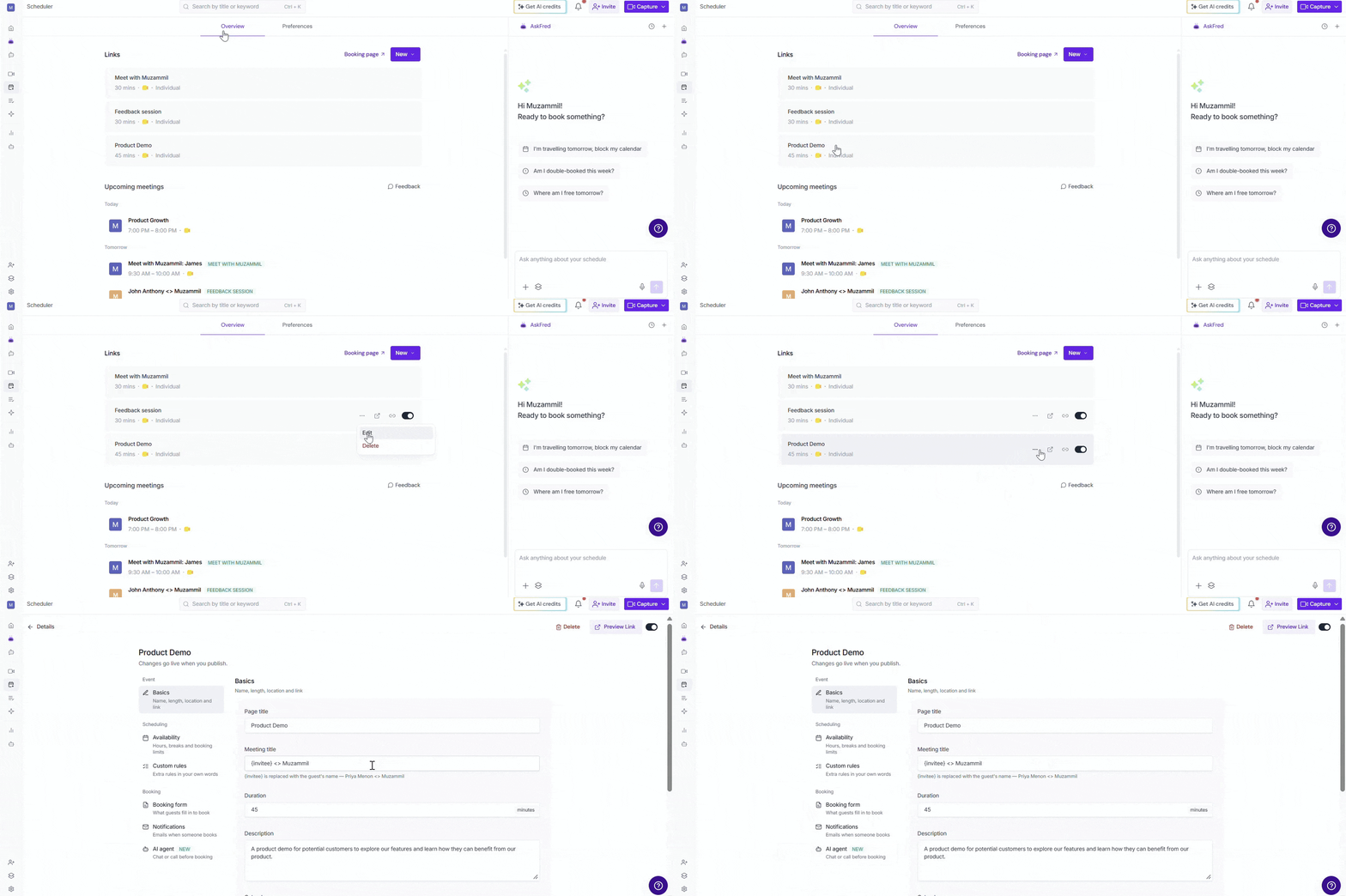
Step 2: Choose how you'd like to proceed:
Edit an existing booking link: Open the booking link you want to update from the Overview tab.
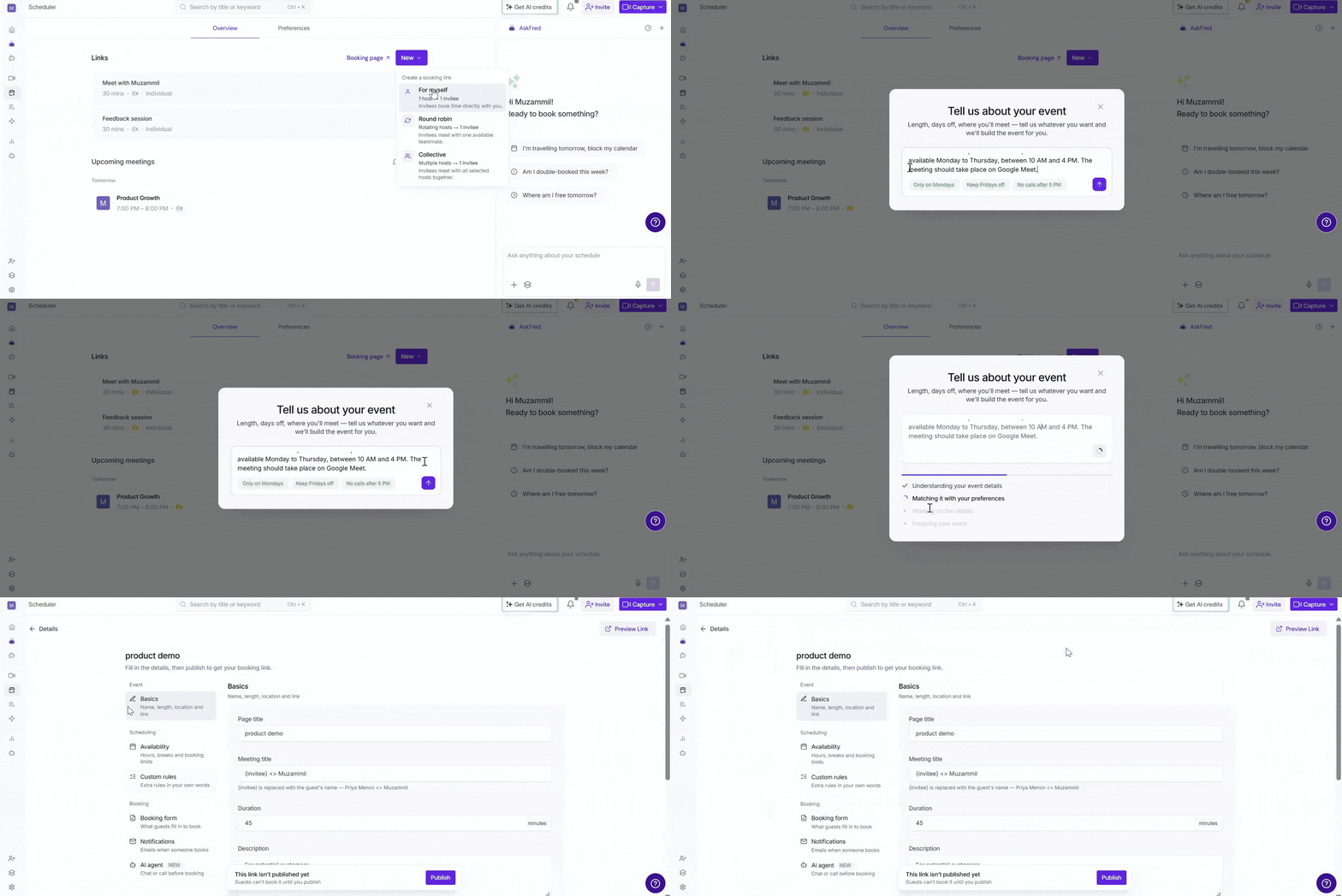
Create a new booking link: Click New and follow the setup flow to create your booking link.
Step 3: On the booking link's Details page, navigate to the Scheduling section to configure your availability and scheduling rules.
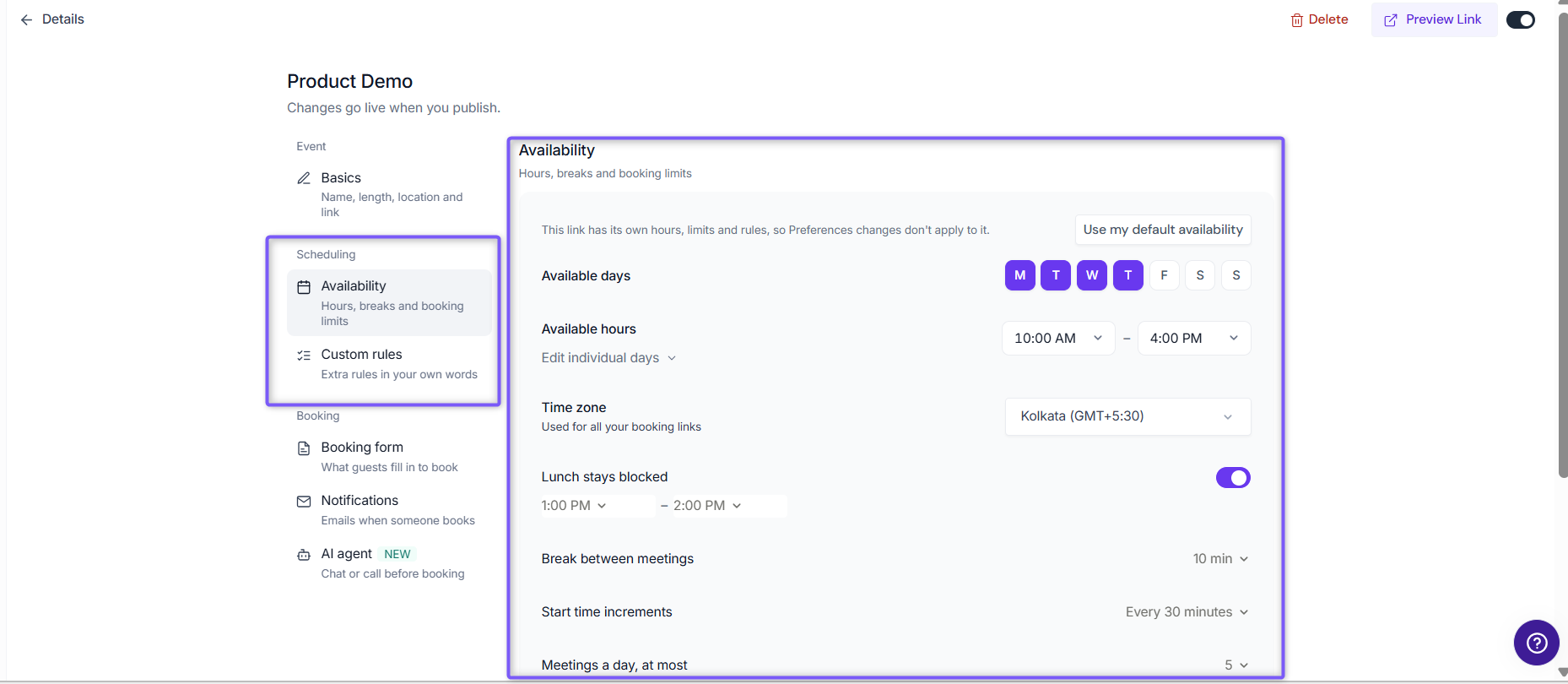
The Scheduling section has two options: Availability and Custom rules. Availability controls your working hours and booking limits, while Custom rules lets you add extra scheduling instructions in your own words.
🗓 Set Your Availability
Availability helps you decide when guests can book meetings with you. You can choose your working days and hours, add breaks, and set booking limits to keep your schedule manageable.
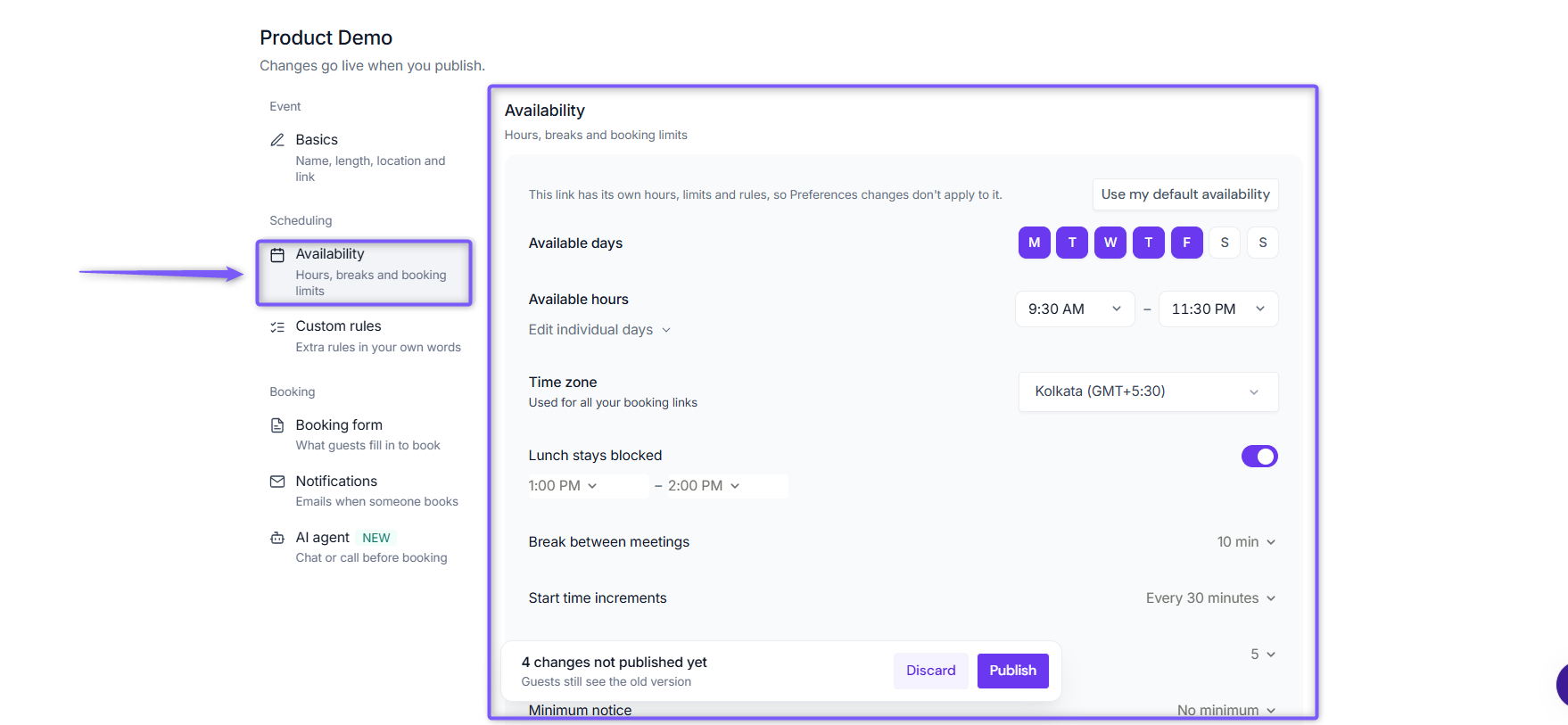
Choose Your Available Days and Hours
Set the days and times when guests can book meetings with you.
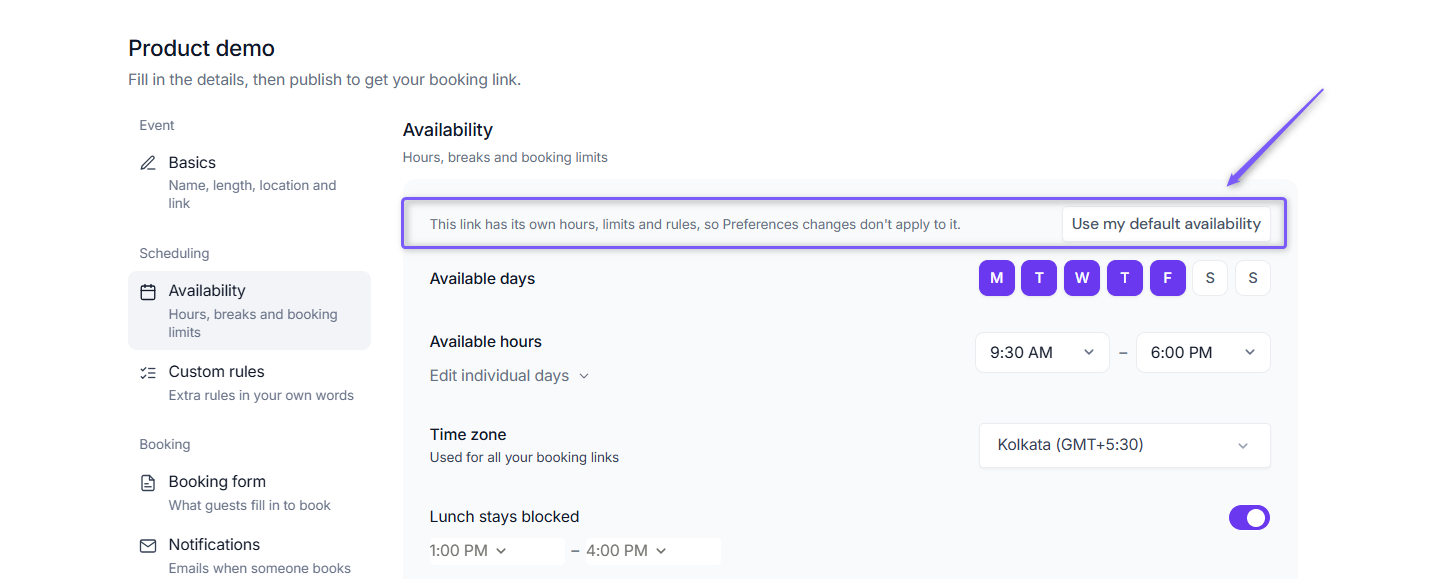
Available days: Select the days of the week when you're available for meetings. Selected days are highlighted in purple. For example, select Monday through Thursday if you only want to accept bookings on those days.
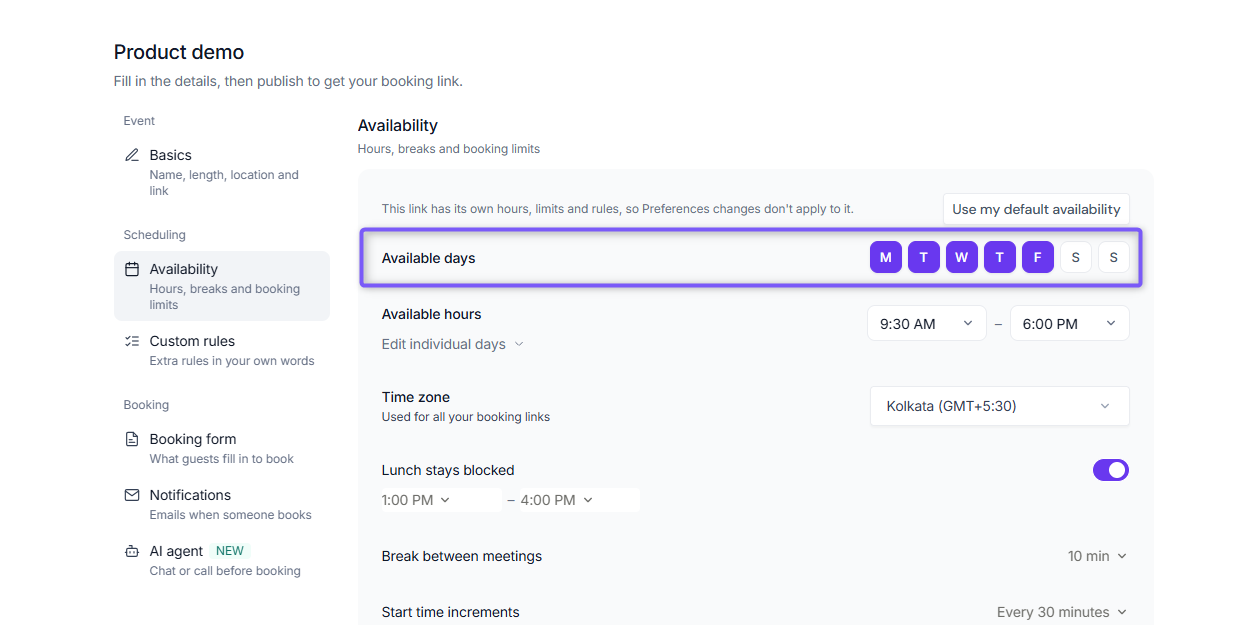
Available hours: Set the start and end times when guests can book meetings. For example, set your availability from 9:30 AM to 6:00 PM.
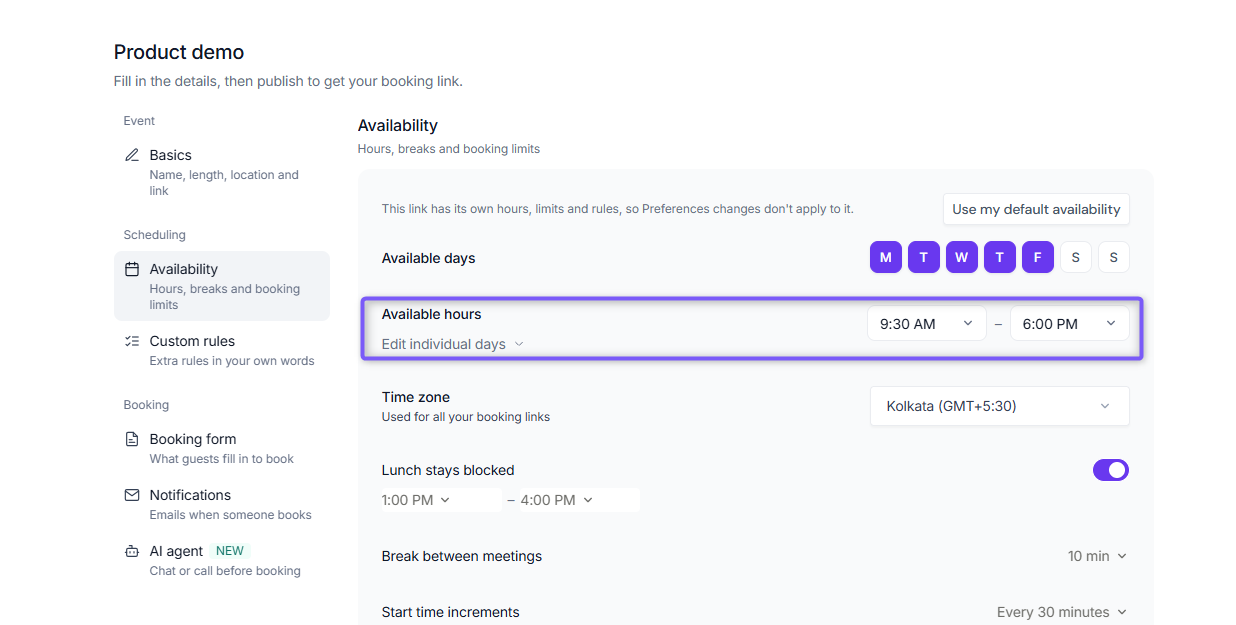
Edit individual days: Customize availability for specific days instead of using the same hours every day.
Set different start and end times for each day.
Click the + icon next to a day to add multiple availability periods for that day.
For example, set Monday to 9:30 AM–12:00 PM and 1:00 PM–6:00 PM.
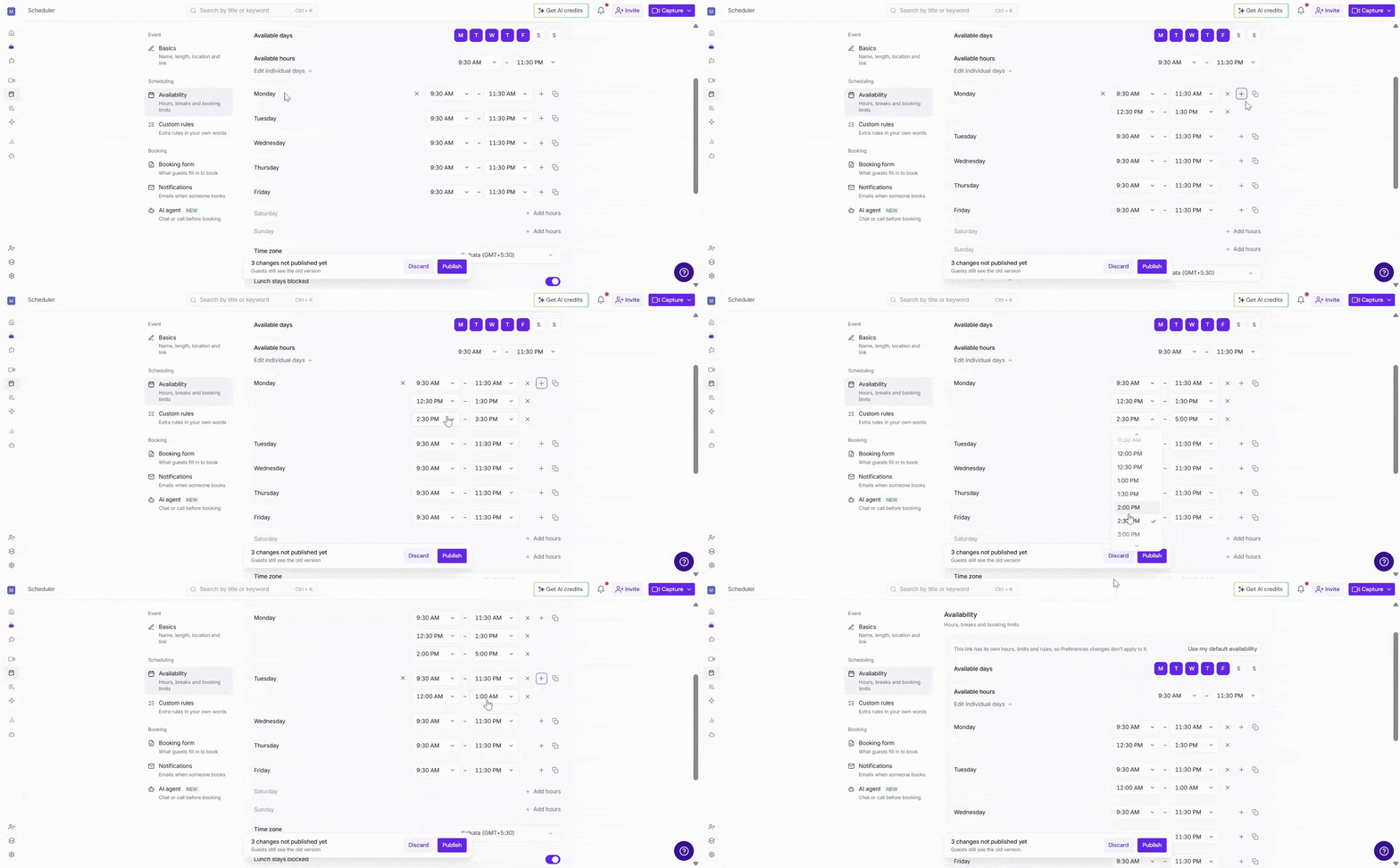
Avoid overlapping availability periods
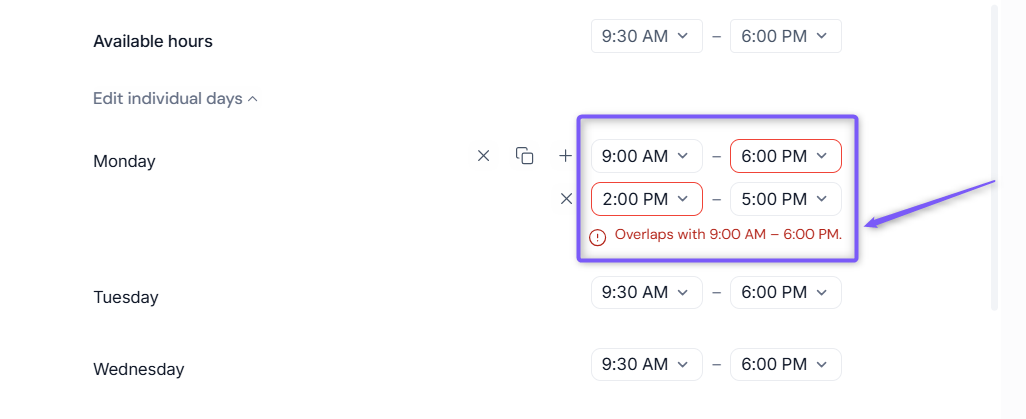
Make sure the time slots you add for a day don't overlap. If a time slot overlaps with another, Scheduler displays an error identifying the conflicting period.
For example, if one slot is 9:00 AM–6:00 PM, adding another slot from 2:00 PM–5:00 PM creates an overlap. Adjust the time slots so each period has its own start and end time.
Set Your Time Zone
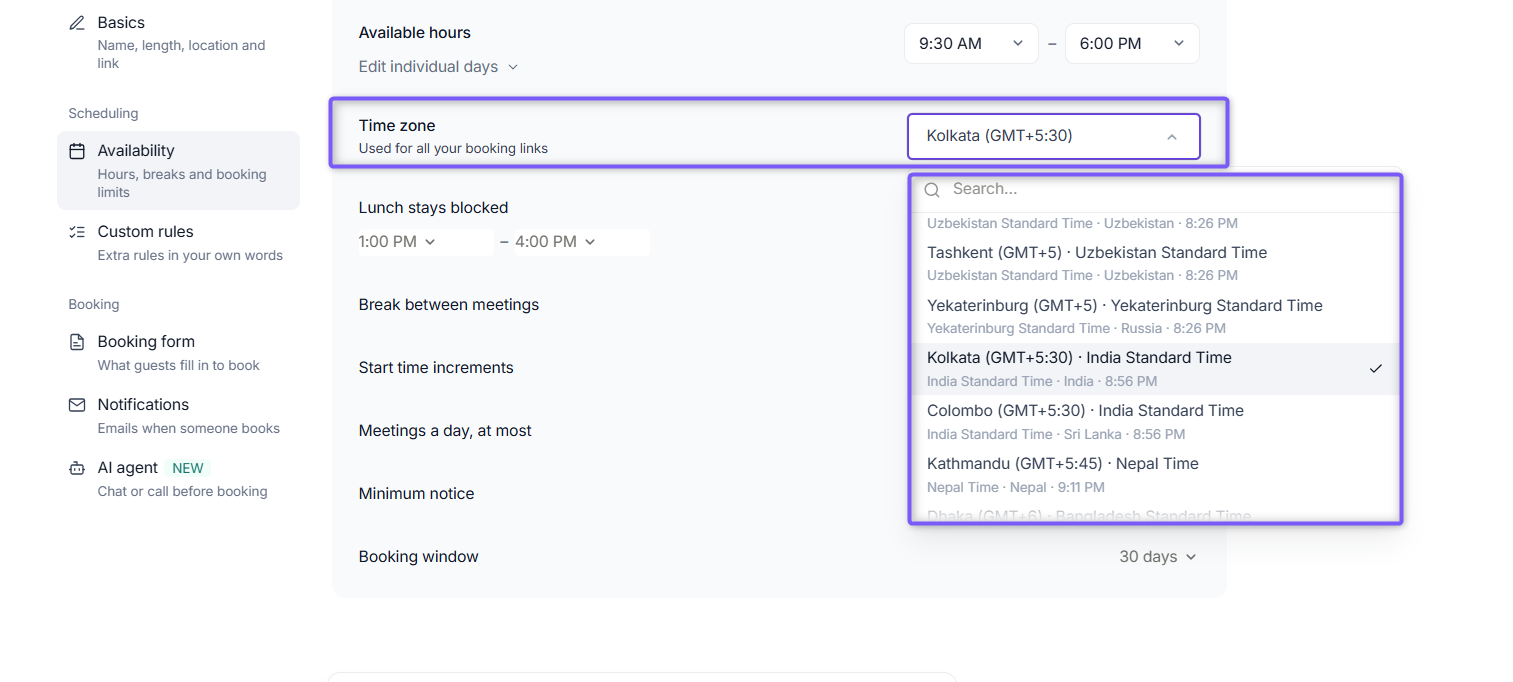
Choose the time zone used for your booking availability. This setting applies to all your booking links, helping ensure that available meeting times are displayed in the correct time zone.
For example, select Kolkata (GMT+5:30) if you use Indian Standard Time.
Manage Breaks and Meeting Intervals
Add breaks and gaps to your schedule so you have time between meetings.
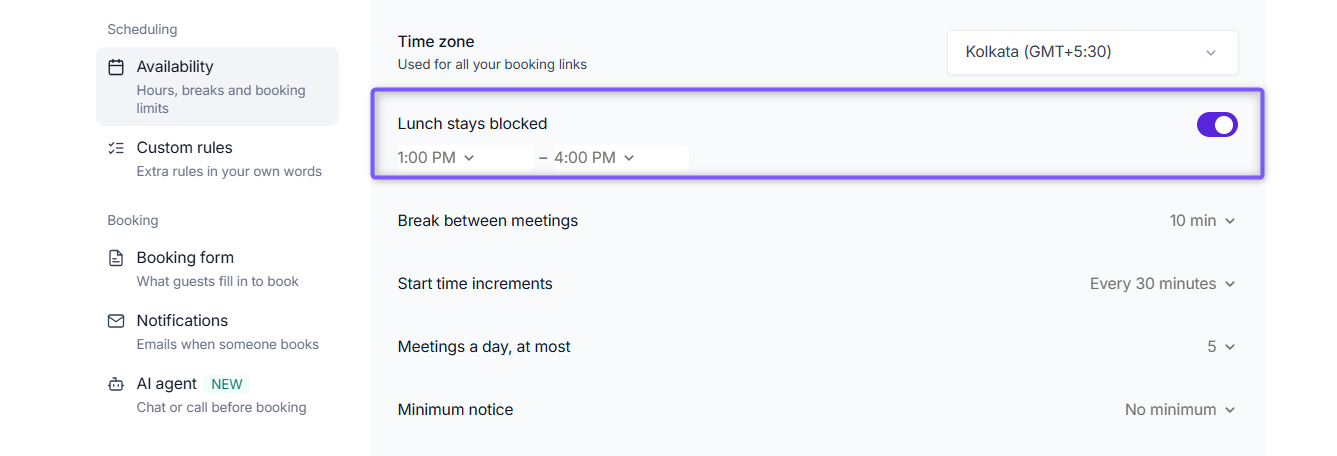
Lunch stays blocked: Enable this option to prevent guests from booking meetings during your lunch break. Set the start and end times for the break. For example, block 1:00 PM–2:00 PM for lunch.
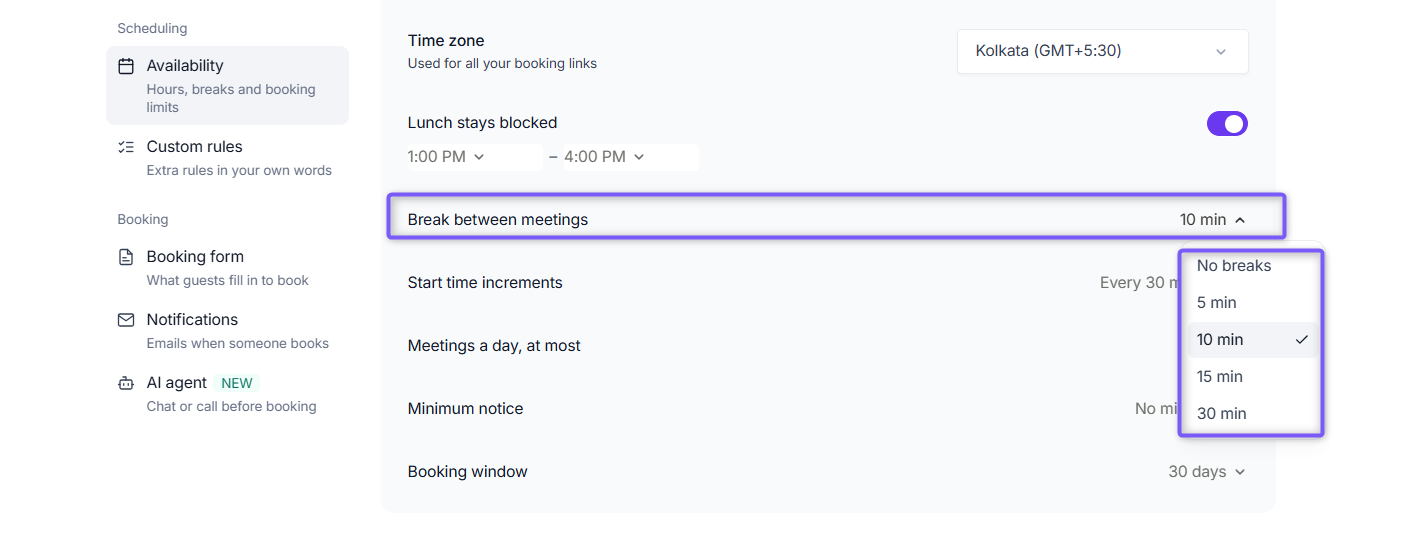
Break between meetings: Set a buffer between consecutive meetings so you have time to prepare for your next call or take a short break. For example, choose a 10-minute gap between meetings.
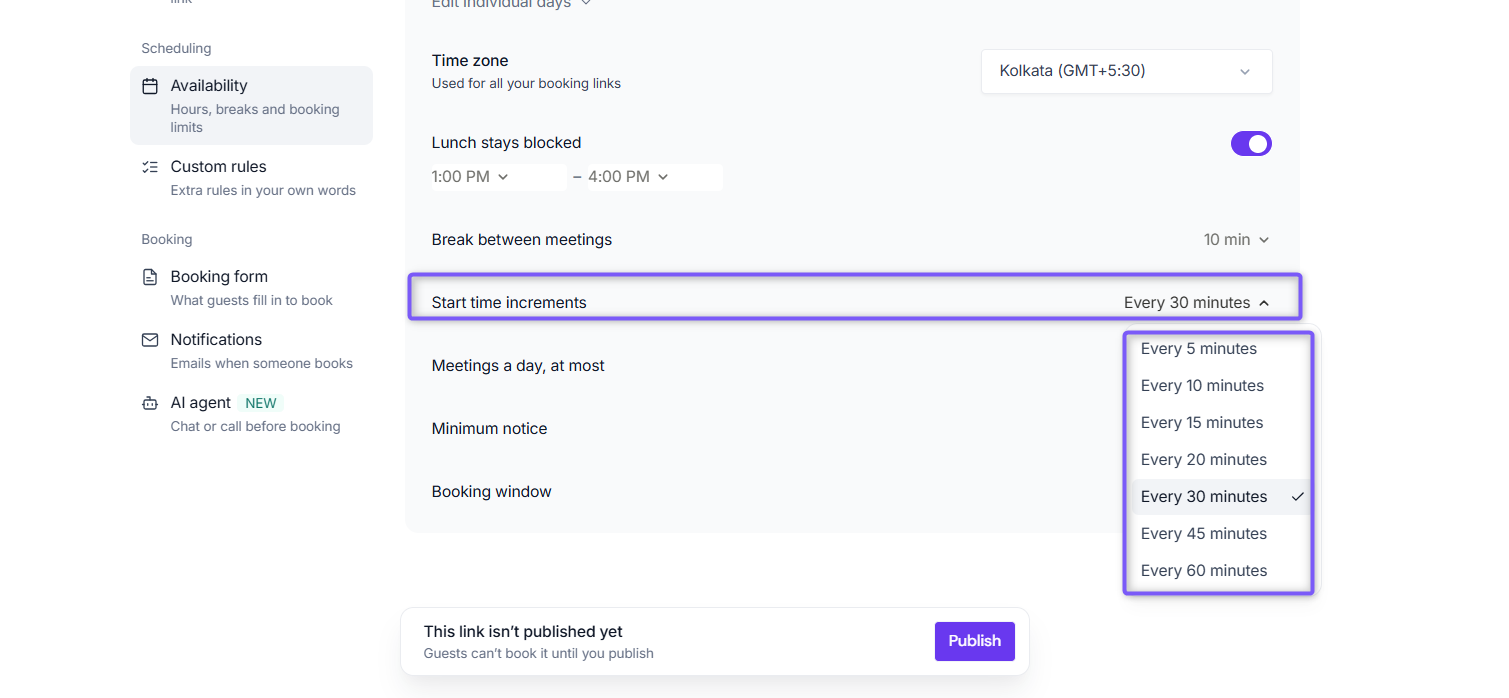
Start time increments: Choose how frequently available booking slots should begin. This controls the intervals at which guests can select a meeting start time. For example, choose Every 30 minutes to offer slots at 9:30 AM, 10:00 AM, 10:30 AM, and so on.
Set Your Booking Limits
Control how many meetings guests can book and how much advance notice they need to provide.
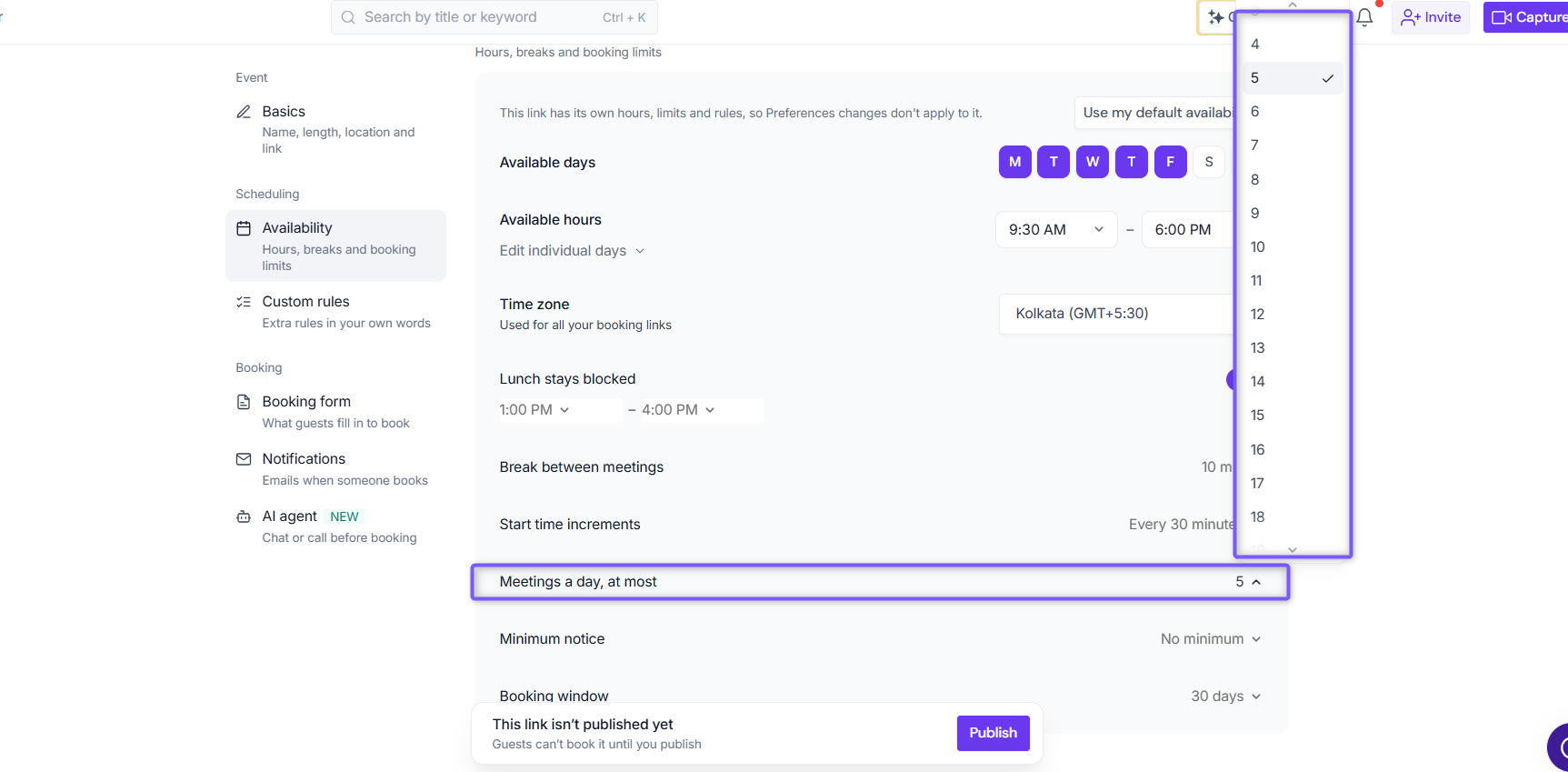
Meetings a day, at most: Set the maximum number of meetings guests can book with you in a single day. For example, set the limit to 5 meetings per day to avoid an overloaded schedule.
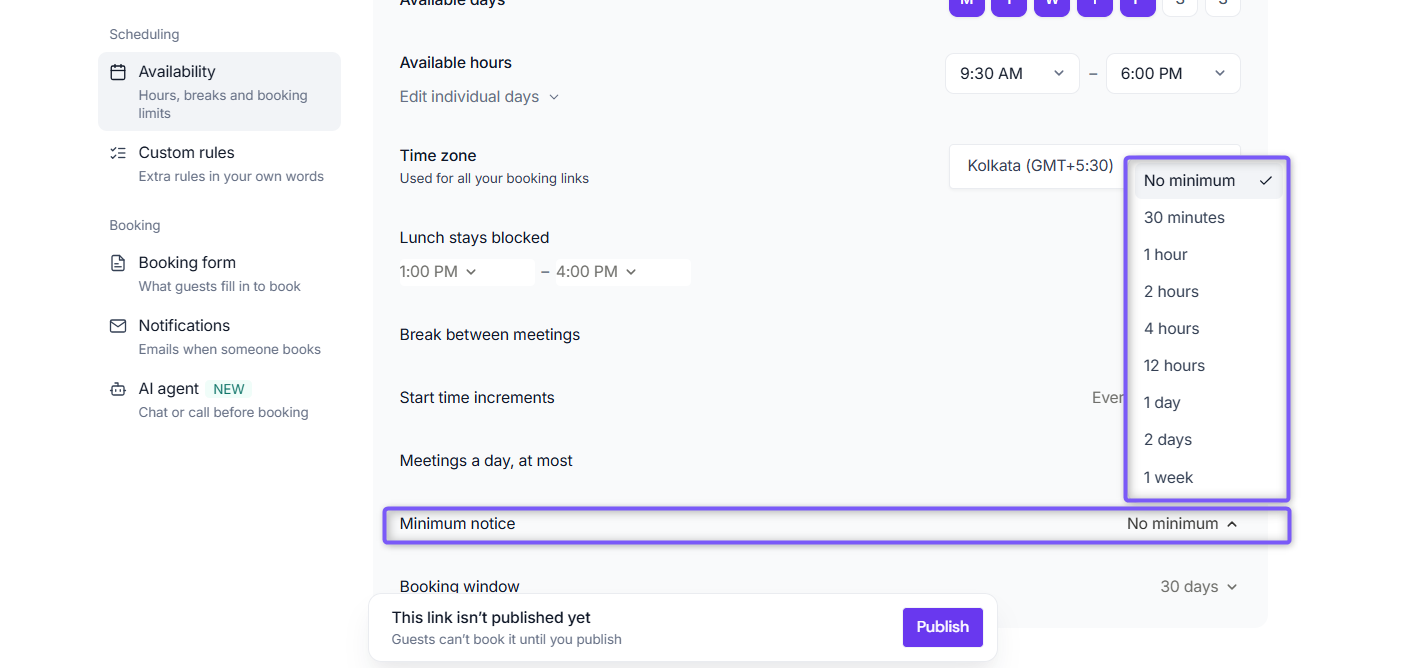
Minimum notice: Decide how much advance notice guests must provide before booking a meeting. You can choose no minimum or set a notice period, from 30 minutes up to 1 week. For example, require guests to book at least 2 hours in advance so you have time to prepare.
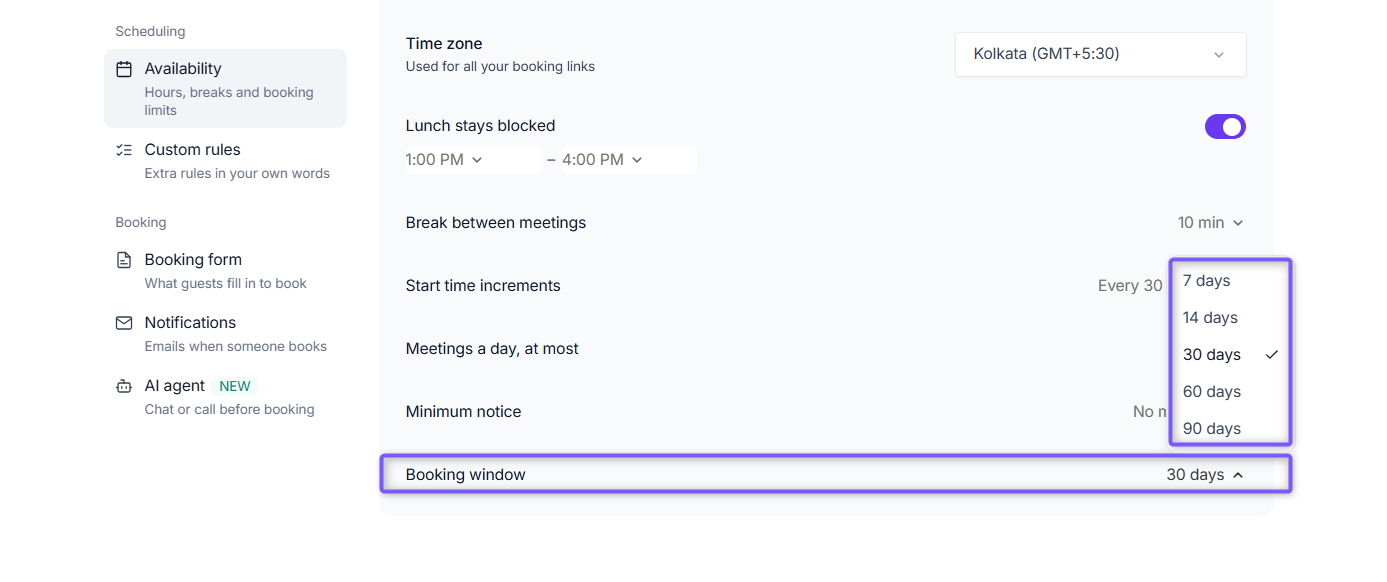
Booking window: Choose how far into the future guests can schedule meetings. You can set a booking window between 7 and 90 days. For example, select 30 days to let guests book meetings up to 30 days ahead.
Use your default availability
If you've already configured your working hours in Scheduler Preferences, click Use my default availability to apply those settings to this booking link. Otherwise, you can configure separate hours, limits, and rules for this link.
Once you've configured your availability, move to Custom rules to add additional scheduling instructions in your own words.
💬 Add Custom Scheduling Rules
Availability settings help you define your regular working hours and booking limits. If you have additional preferences, you can add them as Custom rules in plain language. Fred understands your instructions and applies them to your booking schedule.
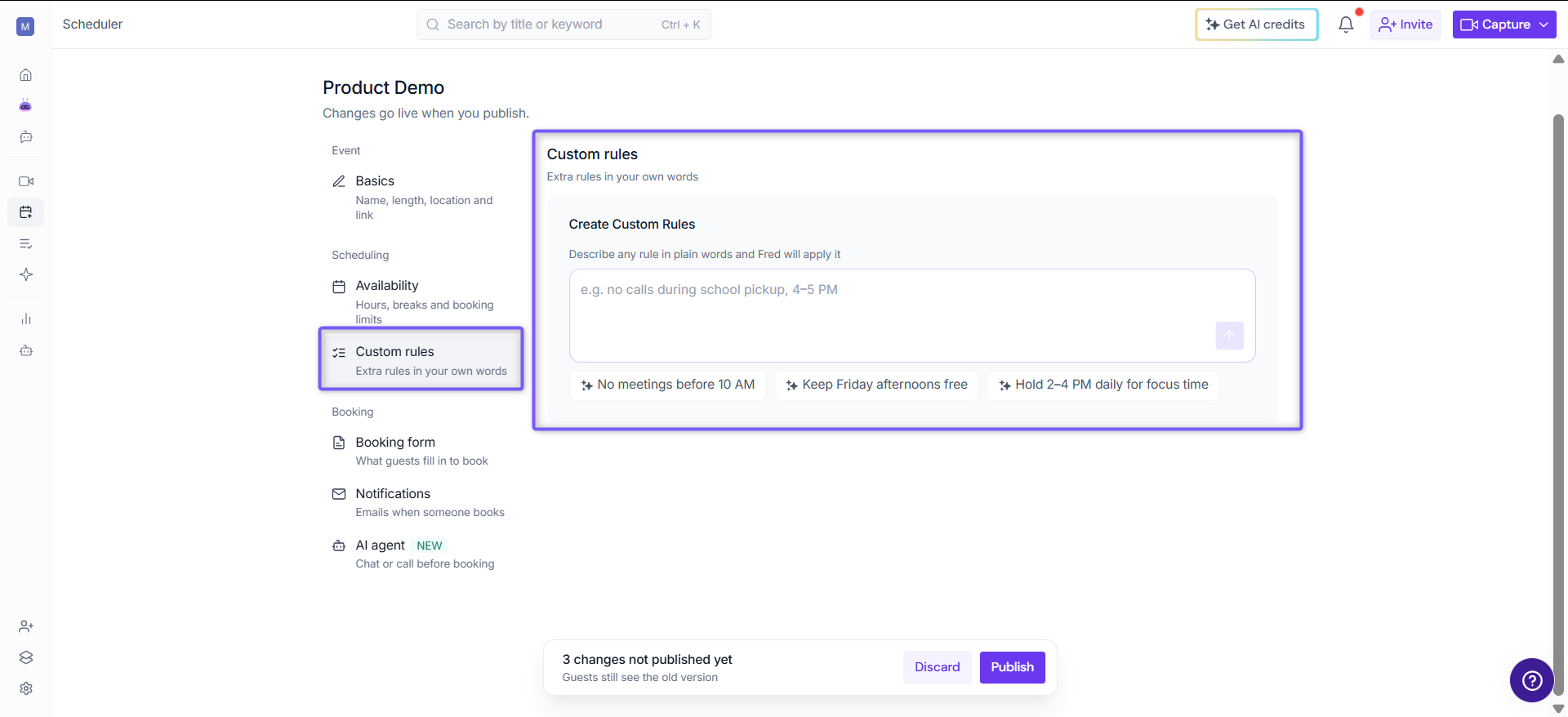
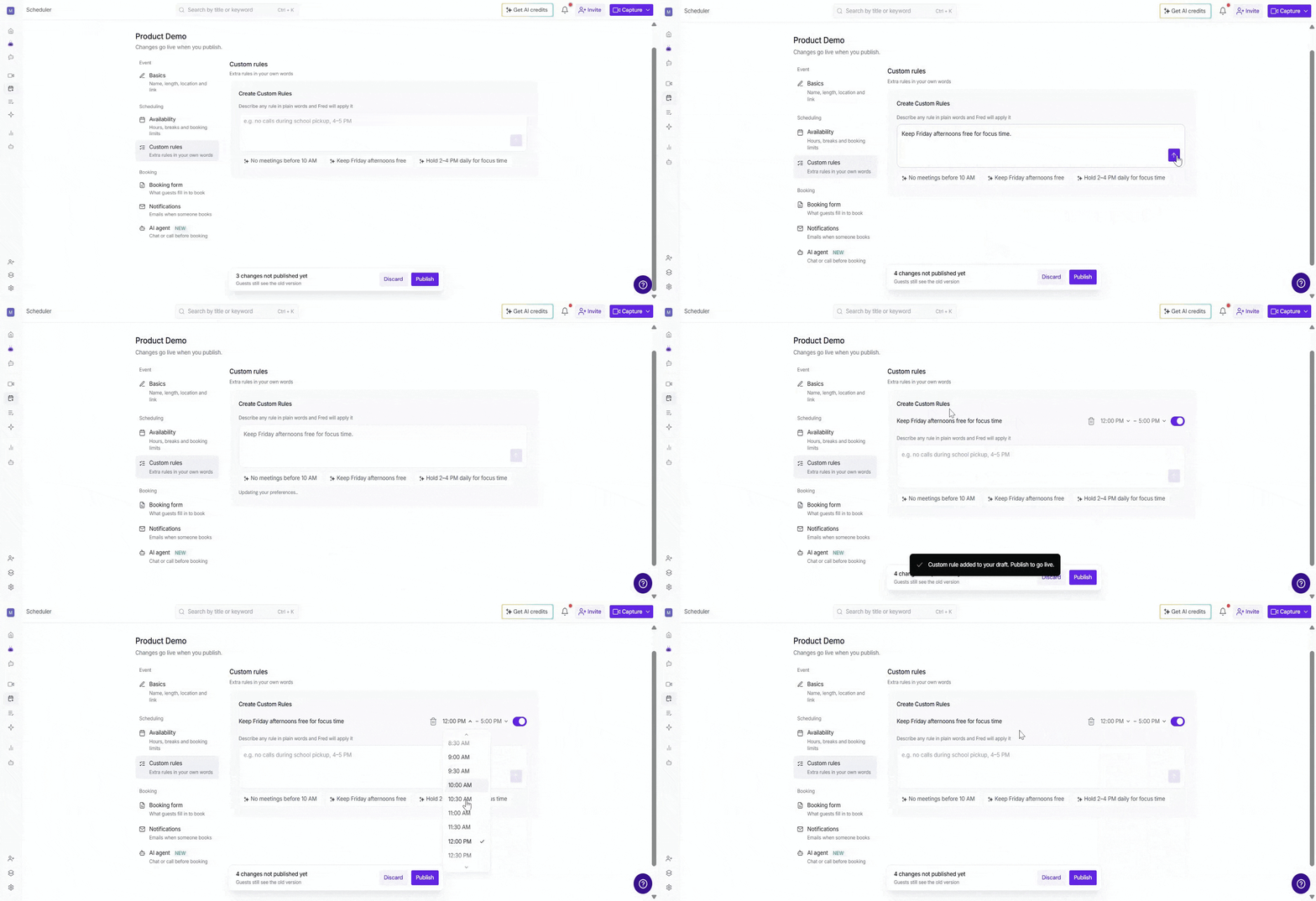
In the Create Custom Rules text box, describe the scheduling preference you want Fred to follow.
For example, Alex can enter:
Keep Friday afternoons free for focus time.
Click the arrow button to submit the instruction.
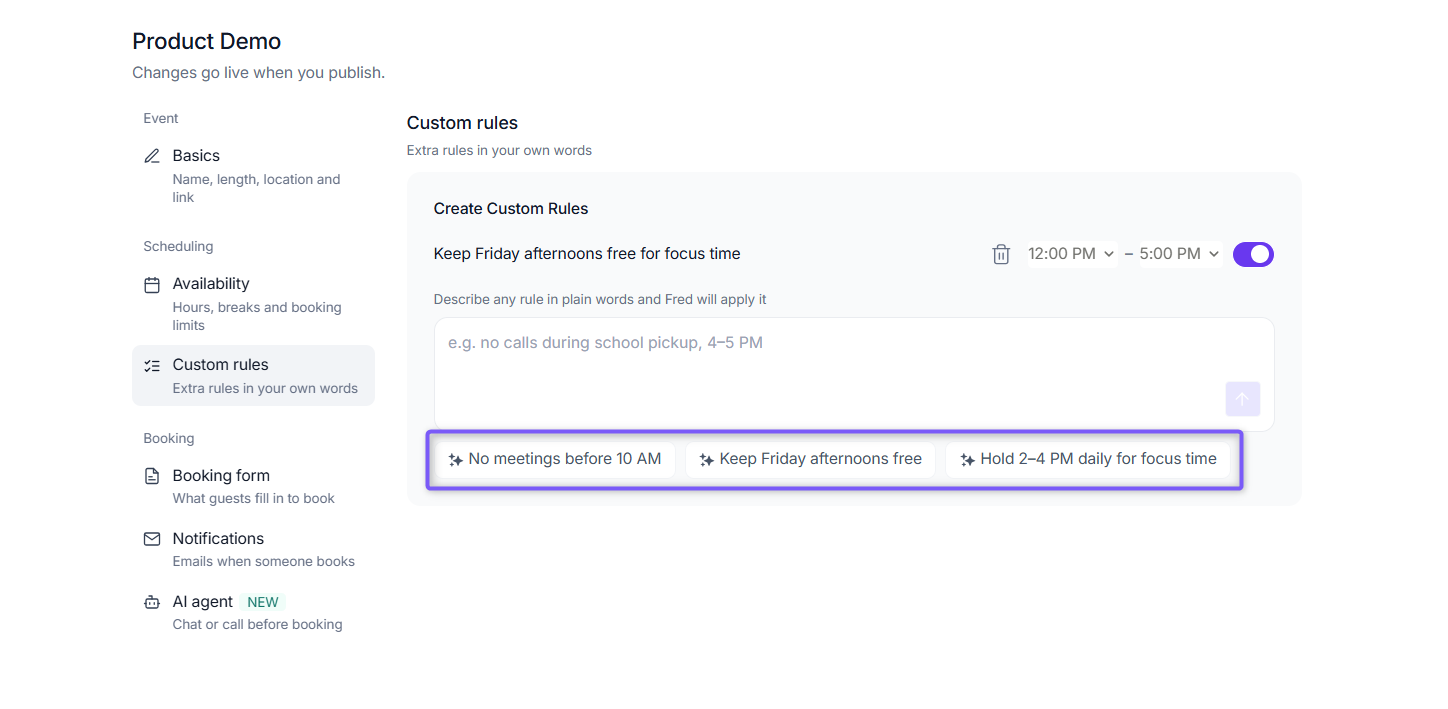
You can also choose from the suggested rules below the text box, such as:
No meetings before 10 AM
Keep Friday afternoons free
Hold 2–4 PM daily for focus time
You can also manage each custom rule after adding it. Each rule has its own controls, so you can adjust its settings without changing the others.
Edit the time range: For rules with specific time periods, such as keeping Friday afternoons free, choose the start and end times.
Turn a rule on or off: Use the toggle next to a rule to enable or temporarily disable it.
Delete a rule: Click the Delete (trash) icon to remove a rule you no longer need.
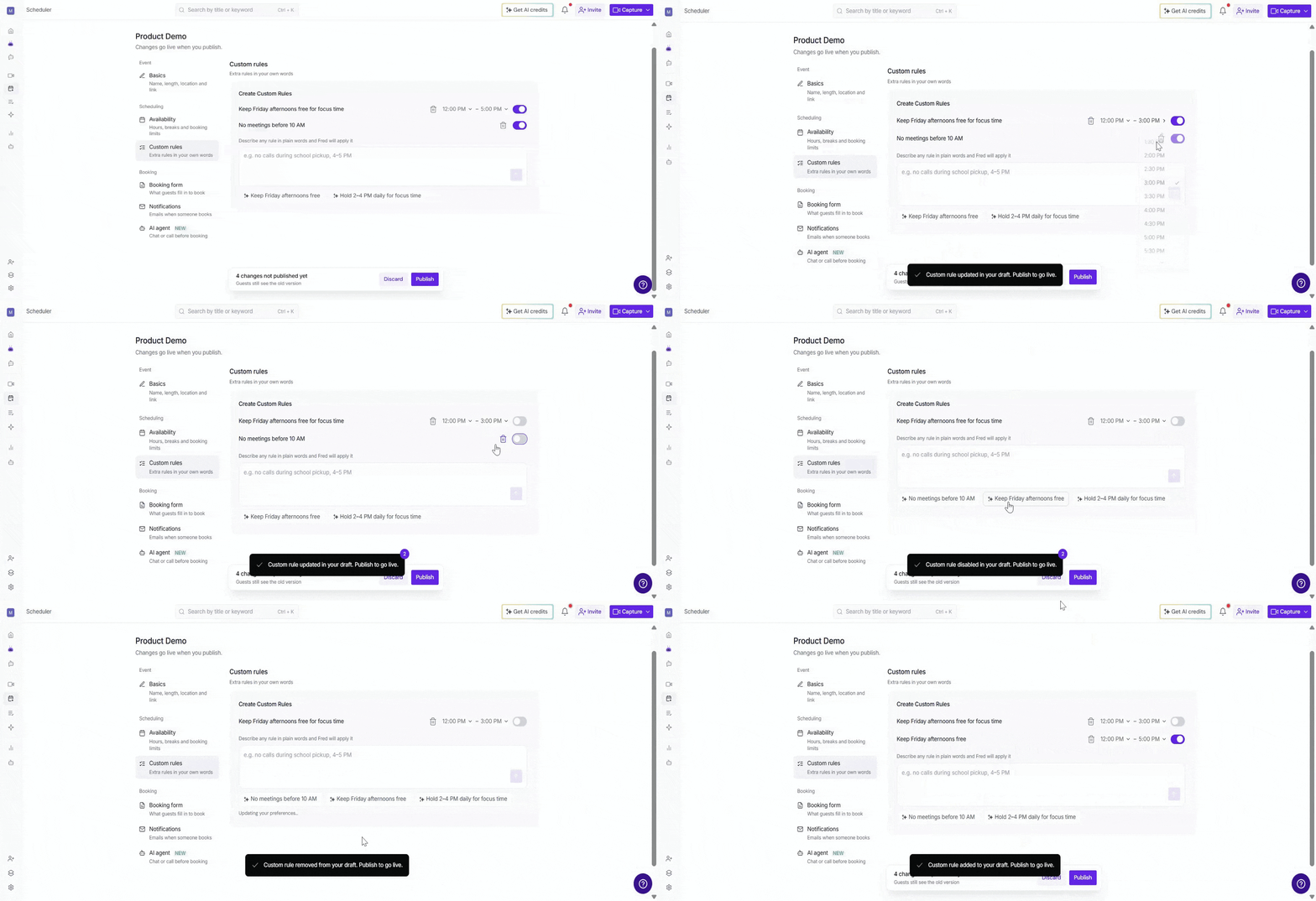
This makes it easy to update your scheduling preferences whenever your routine changes.
🔗 Related Guides
How to Create and Share a Booking Link in Fireflies Scheduler — Learn how to create, customize, preview, and publish your booking link.
How to Manage Your Calendar with AI in Fireflies Scheduler — Learn how to ask Fred to manage your calendar using natural-language instructions.