How to Integrate HubSpot with Fireflies
Last updated: August 25, 2026
Keeping HubSpot updated should be simple. With the HubSpot + Fireflies integration, your meeting notes, summaries, and link to access the full transcript automatically push to the right contacts, tasks, companies, or deals—so you don’t have to enter anything manually.
Whether you’re in sales, marketing, or customer success, this integration helps you stay organized, follow up faster, and keep every conversation connected inside your CRM with zero extra effort.
🚀 Want a quick walkthrough first? Watch this CRM integrations webinar to see how to connect your CRM in one click, create a configuration that controls what syncs where, map notes to the right contacts, leads, companies, and deals, and turn action items into CRM tasks. Then follow the steps below to set up your integration in Fireflies.
🔍 What does the HubSpot integration do?
This integration keeps your HubSpot workspace organized by sending important meeting details—like notes, summaries, link to access the full transcript, and tasks — directly to the right contacts, Tasks, companies, or deals.
Here’s what it helps you do:
Create new contacts automatically
Log meeting notes, summaries, and full transcript link
Turn action items into HubSpot tasks
Transcribe HubSpot Dialer calls
A simple way to keep HubSpot updated and your team focused.
🔑 Prerequisites
Before you connect HubSpot with Fireflies, make sure a few basics are in place. This helps you avoid setup issues later:
HubSpot account with integration permissions → You’ll need access to install and authorize apps.
Fireflies account → Make sure you’re logged in to your workspace.
Contacts, Tasks, or deals in HubSpot → Fireflies will attach your meeting data to these records.
HubSpot login credentials → You’ll authenticate using OAuth during setup, so keep them handy.
Once these are ready, you can jump into the connection flow smoothly.
🔗 Connect HubSpot to Fireflies
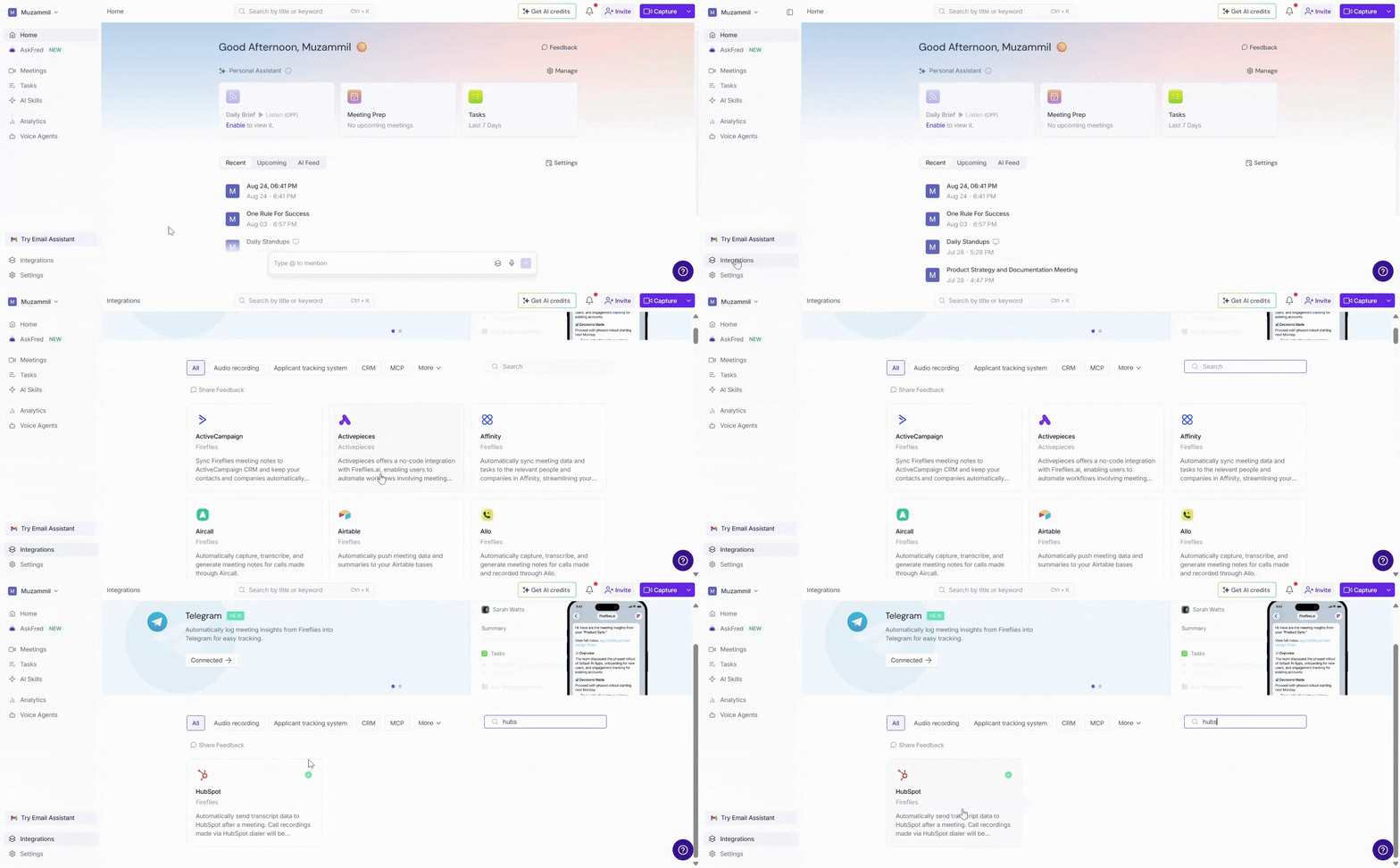
Step 1: Log in to your Fireflies account, go to the Integrations page, and search for HubSpot. Click on it to get started.
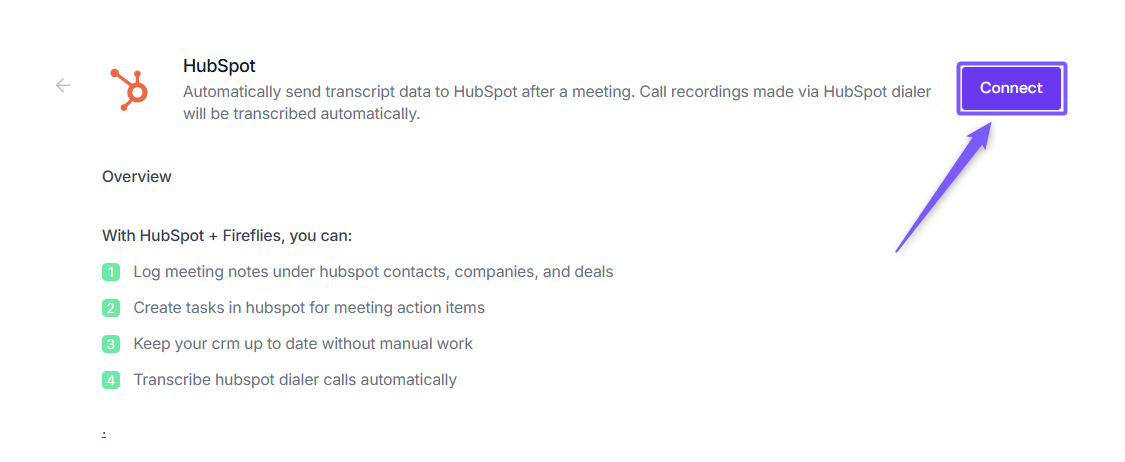
Step 2: Click on the Connect button, and you’ll be redirected to the HubSpot authorization page.
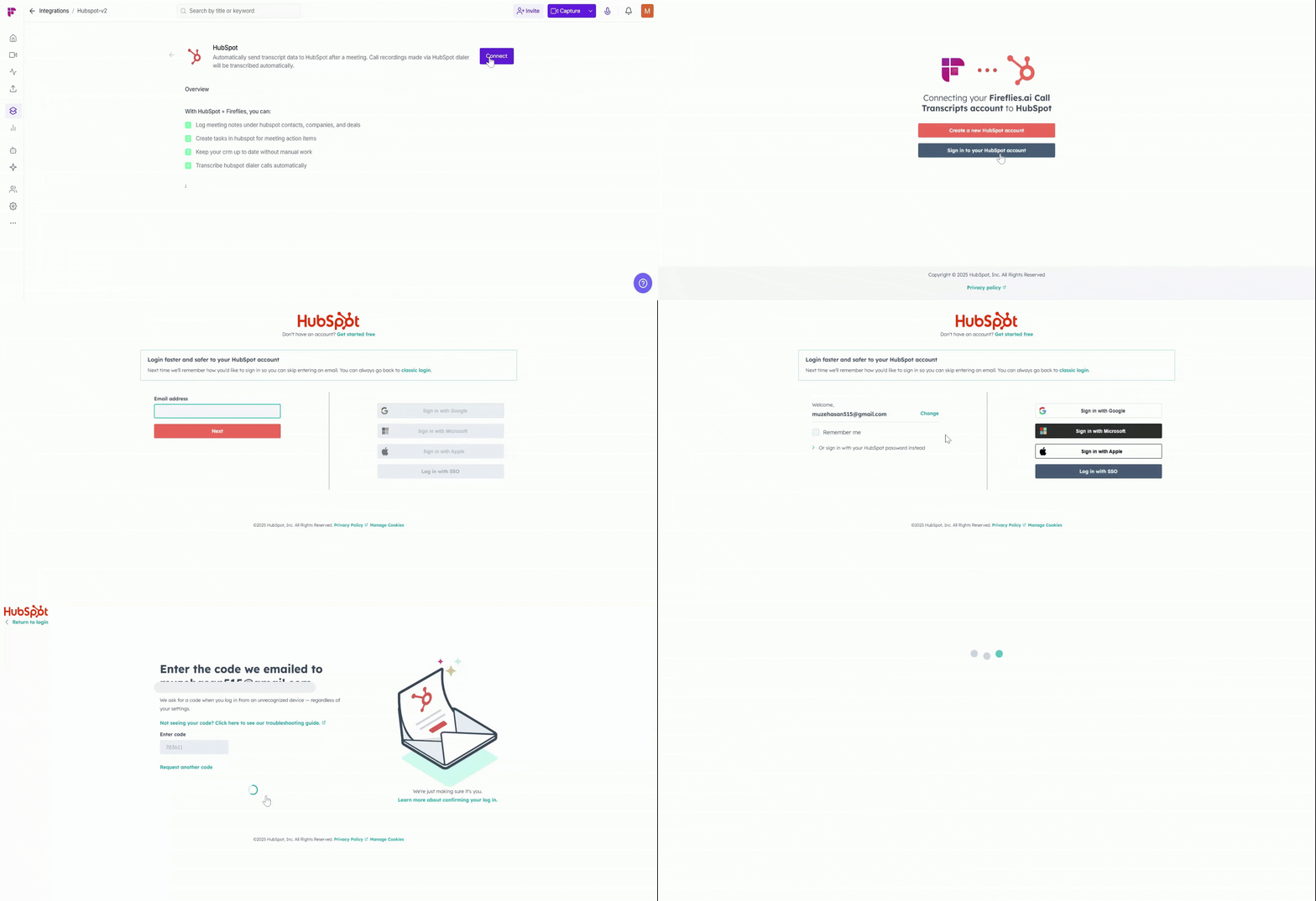
Step 3: Complete the sign-in process. If prompted, enter the OTP verification code to confirm your login. Once authenticated, you’ll be redirected to the HubSpot authorization page.
Step 4: Click the Connect button again to open the HubSpot authorization screen. Review the permissions Fireflies will access, check the confirmation box, and click Connect app to approve the integration.
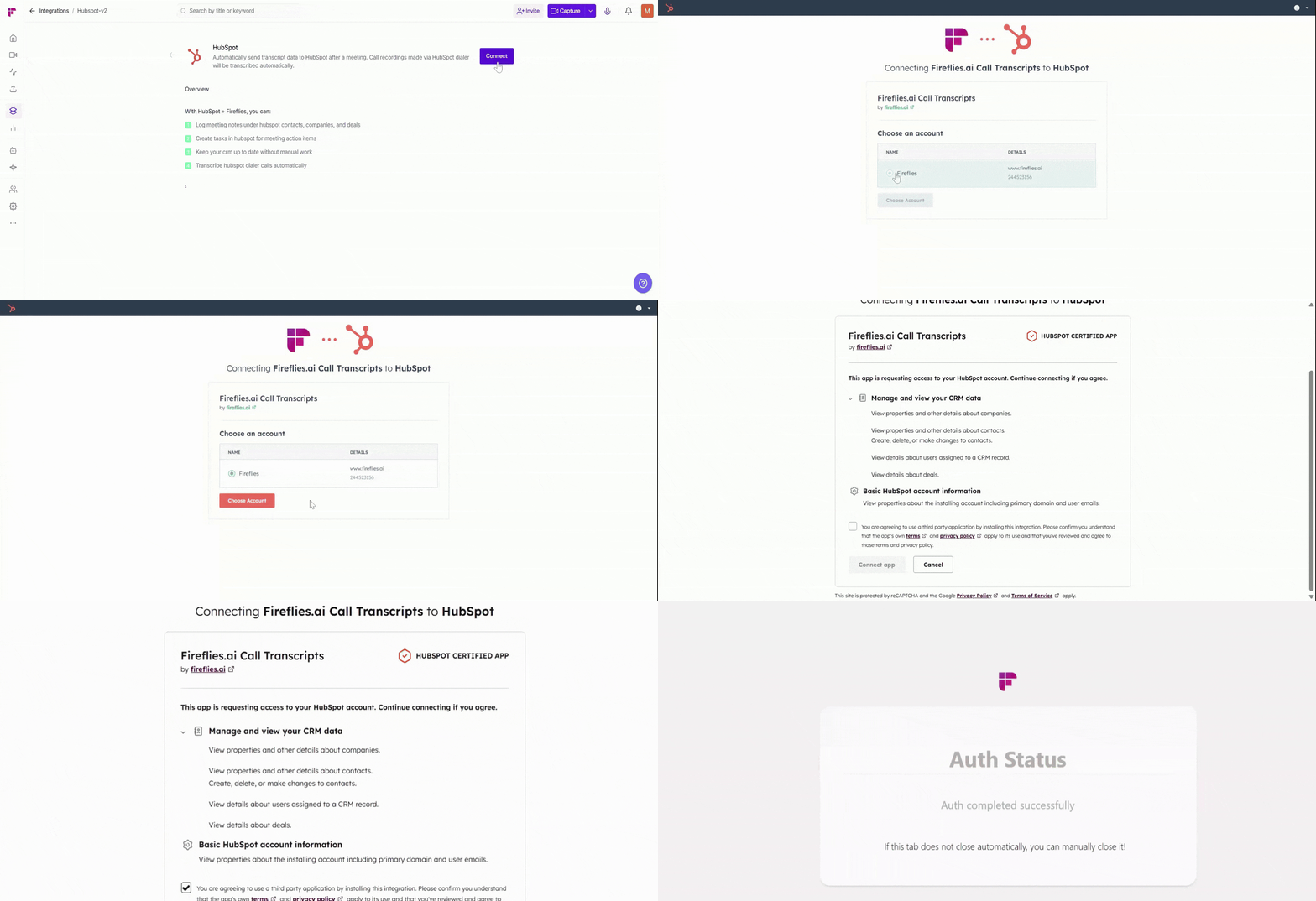
Step 5: Once approved, you’ll be redirected back to Fireflies to configure your integration setup.
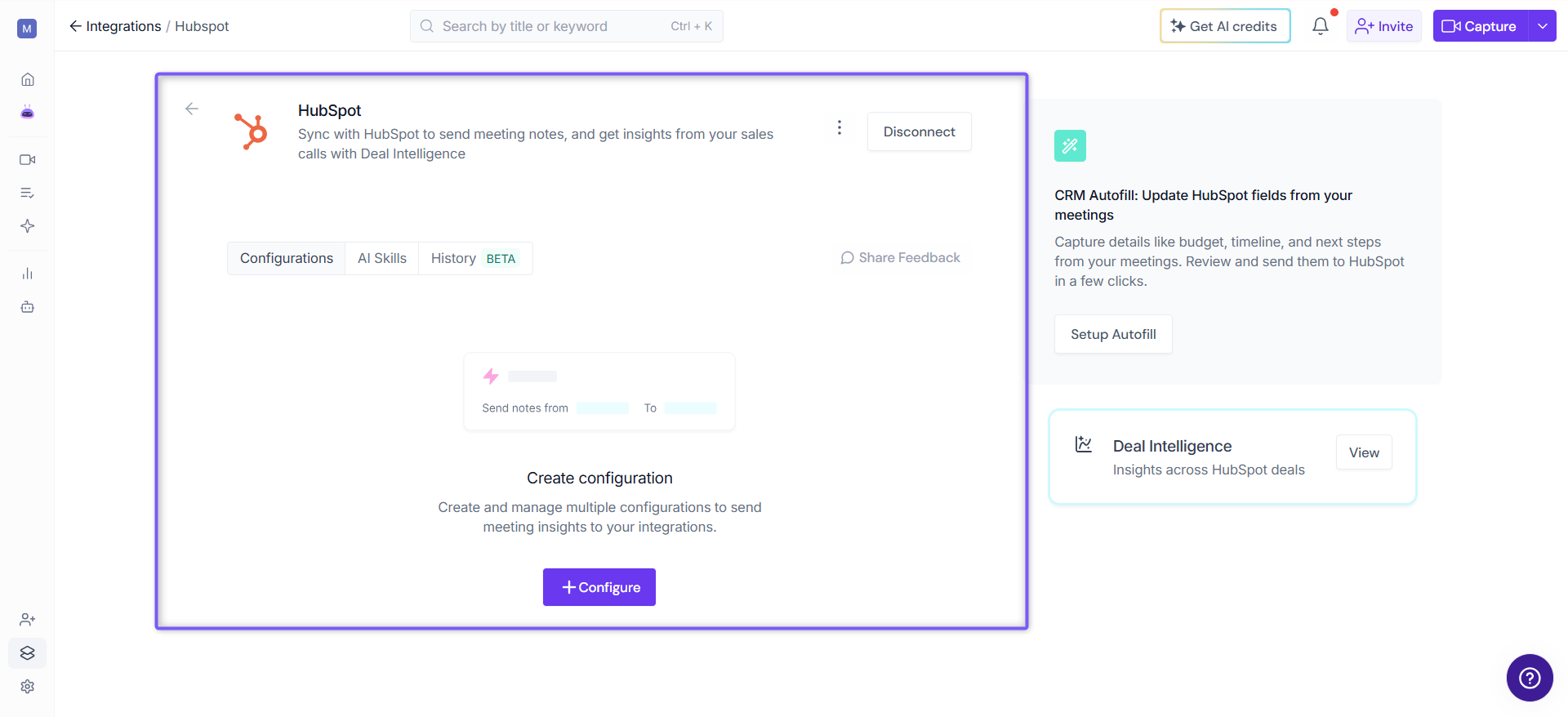
⚙ Setting Up Your Configuration
When you open your HubSpot integration settings in Fireflies, you’ll see two possible actions. Choose the one that matches what you want Fireflies to do with your HubSpot account.
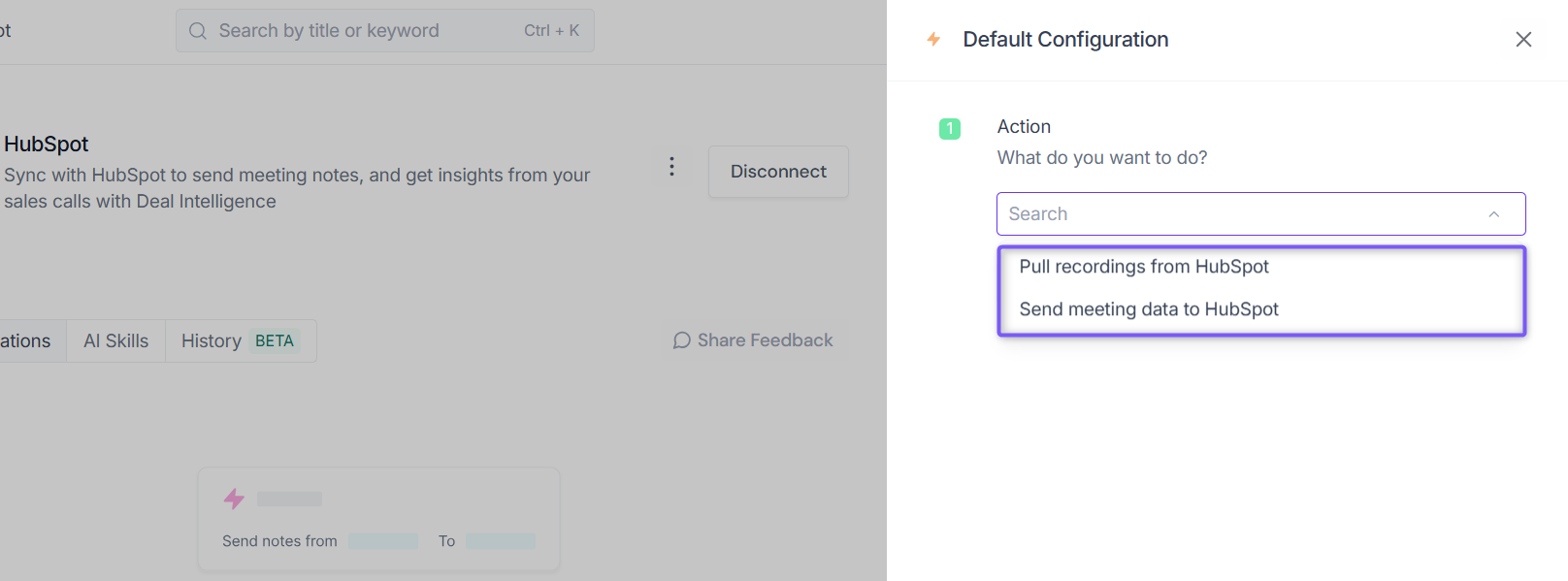
Option 1: Pull recordings from HubSpot (HubSpot Dialer Calls)
This option is for teams using HubSpot's Dialer. When selected, Fireflies pulls your HubSpot call recordings into Fireflies so they can be transcribed and summarized like other meetings.
This is only for HubSpot Dialer calls made inside HubSpot. If you also want Fireflies to send meeting data back into HubSpot, choose the second option instead.
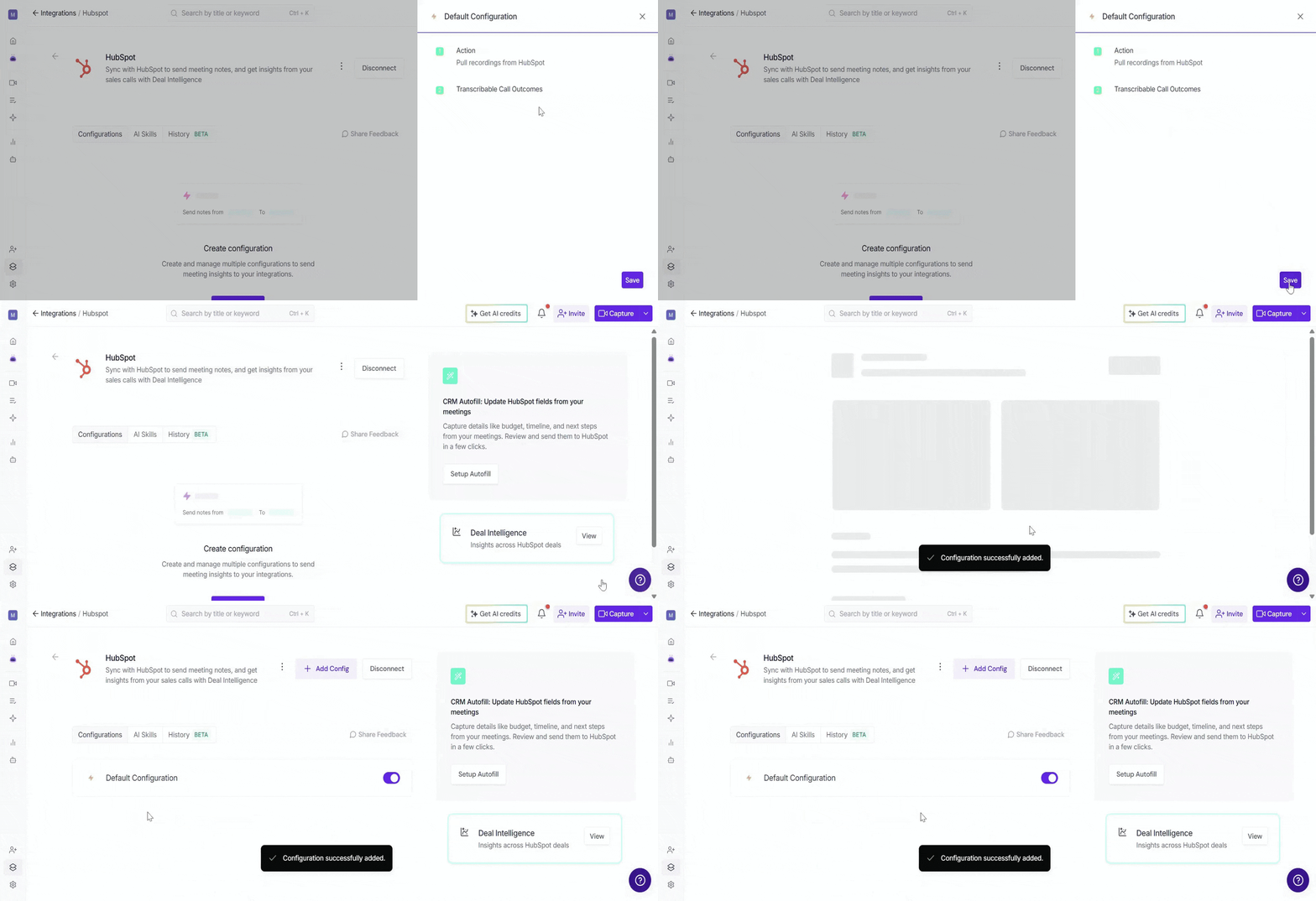
1. Under Action, select Pull recordings from HubSpot.
2. Click Continue.
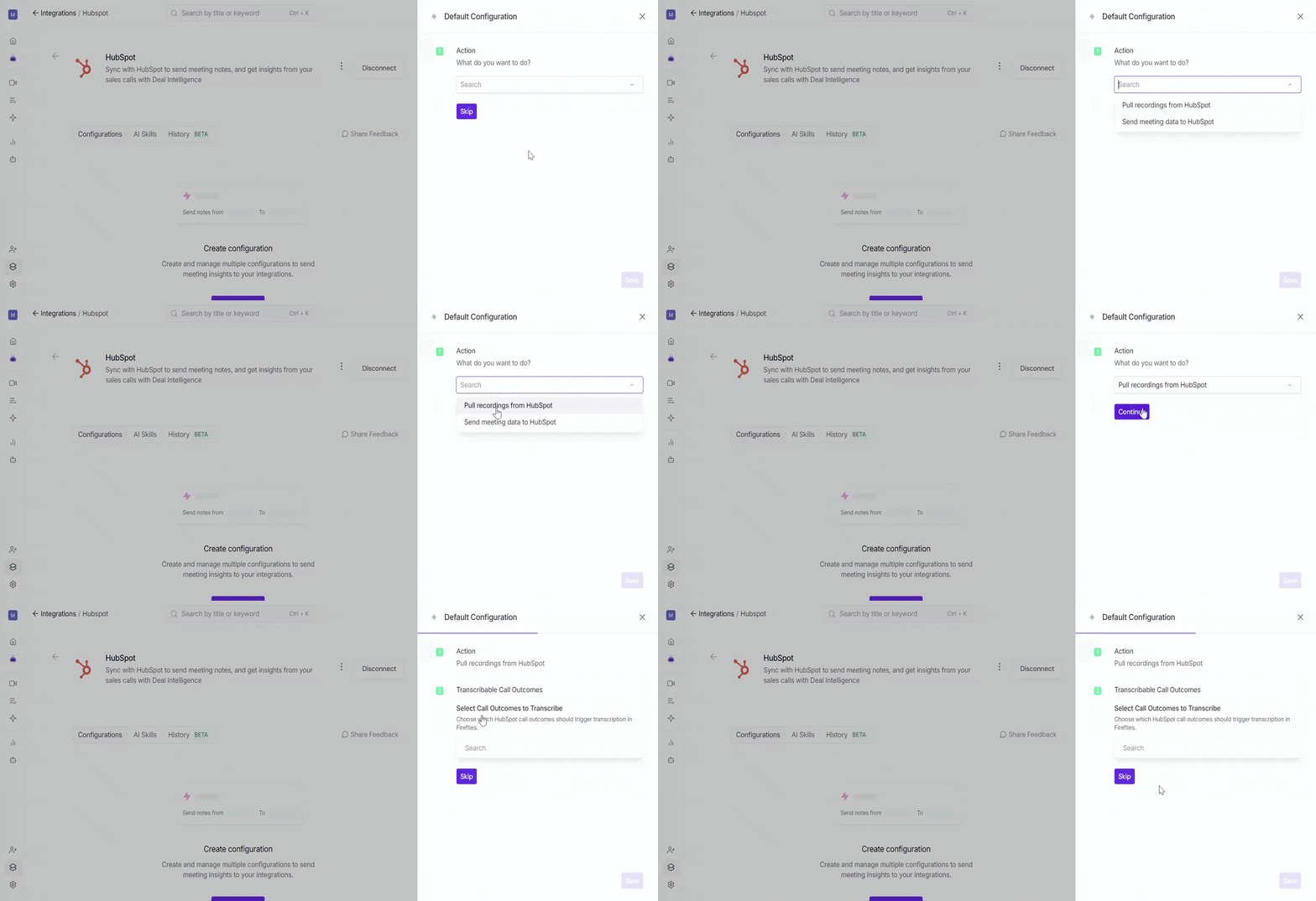
3. Under Transcribable Call Outcomes, select the HubSpot call outcomes that should trigger transcription in Fireflies.
Available outcomes include Busy, Connected, Left live message, Left voicemail, Meeting booked, No answer, and Wrong number.
💡 Why use Transcribable Call Outcomes?
Use this setting to choose which types of HubSpot Dialer calls Fireflies should pull into Fireflies for transcription and summarization. This helps you focus on relevant calls and avoid processing calls that don't need to be analyzed.
4. You can select multiple outcomes based on your requirements and click Continue.
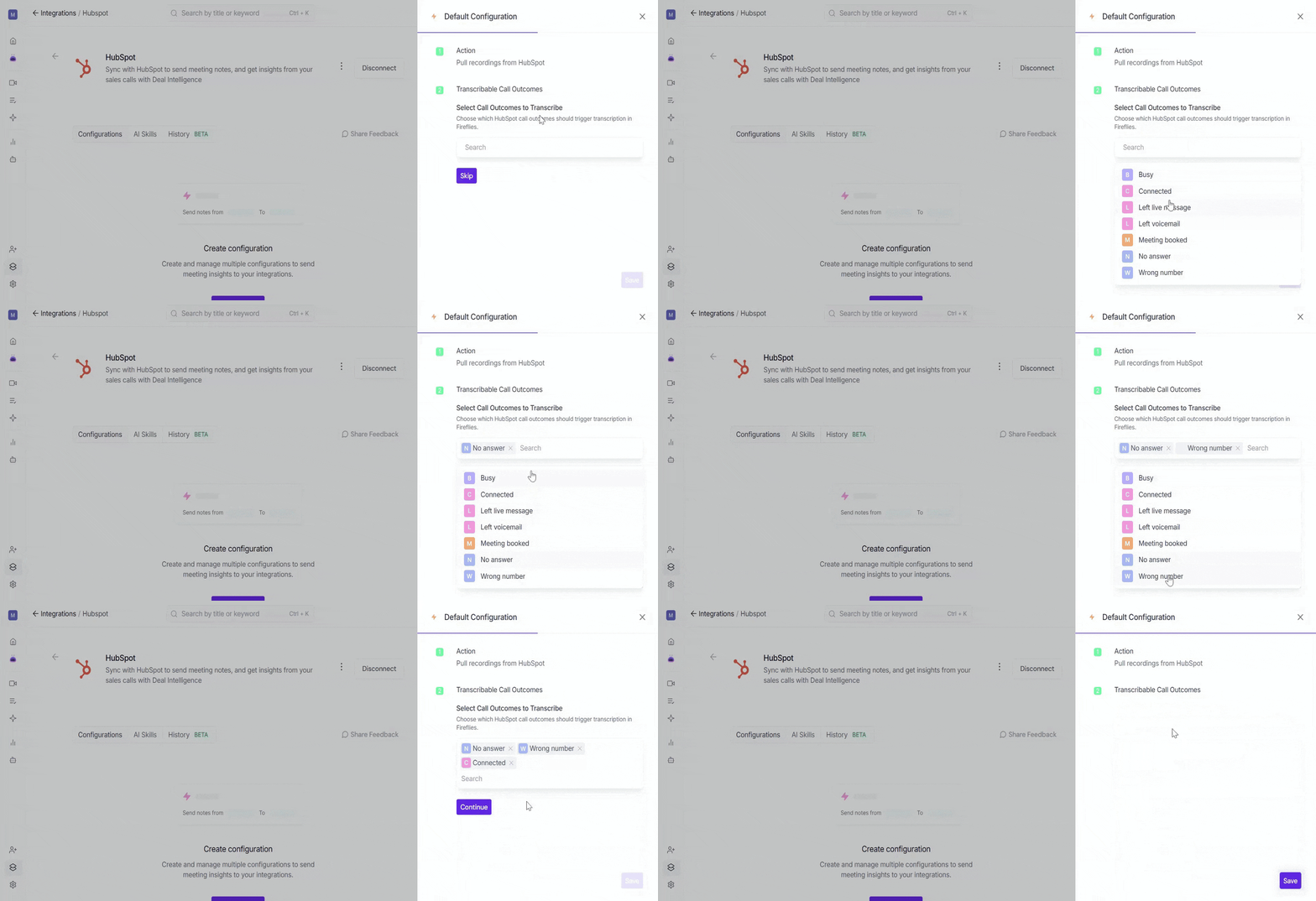
5. Click Save to apply the configuration.
Option 2: Send meeting data to HubSpot
Fireflies can automatically add your meeting notes, summaries, a full transcript link, and tasks to the right HubSpot contacts, tasks, deals, or companies.
Note: Fireflies does not push the full meeting transcript directly into HubSpot. Instead, a transcript link is added so users can open and access the transcript in Fireflies.
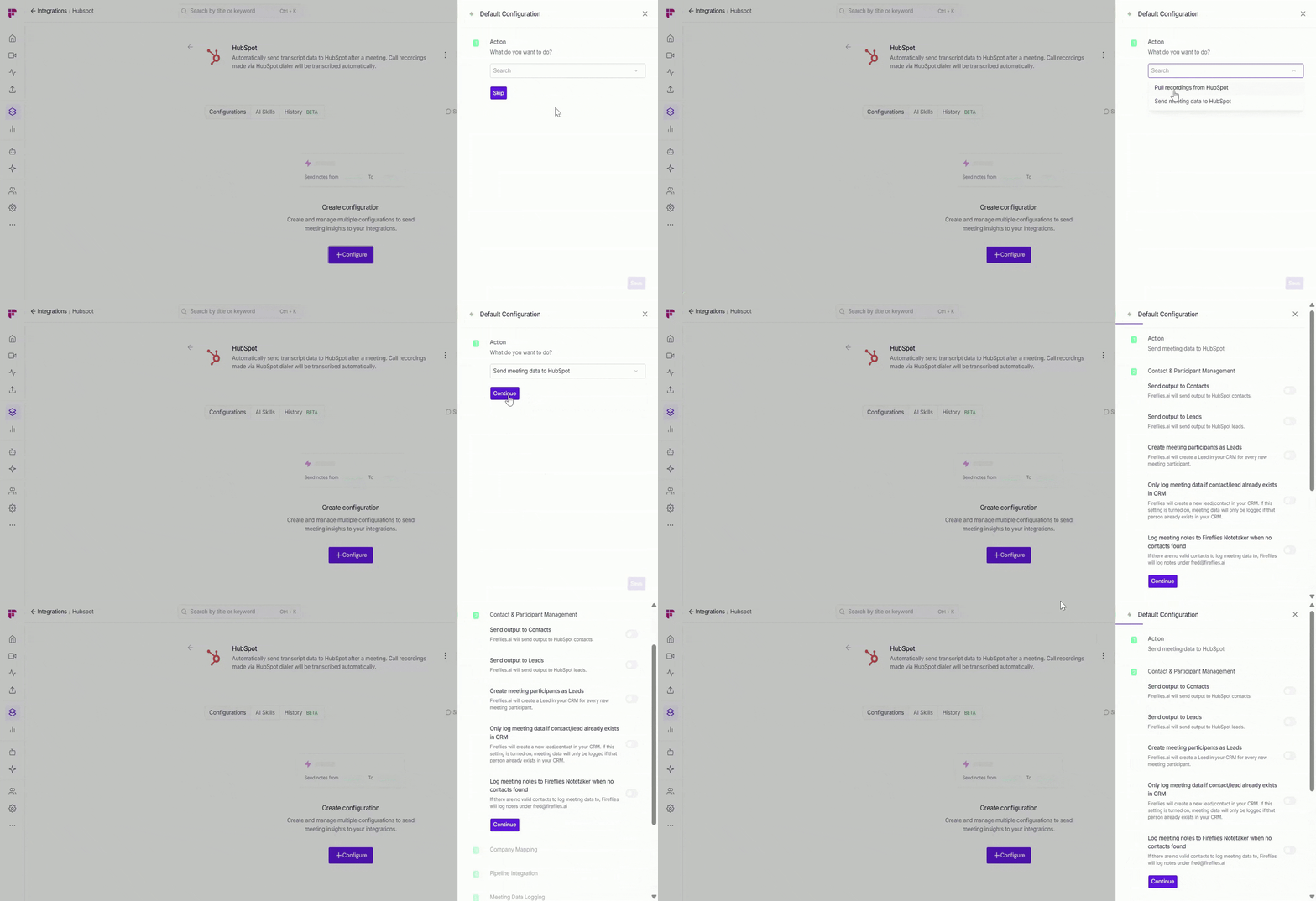
Step 1: Choose an Action
Under Action, select Send meeting data to HubSpot and click Continue.
After you choose this action, you’ll see a few steps you can customize based on how you want your meeting data to appear in HubSpot.
Step 2: Contact & Participant Management
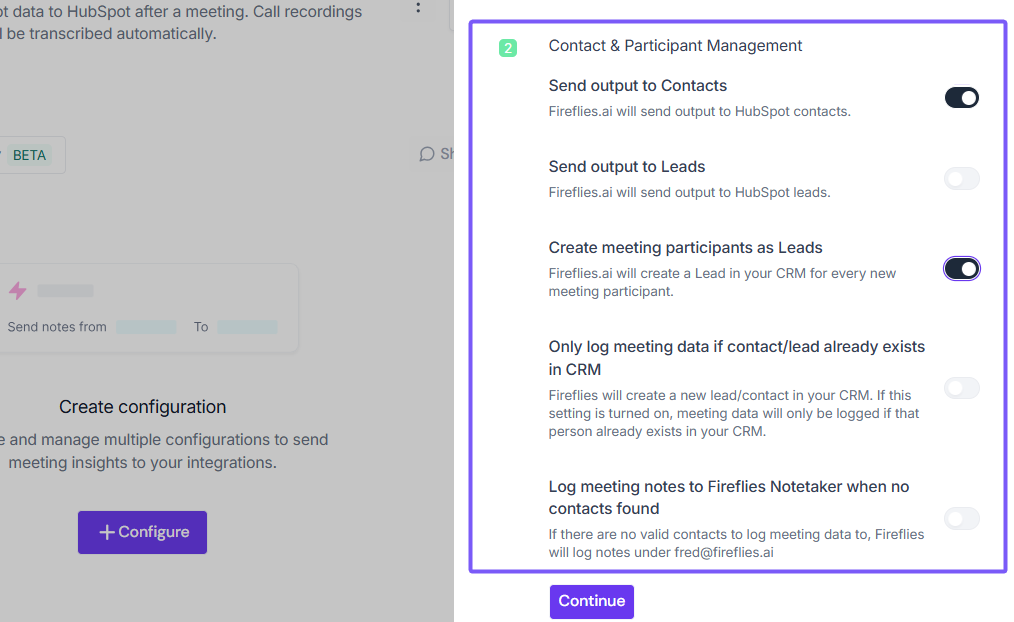
This step controls where Fireflies sends meeting notes in HubSpot and how new meeting participants are handled.
Send output to Contacts → When enabled, Fireflies sends meeting notes and AI outputs to matching HubSpot contacts, making it easy to keep customer conversations in one place.
Send output to Leads → When enabled, Fireflies sends meeting notes and AI outputs to matching HubSpot leads, helping you track conversations with potential customers.
Create meeting participants as Leads → When enabled, Fireflies automatically creates a new lead in HubSpot for meeting participants who don't already exist in your CRM, ensuring no important conversations are missed.
Only log meeting data if contact/lead already exists in CRM → Enable this option if you only want Fireflies to update existing HubSpot records. New contacts or leads will not be created.
Log meeting notes to Fireflies Notetaker when no contacts found → If no matching contact or lead is found in HubSpot, Fireflies will save the meeting notes under the Fireflies Notetaker record instead of skipping the meeting data.
Once you've configured your preferences, click Continue to move to the next step.
Step 3: Company Mapping
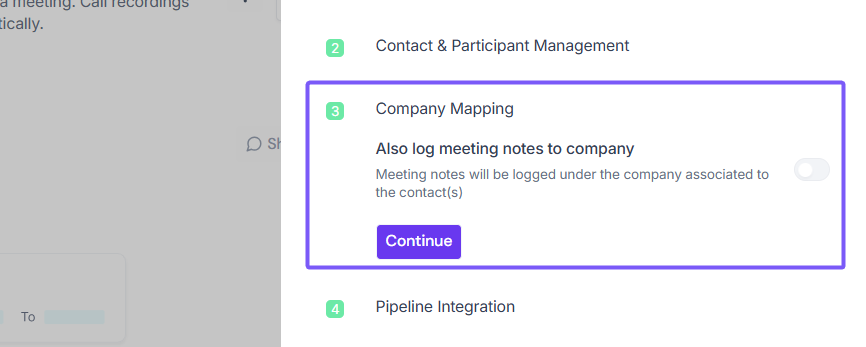
Choose whether you want Fireflies to also log meeting notes to the associated HubSpot company record.
Also log meeting notes to company → When enabled, meeting notes are added to both the contact and the associated company record, making it easier to track conversations across the entire organization.
Once you've set your preference, click Continue.
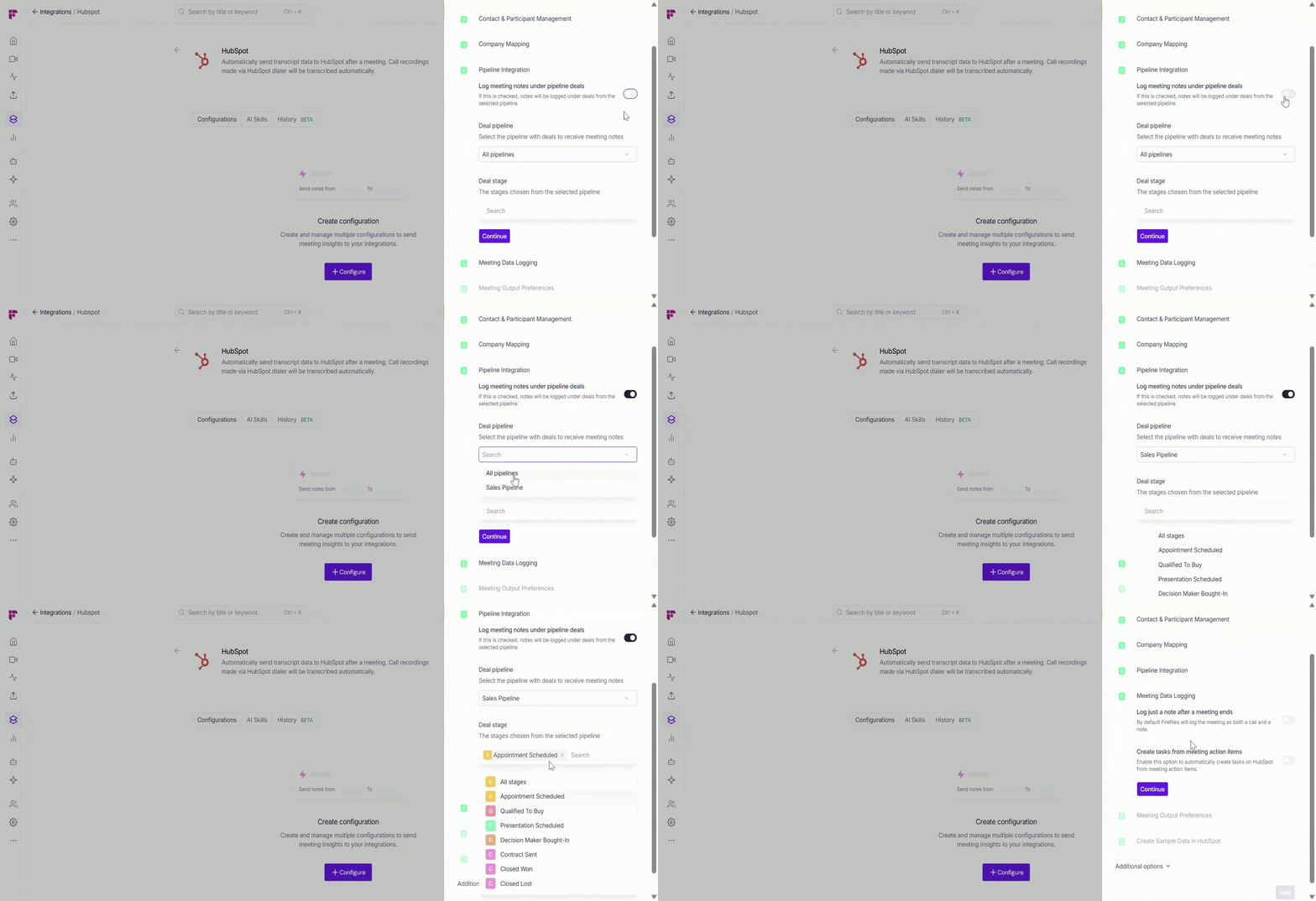
Step 4: Pipeline Integration
Enable this option if you want meeting notes to be logged directly under HubSpot deals. This helps sales teams keep deal-related conversations attached to the right opportunity, making it easier to track progress and review past discussions throughout the sales process.
When enabled, select:
Deal pipeline → Choose the pipeline where meeting notes should be logged.
ExampleSales Pipeline, Client Onboarding, Renewals, etc.Deal stage → Choose the stage within that pipeline where Fireflies should look for matching deals.}
ExampleAppointment Scheduled, Qualified to Buy, Presentation Scheduled, etc.
Pipelines and deal stages must already exist in HubSpot. If you don’t see your pipeline or stage in the dropdown, create it in HubSpot first and then refresh Fireflies.
Once you've selected the appropriate pipeline and stage, click Continue.
Step 5: Meeting Data Logging
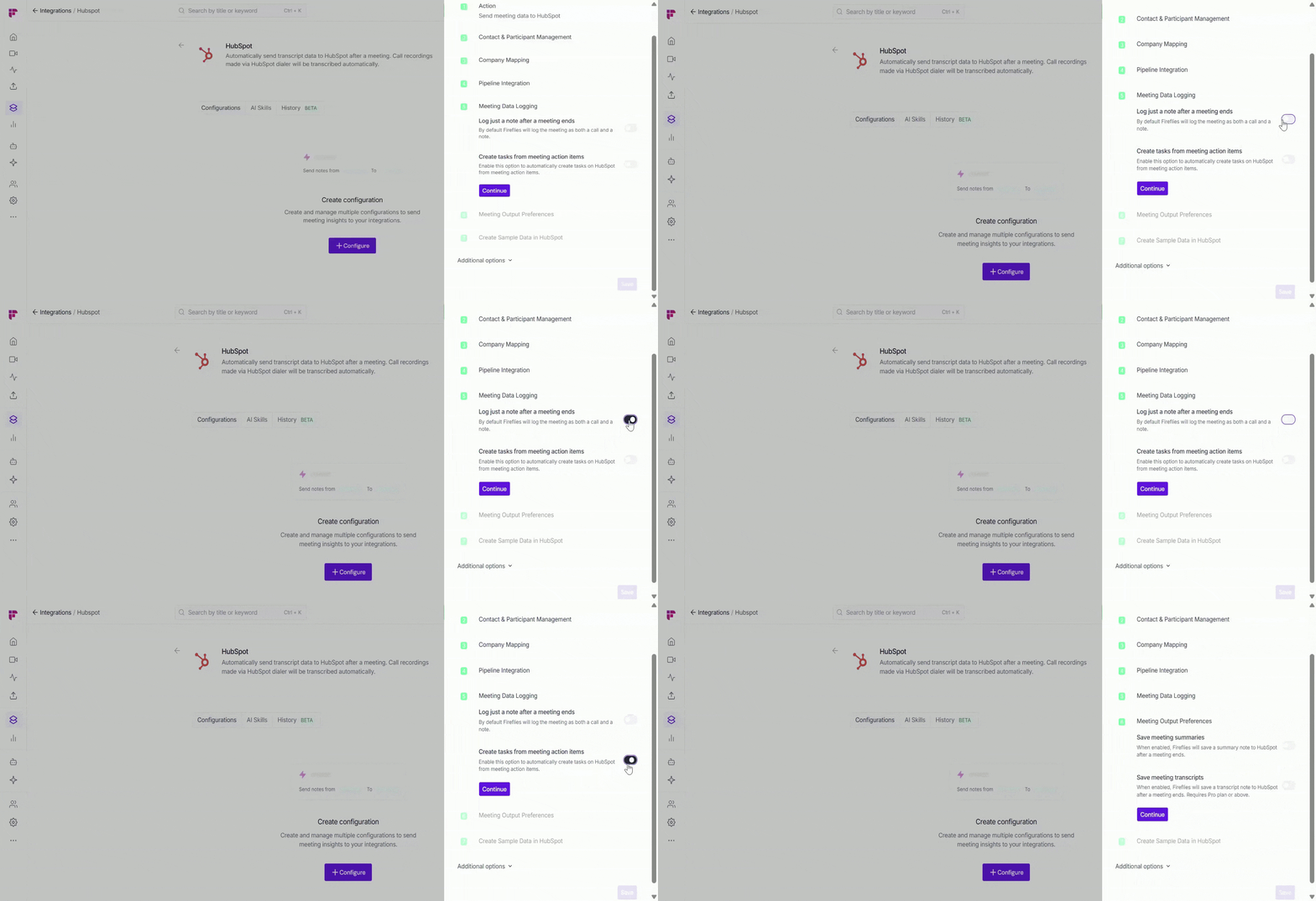
Choose how you want Fireflies to log meeting activity in HubSpot.
Log just a note after a meeting ends → Enable this option if you only want a meeting note added to HubSpot. By default, Fireflies logs the meeting as both a call and a note (summary + action items).
Create tasks from meeting action items → Enable this option to automatically create HubSpot tasks from action items identified during your meetings, helping your team track follow-ups without manual task creation.
Once you've set your preferences, click Continue.
Step 6: Configure Meeting Output Preferences
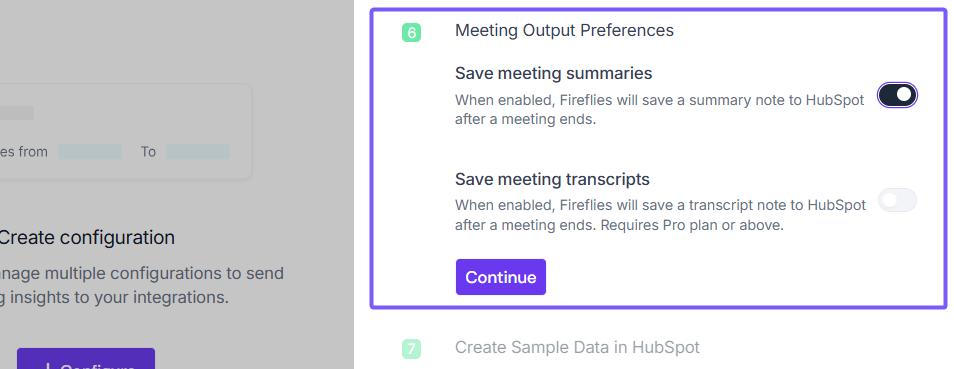
Choose what meeting data you want Fireflies to save in HubSpot.
Save meeting summaries → When enabled, Fireflies will automatically save a summary note to Hubspot after a meeting ends.
Save meeting transcripts → When enabled, Fireflies will also save the full meeting transcript to Hubspot after a meeting ends.
Once you've set your preferences, click Continue to proceed.
Step 7: Create Sample Data in HubSpot
Before going live, it's a good idea to verify that everything is working correctly.
Create Sample Data in HubSpot → Click this option to send a sample meeting entry to HubSpot and preview how your meeting data will appear.
Review the sample record in HubSpot to confirm that the data is being logged as expected.
Once verified, click Continue to complete the setup.
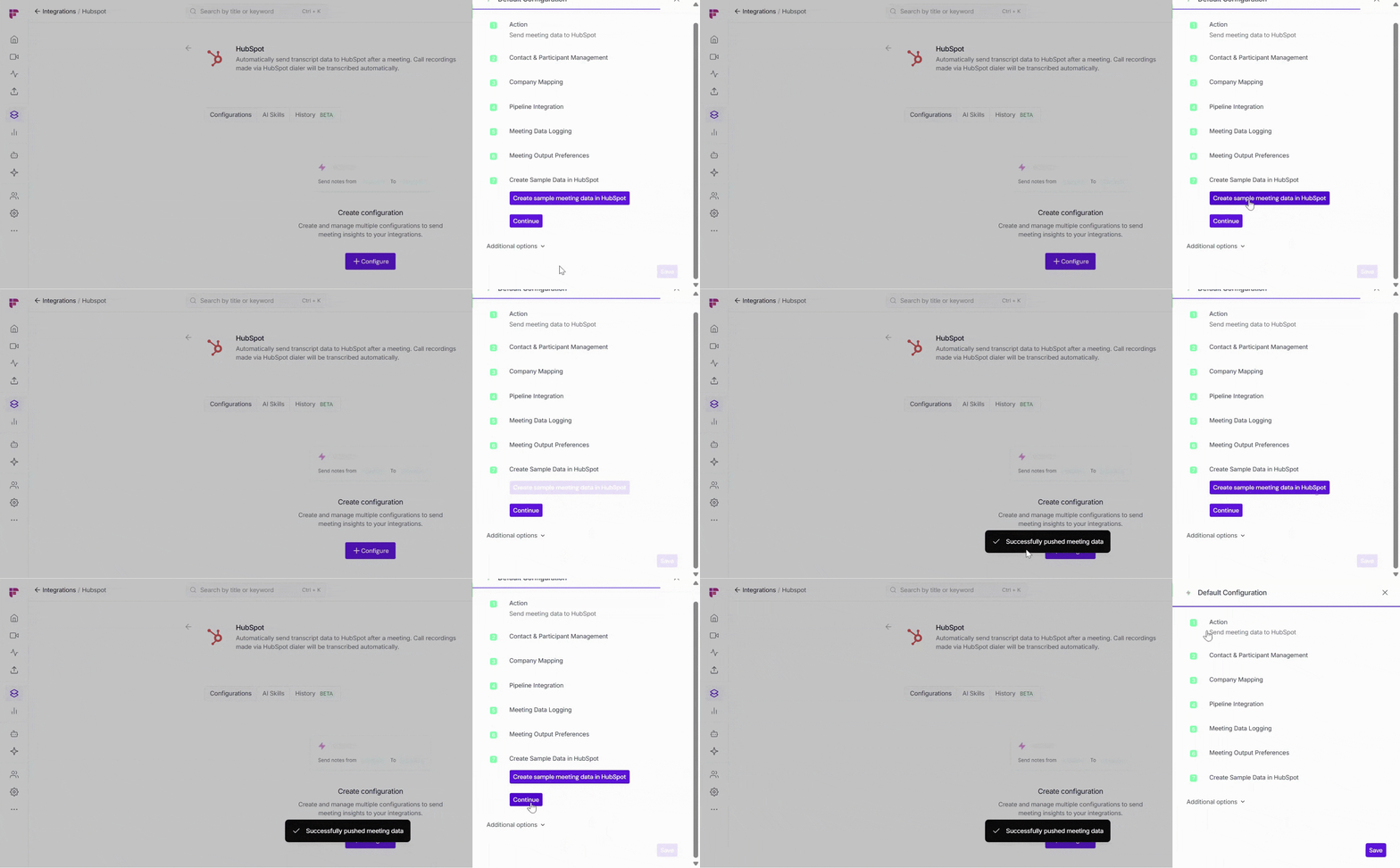
This test won’t affect any real contacts, deals, or workflows in HubSpot - it’s only for checking your setup.
🧩Additional Options - Integration Rules
By default, Fireflies can send meeting notes, summaries, tasks, and other insights to HubSpot for every meeting. While this ensures full coverage, you may not always want every call added to your CRM. Integration Rules let you choose which meetings get logged in HubSpot — so only the conversations that matter make it into your contacts, deals, or tasks.
Integration Rules are available on Business or higher plans.
💡 Learn more about our different pricing plans and how to get started.
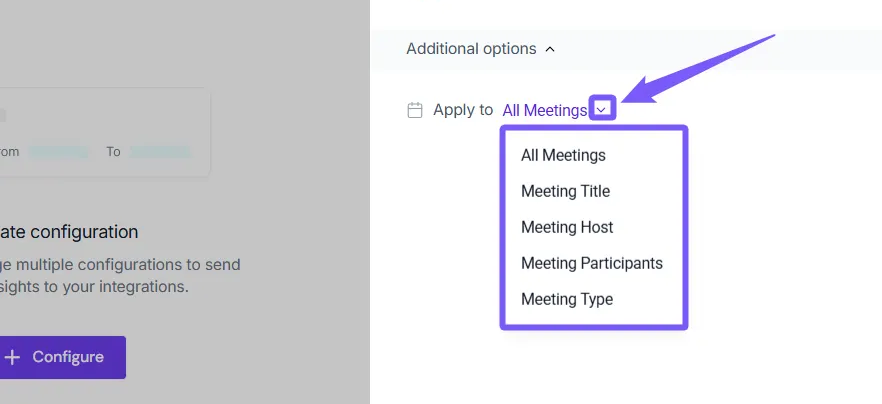
🗂 All Meetings
Capture insights from every meeting — client calls, team check-ins, demos, or internal syncs — without applying any filters.
📝 Meeting Title
Only send meeting notes or tasks to HubSpot when the meeting title matches the conditions you set (Contains, Starts With, Equals, Doesn’t Contain). Example: Only log meetings titled “Client Review” or “Interview.”
Add multiple keywords separated by commas (e.g., Interview, Client Review, Demo).
👤 Meeting Host
Filter meetings based on who hosted the call.
Equals → Only log meetings hosted by john@example.com.
Not Equal → Log all meetings except those hosted by John.
👥 Meeting Participants
Filter based on who attended the meeting.
Contains → Only log meetings that include sara@example.com.
Doesn’t Contain → Skip meetings where alex@example.com was present.
🔀 Apply Multiple Filters
Combine multiple rules to get more precise control.
Example: Title contains “Demo” AND host is john@example.com.
Rules can use AND (all conditions must match) or OR (any condition matches).
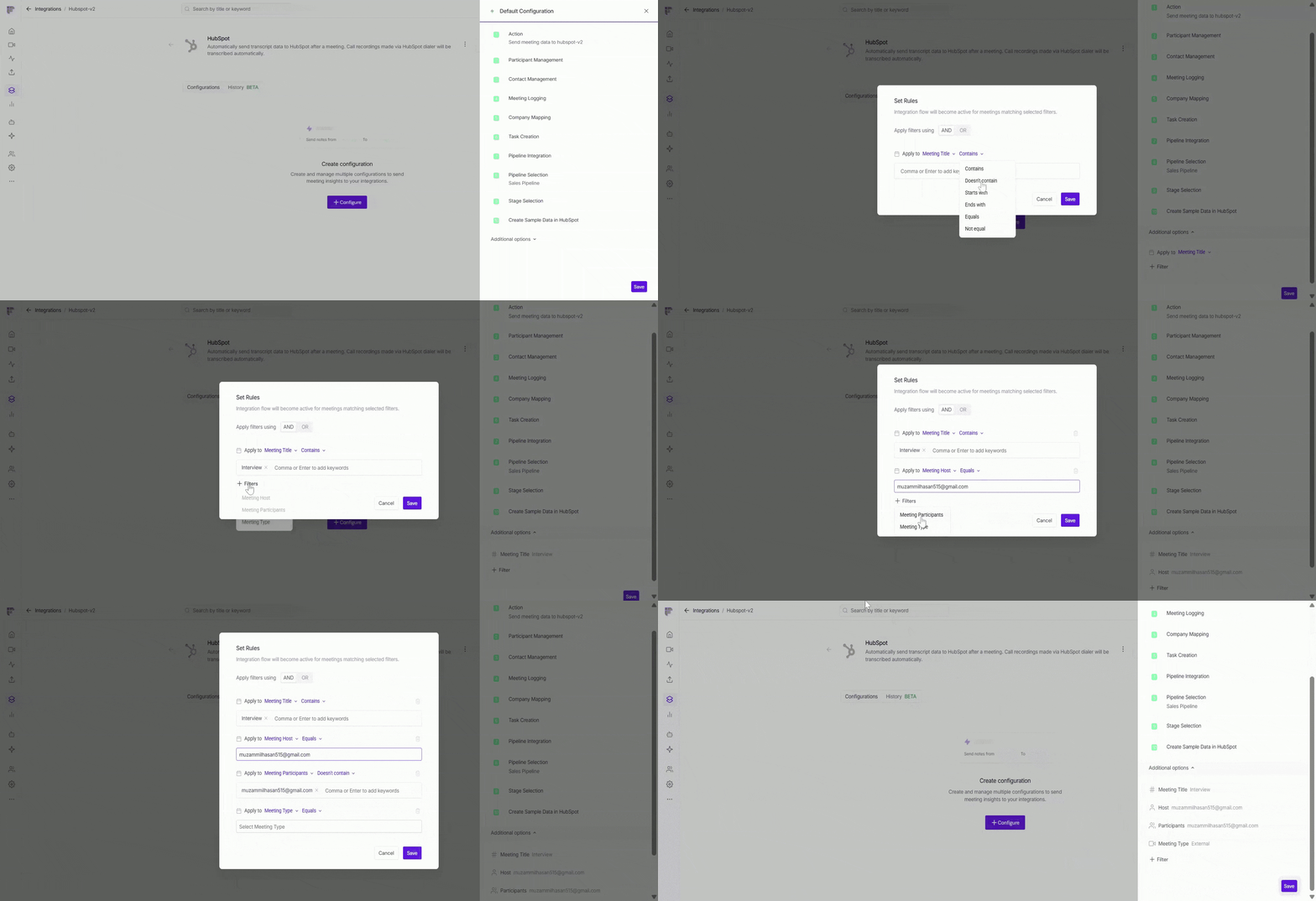
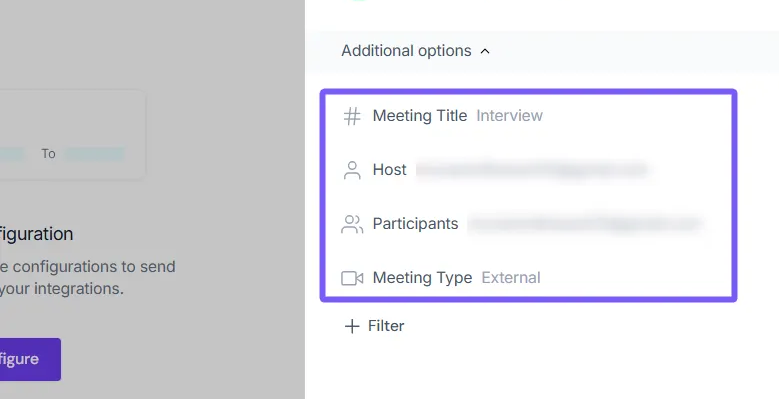
You can also review all the filters you’ve applied to your HubSpot configuration. In this example, meeting data will only be sent to HubSpot for calls that match all selected criteria.
✅ Example applied: Title contains Client Review, host = John, participant = Mary, type = External.
💾 Save Your Configuration
Click Save to activate the integration — a flash message will confirm that your configuration has been successfully added.
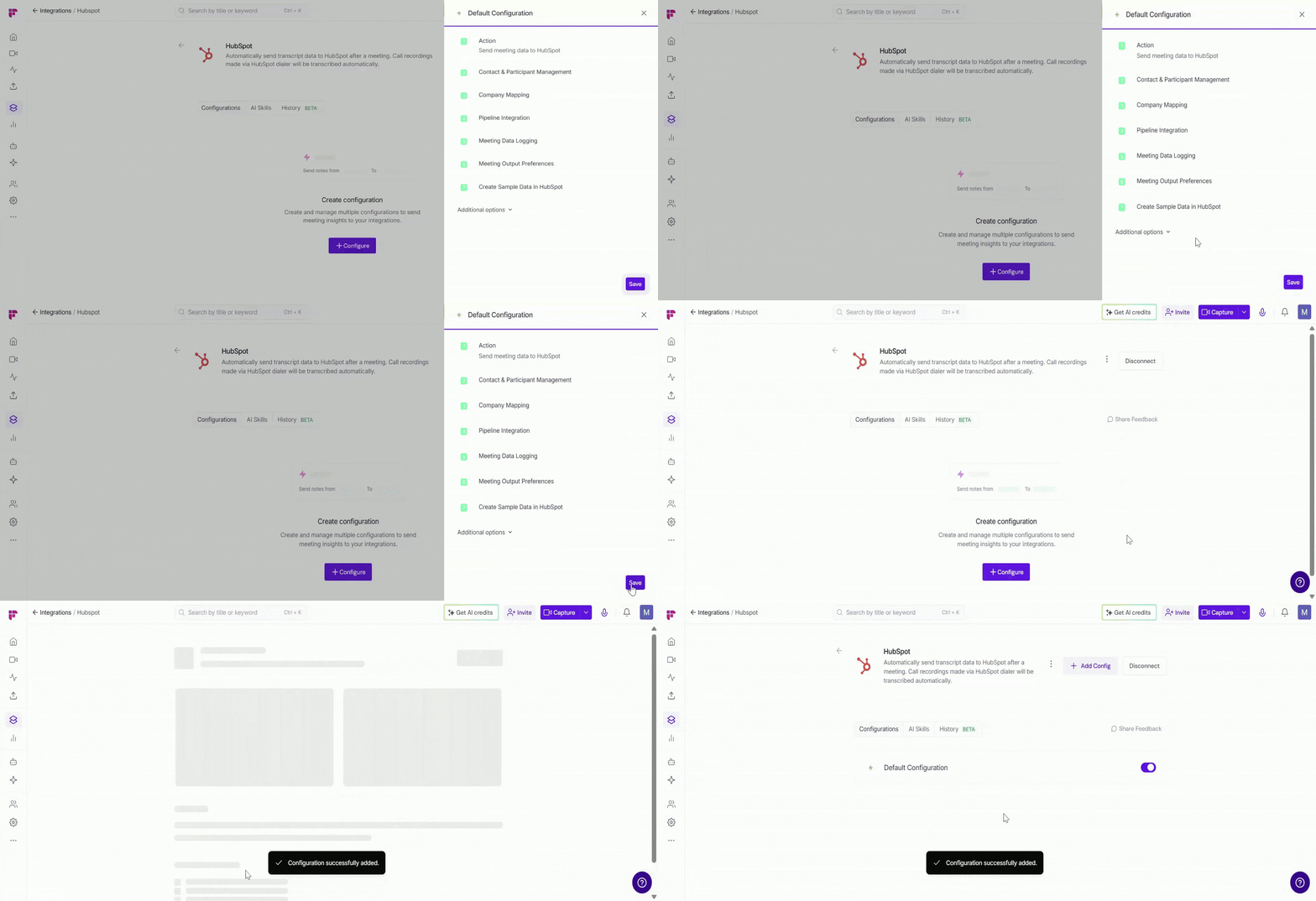
You can create multiple configurations by clicking the + Add Configuration button - for example, one configuration for internal meetings and another for client calls.
👥 Team Integration Settings
Workspace admins can control how the HubSpot integration is used across their team. The available options depend on your plan and workspace role.
Business and Enterprise
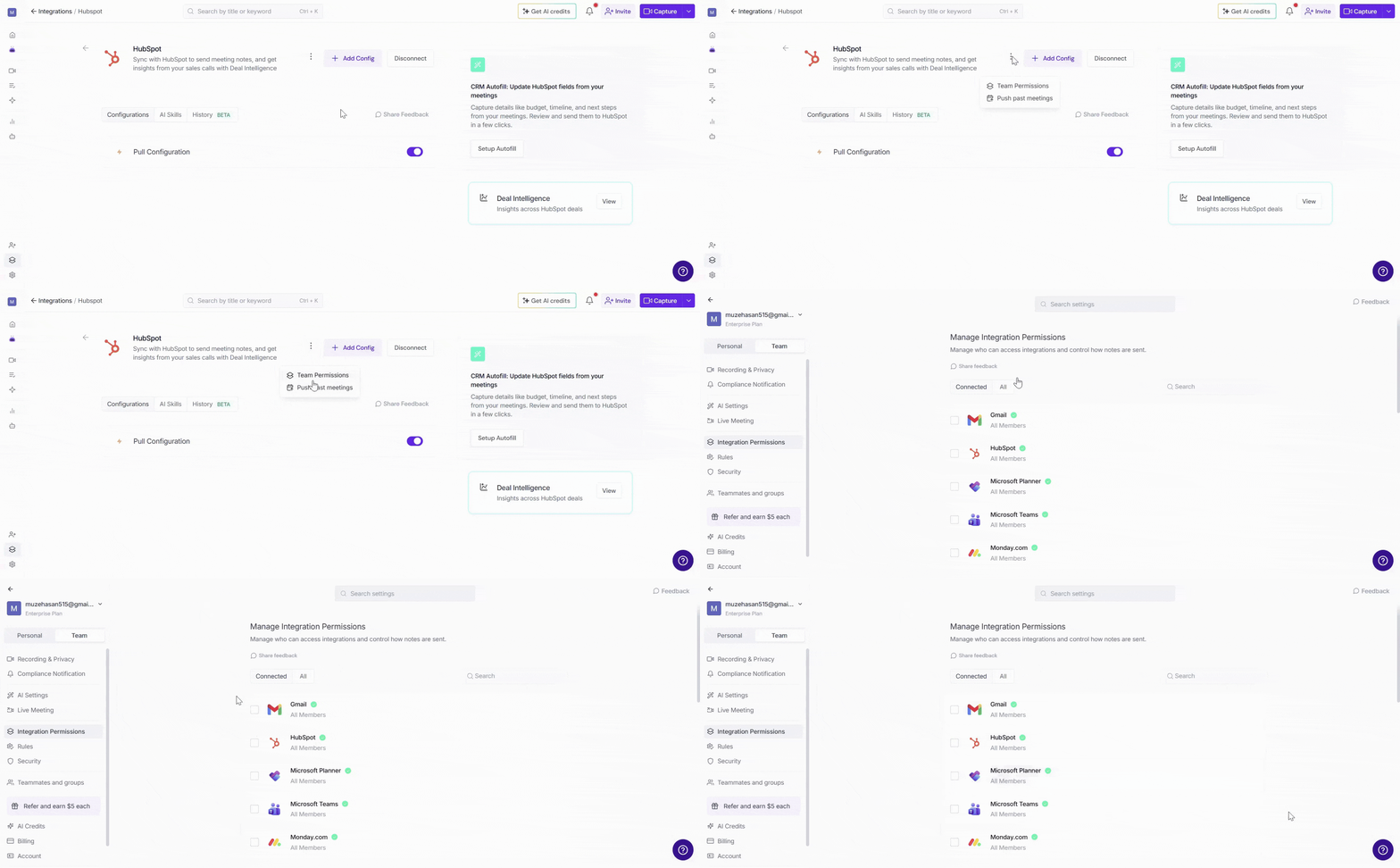
If you are a Workspace Admin on a Business or Enterprise plan, click the ⋮ menu next to your HubSpot integration and select Team Permissions.
This opens Integration Permissions, where you can manage granular permissions for the HubSpot integration, including who can access and connect the integration.
📖 See Integration Permissions: Control Who Can Access and Connect Integrations for detailed instructions on managing integration permissions.
Free and Pro
Free and Pro users do not have access to the full Integration Permissions dashboard. Use Team Permissions to manage the available workspace-level settings.
1. Click the vertical ellipsis (⋮) next to your HubSpot integration and select Team Permissions from the dropdown list.
2. A modal window will appear with these options:
Apply to entire workspace → Toggle this ON to apply the HubSpot integration across your Fireflies workspace. All team meetings accessible by the team admin will have notes sent to HubSpot, keeping everything centralized.
📌Meetings that are set to private in a teammate’s Privacy Settings won’t be pushed to HubSpot unless you’re a Super Admin who can access meetings regardless of privacy settings.
Restrict non-admin usage → Toggle this ON to prevent non-admin members from creating their own HubSpot configurations. This helps maintain consistent data practices and avoids accidental CRM clutter.
3. After adjusting the toggles to fit your team’s workflow, click Save to apply the changes.
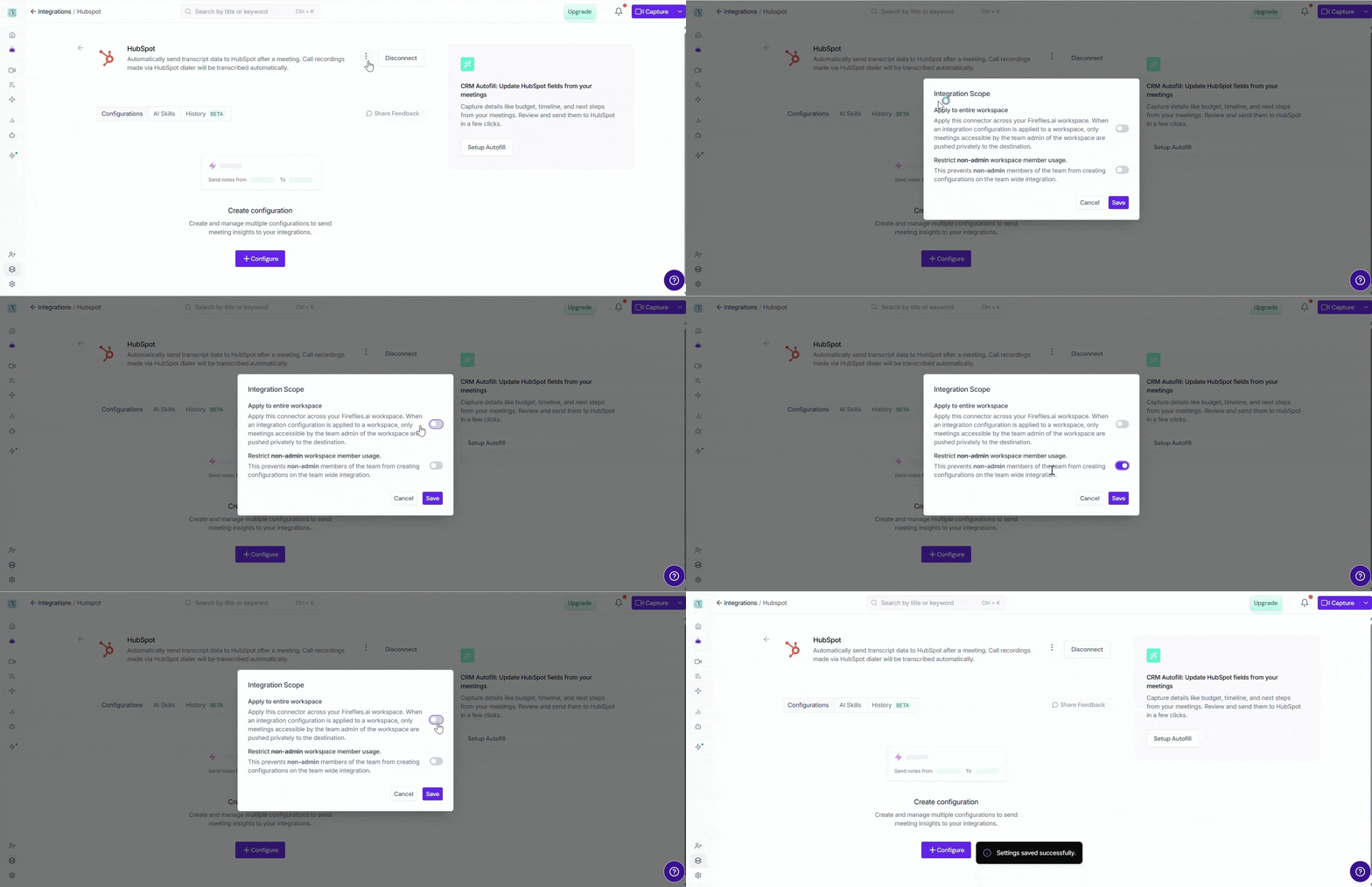
Note: Business and Enterprise Workspace Admins have access to granular integration permissions, while Free and Pro workspaces have more limited workspace-level controls.
🛠 Manage Configuration
Over time, you may want to adjust your HubSpot integration — whether it’s renaming a configuration, updating how meeting data flows into HubSpot, or removing setups you no longer need. Fireflies makes this easy with a few quick options:
✏ Edit Configuration Name → Give each HubSpot configuration a clear, descriptive name so it’s easy to recognize (especially helpful if you're managing multiple teams, pipelines, or workflows). Just click the configuration name (e.g., Default Configuration), type your new name (e.g., Sales Pipeline Logging), and click outside the field to save.
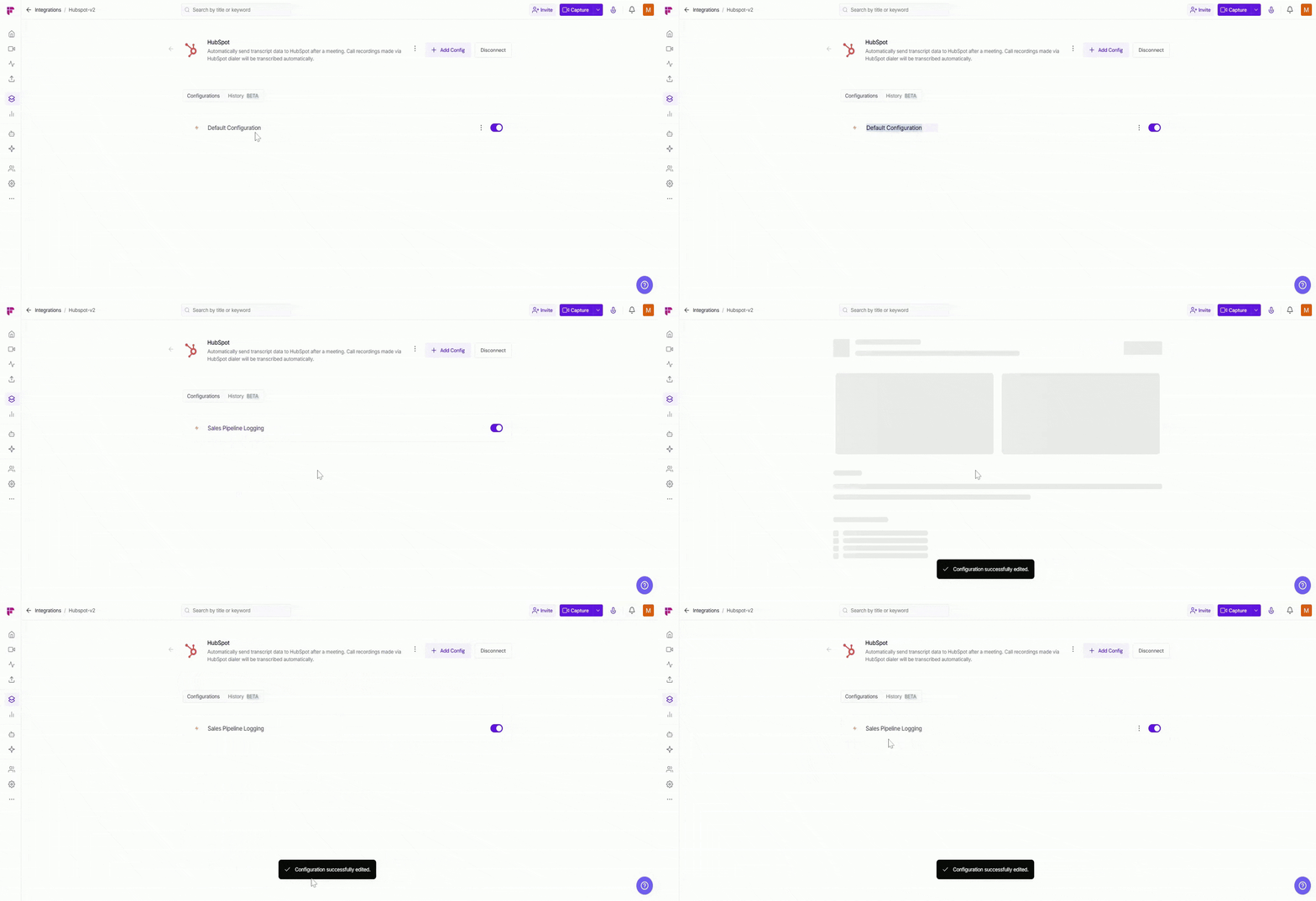
Clear names help you stay organized — especially when you're working with multiple HubSpot configurations across teams or pipelines.
⚙ Edit Configuration Settings → Need to update how Fireflies sends meeting notes, tasks, or deal activity into HubSpot? Click the vertical ellipsis (⋮) next to a configuration, select Edit, adjust your settings (like Contact creation, meeting logging, tasks, or pipeline options), and click Save to apply the changes.
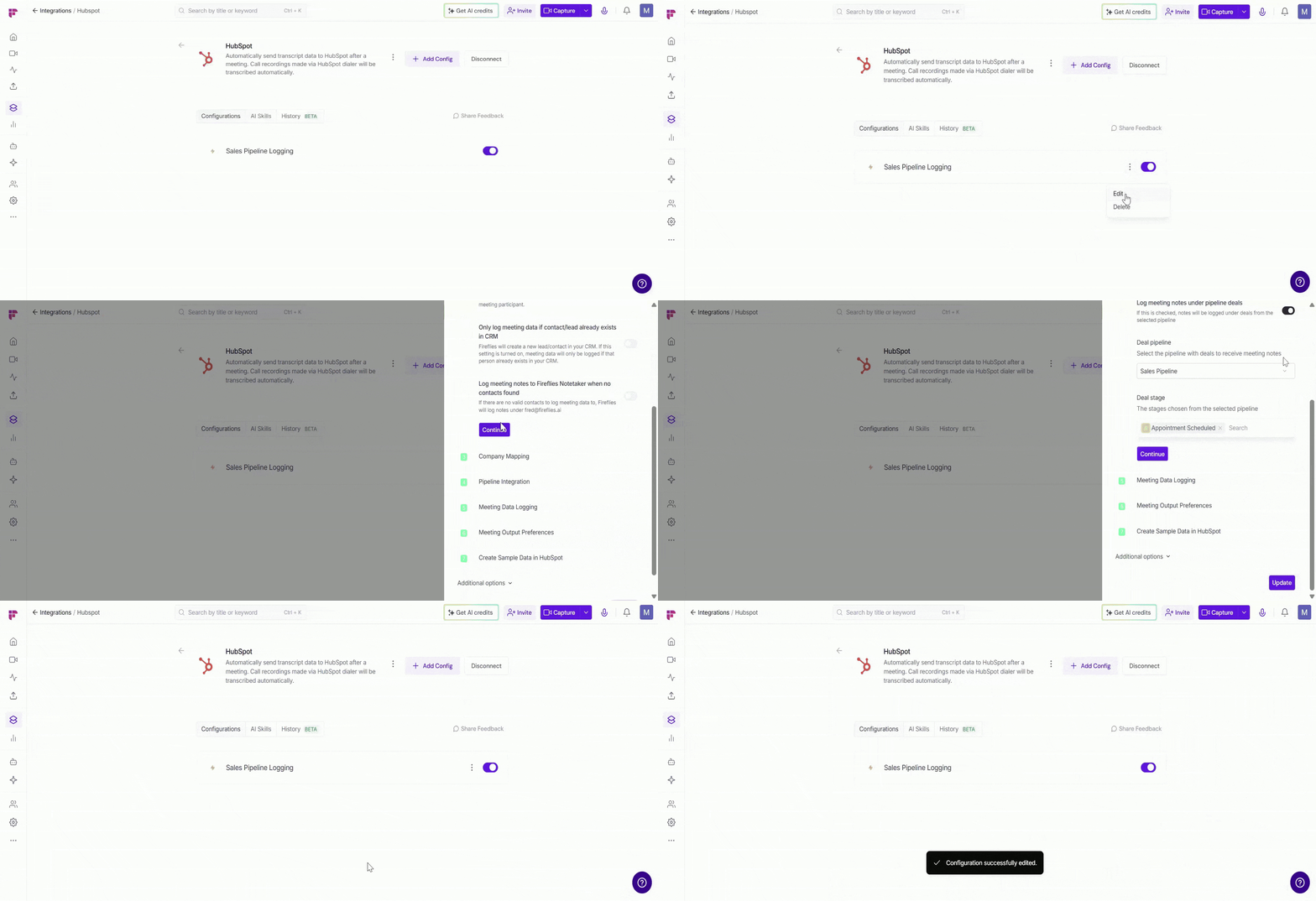
🔘 Enable or Disable a Configuration →Use the toggle switch next to a configuration to quickly control it. Toggle ON to send meeting notes, summaries, tasks, or deal updates to HubSpot. Toggle OFF to pause the integration without deleting it.
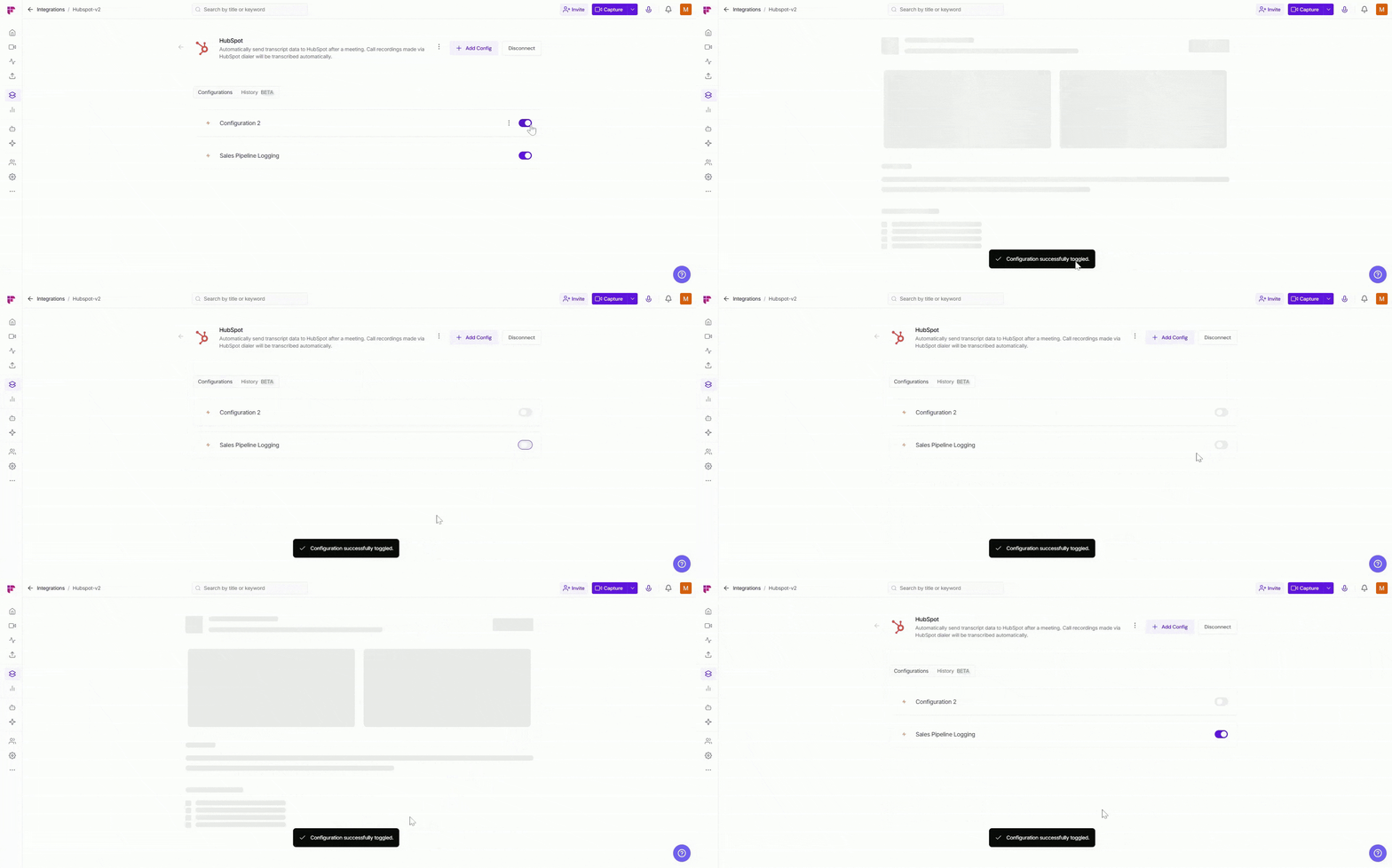
This is especially helpful if you have multiple HubSpot configurations (e.g., Sales Pipeline Logging and Customer Success Notes) and only want one active at a time. Fireflies remembers your settings when you turn configurations back on.
🗑 Delete Configuration → If a configuration is no longer needed—maybe a workflow changed or your team no longer logs data to that pipeline—you can safely delete it. Click the vertical ellipsis (⋮) next to the configuration, select Delete, and confirm.
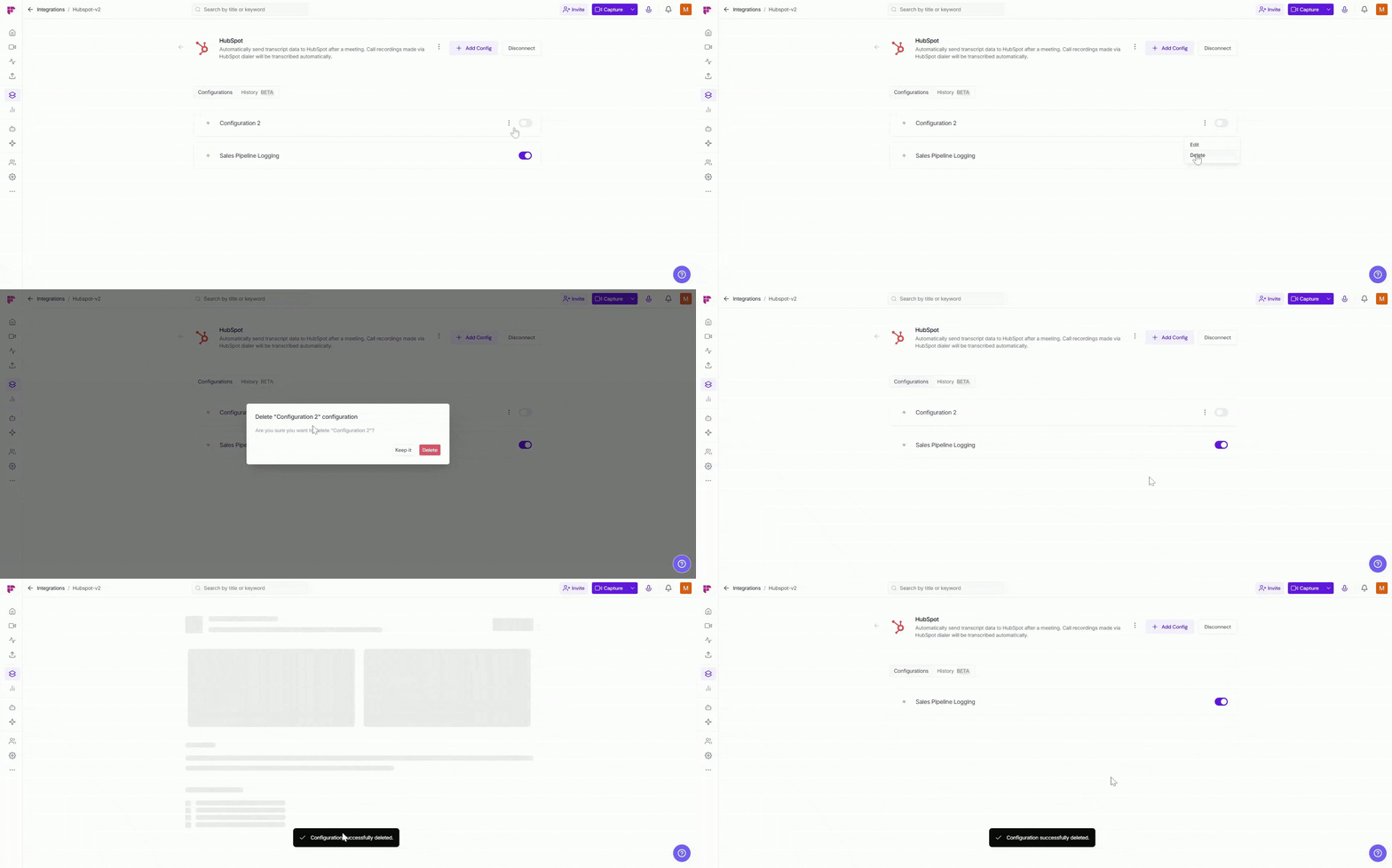
Deleting a configuration stops Fireflies from sending meeting data to HubSpot. Existing records in HubSpot won’t be removed.
📤 How Meeting Data Appears in HubSpot
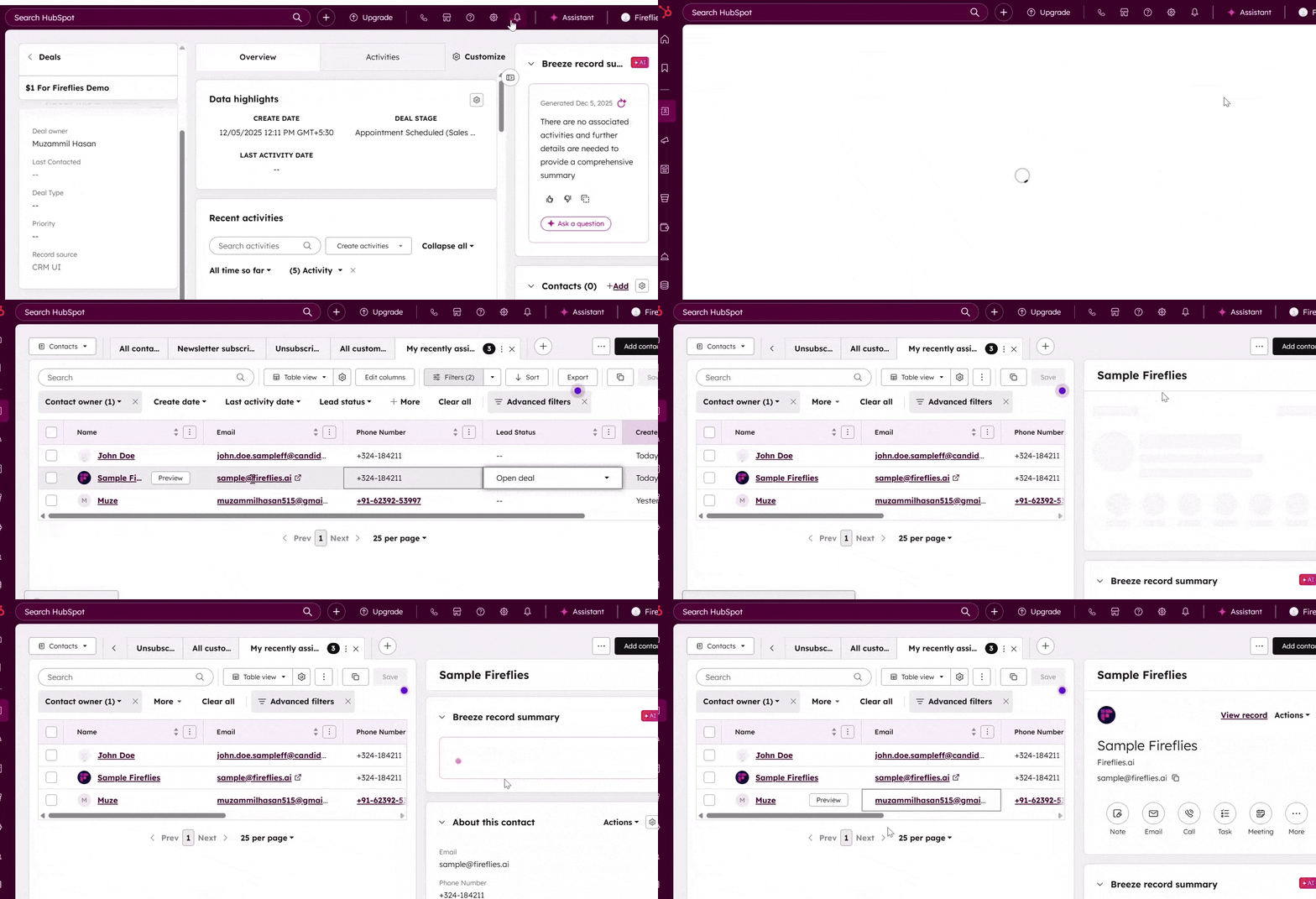
Once your integration is set up, Fireflies automatically logs your meeting insights directly into HubSpot.
Here’s where you’ll find them:
Contacts → Meeting notes, summaries, link to access the full transcript, and call logs appear under the activity timeline of the matching contact.
Deals → If you enabled pipeline logging, Fireflies adds the meeting activity directly to the associated deal record.
Companies → If company logging is turned on, meeting notes also appear under the linked company’s activity feed.
Tasks → Any action items detected during your meeting show up as HubSpot tasks assigned to the right person.
This keeps everything organized in one place, making it easy for your team to review conversations, track follow-ups, and stay aligned.
⏪ Push Past Meetings to HubSpot
Sometimes, the meetings you want in HubSpot happened before you connected the integration. Whether you enabled the integration later or simply want to add older meeting notes to your CRM, Push Past Meetings lets you choose a date range and meeting type, then send those meetings to HubSpot in just a few clicks.
Note: Make sure you've connected HubSpot and created at least one push configuration before using Push Past Meetings. If you haven't, complete the Setting Up Your Configuration section above first.
Follow the steps below to push past meetings to HubSpot.
From the HubSpot integration page, click the ⋮ (three-dot) menu and select Push past meetings.
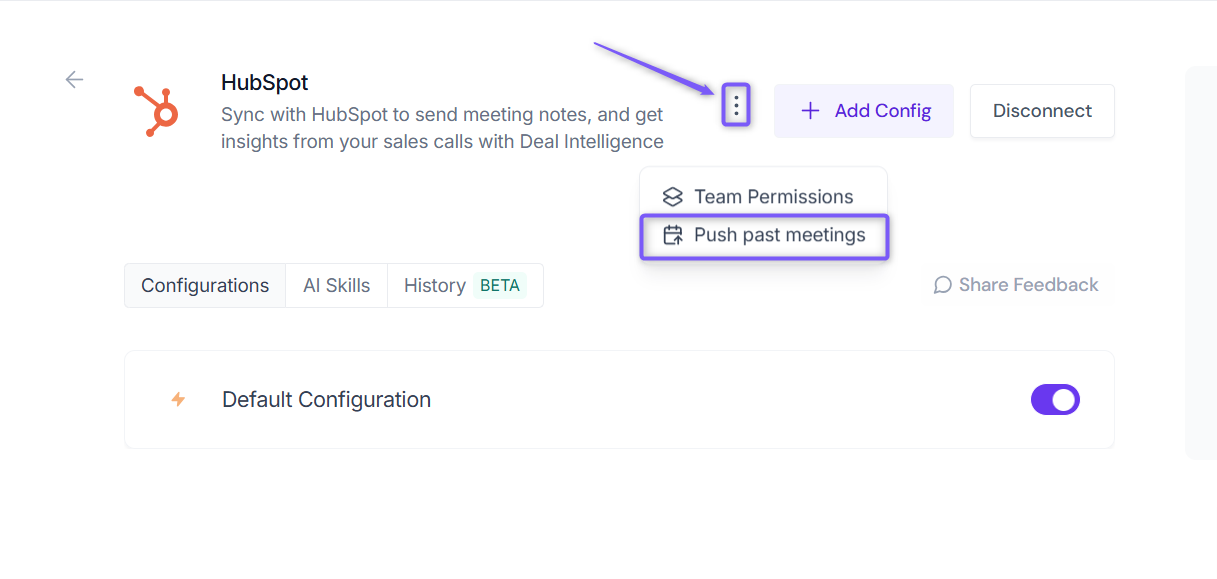
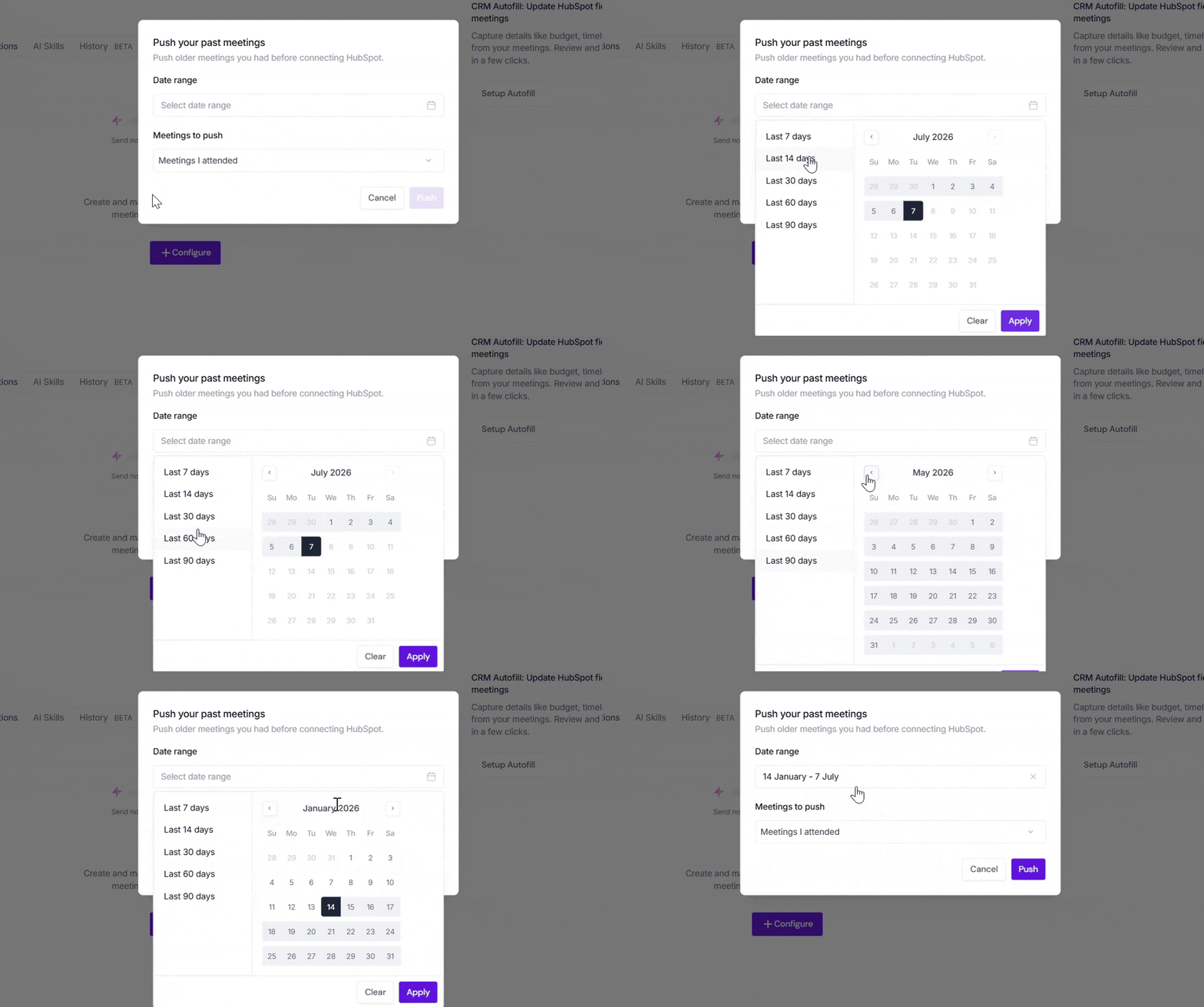
A dialog box will appear. Choose the following:
Date range → Select the meetings you want to send by choosing Last 7, 14, 30, 60, or 90 days, or specify a custom date range.
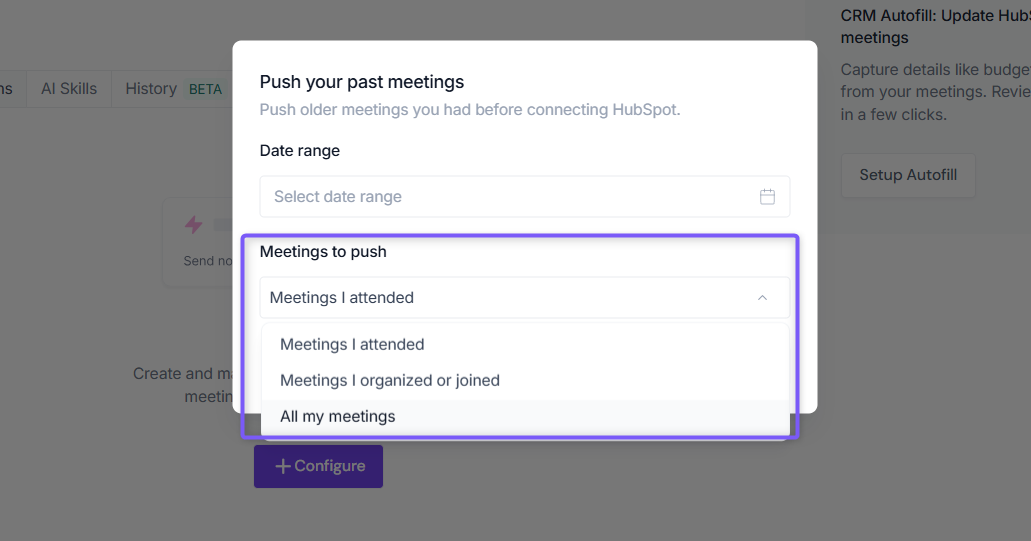
Meetings to push → Choose whether to push Meetings I attended, Meetings I organized or joined, or All my meetings.
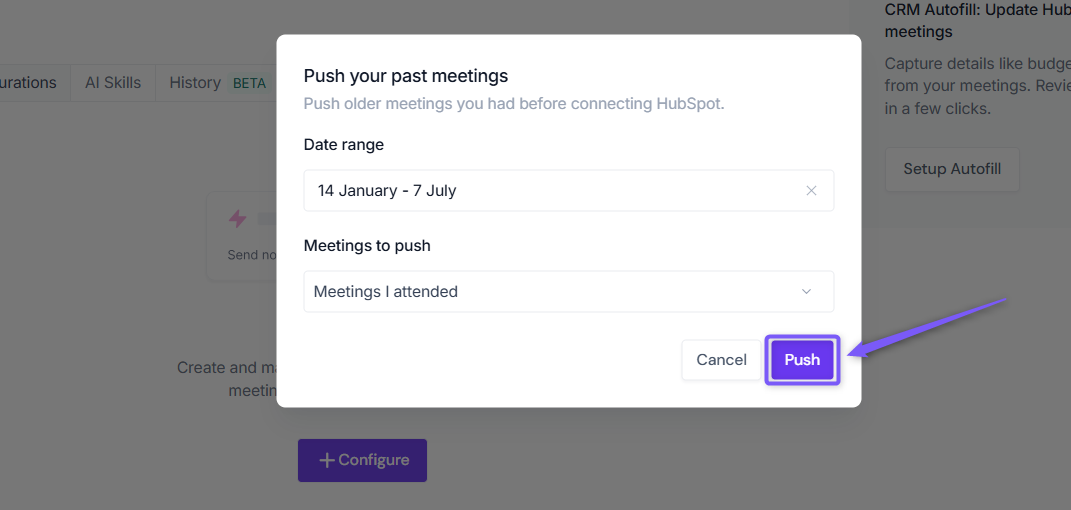
Click Push. Fireflies will send the matching meeting notes to HubSpot using your existing configuration settings.
Meetings recorded after you connect HubSpot are sent automatically. Push Past Meetings is only needed for meetings that happened before the integration was connected.
✅ Manually send meeting notes to HubSpot
Prefer sending only certain meetings to HubSpot? Fireflies also allows you to manually send meeting notes directly from the Notepad.
This is helpful when you want to review or edit notes first and then send only the relevant conversations to HubSpot contacts or companies—without setting up automation rules or configuration.
✅ Autofill CRM for HubSpot
Want to automatically update HubSpot Contacts, Companies, and Deals properties using information captured during your meetings?
Autofill CRM extracts information from meeting transcripts, maps it to your configured HubSpot fields, and prepares it for review before sending it to HubSpot. You can also add custom fields, control how field values are updated, and run Autofill CRM on demand for past meetings.
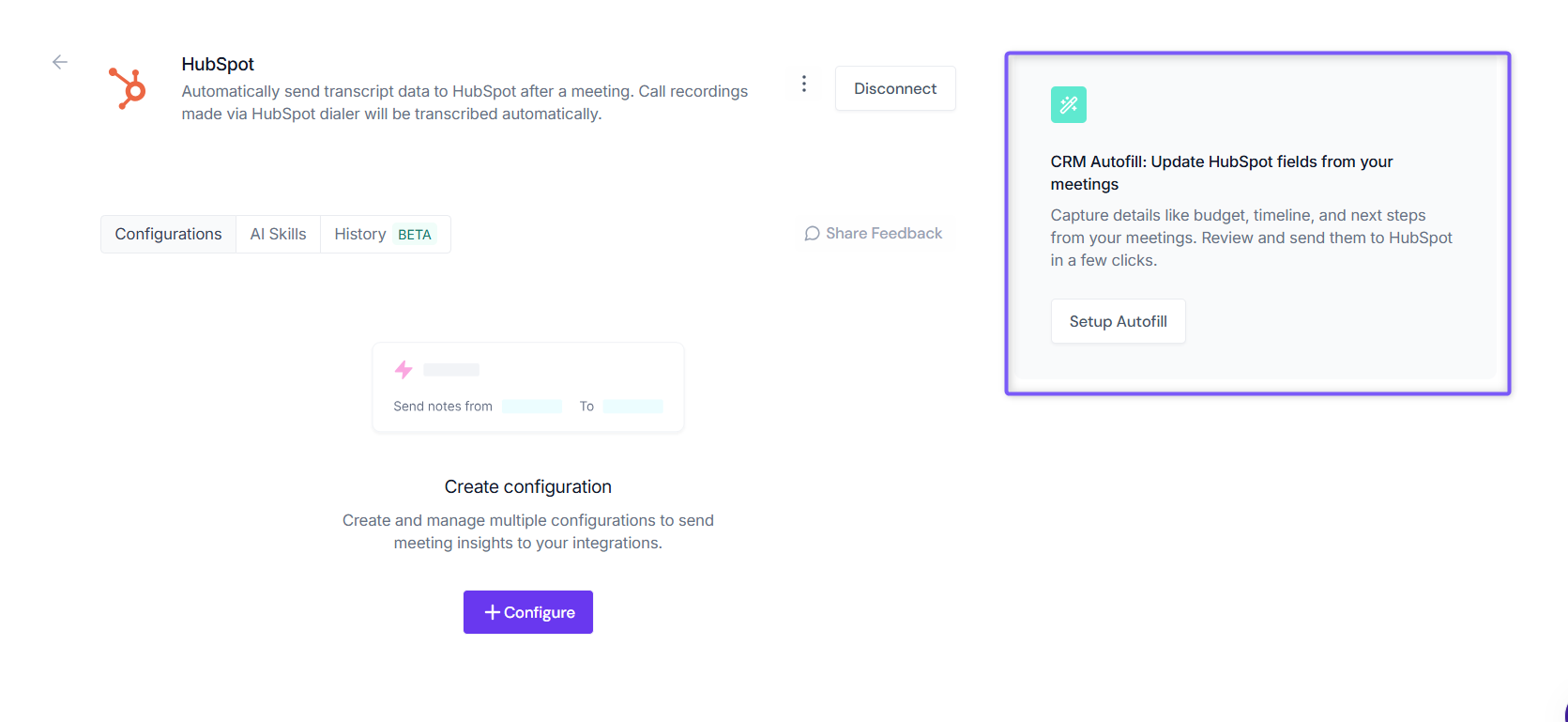
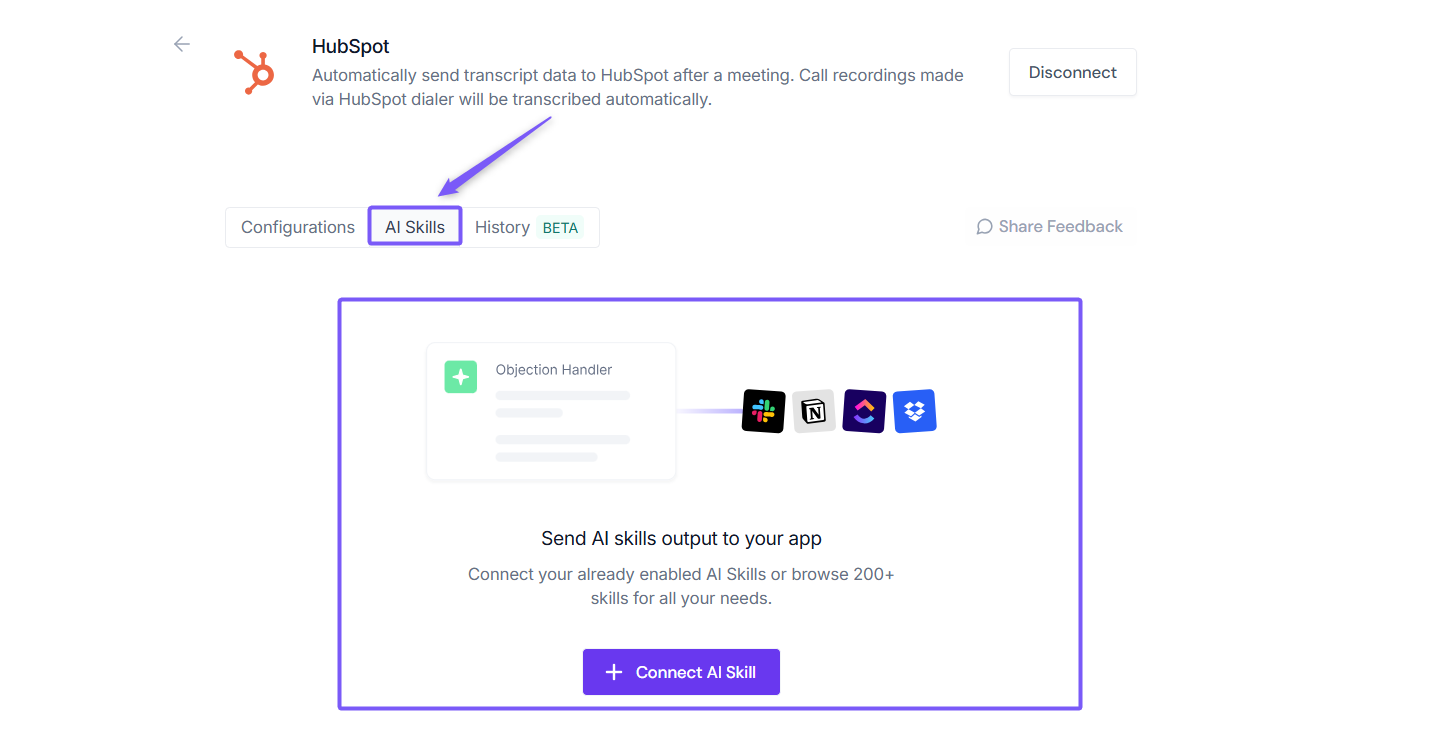
✅ Send AI Skill Outputs to HubSpot
Want to send more than just meeting notes to HubSpot? Fireflies also allows you to send AI Skill outputs directly to your connected HubSpot account.
This is helpful when you want custom AI-generated content, such as project updates, customer insights, follow-up emails, call analyses, or action item reports - automatically logged to HubSpot contacts, leads, companies, or deals.
👉 Learn how: Send AI Skill Outputs to Any Integrated Tool.
❌ Disconnect Integration
If you no longer need Fireflies connected to HubSpot - for example, if your team updates its CRM workflow or switches tools, you can disconnect it anytime with a single click.
Click the Disconnect button to remove the HubSpot integration. This immediately ends the connection, and Fireflies will no longer send meeting notes, summaries, tasks, or call data to HubSpot.
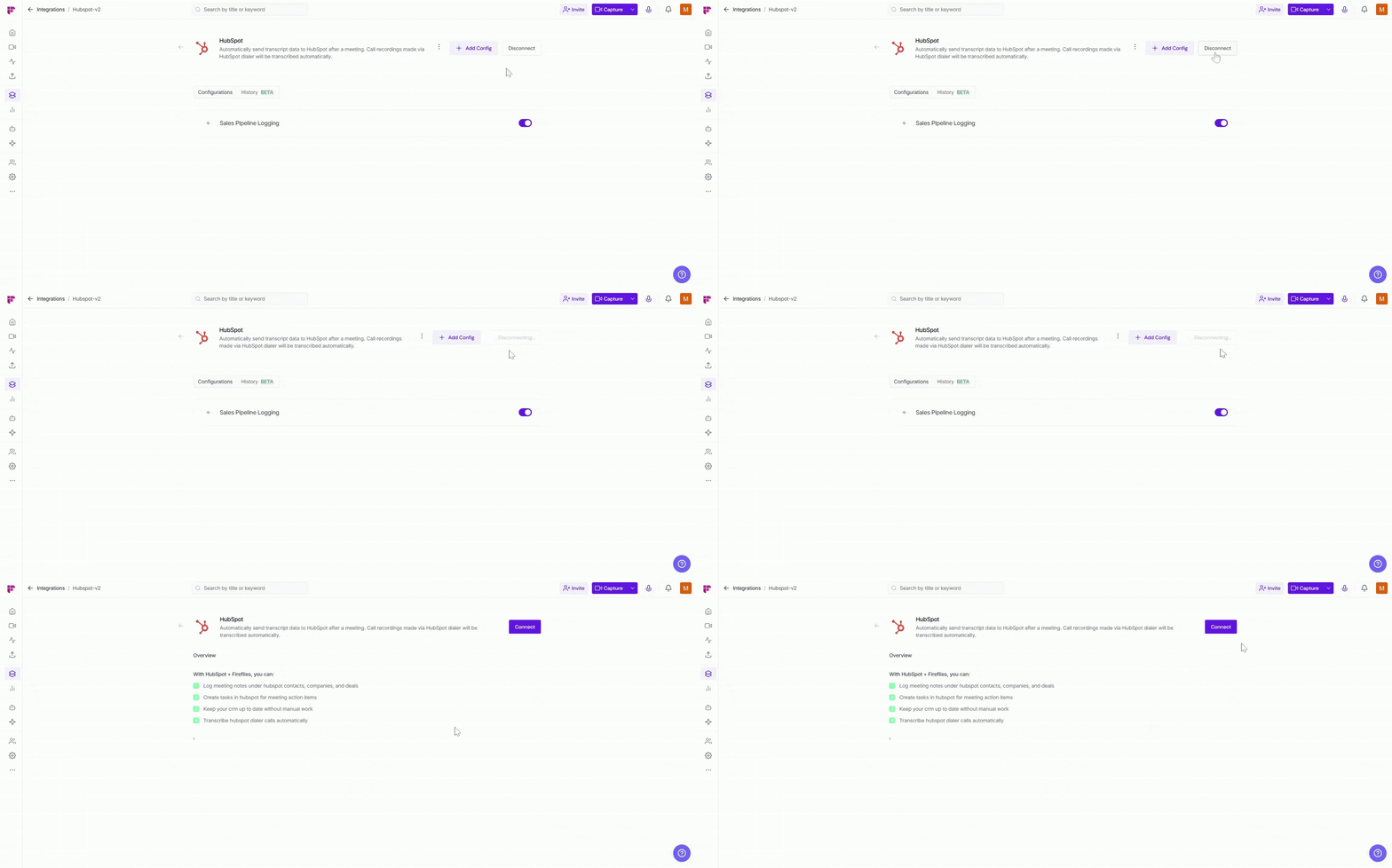
Once disconnected, Fireflies will stop pushing all meeting-related data into HubSpot. You can always reconnect later if you decide to resume syncing your conversations.
🛠 Troubleshooting
Issue | What to Check / Do |
Meeting data not showing in HubSpot | • Make sure the HubSpot integration is connected in your Fireflies Integrations page. • Confirm you selected the right configuration (pull vs. push). |
New contact not being created | • Check if Create meeting participant as a Contact is turned ON in your configuration. |
Notes only logging for some contacts | • If Only log meeting data if contact exists is turned ON, Fireflies will not create new contacts. Turn it OFF to allow new contacts. |
Tasks not appearing in HubSpot | • Ensure Create tasks from meeting action items is turned ON. • Check if assigned users have permission to access the contact/deal. |
Pipeline notes not logging | • Verify that Log meeting notes under pipeline deals is enabled. • Make sure the selected pipeline and stage still exist in HubSpot. |
Meeting transcripts are not being saved | Confirm that Save meeting transcripts is enabled and that your workspace is on a Pro plan or higher. |
Integration disconnected unexpectedly | • Reconnect HubSpot from the Integrations page. • If you're an admin, check Team Permissions to ensure settings weren’t updated. |
Permissions errors | • Make sure your HubSpot user has access to the contacts, deals, or tasks Fireflies is trying to update. |
Still stuck? Contact support via this link for more help.
❓ Frequently Asked Questions
1. I don’t see my HubSpot data updating — what should I check?
First, make sure the integration is connected and that the right mode (Pull recordings from HubSpot or the Push configuration) is turned on.
If you're using the Push setup, check whether your rules or filters are limiting which meetings get logged.
2. Can Fireflies create new contacts in HubSpot?
Yes — turn on Create meeting participant as a Contact.
If it’s off, Fireflies only logs data for people who already exist in HubSpot.
→ Full guide: How to save meeting notes under a HubSpot Contact
3. My tasks aren’t appearing in HubSpot — why?
Make sure Create tasks from meeting action items is enabled, and that your HubSpot user has access to the related contact or deal.
→ Full guide: Automatically create HubSpot tasks from meeting action items
4. Why aren’t meeting notes being added to deals?
Check that Log meeting notes under pipeline deals is on, and that the selected pipeline and stage still exist in HubSpot.
→ Full guide: Save meeting notes under HubSpot Deals
5. Does Fireflies process HubSpot Dialer calls?
Yes — choose the Pull option (Pull recordings from HubSpot) to have Fireflies transcribe and summarize HubSpot Dialer calls.
→ Full guide: Process HubSpot Dialer calls with Fireflies
6. Will deleting a configuration remove my HubSpot data?
No — deleting a configuration only stops Fireflies from syncing new meeting notes or tasks. Anything already logged in HubSpot stays as is.
7. How do I save meeting notes under HubSpot Contacts?
Notes sync under the matching contact when Fireflies finds an existing record (or creates one, depending on your settings).
→ Full guide: Save meeting notes under HubSpot Contacts
8. Why don’t I see the full meeting transcript inside HubSpot?
Fireflies cannot attach the full meeting transcript directly inside HubSpot. Instead, Fireflies adds a link to access the full transcript in Fireflies.
9. Can all Business and Enterprise workspace members access Integration Permissions?
No. Integration Permissions is available to Workspace Admins on Business and Enterprise plans. Being a member of a Business or Enterprise workspace does not give you access to the Integration Permissions dashboard. You must be a Workspace Admin to access and manage these settings.
🔄 Recap
The HubSpot integration helps you keep your CRM updated with meeting data. Here’s what you covered:
Connected HubSpot to Fireflies.
Configured Dialer call recordings or meeting data syncing.
Customized how meeting data is sent to contacts, companies, deals, and tasks.
Configured Integration Rules and Team Integration Settings.
Learned how to manage and push past meetings to HubSpot.
📚 Related Guides
Want to explore more? These guides will help you get the most out of Fireflies:
Getting Started with Fireflies CRM Deal Intelligence → Learn how to use CRM Deal Intelligence to get insights across your HubSpot and Salesforce.
Learn About Fireflies + CRM Integrations – Connect Fireflies with CRMs like HubSpot, Zoho, Close.io, Copper, etc.
AI Meeting Summaries Guide → Learn how to customize and share your meeting summaries.