Save meeting notes under HubSpot Contacts
Last updated: May 7, 2026
With the HubSpot + Fireflies integration, your meeting notes, summaries, and a link to access the full transcript are automatically pushed to the right contacts, so your CRM always reflects what was discussed.
This works for both new contacts and existing contacts, depending on how you configure the integration.
🔑 Before You Start
Make sure HubSpot is already connected to Fireflies.
If you haven’t set up the integration yet, complete the HubSpot + Fireflies integration first.
👤 Save Notes Under New Contacts
By default, Fireflies automatically creates a new contact in HubSpot and logs meeting data—no extra setup required.
In your HubSpot integration settings, keep the “Only log meeting data if the contact already exists in CRM” toggle OFF (default).
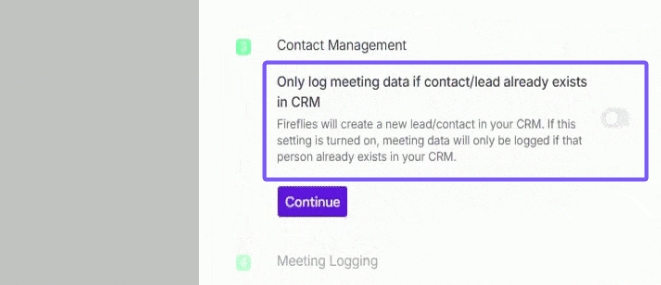
How it works
Schedule a meeting with a new participant (someone not yet in HubSpot).
Add the Fireflies bot to the meeting.
After the meeting ends, wait about 15–20 minutes for processing.
Open HubSpot → Contacts and find the newly created contact.
Open the Notes section to view:
Meeting summary
Link to the meeting transcript
Audio recording
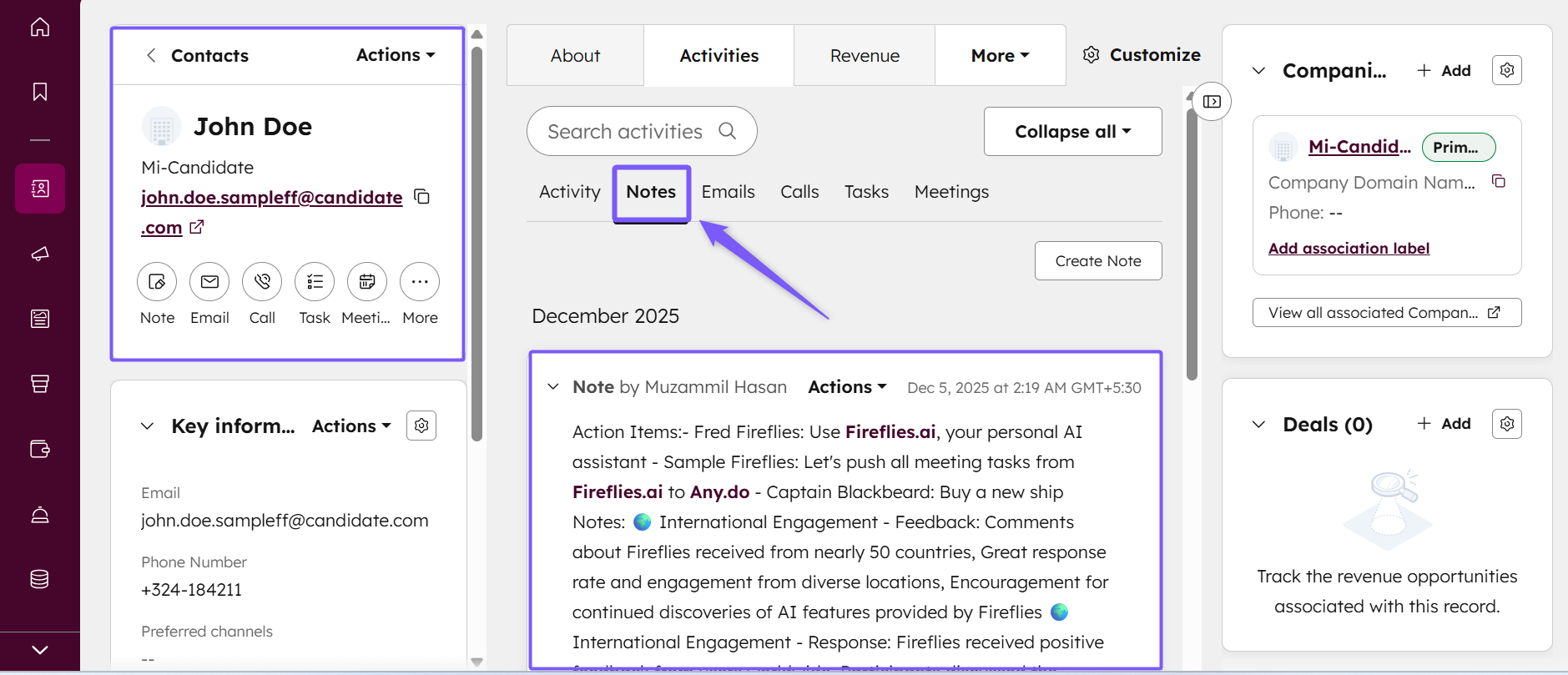
This option works best if you want HubSpot to automatically capture new people you meet.
👥 Save Notes Under Existing Contacts Only
If you prefer to log meeting data only for contacts that already exist in HubSpot, you can adjust one setting.
In your HubSpot integration settings, keep the “Only log meeting data if the contact already exists in CRM” toggle ON.
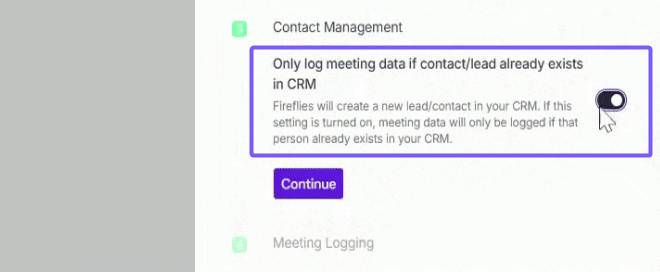
How it works
Schedule a meeting with an existing HubSpot contact.
Add the Fireflies bot to the meeting.
After the meeting, open the contact in HubSpot.
Go to the Notes section and open the meeting note to review:
Overview
Detailed notes
Action items
Link to the meeting transcript
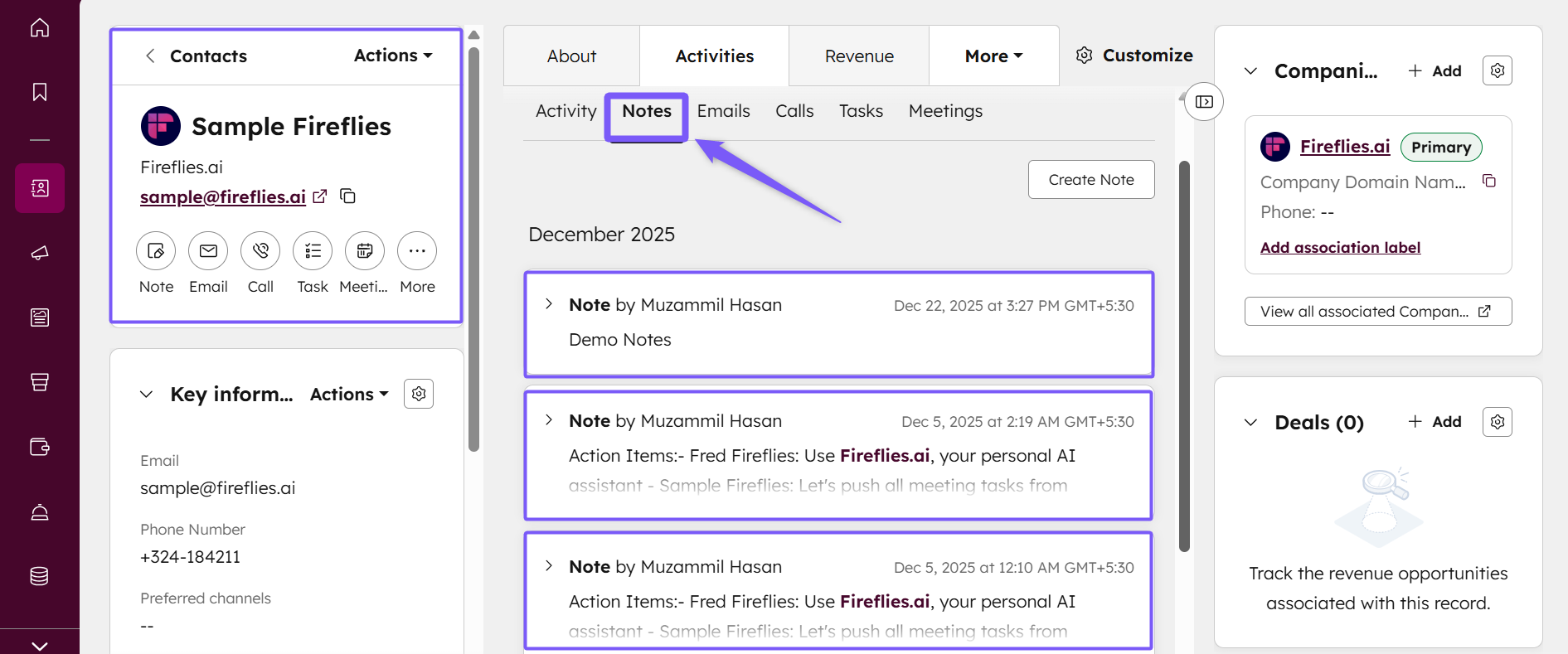
No new contacts will be created when this setting is enabled.
🧠 Making Sense of It All
New contacts are created automatically unless you change the integration setting.
To log notes only for existing contacts, the toggle must be turned ON.
All meeting data appears in the Notes section of the contact record.
Pushed data includes meeting summaries, a link to access the full transcript, and audio recordings (If any).
Note: Fireflies does not push the full meeting transcript directly into HubSpot. Instead, a transcript link is added so users can open and access the transcript in Fireflies.
📚 Related Guides
Save meeting notes under HubSpot Deals → Log meeting notes directly to the right deals in your sales pipeline.
How to automatically create HubSpot tasks from meeting action items → Turn meeting follow-ups into HubSpot tasks automatically.
How to process calls from HubSpot Dialer → Transcribe and summarize calls made using the HubSpot Dialer.
Use Fireflies App Cards in HubSpot → View Fireflies insights directly inside HubSpot records.