How to automatically create tasks on HubSpot from meeting action items
Last updated: March 17, 2026
Keeping track of follow-ups shouldn’t mean extra work after every meeting. With HubSpot + Fireflies, you can automatically turn meeting action items into HubSpot tasks—so nothing slips through the cracks.
This guide shows you how to enable task creation once, so Fireflies handles follow-ups for every future meeting.
🔑 Before You Start
Make sure you’ve already set up the HubSpot + Fireflies integration.
📌 If you haven’t connected HubSpot yet, follow the HubSpot integration setup guide first.
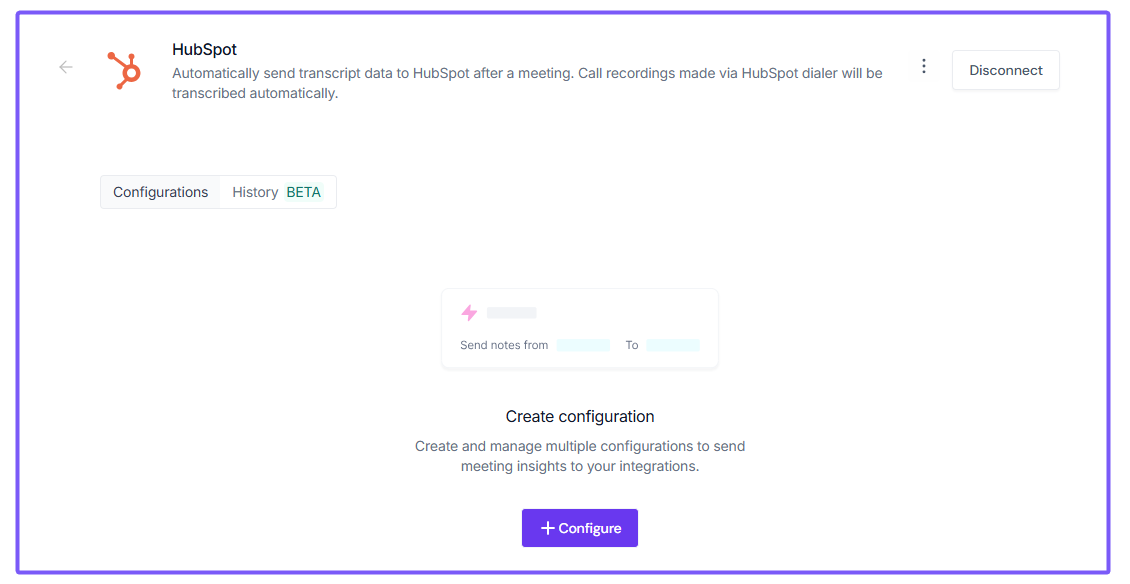
⚙ Enable Task Creation from Meetings
Fireflies can automatically create HubSpot tasks based on action items discussed during meetings. Here’s how to turn it on:
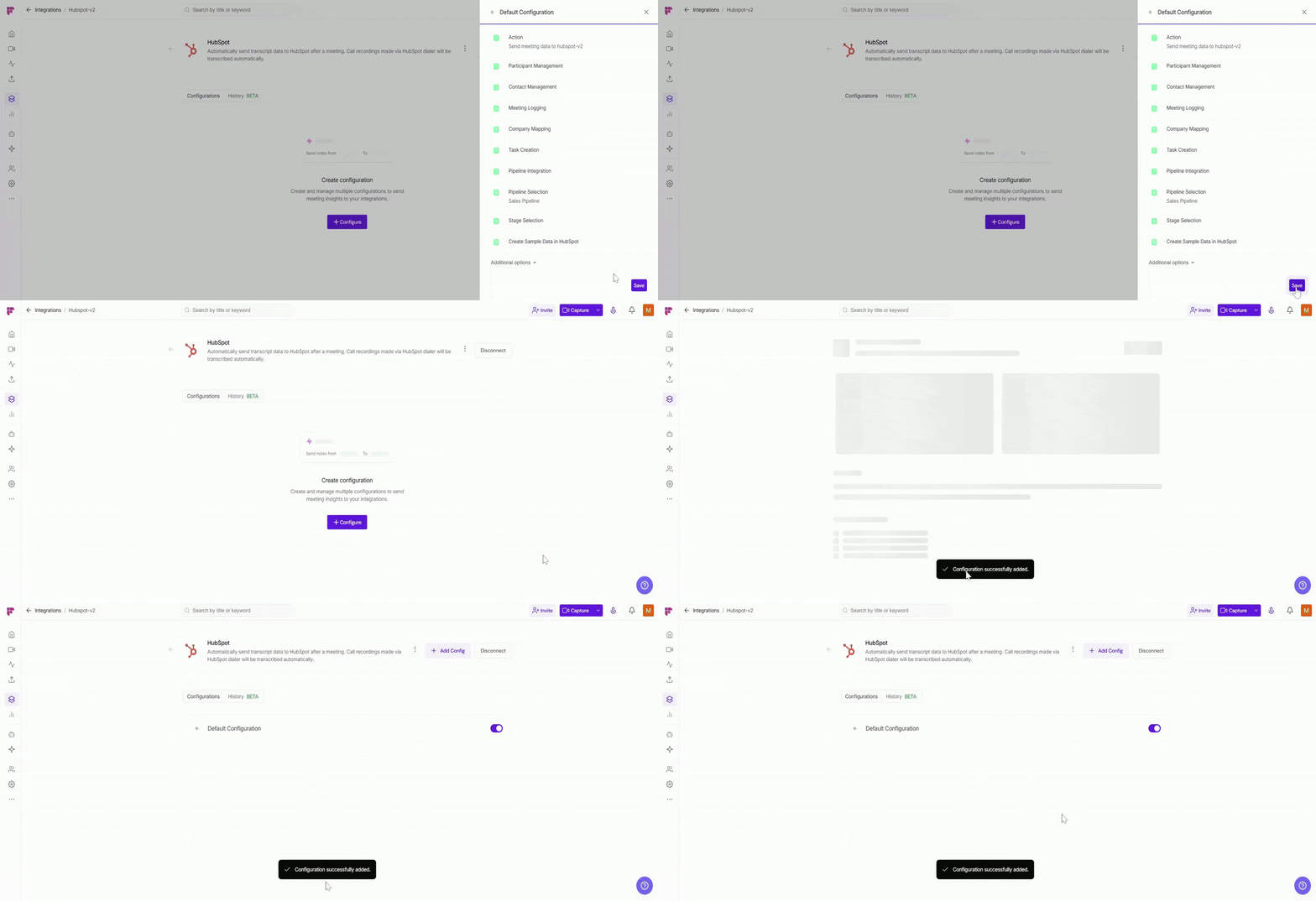
Step 1: Go to your HubSpot integration settings and select Send meeting data to HubSpot.
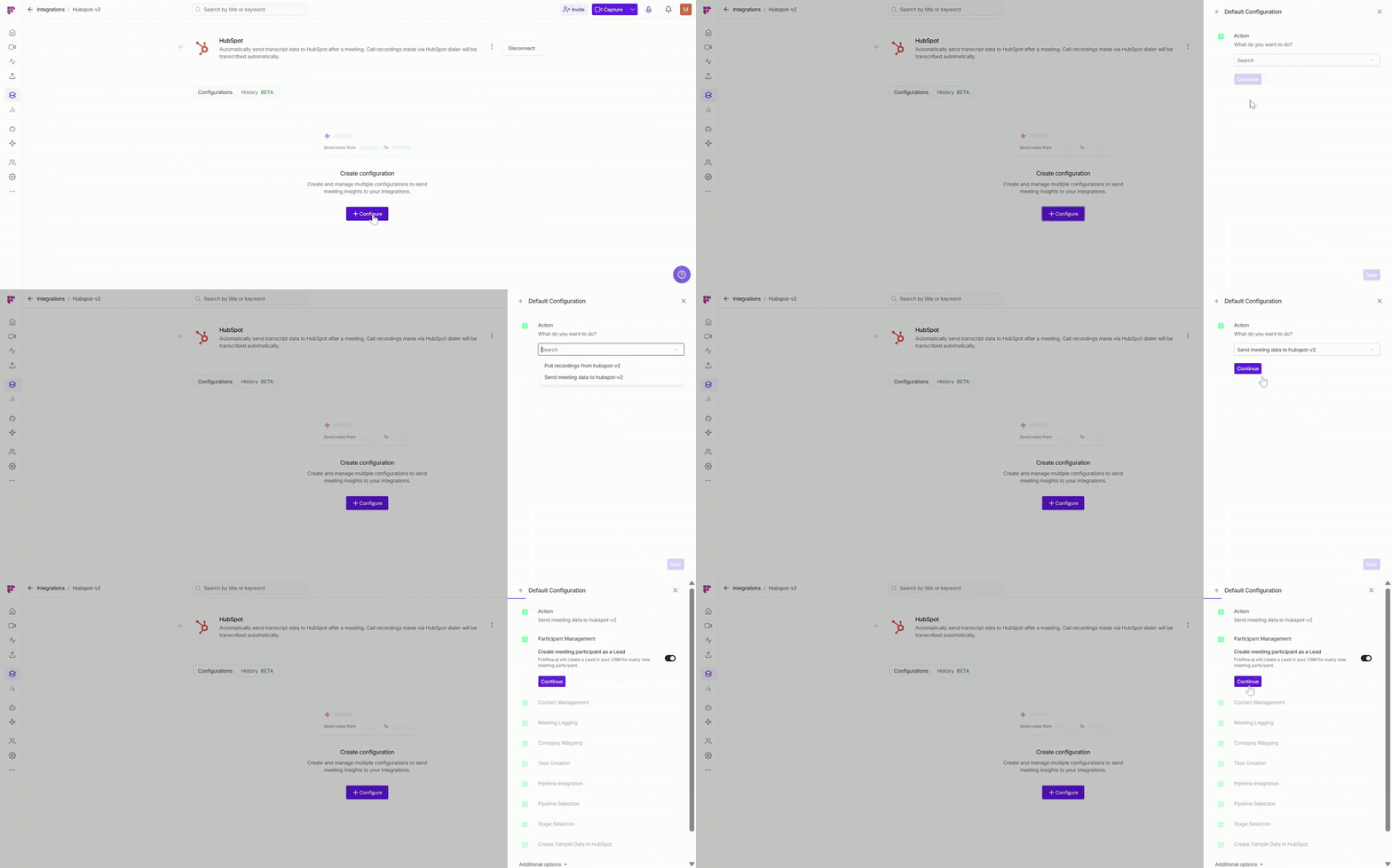
Step 2: Scroll down to Create tasks from meeting action items. This option is off by default.
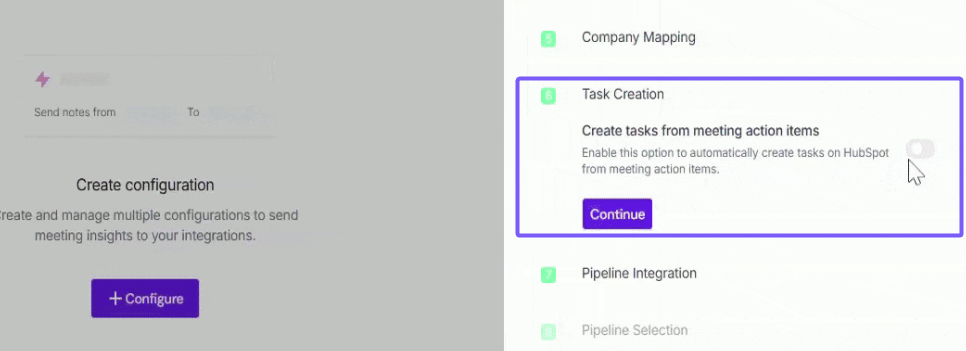
Step 3: Turn the toggle on to automatically create HubSpot tasks from action items discussed in your meetings.
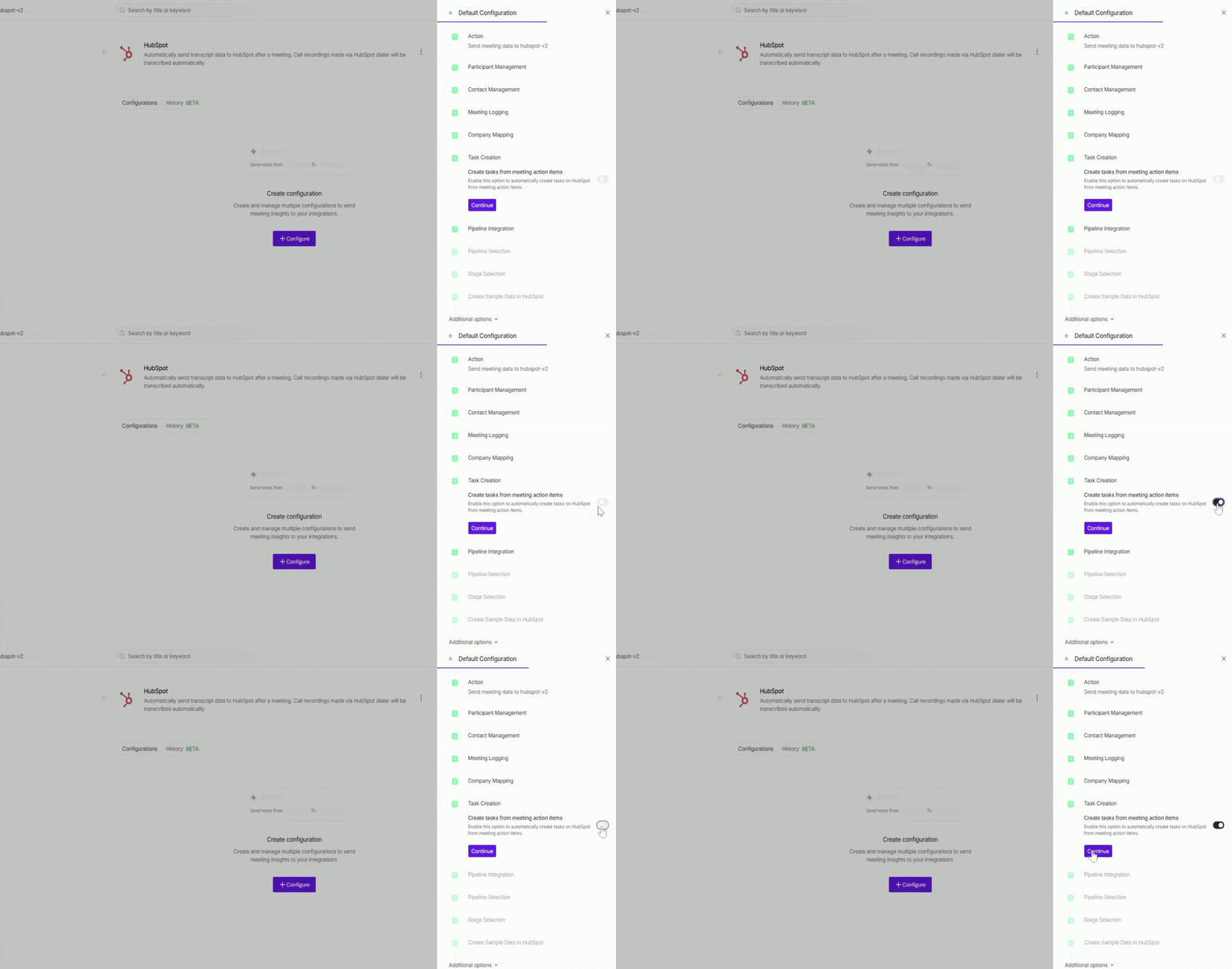
Step 4: Click Save to apply your changes and activate automatic task creation.
✅ What Happens Next?
After your next meeting:
Fireflies automatically identifies action items from the conversation
Each action item is created as a task in HubSpot
How to see your tasks in HubSpot
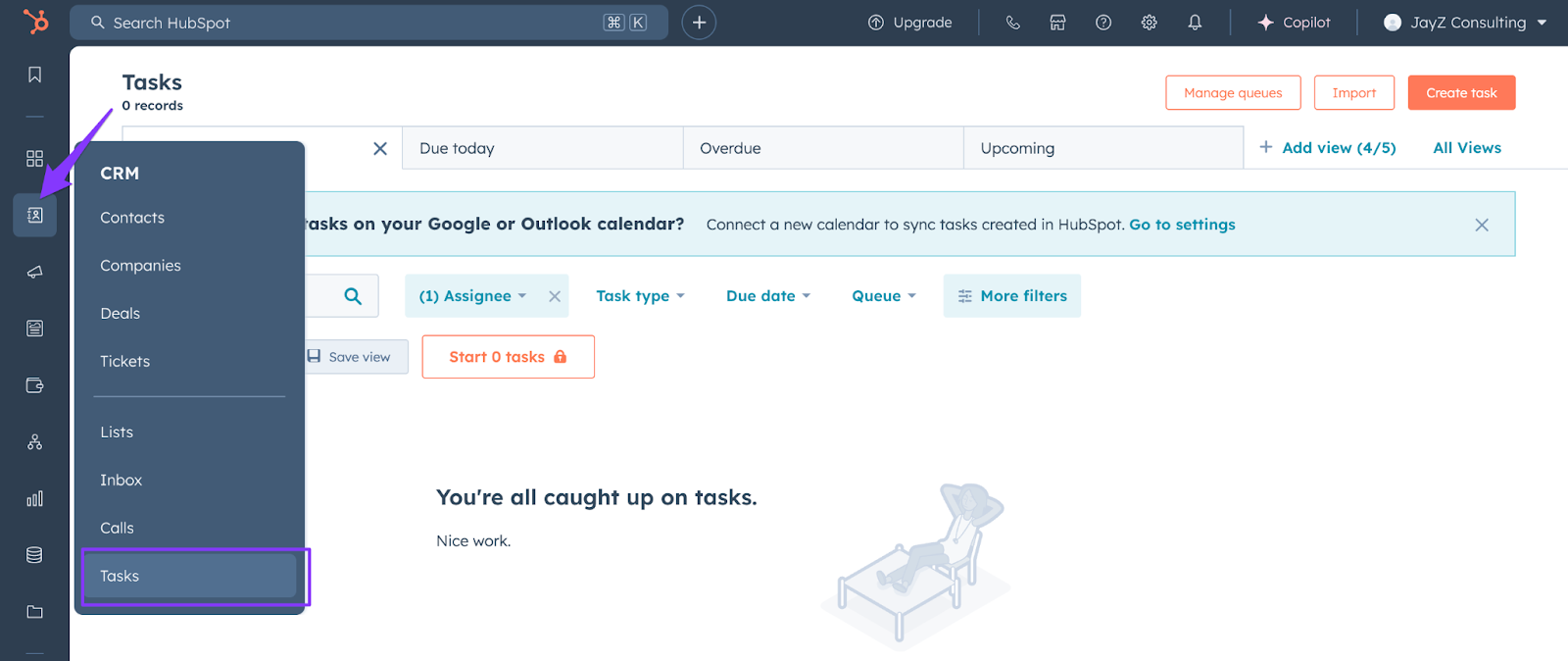
Open your HubSpot dashboard and click Tasks.
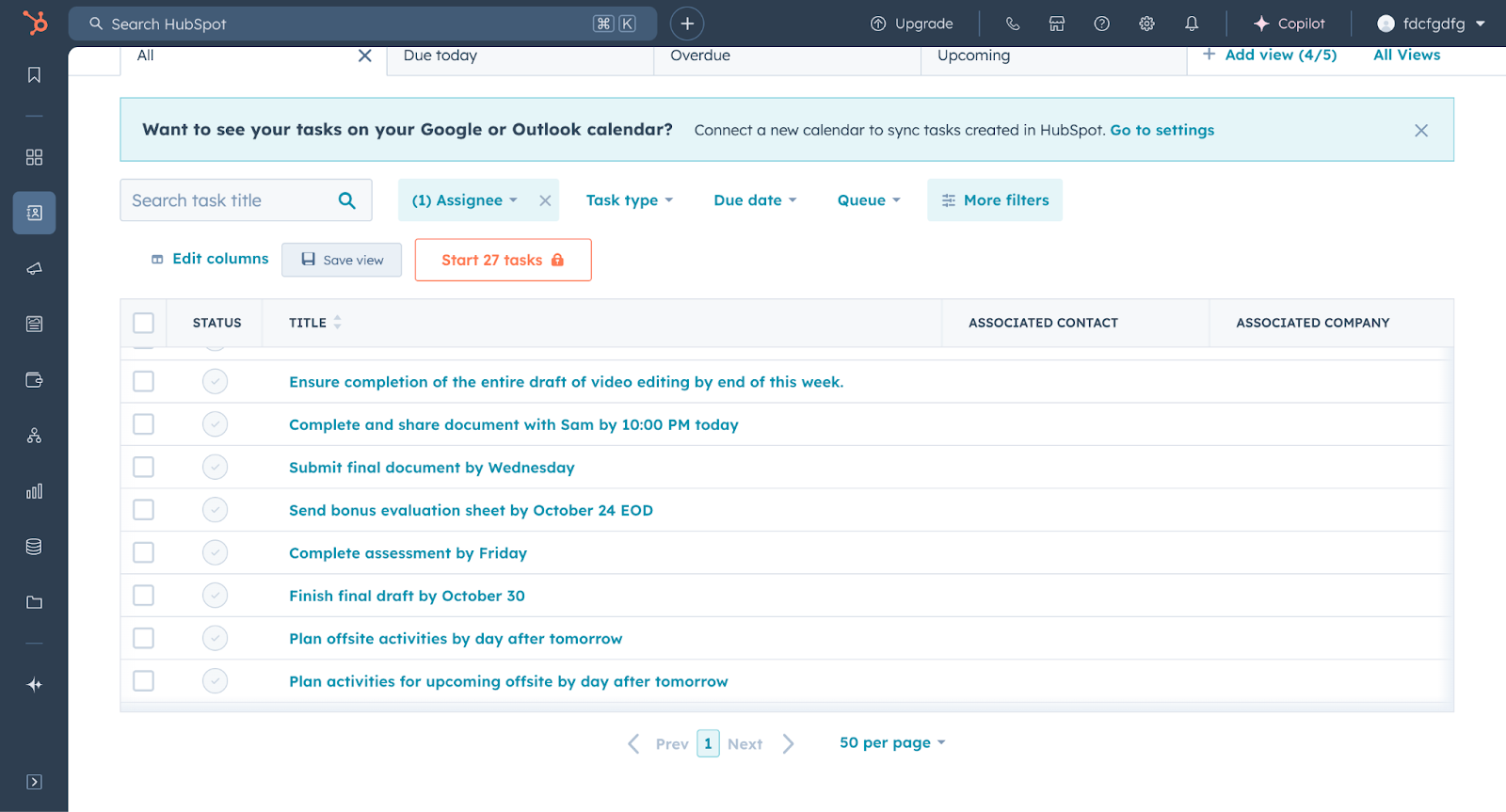
You’ll see all the meeting action items listed there as tasks.
📚 Related Guides
How to save meeting notes under HubSpot Deals -> Learn how Fireflies attaches meeting notes directly to your HubSpot deals.
Save meeting notes under HubSpot Contacts -> Automatically log meeting summaries and transcripts under the right contacts.
How to send AI Skill outputs to HubSpot -> Push insights generated by Fireflies AI Skills directly into HubSpot records.