How to save meeting notes under HubSpot Deals
Last updated: May 7, 2026
If you want your meeting notes to appear directly on the relevant deals in HubSpot, this setup makes it easy. Once enabled, Fireflies automatically attaches meeting summaries, a link to access the full transcript, and recordings to deals connected to meeting participants, so your sales context stays in one place.
🔑 Before You Start
Make sure HubSpot is already connected to Fireflies.
If you’re an existing HubSpot integration user, disconnect and reconnect the integration to access the latest settings.
📌 Need help reconnecting? Follow the HubSpot + Fireflies integration setup guide first.
⚙ Enable Deal-Level Note Logging
Once your HubSpot integration is connected:
Step 1: After connecting to HubSpot, you’ll be taken to the configuration settings screen.
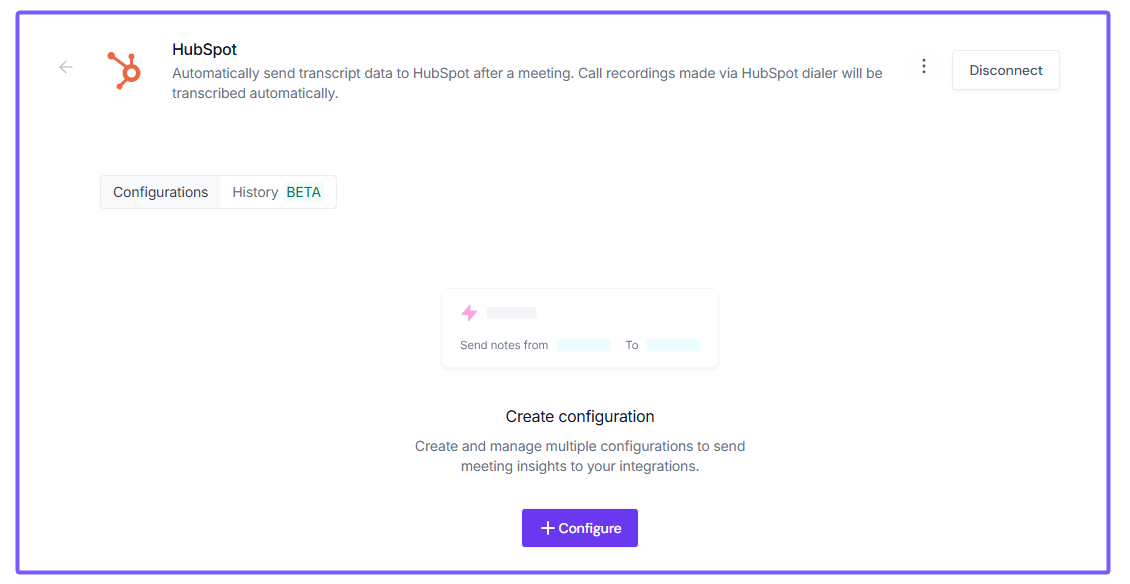
Step 2: Select Send meeting data to HubSpot to enable pushing meeting notes.

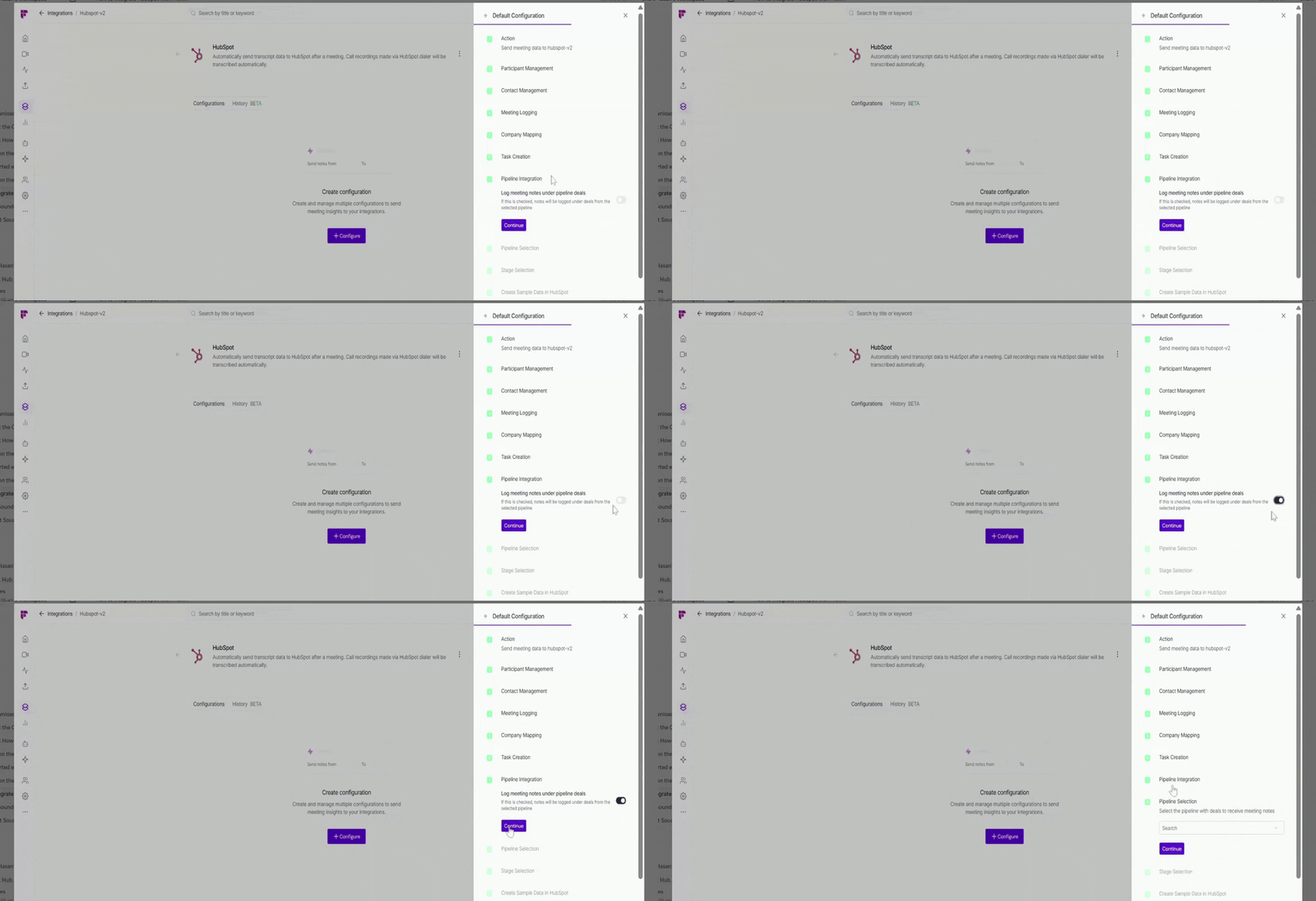
Step 3: Scroll down to Pipeline integration and locate 'Log meeting notes' under 'Pipeline deals'. This option is off by default.
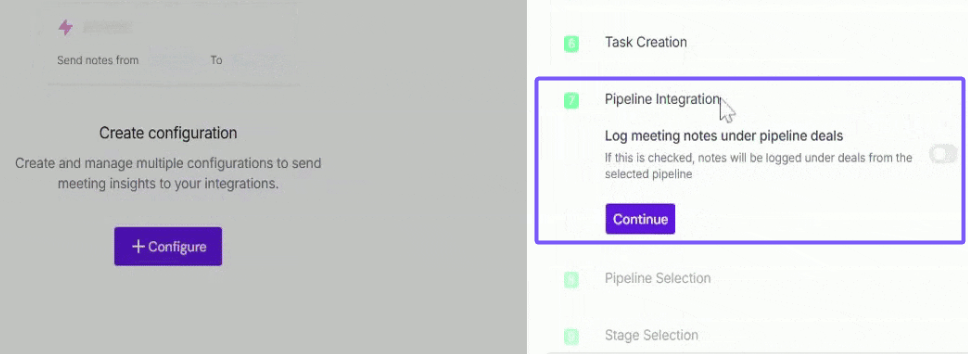
Step 4: Turn the toggle on if you want meeting notes added directly to deals in a specific pipeline.
When enabled, you can choose the pipeline and deal stage that match your workflow. Click Continue to move forward.
Step 5: Pipeline & Stage Selection
If you’re logging meeting notes under deals, choose where those notes should be saved.
Pipeline → Select the HubSpot pipeline to log meeting notes (e.g., Sales Pipeline, Onboarding, Renewals).
Stage → Choose the deal stage within that pipeline (e.g., Appointment Scheduled, Qualified to Buy).
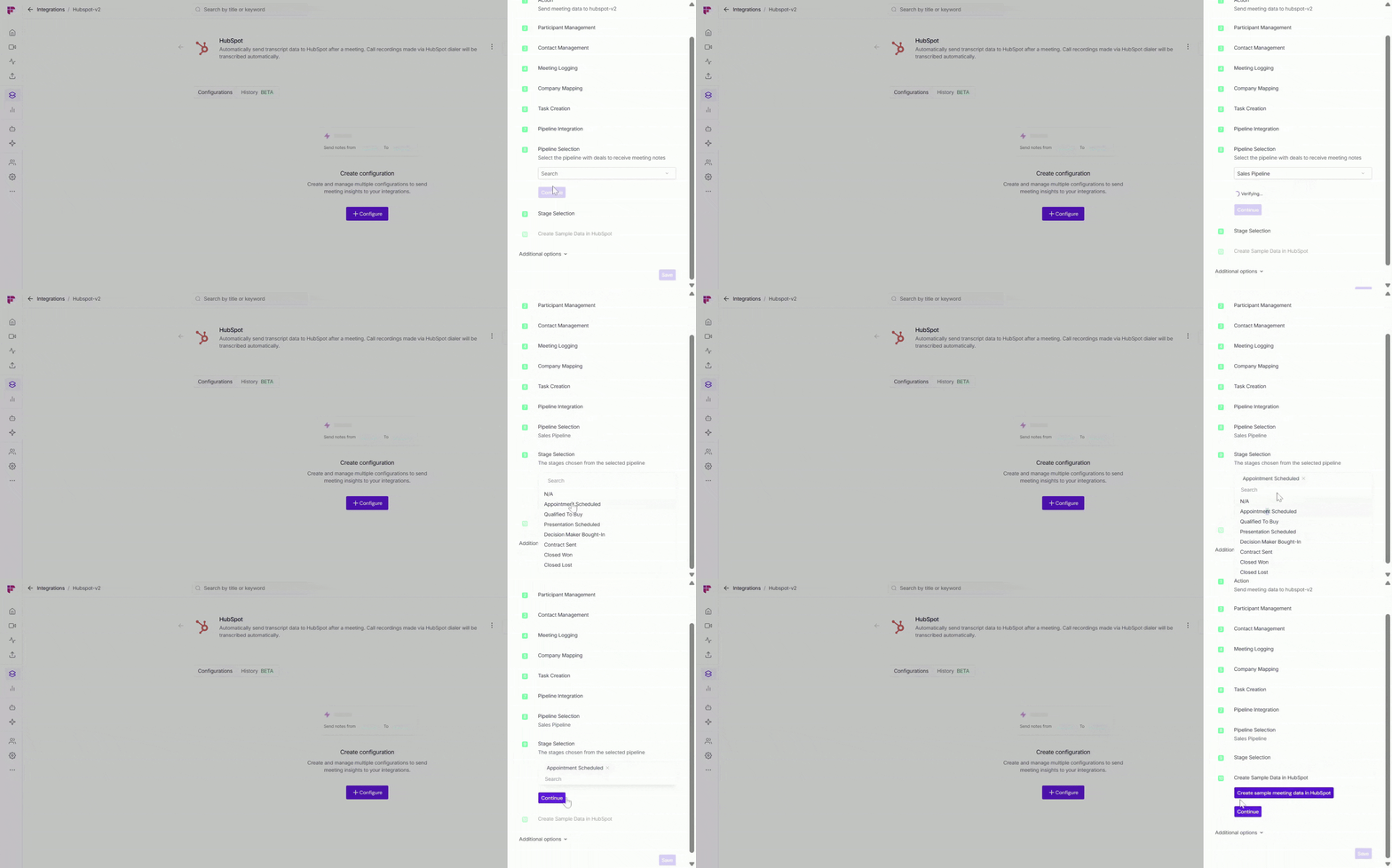
Pipelines and stages must already exist in HubSpot. If you don’t see them here, create them in HubSpot first and refresh Fireflies.
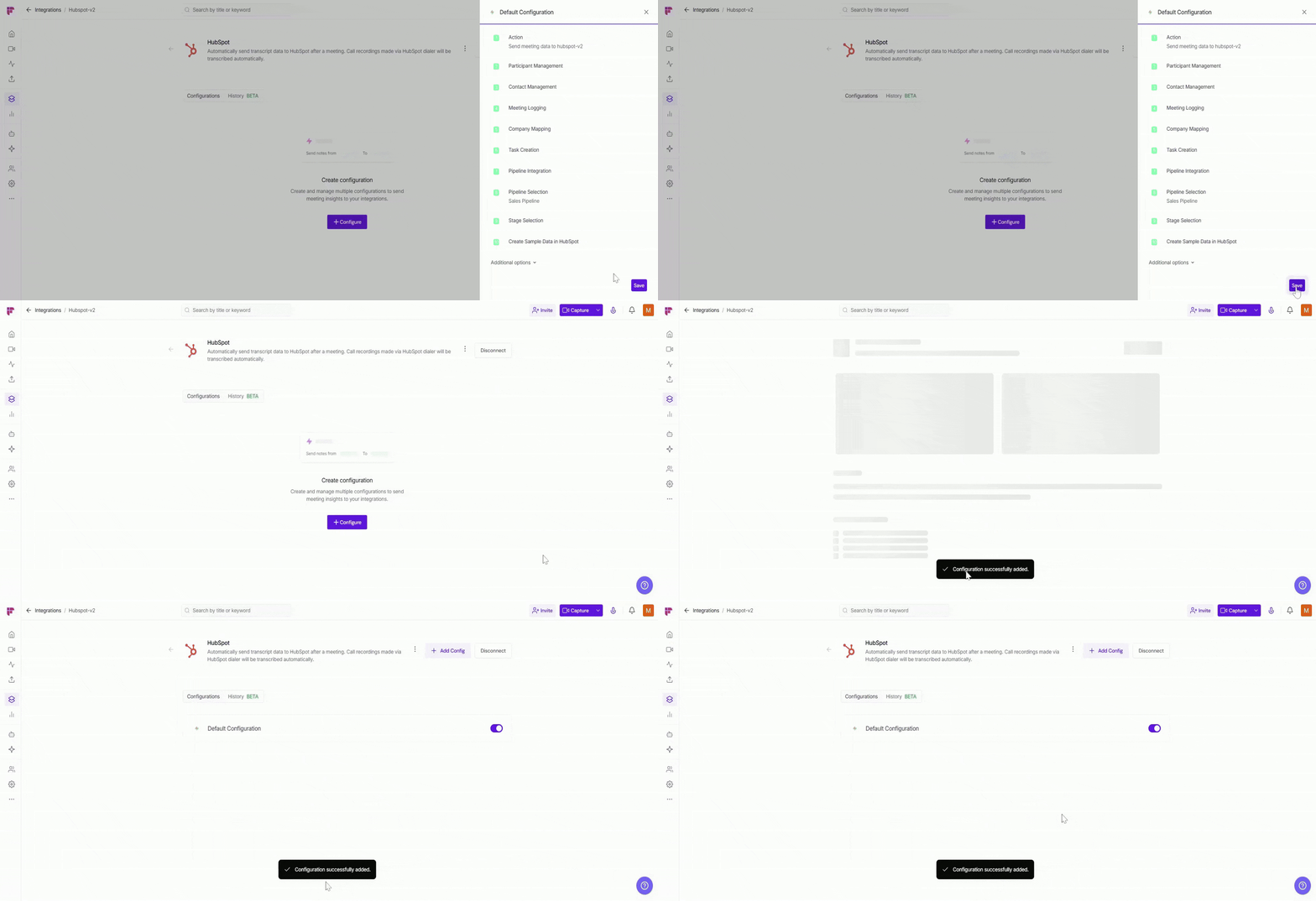
Step 6: Click Save to activate the integration — a flash message will confirm that your configuration has been successfully added.
Note:
Selecting a deal pipeline and stage is optional for logging notes under deals. These fields can be left blank.
If no pipeline or stage is selected, Fireflies will create meeting notes for all deals associated with the contacts who participated in the meeting.
Fireflies does not push the full meeting transcript directly into HubSpot. Instead, a transcript link is added so users can open and access the transcript in Fireflies.
📚 Related Guides
Use Fireflies App Cards in HubSpot → View meeting summaries, action items, and insights directly inside HubSpot records.
Automatically create HubSpot tasks from meeting action items → Turn meeting follow-ups into HubSpot tasks automatically.
Send AI Skill outputs to HubSpot → Push insights from Fireflies AI Skills directly into HubSpot.