How to process calls from HubSpot Dialer
Last updated: December 22, 2025
If your team uses the HubSpot Dialer for calls, Fireflies can automatically transcribe and summarize those conversations—so your call insights don’t get lost.
Once enabled, dialer calls are captured just like meetings and show up directly in your Fireflies Notebook.
🔑 Before You Start
Make sure HubSpot is already connected to Fireflies.
If you haven’t set up the integration yet, complete the HubSpot + Fireflies integration first.
⚙ Enable HubSpot Dialer Call Processing
Fireflies processes HubSpot Dialer calls automatically.
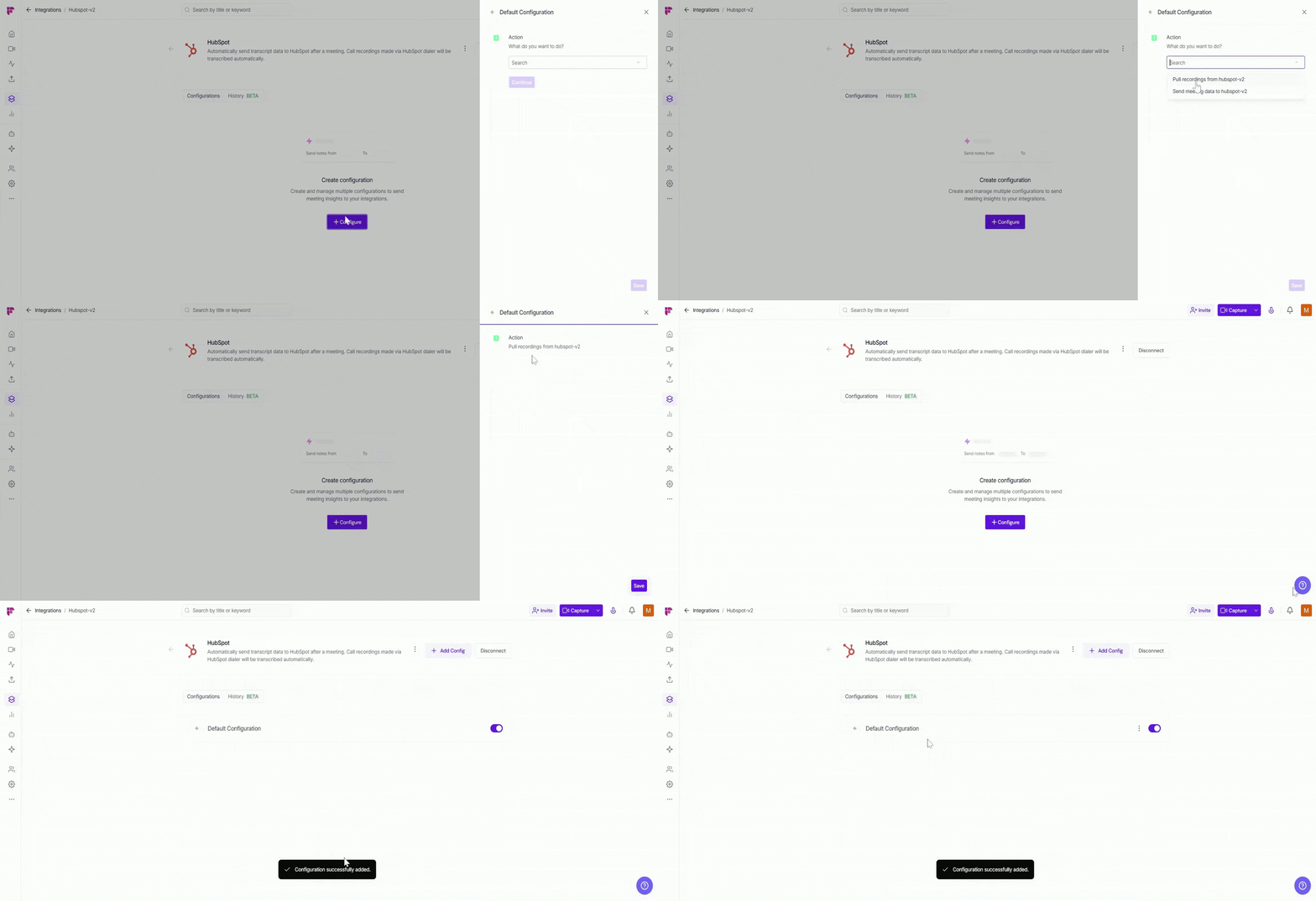
Step 1: After connecting to HubSpot, you’ll be taken to the configuration settings screen.
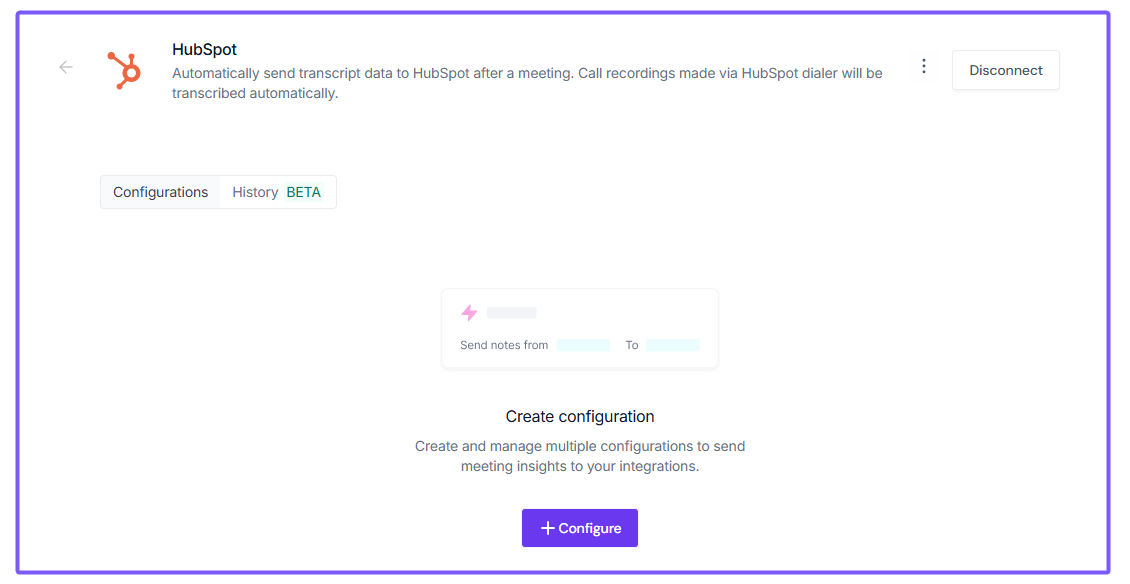
Step 2: In the configuration panel, you’ll see two options that control what Fireflies should do with your HubSpot account.
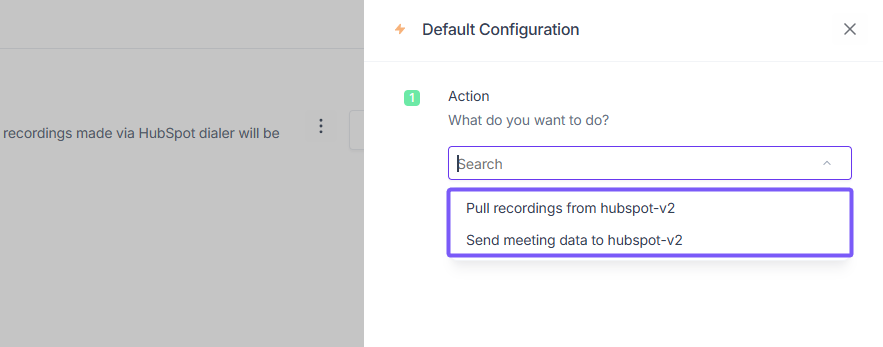
Step 3: Select Pull recordings from HubSpot (Dialer calls) option and let:
Fireflies will pull call recordings from HubSpot.
Those calls will be transcribed and summarized inside Fireflies.
Click Continue, then click on the Save button to apply your configuration.
This option is only for calls made using the HubSpot Dialer.
If you want Fireflies to send meeting notes, tasks, or summaries into HubSpot, use the second option instead.
📄 Where to Find Your Call Transcripts
After the call is processed, open Fireflies Notebook to find your HubSpot Dialer call transcripts and summaries listed alongside your meetings.
📌 Important: Required Steps in HubSpot
To make sure Fireflies receives the call data from HubSpot, follow these steps during every dialer call:
Click Record when making or receiving a call in HubSpot.
After the call ends, mark the outcome as Connected.

If the call isn’t recorded or the outcome isn’t marked as Connected, HubSpot won’t notify Fireflies—and the call won’t be processed.
📚 Related Guides
How to automatically create HubSpot tasks from meeting action items -> Turn follow-ups from meetings and calls into HubSpot tasks.
How to save meeting notes under HubSpot Deals
Attach call and meeting insights directly to your sales deals.Save meeting notes under HubSpot Contacts -> Keep contact timelines updated with call summaries and transcripts.
Use Fireflies App Cards in HubSpot ->View Fireflies insights directly inside HubSpot records.