How to Integrate Discord with Fireflies
Last updated: October 21, 2025
The Fireflies + Discord integration automatically posts your meeting summaries, recordings, and action items directly into your designated Discord channels, keeping everyone in the loop without you having to write manual updates.
It's perfect for development teams, community managers, and project leads who need to share key decisions from sprint planning, user feedback calls, or team syncs right where the conversation is happening.
🔑 Prerequisites
Before you connect Fireflies to Discord, make sure you have the right setup in place.
Discord Account & Credentials: You'll need your Discord credentials to sign in and authorize the connection.
Fireflies Account: An active Fireflies account with integration permissions enabled.
Server Access: Access to the specific Discord server you wish to connect, and the necessary permissions to authorize third-party applications (Fireflies) to access it.
Note: The setup process will require you to select a specific Server to monitor and a Text Channel to receive your meeting notes. Ensure these are set up in Discord before you start the configuration.
🔗 Connect Discord to Fireflies
You will start the integration process from your Fireflies dashboard.
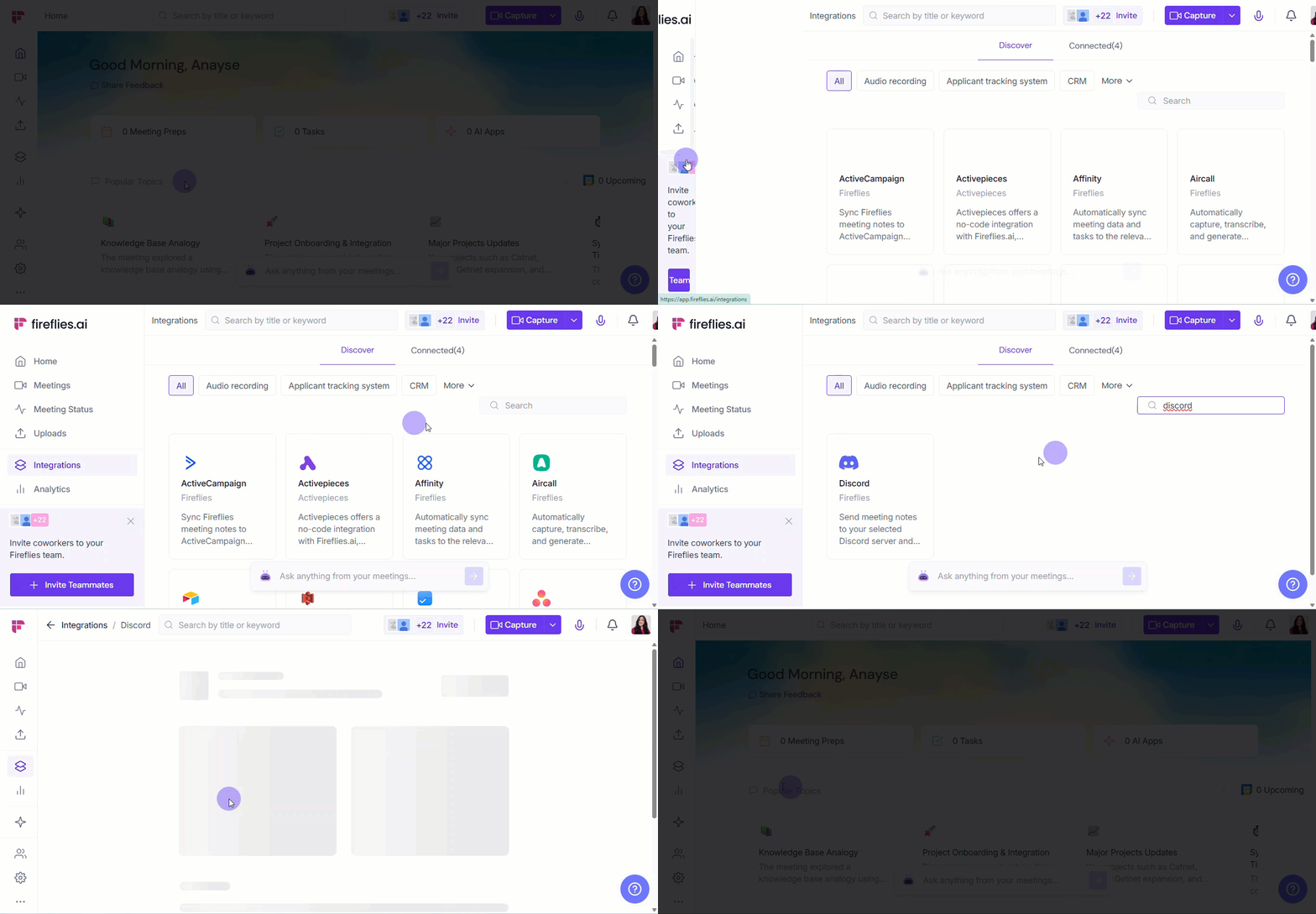
Step 1: From the Fireflies dashboard, select Integrations in the left-hand menu and search for Discord.
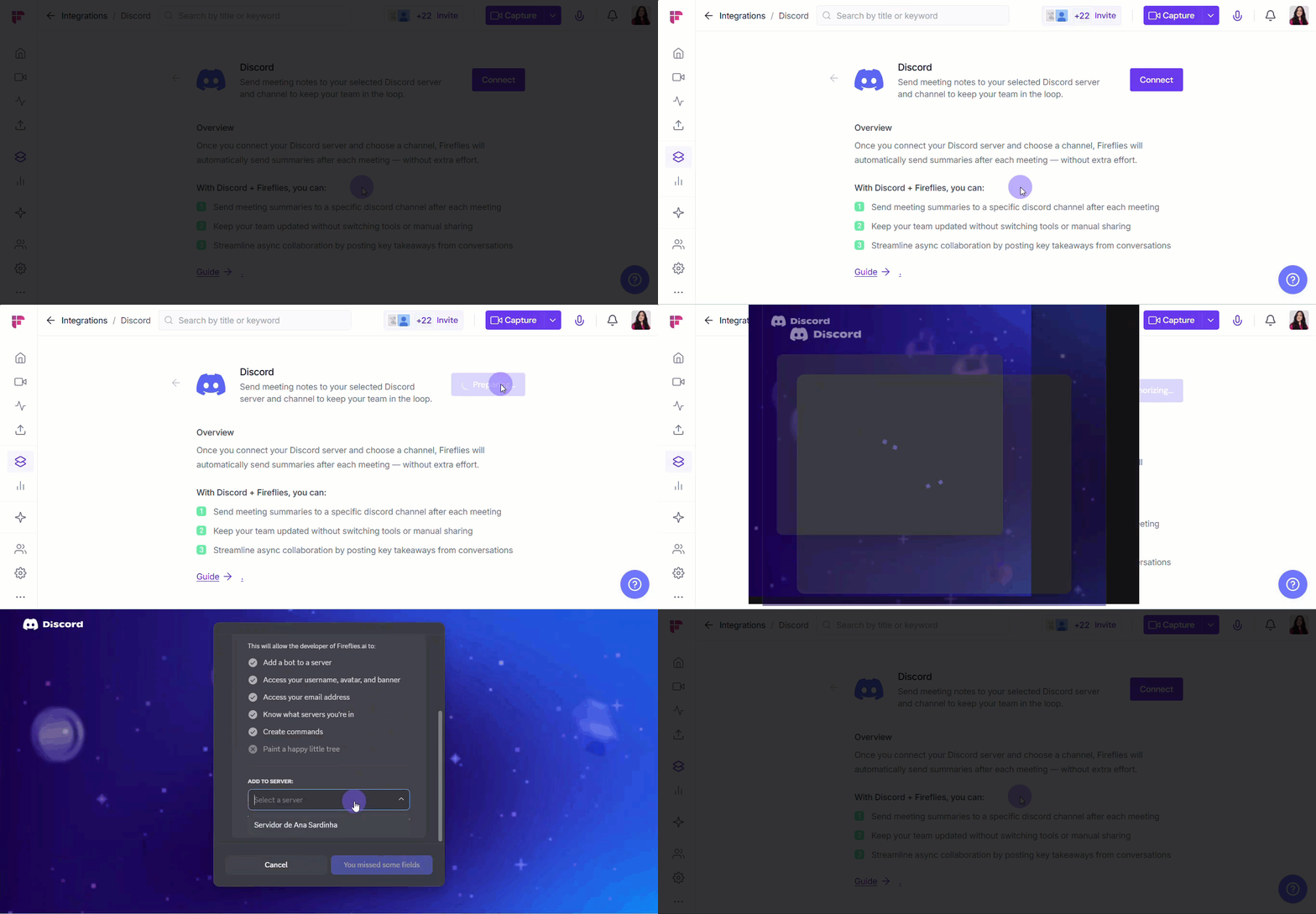
Step 2: Click the Connect button. This action will redirect you to Discord’s sign-in page. After that:
Enter your credentials and sign in to your Discord account.
Select the server that you want to connect to Fireflies.
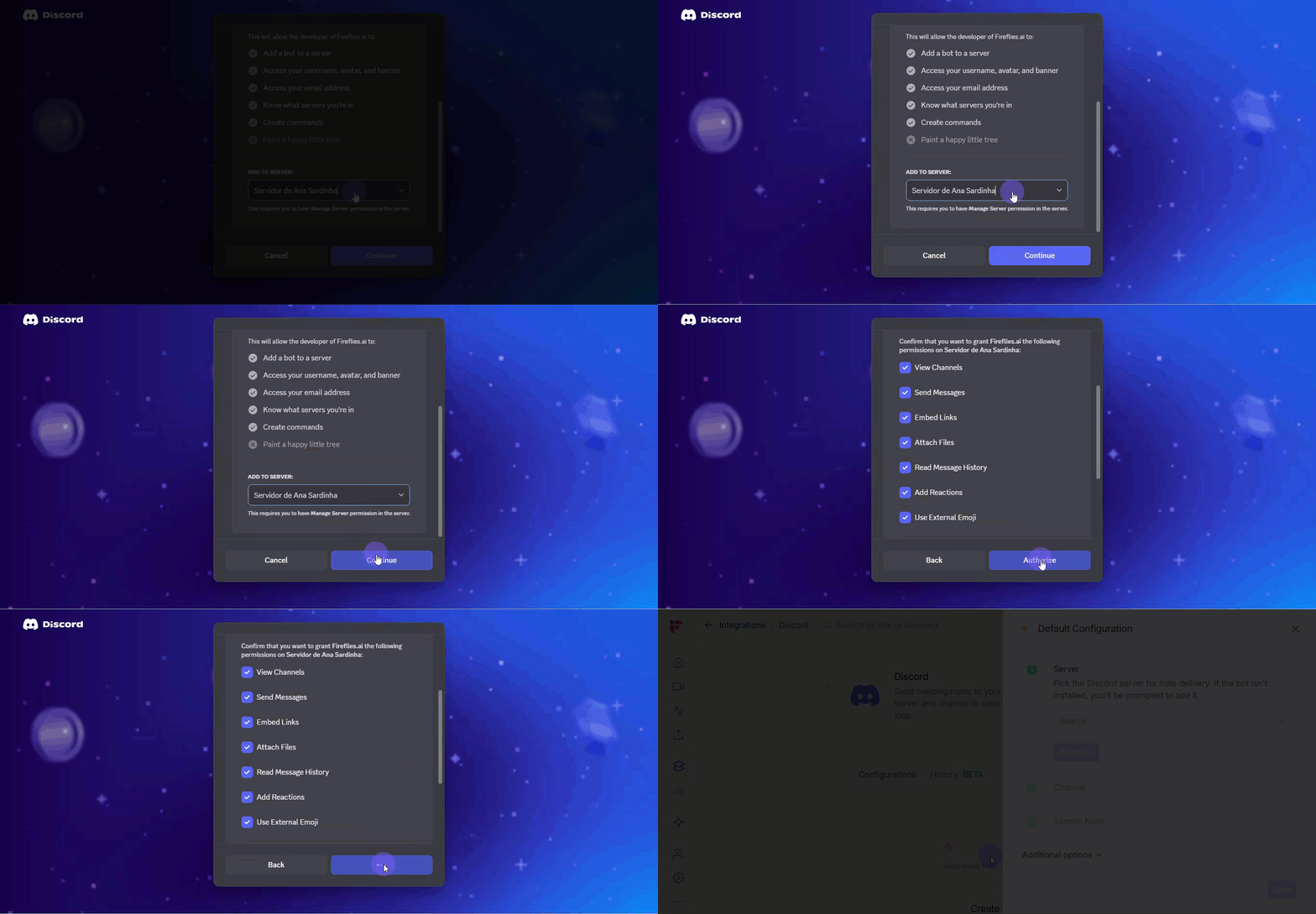
Step 3: Click Continue and review the permissions Fireflies requires. Then, click Authorize to grant Fireflies the necessary access to your Discord account. This action will redirect you back to the Fireflies’ Integration page.
⚙ Set Up Default Configuration
Great! Now that they're connected, it's time to tell Fireflies exactly where to post your meeting notes.
In the Default Configuration side panel, make the following selections:
a. Server: Select the specific Discord server where you want Fireflies to connect and listen for meetings.
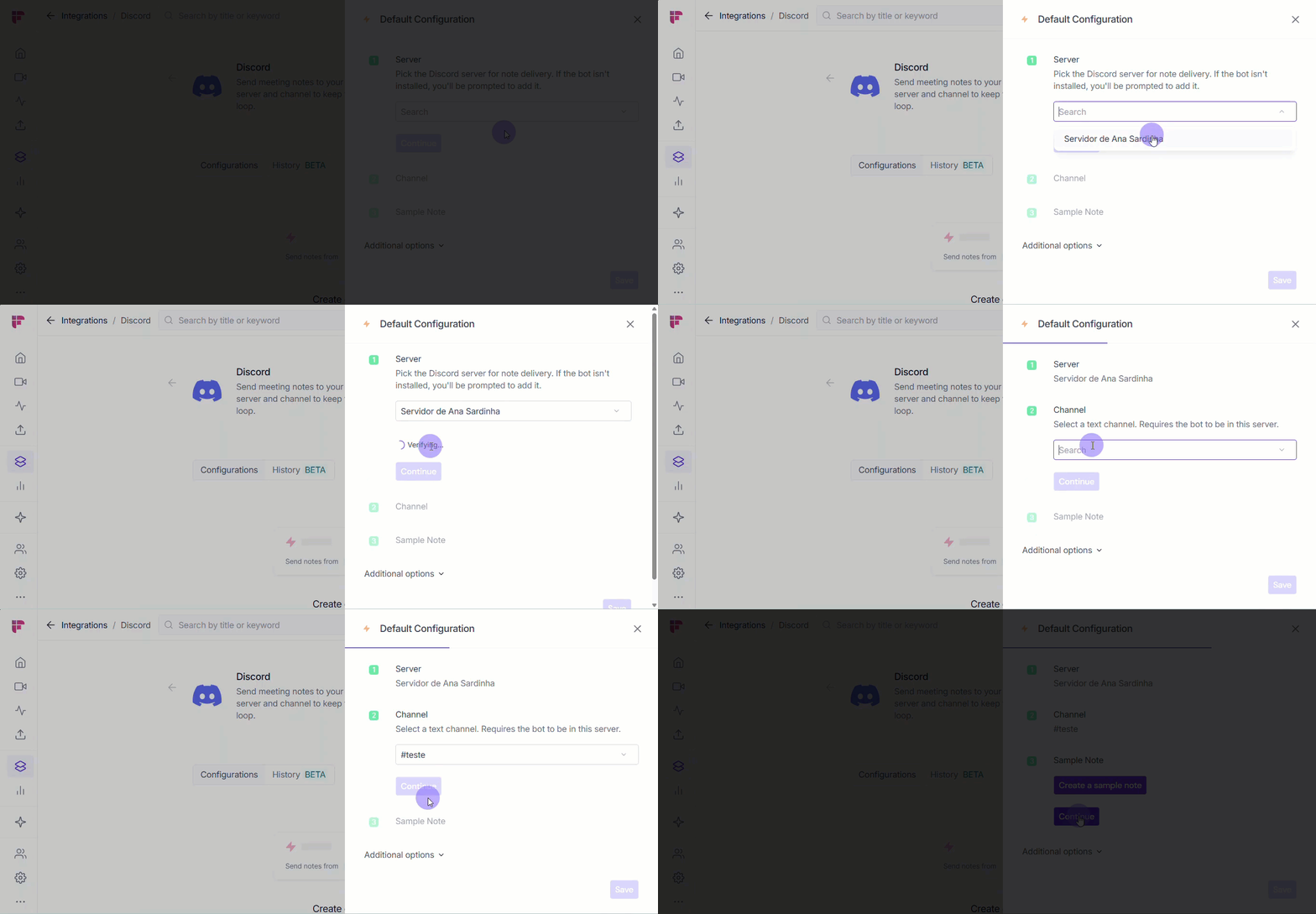
b. Channel: Select the text channel where you want Fireflies to automatically post your final meeting notes, transcripts, and summaries.
c. Sample Note: You can create a Sample Note to instantly test the connection and confirm that Fireflies sends the message to the channel you selected. If you want to skip this, select Continue.
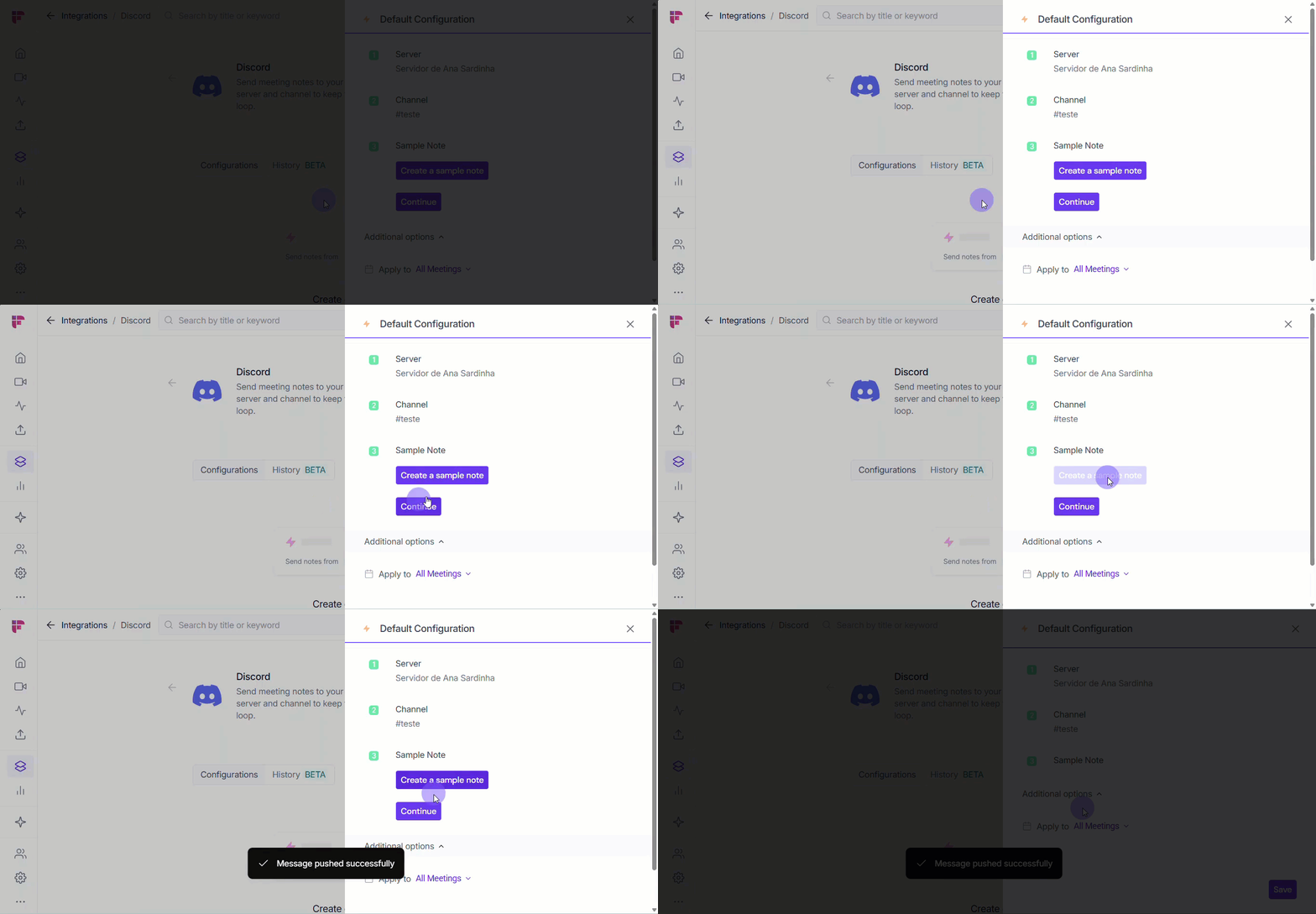
d. Additional options: Select the conditions for when Fireflies should join your meetings (e.g., based on participants, meeting title, etc.).
🧩 Additional Options - Integration Rules
By default, Fireflies sends data from every meeting to Discord. While this ensures no meeting goes unnoticed, it can clutter your base. Integration Rules allow you to filter which meetings send data, so only the important meetings make it into your Discord base.
Integration Rules are available on Business or higher plans.
Learn more about our different pricing plans and how to get started.
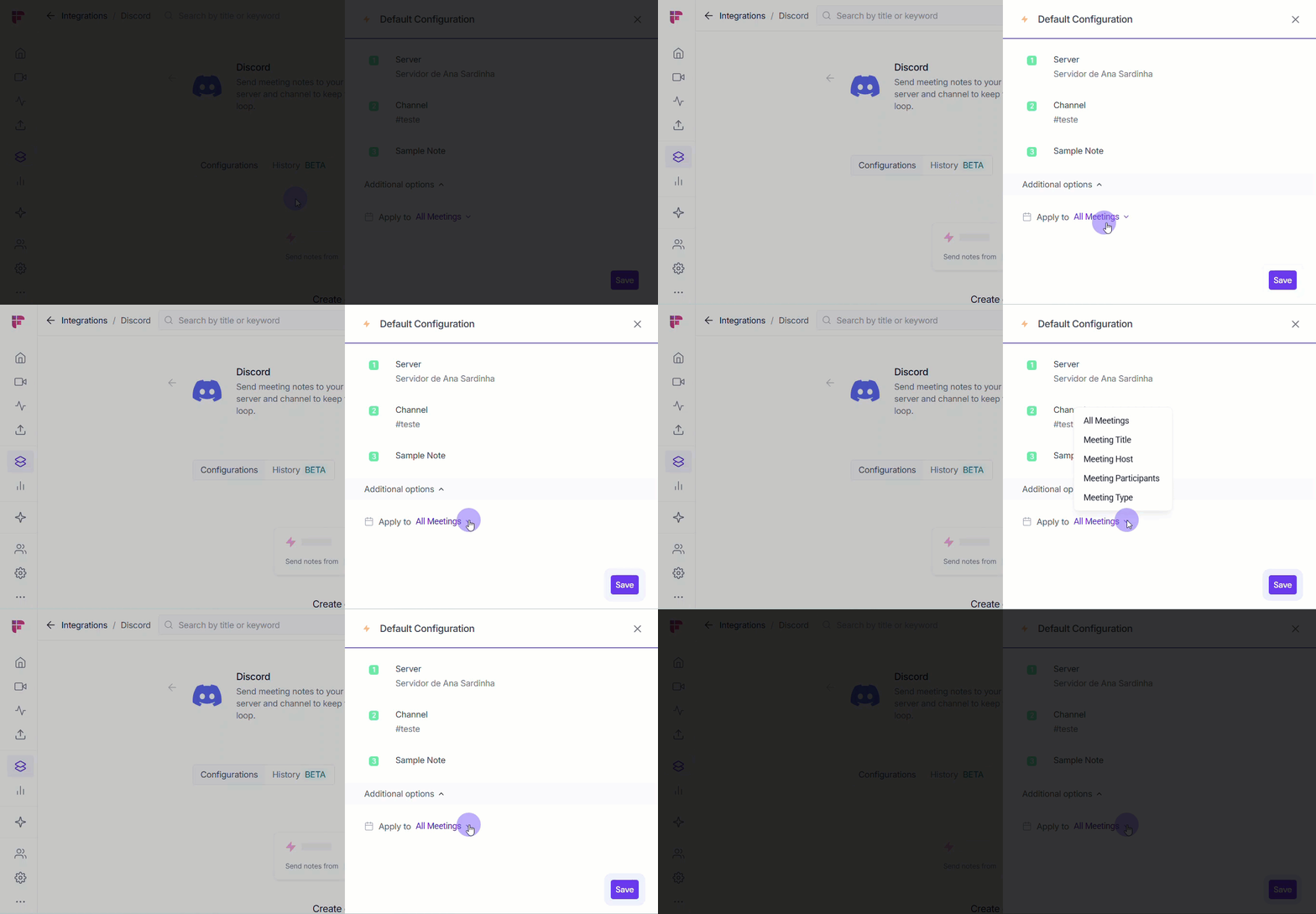
🗂 All Meetings
Capture tasks from every meeting — client calls, team syncs, check-ins — with no filters applied.
📝 Meeting Title
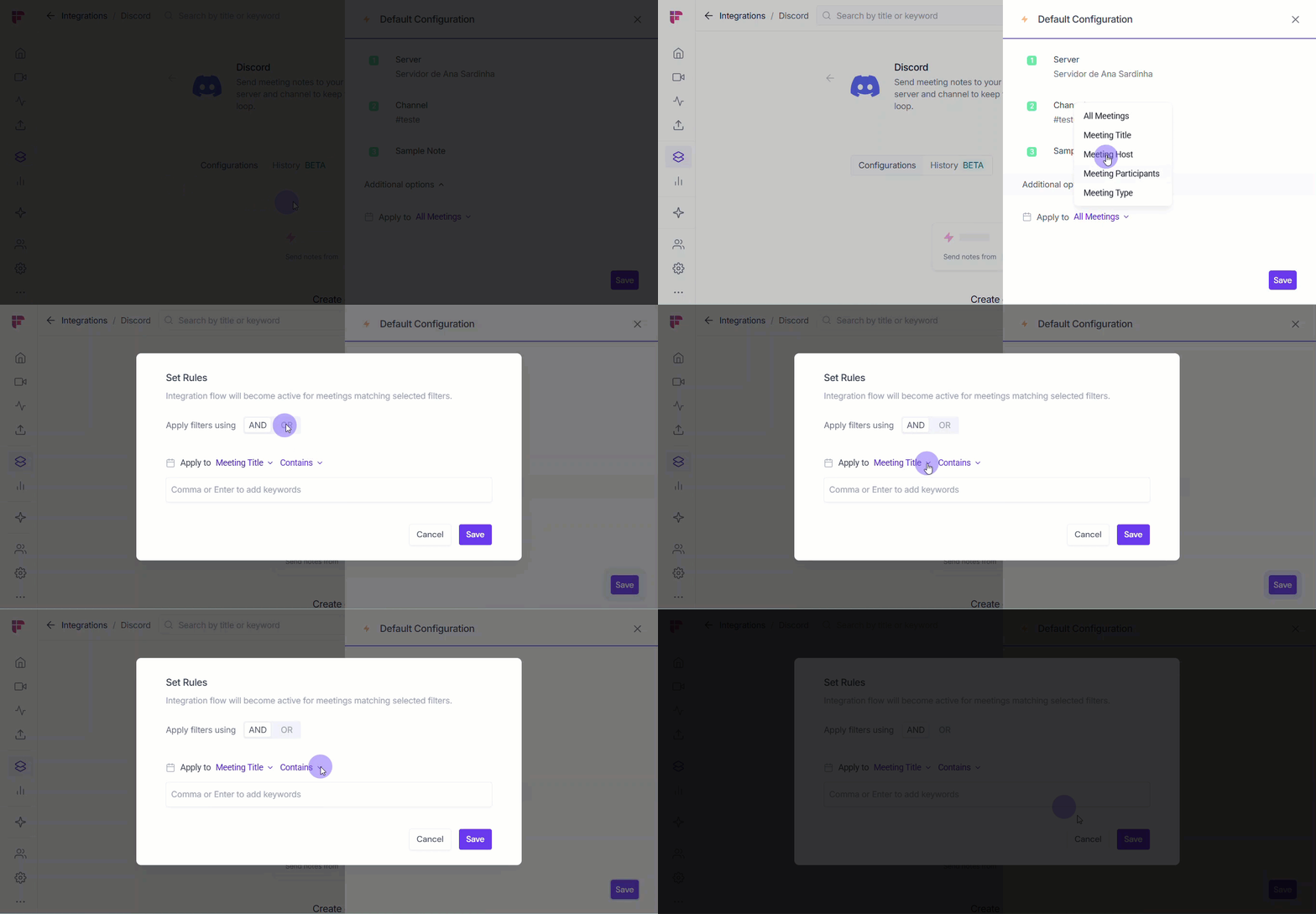
Only create tasks if the meeting title matches rules you set (Contains, Starts with, Equals, Doesn’t Contain). Example: Only generate tasks for Client Review or Interview meetings.
Add multiple keywords separated by commas (e.g., Interview, Client Review, Demo).
👤 Meeting Host
Filter tasks by the meeting’s host.
Equals → Only tasks from meetings hosted by john@example.com.
Not Equal → Tasks from all meetings except those hosted by John.
👥 Meeting Participants
Filter tasks based on who attended.
Contains → Only meetings with sara@example.com.
Doesn’t Contain → Exclude meetings with alex@example.com.
🎦 Meeting Type
Filter by meeting type.
Example: Equals External → Only external calls will be stored in your Discord base.
🔀 Apply Multiple Filters
Combine filters for precision.
Example: Title contains Interview AND host is john@example.com.
Rules use AND (all conditions must match) or OR (any condition matches).
After setting up the Default Configuration side panel, select Save.
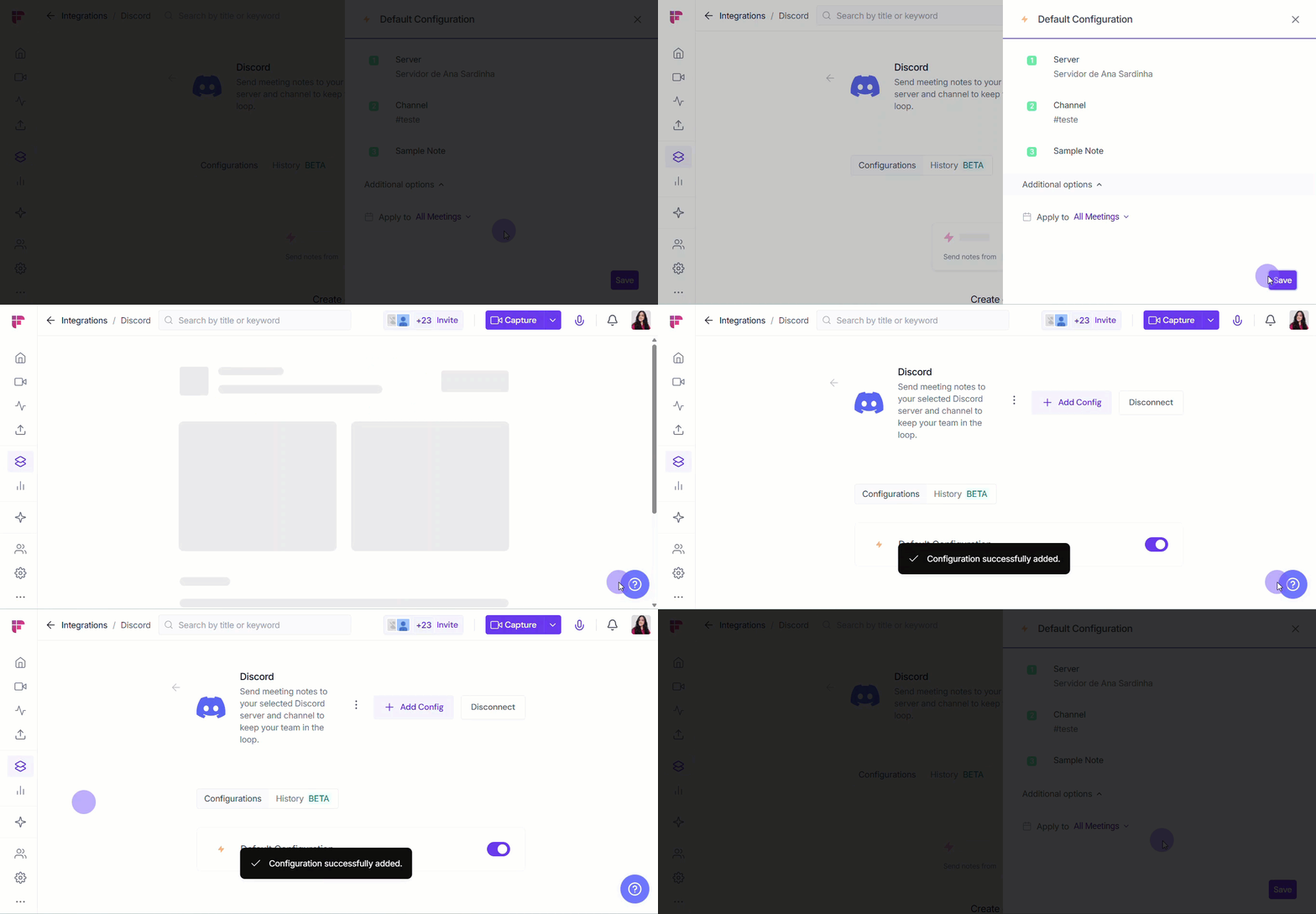
You will see a pop-up confirming that the configuration was successfully added. You’re now all set!
🛠 Manage Configuration
Over time, you may need to adjust your Discord integration — maybe to keep configuration names clear, update a server or channel, or remove ones you no longer use. Fireflies gives you a few simple options:
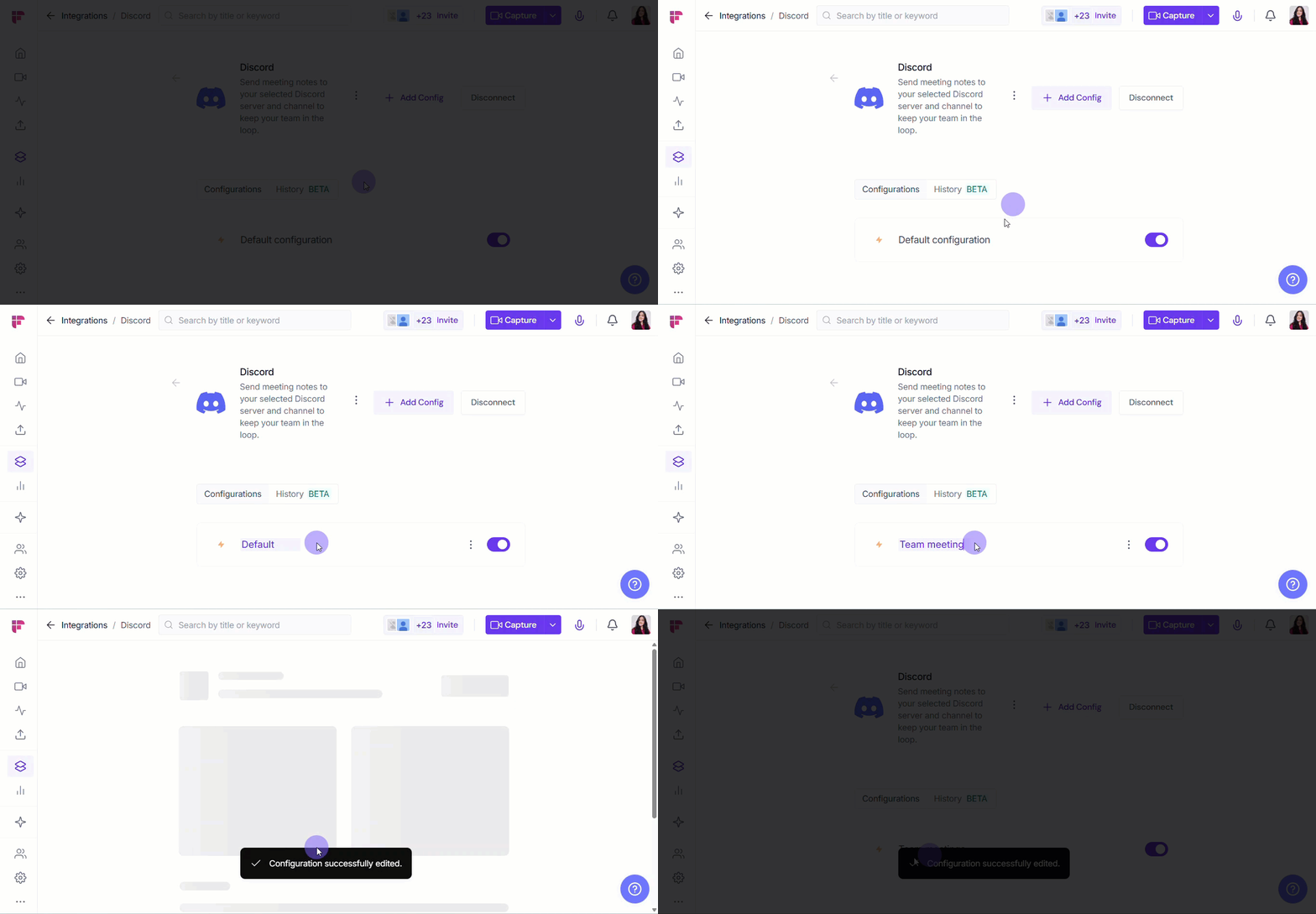
✏ Edit Configuration Name → Give each Discord configuration a clear, descriptive name so it’s easy to recognize (especially helpful if you’ve connected multiple servers or channels). Just click the configuration name (e.g., Default Configuration), type the new name (e.g., Client Meetings), and click outside the field to save.
Clear names are especially helpful when you’re managing more than one configuration.
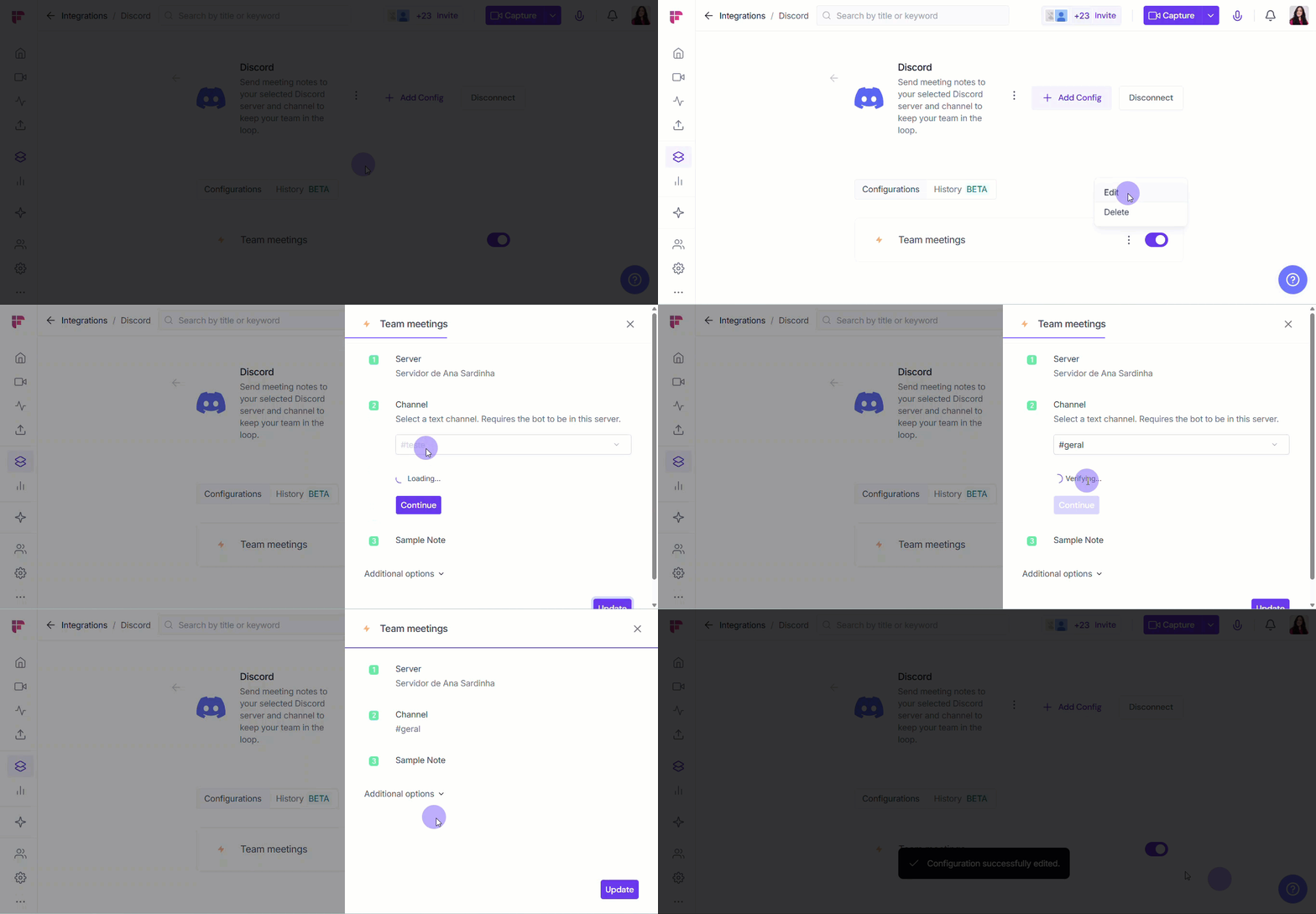
⚙ Edit Configuration Settings → Need to adjust where your meeting data goes or how it's organized? Click the vertical ellipsis (⋮) next to a configuration, select Edit, update the server or channel, or modify any other settings (e.g., which meetings these rules apply), and click Update to save.
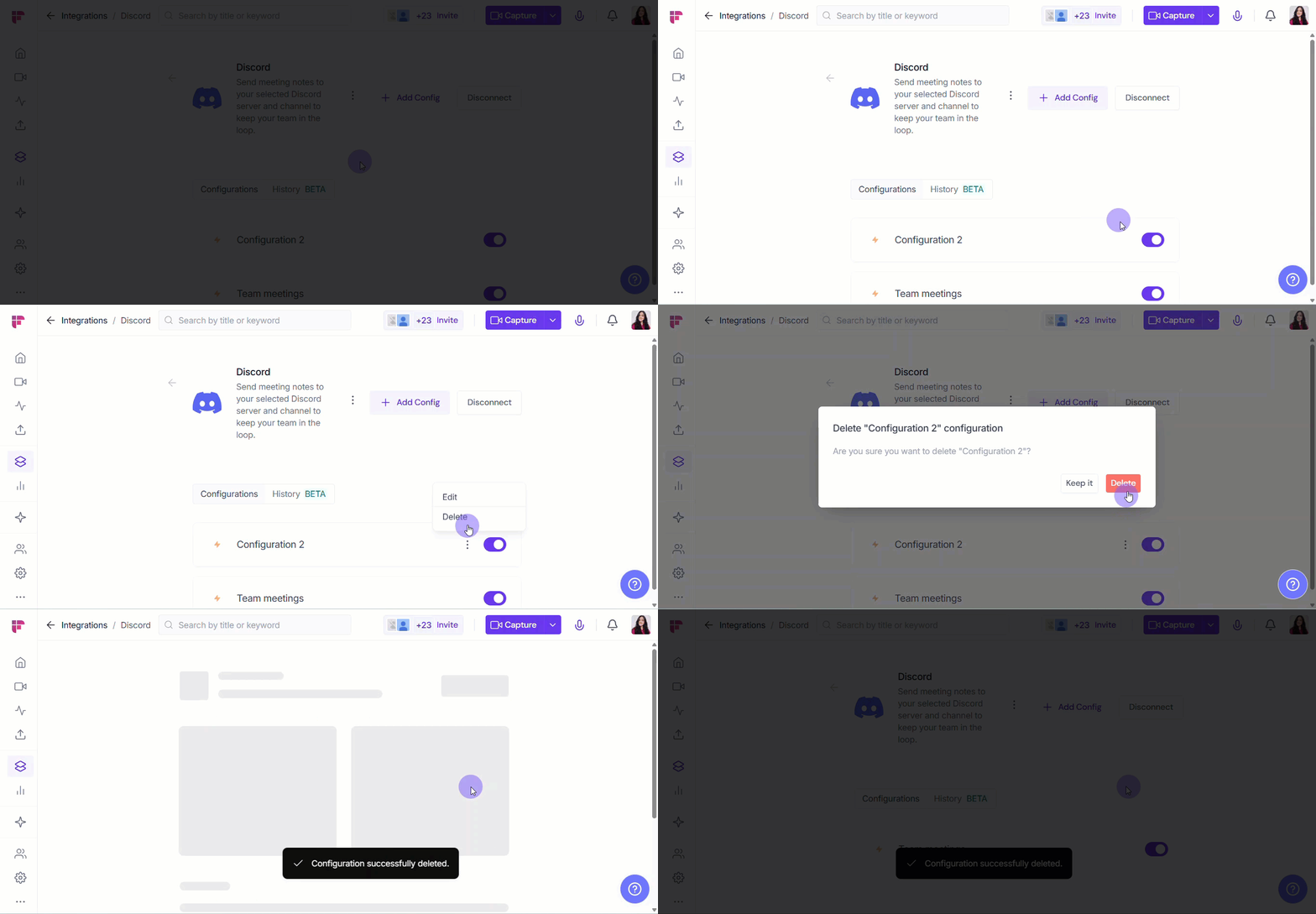
🗑 Delete Configuration → If a configuration is no longer useful (e.g., a project ends or your team moves to a different Airtable base), you can safely delete it. Click the vertical ellipsis (⋮) next to the configuration, select Delete, and confirm.
Deleting a configuration means Fireflies will no longer send meeting data to that Airtable base or table. Make sure it’s no longer needed before you remove it.
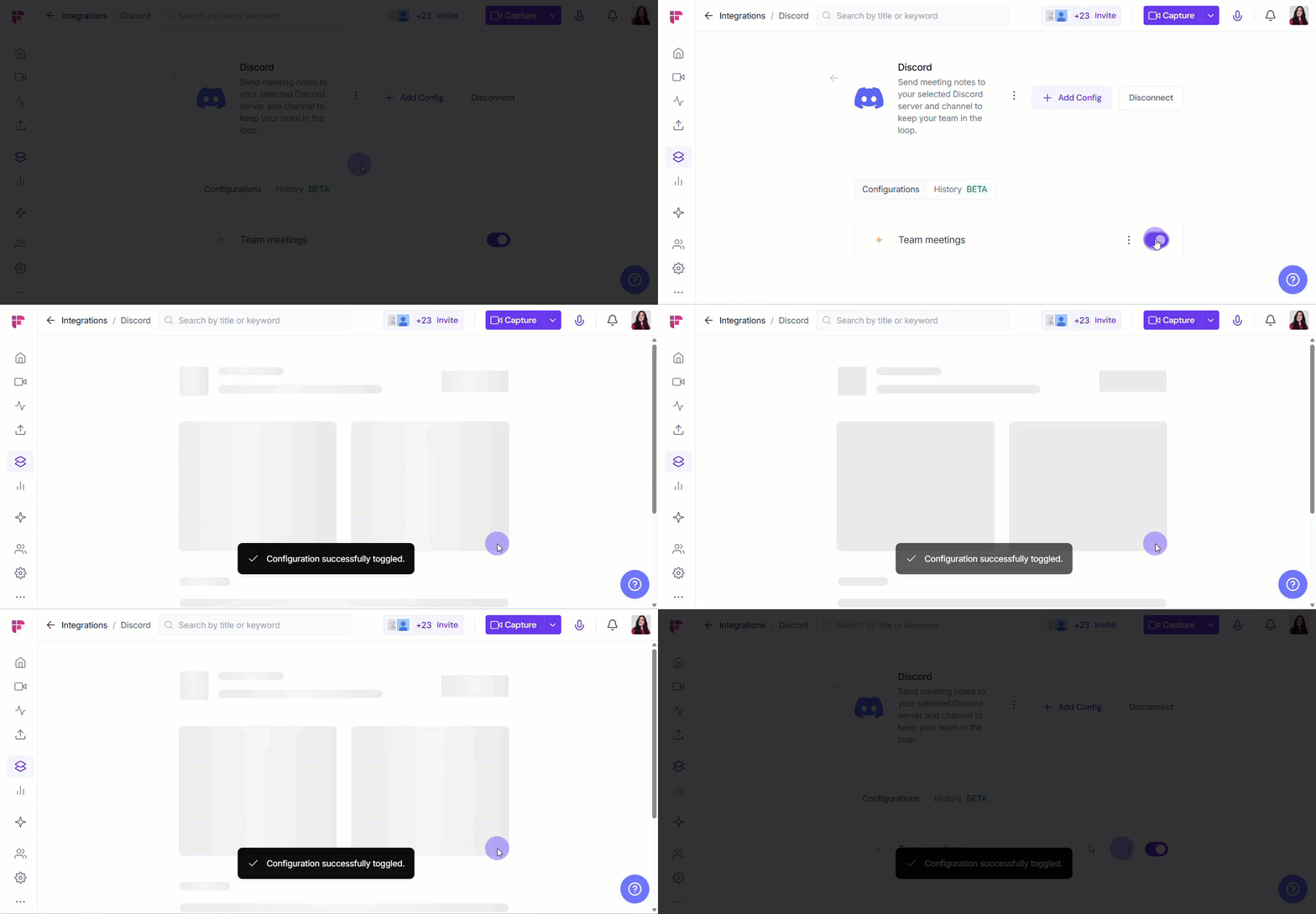
🔘 Enable or Disable a Configuration → Use the toggle switch next to a configuration to quickly control it. Toggle ON to deliver meeting data (transcripts, recordings, summaries) to the linked text channel; toggle OFF to pause without deleting.
This is handy if you’ve connected multiple servers and channels and only want one active at a time. Fireflies remembers your settings when you turn configurations back on.
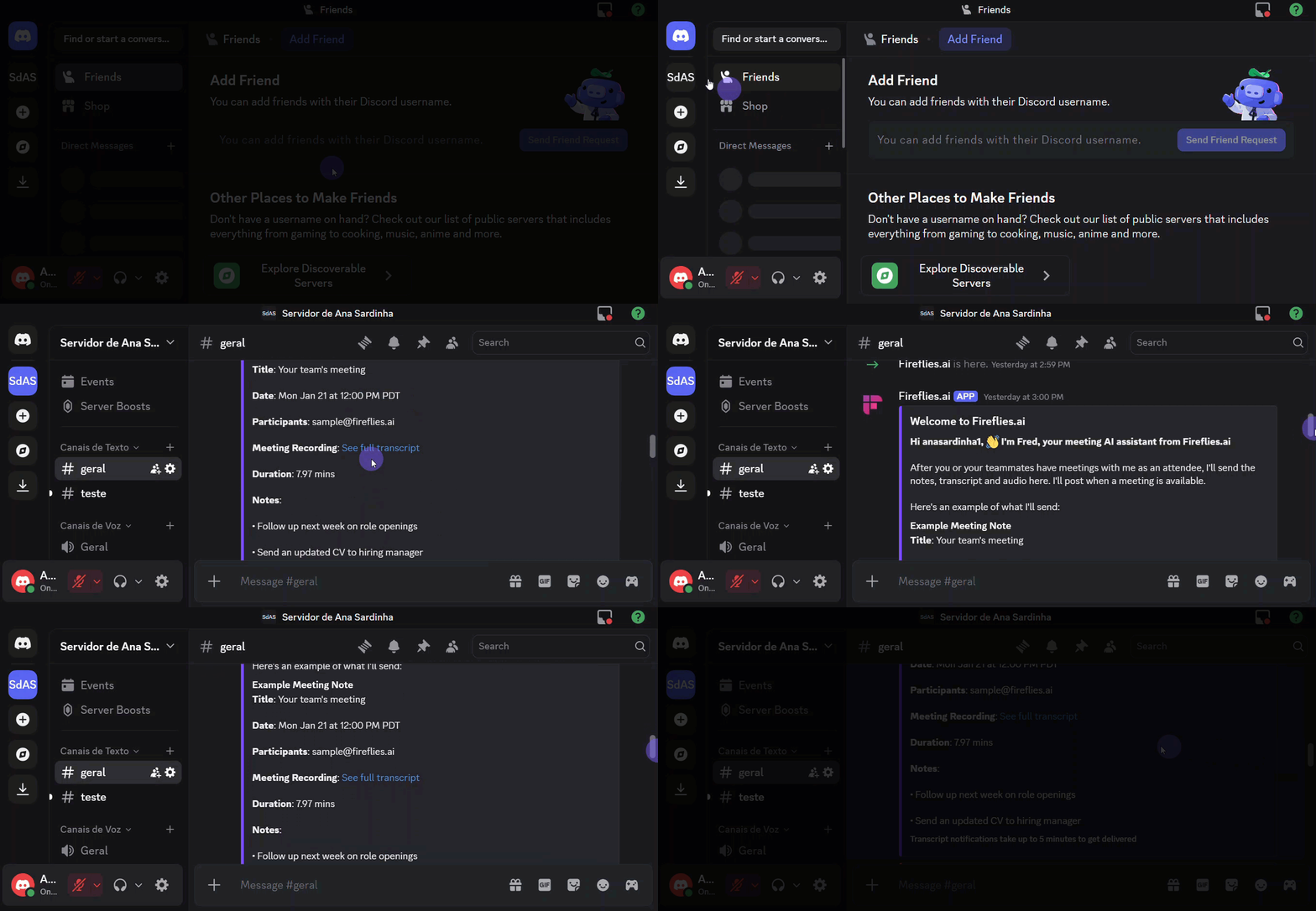
📤 How Meeting Data Appears in Discord
Once Fireflies has successfully joined and processed your voice call, you don't have to chase down the notes!
Fireflies will automatically post the results right into the specific text Channel you selected during setup. Think of it as Fred, your meeting AI assistant, delivering a neat summary card straight to your chat. This makes the meeting record central and instantly searchable for the whole team.
Note: Transcript notifications generally take up to 5 minutes to be delivered to the Discord channel after the meeting ends.
❌ Disconnect Integration
If you no longer need Fireflies connected to Discord — for example, when cleaning up old integrations or moving to a new database — you can disconnect it with a single click.
Once disconnected, Fireflies will stop sending data to Discord. You can always reconnect later if needed.
❓ Frequently Asked Questions - FAQs
Got questions? We've got answers!
Q1. Will Fireflies join every single voice call on my server? No, it won't. Fireflies will only automatically join the meetings that you host. For meetings started by others, the host will get a pop-up asking for permission for Fireflies to join.
Q2. What exactly does Fireflies post in Discord? Fireflies posts the final meeting notes, full transcripts, and summaries into the specific text channel you chose during setup.
Q3. How can I test the connection? Easy! During the configuration step, just use the Sample Note option to send a test message to your selected channel.
Q4. Can I pick and choose which calls Fireflies joins? Yes, you can! In the Additional options during setup, you can set conditions (like participants or meeting title) to control when Fireflies should join your meetings.
🔁 Recap
Why Connect Discord to Fireflies?
So, why connect Discord and Fireflies? It’s all about saving you time and keeping your team perfectly in sync.
Automatic Recording & Transcription: Fireflies will automatically join the voice meetings you host to record, transcribe, and summarize the conversation.
Zero Manual Invites (for hosts): When you are the host, Fireflies joins your meetings without you having to manually invite it every single time.
Note: you are a participant and not the meeting host, Fireflies will send a pop-up request to the host for permission to join.
📚 Related Guides
📌 How to control autojoin and email settings for teammates → Manage how Fireflies joins calls and sends recaps for your entire workspace.
📌 How to invite Fireflies to meetings → Learn the different ways to invite Fireflies to record your calls.
📌 Learn about the Fireflies Auto-join and Email Recap settings → Control your personal preferences for when Fireflies joins meetings and sends summaries.