How to Invite Fireflies to Lifesize Meetings
Last updated: May 4, 2026
Fireflies automatically records, transcribes, and summarizes your Lifesize meetings — no manual note-taking needed. Just add your Lifesize meeting link to a calendar event connected to Fireflies, and it will auto-join, capture the call, and generate searchable notes in your workspace. You can also add Fireflies manually to any live meeting when needed, making it easy to capture conversations anytime.
🔍 What Does This Setup Do?
With Fireflies and Lifesize, you can:
Automatically join meetings using your connected calendar
Record and transcribe calls in real time
Generate summaries and action items after each meeting
Access all recordings and notes in your Fireflies dashboard
This helps teams capture every meeting without manual effort and stay focused on conversations.
🔑 Prerequisites
Before using Fireflies with Lifesize, make sure you have:
A connected Google or Outlook calendar in Fireflies
Auto-join enabled in Fireflies (set to All meetings with web-conferencing link)
✔ Check Auto-Join Settings
Before setting up Lifesize meetings, make sure Fireflies is set to join meetings automatically.
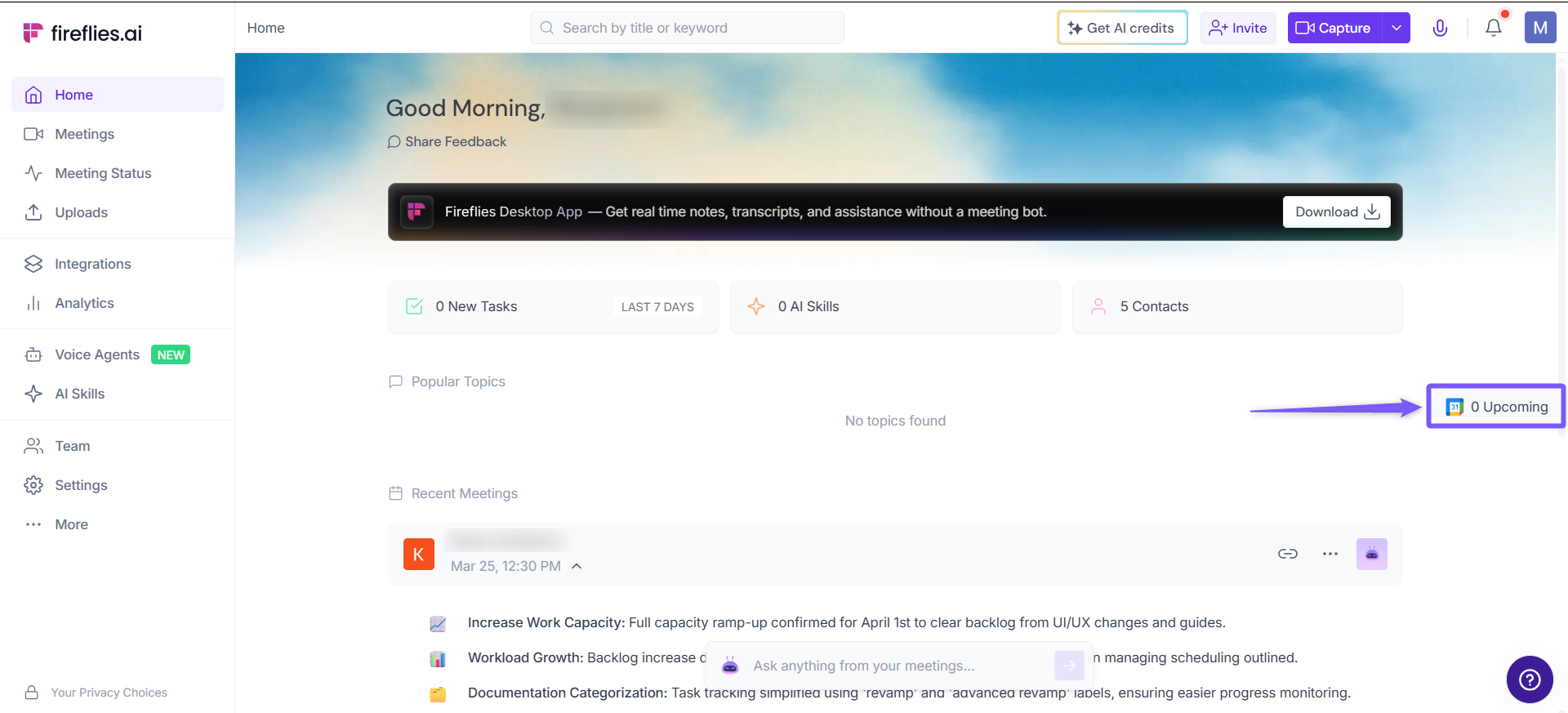
1. On the Fireflies homepage, click the Upcoming button on the right side to open the collapsible side panel.
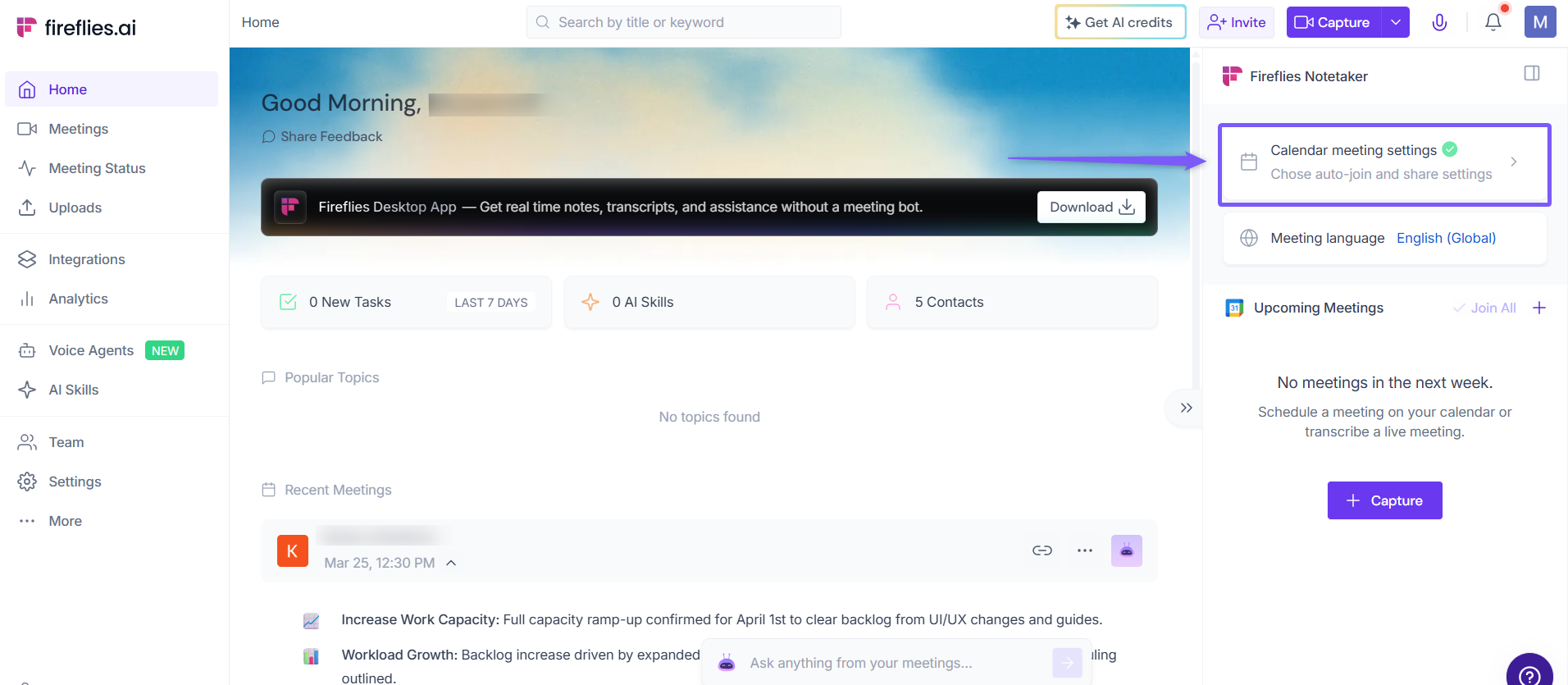
2. Click Calendar meeting settings under Fireflies Notetaker.
3. By default, Fireflies is set to join all meetings with a web-conf link. If it’s not selected, click the dropdown and choose All meetings with web-conf link.
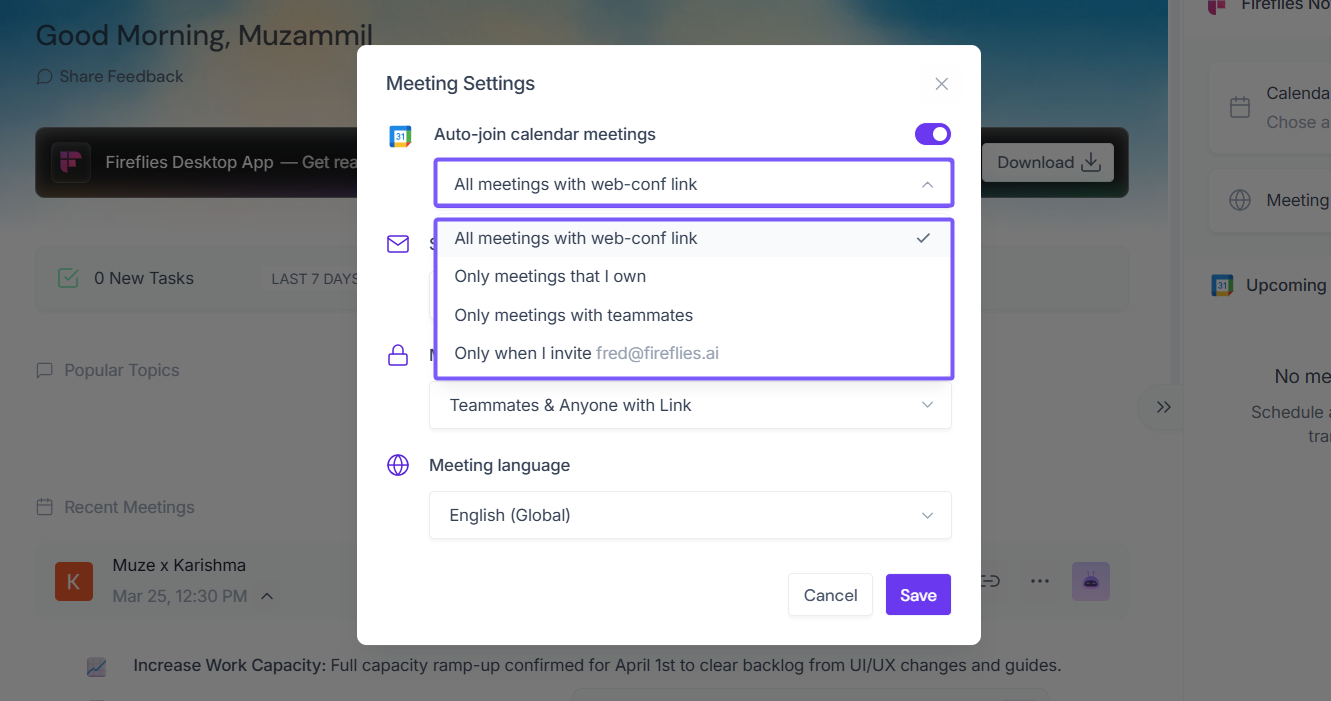
This ensures Fireflies automatically joins Lifesize meetings when the link is added to your calendar.
💡Alternatively
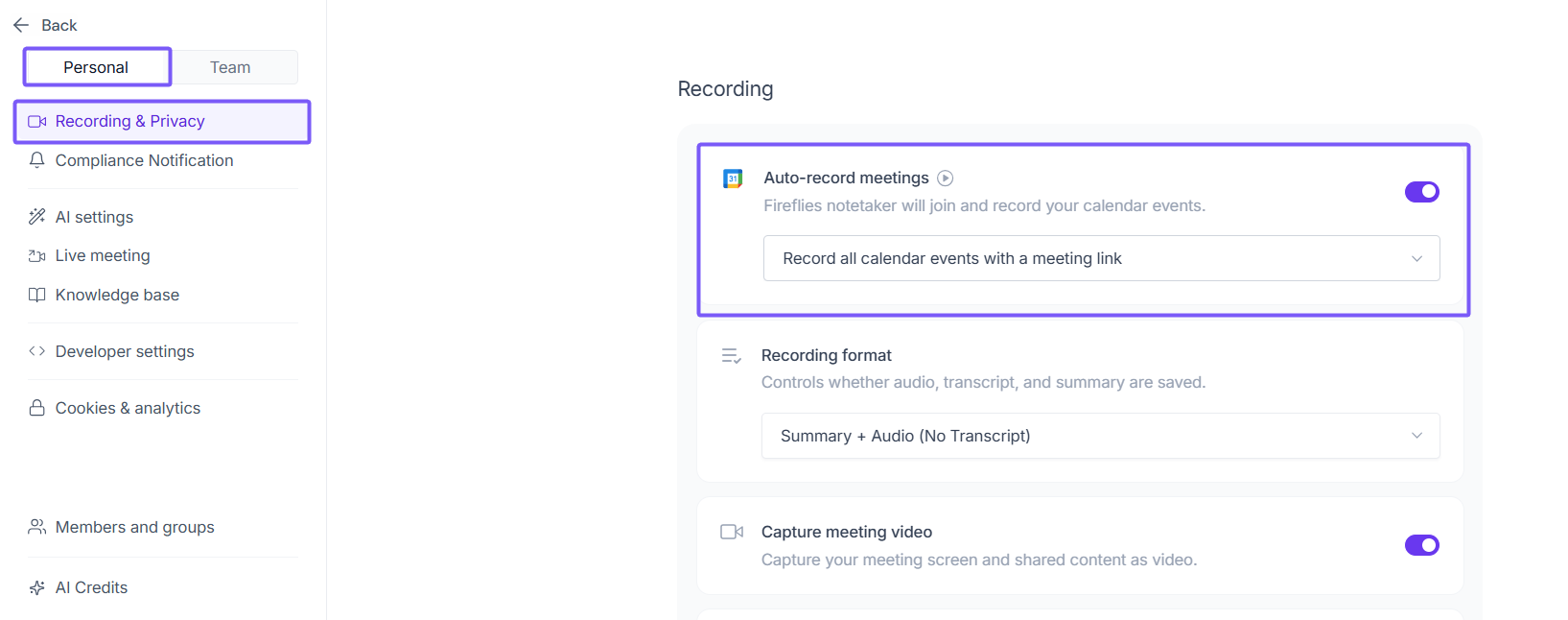
You can configure your auto-record settings from Settings.
Go to Settings.
Click Recording & Privacy (Personal tab).
Under Auto-record meetings, choose when Fireflies should join and record meetings (Record all calendar events with a meeting link).
🔗 Method 1: Set Up Fireflies to Auto-Join Lifesize Meetings
Fireflies joins your Lifesize calls by recognizing the meeting link in your connected calendar (Google or Outlook). Follow these steps to ensure the link is on your calendar and Fireflies is ready to join.
Step 1: Access Calendar Connection
From your Lifesize dashboard, click on Upcoming from the left-hand navigation panel.
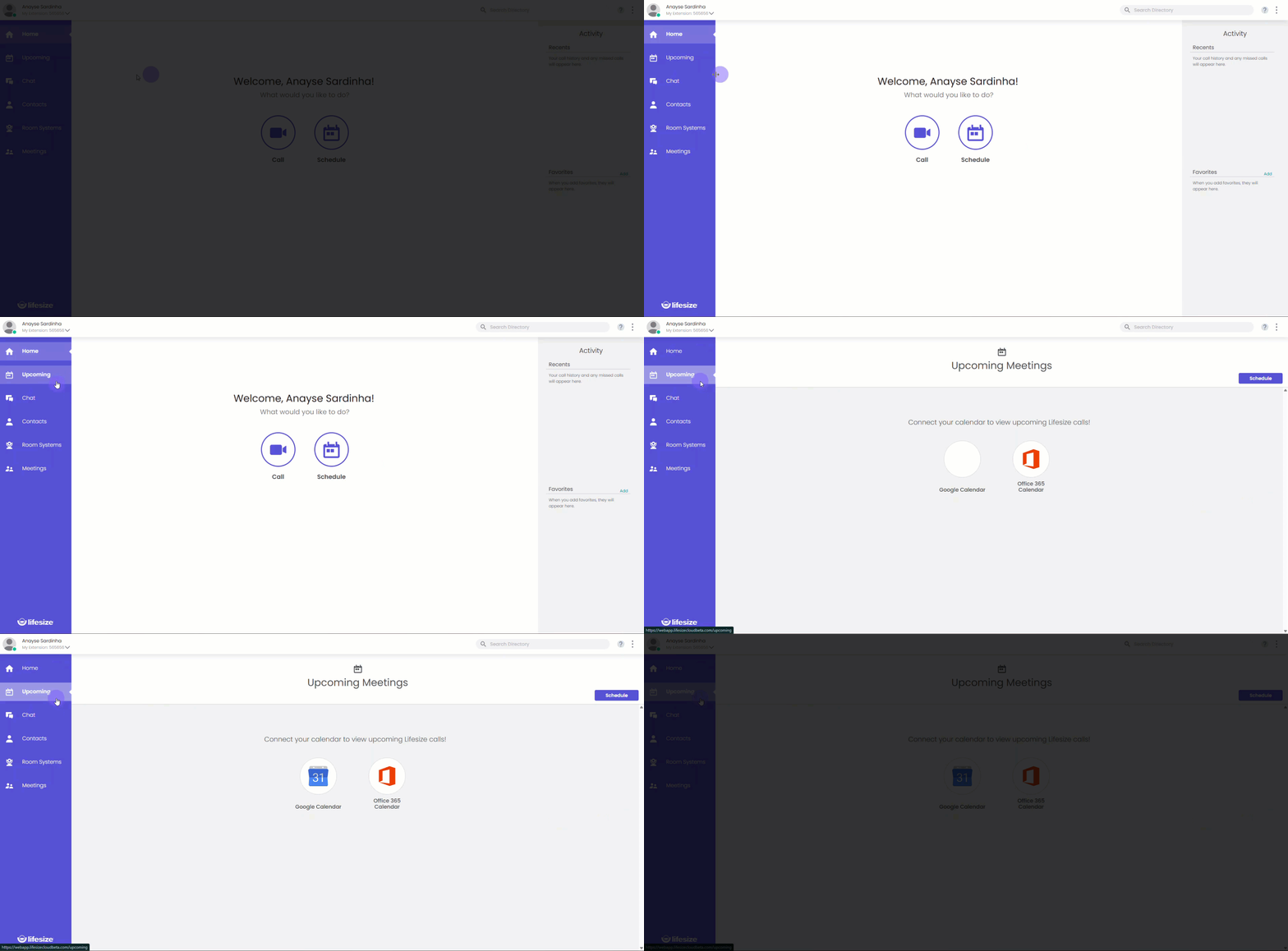
Step 2: Connect Your Calendar
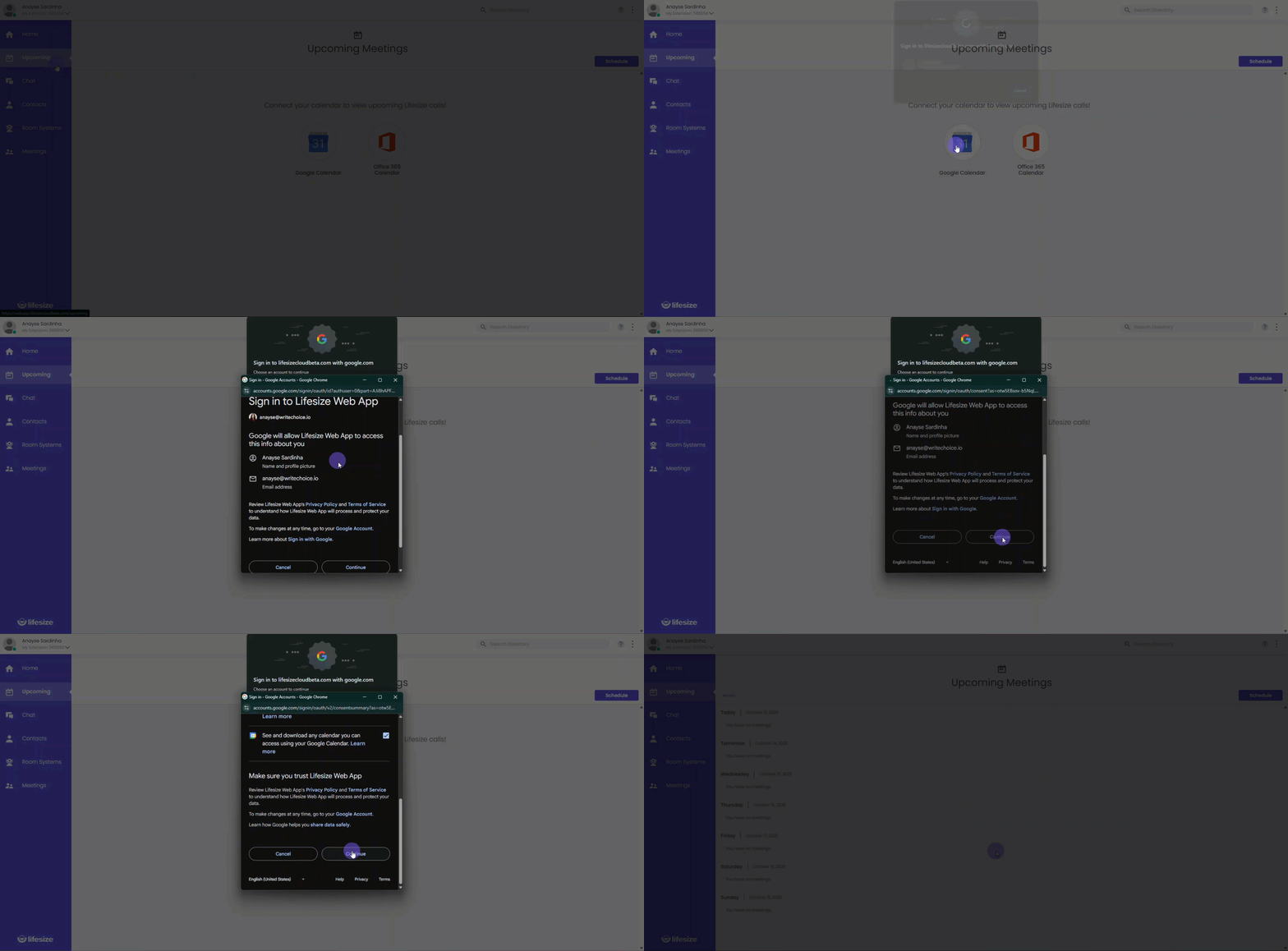
Connect the Google or Microsoft calendar that's already connected to your Fireflies account. You'll need to authenticate Lifesize to access your calendar events.
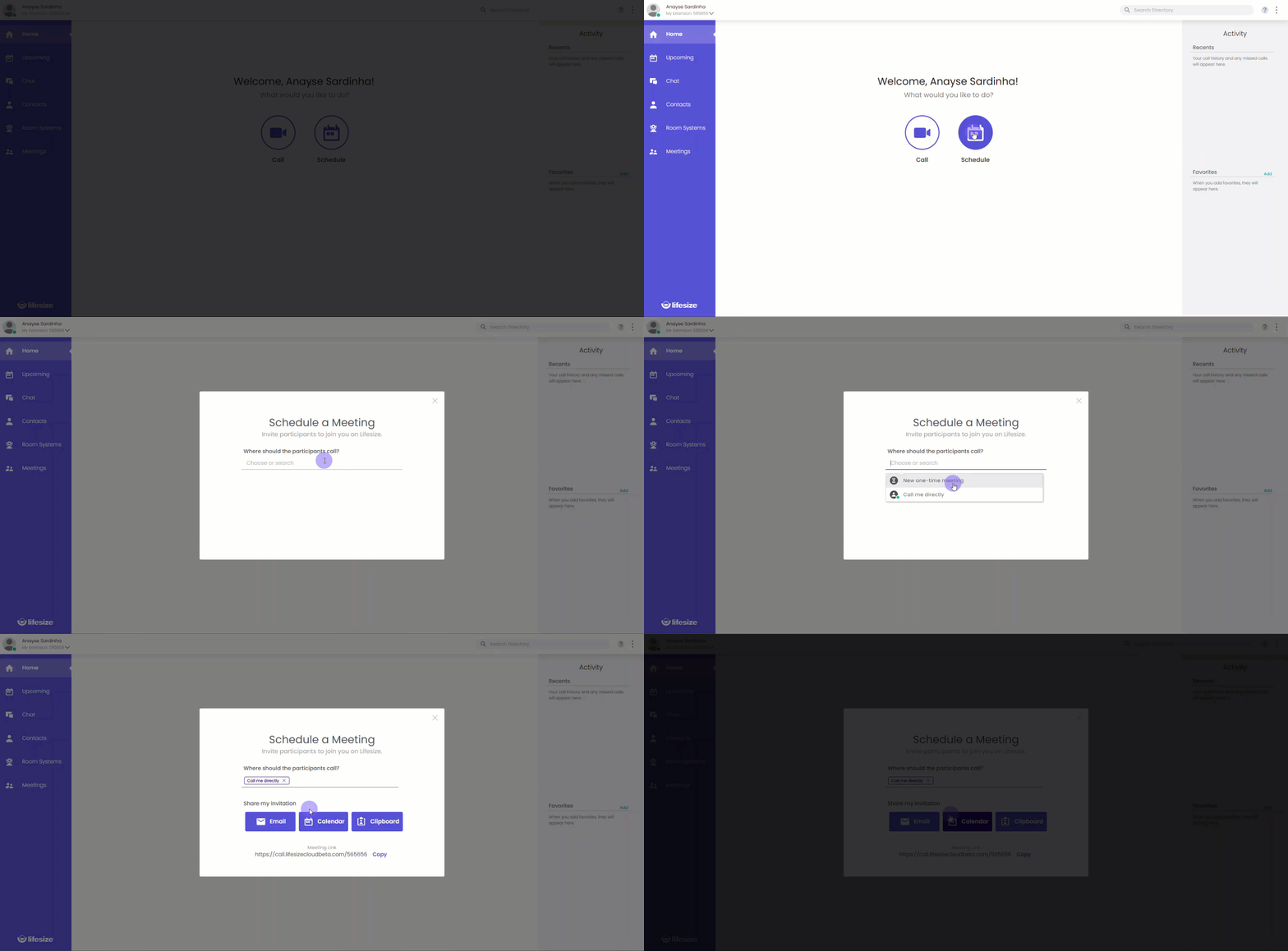
Step 3: Schedule a New Meeting.
Once your calendar is connected, schedule a new meeting from the homepage or Upcoming tab.
Step 4: Integrate with Your Calendar
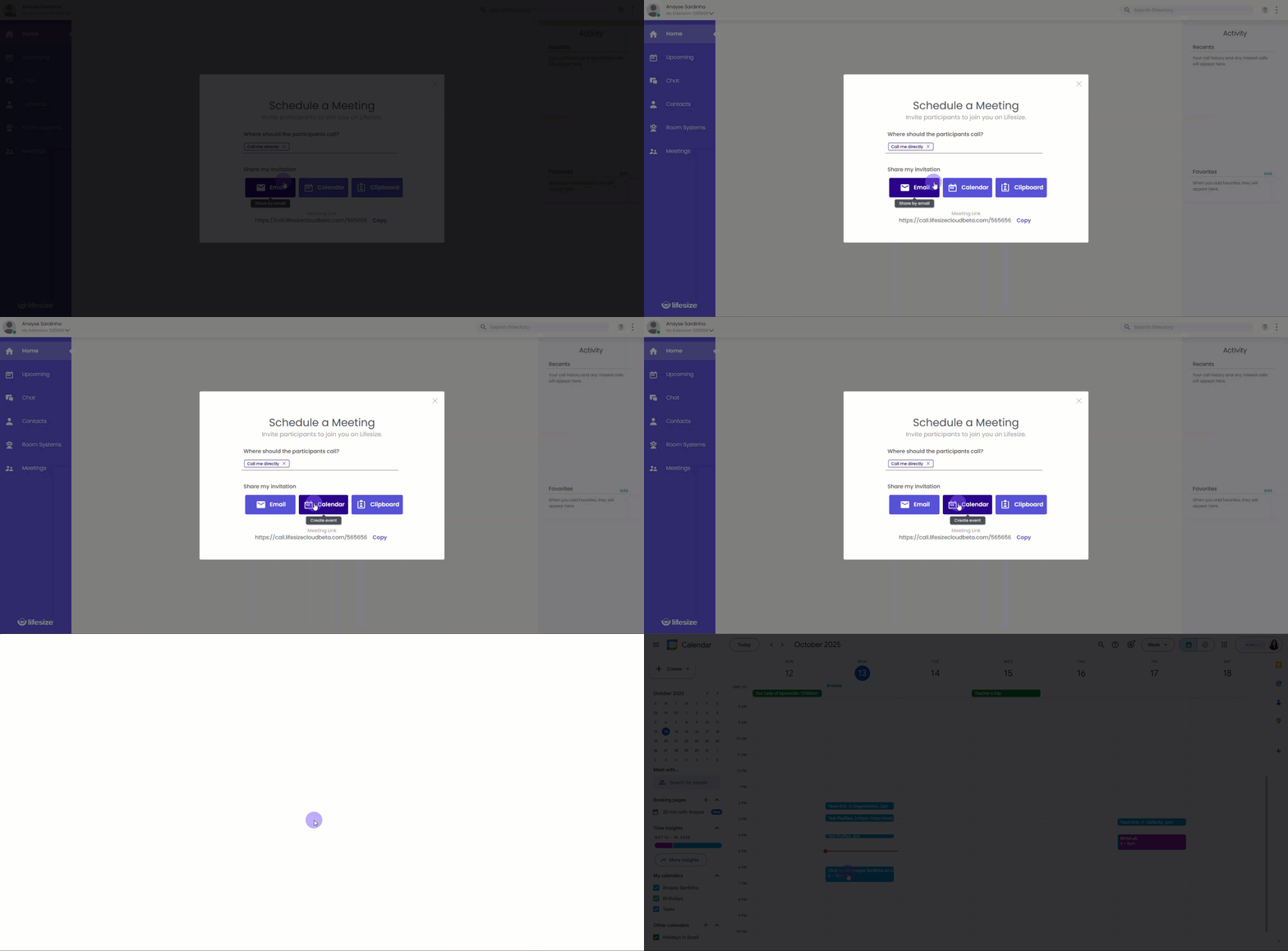
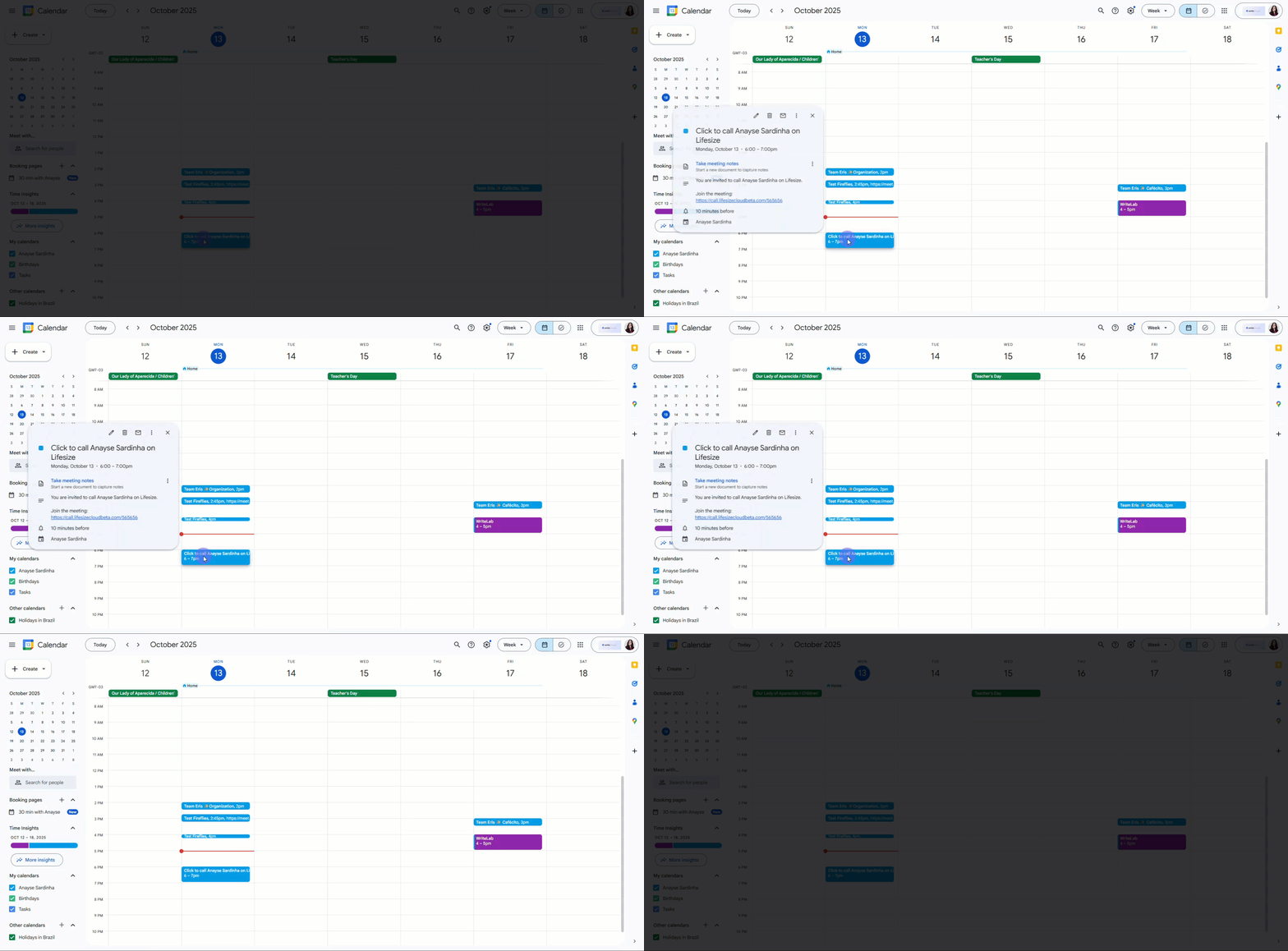
Click Calendar. This will redirect you to your calendar application and create a new event with all the Lifesize meeting details automatically included.
Step 5: Edit the Event
Add guests and make any necessary changes to the invite, then click Save.
Fireflies will now automatically join your meeting! You'll see the event listed under the Upcoming Meetings module on your Fireflies dashboard.
🔗 Method 2: Manually Invite Fireflies to a Live Meeting
Need to record an on-going call or one that wasn't on your calendar? Use the Add to live meeting module.
Step 1: Go to the Web App
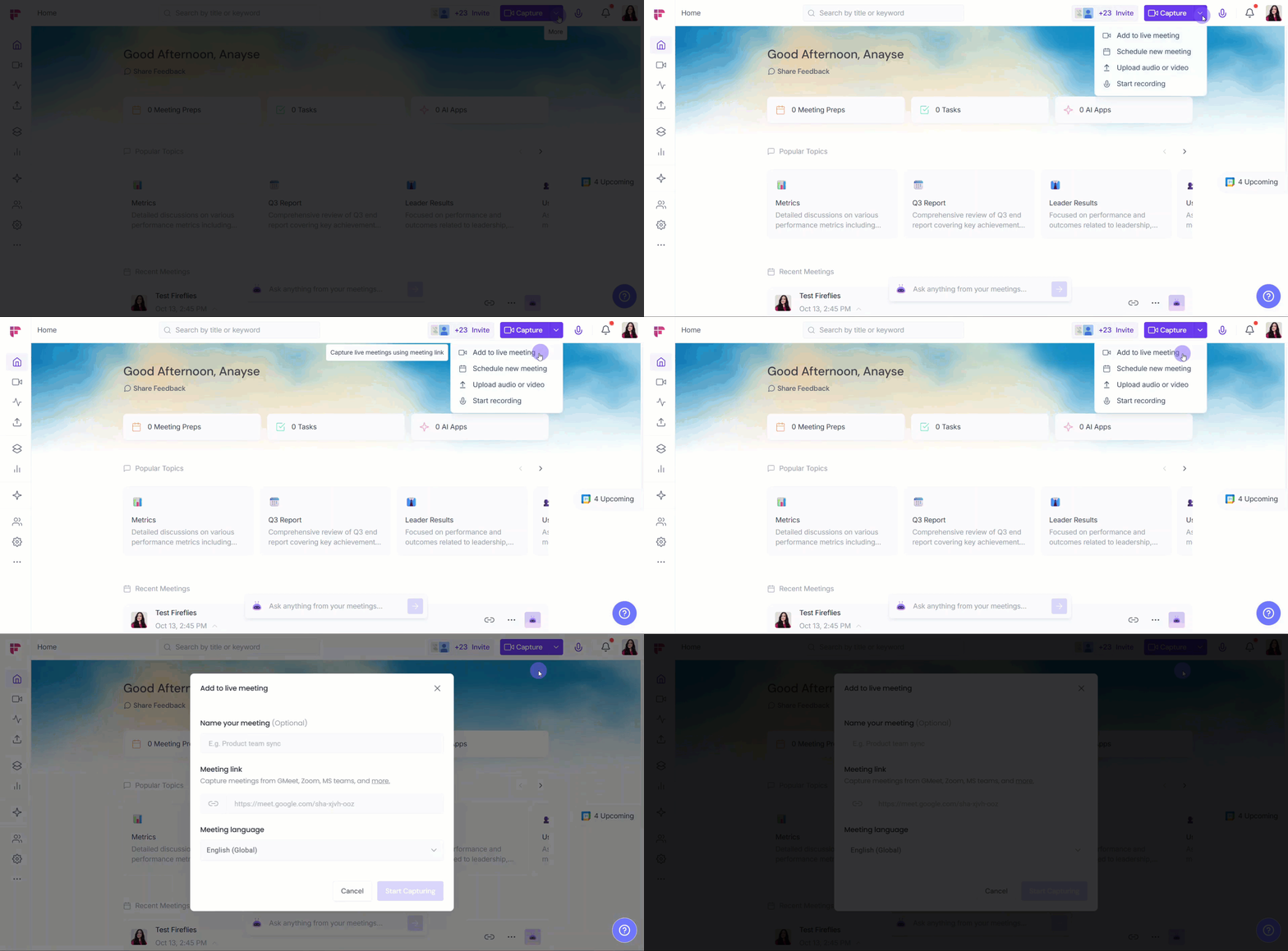
From the Fireflies dashboard, click Capture. Then, select Add to live meeting.
Step 2: Enter the Link
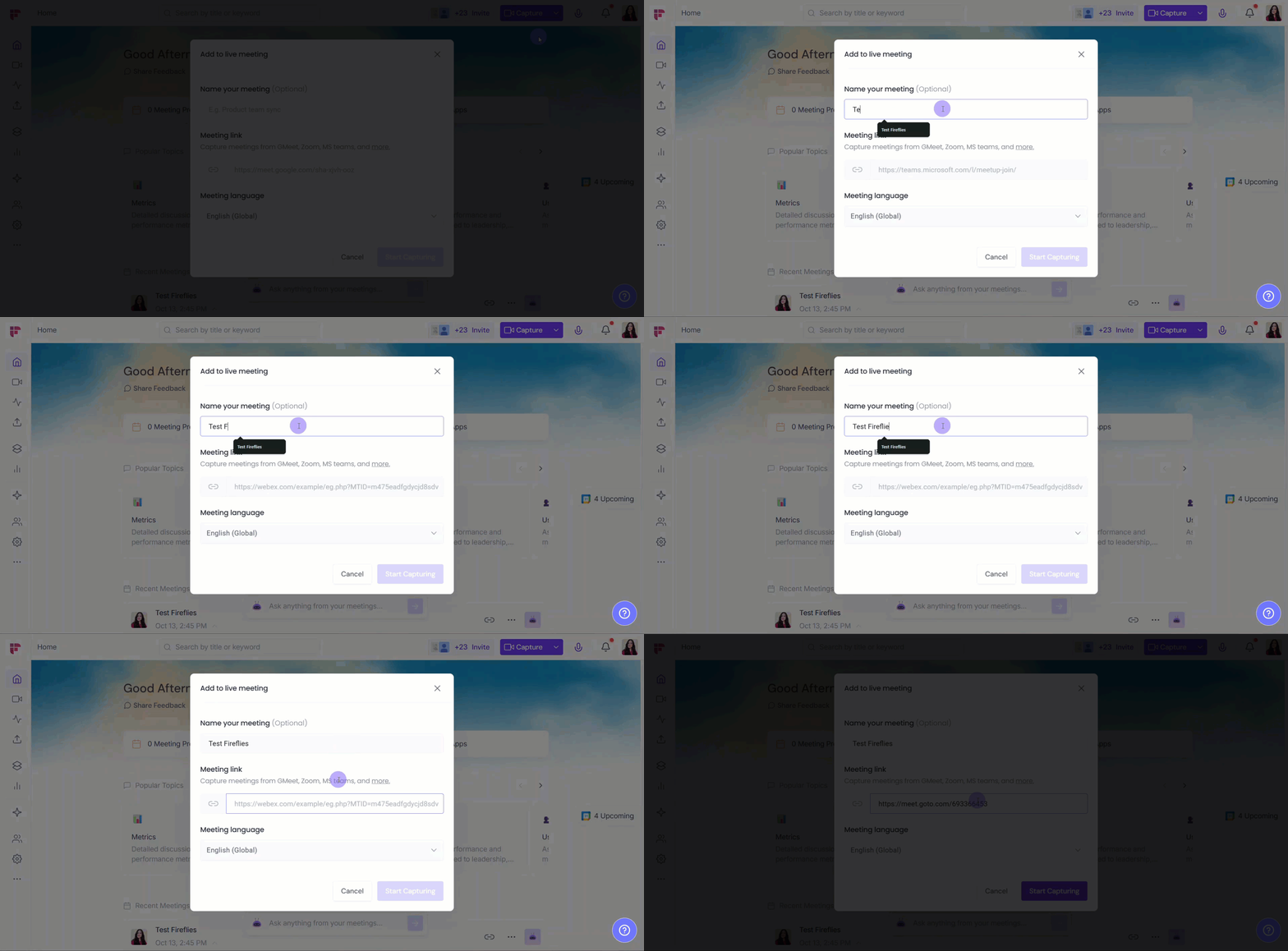
Enter a descriptive name for your meeting and paste your Lifesize link into the Meeting Link field.
Step 3: Start Capturing
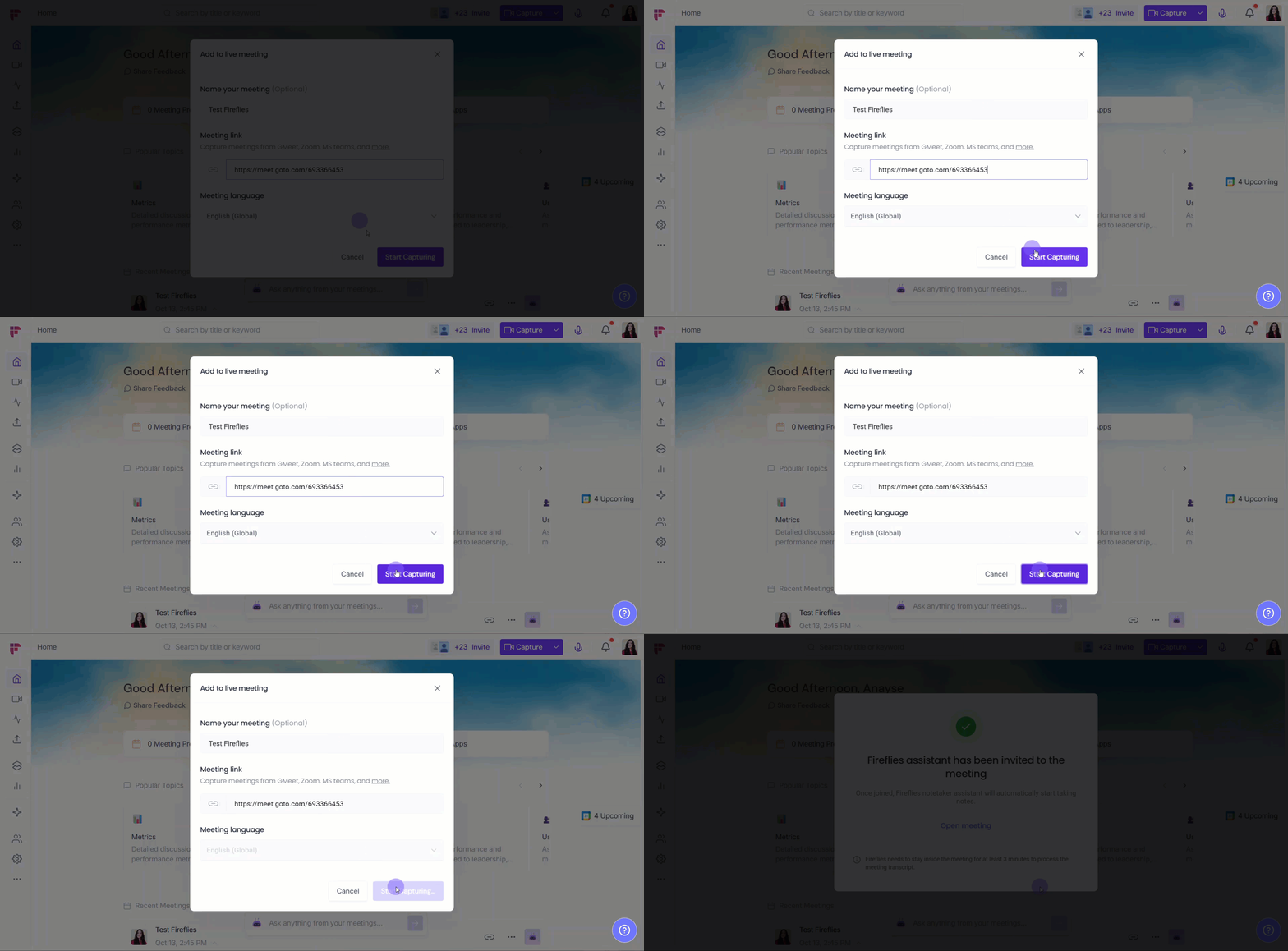
Click Start Capturing. The Fireflies will instantly join and begin recording and transcribing the meeting.
📤 What Happens After The Meeting Ends?
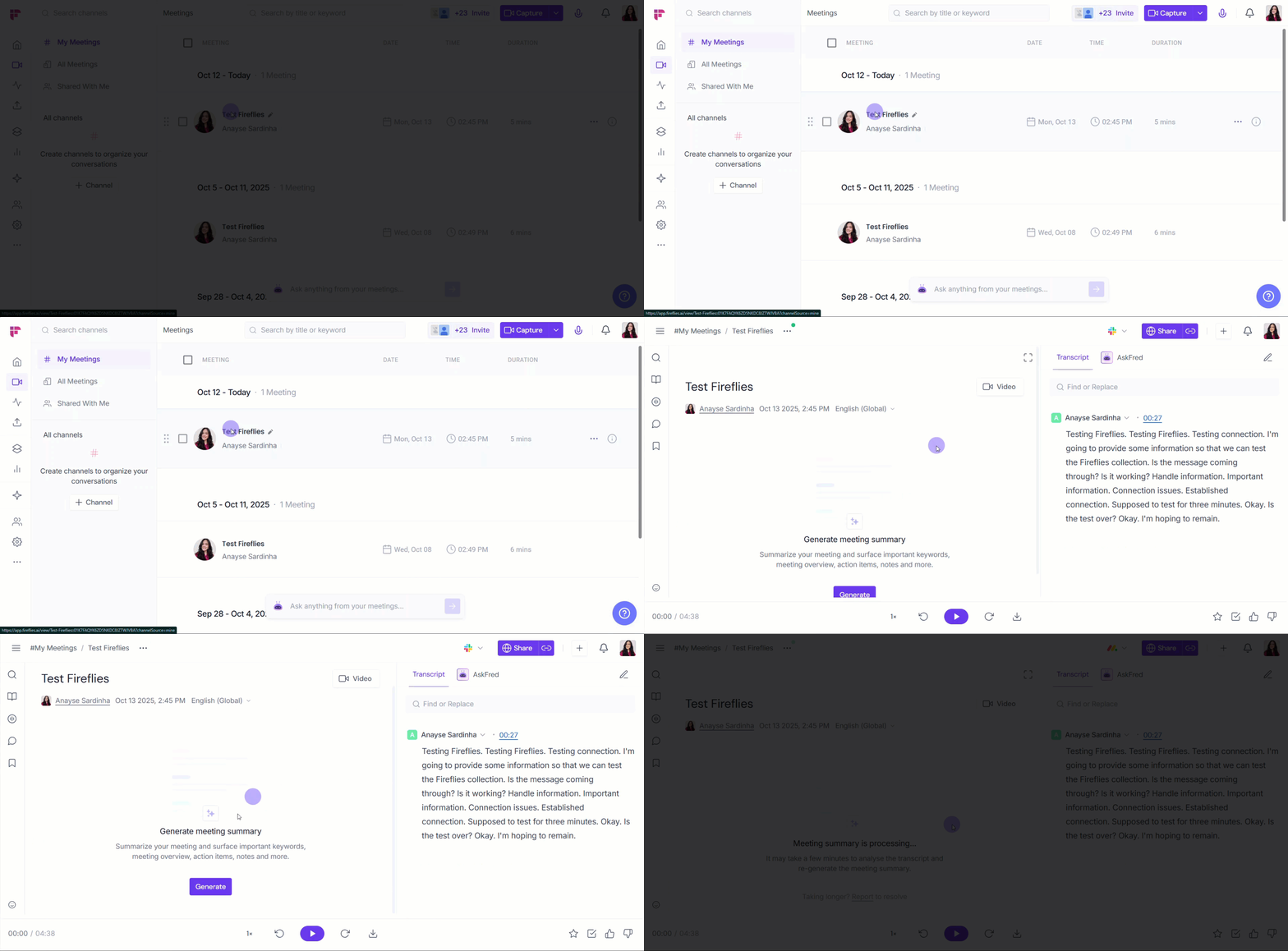
Once your Lifesize meeting ends, Fireflies processes the recording and makes everything available in your dashboard.
The recording, transcript, and summary are saved automatically.
You can access them in fireflies Meeting Notebook.
Review key points, action items, and full transcript in one place.
Share or download notes as needed.
This helps you quickly review meetings and follow up without manual note-taking.
🛠 Troubleshooting
If Fireflies doesn't join your scheduled Lifesize call, try these quick checks:
Issue | What to Check / Do |
Check that Auto-join is enabled and set to All meetings with web-conf link. Also make sure the Lifesize link is added to your calendar event. | |
Fireflies joined late | Ensure the meeting was saved on your calendar before the start time. For instant capture, use Add to live meeting. |
Transcript not available | Check the meeting status in your Fireflies dashboard and wait for processing to complete. |
Meeting not detected | Confirm your Google or Outlook calendar is connected to Fireflies and the correct account is used. |
Manual capture not working | Double-check the Lifesize link and try using Add to live meeting again. |
Still stuck? Contact support via this link for more help.
❓Frequently Asked Questions
Q1. Can I remove Fireflies during a Lifesize meeting?
Yes. You can remove fred@fireflies.ai like any other participant. Only the portion of the meeting while Fireflies was present will be recorded.
Q2. Will participants know the meeting is being recorded?
Yes. Fireflies joins as a participant and typically indicates that the meeting is being recorded.
Q3. What happens if my meeting is not on the calendar?
You can use Add to live meeting from the Fireflies dashboard to manually add Fireflies and start recording.
Q4. Why didn’t Fireflies join my meeting?
Make sure Auto-join is enabled, your calendar is connected, and the Lifesize link is included in the calendar event.
Q5. Where can I find my meeting recordings and notes?
Go to Fireflies → Meeting Notebook to access your recordings, transcripts, and summaries.
🔄 Recap
Using Fireflies with Lifesize meetings helps you capture and organize meeting conversations without manual effort.
Automatically join meetings using your connected calendar
Record and transcribe calls in real time
Generate summaries and action items after each meeting
Manually add Fireflies to live meetings when needed
This helps teams stay focused during calls while Fireflies handles note-taking and follow-ups.
📌Related Guides
How to control autojoin and email settings for teammates → Manage how Fireflies joins calls and sends recaps for your entire workspace.
How to invite Fireflies to meetings → Learn the different ways to invite Fireflies to record your calls.
Download transcripts, summaries, and recordings → Learn how to export your meeting data from Fireflies