Fireflies Talk: talk instead of type in any app
Last updated: September 29, 2026
Some people find it more convenient to say what they want to write rather than type it out themselves. Fireflies Talk converts your speech into typed text directly in the app you're using, so you can write without switching apps or typing everything manually.
Use Talk to compose emails, send Slack messages, add notes to documents, write AI prompts, or fill in CRM fields.
In this guide, you'll learn what Fireflies Talk is, how to get started, where it works, its availability and privacy and how to troubleshoot common issues.
🎙 What is Fireflies Talk?
Fireflies Talk is dictation built directly into the Fireflies desktop app. It lets you speak your thoughts and turns them into typed text wherever you're working.
You can use Talk in apps such as Slack, Gmail, Google Docs, ChatGPT, and CRM platforms. Your text appears directly where your cursor is, so you don't need to switch between apps or copy text manually.
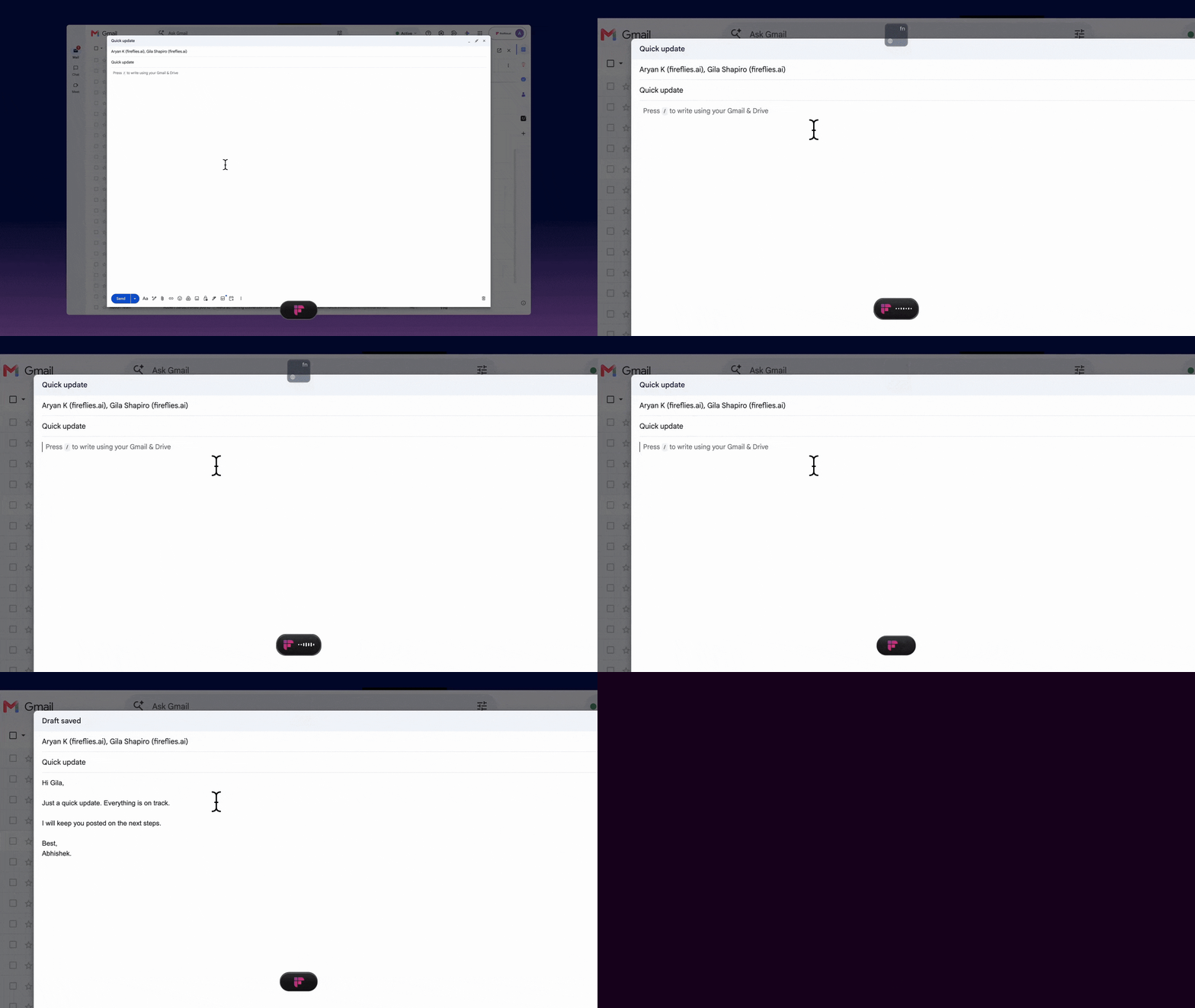
✨ What Talk does with your speech
Talk doesn't just capture what you say, it cleans it up on the way in.
Filler words and false starts, such as
um,like, and repeated or restarted sentences, are removed.Punctuation gets added automatically, so you don't say "comma" or "period" out loud
Formatting adapts to where you’re writing. For example, emails include a greeting and sign-off, while Slack messages stay short and casual.
Your meaning stays the same - Talk polishes how you said something, not what you said.
📍 Where to find Talk
You can find Fireflies Talk in the Dictation tab of the Fireflies desktop app for Mac and Windows.
📱Mobile app support is coming soon.
Looking for “Talk to Fireflies in Live Meetings”?
Talk to Fireflies in Live Meetings is a different feature. It is the AskFred experience inside a live meeting, where you can talk to Fireflies during the meeting.
Fireflies Talk is the desktop dictation feature that lets you speak and enter text into the app you're using.
If you want to talk to AskFred during a live meeting, see Talk to Fireflies in Live Meetings. If you want to dictate text into an app, you're in the right place.
🚀 Get started with Fireflies Talk
Open the Dictation tab in the Fireflies desktop app. The first time you open it, onboarding walks you through choosing your language, microphone, and shortcut. Once setup is complete, you can start dictating.
The default shortcut is Fn on Mac and Ctrl + Win on Windows. You can change the shortcut during setup.
For detailed setup steps and permissions, see:
🗣 How Fireflies Talk works
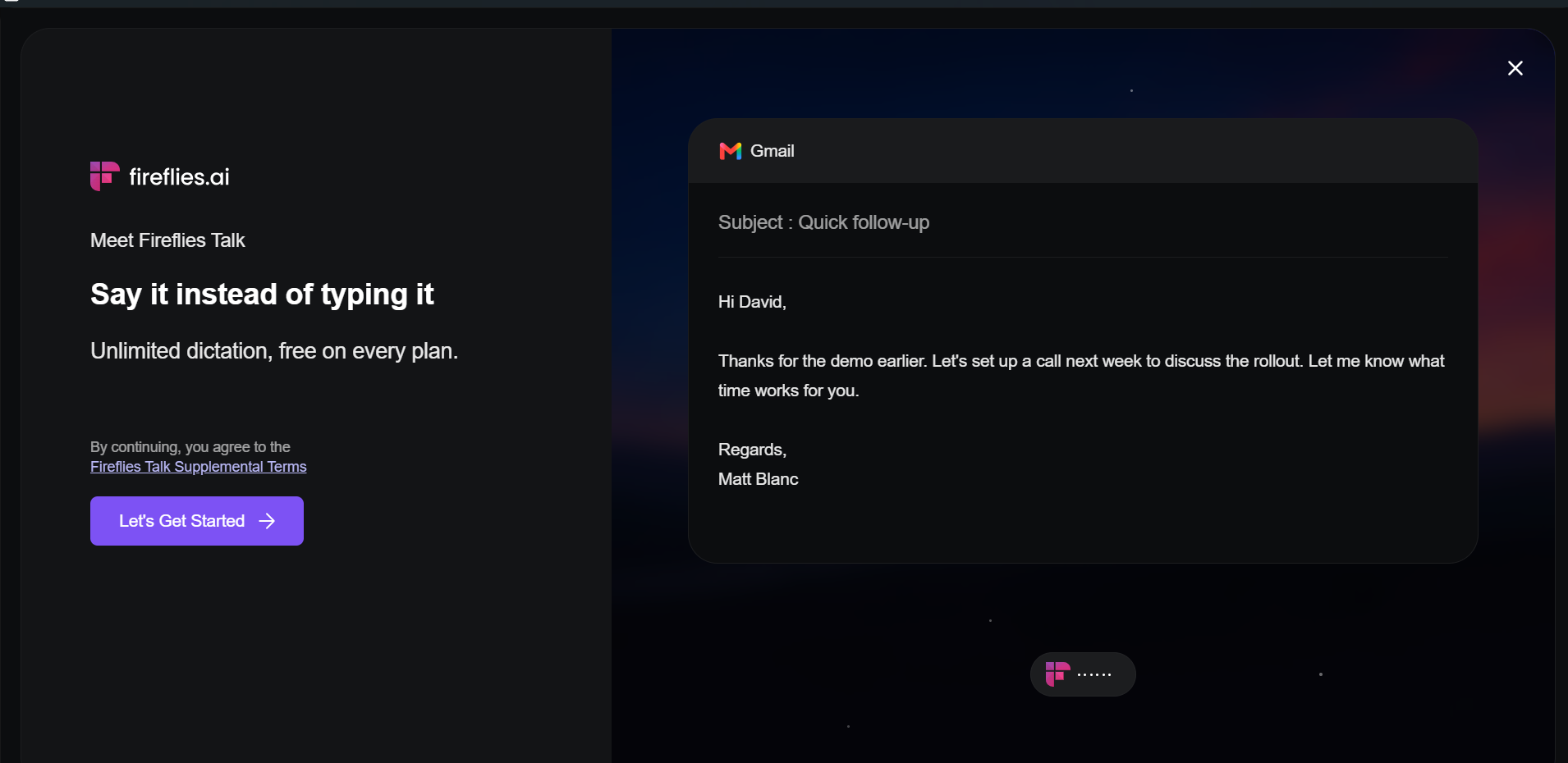
Once Talk is set up, you can use it anywhere you can enter text. Start dictating from the app you're working in, speak naturally, and Talk adds the cleaned-up text directly where your cursor is.
Dictate in any app: Talk works with apps that have a text field, including Slack, Gmail, Google Docs, ChatGPT/Claude, CRM fields, and the Fireflies app itself.
Use hands-free dictation: Double-tap your shortcut key to start hands-free dictation. Speak normally, then tap the key again to finish. Press Escape to cancel a dictation in progress.
No text field? If Talk can't find a text field at your cursor, it plays a short error sound and copies your text to the clipboard instead. You can then paste it wherever you need it.
For detailed instructions, see How to use Fireflies Talk to dictate in any app.
🌍 Dictate in other languages
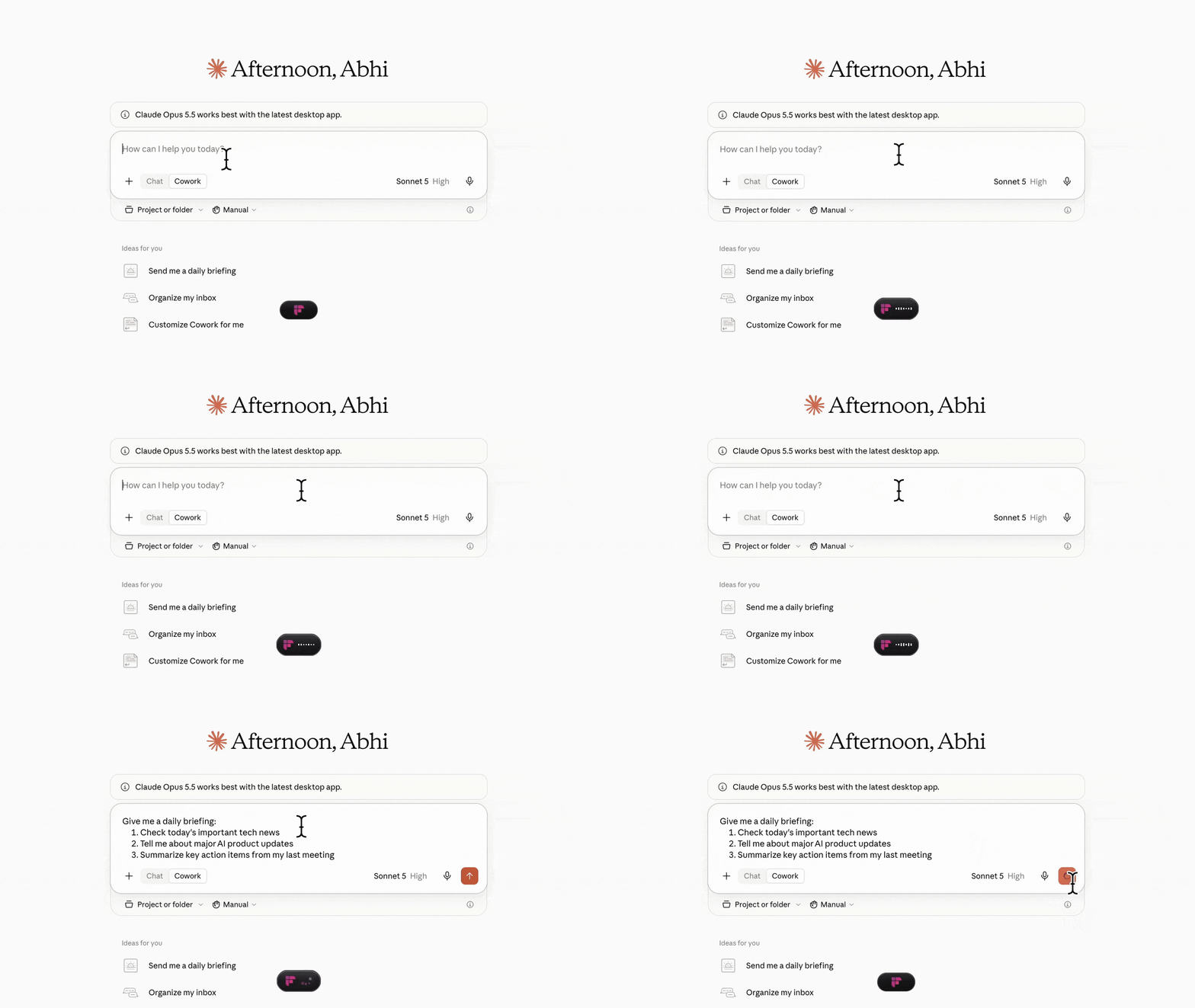
Fireflies Talk supports 90+ languages. You can choose your preferred languages during setup or later from Settings → Dictation, or enable automatic language detection.
For more details, including language settings and switching between languages, see How to dictate in other languages with Fireflies Talk.
💬 How Fireflies Talk tags people in Slack
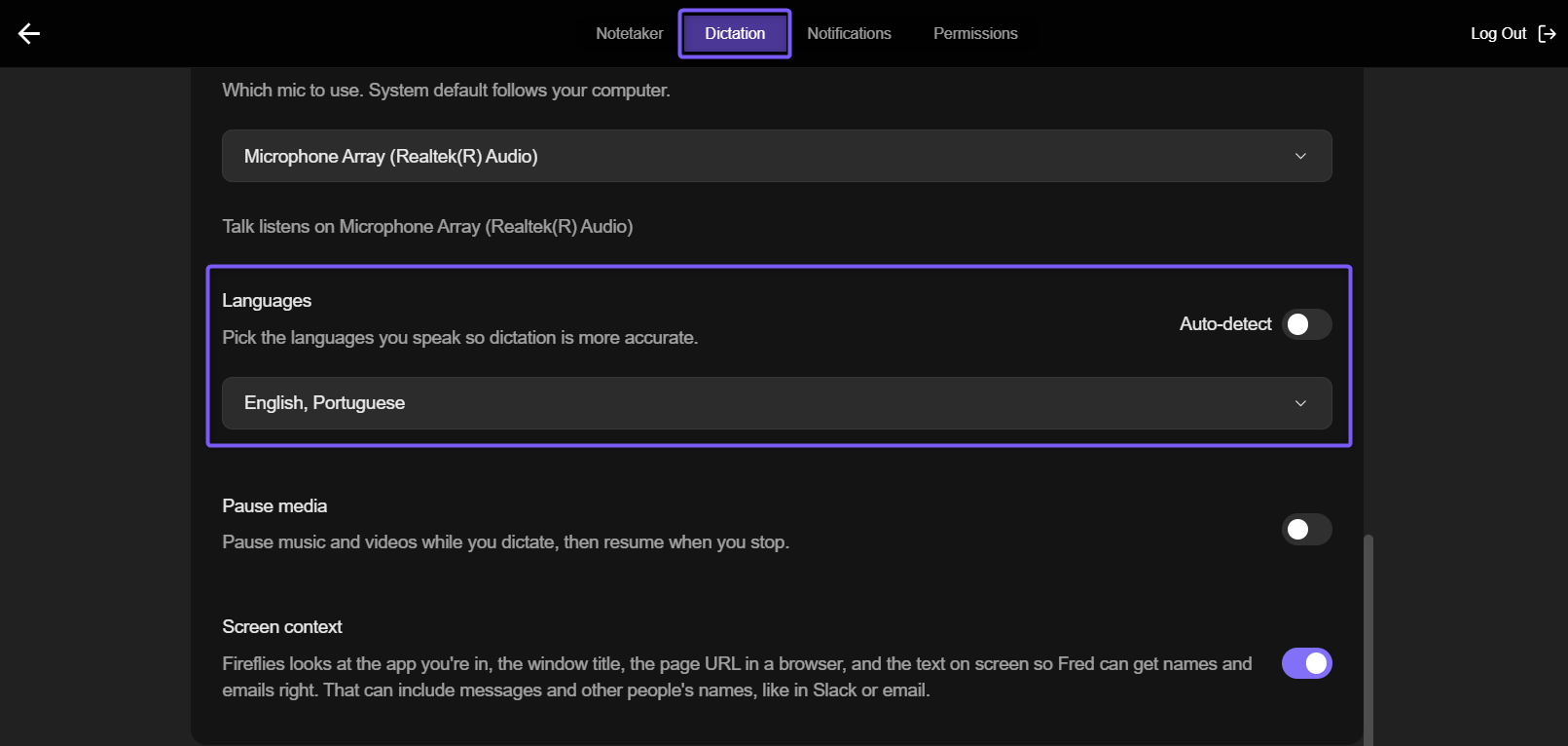
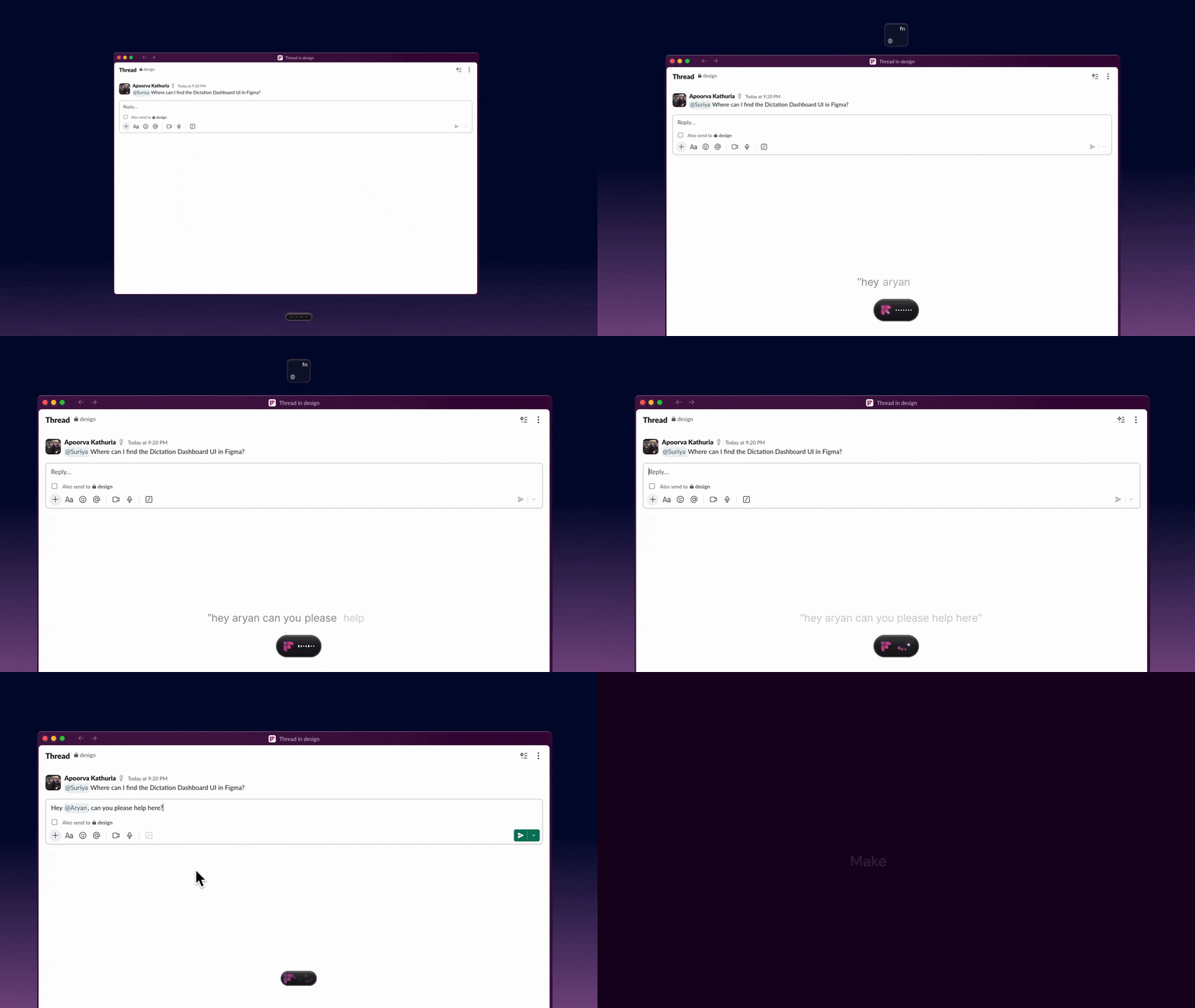
When you dictate a Slack message that includes a teammate's name, Fireflies Talk can turn the name into a real @mention.
For more details, including how Slack mentions work, see How Fireflies Talk tags people in Slack.
💳 Is Fireflies Talk free?
Fireflies Talk offers unlimited dictation on every Fireflies plan, including the free plan. You can use Talk in the Fireflies desktop app on Mac and Windows.
For more details, including plan availability and supported platforms, see Is Fireflies Talk free? Plans and availability.
🔒 Fireflies Talk privacy
Your dictations are stored on your device. Fireflies doesn't keep a copy, and no one else at Fireflies or in your workspace can see them. They are never used to train models. Fireflies is SOC 2 Type II and GDPR compliant.
Talk requires microphone permission to capture your speech. On Mac, Accessibility permission is also required for Talk to type text at your cursor.
For more details about privacy, permissions, and Screen context, see Fireflies Talk privacy: where your dictations go and who can see them.
🛠 Fireflies Talk troubleshooting
If Talk isn't working as expected, common issues include the shortcut not responding, text not appearing, or the wrong microphone being selected.
For solutions to common issues, see Fireflies Talk troubleshooting: text not appearing, wrong words, shortcut not working .
📚 Explore Fireflies Talk guides
Use the guides below to set up Talk, start dictating, and troubleshoot common issues.