Fireflies Talk privacy: where your dictations go and who can see them
Last updated: October 21, 2026
When you use Fireflies Talk, your speech is turned into text and inserted into the app you're using. This guide explains what Talk accesses, what information stays on your device, and how Screen context affects the information Talk uses while you dictate.
🔒 Where are my dictations stored?
Your dictations are stored on your device. Fireflies doesn't keep a copy, and no one else at Fireflies or in your workspace can see them. They are never used to train models. Fireflies is SOC 2 Type II and GDPR compliant.
Mobile Talk handles audio differently. Audio is only used to give you your text. Fireflies doesn't store it or use it for anything else.
🎤 What permissions does Talk need?
On desktop
Talk needs access to your microphone to capture your speech while you dictate. On Mac, Talk also needs Accessibility permission so it can enter your dictated text at your cursor.
Microphone - Allows Talk to capture your speech while you dictate.
Accessibility (Mac only) - Allows Talk to enter your dictated text at your cursor.
If these permissions aren't available, Talk won't be able to capture your speech or enter the dictated text as expected.
For setup instructions, see:
On mobile
Mobile Talk requires different permissions depending on your device.
iPhone: Full Access: Allows the Fireflies keyboard to pass dictation to the Fireflies app for conversion to text. The keyboard can still type without Full Access, but Talk needs it to dictate.
Android: Accessibility: Allows Talk to display the Talk pill above your existing keyboard and enter dictated text into the active text field. The Accessibility service detects when windows open or close to determine when the keyboard is on screen. It doesn't read, collect, or store other information from your screen.
On Android, the Talk pill hides in password, PIN, and phone-number fields. If you decline the Accessibility permission, Talk remains off. You can run setup again from the Fireflies app menu by selecting Fireflies Talk.
For setup instructions, see Fireflies Talk on iPhone and Android: Setup and Usage Guide.
Fireflies Talk records microphone audio only. It does not record system audio.
👁 Screen context
Screen context lets Talk use information visible on your screen while you dictate. It is optional and turned off by default.
When Screen context is turned on, Talk can use information such as:
The app you're using
The window title
The page URL in a browser
Text visible on the screen
This can help Talk recognize names, terms, and other information that may be difficult to identify from speech alone. For example, when you're dictating in Slack, information visible in Slack can help Talk recognize a teammate's name or @handle.
What happens when Screen context is turned on?
When you turn on Screen context, your dictation audio and the screen context captured during your dictation are sent to Fireflies and our speech-to-text and formatting providers.
Screen context is captured once when you finish a dictation, rather than continuously.
Talk also:
Removes URL parameters from captured page URLs.
Skips password fields.
Keeps the dictated text, the app it was pasted into, and the time on your device.
Screen context is optional and turned off by default.
What happens when Screen context is turned on?
When Screen context is on, your dictation audio and Screen context are sent to Fireflies and its speech-to-text and formatting providers.
Screen context is captured once, when you finish a dictation. It isn't captured continuously while you work.
When Talk captures Screen context, it removes URL parameters and skips password fields.
The following information stays on your device:
Your dictated text
The app where the text was pasted
The time of the dictation
Turn Screen context on or off
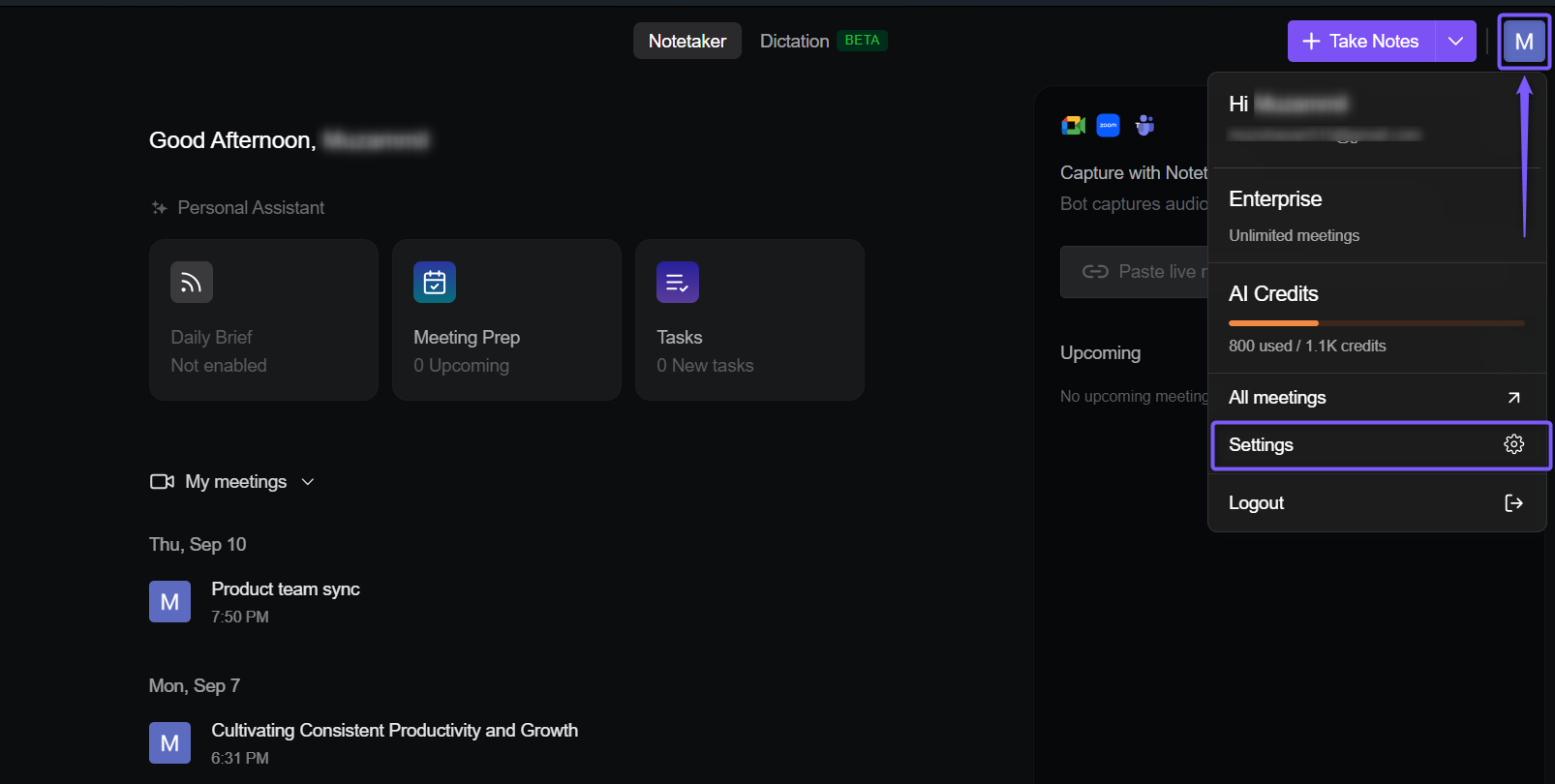
Open the Fireflies desktop app, click the Fireflies icon in the top-right corner, and select Settings.
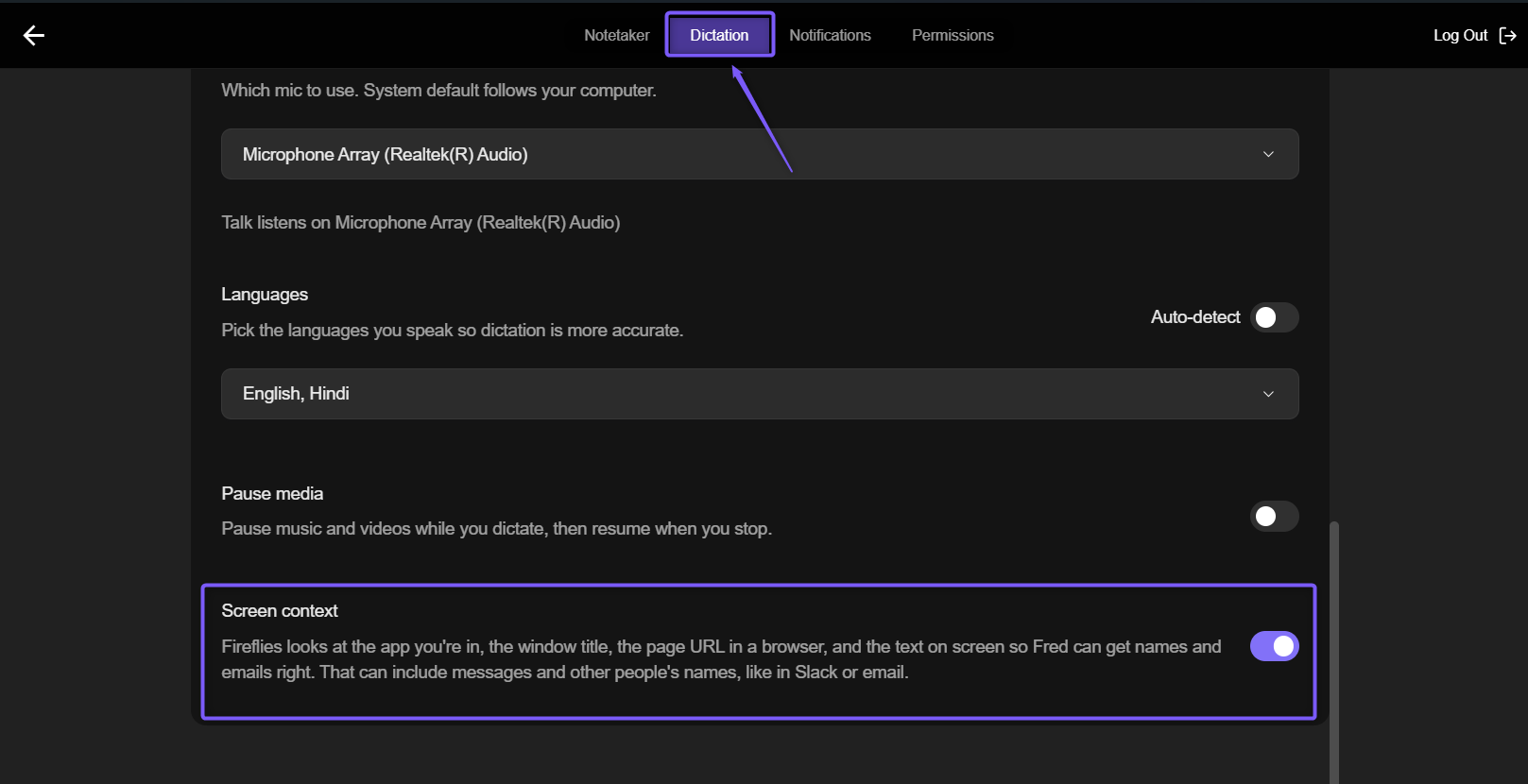
Select the Dictation tab, then scroll down to find Screen context.
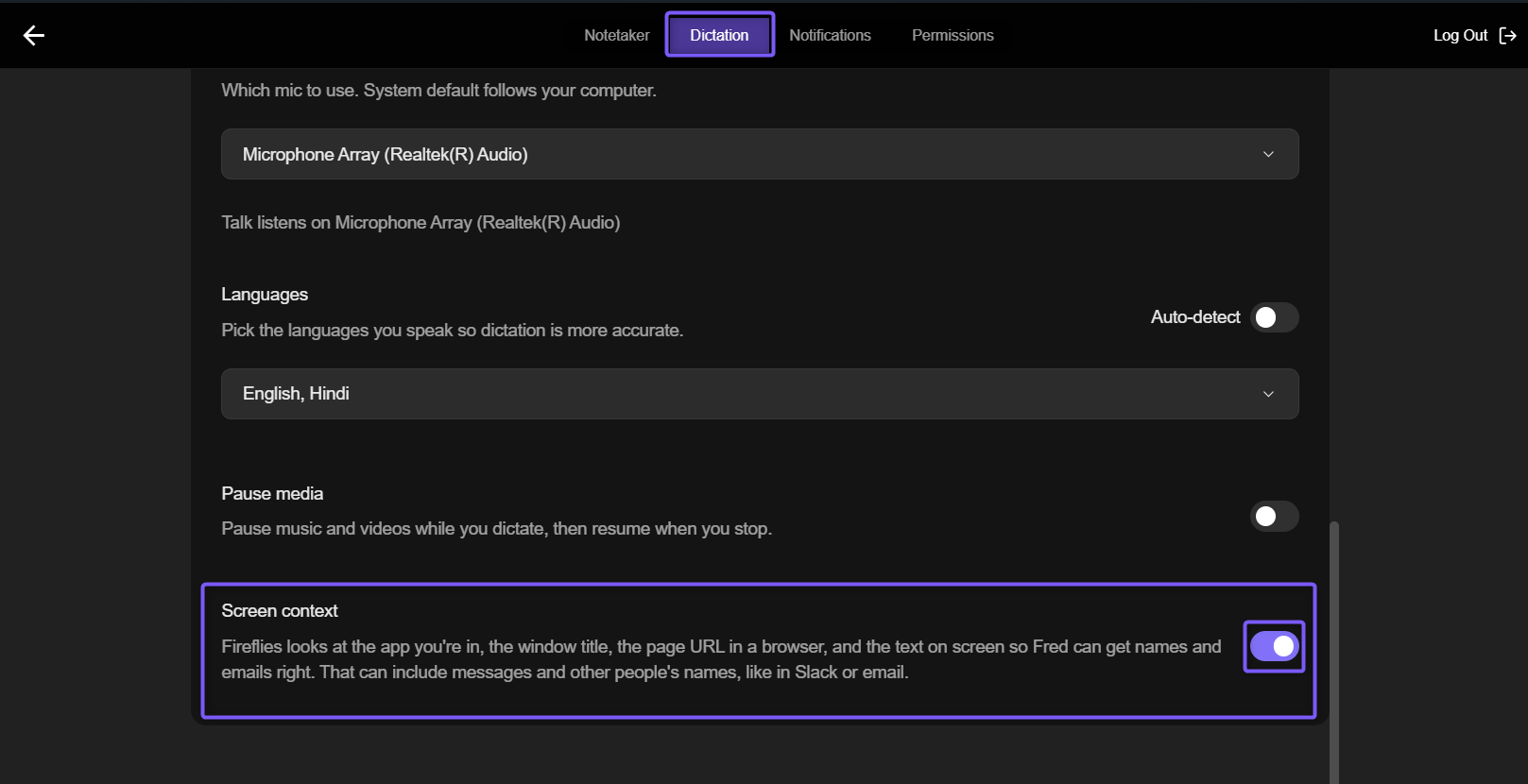
Use the Screen context toggle to:
Turn on Screen context to let Fireflies use information from your screen while you dictate.
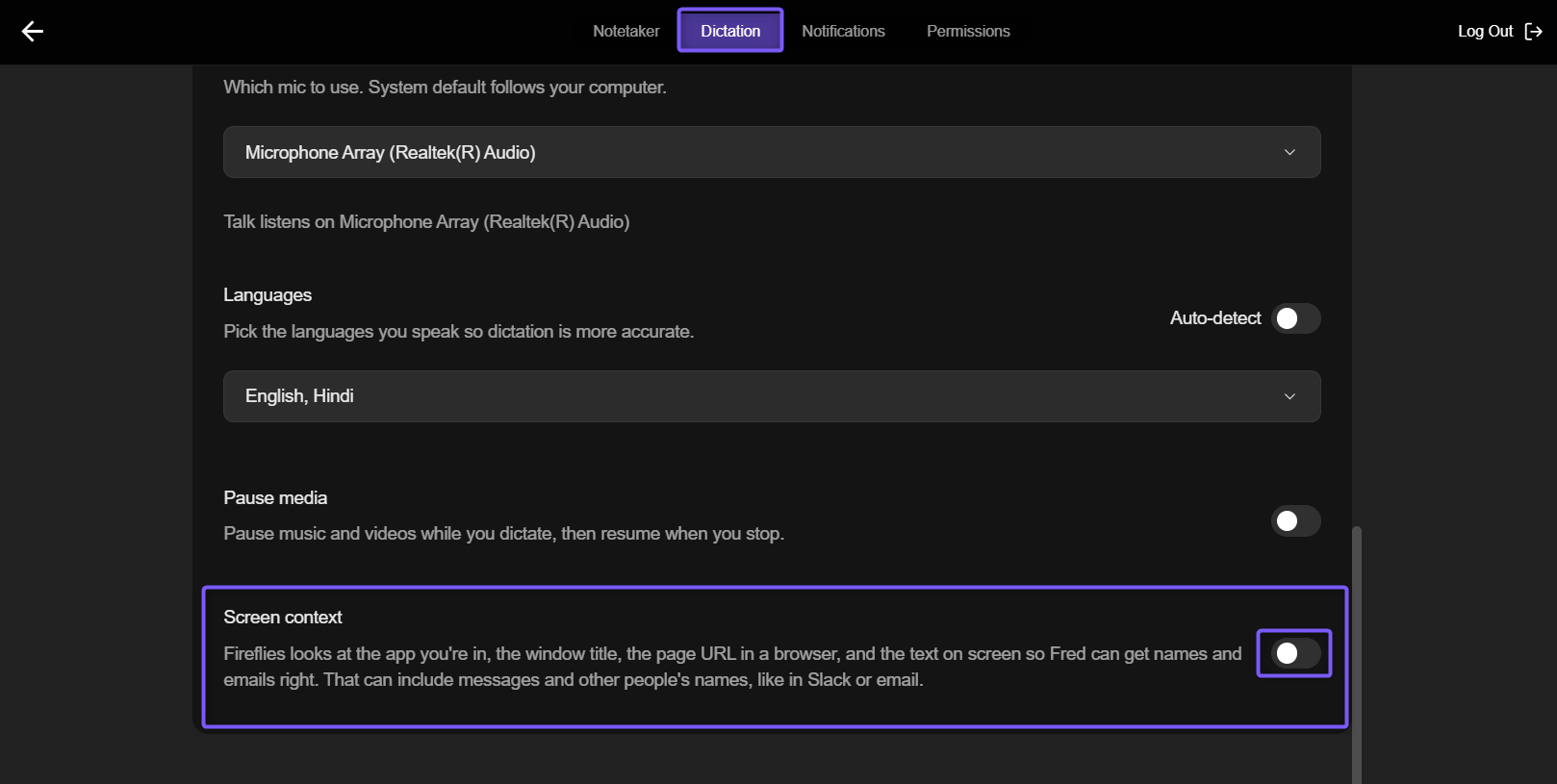
Turn off Screen context to stop Fireflies from using information from your screen.
🗑 Manage your dictation history
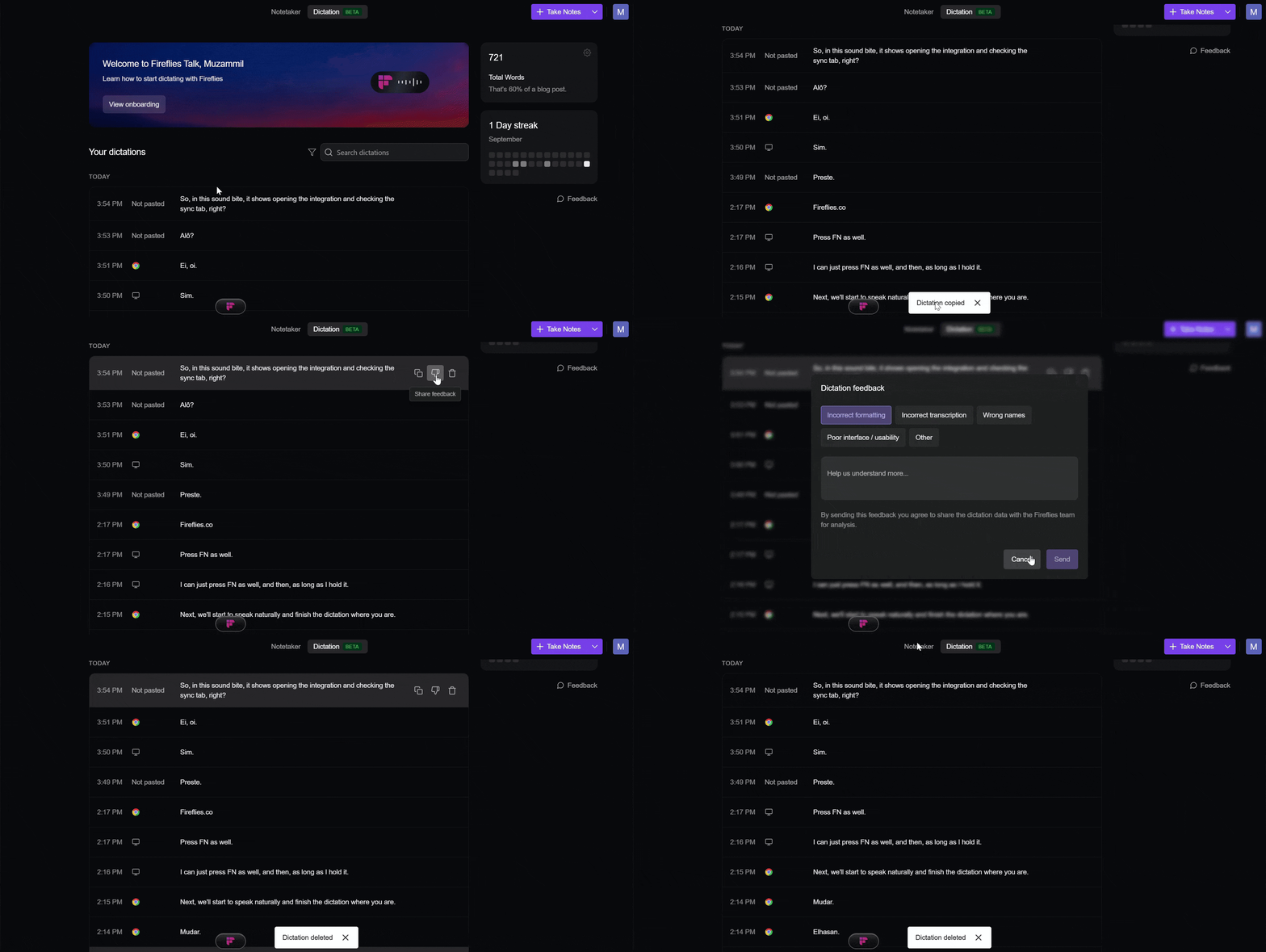
The Dictation tab keeps your previous dictations in one place. You can manage individual dictations or clear your entire history.
💡Mobile Talk doesn't keep dictation history or audio.
Copy, give feedback, or delete a dictation
Copy: Copy the dictated text so you can reuse it elsewhere.
Give feedback: Share feedback about the dictation.
Delete: Remove an individual dictation from your history.
Clear your entire dictation history
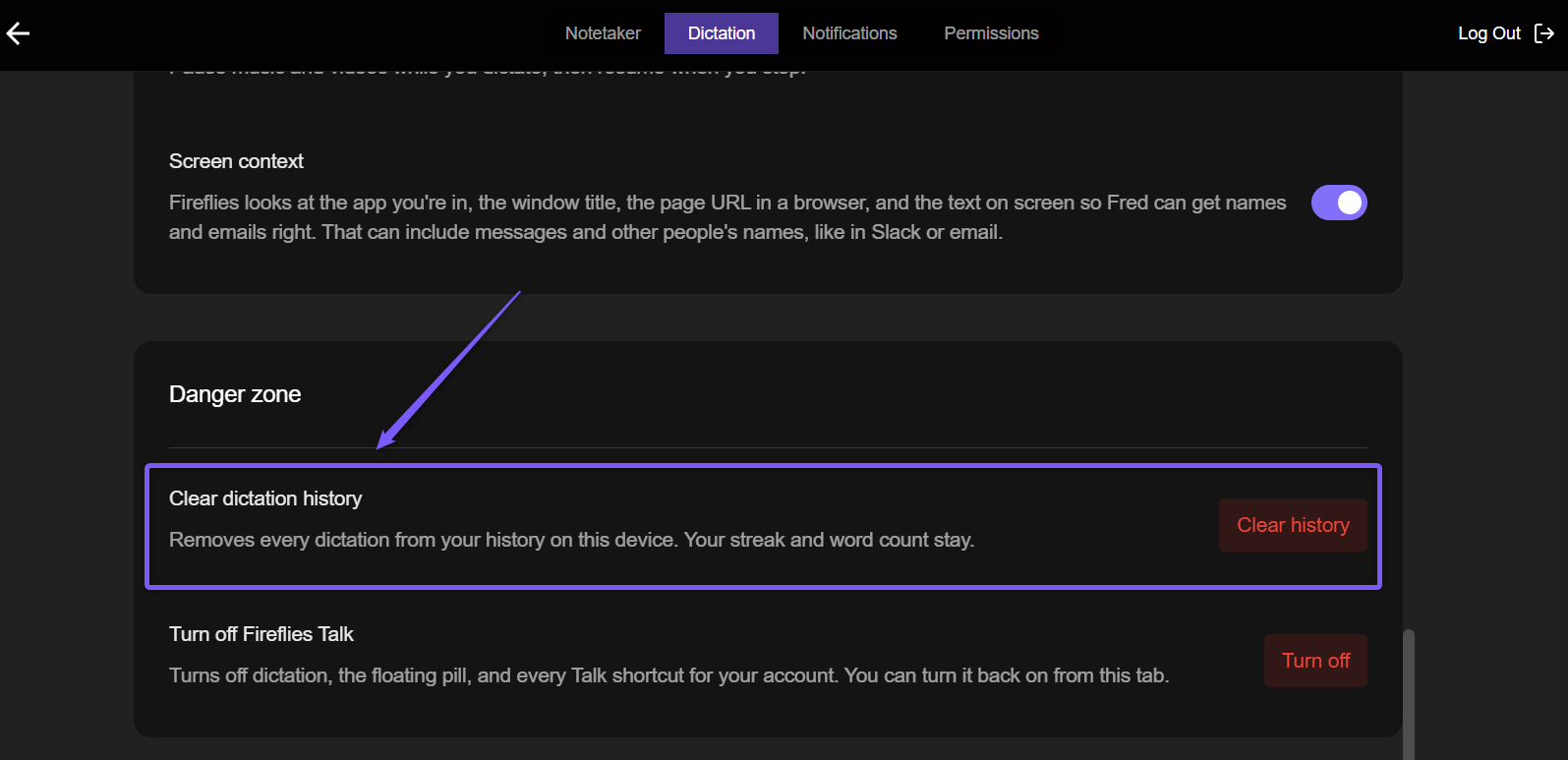
To remove all dictations from your history on your device:
Open Settings in the Fireflies desktop app.
Select the Dictation tab.
Scroll to Danger zone.
Under Clear dictation history, click Clear history.
Note: Clearing your history removes every dictation from your history on that device. Your day streak and word count remain unchanged.
🎧 Audio processing
On desktop
When you dictate with Talk, your audio is processed to produce text and isn't retained afterward. When Screen context is enabled, your dictation audio and the captured screen context are sent to Fireflies and its speech-to-text and formatting providers.
On mobile
Audio is only used to give you your text. Fireflies doesn't store it or use it for anything else.
🔄 Revoke Talk permissions
If you no longer want Fireflies Talk to access your microphone or other required permissions, you can manage these permissions from your device settings.
Mac
Open System Settings.
Go to the permissions for Fireflies.
Turn off the permissions you no longer want to allow.
Windows
Open Settings.
Go to the permissions for Fireflies.
Turn off the permissions you no longer want to allow.
iPhone and Android
To review mobile permission requirements and setup instructions, see Fireflies Talk on iPhone and Android: Setup and Usage Guide.
🧾 Subprocessors
Fireflies maintains a list of its subprocessors. For the current list, see Fireflies subprocessors.
📄 Fireflies Talk Supplemental Terms
For the full terms, see the Fireflies Talk Supplemental Terms.
📚 Related guides
Fireflies Talk: talk instead of type in any app — Learn what Talk does and explore the Talk guides.
How to set up Fireflies Talk on Mac — Set up Talk and configure the required permissions on Mac.
How to set up Fireflies Talk on Windows — Set up Talk and configure the required permissions on Windows.
Fireflies Talk on iPhone and Android: Setup and Usage Guide — Learn about mobile setup, required permissions, and dictation.