How to set up Fireflies Talk on Mac
Last updated: October 21, 2026
Fireflies Talk is built into the Fireflies desktop app and lets you dictate text directly into the app you're using. Once you set it up, you can speak instead of typing and have your text appear where your cursor is.
In this guide, you'll learn how to set up Fireflies Talk on your Mac, including choosing your language and microphone, configuring your keyboard shortcut, and allowing the required permissions. You'll also complete your first dictation to make sure Talk is ready to use.
Let's get started 🚀
🔑 Prerequisites
Make sure you have the following ready before setting up Fireflies Talk on your Mac:
Microphone access: Talk needs access to your microphone to hear and process your speech.
Accessibility permission: Talk needs this permission to type the dictated text where your cursor is.
Fireflies Talk is included on every Fireflies plan, including Free, with unlimited dictation. It's available on Mac, Windows, iPhone, and Android. On mobile, Talk is built into the existing Fireflies app, so you don't need to install a separate app.
🚀 Follow these steps to set up Fireflies Talk
Step 1: Allow the required permissions on your Mac
Before you start setting up Fireflies Talk, make sure Fireflies has the permissions it needs to capture your speech and place dictated text where your cursor is.
You need to allow Fireflies access to:
Accessibility — to type your dictated text at the cursor. Go to System Settings → Privacy & Security → Accessibility, then make sure Fireflies is enabled.
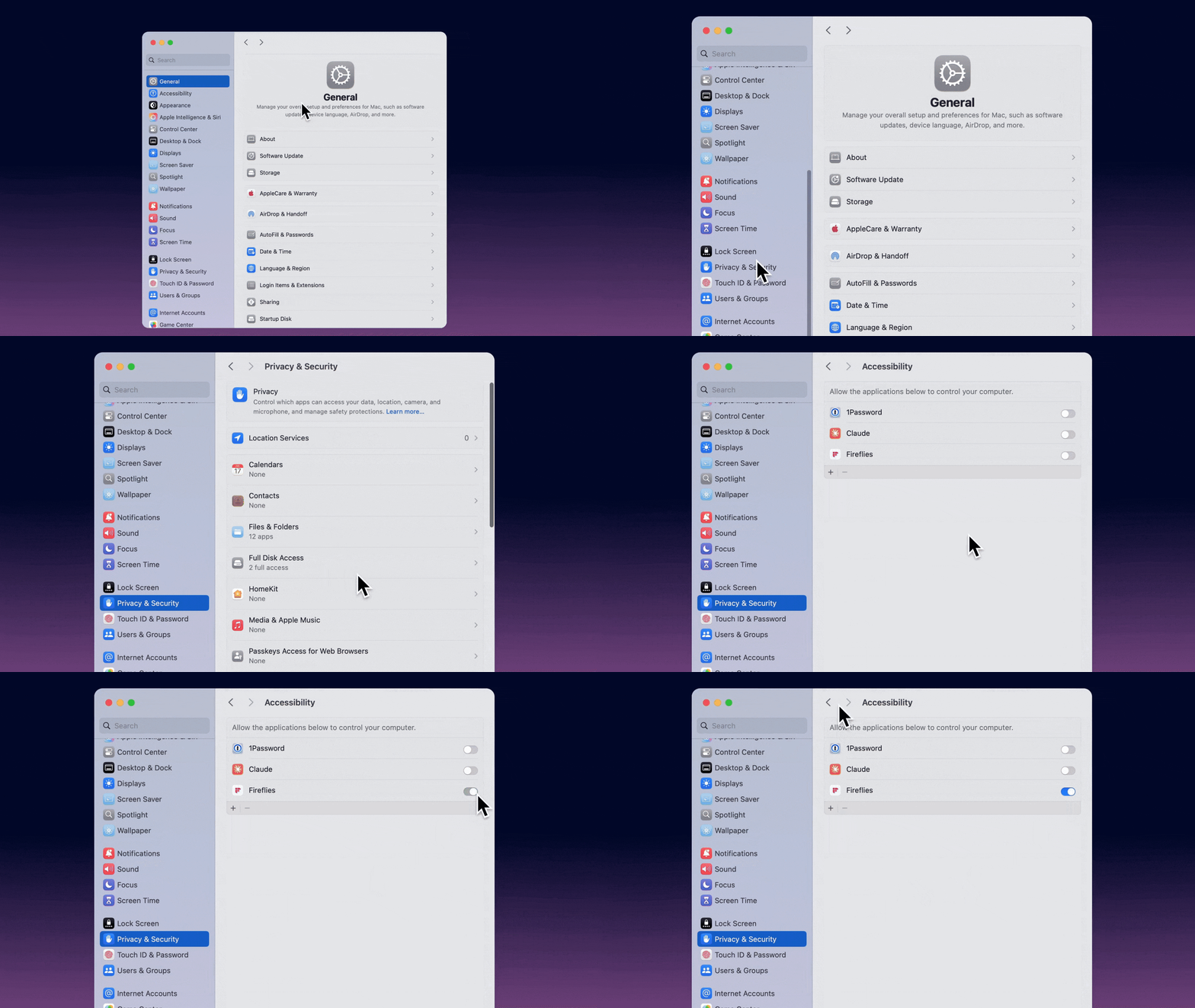
Microphone — to capture your speech. Go to System Settings → Privacy & Security → Microphone, then make sure Fireflies is enabled.
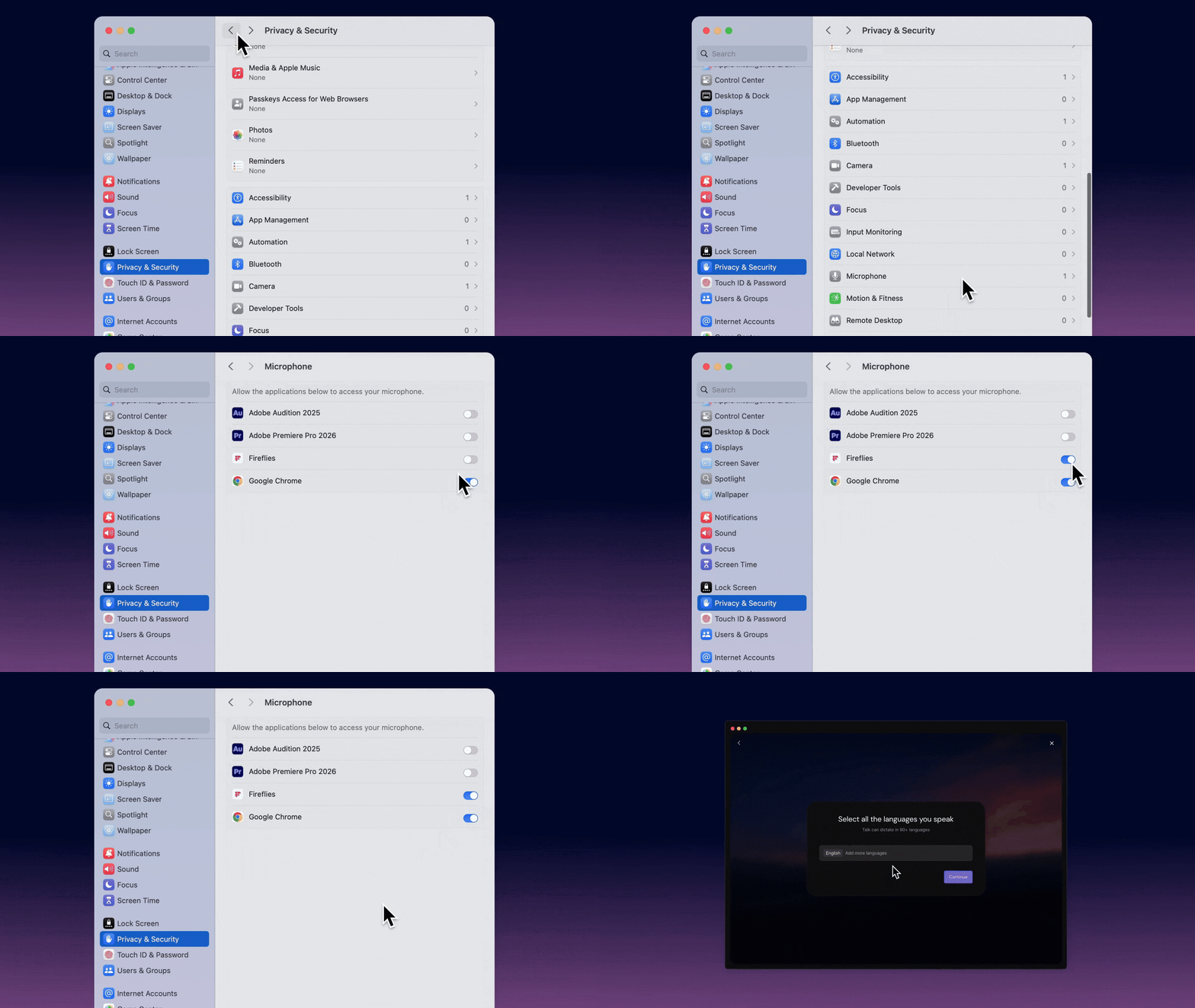
Once these permissions are enabled, you can start the Talk setup in the Fireflies desktop app.
Step 2: Open the Fireflies desktop app
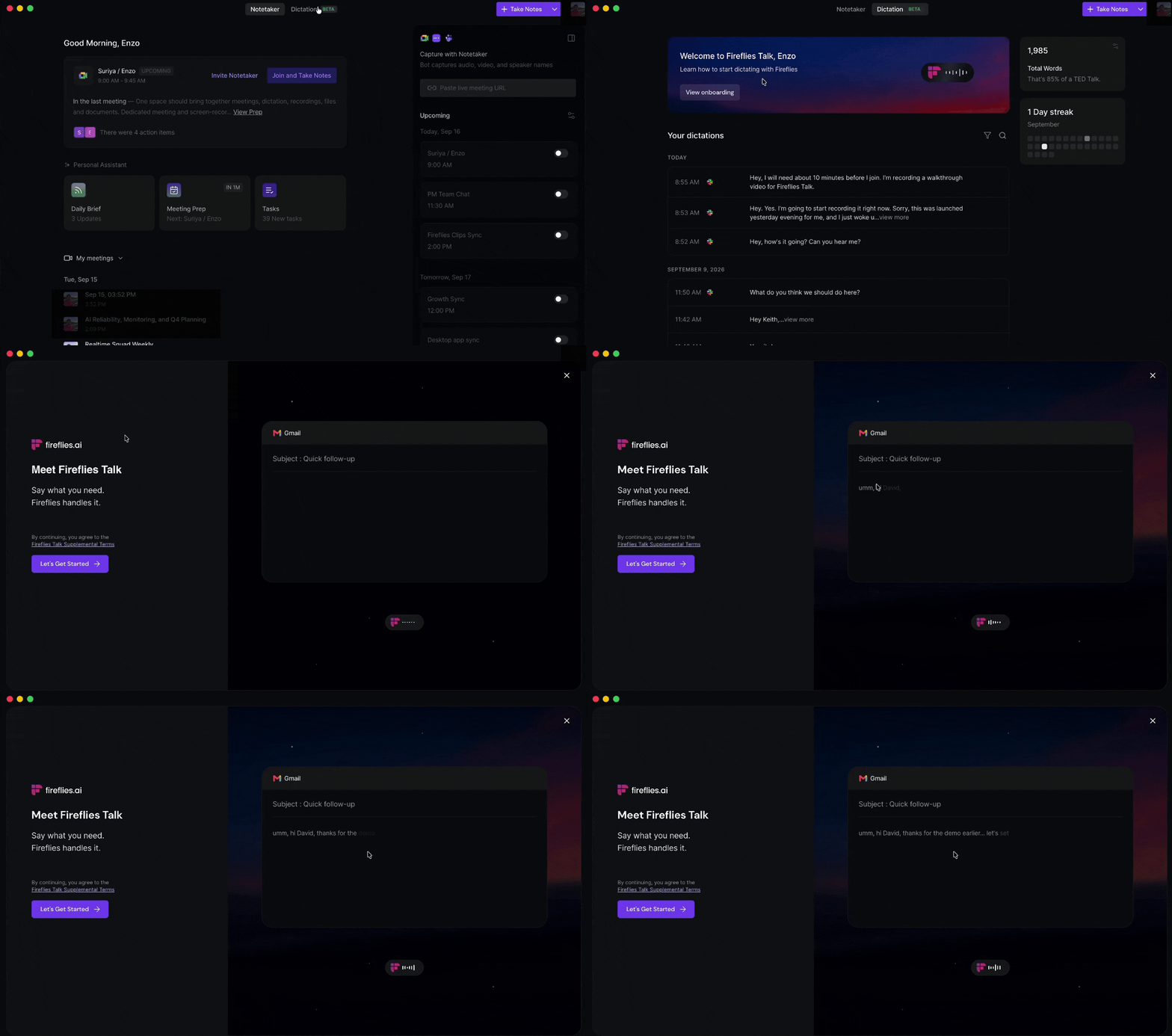
Open the Fireflies desktop app on your Mac and select the Dictation tab. The onboarding flow appears the first time you open the tab.
If you've already completed the setup, click View onboarding to open the onboarding flow again.
Step 3: Review the Fireflies Talk Supplemental Terms
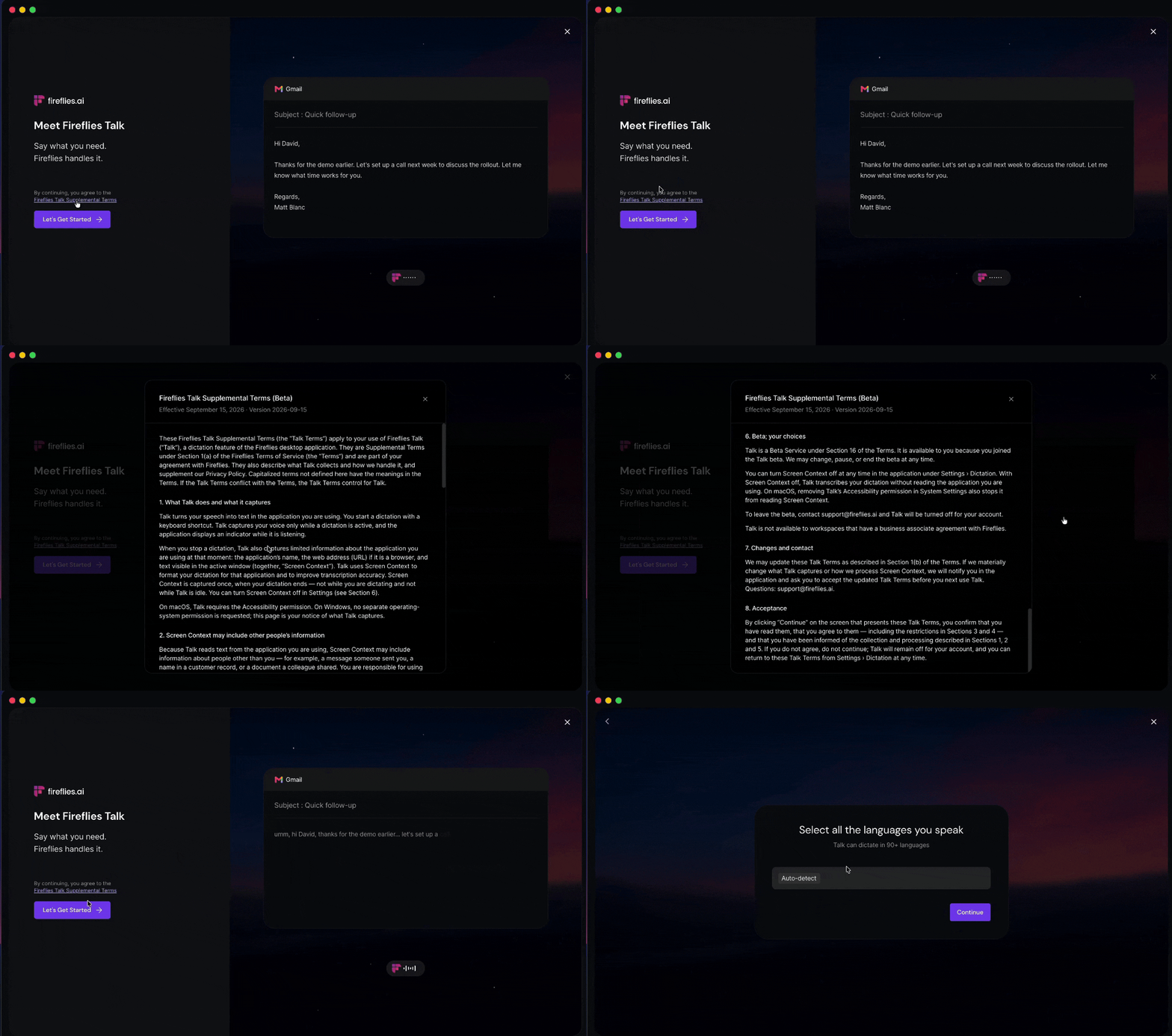
Review the Fireflies Talk Supplemental Terms before continuing with the setup.
Note: Click Fireflies Talk Supplemental Terms to read the terms. By clicking Let's Get Started, you agree to the Fireflies Talk Supplemental Terms.
Click Let's Get Started to continue with the setup.
Step 4: Select your languages
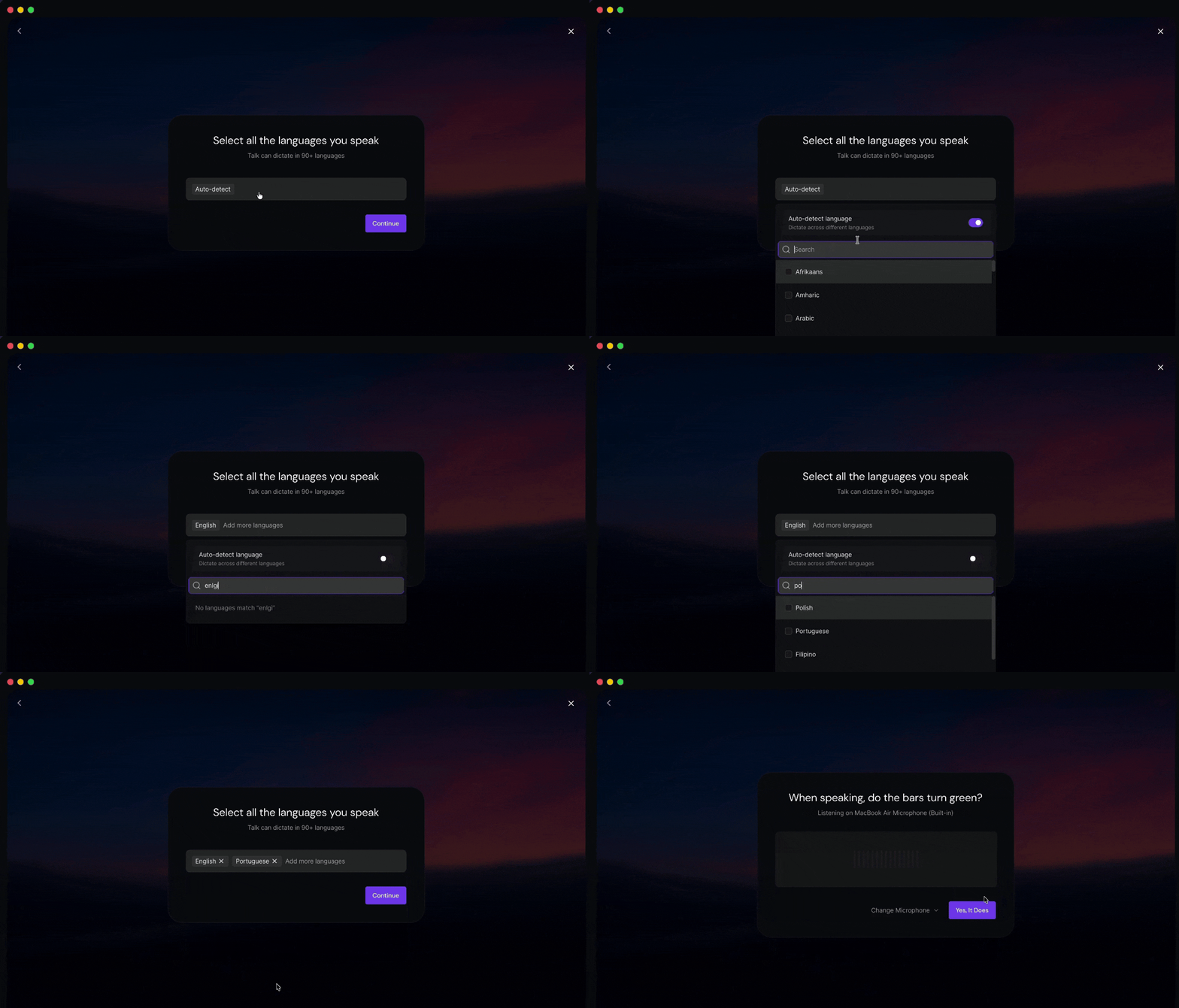
Select the languages you speak to help Talk detect and transcribe your speech accurately. You can choose Auto-detect or select the specific languages you use.
View the Full List of 90+ Supported Languages ✅
# | Languages supported by Fireflies Talk |
|---|---|
1 | Afrikaans |
2 | Amharic |
3 | Armenian |
4 | Asturian |
5 | Azerbaijani |
6 | Belarusian |
7 | Bengali |
8 | Bosnian |
9 | Bulgarian |
10 | Burmese |
11 | Cantonese |
12 | Catalan |
13 | Cebuano |
14 | Chichewa |
15 | Croatian |
16 | Czech |
17 | Danish |
18 | Dutch |
19 | English |
20 | Estonian |
21 | Filipino |
22 | Finnish |
23 | French |
24 | Fulah |
25 | Galician |
26 | Ganda |
27 | Georgian |
28 | German |
29 | Greek |
30 | Gujarati |
31 | Hausa |
32 | Hebrew |
33 | Hindi |
34 | Hungarian |
35 | Icelandic |
36 | Igbo |
37 | Indonesian |
38 | Irish |
39 | Italian |
40 | Japanese |
41 | Javanese |
42 | Kabuverdianu |
43 | Kannada |
44 | Kazakh |
45 | Khmer |
46 | Korean |
47 | Kurdish |
48 | Kyrgyz |
49 | Lao |
50 | Latvian |
51 | Lingala |
52 | Lithuanian |
53 | Luo |
54 | Luxembourgish |
55 | Macedonian |
56 | Malay |
57 | Malayalam |
58 | Maltese |
59 | Mandarin Chinese |
60 | Maori |
61 | Marathi |
62 | Mongolian |
63 | Nepali |
64 | Northern Sotho |
65 | Norwegian |
66 | Occitan |
67 | Odia |
68 | Pashto |
69 | Persian |
70 | Polish |
71 | Portuguese |
72 | Punjabi |
73 | Romanian |
74 | Russian |
75 | Serbian |
76 | Shona |
77 | Sindhi |
78 | Slovak |
79 | Slovenian |
80 | Somali |
81 | Spanish |
82 | Swahili |
83 | Swedish |
84 | Tajik |
85 | Tamil |
86 | Telugu |
87 | Thai |
88 | Turkish |
89 | Ukrainian |
90 | Umbundu |
91 | Welsh |
92 | Wolof |
93 | Xhosa |
94 | Zulu |
If you select specific languages, choose all the languages you want Talk to detect, then click Continue.
Step 5: Select your microphone
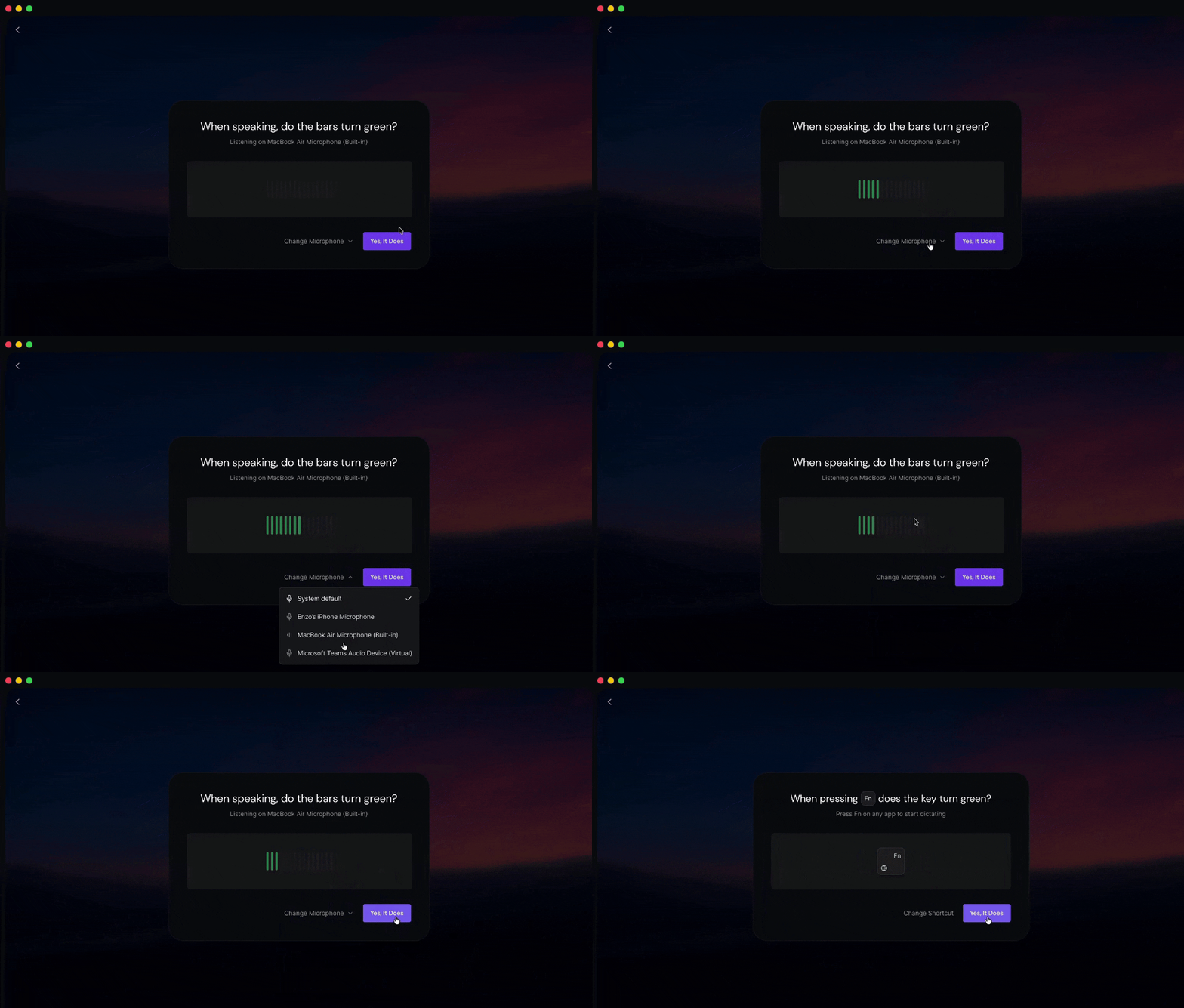
Talk uses your selected microphone to capture your speech. Speak into the microphone and check that the audio bars turn green.
Click Change Microphone to view the available microphone options.
Select the microphone you want to use from the dropdown menu.
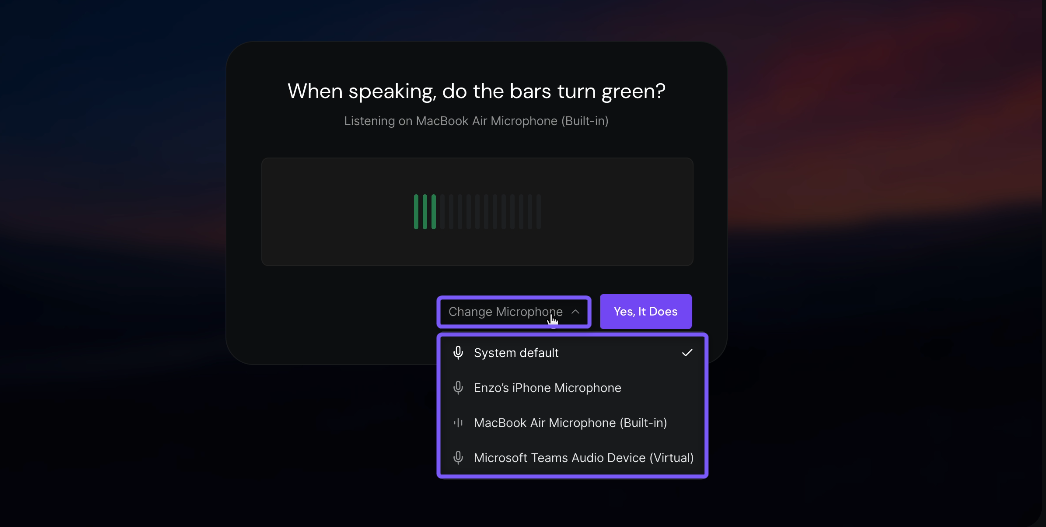
Speak into the selected microphone and make sure the audio bars turn green.
Click Yes, It Does to confirm and continue.
Step 6: Set your Talk shortcut
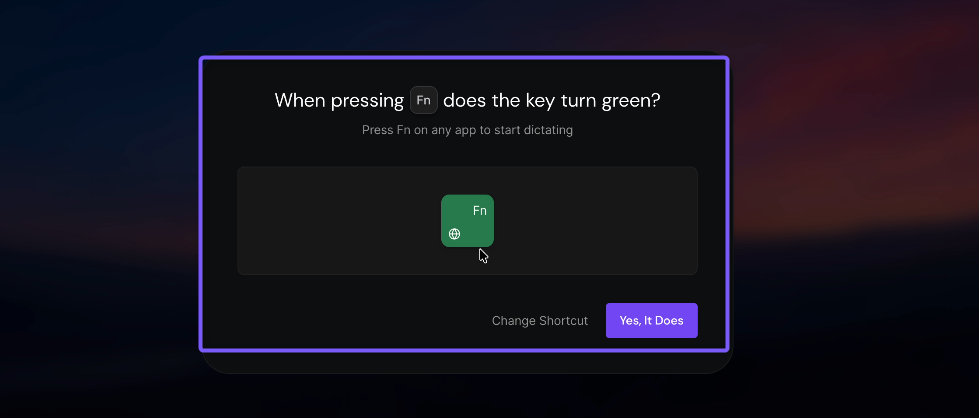
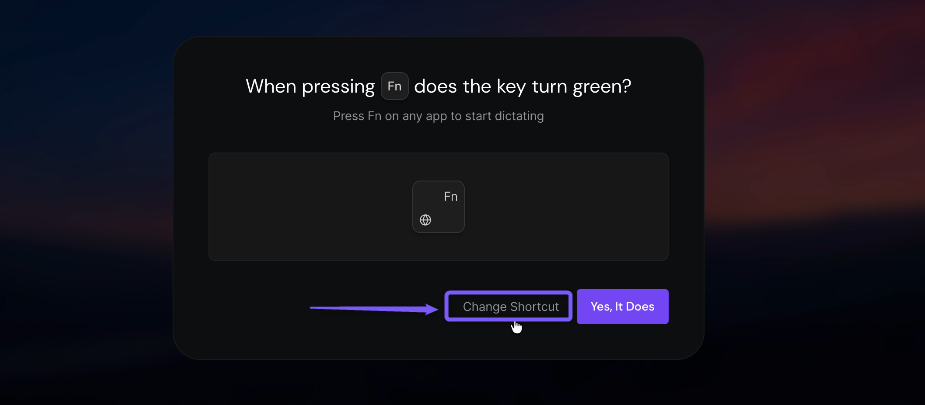
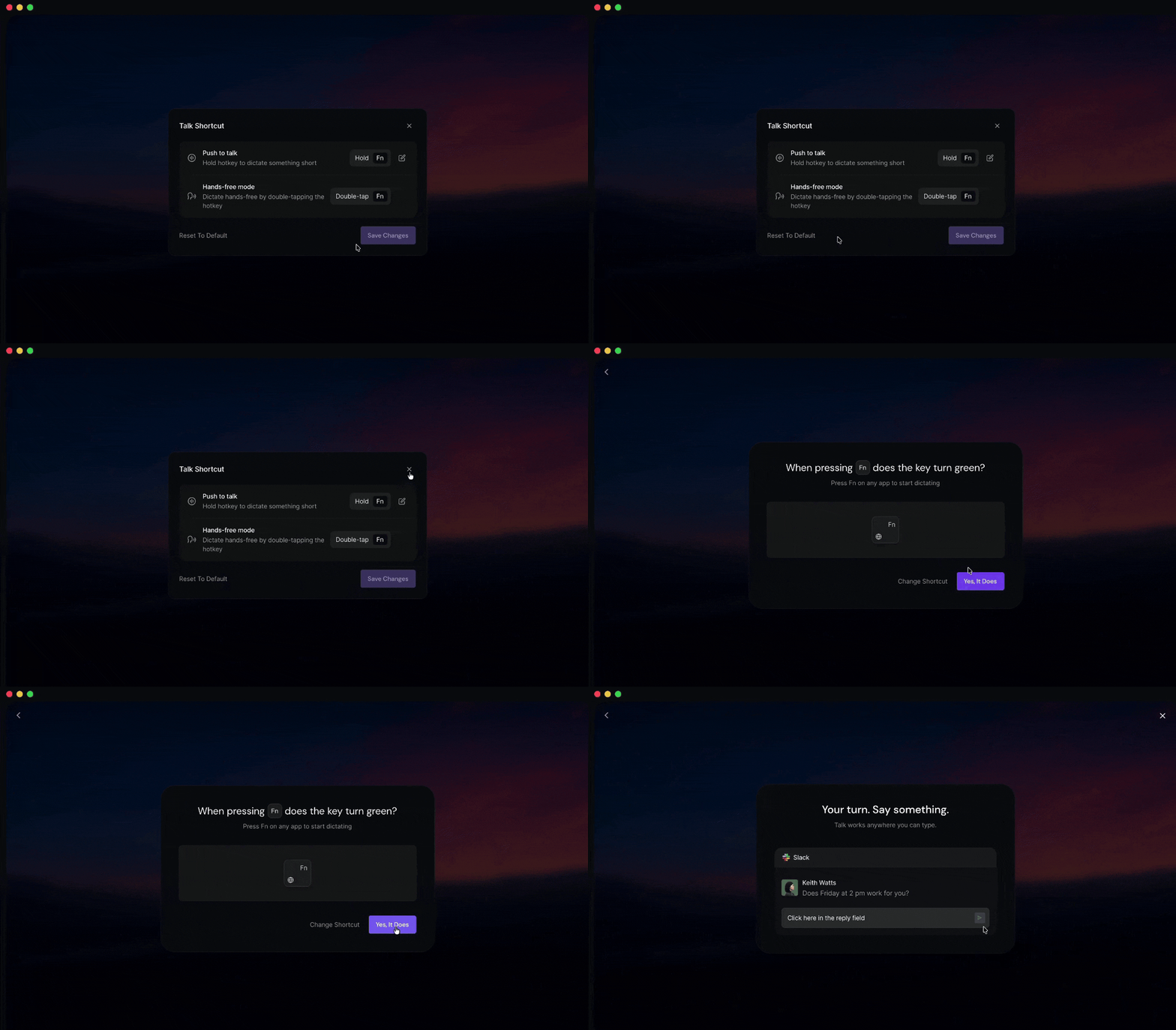
By default, you can hold the Fn key to start dictating. Press Fn and check that the key turns green. This confirms that Talk detects the shortcut.
💡 Want to change your shortcut? You can change the shortcut if you prefer to use a different key or key combination.
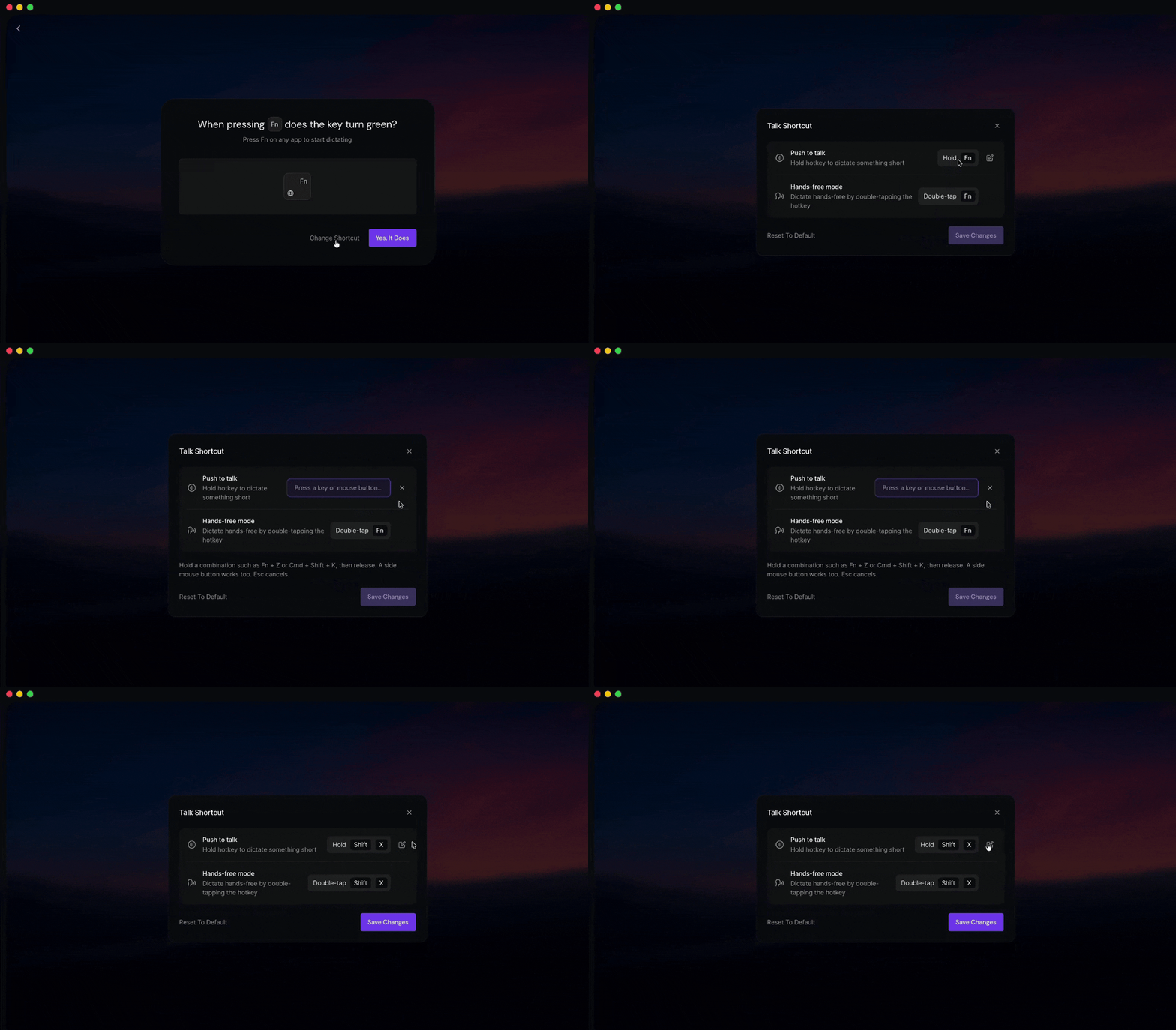
Click Change Shortcut to customize the shortcut.
Select the shortcut field.
Press the key or key combination you want to use.
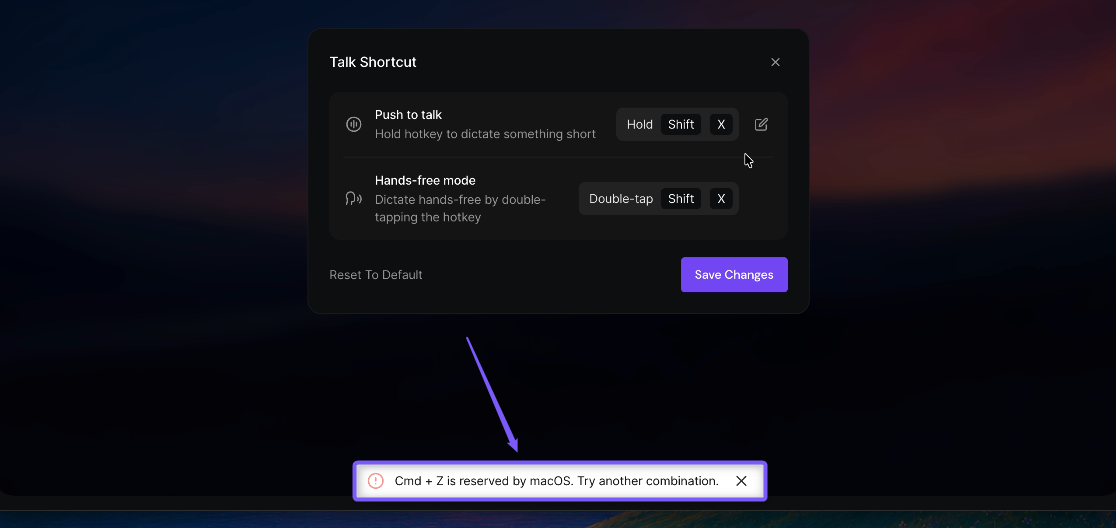
Note: If the shortcut is reserved by macOS, Talk shows a message and won't let you use it.
You can also use a mouse button as a shortcut.
If you change the shortcut, click Save Changes to apply it. To return to the default
Fnshortcut, click Reset to Default. If you don't make any changes, simply close the window to continue.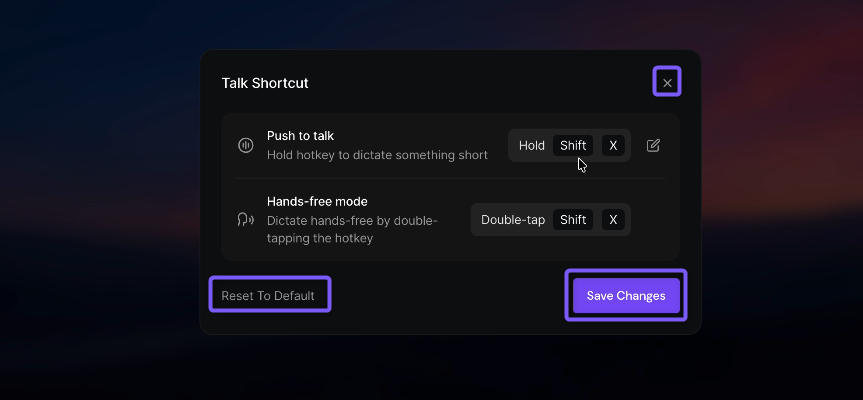
🙌 Use hands-free mode
If you don't want to hold the Talk shortcut while dictating, double-tap the shortcut to start hands-free mode. Speak normally, then tap the shortcut again to finish dictating.
Your hands-free shortcut automatically updates when you change the Push to talk shortcut.
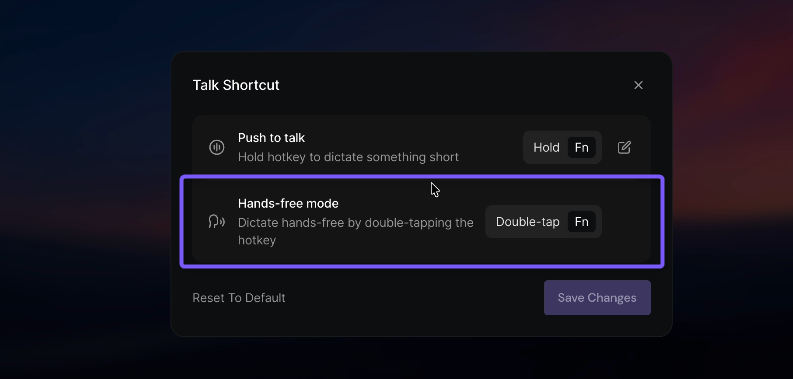
Note: If pressing Fn or your selected shortcut opens Apple’s built-in dictation instead of Fireflies Talk, change the Talk shortcut or disable Apple’s Fn dictation in System Settings → Keyboard.
Once you've set or confirmed your shortcut, press the selected shortcut key and check whether the key turns green. If it does, the shortcut is working. Click Yes, It Does to continue.
🎙 Complete your first dictation
Now that your shortcut is set, try dictating. Test both push-to-talk and hands-free mode so you know how each one feels before you rely on Talk day-to-day.
Note: This guide uses the default Fn shortcut in the steps below. If you changed your push-to-talk shortcut during setup, use your selected shortcut instead.
Try push-to-talk
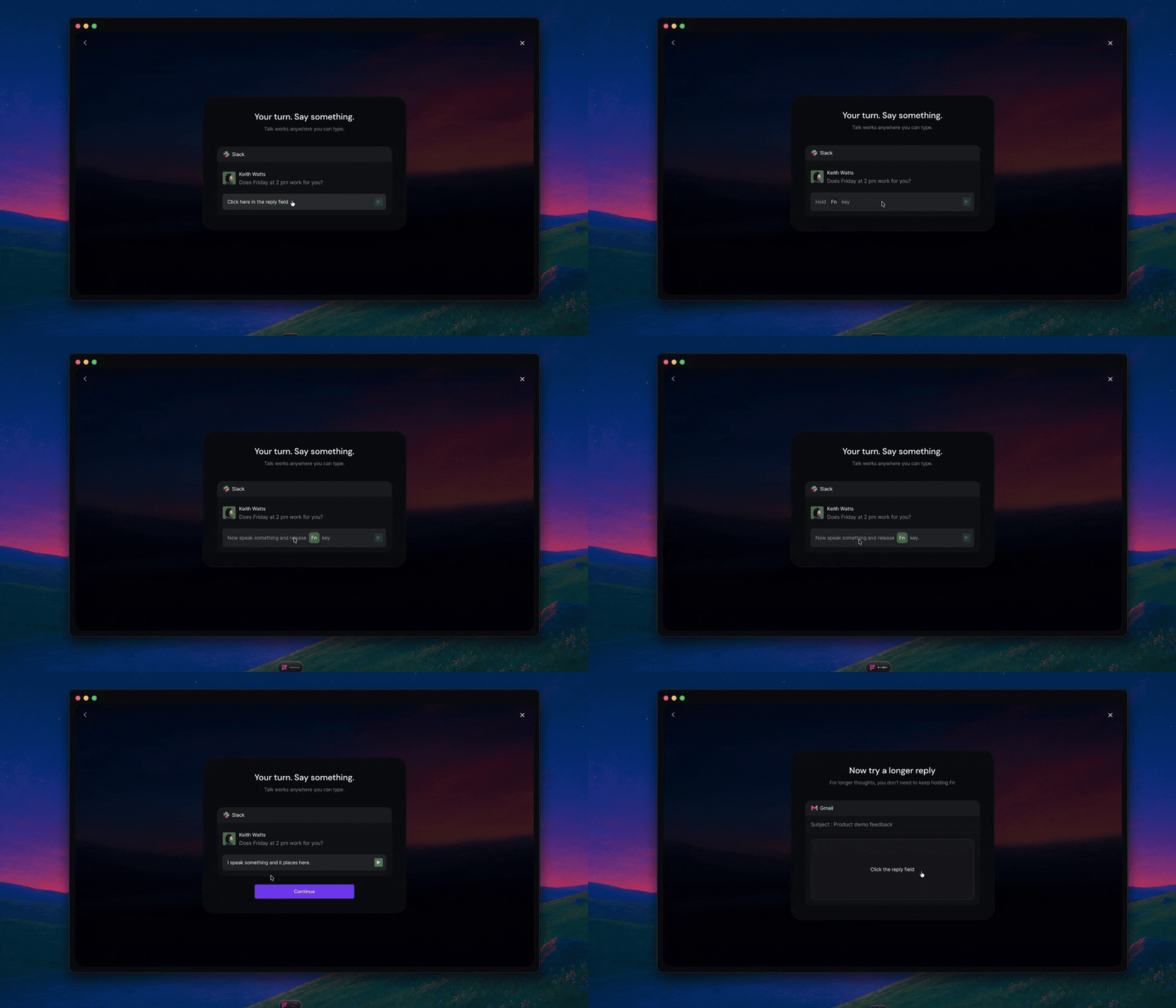
Push-to-talk works best for shorter messages - you hold the shortcut only while you're actually speaking, which gives you clear control over where a dictation starts and stops.
Click into the text field
Press and hold your push-to-talk shortcut
Speak your message
Release the shortcut - your dictated text appears in the field
Try hands-free mode
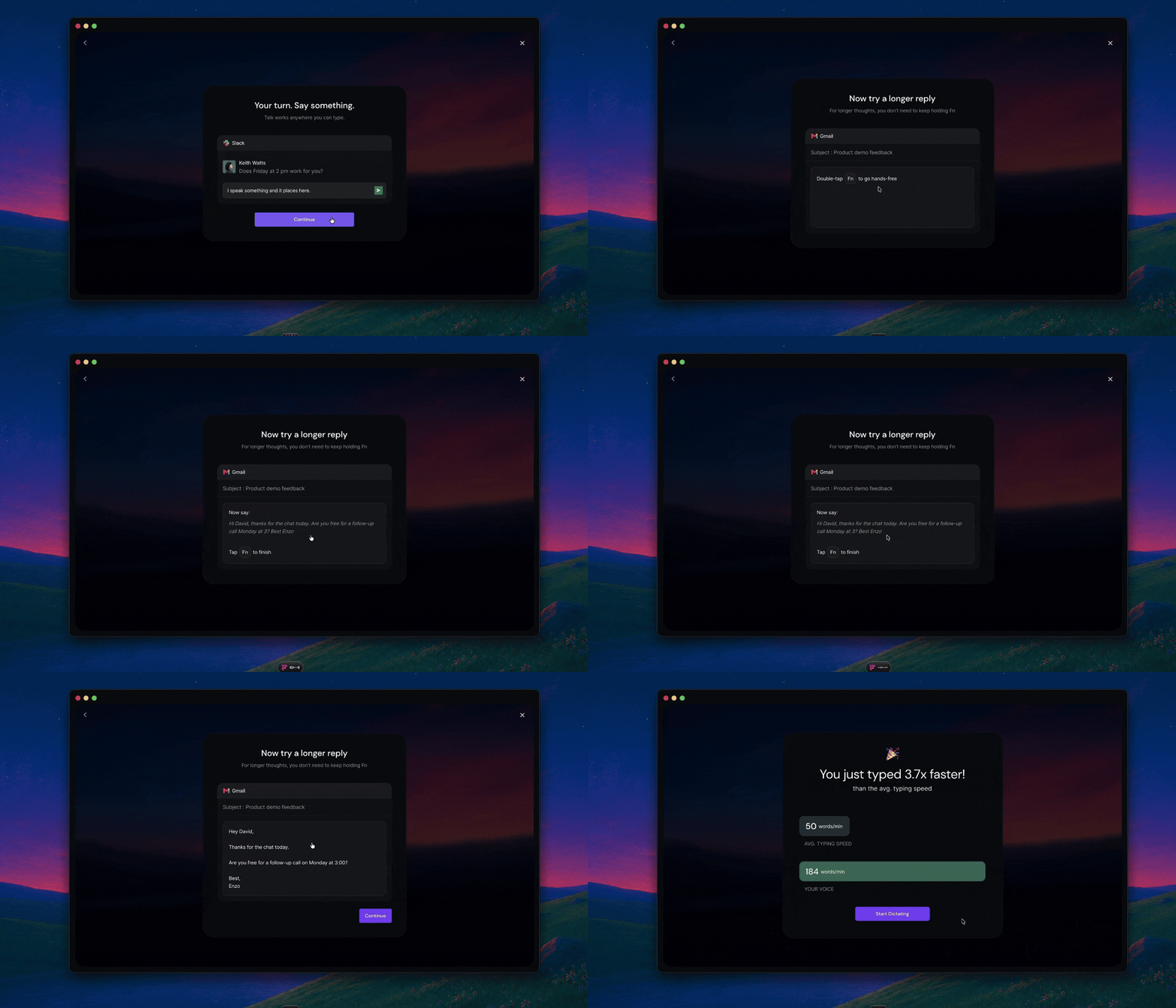
For longer messages, hands-free mode is easier — you do not need to hold the shortcut down for the whole time you're speaking.
Double-tap your push-to-talk shortcut to start hands-free mode
Speak your message
Tap the shortcut again to finish dictating
Review the dictated text, then click Continue
✨ What Talk does with your speech
Fireflies Talk automatically cleans up and formats your dictated text based on the app you're using.
Removes filler words and false starts, such as
um,like, and repeated or restarted sentences.Adds punctuation automatically, so you don't need to say
commaorperiodout loud.Adapts formatting to where you're writing. For example, Emails include a greeting and sign-off, while Slack messages stay short and casual.
Keeps your meaning unchanged.
📊 View your dictation overview
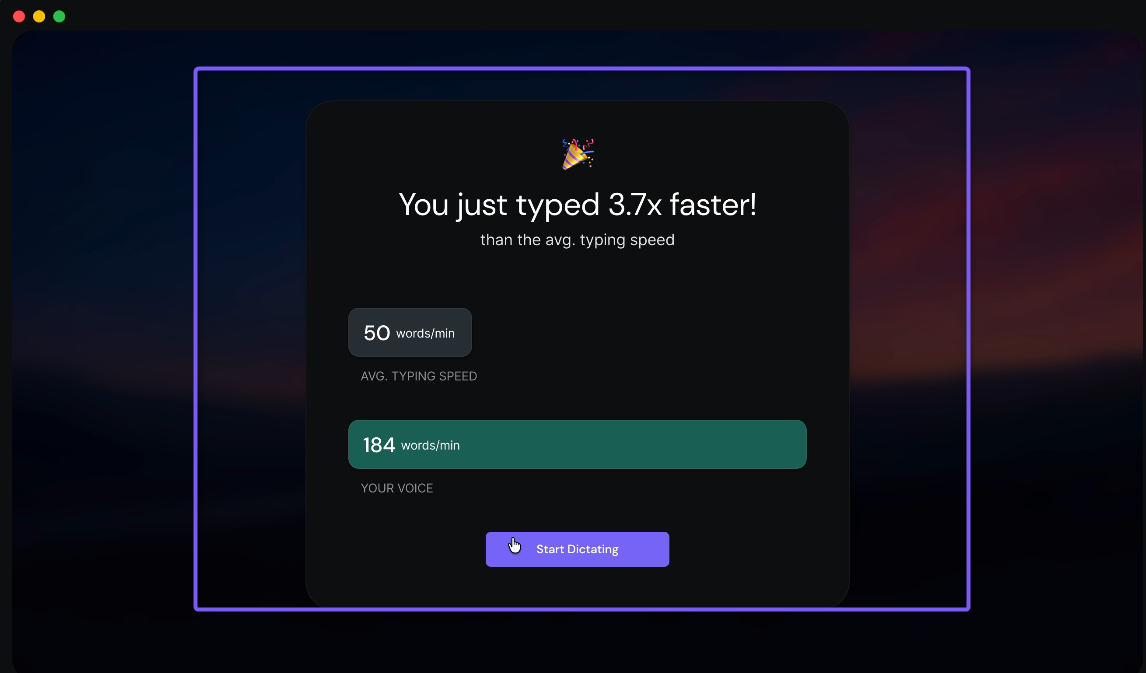
After you complete the onboarding, Talk shows a summary of your first dictation. This screen gives you a comparison between your average typing speed and your voice speed.
Avg. typing speed shows the typing speed used for comparison.
Your voice shows the words-per-minute recorded during your dictation.
The “You just typed…” message compares the two speeds.
Click Start Dictating to finish onboarding and start using Talk.
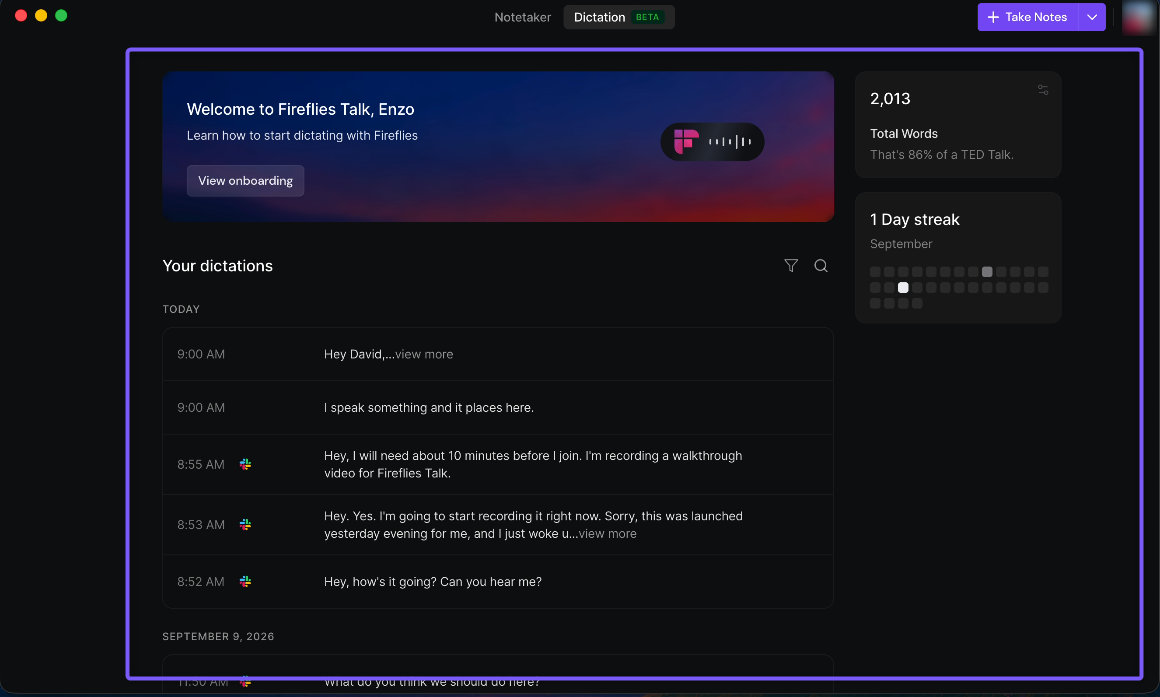
After you click Start Dictating, you're taken to the Dictation tab, where you can view your dictation activity.
The Your dictations section on the left lists your previous dictations, including the time, text, and the app where the text was pasted. This can include apps such as Slack, Gmail, Chrome, or other apps where you use Talk.
You can also search and filter your dictations to find a specific entry.
On the right side of the page, you can view:
Total Words — the total number of words you've dictated.
Dictation streak — shows your current dictation streak on the calendar.
Tip: You can click View onboarding from the Dictation tab to review the Talk setup again.
🔗 What's next
Now that Fireflies Talk is set up on your Mac, you can start using it to dictate wherever you type.
Use Fireflies Talk to dictate in any app — Learn how to use Push to talk, Hands-free mode, the dictation pill, and your dictation history.
Troubleshoot Fireflies Talk — Fix common issues with shortcuts, microphone access, permissions, or dictated text not appearing.