How to use Fireflies Talk to dictate in any app
Last updated: September 26, 2026
Typing isn't always the easiest way to get your thoughts onto the screen. With Fireflies Talk, you can speak naturally and have your words appear directly in the app you're using.
Once you've set up Talk, you can use it wherever you normally type, such as Slack, Gmail, Google Docs, ChatGPT, or CRM fields.
In this guide, you'll learn how to start and finish a dictation, use hands-free mode, control the Talk pill, polish existing text on Mac, and find your dictation history.
Before you start: If you haven't set up Talk yet, see [How to set up Fireflies Talk on Mac] or [How to set up Fireflies Talk on Windows].
1. Start a dictation
Once Talk is set up, you can dictate directly into any text field. Use Fireflies Talk anywhere you normally type.
Open the app where you want to enter text.
Click inside the text field.
Press and hold your Talk shortcut.
Start speaking.
Release the shortcut when you're finished.
Your text appears where your cursor is.
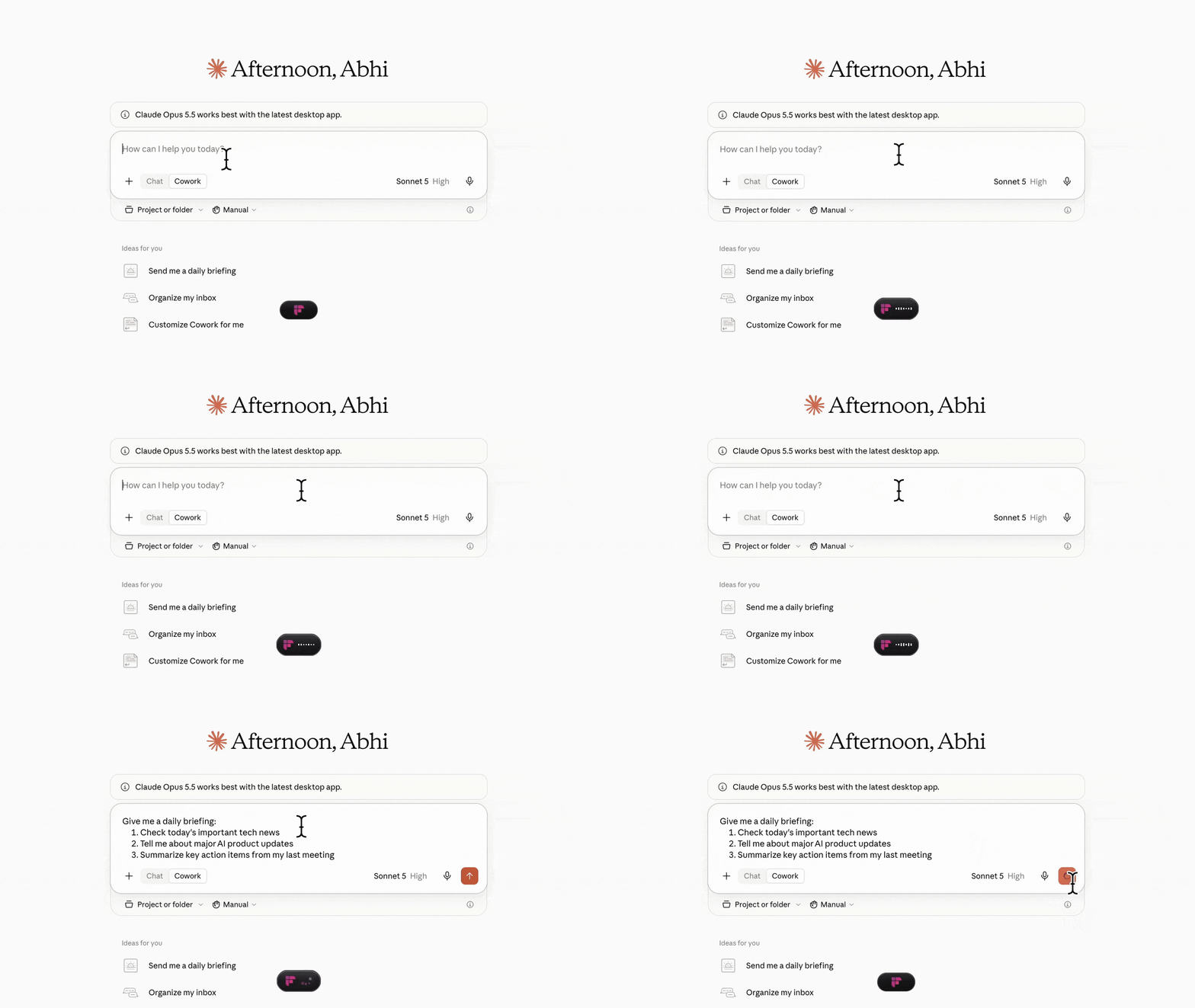
For example, you can use Talk to dictate a prompt directly into Claude instead of typing it:
Open Claude and click inside the text field.
Press and hold your Talk shortcut, then start speaking.
Say:
Give me a daily briefing: check today's important tech news, tell me about major AI product updates, and summarize key action items from my last meeting.Your prompt appears directly in the Claude text field, ready to use.
2. Finish or cancel a dictation
When you're using push-to-talk, Talk listens while you hold the shortcut.
Release the shortcut when you've finished speaking.
If you start a dictation and decide not to continue, press Escape to cancel the dictation in progress.
Screenshot recommended: Show Talk in its listening state, with the active pill visible.
3. Use hands-free mode
You don't need to keep holding the shortcut while you speak. Talk also has a hands-free mode.
You can start hands-free mode in either of these ways:
Double-tap your Talk shortcut.
Click the microphone icon on the Talk pill.
Both actions start the same hands-free mode.
Once hands-free mode starts:
Speak normally.
When you're finished, press the Talk shortcut again.
Example
Double-tap your Talk shortcut and say:
"Hi Sarah, I wanted to follow up on the campaign results."
When you're finished, press the shortcut again. Talk inserts the text into the active text field.
GIF recommended: Show:
Double-tap shortcut → hands-free mode starts → speak → press shortcut → text appears.
4. Move or minimize the Talk pill
The Talk pill appears while you're using Talk and gives you access to dictation controls.
You can move the pill to a different position on your screen.
To move it:
Click and drag the pill.
Move it to the edge or corner where you want it.
Release it.
The pill can also snap to available positions around the edges of your screen.
Minimize or hide the pill
If you don't want the full pill visible, you can change its appearance from Settings > Dictation.
Open the Fireflies desktop app.
Go to Settings > Dictation.
Under Preferences, adjust the pill settings.
You can:
Turn on Minimize pill to use the smaller pill.
Turn off Floating pill to hide the pill completely.
Change the Pill position.
📸 Screenshot required: Show Settings > Dictation > Preferences with Floating pill, Minimize pill, and Pill position.
📹 GIF recommended: Show the pill being dragged to another position and then minimized.
5. Polish text on Mac
On Mac, you can also use Talk to polish text you've already written.
Select the text you want to improve, then press Fn + 1.
Talk can polish the selected text by:
Correcting grammar errors.
Fixing spelling.
Adjusting formatting.
Turning the text into a more polished format, such as an email.
Example
Suppose you've written:
"hey just wanted to check if you got the report and if you need anything let me know thanks"
Select the text and press Fn + 1. Talk polishes the selected text and formats it as a more complete message.
Note: Fn + 1 is available on Mac.
📹 GIF required: Show:
Select existing text → press Fn + 1 → polished text appears.
This is a useful GIF because the behavior is easier to understand by seeing the before-and-after result.
6. What happens if there is nowhere to paste your dictation?
Talk needs an input field to insert your dictated text.
If Talk can't find a place to paste the text, you'll hear an error sound.
Talk also saves the dictated text to your clipboard so you don't lose it.
You can then open the app or text field where you want the text and paste it manually.
The dictation history also shows that the text was not pasted.
Example
If you start dictating without selecting a text field:
Talk listens to your dictation.
Talk plays an error sound when it can't find somewhere to paste it.
The dictated text is copied to your clipboard.
You can paste it into the text field you want.
GIF required: Show:
No text field selected → start dictation → speak → error sound → clipboard fallback → paste the text.
This is important to show because it explains what happens when Talk can't find an active input field.
7. Find your dictation history
Talk keeps a history of your previous dictations.
From the Dictation tab, you can review where your dictations were pasted and find previous entries.
You can:
Search your dictation history.
Filter entries by app.
See where each dictation was pasted.
View your running word count.
Copy a previous dictation again.
📸 Screenshot required: Show the Dictation history with the search/filter controls, app information, and word count.
Example
If you previously dictated a message into Slack, you can find that entry in your history and copy the text again if needed.
8. Use Talk across your apps
Once Talk is set up, the same basic workflow works across the apps where you normally type.
For example, you can use Talk in:
Slack
Gmail
Google Docs
ChatGPT
CRM fields
Fireflies
Click into the text field, start Talk, speak naturally, and finish the dictation when you're done.
The text is inserted directly into the app you're working in.
No additional GIF needed: The main GIF in Start a dictation already demonstrates this workflow.