Fireflies Talk on iPhone and Android: Setup and Usage Guide
Last updated: October 21, 2026
Fireflies Talk lets you speak instead of typing, turning your speech into text wherever you normally write on your phone. Whether you're replying to messages, writing emails, adding notes, or composing content in other apps, Talk helps you get your words down using your voice. It's built into the Fireflies mobile app and works on both iPhone and Android, with a different setup for each device.
💡 Fireflies Talk is free and unlimited on every plan, so you can dictate as much as you need without paying extra for Talk.
Want to use Fireflies Talk on your desktop instead? See Fireflies Talk: Talk instead of typing in any app to learn how to use Talk on Mac and Windows.
📱 What is Fireflies Talk on mobile?
Fireflies Talk works differently on iPhone and Android, but both let you dictate text wherever you normally type.
iPhone: The Fireflies keyboard has Talk built in. Switch to it like any other keyboard, then use Talk to dictate your text.
Android: A small Talk pill appears above your existing keyboard. Tap it to dictate without switching keyboards.
Either way, your dictated words appear as text in the app you're using, such as Messages, Slack, email, or notes.
🔑 Prerequisites
Before setting up Fireflies Talk on your phone, make sure you meet the following requirements:
iPhone: iOS 18 or later.
Android: Android 13 or later.
Fireflies app: Update the existing Fireflies mobile app to the latest version. You don't need to install a separate app for Talk.
1⃣ Set up Fireflies Talk on iPhone
Step 1: Open Fireflies Talk on your iPhone
Update the Fireflies app to the latest version, then open the app and select Fireflies Talk from the menu.
Follow the on-screen instructions to begin setup.
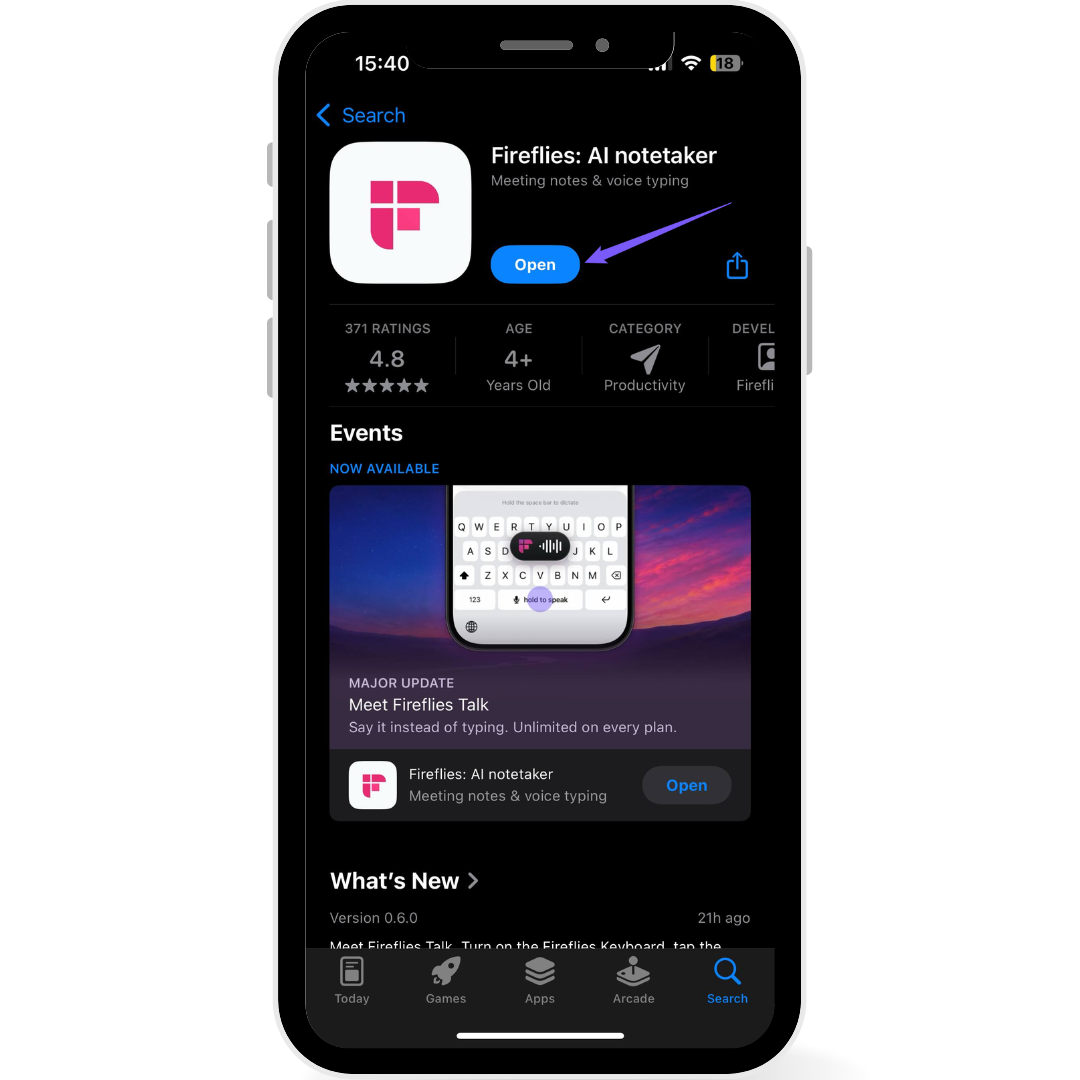
Step 2: Review the Fireflies Talk Supplemental Terms
Review the Fireflies Talk Supplemental Terms before continuing.
Note: Tap Fireflies Talk Supplemental Terms to read the terms. By tapping Let's Get Started, you agree to the Fireflies Talk Supplemental Terms.
Click Let's Get Started to continue.
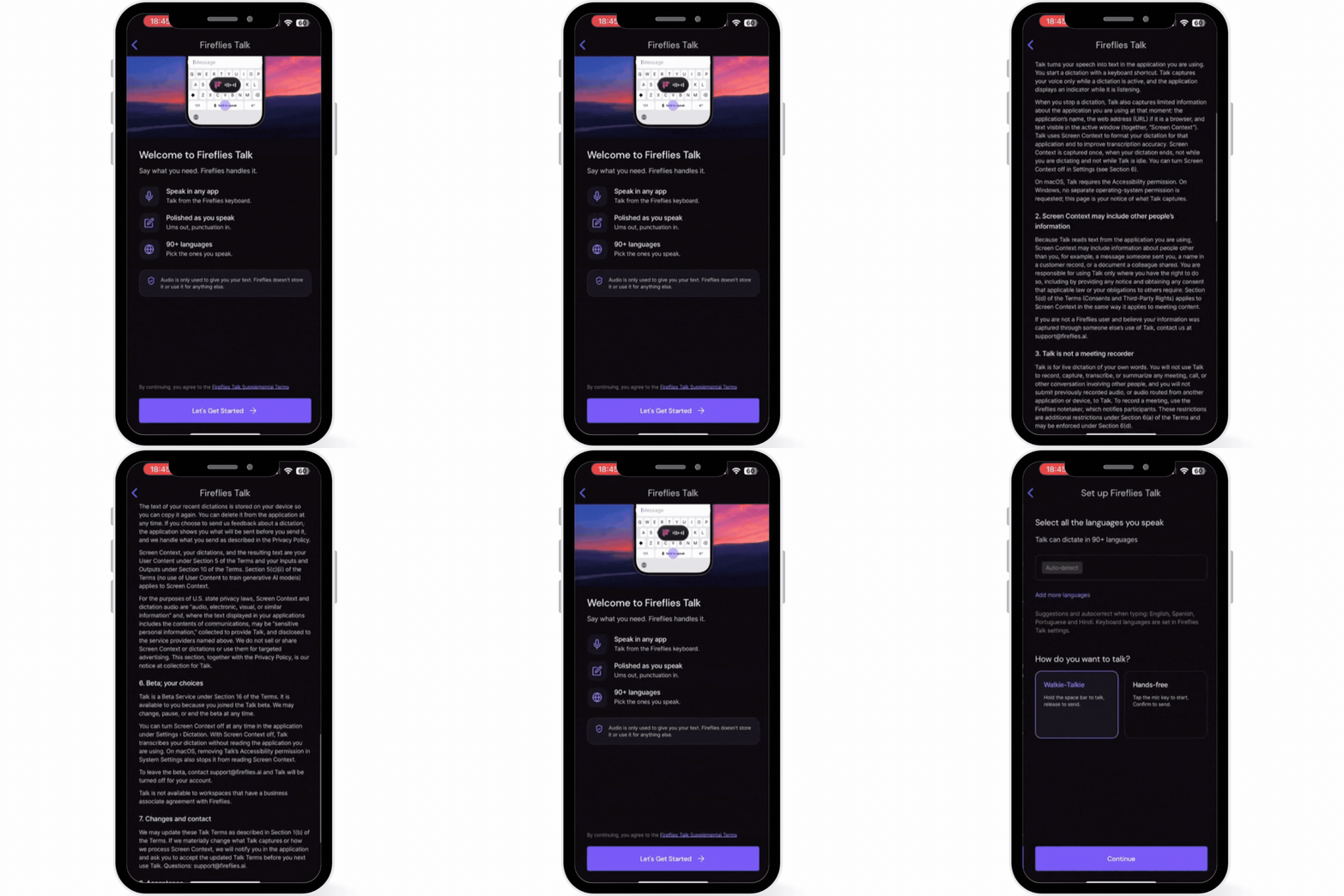
Step 3: Select your languages
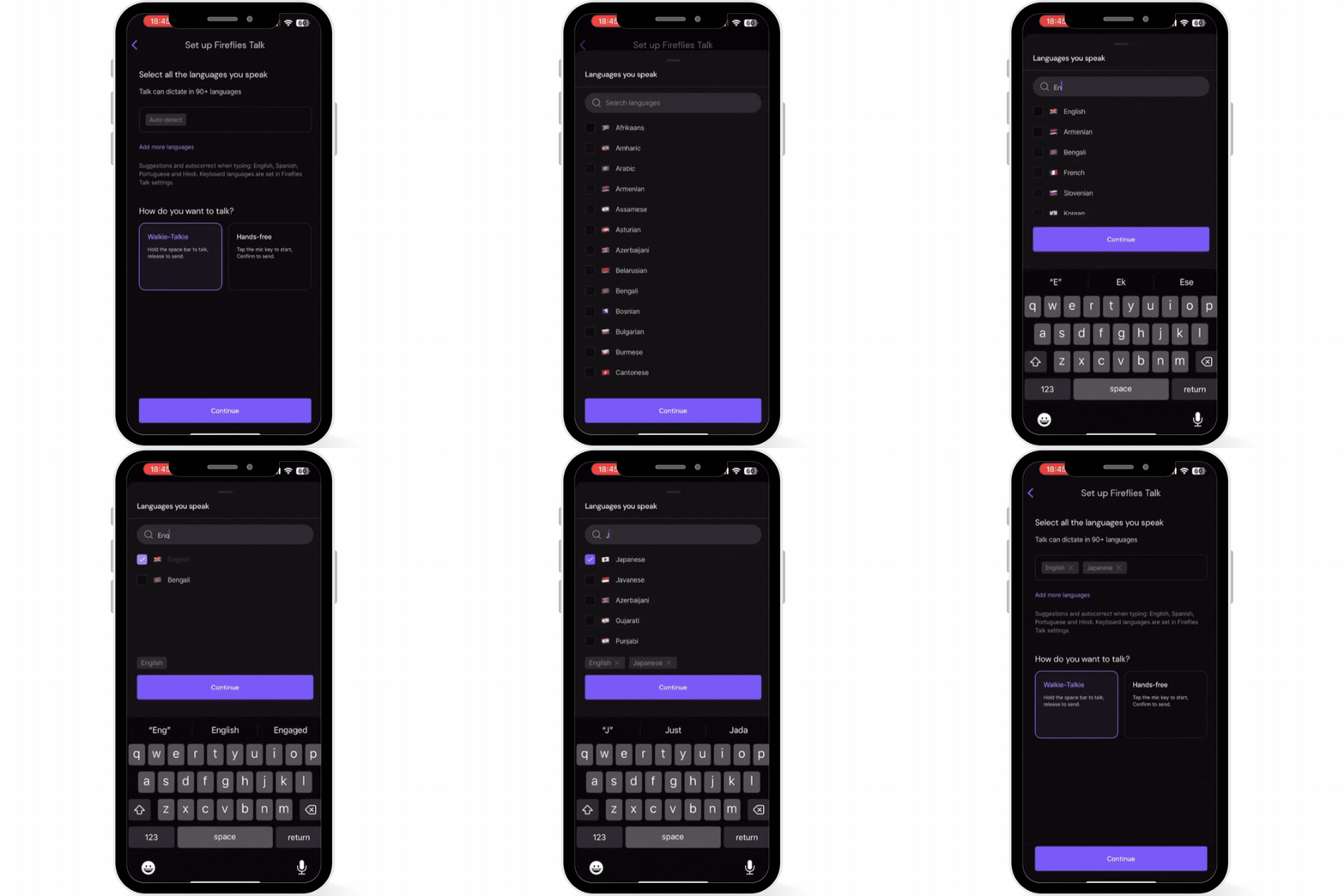
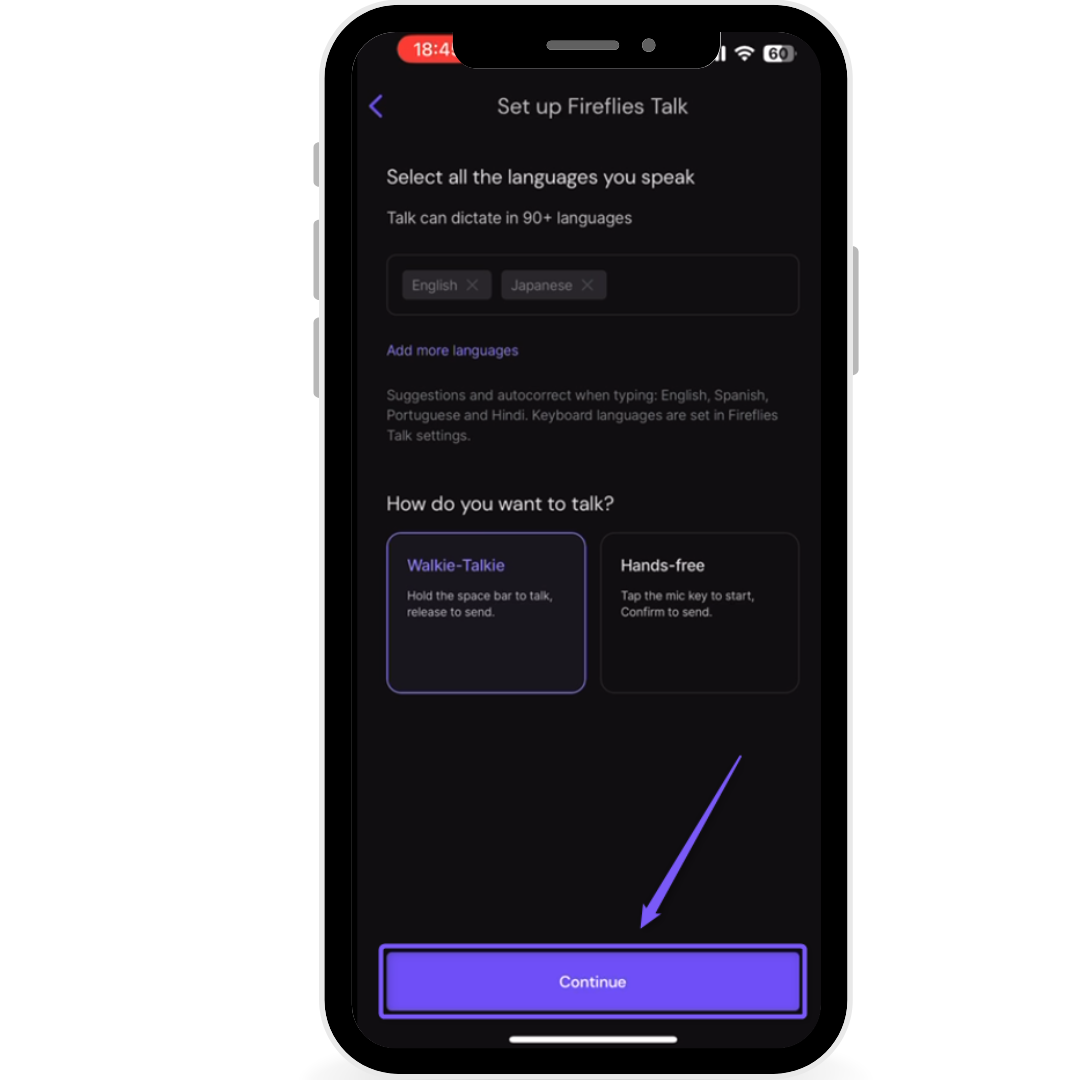
Select the languages you speak to help Talk detect and transcribe your speech accurately. You can choose Auto-detect or select the specific languages you use.
To use automatic language detection, select Auto-detect.
To choose specific languages, tap Add more languages and select the languages you want Talk to detect.
ℹ Note for iPhone users: Fireflies Talk supports 90+ dictation languages, but the Fireflies keyboard itself supports typing in English, Spanish, and Portuguese.
View the Full List of 90+ Supported Languages ✅
# | Languages supported by Fireflies Talk |
|---|---|
1 | Afrikaans |
2 | Amharic |
3 | Armenian |
4 | Asturian |
5 | Azerbaijani |
6 | Belarusian |
7 | Bengali |
8 | Bosnian |
9 | Bulgarian |
10 | Burmese |
11 | Cantonese |
12 | Catalan |
13 | Cebuano |
14 | Chichewa |
15 | Croatian |
16 | Czech |
17 | Danish |
18 | Dutch |
19 | English |
20 | Estonian |
21 | Filipino |
22 | Finnish |
23 | French |
24 | Fulah |
25 | Galician |
26 | Ganda |
27 | Georgian |
28 | German |
29 | Greek |
30 | Gujarati |
31 | Hausa |
32 | Hebrew |
33 | Hindi |
34 | Hungarian |
35 | Icelandic |
36 | Igbo |
37 | Indonesian |
38 | Irish |
39 | Italian |
40 | Japanese |
41 | Javanese |
42 | Kabuverdianu |
43 | Kannada |
44 | Kazakh |
45 | Khmer |
46 | Korean |
47 | Kurdish |
48 | Kyrgyz |
49 | Lao |
50 | Latvian |
51 | Lingala |
52 | Lithuanian |
53 | Luo |
54 | Luxembourgish |
55 | Macedonian |
56 | Malay |
57 | Malayalam |
58 | Maltese |
59 | Mandarin Chinese |
60 | Maori |
61 | Marathi |
62 | Mongolian |
63 | Nepali |
64 | Northern Sotho |
65 | Norwegian |
66 | Occitan |
67 | Odia |
68 | Pashto |
69 | Persian |
70 | Polish |
71 | Portuguese |
72 | Punjabi |
73 | Romanian |
74 | Russian |
75 | Serbian |
76 | Shona |
77 | Sindhi |
78 | Slovak |
79 | Slovenian |
80 | Somali |
81 | Spanish |
82 | Swahili |
83 | Swedish |
84 | Tajik |
85 | Tamil |
86 | Telugu |
87 | Thai |
88 | Turkish |
89 | Ukrainian |
90 | Umbundu |
91 | Welsh |
92 | Wolof |
93 | Xhosa |
94 | Zulu |
Step 4: Choose how you want to talk
Choose your preferred dictation mode on the How do you want to talk? screen.
Walkie-Talkie (default): Hold the space bar while speaking, then release it to send your text.
Hands-free: Tap the microphone key to start speaking, then tap Confirm to send your text.
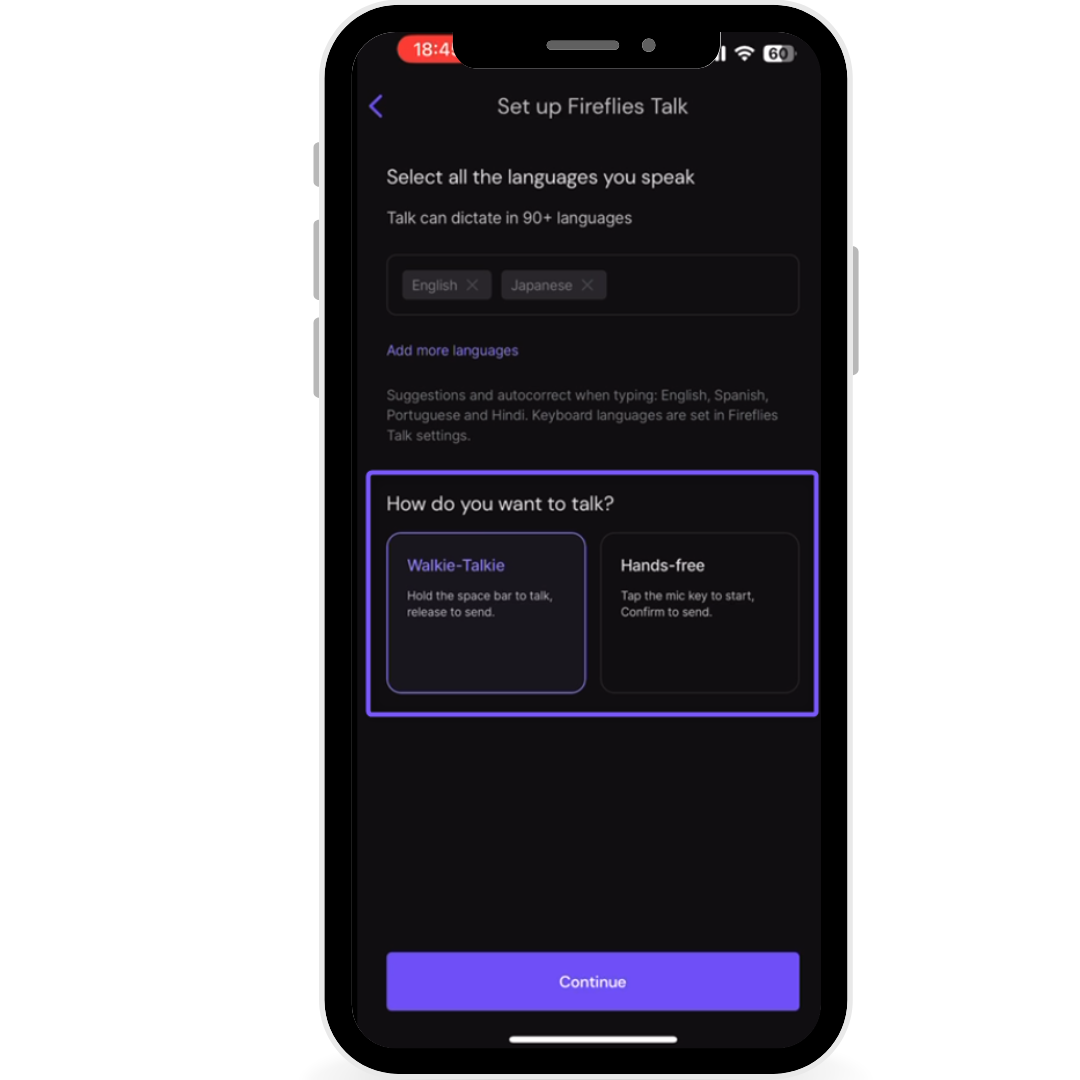
Select your preferred mode and tap Continue.
💡 You can change your mode anytime in Talk settings.
Step 5: Enable the Fireflies keyboard
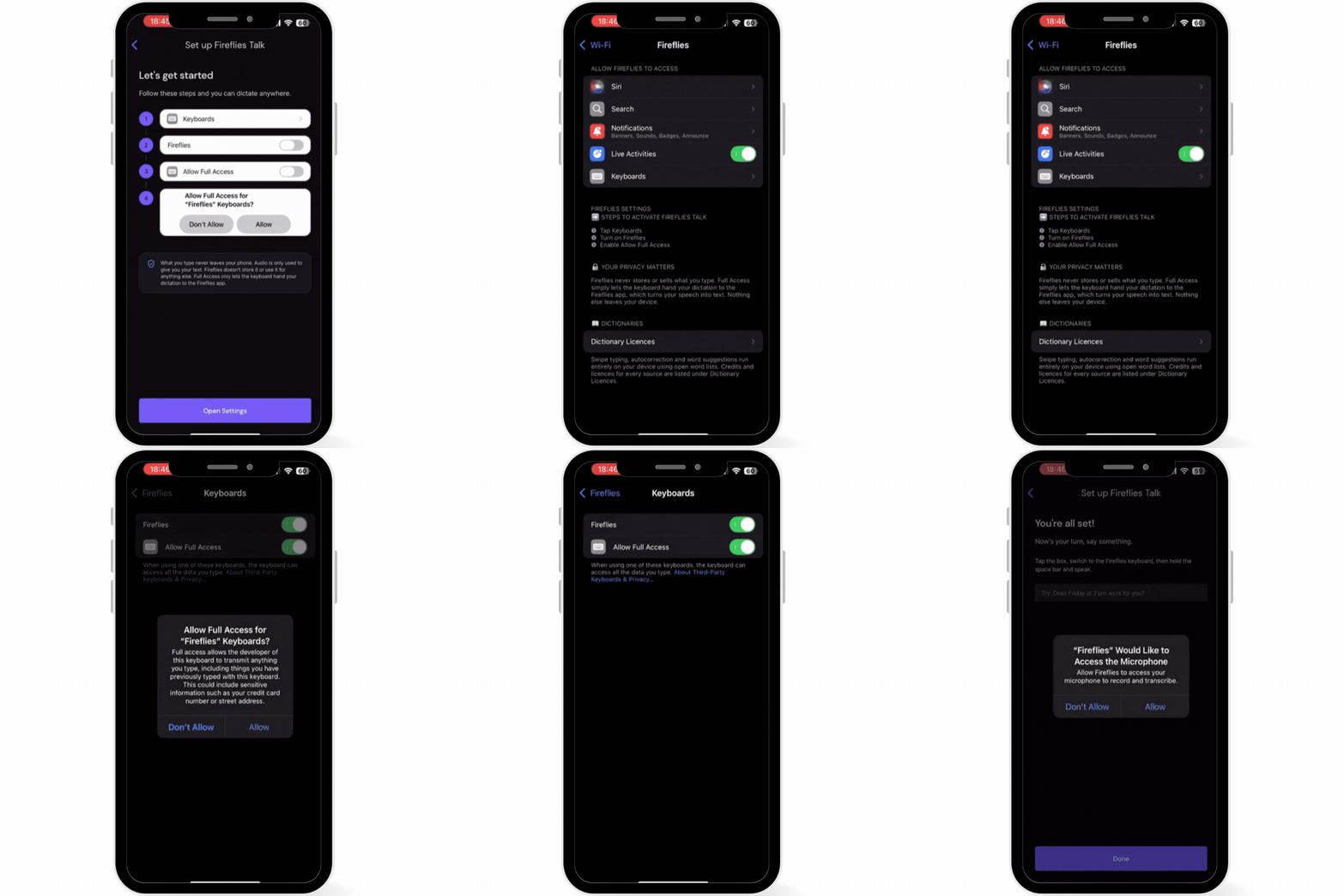
To use Talk in other apps, enable the Fireflies keyboard in your iPhone settings.
On the Let's get started screen, tap Open Settings.
Open Keyboards under Fireflies.
Turn on the Fireflies keyboard.
Turn on Allow Full Access.
Tap Allow in Apple's confirmation dialog.
Return to the Fireflies app.
Step 6: Allow microphone access
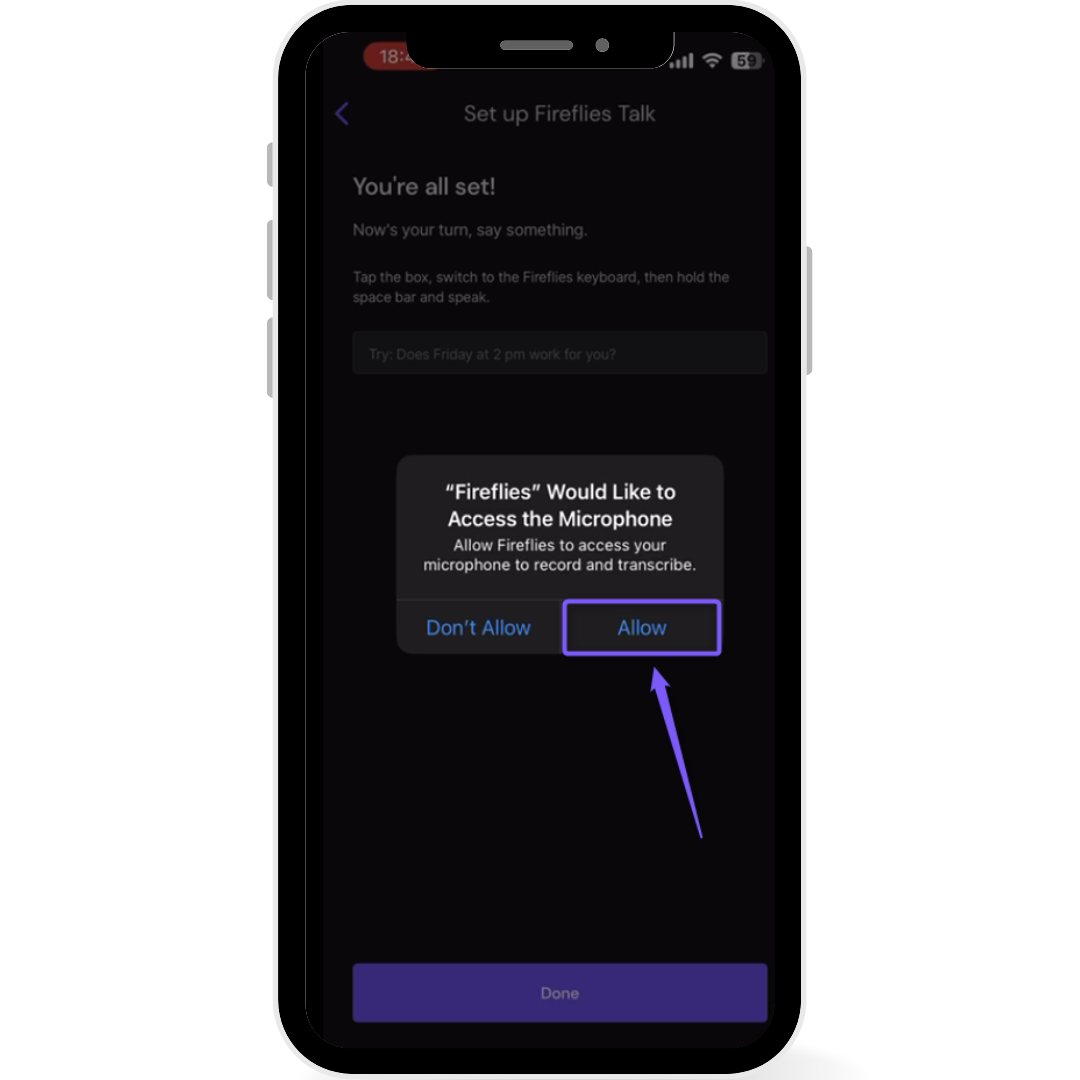
When the “Fireflies” Would Like to Access the Microphone prompt appears, tap Allow to grant microphone access. This permission is required for Fireflies Talk to capture your speech and convert it into text.
Step 7: Test Fireflies Talk
Once you've enabled the required permissions, return to the Fireflies app and open a text field to test Talk.
Tap a text field where you want to dictate.
Switch to the Fireflies keyboard using the globe key.
Use your selected Talk mode to dictate a message, such as:
Does Friday at 2 pm work for you?Check that your spoken words appear as text in the text field.
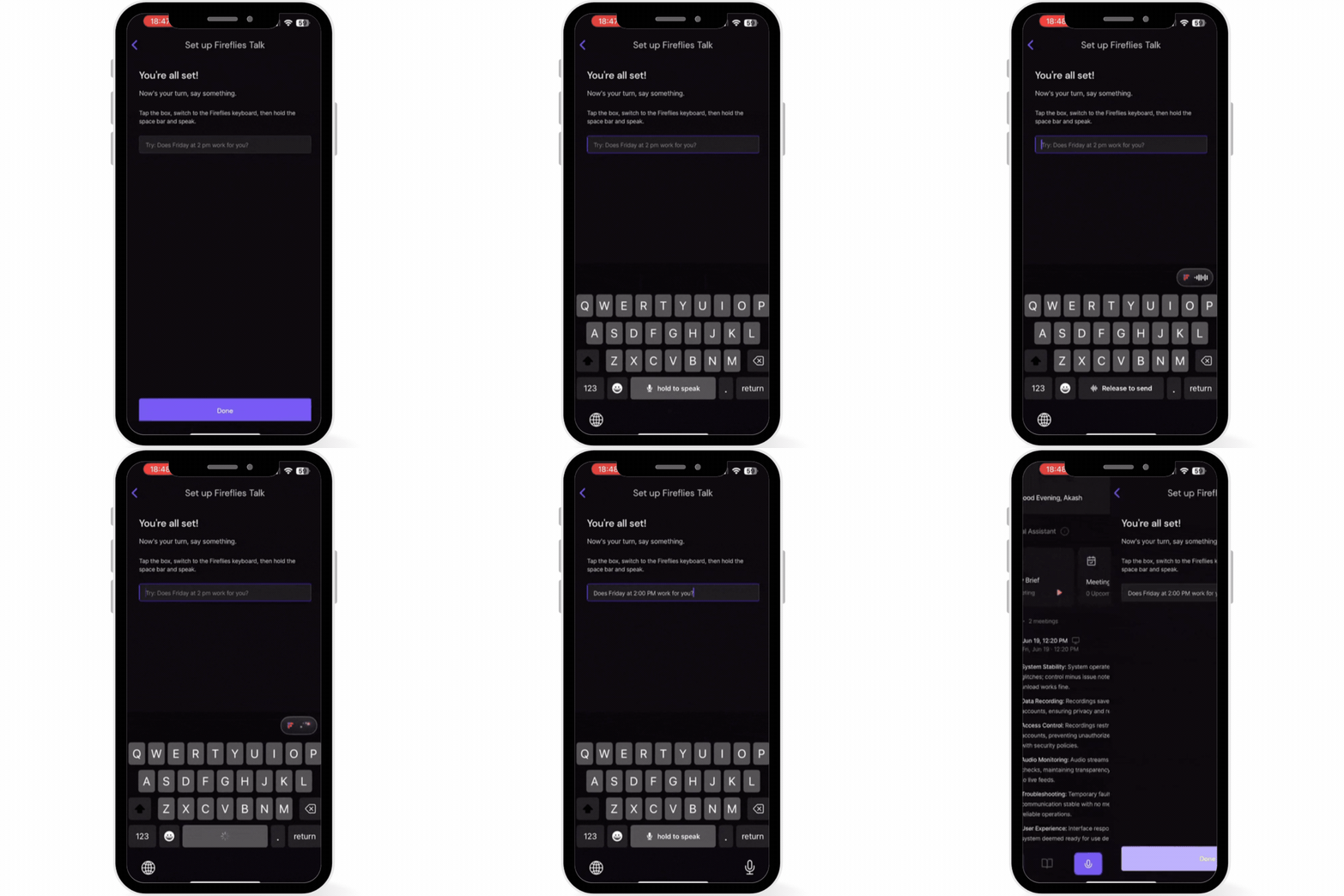
Done! Fireflies Talk is set up on your iPhone. You can now use the Fireflies keyboard to dictate text in other apps.
ℹ Why iPhone asks for Full Access
Apple displays this warning for keyboards that request Full Access. The warning may mention information such as credit card numbers and street addresses.
Fireflies needs Full Access so the keyboard can pass your dictation to the Fireflies app and convert it into text.
📌 Your audio is only used to give you your text. Fireflies doesn’t store it or use it for anything else.
The keyboard can still type without Full Access, but Talk needs this permission to work.
✅ Use Fireflies Talk on iPhone
Once you've completed setup, you can use Talk in a text field in the app where you want your words to appear. Your steps depend on the dictation mode you selected.
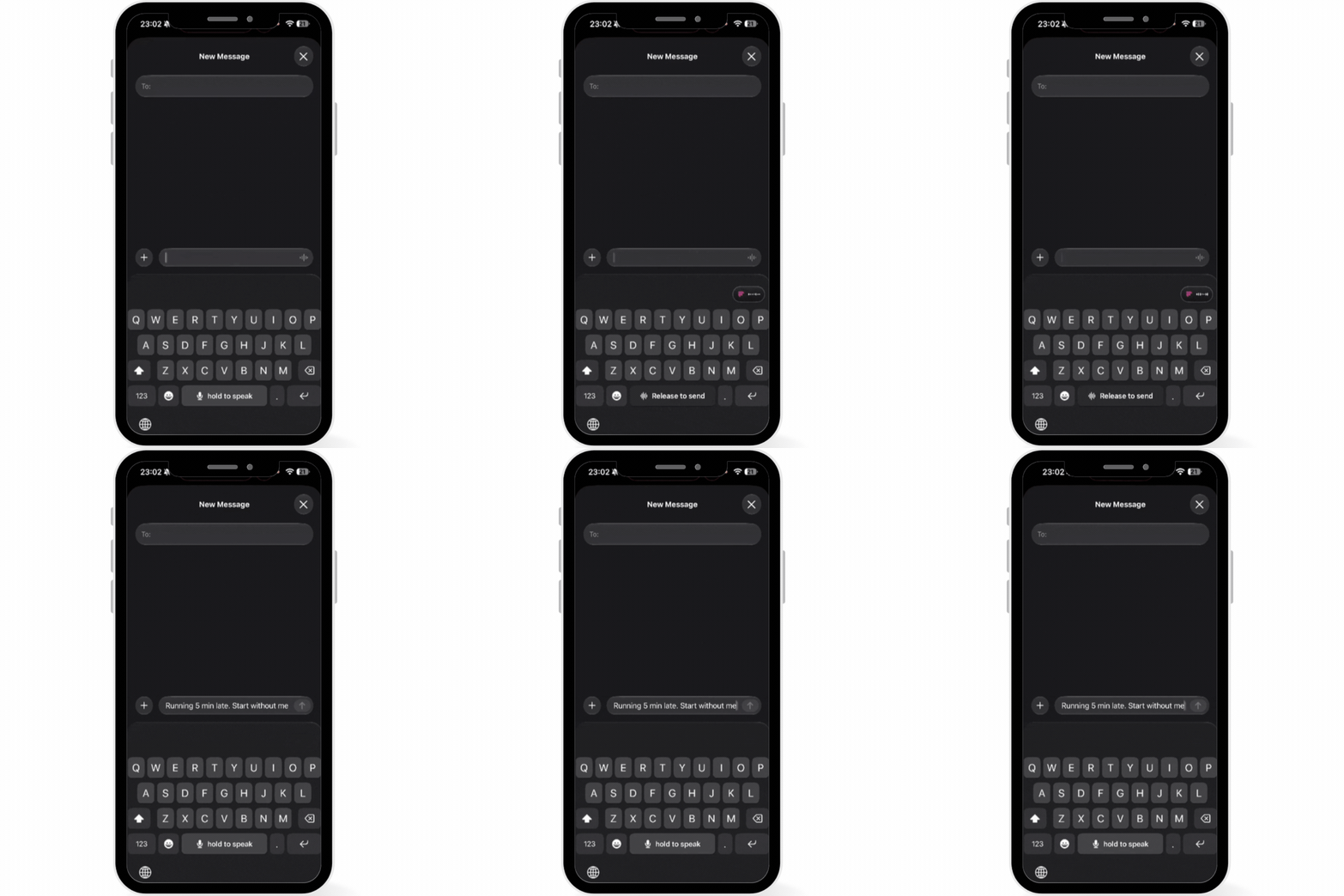
Use Walkie-Talkie mode
Walkie-Talkie is useful when you want to dictate a short message or reply and control exactly when the dictation is sent.
Open the app where you want to enter text.
Tap the text field and switch to the Fireflies keyboard.
Press and hold the space bar.
Speak the message you want to write.
Release the space bar when you've finished speaking.
Your dictated text is sent when you release the space bar.
Use Hands-free mode
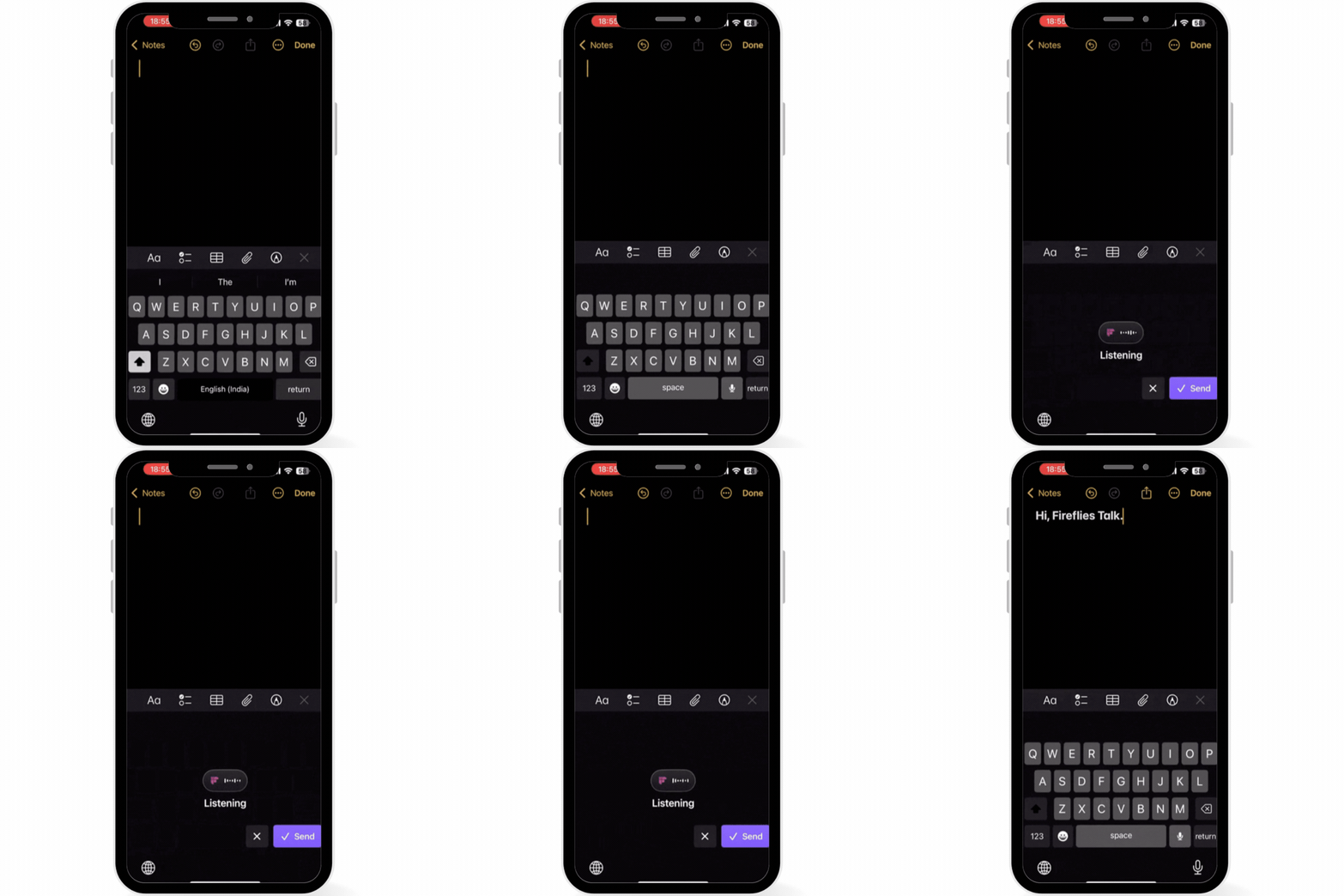
Hands-free mode lets you start dictation with a tap instead of holding down the space bar.
Open the app where you want to enter text.
Tap the text field and switch to the Fireflies keyboard.
Tap the microphone key to start dictating.
Speak your message.
Tap Confirm when you've finished.
Your dictation is sent after you tap Confirm.
Example: When composing a longer message, you can tap the microphone to begin speaking and tap Confirm once you've finished the message.
Change your dictation mode
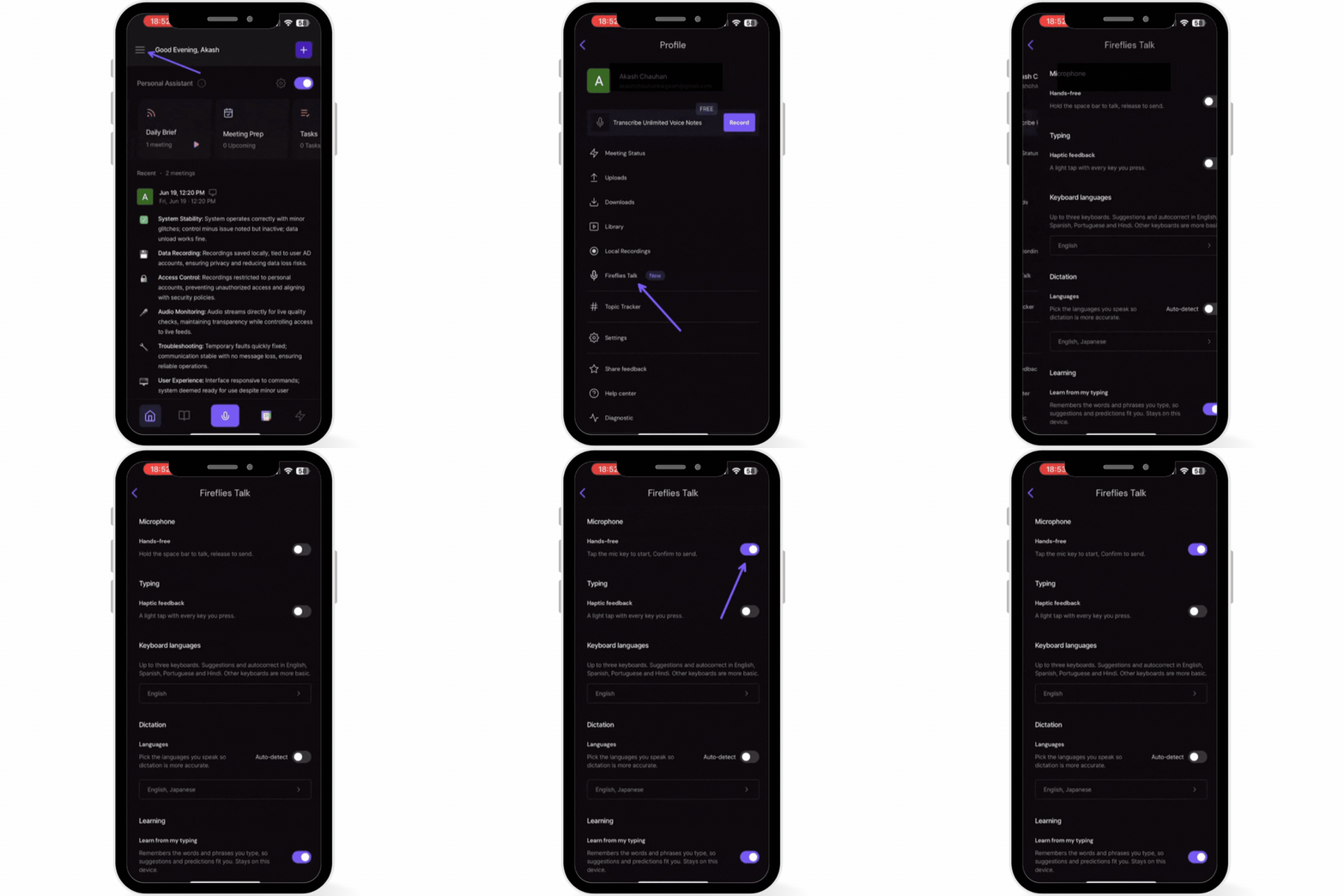
You can change your dictation mode anytime in Fireflies Talk settings.
Open Fireflies Talk settings.
Under Microphone, turn on Hands-free to start dictating with a tap and confirm when you're done. Turn it off to use Walkie-Talkie, where you hold the space bar while speaking and release it to send.
Your selected mode determines how you start and finish dictation when using the Fireflies keyboard.
2⃣ Set up Fireflies Talk on Android
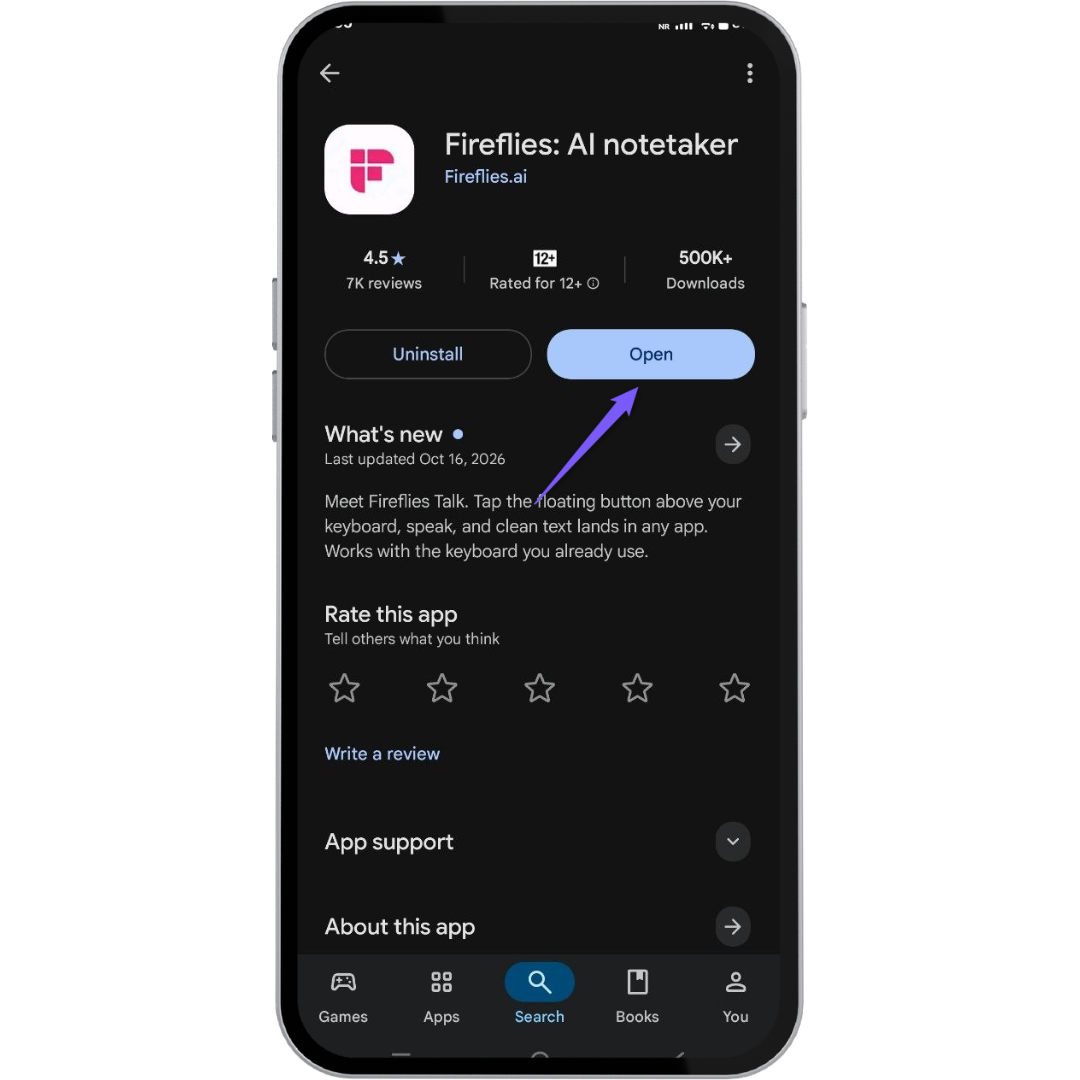
Step 1: Open Fireflies Talk on your Android phone
Update the Fireflies app to the latest version, then open the app and select Fireflies Talk from the menu.
Follow the on-screen instructions to begin setup.
Step 2: Review the Fireflies Talk Supplemental Terms
Review the Fireflies Talk Supplemental Terms before continuing.
Note: Tap Fireflies Talk Supplemental Terms to read the terms. By tapping Let's Get Started, you agree to the Fireflies Talk Supplemental Terms.
Click Let's Get Started to continue.
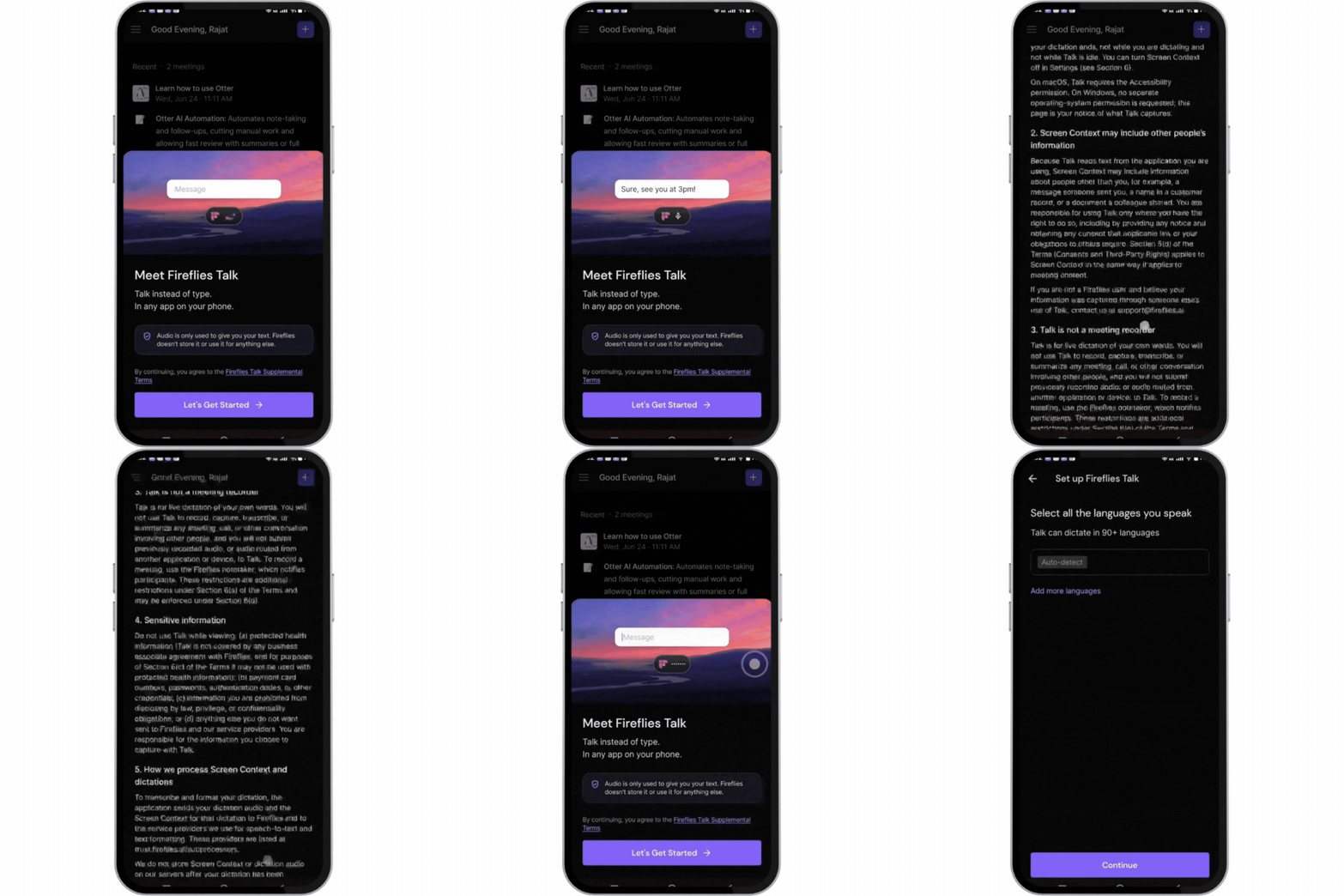
Step 3: Select your languages
Select the languages you speak to help Talk detect and transcribe your speech accurately. You can choose Auto-detect or select the specific languages you use.
To use automatic language detection, select Auto-detect.
To choose specific languages, tap Add more languages and select the languages you want Talk to detect.
View the Full List of 90+ Supported Languages ✅
# | Languages supported by Fireflies Talk |
|---|---|
1 | Afrikaans |
2 | Amharic |
3 | Armenian |
4 | Asturian |
5 | Azerbaijani |
6 | Belarusian |
7 | Bengali |
8 | Bosnian |
9 | Bulgarian |
10 | Burmese |
11 | Cantonese |
12 | Catalan |
13 | Cebuano |
14 | Chichewa |
15 | Croatian |
16 | Czech |
17 | Danish |
18 | Dutch |
19 | English |
20 | Estonian |
21 | Filipino |
22 | Finnish |
23 | French |
24 | Fulah |
25 | Galician |
26 | Ganda |
27 | Georgian |
28 | German |
29 | Greek |
30 | Gujarati |
31 | Hausa |
32 | Hebrew |
33 | Hindi |
34 | Hungarian |
35 | Icelandic |
36 | Igbo |
37 | Indonesian |
38 | Irish |
39 | Italian |
40 | Japanese |
41 | Javanese |
42 | Kabuverdianu |
43 | Kannada |
44 | Kazakh |
45 | Khmer |
46 | Korean |
47 | Kurdish |
48 | Kyrgyz |
49 | Lao |
50 | Latvian |
51 | Lingala |
52 | Lithuanian |
53 | Luo |
54 | Luxembourgish |
55 | Macedonian |
56 | Malay |
57 | Malayalam |
58 | Maltese |
59 | Mandarin Chinese |
60 | Maori |
61 | Marathi |
62 | Mongolian |
63 | Nepali |
64 | Northern Sotho |
65 | Norwegian |
66 | Occitan |
67 | Odia |
68 | Pashto |
69 | Persian |
70 | Polish |
71 | Portuguese |
72 | Punjabi |
73 | Romanian |
74 | Russian |
75 | Serbian |
76 | Shona |
77 | Sindhi |
78 | Slovak |
79 | Slovenian |
80 | Somali |
81 | Spanish |
82 | Swahili |
83 | Swedish |
84 | Tajik |
85 | Tamil |
86 | Telugu |
87 | Thai |
88 | Turkish |
89 | Ukrainian |
90 | Umbundu |
91 | Welsh |
92 | Wolof |
93 | Xhosa |
94 | Zulu |
After selecting your languages, click Continue.
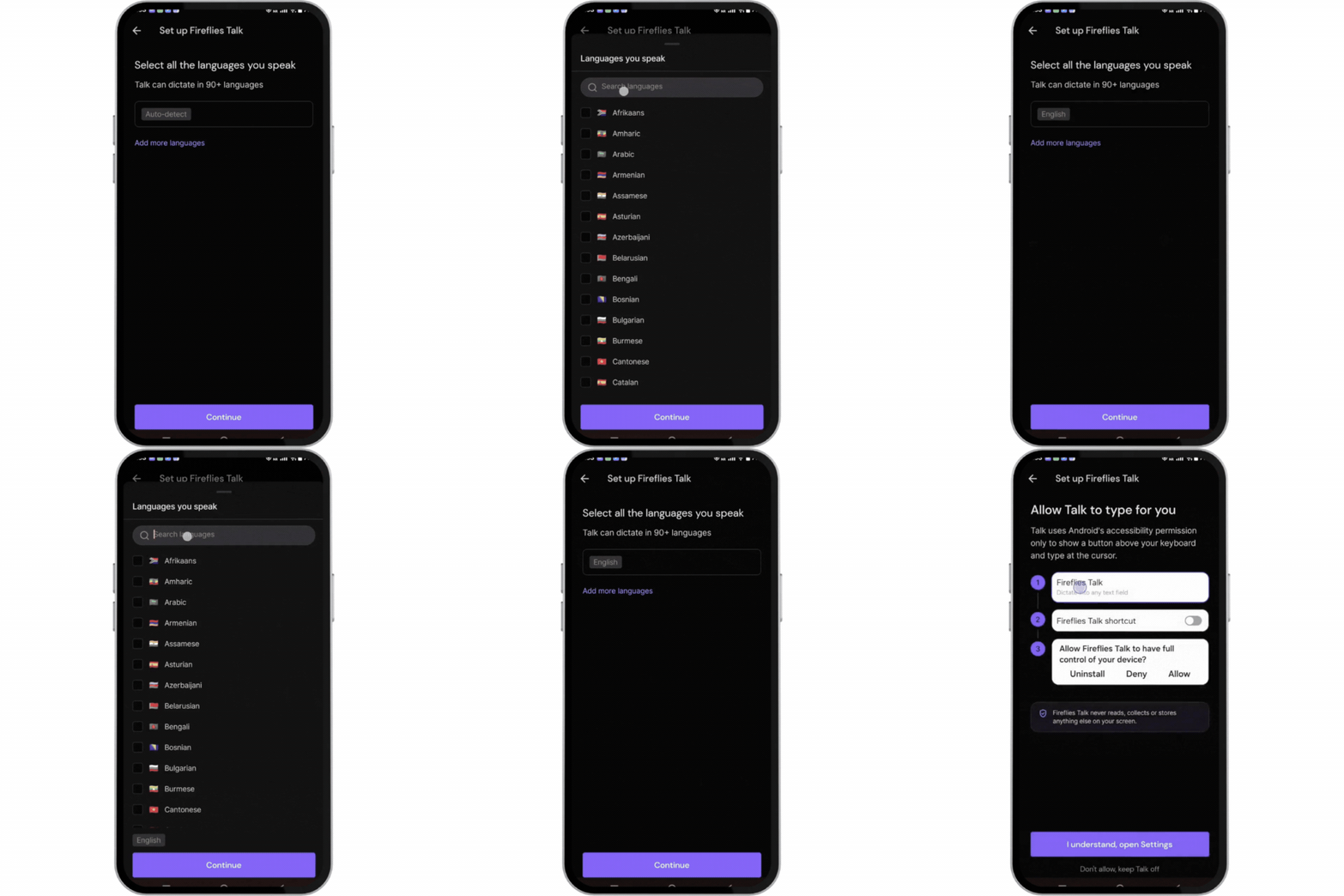
Step 4: Enable Accessibility permission
On the Allow Talk to type for you screen, review how Fireflies Talk uses Android's Accessibility permission to show the Talk button above your keyboard and type at your cursor.
Tap
I understand, open Settings.In Android's Accessibility settings, select Fireflies Talk.
Enable the Fireflies Talk service.
Review the Android system warning and tap Allow to confirm.
Return to the Fireflies app.
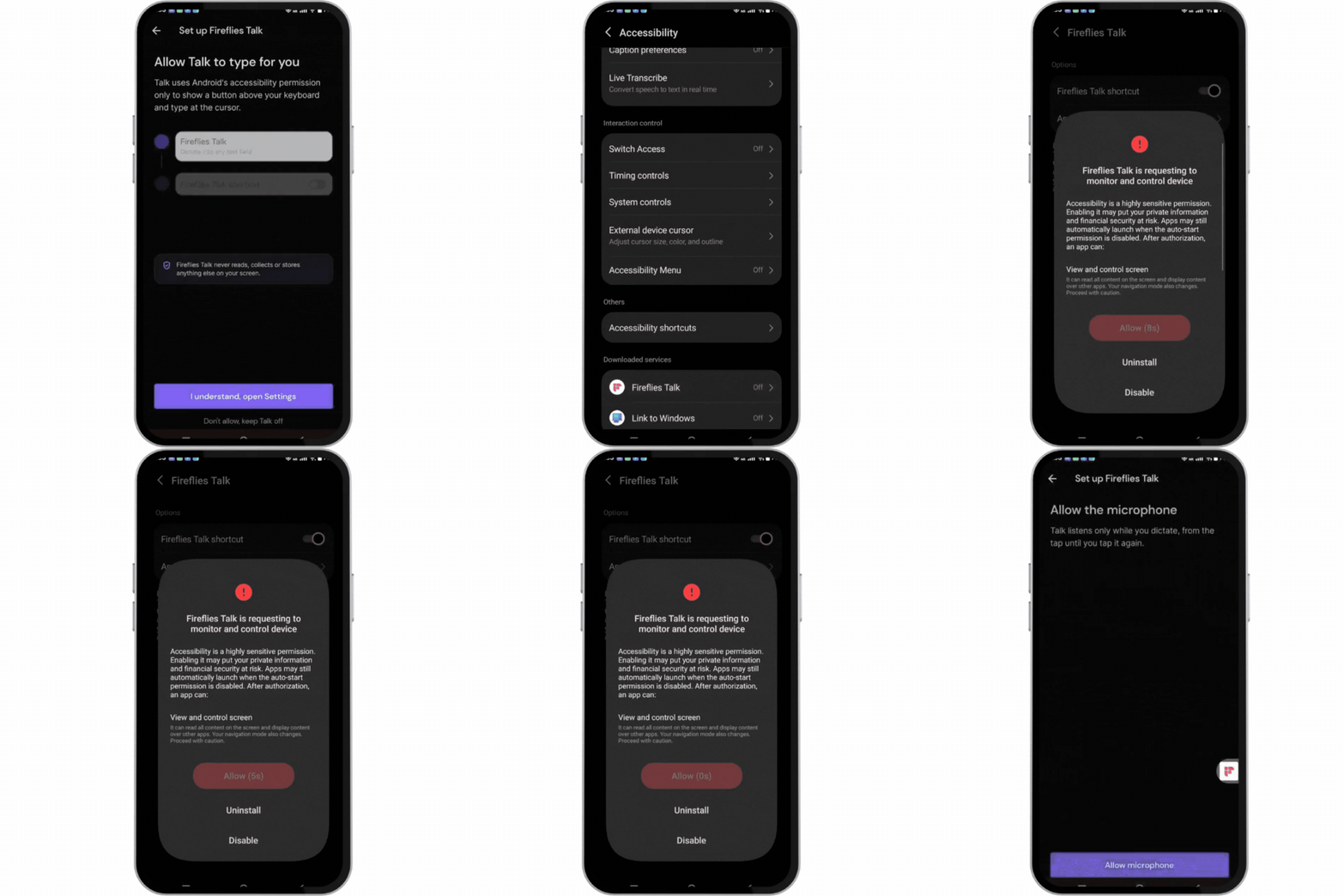
Note: Android displays a system warning when you enable Accessibility. Fireflies Talk uses this permission only to detect when the keyboard is on screen, show the Talk button above it, and type your dictated text at the cursor. It never reads, collects, or stores anything else on your screen. The Talk button disappears when the keyboard closes and doesn't appear in password, PIN, or phone-number fields.
ℹ What happens if you decline the permission?
If you tap Don't allow, keep Talk off, Fireflies Talk remains turned off. Nothing changes on your phone, and no other permissions are requested.
To set it up later, open the Fireflies app, tap the menu in the top-left corner, and select Fireflies Talk to start the setup again.
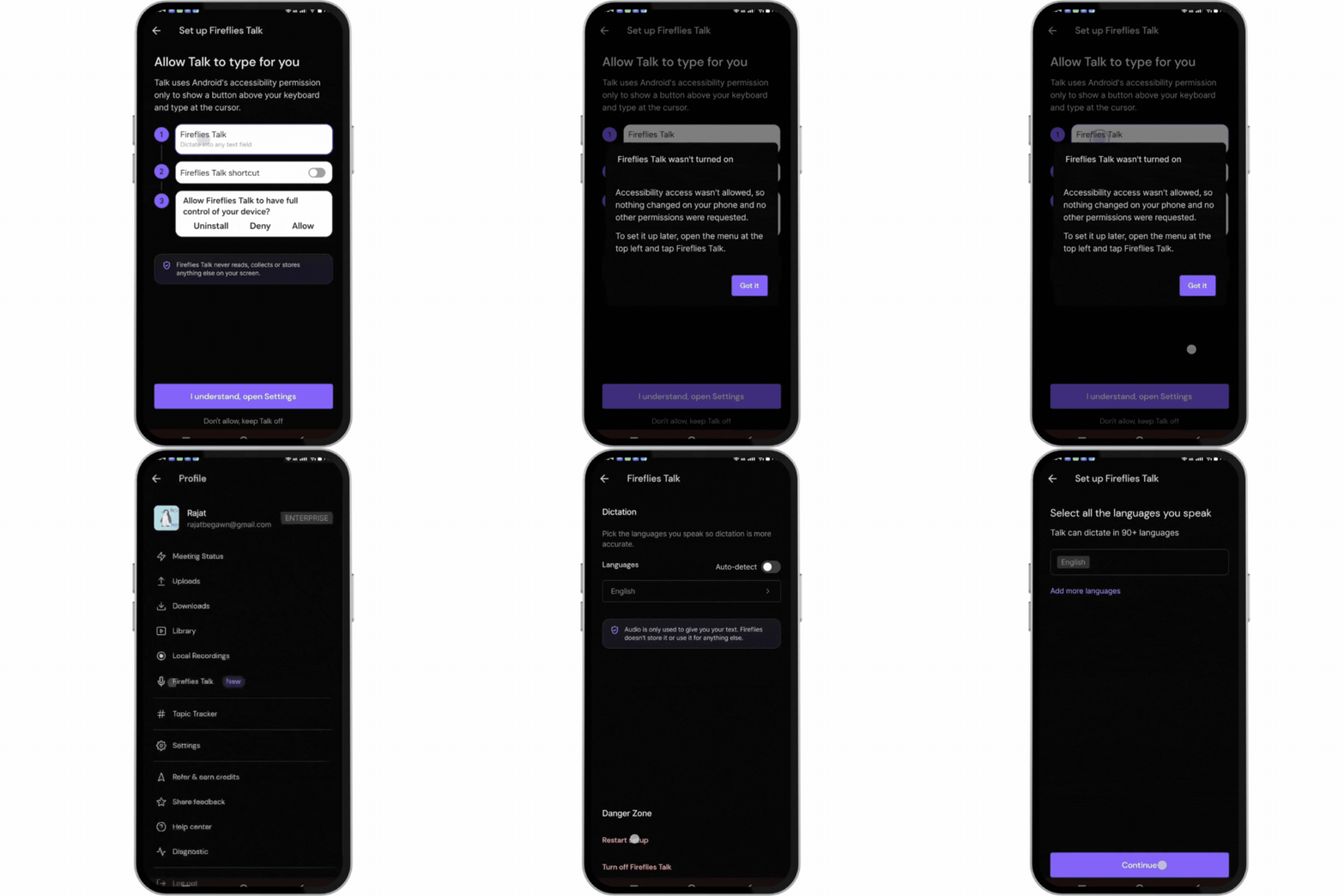
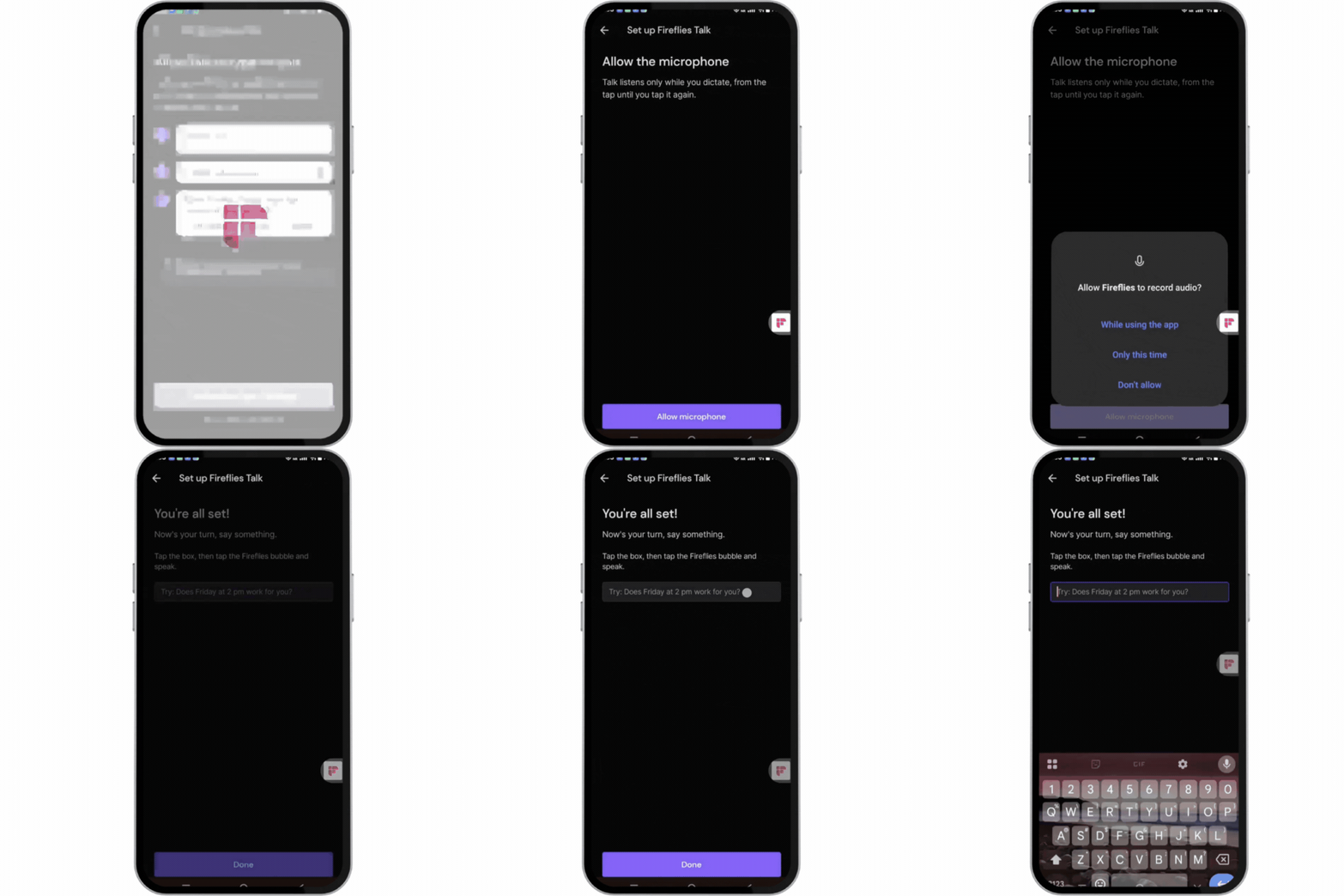
Step 5: Allow microphone access
On the Allow the microphone screen, review the explanation and tap Allow microphone.
If Android displays a system permission prompt, grant microphone access to continue.
Talk listens while you're dictating, from when you tap to start until you tap again to stop.
Step 6: Test Fireflies Talk
Once you've enabled the required permissions, the You're all set! screen appears. You can test Talk to make sure it works.
Tap the text box on the screen.
Tap the Fireflies Talk bubble above the keyboard.
Speak a message, such as
Does Friday at 2 pm work for you?Check that your spoken words appear as text in the text box.
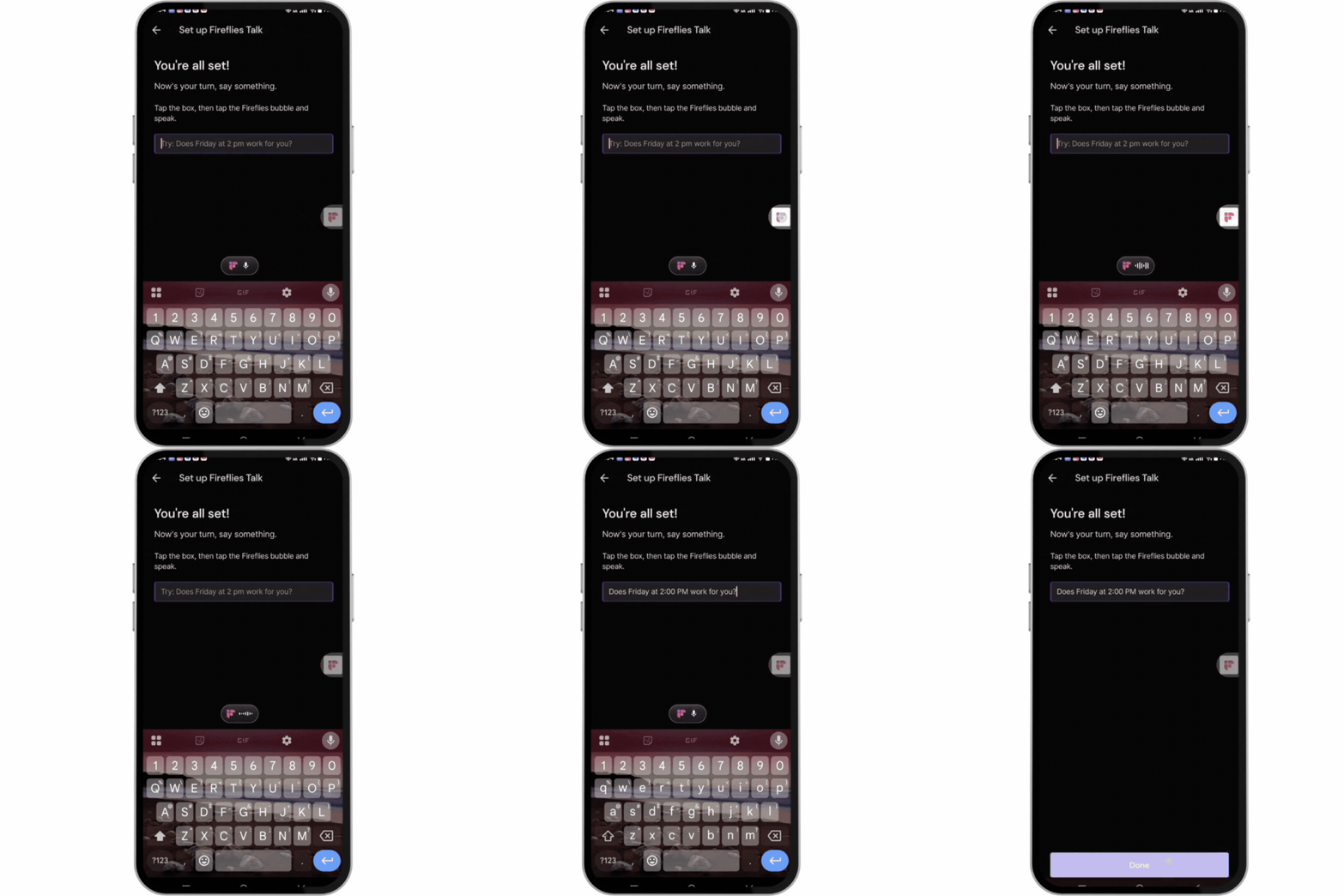
Done! Fireflies Talk is set up on your Android phone. You can now use the Talk pill above your keyboard to dictate text in other apps.
✅ Use Fireflies Talk on Android
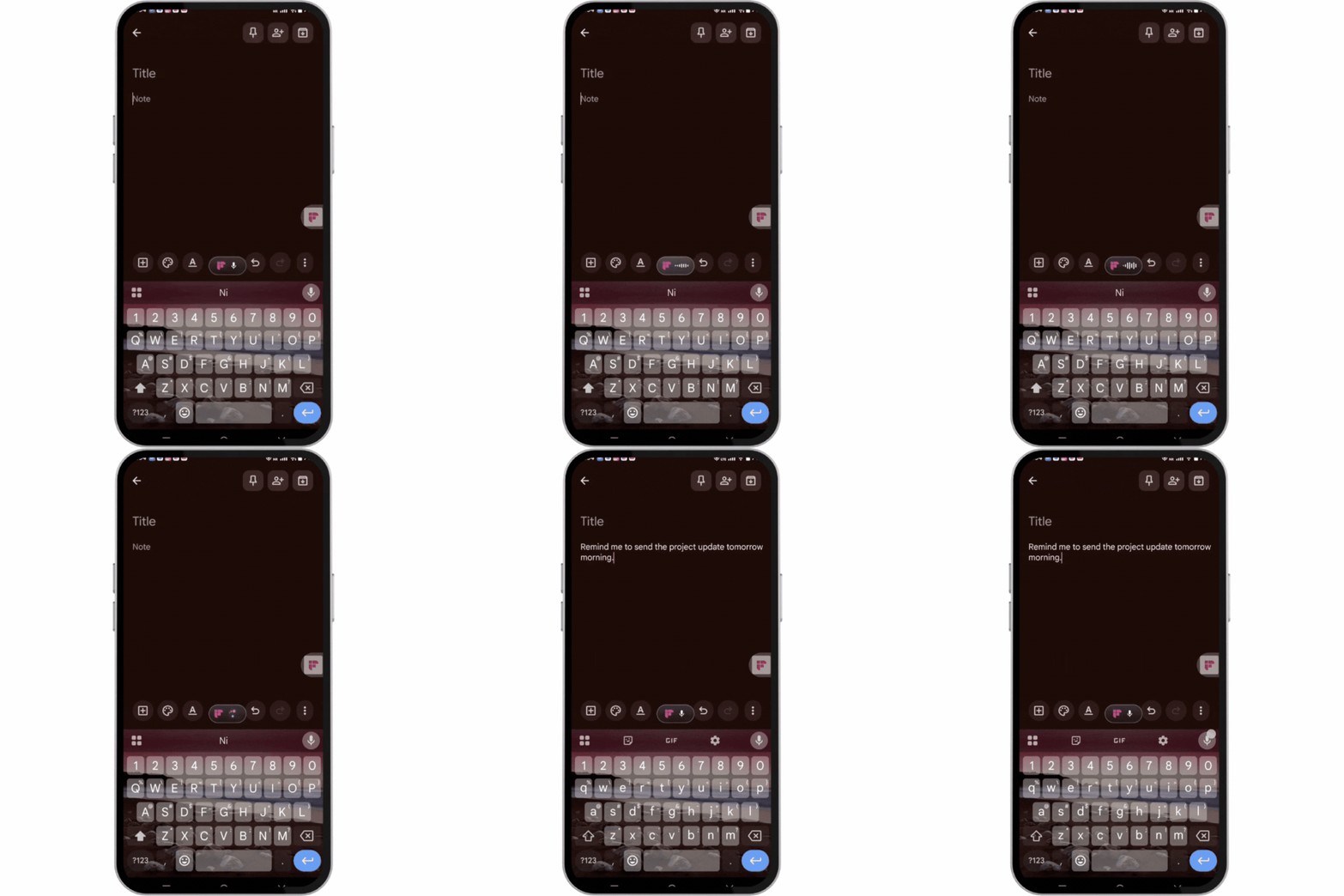
On Android, you can keep using your existing keyboard. The Fireflies Talk pill appears above it, and you can move the pill to a different position on your screen.
Open an app where you want to write, such as Gmail or Google Keep.
Tap the text field where you want your text to appear.
Tap the Fireflies Talk pill above the keyboard to start dictating.
Speak your message. When you're done, tap the Fireflies Talk pill again to stop dictation.
Your spoken words appear as text in the active text field, where you can review or edit them.
Example: If you're writing a note in Google Keep, open a note and tap the text area. Tap the Fireflies Talk pill and say, Remind me to send the project update tomorrow morning. Tap the pill again when you're done, then review the text in your note.
Your words appear in the active text field, where you can review or edit them.
🌐 Choose your dictation languages
Fireflies Talk supports dictation in over 90 languages on mobile.
Auto-detect: Detect your spoken language automatically.
Choose languages: Tap Add more languages and select the languages you use.
Note for iPhone: Dictation supports over 90 languages, but the Fireflies keyboard itself supports typing in English, Spanish, and Portuguese.
🔒 Understand permissions and privacy
iPhone: Full Access
Full Access allows the Fireflies keyboard to pass your dictation to the Fireflies app. The keyboard can still type without Full Access, but Talk requires it.
Android: Accessibility
Accessibility permission allows Talk to display its pill above the keyboard and type dictated text at the cursor. Other content on your screen isn't read, collected, or stored.
Mobile dictation and audio
Fireflies Talk doesn't keep a history of your mobile dictations or store the audio.
Audio is only used to give you your text. Fireflies doesn't store it or use it for anything else.
👥 Use Fireflies Talk in a team workspace
Workspace admins can disable Fireflies Talk for the entire workspace. The same setting applies to desktop and mobile.
If Talk isn't available, contact your workspace admin to check whether it's enabled.
🛠 Troubleshoot Fireflies Talk on mobile
Fireflies opens briefly when I dictate on iPhone
During your first dictation, the Fireflies app may briefly open before returning to the app where you were typing. Your text appears when you release the space bar in Walkie-Talkie mode. After the initial switch, Fireflies normally stays in the background unless iOS closes it.
My iMessage conversation disappears after dictation
The initial app switch may cause iMessage to lose the conversation you had open. If this happens, reopen the conversation and continue typing.
Talk stops working after a phone call or voice note
After a phone call or voice note, you may need to tap the microphone key again to resume dictation.
I denied a permission during setup
On iPhone:
Open the Fireflies app and select Fireflies Talk from the menu.
Follow the setup instructions again.
If needed, open iPhone settings, go to Keyboards under Fireflies, and enable Allow Full Access.
On Android:
Open the Fireflies app and select Fireflies Talk from the top-left menu.
Follow the setup instructions again.
Enable the Fireflies Talk Accessibility service when prompted.
I can't find the Fireflies keyboard on iPhone
Open iPhone settings and go to Keyboards under Fireflies.
Enable the Fireflies keyboard and Allow Full Access.
Return to your app and use the globe key to switch keyboards.
I can't see the Talk pill on Android
Open the Fireflies app and select Fireflies Talk from the top-left menu.
Follow the setup instructions and enable the Fireflies Talk Accessibility service.
Return to your app and check above the keyboard for the Talk pill.
🎉 You're ready to use Fireflies Talk!
You're all set! Use Fireflies Talk on your iPhone or Android phone to dictate messages, emails, notes, and more. Speak naturally, then review and edit your text before sending or saving it.
Want to use Talk on your computer, too? See Fireflies Talk: Talk instead of type in any app for setup instructions on Mac and Windows.