How to get the best results from Fireflies Talk
Last updated: September 29, 2026
Fireflies Talk is designed to fit into the way you already work. A few simple choices - such as using the right microphone, selecting your languages, and choosing when Talk can use information from your screen can help you get the most out of dictation.
In this guide, you'll learn how to choose your microphone, configure languages, use Screen context and get the best results while dictating.
1. Choose the right microphone
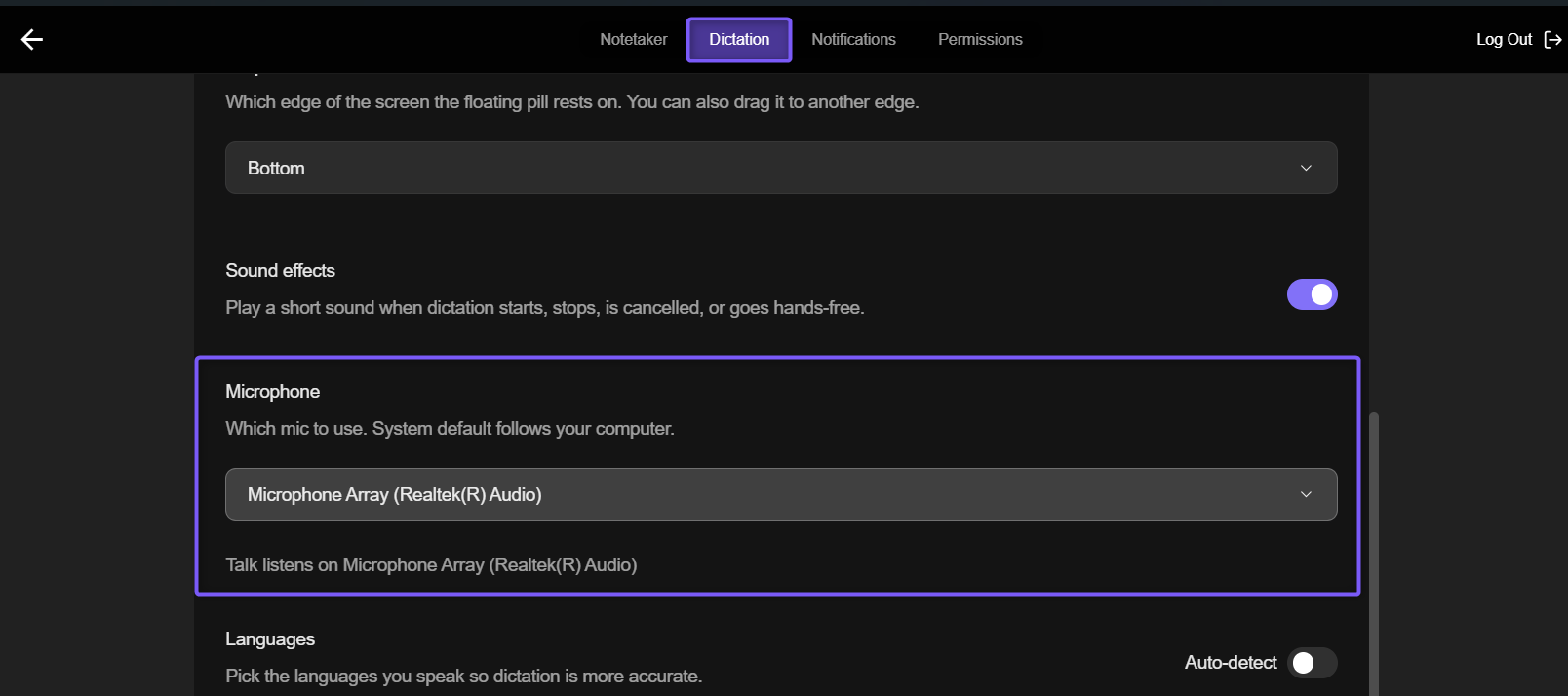
The microphone you use can make a difference when you're dictating. Instead of focusing on the price of your microphone, start by making sure Talk is using the microphone you expect.
To check your microphone:
Open the Fireflies desktop app.
Go to Settings > Dictation.
Under Microphone, check the selected microphone.
If needed, select the microphone you want to use.
If you use Bluetooth headphones or AirPods, check this setting if your dictation suddenly starts behaving differently. Your device may have switched to a different microphone.
2. Use Screen context for names and terms
When you're dictating names, product names, or other terminology that's already visible on your screen, Screen context can give Talk additional information to work with.
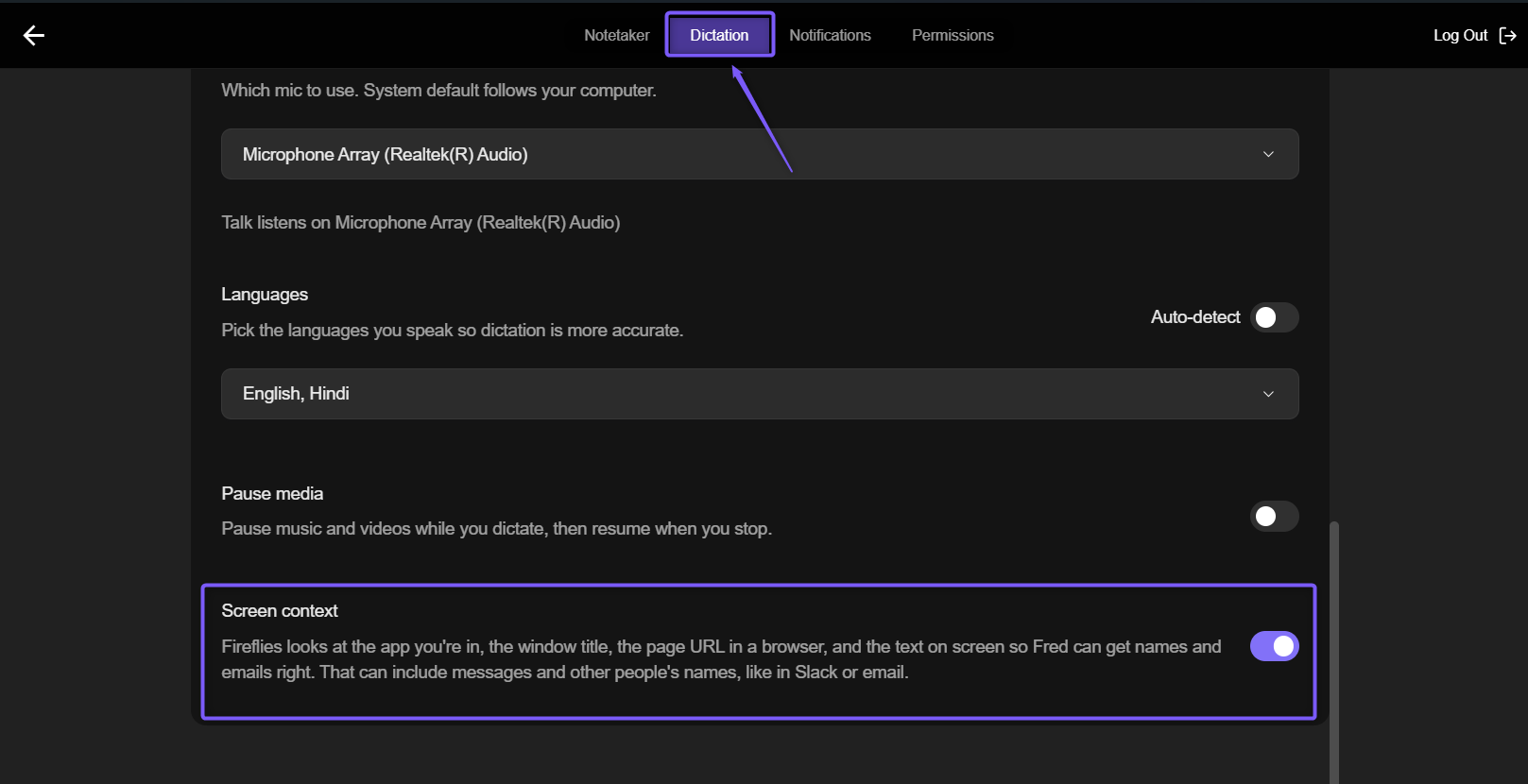
Screen context is optional and turned off by default. Turn it on from Settings > Dictation when you want Talk to use information visible on your screen while you dictate.
To turn on Screen context:
Open the Fireflies desktop app.
Go to Settings > Dictation.
Scroll to Screen context.
Turn on Screen context.
You can turn it off again at any time from the same setting.
3. Select the languages you use
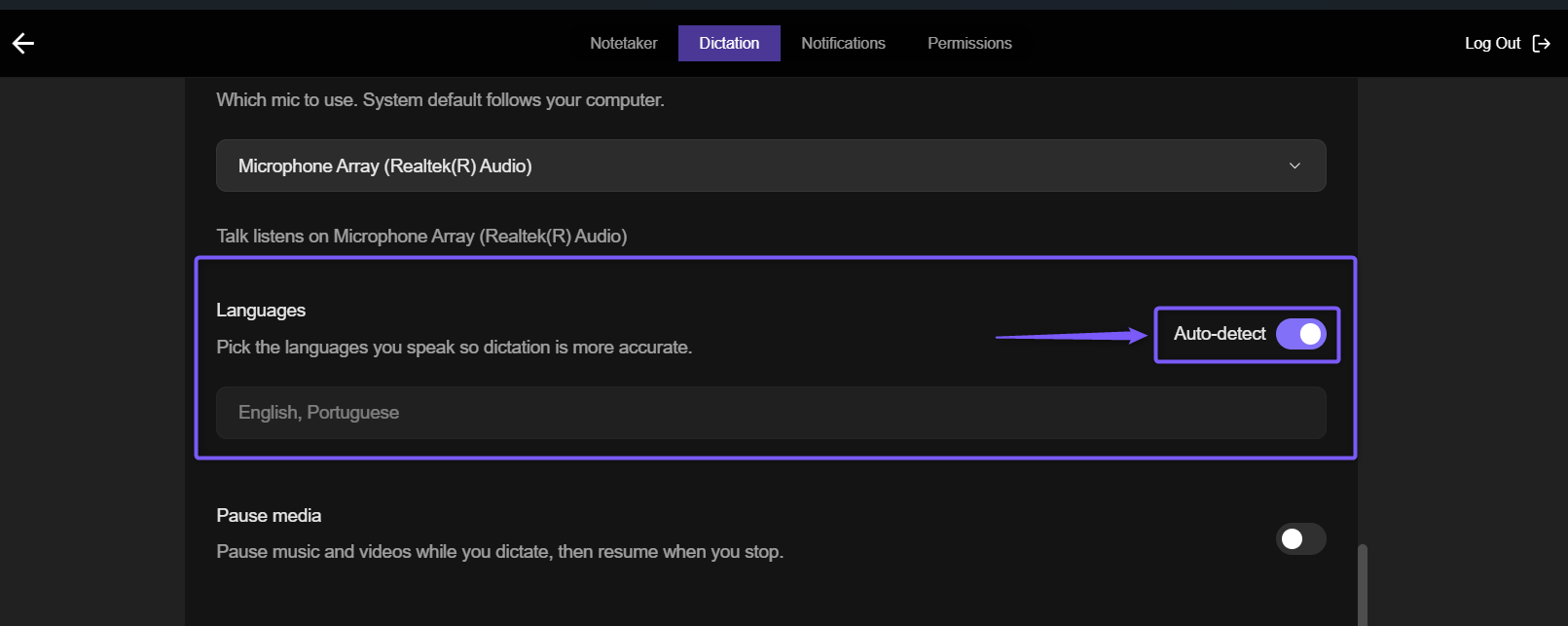
If you switch between languages while dictating, selecting those languages can help Talk know which languages to listen for.
You can select your languages during Talk setup or later from Settings > Dictation.
If you usually dictate in one language, you can also use auto-detect.
4. Speak naturally
Talk is designed for natural speech, so you don't need to over-enunciate or carefully pronounce every word.
Speak at your normal pace. Ums and restarts are fine-Talk removes fillers and false starts from your dictated text.
5. Dictate in a quiet environment
Background noise can make dictation more difficult. When possible, dictate in a quiet environment.
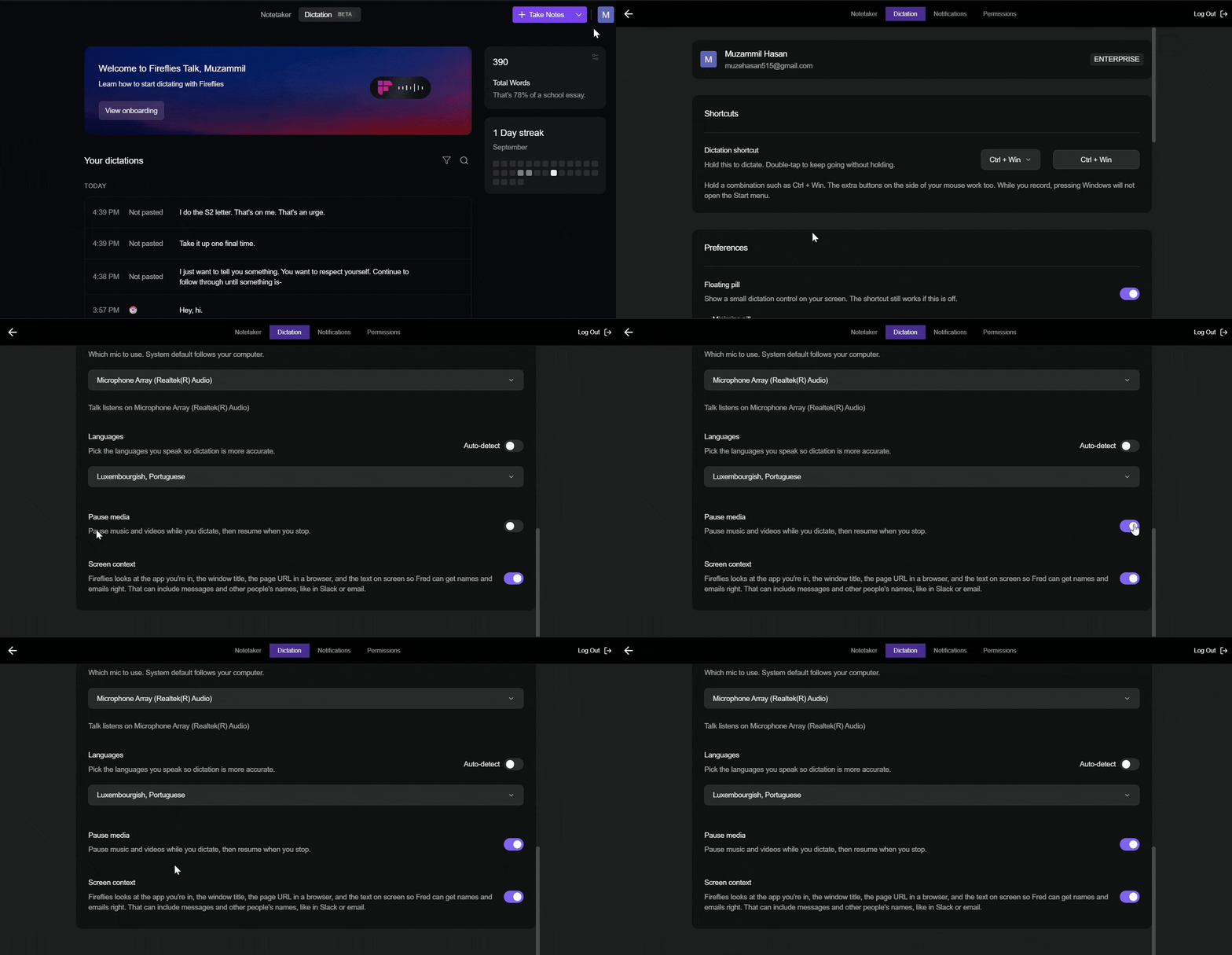
If you're listening to music while working, you can also use the setting that pauses music while you're dictating.
Go to Settings > Dictation and turn on Pause music while dictating.
6. What if Talk consistently gets a word wrong?
If Talk consistently produces the wrong word, first check the settings that affect your dictation:
Make sure Talk is using the microphone you intended to use.
Check whether your device switched to Bluetooth headphones or AirPods.
Make sure the languages you use are selected if you switch between languages.
Consider turning on Screen context when the word is a name, product, or term that's visible on your screen.
If a word is consistently transcribed incorrectly after you've checked these settings,report the issue to Fireflies Contact support via this link for more help.