How Fireflies Talk tags people in Slack
Last updated: September 26, 2026
When you're writing in Slack, typing teammate names and turning them into mentions can interrupt your flow. With Fireflies Talk, you can dictate your message naturally and include the people or groups you want to mention.
In this guide, you'll learn how to dictate a Slack message, mention a teammate or group, and configure Screen context if you want Talk to use information visible in Slack.
and more.
Before you start: If you haven't set up Talk yet, see:
✨ What Talk Does With Your Speech
Talk doesn't just transcribe, it automatically cleans up and formats your words based on the app you're writing in:
Removes filler words and false starts - "um", "like", restarted sentences
Adds punctuation automatically - no need to say "comma" or "period" out loud
Adapts formatting to context - emails get a greeting and sign-off; Slack messages stay short and casual
Keeps your original meaning unchanged
1. Start a Slack message
Once Talk is set up, you can dictate directly in Slack instead of typing your message.
Open Slack and go to the conversation where you want to send a message.
Click inside the message field.
Press and hold your Talk shortcut.
Start speaking.
Release the shortcut when you're finished.
Your message appears directly in the Slack message field.
💡Tip: You can also use hands-free mode when you want to dictate without holding the shortcut. Double-tap your Talk shortcut to start, speak your message, then press the shortcut again when you're finished.
For example, you can use Talk to dictate a message directly into Slack instead of typing it:
Open Slack and click inside the message field.
Press and hold your Talk shortcut, then start speaking.
Say:
Hi James, Can you schedule a regular self-reflection session across the team can you guide meTalk formats the message for the Slack context:
Hi James,
Can you schedule a regular self-reflection session across the team? Can you guide me?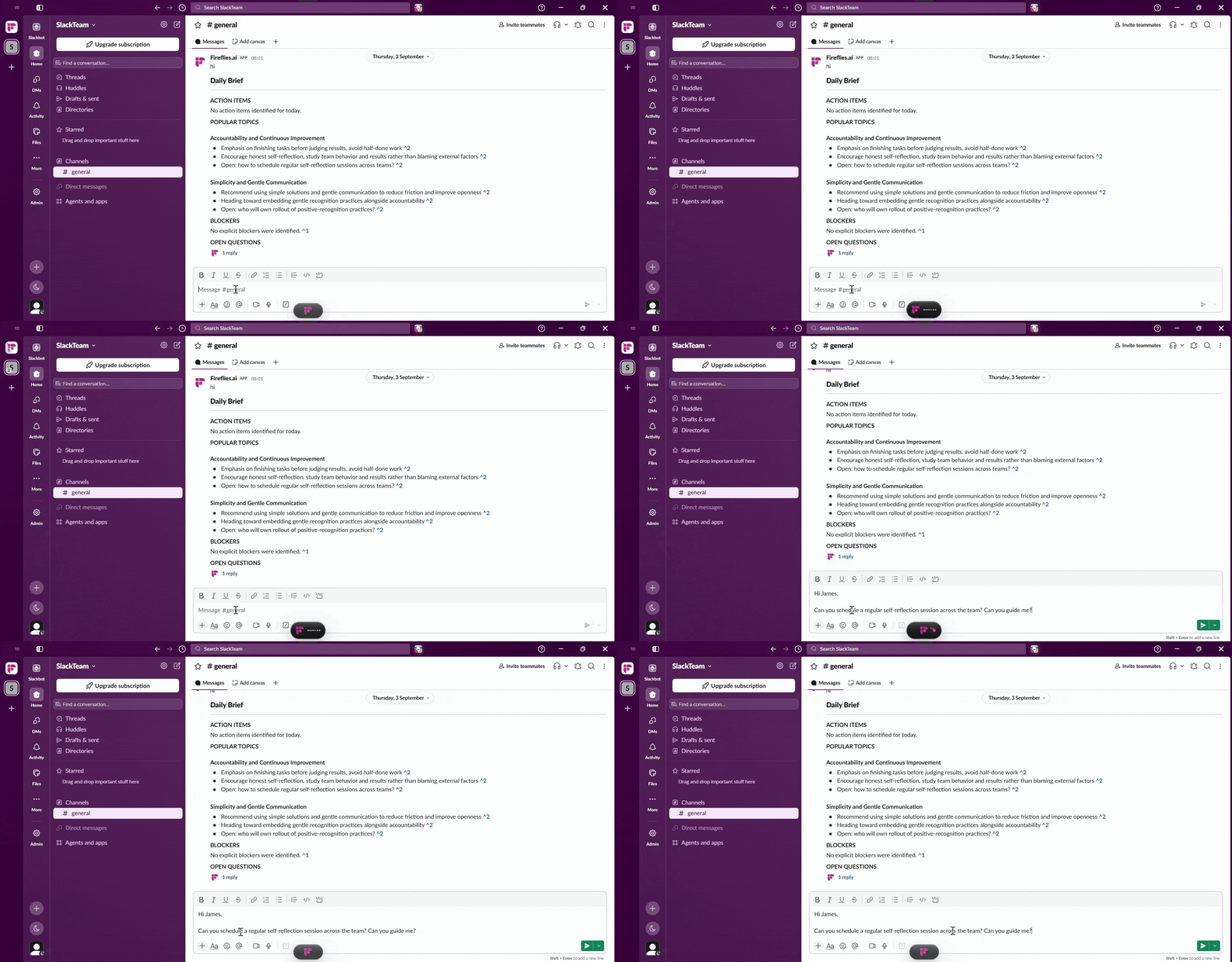
2. Mention teammates or groups
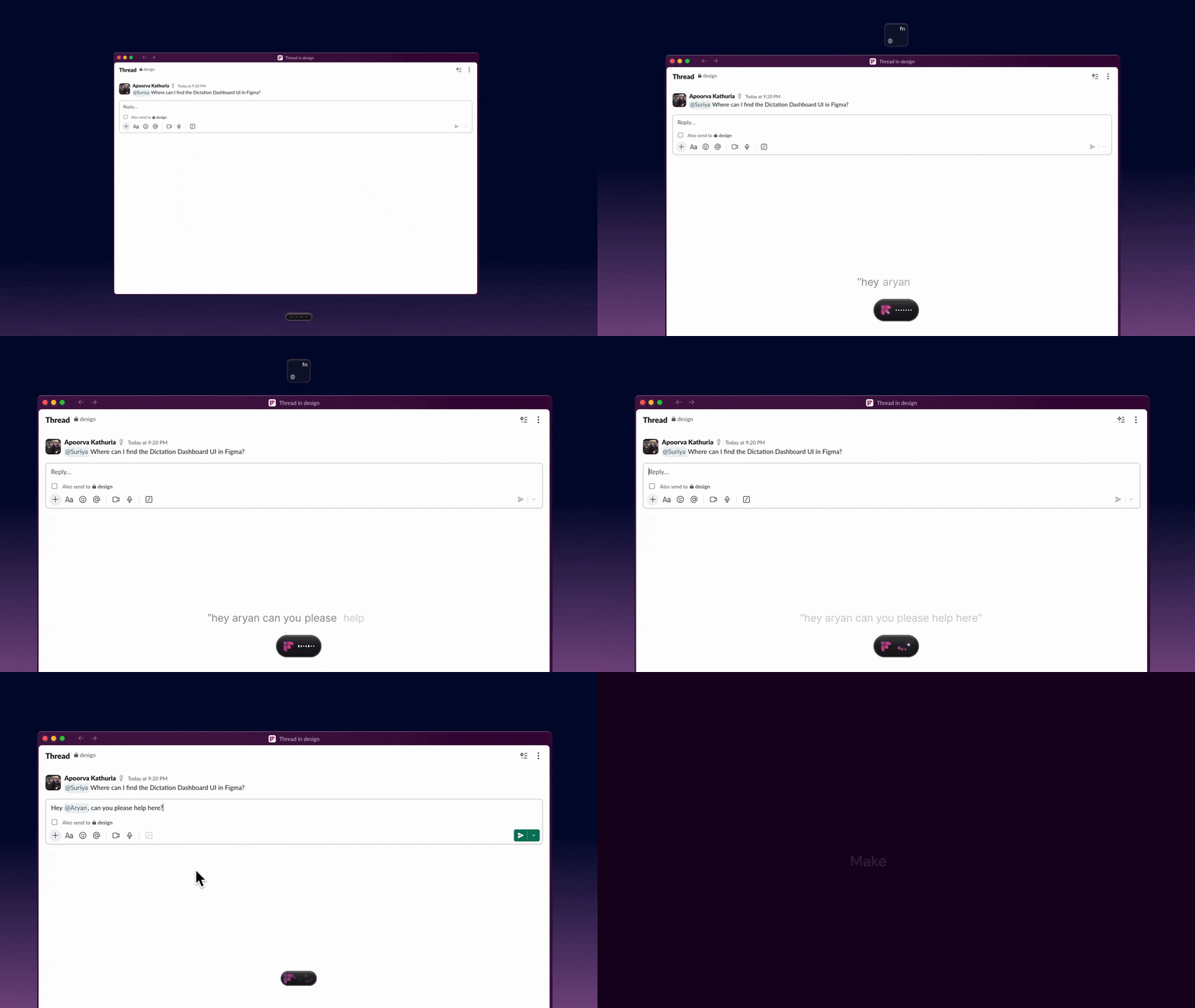
You can include a teammate or group name while dictating a Slack message. Talk turns the recognized name into a Slack @mention.
Click inside the Slack message field.
Start Talk.
Dictate your message and say the teammate or group name.
Finish the dictation.
Check that the name appears as an @mention.
For example: “Hey Aryan, can you please help here?”
👁 Screen context
Screen context lets Talk use information visible on your screen while you dictate. It can use information such as:
The app you're using
The window title
The page URL in a browser
Text visible on the screen
This helps Talk recognize names, terms, and other information that may be difficult to identify from speech alone. For example, when you're dictating in Slack, information visible in Slack can help Talk recognize a teammate's name.
Why use Screen context?
Turn on Screen context when you want Talk to use the information visible in Slack to help recognize teammate names and @mentions.
Screen context is optional and turned off by default. You can turn it on whenever you want and turn it off again at any time.
Turn screen context on or off
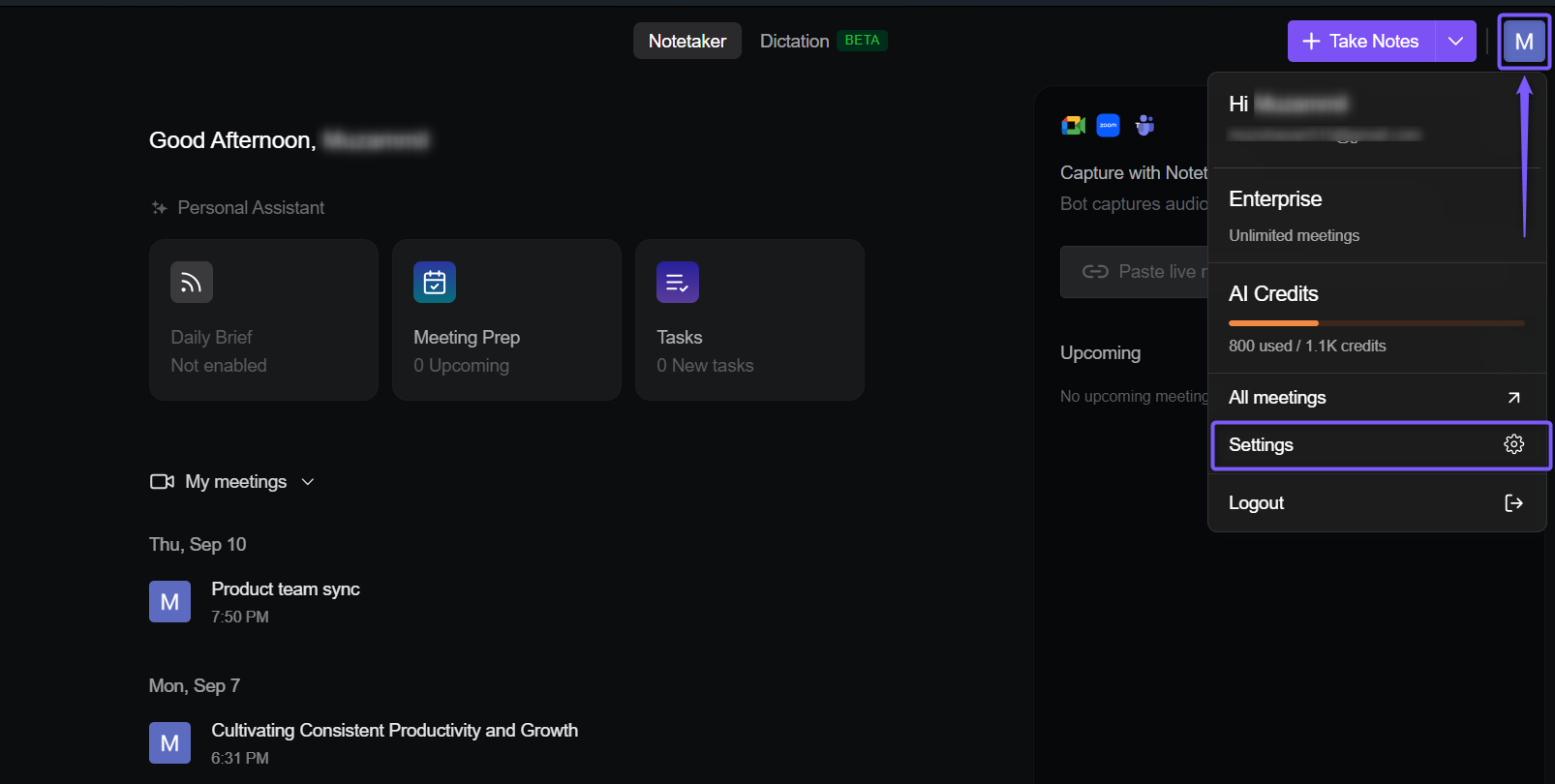
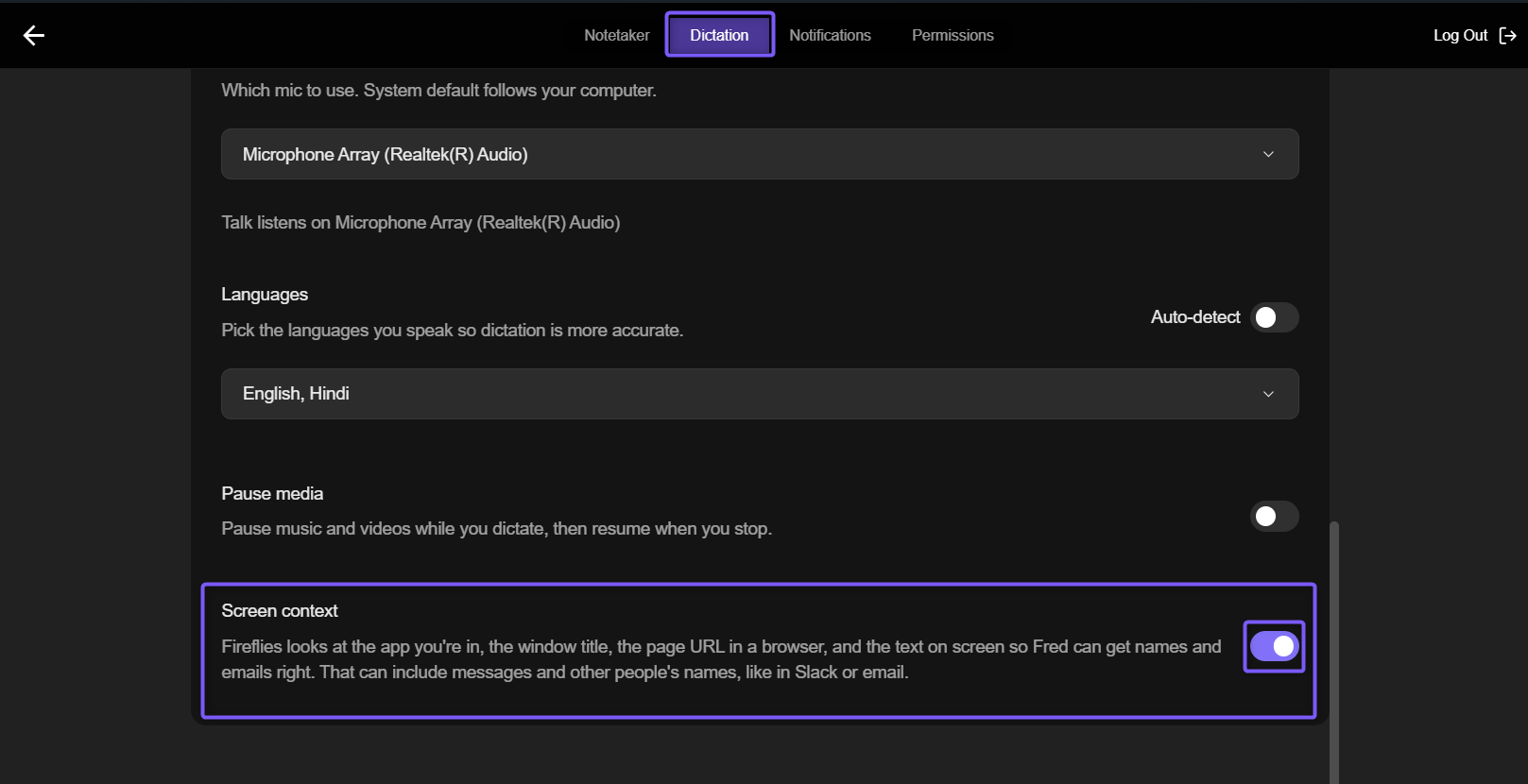
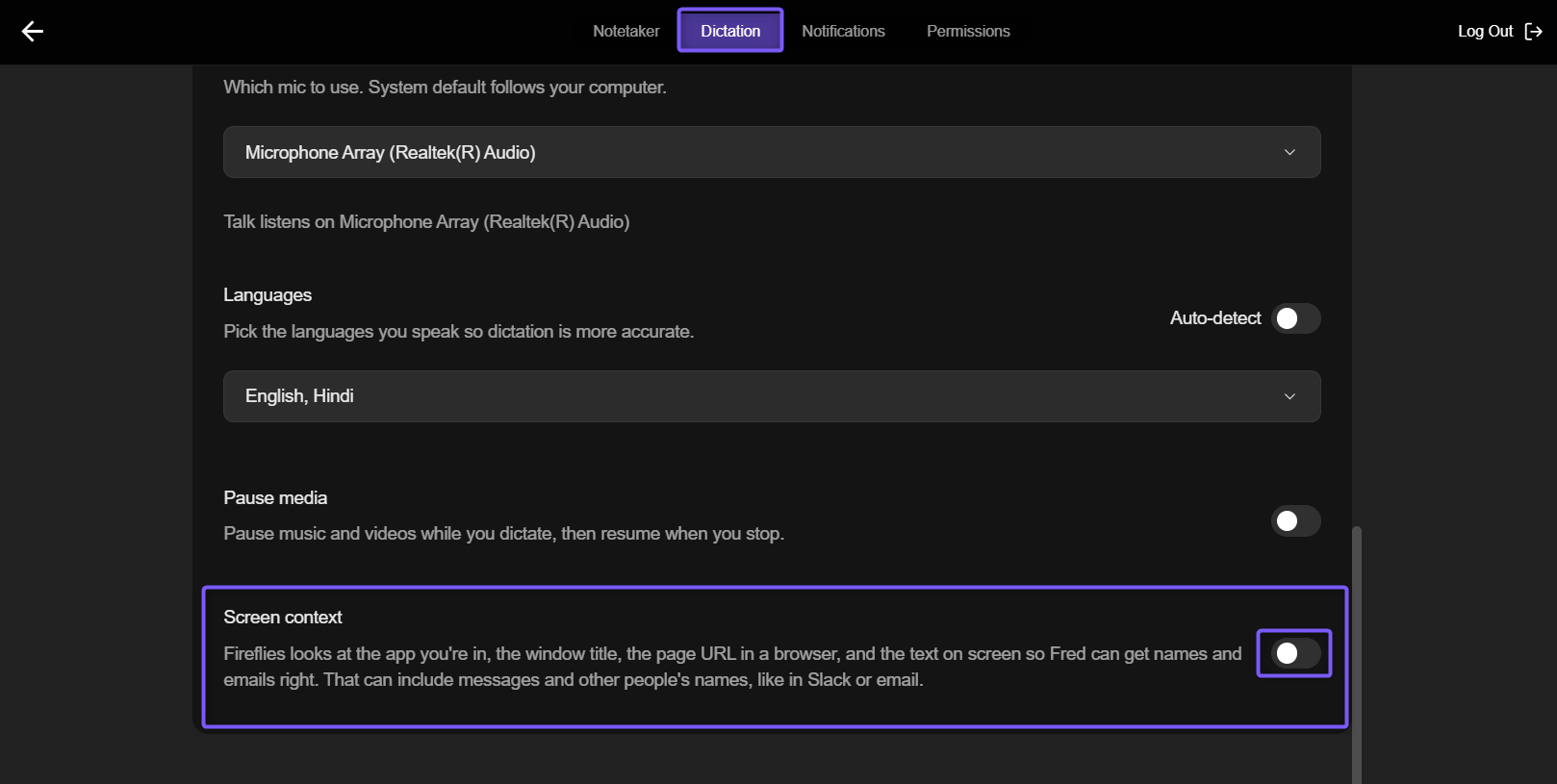
Open the Fireflies desktop app, click the Fireflies icon in the top-right corner, and select Settings.
Select the Dictation tab, then scroll down to find Screen context.
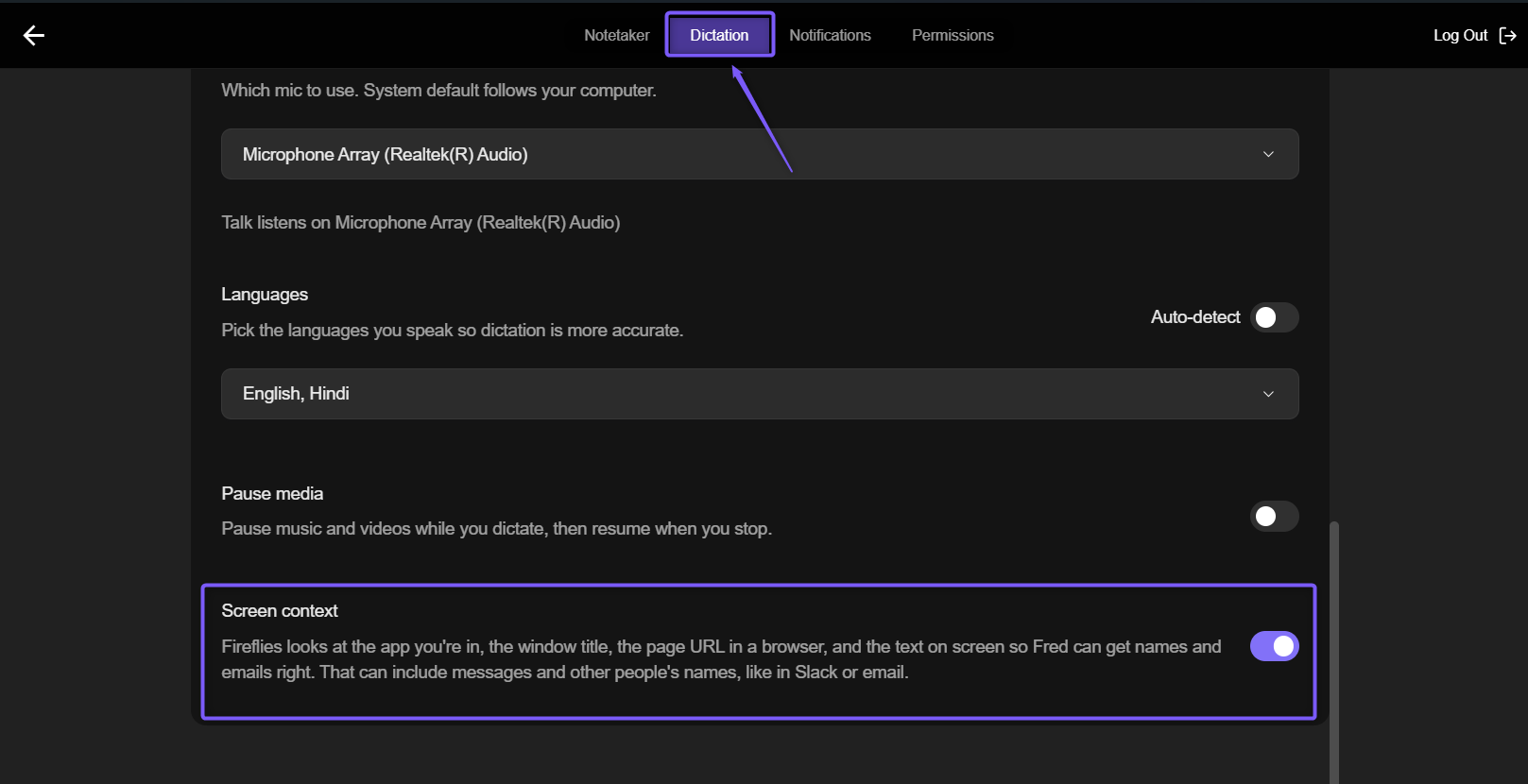
Use the Screen context toggle to:
Turn on Screen context to let Fireflies use information from your screen while you dictate.
Turn off Screen context to stop Fireflies from using information from your screen.
Tip: Keep Screen context on if you want Talk to use information visible on your screen to help recognize names, product terms, and other jargon.
Turn it off if you don't want Talk to use screen information while you dictate.
❓ Slack tagging FAQs
Q1. Where does Talk get names for Slack mentions?
When Screen context is enabled, Talk can use @handles visible in Slack when processing names and mentions.
Q2. What happens if I use multiple Slack workspaces?
Talk can type and polish your dictated message based on the Slack context you're using.
When Screen context is turned on, Talk can also use the information visible on your screen to better recognize names and @handles in Slack.
Q3. What if Talk tags the wrong person?
If a name isn't recognized correctly, you can improve the result by checking your Talk settings:
Make sure the correct microphone is selected in Settings → Dictation.
Check your language settings and select the language you're speaking.
Speak the person's name clearly while dictating.
Turn on Screen context from Settings → Dictation. When enabled, Talk can use the information visible on your screen, including Slack @handles, to better recognize teammate or group names.
Q4. Can I turn off Slack tagging?
There isn't a separate setting to turn Slack tagging on or off. If you don't want Talk to use information from your screen when creating Slack mentions, you can turn off Screen context from Settings → Dictation.
When Screen context is off, Talk won't use the @handles or other information visible on your screen to help recognize names or groups for your mentions.
✅ That's it!
You can now use Talk to dictate Slack messages and turn teammate and group names into Slack @mentions.