Fireflies Welcome Screen: A Guide to Your New Home Screen
Last updated: April 20, 2026
Whether you're a new user to Fireflies or a power user, your updated home screen is designed to provide instant clarity, direction, and control the moment you log in. We’ve redesigned the screen to offer a fast, intuitive experience, ensuring that every user—whether you’ve just signed up or have 100+ meetings—gets a seamless experience built around your workflow.
In this guide, we’ll walk you through the key features of your Fireflies home screen, from the Getting Started View for new users to the advanced tools for power users. You’ll learn how to stay organized, track tasks, manage meetings, and boost productivity—without feeling overwhelmed.
Let’s dive in! 🚀
👋🏻 For New Users: The Getting Started View
When you first log into Fireflies, you’ll be welcomed with a simple, clean interface designed to help you get started quickly. The Getting Started View is all about introducing you to Fireflies’ features and making your onboarding smooth.
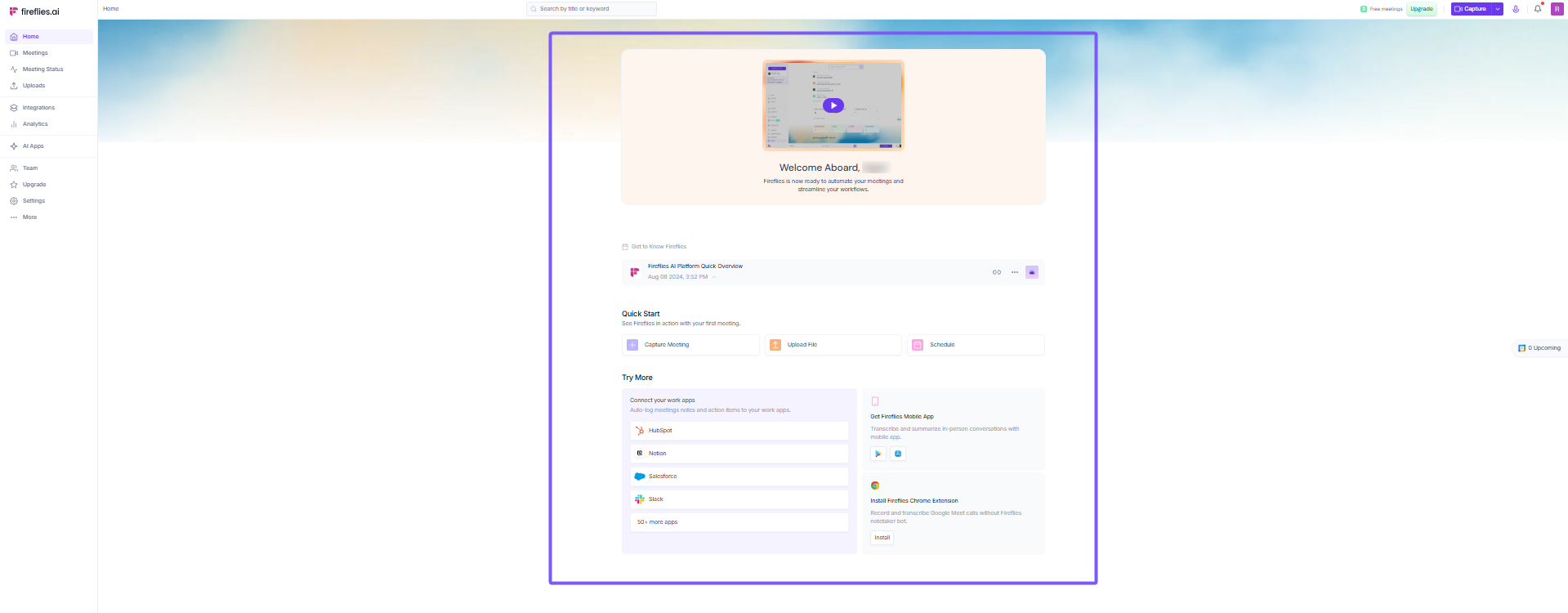
Key Features You’ll See:
Walkthrough Video: A quick overview to get you familiar with the Fireflies platform. This is the perfect first step to understand what Fireflies can do for you.
Quick Start Section:
Capture Meeting: Instantly invite Fireflies to join an ongoing meeting. 👉 How to invite Fireflies to meetings
Upload File: If you have an audio or video file that needs transcription, upload it here. 👉 How to upload and transcribe a meeting recording file
Schedule: Connect your calendar to schedule meetings and stay on top of your agenda. 👉 Supported calendars for Fireflies
Explore More:
Work App Integrations: Connect your work apps like HubSpot, Notion, Salesforce, Slack, and many more to sync meeting notes and action items. 👉 Explore all integrations
Mobile App: Download the Fireflies mobile app to take Fireflies on the go. 👉 Learn about the Fireflies Mobile App
Chrome Extension: Install the Fireflies Chrome extension to automatically transcribe Google Meet calls. 👉 Learn about the Fireflies Chrome Extension
This view is designed to get you up and running in no time, with all the key features front and center. It’s simple and intuitive — just follow the steps, and you’ll be set to manage your meetings like a pro.
✅ After Your First Meeting
Once you've completed your first meeting, Fireflies begins to adapt and provide you with relevant features tailored to your needs.

What’s New:
Recent Meeting Tile: View the details of your meeting, including key points, summary, and action items.
AI Skill Recommendations: Based on the context of your meetings, you'll get suggestions on relevant Fireflies AI skills that can help you extract insights and improve productivity.
🔗 Getting started with AI Skills
🚀 For Power Users (3+ Meetings)
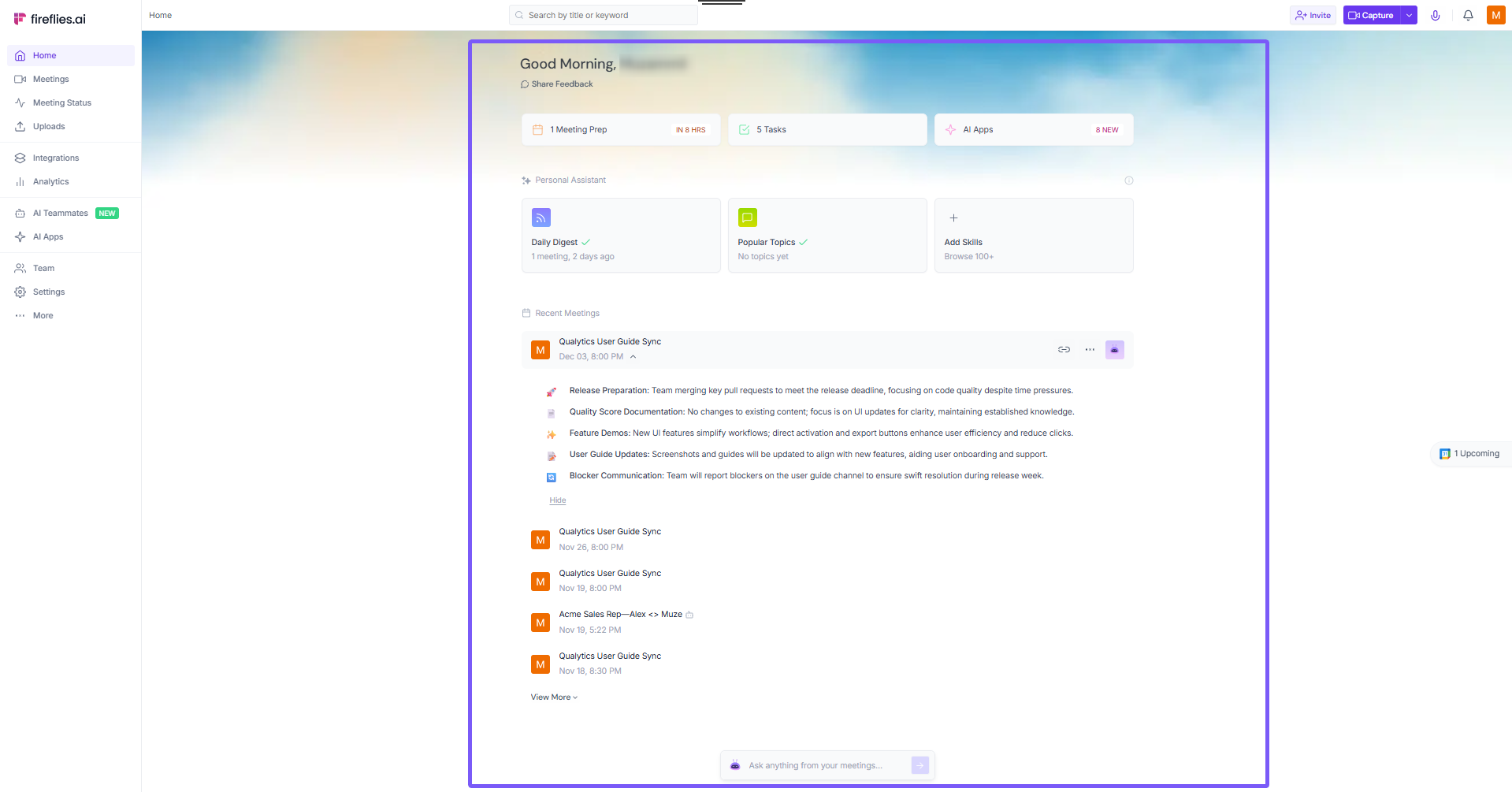
As you accumulate more meetings in Fireflies, the dashboard will automatically adjust to make it easier for you to stay organized and focused.
Here are the key elements you'll find in the updated dashboard that are specifically designed for users with multiple meetings.
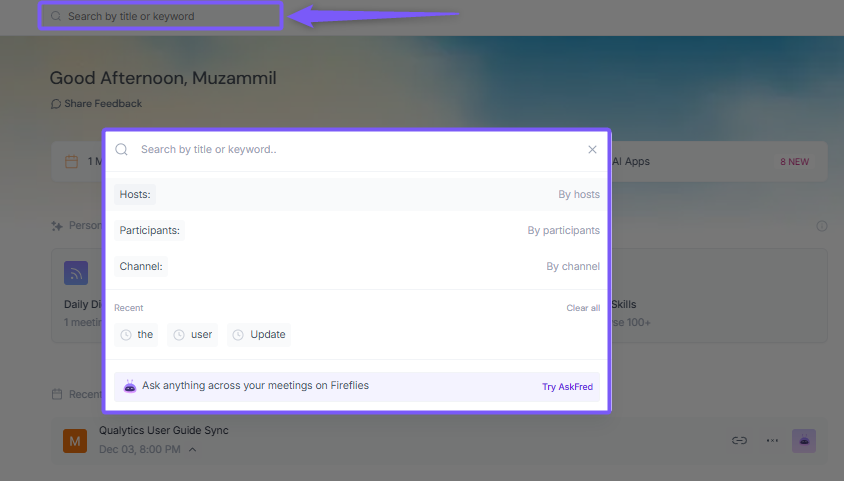
🔎 Global Search
The Global Search feature is a powerful tool that allows you to search across all your meetings in Fireflies. It helps you find specific details quickly without having to manually look through each meeting's content.
Search by title, keyword, hosts, participants, or channel.
AskFred: A handy search bot where you can ask anything across all your meetings, and Fireflies will provide answers backed by timestamps and links to the relevant parts of your meetings.
⚡ Action Cards
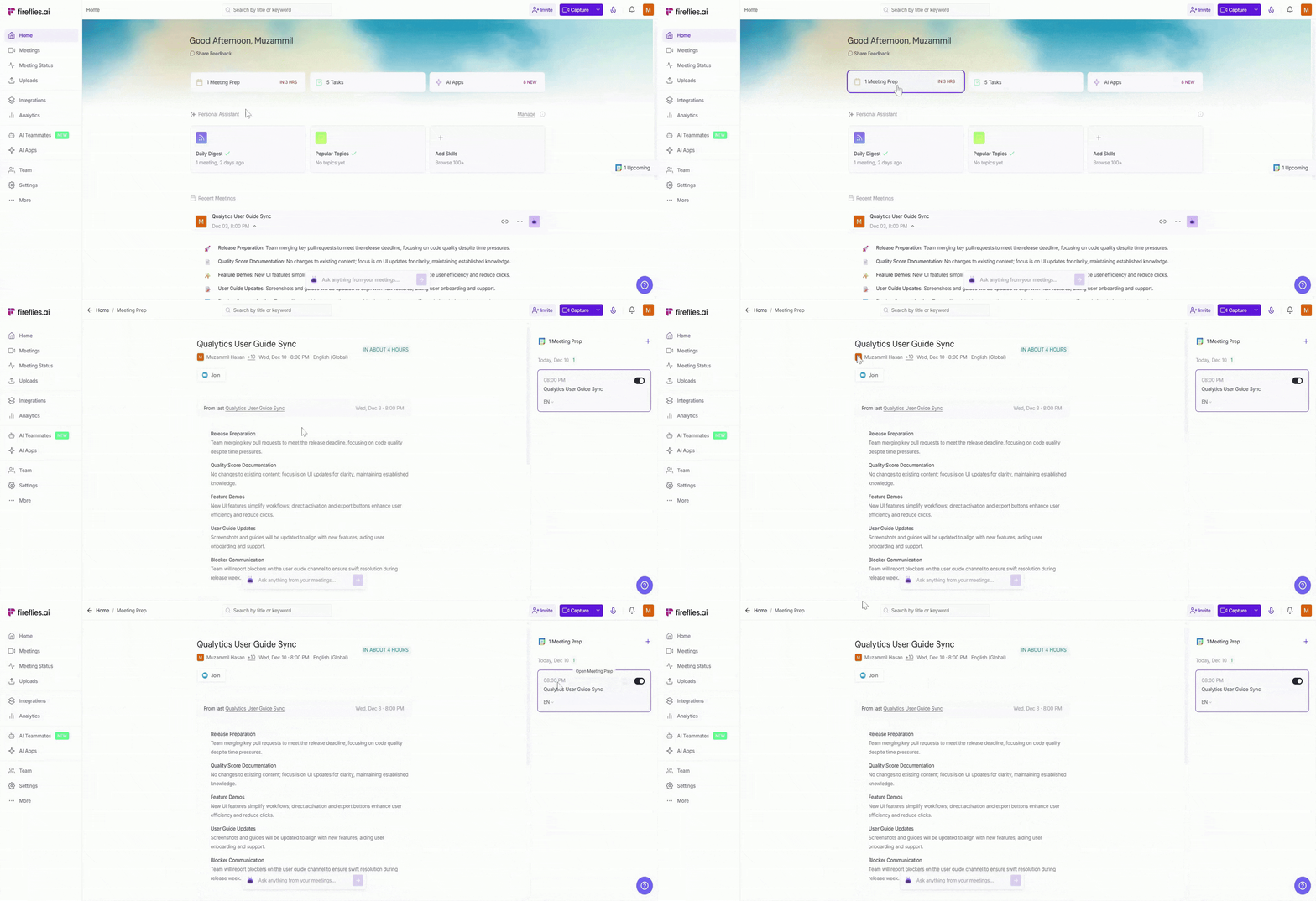
As a power user, Fireflies provides you with three key action cards that help you stay organized and on top of your meetings:
Meeting Prep
The Meeting Prep card shows you action items and key points from your previous meetings, making it easy to prep for your upcoming meetings. It’s all about ensuring you have the right context and stay organized.
➡ Learn more about how to turn on the Meeting Prep email
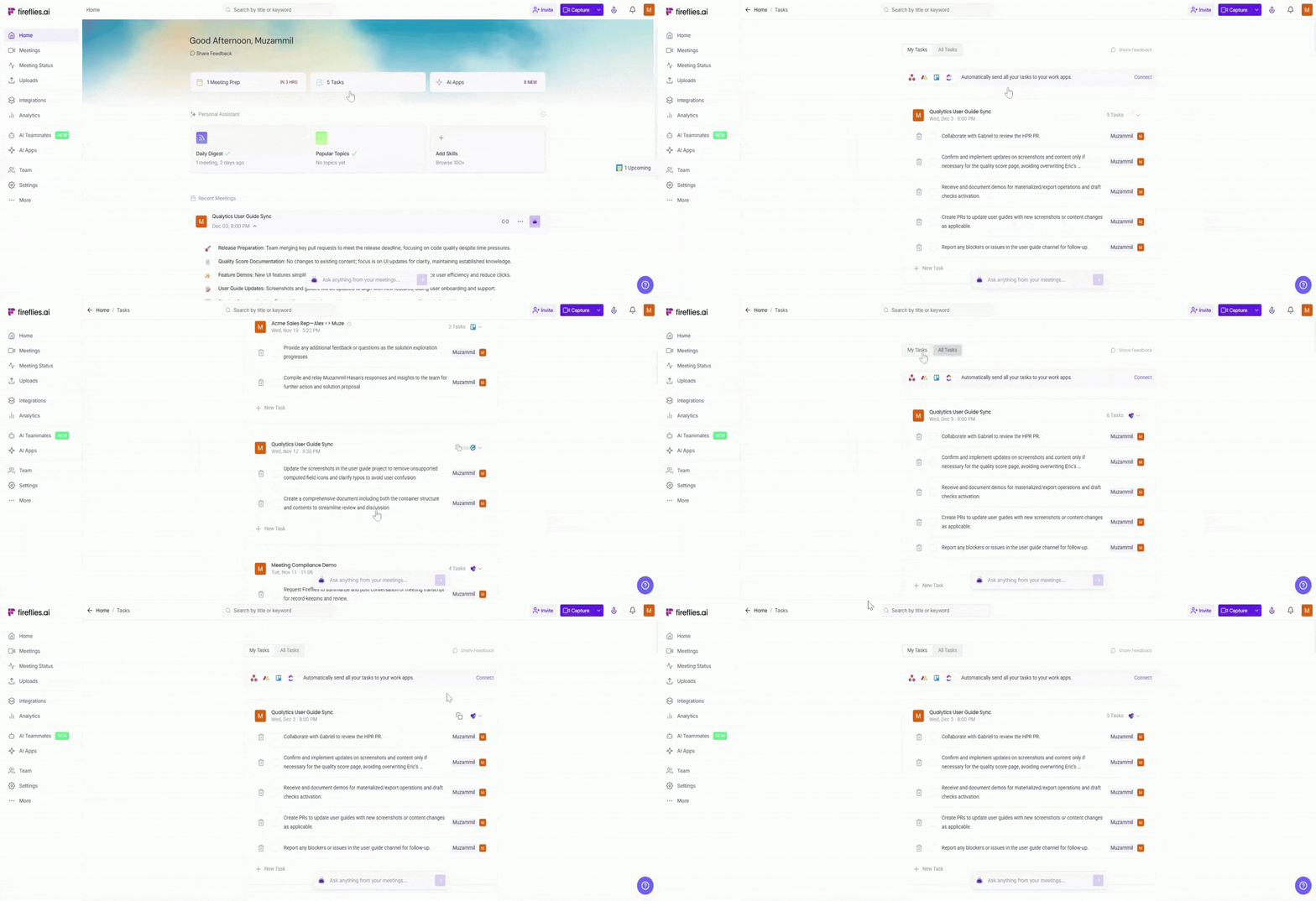
Tasks Feed
The Tasks Feed keeps you updated on action items from all your meetings. It shows all tasks that need your attention, whether they’re assigned to you or the entire team. This makes it easy to track progress and ensure no task is left behind.
➡ Learn more about Tasks Feed
AI Skills
The AI Skills feed showcases your most active AI-powered apps, giving you insights, summaries, and action points from your meetings. Whether you need daily or weekly summaries, AI skills help you stay efficient by offering contextual recommendations.
➡ Learn more about AI Skills
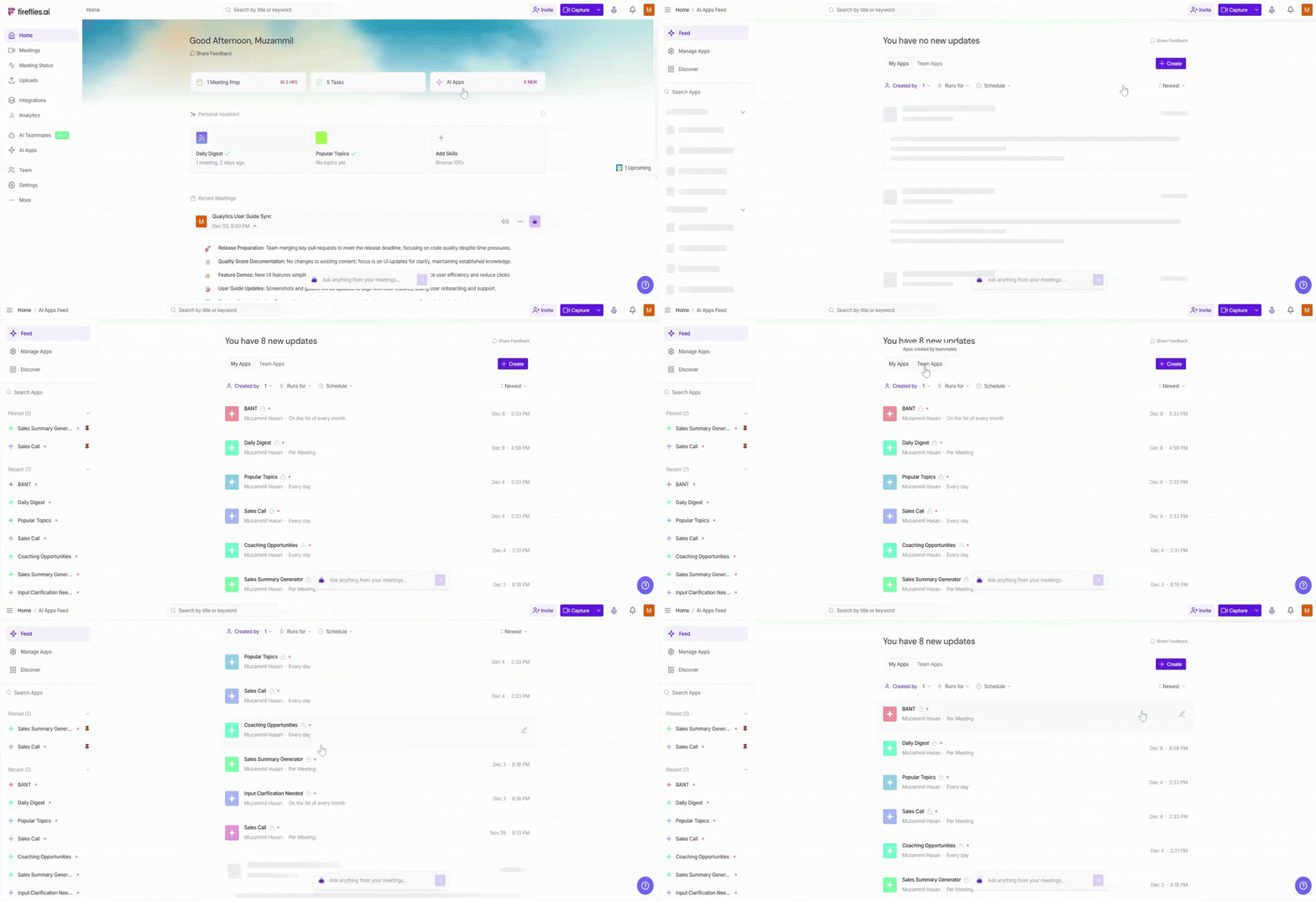
These action cards are essential for keeping you focused and organized, providing all the necessary tools and information with just a click!
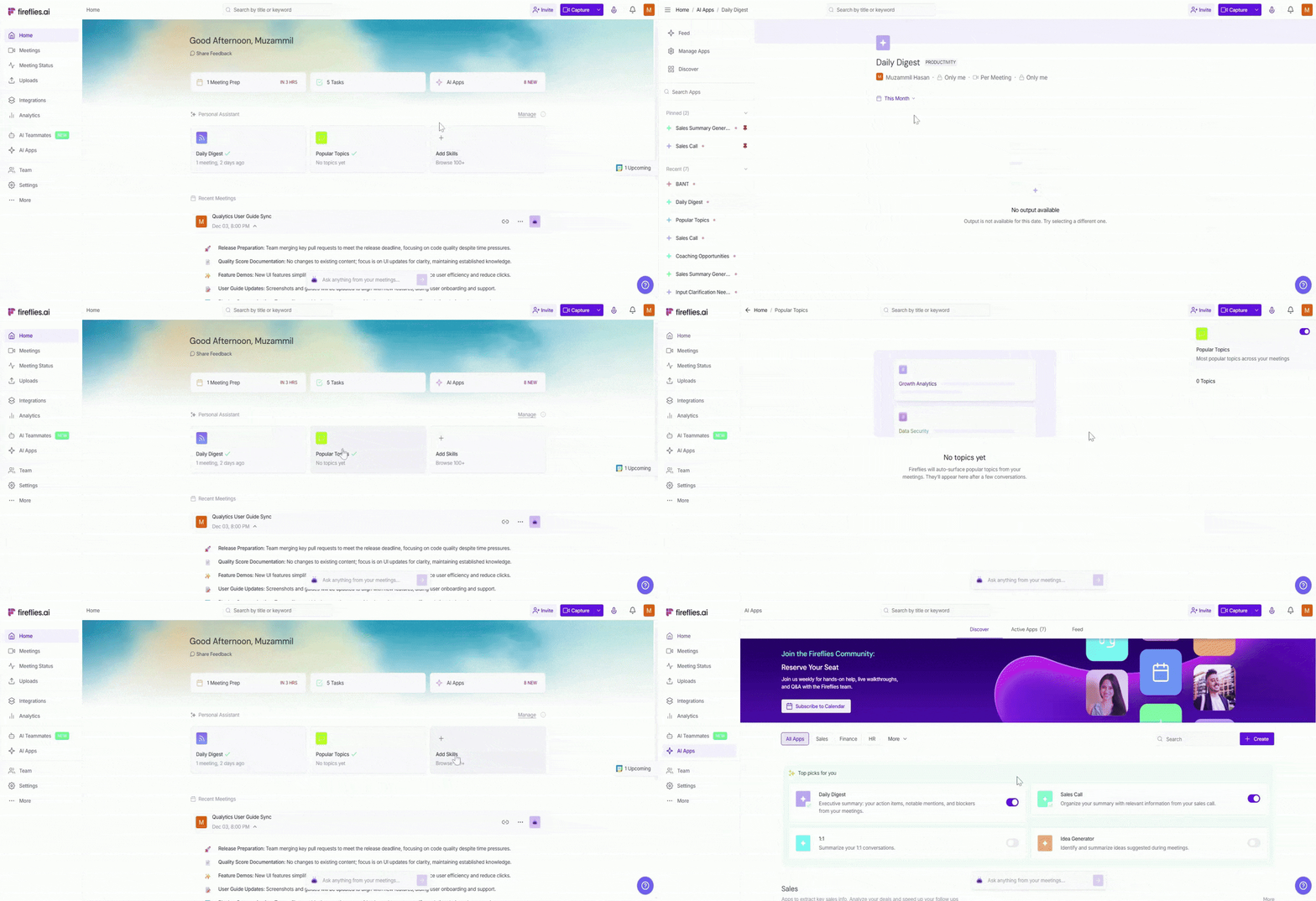
🎯 AI Personal Assistant
AI Personal Assistant is designed to keep you organized by automatically highlighting key insights from your meetings. It adapts to your activity and ensures you’re always informed with the right details at the right time.
Here are its core features:
Daily Digest: A quick overview of the past 24 hours, showcasing action items, blockers, and crucial updates.
Meeting Prep: Briefs to ensure you’re fully prepared for your upcoming meetings.
Popular Topics: Highlights important themes and discussion patterns from recent meetings for easy reference.
You can also explore more than 200 AI skills to help automate different aspects of your workflow and activate the ones that best fit your needs.
➡ Learn more about the AI Personal Assistant
📥 Recent Meetings
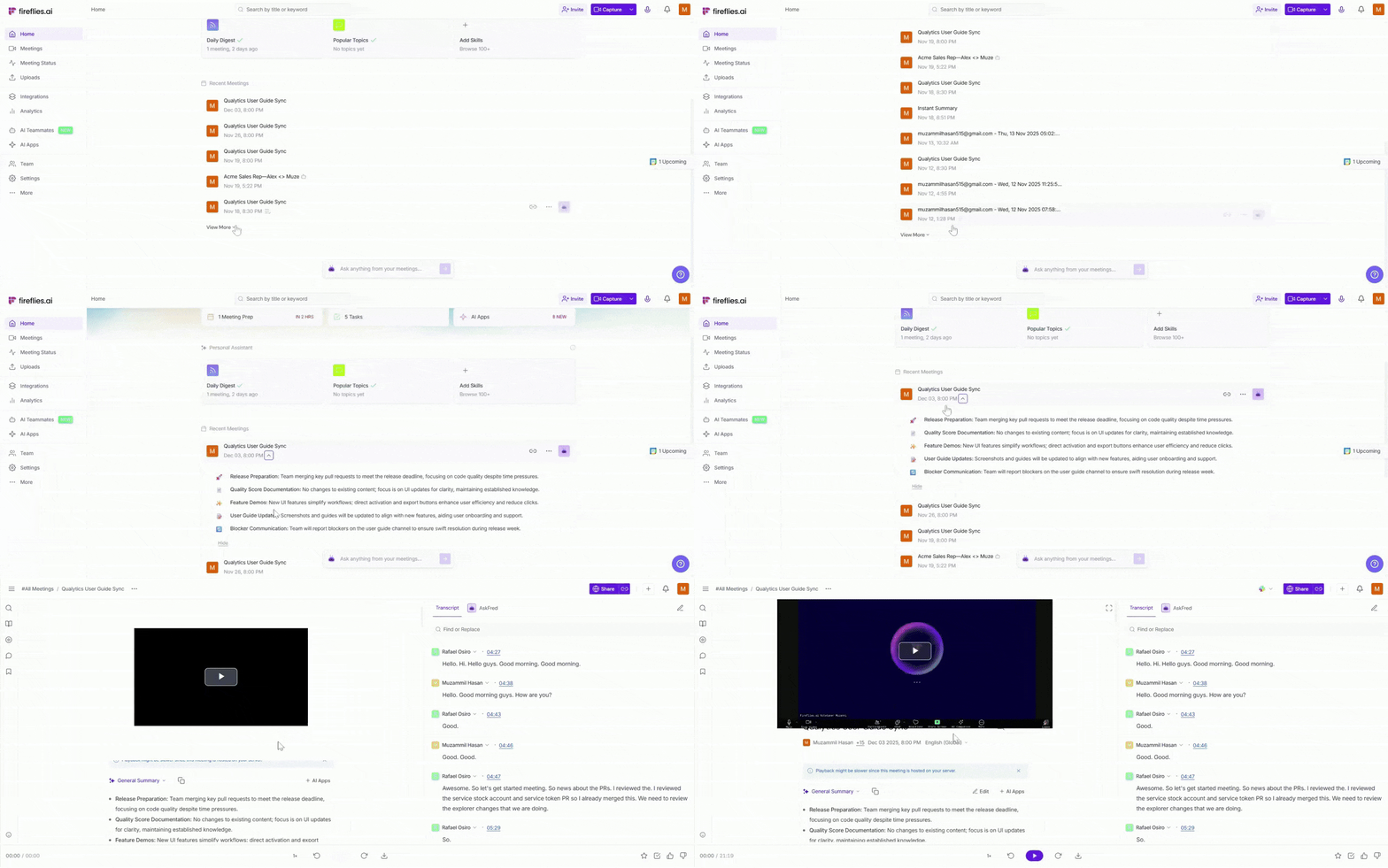
In the Recent Meetings Section, you can quickly view details from your past meetings. This section includes:
Meeting Information: Displays the meeting name, date, participants’ initials, and timestamps.
Quick Access to Key Data: Provides links to full meeting transcripts, soundbites, and summaries for easy reference.
For more details on how to manage and organize meeting notes, soundbites, and summaries, check out the Fireflies Notebook.
🤖 Global AskFred: Get Insights from Your Meetings
AskFred is the intelligent assistant that helps you extract key information from your past meetings. Whether you want to review action items, meeting highlights, or topics discussed, AskFred can quickly fetch them for you, saving you time and effort.
Key Features:
Generate Highlights: Quickly summarize the most important points from your meetings, like key highlights, blockers, or decisions.
Action Items: Get a list of action items and tasks that need your attention.
Topics Covered: Discover the main topics discussed in your meetings, helping you revisit past conversations or plan future discussions.
Simply ask AskFred about anything across your meetings—be it a past meeting, a specific participant, or a particular topic. It’s as easy as typing in the search bar, and AskFred will do the rest!
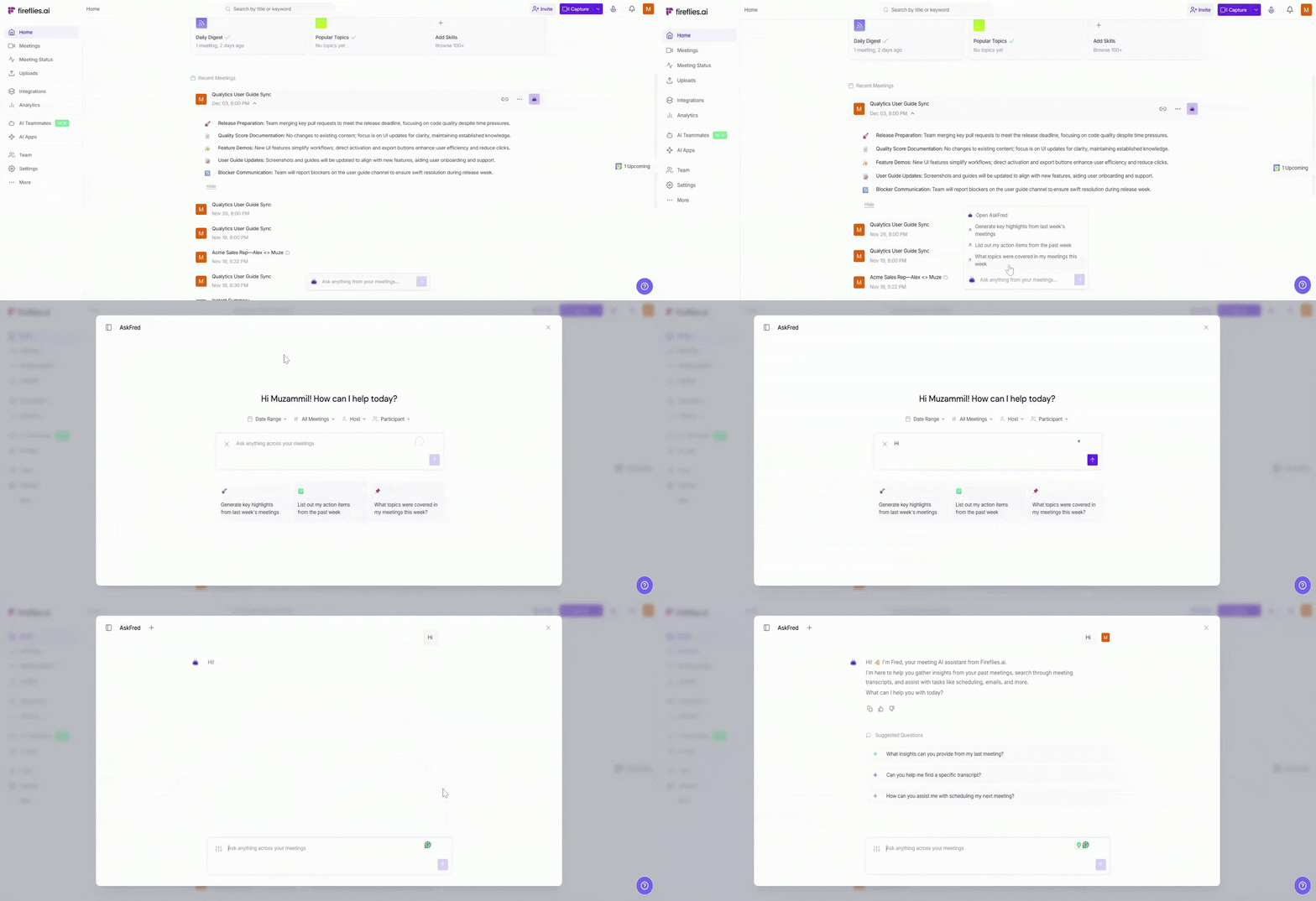
For more information on how to use AskFred, check out the Global AskFred Guide
💬 What's Common for All Users?
Regardless of your experience level with Fireflies, there are several key features accessible across all user accounts:
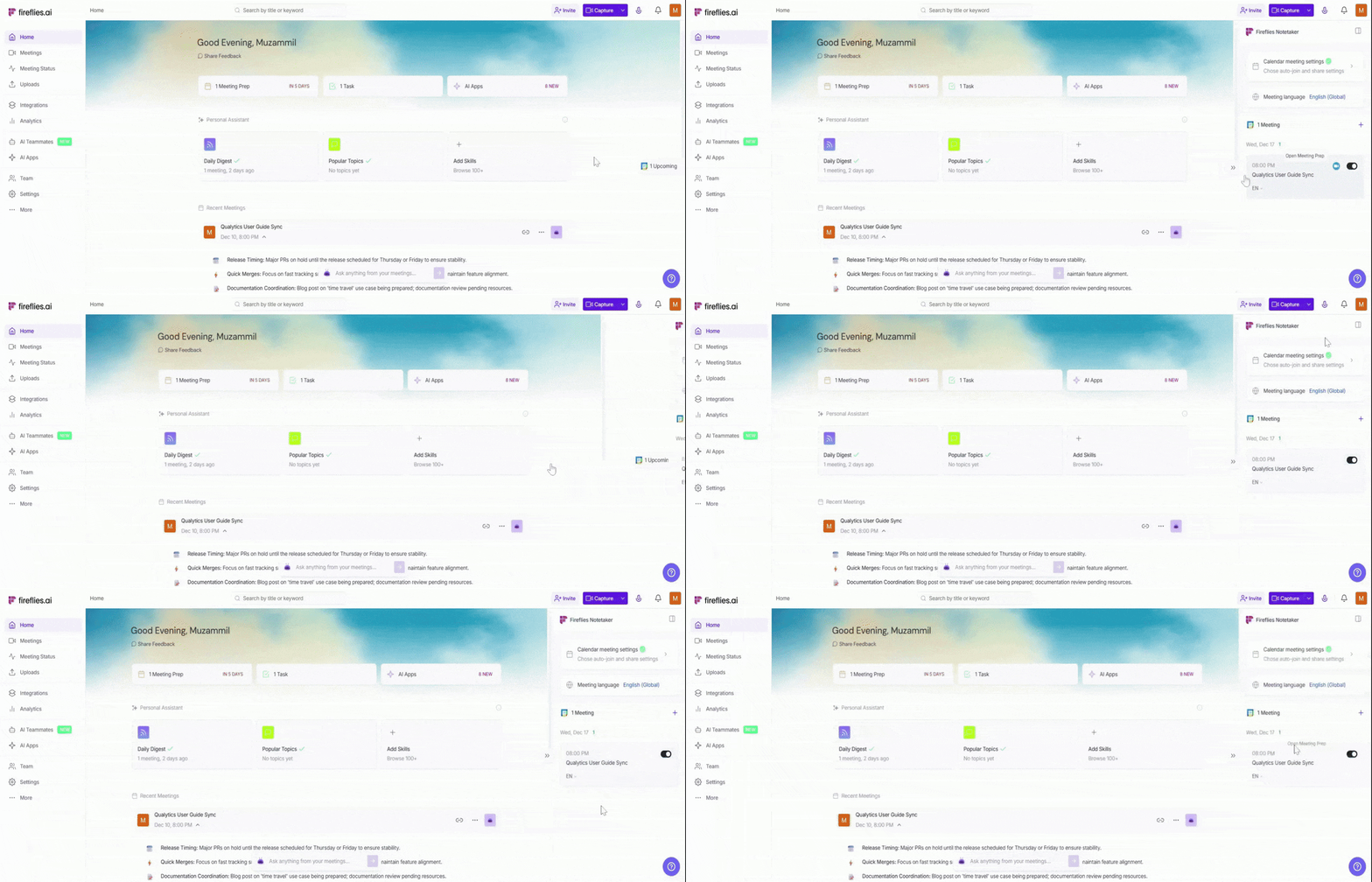
Right Sidebar (Upcoming Meetings)
The collapsible panel shows essential info, including:
Auto-Join Toggles: Set preferences for auto-join and email recaps.
Calendar Sync Status: View your calendar's sync status.
Meeting Language Settings: Choose your preferred meeting language.
Upcoming Meetings: Stay updated with your next scheduled meeting.
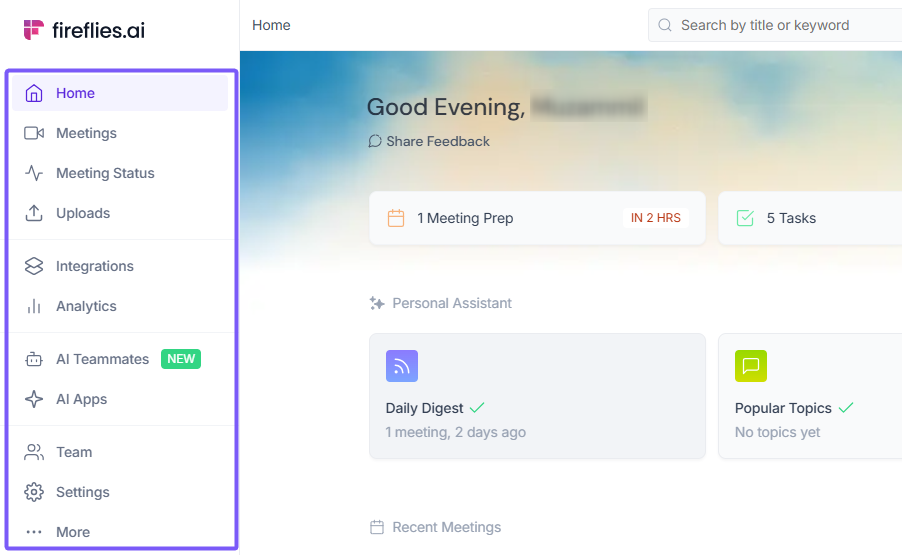
Left Navigation Menu (Your Command Center)
Located on the left side, the navigation menu provides easy access to:
Meetings: View and manage your meetings.
AI Skills: Access all active and recent AI-driven features.
Other Settings: Access your settings and integrations. This menu is always visible, ensuring everything you need is just a click away.
And that's a wrap! The new Welcome experience is not only more visually appealing but also smarter. You’ll:
Easily find the most important content at a glance
Save time by quickly accessing your next steps and past insights
Be guided toward features that help you make the most of every meeting