Meet the New Fireflies Home Dashboard
Last updated: November 10, 2026
Starting November 11, 2026, new accounts will get the new Fireflies Home. If your account doesn’t have it yet, you’ll keep seeing the current Home (also called the Welcome screen). Looking for the current Home? See this guide.
The new Fireflies Home puts AskFred front and center, so you can ask a question, prepare for what’s next, and jump into your meetings from one place.
In this guide, we’ll walk you through the key parts of the new Home screen and how to get around it. We’ll update it as the rollout expands.
Let’s dive in! 🚀
🏠 Which Home Do I Have?
Your Home screen (also called your dashboard or home page) is the first page you see when you log in to Fireflies. It looks different depending on which version of Home your account has.
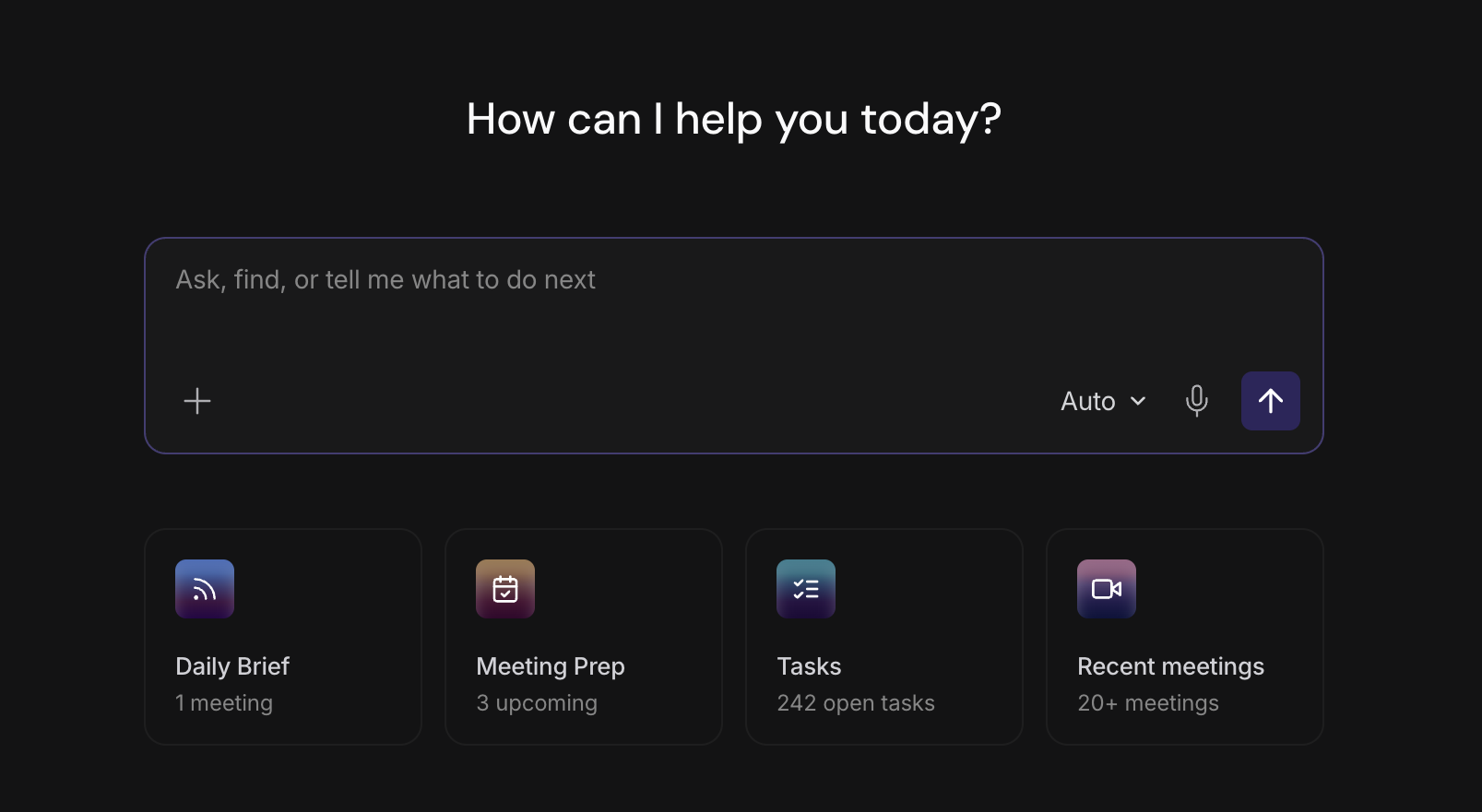
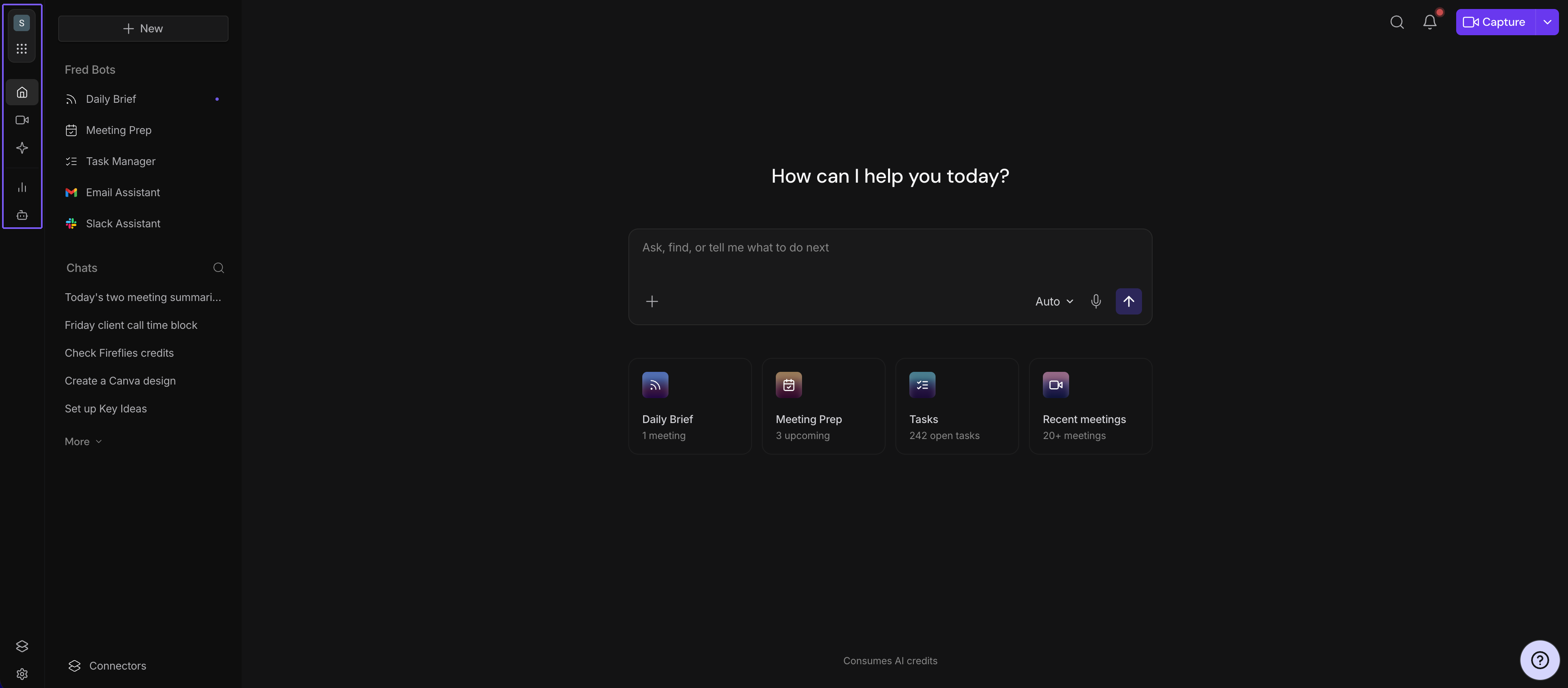
New Home: Your Home screen is built around AskFred, where you can type a question or request.
Current Home (Welcome screen): Your Home screen opens with the Recent and Upcoming meeting tabs, or the Welcome Aboard Getting Started view.
💡 Tip: Don’t see the new Home? That’s expected if the rollout hasn’t reached your account yet. Nothing is wrong with your account or settings, and all of your meetings and data are exactly where you left them.
📌 Related: Fireflies Welcome Screen: A Guide to Your Home Dashboard
🤖 AskFred on Your Home Screen
Fred is your AI teammate, and AskFred is how you talk to Fred. Type a question or request on your Home screen, and Fred responds using your meeting history and connected apps.
Key Features
Ask Questions Across Meetings: Ask anything about your past meetings and get AI-powered answers with supporting meeting context.
Summarize Key Information: Quickly surface important highlights, decisions, blockers, and follow-ups from your conversations.
Find Meeting Details: Search for discussions, participants, topics, or action items across your entire meeting history.
📌 Related: Learn more about Global AskFred
🤖 Your Home Screen Tiles
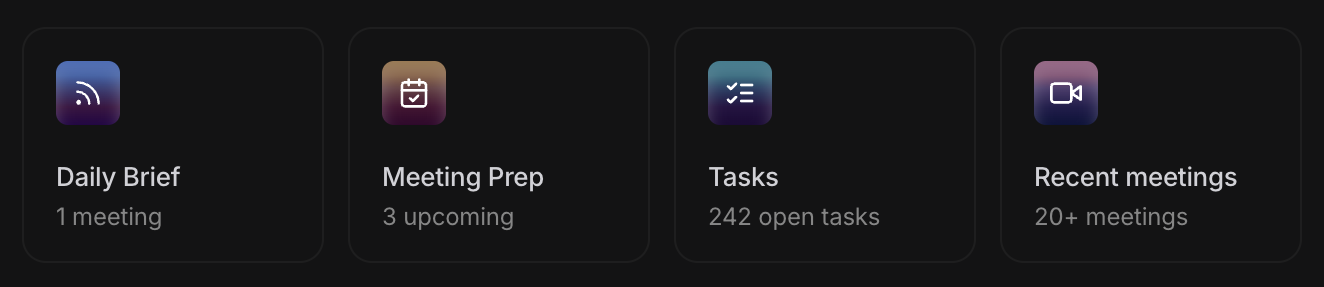
Under the text box, your Home screen shows tiles that help you stay on top of what’s next.
Daily Brief: Your daily digest of the day’s meetings.
Meeting Prep: Brings together relevant context to help you get ready for upcoming meetings.
Tasks: Collects action items from your meetings so you can keep track of follow-ups.
Recent meetings: Jump back into your latest meetings.
📌 Related: Learn more about the AI Personal Assistant | Learn more about Tasks
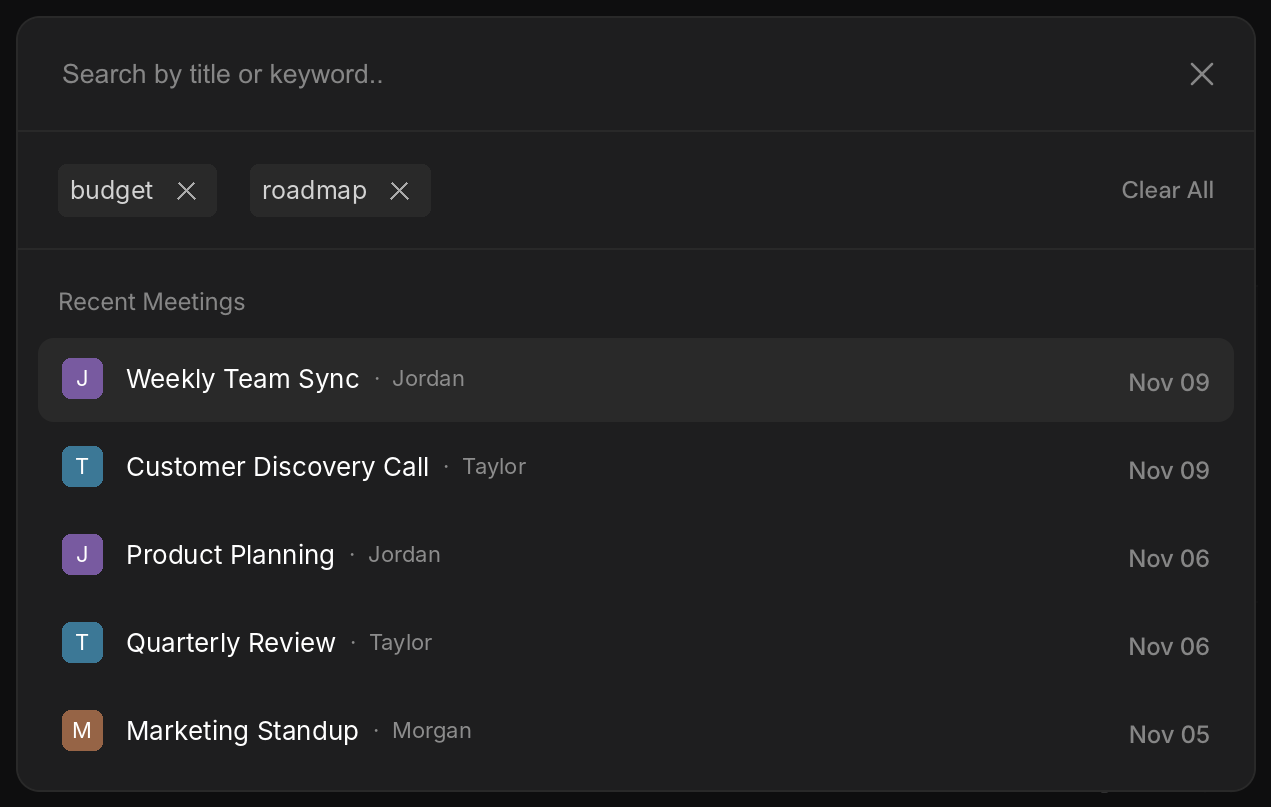
🔎 Global Search
Global Search helps you find meetings and information across Fireflies without browsing your meeting history. Open it from the search icon, or press Cmd/Ctrl + K.
📌 Related: How to search and find your meetings
🔔 Notifications
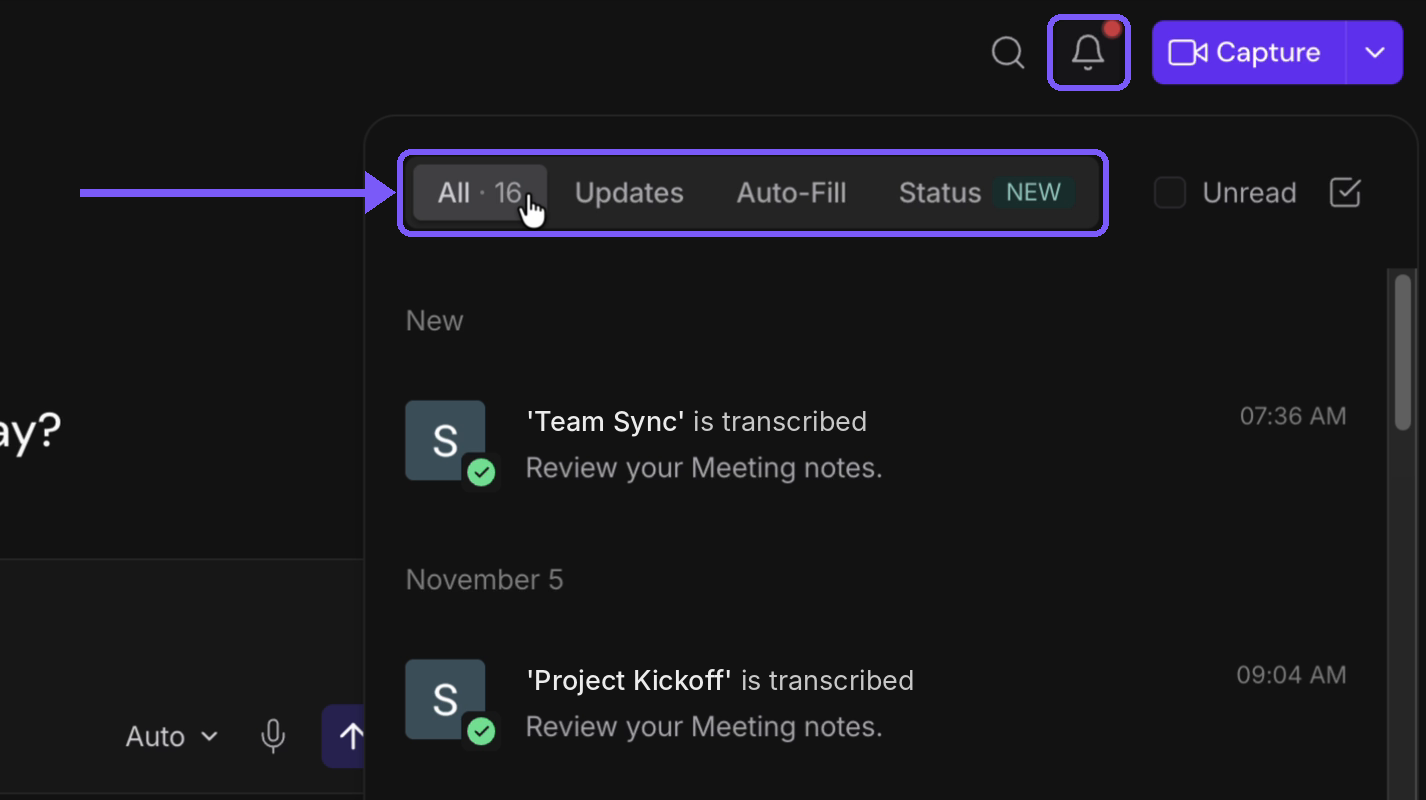
Click the bell icon in the top-right corner to view your Fireflies notifications. You can:
All: See every notification in one place.
Updates: See product news and account updates.
Auto-Fill: See CRM insights extracted from your meetings (HubSpot & Salesforce).
Status: Check the status of your meetings, including when a meeting has been transcribed and is ready to review. Filter by Active, Processing, Completed, Failed, Connection Failed, or In Waiting Room.
You can also filter for Unread notifications or mark notifications as read.
🎥 Capture
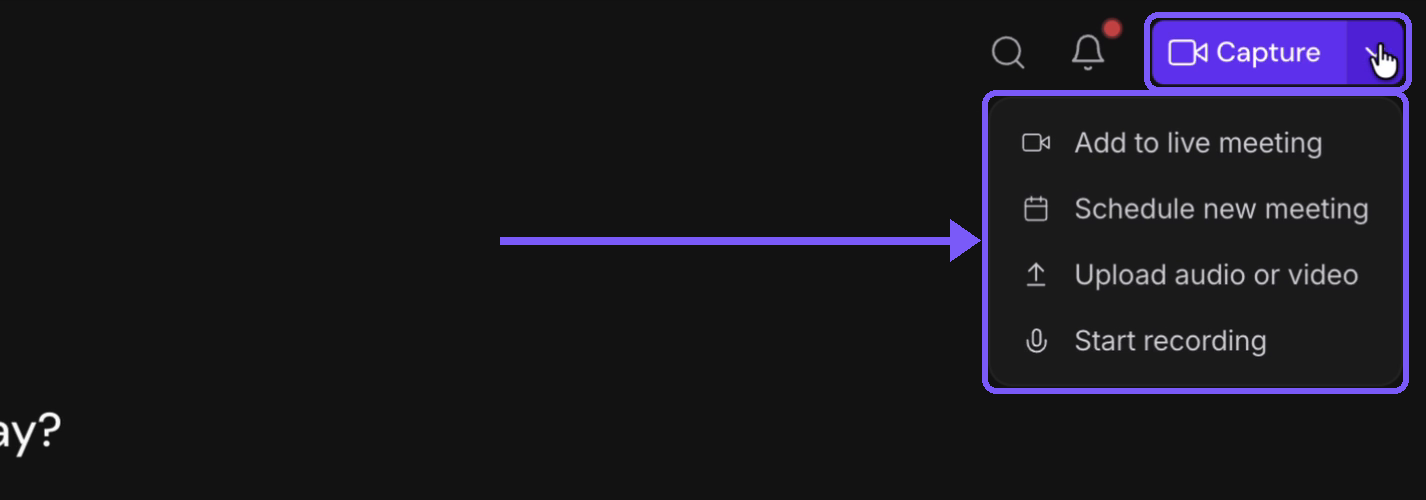
Click Capture in the top-right corner to choose how you want to capture a meeting or recording. You can:
Add to live meeting: Paste a meeting link to add Fireflies to an ongoing meeting.
Schedule new meeting: Schedule a meeting on your Google or Outlook calendar for Fireflies to capture.
Upload audio or video: Upload an MP3, M4A, or MP4 file.
Start recording: Start recording directly from Fireflies.
⬅ Left Navigation Menu
Use the Left Navigation Menu to move between the main parts of Fireflies.
💡 Tip: Hover over any icon to see its name.
Menu | Description |
|---|---|
Profile menu | Open your account details and Settings. |
Apps | Switch between Fireflies apps. |
Home | Return to your Home screen at any time. |
View, search, and manage all of your meetings. | |
Automate meeting summaries, follow-ups, and other workflows. | |
View meeting insights and analytics. | |
Create and manage AI Voice Agents. |
🎉 And that’s a wrap! With the new Fireflies Home, you can ask AskFred questions across your meetings, prepare for what’s next, and reach Fireflies’ core features from one place.