How to Manage Your AI Skills, View Outputs in the Feed, and Configure Admin Settings
Last updated: May 8, 2026
Managing your AI Skills is just as important as creating them. As your workspace grows, you need a central place to stay organized, in control, and on top of everything your skills are generating.
In this guide, you'll learn how to:
Navigate and manage your active AI Skills — enable, disable, edit, customize, and delete skills
Control Skill Visibility and Output Visibility settings
Monitor and review AI Skill outputs from the Feed
Configure Personal and Team AI Skill settings as a member or workspace admin
Let’s get started 🚀
🔑 Prerequisites
Before you begin, make sure:
You have access to AI Skills in your Fireflies workspace
At least one AI Skill has been created or enabled
You have permission to edit or manage the skill (creator/admin access where applicable)
🚀 View Your Active AI Skills
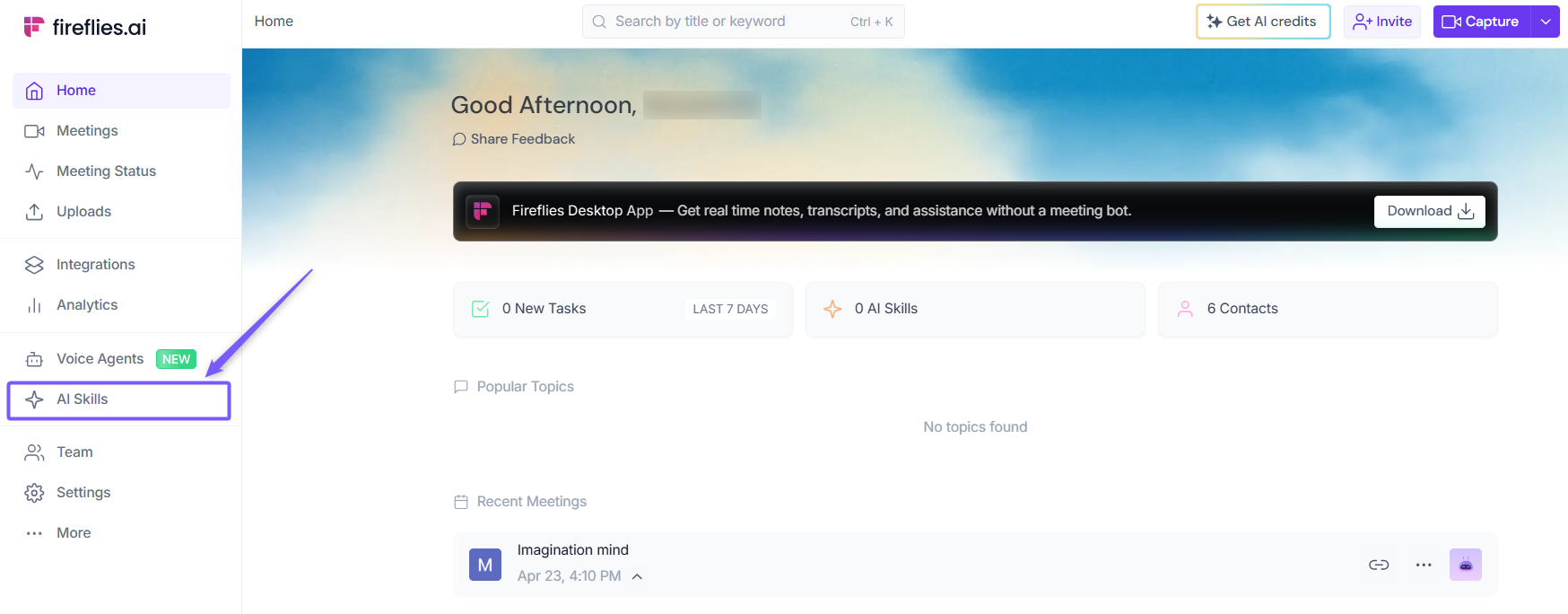
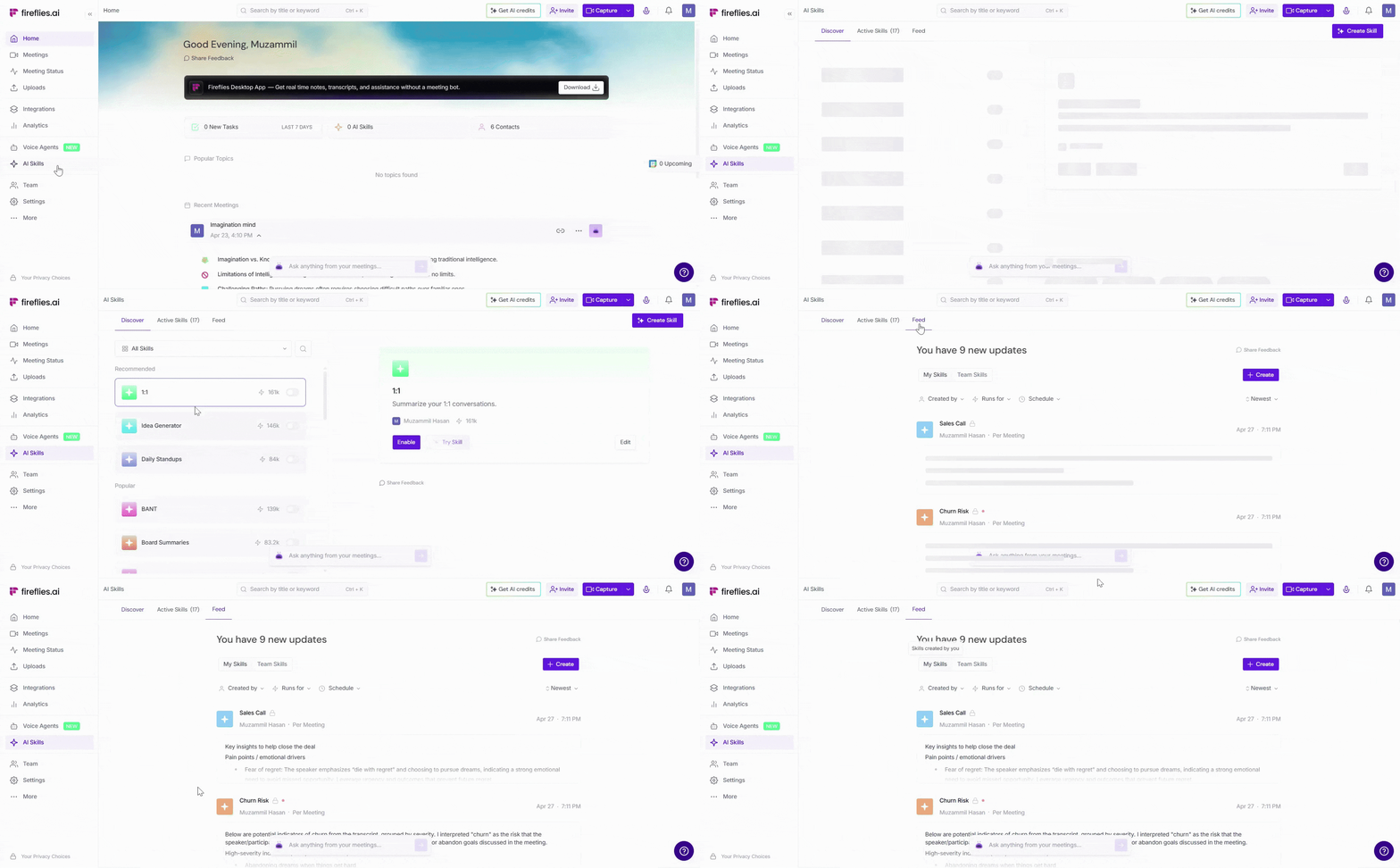
1. Log in to your Fireflies account and click on the AI Skills tab from the left-hand menu.
2. By default, the AI Skills page opens on the Discover tab. To view and manage enabled AI Skills, switch to the Active Skills tab.
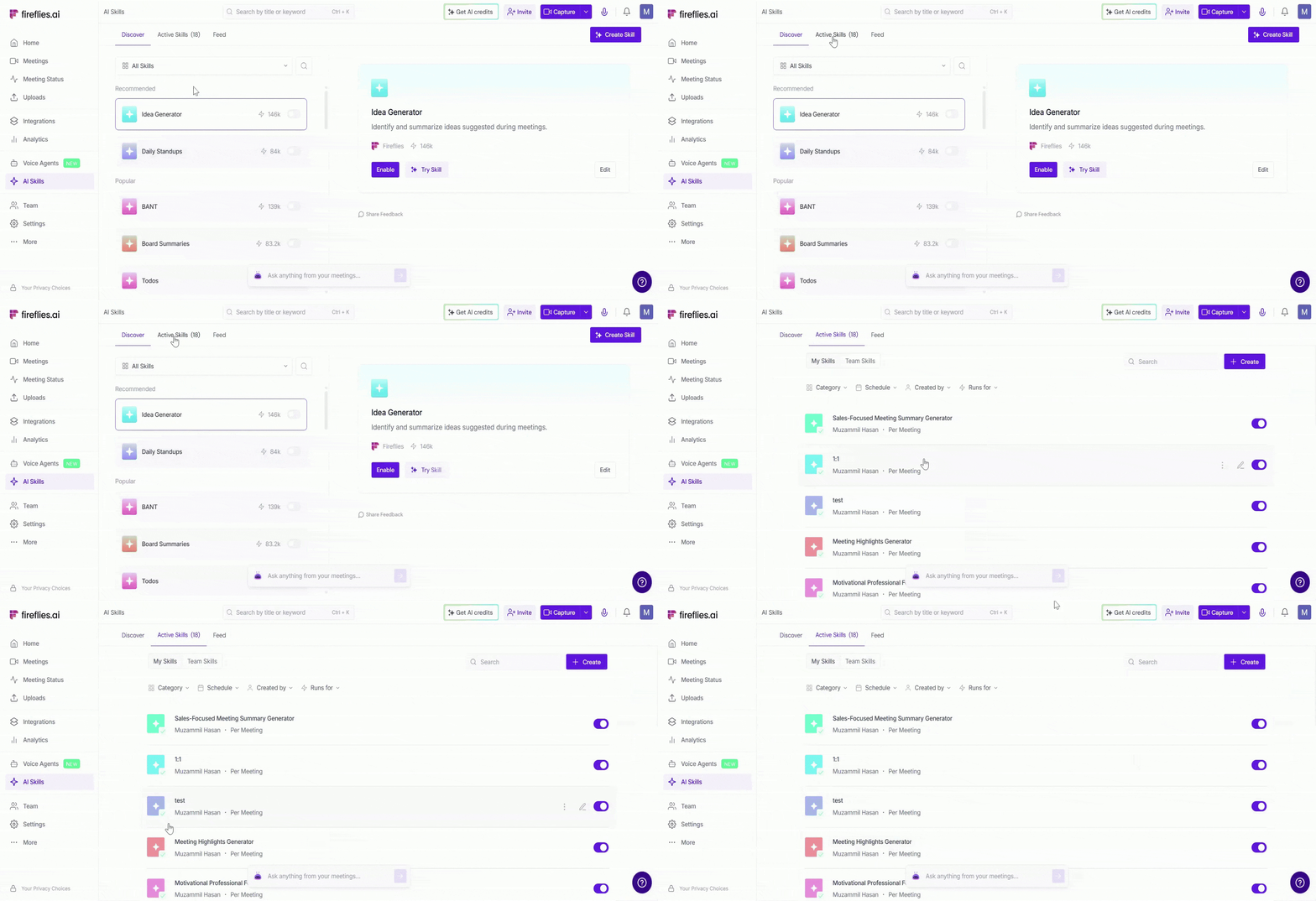
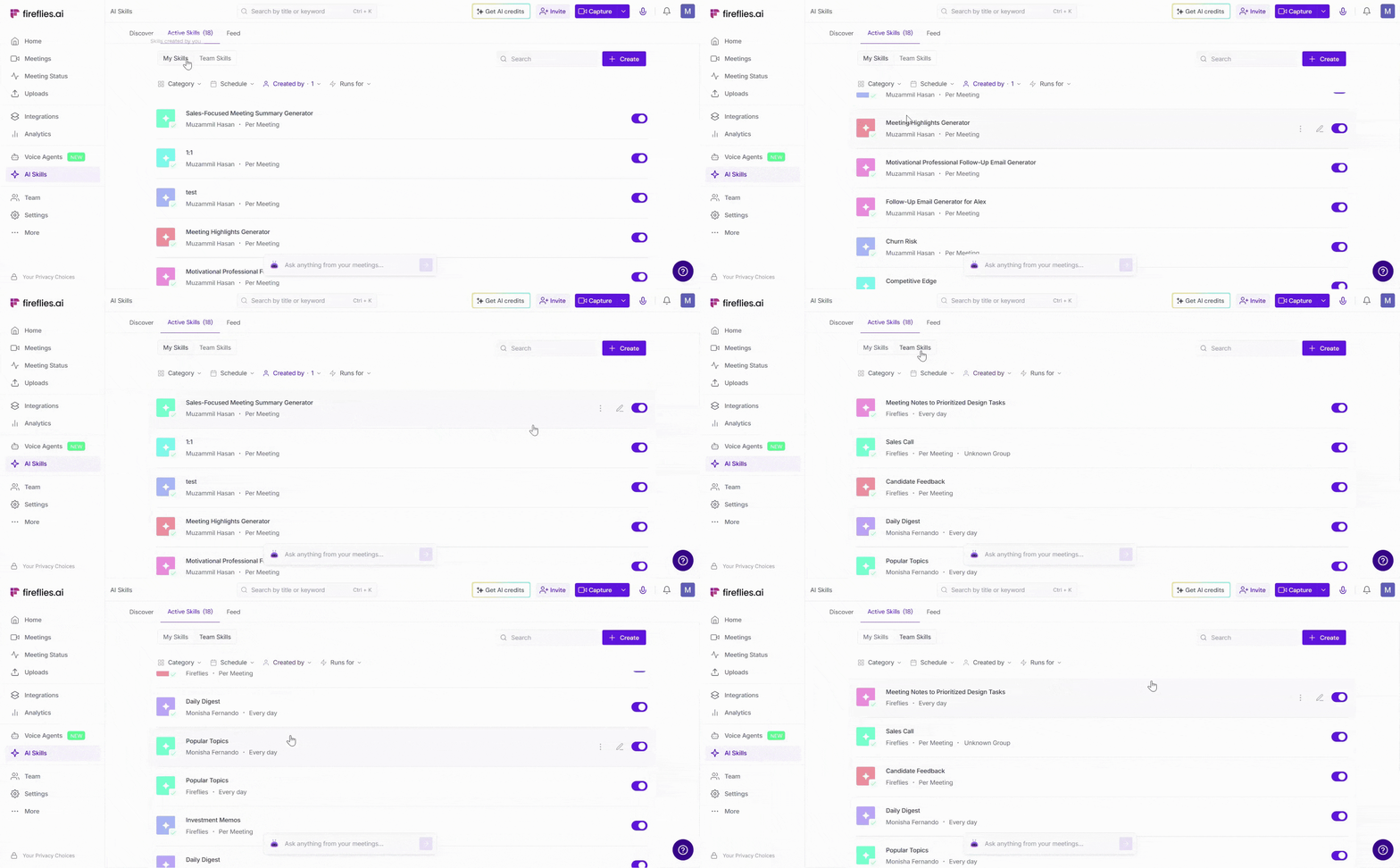
3. The Active Skills tab is divided into two sub-tabs:
My Skills — Displays AI Skills you created yourself or skills you've enabled for your workflows.
Team Skills — Displays AI Skills shared across your workspace that are available to your team.
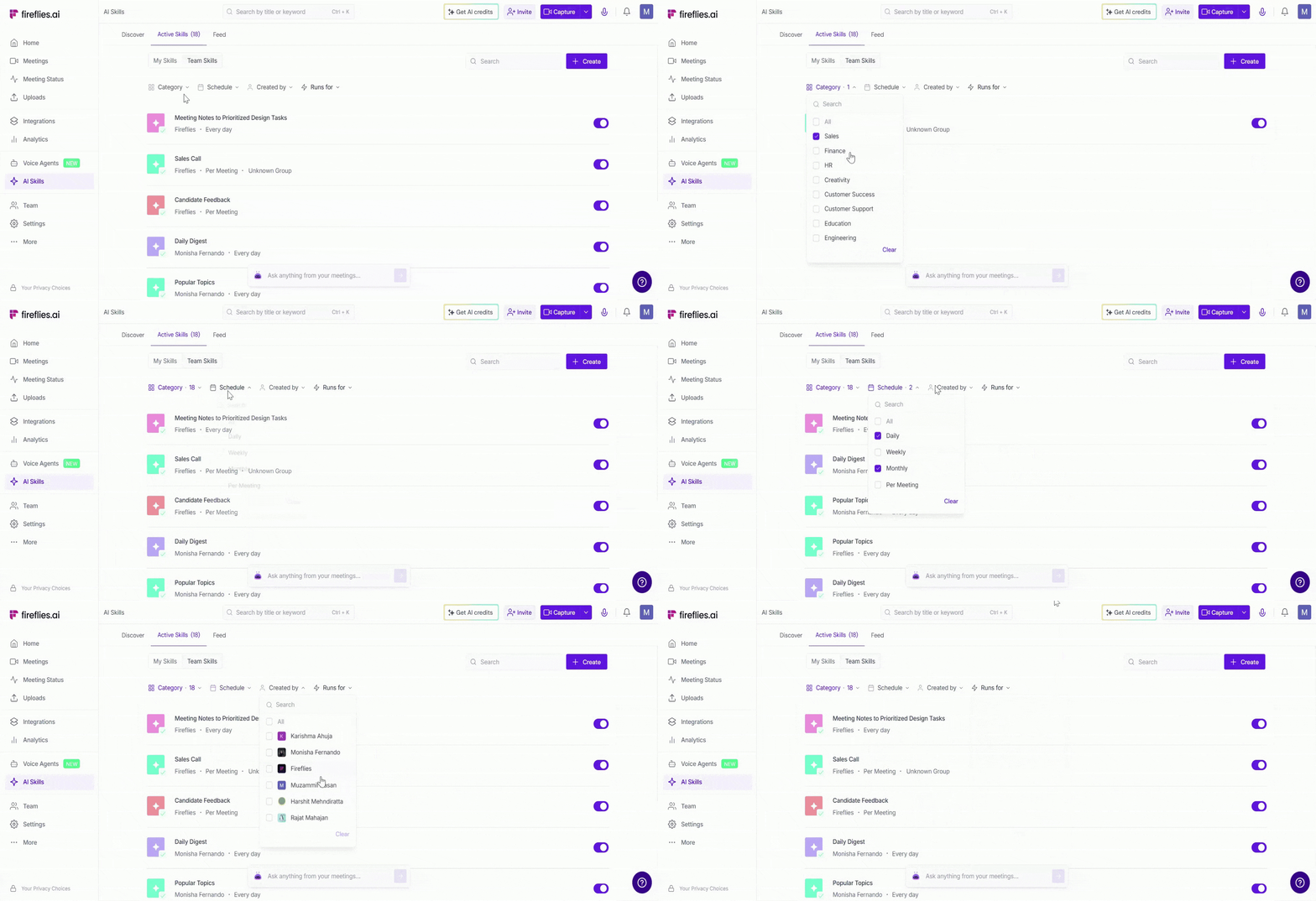
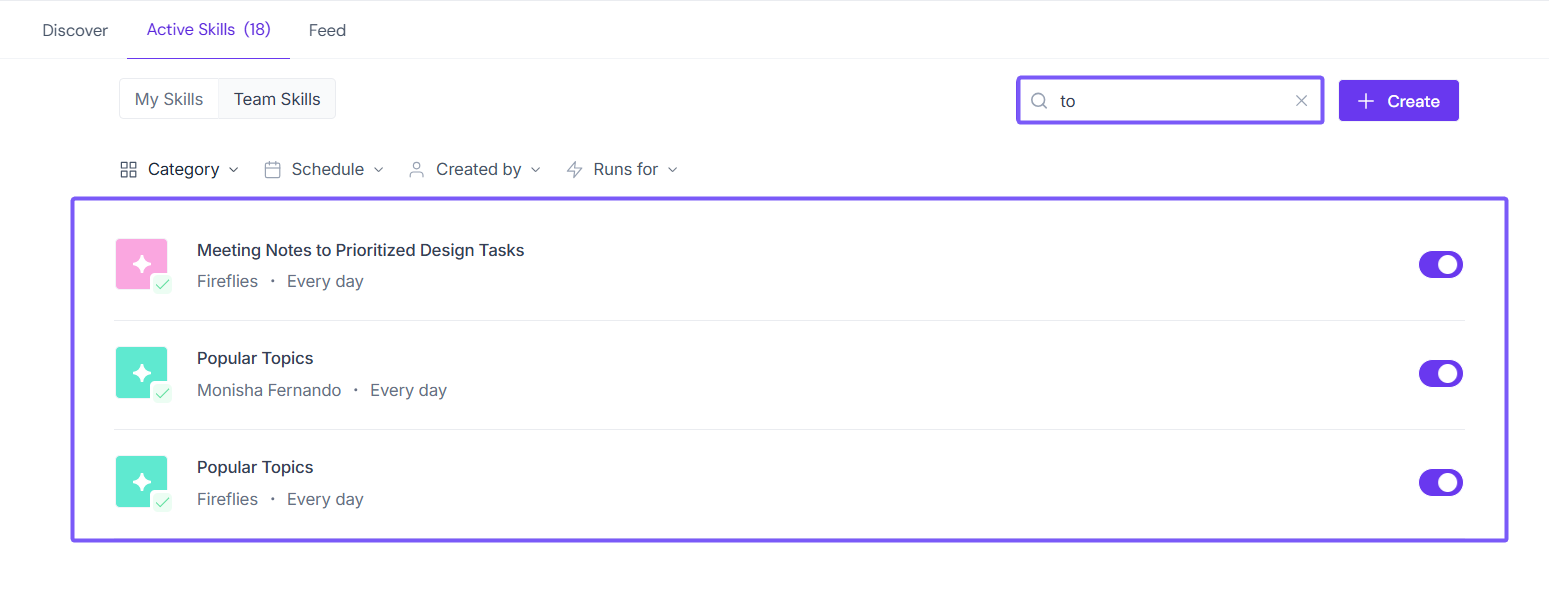
4. Use the filters at the top to organize and find skills quickly:
Category — Filter by use case, such as Sales, Recruiting, Support, or Marketing.
Schedule — View skills based on how they run (Per Meeting, Daily, Weekly, or Monthly).
Created by — Find skills created by a specific teammate.
Runs for — Filter skills based on who the skill runs for within the workspace.
5. Use the search bar to locate a specific AI Skill by name.
⚙ Manage Your AI Skills
Once your AI Skills are set up, the Active Skills tab gives you one place to control how they work across your workspace. You can update settings, customize schedules and outputs, pause or delete skills, and control who can access or view them.
Who can manage AI Skills?
Admins have full access to create and manage AI Skills across the workspace. For team-wide skills, what you can view or manage depends on the permissions your admin has granted you.
1. Enable or Disable a Skill
Use the toggle on the right side of any AI Skill to quickly turn it on or off based on your workflow needs.
Enabled skills continue running automatically based on their configured schedule and settings.
Disabled skills stop running on future meetings until they are turned back on. Use the search bar or scroll down to find and re-enable them anytime.
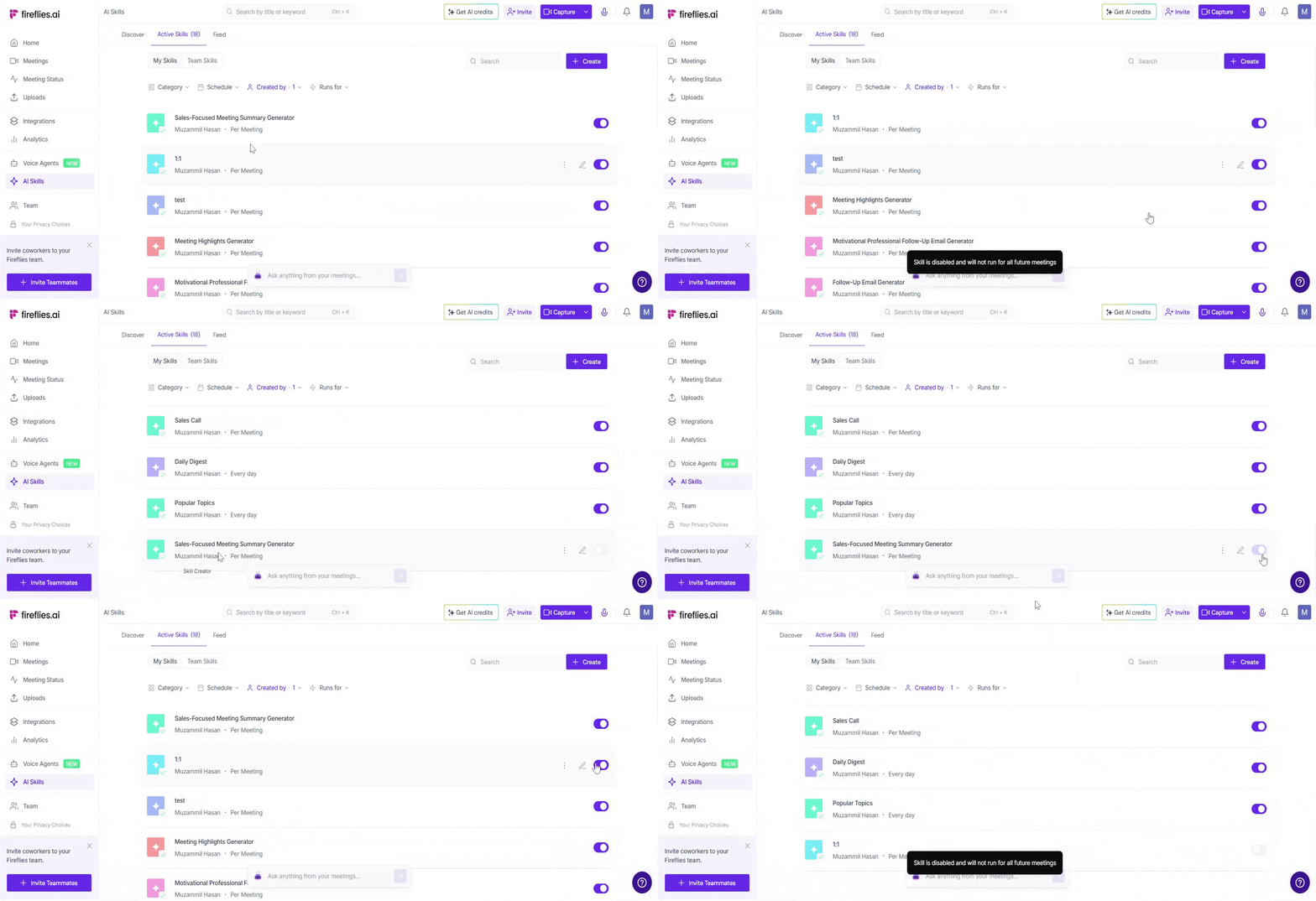
Disabling an AI Skill does not delete it or remove previously generated outputs from the Feed. You can re-enable the skill anytime.
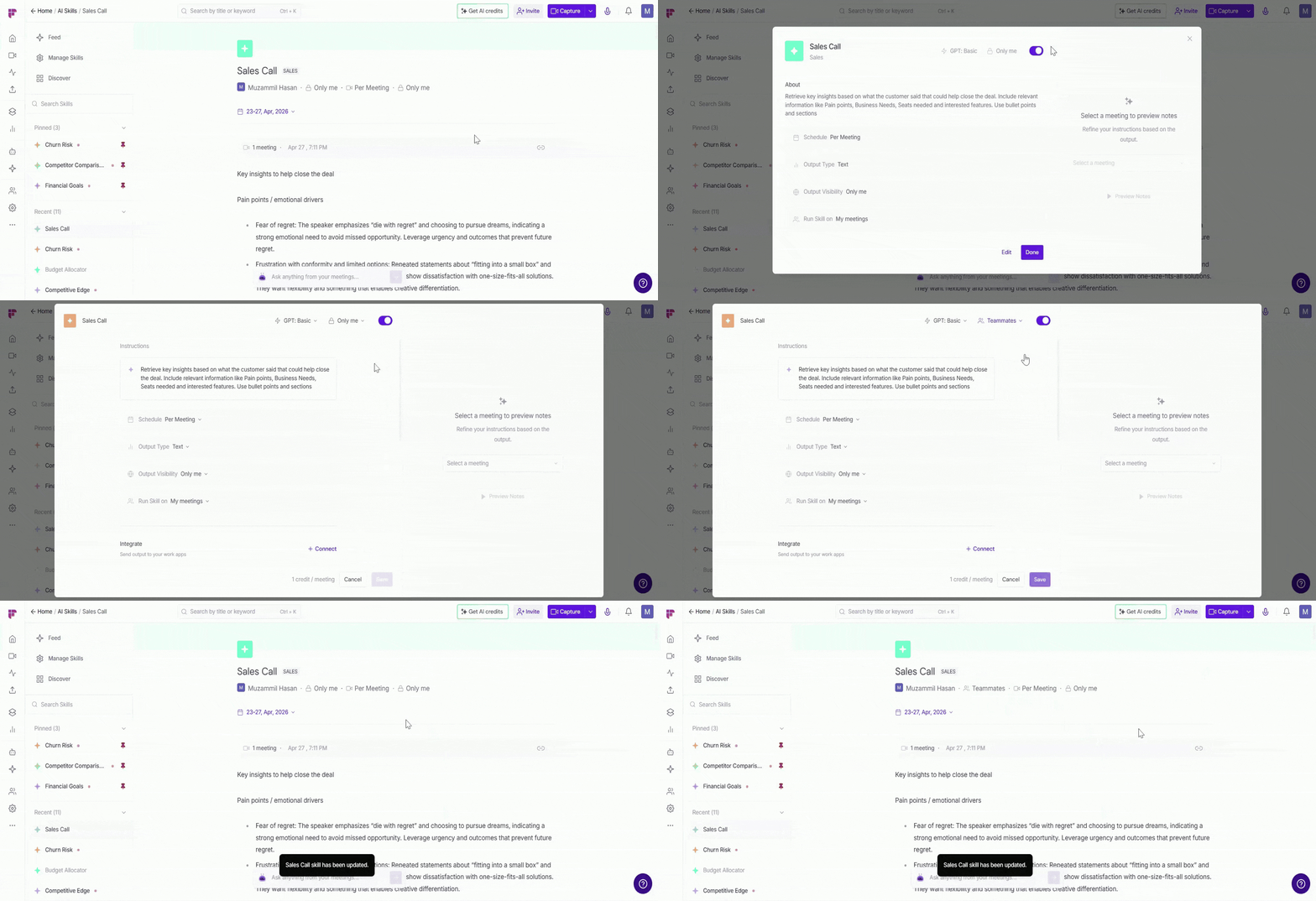
2. Edit or Customize a Skill
Click the pencil icon (✏) to quickly edit an AI Skill, or open the three-dot menu (⋮) and select Customize.
From there, click Edit at the bottom to open the full skill editor.
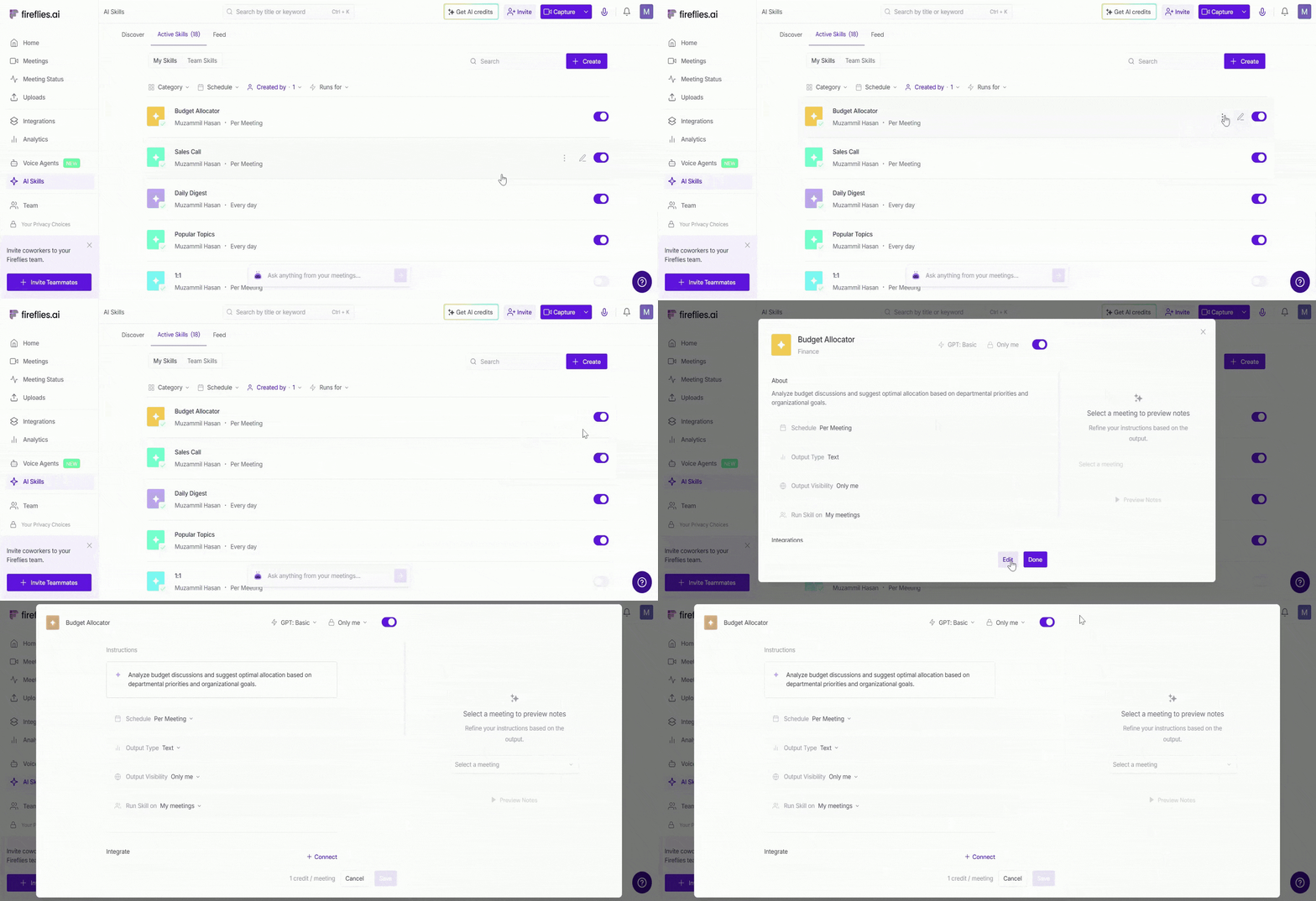
Admins have full access to edit AI Skills. For workspace members, the ability to modify a skill depends on the permissions granted by the workspace admin.
From the editor you can manage:
Instructions — Update what the skill extracts, summarizes, or generates from your meetings.
Schedule — Set how the skill runs: Per Meeting, Daily, Weekly, or Monthly.
Output Type — Switch between Text or Chart output.
Integrations — Connect tools like Slack, Email, or Microsoft Teams to automatically send outputs after each run.
Output Visibility — Control who sees the skill's generated results: Only me, Teammates, or Shared Link.
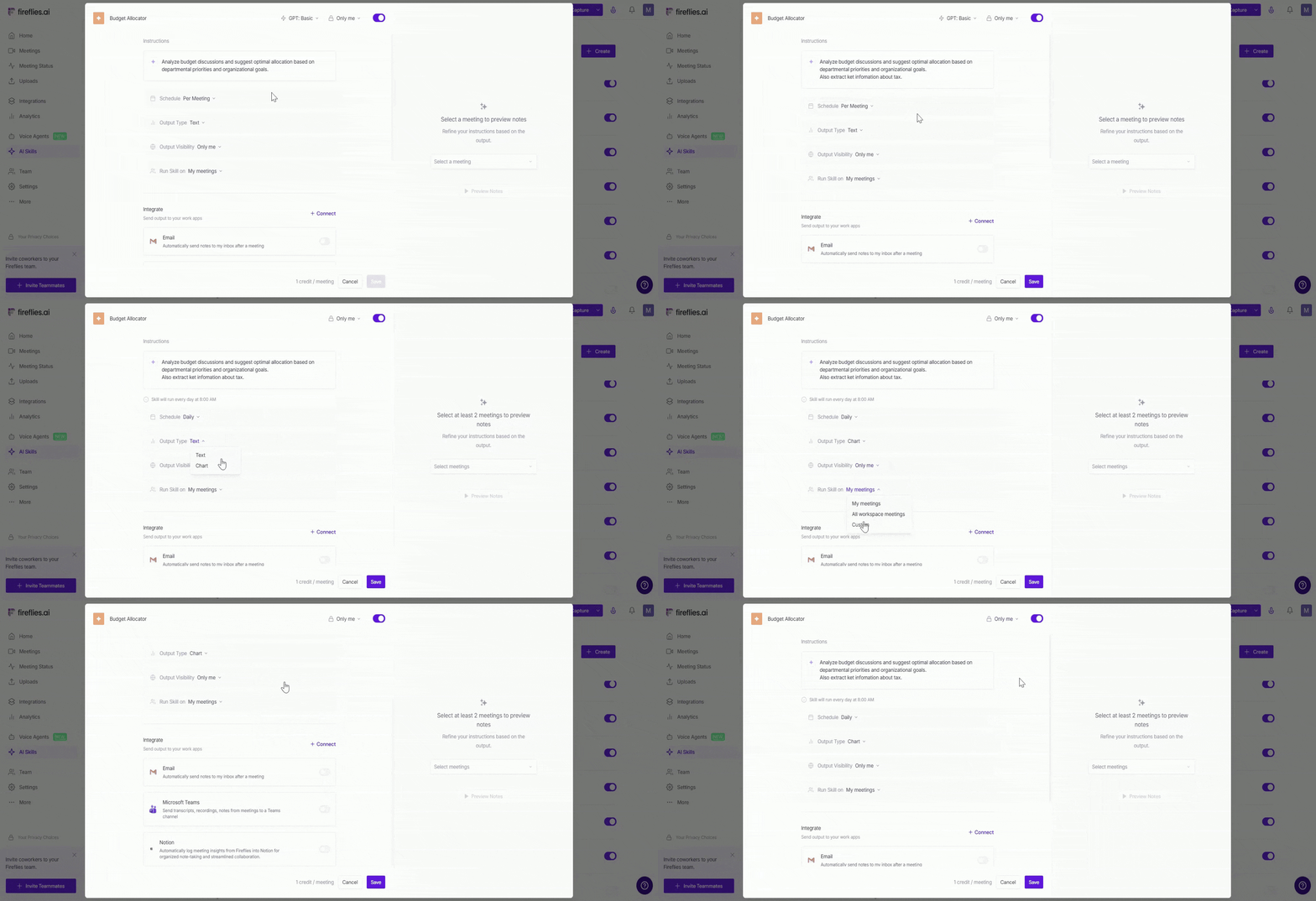
Manage Skill Visibility Permissions — Control who can view or run the skill: Only me, Teammates, or User groups.
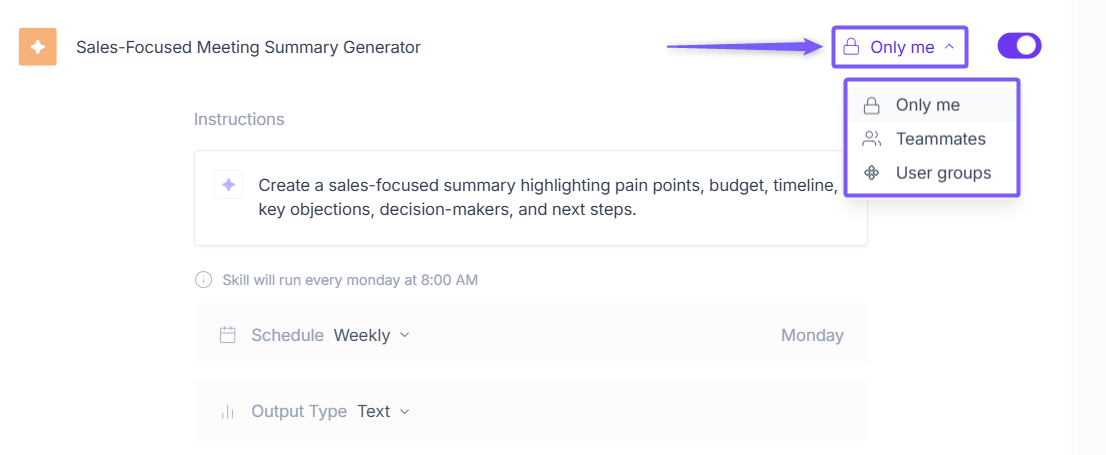
The User Groups option is available only to Admins in the Business plans and above. Learn more → [How to Create and Manage User Groups]
3. Delete an AI Skill
If an AI Skill is no longer needed, you can permanently remove it from the Active Skills tab.
Hover over the AI Skill, click the three-dot menu (⋮), and select Delete.
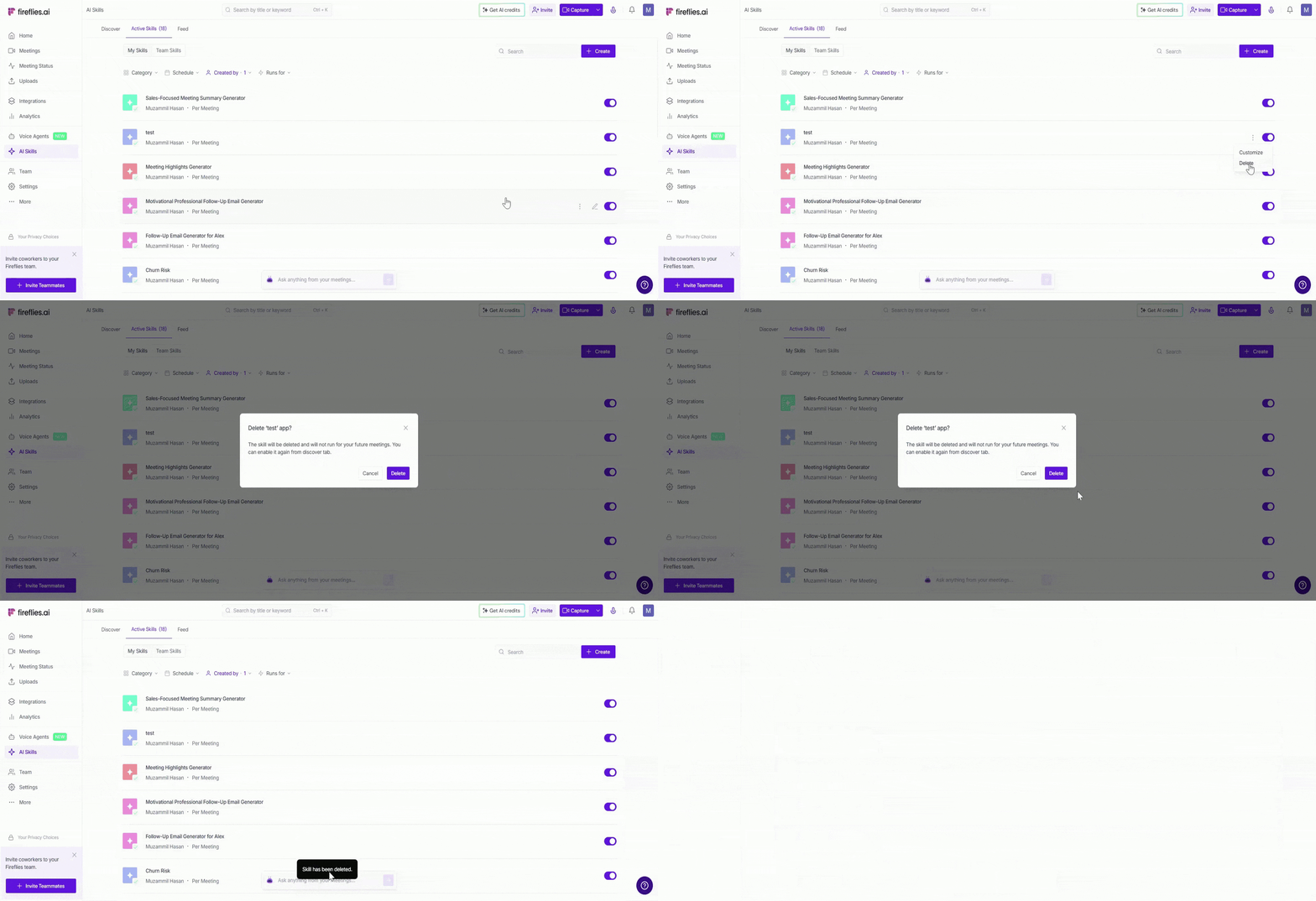
Deleting an AI Skill cannot be undone. Once deleted, the AI Skill will stop running on future meetings. You can re-enable skill anytime from the Discover tab.
📥 Explore the AI Skills Feed
Every output generated by your AI Skills appears in the Feed — giving you one central place to review summaries, insights, reports, and follow-ups across your meetings. For each output, you can see which AI Skill ran, which meetings were analyzed, how many meetings were included, along with the schedule and privacy settings applied to that output.
To open the Feed, click AI Skills from the left menu and select the Feed tab at the top of the page. Here you'll see all the outputs generated by your active skills.
1. Filter and Sort Outputs
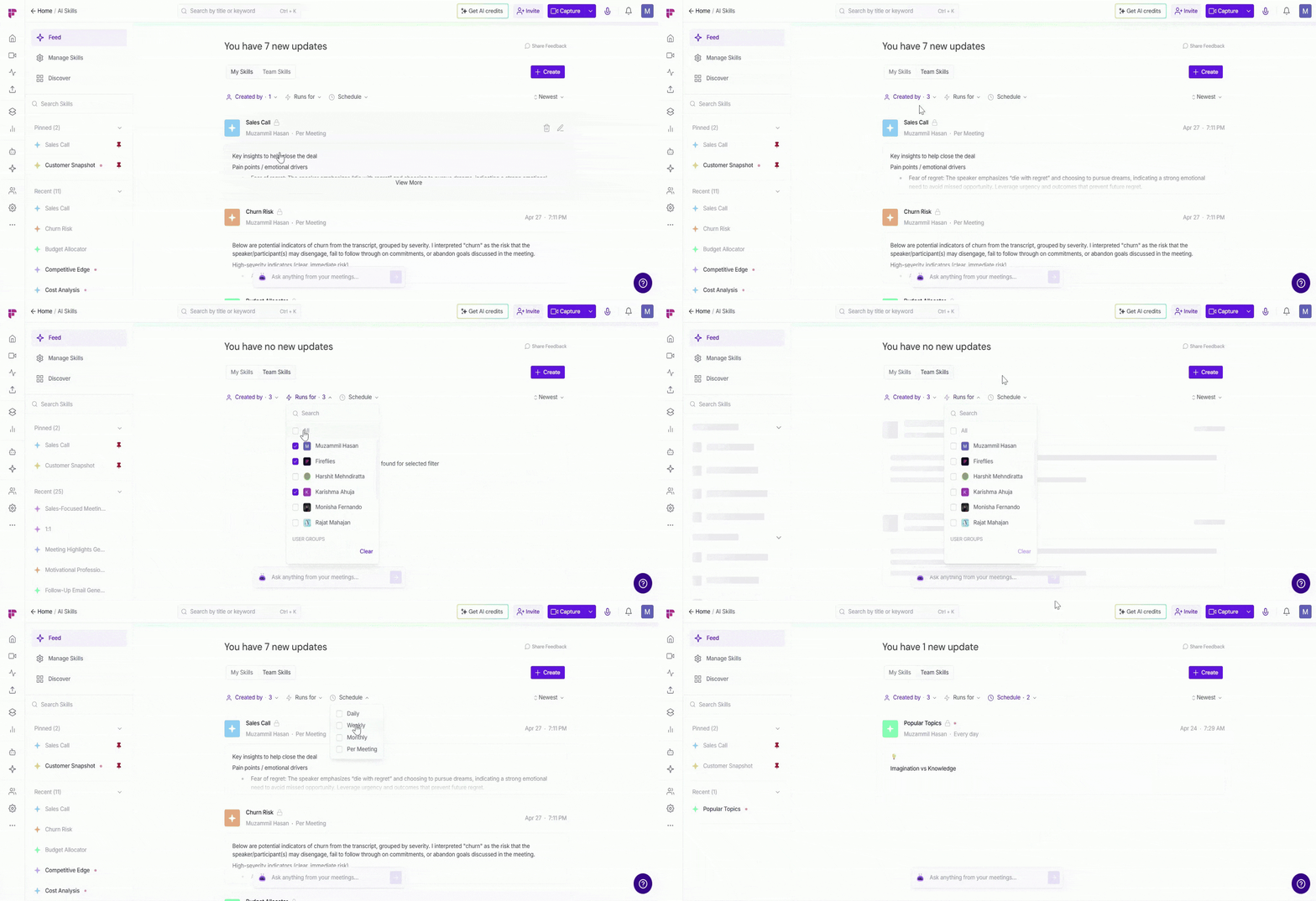
Use the filters at the top of the Feed page to quickly organize and find specific AI Skill outputs.
From here, you can:
1. Switch between:
My Skills — View outputs generated by AI Skills you created or enabled
Team Skills — View outputs generated by AI Skills created by teammates or shared across the workspace
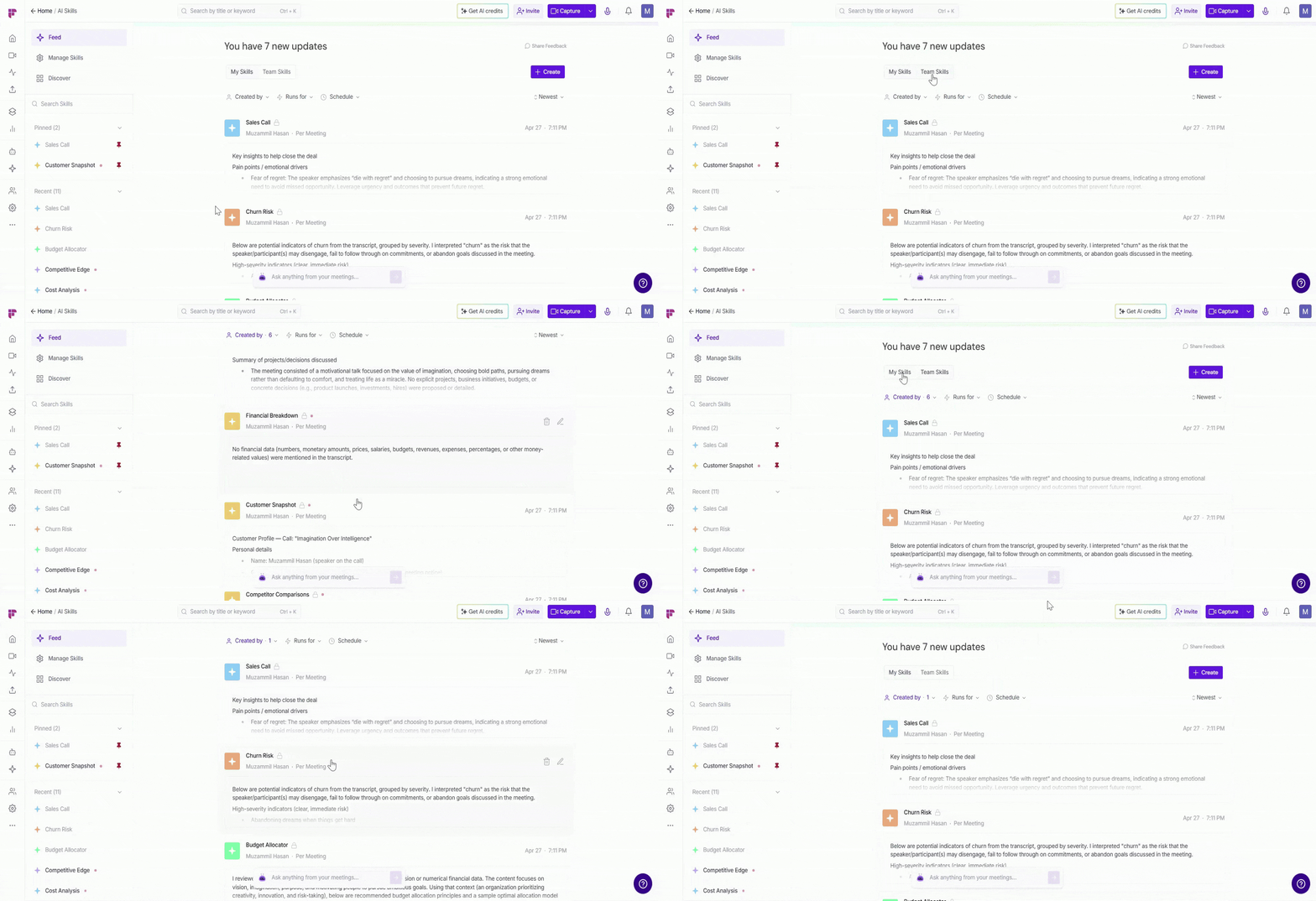
2. Filter outputs by:
Created by — View outputs from skills created by specific teammates
Runs for — Filter outputs based on who the AI Skill runs for
Schedule — Filter by Per Meeting, Daily, Weekly, or Monthly skills
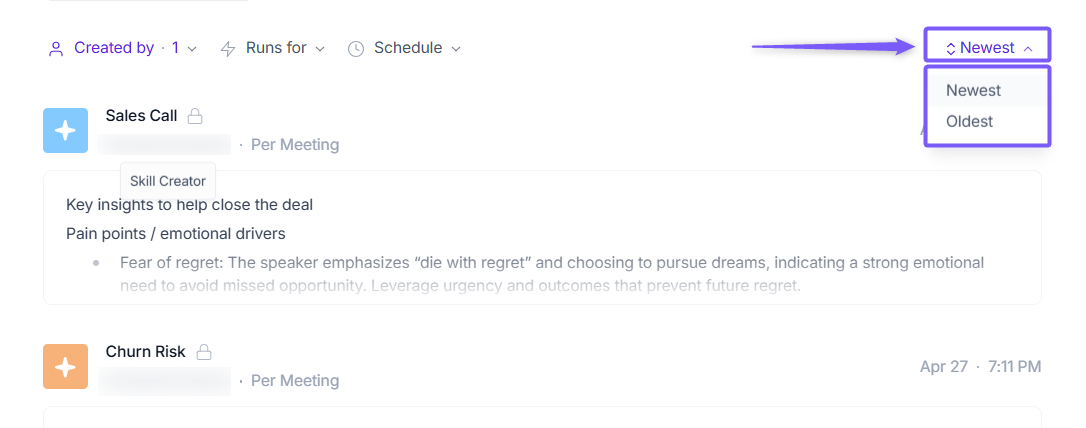
Sort outputs by Newest or Oldest using the sorting menu on the right side of the page.
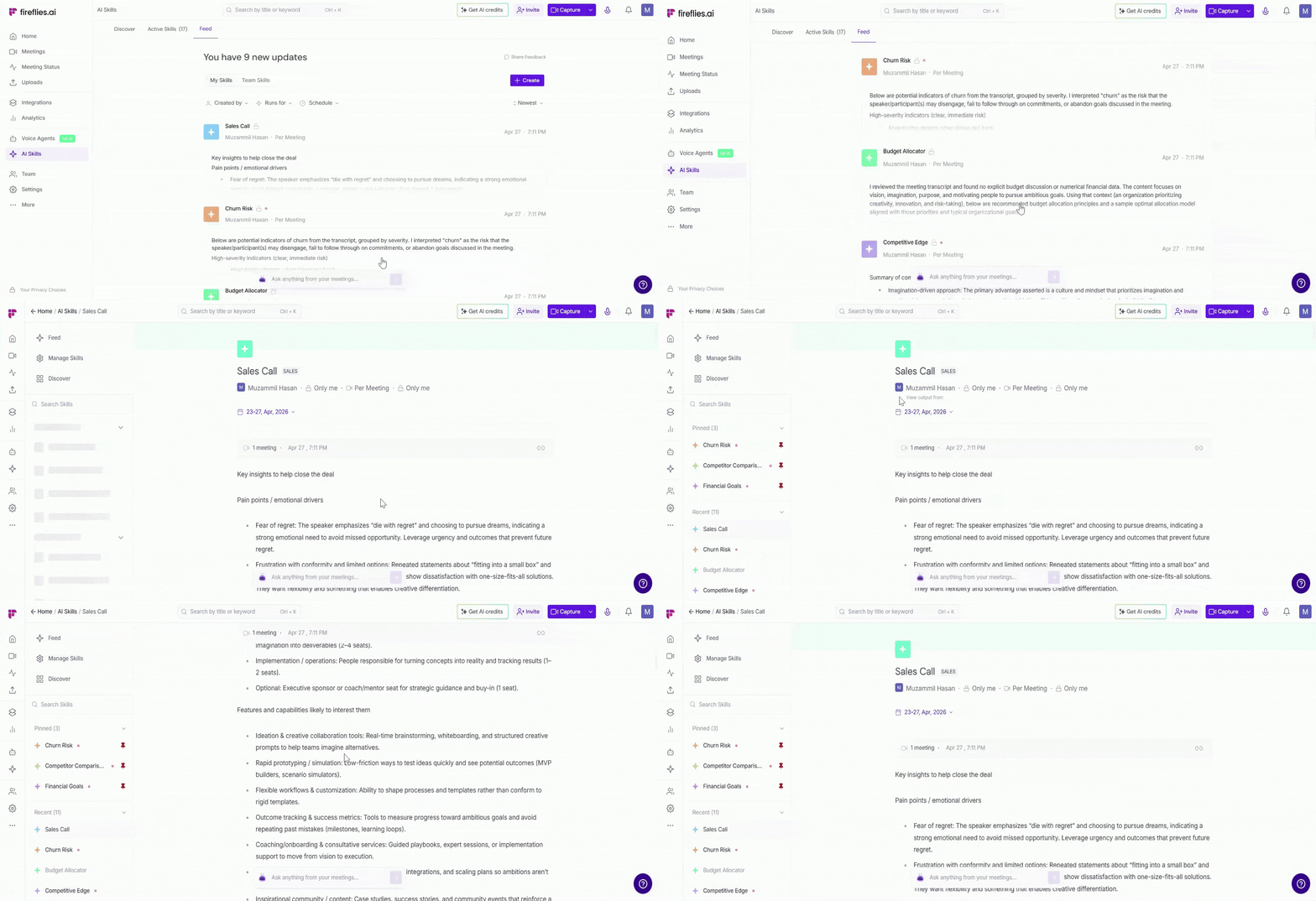
2. View a Full Output
Click View More on any output card to open the full output page. For demonstration purposes, this example uses the Sales Call skill to show how a complete AI Skill output appears across your meetings.
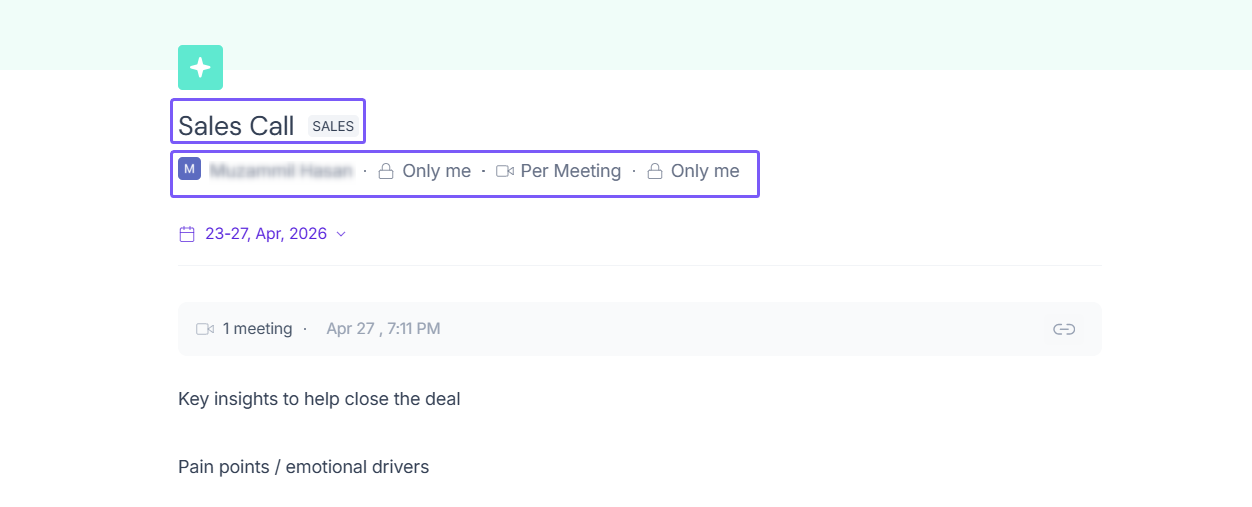
At the top you'll find:
Skill name and category — e.g. Sales Call · SALES
Creator, Skill visibility (Privacy), Schedule, and Output visibility
Edit Skill — Click Pencil icon (✏) to edit the skill settings directly from here.
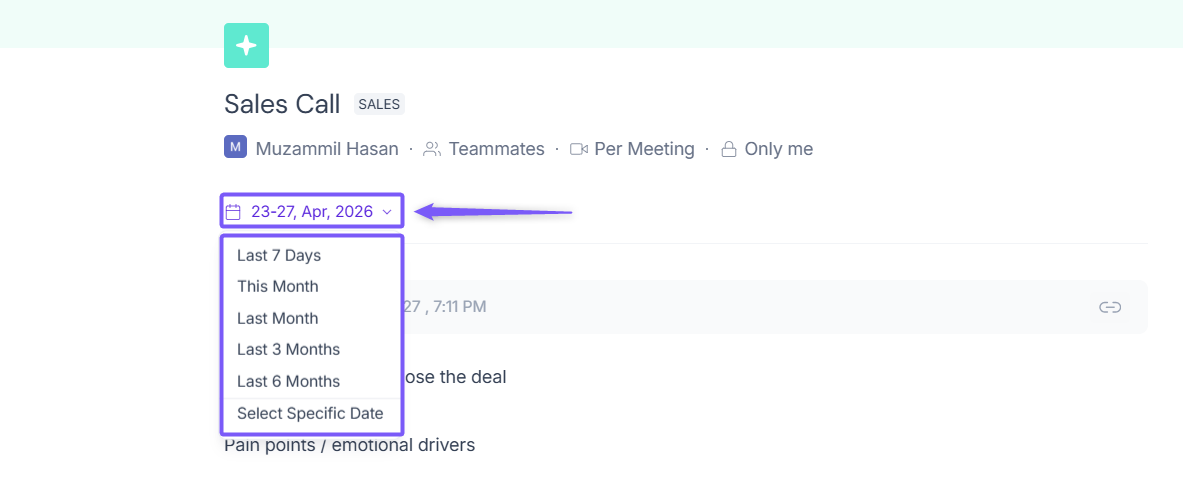
Use the date filter to view outputs from predefined ranges (e.g., Last 7 Days, This Month, Last Month) or a custom date range.
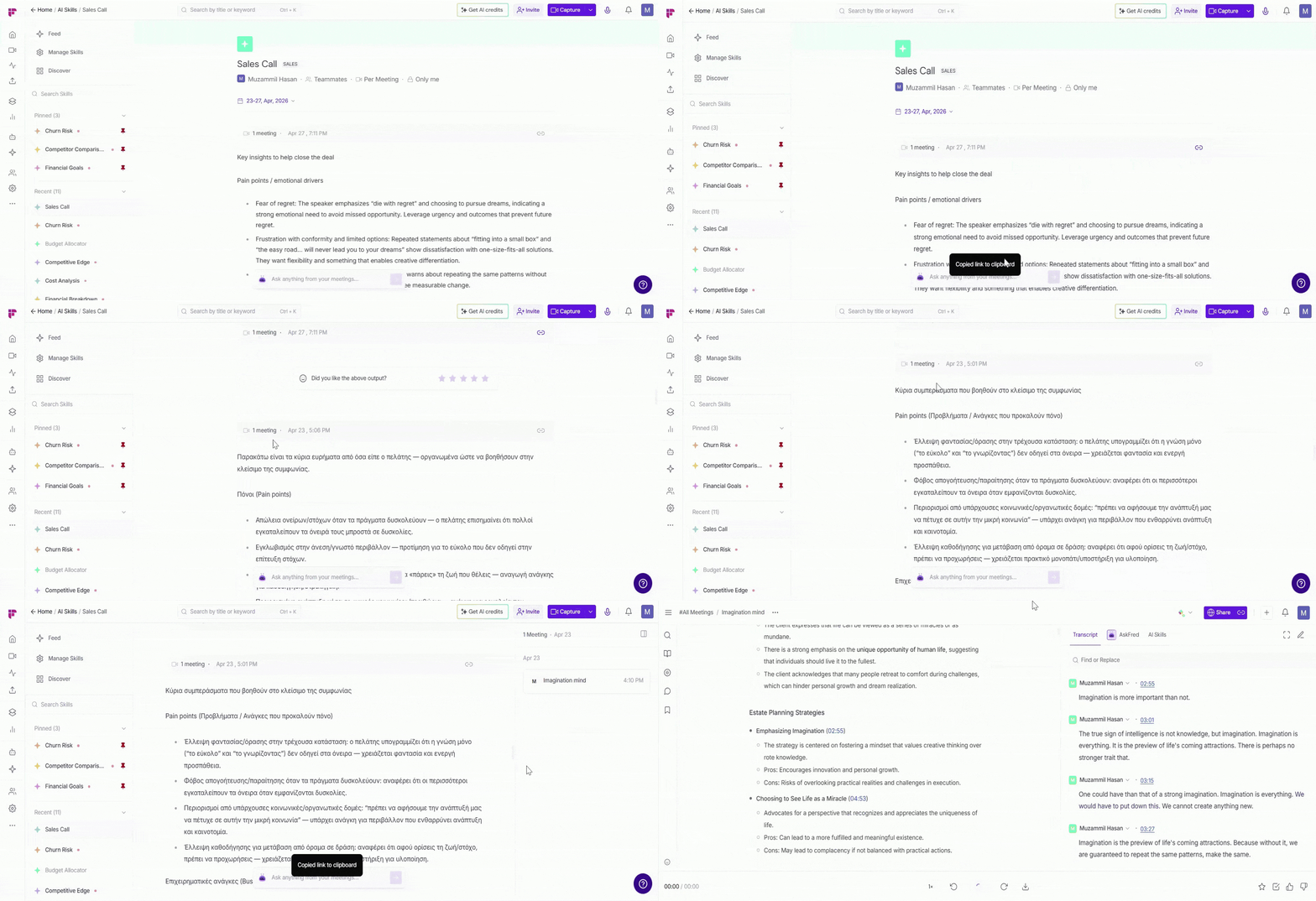
Scroll down to view all meetings the AI Skill ran on. Each meeting appears as a separate output entry containing generated summaries, insights, or action items.
For each output, you can:
Review the full generated result
Copy the output link using the link icon
Click the meeting count (e.g., 1 meeting) to open the right-side panel, where you can view the included meeting names and open the full meeting notes in Notepad.
3. Navigate from the Left Sidebar
Once inside the full output page, use the left sidebar to quickly move between different AI Skills sections and outputs.
From the sidebar, you can:
Feed — View all AI Skill outputs
Manage Skills — Open and manage your active AI Skills
Discover — Browse pre-built AI Skill templates
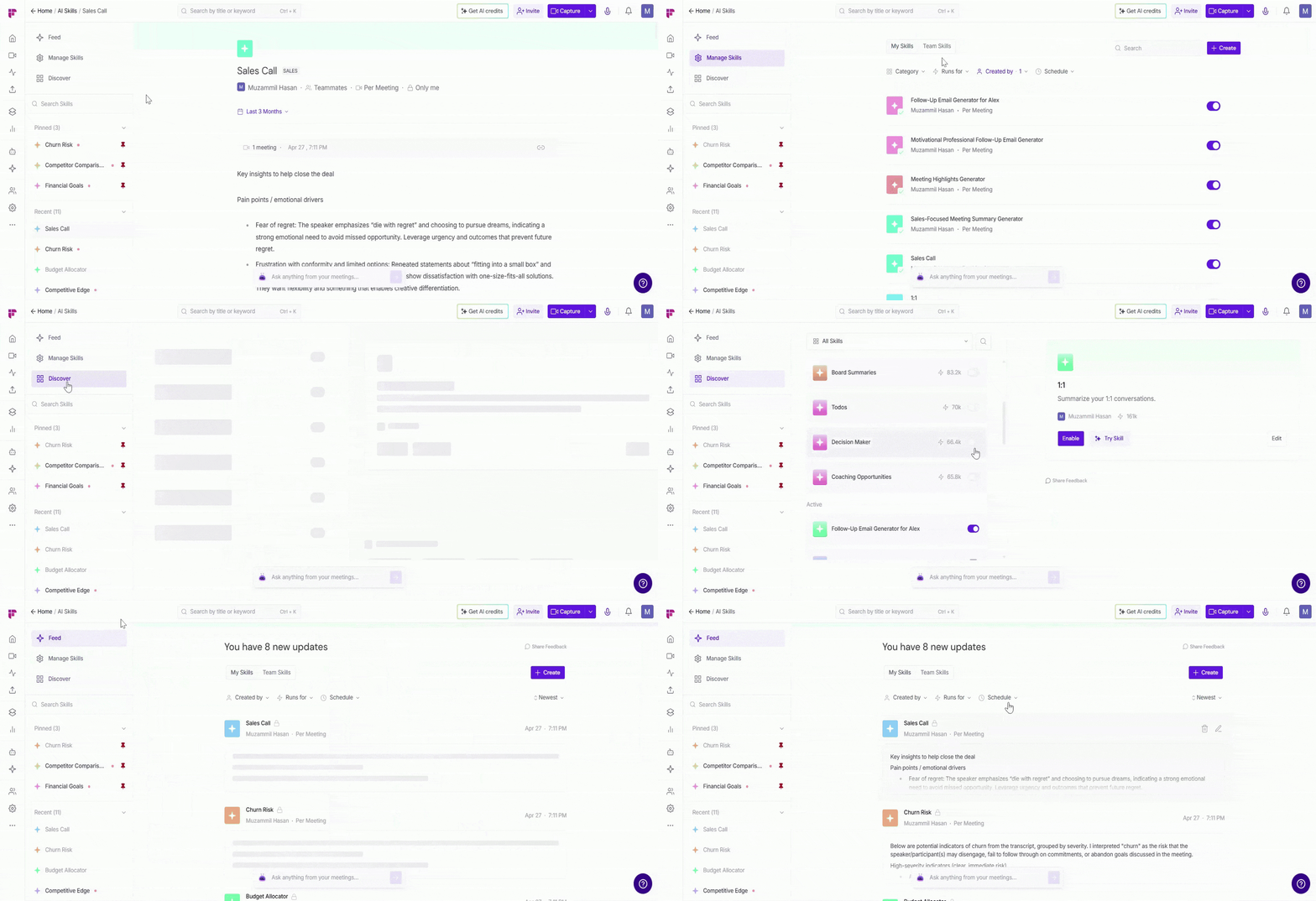
Use the Search Skills bar or browse the Recent list to quickly find a specific AI Skill output.
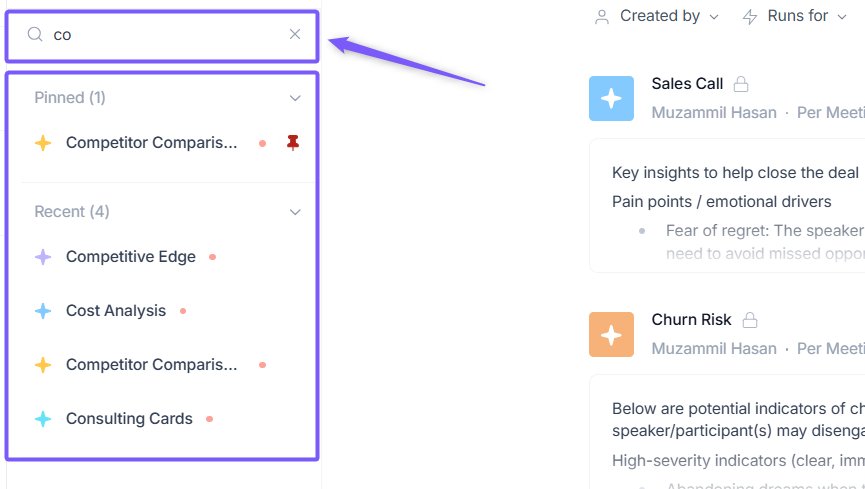
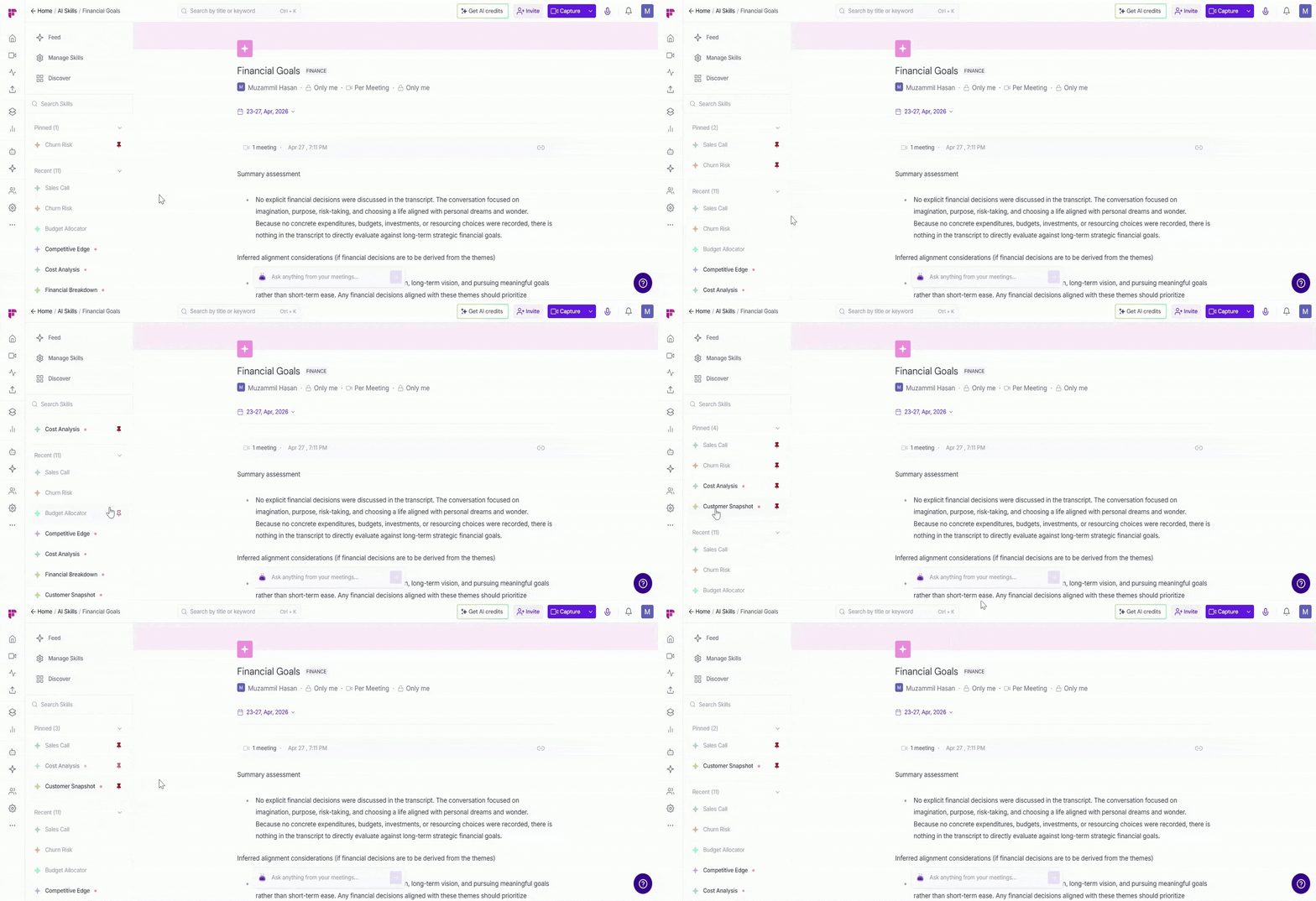
📌 Pin a skill — Hover over any AI Skill in the Recent section and click the pin icon to keep it pinned at the top of the sidebar for faster access.
⚙ AI Skill Settings & Admin Controls
Not every AI Skill should be available to everyone — and not everyone should be able to create them.
Fireflies gives you two levels of control:
Personal settings — let each member manage access to their own skills.
Team settings — Allows workspace admins to control which team members can create, access, customize, and view AI Skills across the workspace (Admins only)
Personal settings apply to skills you create. Team settings set the rules for everyone — and can override individual preferences across the workspace.
1. Personal AI Settings (Available to all members)
Every member can control who can access and use the skills they personally created. This means you decide whether your skills are visible to the whole workspace, only your teammates, only meeting participants, or just yourself.
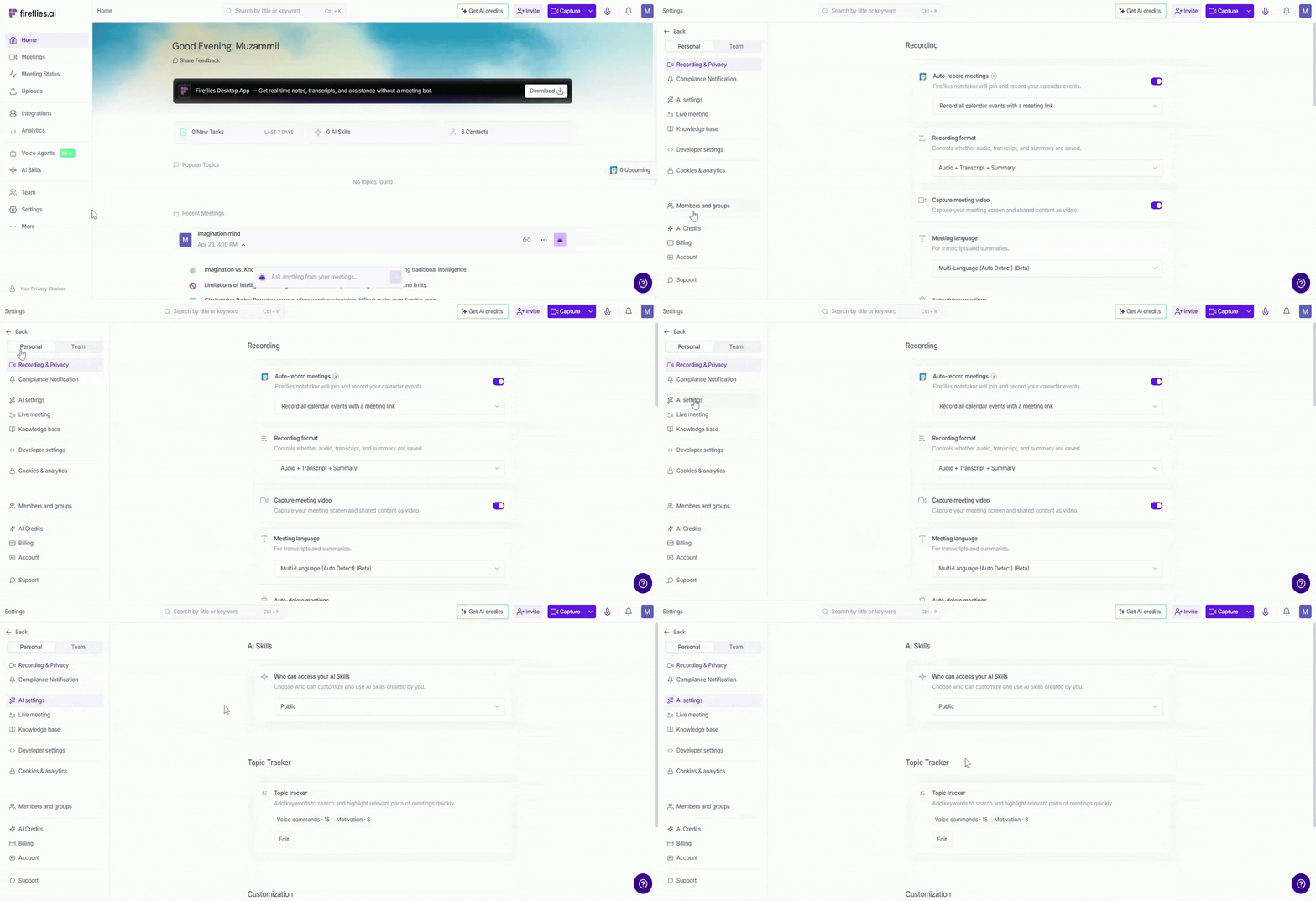
1. From the Fireflies homepage, go to Settings → Personal → AI Settings.
2. Navigate to the AI Skills section from the right-side panel.
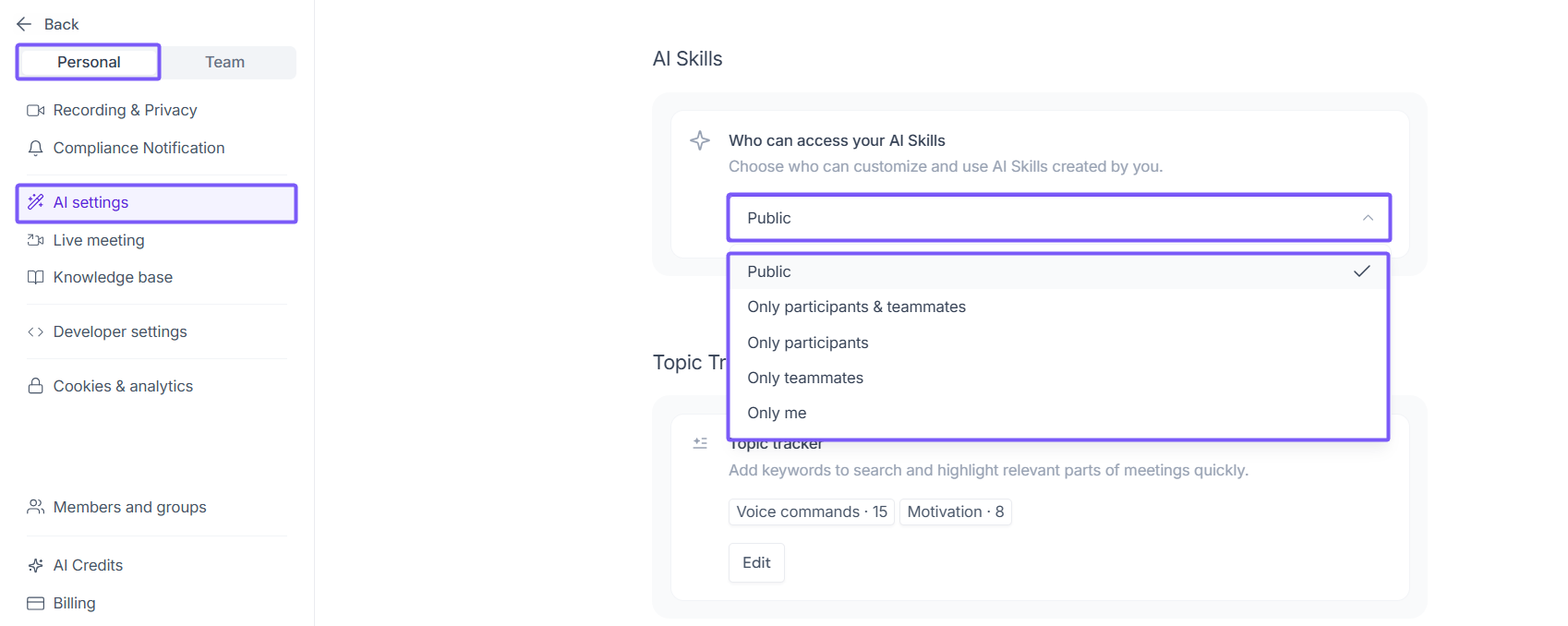
3. Under Who can access your AI Skills, choose who can customize and use AI Skills created by you.
Public — Anyone in the workspace
Only participants & teammates — Meeting participants and workspace teammates
Only participants — Only people who were in the meeting
Only teammates — Only your workspace teammates
Only me — Private to you only
2. Team AI Settings (Available to workspace admins only)
Team AI Settings allow workspace admins to control which team members can create, access, customize, and view AI Skills across the workspace.
1. From the Fireflies homepage, go to Settings → Team → AI Settings.
2. Navigate to the AI Skills section from the right-side panel.
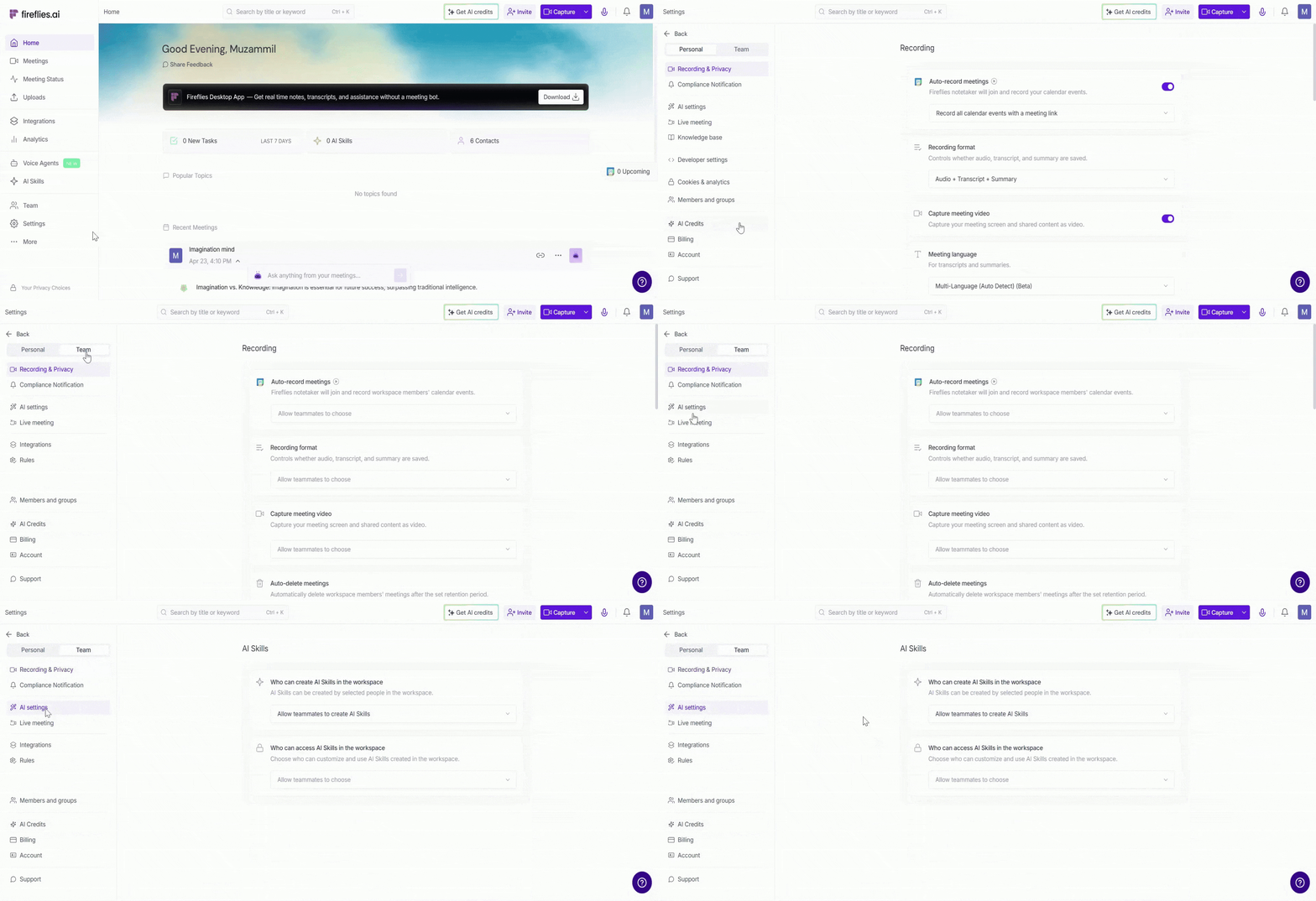
A. Who can create AI Skills in the workspace
Choose who can create AI Skills across the workspace:
Allow teammates to create AI Skills — All workspace members can create AI Skills
Only admins can create AI Skills — Restricts AI Skill creation to workspace admins only
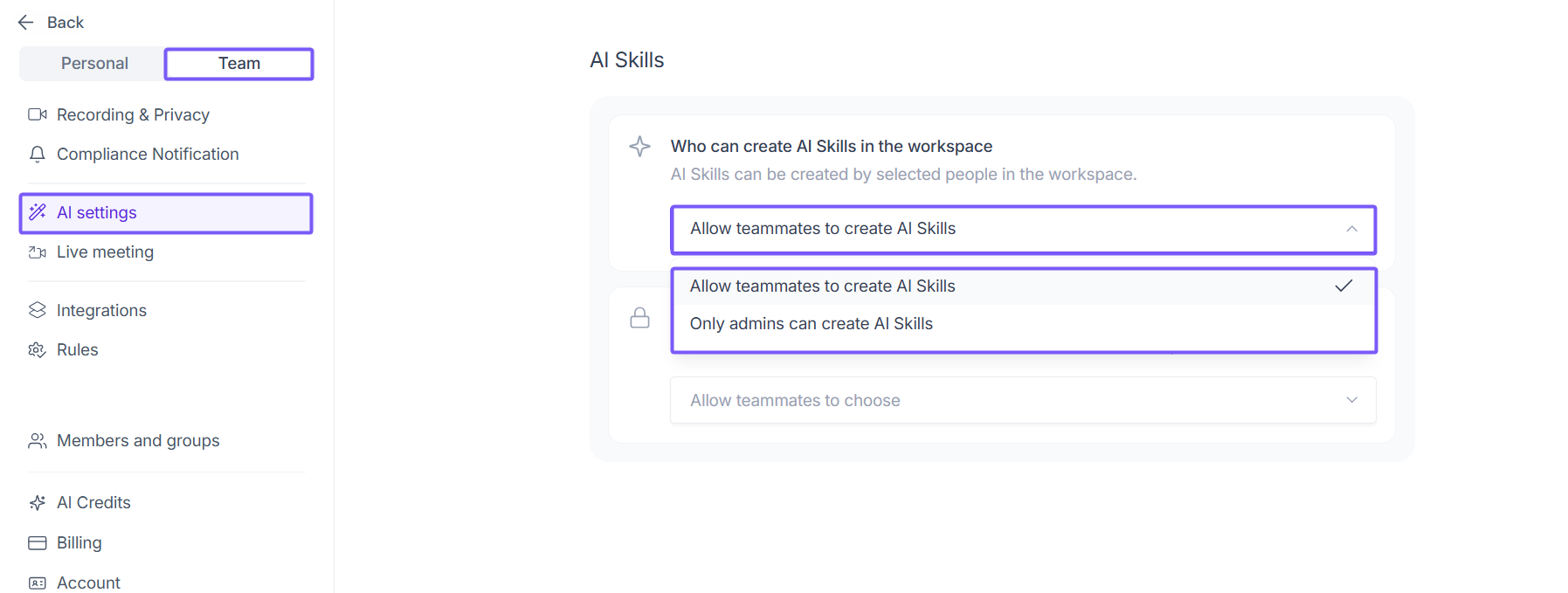
B. Who can access AI Skills in the workspace
Choose the default access level for AI Skills across the workspace:
Allow teammates to choose — Each member manages their own AI Skill access settings
Public — Anyone in the workspace can access AI Skills
Only participants & teammates — Meeting participants and workspace teammates
Only participants — Only people who joined the meeting
Only teammates — Only workspace teammates
Only me — Keeps AI Skills private to the creator only
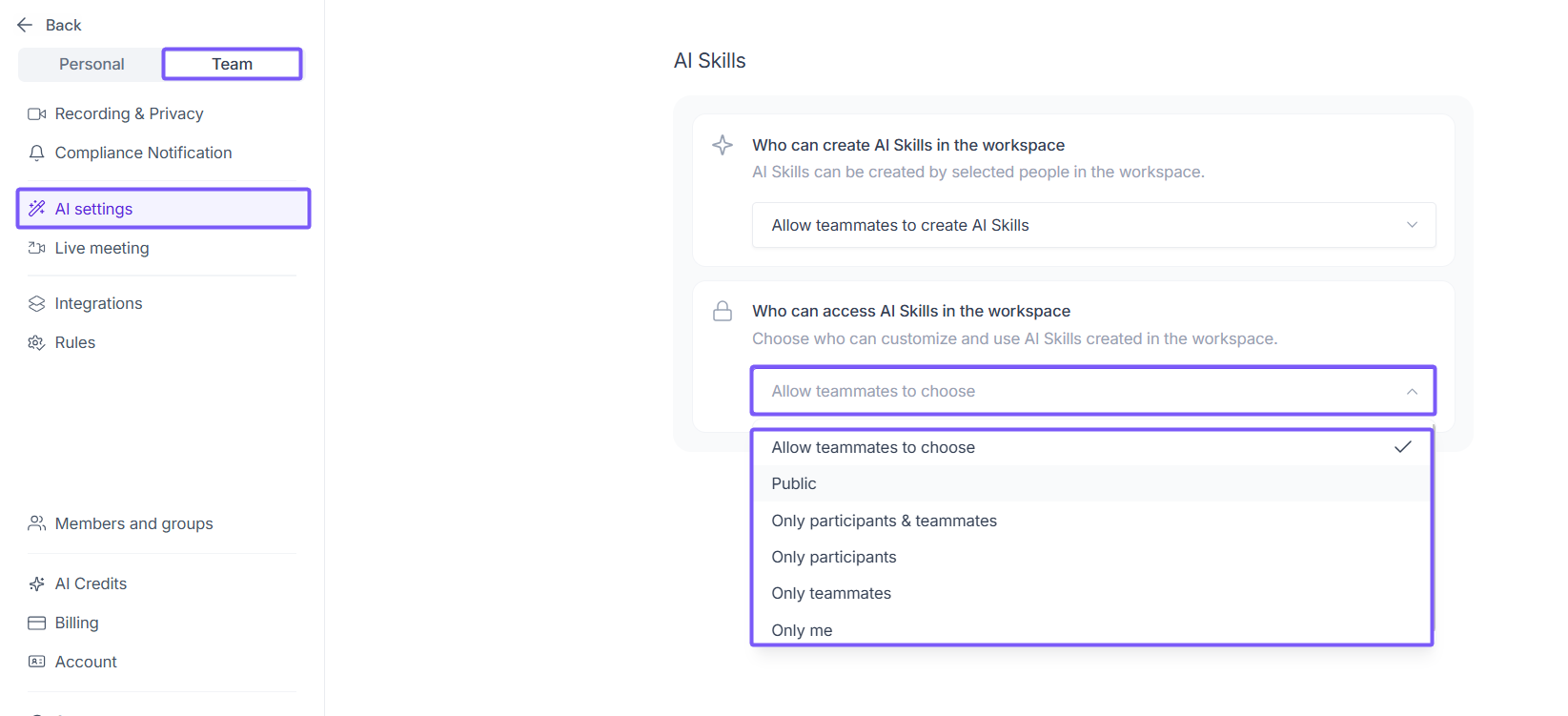
👤 Individual vs Admin Permissions
The actions available for AI Skills depend on your workspace role and the permissions configured by your workspace admin.
Category | Action | Workspace Member | Workspace Admin |
Creating Skills | Create AI Skills | ✅ (If allowed by admin) | ✅ |
Managing Own Skills | Edit their own AI Skills | ✅ | ✅ |
Enable or disable their own AI Skills | ✅ | ✅ | |
Delete their own AI Skills | ✅ | ✅ | |
Set personal AI Skill visibility | ✅ | ✅ | |
Managing Workspace Skills | Edit any AI Skill in workspace | ❌ (Depends on admin-granted permissions) | ✅ |
Enable or disable any AI Skill | ❌ (Depends on admin-granted permissions) | ✅ | |
Delete any AI Skill | ❌ (Depends on admin-granted permissions) | ✅ | |
Workspace Settings | Access Team AI Settings | ❌ | ✅ |
Manage workspace-wide AI Skill settings | ❌ | ✅ | |
Manage team-wide AI Skills | ❌ (Depends on admin-granted permissions) | ✅ |
If you cannot create, access, or manage certain AI Skills, contact your workspace admin. These permissions may be restricted.
❓ Frequently Asked Questions
1. Why can’t I create or edit an AI Skill?
Your workspace admin may have restricted these permissions under Settings → Team → AI Settings.
2. Will disabling an AI Skill delete previous outputs?
No. Disabling an AI Skill only stops future runs. Existing outputs remain available in the Feed.
3. Can I recover a deleted AI Skill?
No. Deleted AI Skills cannot be restored. You can re-enable the same pre-built AI Skill again from the Discover tab.
4. Why can’t I see certain Team Skills or outputs?
Access depends on the Skill Visibility, Output Visibility, and workspace permissions configured by your admin.
5. Where can I view all AI Skill outputs?
All AI Skill outputs are available from the Feed tab inside the AI Skills section.
Still stuck? Contact support via this link for more help.
🔁 Recap
Here's a quick summary of what you can do from the Manage Your AI Skills page:
Use the Active Skills tab to view, manage, enable, disable, customize, or delete AI Skills
Control who can access AI Skills using Skill Visibility and Output Visibility settings
Use the AI Skills Feed to review outputs, track AI Skill runs, and open detailed meeting outputs
Personal AI Settings control access for AI Skills created by you
Team AI Settings allow workspace admins to manage workspace-wide AI Skill permissions and visibility settings
Available AI Skill actions depend on your workspace role and admin-granted permissions
📚 Related Guides
Use Pre-built AI Skills → Browse and enable ready-made skill templates from the Discover tab.
Build Your Own AI Skill from Scratch → Can't find the right template? Create a custom skill from scratch.
Send AI Skill Outputs to Any Integrated Tool → Automatically send skill results to Slack, HubSpot, Notion, and more.