Why Is Fireflies Joining or Skipping My Meetings? Fix Auto-Join Settings
Last updated: September 10, 2026
Wondering why Fireflies joined a meeting you didn't expect - or skipped one you wanted recorded? Fireflies uses your join settings and Recording Rules to decide which meetings to join.
This guide explains how to control when Fireflies joins your meetings and what to check when it doesn't join as expected.
👉 Just want to invite Fireflies manually? Follow this Guide📄 How to invite Fireflies to meetings
Joining a meeting ≠ capturing it.
Auto-record can invite Fireflies to an eligible meeting, but the Notetaker must be admitted into the meeting before it can start capturing. If Fireflies is waiting to be admitted, capture won't start until the host allows it to join.
⚙ Control When Fireflies Joins Your Meetings
1⃣Configure your auto-join settings
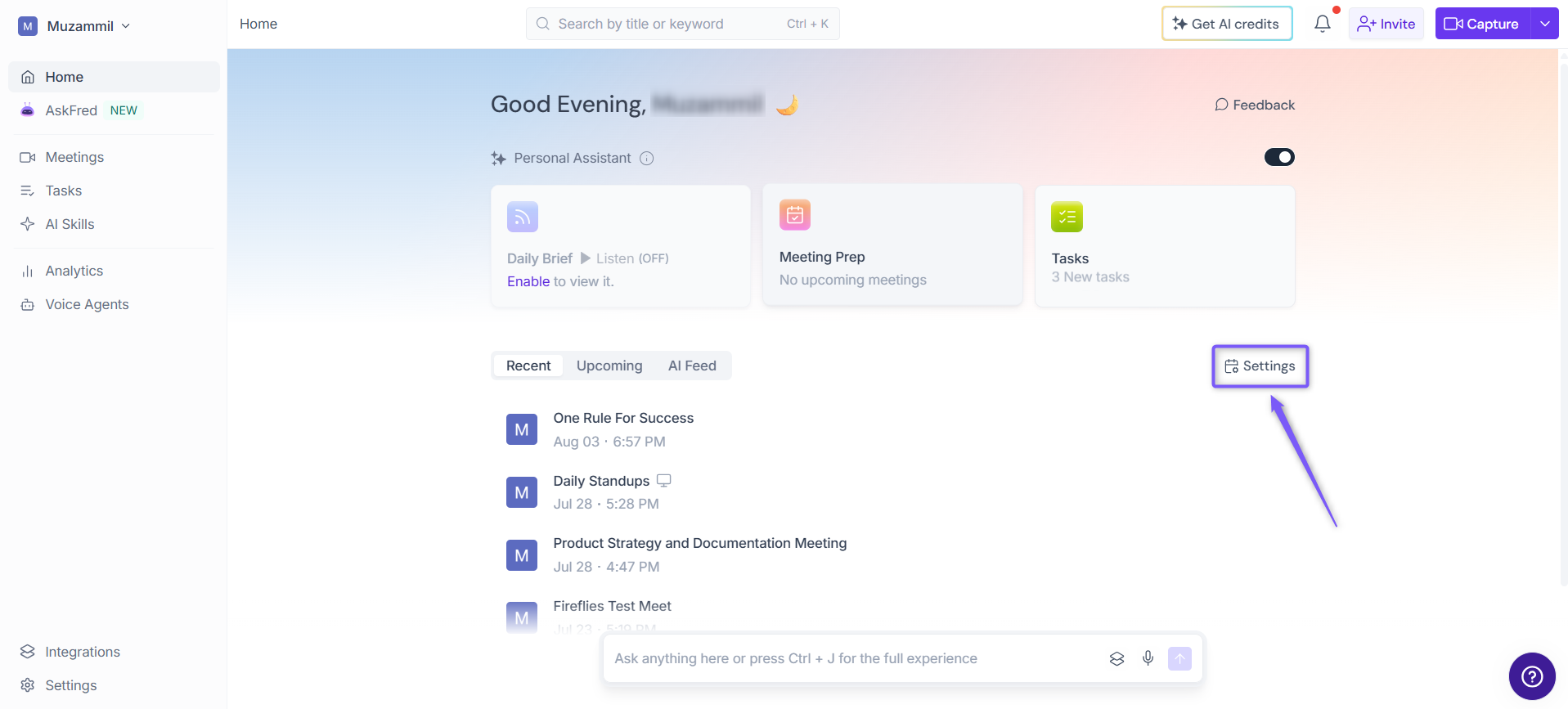
1. From the Fireflies Home page, click Settings on the right side of the page.
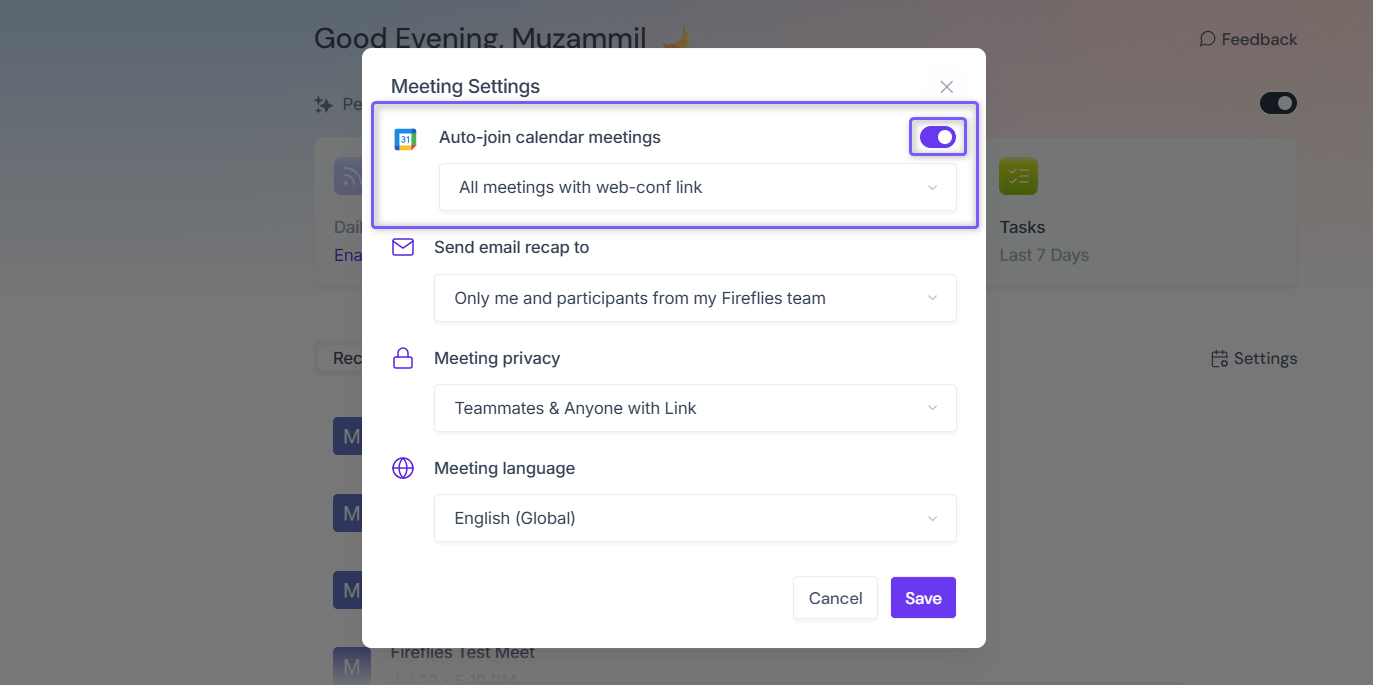
2. In the Meeting Settings window, use the Auto-join calendar meetings toggle to turn automatic meeting joining on or off.
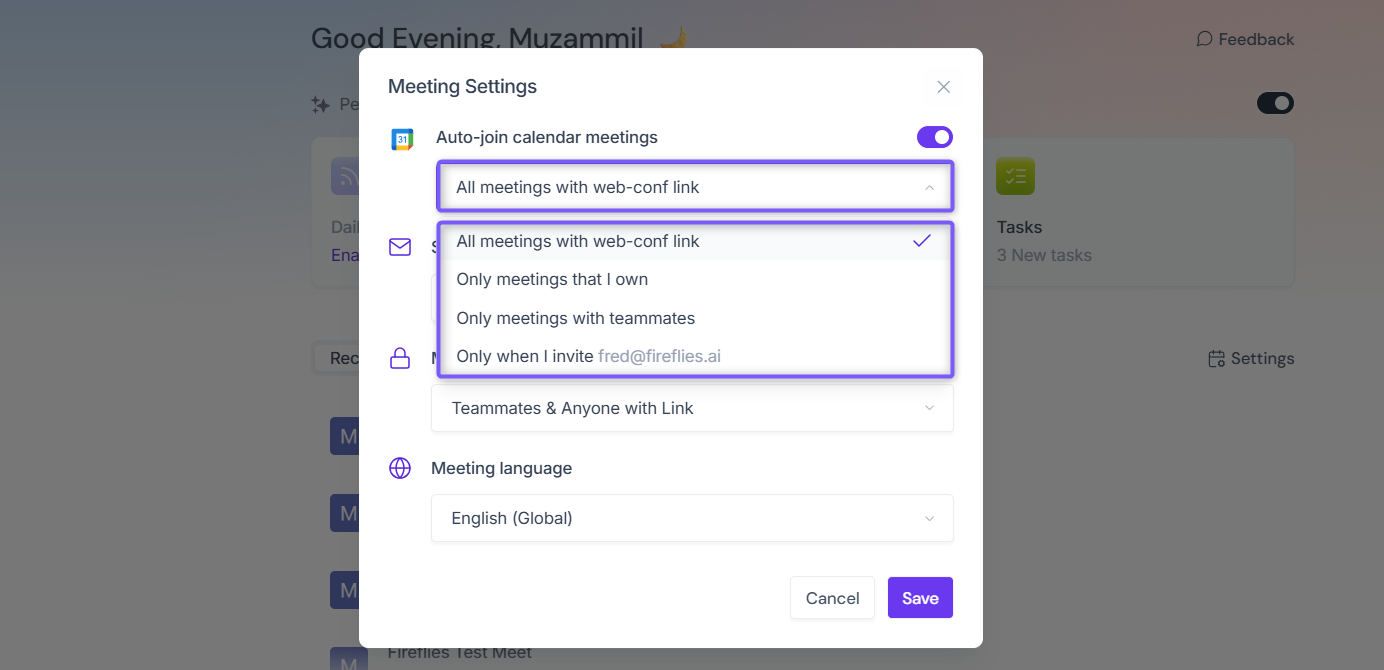
3. Under Auto-join calendar meetings, click the dropdown and select when you want Fireflies to automatically join your meetings.
Option | What it means |
All meetings with web-conf link | Fireflies joins all calendar meetings that have a web conferencing link. |
Only meetings that I own | Fireflies joins meetings where you're the host. |
Only meetings with teammates | Fireflies joins meetings with your teammates. |
Only when I invite | Fireflies joins only when you manually invite it to the meeting. |
💡Alternatively
You can configure your auto-record settings from Settings.
Go to Settings.
Click Recording & Privacy (Personal tab).
Under Auto-record meetings, choose when Fireflies should join and record meetings.

📌 Want to turn off auto-join completely? You can disable Auto-join calendar meetings from Meeting Settings. See How to Disable Fireflies Auto-Join Settings
2⃣ Use Recording Rules to Customize When Fireflies Joins
Need more control over which meetings Fireflies joins or skips? Recording Rules let you create conditions based on keywords, email addresses, or domains.
This is useful when your general auto-join setting isn't specific enough—for example, when you want Fireflies to join certain meetings or skip meetings that match specific criteria.
Want to set up Recording Rules? Follow the How to Set Recording Rules guide to customize when Fireflies records your meetings.

🔗 Joining a Meeting Is Not the Same as Capturing It
Fireflies joining a meeting does not always mean the meeting is being captured. Auto-record tells Fireflies to join and record eligible meetings based on your settings and recording rules.
Fireflies can join a meeting but not capture it when:
Auto-record is turned off.
The meeting doesn't match your Recording Rules.
Fireflies is admitted late and misses the start.
The host denies or removes Fireflies before recording starts.
When Auto-record won't start
The meeting doesn't have a web conferencing link.
The meeting doesn't match your Auto-join setting.
Fireflies isn't admitted from the waiting room in time.
✅ How to Make Sure Your Meeting Is Captured
Check the Meeting Status page.
Make sure Auto-record is enabled before the meeting starts.
If Fireflies appears in a waiting room, make sure the host admits it promptly.
💡 Remember: Auto-record can invite Fireflies to the meeting, but the Notetaker must be admitted before it can capture the conversation.
⚠ Fireflies Shows as a “Potential Risk” in Google Meet
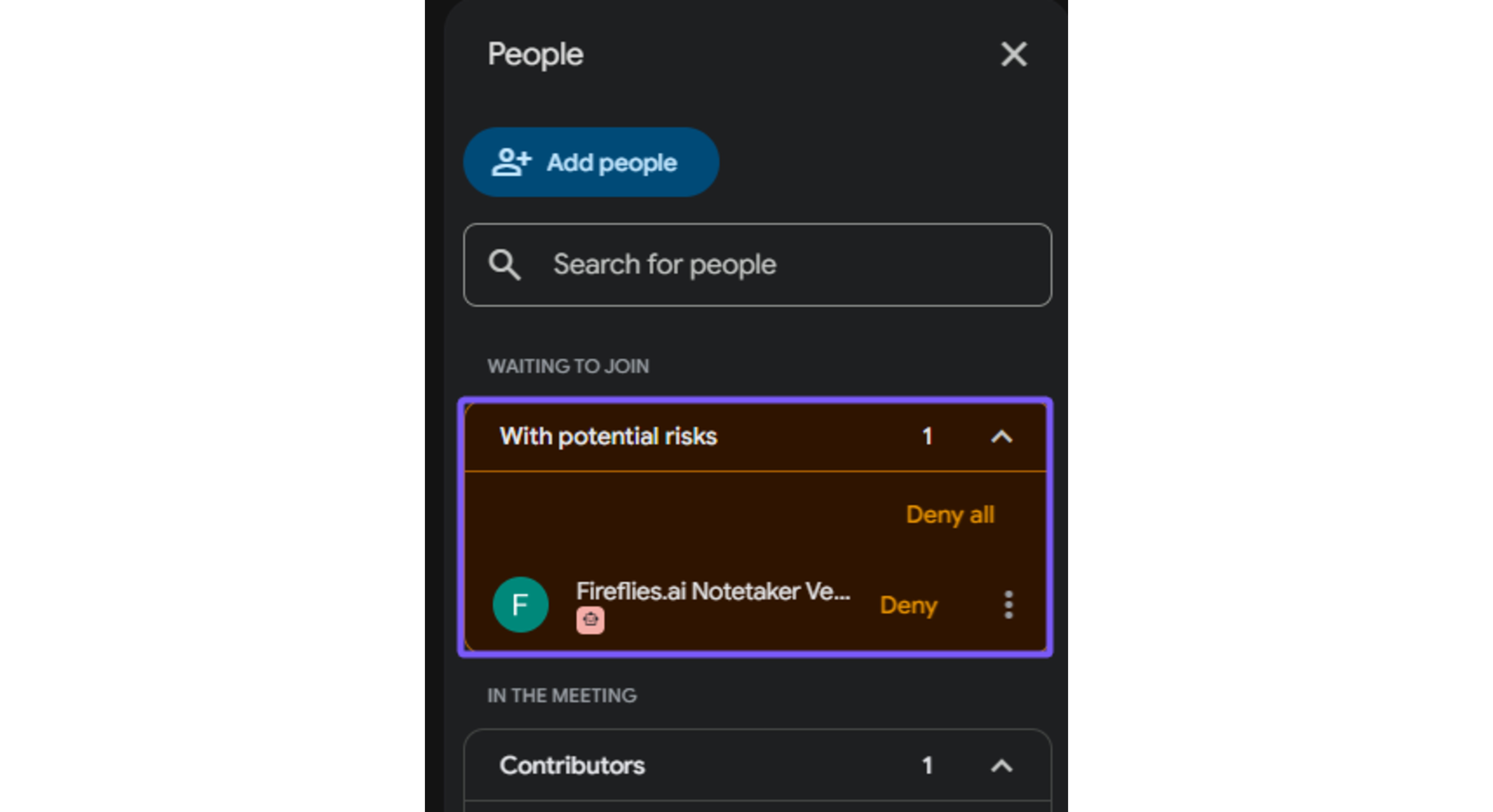
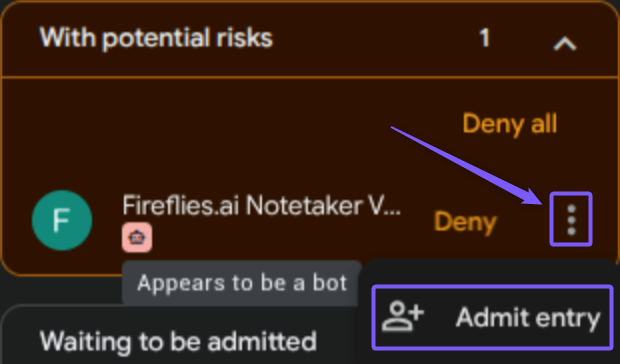
You may see Fireflies Notetaker labeled as a “potential risk” when it appears in the Google Meet waiting room.
This is a Google Meet warning that gives hosts more visibility into participants joining a meeting. It doesn't mean Fireflies is unsafe. If Fireflies is waiting to be admitted, you can allow it to join from the Participants panel.
Admit Fireflies in Google Meet
Open the Participants panel in Google Meet.
Look for the With potential risks section.
Click the three dots (⋮) next to Fireflies Notetaker.
Select Admit entry.
💡 Tip: Admit Fireflies Notetaker promptly. If it's admitted late, it may miss the start of the recording.
📌 Need help inviting Fireflies to Google Meet? See How to Invite Fireflies to Google Meet (and Set Up Google Workspace Settings Beforehand) for detailed steps.
Still having trouble? Check the Why Fred Did Not Join Your Meeting guide for troubleshooting steps.
If the issue persists, contact us through the Support Widget in the bottom-right corner (purple) of the Fireflies app.