Use Pre-built AI Skills to Automate Your Meeting Workflows, Summaries, or Insights
Last updated: October 5, 2026
Fireflies offers a library of ready-made AI Skill templates that you can instantly use to automate your meeting summaries, insights, follow-ups, CRM updates, and more—without writing your own prompts from scratch.
Whether you want a skill that analyzes each meeting individually or a multi-meeting skill that runs daily, weekly, or monthly across all your workspace meetings, this guide will walk you through how to select, customize, and activate any pre-built AI Skill.
Want a quick walkthrough first? Watch this post-meeting skills office hours replay to see how to start from the Daily Standup and Daily Brief templates, set a daily or weekly schedule, choose who sees the output and which sources it reads, and route results to a Slack channel. Then follow the steps below to set up your first pre-built AI Skill.
Let’s get started 🚀
🔑 Prerequisites
Before you use a pre-built AI Skill, make sure you have the following ready:
You have an active Fireflies account with access to AI Skills.
You have enough AI Credits. AI Skills use dynamic AI credit pricing. AI credits are charged per request, so the number of AI credits used depends on the effort required to generate the output. Simpler requests may use fewer credits, while more complex requests may use more.
👉 Learn more: AI Credits Overview
If you plan to send outputs to external platforms (such as HubSpot, Notion), you can configure the required integrations directly within the AI Skill settings during setup—no prior setup is required.
🚀 Use a Pre-Built AI Skill (Step-by-Step)
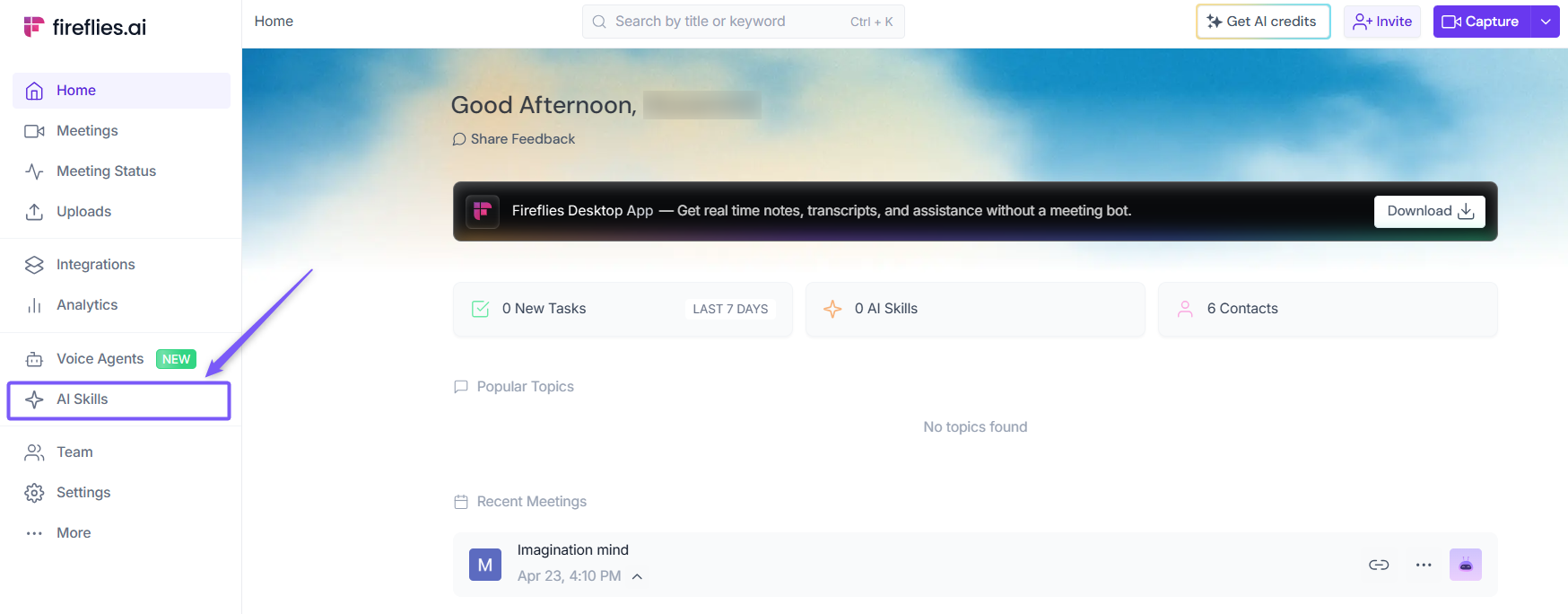
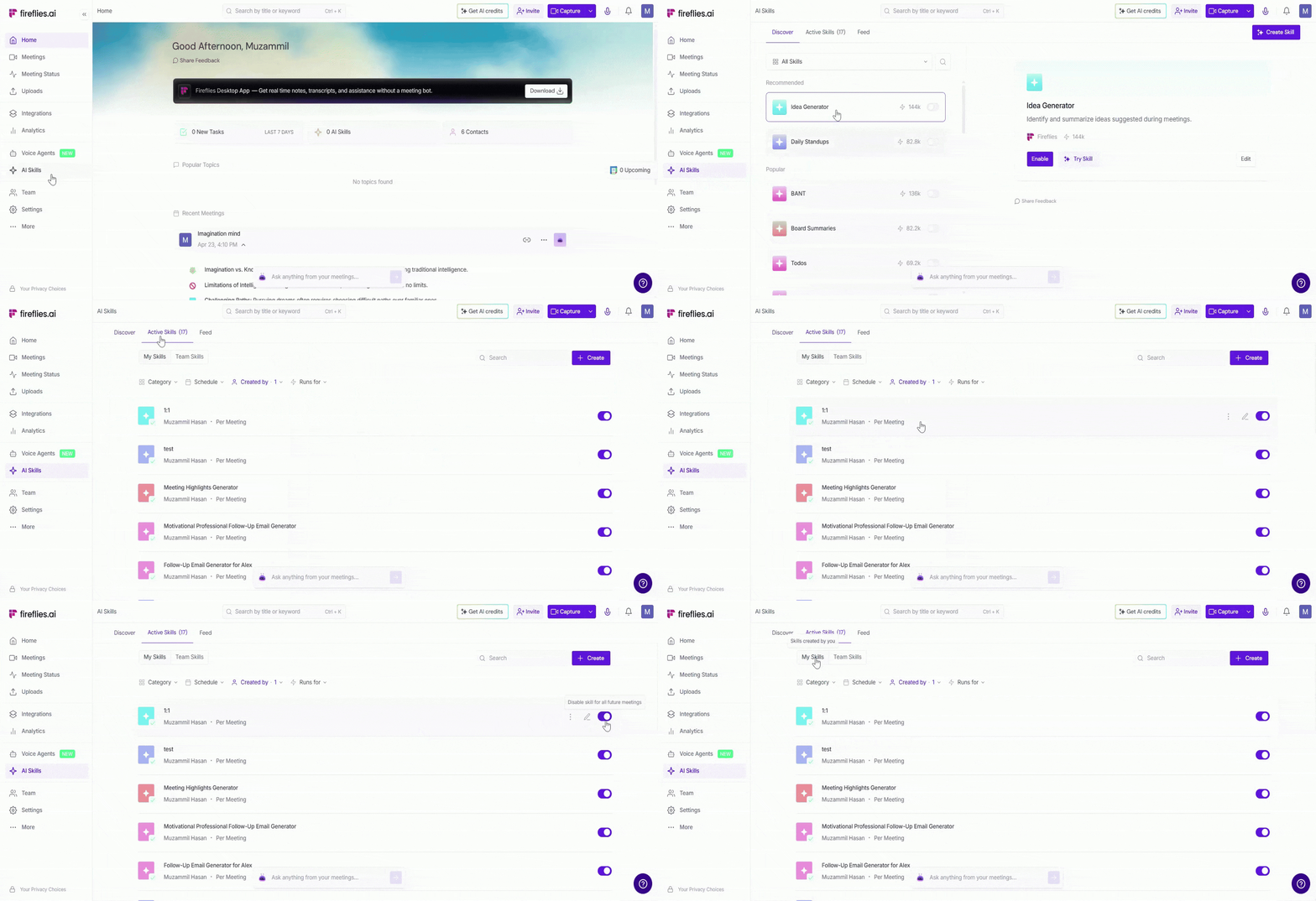
1. Navigate to AI Skills
Log in to your Fireflies account and click on the AI Skills tab from the left-hand menu.
2. Explore the Discover Tab
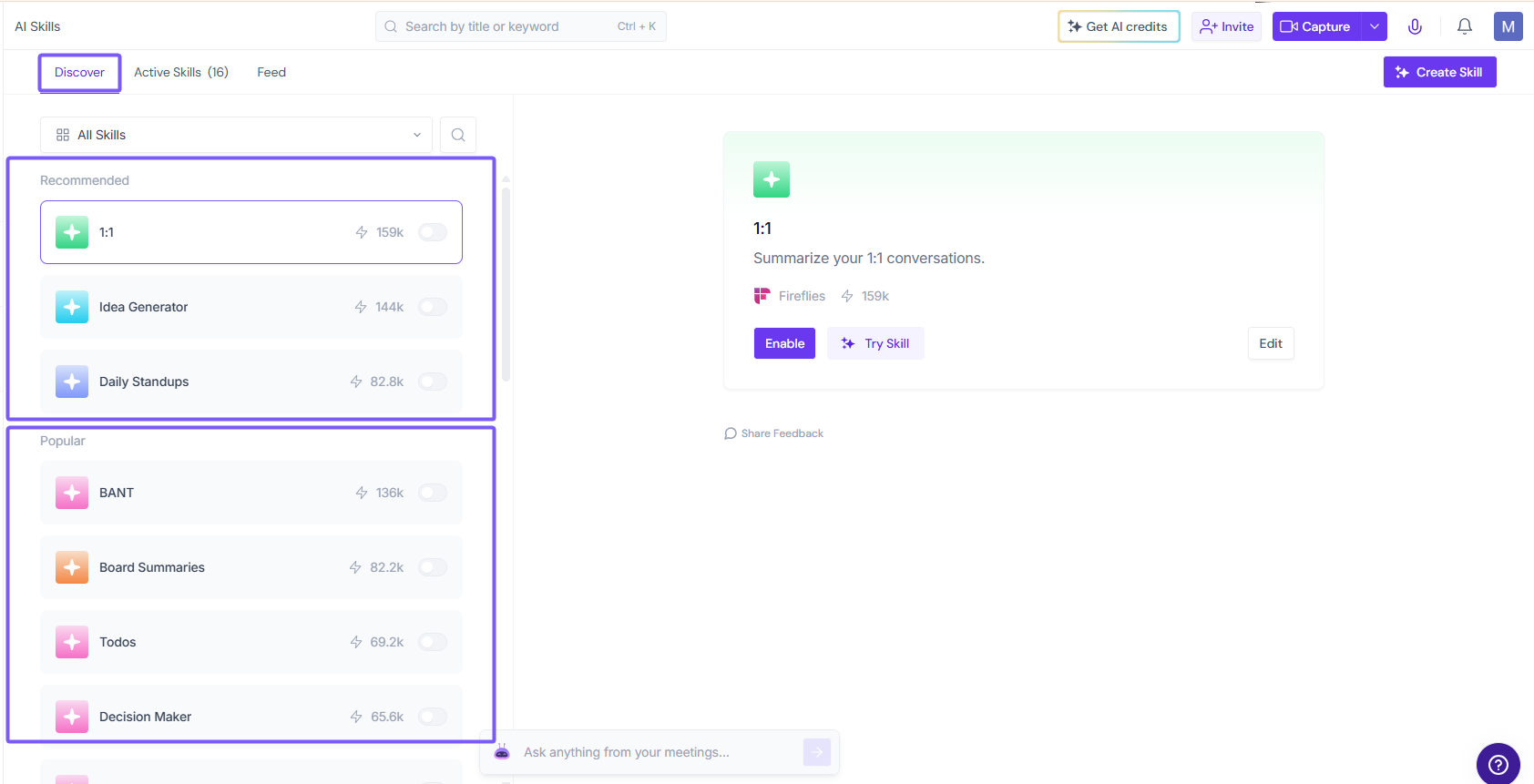
By default, you are taken to the Discover tab, this is the starting point for browsing and selecting pre-built AI Skills.
Here you'll see all available templates, organized into two sections: Recommended and Popular.
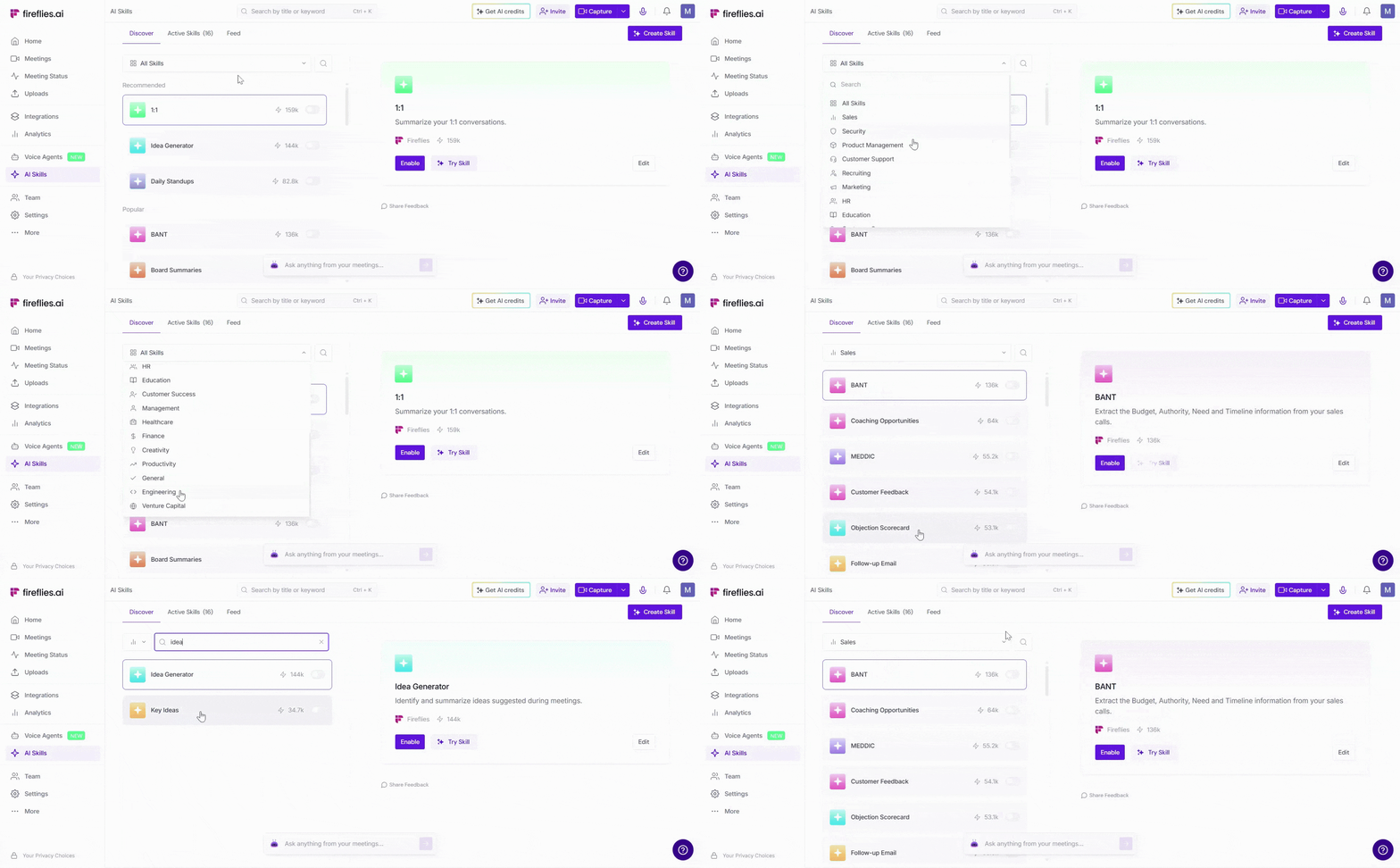
To find the right skill, you have two options:
Filter by category — Use the category dropdown (e.g., Sales, HR, Recruiting, Marketing, Security) to browse skills by department or use case.
Search by name — Use the search bar to find a specific skill by keyword.
Can’t find the workflow you’re looking for?
You can build a new one from scratch. Check out the Build Your Own AI Skill guide for step-by-step instructions.
3. Select a Pre-Built Template
Click on any skill to open its detail panel on the right. You'll see the skill name, description, creator, and usage count.
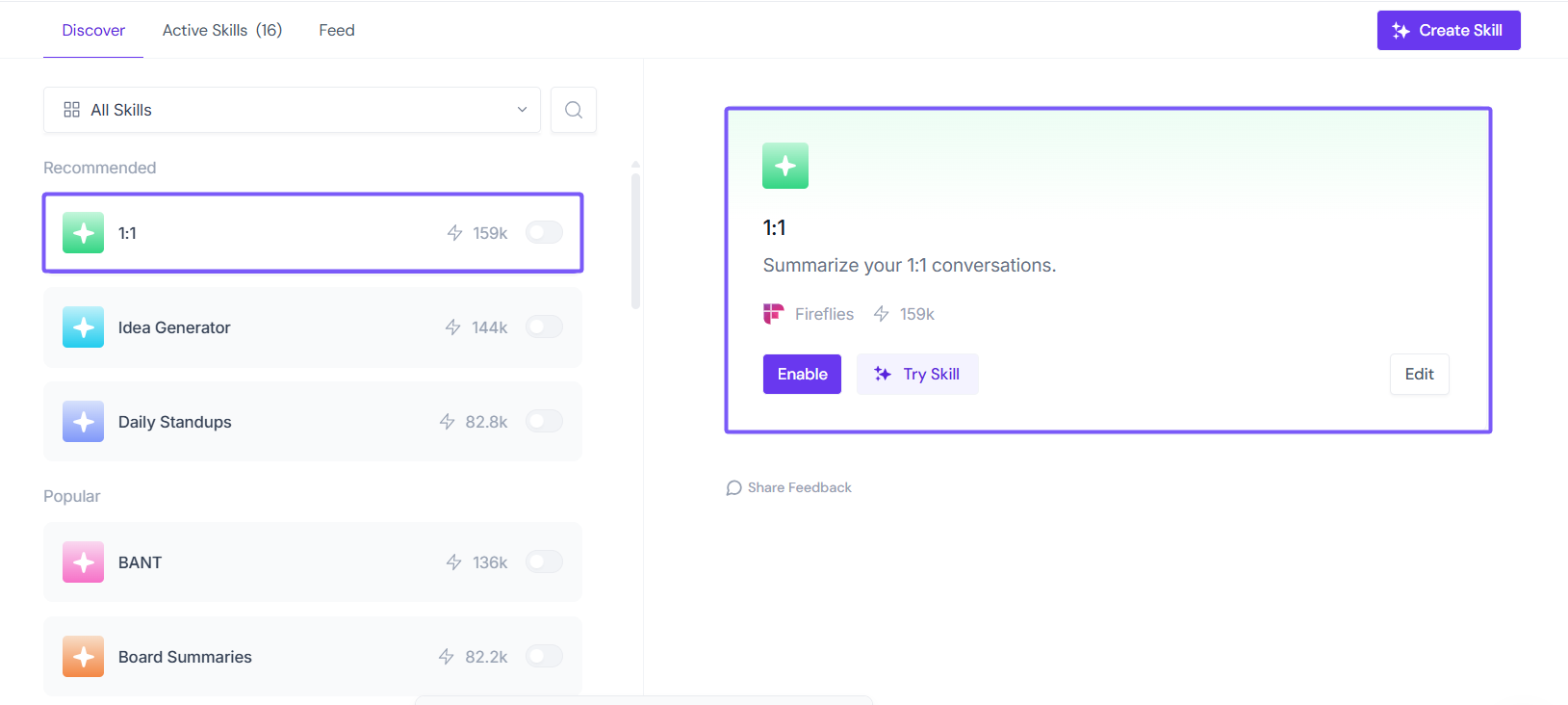
From here you have three options:
Try Skill — Runs on your recent meetings right away so you can see the actual output before committing. This is the best way to check if the skill works for your workflow.
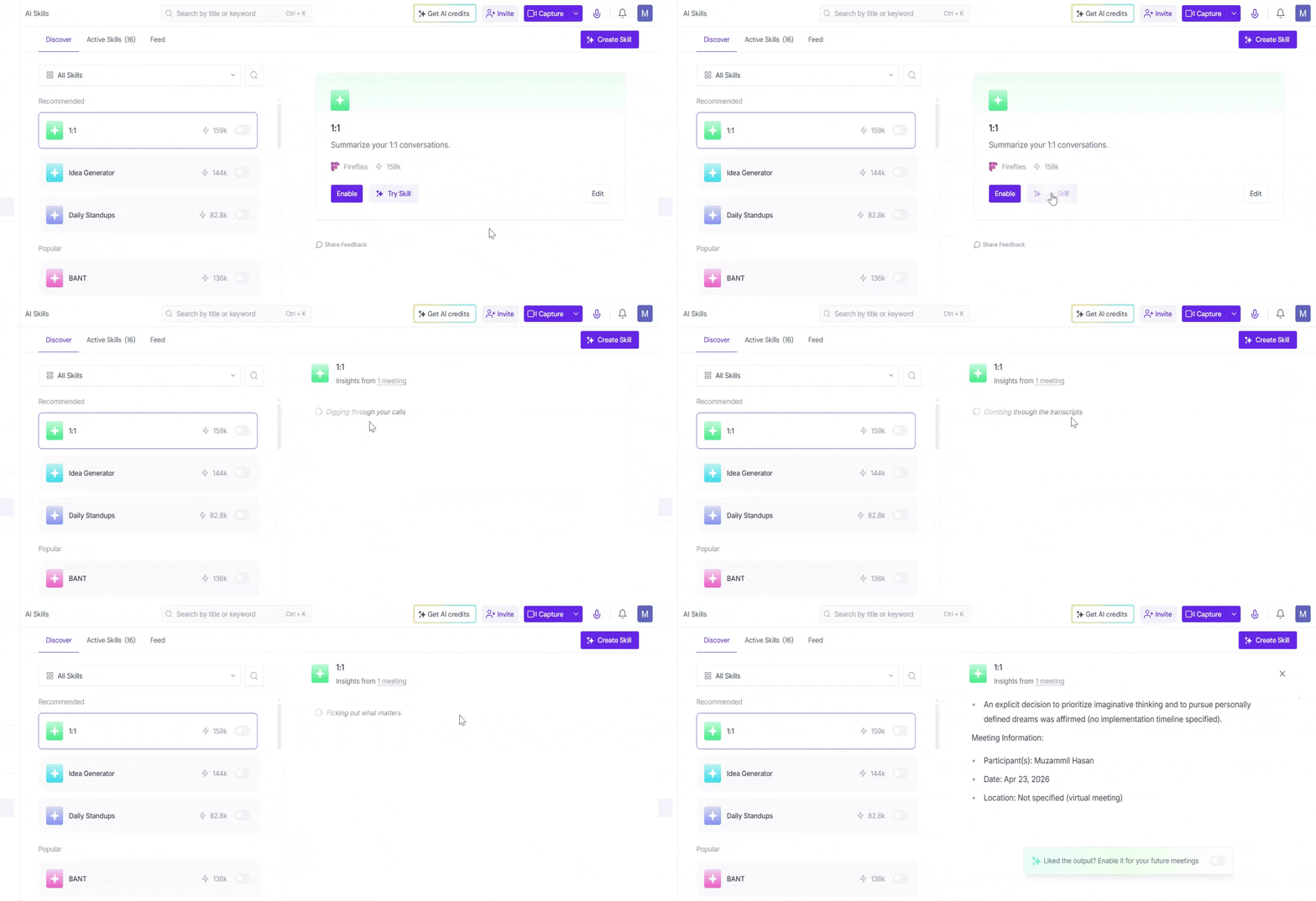
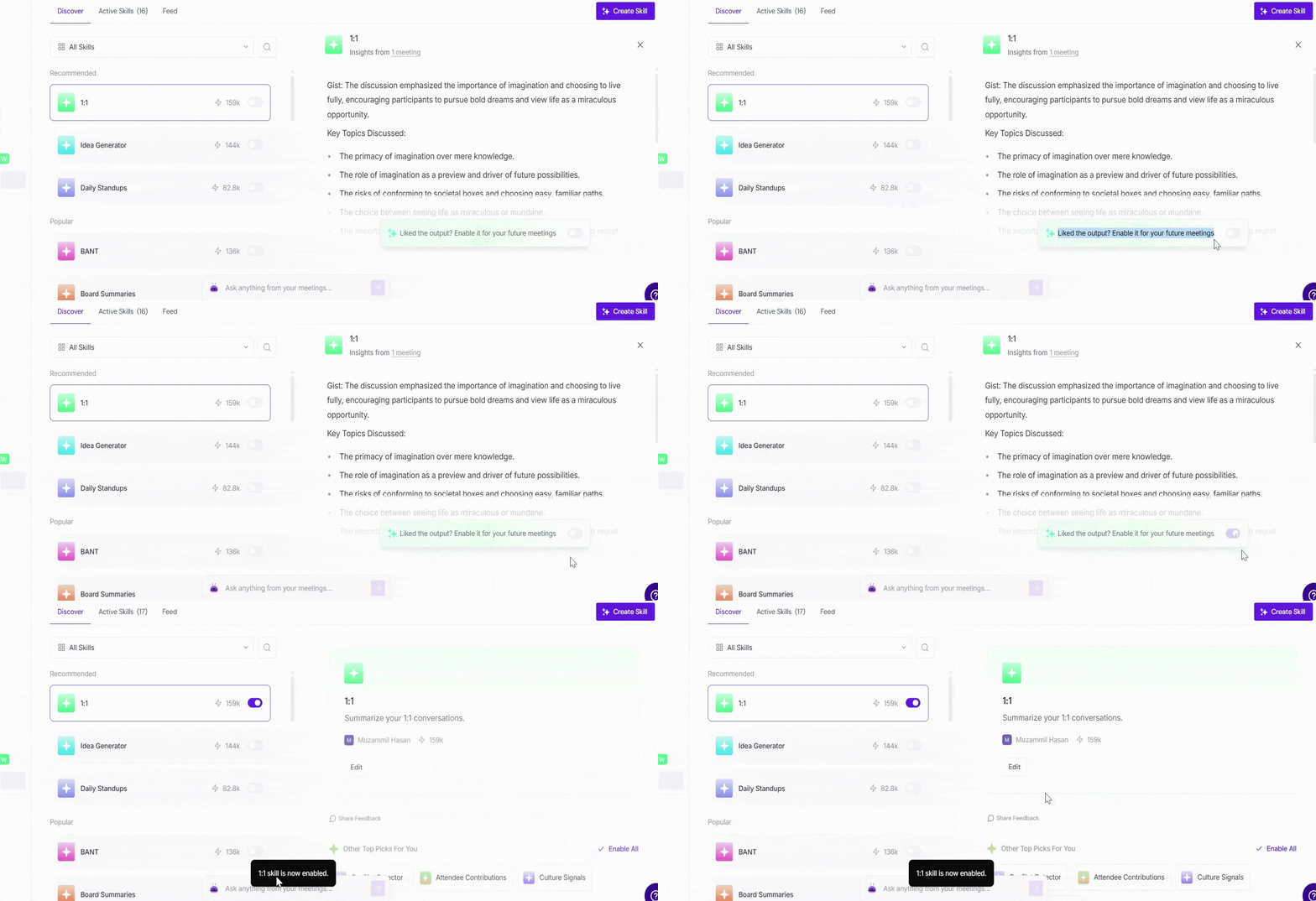
Enable — Activate the skill immediately with its default settings.
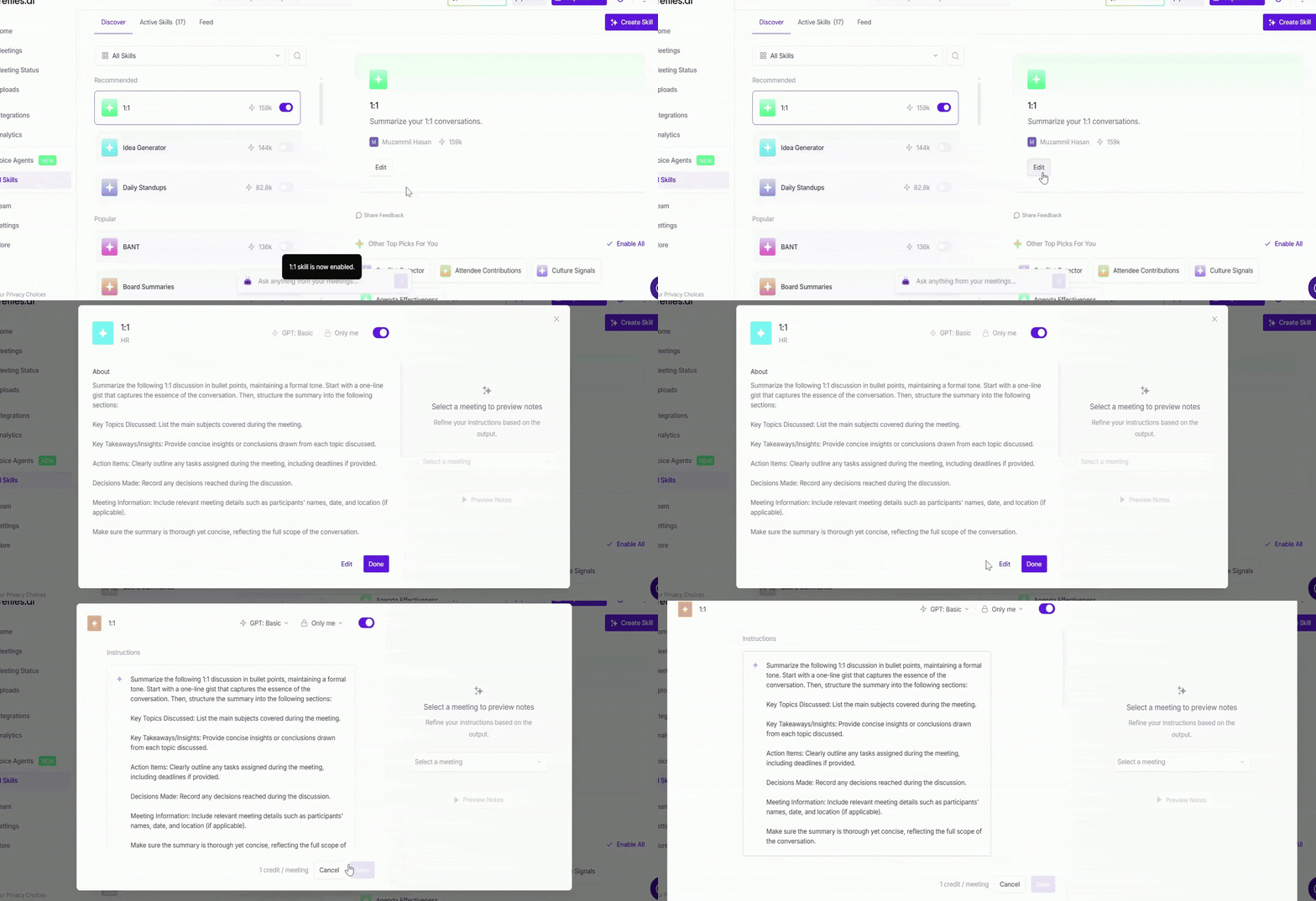
Edit — Open the full skill editor to customize it before activating.
We recommend clicking Try Skill first to see the output, then Edit to adjust settings before enabling.
4. Customize the Template to Fit Your Workflow
Inside the skill editor, you can customize the template so it works exactly the way you need for your meeting workflows.
Name Your Skill:
Give your skill a clear, descriptive name so you can easily spot it later in your skills list.
Examples: *BANT Summary Generator,” “Sales Qualification Extractor”

Edit the Instructions:
Every template includes ready-made instructions written for you—but you can tweak them anytime. This is the core instruction your skill will follow for every meeting.
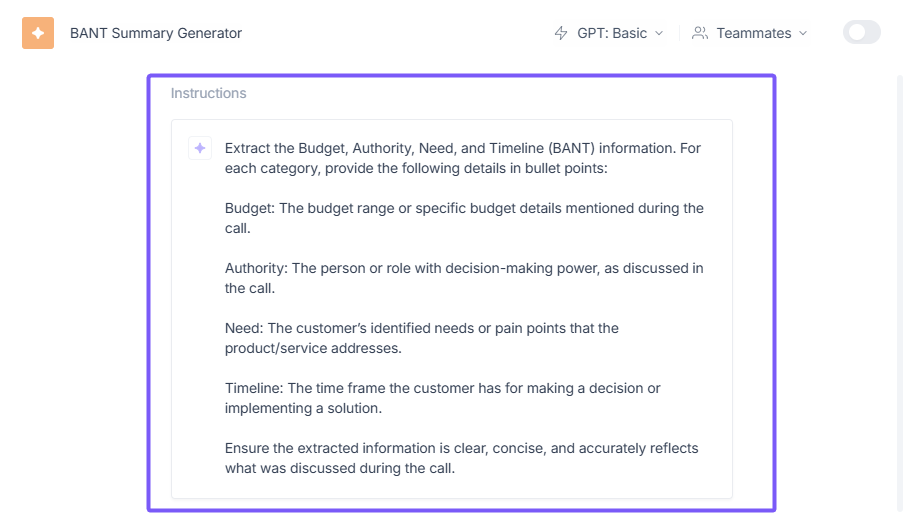
You can keep the template’s default prompt or adjust it to fit your sales methodology or internal process.
Set Your Skill Schedule:
Choose when you want the skill to run, based on how you plan to use the template:
For each schedule type, Fireflies displays a default runtime on your dashboard. Daily and weekly schedules follow this same default time.
Daily – Runs automatically every day at the default time.
Weekly – Runs once a week at the same default time.
Monthly – Runs once a month on a selected date (1st–28th) and at the same default time.
Per Meeting – Runs automatically after each meeting is processed. Ideal for: 1:1 summaries, sales call analysis, and action item extraction.
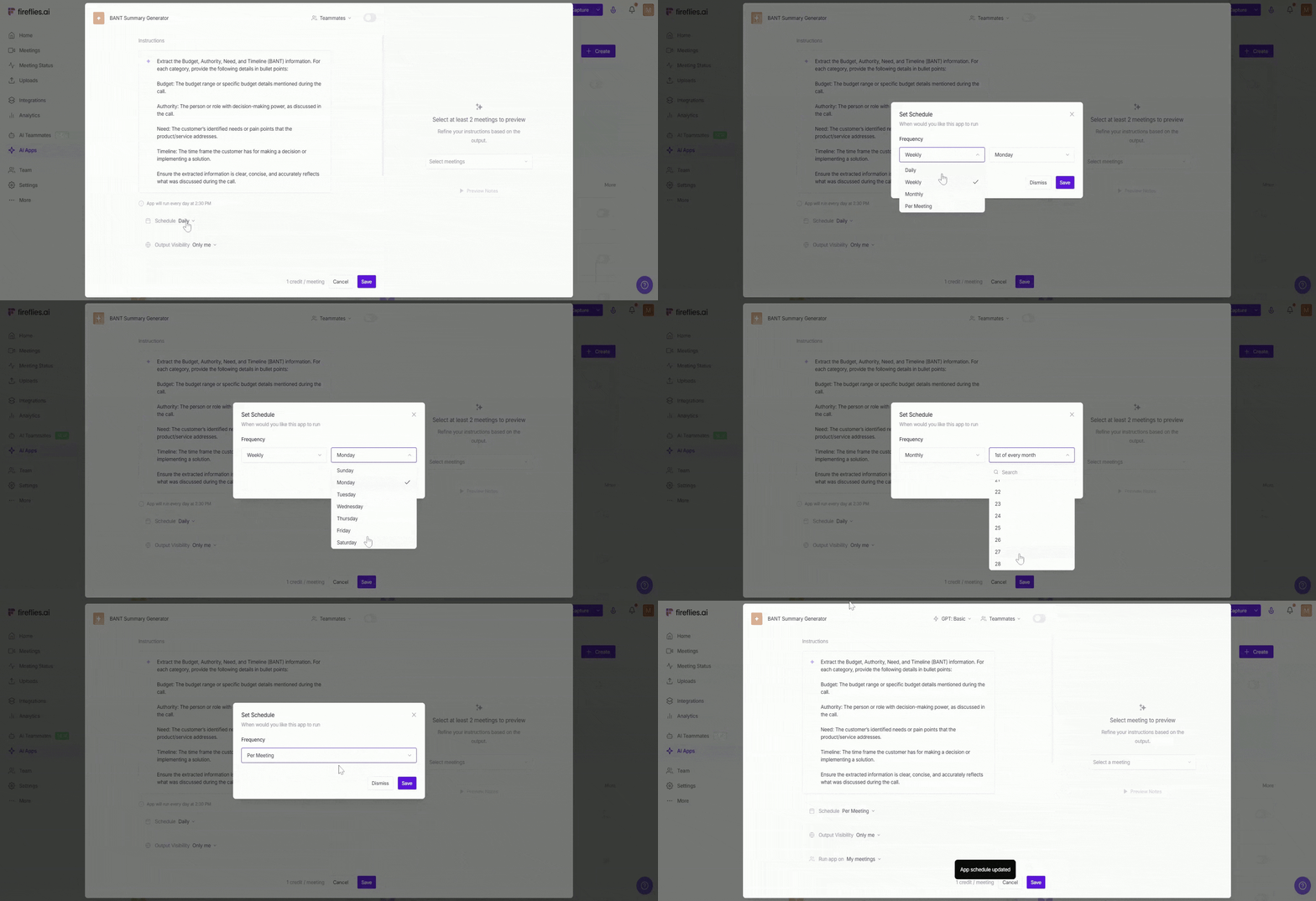
Per Meeting is best for BANT, discovery insights, coaching summaries, or action items.
Daily/Weekly/Monthly Scheduled Skills are ideal for multi-meeting reports, such as leadership summaries or team trends.
👉 Learn more: Scheduled AI Skills—Automate daily, weekly, or monthly insights across Fireflies meetings
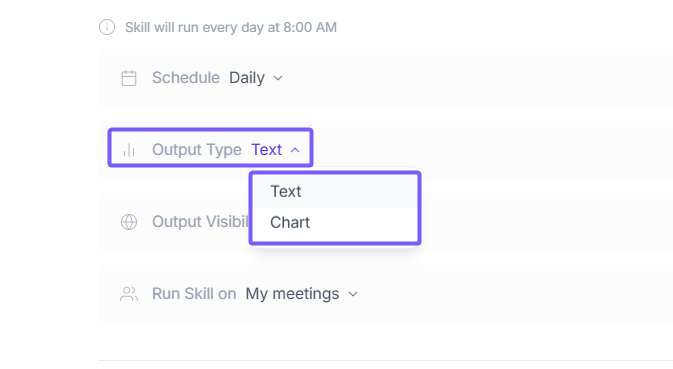
Select Output Type
Choose the format for your skill's output:
Text: A written summary or analysis.
Chart: A visual data output. Best for skills that track scores, trends, or comparisons across meetings.
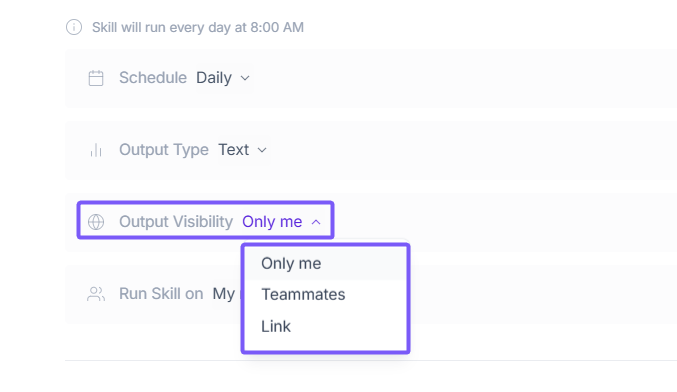
Select Output Visibility:
Choose who can see the AI Skill outputs:
Only me: Only you can view the results.
Teammates: Everyone in your team can view the results.
Share via link: Anyone with the shareable link can view the skill output.
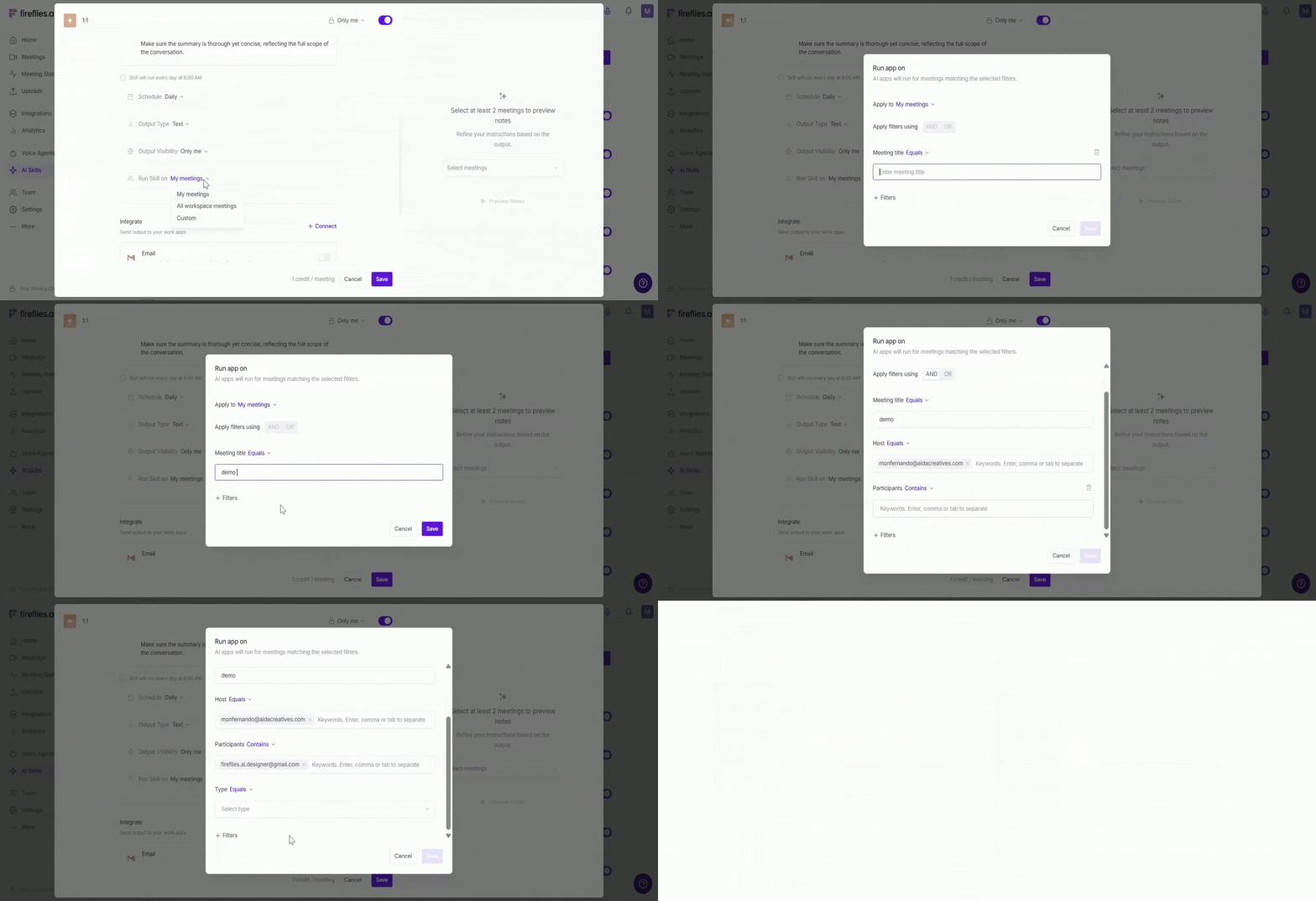
Choose Where the Skill Should Run:
Decide which meetings your AI Skill should analyze automatically. Fireflies lets you control this with flexible “Run skill on” options:
My meetings — The AI Skill runs only on meetings where you are the host or participant.
My workspace’s meetings—The AI Skill runs for all meetings across your workspace (available for admins).
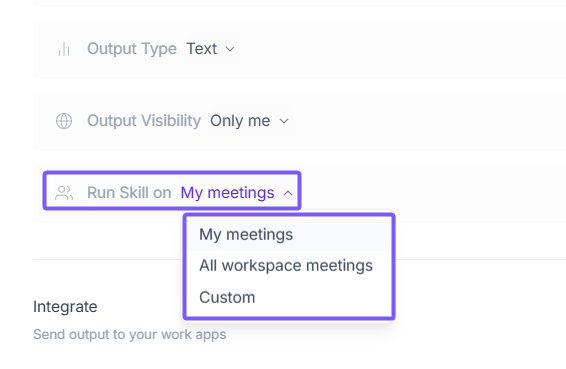
Custom—Apply the skill only to specific meetings based on:
Meeting host (e.g., run only for meetings hosted by certain teammates)
Meeting participants (e.g., run only when specific people attend)
Meeting title (e.g., “Customer Call,” “Sales Demo,” “Team Sync”)
Meeting type—internal vs external meetings
Important: When you select Per Meeting, you’ll see extra options such as GPT model selection and Integrations (Slack, HubSpot, Notion, etc.). These options are not available for Daily/Weekly/Monthly schedules, since scheduled multi-meeting skills run on aggregated meetings and follow a simplified configuration.
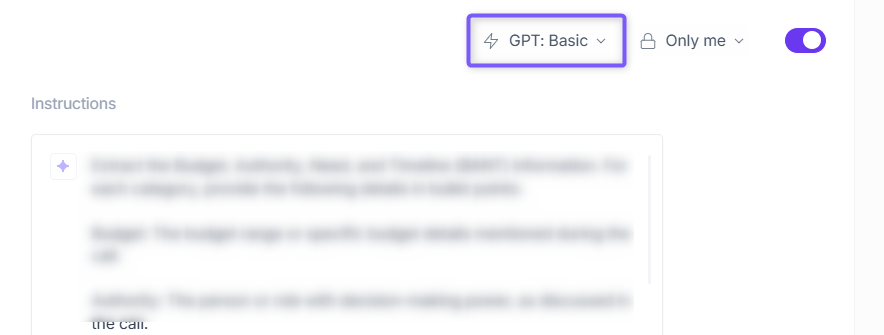
5. Select Your GPT Model
When using the run skill schedule Per Meeting, choose the model that fits your workflow:
GPT Basic: Fast, simple outputs—short summaries and quick action items.
GPT Advanced: More detailed and structured insights—sales notes, coaching, and multi-section summaries.
GPT Advanced Large: Deep analysis for long or complex meetings—enterprise sales, technical calls, and workshops.
AI Skills use dynamic AI credit pricing. AI credits are charged per request, and the number of AI credits used depends on the effort required to generate the output.
6. Set Skill Visibility
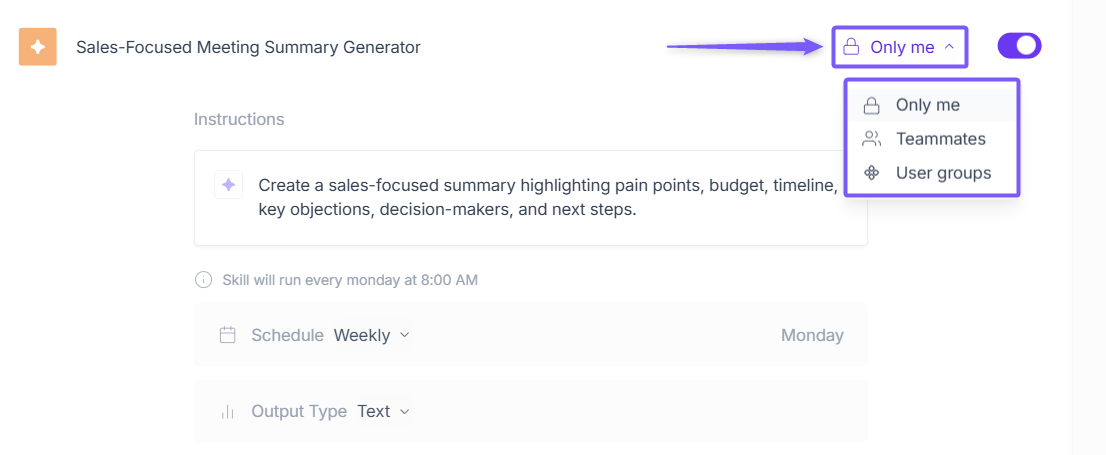
At the top right of the skill editor, click the visibility dropdown to control who can view or run this skill:
Only me — Only you can see and run this skill.
Teammates — All teammates in your workspace can see and run this skill.
User groups — Limit access to specific groups within your workspace.
7. Send AI Skill Output to Your Connected Tools
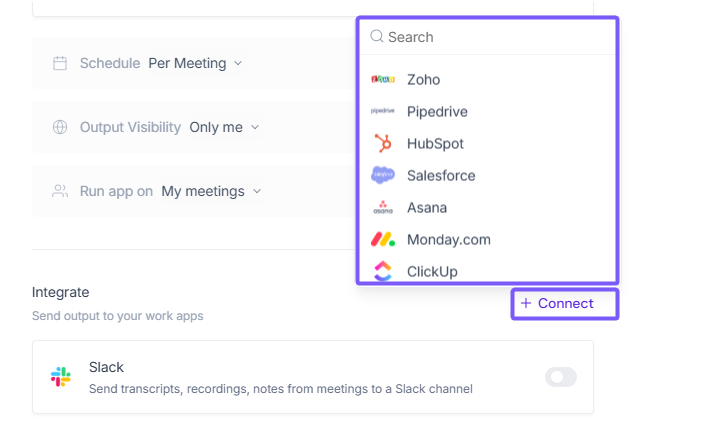
If your schedule is set to Per Meeting, an Integrations section will appear inside the AI Skill template editor. This allows you to automatically send your AI Skill’s results to the tools (Slack, Zoho, ClickUp, and many more) your team already uses.
Just click Connect next to any tool you want to use. Once connected, Fireflies will automatically deliver your AI Skill outputs after every meeting.
Want to store your AI Skill outputs in Drive-style storage or other archive tools? Check out → AI Skills × Integration for Storage.
Note: Storage integrations apply only to scheduled or multi-meeting AI skills. Per-meeting skills support many more integrations as well.
8. Select Meetings to Preview Your Skill Output
Before you finalize the template, Fireflies gives you a chance to preview the results using your real meetings.
This helps you make sure the template’s instructions are working exactly the way you expect.

9. Save Your Skill
Once you're done with the preview and all your settings look good—name, instructions, schedule, visibility, run rules, and (if applicable) integrations—it’s time to save your skill.
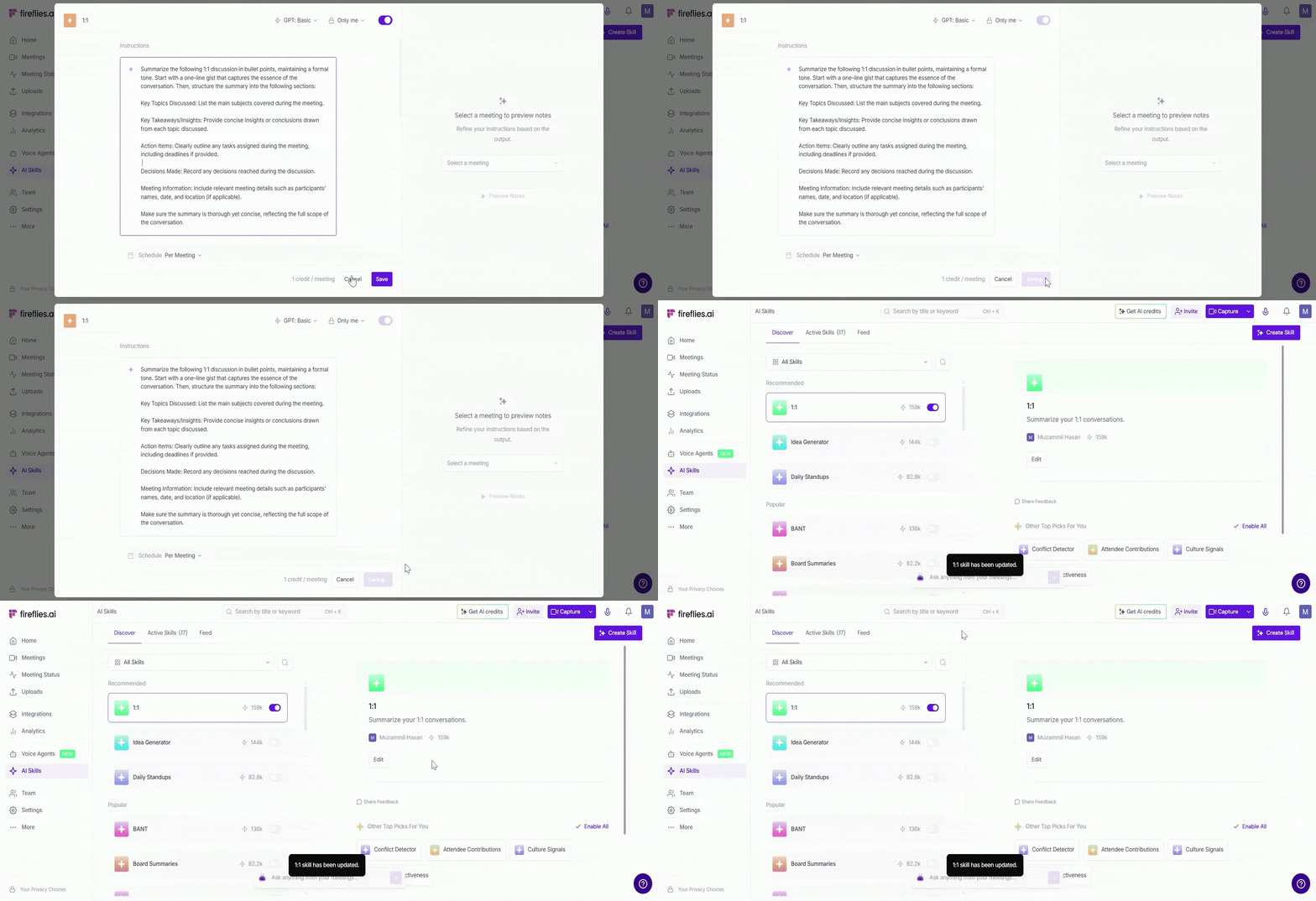
10. View Your Active AI Skills
After saving, find your skill anytime under AI Skills → Active Skills → My Skills, where you can edit, preview, enable/disable, or delete it.
Want to learn how to manage all your AI Skills?
Check out → [Manage Your AI Skills]
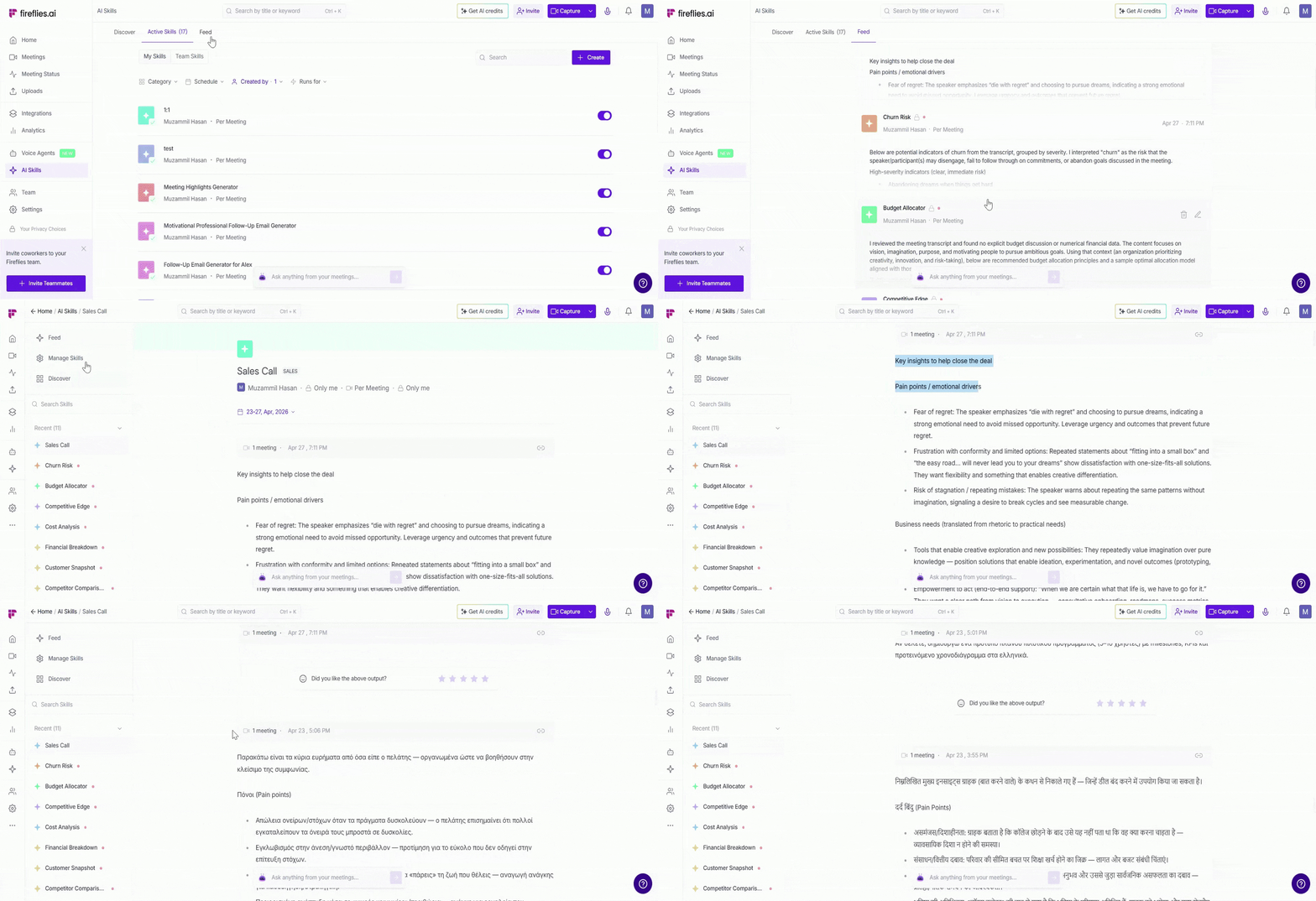
11. Monitor Outputs in the AI Skills Feed
Go to the Feed tab to view the outputs generated by your AI Skills.
Each time a skill runs, its output appears here
Outputs vary based on the AI skill — summaries, follow-up emails, reports, and more
Filter results by schedule, creator, or who the skill runs for
📋 Want to learn more? Check out → [Explore the AI Skills Feed]
🔁 Recap
Here's a quick summary of how you used a pre-built AI Skill template:
Found and tested a pre-built skill using Try Skill.
Customized the name, instructions, schedule, output type, and visibility.
Set run rules and connected integrations if needed.
Saved - your skill now runs automatically on your meetings.
View results in the Feed or manage your skill under Active Skills.
Important:
AI Skills use dynamic AI credit pricing. AI credits are charged per request, so the number of AI credits used depends on the effort required to generate the output. Simpler requests may use fewer credits, while more complex requests may use more.
👉 Learn more: [Monitor AI Credits Usage]
📚 Related Guides
Learn About AI Skills → New to AI Skills? Start here for an overview of how they work.
Build Your Own AI Skill from Scratch → Can't find the right template? Create a custom skill from scratch.
Send AI Skill Outputs to Any Integrated Tool → Automatically send skill results to Slack, HubSpot, Notion, and more.