Learn About AI Skills: Create Automated Workflows From Your Meetings
Last updated: September 29, 2026
Fireflies already transcribes and summarizes your meetings, but AI Skills are a more powerful way to turn those conversations into action. Think of them as AI assistants built for specific tasks. You give each skill a set of instructions on what to capture, and every time a meeting runs, the skill automatically gets to work — extracting insights, generating reports, and delivering exactly what you need without manual effort.
AI Skills are available on paid plans. Ready to unlock smarter meeting workflows and automated insights? Upgrade your plan to get started.
Let’s get started 🚀
🤖 What Are AI Skills?
AI Skills are smart automations inside Fireflies that analyze your meeting recordings and turn them into clear, structured insights automatically.
Here’s what AI Skills can do:
Extract key details like action items, decisions, objections, and next steps
Generate structured reports such as BANT, MEDDIC, Hiring Scorecards, and Competitor Mentions
Identify trends and patterns across multiple meetings
Send outputs automatically to tools your team already uses
Run after every meeting or on a daily, weekly, or monthly schedule
Prefer to see it in action first? Watch this live sales AI Skills build session, then use the steps below to create and customize an AI Skill in Fireflies.
💼 Common AI Skill Use Cases
AI Skills help teams automate meeting workflows by extracting, organizing, and generating the insights that matter most from conversations. Here are some common use cases:
Sales — Generate BANT/MEDDIC reports, extract objections, highlight next steps, and track competitor mentions.
Hiring — Produce structured candidate scorecards, culture-fit insights, and automatic interview summaries.
Customer Feedback — Collect product feedback, feature requests, and recurring customer pain points
Daily Digest — Generate daily summaries and meeting recaps across your team
Follow-Up Email Generator — Automatically draft follow-up emails after meetings or sales calls
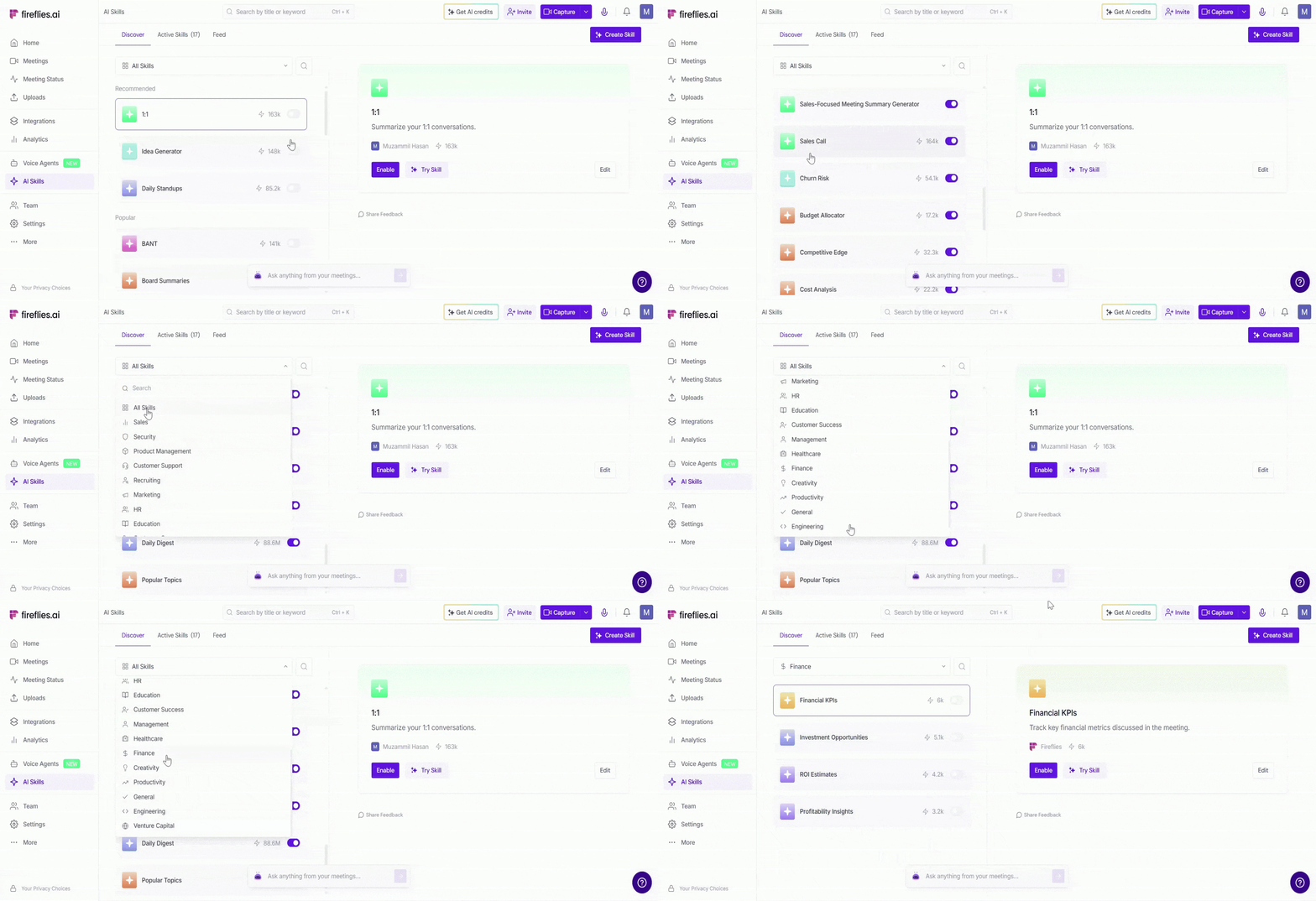
✨ How to Create an AI Skill
You can create AI Skills in two ways depending on how much customization you need — either start with a ready-made template or build your own AI Skill from scratch. Here’s a quick overview of both methods so you can choose what works best for your workflow.
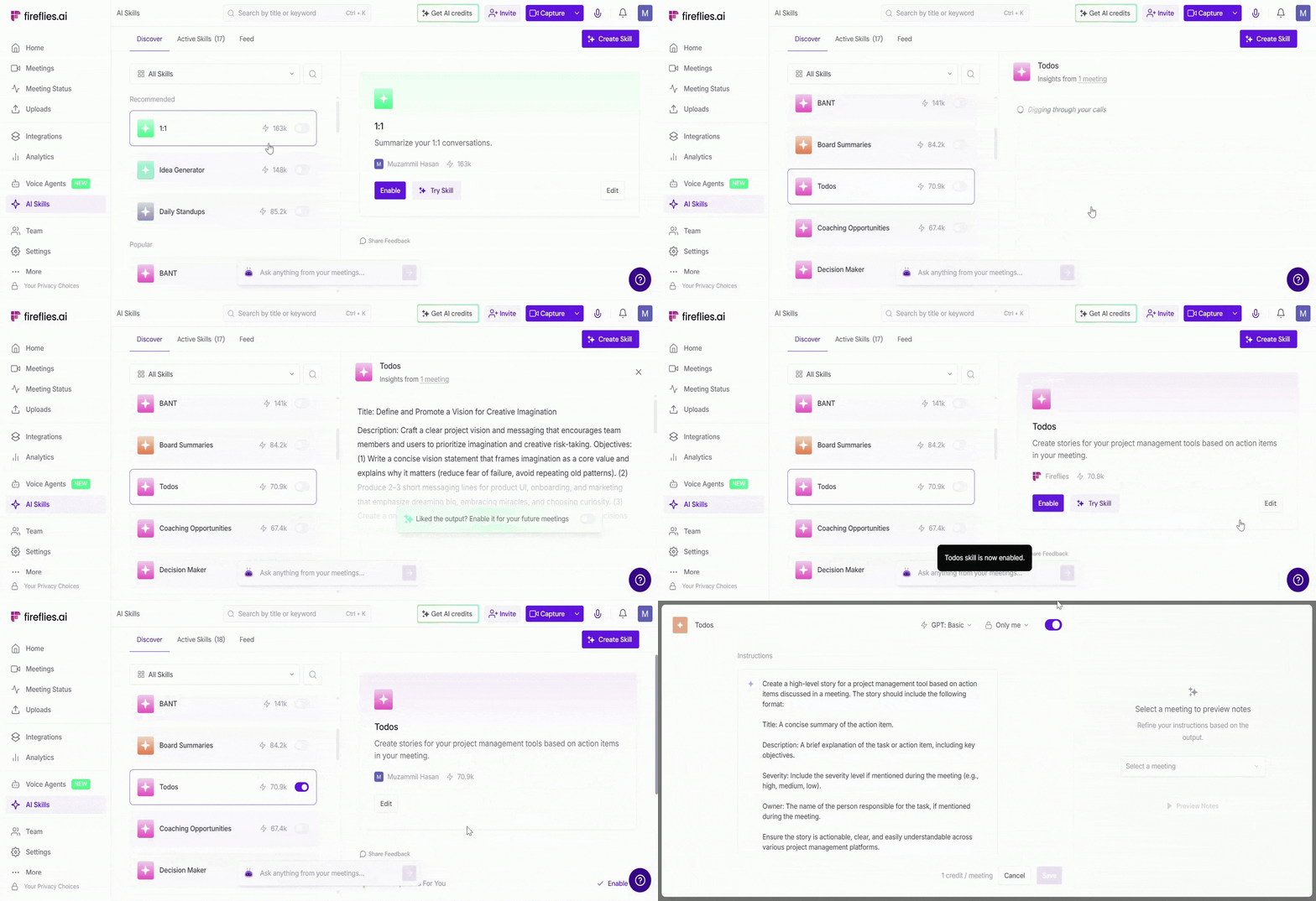
1. Use a Pre-Built Template
Fireflies offers 200+ ready-made templates (BANT, Competitor Mentions, Candidate Scorecards, Weekly Reports, and more). You can open any template under the Discover tab and customize it to match your needs.
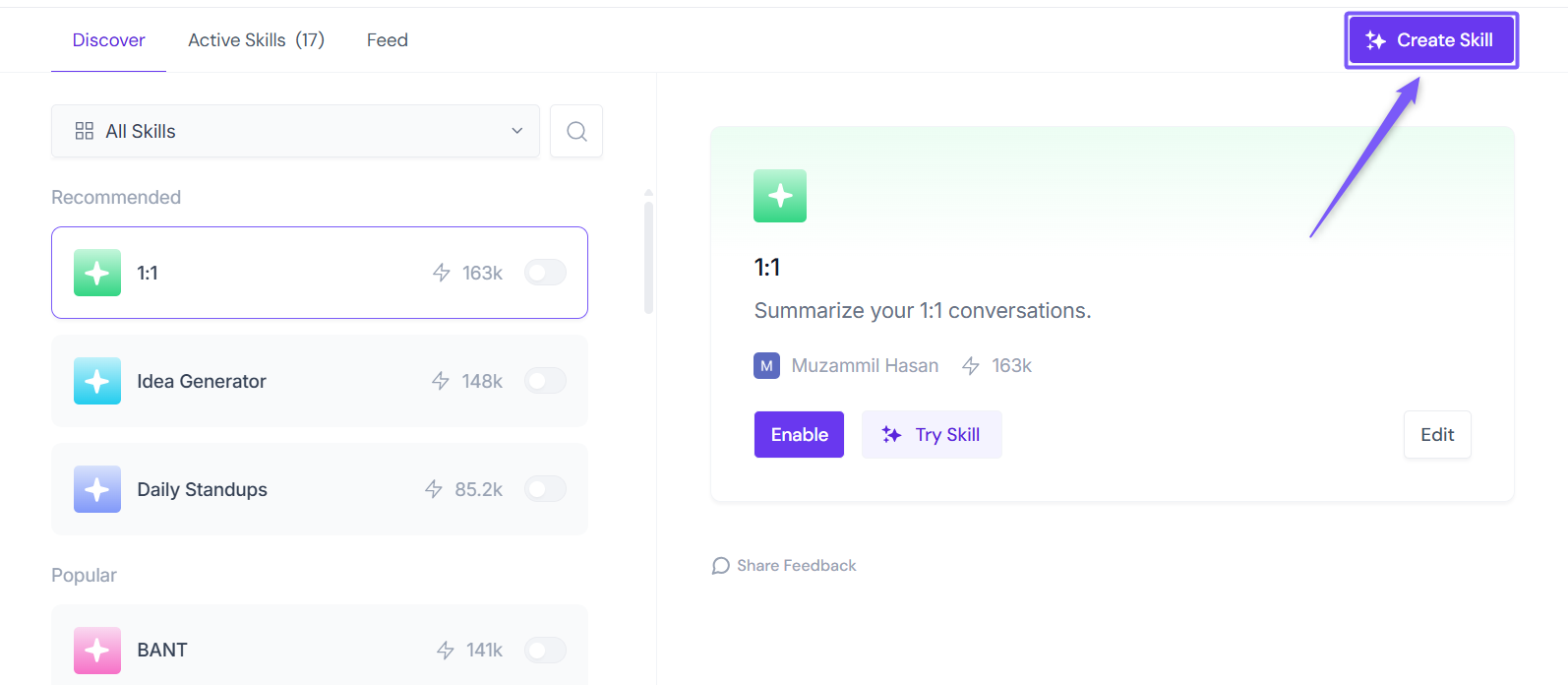
2. Create a skill From Scratch
If you want full control over what the skill extracts or analyzes, you can build your own skill with custom instructions.
Click the Create button in the AI Skills tab to start building your skill from scratch.
Learn more → [How to Build Your Own AI Skill to Automate Meeting Workflows, Summaries, or Insights].
▶ How AI Skills Run
Once you've created an AI Skill, you can control exactly when and how it runs. Fireflies gives you three ways to run a skill — manually on demand, automatically after each meeting, or on a recurring schedule across multiple meetings.
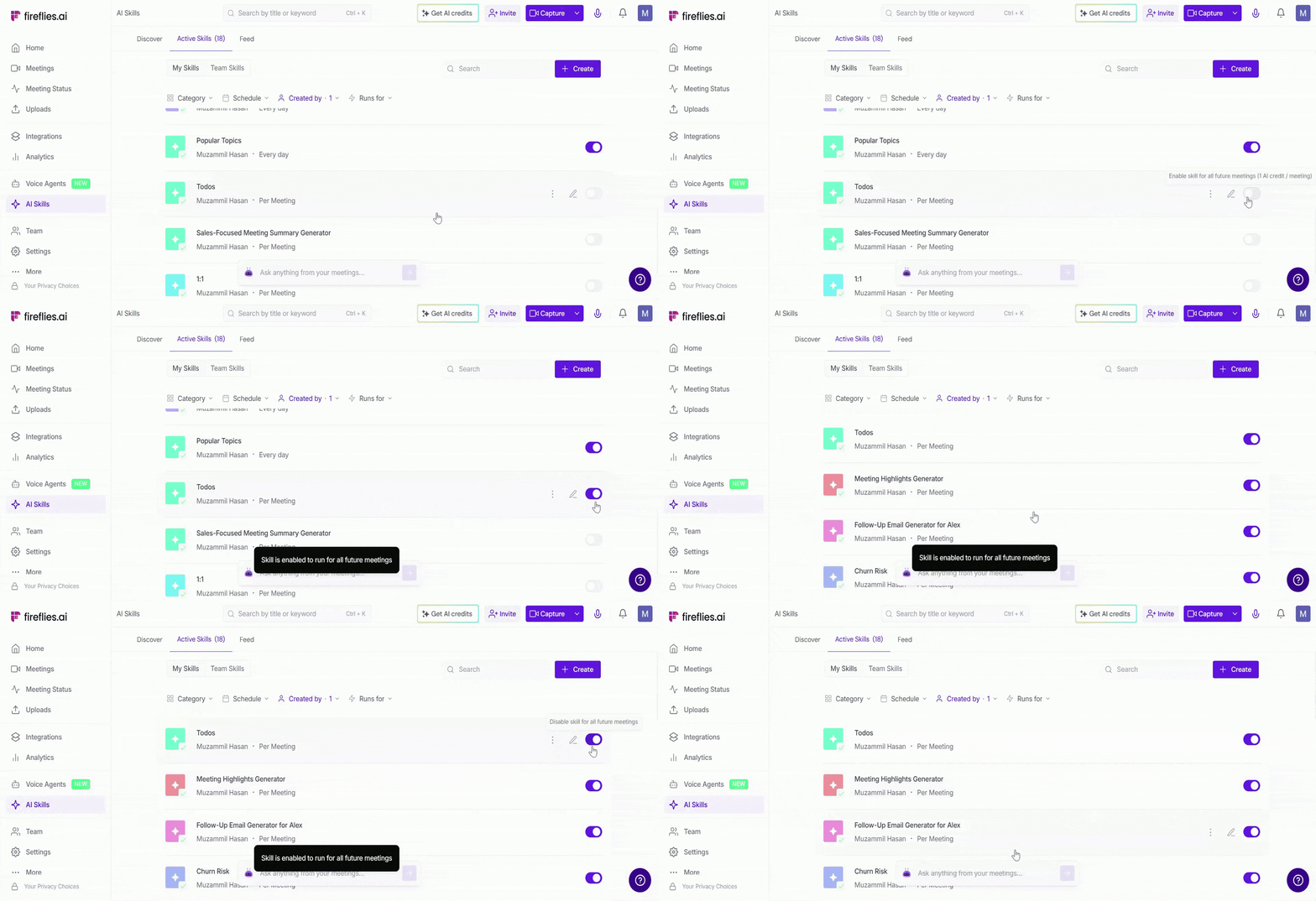
Make sure the AI Skill is enabled. If the toggle is turned off, go to the AI Skills → Active Skills tab and turn the skill ON before running it on meetings.
1. Run AI Skills Manually from Notepad
You can run any AI Skill directly from a specific meeting's Notepad. This is useful when you want to generate an output for a particular meeting on demand — without waiting for it to run automatically.
From the Fireflies dashboard, open the Meetings tab and select the meeting where you want to run the AI Skill.
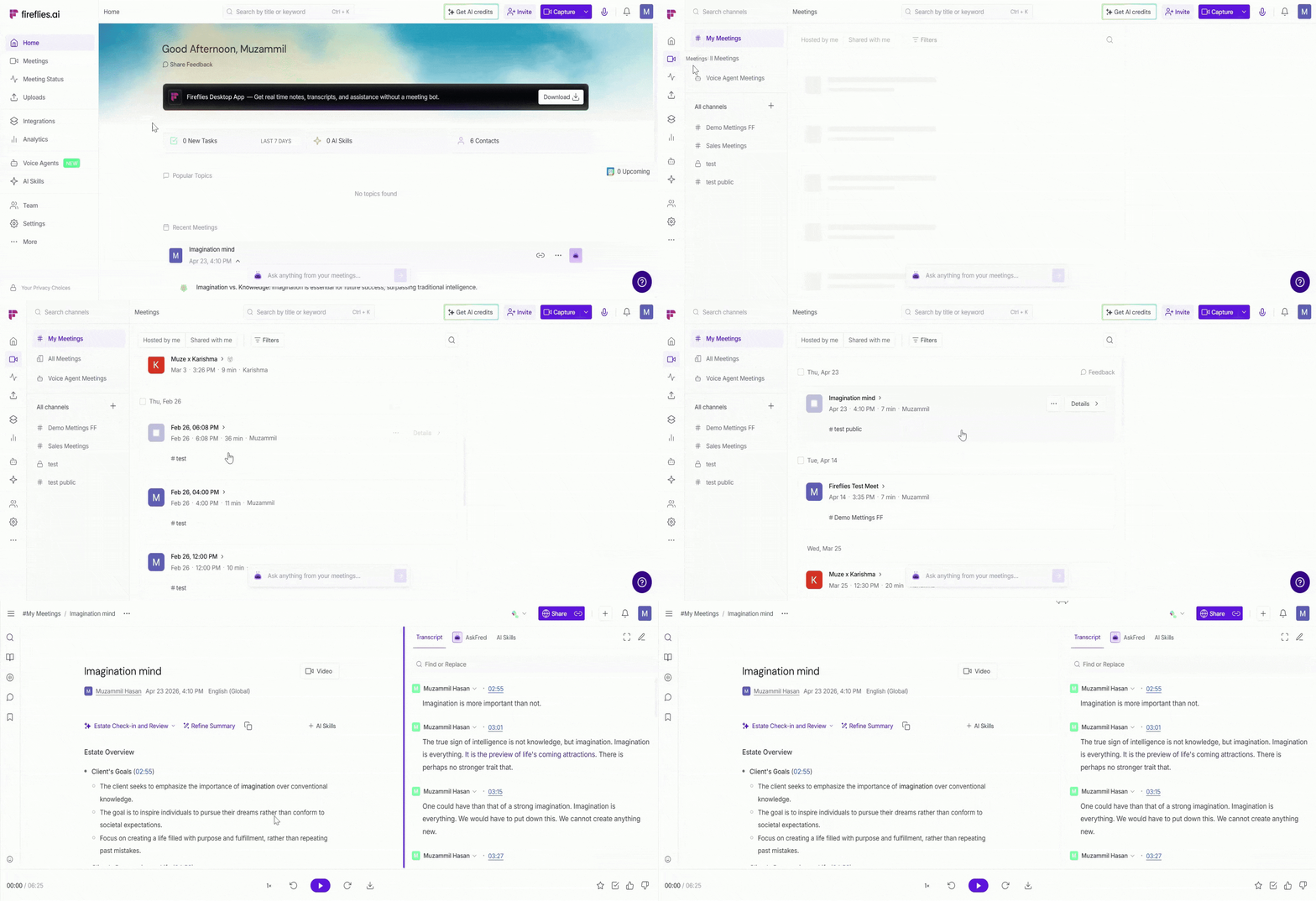
Click + AI Skills in the top-right corner of the meeting summary.
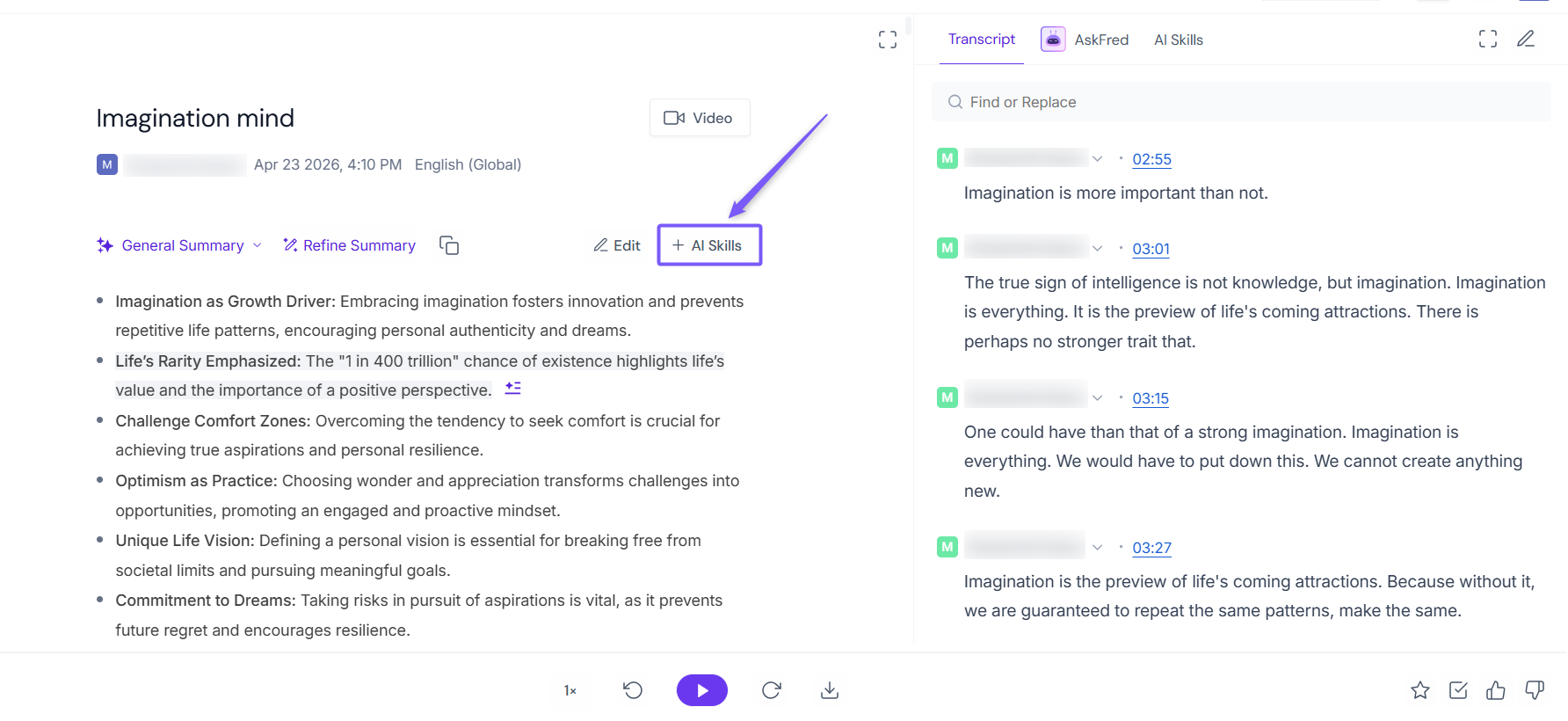
This opens the AI Skills panel where you can run or re-run AI Skills for that specific meeting.The panel includes:
My Skills — AI Skills created by you
Team Skills — AI Skills shared or created by teammates
Discover — Browse, create, or enable additional AI Skills without leaving the meeting
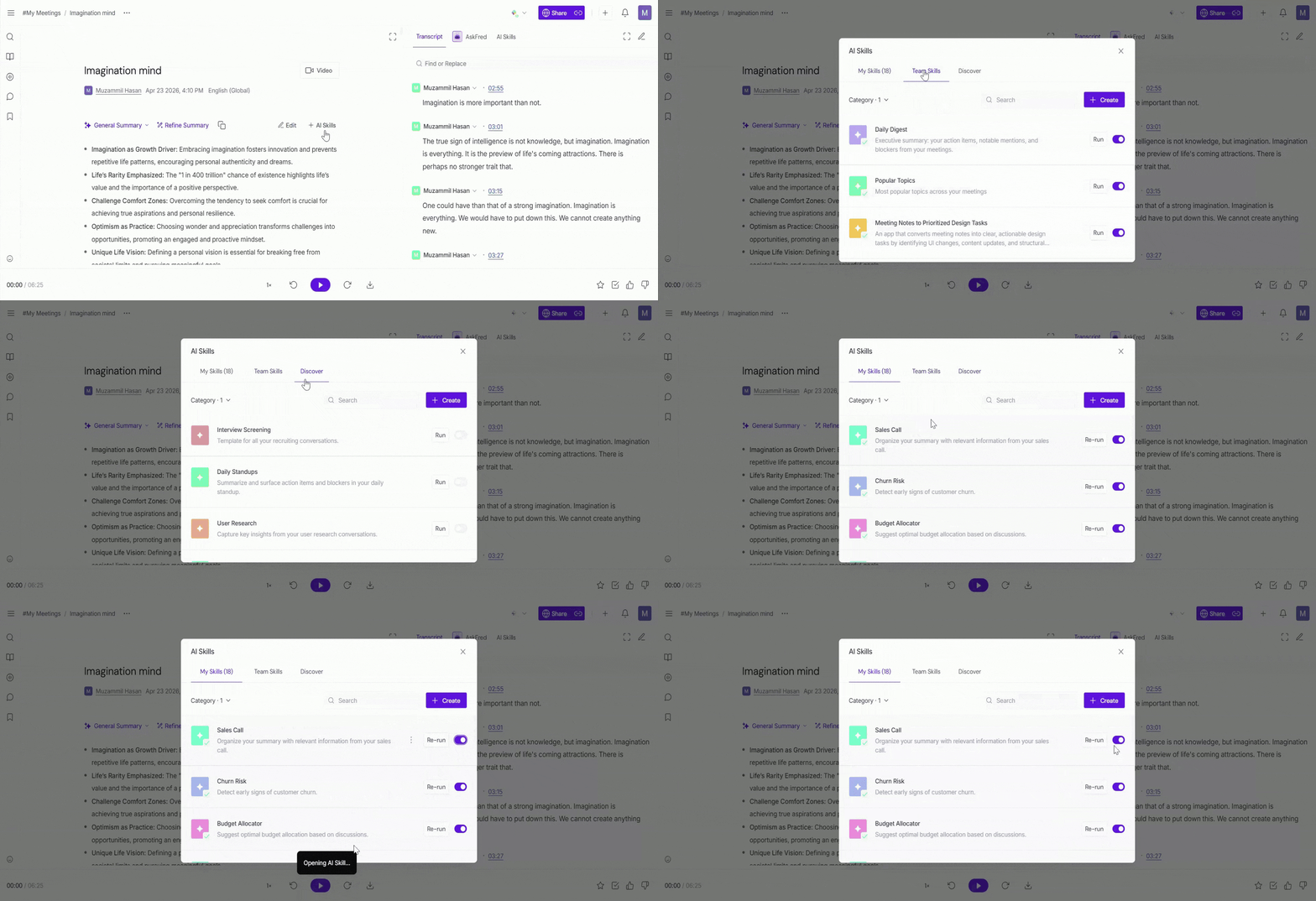
Click Run (or Re-run) next to the AI Skill you want to execute. If you re-run an AI Skill on the same meeting, choose whether to:
Replace — Overwrite the existing output
Keep both — Save the new output as a separate version
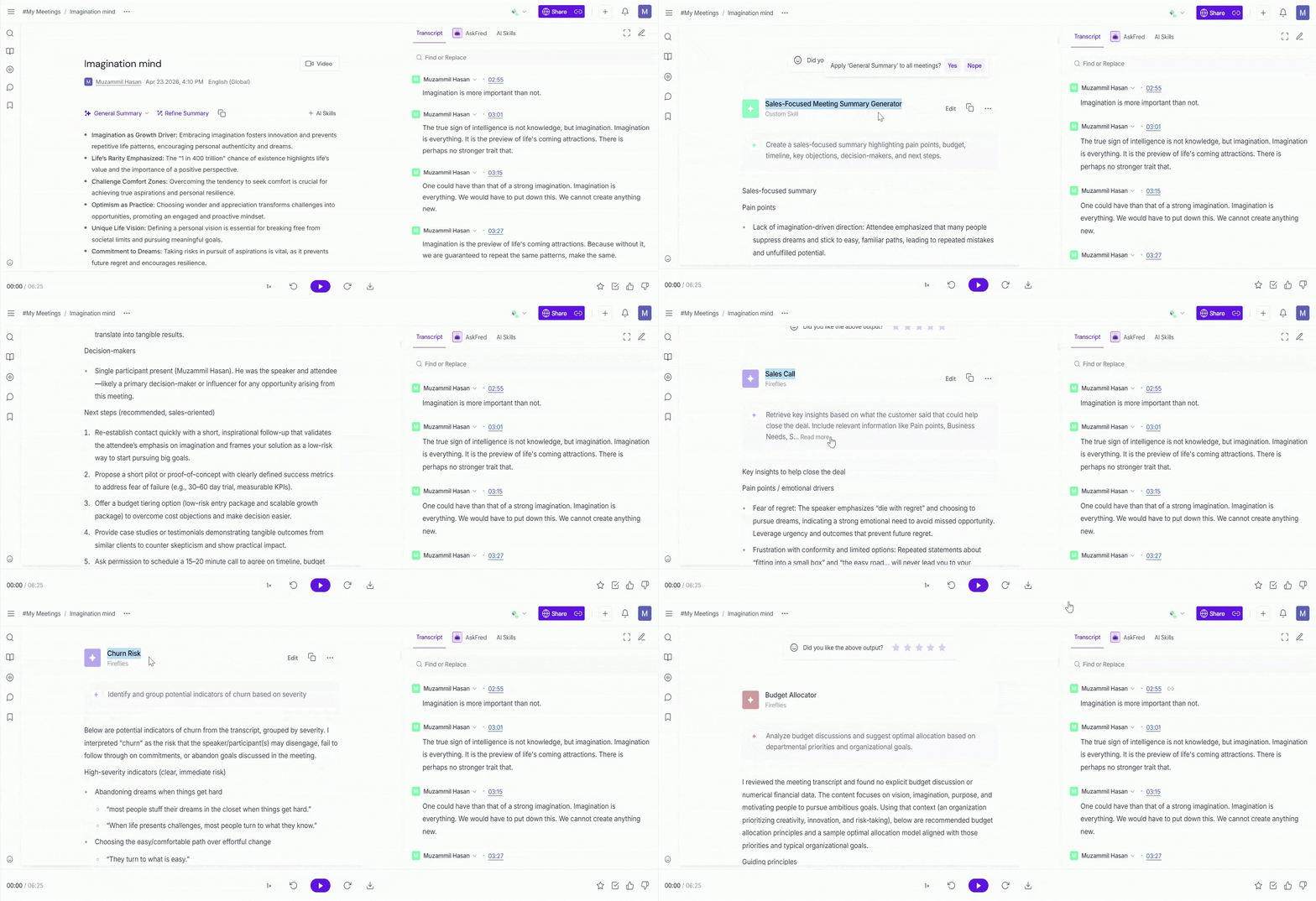
Fireflies starts processing the meeting using the selected AI Skill. Depending on the meeting length, the output may take a few minutes to generate.
Once complete, scroll down in the meeting summary to view the generated AI Skill output.
2. Run Automatically (Per Meeting)
Set the skill to run automatically after every meeting that matches its rules. Each meeting gets its own output as soon as it's processed — no action needed from you.
✅This is useful for workflows like sales call summaries, interview scorecards, follow-up emails, and action item tracking.
How to set up:
Go to AI Skills → Active Skills.
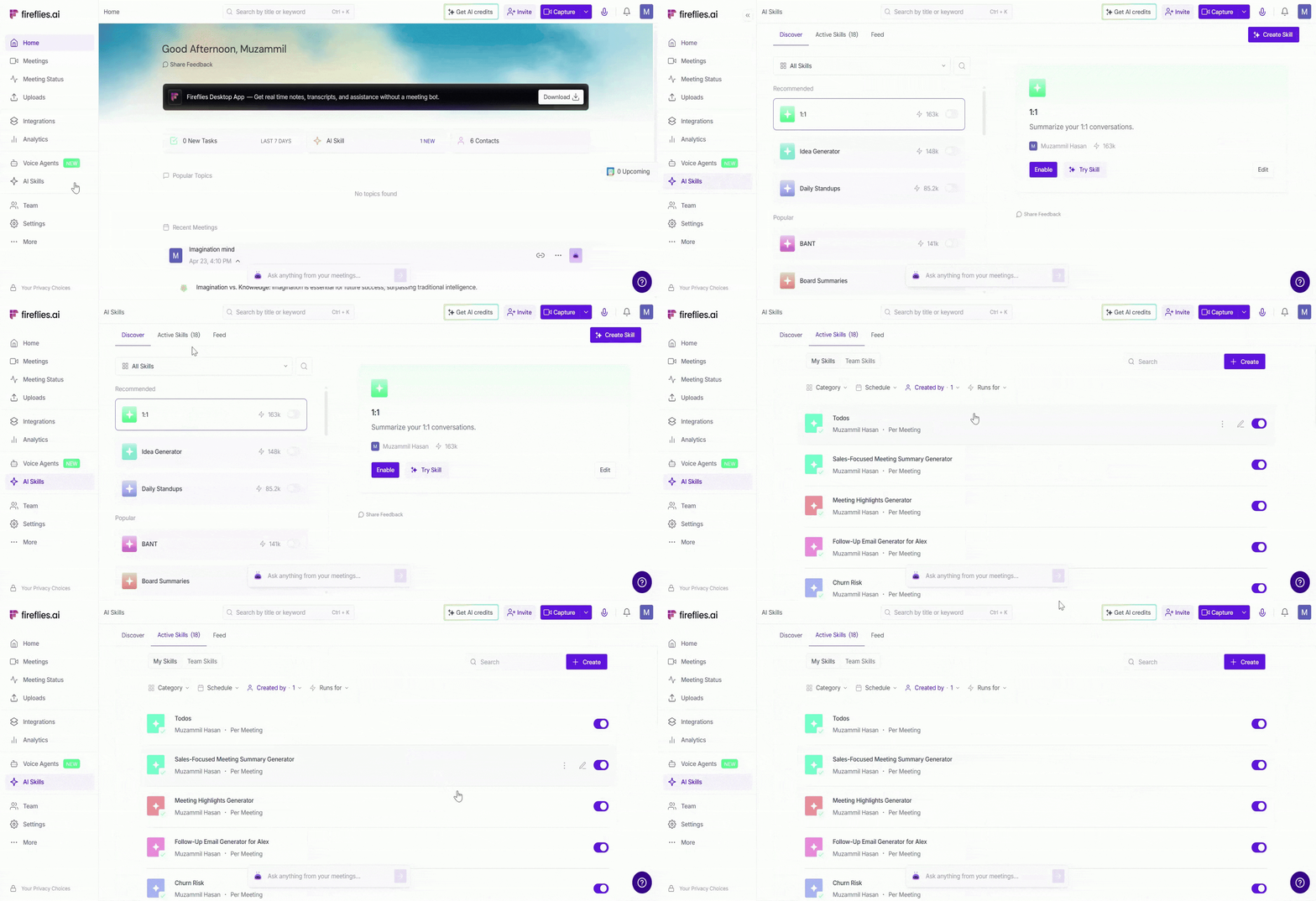
Click Customize or Edit on the AI Skill you want to update.
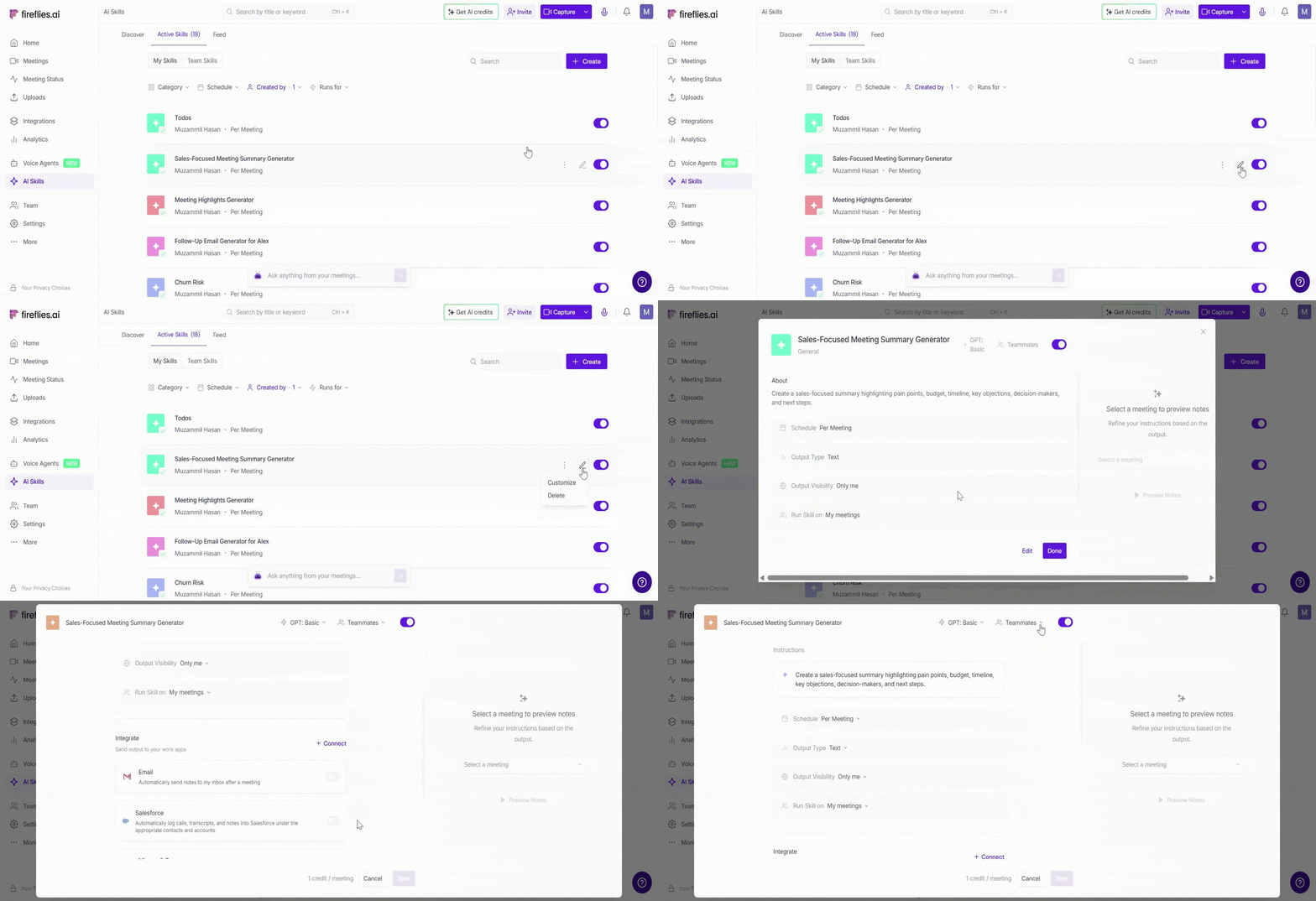
Under the Schedule dropdown, select Per Meeting, then click Save to automatically run the AI Skill after every matching meeting.
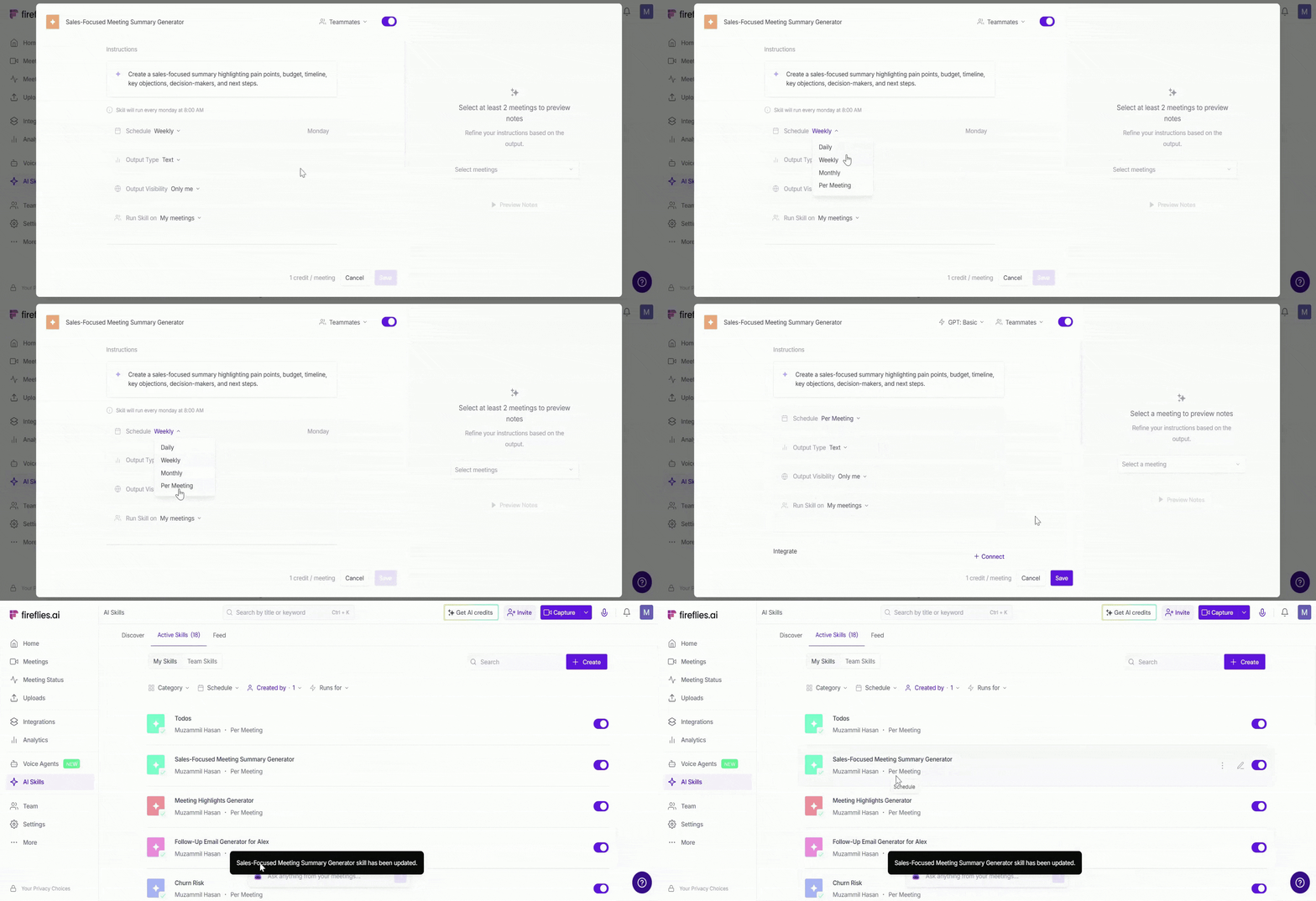
3. Run on a Schedule — Daily, Weekly, or Monthly
Scheduled AI Skills run automatically across multiple meetings on a recurring schedule. Instead of generating one output per meeting, Fireflies combines insights from all matching meetings into a single report or summary.
✅This is useful for weekly sales summaries, customer feedback trends, team digests, and recurring operational reports.
How to set it up:
Go to AI Skills → Active Skills.
Click Customize or Edit on the AI Skill you want to update.
Under the Schedule dropdown, select Daily, Weekly, or Monthly, then click Save to automatically run the AI Skill on a recurring schedule across multiple meetings.
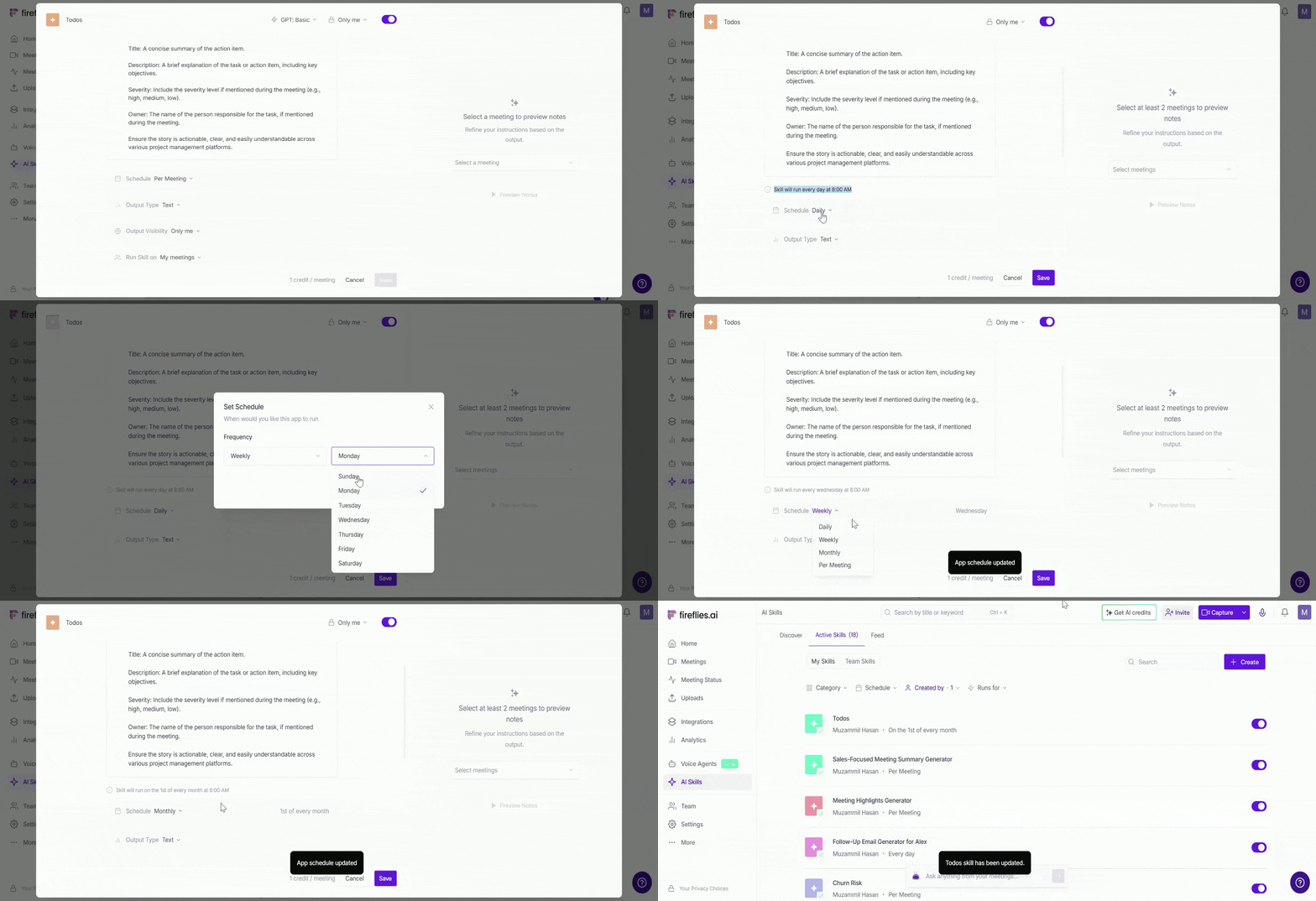
Important: When you select Per Meeting, you’ll see extra options such as GPT model selection and Integrations (Slack, HubSpot, Notion, etc.). These options are not available for Daily/Weekly/Monthly schedules, since scheduled multi-meeting skills run on aggregated meetings and follow a simplified configuration.
🔗 Send AI Skill Outputs to Integrated Tools
AI Skills can automatically send summaries, reports, scorecards, and meeting insights to connected tools like Google Drive, Dropbox, HubSpot, Notion, Slack, Salesforce, and more.
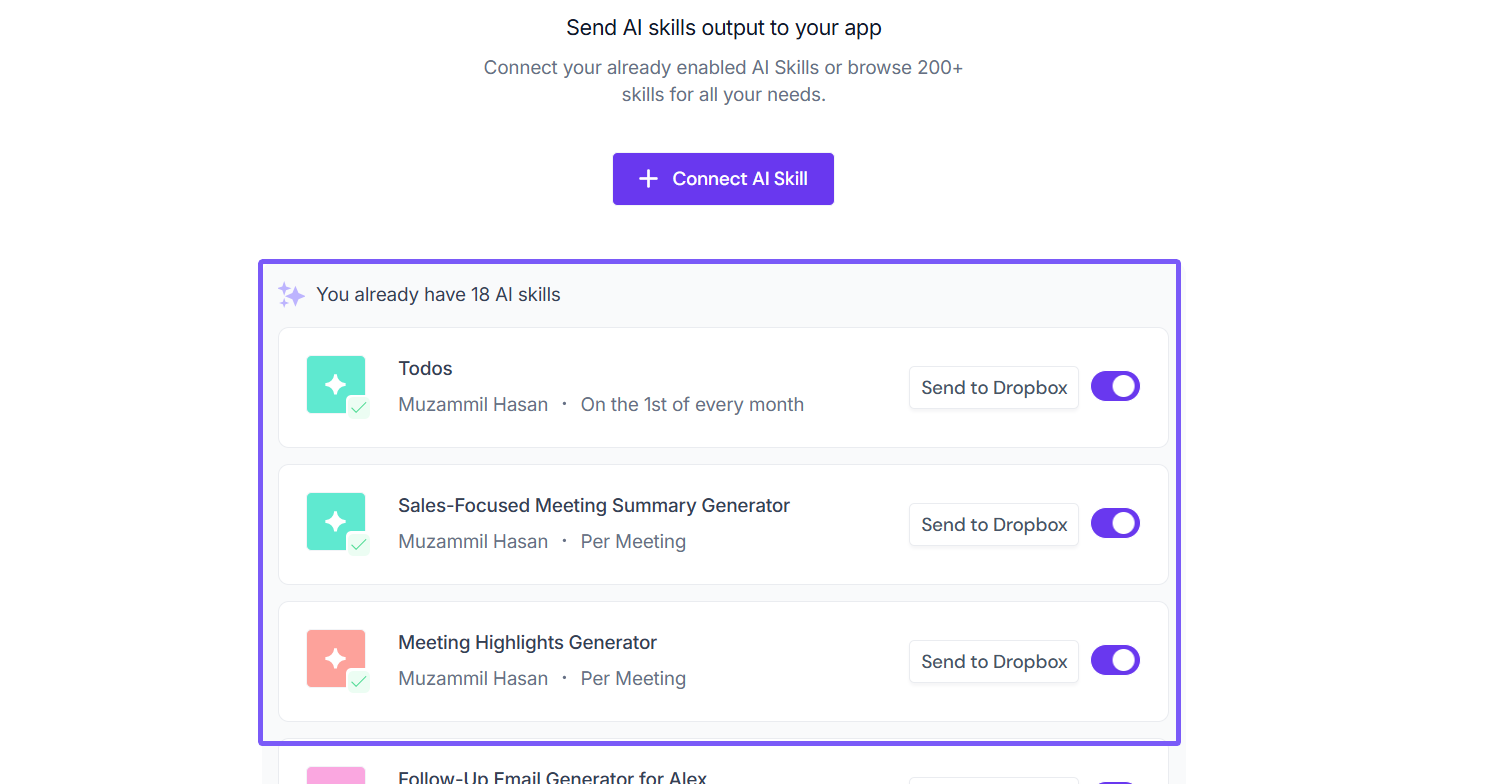
Learn step-by-step: How to Send AI Skill Outputs to Integrated Tools
✨ How AI Credits Work
AI Skills use dynamic AI credit pricing. AI credits are charged per request, so the number of credits used depends on the complexity and effort required to generate the output. Simpler requests may use fewer credits, while more complex requests may use more.
Each AI Skill run on a meeting consumes AI credits from your workspace balance
If the same AI Skill runs across multiple meetings, credits are consumed for each meeting processed
If multiple AI Skills run on the same meeting, each skill consumes its own credits
Scheduled AI Skills consume credits for every meeting included in the scheduled run
📌 Workspace admins can monitor AI Credit usage anytime from Settings.
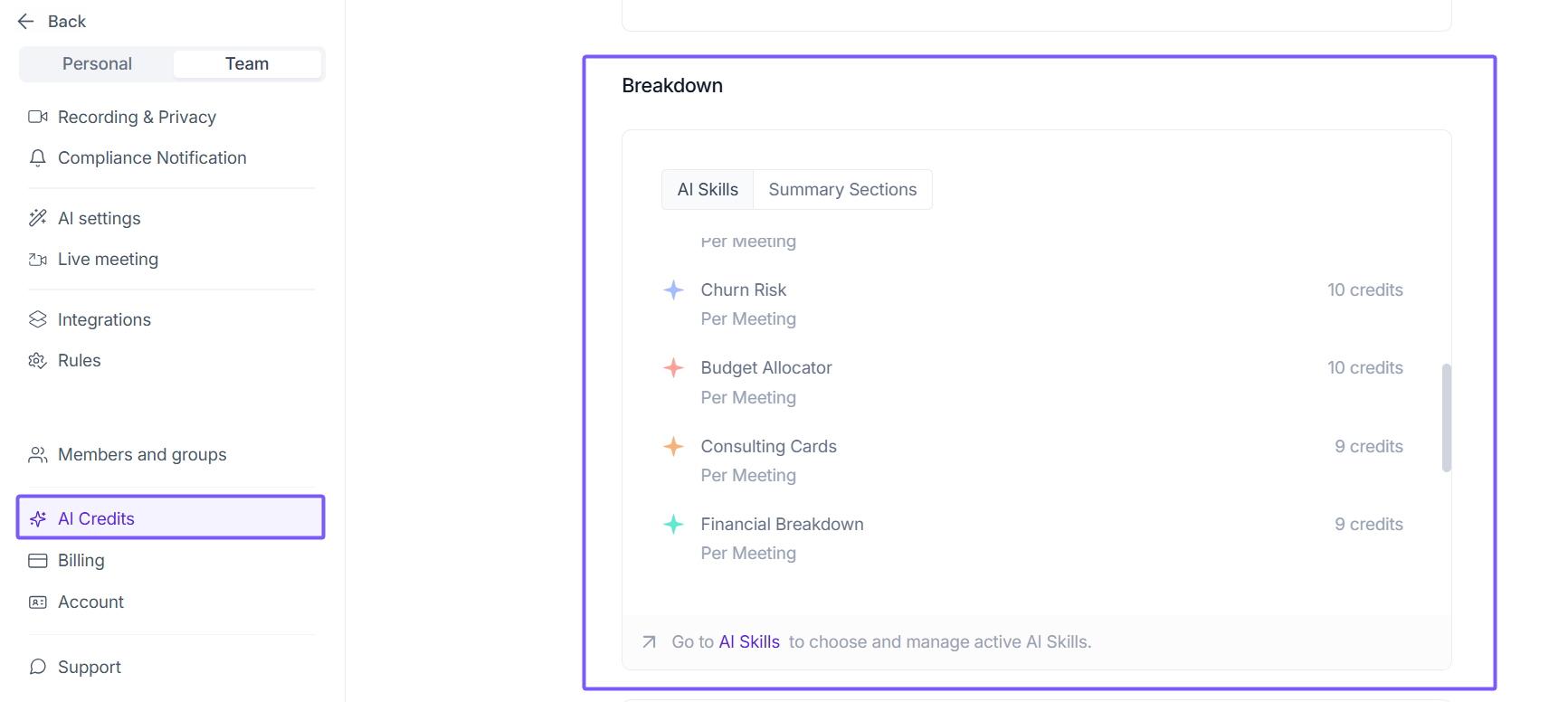
👀View and Manage Your AI Skills
Once your skills are running, you can track and manage everything from two places inside AI Skills:
Active Skills — View all your enabled skills, edit settings, enable or disable them, and control who can access them.
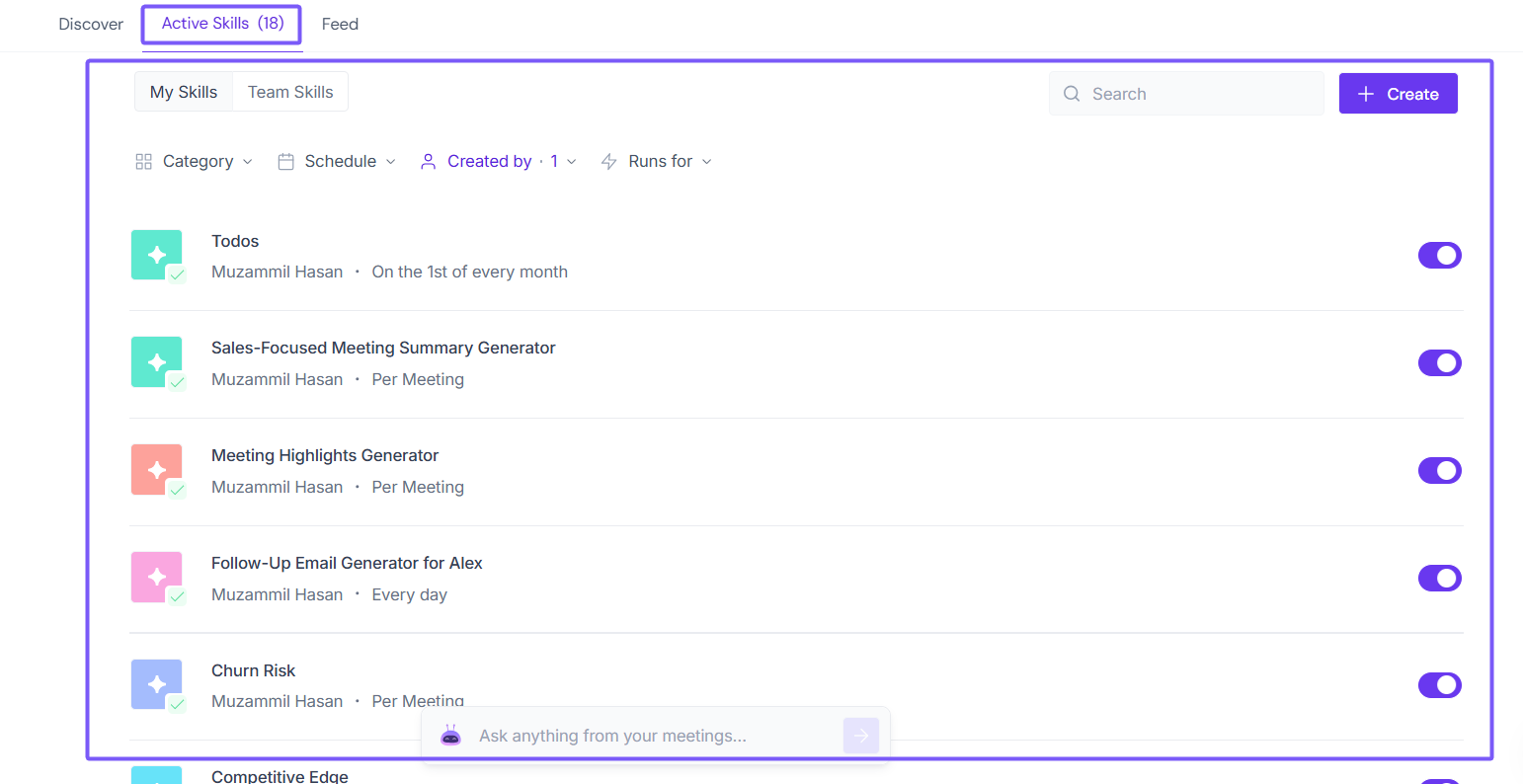
Feed — See every output your skills have generated across your meetings, filter by skill, schedule, or creator, and review full results.
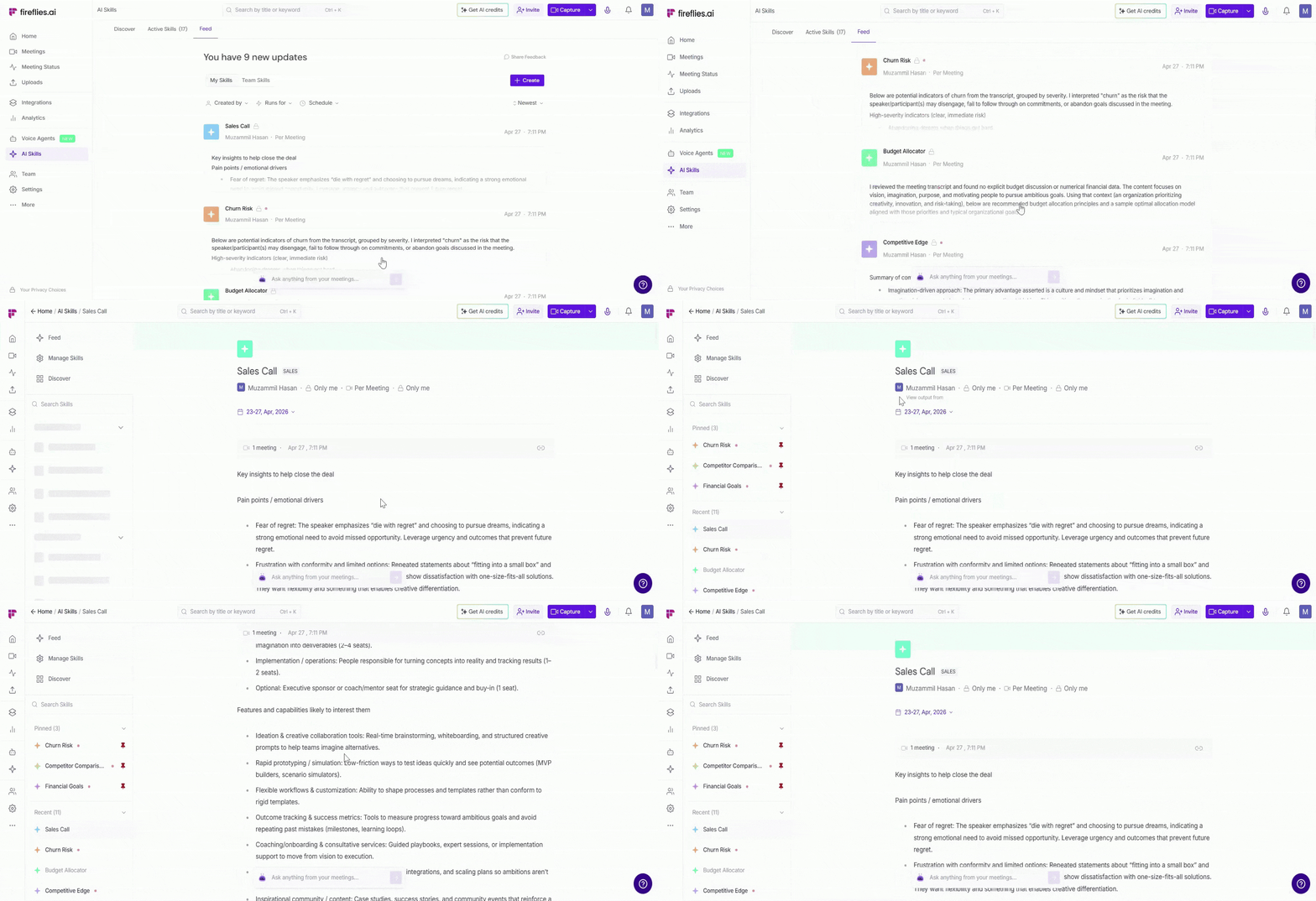
For the full guide check out: How to Manage Your AI Skills and View Outputs in the Feed →
👥 Who Can Create, View, and Run AI Skills
The ability to create, access, and manage AI Skills depends on your workspace role and the permissions configured by your workspace admin.
Workspace members (Individual) — Can create, run, and manage their own AI Skills based on the permissions available in the workspace
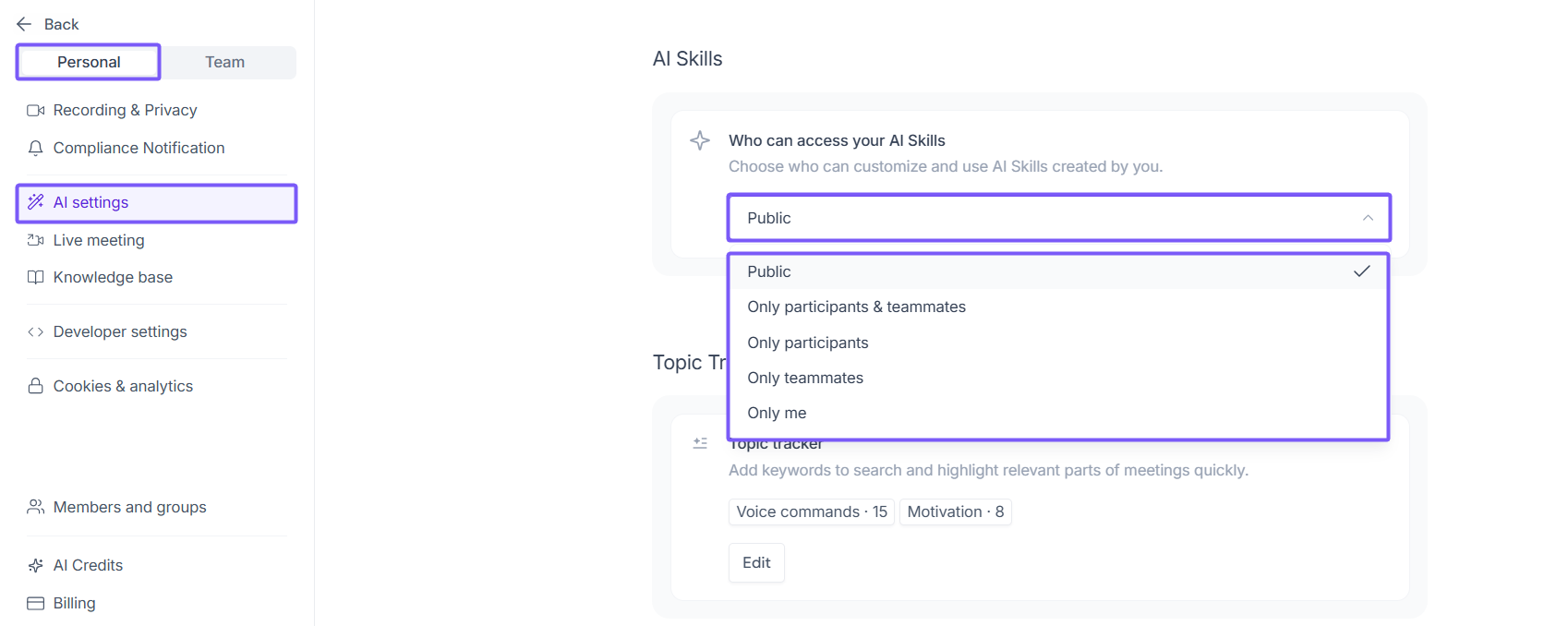
Workspace admins — Have full control over all workspace skills, can restrict who creates or accesses skills, and manage team-wide settings.
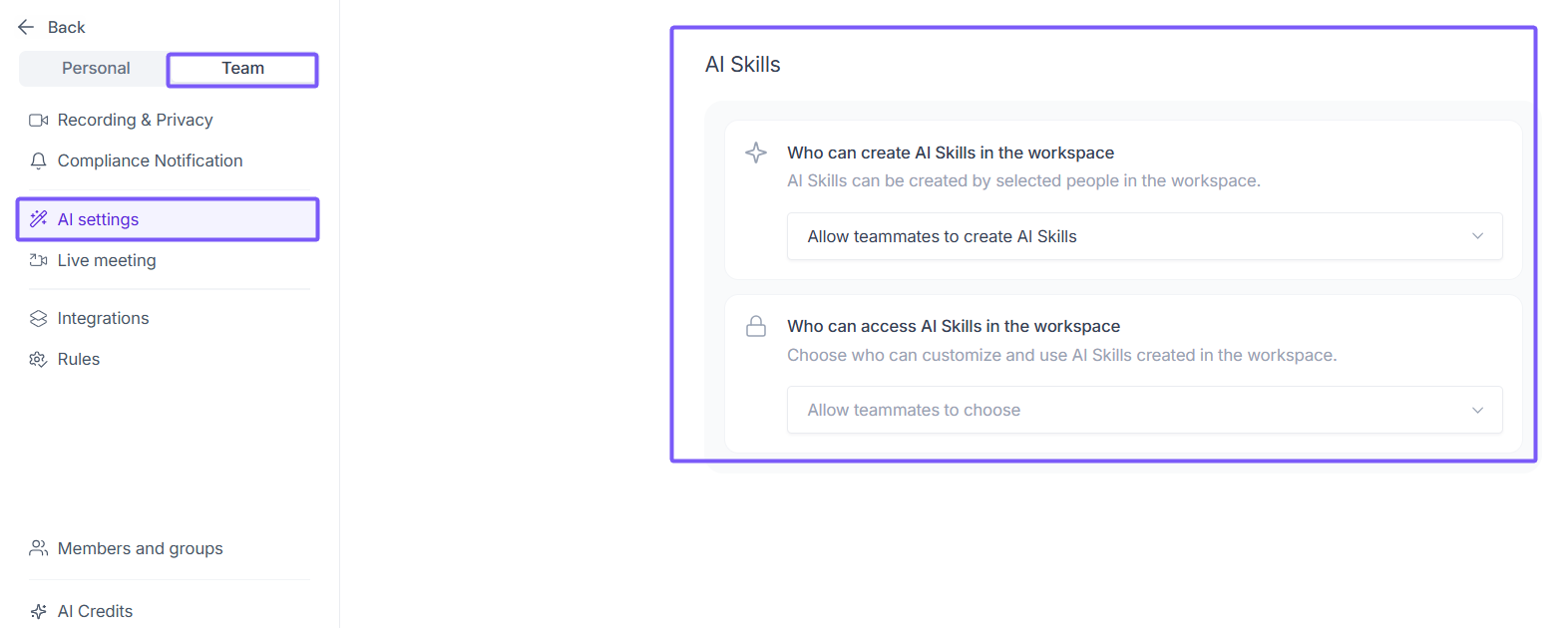
For the full permissions breakdown: [How to Manage Your AI Skills, View Outputs in the Feed, and Configure Admin Settings]
🔁 Recap
Here's a quick summary of what you've learned:
AI Skills are automated agents you create to extract insights, generate reports, and run workflows from your meetings.
You can create a skill from a pre-built template or build one from scratch.
Skills can run in three ways — manually from the Notepad, automatically per meeting, or on a daily, weekly, or monthly schedule.
AI Skills use dynamic AI credit pricing based on the complexity of each request.
View all your active skills under Active Skills and track outputs in the Feed.
Members can create and manage their own skills. Admins control workspace-wide access and permissions.