How to Integrate Zoom with Fireflies
Last updated: October 28, 2025
Fireflies can automatically join your Zoom meetings to record, transcribe, and summarize your conversations — no complex setup required. As long as the Zoom meeting link is present in your calendar invite, Fireflies (Fred) can detect it and join your call right on time.
That means you don’t have to integrate Zoom with Fireflies — it’ll still work!
The integration just makes things smoother and automatic (we’ll explain that below 👇).
🪄 How Fireflies Joins Your Zoom Meetings
Fireflies joins your meeting just like a participant would.
Here’s what happens behind the scenes:
You schedule a meeting with a Zoom link in your calendar.
Fireflies detects the meeting and automatically joins when it starts.
If your Zoom security settings require it, the host may need to approve Fireflies once the first time.
After joining, Fireflies records and transcribes the entire call — and sends the notes straight to your inbox and Fireflies Notebook.
That’s it. Super simple.
Go through this step-by-step Guide to understand how to invite Fireflies to your Zoom Meetings
⚙ When to Integrate Zoom with Fireflies
The Zoom integration is optional — but it’s perfect if you want Fireflies to join without interruptions, even with tighter Zoom settings.
When you connect your Zoom account:
Fireflies joins your calls automatically (no host approval needed).
It bypasses waiting rooms and “authenticated users only” restrictions.
Recordings start instantly without missing a single word.
So, while Fireflies works without integration, connecting Zoom makes it seamless and foolproof.
🔑 Prerequisites
To get started, you'll just need two things:
A Fireflies Account: Make sure it's active and has the necessary permissions turned on so it can connect to other tools.
A Zoom Account: You'll need to be the host of the meeting or have admin rights to change your Zoom settings.
🔗 Connect Zoom to Fireflies
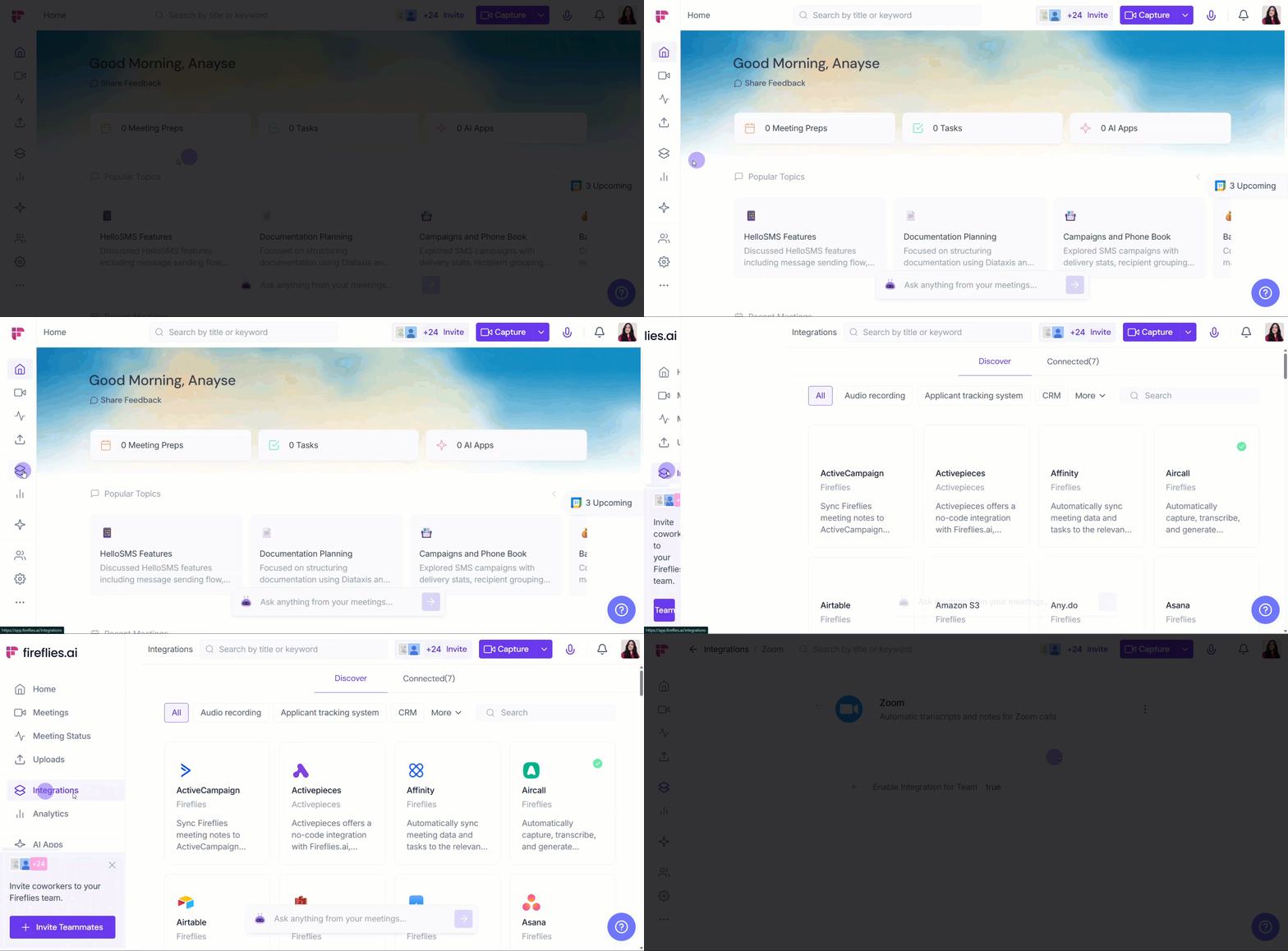
Step 1: Navigate to Integrations
From your Fireflies dashboard, select Integrations in the left-hand navigation menu.
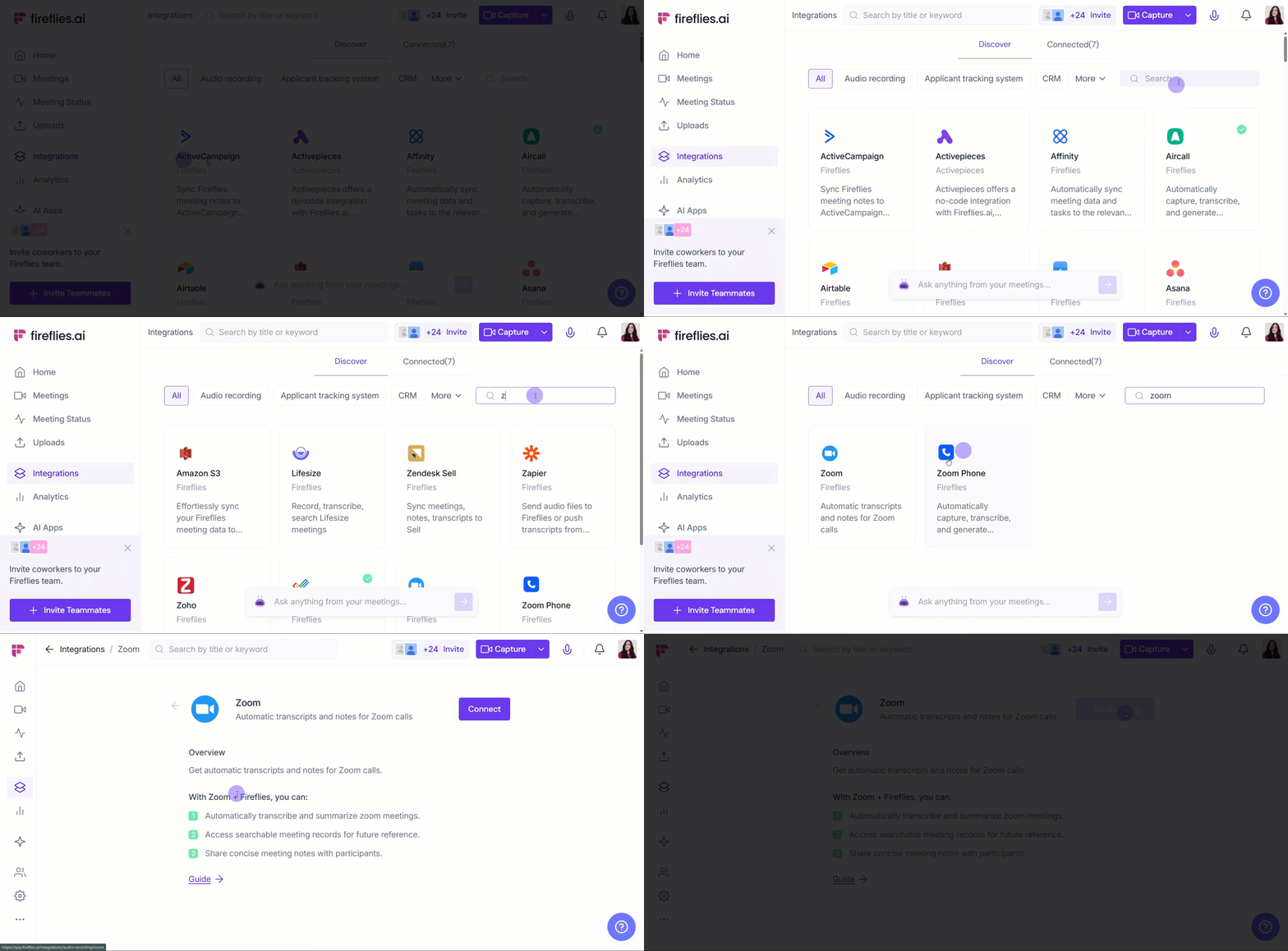
Step 2: Find the Zoom App
Use the search bar or scroll down the page to find the Zoom app tile.
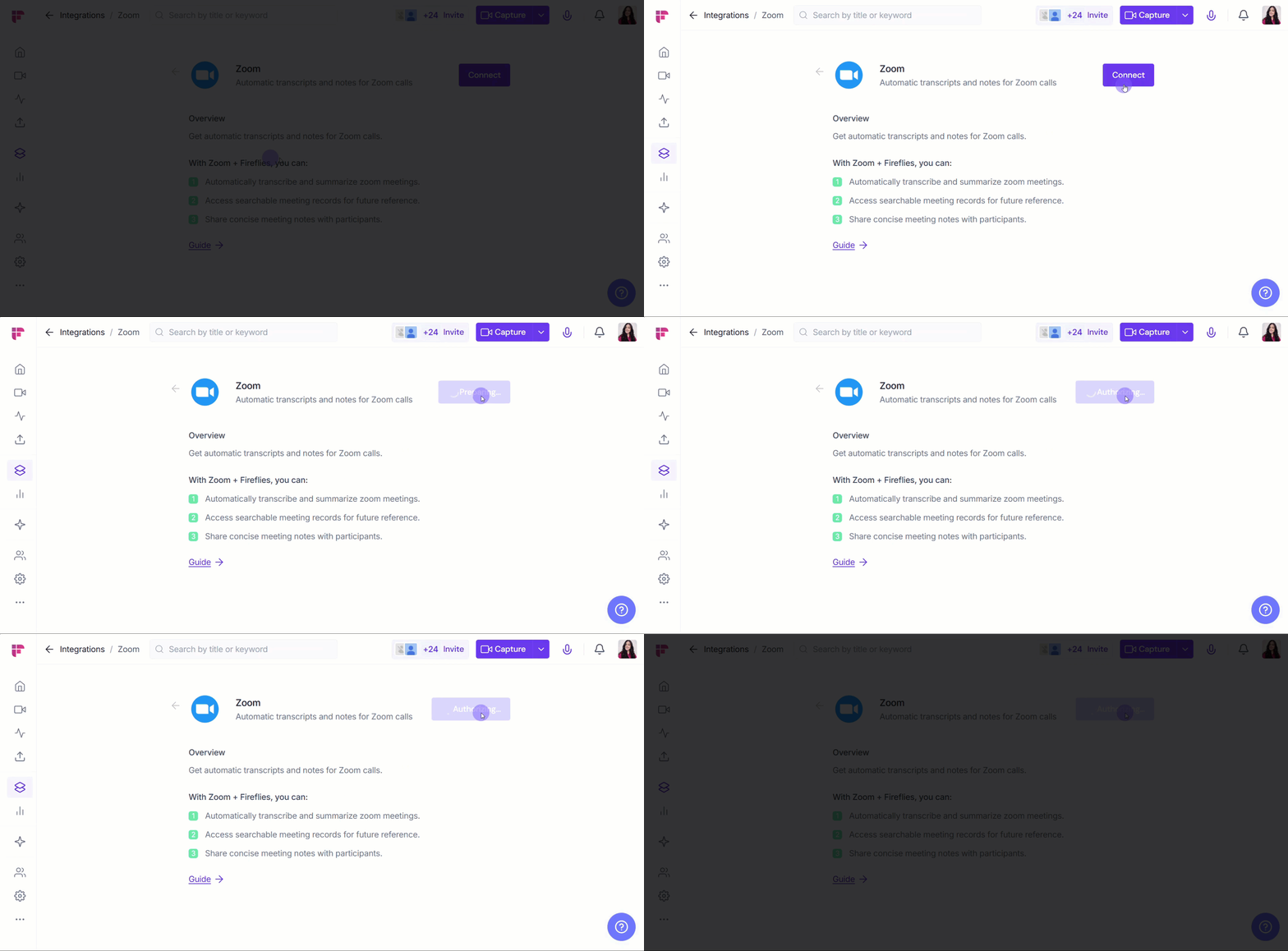
Step 3: Connect the Integration
Click Connect. You'll be redirected to Zoom's authorization page.
Step 4: Authorize Fireflies
Sign in to your Zoom account and click Allow to grant Fireflies the necessary permissions to access and manage meetings for your organization.
You only need this confirmation if you are connecting to Zoom for the first time.
⚙ Set Up Your Configuration
Step 1: Choose Team Integration Settings
Turn on Enable Integration for Team to ensure Fireflies automatically captures meetings for all team members joining a Zoom meeting.
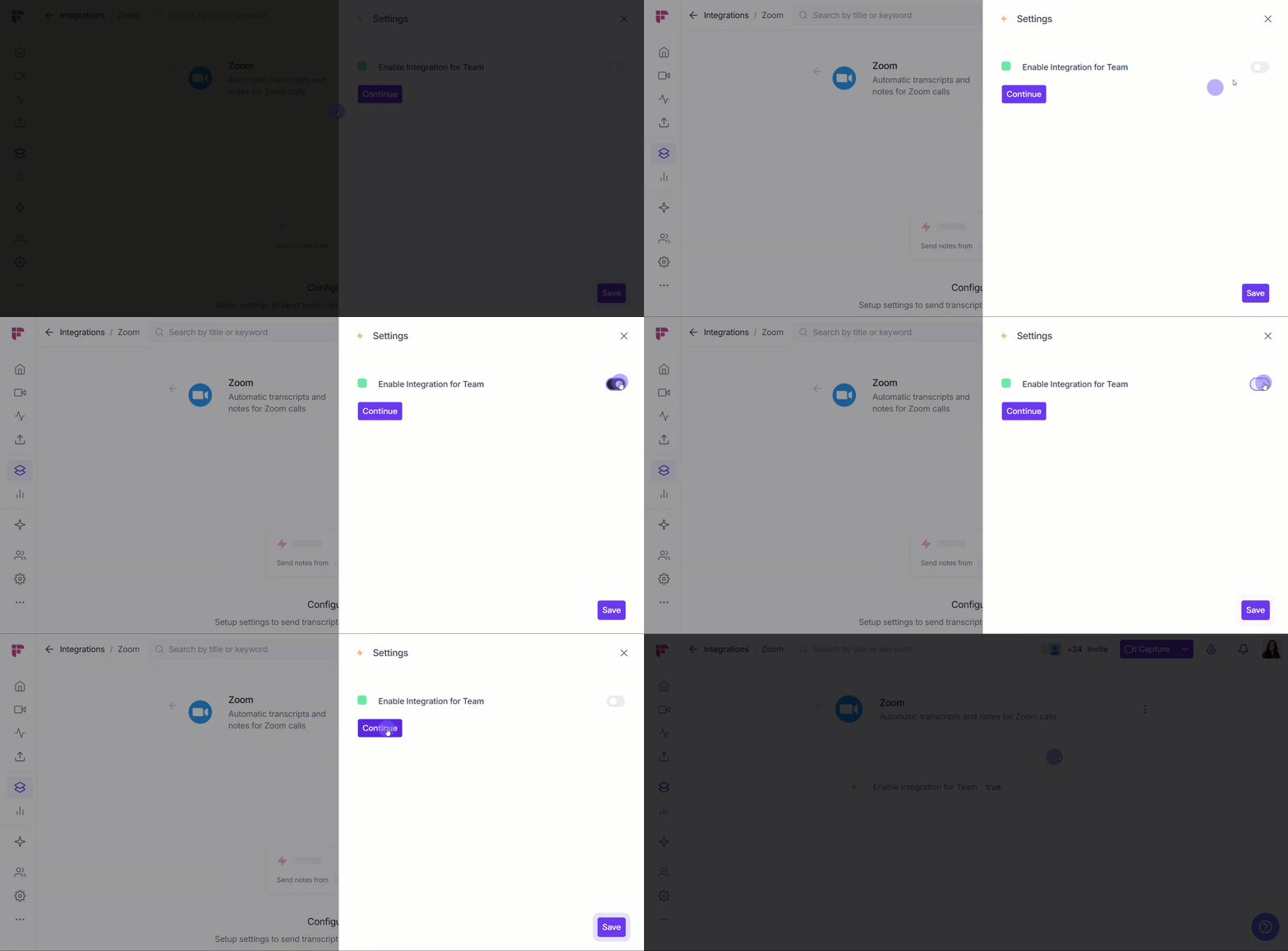
Step 2: Complete Setup
Click Save to confirm your new configuration settings.
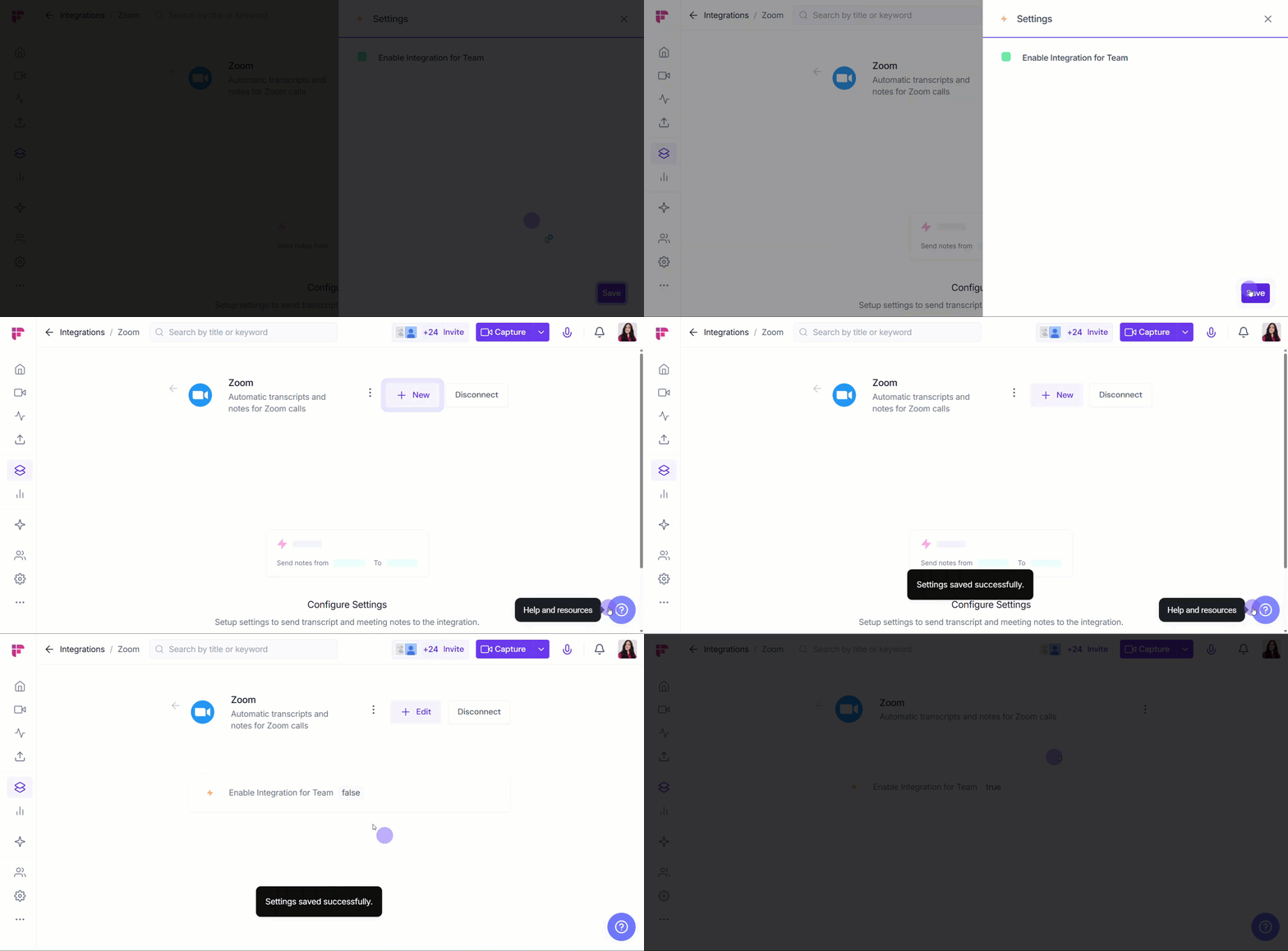
🛠 Manage Configuration
You can click + Edit to return to the Zoom integration page at any time to update your settings.
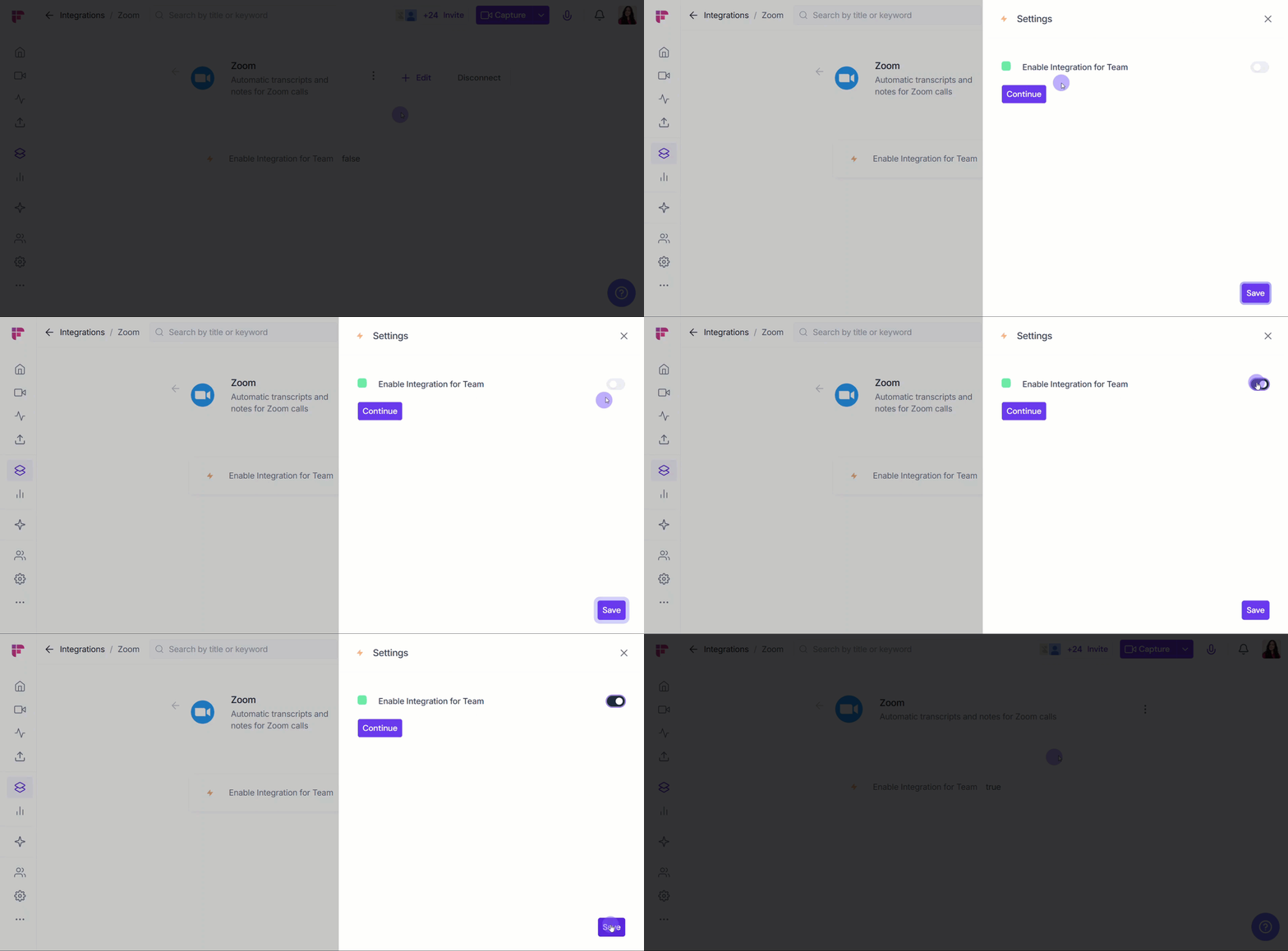
⚙ Set Up Zoom Configuration
For Fireflies to join your meetings and avoid security blocks, you'll need to adjust specific settings within your Zoom account dashboard.
Important: This setting is available for admins only.
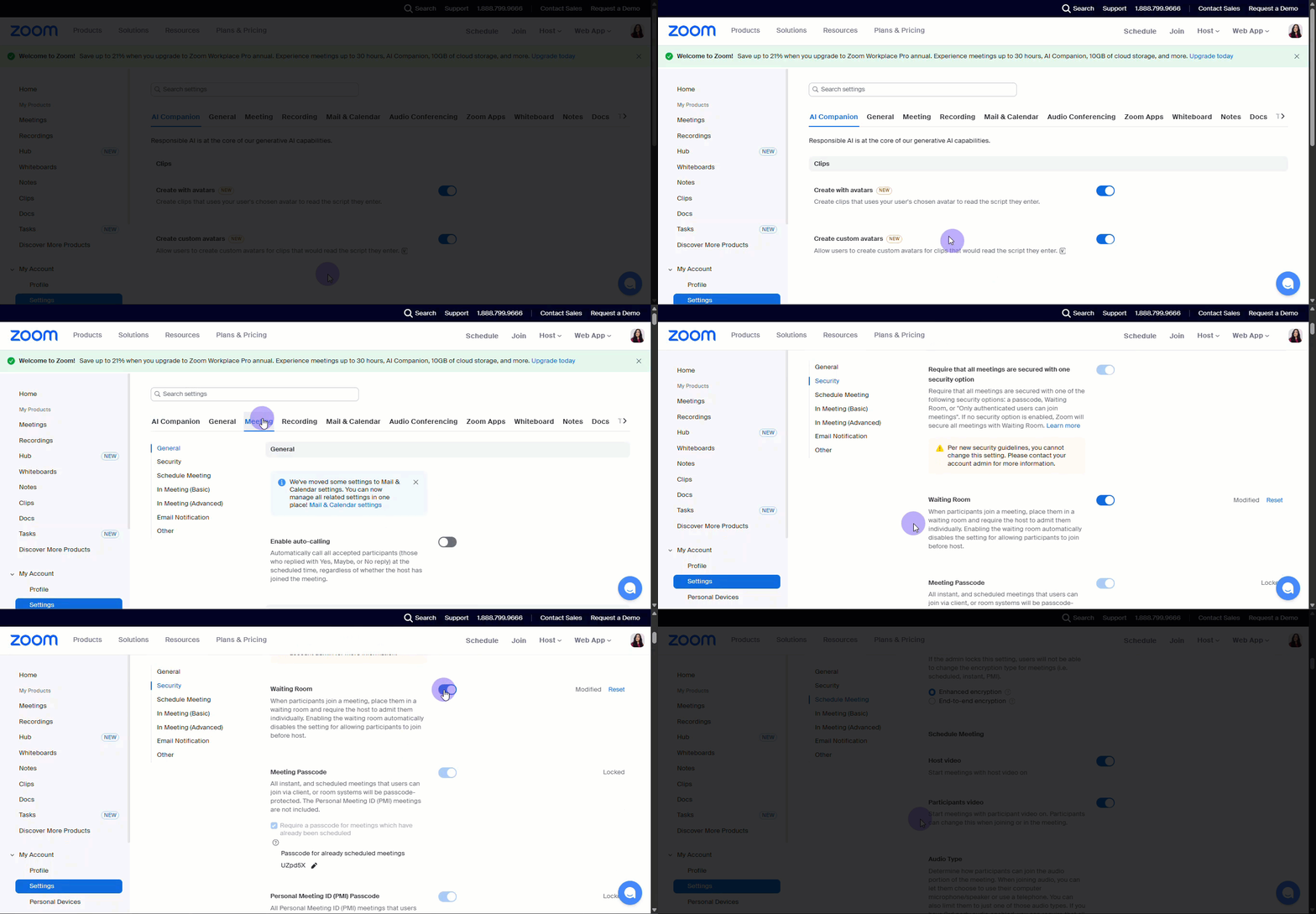
Step 1: Locate the Security Options
Go to Zoom’s settings page > Meeting tab > Security options.

Step 2: Turn off the Waiting Room
This allows Fireflies to join the meeting immediately without needing you or the host to manually approve it.
Step 3: Allow Guest Users
Turn off Only authenticated users can join from Web client. This allows Fireflies to join your meeting as a guest (an unauthenticated user).
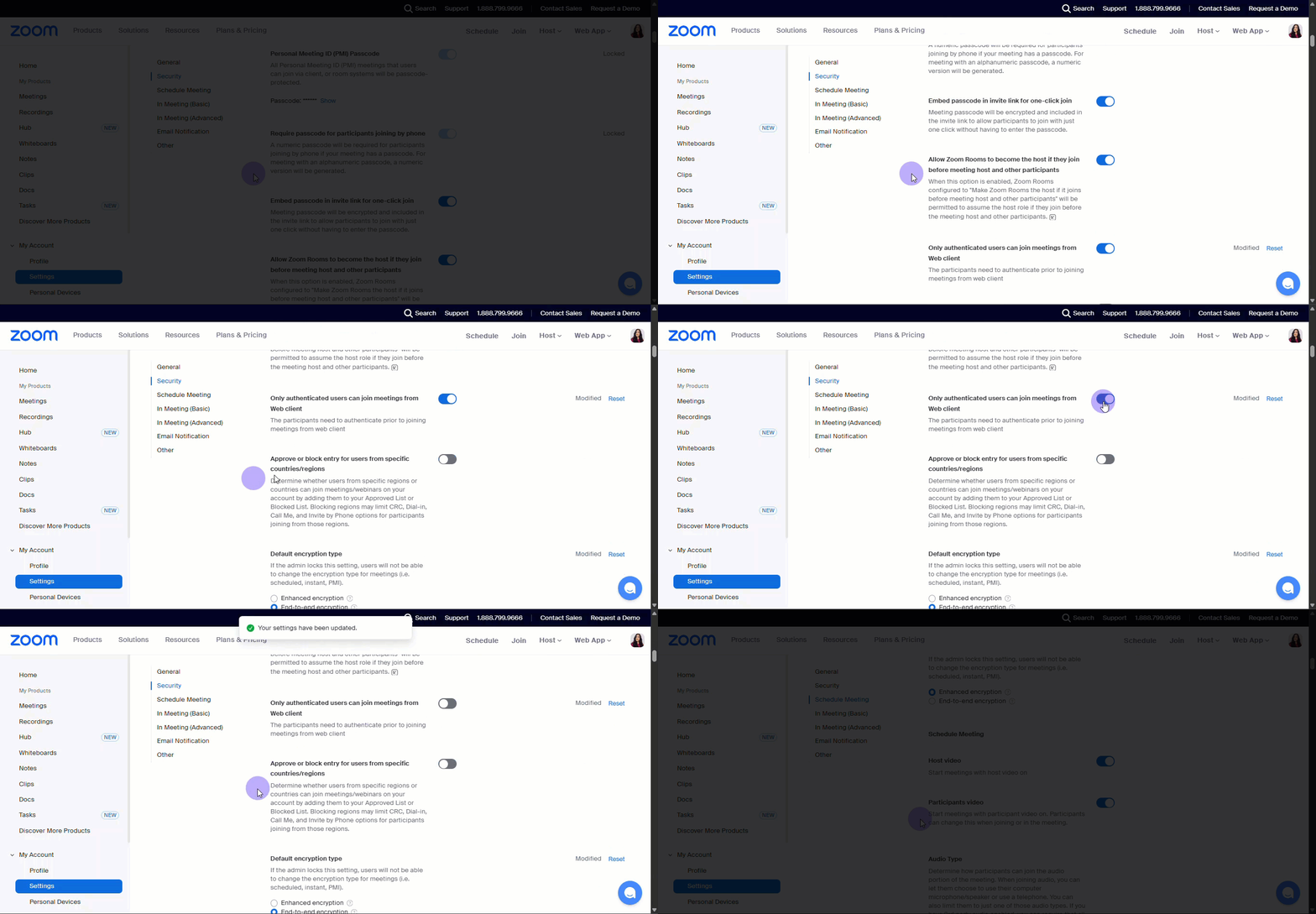
Step 4: Confirm Encryption
In Default encryption type, select Enhanced encryption. End-to-end encryption prevents any third-party service, including Fireflies, from accessing the meeting audio to record and transcribe.
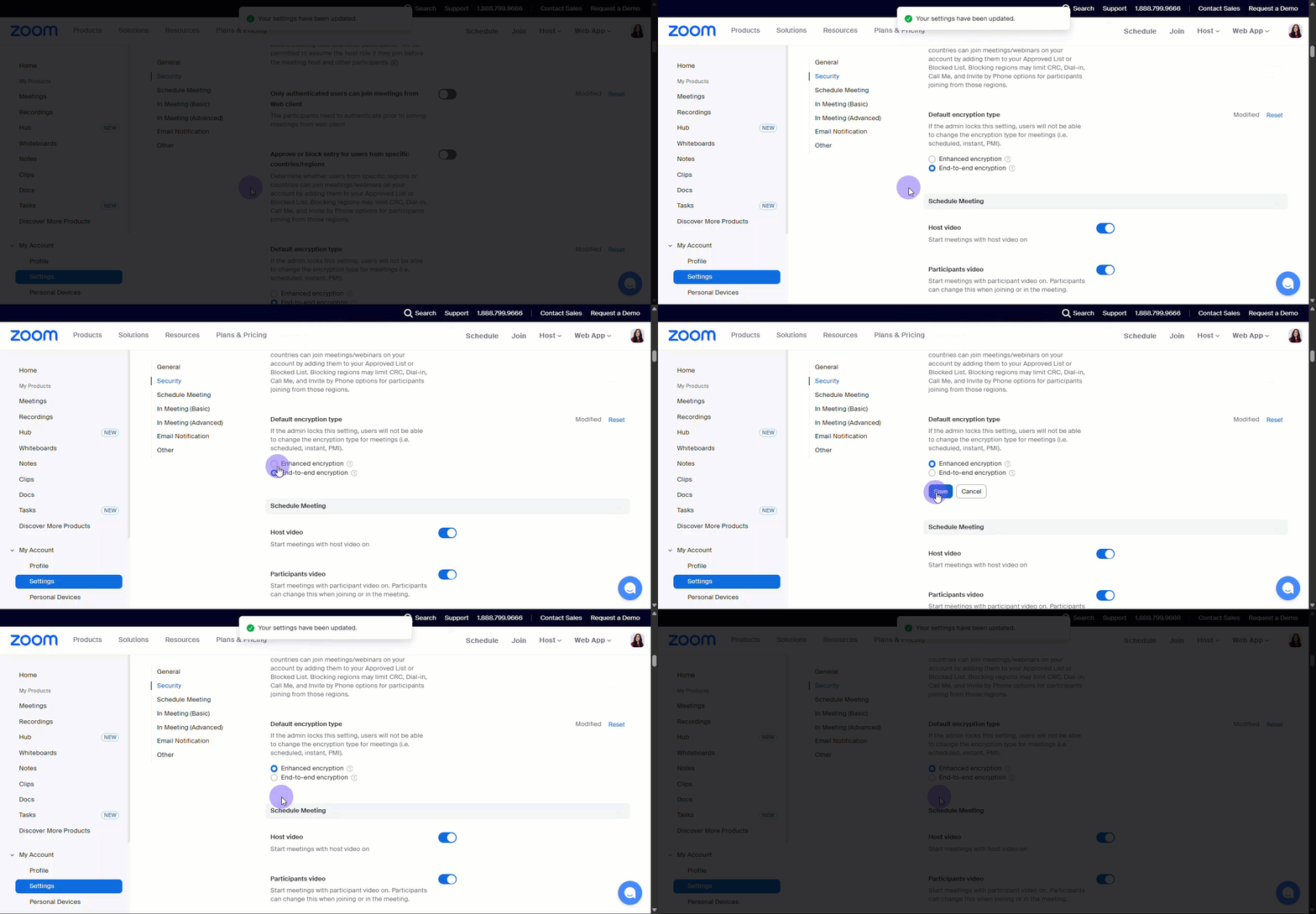
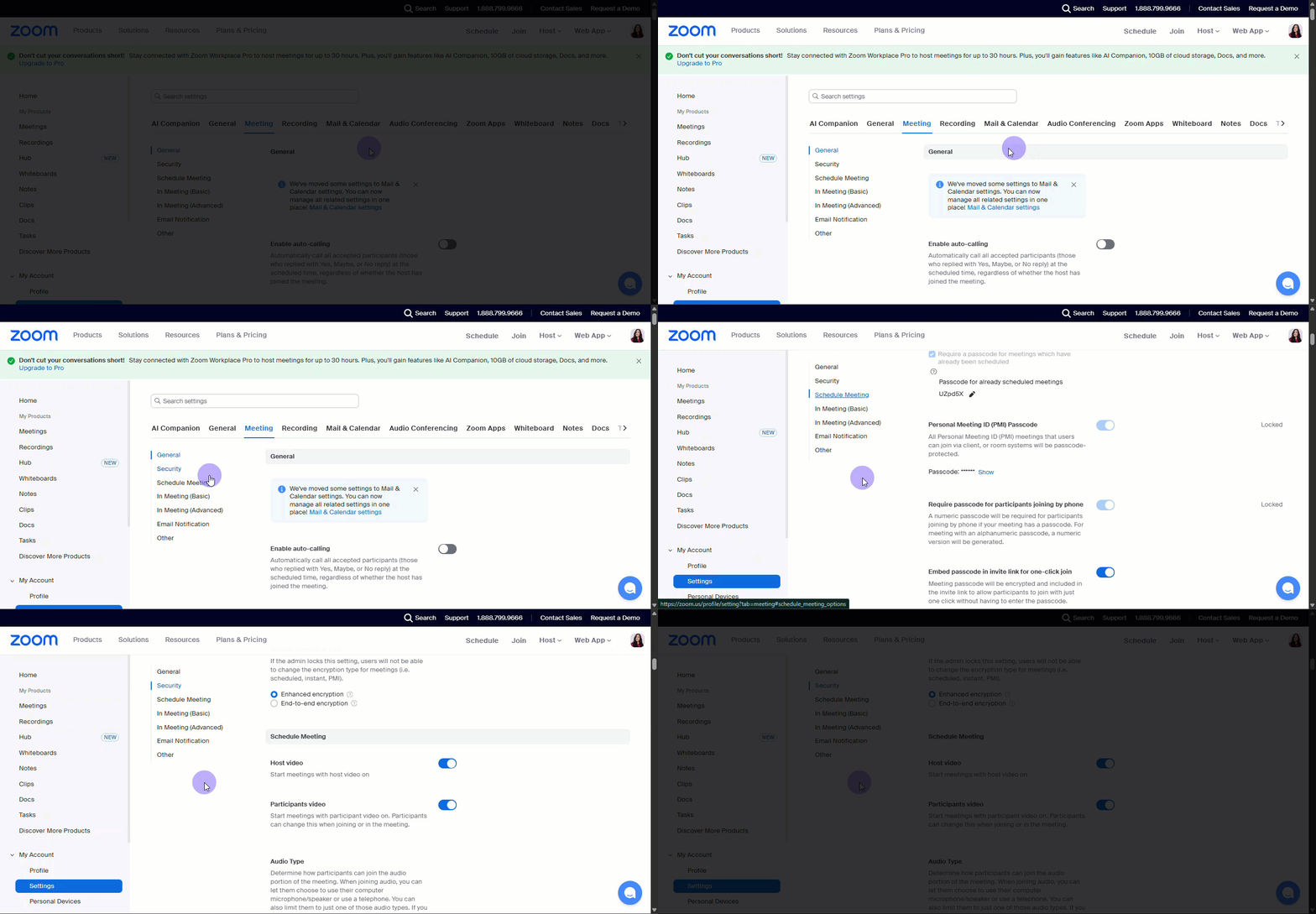
Step 5: Set up Schedule Meeting Options
Go to the Schedule Meeting options.
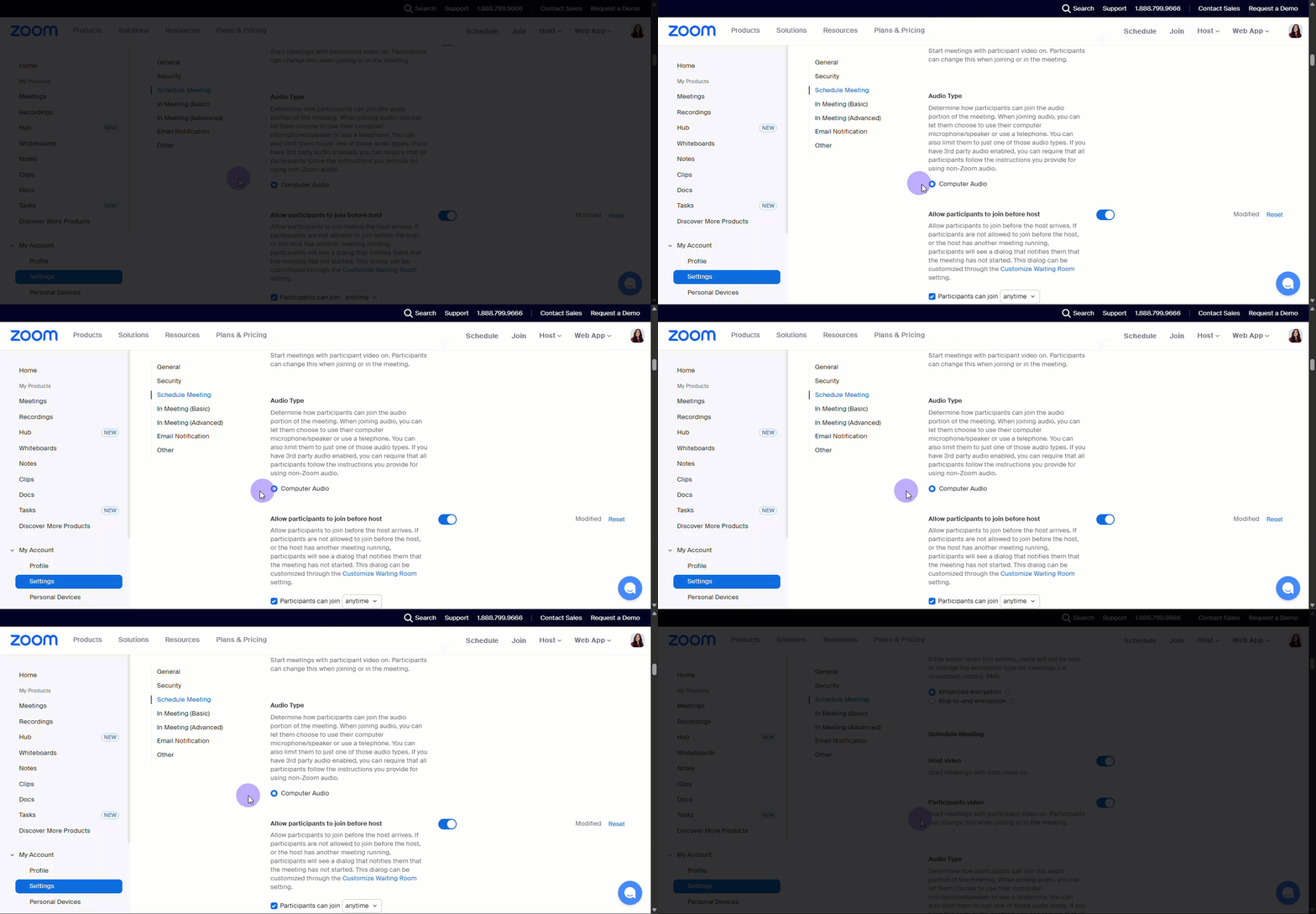
Step 6: Select Audio Type
In Audio Type, select Computer audio. Fireflies needs to access the computer audio feed to capture the conversation.
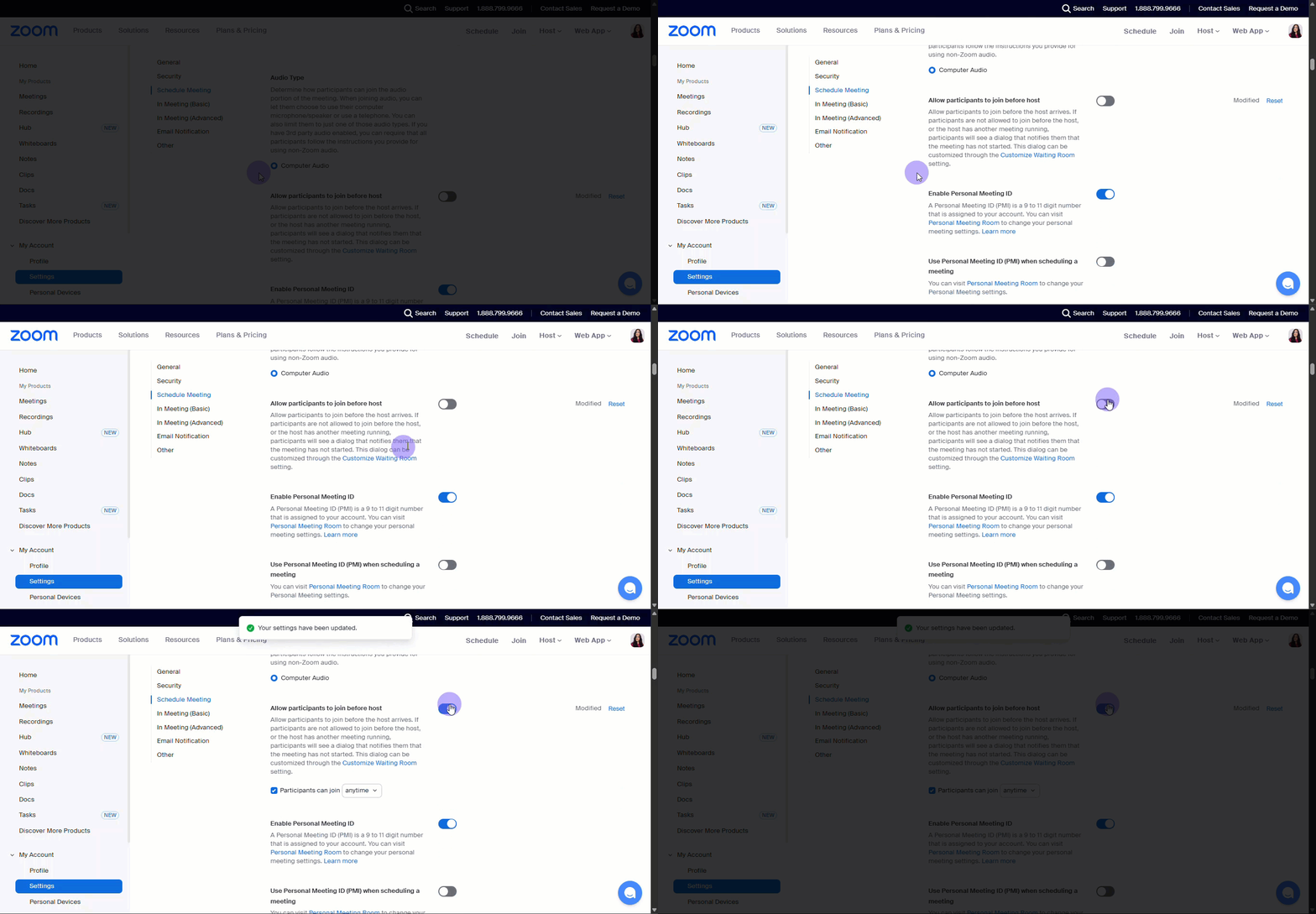
Step 7: Allow Early Join
Enable Allow participants to join before host. This guarantees that Fireflies doesn't miss the first few minutes of the conversation if it joins before you do.
See Changing user-level settings to learn more about Zoom settings.
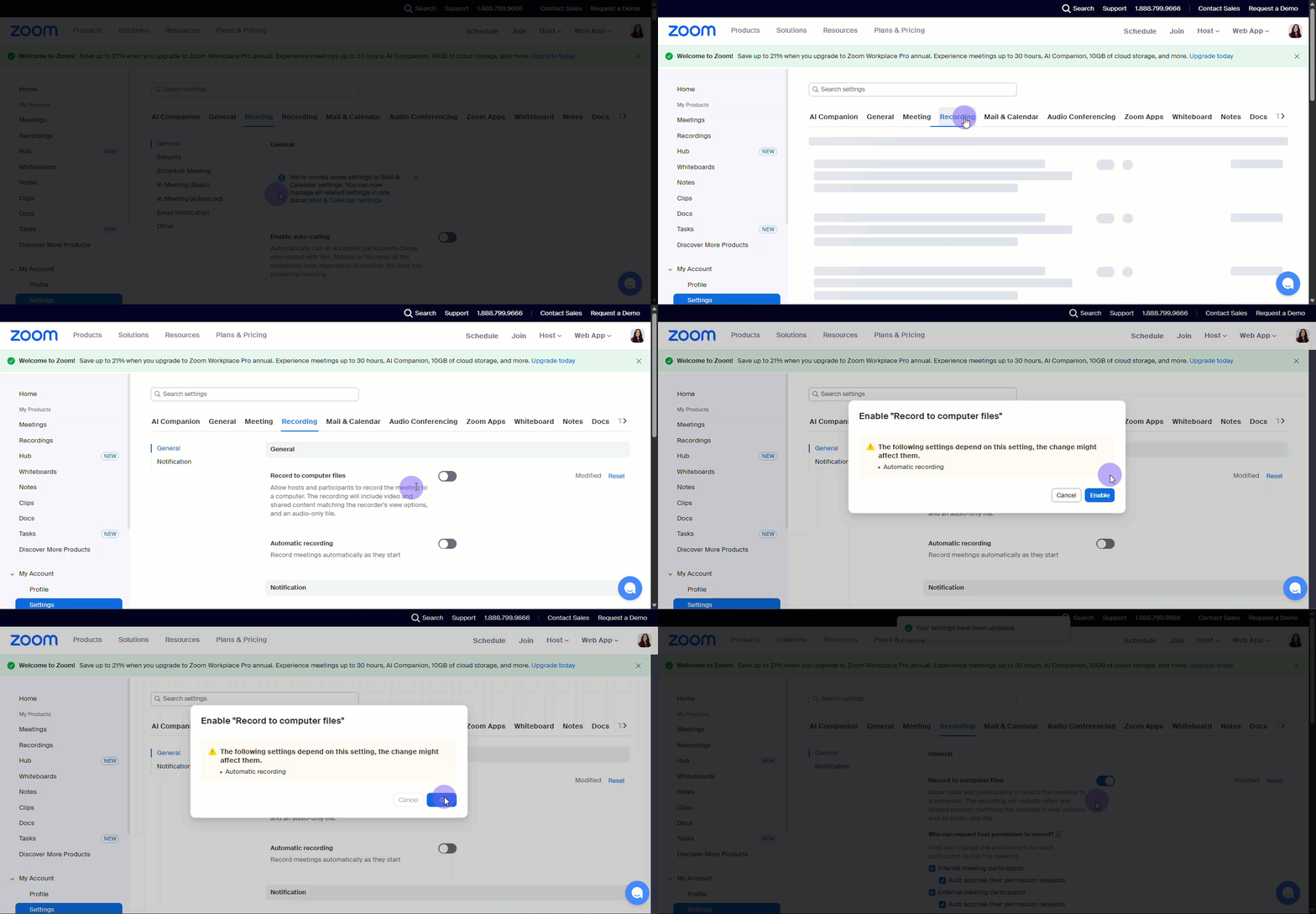
Step 8: Enable Local Recording
Go to the Recording tab and enable Record to computer files. This grants recording permissions for Fireflies to function correctly.
⚙ How Fireflies Joins Your Zoom Meetings
Let's break down exactly what happens when Fireflies is invited to your Zoom calls and if your Zoom is integrated. It's super simple, whether you're the one hosting or just attending!
See How to invite Fireflies to meetings to learn more.
When You Host the Meeting
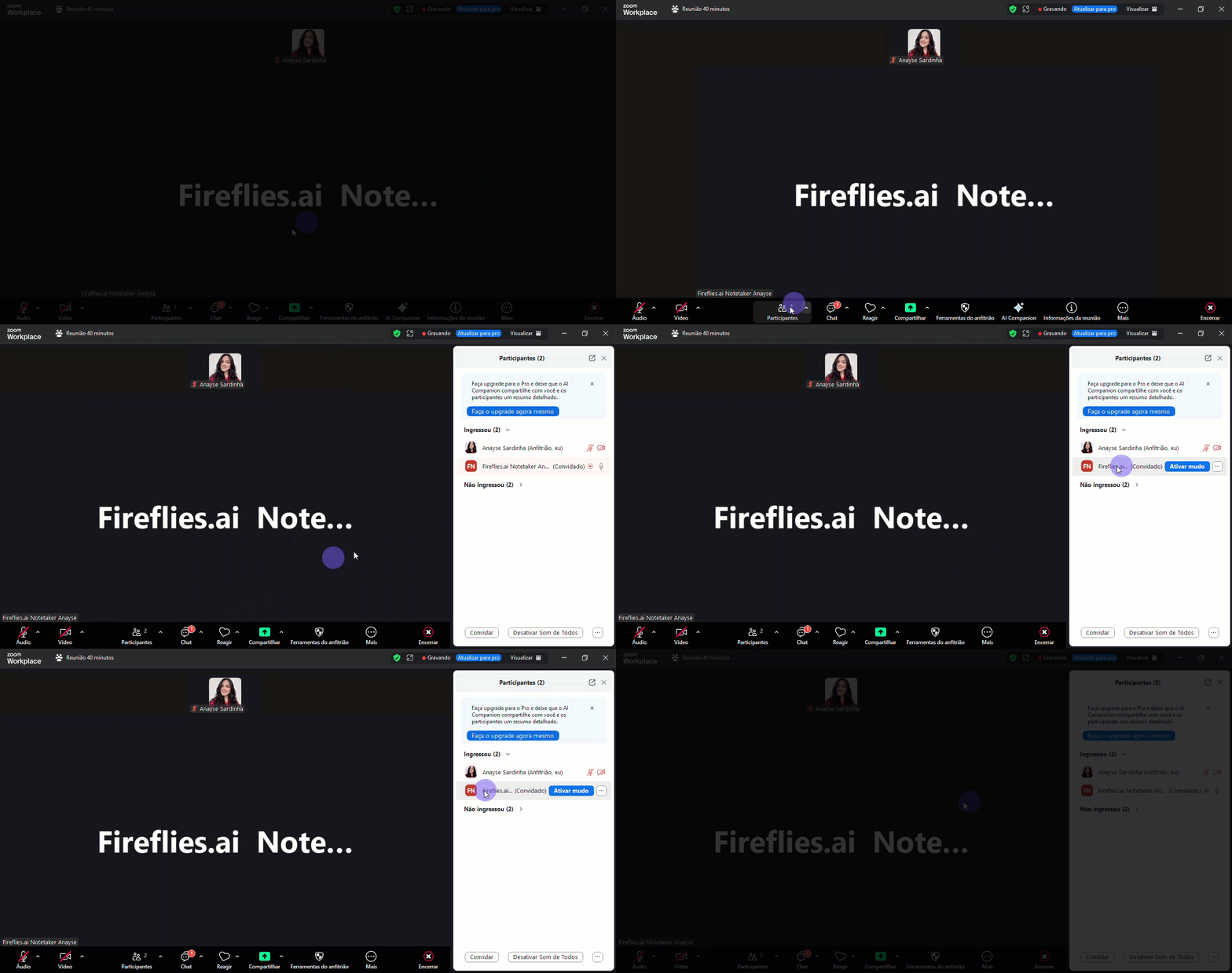
Since your Fireflies account is connected to Zoom, we've made the join process completely seamless for you. You don't have to lift a finger!
You start your Zoom meeting.
Fireflies joins automatically as a participant — no manual invitation needed.
The recording begins instantly and seamlessly.
Everyone sees the This meeting is being recorded notification, so they're fully in the loop.
You'll get the full transcript and notes delivered right to your inbox after the meeting ends. Easy peasy!
When Someone Else Hosts the Meeting
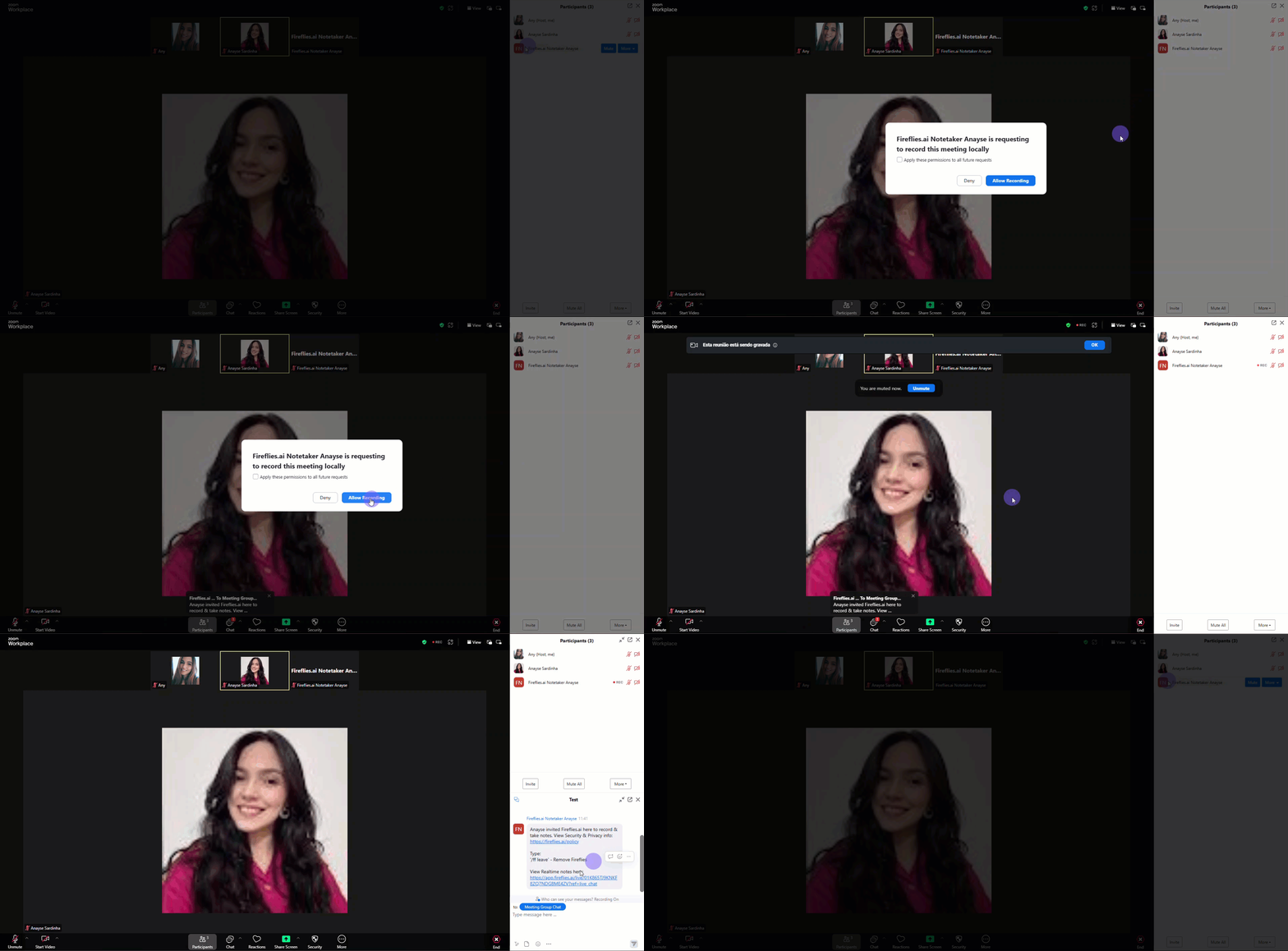
If you're attending a meeting hosted by someone who isn't a Fireflies user, we just need a quick thumbs-up from them.
Fireflies will join the meeting as the participant.
The host will see a simple prompt asking for permission to record, which reads: Fred is requesting to record.
The host just needs to click Allow when they see that prompt to kick off the recording.
Once they click Allow, the meeting gets recorded and transcribed, and you’ll get your notes!
To make sure things run perfectly smooth, it’s always a good idea to let external hosts know ahead of time that Fireflies will be joining the call!
📤 What Happens After the Meeting Ends?
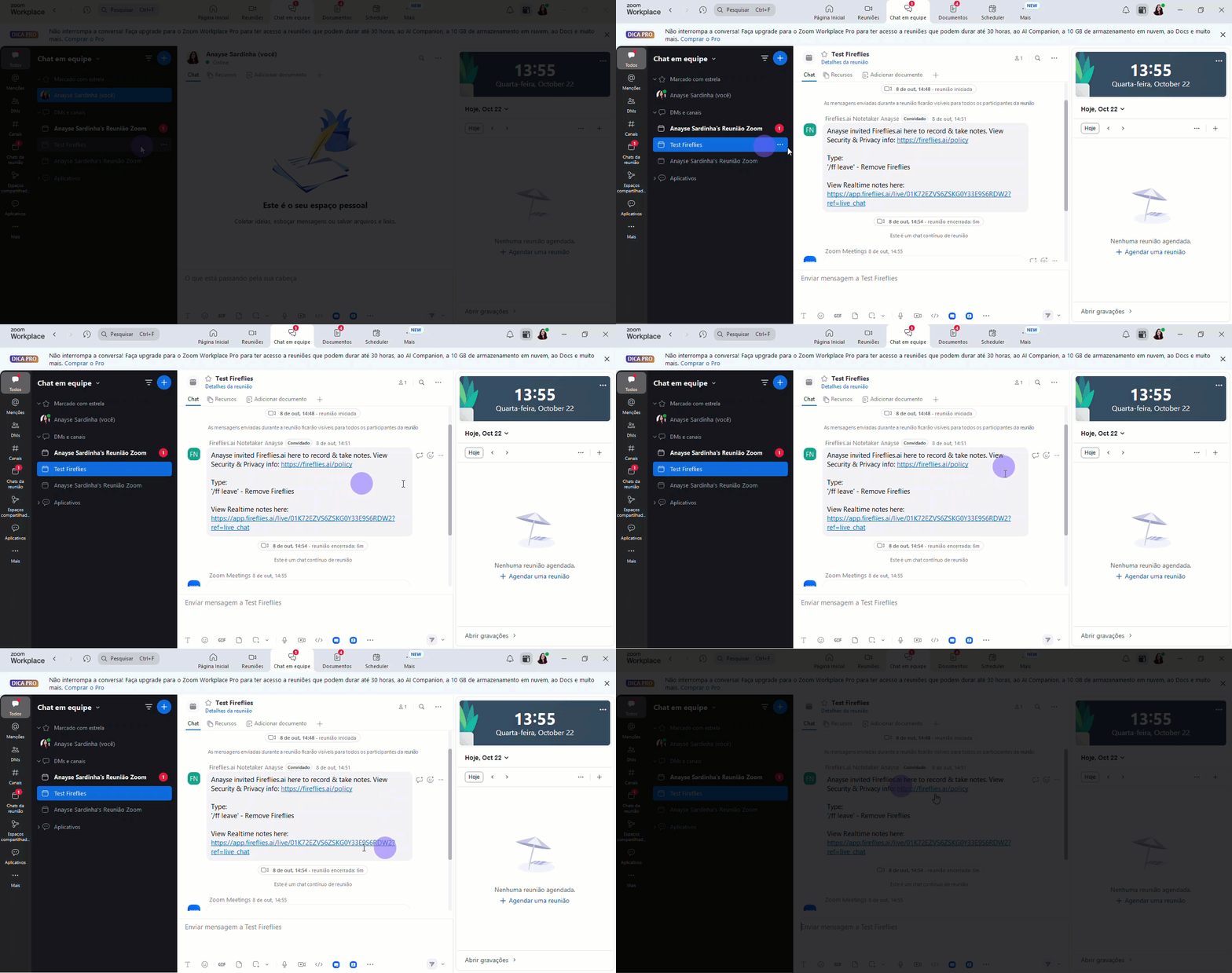
Once Fireflies has successfully joined and processed your voice call, you don't have to chase down the notes!
Fireflies will automatically post the results right into your meeting chat. Think of it as Fred, your meeting AI assistant, delivering a neat summary card straight to you. This makes the meeting record central and instantly searchable for the whole team.
If you are not the meeting owner, Fireflies will request permission to enter. If the host declines the request, Fireflies will not record that meeting.
❌ Disconnect Integration
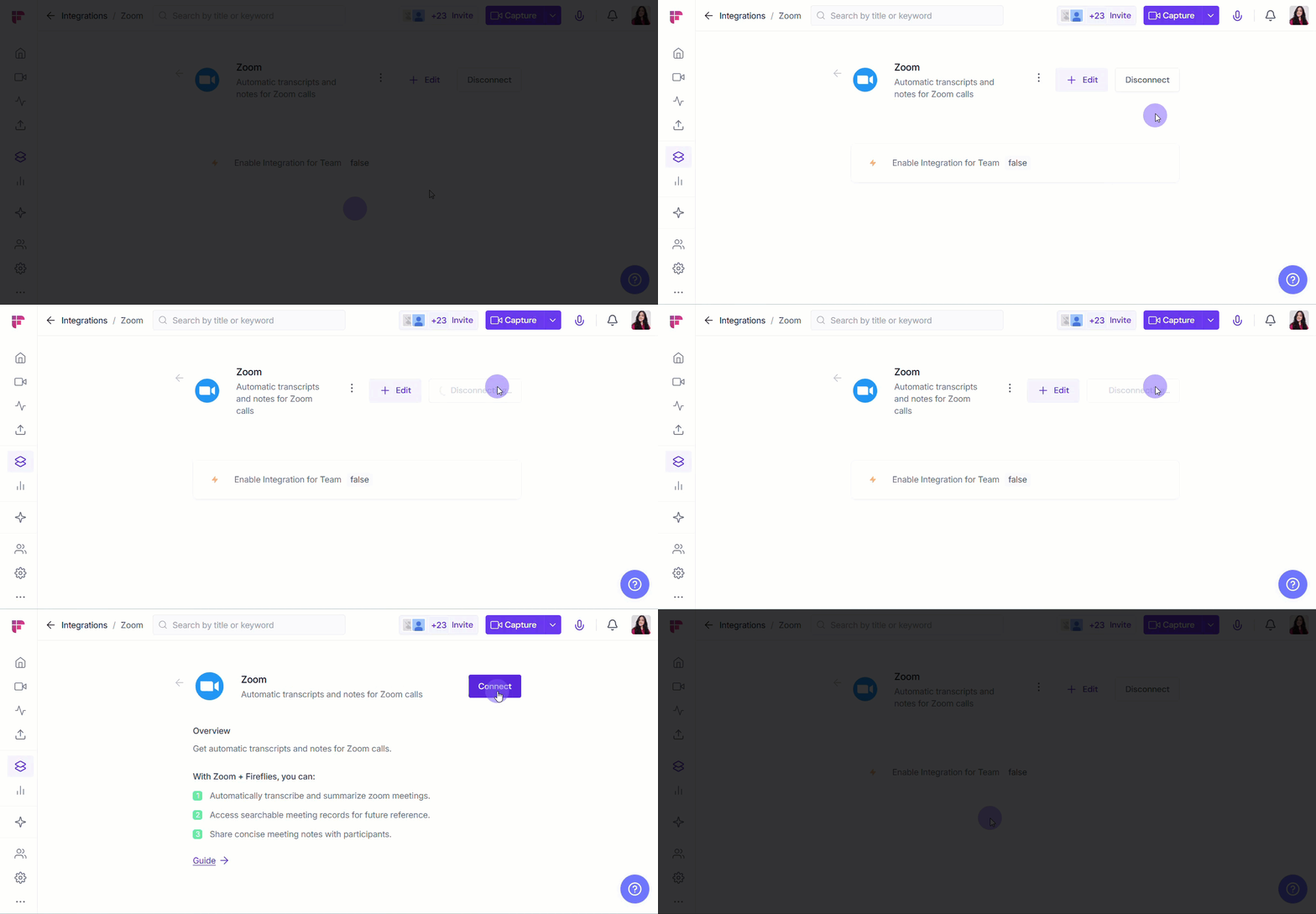
If you no longer need Fireflies connected to Zoom, click the Disconnect button to immediately end the connection.
Once disconnected, Fireflies will stop sending data to Zoom. You can always reconnect later if needed.
🛠 Troubleshooting - Fireflies didn't join my meeting
1. Confirm the meeting status and troubleshoot accordingly
For a full walkthrough on checking your meeting status and troubleshooting, see Why Fred did not join your meeting: Troubleshooting guide.
2. Adjust Your Platform's Security Settings
Fred joins as a participant, so strict security features on your platform (like Zoom) are the most common cause of a missed meeting.
To check these settings, see How to invite Fireflies to Zoom meetings (and set up Zoom settings beforehand).
3. Verify the Link and Password
Fred needs a clear, open link to join the meeting.
Missing Link: Always confirm that the calendar invite contains a full, functional web-conference link (Zoom, Google Meet, etc.). Fred cannot join a meeting without one.
Meeting Passwords: If your meeting uses a password, it must be embedded in the meeting link to allow Fred automatic access.
If your meeting requires a password, follow this dedicated guide: How do I invite Fireflies to Zoom meetings that have Passwords
If all else fails, you can always manually invite Fireflies by adding fred@fireflies.ai to the meeting invite.
Tip: For a deeper understanding of how the whole process works, review the following guides:
❓ Frequently Asked Questions (FAQ)
Still have a few questions? We've got you covered.
Q1. Can the recording announcement be disabled?
This flow is mandatory per Zoom's security and privacy standards, and Fireflies adheres to these rules.
Zoom Enterprise, API, Education, or Business accounts (with 100+ licenses) may have admin options to disable the disclaimer for internal participants only.
Refer to Modifying recording notification prompts from Zoom to learn more about recording notifications.
Q2. Will Fireflies join if I am not the host?
If you are a participant, a request will be sent to the host asking for permission to join the meeting. If the host declines the request, Fireflies will not record that meeting.
Q3. Can I enable the integration for my entire team?
Yes. If you are a workspace admin, you can enable the Zoom integration for your entire team by toggling on the Enable Integration for Team option in your Fireflies integration settings.
🔄 Recap
You've successfully connected Zoom to Fireflies and configured your settings. Now, Fireflies will automatically join and transcribe all your hosted meetings, delivering notes straight to your inbox and Fireflies Notebook!
📚 Related Guides
📌 How to control autojoin and email settings for teammates → Manage how Fireflies joins calls and sends recaps for your entire workspace.
📌 How to invite Fireflies to meetings → Learn the different ways to invite Fireflies to record your calls.
📌 Learn about the Fireflies Auto-join and Email Recap settings → Control your personal preferences for when Fireflies joins meetings and sends summaries.
📌 Manually Send Fireflies Tasks to Project Management Tools → Choose exactly which tasks to push and where, giving you full control over your project boards.