How to Use the Fireflies Surface App for Zoom
Last updated: October 13, 2026
Want to bring Fireflies into a Zoom meeting without opening your Fireflies dashboard? With the Fireflies Surface App, you can invite Fred directly from within a live Zoom meeting.
Once you've installed the app, you can open it from Zoom, connect your Fireflies account, and invite Fred to join your meeting.
🔑 Prerequisites
Before getting started, make sure you have:
A Zoom account with access to the Zoom App Marketplace.
🔗 Add and Use the Fireflies Surface App
Step 1: Start or join a Zoom meeting.
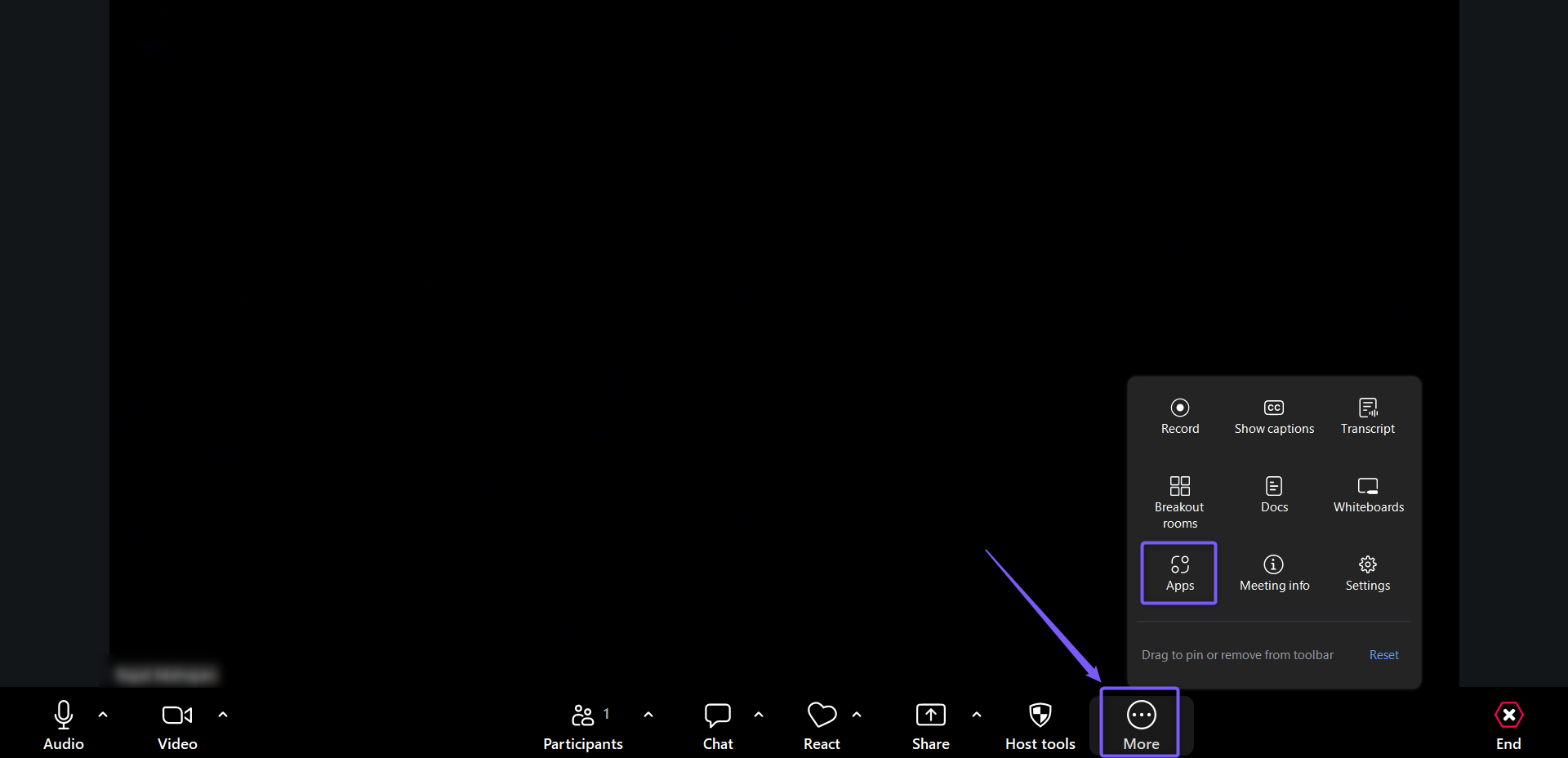
Step 2: Click More in the Zoom meeting toolbar, then select Apps to open the Zoom App Marketplace.
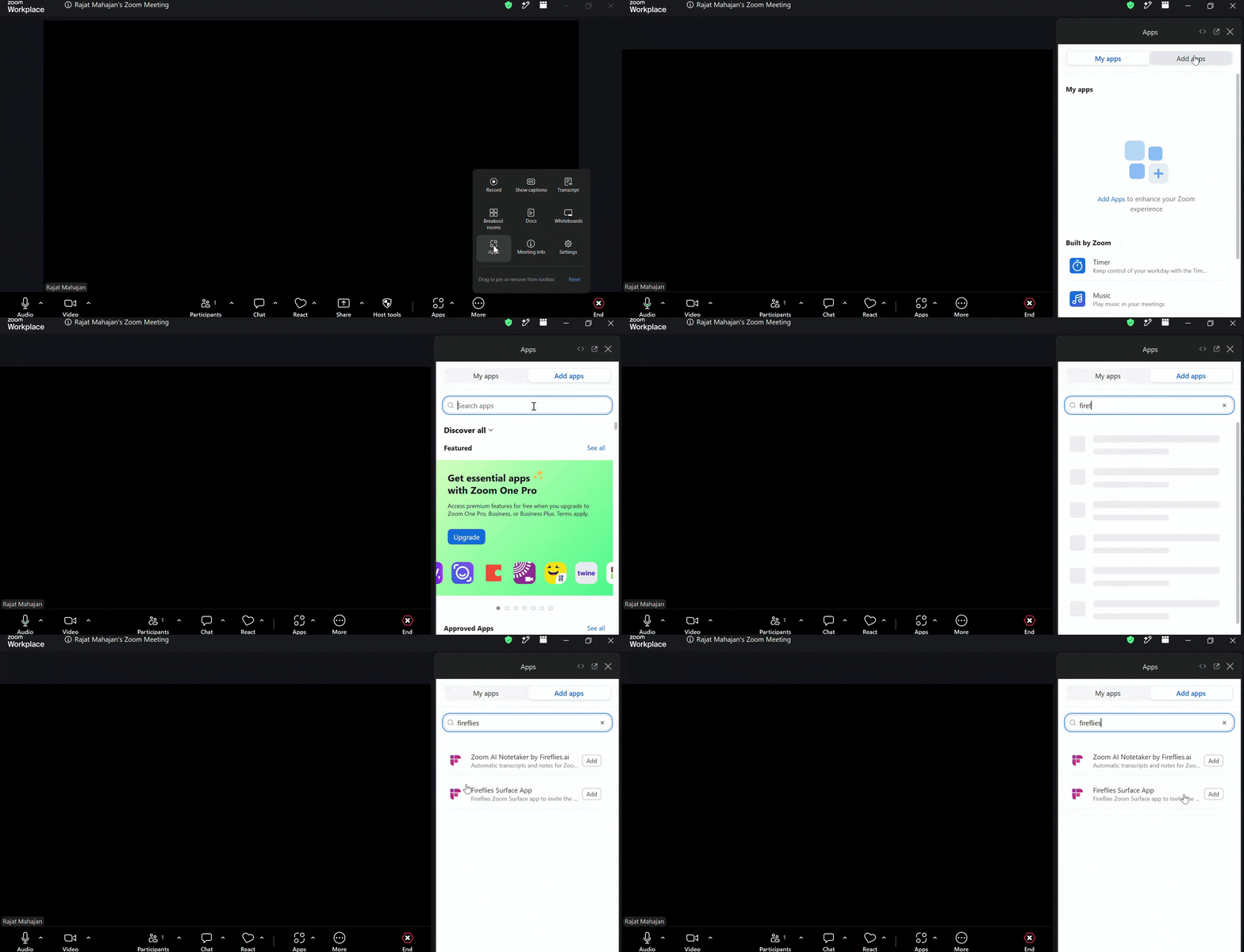
Step 3: Switch to the Add Apps tab and search for Fireflies Surface App.
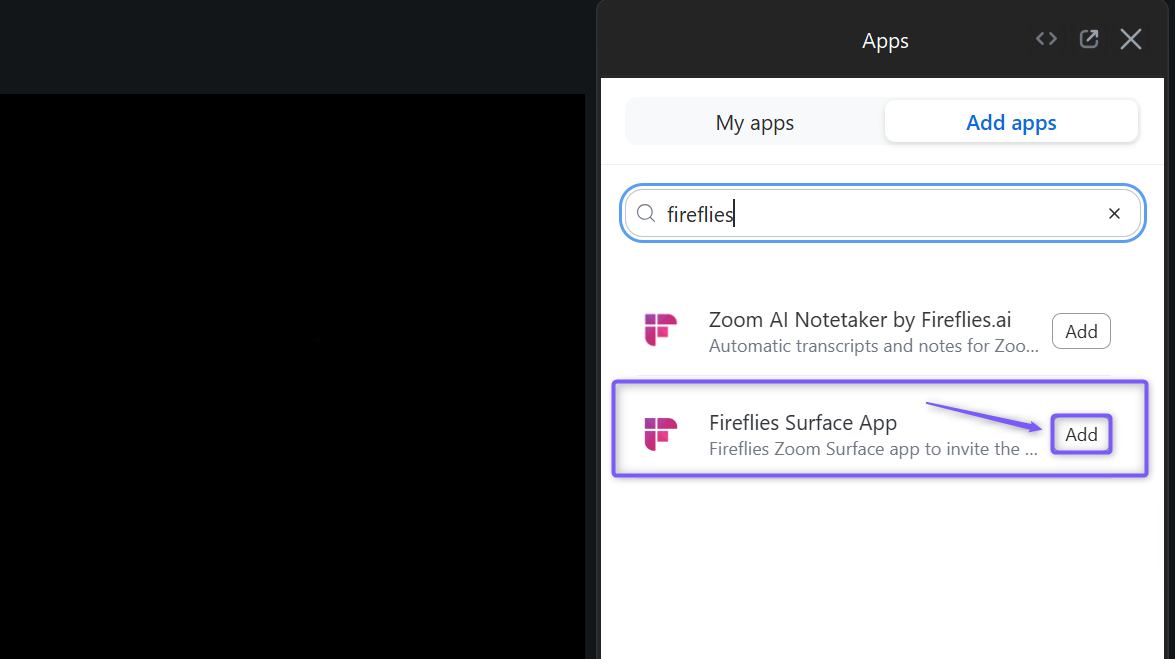
Step 4: Click Add next to the Fireflies Surface App.
Step 5: Review the app permissions and click Allow to grant the requested access.
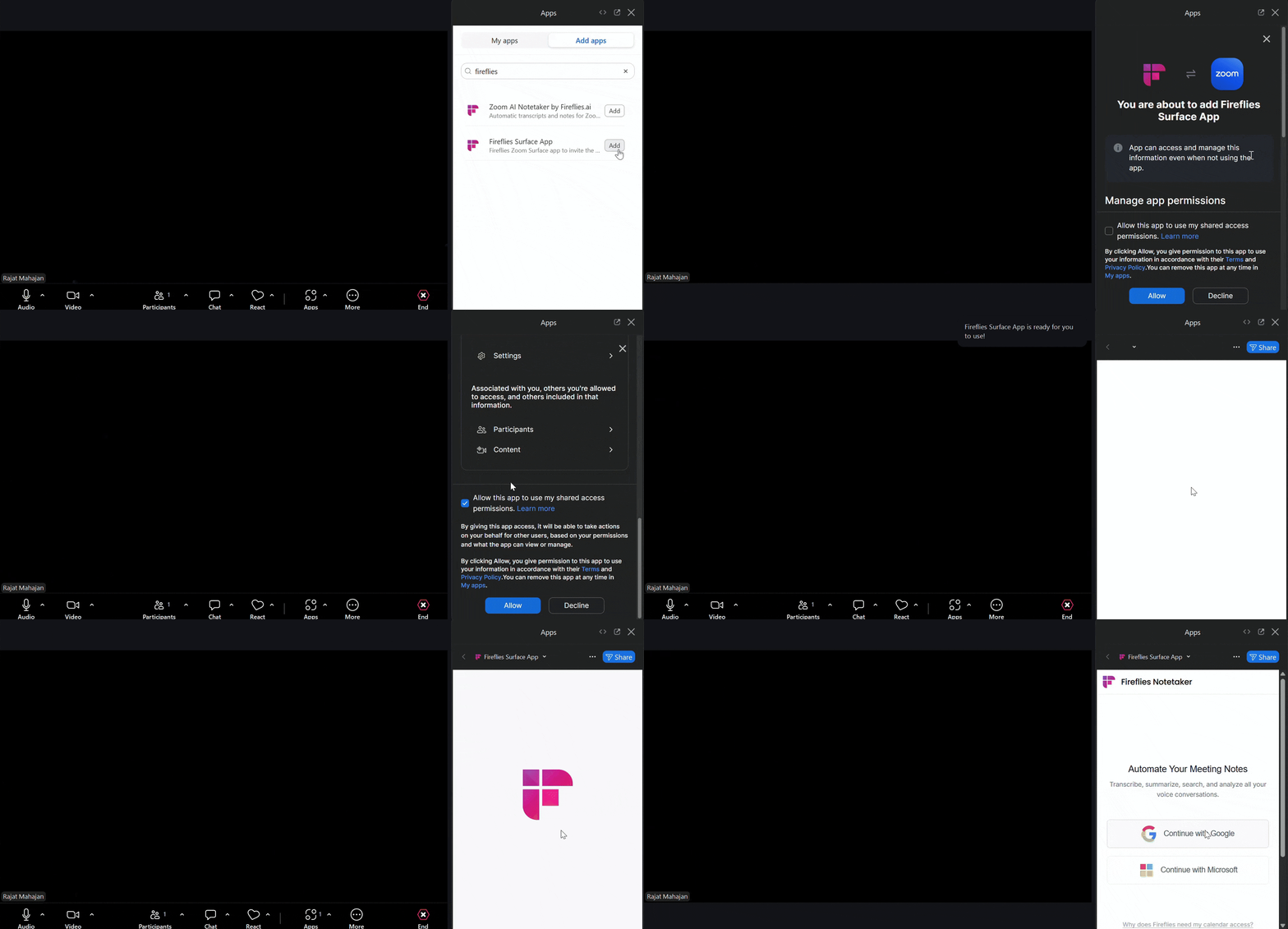
Step 6: Sign in to your Fireflies account using your Google or Microsoft account.
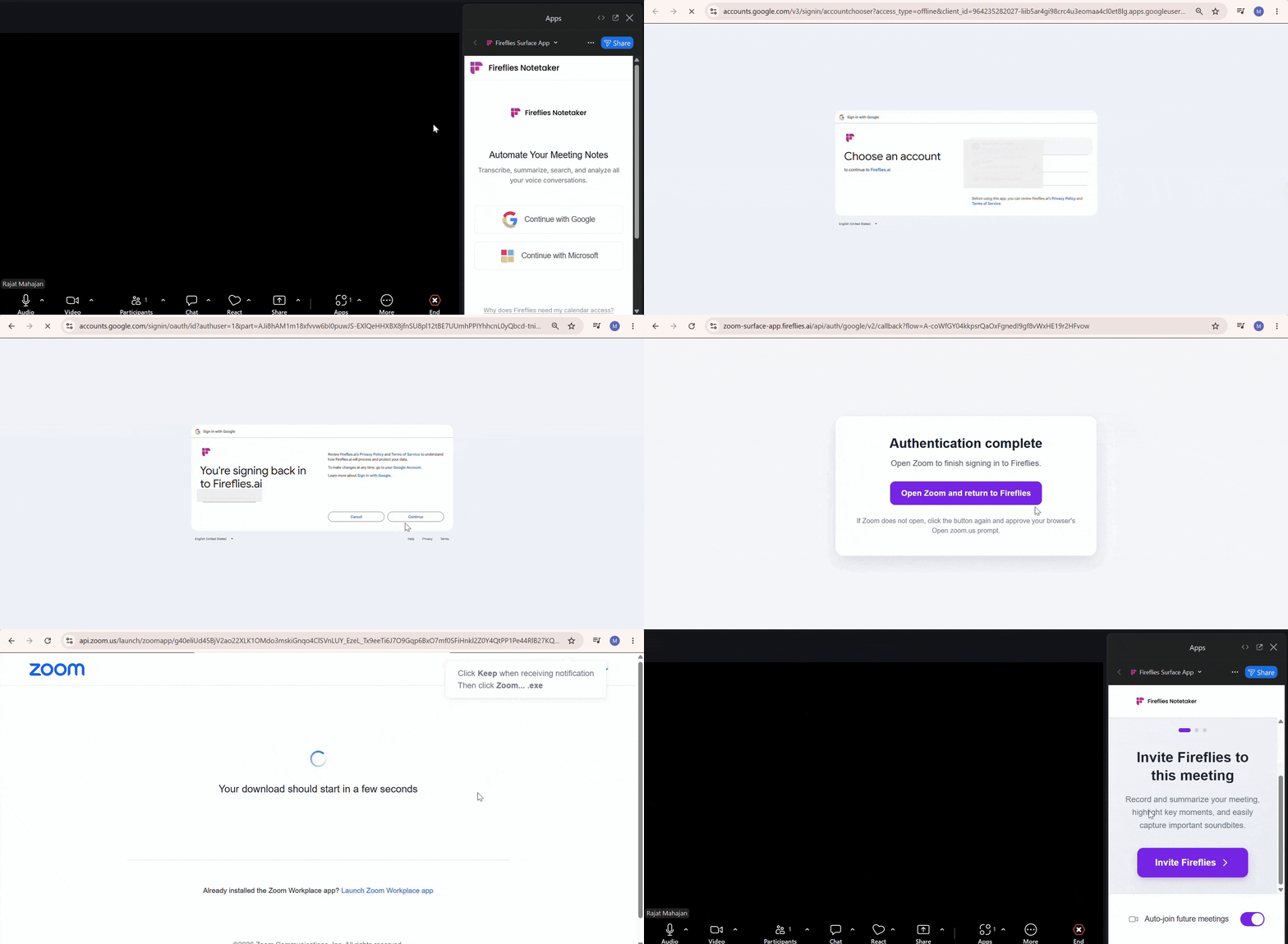
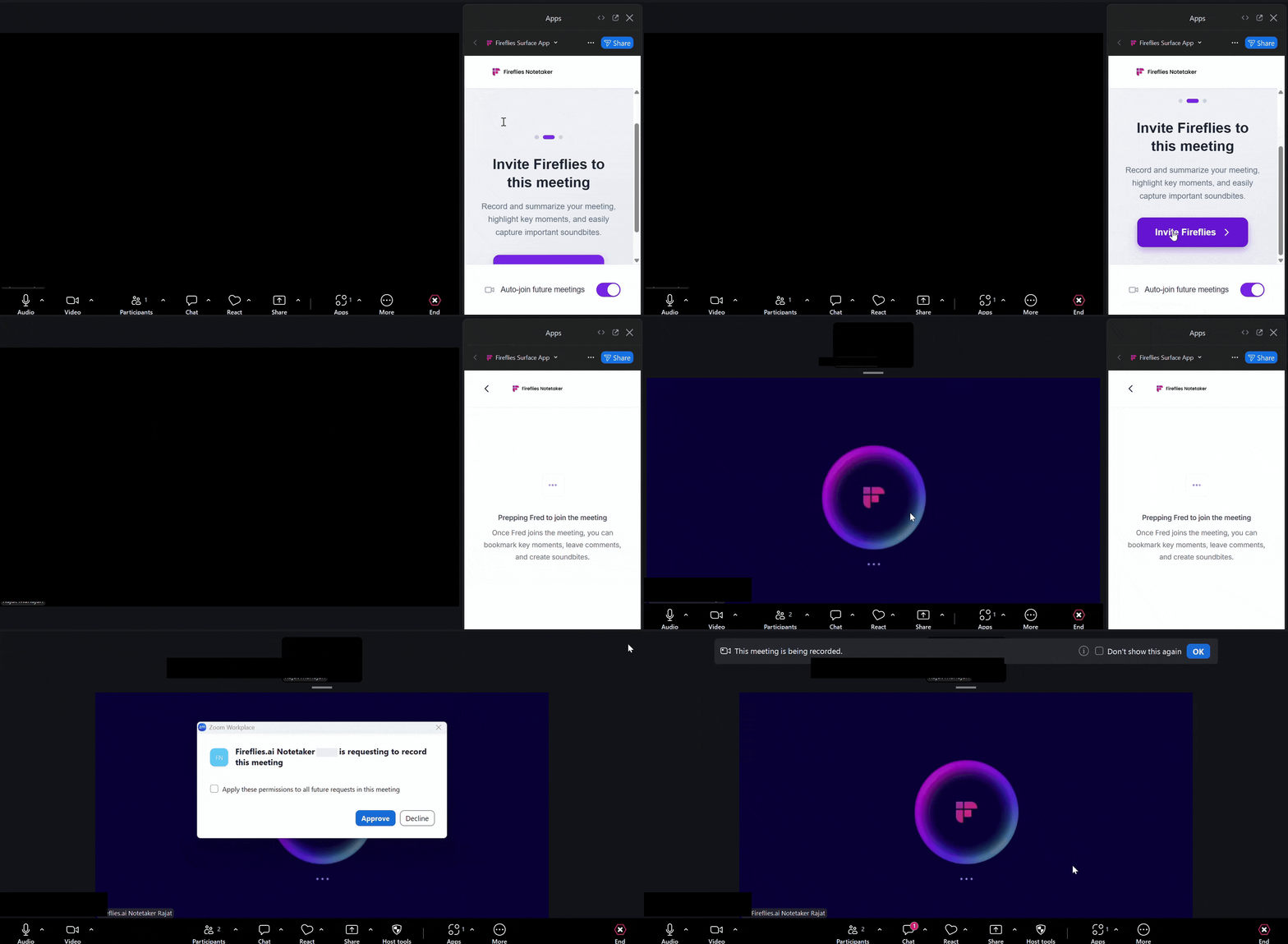
Step 7: Once signed in, open the Fireflies Surface App and click Invite Fireflies to this meeting.
💡 Tip: Keep the Auto-join future meetings toggle enabled to let Fireflies automatically join future meetings. Disable it if you don't want Fireflies to join automatically.
🛠 Troubleshooting
Issue | What to check / Do |
|---|---|
Fireflies Surface App isn't appearing | Open More → Apps in your Zoom meeting and check the My apps tab. |
Unable to sign in | Try signing in with your Google or Microsoft account. |
Fireflies isn't joining the meeting | Open the Fireflies Surface App and click Invite Fireflies to this meeting. |
Still stuck? Contact support via this link for more help.
❓ Frequently Asked Questions
Q1. Do I need to open the Fireflies dashboard to invite Fred to a Zoom meeting?
No. You can invite Fred directly from your live Zoom meeting using the Fireflies Surface App.
Q2. How is the Fireflies Surface App different from the Zoom integration?
The Fireflies Surface App lets you invite Fred directly from within a live Zoom meeting, without opening the Fireflies dashboard and selecting Add to live meeting. It provides a quicker way to bring Fireflies into your meeting.
Q3. Can I control automatic joining for future meetings?
Yes. Use the Auto-join future meetings toggle in the app.
Q4. Where can I find the Fireflies Surface App during a meeting?
Open the Apps panel in your Zoom meeting and select the Fireflies Surface App.
📘 Recap
The Fireflies Surface App lets you invite Fred directly to a live Zoom meeting without opening your Fireflies dashboard.
Invite Fred directly from within a Zoom meeting.
Connect your Fireflies account to use the app.
Manage automatic joining for future meetings using the Auto-join future meetings toggle.
📚 Related guides
Want to invite Fireflies to a meeting that's already in progress? Learn how to add Fireflies to an ongoing meeting.
Want Fireflies to join your Zoom meetings automatically? Learn how to integrate Zoom with Fireflies.
Need other ways to invite Fred to your calls? Explore how to invite Fireflies to meetings.