How to send AI Skill outputs to HubSpot
Last updated: March 17, 2026
AI Skills help you turn meeting conversations into structured insights. With Fireflies + HubSpot, you can automatically send those AI-generated insights straight into HubSpot—so important information lives exactly where your team works.
This guide shows how to push AI Skill outputs (like summaries, scorecards, or extracted insights) directly into HubSpot contact records.
🤖 What Are AI Skills?
AI Skills help you extract, format, and generate insights from meetings automatically.
Common examples include:
Interview scorecards from candidate calls
BANT(Extract Budget, Authority, Need, and Timeline ) details from sales conversations
Competitor mentions and analysis from meetings
Once set up, these insights can be sent directly into HubSpot—no copy-paste required.
📌 New to AI Skills? Start with the Getting started with AI Skills guide.
⚙ Send AI Skill Outputs to HubSpot
Step 1: Go to the AI Skills Feed
From your Fireflies home dashboard, click AI Skills in the left navigation menu.
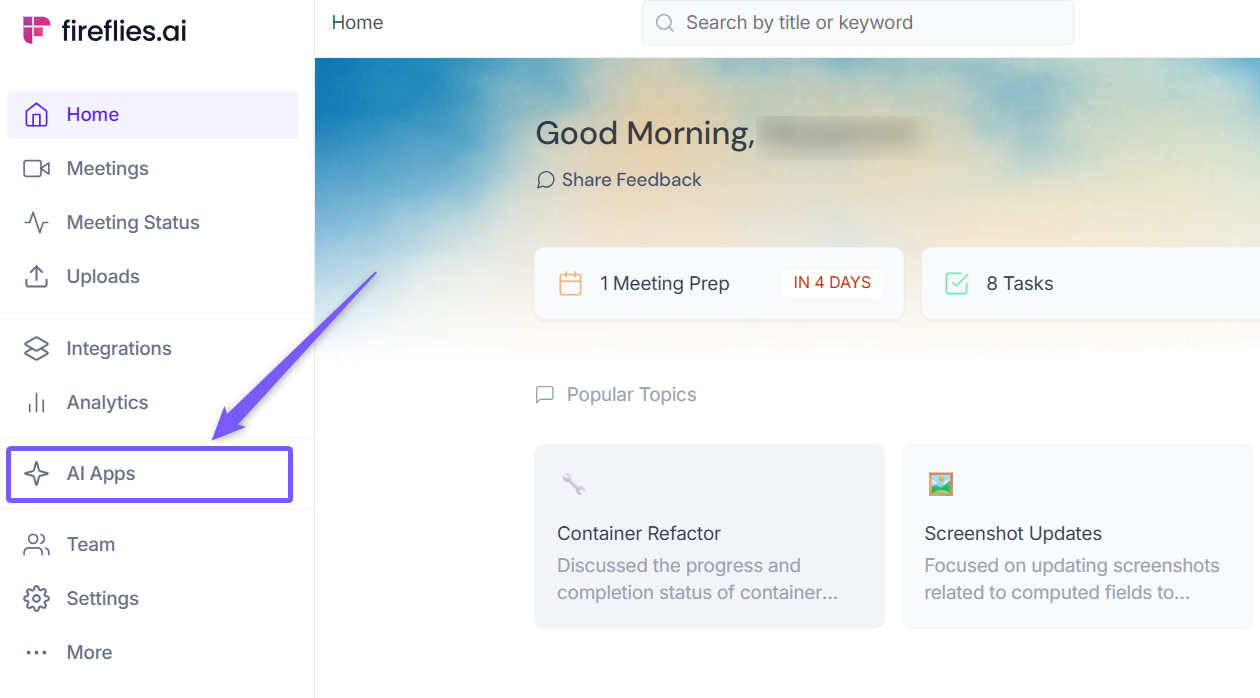
This opens the AI Skills workspace, where you can access all your skills and manage them.
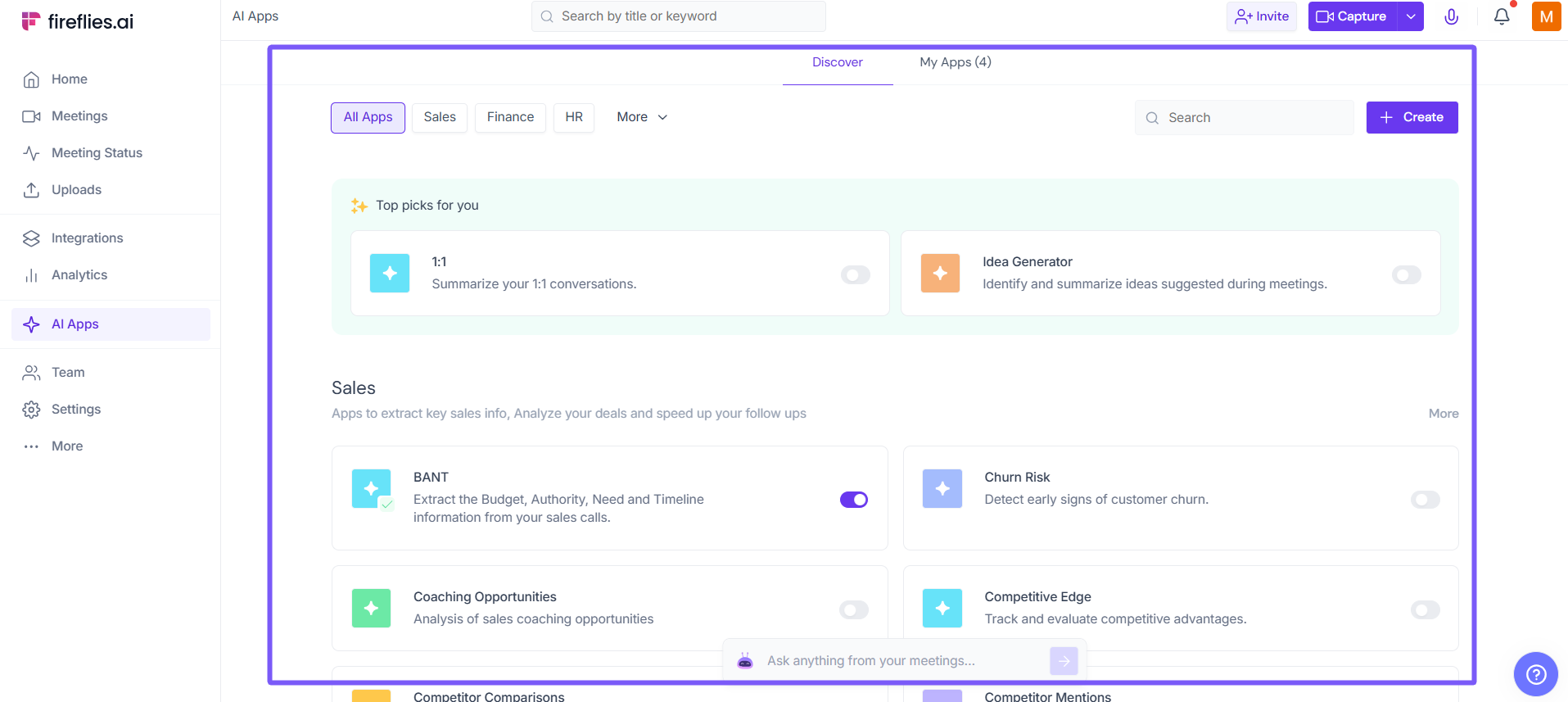
Step 2: Create or Open an Existing Skill
If you don’t have an AI Skill yet, click Create to build a new one.
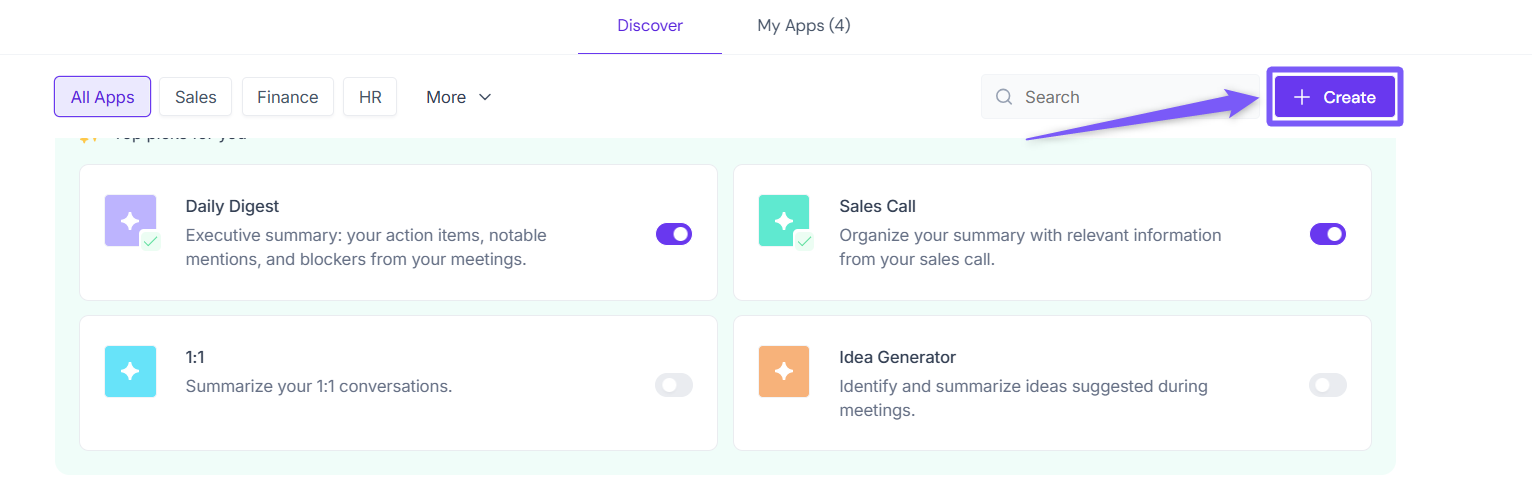
Learn more → [How to create an AI Skill from scratch].
If you already have a skill, open it from the My Skills tab and click Edit.
Choose an existing template from the Discover section and click to tailor it to your specific needs.
You can modify data processing, skill behavior, and output formats.
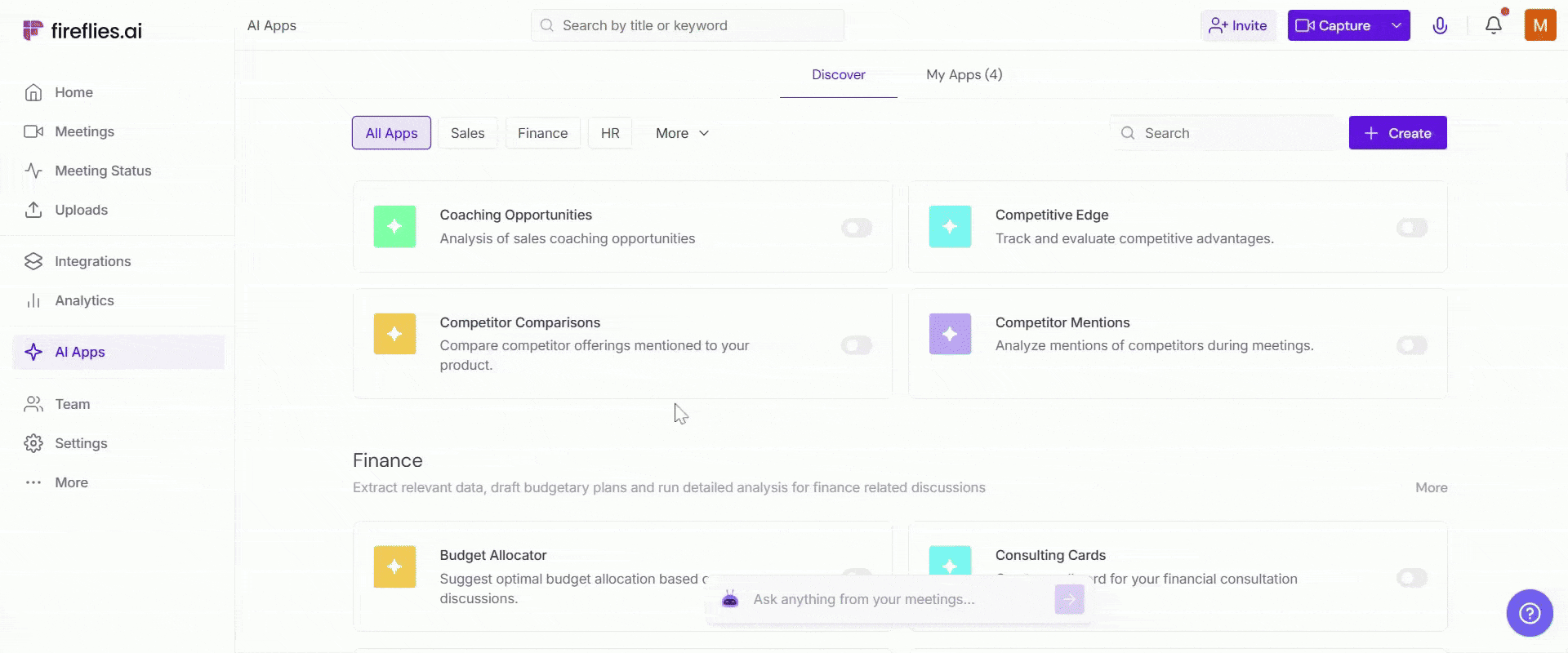
Learn more → [How to create an AI Skill from an existing template].
Step 3: Connect Your AI Skill to an Integration
Open the AI Skill you want to use from the My Skills tab (or the Discover tab if you enabled a template), then click Edit to continue.
Example:For demonstration, I chose the BANT sales AI skill.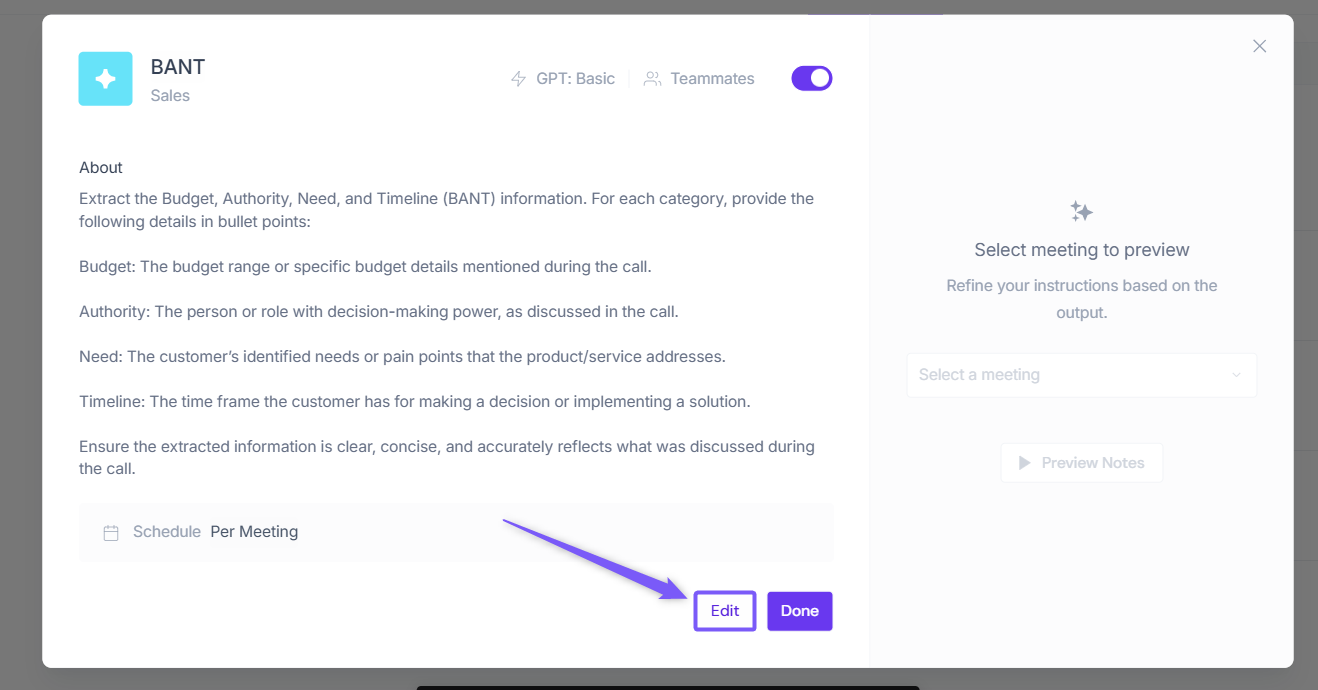
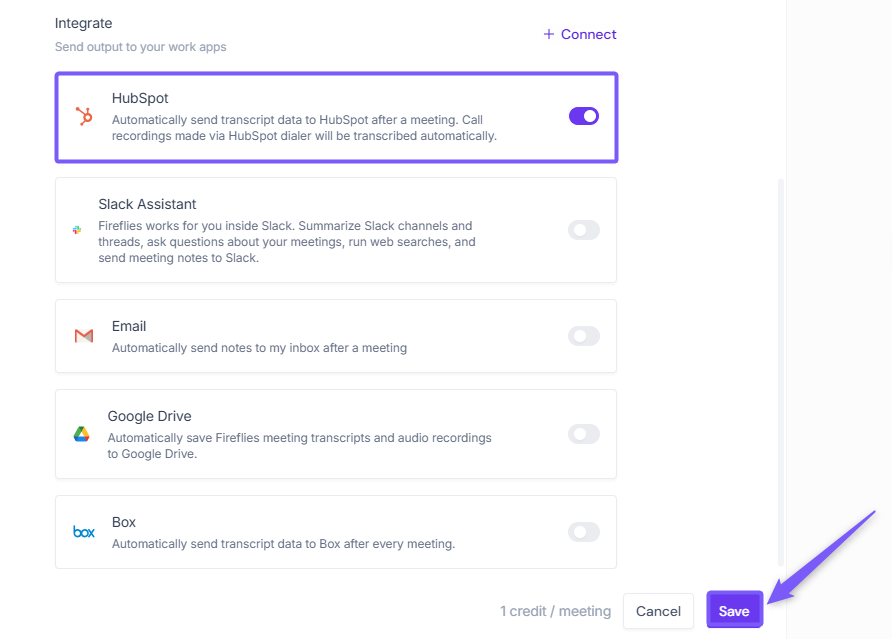
Scroll down inside the skill settings, and you’ll see the Integrations section. Already connected will appear at the top as tiles.
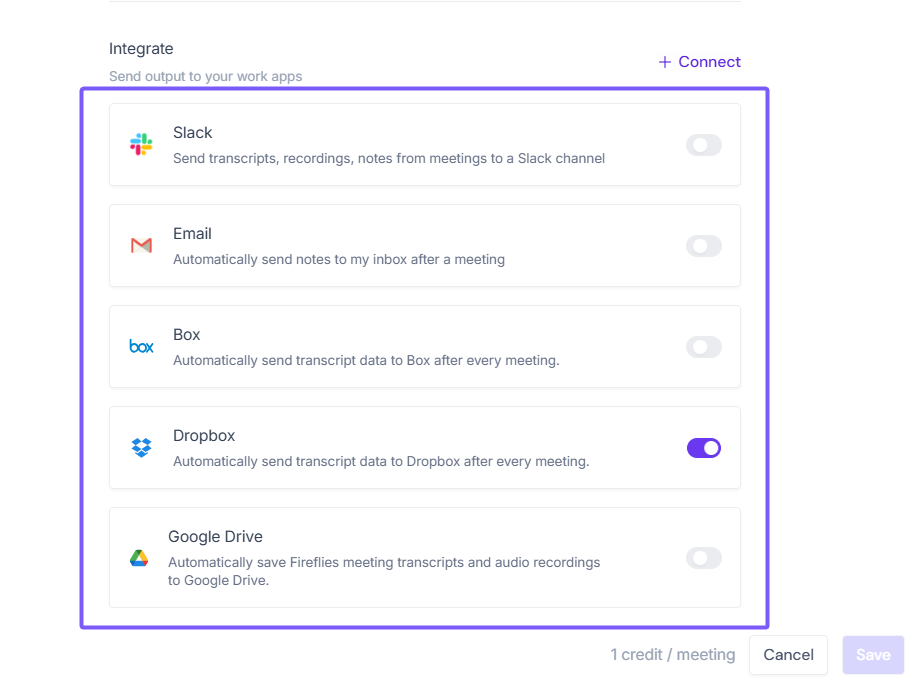
Note: Only active integrations will be listed in the integrations tab.
Step 4: Click Connect to view all supported integrations.
Any integrations you haven’t connected yet will appear in the dropdown—just select one to connect it in a single click.
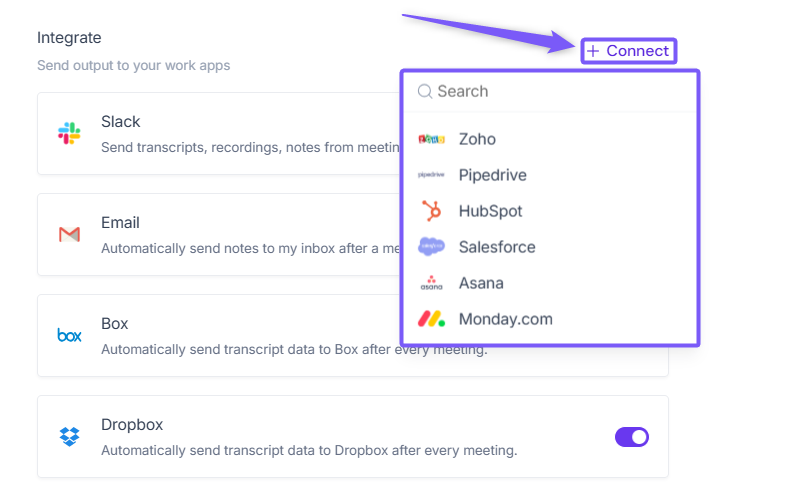
Haven’t connected to HubSpot yet? Follow the HubSpot + Fireflies integration guide to set it up before continuing.
Step 5: You can also configure HubSpot settings directly from this screen.
Simply toggle ON where you want the AI Skill output to go (Contacts or Deals), select the pipeline and stage if needed, and click Save.
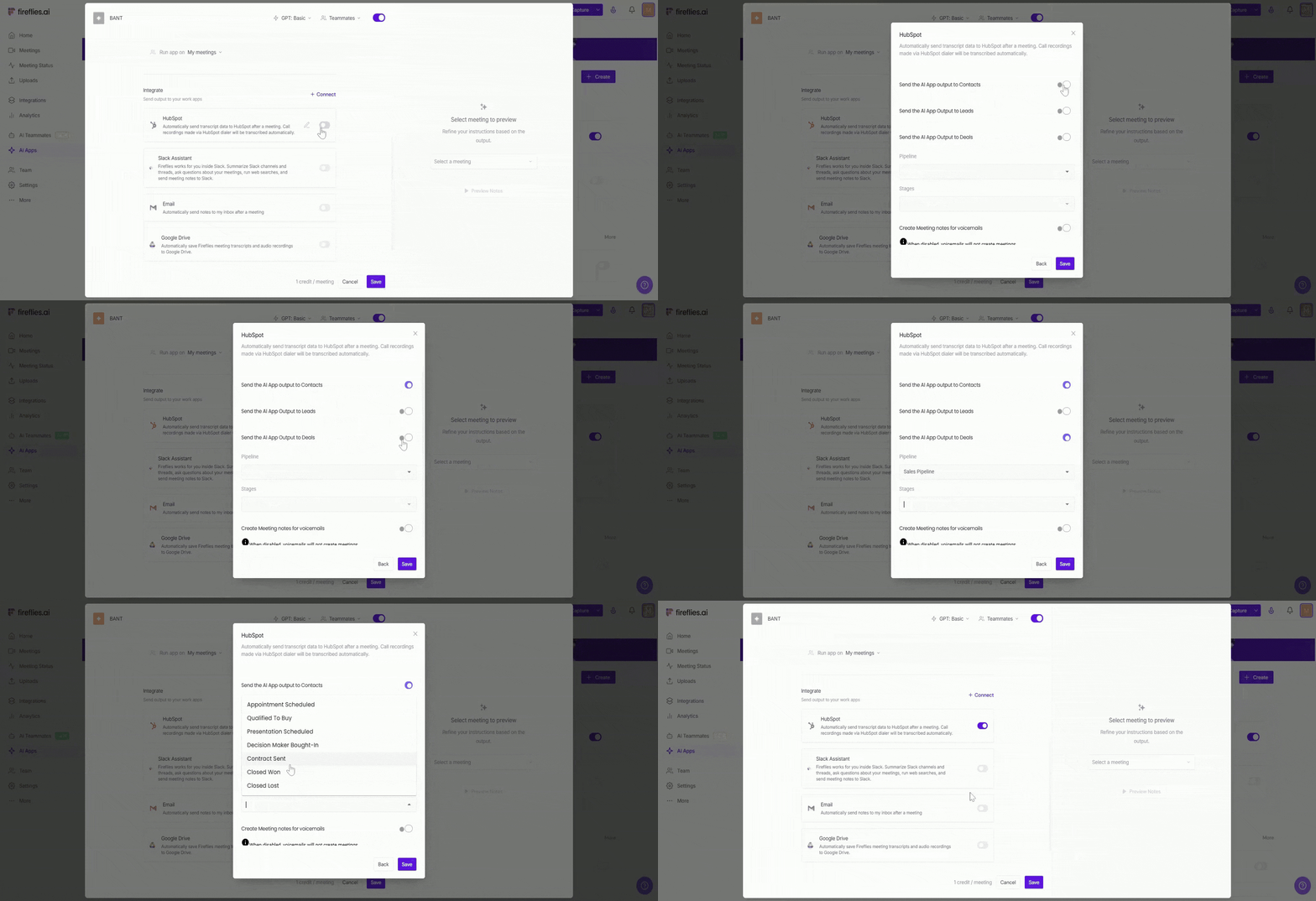
This makes it easy to control where AI-generated notes are sent without leaving the AI Skill setup.
Step 6: Click on the Save button to apply your settings and start sending AI Skill outputs to HubSpot.
📍 How to View AI Skill Notes in HubSpot
After the AI Skill runs and sends data to HubSpot:
Open HubSpot.
Go to Contacts (or Deals, if you chose that option).
Open the relevant record.
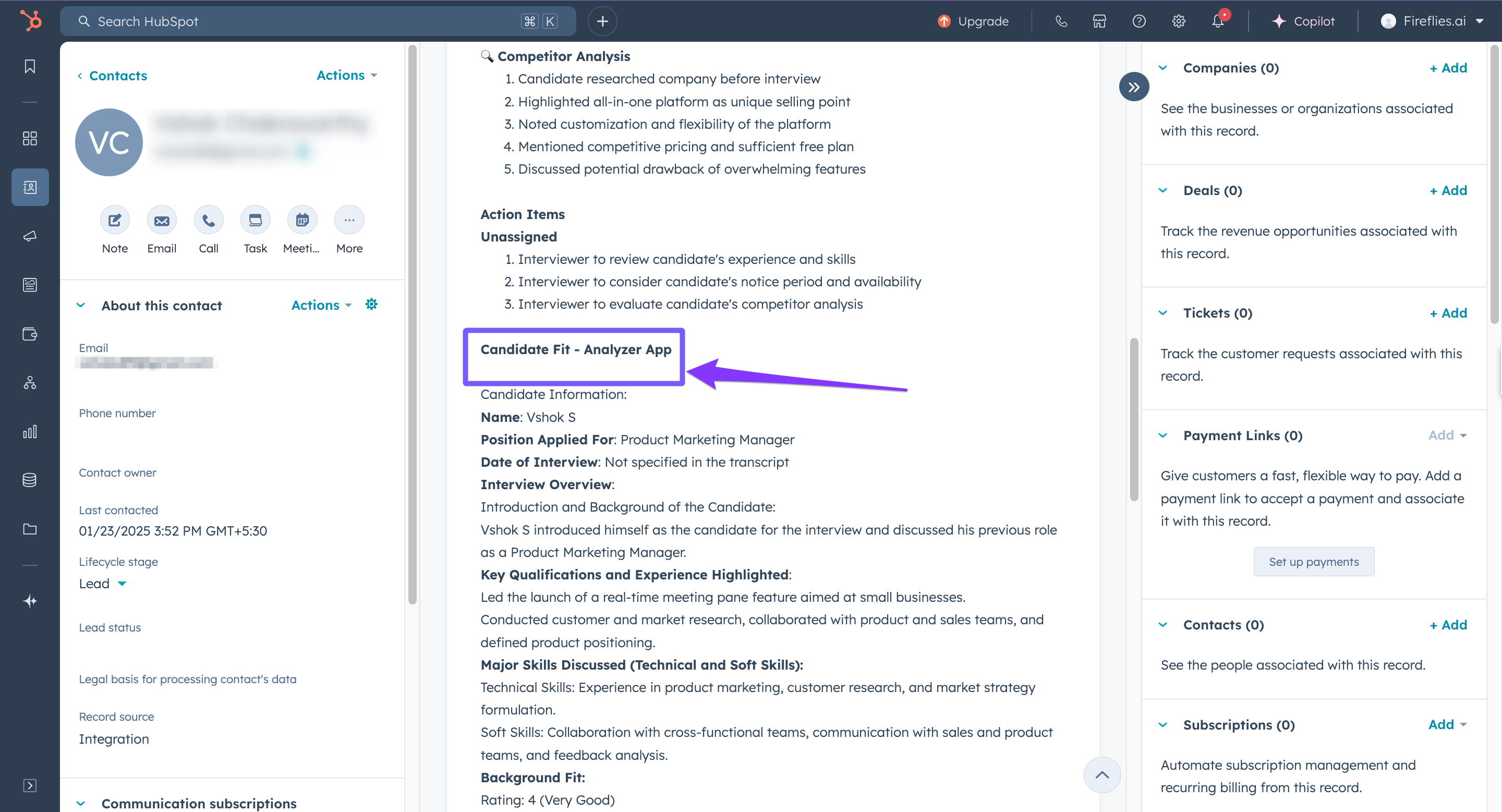
Check the Activities timeline and click Notes.
You’ll see the AI Skill–generated output saved there as a note.
📚 Related Guides
How to integrate HubSpot with Fireflies -> Set up and manage the main HubSpot + Fireflies integration.
Save meeting notes under HubSpot Contacts -> Automatically log meeting summaries and transcripts under contact records.
Save meeting notes under HubSpot Deals ->Attach meeting insights directly to your sales deals.
Use Fireflies App Cards in HubSpot -> View Fireflies insights directly inside HubSpot records.